N-630 - NAS ST Lab - Free user manual and instructions
Find the device manual for free N-630 ST Lab in PDF.


User questions about N-630 ST Lab
0 question about this device. Answer the ones you know or ask your own.
Ask a new question about this device
Download the instructions for your NAS in PDF format for free! Find your manual N-630 - ST Lab and take your electronic device back in hand. On this page are published all the documents necessary for the use of your device. N-630 by ST Lab.
USER MANUAL N-630 ST Lab
PCIe 4-Port SFP Gigabit Network Adapter
User Manual
Ver. 1.00
All brand names and trademarks are properties of their respective owners.
Contents:
Chapter 1: Introduction ...... 3
1.1 Product Introduction ...... 3
1.2 Features .... 3
1.3 Requirements 4
1.4 Package Contents .... 5
Chapter 2: Getting Started .... 5
2.1 Hardware Layout .... 5
2.2 Hardware Installation .... 6
2.3 Driver Installation ...... 6
2.3.1 Installation for Windows 6
2.3.2 Installation for Linux 7
2.4 Verifying the installation 8
2.4.1 Verifying for Windows...... 8
2.4.2 Verifying for Linux 10
Chapter 1: Introduction
1.1 Product Introduction
This PCIe 4-Port SFP Gigabit Network Adapter is a high-performance PCI Express Ethernet adapter that delivers up to 1000 MB/s Ethernet over twisted-pair category 5 or better cabling. Using the SFP transceiver of your choice, you can connect your PCI Express-based server or workstation directly to your 1G fiber optic network.
1.2 Features
- Quad port full height 1G adapter
● Supports common 1G SFP optical and Direct Attached Copper modules - EEE (Energy Efficient Ethernet)
- Up to 9K Jumbo Frames
- IP, TCP and UPD checksum offloading (IPv4, IPv6) capabilities
● Designed to meet PCI Express Specification Revision 2.0 -
Four lanes (x4) PCI Express compatible with x8 and x16 PCI Express slots
-
IEEE 802.1Q Tagged VLAN
- Intel PROSet Utility for Microsoft Device Manager
1.3 Requirements
Hardware
The following system specs are recommended minimum
- PCIe slot: Available 4-Lane PCI-Express slot Gen 2.0 or later
- Processor: Quad Core 3.0GHz or higher
● RAM: 4GB memory or higher
Software
Operating systems supported (32/64 bits)
- Windows 7
● Windows Server 2008 R2 - Windows 8.1
● Windows Server 2012 R2
● Windows Server 2016 - Windows 10
- Linux 3.16 or later
1.4 Package Contents
● 1 x PCIe 4-Port SFP Gigabit Network Adapter
- 1 x Driver CD
- 1 x User Manual
Chapter 2: Getting Started
2.1 Hardware Layout
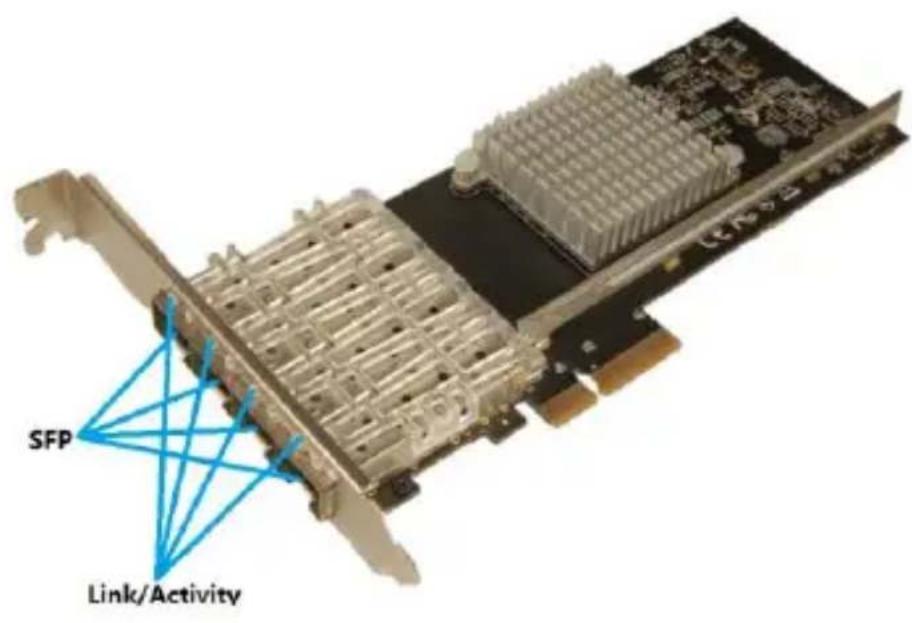
2.2 Hardware Installation
- Turn off the power to your computer.
- Unplug the power cord and remove your computer's cover.
- Remove the slot bracket from an available PCIe slot.
- To install the card, carefully align the card's bus connector with the selected PCIe slot on the motherboard. Push the board down firmly.
- Replace the slot bracket's holding screw to secure the card.
- Secure the computer cover and reconnect the power cord.
2.3 Driver Installation
The following section shows you how to install PCIe 4-Port SFP Gigabit Network Adapter driver on different operating systems.
2.3.1 Installation for Windows


Insert the provided CD into your disk drive. The CD-ROM will start automatically. The following screen will show up and please click “Install Driver”.
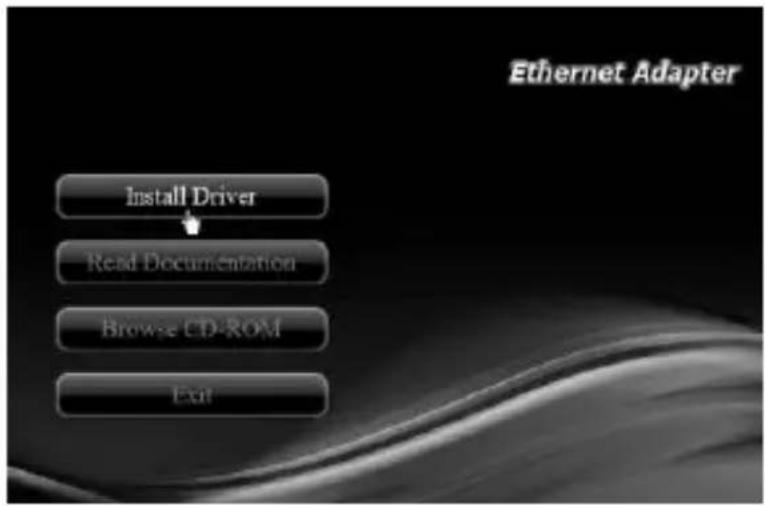
*Note: Actual image may vary
Note: If the install program doesn't run automatically, please locate and double-click on the Autorun.exe file in the CD to launch the install program.

Please click "PCIe Intel" to start the installation.

Follow the instructions on screen to install the driver.
2.3.2 Installation for Linux
- Insert the provided CD into your CD-ROM drive.
- Extract the compressed driver source file to a certain directory by the following command: (Please copy the driver file “ixgbe-x.x.x.tar.gz” from the CD folder “.\ Driver\Intel\ PRO1000\LINUX” to a certain folder on hard drive)
# tar xf ixgbe-x.x.x.tar.gz
- Now, the driver source files should be extracted under the current directory. Executing the following command to compile the driver:
make
- If the compilation is well, the ixgbe-x.x.x.ko will be created under the current directory.
- If you want to use modprobe command to mount the driver, executing the following command to install the driver into your kernel:
make install
2.4 Verifying the installation
2.4.1 Verifying for Windows
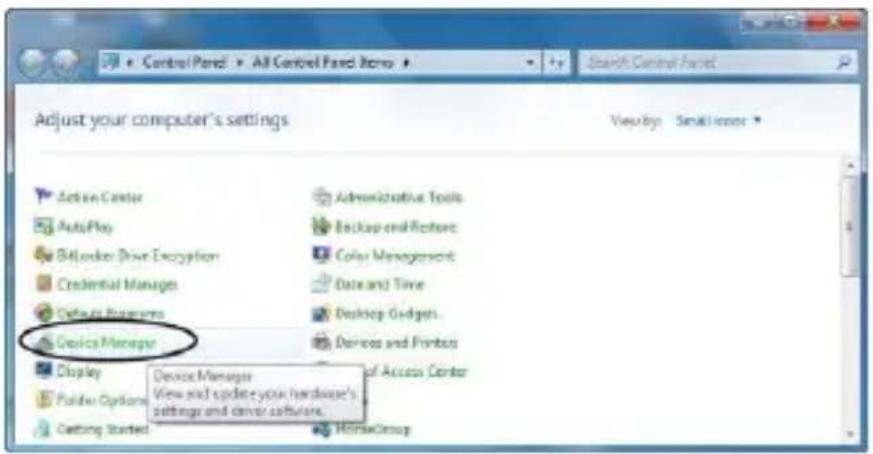
- Click on the “Device Manager” tab in the Windows Control Panel.
Start > Control Panel > Device Manager
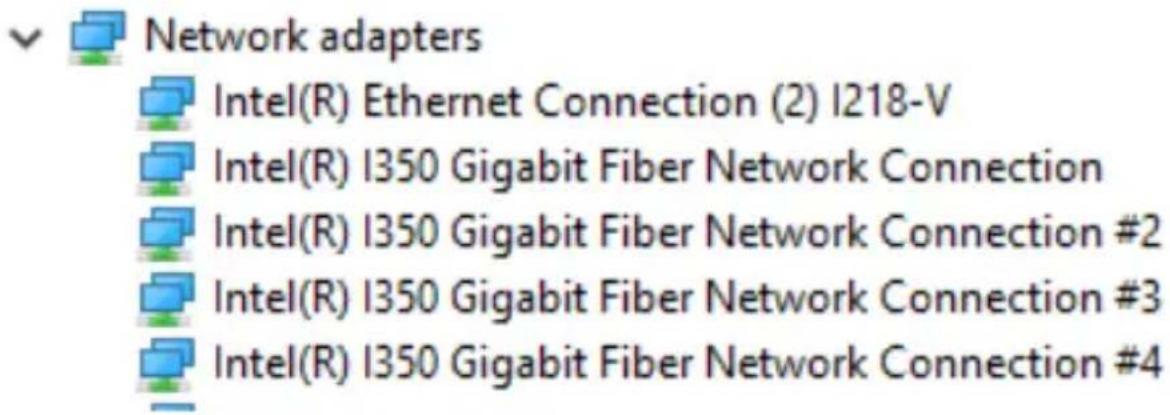
- Entry “Network adapters” item, and you can read “Intel(R) I350 Gigabit Fiber Network Connection” in the Device Manager.
2.4.2 Verifying for Linux
- You can check whether the driver is loading by using following commands:
# lsmod | grep
# ifconfig -a
If there is a device name, ethX, shown on the monitor, the linux driver is load. Then, you can use the following command to activate the ethX.
# ifconfig ethX up, where X=0,1,2,...