Air 5.5 - Smartphone Unnecto - Free user manual and instructions
Find the device manual for free Air 5.5 Unnecto in PDF.


| Product Type | Smartphone |
| Brand | Unnecto |
| Model | Air 5.5 |
| Dimensions | 152 x 76 x 8 mm |
| Weight | 180 g |
| Display | 5.5-inch IPS LCD, 720x1280 pixels |
| Operating System | Android 7.0 Nougat |
| Processor | Quad-core 1.3 GHz |
| RAM | 2 GB |
| Internal Storage | 16 GB, expandable via microSD up to 128 GB |
| Rear Camera | 8 MP with autofocus and LED flash |
| Front Camera | 5 MP |
| Battery | 3000 mAh Li-Ion, removable |
| Network | 4G LTE, 3G, 2G |
| Connectivity | Wi-Fi 802.11 b/g/n, Bluetooth 4.0, GPS |
| Sensors | Accelerometer, proximity, light |
| SIM | Dual SIM (Micro-SIM) |
| Audio Jack | 3.5 mm |
| Charging Port | Micro USB 2.0 |
| Color Options | Black, White |
Frequently Asked Questions - Air 5.5 Unnecto
User questions about Air 5.5 Unnecto
0 question about this device. Answer the ones you know or ask your own.
Ask a new question about this device
Download the instructions for your Smartphone in PDF format for free! Find your manual Air 5.5 - Unnecto and take your electronic device back in hand. On this page are published all the documents necessary for the use of your device. Air 5.5 by Unnecto.
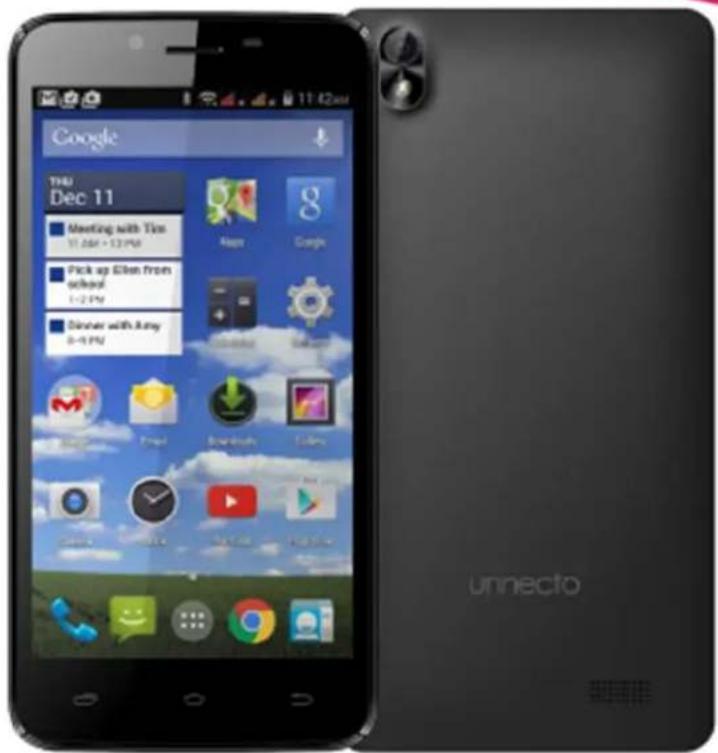
USER MANUAL Air 5.5 Unnecto
natural_image
Abstract geometric star-like shape composed of colorful triangular facets (no text or symbols)unnectò
Air 5.5

Contents
Safety Precautions ....3
Overview....4
Installing and Removal of the SIM Card....5
Installing and Removal of the Micro SD Card....6
Battery Use....6
Battery Charging 6
Starting your device for the first time ....6
Dialing Calls 6
SIM Management 6
Mobile Networks 6
Wireless Update....6
Play Store ....7
FCC....8
Specifications of Battery and Charger
Battery: Li-ion 3.8 V|2500 mA
Max Charging Voltage: 4.35 V
Charger: Input: 100-240 VAC|50/60 Hz |180 mA
Output: DC 5.0 V|1000 mA
Safety Precautions
Read these simple guidelines. Breaking the rules may be dangerous or illegal. Further detailed information is given in this manual.
ROAD SAFETY
Do not use the phone while you are driving. Park the vehicle before using your phone.
SWITCH OFF IN AIRCRAFT
Mobile device may cause harmful interference so turn off your mobile device before boarding an airplane.
SWITCH OFF IN HOSPITALS
Follow any restrictions or rules. Switch off the phone near medical equipment.
SWITCH OFF WHEN REFUELING
Switch off the phone at a refueling point or any fuel or chemicals places.
SWITCH OFF NEAR BLASTING POINT
Don't use the phone where blasting is in progress. Observe restrictions, and follow any regulations or rules.
INTERFERENCE
All wireless phones may be susceptible to interference, which could affect the performance.
USE NORMALLY
Use in the normal position explained in the product documentation. Don't touch the antenna unnecessarily.
ENHANCEMENTS AND BATTERIES
Use only the approved enhancements and batteries. Do not connect incompatible products.
EMERGENCY CALLS
Turn on your phone and keep it in service areas, dial emergency phone numbers and then press send key to make a call.
KEEP AWAY FROM CHILDREN
Keep your phone and its accessories away from children.
1. Overview
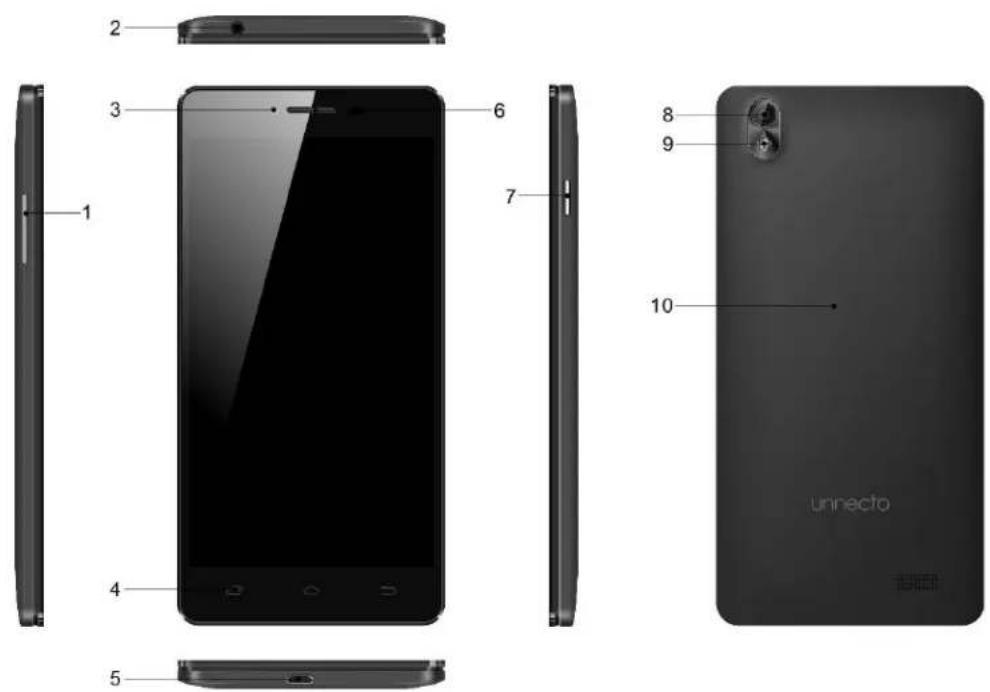
1 -Volume Keys
6- Receiver
2 - Earphone Jack
7 - Power Key
3 - Front Camera
8-Back Camera
4 - Capacitive Buttons
9 - Flash Light
5 - Micro USB Port
10 - Back Cover
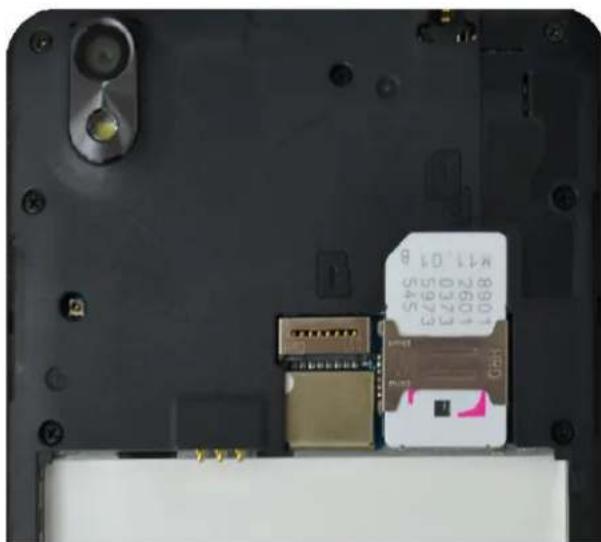
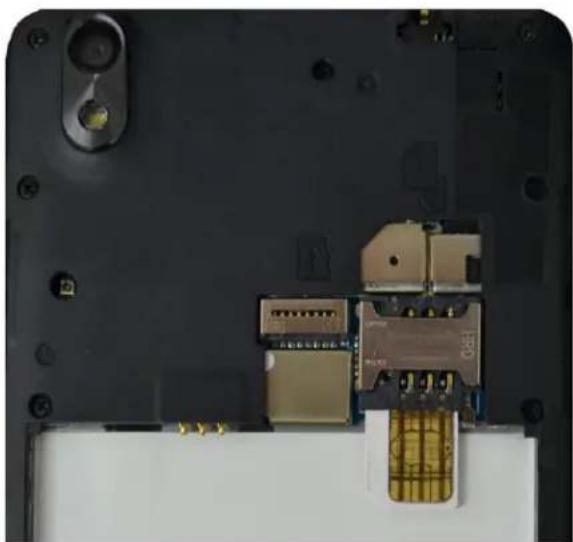
2. Installing and Removal of the SIM Card
Switch off the phone and remove the battery.
Insert the SIM Card into the designated SIM 1 or SIM 2 slot.
To remove the SIM Card; turn off the phone; remove the battery; then remove the SIM Card from the SIM Card slot.
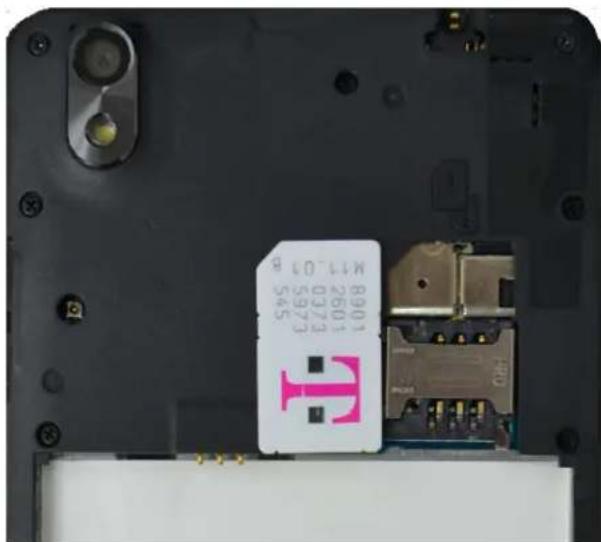
natural_image
Close-up of a black electronic device with a white T-shaped component and metallic components (no visible text or symbols)Full SIM Orientation
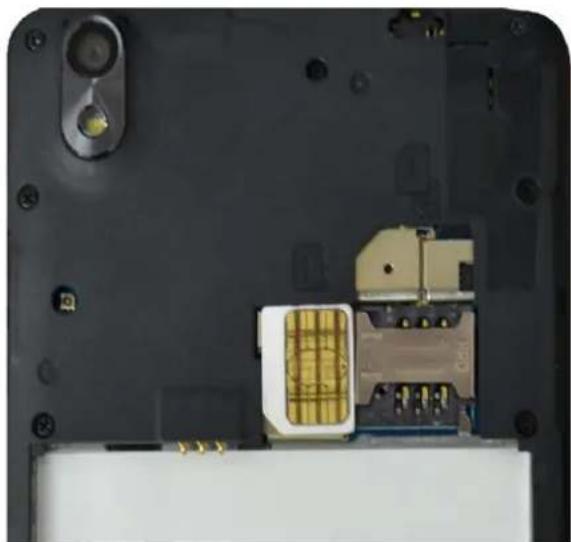
natural_image
Close-up of a device's internal components, including a gold-colored connector and illuminated ports (no visible text or symbols)Micro SIM Orientation
natural_image
Close-up of a laptop's front panel showing internal components including USB drive, GPIO chip, and connector (no readable text or symbols)Full SIM Card Install
natural_image
Close-up of a laptop's front panel showing internal components and connectors (no visible text or symbols)Micro SIM Card Install
3. Installing and Removal of the Micro SD Card
➢ Turn off phone before inserting or removing the Micro SD Card.
To insert, slide the Micro SD Card into the Micro SD Card slot (Micro SD Card facing up), located inside the back of the phone.
To remove, pull the Micro SD Card out of the slot.
4. Battery Use - Installation and Removal of the Battery
➢ Turn off the phone before removing the battery.
Remove the back cover to access the battery.
Place the battery into the phone; aligning the battery pins to the phone's pins.
To remove the battery, lift up the crease on the corner of the phone.
5. Battery Charging
Plug the provided charger into a standard wall outlet.
Plug the Micro USB charger into the USB port of the phone.
When the phone is fully charged; unplug the charger from the standard wall outlet and from the phone.
If the phone automatically powers off or the battery indicator is low; then you should immediately charge the phone.
6. Starting your device for the first time
Make sure one or two SIM cards are inserted before powering on the phone.
Make sure the battery is charged for at least 30 minutes before the phone is powered on.
- Create or sign in an existing Google account for access to the Android features.
7. Dialing Calls
➢ Press the Phone Icon on the phone.
Input the phone number; press the dial key to make the call.
Default call setting is on "Always ask". For outgoing calls, a prompt will ask you to select SIM 1 or SIM 2. The default can be changed in the SIM Management Settings.
8. SIM Management
SIM Management is located in Settings.
You are able to manage SIM 1 and/or SIM 2 Call, Data, and Roaming preferences.
9. Mobile Networks
Mobile Networks are located in Settings-> More...-> Mobile Network
This setting allows you to select the preferred SIM Card for the 3G Data connection.
10. Wireless Update
Wireless Updates are located in settings-> About Phone -> Wireless Update.
If available, this will update the phone's firmware.
11. Play Store
- Create or sign in an existing account for access to the Play Store.
Play Store is used to download/update Applications to the phone.
FCC
FCC RF Exposure Information and Statement
The SAR limit of USA (FCC) is 1.6 W/kg averaged over on one gram of tissue.
Device types: U905 (FCCID:2ADR3U905) has also been tested against this SAR limit. The highest SAR value reported under this standard during product certification for use at the ear is 0.262 W/kg and when properly worn on the body is 1.481 W/kg. This device was tested for typical body-worn operations with the back of the handset kept 1.0 cm from the body. To maintain compliance with FCC RF exposure requirements, use accessories that maintain a 1.0 cm separation distance between the user's body and the back of the handset.
The use of belt clips, holsters and similar accessories should not containmetallic components in its assembly. The use of accessories that do not satisfy these requirements may not comply with FCC RF exposure requirements, and should be avoided.
This device complies with part 15 of the FCC rules. Operation is subject to the following two conditions: (1) this device may not cause harmful interference, and (2) this device must accept any interference received, including interference that may cause undesired operation.
NOTE: The manufacturer is not responsible for any radio or TV interference caused by unauthorized modifications to this equipment. Such modifications could void the user's authority to operate the equipment. This equipment has been tested and found to comply with the limits for a Class B digital device, pursuant to part 15 of the FCC Rules. These limits are designed to provide reasonable protection against harmful interference in a residential installation. This equipment generates uses and can radiate radio frequency energy and, if not installed and used in accordance with the instructions, may cause harmful interference to radio communications. However, there is no guarantee that interference will not occur in a particular installation. If this equipment does cause harmful interference to radio or television reception, which can be determined by turning the equipment off and on, the user is encouraged to try to correct the interference by one or more of the following measures:
- Reorient or relocate the receiving antenna.
- Increase the separation between the equipment and receiver.
-Connect the equipment into an outlet on a circuit different from that to which the receiver isconnected. - Consult the dealer or an experienced radio/TV technician for help.
The user's manual or instruction manual for an intentional or unintentional radiator shall caution the user that changes or modifications not expressly approved by the party responsible for compliance could void the user's authority to operate the equipment. In cases where the manual is provided only in a form other than paper, such as on a computer disk or over the Internet, the information required by this section may be included in the manual in that alternative form, provided the user can reasonably be expected to have the capability to access information in that form.
Contenido
natural_image
Close-up of a device's internal components, including a gold-colored connector and black plastic casing (no visible text or symbols)Micro SIM Orientation
natural_image
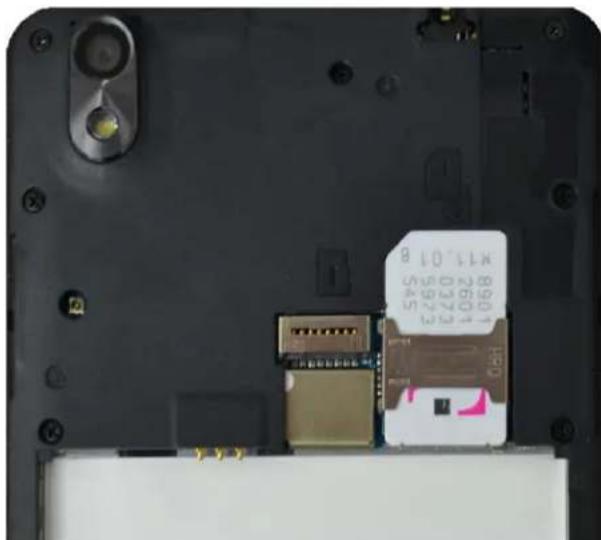
Close-up of a computer motherboard showing a connector, socket, and drive module (no readable text or symbols)Full SIM Card Install
natural_image
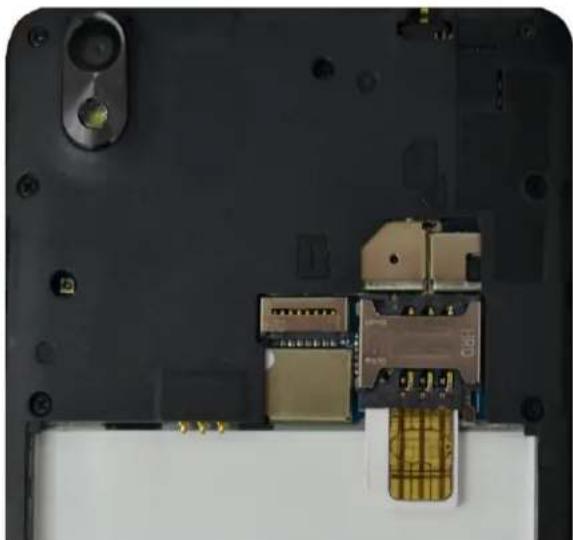
Close-up of a laptop's front panel showing internal components and connectors (no visible text or symbols)Micro SIM Card Install