Soul - Smartphone Keneksi - Free user manual and instructions
Find the device manual for free Soul Keneksi in PDF.


User questions about Soul Keneksi
0 question about this device. Answer the ones you know or ask your own.
Ask a new question about this device
Download the instructions for your Smartphone in PDF format for free! Find your manual Soul - Keneksi and take your electronic device back in hand. On this page are published all the documents necessary for the use of your device. Soul by Keneksi.
USER MANUAL Soul Keneksi
natural_image
Front view of a black smartphone with glossy screen and control buttons at the bottom (no visible text or symbols)
natural_image
Pure vertical line drawing without any text, numbers, or symbols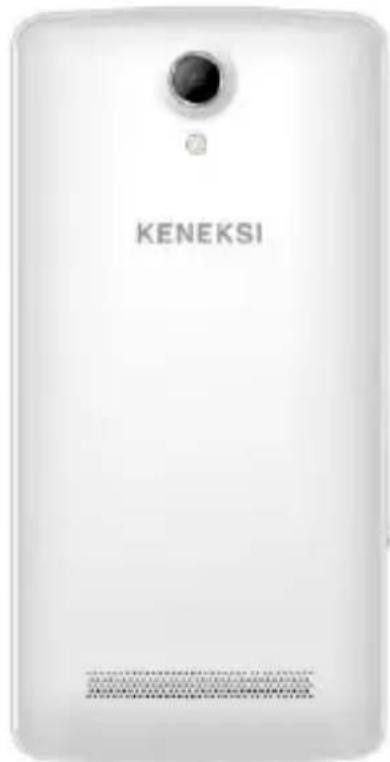
natural_image
White KENEKSI smartphone with a camera lens (no visible text or symbols on body)Safety requirements
Please read these instructions carefully. Improper use of the device is dangerous, and in some cases is illegal. More information is given in this user's guide.
Electrical shock, fire or explosion prevention
- Use only genuine batteries and chargers.
- Do not touch the device with wet hands.
- Turn your phone off when in any area with a potentially explosive atmosphere (gas stations, tanks and containers with highly flammable substances).
- Do not use a battery charger with a damaged power cable or connectors.
- Avoid bending and gripping a power cable.
- Don't use an abnormal battery, such as leakage, swelling, deformation, etc.
- Do not expose battery pack to direct sunlight (fire).
- Do not place it near any heat source that emits large amounts of heat.
- Do not use the device while charging.
- NEVER use your phone outdoors during a thunderstorm-unplug the base from the telephone line and the mains socket when there are storms in your area.
- Do not place the telephone in microwave ovens.
- Do not leave your phone in a hot car as the temperature in the cabin can reach 80^ C which can cause an explosion of the device.
- Do not try to repair the phone. The repairs should be performed by a qualified technician.
Safety rules when using the phone and accessories.
Pacemaker
Keep your cellphone at least 15 cm from your pacemaker. Turn off your phone immediately, if you have any reason to suspect that interference is occurring with your pacemaker.
Other medical devices
If you use any electronic medical device, consult its manufacturer if it is subject to the influence of the RF signal. Perhaps your doctor will help you to get this information.
Health care facilities
Switch off your phone in health care facilities if it is prohibited to use the device. Health care facilities can be equipped with devices to be affected by the RF signal.
Vehicles
Do not leave the phone near car airbags, this can lead to serious injury when airbag deployment.
It is not recommended to use the device while driving, and in some countries it is even illegal.
Vehicle's electronic systems can be affected by RF signals. Consult the manufacturer of your vehicle or its representative.
Airplane
Turn off your cell phone before boarding any airplane. If turned on, the phone might interfere with airline avionics.
Headphones
Listening to sounds at high volume levels might cause permanent hearing loss. Use only the minimum volume during a call or listen to audio. When making a call or listening to audio use the minimum sufficient level of volume.
Battery maintenance information
- It is not necessary to discharge the battery completely before recharging.
- Use only genuine batteries and chargers.
- Do not disassemble or open, crush, bend or deform, puncture or shred the battery. A damaged battery can cause serious injury.
- Keep the battery contacts on the circuit and metallic conductive objects. Do not short circuit a battery or allow metallic conductive objects to contact battery terminals.
- Promptly dispose of used batteries in accordance with local regulations.
- Keep your battery out of the reach of small children and pets.
- Do not drop your device or battery. If you drop the device on a hard surface and detect any damage, contact your authorized service center.
- Use of an incorrect battery can result in ignition or explosion of the battery.
Others
- Keep your phone, and all parts and accessories, out of the reach of small children and pets.
- All magnetic objects (such as credit cards, magnetic media, etc.) should be kept outside the device. This might damage both the items above and the phone itself.
- Long telephone conversation might cause poor quality of the speaker's sound.
- When it is not being used, and is not expected to be used for extended periods of time, store the device in a safe place.
- When used near a TV, radio set, etc., the device efficiency might be affected.
- Do not use the phone if the antenna is damaged. Contact an Authorized Service Center for repairs.
- Do not immerse your phone in water. If this happens, remove the battery immediately. If the phone does not work, take it to an Authorized Service Centre.
- Do not paint your phone.
- When you use the phone in public places, set the ringtone to vibration so as not to disturb others.
- Do not use the device where it is prohibited.
- Do not turn your phone on or off when putting it near your ear.
- Use accessories, such as earphones and headsets, with caution. Check cable before using.
- The charger has been designed for indoor use only.
-
Never store your phone in settings that may expose it to temperatures less than -20^ or greater than 50^ .
-
Do not use harsh chemicals (such as alcohol, benzene, thinners, etc.) or detergents to clean your phone.
- Do not drop, strike, or shake your phone severely. Such actions may harm the internal circuit boards of the phone.
- Always use genuine accessories. Failure to do this may void your warranty.
- Only authorized personnel should service the phone and its accessories. Faulty installation or service may result in accidents and consequently invalidate the warranty.
- Information stored in your phone may be deleted due to improper use, repair or upgrade of the phone. Before formatting the memory card, remember to make backup copies of all important data stored on the device. The manufacturer's warranty does not cover loss of data resulting from user actions.
- Save one or more emergency calls within your area to call to an emergency service if necessary, even if your phone is blocked. In some cases, you can not make a call to emergency services, for example, if there is no signal or a cell phone signal is blocked.
Warning! Misuse of the cell phone could cause bodily injury or even death.
About the guide
Thank you for having bought the KENEKSI cell phone. This product is a modern electronic device. Its disassembly, adjustment, or repair without the
appropriate knowledge and observance of safety precautions may result in damage and serious injury.
Please read this guide before using the device to ensure safe and proper use.
Descriptions are based on the device's default settings.
Images and screenshots may differ in appearance from the actual product.
All informations and images used in the guide are actual by the time of the guide writing, and are subject to change without prior notice. For the latest version of the guide, refer to the Keneksi website - www.keneksi.com
Additional features and services depend on a cell phone model, software, or a service provider.
These instructions are based on Google Android OS and may not be suitable for other OS.
The manufacturer is not responsible for losses that result from the phone damage, or the software failure. The user is solely responsible for the timely backup of important data.
Applications and their functions may vary by country, region, or hardware specifications. Keneksi is not liable for performance issues caused by applications from any provider other than Keneksi.
Update the phone software can be found on the website www.keneksi.com
Save the User's guide for future reference.
Key Information
Use only accessories approved by Keneksi. Availability of all accessories may vary from the above ones and depend on those available in the region.
Other accessories may not be compatible with your device.
Installing the SIM or SD card
- Remove the back cover
- Install the SIM cards into the slots according to the scheme on the phone case (above the SIM card slots).
- Install the SD card into the slot according to the scheme on the phone case (above the SD card slot).
- Insert the battery so that the metal battery contacts touch the contacts in the phone.
- Replace the back cover.
Getting started
Charging the battery
Charge the battery before using it for the first time. Use the charger to charge the battery. A computer can be also used to charge the device by connecting them via the USB cable.
Use only Keneksi – approved chargers, batteries and cables. If you use inappropriate chargers, batteries or cables, it may cause the battery to explode or damage the device.
When the battery power is low, the device emits a warning tone and displays a low battery power message. The battery icon changes its color to red. When the battery is low, the phone automatically turns off. Charge the battery to turn the phone on.
Charging with the charger:
- Connect the charger plug into the phone connector;
-
Plug the charger into an electrical outlet.
-
The device can be used while it is charging, but it may take longer to fully charge the battery.
- While charging, the device may heat up. This is normal and should not affect the device's lifespan or performance.
-
If the device receives an unstable power supply while charging, the touch screen may not function.
-
After fully charging, disconnect the device from the charger.
Do not remove the battery if:
• the phone is turned on
• the charger is connected to it
- the phone is connected to the PS via a USB cable
Charging with a data cable:
- Before charging turn off the PC.
- Connect one end of the data cable (microUSB) the the phone connector.
-
Connect the other end to the USB port on the PC.
-
Disconnect the cable when the battery is fully charged.
Turning the device on and off
Press and hold the Power button for a few seconds to turn on the device.
To turn off the device, press and hold the Power button until a pop-up dialog
appears, and then tap «Power off».
Sleep mode
To turn Sleep mode press the Power button. If pressed again, the system returns to an ordinary mode.
Reloading
To reload press and hold the Power button for a few seconds, in a popup window choose «Reload».
Screen timeout mode
Once you close or collapse all the applications, there will be Screen timeout. Tap « » to go to it from any menu.
Flick left or right on the Home screen to see another desktop.
If you do not touch the screen for a predetermined period of time and do not tap any buttons, the touch screen automatically switches off.
To set up the amount of time for the backlight of the touchscreen, in Screen timeout mode, on the Application screen, choose «Settings» - «Display» - «Sleep mode».
Return to the previous window or menu
To return to the previous window or menu from any window, tap ↩.
Enter the home menu
To enter the home menu (application list) tap
Status bar icons
Signal strength indicator
Wi-Fi On
Bluetooth
Warning
Battery power level
Airplain mode


Vibrate

New message
Connection to PC
Missed call
Headset connected
Alarm


Settings
Date and time
When the phone is in Screen timeout mode, on the Application screen tap
St up a date, time and other settings.
Adjusting the display brightness
To adjust brightness open the application list, tap «Settings» - «Display» - «Brightness».
Screen lock
You can protect your phone against an unauthorized use by setting a screen lock.
To set the lock screen in Screen timeout mode, on the Application screen, tap «Settings» - «Security» - «Screen lock».
Choose the screen lock method:
- «Slider» when turning on, the phone will ask for dragging the lock icon;
- «Face control» - when turning on, the phone will ask for a user's image;
- «Voice command» - when turning on, the phone will ask for a voice password;
- «Picture password » - when turning on, the phone will ask for a picture password;
- «PIN» - when turning on, the phone will ask for a PIN code.
Adjusting the volume
Tap the Volume button up and down to adjust the sound volume.
Swtitching to «Silent mode» and «Vibrate»
Tap and hold the Power button and then choose the desired mode.
Phone rigntone
In Screen timeout mode, on the Application screen; tap «Settings» - «Sound profiles» - «General» - «Voice call ringtone».
Choose the ringtone, save it.
Calls
Making a call
In Screen timeout mode, on the Application screen, choose « », enter the country code and the phone number.
When you receive a call, swipe « » to the right. To turn off the ringtone, use the Volume up and down keys.
When you receive a call, swipe « » to the left, to decline an incoming call.
Headset
When using a headset, you can answer incoming calls.
- When you receive a call, tap a headset key to answer the call.
- Tap and hold the Headset key to reject the call.
- Tap and hold the Headset key to end the call.
Call forwarding
Call forwarding allows switching incoming calls to the other phone number.
To make forwarding one should:
- Open the «Phone» application; enter «Settings» - «Voice call» (for voice calls) or «Video call» (for video calls) - «Call forwarding».
- Choose the forwarding parameter, enter then the forwarding number, and save the setting.
Call barring
The function allows setting call barring for the certain contact's phone numbers.
To set call barring one should:
Open the «Phone» application, enter «Settings» - «Voice call» (for voice calls) – «Video call» (for video calls) - «Call barring».
Parallel call
The function allows notifying the caller about incoming calls during the call.
Open the «Phone» application; enter «Settings» - «Voice call» - «Additional settings» - «Parallel call».
Messaging
Sending text messages (SMS)
In Screen timeout, on the Application screen, choose «Messages», tap «+» to create a message.
Enter a phone number or add from the Contacts by tapping « ». +
Enter a message, then tap «» to send the message.
Sending multimedia messages (MMS)
In Screen timeout mode, on the Application screen, choose «Messages», tap «» to enter a multimedia message.
Enter a phone number or add from the Contacts by tapping « ».+
You can use Bluetooth to send data over short distances (up to 10 m) without wire connection.
KENEKSI is not responsible for the loss, interception, or misuse of data sent or received via the Bluetooth feature. Always ensure that you share and received data with devices that are trusted and properly secured.
Turning on Bluetooth
In Screen timeout mode, on the Application screen, tap «Settings» - «Bluetooth».
Pairing with other Bluetooth devices
In Screen timeout mode, on the Application screen, tap «Settings» - «Bluetooth». Activated, the device will be searched automatically.
Having detected a Bluetooth device, paire with it.
Sending data via Bluetooth
Select a required file; choose then a «Bluetooth» sending method.
Search for a file and pair with a Bluetooth device.
Receiving data via Bluetooth
In Screen timeout mode, on the Application screen, tap «Settings» - «Bluetooth».
Set up visibility settings to search for your device. «Settings» - «Bluetooth» - «Options» - «Visibility».
In a prompt box enter a code, confirm it and receive the file.
Wi-Fi
The feature allows connecting to any wireless local area networks (WLAN) corresponding to IEEE 802.11 b/g/n standard. You can connect to Internet or to a network device wherever there is a wireless access point or “hotspot”.
Turning Wi-Fi on
In Screen timeout mode, on the Application screen, tap «Settings» - «Wi-Fi». Select a network, then enter the password to get a network access.
Attachments
Contacts
To view contacts, tap

Adding a new contact
Open the Application list, select «Menu», then tap

Tap at the lower right part of the of the «Contacts» window,
In the pop-up window select a storage place;
Enter the user's data to be saved;
To save the information, tap «Ready».
Setting a ringrone for a caller
Open the «Contacts» attachment.
Create a contact.
Select a storage place - «Phone» (if SIM is selected, the option is unavailable).
The data saved, go to the Contacts list.
Tap a contact. The contact data shown, tap a functional button to open the settings.
In a pop-up window select «Set a ringtone».
Black list (incoming call barring)
Open the «Contacts» attachment.
Create a contact.
Select a storage place - «Phone» (if SIM is selected, the option is unavailable).
The data saved, go to the Contacts list.
Tap a contact. The contact data shown, tap a functional button to open the settings.
In a pop-up window select «Black list».
To delete a contact from a «Black list» tap again the button.
Calendar
With this application, a user can create events, and set alarms to remind them.
Add an event
In Screen timeout mode, on the Application screen, tap .

Open a setting window, tap «New event».
Enter the details of the event, tap «Save».
Task
With this application, the user can enter a list of tasks performed or to be performed.
Create a task
In Screen timeout mode, on the Application screen, select «Task», tap «Create».
Enter a title, description and a date and then tap «Ready» to save the task.
Voice recorder
Record audio tracks
In Screen timeout mode, on the Application screen, select « ! ».
Speak ino the microphone.
Playback of recorded audio tracks
In Screen timeout mode, on the Application screen, select «Voice recorder».
Select «», select then a required note to be played.
Internet
Attention: Get the cost of Internet access services from your provider.
Webpages
In Screen timeout mode, on the Application screen, select the « 🎨 » icon. Enter URL address in the input field, tap «Search».
To zoom in or out, tap the screen twice.
To see open tabs, select Tabs.
To reload the current webpage, open «Settings», select «Update».
To add the current web page to the tab, open the settings, select «Add tab».
To search for a text on the page, open settings, select «Find on the page».
To change the Web browser settings, open the settings, select «Settings».
Camera
In Screen timeout mode, on the Application screen, select «Camera».
Set your preferences, point the lens towards the subject you want to photograph.
To zoom in double-tap the screen or place two fingers and spread them apart (move your fingers closer together to zoom out).
When the focus box turns green, the camera has focused on your subjects.
To view an image, tap the icon of the lower right corner.
To select another file, scroll left or right.
To send an image to another user, select the View image mode, in the upper
right corner select «Sending method».
Settings
To set the camera settings, open « »

Taking a video
In Screen timeout mode, on the Application screen, select «Camera».
Set the settings, point the lens towards the subject you wish to capture in your video.
To zoom in, double-tap the screen or place two fingers and spread them apart (move your fingers closer together to zoom out).
To view a video, tap the icon of the lower right corner.
To select another file, scroll left or right.
Video player
The «Video player» attachment allows palying different videos.
Buttons and functions

: Playback / Pause
: if tapped briefly, switch to another video file, if tapped long, rewind/forward;
: if tapped briefly you return to the previous window.
Audio player
The «Music» attachment allows playing different audio files.
Button functions

Artist – sorts audio files by artists

Album – sorts audio files by albums

Track – displays all audio files

Playlist – list of selected audio files
Button functions of the played track window
◀ / ▶ : if tapped briefly, the previous/ next track is played. If tapped long, the track rewinds / forwards;

: Playback / Pause

: Now playing

: Shuffle On/ Off

: Repeating / Repeating the current track is off.
Displaying song texts
When displaying the audio file, the text is displayed on the screen (text files are downloaded separately.)
Clock
Alarm
To set a new signal, in Screen timeout mode, on the Application screen, tap «Clock» - «Alarm». Set a time and period for the alarm to repeat.
To turn off a signal, when the alarm rings to the time, in a pop-up window drag an alrarm icon to the left.
Countdown timer
In Screen timeout mode, on the Application screen, select «Clock» - «Timer».
Set the start time for the countdown.
To start the countdown, select «Start».
To stop the countdown, select «Stop».
Stopwatch
In Screen timeout mode, on the Application screen, select «Clock» - «Stopwatch».
To start to time, tap «Start».
To save an intermediate interval, select «Interval».
To end, select «Stop».
Calculator
Use this application for simple or complex calculations.
File manager
The section describes a method of quick access to files.
In Screen timeout mode, on the Application screen select
« ». Select a file or a folder. Being in a folder, tap a Menu button.
To create a new folder select «Create» in the lower left corner.
To delete the file or a folder, select it, then tap «Delete».
To sort files or folders, open the menu and select «Sorting».
To display hidden files, open the menu and select «Show hidden files».
Screenshot
To take a screenshot, simultaneously tap and hold the Power button and Volume down button.
Basic setting sections
To enter the settings, open the application screen, select «

SIM management

SIM parameters setting
- Voice call
- Mobile data
- Video call
- Roaming
- SMS/MMS
Wi-Fi
« »Activate / deactivate the Wi-Fi feature
Wi-Fi settings when tapping the line, you will open Wi-Fi settings.
Bluetooth
Bluetooth settings, when tapping on the line, you open Bluetooth settings.
Data transfer
« When tapping, a traffic window opens.
Sound profiles
« ◆ » if tapped, a «Sound profiles» window opens. Here you can set sound parameters: call, keyboard, notification volume, etc.
Display
« ◦ » if tapped, a «Display» window opens. Here you can set display parameters, i.e. adjust brightness, change desktop wallpaper, set different themes, select the font size, enable / disable screen rotation, use «Sleep mode».
Phone memory
«» if tapped a «Memory» window you can receive information about the device internal memory, as well as of a removed memory card (Micro SD). You can clean the device and the SD card memory.
Power
«» iff tapped, a «Power» window opens. Here you can get information on the battery status.
Attachments
« » iff tapped, an «Attachments» window opens. Here you can get information on attachment status, possibility to move as well as to suspend attachment operation.
Security
«†» if tapped, a «Security» window opens. Here you can change the device security settings, i.e. set the screen lock, phone lock, SIM card lock, etc.
Language and keyboard
«A» iff tapped, a «Language and keyboard» window opens. Here you can set an interface language of the device, text input methods, set spell check function, etc.
Backup and reset
« » iff tapped, a «Backup and reset» window opens. Here you can backup, reset and restore factory settings.
Date and time
« Ⓤ » iff tapped, a «Date and time» window opens. Here you can set a date, time, select time zone, date and time format, turn on time zone autosetting.
About phone
If tapped, a «About phone» window opens. Here you can get info about the device, OS version, etc.