Dream - Smartphone Keneksi - Free user manual and instructions
Find the device manual for free Dream Keneksi in PDF.


User questions about Dream Keneksi
0 question about this device. Answer the ones you know or ask your own.
Ask a new question about this device
Download the instructions for your Smartphone in PDF format for free! Find your manual Dream - Keneksi and take your electronic device back in hand. On this page are published all the documents necessary for the use of your device. Dream by Keneksi.
USER MANUAL Dream Keneksi
Important Safety Precautions
Read these instructions. Breaking the rules may be dangerous or illegal. Further detailed information is given in this user guide.
WARNING! Violation of the instructions may cause serious injury or death.
- Never use an unapproved battery since this could damage the phone and/or battery and could cause the battery to explode.
- Never place your phone in a microwave oven as it will cause the battery to explode.
- Never store your phone in temperatures less than -4^ F or greater than 122^ F.
- Do not dispose of your battery by fire or with hazardous or flammable materials.
- When riding in a car, do not leave your phone or set up the hands-free kit near to the air bag. If wireless equipment is improperly installed and the air bag is deployed, you may be seriously injured.
- Do not use a hand-held phone while driving.
- Do not use the phone in areas where its use is prohibited. (For example: aircraft)
- Do not expose the battery charger or adapter to direct sunlight or use it in places with high humidity, such as a bathroom.
- Do not use harsh chemicals (such as alcohol, benzene, thinners, etc.) or
detergents to clean your phone. This could cause a fire.
-
Do not drop, strike, or shake your phone severely. It may harm the internal circuit boards of the phone.
-
Do not use your phone in high explosive areas as the phone may generate sparks.
-
Do not damage the power cord by bending, twisting, pulling, or heating. Do not use the plug if it is loose as it may cause a fire or electric shock.
-
Do not place any heavy items on the power cord. Do not allow the power cord to be crimped as it may cause electric shock or fire.
-
Do not handle the phone with wet hands while it is being charged. It may cause an electric shock or seriously damage your phone.
-
Do not disassemble the phone.
-
Do not place or answer calls while charging the phone as it may short-circuit the phone and/or cause electric shock or fire.
-
Make sure that no sharp-edged items such as animal's teeth or nails, come into contact with the battery. This could cause a fire.
-
Store the battery out of reach of children.
-
Be careful that children do not swallow any parts (such as rubber plugs, earphone, connection parts of the phone, etc.) This could cause asphyxiation or suffocation resulting in serious injury or death.
-
Unplug the power cord and charger during lightning storms to avoid electric shock or fire.
- Only use the batteries and chargers provided by KENEKSI. The warranty will not be applied to products provided by other suppliers.
- Only authorized personnel should service the phone and its accessories. Faulty installation or service may result in accidents and consequently invalidate the warranty.
- Program one or more emergency phone numbers, such as 911, that you can call under any circumstances, even when your phone is locked. Your phone's preprogrammed emergency number(s) may not work in all locations, and sometimes an emergency call cannot be placed due to network, environmental, or interference issues.
Tips on Efficient Operation
For your phone to operate most efficiently: Don't touch the antenna unnecessarily when the phone is in use. Contact with the antenna affects call quality and may cause the phone to operate at a higher power level than otherwise needed.
Driving
Check the laws and regulations on the use of wireless phones in the areas where you drive and always obey them. Also, if using your phone while driving, please observe the following:
- Give full attention to driving – driving safely is your first responsibility.
- Use hands-free operation, if available.
- Pull off the road and park before making or answering a call if driving conditions or the law require it.
Electronic Devices
Most modern electronic equipment is shielded from RF signals. However, certain electronic equipment may not be shielded against the RF signals from your wireless phone.
Pacemakers
The Health Industry Manufacturers Association recommends that a minimum separation of six (6) inches be maintained between a handheld wireless phone and a pacemaker to avoid potential interference with the pacemaker. These recommendations are consistent with the independent research by and recommendations of Wireless Technology Research.
Persons with pacemakers
- Should ALWAYS keep the phone more than six (6) inches from their pacemaker when the phone is turned ON
- Should not carry the phone in a breast Pocket Should use the ear opposite the pacemaker to minimize the potential for interference
- Should turn the phone OFF immediately if there is any reason to suspect that
interference is taking place
Other Medical Devices
If you use any other personal medical device, consult the manufacturer of your device to determine if it is adequately shielded from external RF energy. Your physician may be able to assist you in obtaining this information.
Health Care Facilities
Turn your phone OFF in health care facilities when any regulations posted in these areas instruct you to do so. Hospitals or health care facilities may use equipment that could be sensitive to external RF energy.
Vehicles
RF signals may affect improperly installed or inadequately shielded electronic systems in motor vehicles. Check with the manufacturer or its representative regarding your vehicle. You should also consult the manufacturer of any equipment that has been added to your vehicle.
Posted Facilities
Turn your phone OFF in any facility where posted notices so require.
Aircraft
Switch OFF your phone before boarding an aircraft.
Blasting Areas
To avoid interfering with blasting operations, turn your phone OFF when in a “blasting area” or in areas posted: “Turn off two-way radio”. Obey all signs and instructions.
Potentially Explosive Atmosphere
Turn your phone OFF when in any area with a potentially explosive atmosphere and obey all signs and instructions. Sparks in such areas could cause an explosion or fire resulting in bodily injury or even death. Areas with a potentially explosive atmosphere are often, but not always marked clearly. Potential areas may include: fueling areas (such as gasoline stations); below deck on boats; fuel or chemical transfer or storage facilities; vehicles using liquefied petroleum gas (such as propane or butane); areas where the air contains chemicals or particles (such as grain, dust, or metal powders); and any other area where you would normally be advised to turn off your vehicle engine.
For Vehicles Equipped with an Air Bag
An air bag inflates with great force. DO NOT place objects, including either installed or portable wireless equipment, in the area over the air bag or in the air bag deployment area. If in-vehicle wireless equipment is improperly installed and the air bag inflates, serious injury could result.
Safety Information
Please read and observe the following information for safe and proper use of your phone and to prevent damage. Also, keep the user guide in an accessible place at all times after reading it.
Caution! Violation of the instructions may cause minor or serious damage to the product.
Charger and Adapter Safety
- The charger and adapter are intended for indoor use only.
- Insert the battery pack charger vertically into the wall power socket.
- Use the correct adapter for your phone when using the battery pack charger abroad.
- Only use the approved battery charger. Otherwise, you may cause serious damage to your phone.
Battery Information and Care
- Please dispose of your battery properly or take it to your local wireless carrier for recycling.
- The battery doesn't need to be empty before recharging.
- Use only KENEKSI chargers specific to your phone model since they are designed to maximize battery life.
- Do not disassemble or open, crush, bend or deform, puncture or shred.
- Do not modify or remanufacture, attempt to insert foreign objects into the battery, immerse or expose to water or other liquids, expose to fire, explosion or other hazard.
- Only use the battery for the system for which it is specified.
- Only use the battery with a charging system that has been qualified with the system per this standard. Use of an unqualified battery or charger may present a risk of fire, explosion, leakage, or other hazard.
- Do not short circuit a battery or allow metallic conductive objects to contact battery terminals.
- Promptly dispose of used batteries in accordance with local regulations.
- Battery usage by children should be supervised.
- Avoid dropping the phone or battery. If the phone or battery is dropped, especially on a hard surface, and the user suspects damage, take it to a service center for inspection.
- Improper battery use may result in a fire, explosion or other hazard.
Explosion, Shock, and Fire Hazards
- Do not put your phone in a place subject to excessive dust and keep the minimum required distance between the power cord and heat sources.
- Unplug the power cord prior to cleaning your phone, and clean the power plug pin when it’s dirty.
- When using the power plug, ensure that it's firmly connected. If not, it may cause excessive heat or fire.
- If you put your phone in a pocket or bag without covering the receptacle of the
phone (power plug pin), metallic articles (such as a coin, paperclip or pen) may short-circuit the phone. Always cover the receptacle when not in use.
- Don’t short-circuit the battery. Metallic articles such as a coin, paperclip or pen in your pocket or bag may short-circuit the + and – terminals of the battery (metal strips on the battery) upon moving. Short-circuit of the terminal may damage the battery and cause an explosion.
- Do not disassemble or crush the battery. It may cause a fire.
General Notice
- Using a damaged battery or placing a battery in your mouth may cause serious injury.
- Do not place items containing magnetic components such as a credit card, phone card, bank book, or subway ticket near your phone. The magnetism of the phone may damage the data stored in the magnetic strip.
- Talking on your phone for a long period of time may reduce call quality due to heat generated during use.
- When the phone is not used for a long period of time, store it in a safe place with the power cord unplugged.
- Using the phone in proximity to receiving equipment (i.e., TV or radio) may cause interference to the phone.
- Do not use the phone if the antenna is damaged. If a damaged antenna contacts skin,
it may cause a slight burn. Please contact an KENEKSI Authorized Service Center to replace the damaged antenna.
- Do not immerse your phone in water. If this happens, turn it off immediately and remove the battery. If the phone does
not work, take it to an KENEKSI Authorized Service Center.
- Do not paint your phone.
- The data saved in your phone might be deleted due to careless use, repair of the phone, or upgrade of the software.
Please backup your important phone numbers. (Ringtones, text messages, voice messages, and pictures could also
be deleted.) The manufacturer is not liable for damage due to the loss of data.
- When you use the phone in public places, set the ringtone to vibrate so you don't disturb others.
- Do not turn your phone on or off when putting it to your ear.
- Use accessories, such as earphones and headsets, with caution. Ensure that cables are tucked away safely and do
not touch the antenna unnecessarily.
Warning! Important safety information
Avoiding hearing damage
Permanent hearing loss may occur if you use your phone and/or headset at a high
volume. Set the volume to a safe level. You can adapt over time to a higher volume of sound that may sound normal but can be damaging to your hearing. If you experience ringing in your ears or muffled speech, stop listening and have your hearing checked. The louder the volume, the less time is required before your hearing could be affected. Hearing experts suggest that to protect your hearing:
- Limit the amount of time you use your phone and/or headset at high volume.
- Avoid turning up the volume to block out noisy surroundings.
- Turn the volume down if you can't hear people speaking near you.
For information about how to set a maximum volume limit on your phone, see the features guide for your phone.
Using your phone safely
Use of your phone while operating a vehicle is not recommended and is illegal in some areas. Be careful and attentive while driving. Stop using your phone if you find it disruptive or distracting while operating any type of vehicle or performing any other activity that requires your full attention.
Using headsets safely
Use of headsets to listen to music while operating a vehicle is not recommended and is illegal in some areas. Be careful and attentive while driving. Stop using this device if you find it disruptive or distracting
while operating any type of vehicle or performing any other activity that requires your full attention.
Limited Warranty Statement:
(1) The limited warranty for the product extends for TWELVE (12) MONTHS beginning on the date of purchase of the product with valid proof of purchase, or absent valid proof of purchase, FIFTEEN (15) MONTHS from date of manufacture as determined by the unit's manufacture date code.
(2) The limited warranty extends only to the original purchaser of the product and is not assignable or transferable to any subsequent purchaser/end user.
(3) This warranty is good only to the original purchaser of the product during the warranty period.
(4) The external housing and cosmetic parts shall be free of defects at the time of shipment and, therefore, shall not be covered under these limited warranty terms.
(5) Upon request from KENEKSI, the consumer must provide information to reasonably prove the date of purchase.
WHAT THIS WARRANTY DOES NOT COVER:
(1) Defects or damages resulting from use of the product in other than its normal and customary manner.
(2) Defects or damages from abnormal use, abnormal conditions, improper storage, exposure to moisture or dampness, unauthorized modifications, unauthorized
connections, unauthorized repair, misuse, neglect, abuse, accident, alteration, improper installation, or other acts which are not the fault of KENEKSI, including damage caused by shipping, blown fuses, spills of food or liquid.
(3) That the Customer Service Department at KENEKSI was not notified by consumer of the alleged defect or malfunction of the product during the applicable limited warranty period.
(4) Products which have had the serial number removed or made illegible.
(5) Damage resulting from use of non-KENEKSI approved accessories.
(6) All plastic surfaces and all other externally exposed parts that are scratched or damaged due to normal customer use.
Foreword
Thank you for purchasing KENEKSI Dream.
These operational guidelines for the user, to ensure you a quick and convenient to use, read the instructions carefully before use.
KENEKSI Dream is a top quality product with a series of remarkable functions.
KENEKSI continues to provide new functions for the product. While the device is used as a mobile hard disk, this company is not responsible for the security of files saved in the disk.
Key Functions
● Capacitive touch screen, support multi-touch;
● Support WIFI, 3G wireless Network;
● Dual cameras, front 2 mpx, back 8.0 mpx
● Support video call;
- OS Android 4;
● Support auto rotation of the screen (horizontally or vertically);
● Support Web browsing, chat online, online video, online games and download etc;
● Support lyric;
● Support picture browsing, rotation and lantern slide playing;
● Support E-book function;
- USB2.0 high rate transmission;
● Built-in microphone and long time recording;
● Support firmware upgrade;
● Supporting Micro SD Card;
Basic Operation
Power on
In the shutdown state, long press key "
Power off
In the power on state, long press the ⏻ key 3 seconds then pop-up device options, select "Power off" to shut down.
Sleep
Short press key " it will switch off the Screen, press it again to resume in normal mode.
Screen time out
If you do not use the device during the set time, the screen will automatically turn off.
Using the Micro SD card
When you connect the device with the computer, you can find two disks. The first one is the built-in memory disk of this device and the other is the disk for the Micro SD card. If no card is inserted, the second disk can not be opened. The device supports the extension of the Micro SD card from 128MB to 32GB.
Inserting and Pulling out the Micro SD card
Inserting:
Put the Micro SD card face up (side with words), and slightly force the card into the socket of the card.
Pulling:
Slightly push the Micro SD and remove the card.
Caution:
Please perform inserting and pulling operation when power is off! Otherwise, it will lead to the loss or damage to the files!
Battery:
High capacity Li-ion battery is used for this device.
The duration usage of the battery depends on conditions such as: volume, types of playing files and operation of batteries.
Charging:
This device can be recharged by USB port, you can also use DC Charger:
Take out the DC charger, plug it into the wall outlet with AC 220V, then plug in the DC jack into the device DC-in jack.
Warnings for charging:
- A new battery may be empty and not charged before you get the device.
- If the device is not used for long time, it is better to charge it to full capacity
every 2 or 3 months during storage.
Charger is a key component of the device, which play a crucial role in keeping the device's normal work and protecting your security when using the device.
Using unoriginal charger will shorten the life of the device. Using unoriginal charger will also reduce the vocal quality of the device, also may cause combustion and explosion.
Return to main interface
Touch an icon "" to access to the main interface.
Return to prior interface or menu
Touch an icon " " to access to return to prior interface or menu.
Points for Attention
- Do not use the device in cold or hot, dusty, damp or dry conditions.
- Do not drop it.
- Please charge your battery when
A. Battery power icon shows an empty icon;
B. The system automatically shuts down and the power is off;
C. There is no response if you operate on any key
-
Please do not disconnect power abruptly when the device is being formatted or in the process of uploading or downloading. Otherwise it may lead to the error in the program.
-
When this device is used as a disk, the user shall store or export files in the proper file management operation method. Any improper operation method may lead to the loss of files, for which the Company will not take any responsibility.
-
Please do not dismantle this unit by yourself. In any case, please contact the dealer.
-
There will be no separate notice in the case of any change in the functions and performance of this product.
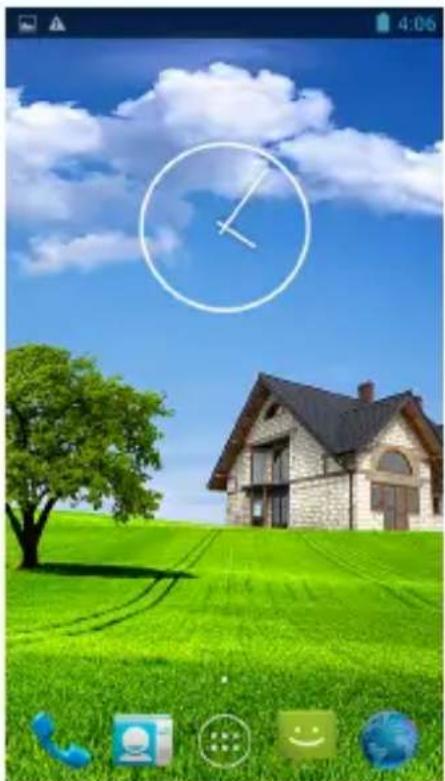
Main interface
natural_image
Digital home screen with a clock icon over a green house, surrounded by clouds and a grassy field (no text or symbols)→ Display current time, battery level, operator signal and so on.
— Slide screen left or right to accomplish to flip file.
Press an icon to start work
Settings menu
Display all functional icon
Short press the icon will display main menu.
Add window small plugin
The main interface, touch the screen on the right side of the " control icon, and then click above on the screen " WIDGETS" long according to select small plugin, can add to desktop .
Display the background programs that are running
Any interface, click the "icon to the left of the screen, pop up the background is run the program list, click on the program icon, can switch over to the background of the open programming interface. To right sliding program icon, can close this program in the operation.
● Shows notice information
The main interface, click on the lower right corner of the screen the clock display area, can open notice, notice can show the current USB state, networking state and the battery power and other information
- Delete the desktop icon
Select an icon than long press on the icon. After you selected the icon move it into Bin.
- Move desktop icon
The main interface, long press the icon than move it.
Video Player
In the main menu, select the option of "Gallery" to be able to access video folder.
File list interface
Function of keys
"":Shot press it to come back to the main interface
"←": Short press it to return to the upper interface
Touch & slide screen upward and downward which will accomplish to flip video folder.
Video playing interface
Function of keys
"▶": play or pause current movie
"/": shot press to play the last /next movie, long press for fast rewind / forward;
"7": press it to volume up or down
" "key: short press it to return to the prior interface: short press it to popup movie setting interface.
Tips:
This device supports "*.SRT" subtitle files (The user can download it from the website).
If there is any subtitle file with the same name in the folder «Video», the player will be able to run subtitle.
It's supports video playing in multiple formats, high-definition video etc.
Audio Player
In the main menu, select the option of "Music" to be able to access music folder.
Music folder interface
Function of keys
"": Return to main interface
"": Return to upper interface
Up/down to touch screen, can realize the file list to scroll function
Artist: according to the singer classification music files
Album: according to album classification music files
Song: display all music files
Playlist: to display the play music files in the list
Now playing: into the background music played interface
Music playing interface
Function of keys
"": Return to main interface
"": Return to prior interface
" /": shot press to play the last /next music, long press for fast rewind / forward;
": Click start/stop playing music
" Click into play lists
"": Click on open/close songs random play mode
" "key: short press it to return to the prior interface
Pictures
In the main menu, select the option of "Gallery" to be able to access Photo folder.
Function of keys
"In slide form browse all pictures
":Can through this icon, images batch management, For example: delete, Rotate left, Rotate right, you can also according to the location, time, people and tags setting picture group.
"Delete picture
"■": Through you can click on the icon to set and understand pictures information, including: Slideshow, Edit, Rotate left, Rotate right, Crop, Details, Set picture as
Call function
Make a call
Take one of the following to make a call:
In phone tab : Dial the phone numbers and press the green Send key;
In call log tab: press the contact in the list and select call option;
In contacts tab: press the contact in the list and select the call option;
In favorites tab: press the contact in the list and select the call option;
Answer calls
To answer a call, press the green Send key.
Hang up the phone
Press hang up key to hang up the phone
Contacts
To view the contacts, touch Phone icon, and then touch the Contacts tab from the top of the screen.
TIP: To search a contact, press the Menu key, touch the search item in the popup menu.
Then touch the input box to open the keyboard, type the name to search, the contact will list below if it exists.
Add contacts
- Press the green Send key whenever;
-
Touch the Contacts tab;
-
Press the Menu key;
- Touch New contact;
- Type the contact's information;
- Touch Done.
Messaging
All the received messages are classified by contact name. The inbox includes SMS and MMS.
Read messages
- In the Menu screen, touch the Messaging icon;
- Touch the message to open.
Send text messages
- In the Menu screen, touch the Messaging icon;
- Touch new message;
- Touch to select the To field, type the phone number that will receive the message;
- Touch to select the Type to compose field and type the message that will send;
- Touch Send.
MMS
MMS stands for Multi-media Message Service, it could transmit the message contains Multi-media file, including text, picture, sound etc.
Send MMS
Photos taken by camera are stored on the memory card. Make sure the memory card has been installed before using the camera.
- Touch Attach symbol from top-right corner of the screen;
- Select one of the following options:
Pictures
Touch to find and attach one of the existing pictures
Camera picture
Touch to take a new picture to attach
Videos
Touch to find and attach one of the exiting videos files
Capture video
Touch to make a new video file to attach
Audio
Touch to find and attach one of the existing audio file
Record Audio
Touch to record an audio file to attach
Slideshow
Touch to attach one of existing slideshow.
-
Touch to select the To field and type the phone number;
-
Touch to select Type to compose field and type message;
-
Touch Send.
Settings
In the main menu, select the option of "Settings" to get access to the System settings.
Description of functions:
1. WiFi
Wi-Fi: Open/close the wireless connection
Wi-Fi setting: touch the " :" icon to get access to the settings
2. Date usage
Display Date usage
3. Sound setting
Volumes: set the Notice, the media and the alarm clock volume.
Default notification: Click to open notification menu.
Touch sounds: After checked, Touch screen will make sound
Screen lock sound: After checked, Touch screen will make sound
4. Display settings
Brightness: Set brightness of the screen
Wallpaper: Choose wallpaper
Font size: Set the font size
5. Storage
check the memory and available storage
6. Apps
Can display and management of the installation applications
7. Security
Settings screen lock.
8. Language & input
Setting language and area, input method etc.
9. Backup & reset
Can backup, restore the machine Settings and data
10. Date & time
Set the date, time, time zone and time display format
11. About device
Check the device software version and other information.
GPS localization
Now you can navigate anywhere in the world thanks to the incorporated GPS receiver. If you want to use the GPS function with this device, open the main menu, click the "Settings" icon, and go to the "Location services".
Connect the computer
You can connect the device to your PC to copy / delete files.
Connect you device to PC. On the screen you will see the notification "USB already connected".
Click "USB already connected" notification, and choose the "open USB storage devices", then your PC can recognize memory discs.
3G network Settings
Insert the SIM card into the SIM slot.
Wifi and 3G can't be used at the same time.
Note
Make sure that you turn off the device before you insert a SIM card.
Sound Recorder
In the main menu, select the icon "Sound Recorder" to get access to the recorder interface.
Keys of functions:
"": Return to the recorder folder
"●: Start or pause record
" ■: Stop current record and select save the current record.
Factory data reset
If the device doesn't work properly try to reset it. Select "Settings"-" Privacy ", select " Factory data reset" item, when you confirm it will remove all data.
Updating
If there are any updates you can check it at www.keneksi.com