N1 Mini - Smartphone OPPO - Free user manual and instructions
Find the device manual for free N1 Mini OPPO in PDF.


User questions about N1 Mini OPPO
0 question about this device. Answer the ones you know or ask your own.
Ask a new question about this device
Download the instructions for your Smartphone in PDF format for free! Find your manual N1 Mini - OPPO and take your electronic device back in hand. On this page are published all the documents necessary for the use of your device. N1 Mini by OPPO.
USER MANUAL N1 Mini OPPO
OPPO Smartphone ColorOS 5.0 User Guide
Content
- Welcome Page....6
- Safety Information....6
- Get started 9
3.1. Quick look....9
3.1.1.ColorOS 5.0 Features....9
3.1.2. Sleep/Wake buon 17
3.1.3. Menu, Home and Return buttons....19
3.1.4. Volume buons....22
3.1.5. Micro-USB port....23
3.1.6. Headset jack....24
3.1.7. SIM and SD cards....24
3.1.8. Accessories came with OPPO phone....25
3.1.9. Charging the battery ....27
3.1.10. Gesture & Moon 28
3.1.11. Key combinations....32
3.1.12. Status Icons .... 33
3.2. Conguraon Seings....35
3.2.1. Fingerprint, Face and Passcode 35
3.2.2. Set up other mail and calendar accounts....46
3.2.3. Transfer data from the old phone to OPPO smartphone 47
3.2.4. Date and Time 51
3.2.5. Language and Region 52
3.2.6. Connect to the Internet....54
- What's new in ColorOS 5.0....55
4.2. AI Feature....55
4.1.1. Smart Assistant....55
4.2.1. Smart album search and cleanup....59
4.2.2. Quick acons menus....61
4.3. AI Scene Recognition and AI Beauty 62
4.4. Assisve Ball....69
4.5. Full Screen Multasking....70
4.6. Quick acons menus 72
4.7. Take and edit a screenshot....73
4.8. Control Center 76
4.9. New features of Photos....78
4.10. New features of Camera....82
4.11. Screen Recording....84
4.12. Hide Home screen icon 86
4.13. VIP Contacts 88
4.14. Tips 89
4.15. Transfer data from the old phone to OPPO smartphone 91
5. Basics....93
5.2. Use apps....93
5.3. Share from apps....96
5.4. One-click cleanup....97
5.5. Lock the running background apps....98
5.6. View, zoom in and out....99
5.7. Smart & Convenient Operaon....100
5.6.1. Navigaon Keys....100
5.7.1. Swipe-up Gesture Navigaon....106
5.7.2. Assisve Ball....109
5.7.3. Full Screen Multasking....110
5.8. Change the screen orientaon....112
5.9. Split-screen....114
5.10. Take and edit a screenshot....117
5.11. Control Center, Nocation, and Status Bar 119
5.12. Smart Assistant....123
5.13. Search....127
5.14. Test 128
5.13.1. Add or change keyboard languages....128
5.14.1. Type, edit, and delete text 129
5.14.2. Predicon 132
5.14.3. Voice typing....134
5.14.4. TouchPal for OPPO ....136
5.15. Sound, Vibraon, and System Feedback....138
5.16. Charge and monitor the battery ....140
5.17. Locaon Service 142
5.18. Use the phone internationally....143
5.19. Power Saver....144
6. Personalize your OPPO phone....145
6.2. ColorOS 5.0 device name ....145
6.3. Personalize the Home screen....146
6.2.1. Organize the Home screen 146
6.2.2. Home screen widgets & Transition Eects....148
6.3. Change the wallpaper 150
6.4. Lock screen magazine....152
6.5. Adjust the screen brightness and color temperature 154
6.6. Change auto-lock me 155
6.7. Change the font size....155
6.8. Keyboard and input method ....156
6.8.1. Customize the look of the keyboard 156
6.8.2. Keyboard Layout....157
6.8.3. Trends....160
6.8.4. Keyboard general settings....160
6.9. Set up Startup Manager....162
6.10. Clone Apps .... 163
6.11. Manage Default App 164
6.12. Gesture & Moon 164
6.13. Preset device on/off me....168
6.14. Game Acceleration....169
6.15. App display in Full-screen....172
- Apps....174
7.1. Phone 174
7.1.1 Make and Answer Phone Calls....174
7.1.2. Conference calls ...... 179
7.1.3. Block calls....180
7.1.4. Emergency calls....181
7.1.5. Carrier's Call Setngs....182
7.2. Message 183
7.2.1. Send and receive messages....183
7.2.2. Customize message sengs....186
7.3. Contacts....188
7.3.1. Add a contact .... 188
7.3.2. Edit and delete a contact....190
7.3.3. Import and export contacts....192
7.3.4. SIM contacts....194
7.3.5. Manage contacts....196
7.3.6. Back up your contacts....198
7.3.7. VIP Contacts ....198
7.4. Phone Manager....199
7.4.1. Scan and optimize the phone....199
7.4.2. Clean Storage 200
7.4.3. Privacy Permissions....202
7.4.4. Virus Scan....204
7.4.5. Payment protection....204
7.4.6. Frequently Used Funcons....205
7.4.7. Common Problems Detecon....208
7.4.8. WeChat Cleaner....210
7.5. Weather....212
7.6. Camera 214
7.6.1. Take photos 214
7.6.2. Take a sele....218
7.6.3. Shoot video 223
7.6.4. Camera sengs....224
7.7. Photos 225
7.7.1. Photos overview....225
7.7.2. Albums 226
7.7.3. Memories....230
7.7.4. People....232
7.7.5. View and use photos and videos....234
7.7.6. Edit photos and videos....238
7.8. Music....241
7.8.1. Music....241
7.8.2. Change sort mode 243
7.8.3. Scan local songs....243
7.9. Videos....245
7.10. Theme Store....247
7.10.1. Online phone theme 247
7.10.2. Online wallpaper 247
7.10.3. Manage your downloads....248
7.11. Clock....250
7.11.1. Set Alarm Clocks....250
7.11.2. Add and view clocks for locaons around the world 252
7.11.3. Use the stopwatch....253
7.11.4. Set the mer ....253
7.12. Files 254
7.12.1. Opmized File management ....254
7.12.2. Fast le browsing....257
7.12.3. View and manage les 258
7.12.4. Clean Storage 260
7.12.5. Remotely Manage Phone Files....261
7.13. Calculator 262
7.14. Sound Recording 264
7.14.1. Recorder....264
7.14.2. Manage recordings....265
7.15. Compass....267
7.16. Chrome....268
7.16.1. Search the web....268
7.16.2. Browse the web....271
7.16.3. Quick accesses....274
8. Safety & Privacy....276
8.1. Device security ......276
8.1.1. Lock screen password ....276
8.1.2. Smart Lock....278
8.1.3. Payment protecon....279
8.1.4. Set up a SIM card lock....280
8.1.5. Virus Scan....281
8.1.6. Pseudo Base Staon Blocking....282
8.1.7. Protect Personal Information....283
8.2. Device administraon 284
8.2.1. Allow and install apps from unknown sources....284
8.2.2. App permissions....286
8.2.3. Hide Home screen icon 287
8.2.4. Kids Space....289
8.2.5. Block unwanted calls and messages 290
8.2.6. Find my device....291
8.3. Privacy....293
8.3.1. Locaon Service 293
8.3.2. Join User Experience Project....295
8.3.3. Privacy Protecng and Security Warning 295
8.4. Advanced....296
8.4.1. Screen pinning....296
9. Share Internet conncon and les....297
9.1.1. Tether your phone's Internet conneccon....297
9.2. Share Files 300
9.2.1. Wireless le sharing 300
9.2.2. Wired le sharing....303
9.2.3. Share from apps 304
10. Restart, update, reset, and restore 305
10.1. Restart the phone....305
10.2. Back up and restore the phone....306
10.2.1. Back up your OPPO phone 306
10.2.2. Restore data on your phone....308
10.3. Reset the phone 311
10.4. Reset password with ngerprint....313
11. Barrier-free....315
11.1. TalkBack....315
11.2. Magnicaon Gestures....317
11.3. Press Power Button to End Call....319
12. Safety, handling and support ....319
12.1. Health & Safety 319
12.1.1. Using Environment....319
12.1.2. Baery Safety 320
12.1.3. Charger Usage Notes....321
12.2. Trac Safety....322
12.3. FCC Compliance Statement....322
1. Welcome Page
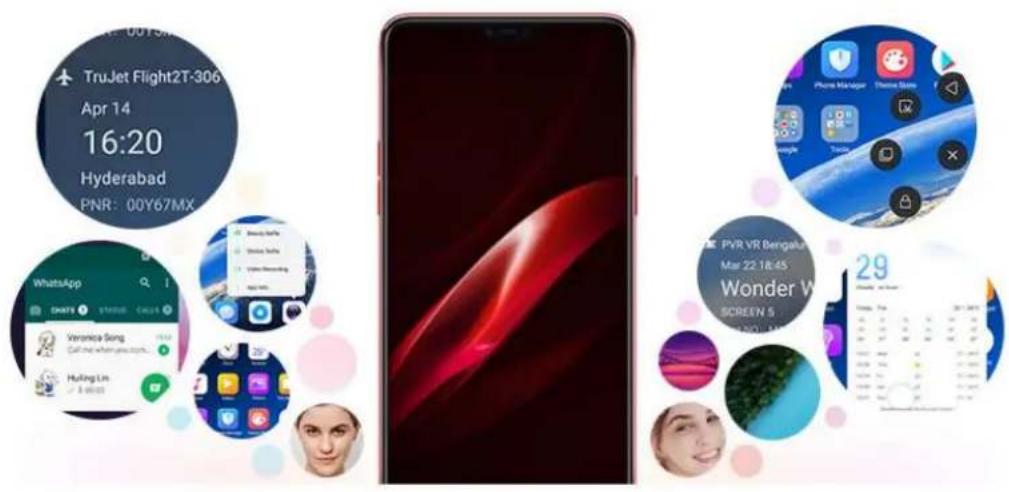
text_image
TruJet Flight2T-306 Apr 14 16:20 Hyderabad PNR: 00Y67MX WhatsApp Veronica Song Call that when you go... Huling Lin 8:00:00 PVR VR Bengalur Mar 22 18:45 Wonder W SCREEN 5 29
What's new in ColorOS 5.0
ColorOS 5.0 features a beautiful redesign and new capabilities, bringing greater clarity and intelligence to every aspect of the experience. ColorOS 5.0 cares what you care, and let the phone make sense of your life.
2. Safety Information
Read through the following information carefully. Failure to follow these safety precautions could result in danger or illegal activities.

Safe Startup
Do not switch on the device when phone use is prohibited or when it may cause interference or danger.

Traffic Safety First
Traffic safety is always of first importance. Use of phones and headphones while driving a vehicle or riding a bicycle is not recommended and is illegal in some areas.
Obey and follow all related local laws.

Switching off Device at Gas Stations
Turn off your phone when in any area with a potentially explosive atmosphere, such as gas stations or any other fueling area. Sparks in such areas could cause an explosion or fire, resulting in serious injury or even death.

Switching off Device When On Board an Airplane
Wireless devices might be prohibited while in the air in some countries or regions. Obey all related local laws and turn off your phone or switch to airplane mode.

Switching off Device near Medical Equipment
Hospitals or healthcare facilities might use radio-frequency-sensitive equipment. Obey the relevant rules and regulations.

Switching off Device at Blasting Areas
To avoid interfering with blasting operations, turn off your phone when in a "blasting area" or in areas posted "Turn off two-way radio." Obey all signs and instructions.

Radiation
Nearly every electronic device gives off radiation. Mobile phone use does not increase the risk of getting brain cancer or other head tumors. Its effect in humans is negligible.

Interference
Nearly every electronic device is susceptible to interference for external sources if inadequately shielded or designed. As a result, your phone may cause interference with other devices.

Temperature
Operate your phone in a place where the temperature is always between 10^ C to 45^ C. Using or storing your phone in a too hot or too cold environment might
damage the battery, or even cause your phone to short-circuit or burn.

Proper Usage
Use your phone appropriately. Do not touch the antenna area unnecessarily when the phone is turned on. Do not drop, disassemble, crush, bend, deform, puncture, incinerate, or insert foreign objects into your phone.

Qualified Maintenance and Service
Never attempt to repair or modify the phone yourself. If your phone has any hardware or software failure, do not use it until you take it to an authorized service provider. Do not disassemble or root your phone yourself, otherwise the warranty service will be terminated immediately.

Batteries, Chargers and other Accessories
Do not dismantle the built-in lithium-ion battery of your device. Use only the batteries, chargers and other accessories authorized by OPPO, for third-party accessories might cause damage or danger.

Waterproofness
Your device is not waterproof. Do not use your device in rain, or other wet locations.

Avoiding Hearing Damage
Permanent hearing loss may occur if the receiver, speakerphone, headphones, or earpieces are used at high volume. You can adapt over time to a higher volume of sound that may sound normal but can be damaging to your hearing. Set the volume to a safe level to protect your hearing.

Avoiding Eyestrain
Your device's screen color and brightness might have a different degree of stimulation to your eyesight. Long-term viewing of your phone in normal or darker environments will damage your eyesight. When watching video or reading text on your phone, avoid prolonged use, take breaks and turn on eye protection mode to prevent eyestrain.

Glass Parts
The outside cover of your phone's screen, front/rear camera and flash is made of glass. This glass could break if your phone is dropped on a hard surface or receives a substantial impact. Do not attempt to touch or clean the broken glass. Stop using your phone until the glass is replaced by an authorized service provider.

Connecting to Other Devices
Before connecting to other devices, carefully read the user manual for more detailed, accurate and safety instructions. Do not connect to incompatible products.

Being Aware of Laser Safety
If your phone supports laser focusing, carefully read the user manual before using it. Failure to follow instructions might lead to harmful radiation exposure. To prevent direct exposure to laser beam, do not attempt to open your phone's outer shell, or avoid keeping close contact with laser light.
3. Get started
3.1. Quick look
3.1.1. ColorOS 5.0 Features
ColorOS 5.0 Features
With ColorOS 5.0, new designs and capabilities make your phone not only look beautiful, but work beautifully. The powerful AI chip helps your phone to understand images and recognize people, objects, and scenes. The new-designed full screen delivers a more immersive experience. The Smart Assistant lets you get things done more intuitively and conveniently. ColorOS 5.0 cares what you care, and let the phone makes sense of your life.
Brand-new visual design
Coloros 5.0 features a slew of interface tweaks and improvements that make the system feel both faster and more polished. The all-screen design brings a new visual experience and one-handed usability. The Home screen color is newly
redesigned, text is bolder, and most app icons have a brand-new look. Phone apps are redesigned with smoother dynamic effects. The Control Center is customizable and there are options to include a wider range of settings.
New Photos and Camera capabilities
Memories. Using the on-device facial recognition and AI detection of what's in your images, your phone can combine photos into themed mini-movies complete with transitions and a soundtrack. It can recognize and bundle together photos the that feature certain people, or scenes like hiking or the beach, and category categorize your photos while your phone is plugged and locked. See Memories.
Edit photos and video. You can edit your photos and video in the Photos app directly using a set of professional editing tools, including cropping, adding text and filters, and more. See Edit photos and videos.
People. In the Photos app, there's an album called "People." Much like "Memories", it uses facial technology to identify the people in the pictures or combine one with similar facial features, then group pictures of the same people together. See People. Smart album search and cleanup. You can search your photo library depending on the date, location, people, and content of the photos on your device. In Phone Manager, you can also clean up photos in batches such as similar and blurry photos. See Smart album search and cleanup.
Front 3-HDR. When capturing images in bright sunlight or shade using the front facing camera, front 3-HDR helps you to adjust the ratio of light to dark in the photo and make your subject look better. See New features of Camera.
AI Beauty. Personalized AI Beauty provides functionality for precise recognition and delicate beautification of each individual facial feature. Everyone is unique in the camera. See New features of Camera.
AR stickers. The Camera app offers many stickers for you to edit and decorate your selfies. Express yourself daily through fun stickers and add fun to boring backgrounds. See New features of Camera.
New intelligent features
Smart Assistant. The Smart Assistant aggregates combines information from Weather, Steps Tracker, and Events, and puts them into an active day summary of what's on tap for today. Quick apps and favorite contacts allow you to open an app or call someone with only one tap. You can also customize Smart Assistant to better suit your needs, and to emphasize what you actually care about. See Smart Assistant.
Navigation Gestures. Four kinds of new swipe-up navigation gestures are added to your phone, and you can choose one that suits you most. See Navigation Gestures.
Assistive Ball. Assistive Ball is a fantastic feature that enables you to fully take advantage of Multi-Touch features through the touch screen. It doubles as virtual navigation keys, and even enables you to open notification center, enter One-hand Mode or take a screenshot. See Assistive Ball.
Full screen multitasking. Full Screen Multitasking can hold app icons or notification bubbles, so you can still read and reply to messages without interrupting your games or videos, as they go app-in-app. See Full Screen Multitasking.
Control Center. The Control Center includes a wider range of settings, and is able to list up to 20 shortcuts. You can select the shortcuts to display, and rearrange them to better suit your needs. See Control Center.
App display in full screen. The feature makes sure your app looks the best at its best it can. When turn it on, the system will make some changes in on your app to accommodate the new screen's size and rounded corners. See App display in full-screen.
Quick actions menus. Press and hold an app icon to bring up "Quick Actions," which offers shortcuts to specific features within that app. When the menu appears, click the shortcut you would like to use, then the app will open directly to that feature. See Quick actions menus.
Enhanced safety
Hide Home screen icon. Without deleting the app from your phone, you can simply hide the app icons from view if you want to quickly hand in your phone off to someone else and don't want them having access to seeing personal data contained saved within on some apps. See Hide Home screen icon.
Easy-to-use functions
Common problems detection. Phone Manager allows you to quickly diagnose common problems. It lists all the test results of the system, and intuitively display the abnormal items. See Common Problems Detection.
Clone Phone. With Clone Phone, all the contents in on your old phone will be quickly and easily copied to your new device. You can also select the data to be cloned, ignoring those that are no longer needed.
Split-screen. The split-screen mode allows you to divide the screen into two areas, which each area shows a different scene at the same time. Now you can watch a movie and chat with friends at the same screen. See Split-screen.
Screen recording. With ColorOS 5.0, you can record a 30 minutes video of what you're doing onscreen. You can even narrate it, too. Save the video, then you can view, edit, and share the recording using the Camera app. See Screen Recording.
Screenshot editing tool. When you take a screenshot in ColorOS 5.0, you can open the screenshot right up and edit it with the markup tools, or take a long screenshot. Using the screenshot editing feature, you can capture what's on the screen of your phone and then add text, crop, highlight specific areas, and more. See Take and edit a screenshot.
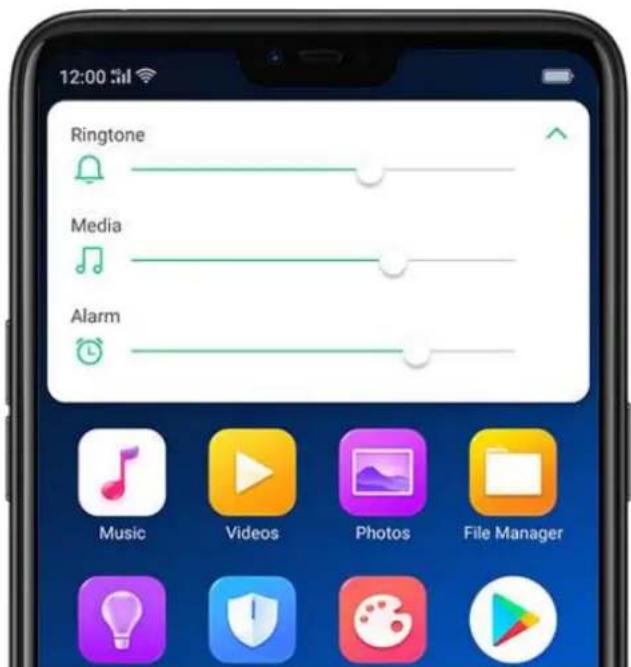
Volume control. When you press the Volume Button, you can adjust the ringtone, media and alarm sound simultaneously.
VIP Contacts. When your phone is set not to be disturbed, you can add certain people to VIP Contacts and allow them to override the phone settings and have their calls come through. See VIP Contacts.
ColorOS 5.0 is compatible with these devices
Models
A9, F7
Appearance
Red / Diamond Black (RAM 6GB Version)
Red / Silver / Diamond Black (RAM 4GB Version)
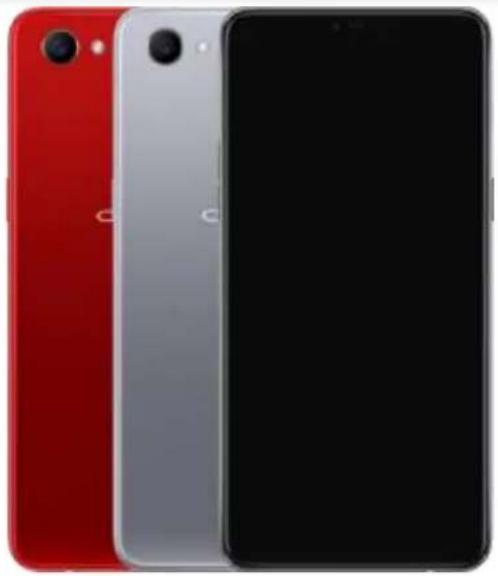
natural_image
Three smartphones shown from front and back angles, red, silver, and black (no visible text or logos)Size and Weight
| Height | 156mm |
| Width | 75.3mm |
| Thickness | 7.8mm |
| Weight | 158g with battery |
Basic Parameters
| Operating System | ColorOS 5.0, based on Android 8.1 |
| GPU | ARM Mali-G72 MP3 800MHz |
| RAM | 4GB / 6GB |
| Storage | 64GB / 128GB |
| Battery | 3400mAh (TYP) 3300mAh (MIN) |
| Processor | Octa-core MTK P60 2.0GHZ |
Display
| Size | 6.23 inches (15.8cm) |
| Type | LTPS IPS TFT |
| Resolution | 2280 by 1080 pixels |
| Colors | 16 million colors |
| Camera | |
| Rear Sensor | 16-megapixel |
| Front Sensor | 25-megapixel |
| Flash | LED Flash |
| Aperture | Rear: f/1.8Front: f/2.0 |
Connectivity
| Frequencies | For 4GB RAM + 64GB Storage A9: |
| Version 1: | |
| GSM: Bands 2/3/5/8 | |
| WCDMA: Bands 1/5/8 | |
| FDD-LTE: Bands 1/3/5/8 | |
| TD-LTE: Bands 38/40/41 | |
| Version 2: | |
| GSM: Bands 2/3/5/8 | |
| WCDMA: Bands 1/5/8 | |
| FDD-LTE: Bands 1/3/5/7/8 | |
| TD-LTE: Bands 38/39/40/41 | |
| Version 3: | |
| GSM: Bands 2/3/5/8 | |
| WCDMA: Bands 1/2/5/8 | |
| FDD-LTE: Bands 1/3/5/7/8/20/28 | |
| TD-LTE: Bands 38/39/40/41 |
For 6GB RAM + 128GB Storage A9:
Version 1:
GSM: Bands 2/3/5/8
WCDMA: Bands 1/5/8
FDD-LTE: Bands 1/3/5/8
TD-LTE: Bands 38/40/41
Version 2:
GSM: Bands 2/3/5/8
WCDMA: Bands 1/2/5/8
FDD-LTE: Bands 1/3/5/7/8/20/28
TD-LTE: Bands 38/39/40/41
SIM Card Type Dual Nano-SIM Cards
| GPS | Supported |
| Bluetooth | 4.2 |
| Wi-Fi | 2.4/5GHz 802.11 a/b/g/n/ac |
| OTG | Supported |
| NFC | No |
Sensors
Magnetic Induction
Light Sensor
Proximity Sensor
G-sensor/Acceleration Sensor
In the Box
OPPO A9
Adapter
Headset
Micro USB cable
Important Information Booklet with Warranty Card
Quick Guide
SIM Card Tool
Screen Protect Film
Case
Product ID
CPH1819/ CPH1821
Buttons and components
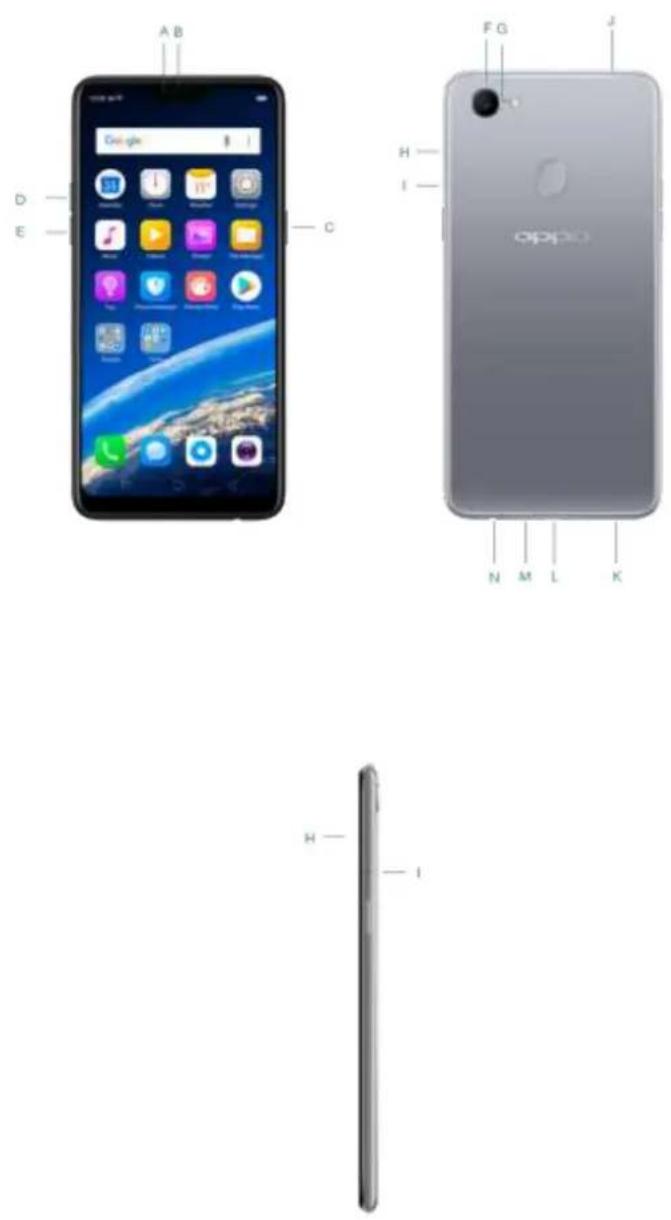
F7 features
| A. | Front camera |
| B. | Receiver |
| C. | Sleep/Wake button |
| D. | Volume up button |
| E. | Volume down button |
| F. | Rear camera |
| G. | Flash |
| H. | SIM card tray |
| I. | SIM tray hole |
| J. | Noise cancelling microphone |
| K. | Speaker |
| L. | Micro-USB port |
| M. | Microphone |
| N. | Headset jack |
Functions for buttons and combination keys
To learn more features, see Quick Look at OPPO phone.
3.1.2. Sleep/Wake button
The Wake/Sleep button on the right side of your phone has a number of different uses.
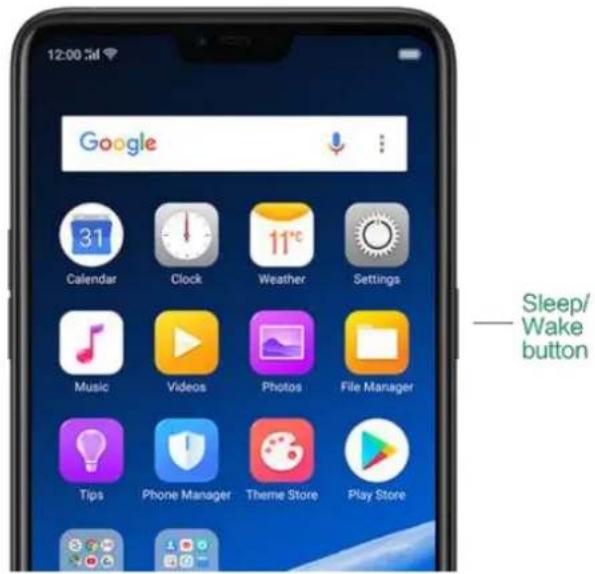
text_image
12:00:3d Google Calendar Clock Weather Settings Music Videos Photos File Manager Tips Phone Manager Theme Store Play Store Sleep/ Wake buttonWhen the phone is on
Wake or lock the screen: With the phone is powered on, press the Wake/Sleep button once and it will wake the phone up to the point that you can see the lock screen, like the clock and any notifications that are setup to display there. When the phone screen is awakened, pressing this button will blacken the screen and lock the phone.
Take a screenshot: Press and hold the Sleep/Wake and Volume Down buttons at the same time and your phone will take a picture of whatever is displayed on the screen. Click the screenshot, and then choose to a take a long screenshot, send, edit or delete the screenshot. If you save the screenshot, you can view it on Photos.
UM5.0_3.1.2_Take a screenshot.gif
End a call: Go to [Settings] > [Additional Settings] > [Accessibility] and turn on [Power Button Ends Call], then you can press the Sleep/Wake button to end phone calls.
Turn off the phone: Press and hold the Sleep/Wake button for a few seconds, whether the phone is on the lock screen or home screen, it will ask you to slide down to power off the device.
Force restart the phone: Press and hold the Sleep/Wake and Volume Up buttons for about 10 to 12 seconds until your device is turned on. View force restart your phone.
When the phone is off
Turn on the phone: Press and hold the Sleep/Wake button for a few seconds until you see the OPPO logo.
Force Restart the phone: Press and hold the Sleep/Wake and Volume Up buttons until your device is turned on. View force restart your phone.
Enter Recovery Mode: Press and hold the Sleep/Wake and Volume Down buttons at the same time to enter Recovery Mode.
3.1.3. Menu, Home and Return buttons
ColorOS 5.0 replaces the traditional hardware buttons with on-screen virtual navigation keys, also offers you fast and fluid gestures to operate your phone. You can change the order of the virtual keys, and set them to appear only when needed to free space on the screen.
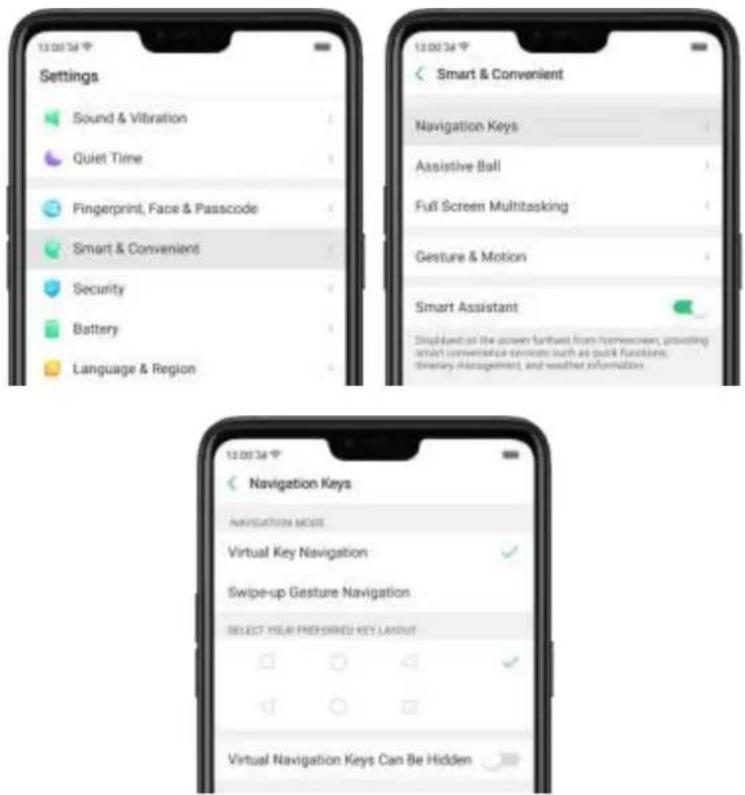
Enable virtual navigation keys. Virtual navigation keys are default on. If you want to enable them manually, go to [Settings] > [Smart & Convenient] > [Navigation Keys] and click Virtual Key Navigation.
text_image
Settings Sound & Vibration Quiet Time Fingerprint, Face & Passcode Smart & Convenient Security Battery Language & Region Smart & Convenient Navigation Keys Assistive Ball Full Screen Multitasking Gesture & Motion Smart Assistant Displayed at the power further from homescreen, providing smart convenience services such as quick functions, directory management, and weather information 12:00:34 Navigation Keys NAVIGATION MODE Virtual Key Navigation Swipe-up Gesture Navigation SELECT YOUR PREFERRED KEY LAYOUT Virtual Navigation Keys Can Be HiddenChange the order of virtual navigation keys. The keys follow the typical order for OPPO: Menu, Home, and Return from left to right. If you are left-handed, you can
change them to the return-home-recent order.
text_image
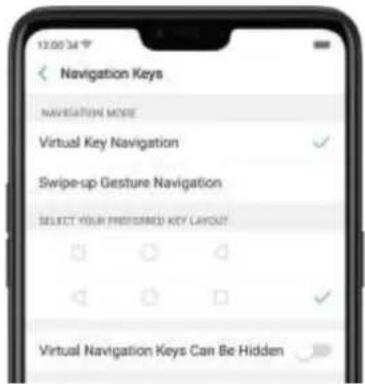
12:00:34 Navigation Keys NAVIGATION MOVIE Virtual Key Navigation Swipe-up Gesture Navigation SELECT YOUR PROSORED KEY LAYOUT Virtual Navigation Keys Can Be HiddenHide the virtual navigation keys. When you launch a full-screen app, the keys will automatically hide, and can be brought back with a simple swipe:
- When in portrait mode, swipe up from the bottom.
- When in landscape mode, swipe from the bottom to the left.

natural_image
Close-up of a white tulip with green stem against a blurred sky background (no text or symbols)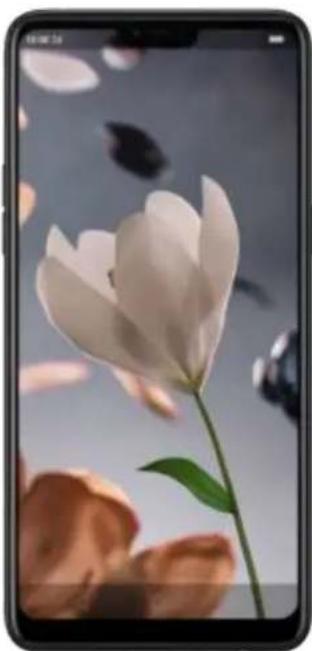
natural_image
Close-up of a white tulip with green stem and leaves against a soft sky background (no text or symbols)
text_image
HAY DAY LOADING HAY DAY NO FASH DAY, GOOD UP THE SUN TOWN ON BANET
text_image
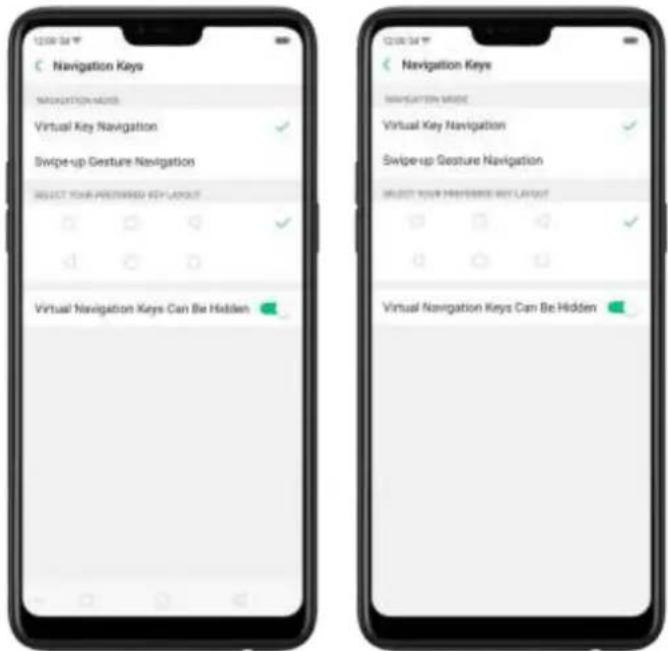
HAY DAY LOADING. How much you want to save, add up and add fun to your.Manually hide the virtual navigation keys. To set the keys to appear only when needed, go to [Settings] > [Smart & Convenient] > [Navigation Keys] and enable
Virtual Navigation Keys Can Be Hidden. Then you can click on the left-lower corner of the screen to hide the keys, and swipe from the bottom to reveal them.
text_image
12:00:54 Navigation Keys NAVIGATION NAME: Virtual Key Navigation Swipe-up Gesture Navigation SELECT YOUR PREFERRED KEY LAYOUT Virtual Navigation Keys Can Be Hidden 12:00:54 Navigation Keys NAVIGATION NAME: Virtual Key Navigation Swipe-up Gesture Navigation SELECT YOUR PREFERRED KEY LAYOUT Virtual Navigation Keys Can Be HiddenImmersive navigation background: The system set multiple colors for the navigation background to match the color scheme of the popular apps. The background color is default white, and it will become translucent or immersive when you open some of the third-party apps.

text_image
WPS Office Open A1003.1.4. Volume buttons
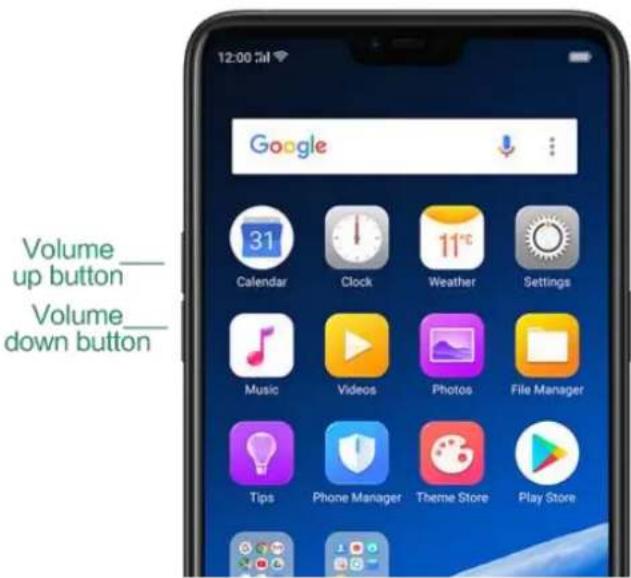
Volume buttons give you easy access to adapt over time to a proper volume of sound. It refers not simply ringer or media, the phone also keeps track of the volume level separately in headphone, microphone and speaker.
text_image
Volume_up button Volume_down buttonMedia volume: When listening to music, videos and phone calls, use the buttons on the side of the phone to adjust the volume. For information about avoiding hearing loss, see Security Information.
Ringer volume: Use the Volume buttons to control the volume for the ringer and alerts. When you press and hold the volume down button, your phone will switch to silent mode.
Alarm volume: Use the Volume buttons to set the volume for alarm. The alarm still plays a sound when the phone is in silent mode.
Call volume: When making or receiving phone calls, use the volume buttons to adjust the volume of the call.
* You can also adjust the volume (except call volume) in [Settings] > [Sound & Vibration].
text_image
12:00 Ringtone Media Alarm Music Videos Photos File ManagerControlling the camera: Volume buttons can also be used to control your camera. Go to [Settings] > [Camera] > [Volume Button] and set up the volume buttons for Shutter or Zoom.
3.1.5. Micro-USB port
Micro-USB port is the connector on the bottom of your device where your battery charger connects. It also doubles as the data port, which lets you transfer data to and from a personal computer or other USB devices. Plug the cable in the port to
charge or transfer data.
Notice:
- Repeated connecting and disconnecting of your cable can cause the port to wear out, resulting in a poor connection to your cable.
- Never force a connector into the port, for that might cause damage.
3.1.6. Headset jack
The headset jack is an audio socket that accepts a 3.5mm audio plug. Plug your headset in the jack to listen to music, videos and phone calls. Do not force a mismatched headset into the jack for that might cause damage.
3.1.7. SIM and SD cards
SIM card
* Insert the SIM card before turning on your phone. If you hold a new SIM card, you might need to wait until it is activated by the carrier before you can use it.
A SIM card is provided by your carrier and is used to activate your phone's mobile network. Because it has a small amount of memory, the SIM card not only enables communications between two persons, but stores information such as phone numbers, security data and more. When using the mobile network, you need to pay charges. To avoid high charges, you can shop data plans with your carrier, or shop international data roaming plans when traveling abroad.
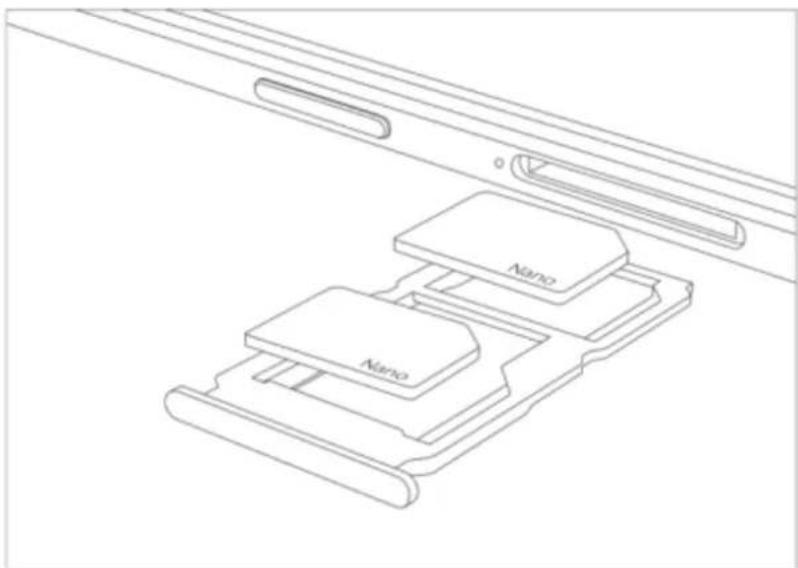
Insert the SIM card: Most OPPO Smartphones support Dual SIM. You can choose to insert one or two.
- Insert the card needle into the hole outside the card tray to pop it open.
- Pull out the card tray and place SIM card(s) on it.
- Put the card tray back in as the same orientation that you removed it.
natural_image
Technical line drawing of a device with two labeled components (Nano) arranged in a layered structure (no text or symbols beyond labels)Remove the SIM card: Remove the card(s) in the same way that you insert it(them).
SD card
The SD card is a way to store and transfer images, music, video and other data. You can insert a SD card in your phone to expand phone's memory.
SIM1, SIM2 and SD cards share the same card tray. Insert your SD card in the same way that you insert the SIM card(s).
3.1.8. Accessories came with OPPO phone
Along with the handset, the accessories came with are headset, USB Connecting cable, Power adapter, SIM card tool and Phone case.
Notice : All photos shown are for illustration purpose ONLY. Actual products may vary due to product enhancement.
Headset: A standard headset with 3.5 mm headset plug. Use to listen to music, videos, and phone calls. Use the built-in microphone to talk. When playing the music or videos, click the button once to pause or play a song or video.

natural_image
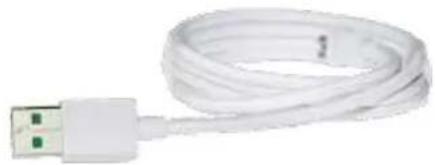
Close-up of a white circular object with a symmetrical, abstract shape resembling a stylized 'Y' or cross (no text or symbols)USB Connecting cable: Use the cable to connect your phone to the computer to charge and transfer files, or use it with the power adapter to charge.
natural_image
Coiled white USB cable with green connectors (no text or symbols visible)Power adapter: Connect the power adapter to your phone using the included cable, then plug it into a standard power outlet to charge the phone.

natural_image
Two white electronic devices with black leads, one square and one rectangular, shown against a white background (no text or symbols visible)SIM card tool: Use to pop out the SIM card tray.

natural_image
Simple grayscale illustration of a curved, elongated object resembling a stylized o or handle (no text or symbols)Phone Case: Use to protect against drops and shock damage on the corners and rear of your phone.

natural_image
Blank white rounded rectangular device with a small rectangular cutout on top (no text or symbols)3.1.9. Charging the battery
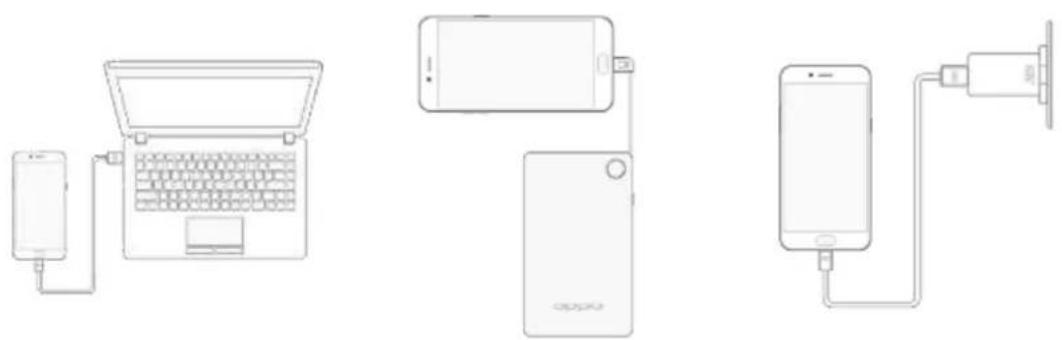
How to charge the battery:
natural_image
Three connected devices: a smartphone, a laptop, and a smartphone with an attached power outlet (no text or symbols visible)Notice : All photos shown are for illustration purpose ONLY. Actual products may vary due to product enhancement.
Charge with the jack: Connect adapter to your phone using the USB cable, then plug it into a standard power outlet to charge the phone.
Connect to a computer to charge: Use the cable to connect your phone to the computer to charge. Your phone will charge slowly if you connect it to the computer.
Charge with Power Bank: Connect Power Bank to your phone, and your phone will be charged wherever you go. It is an absolute necessity if you are a frequent traveler.
Charging Notice:
- Charge the phone with the original charging accessories (including adapter, cable and power bank).
- It is recommended to charge your phone in a place where the temperature is between 15^ C to 40^ C. Extreme ambient temperatures will affect flash charging system.
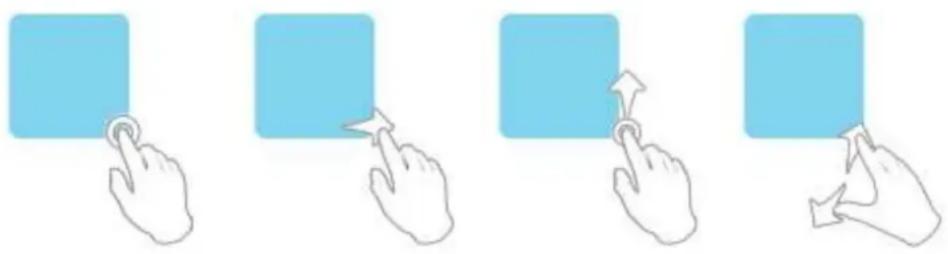
OPPO smartphone is designed to understand gestures. You can use gestures such as tap, swipe, drag and spread to operate your phone.
natural_image
Four hand icons showing a blue square button with finger pressing, followed by a starburst arrow, then a square button with an arrow (no text or symbols)To set up complex gestures for specific functions, go to [Settings] > [Smart & Convenient] > [Gesture & Motion].

text_image
Settings Sound & Vibration Quiet Time Fingerprint, Face & Passcode Smart & Convenient Security Battery Language & Region Smart & Convenient Navigation Keys Assistive Ball Full Screen Multitasking Gesture & Motion Smart Assistant Displaced on the proper footprint from homescreen, providing smart coherence covers such as quick functions, memory management, and weather informationScreen-off Gestures
To set up screen-off gestures, you need to turn it on first.
Double tap to turn screen on: Turn it on to wake up your locked screen with a double-click on the screen.
Draw O to start camera: When turn it on, you can draw O on the locked screen to open Camera app.
Draw V to open torchlight: When turn it on, you can draw V on the locked screen to open the torchlight.
Music control: When turn it on, you can draw || to pause/play a track, or draw < or > to switch the track when the screen is off.
Add more screen-off gestures: OPPO smartphone of ColorOS 5.0 gives you 7 options, which are Draw ^, Slide up, Slide down, Slide left, Slide right, Draw M and Draw W. Choose one to unlock the phone, call someone or start an app.

text_image
Screen-off Gestures Screen-off Gestures Double Tap to Turn Screen On Draw O to Start Camera Draw V to Open Torchlight Music Control Draw 2 to append a touch or draw -1 or 2 to switch the back when the frame is off MAKE SCREEN-OFF GESTURES Add a Screen-off Gesture
text_image
Add a Screen-off Gesture Draw A Slide Uji Slide Down Slide Left Slide Right Draw M Draw W3-Finger Gesture
Take a screenshot. Swipe down the screen with three fingers.
Use Split-screen. Under the interface of an app, swipe ups the screen with three fingers to enter split-screen mode.

text_image
Google 31 Cambridge Clock Apache Hartagus Adobe Vibens Photosy File Manager Tate Private Manager History Group Play Store Google PhoneMotion
The motion-sensing technology is used in OPPO smartphone. Use it to let your phone response to motion.
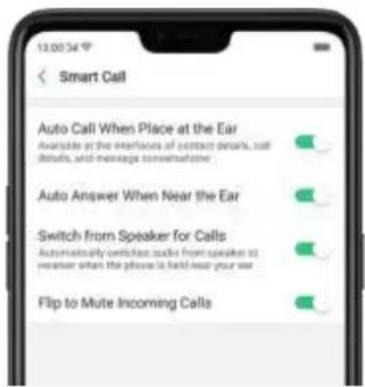
Smart call
Auto call when place at the ear: Before you can use auto call, you need to set the default SIM card for calling. Go to a contact detail, call detail, message conversation or info interface, put the phone near your ear and your phone will automatically call that specific person.
Auto answer when near the ear: This function lets your phone to answer any incoming calls automatically when putting the phone near your ear.
Switch from speaker for calls: Use it to automatically switch from speaker to receiver when you put the phone near your ear during phone calls.
Flip to mute incoming calls: Use it to silence the ringer by turning the phone over on a table or other flat surfaces.
text_image
13:00:34 ° Smart Call Auto Call When Place at the Ear Available at the interfaces of contact details, sell details, and message conversations Auto Answer When Near the Ear Switch from Speaker for Calls Automatically switches audio from speaker to receiver when the phone is held near your ear Flip to Mute Incoming CallsMistouch Prevention Mode
Turn it on to prevent incorrect operations if the lock screen is covered.
Take selfies
Open Camera app and switch to the front camera. Click >Gesture on the top of the screen. Pose the same hand gesture towards the camera, once the camera captures that, it will take a photo automatically after two seconds. You can change your pose and expression within this two seconds.
3.1.11.Key combinations
Generally, you can use two buttons of your phone to generate a specific result. The common key combinations include:
When phone is on
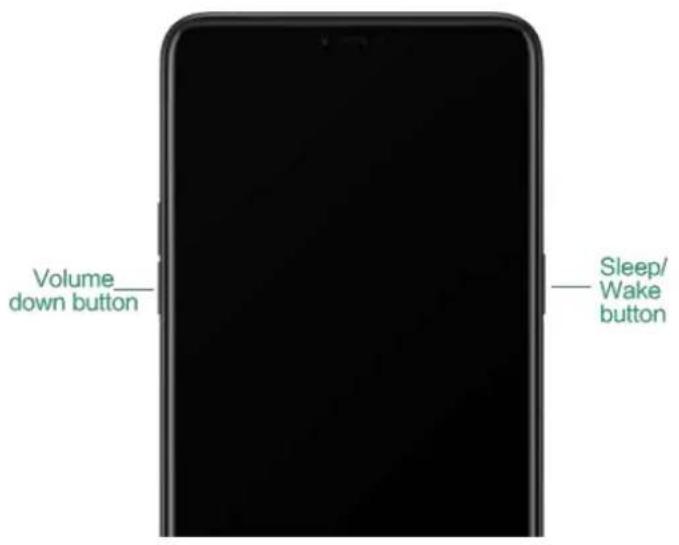
Press and hold the Power and Volume Down buttons: Your phone will take a screenshot for the current page. To take a long screenshot, click the screenshot, then click Longshot.

text_image
Volume down button Sleep/ Wake buttonPress and hold the Power and Volume Up buttons: If the phone isn't responding, press and hold the button combination for at least eight seconds to force restart your phone.
When phone is off
Press and hold the Power and Volume Down buttons: Phone will enter Recovery Mode, which does help to update the system, wipe data, check disk and more.
text_image
Volume down button Sleep/ Wake buttonPress and hold the Power and Volume Up buttons: Phone will be force restarted. Press and hold the two buttons until your phone is turned on.
3.1.12.Status Icons
The icons in the status bar at the top of the screen give information about your OPPO smartphone:
| Status icon | What it means | |
| Mobile network signal | Shows whether you're in range of operator's network and can make and receive calls. The more bars, the stronger the signal. | |
| 4G/4G+ | Airplane ModeLTE/LTE-A | Shows that airplane mode is on. Phone's wireless communication abilities are disabled.4G network is available, including LTE and LTE-A. Your phone can connect to the Internet over that network. |
| 3G/H+ | UMTS/WCDMA | 3G UMTS network is available. Your phone can connect to the Internet over that network. |
| E | EDGE/GSM | EDGE (GSM) network is available. Your phone can connect to the Internet over that network. |
| Wi-Fi | Shows that your phone is connected to a Wi-Fi network. The more bars, the stronger the signal. See Connect to Wi-Fi. | |
| Call Forwarding | Call forwarding is turned on. | |
| VPN | You're connected to a network using VPN. | |
| Quiet Time | Quiet Time is turned on. | |
| Portrait orientation lock | Phone screen is locked in portrait orientation. | |
| Alarm | An alarm is set up on your phone. | |
| Bluetooth | Bluetooth is on, or your phone is connected to a Bluetooth device. | |
| Bluetooth | Bluetooth Tethering is on. | |
| Silent | Silent Mode is on. | |
| Vibrate when silent | Phone vibrates when Silent mode is on. | |
| HD Voice | Your phone is on a voice call over VoLTE. | |
| Wireless Display | Wireless projector is connected. | |
| Location Service | Location Service is on. | |
| No service | Your phone has no signal. | |
| Power Saving | Power Saving Mode is on. | |
| LOGG-ING | LOGG-ING | Get a log for testing |
| Message | Message notification | |
| VoLTE | Voice over LTE | Your operator's VoLTE service is available. HD Voice works to make your calls. |
| Game acceleration | Optimize the game display configuration to fully utilize hardware resource | |
| International Roaming | Your phone is using International Data Roaming. | |
| Kids space | Addiction prevention | |
| Payment protection | Payment environment detection | |
3.2. Configuration Settings
3.2.1. Fingerprint, Face and Passcode
Setting a passcode, face ID and fingerprint on your OPPO phone are security measures that all users should take. Follow these steps to set a passcode that will be needed to unlock your phone and access the information stored on it. Use a passcode on your OPPO phone
Set the passcode
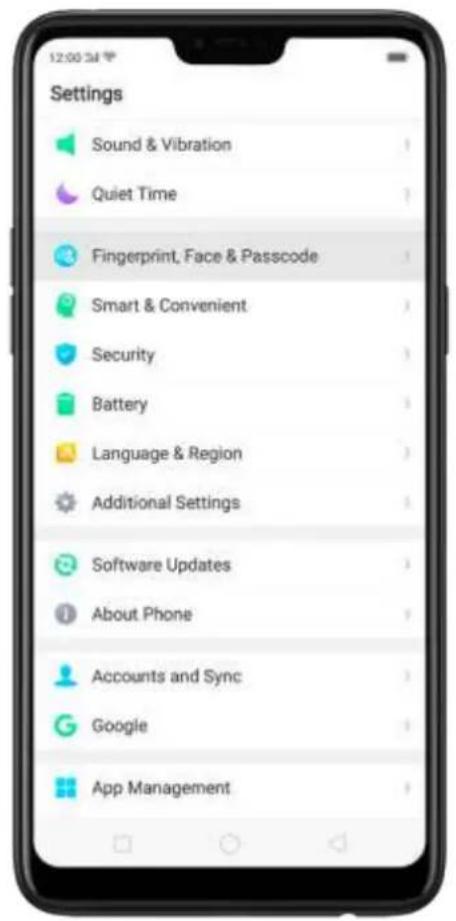
Go to [Settings] > [Fingerprint & Passcode], click [Turn on Passcode]. You'll be prompted to enter a 6-digit numeric code. If you want to use other passcode types, Click[Other Encryptions].

text_image
Settings Sound & Vibration Quiet Time Fingerprint, Face & Passcode Smart & Convenient Security Battery Language & Region Additional Settings Software Updates About Phone Accounts and Sync Google App Management
text_image
12:00:34 Fingerprint, Face & Passcode FINGERPRINT Add a Fingerprint Use Fingerprints For FACE Enroll Face Stay on the Lockscreen After the Phone Is Unlocked Screen Brightness Compensation Under Dim Surroundings Use Face To About "Face Recognition" 1. Your phone may be unlocked by someone with a similar appearance or objects shaped like you. 2. Pay attention to your appearance before enrollment. For example, whether you are wearing glasses, a hat, a mask, a beard or heavy makeup. 3. When enrolling, avoid environments with poor lighting and keep the camera lenses clean. 4. Ensure that the profile picture is clear and easy to recognize to improve the chances of a successful matching. LOCKSCREEN PASSCODE Turn on Passcode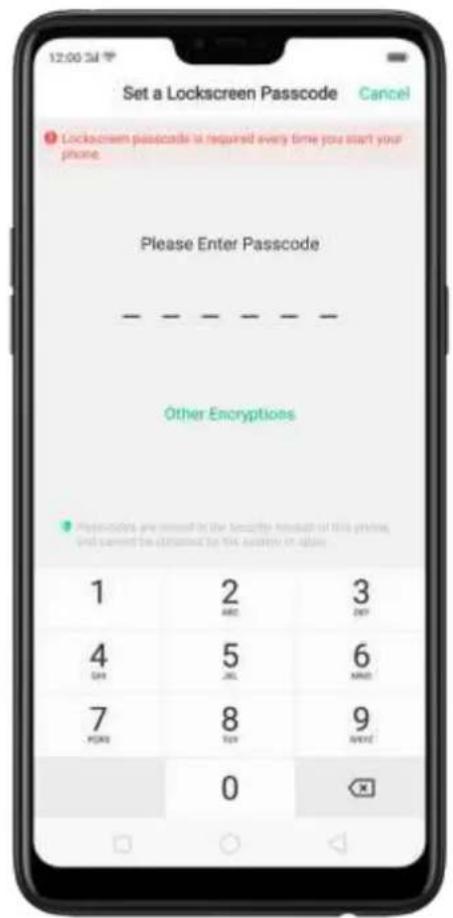
text_image
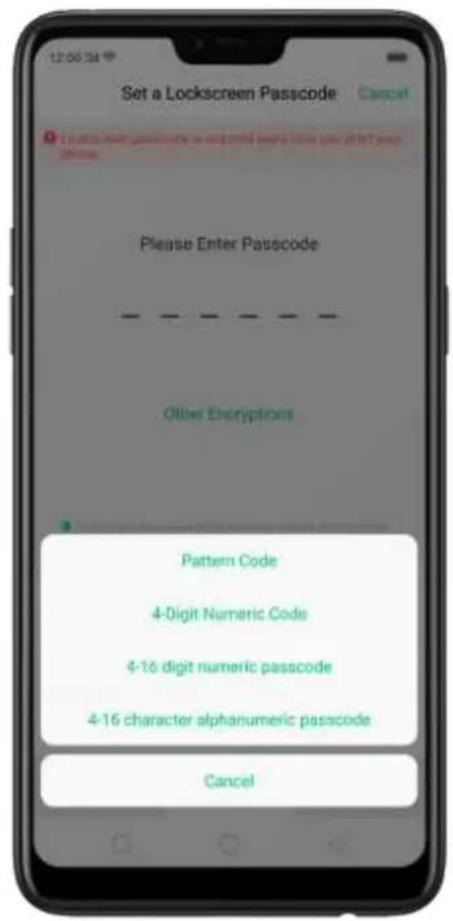
Set a Lockscreen Passcode Cancel Lockscreen passcode is required every time you start your phone. Please Enter Passcode Other Encryptions 1 2 3 ABC DAY 4 5 6 SAT MAN 7 8 9 POME TAY AVOC 0Click [Other Encryptions]. You can choose from two types of passcodes:
Click Pattern Code and draw a pattern with at least four dots connected.
Click 4-Digit Numeric Code and set a numbers-only passcode that contains four characters.
Click 4-16 Digit Numeric Code and set a numbers-only passcode that contains four to sixteen characters.
Click 4-16 Digit Alphanumeric Code and set a passcode that contains four to sixteen numbers and/or letters as your preference.
text_image
Set a Lockscreen Passcode Cancel Please Enter Passcode Other Erosptions Pattern Code 4-Digit Numeric Code 4-16 digit numeric passcode 4-16 character alphanumeric passcode CancelDraw your pattern or enter your passcode.
Re-draw or re-enter your pattern or passcode to confirm it and activate it.
Change the passcode
Go to [Settings] > [Fingerprint, Face & Passcode], click [Modify Passcode].
Draw or enter your current pattern or passcode.
Draw or enter your new pattern or passcode. If you want to use other passcode types, click [Other Encryptions] at the bottom of the screen.
Re-draw or re-enter your pattern or passcode to confirm it and activate it.
Turn off the passcode
Go to [Settings] > [Fingerprint & Passcode], click [Turn off Passcode].
Draw or enter your current pattern or passcode to confirm.
View more details in Set and use a passcode with your OPPO smartphone.
Use a fingerprint on your OPPO phone
Before you can add a fingerprint, you need to create a passcode for your OPPO phone. You can use fingerprints for:
Unlocking the phone from the lock screen.
Making purchases without entering a passcode.
Encrypting apps
Protecting files
Add a fingerprint
Go to [Settings] > [Fingerprint, Face & Passcode], click [Add a Fingerprint].
Follow the on-screen instructions, placing your finger gently on the Home button until your fingerprint is recorded.

text_image
12:00 PM Cancel Place Your Finger on the Sensor Place your finger on the fingerprint button and then move it away. Repeat this step. Fingerprint is retained in the working solution of thick fingers, and assumed it is addressed by the zoomed-in app.
text_image
12:00:34 Cancel Place Your Finger on the Sensor Move the edge of your finger away from the fingerprint button and then place it back down again. Repeat this step. Fingerprints are scored in the sensory frames of this image, and mouse by released by the image-in-apps.Repeat step 1 and 2 for as many fingers as you like.
Delete or Rename a fingerprint
Go to [Settings] > [Fingerprint & Passcode], click the fingerprint you've added.
Enter a name for your fingerprint, or click [Delete Fingerprint].

text_image
Edit Fingerprint Finger 1 Delete Fingerprint G What's new in Gboard? q w e r t y u i o p" a s d f g h j k l z x c v b n m ?123 EnglishUse fingerprint to reset passcode
Before you can use the reset feature, you must add at least one fingerprint to your phone and enabled Fingerprint Unlock.
Reset Passcode methods:
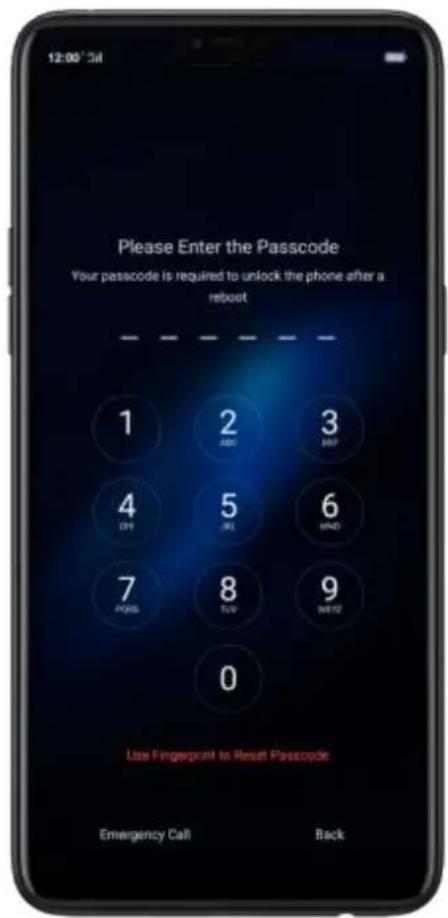
Restart the phone, enter the wrong passord five times and wait 30 seconds. Then click Use Fingerprint to Reset passcode, verify your fingerprint and reset the passcode.
text_image
Please Enter the Passcode Your passcode is required to unlock the phone after a reboot 1 2 3 ABC BWP 4 5 6 OH OK AND 7 8 9 PONS TGV WNT2 0 Use Fingerprint to Reset Passcode Emergency Call BackWhen your phone is unlocked, go to [Settings] > [Fingerprint, Face and Passcode], enter the wrong passcode five times and wait 30 seconds. Then click Reset Passcode, verify your fingerprint and reset the passcode.
text_image
Settings Sound & Vibration Quiet Time Fingerprint, Face & Passcode Smart & Convenient Security Battery Language & Region Additional Settings Software Updates About Phone Accounts and Sync Google App Management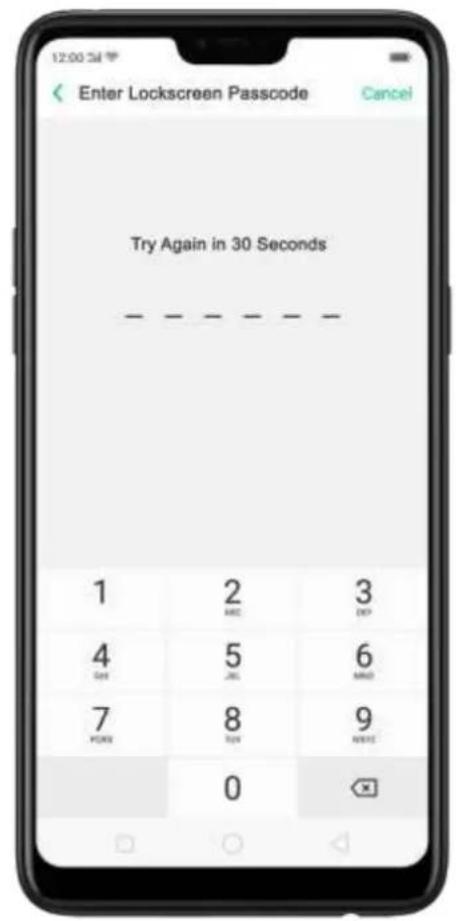
text_image
Enter Lockscreen Passcode Cancel Try Again in 30 Seconds 1 2 3 MNC DAY 4 5 6 DAY MNO 7 8 9 PARK TAY NICE 0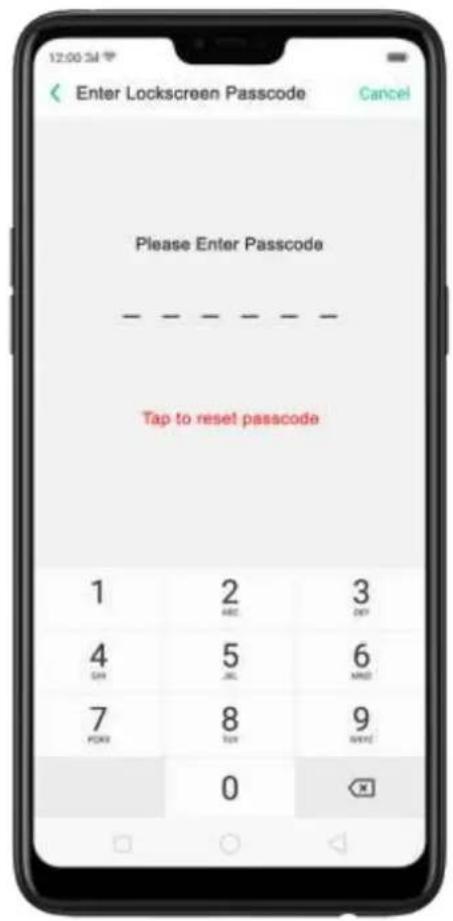
text_image
Enter Lockscreen Passcode Cancel Please Enter Passcode Tap to reset passcode 1 2 3 ABC DAY 4 5 6 SH HK MAD 7 8 9 FOX TAY NEW 0Enroll a Face on your OPPO phone
Before you can add a fingerprint, you need to create a passcode for your OPPO
phone. You can use fingerprints for:
Unlocking the phone from the lock screen.
Encrypting apps
Protecting files
Enroll a face
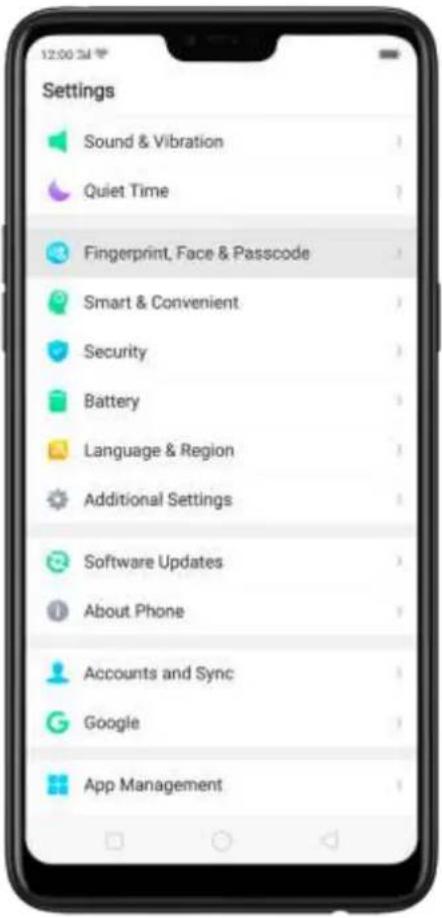
Go to [Settings] > [Fingerprint, Face & Passcode], click [Enroll Face].
text_image
Settings Sound & Vibration Quiet Time Fingerprint, Face & Passcode Smart & Convenient Security Battery Language & Region Additional Settings Software Updates About Phone Accounts and Sync Google App Management
text_image
Fingerprint, Face & Passcode FINGERPRINT Add a Fingerprint Use Fingerprints For FACE Enroll Face Stay on the Lockscreen After the Phone Is Unlocked Screen Brightness Compensation Under Dim Surroundings Use Face To About "Face Recognition" 1. Your phone may be unlocked by someone with a similar appearance of objects shaped like you. 2. Pay attention to your appearance before enrollment. For example, whether you are wearing glasses, a hat, a mask, a beard or heavy makeup. 3. When enrolling, avoid environments with poor lighting and keep the camera lenses clean. 4. Ensure that the profile picture is clear and easy to recognize to improve the chances of a successful matching. LOCKSCREEN PASSCODE Turn on Passcode
text_image
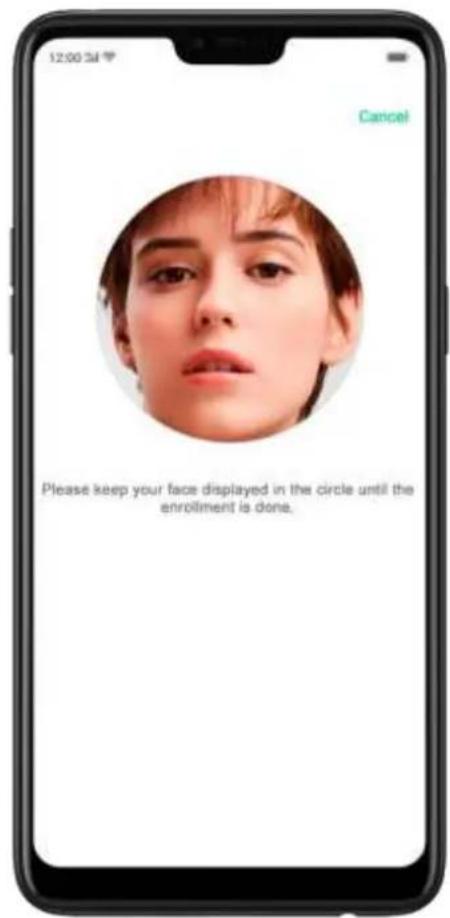
12:00 AM Cancel Enroll Facial Info For the best results, keep the device 20cm to 50cm from your face and avoid surroundings that are too bright or too dim when enrolling. ContinueFollow the on-screen instructions. To get the ideal effect, keep the phone 20-50cm away from your face and position your whole face in the circle until the enrollment is done. Avoid very bright or dim environment when enrolling your face.
text_image
12:00 3M Cancel Please keep your face displayed in the circle until the enrollment is done.
text_image
12:00 PM Cancel Face Recognition is ready, you can unlock the phone with your faceDelete Enrolled Faces
Go to [Settings] > [Fingerprint, Face & Passcode], click [Delete Enrolled Faces].
Use Face for screen unlocking, App Lock and File Safe. Go
to [Settings] > [Fingerprint, Face& Passcode] >[Use Face to], then turn on the
features you want to use.
View more details in Add and use a fingerprint on your OPPO Smartphone.
3.2.2. Set up other mail and calendar accounts
In addition to the apps that come with your phone, if you want to use other mail and calendar apps, add the accounts to your phone to let the apps associated with those accounts sync with your phone.
Set up an account. Go to [Settings] > [Accounts and Sync], then click [Add
Account].
Repeat the steps for as many accounts as you like.

text_image
12:00 Accounts and Sync Auto-sync Data Messenger Add Account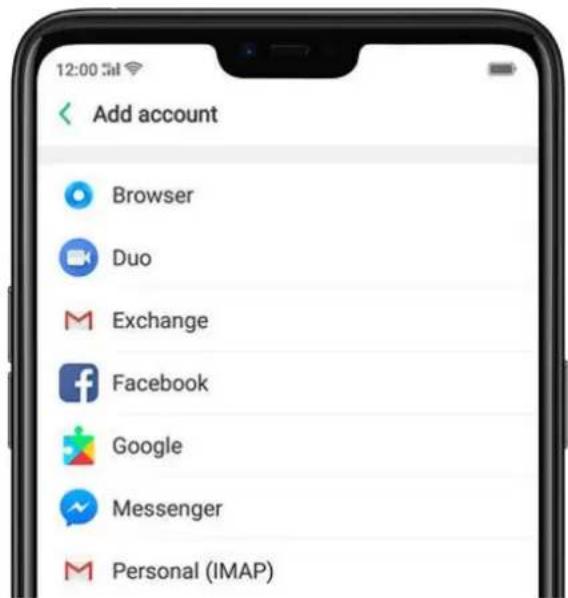
text_image
Add account Browser Duo Exchange Facebook Google Messenger Personal (IMAP)3.2.3. Transfer data from the old phone to OPPO smartphone
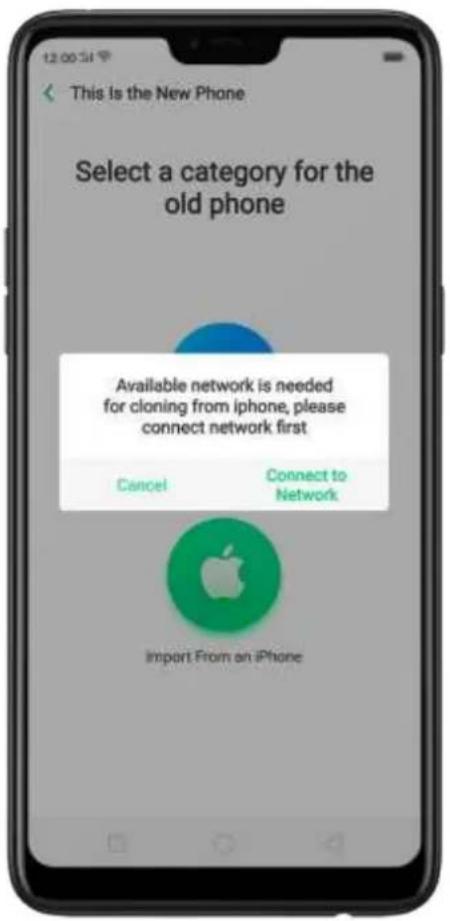
You can transfer over all of your data - with no risk or loss of quality, using Clone Phone. With Clone Phone, you don't need to leave any of your data behind with your previous device. Take it all with you in three easy steps: From an iPhone to an OPPO Phone
- On your OPPO Phone, go to [Tools] > [Clone Phone], then select "This is the new phone" and "Import From an iPhone". Connect your phone to the Internet when promoted.

text_image
This Is the New Phone Select a category for the old phone Available network is needed for cloning from iphone, please connect network first Cancel Connect to Network Import From an iPhone
text_image
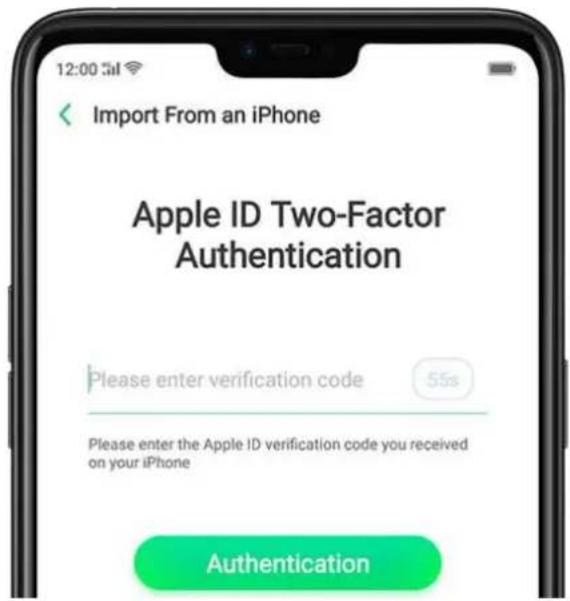
Network & Internet Airplane Mode Wi-Fi TETHERING VPN Dual SIM & Cellular Reset Network Settings- Sign in the iCloud account of your old iPhone. Enter the Apple ID verification code you received on your iPhone or in the SMS and start computing cloud data.
text_image
Import From an iPhone Apple ID Two-Factor Authentication Please enter verification code 55s Please enter the Apple ID verification code you received on your iPhone Authentication
text_image
Import From an iPhone Computing Cloud Data... Please don't disconnect or switch the network and stay on the current screen Contacts 0 Entries, 0.00B Photos 0 Photos, 0.00BFrom an Android Phone to an OPPO Phone
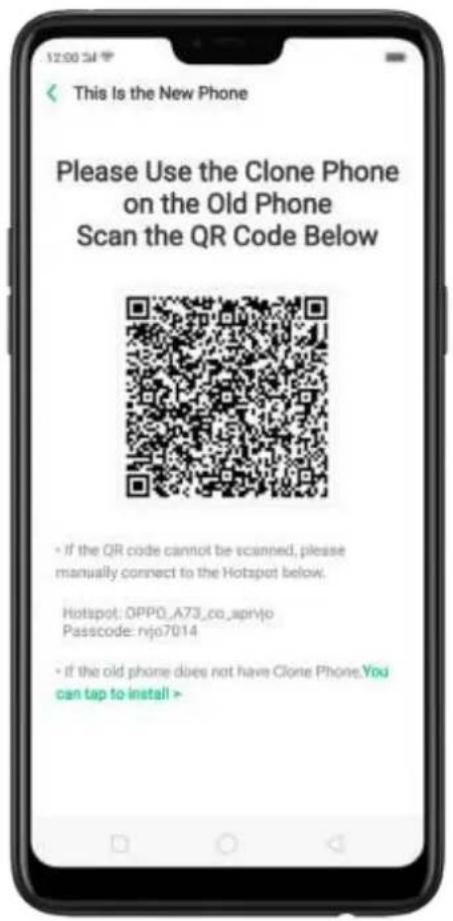
- On your OPPO phone, go to [Tools] > [Clone Phone], then select "This is the new phone" and "Import from an Android Phone".
- On your old phone, click [Clone Phone] from the Home screen, select "This is the old phone" and scan the QR Code generated by the new phone to start cloning.
text_image
This Is the New Phone Please Use the Clone Phone on the Old Phone Scan the QR Code Below • If the QR code cannot be scanned, please manually connect to the Hotspot below. Hotspot: OPP0_A73_co_aprijo Passcode: rvjo7014 • if the old phone does not have Clone Phone.You can tap to install >
text_image
This Is the Old Phone Transfer All the Contents of This Phone to the New Phone including: Contacts, Messages, and Call History Photos, Videos, Music and Document... System Data including Settings, Clock, etc. Apps and App Data Except for app data that cannot be used on the new phone Start Cloning Manually Select the Data to Be Cloned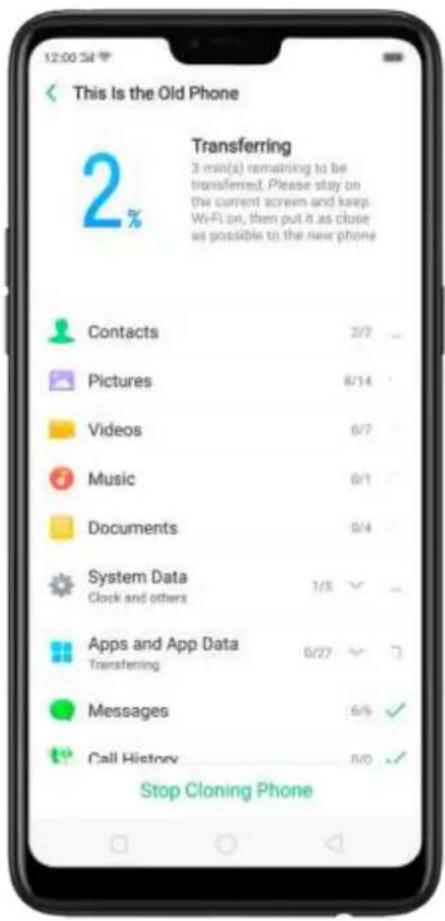
text_image
This Is the Old Phone 2% Transferring 3 min(x) remaining to be transferred. Please stay on the current screen and keep Wi-Fi on, then put it as close as possible to the new phone Contacts Pictures Videos Music Documents System Data Clock and others Apps and App Data Transferring Messages Call History Stop Cloning PhoneYou can also select the data (Personal Data, System Data, Applications, Storage Data) to be cloned by clicking "Manually Select the Data to be Cloned."
- Enter the lock screen password to continue.
View more details in Transfer data with Clone Phone.
3.2.4. Date and Time
Knowing the time and date is crucial to keeping on schedule. If you want to set the date and time display on your OPPO phone, or if you're out of synch or need a time update, just start with step 1 as below.
- Go to [Settings] > [Additional Settings] > [Date & Time], click it.
text_image
This is the New Phone Select a category for the old phone Available network is needed for cloning from iphone, please connect network first Cancel Connect to Network import From an iPhone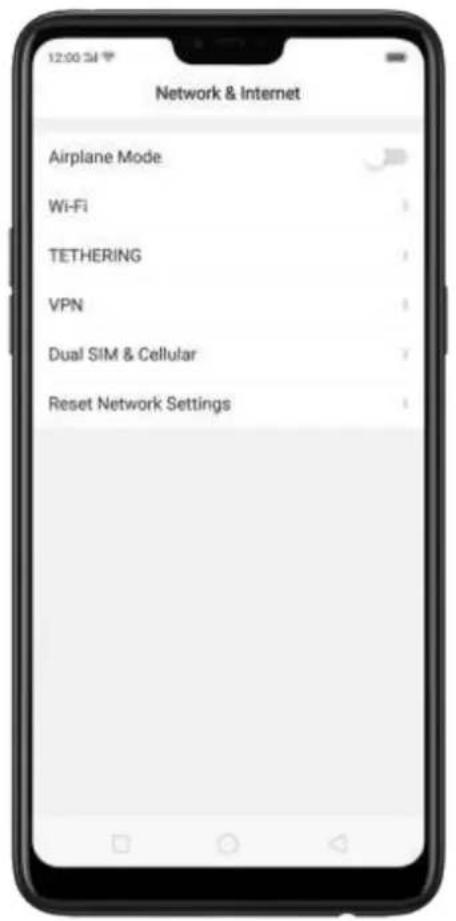
text_image
Network & Internet Airplane Mode Wi-Fi TETHERING VPN Dual SIM & Cellular Reset Network Settings- 24- Hour Format. Switch from 12-hour or a 24-hour format optionally.
- Automatically Set Date and Time. Enable [Automatically Set Date and Time] if you want to use the data given by your network provider or your GPS, or you can set the time yourself if you prefer. See step 4.
- Set Manually. You can manually set the time and date. To do so, disable [Automatically Set Date and Time], and then:
- Select your time zone. Click [Time Zone] and select the location you would like to adjust your time to.
- Change the date and time. You will see the date and time appear under the current time zone. Drag your finger across each column to change the date and time. Scroll wheels will appear to allow you to change the date and time simultaneously.
View more details in Set up date and time on your OPPO smartphone.
3.2.5. Language and Region
OPPO smartphone offers you an easy access to configure it to display information
in another language. If you want to change its language to yours, or if you've relocated to a new country, you can change language and region by following a few easy steps.
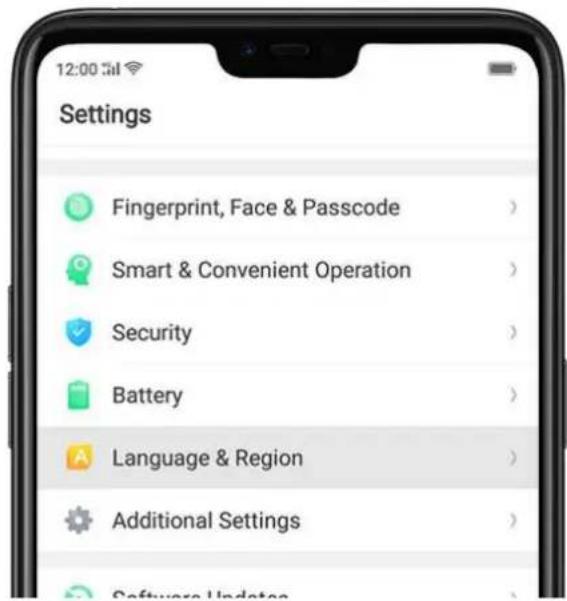
- Go to [Settings] > [Language & Region], click it.
text_image
Settings Fingerprint, Face & Passcode Smart & Convenient Operation Security Battery Language & Region Additional Settings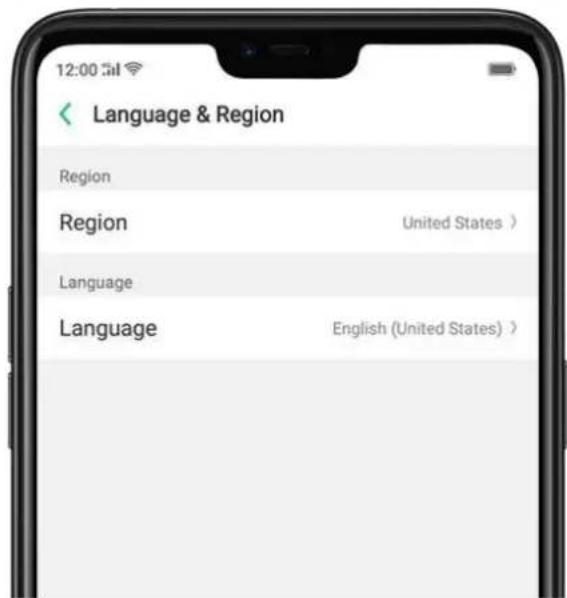
text_image
12:00 Language & Region Region Region United States > Language Language English (United States) >-
Find your desired region. Click Region and change the region you want to use.
-
Find your desired language.
- Click [Language], you will see a list of languages. Scroll down to find the language you wish to use.
- Select your desired language and click "Done." A confirmation message will appear at the bottom of your screen. Confirm the change by clicking "Change to ____." Then your OPPO phone will be in the new desired language.

text_image
Region United States Algeria Argentina Australia Bahrain Bangladesh Cambodia China Colombia Denmark Egypt Germany India
text_image
12:00:54 Cancel Language Done English English (New Zealand) English English (United Kingdom) English Español (España) Spanish Español (México) Spanish Filipino Filipeño Français French Indonesia Indonesian Italiano Italian Change System Language Change to English Cancel3.2.6. Connect to the Internet
OPPO smartphone connects to the Internet whenever necessary, using a Wi-Fi connection or mobile network.
Wi-Fi connection
- Go to [Settings] > [Wi-Fi], or swipe down from the top of your screen to open
Control Center, then tap the detected Wi-Fi networks will be displayed.
-
Tap the Wi-Fi network you want to connect to.
-
Fill in the password if required.
Mobile data connection
Go to [Settings] > [Dual SIM & Cellular] and enable [Mobile Data], or swipe down
from the top of your screen to open Control Center, then tap

Notice: Enabling the mobile networks connection may result in extra cost. Check with your mobile network service carrier.
4. What's new in ColorOS 5.0
4.2. AI Feature
4.1.1. Smart Assistant
The Smart Assistant combines information such as Weather, Steps Tracker, and Events, and puts them into an active day summary of what's on tap for today. Quick apps and favorite contacts allow you to open an app or call someone with only one tap. You can also customize Smart Assistant to better suit your needs, and to emphasize what you actually care about.
Open Smart Assistant. Go to [Settings] > [Smart & Convenient] and turn on [Smart Assistant]. Or swipe right from the left edge of the Home screen, then click Turn on Smart Assistant.

text_image
Smart Assistant One-tap access to common functions, and one-step quick view of important information 28°C SZX PEK Turn On Smart Assistant Cancel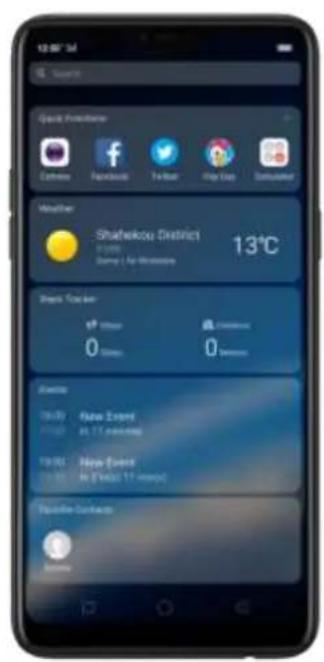
text_image
12:00' 34 Source Quick Protection Cathode Facebook The Beat Play True Saturation Weather -Shahshkou District 13°C Static Traffic 0 0 Events New Event In (T+17 events) New Event In (T+17 events) Favorite Contacts Notice
text_image
12:00:54 Smart & Convenient Navigation Keys Assistive Ball Full Screen Multitasking Gesture & Motion Smart Assistant Displaced in the screen through from Management, providing smart coordination services and set quick functions. Window management, and deliver information.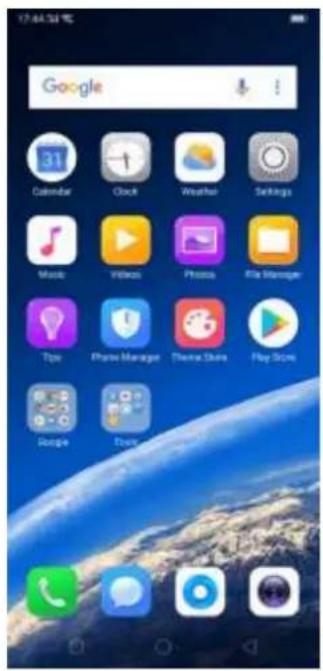
text_image
Google Calendar Clock Weather Settings Music Videos Photos File Manager Tips Phone Manager Theme Store Play Store Google DaveCustomize Smart Assistant widgets. Scroll to the bottom of Smart Assistant screen, and then click Edit. Click

to add or remove widgets. To arrange
the order of your information, touch and hold, then drag to a new position.

text_image
12:00 PM Cancel Done Smart Assistant One-step access to classroom functors, and one-step quick view of important information. Features Quick Functions Take up step opening my app functions Events Over the quick view of interest by the Day Favorite Contacts Take up closing of business contacts Step Tracked Steps Tracker Making a number of issues and questions needed to the day Weather Auto displaying of common features and excellent information
text_image
Google Calendar Clock Weather Settings Music Videos Photos File Manager Tips Photo Manager Theme Store Play Store Google TouchInformation you can get from Smart Assistant:
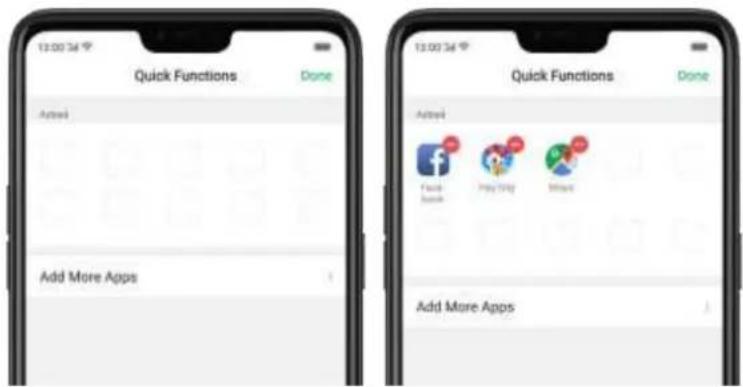
- Quick Functions: Provides you with quick access to apps. Click +, click Add More Apps, and then choose an app. You can open the app directly by clicking its icon in Smart Assistant.
text_image
13:00:34 Quick Functions Done Add More Apps 13:00:34 Quick Functions Done Add More Apps Add More Apps
text_image
17:00:34 Google Calendar Clock Weather Settings Music Video Photo File Manager Tips Phone Manager Theme Store Play Store Google Book• Weather: Provides you with weather conditions of your current location.
• Steps Tracker: Keeps track of your daily steps and distance covered.

text_image
12:00:54:00 Steps Tracker Day Time Microsoft Status 97 Steps 0 Steps 88 Stenome 0 Stenome Ingredients recorded for 4 steps day. 2016/05/07 0 Steps 3 Minutes• Events: Keeps track of all your events in the Calendar app.
- Favorite Contacts: Lets you make call with one tap. Click +, then choose a
contact. Click the head portrait to call the person.
4.2.1. Smart album search and cleanup
Search the album intelligently. Using the on-device facial recognition and AI detection of what's on your images, your phone can now recognize and bundle together photos with the same facial feature or scenes like hiking or being on the beach, or more.
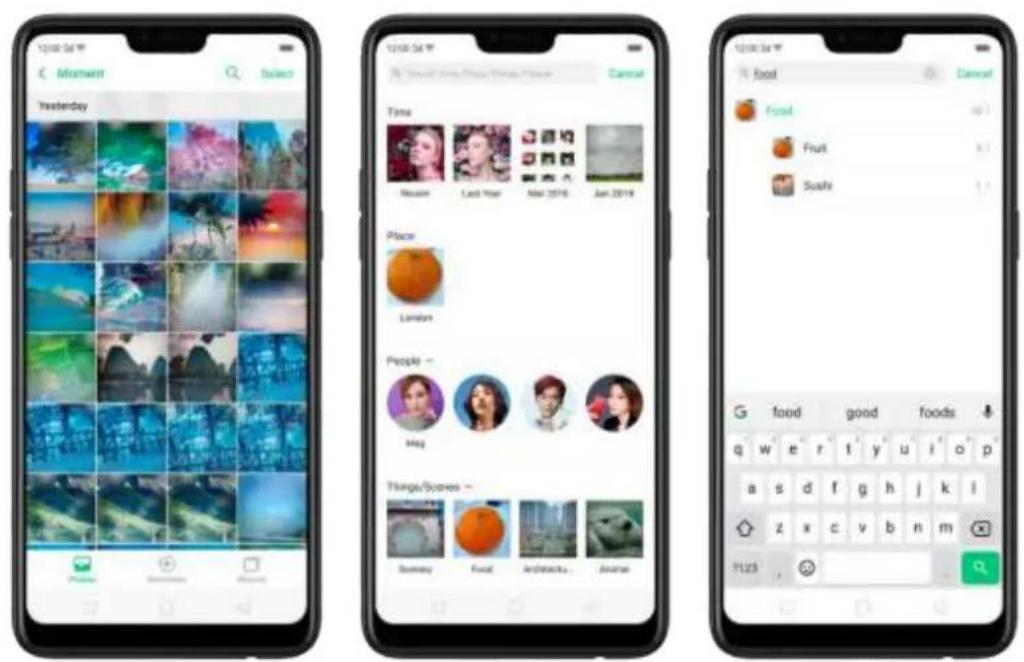
To search your photos by categories, click , and then type keywords of what
you're looking for. For example, you can search things like "food" or "car." Photos will display all the images you have on your library that are a match. It also tells you exactly how many images match your keyword.
Categories you can search include:
- Time. Search for a date, or a festival name. The phone will recognize which country the image was taken in, and search for festivals in that country, such as Diwali festival in India.
- Place. You can search for a location, specific to a street name.
• People. Search the name of a specific people. See People. -
Things and scenes. The phone presets 54 labels. You can search a label, including its synonyms, using multilingual languages.
-
Recent. Click Recent to see images and videos saved in recent the last 7 days.
- Content of the image. Search English or Chinese texts that is contain in on the image, then phone will detect the image which contains the texts.
Clean the albums intelligently. You can quickly clean your duplicate, similar or blurry photos in [Phone Manager] > [Clean Storage] > [Photo Cleaning].

text_image
77 Screening Clean storage Privacy Permissions Virus Scan Payment Protection WeChat Cleaner WhatsApp Cleaner Common Problems Detection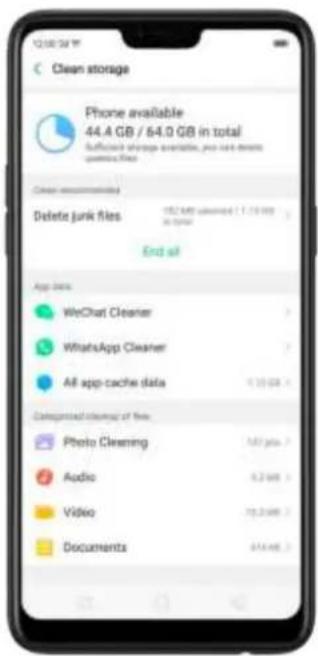
text_image
Clean storage Phone available 44.4 GB / 64.0 GB in total Sufficient storage available, you can detect necessary files. Clear recommendations Delete junk files End of App data WeChat Cleaner WhatsApp Cleaner All app-cache data Downloaded cleanup of free Photo Cleaning Audio Video Documents
text_image
137 photos to be processed, 571 MB Clearing your quality of blackface photos is unassortivated Similar photos 40 pcs, 200 X480 Burst photos 15 pcs, 97 X480 Beautified photos Not displayed Blurry photos 14 pcs, 35 X140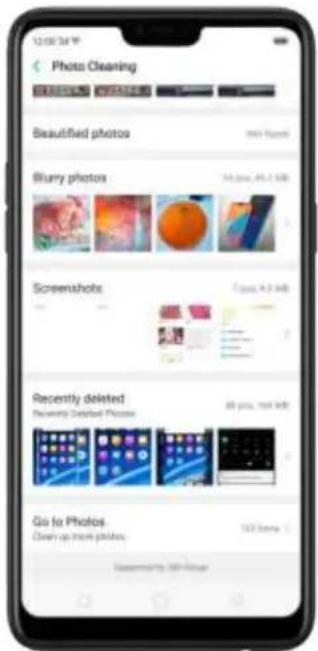
text_image
12:00:34 PM Photo Cleaning Beautiful photos Blurry photos Screenshots Recently deleted Go to Photos Clean up more pixels 500 times Sustainable by 100% imageYour phone compares and looks for similarities in different photos and finds duplicates as well as photos of the same subject, beautified pictures, and blurry photos. You can also manage your screenshots and recently deleted photos, or go to Photos directly.
4.2.2. Quick actions menus
Quick Actions let you do the things you do most often, in a faster way and in fewer steps. Press and hold an app icon to bring up Quick Actions menu, which offers shortcuts to specific features within that app. When the menu appears, click the shortcut you would like to use, then the app will open directly to that feature.
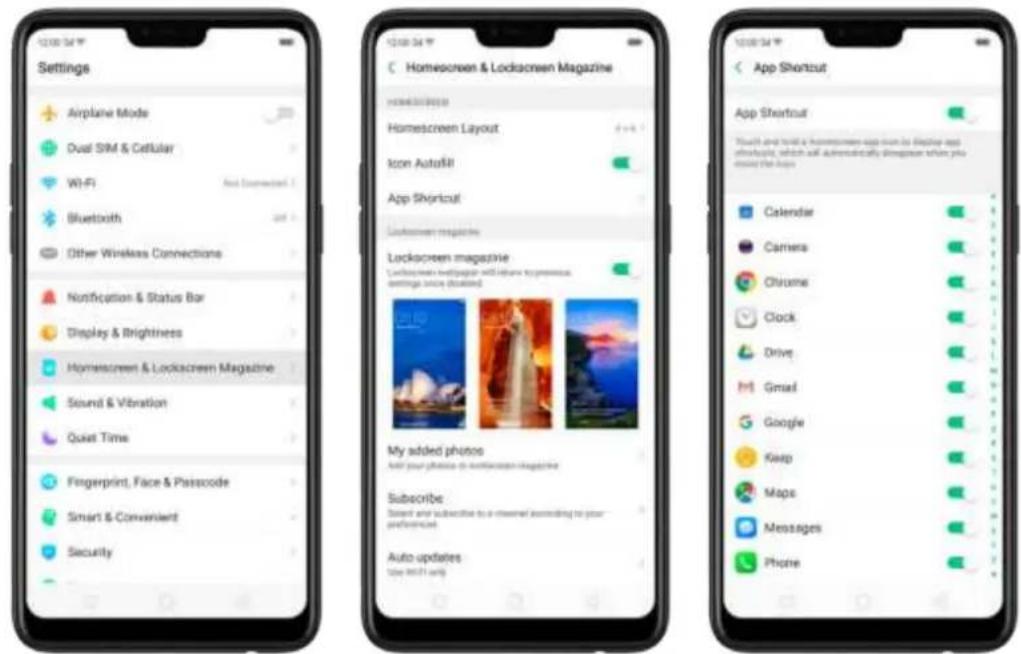
To turn the quick actions menu on or off for an app, go to [Settings] > [Homescreen & Lockscreen Magazine] > [App Shortcut].
text_image
Settings Airplane Mode Dual SIM & Cellular Wi-Fi New Connection Bluetooth Other Wireless Connections Notification & Status Bar Display & Brightness Homestcreen & Lockscreen Magazine Sound & Vibration Quiet Time Fingerprint, Face & Passcode Smart & Convenient Security 12:00:54 12:00:54 C Homescreen & Lockscreen Magazine Homestcreen layout Icon AutoFill App Shortcut Lockscreen magazine Lockscreen webpage Lockscreen webpage and封面 top unusual settings once (disabled) My added photos Add your photos by a entertainment magazine Subscribe Based and subscribe to a channel according to your preferences Auto updates Use WiFi only App Shuntzut App Shortcut Touch and install a homescreen app via the display app interface, which will automatically displace where you create the apps Calendar Camera Chrome Clock Drive Gmail Google Keep Maps Messages PhoneMost of the phone's applications support this feature. For example, go to your Home screen and press and hold on the icon for the Twitter app , you'll see a mini menu that lets you quickly search in Twitter, share tweets, send messages, scan QR code, view app info, or delete the app.
When long pressing a quick action of an app, you can add that feature as a shortcut to the Home screen.

text_image
12:00:34 °C WPS Office Twitter Messenger Facebook4.3. AI Scene Recognition and AI Beauty
With ColorOS 5.0, the camera will tune up camera settings based on the scene it detects. It intelligently and accurately analyzes the scene and object you're shooting and pick the best brightness, exposure, color, and contrast for you. Also, personalized AI Beauty provides functionality for precise recognition and delicate beautification of each individual facial feature. You can take the best selfie with ease.
AI Scene Recognition. The camera identifies 16 different scenes when taking photos, such as a delicacy of dessert or a spectacular sunrise. It allows you to take great pictures with automatic adjustments made intelligently, heightening the chances you capture those special moments.
AI Beauty. The Facial Recognition technology can identify up to 296 facial recognition spots while clicking selfies. Whether you're taking a selfie or taking a photo with other people, the camera will make different changes for each individual facial feature, which make the men look more masculine and let the ladies exude great femininity. Everyone is unique in the camera.
• Identifying up to 296 facial recognition spots while clicking selfies.
- Providing up to 8 million beauty schemes by identifying race, gender, age, skin color, and skin quality.
- Beautifying up to four people in a photo when taking a photo with others.
Swipe-up Gesture Navigation
The four-different swipe-up gestures of ColorOS 5.0, which provides access to the Home screen, app switcher, and the upper page, are the most intuitive, natural, and fun interactions when you use the phone. Compared with the previous version, you have more gesture layouts to choose from. Select one that suits you most and use it for navigation rather than rely on button clicks alone.
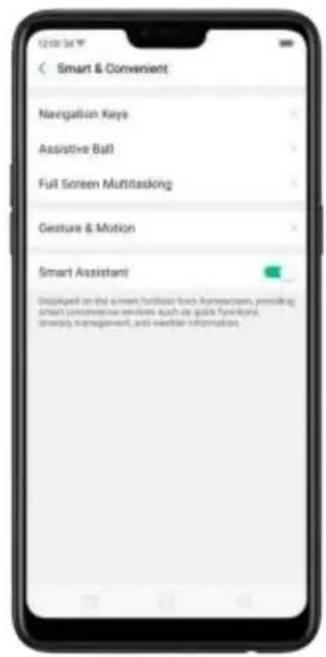
Use swipe-up navigation gestures. Go to [Settings] > [Smart & Convenient] > [Navigation Keys] and click [Swipe-up Gesture Navigation].
text_image
Smart & Convenient Navigation Keys Assistive Ball Full Screen Multitasking Gesture & Motion Smart Assistant Displained on the screen funnel for Rworkhouse, providing smart convenience services such as quick functioning, accuracy management, and easier information.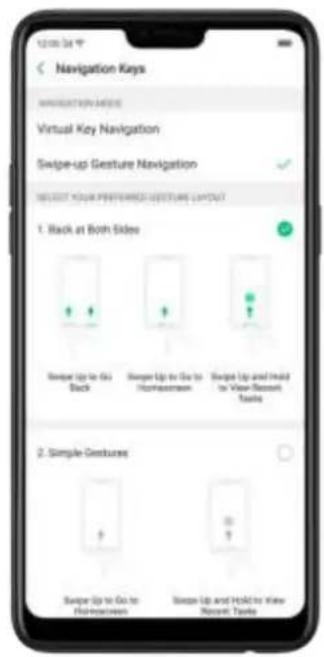
text_image
12:00:54 Navigation Keys NAVIGATION LABELS Virtual Key Navigation Swipe-up Gesture Navigation SELECT YOUR PREFERRED GESTURE LAYOUT 1. Back at Both Sides Swipe Up to Go Back Swipe Up to Go to Homescreen Swipe Up and Hold to View Record Tasks 2. Simple Gestures Swipe Up to Go to Homescreen Swipe Up and Hold to View Record Tasks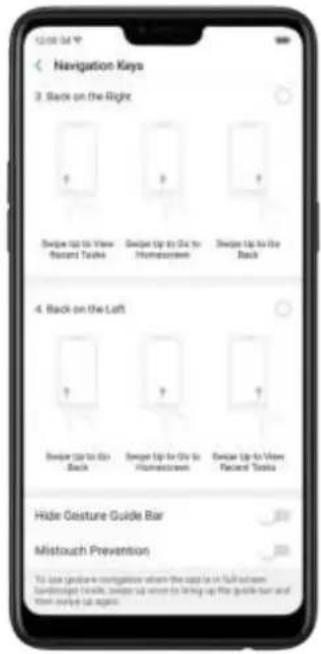
text_image
12:00 PM Navigation Keys 3. Back on the Right Switch Up to View Recent Tasks Switch Up to Do for Homescreen Switch Up to the Back 4. Back on the Left Switch Up to Do Back Switch Up to Do for Homescreen Switch Up to View Recent Tasks Hide Gesture Guide Bar Mistouch Prevention To use guidance to navigate where the app is in full seconds (minutes) until, switch up when it is being up the guide bar and then uses all again.Back at both sides. Swipe up from the left or right bottom to return to upper page, swipe up from the middle bottom to get to the Home screen, and swipe up from the middle bottom and pause 1 second to view recent tasks.
1. Back at Both Sides
natural_image
Illustration of a hand interacting with a smartphone screen displaying two green arrows (no text or symbols)Swipe Up to Go Back

natural_image
Illustration of a hand pressing a green upward arrow on a smartphone screen (no text or symbols)Swipe Up to Go to Homescreen
text_image
18Swipe Up and Hold to View Recent Tasks
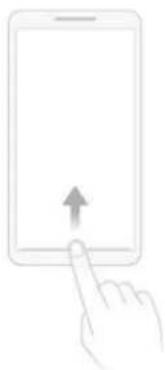
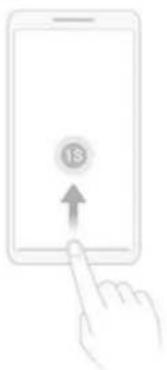
Simple gestures. Swipe up from the middle bottom to get to the Home screen, and swipe up from the middle bottom and pause 1 second to view recent tasks.
2. Simple Gestures
natural_image
Illustration of a hand pressing a tablet with an upward arrow (no text or symbols)Swipe Up to Go to Homescreen
natural_image
Illustration of a hand pressing on a tablet with an '18' button and upward arrow (no text or symbols beyond the number)Swipe Up and Hold to View Recent Tasks
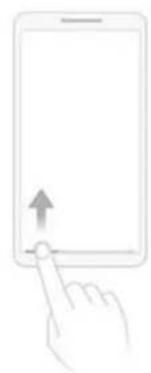
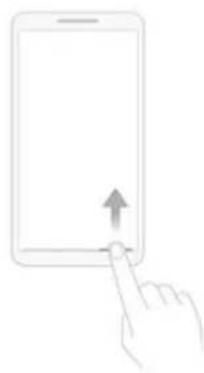
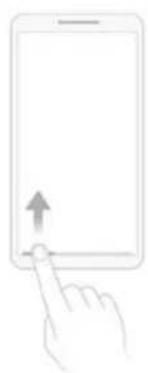
Back on the right. Swipe up from the left bottom to view recent tasks, swipe up from the middle bottom to get to the Home screen, and swipe up from the right bottom to return to upper page.
3. Back on the Right
natural_image
Line drawing of a hand pressing a button on a smartphone screen (no text or symbols)Swipe Up to View Recent Tasks

natural_image
Illustration of a hand pressing a tablet with an upward arrow (no text or symbols)Swipe Up to Go to Homescreen
natural_image
Line drawing of a hand pressing a button on a tablet device (no text or symbols)Swipe Up to Go Back
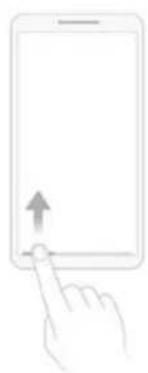
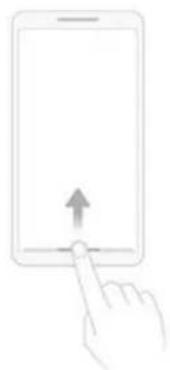
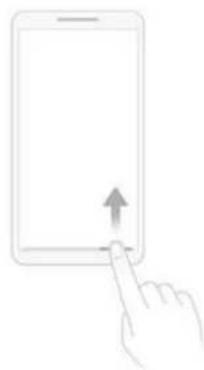
Back on the left. Swipe up from the left bottom to return to upper page, swipe up from the middle bottom to get to the Home screen, and swipe up from the right bottom to view recent tasks.
4. Back on the Left
natural_image
Line drawing of a hand pressing a tablet with an upward arrow (no text or symbols)Swipe Up to Go Back

natural_image
Illustration of a hand pressing a tablet with an upward arrow (no text or symbols)Swipe Up to Go to Homescreen

natural_image
Illustration of a hand pressing a tablet with an upward arrow (no text or symbols)Swipe Up to View Recent Tasks
Hide Gesture Guide Bar. Gesture Guide Bar is the translucent line at the bottom of the screen, which allows you to quickly distinguish the left, middle and right swipe-up regions. To hide the guide bar, turn on [Hide Gesture Guide Bar].
Prevent mistakenly touching. Turn on [Mistouch Prevention]. To use gesture navigation when the app is in Landscape Mode, you need to swipe up to bring up
the guide bar first, then swipe up again in the same area.
Swipe-up Gesture Navigation
The four-different swipe-up gestures of ColorOS 5.0, which provides access to the Home screen, app switcher, and the upper page, are the most intuitive, natural, and fun interactions when you use the phone. Compared with the previous version, you have more gesture layouts to choose from. Select one that suits you most and use it for navigation rather than rely on button clicks alone.
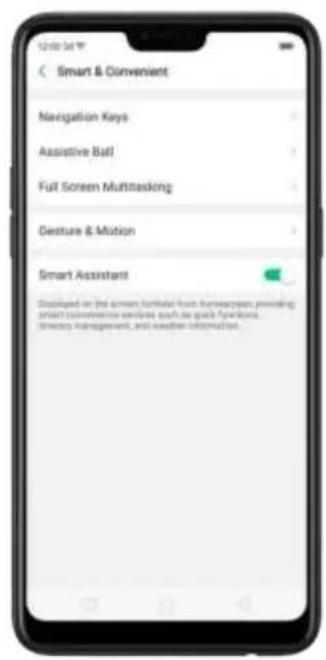
Use swipe-up navigation gestures. Go to [Settings] > [Smart & Convenient] > [Navigation Keys] and click [Swipe-up Gesture Navigation].
text_image
Smart & Convenient Navigation Keys Assistive Ball Full Screen Multitasking Gesture & Motion Smart Assistant Disasified on the screen portfolio (such home-screen providing smart convenience wireless such as quick functions, latency management, and weather information.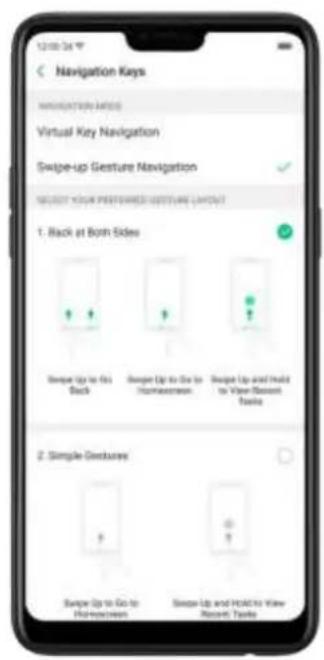
text_image
12:00:54 Navigation Keys NAVIGATION NAMES Virtual Key Navigation Swipe-up Gesture Navigation SELECT YOUR PREFERRED GESTURE LAYOUT 1. Back at Both Sides Swipe Up to Go to Back Swipe Up to Go to Homescreen Swipe Up and Hold to View Discount Tasks 2. Simple Gnosturey Swipe Up to Go to Homescreen Swipe Up and Hold to View Discount Tasks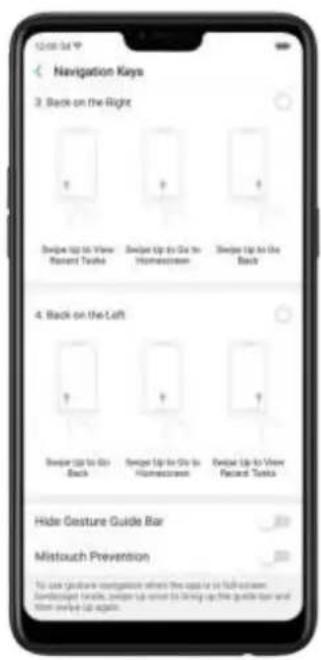
text_image
12:00:54 Navigation Keys 3. Back on the Right Switch Up to View Recent Tracks Switch Up to Use In Hormacotron Switch Up to Use Back 4. Back on the Left Switch Up to Go Back Switch Up to Use In Hormacotron Switch Up to View Recent Tracks Hide Gesture Guide Bar Mistouch Prevention To use gesture configuration where the app is in full-secure Downloaded fields, switch Up to use to bring up the guide bar and then switch Up again.Back at both sides. Swipe up from the left or right bottom to return to upper page, swipe up from the middle bottom to get to the Home screen, and swipe up from the middle bottom and pause 1 second to view recent tasks.
1. Back at Both Sides

natural_image
Illustration of a hand pressing on a tablet with two green arrows indicating upward movement (no text or symbols)Swipe Up to Go Back
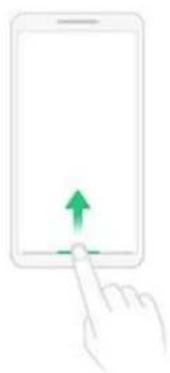
natural_image
Illustration of a hand pressing a button on a smartphone screen with an upward arrow (no text or symbols)Swipe Up to Go to Homescreen
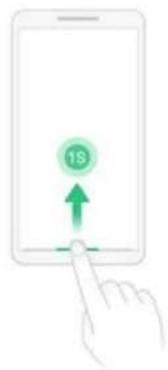
text_image
18Swipe Up and Hold to View Recent Tasks
Simple gestures. Swipe up from the middle bottom to get to the Home screen, and swipe up from the middle bottom and pause 1 second to view recent tasks.
2. Simple Gestures
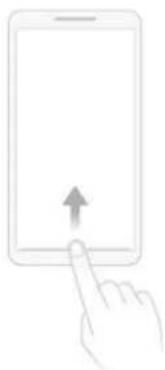
natural_image
Illustration of a hand pressing on a tablet with an upward arrow (no text or symbols)Swipe Up to Go to Homescreen

natural_image
Illustration of a hand pressing on a tablet with an '18' button and upward arrow (no text or symbols beyond the number)Swipe Up and Hold to View Recent Tasks
Back on the right. Swipe up from the left bottom to view recent tasks, swipe up from the middle bottom to get to the Home screen, and swipe up from the right bottom to return to upper page.
3. Back on the Right
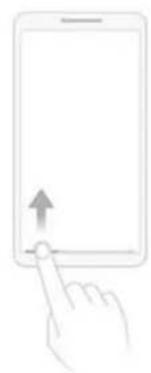
natural_image
Line drawing of a hand pressing a button on a smartphone screen (no text or symbols)Swipe Up to View Recent Tasks

natural_image
Illustration of a hand pressing a tablet with an upward arrow (no text or symbols)Swipe Up to Go to Homescreen

natural_image
Line drawing of a hand pressing a button on a tablet device (no text or symbols)Swipe Up to Go Back
Back on the left. Swipe up from the left bottom to return to upper page, swipe up from the middle bottom to get to the Home screen, and swipe up from the right bottom to view recent tasks.
4. Back on the Left
natural_image
Line drawing of a hand pressing a tablet with an upward arrow (no text or symbols)Swipe Up to Go Back
natural_image
Illustration of a hand pressing a tablet with an upward arrow (no text or symbols)Swipe Up to Go to Homescreen
natural_image
Illustration of a hand pressing a tablet with an upward arrow (no text or symbols)Swipe Up to View Recent Tasks
Hide Gesture Guide Bar. Gesture Guide Bar is the translucent line at the bottom of the screen, which allows you to quickly distinguish the left, middle and right swipe-up regions. To hide the guide bar, turn on [Hide Gesture Guide Bar].
Prevent mistakenly touching. Turn on [Mistouch Prevention]. To use gesture navigation when the app is in Landscape Mode, you need to swipe up to bring up
the guide bar first, then swipe up again in the same area.
4.4. Assistive Ball
Applying the Assistive Ball feature provides options to access several regular phone features through the touchscreen, rather than the tactile buttons. It enables you to use the virtual navigation keys with just one finger, and also open the notification center, take a screenshot, and more. When you perform gestures that are difficult for you, Assistive Ball can help.
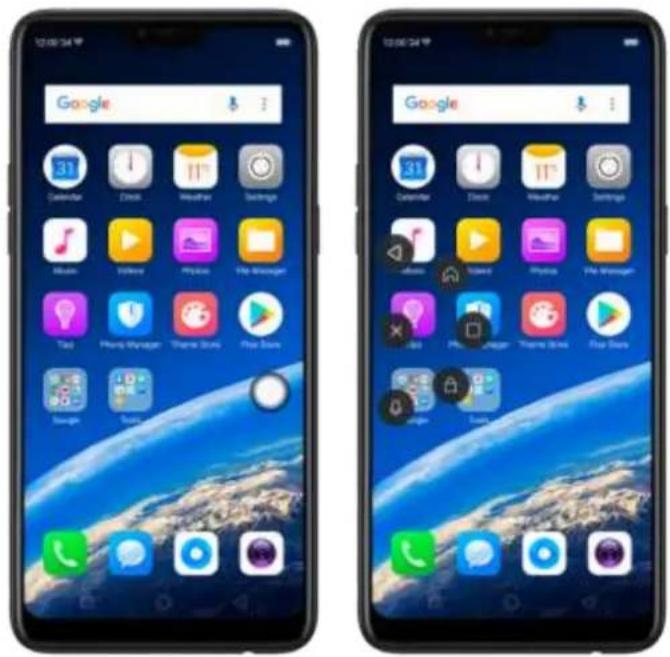
text_image
Two smartphone home screens displaying Google's home screen with app icons and status bar, showing both devices with 'Google' branding.Assistive Ball lets you perform a wide range of features:
- Return to upper page
- Go to the Home screen
• View recent tasks - Open Notification Center
- Lock the screen
- Enter One-hand Mode
• Take a screenshot
To configure the Assistive Ball menu, go to [Settings] > [Smart & Convenient] > [Assistive Ball], then choose one operation mode:
Gesture Operations. Below Gesture Operations, you can assign different actions to a single tap, double tap, or long press. For example, assign "Home" to "Touch and
hold", then you can long press the Assistive Ball to go to the Home screen.
Tap Menu. There are five shortcuts for enabling different features in Tap Menu. Click a shortcut and change the option to the one you preferred. On any screen, click the Assistive Ball to pop up the shortcut menu.

text_image
Assistive Ball Assistive Ball OPERATION MORE Gesture Operations Tap Menu Drag the operative ball to move at start Common Operations Tap Double-tap Touch and Hold TRANSPERITY OF THE ASSISTIVE BALL WHICH ONLY 80% 100% Hide Ball Automatically in Full Screen When the operative ball is held, you can pull down from the bottom edge to show it again.
text_image
Assistive Ball Assistive Ball OPERATION MODE Gesture Operations Tap Menu Click the subjective ball to choose its questions. Touch the user you need to change VANOSYPROPERTY OF THE ASSISTIVE BALL WHERE ISLAND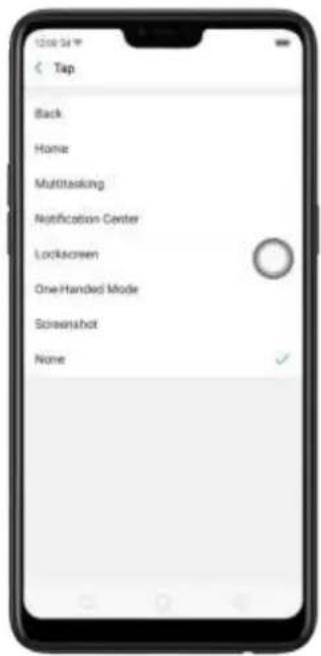
text_image
Tap Back Home: Multitasking Notification Center Lockscreen One Handed Mode Screenshot NoneWhen Assistive Ball is on, you can hold the floating button and pull it around the screen to any location to get it out of the way or make it more accessible.
Adjust the transparency of the Assistive Ball when not in use. Go to [Settings] > [Smart & Convenient] > [Assistive Ball], then drag the slider.
Hide the Assistive Ball automatically in full screen. Go to [Settings] > [Smart & Convenient] > [Assistive Ball] and turn on [Hide Ball Automatically in Full screen]. To reveal the Assistive Ball, swipe down from the top of the screen.
4.5. Full Screen Multitasking
When using an app in Landscape mode, you can open a second app while the other one is in the foreground. Just swipe inwards from the edge of the notched area (the topmost part of the phone's screen, the one where front camera is located) to bring up apps or functions, click an app icon, then you can operate the app above the other one, in a floating window.
Multitask with the floating mini app. Go to [Settings] > [Smart & Convenient] > [Full Screen Multitasking] and toggle the slider to green.

text_image
C FuB Screen Multitasking When at last TikTok app, simply wins towards from the edge of the installed area to bring up full screen multitasking for apps and quick apps to open on TikTok. Take an app time and the app will open in a floating window. Full Screen Multitasking Quick Apps Quick Functions About "Quick Apps" 1. What is TikTok app, most games and online apps allow you to call and run apps such as Messenger and iMailApp in a floating window for manager networking and other brand databases. 2. The app should needs to support the floating window because if it is easy to use the platforms and not working properly, use the apps in full screen mode.* When the phone is set to block notifications and you receive new messages from quick apps, notifications won't pop up, while a red spot will display on the app icons.
* When the phone doesn't block notifications and you receive new messages from quick apps, notifications will be displayed with a banner on the top screen. Click Reply in Floating to start full screen multitasking.

text_image
0 / 22 350 30 Take a video player to play a game while the player is going to we can't move the game.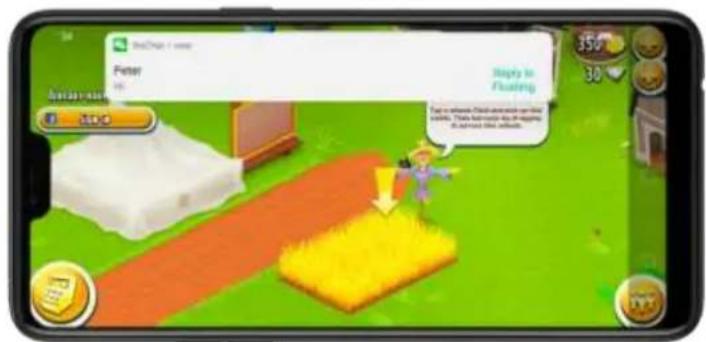
text_image
Hello Peter Hello Reply to Floating 350 30 250.0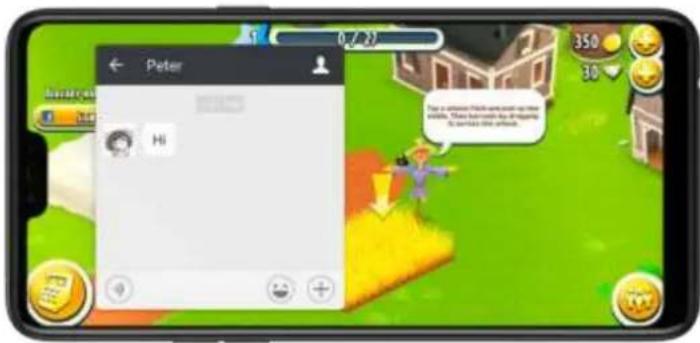
text_image
Parker Hi 350 30 30Add and rearrange quick apps. Click Quick Apps, then drag next to the app up or down. You can add up to 3 apps.

text_image
13:00 34 ° Quick Apps MessageCode (Log to 3 apps) Messenger WeChat Disulfed AppsRearrange quick functions. Click Quick Functions, then drag ≡ next to the function up or down.

text_image
12:00:34 Quick Functions Analyzed Functions Up to 3 Functions Record Screen Capture Screen Block Notifications Created FunctionNote: The quick app needs to support the floating window feature. If some of its functions aren't working properly, use the app in full-screen mode.
4.6. Quick actions menus
Quick Actions let you do the things you do most often, in a faster way and fewer
steps. Press and hold an app icon to bring up Quick Actions menu, which offers shortcuts to specific features within that app. When the menu appears, click the shortcut you would like to use, then the app will open directly to that feature.
To turn the quick actions menu on or off for an app, go to [Settings] > [Homescreen & Lockscreen Magazine] > [App Shortcut].
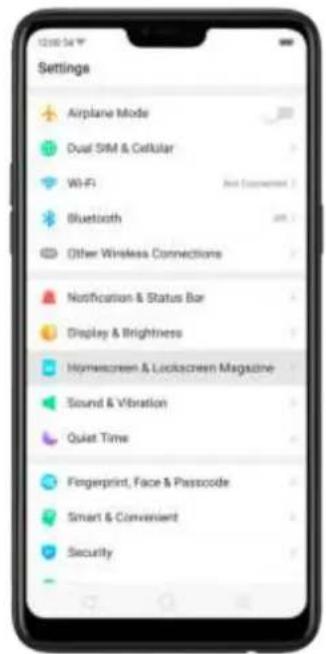
text_image
Settings Airplane Mode Dual SIM & Cellular Wi-Fi Bluetooth Other Wireless Connections Notification & Status Bar Display & Brightness Homemade & Lockscreen Magazine Sound & Vibration Quiet Time Fingerprint, Face & Passcode Smart & Convenient Security
text_image
12:00 PM C Homescreen & Lockscreen Magazine HOMESCREEN & Lockscreen Homescreen Layout Icon Autofill App Shortzut Lockscreen magazine Lockscreen magazine Lockscreen wallpaper will return to previous settings once disabled. My added photos Add your phones to lockscreen magazine Subscribe Submit and subscribe to a channel according to your professionals. Auto updates See WiFi only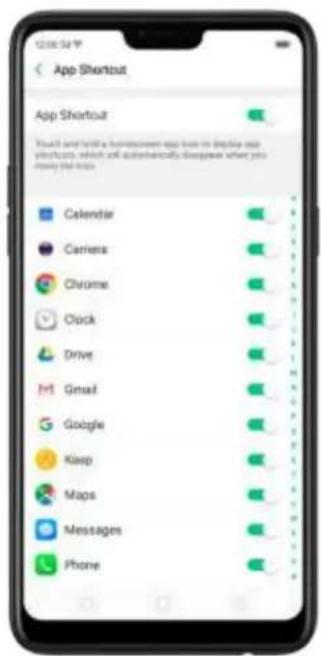
text_image
App Shortcut App Shortcut Touch and launch a homework app that is displayed on yesterday, which will automatically disagree what you move the next. Calendar Carriers Chrome Clock Drive Gmail Google Keep Maps Messages PhoneMost of the phone's applications support this feature. For example, go to your Home screen and press and hold on the icon for the Twitter app , you'll see a mini menu that lets you quickly search in Twitter, share tweets, send messages, scan QR code, view app info, or delete the app.
When long pressing a quick action of an app, you can add that feature as a shortcut to the Home screen.
4.7. Take and edit a screenshot
You can capture what's displayed on the current screen, and take long screenshots of your conversations on any messenger, or the screenshot of a full web page, or screenshot of some long pages in apps.-Also, you can edit the screenshots directly on the Photos app using a set of professional editing tools.
Capture the current page
- Press and hold the Power and Volume Down buttons for about 2 seconds, the screen will briefly flash white, and you'll hear a shutter sound if your phone's sound is on.

text_image
Volume down button Sleep/ Wake button- Gesture Screenshot: Go to [Settings] > [Smart & Convenient] > [Gesture & Motion] and turn on [3-Finger Screenshot]. Then swipe down the screen with three fingers to take a screenshot.
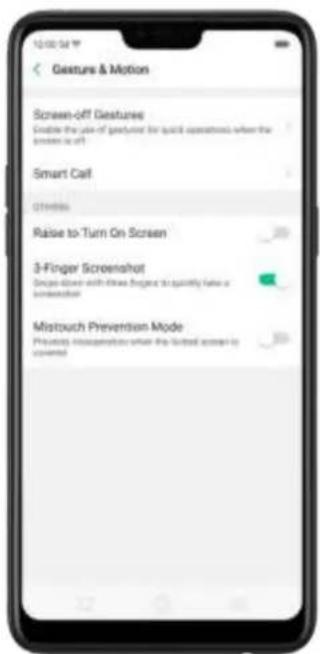
text_image
12:00:54 Gesture & Motion Screen-off Gestures Enable the use of keyboard for quick operation when the screen is off Smart Call Options Raise to Turn On Screen 3-Finger Screenshot Device closer with these fingers to quantify false a screenaction Mistouch Prevention Mode Private Photoshop when the button screen is copied
text_image
13:08:24 Google Calendar Dash Weather Settings Music Video Media File Messages TaaS Phone Messages Theme Maps Play Store Message ToolsCapture a long screenshot
With OPPO smartphone, you can easily take longer and scrolling screenshot with simple clicks.
To capture long screenshots:
-
Press and hold the Power and Volume Down buttons for about 2 seconds, or swipe down the screen with three fingers to take a screenshot of the current page.
-
Click the screenshot, click Long screenshot, then scroll the page up or down and stop until you have finished capturing all the contents you want.
-
Click Done to generate a long screenshot. The image is saved on the Photos app.
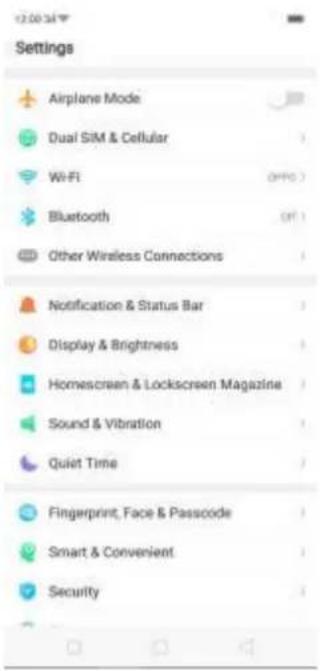
text_image
Settings Airplane Mode Dual SIM & Cellular WiFi Bluetooth Other Wireless Connections Notification & Status Bar Display & Brightness Homescreen & Lockscreen Magazine Sound & Vibration Quiet Time Fingerprint, Face & Passcode Smart & Convenient SecurityEdit a screenshot
After you've taken a screenshot, click it, then click Edit. You can use the fancy new markup features to optimize it instantly, such as cropping, adding text, light, filters, and more. Click Done to save your changes.

text_image
Settings Airplane Mode Dual SIM & Cellular Wi-Fi Bluetooth Other Wireless Connections Notification & Status Bar Display & Brightness Homescreen & Lockscreen Magazine Smart & Vibration Time rprint, Face & Passcode / & Convenient
text_image
Settings Juglware Works Dual SIM & Cable M-31 Microsoft Other Wireless Descentive Nonfactors & Status Set Display & Brightness Home screen & Lo-Fi screen Magazine Sound & Uptake Quiet Tone Playpoint, Focus & Passcode Smart & Conveered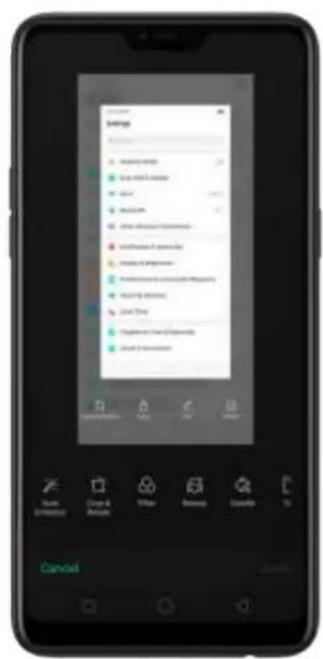
text_image
Smartphone screen displaying a user interface with a grid of app categories and a 'Cancel' button.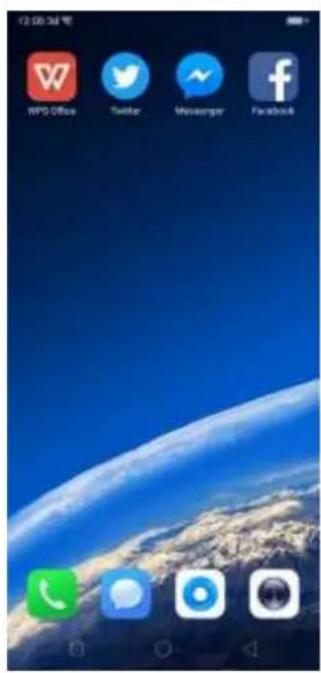
text_image
72:00:36 PM WPO Office Twitter Messenger Facebook4.8. Control Center
Control Center gives you instant access to the most frequently used features, and allows you to view recent and earlier notifications with just a swipe. You can open Control Center from anywhere on your phone from any app or screen, even from the lock screen.

text_image
12:00 March 27 Tuesday ESPN Mobile Tools Block Apache Apache Flashlight Cable Sudan Event OPPO Share Right Watch Screen Backloging The screen recording file has been saved Tap to viewOpen Control Center. Swipe down from the very top of any screen (except the notch at the top center of the display). You'll see the shortcuts listed on top, and notifications below.
Customize the shortcuts. By default, the phone will list ten shortcuts when you open Control Center. Click or swipe down the screen to show other shortcuts.
To change or rearrange the shortcuts, click on the top, then hold down and drag an icon to your preferred position. To save your changes, click √

text_image
12:00 Microsoft SQL Server Microsoft SQL Server Microsoft SQL Server Microsoft SQL Server Microsoft SQL Server Microsoft SQL Server Microsoft SQL Server Microsoft SQL Server Microsoft SQL Server Microsoft SQL Server Microsoft SQL Server Microsoft SQL Server Microsoft SQL Server Microsoft SQL Server Microsoft SQL Server Microsoft SQL Server Microsoft SQL Server Microsoft SQL Server Microsoft SQL Server Microsoft SQL Server Microsoft SQL Server Microsoft SQL Server Microsoft SQL Server Microsoft SQL Server Microsoft SQL Server Microsoft SQLServer Microsoft SQL Server Microsoft SQL Server Microsoft SQL Server Microsoft SQL Server Microsoft SQL Server Microsoft SQL Server Microsoft SQL Server Microsoft SQL Server Microsoft SQL Server Microsoft SQL Server Microsoft SQL Server Microsoft SQL Server Microsoft SQL Server Microsoft SQL Server Microsoft SQL Server Microsoft SQL Server Microsoft SQL Server Microsoft SQL Server Microsoft SQL Server Microsoft SQL Server Microsoft SQL Server Microsoft SQL Server Microsoft SQL Server Microsoft SQL Server Microsoft SQL Service Microsoft SQL Service Microsoft SQL Service Microsoft SQL Service Microsoft SQL Service Microsoft SQL Service Microsoft SQL Service Microsoft SQL Service Microsoft SQL Service Microsoft SQL Service Microsoft SQL Service Microsoft SQL Service Microsoft SQL Service Microsoft SQL Service Microsoft SQL Service Microsoft SQL Service Microsoft SQL Service Microsoft SQL Service Microsoft SQL Service Microsoft SQL Service Microsoft SQL Service Microsoft SQL Service Microsoft SQL Service Microsoft SQL Service Microsoft SQL Service Microsoft SQLService
text_image
Hold down and then drag an icon to nearrange 8 Switch Status File Edit Mobile Tools Excel Bluetooth installed Flawdings Database Browser OFF/Share Higher Media Location Preferences Forward Download Quick Tools Personal Health Application Edit Colors Change Screen Recording Change Help Switch Status Switch Advanced Hugging Drive Accession Media Edit Next HomeControl the brightness. Drag the slider to adjust the brightness of the screen. When you drag the slider, other parts of Control Center will be temporarily hidden.

text_image
12:00 PM Google 31 Calendar Clock Weather Settings Music Views Photos File Manager4.9. New features of Photos
With ColorOS 5.0, the Photos app gets amazing updates. Here are some of the ones you may find most useful.
Memories
Using the on-device facial recognition and AI detection of what's on your images, your phone can combine photos into themed mini-movies complete with transitions and a soundtrack. It can recognize and bundle together photos the feature certain people, or scenes like hiking or being on the beach, and category—categorize your photos while your phone is plugged and locked. See Memories.

text_image
Memories The Week in Review March 27, 2018 To 300 yrPeople
In the Photos app, there's an album called "People." Much like "Memories", it uses facial technology to identify the people in the pictures or combine identifications, then group pictures of the same people together. See People.

text_image
Albums Camera Videos WeChat +/- +/- Select People Select 1 2 3 4 5 6 7 8 9 10 11 12 13 14 15 16 17 18 19 20 21 22 23 24 25 26 27 28 29 30 31 32 33 34 35 36 37 38 39 40 41 42 43 44 45 46 47 48 49 50 51 52 53 54 55 56 57 58 59 60 61 62 63 64 65 66 67 68 69 70 71 72 73 74 75 76 77 78 79 80 81 82 83 84 85 86 87 88 89 90 91 92 93 94 95 96 97 98 99 100Optimized album management
- In addition to the frequently used social apps, images downloaded from third-party apps will be saved in Rarely-used Album. You can put other albums into Rarely-used Album by clicking Select > Set as rarely-used.

text_image
Albums Videns Screenshots WeChat Movies Pictures Recently Deformed Rarely-used Albums Download Rarely-used Albums Download- Your photos will be put into sequential order by modification time. In other words, once an old photo or video has been modified, it will be saved as the latest photo or video.
- Photos downloaded from spam applications will be controlled by phone's blacklist and will not displayed in albums.
Photos and videos editing tool
- Edit a photo. Click a photo in Photos, then click Edit. You can use the fancy new markup features to optimize it instantly, such as cropping, adding text, light, filters, and more.
text_image
Mobile phone screenshot showing a photo editing interface with a woman's face and floral background
natural_image
Smartphone screen displaying a photo of a woman surrounded by red roses (no visible text or symbols on the image itself)- Edit a video. Click a video in Photos, then click Edit. You can crop the video, add a filter, soundtrack, text, and watermark to the video. See Edit photos and videos.
text_image
Google CancelSmart album search and cleanup
You can search your photo library depending on the date, location, people, and content of the photos on your device. In Phone Manager, you can also clean up
photos in batches such as similar and blurry photos. See Smart album search and cleanup.

text_image
12:00 3d # Cancel Time Pescue Last New May 2019 Jun 2019 Place London People Mag Things/Scenes - Turkey Food Architects... Animals 12:00 3d # Cancel Food Fruit Sushi food good foods g w e r t y u l o p a s d f g h j k i z x c v b n m 1:234.10. New features of Camera
With ColorOS 5.0, the Photos and Camera app get amazing updates. Here are some of the ones you may find most useful. Click New features of Photos to view Photos updates.
Turn Depth Effect on or off for a photo
Click turn on Depth Effect. A photo that includes a depth effect blurs the background while keeps the face in the foreground perfectly focused. To ensure the best results, keep the person within two meters from the lens.
natural_image
Smartphone screenshot displaying a photo of a smiling woman in a yellow top, with no visible text or symbols on the device screen.Front 3-HDR
When capturing images in bright sunlight or shade using the front facing camera, front 3-HDR helps you to adjust the ratio of light to dark in the photo and make your subject look better.
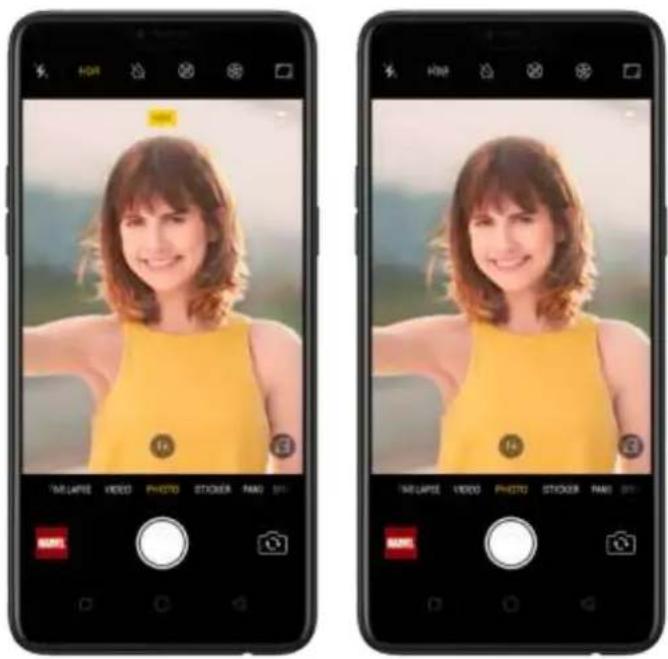
text_image
TMLAPSE VIDEO PHOTO STICKER PAO SH MIME TMLAPSE VIDEO PHOTO STICKER PAO SH MIMEAR stickers
The Camera app offers many stickers for you to edit and decorate your selfies.
Open Camera, click STICKER, then click to add an AR sticker. Express yourself daily through fun stickers and add fun to boring backgrounds.

text_image
Two smartphone screenshots showing a woman's photo editing interface with Chinese UI elements and tool icons.AI Beauty
The Facial Recognition technology can identify up to 296 facial recognition spots when clicking selfies. Personalized AI Beauty provides functionality for precise recognition and delicate beautification of each individual facial feature. Everyone is unique in the camera.
When you take photos with other people, your phone will beautify up to four people in a photo.
4.11. Screen Recording
With ColorOS 5.0, you can record a video of what you're doing on the screen. You can even narrate on the background it, too. Save the video, then you can view, edit, and share the recording using the Camera app.
Record your screen. Swipe down from the top of the screen to open Control Center, then click 📄. After a 3-second countdown, the screen recording starts. Screen recording is limited to a maximum of 30 minutes. To stop the recording,
click on the screen and a notification will appear that says "The screen recording has been saved. Click the notification to open the Photos app and review your video.
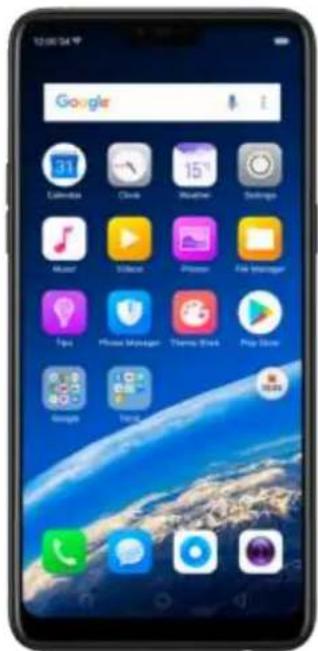
text_image
12:00:54 P Google 31 Calendar Cloud Weather Settings Master iTunes Press File Manager Tips Phone Manager Theme Files Play Music Google TunesRecord with sound. Go to [Settings] > [Screen Recording] and turn on [Allow sound recording]. Then the audio from your phone's microphone will be captured in the video recording.
Adjust the video resolution. Go to [Settings] > [Screen Recording], click [Video Resolution] and choose one from high, medium, or low resolution.
Record with touch points. Go to [Settings] > [Screen Recording] and turn on [Record screen taps].

text_image
Settings Google App Management Clone Apps Game Acceleration Split-screen Call Contacts Messages Phone Manager Camera Weather Theme Store Screen Recording Screen Recording Allow Sound Recording Images Video Resolution Record Screen Taps ABOUT "SCREEN RECORDS": 1. The code will be a key based on the "Screen Recording" website. A: Control (www) 2. Access recording will automatically set what the desktop (see in the connection-up, and the recording will be saved) 3. The screen recording process will not add the recording will for passed when you have left the security panel off the phone-up perform other accountsTips:
- If you don't see Screen Recording in Control Center, you need to add the shortcut first.
- Screen recording will automatically stop when the screen is turned off, the phone is powered off, or after 30 minutes.
4.12. Hide Home screen icon
Without deleting the app from your phone, you can simply hide the app icons from view if you want to quickly hand your phone off—to someone else and don't want them having access to personal data contained within some apps.
Before you can hide Home screen icons, you must encrypt the apps first.
Hide Home screen icon. After encrypting the apps, do the following:
- Go to [Settings] > [Security] > [App Lock], then enter the verification passcode to enter the App Encryption screen.
- Click an app, turn on [Start Passcode Verification], then turn on [Hide Home screen icon].
- A pop-up message will display on the screen to ask you to set an access number. You can open the hidden applications by dialing the number. This message will only pop up when you use the hidden feature for the first time. Click Set Access Number.
- Set a number contains one of six characters, then click Done.

text_image
Twitter Start Passcode Verification When passcode verification is installed, humescreen icon can be further installed the connection. Hide Humescreen Icon Before opening, the play button for viewing by removing the access number on this island, where it can be opened without identifying passcode verification.
text_image
You're Using "Hide Homescreen Icon" for the First Time. Please Set an Access Number. When hidden, it can be viewed by entering the access number on the empty. Set Access Number Cancel
text_image
12:06:54 Cancel Close Set Access Number The access number minus pool and set with 8, except 10 digits or numbers Delete: #9303# #1234567890# For second number to: 10222001-198007 1 2 3 4 5 6 7 8 9 # 0- You can also set the hidden app not to display in Recent Tasks, or disable its notifications.
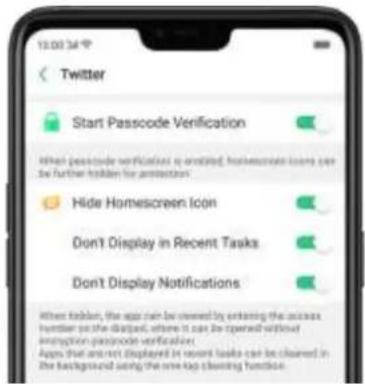
text_image
13:00:34 Twitter Start Passcode Verification When passcode verification is enabled, homescreen icons can be further hidden for protection. Hide Homescreen Icon Don't Display in Recent Tasks Don't Display Notifications When hidden, the app can be owned by entering the access handler on the display, where it can be opened without interruption passcode verification. Apps that are not displayed in recent tasks can be cleared in the background using the new tag cleaning function.Open hidden apps. Click Phone, click the keypad to enter your access number, then the Hidden Apps folder will pop-up.

text_image
12:00:54 Create New Contact Add to Existing Contact #1 1 2 3 #2 000 2019 4 5 6 2019 7 8 9 #000 0019 * 0 # L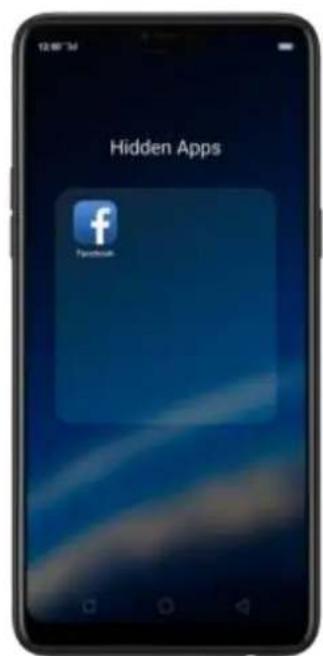
text_image
12:00 PM Hidden Apps PyndhouseNote:
- You can override encryption passcode and open hidden apps directly by dialing the access number.
- lose busing then't displayed in Recent Tasks can be one-tap cleanup function.
- Access number can be set only once when you use the hidden feature for the first time. If you forgot the number, you need reset the phone to its factory settings to reset the number.
4.13. VIP Contacts
- When you put the phone into Silent mode, or when you set the phone to block calls and nocaons using Quiet Time, Game Acceleraon, or An-harassment, you can add certain contacts to VIP Contacts, which will allow them to override the phone sengs and have their calls come through and ring. - Add contacts to VIP Contacts. Go to Contacts, select a contact, then click Add to VIP Contacts.
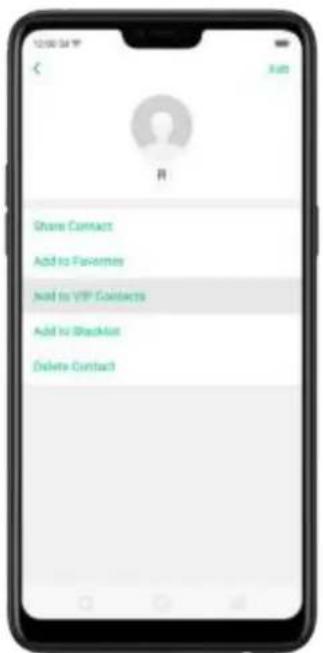
text_image
Share Contact Add to Favorites Add to VIP Contacts Add to Breakfast Delete Contact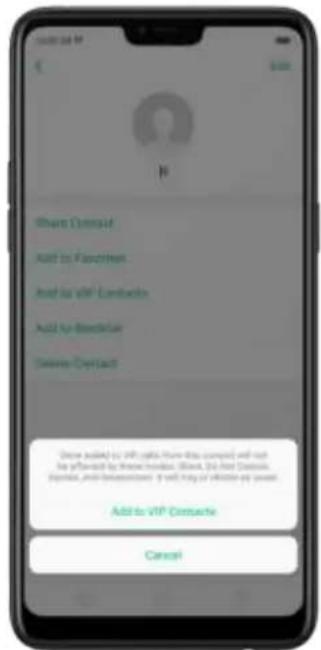
text_image
Share Contract Add to Favorites Add to VIP Contracts Add to Business Commerce Contract Show added to VIP calls from this contract and not be offered by these contracts. Avoid, do not have Transaction Options, and is recommended. If will any offer or pay savings. Add to VIP Contracts Cancel4.14. Tips
The phone provides you a lot of ColorOS 5.0 tips that you need to know to master and get the most from the phone.
Get Tips. Open the Tips app. Click ColorOS 5.0 New Features to get the major highlight of the new features. You can also get specific tips you want from seven categories, including "Welcome to F7", "Smart Photo", "Smart Life", "Gaming Experience", "Quick Actions", "Security & Privacy" and "Basic Daily Functions". Open a
tip, then swipe left or right to view the previous or next one. Click 📋 in the upper-right corner to share the tip.
text_image
ColorDS 5.0 New Features Welcome to F7 AI-Systematic/PHI Feature Tunes Smart Photo Use mini a professional Photographie Tunes Smart Life It is effective new user following and become pr... Tunes Gaming Experience Try in video and smart gaming sequence. Tunes Quick Actions Make up an attack for virtual monitoring & Tunes Security & Privacy Provide Intelligent applications to the profile Tunes Basic Daily Functions Prepaid Transactions you might have Tunes
text_image
Featured Topics What's New in ColorOS 5.0 APPID Use Tips ColorOS 5.0 New Features An Easier-to-Use Full Screen Full-screen Multitasking: Enjoy Multitasking on One Screen When switching videos or playing games in landscape mode, you don't need to exit the app to reply to a message or grab a red packet. Simply invite instead from the edge of the match area to bring up full-screen multitasking for quick apps or functions, and enjoy a most innovative full-screen experience.
text_image
Featured Topics What's New in ColorOS 5.0 CreateOS 5.0 Home Features OPPO Share, Tap here to Xam on WiFi and Bluetooth to send via "OPPO Share". BudChat NinaChen Favorites Copy to obtained Save to Drive Newspaper Small Facebook Direct Message Cancel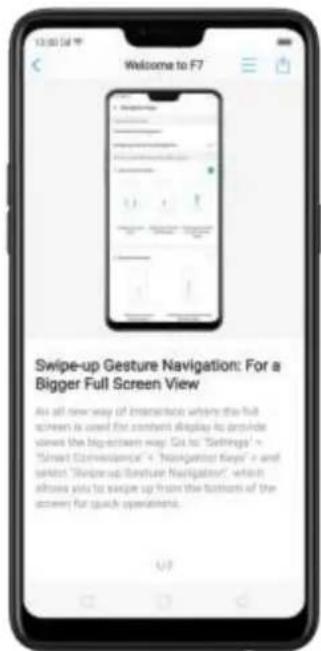
text_image
Welcome to F7 Swipe-up Gesture Navigation: For a Bigger Full Screen View As all new way of interaction where the full screen is used for content display its provide view the big-textual way. Get us "Settings" + "Smart Comfortable" + "Navigator Keys" and select "Swipe-up Contexture Navigation", which allows you to swipe up from the bottom of the screen for quick operation.Search a tip. Click the search bar and type the name of a tip (or a part of it), then click .Tip .Click matching access to you've typed appear below description screen.

text_image
Smart Assistant: Your Thoughtful Housekeeper Welcome to FY Smart PHOTO Scene Recognition Smart Photo Smart Photo Search: Find Photo Quickly Smart Photo Smart Photo Clearing: Inteligently Clean Up Red... Smart Life Next session4.15. Transfer data from the old phone to OPPO smartphone
You can transfer over most of your data - with no risk or loss of quality, using Clone Phone. With Clone Phone, you don't need to leave any of your data behind with your previous device. Take it all with you in three easy steps:
From an iPhone to an OPPO Phone
- On your OPPO Phone, go to [Tools] > [Clone Phone], then select "This is the new phone" and "Import From an iPhone". Connect your phone to the Internet when promoted.

text_image
This is the new iPhone Select a category for the old phone Available network is needed for cloning from iphone, please connect network first Cancel Connect to Network Import from an iPhone
text_image
Network & Internet Airplane Mode WiFi TETHERING VPN Dual SIM & Cellular Reset Network Settings- Sign in the iCloud account of your old iPhone. Enter the Apple ID verification code you received on your iPhone or in the SMS and start computing cloud data. Please note that only Contacts, Albums (Including photos & videos) will be transferred.
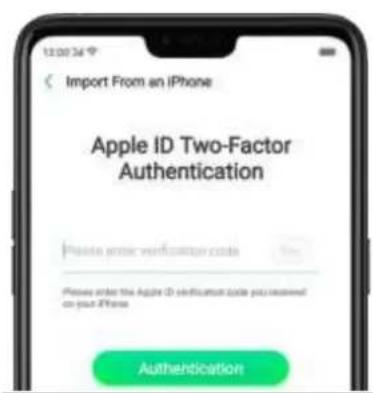
text_image
Import From an iPhone Apple ID Two-Factor Authentication Please enter verification code Please order the Apple ID verification code you received on your iPhone Authentication
text_image
Import From an iPhone Computing Cloud Data... Please don't disconnect or switch the network and lay on the current screen. Contacts Photos 0 Phone, 5.8188 0 Phone, 5.3568From an Android Phone to an OPPO Phone
- On your OPPO phone, go to [Tools] > [Clone Phone], then select "This is the new phone" and "Import from an Android Phone".
- On your old phone, click [Clone Phone] from the Home screen, select "This is the old phone" and scan the QR Code generated by the new phone to start cloning.
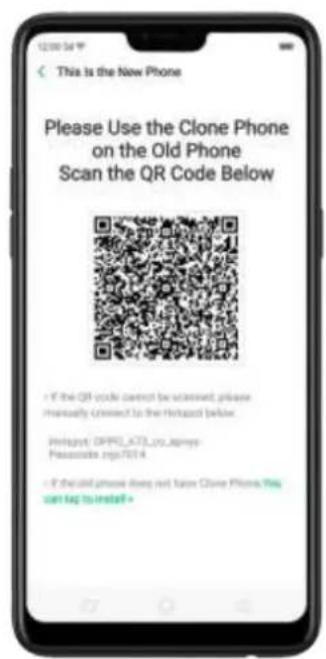
text_image
This is the New Phone Please Use the Clone Phone on the Old Phone Scan the QR Code Below • If the QR code cannot be achieved, please manually connect to the Hotspot below. Hotspot: OFFIO_ATL20_James- Please Belize rgs7014 • If desired phone does not have Clone Phone. This can help to install>
text_image
This is the Old Phone Transfer All the Contents of This Phone to the New Phone Contacts, Messages, and Call History Photoc, Videos, Music and Document... System Data Including Settings, Options, etc. Apps and App Data E-mail for app data that button (be used) or the new phone Start Closing Manually Select the Data to be Closed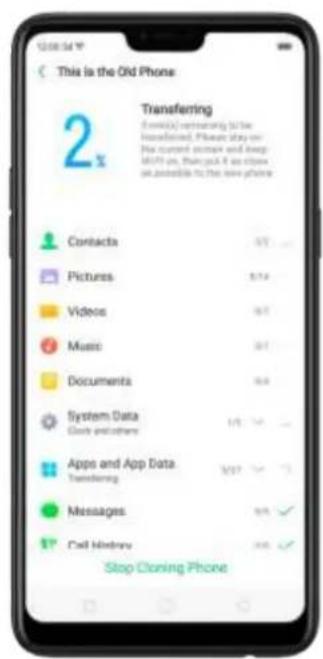
text_image
This is the Old Phone 2x Transferring Contacta 57 Pictures 5.4 Videos 6.1 Music 6.1 Documenta 6.8 System Data 10.1 Clock and others 10.1 Apps and App Data Transferring 537 Messages 9.9 Call History 9.9 Stop Closing PhoneYou can also select the data (Personal Data, System Data, Applications, Storage Data) to be cloned by clicking "Manually Select the Data to be Cloned".
- Enter the lock screen password to continue.
View more details in Transfer data with Clone Phone.
5. Basics
5.2. Use apps
Open apps
The Home screen shows all the apps on your phone. Click any application icon to get started.
Apps will show the number of messages pending to be read in red on their Home screen icon.
If you're using swipe gestures, see Navigation Gestures.
text_image
Google 31 Calendar Clock Weather Discharge Mobile iTunes Playbox Playbox Tops Playbox Manager Chrome Store Playbox Google PlayboxQuick Actions
Press and hold an app icon to bring up "Quick Actions," which offers shortcuts to specific features within that app. When the menu appears, click the shortcut you would like to use, then the app will open directly to that feature. For example, go to your Home screen and press and hold on the icon for the Camera app , you'll see a mini menu that lets you jump straight to a beauty selfie, a sticker selfie, a video, or the app info page.
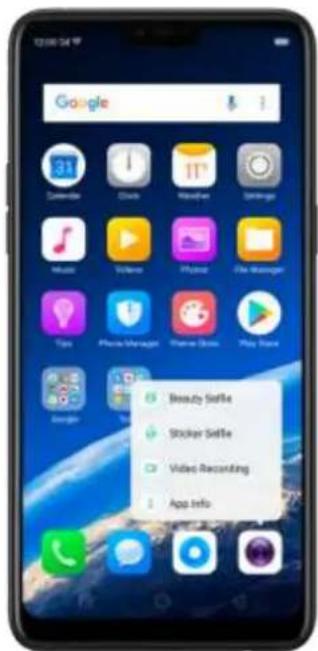
text_image
Google Beauty Slide Stocker Slide Video Recording App InfoSwitch between apps
Clicking Menu button on the bottom left would bring up a menu for apps that you were in. Swipe left or right to see more. To switch to another app, click it.
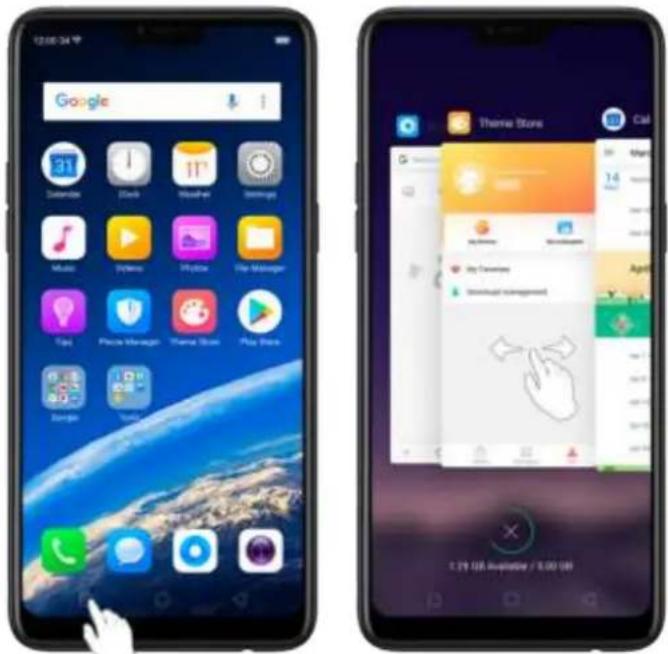
text_image
Two smartphone home screens: one displaying Google app icons, the other showing a 'Theme Store' app interface with a hand gesture.Close apps
Click Menu button on the bottom left, and then:
- Close an app: Swipe the app up to the top edge of the screen.
- Close all apps: Click ✗ to clean up the list.

text_image
March 14 0:30 0:30 0:30 0:30 April 2018 2:30 GB Ausabahle / 5.00158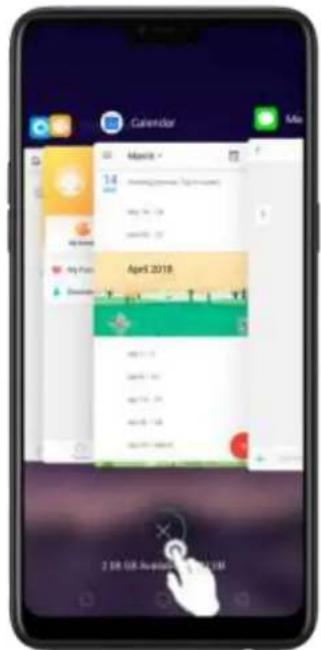
text_image
Calendar May 2018 April 2019 2:00:00 August 20195.3. Share from apps
In addition to sharing your information from the Files app, you can also share from many other apps on your OPPO smartphone.
Share from apps. In many apps, you can click Send or to choose how to share your information. The choices vary depending on the app you're using. Additional options may appear if you've downloaded apps with multiple sharing options.
Take the Photos app as an example, click options you'll see all the sharing
natural_image
Smartphone screenshot displaying a photo of a woman with floral background, no visible text or symbols on the image itself.
text_image
1 photos selected Cancel OPPO Share: Tap here to turn on Wi-Fi and Bluetooth to send via "OPPO Share", M Gmail Message Bluetooth Add to Magic Ramp App Store Saver in Drive Optimal for Printout5.4. One-click cleanup
One-click cleanup option helps you to make your phone perform steadily and faster.
Stop background apps. Click Menu button > to close all active apps. If you want to close a specific app, swipe it up.
text_image
Photos 7 photos edited 1.4 M Agent 2000-2003, The following content is clearly written in the image: M F Facebook Google Microsoft Teams Microsoft Teams Microsoft Teams Microsoft Teams Microsoft Teams Microsoft Teams Microsoft Teams Microsoft Teams Microsoft Teams Microsoft Teams Microsoft Teams Microsoft Teams Microsoft Teams Microsoft Teams Microsoft Teams Microsoft Teams Microsoft Teams Microsoft Teams Microsoft Teams Microsoft Teams Microsoft Teams Microsoft Teams Microsoft Teams Microsoft Teams Microsoft Teams Microsoft Teams Microsoft Teams Microsoft Teams Microsoft Teams Microsoft Teams Microsoft Teams Microsoft Teams Microsoft Teams Microsoft TeamsClean-up & Accelerate. Click Phone Manager on the Home screen, then click [Clean Storage]. Scan and delete all kinds of junk files. You can also delete the app data and other unnecessary files, such as photos, audio, videos, and documents.
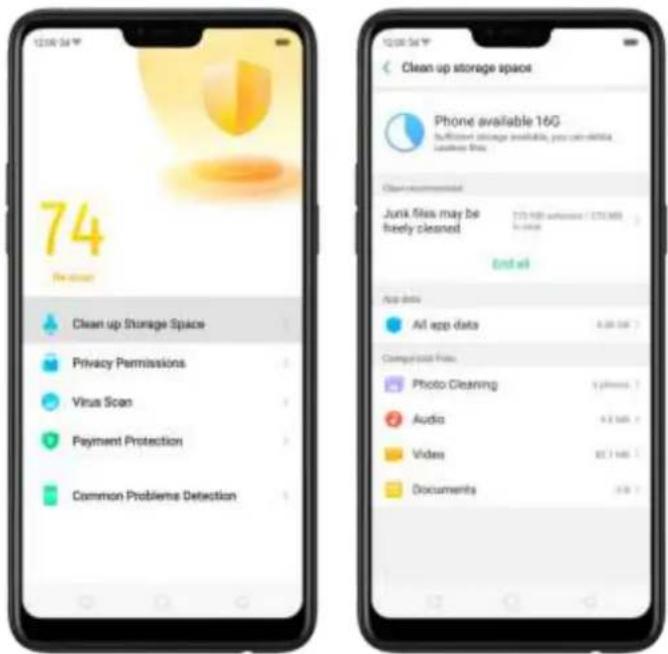
text_image
74 Clean up Storage Space Privacy Permissions Virus Scan Payment Protection Common Problems Detection Clean up storage space Phone available 16G Sufficient storage available, you can't miss clean files. Clean applications Junk files may be freely cleaned 2/3-980 software / 2/30/980 in case End all App data All app data Config your Files: Photo Clearing Audio Video Documents5.5. Lock the running background apps
You may close the running background apps frequently to make your phone perform steadily and faster. If you want some apps to be always connected and reachable, do the following:
Lock an app. Click Menu button to reveal your open apps, then swipe an app down to the bottom edge of the screen. Notice that a lock appears on the upper-left corner of the app.
Repeat the action for other apps.
text_image
Facebook 14 Instagram 2.76 KB Available / 5:00 PM
text_image
Facebook 2.00 AM Available / 1.00 AM5.6. View, zoom in and out
Use the touchscreen to interact directly with what is displayed on your phone's screen.
View items. Drag up or down to scroll. You can also drag some screens in any direction, such as webpages. Flick to scroll quickly. You can wait for the scrolling to come to a stop, or touch anywhere on the screen to stop it immediately.
text_image
Camers SelectOn some screens such as Settings and Contacts page, double-click the status bar to quickly scroll to the top.
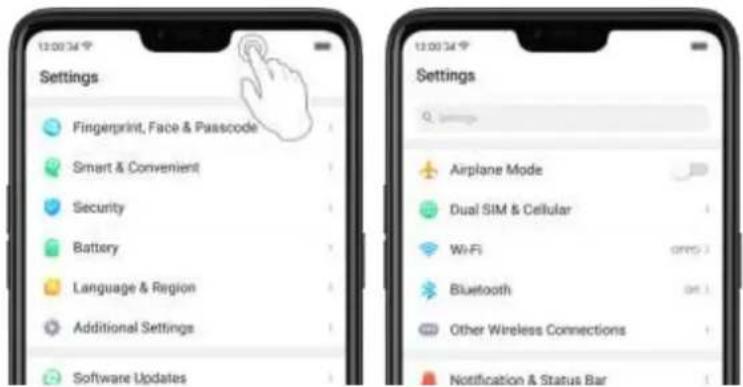
text_image
Settings Fingerprint, Face & Passcode Smart & Convenient Security Battery Language & Region Additional Settings Software Updates Settings Airplane Mode Dual SIM & Cellular WiFi Bluetooth Other Wireless Connections Notification & Status BarZoom in and out. When viewing photos, maps, or web pages, you can zoom in and out. Pinch your fingers together or apart. For photos and web pages, you can double-click to zoom in, then double-click again to zoom out. For maps, double-click to zoom in and click once with two fingers to zoom out.

natural_image
Three smartphone screens displaying a close-up photo of a woman with floral background, no visible text or symbols on the images themselves.5.7. Smart & Convenient Operation
5.6.1. Navigation Keys
With ColorOS 5.0, all navigation is handled with the on-screen virtual keys and gestures. The three virtual navigation keys appear at the bottom of every screen, and can be hide hidden when not in use. You can also arrange the order of "Back" and "Recent" placements to depending on your preference how you prefer them.
Besides, if you are in love with gesture navigation control, you can use of a gesture-based system to navigate around the phone instead of the traditional navigation key.
To switch between navigation keys and gestures, go to [Settings] > [Smart & Convenient] > [Navigation Keys].
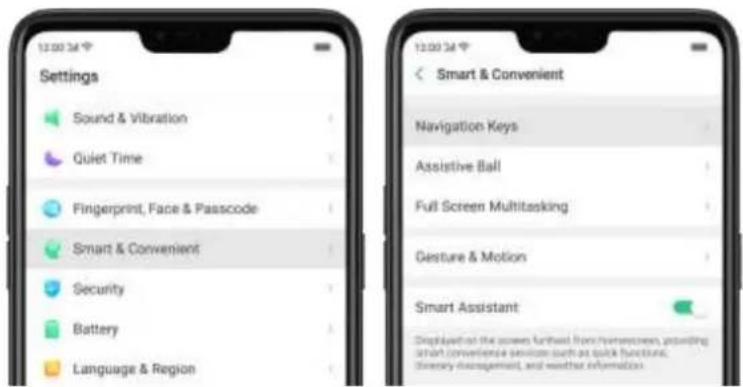
text_image
Settings Sound & Vibration Quiet Time Fingerprint, Face & Passcode Smart & Convenient Security Battery Language & Region Smart & Convenient Navigation Keys Assistive Ball Full Screen Multitasking Gesture & Motion Smart Assistant Displayed on the screen further from homescreen, providing smart convenience services such as quick functions, library management, and weather informationVirtual Key Navigation
Enable virtual key navigation. Virtual key navigation the default setting. If you want to enable it manually, click Virtual Key Navigation.
Change the order of virtual navigation keys. The keys follow the typical order for OPPO: Menu, Home, and Return from left to right. If you are left-handed, you can change them to the Return-Home Menu order.
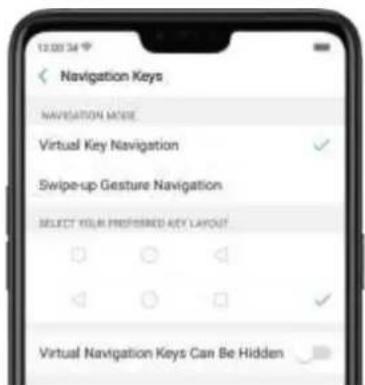
text_image
12:00:34 Navigation Keys NAVIGATION MOVIE Virtual Key Navigation Swipe-up Gesture Navigation SELECT YOUR FINERRED KEY LAYOUT Virtual Navigation Keys Can Be HiddenHide the virtual navigation keys. When you launch a full-screen app, the keys will automatically hide, and can be brought back with a simple swipe:
- When in portrait mode, swipe up from the bottom.
- When in landscape mode, swipe from the bottom to the left.
natural_image
Front view of a smartphone showing its front screen and back panel (no visible text or symbols)
natural_image
Front view of a smartphone showing its front screen and back panel (no visible text or symbols)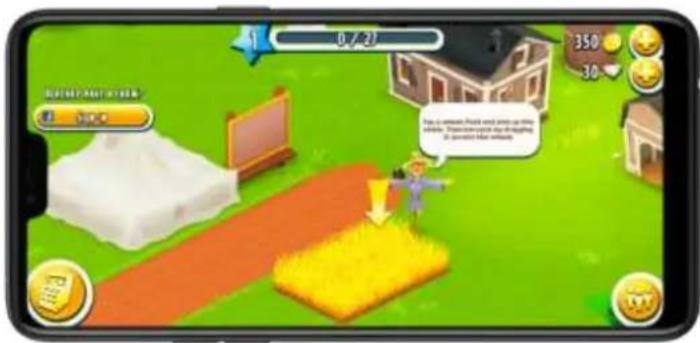
text_image
0 / 2 350 -30 你是 almost Little and more at the home. Thank you with the following: You want to have a score.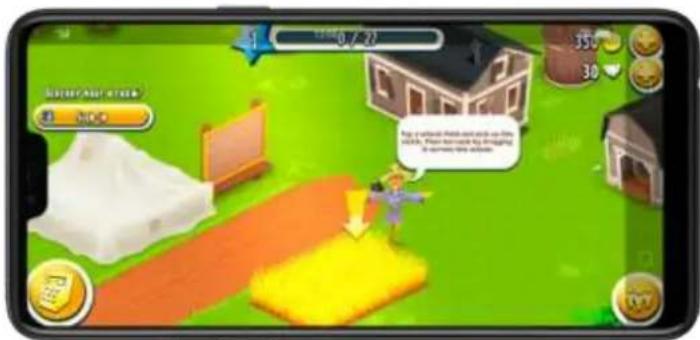
Manually hide the virtual navigation keys. To set the keys to appear only when needed, turn on Virtual Navigation Keys Can Be Hidden. Then you can click on the left-lower corner of the screen to hide the keys, and swipe from the bottom to reveal them.

text_image
10:00:34 °F Navigation Keys NAVIGATION MORE Virtual Key Navigation Swipe-up Gesture Navigation SELECT YOUR SPECTRATED KEY LAYOUT Virtual Navigation Keys Can Be HiddenSwipe-up Gesture Navigation
Four kinds of new swipe-up navigation gestures are added to your phone, and you can choose one that suits you most.
Use swipe-up navigation gestures. Go to [Settings] > [Smart & Convenient] > [Navigation Keys] and click [Swipe-up Gesture Navigation].

text_image
Smart & Convenient Navigation Keys Assistive Ball Full Screen Multitasking Gesture & Motion Smart Assistant Displayed in the server/furniture font homebrewers, providing system contextual settings, such as quick functions, lighting management, and better information.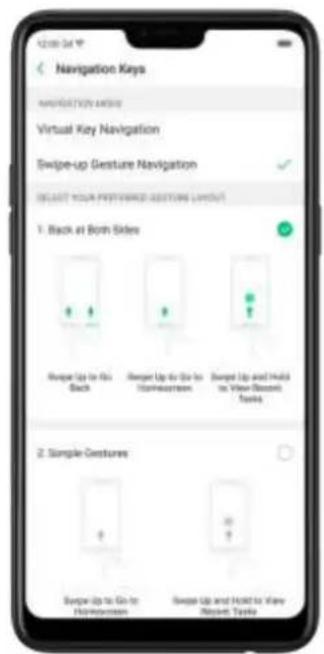
text_image
Navigation Keys NAVIGATION ITEMS Virtual Key Navigation Swipe-up Gesture Navigation BEAST YOUR PEEFWRED POSTING LAYOUT 1. Back at Both Skies Swipe Up to Go to Back Swipe Up to Go to Homestream Swipe Up and Hold to View Second Tasks 2. Simple Gestures Swipe Up to Go to Homestream Swipe Up and Hold to View Next Task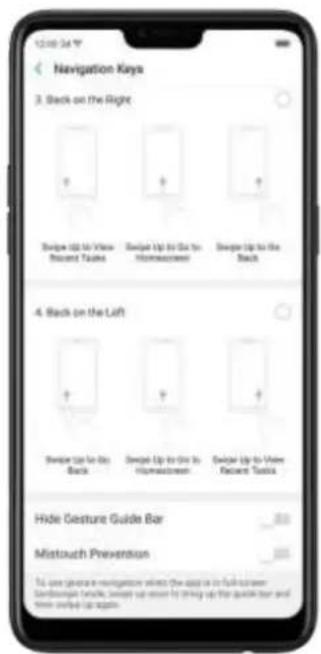
text_image
12:00:34 Navigation Keys 3. Back on the Right Device Up to View Shower Faces Device Up to Use to Homeconversion Device Up to the Back 4. Back on the Lift Device Up to Go Back Device Up to Use to Homeconversion Device Up to Have Recover Tools Hide Gesture Guide Bar Mistouch Prevention To use gesture navigation what the app is in full-time Sambouran table, Device up closer to thing up the quick bar and time apply up againBack at both sides. Swipe up from the left or right bottom to return to upper page, swipe up from the middle bottom to get to the Home screen, and swipe up from the middle bottom and pause 1 second to view recent tasks.
1. Back at Both Sides
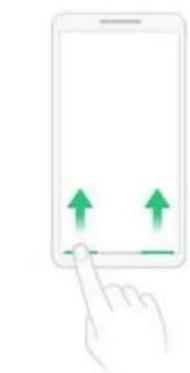
natural_image
Illustration of a hand pressing on a tablet with two green arrows indicating upward movement (no text or symbols)Swipe Up to Go Back

natural_image
Illustration of a hand pressing a button on a smartphone screen with an upward arrow (no text or symbols)Swipe Up to Go to Homescreen

text_image
18Swipe Up and Hold to View Recent Tasks
Simple gestures. Swipe up from the middle bottom to get to the Home screen, and swipe up from the middle bottom and pause 1 second to view recent tasks.
2. Simple Gestures
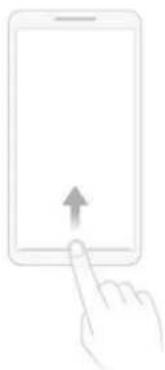
natural_image
Illustration of a hand pressing on a tablet with an upward arrow (no text or symbols)Swipe Up to Go to Homescreen
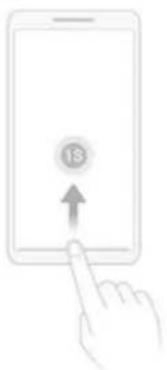
natural_image
Illustration of a hand pressing on a tablet with an '18' button and upward arrow (no text or symbols beyond the number)Swipe Up and Hold to View Recent Tasks
Back on the right. Swipe up from the left bottom to view recent tasks, swipe up from the middle bottom to get to the Home screen, and swipe up from the right bottom to return to upper page.
3. Back on the Right

natural_image
Line drawing of a hand pressing a button on a smartphone screen (no text or symbols)Swipe Up to View Recent Tasks

natural_image
Illustration of a hand pressing a tablet with an upward arrow (no text or symbols)Swipe Up to Go to Homescreen
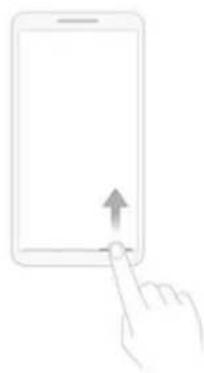
natural_image
Line drawing of a hand pressing a button on a tablet device (no text or symbols)Swipe Up to Go Back
Back on the left. Swipe up from the left bottom to return to upper page, swipe up from the middle bottom to get to the Home screen, and swipe up from the right bottom to view recent tasks.
4. Back on the Left
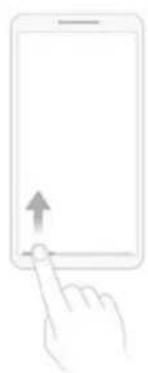
natural_image
Line drawing of a hand pressing a tablet with an upward arrow (no text or symbols)Swipe Up to Go Back

natural_image
Line drawing of a hand pressing a tablet with an upward arrow (no text or symbols)Swipe Up to Go to Homescreen
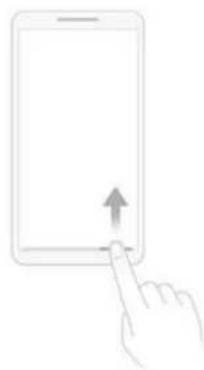
natural_image
Illustration of a hand pressing a tablet with an upward arrow (no text or symbols)Swipe Up to View Recent Tasks
Hide Gesture Guide Bar. Gesture Guide Bar is the translucent line at the bottom of the screen, which allows you to quickly distinguish the left, middle, and right swipe-up regions. To hide the guide bar, turn on [Hide Gesture Guide Bar].
Prevent mistakenly touching. Turn on [Mistouch Prevention]. To use gesture navigation when the app is in Landscape Mode, you need to swipe up to bring up
the guide bar first, then swipe up again in the same area.
5.7.1. Swipe-up Gesture Navigation
The four-different swipe-up gestures of ColorOS 5.0, which provides access to the Home screen, app switcher, and the upper page, are the most intuitive, natural, and fun interactions when you use the phone. Compared with the previous version, you have more gesture layouts to choose from. Select one that suits you most and use it for navigation rather than relying only on button clicks.
Use swipe-up navigation gestures. Go to [Settings] > [Smart & Convenient] > [Navigation Keys] and click [Swipe-up Gesture Navigation].
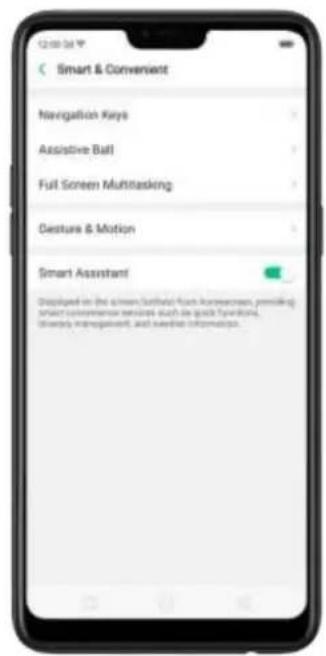
text_image
Smart & Convenent Navigation Keys Assistive Ball Full Screen Multitasking Gesture & Motion Smart Assistant Displayed on (the 6-item (furtherly) foot-on-coilwomen, premaking smart comfortensor services such as quick functions, library infotainment, and routine informatics.
text_image
Navigation Keys NAVIGATION MORE Virtual Key Navigation Swipe-up Gesture Navigation SELECT YOUR PREFERRED HESTURE LAYOUT. 1. Stack at Both Sides Swipe Up to Go to Back Swipe Up to Go to Homescreen Swipe Up and Hold to View Discount Tools 2. Simple Gestures Swipe Up to Go to Homescreen Swipe Up and Hold to View Record Tools
text_image
12:00:34 Navigation Keys 3. Back on the Right Switch Up to View Record Tasks Switch Up to Go to HomeAccession Switch Up to Use Back 4. Back on the Loft Switch Up to Go Back Switch Up to Go to HomeAccession Switch Up to View Record Tasks Hide Gesture Guide Bar Mistouch Prevention To use gesture navigate which the app is to full-size Cambercase lists, switches up or write to bring up the guide bar and then switch up agent.Back at both sides. Swipe up from the left or right bottom to return to upper page, swipe up from the middle bottom to get to the Home screen, and swipe up from the middle bottom and pause 1 second to view recent tasks.
1. Back at Both Sides
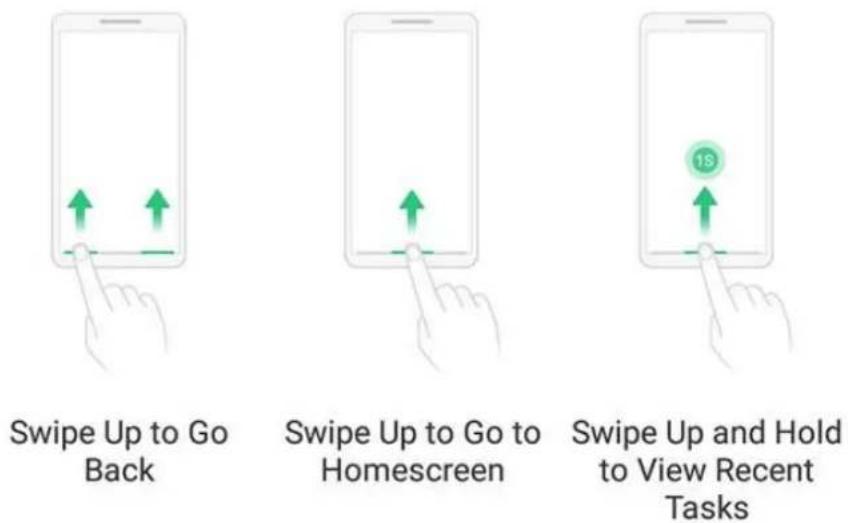
Simple gestures. Swipe up from the middle bottom to get to the Home screen, and swipe up from the middle bottom and pause 1 second to view recent tasks.
2. Simple Gestures
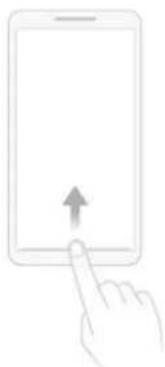
natural_image
Illustration of a hand pressing a tablet with an upward arrow (no text or symbols)Swipe Up to Go to Homescreen

text_image
18Swipe Up and Hold to View Recent Tasks
Back on the right. Swipe up from the left bottom to view recent tasks, swipe up from the middle bottom to get to the Home screen, and swipe up from the right bottom to return to upper page.
3. Back on the Right
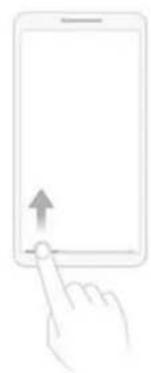
natural_image
Line drawing of a hand pressing a button on a smartphone screen (no text or symbols)Swipe Up to View Recent Tasks
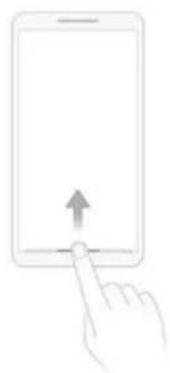
natural_image
Illustration of a hand pressing a tablet with an upward arrow (no text or symbols)Swipe Up to Go to Homescreen

natural_image
Line drawing of a hand pressing a button on a tablet device (no text or symbols)Swipe Up to Go Back
Back on the left. Swipe up from the left bottom to return to upper page, swipe up from the middle bottom to get to the Home screen, and swipe up from the right bottom to view recent tasks.
4. Back on the Left

natural_image
Line drawing of a hand pressing a tablet with an upward arrow (no text or symbols)Swipe Up to Go Back
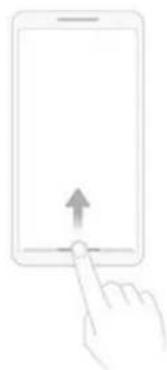
natural_image
Line drawing of a hand pressing a tablet with an upward arrow (no text or symbols)Swipe Up to Go to Homescreen
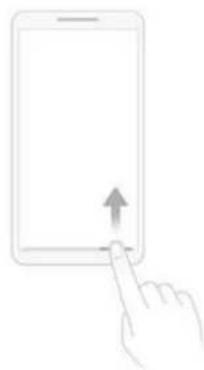
natural_image
Illustration of a hand pressing a tablet with an upward arrow (no text or symbols)Swipe Up to View Recent Tasks
Hide Gesture Guide Bar. Gesture Guide Bar is the translucent line at the bottom of the screen, which allows you to quickly distinguish the left, middle, and right swipe-up regions. To hide the guide bar, turn on [Hide Gesture Guide Bar].
Prevent mistakenly touching. Turn on [Mistouch Prevention]. To use gesture navigation when the app is in Landscape Mode, you need to swipe up to bring up
the guide bar first, then swipe up again in the same area.
5.7.2. Assistive Ball
Applying the Assistive Ball feature provides options to access several regular phone features through the touchscreen, rather than the tactile buttons. It enables you to use the virtual navigation keys with just one finger, and also open the notification center, take a screenshot, and more. When you perform gestures that are difficult for you, Assistive Ball can help.

text_image
Two smartphone home screens displaying Google's home app interface with icons for Calendar, Music, Play, and Playbox.Assistive Ball lets you perform a wide range of features:
- Return to upper page
- Go to the Home screen
• View recent tasks - Open Notification Center
- Lock the screen
- Enter One-hand Mode
• Take a screenshot
To configure the Assistive Ball menu, go to [Settings] > [Smart & Convenient] > [Assistive Ball], then choose one operation mode:
Gesture Operations. Below Gesture Operations, you can assign different actions to a single tap, double tap, or long press. For example, assign "Home" to "Touch and
hold", then you can long press the Assistive Ball to go to the Home screen.
Tap Menu. There are five shortcuts for enabling different features in Tap Menu. Click a shortcut and change the option to the one you preferred. On any screen, click the Assistive Ball to pop up the shortcut menu.
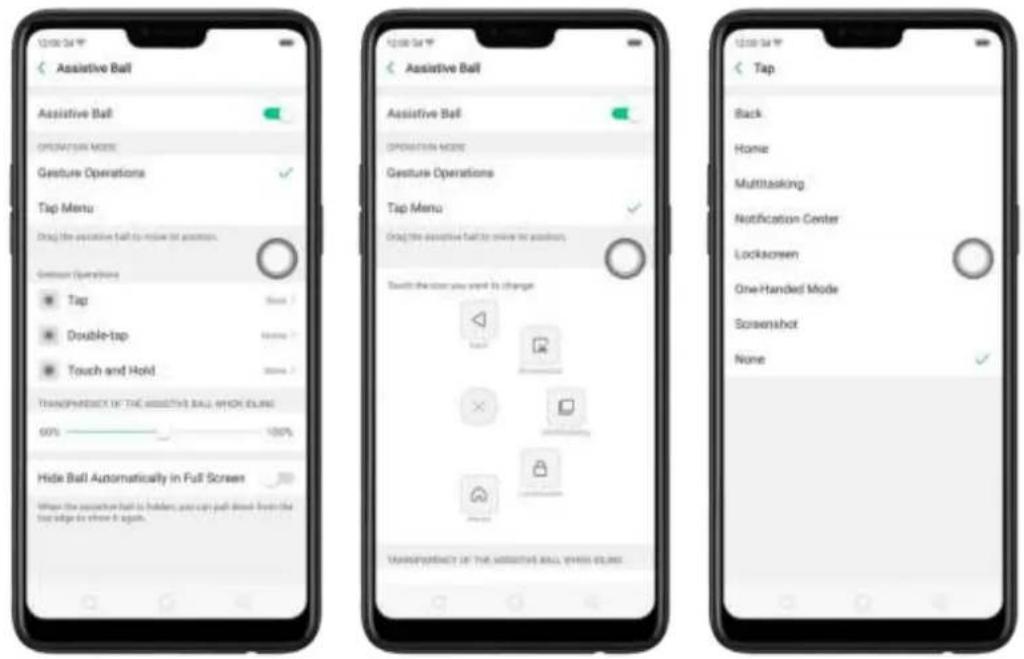
text_image
Assistive Ball Assistive Ball OPERATION MODE Gesture Operations Tap Menu Drag the assistive ball to move the position. Genuon Operations Tap Double-tap Touch and Hold TRANSPRINGJECT OF THE ASSISTIVE BALL WHICH ELLING 60% 100% Hide Ball Automatically in Full Screen When the assistive ball is held, we can pull down from the top edge to show it again. Assistive Ball OPERATION MODE Gesture Operations Tap Menu Drag the assistive ball to move the position. Switch the user you need its change. Take productivity of the assistive ball, when ELLING Assistive Ball Tap Back Home Multitasking Notification Center Lockscreen One-Handed Mode Screenshot NoneWhen Assistive Ball is on, you can hold the floating button and pull it around the screen to any location to get it out of the way or make it more accessible.
Adjust the transparency of the Assistive Ball when not in use. Go to [Settings] > [Smart & Convenient] > [Assistive Ball], then drag the slider.
Hide the Assistive Ball automatically in full screen. Go to [Settings] > [Smart & Convenient] > [Assistive Ball] and turn on [Hide Ball Automatically in Full screen]. To reveal the Assistive Ball, swipe down from the top of the screen.
5.7.3. Full Screen Multitasking
When using an app in Landscape mode, you can open a second app while the other one is on the foreground. Just swipe inwards from the edge of the notched area (where the front camera is located) to bring up apps or functions, click an app icon, then you can operate the app above the other one, in a floating window.
Multitask with the floating mini app. Go to [Settings] > [Smart & Convenient] > [Full Screen Multitasking] and toggle the slider to green.
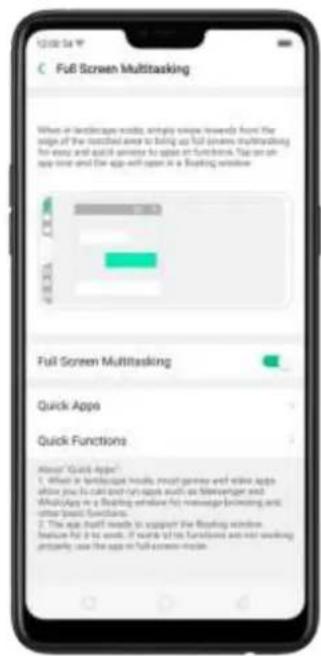
text_image
C Full Screen Multitasking When of entertainment exists, simple video regularly from the stage of the switched area to bring up full screen multitrading for easy and quick answers to app on function. Take an app next and the app will open it a floating window. Full Screen Multitasking Quick Apps Quick Functions About "Quick Apps" 1. When in landmark settings, except games and other apps above you can find any apps such as Stereoamer and MultiApp in a floating window for message browsing and other brand downloads. 2. The app should needs to support the floating window feature full app needs. If words of its Transactions are not working properly, use the app in full screen mode.* When the phone is set to block notifications and you receive new messages from quick apps, notifications won't pop up, while a red spot will display on the app icons.
* When the phone doesn't block notifications and you receive new messages from quick apps, notifications will be displayed with a banner on the top screen. Click Reply in Floating to start full screen multitasking.
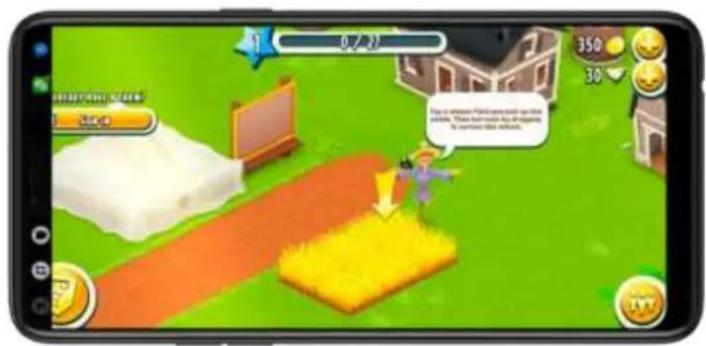
text_image
0 / 21 350 30 This is a move. It's going to play on the game. You can't want to run your home. It's again going to play.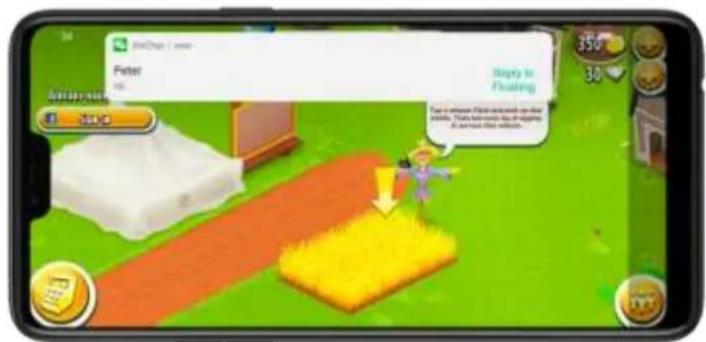
text_image
Peter Reply in Floating 350 30 204.0
text_image
Parker Hi 350 30 30Add and rearrange quick apps. Click Quick Apps, then drag next to the app up or down. You can add up to 3 apps.
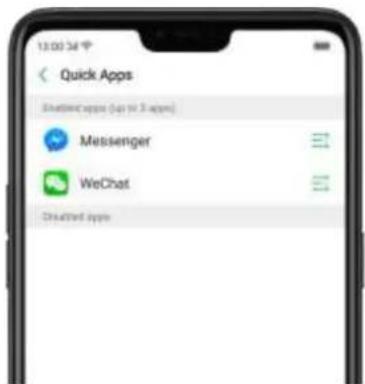
text_image
13:00:34 Quick Apps ShortTimeApps (Log to 3 apps) Messenger WeChat CloudTime AppsRearrange quick functions. Click Quick Functions, then drag ≡ next to the function up or down.

text_image
12:00:34 Quick Functions Annotated Functions (up to 3 Functions) Record Screen Capture Screen Block Notifications Created FunctionsNote: The quick app needs to support the floating window feature. If some of its functions aren't working properly, use the app in full-screen mode.
5.8. Change the screen orientation
OPPO smartphone supports portrait and landscape screen orientations. Every time
you shift your hands, the screen rotates.
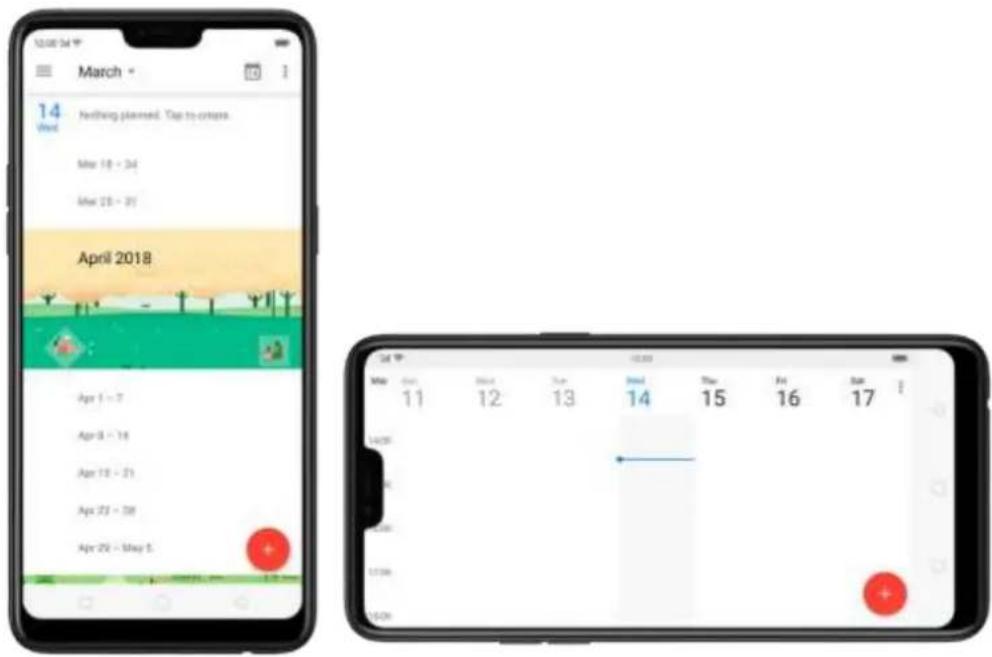
text_image
March 14 Week Nothing planned. Top to create. May 18 - 24 May 25 - 31 April 2018 Apr 1 - 7 Apr 8 - 16 Apr 15 - 21 Apr 22 - 28 Apr 29 - May 5 Sat Oct Nov Dec Jan Feb Mar Apr May Jun Jul Aug Sep Oct Nov Dec Jan Feb Mar Apr May Jun Jul Aug Sep Oct Nov Dec Jan Feb Mar Apr May Jun Jul Aug Sep Oct Nov Dec Jan Feb Mar Apr May Jun Jul Aug Sep Oct Nov Dec Jan Feb Mar Apr May JunTo lock the screen in portrait orientation, swipe down from the top of the screen to open Control Center, then click 📄. Or go to [Settings] > [Display & Brightness]
and toggle the [Portrait Orientation Lock] slider to green. Notice that appears in the status bar.
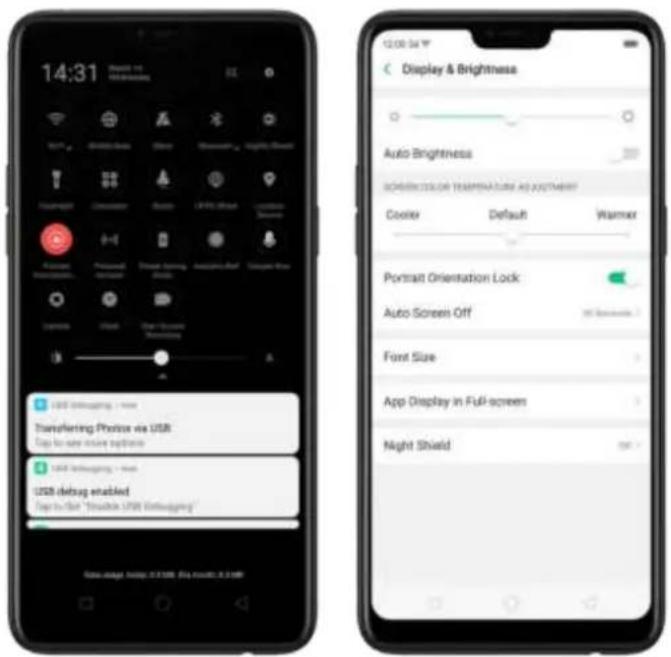
text_image
14:31 Display & Brightness Auto Brightness SUPPORTS COLOR TEMPERATURE ADJUSTMENT Cooler Default Warmer Portrait Orientation Lock Auto Screen Off Font Size App Display in Full-screen Night Shield USB default enabled USB debug enabled USB default enabled USB default enabled USB default enabled USB default enabled USB default enabled USB default enabled USB default enabled USB default enabled USB default enabled USB default enabled USB default enabled USB default enabled USB default enabled USB default enabled USB default enabled USB default enabled USB default enabled USB default enabled USB default enabled USB default enabled USB default enabled USB default enabled USB default enabled USB default enabled USB default enabled USB 0.2 GB/GB Day results: 0.2 GB5.9. Split-screen
ColorOS 5.0 lets you set multiple modes to fulfil your personal needs. The split-screen mode allows you to divide the screen into two areas, with each area showing a different scene at the same time. Now you can watch a movie and chat with friends at the same screen.

text_image
Jason 17640487579 - Julian, Listening TIME: 2:00 Is there, and you have been called or working out, in the gain, tonight! Not bad. See you tonight! Listen Now Recent activity Recently played at added! Shuffle all Unknown album OPPO Free to Fly (OK)Use Split-screen. Go to [Settings] > [Split-screen], then turn on [App Split-screen] and [Swipe up with 3 Fingers for Split-screen]. There are four methods to enter Split-screen mode:
Note: Both apps need to support Split-screen function. Your phone will alert you if the app doesn't support that.
- Under the interface of an app, swipe up the screen with three fingers to enter split-screen mode.

text_image
1 year ago Peppis Pig English Full Episodes Compilation #47 natures 25M views. 1 month ago Dentist - Cyanide & Happy Shorts Fugitive/Extrafast/Service/ 25M views. 3 years ago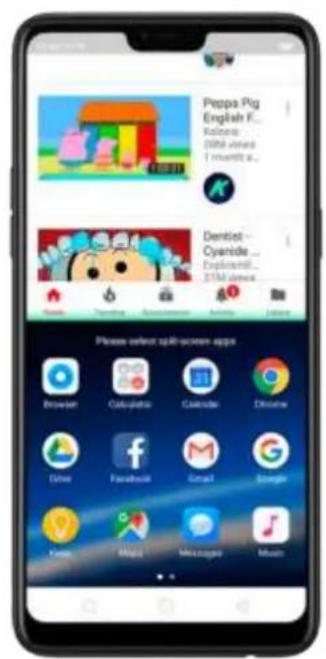
text_image
Prepa Pig English F... Kakono SWEI avanz I movilt it... Dentist Cyande Exploreinfo... $154 app Please select up-screen apps Browser Cateplastics Calculator Dinomix Dime Fanabola Email Google iBox Allegia Messenger Music- Under the interface of an app, press and hold the Multitask button to enter split-screen mode.

text_image
1 year ago Peppo Pig English Full Episodes Compilation #47 Artist: 20M+ video 1 month ago Dentist - Cyanide & Happiness Shorts Explorer: Entertainment 20M+ video 3 years ago
text_image
Pepa Pig English F... Kuwait 2004 when 1-monthly a... Dentist Cyanide ... Explore#: ZIM instant Please select 60th-camera apps Breaden Calculator Calendar Chrome Urban Facebook Email Google Apple Mega Microsoft Music- In recent tasks screen, swipe down a task card, then click the - "Spilt screen" button to enter split-screen mode.
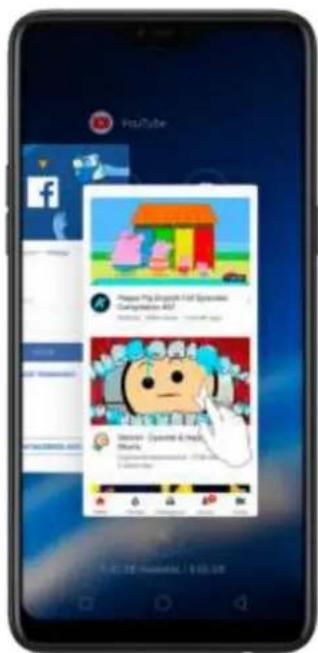
text_image
YouTube Facebook Google Play Book 14 Special Climbatics PDF Google Play Book 14 Special Climbatics PDF Google Play Book 14 Special Climbatics PDF
text_image
Mobile app screenshot displaying a food product listing page with cartoon characters and promotional tags- When you use an app in landscape mode and receive a message from other apps, click "Split-screen Repolet" to enter split
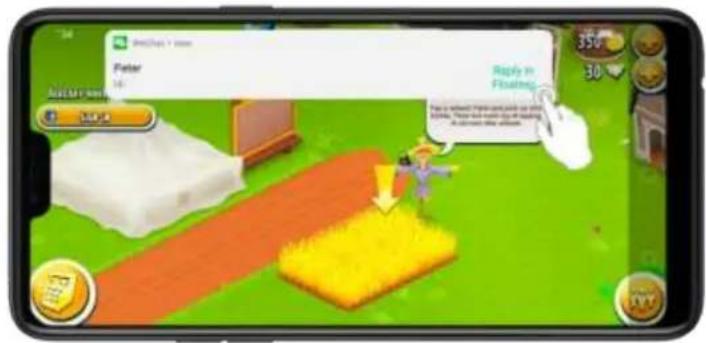
text_image
Peter Reply in Ending 350 30 164.4
text_image
Peter Hi 350 305.10. Take and edit a screenshot
You can capture the screen on your OPPO smartphone using the following ways:
Capture the current page
- Press and hold the Power and Volume Down buttons for about 2 seconds, the screen will briefly flash white, and you'll hear a shutter sound if your phone's sound is on.

text_image
Volume down button Sleep/ Wake button- Gesture Screenshot: Go to [Settings] > [Smart & Convenient] > [Gesture & Motion] and turn on [3-Finger Screenshot]. Then swipe down the screen with three fingers to take a screenshot.

text_image
Gesture & Motion Screen-off Gestures Enable the use of gestures for task openness when the power is off? Smart Call 3D4000s Raise to Turn On Screen 3-Finger Screenshot Design screen with Prime finger to qualify take a screenshot Mistouch Prevention Mode Please monitor what the limited screen is converted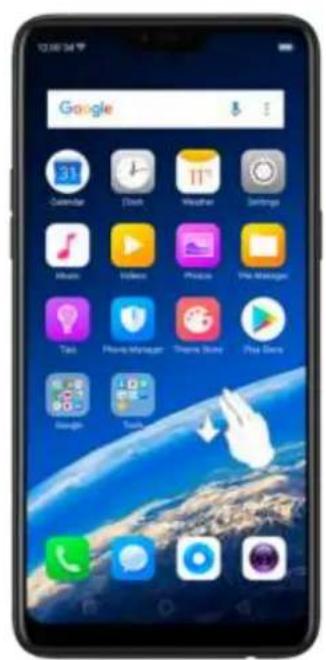
text_image
Google 31 Calendar Clock Weather Settings Music History Physics Pre Manager Talks Phone Manager Topset Store Play SceneCapture a long screenshot
With OPPO smartphone, you can easily take longer and scrolling screenshot with simple clicks. Long screenshot allows you to take scrolling screenshot of your conversations on messaging apps or a full webpage.
To capture long screenshots:
- Press and hold the Power and Volume Down buttons for about 2 seconds, or swipe down the screen with three fingers to take a screenshot of the current page.
- Click the screenshot, click Long screenshot, then scroll the page up or down and stop wherever you want to.
- Click Done to generate a long screenshot. The image is saved in on the Photos app.

text_image
Settings Airplane Mode Dual SIM & Cellular Wi-Fi Bluetooth Other Wireless Connections Notification & Status Bar Display & Brightness Homescreen & Lockscreen Magazine Smart & Vibration Time rprint, Face & Passcode & Convenient Settings Airplane Mode Dual SIM & Cellular Wi-Fi Bluetooth Other Wireless Connections Notification & Status Bar Display & Brightness Homescreen & Lockscreen Magazine Smart & Vibration User Time Fingerprint, Face & Passcode Smart & Convenient Display & Brightness Homescreen & Lockscreen Magazine Smart & Vibration User Time Fingerprint, Face & Passcode Smart & Convenient Display & Brightness Homescreen & Lockscreen Magazine Smart & Vibration User Time Fingerprint, Face & Passcode Smart & Convenient Display & Brightness Homescreen & Lockscreen Magazine Smart & Vibration User Time Fingerprint, Face & PasscodeEdit a screenshot
After you've taken a screenshot, click it, then click Edit. You can use the fancy new markup features to optimize it instantly, such as adding text, light, filters, and more. Click Done to save your changes.
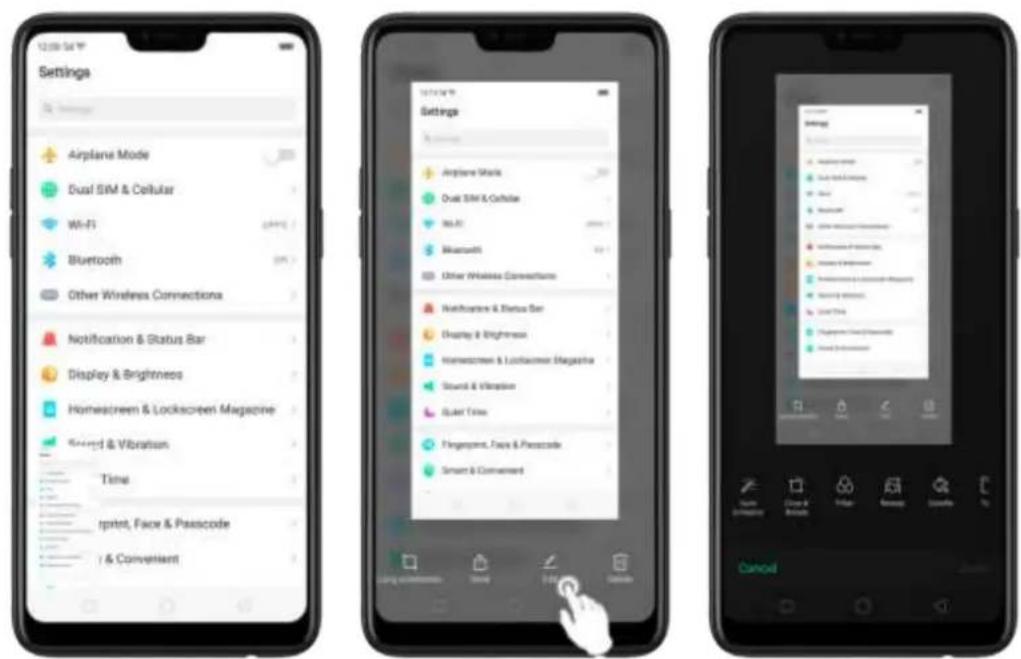
5.11. Control Center, Notification, and Status Bar
Control Center
Control Center gives you instant access to the most frequently used features, and allows you to view recent and earlier notifications with just a swipe. You can open Control Center from anywhere on your phone from any app or screen, even from the lock screen.

text_image
12:00 Master 27 Tuesday Google My My My My My My My My My My My My My My My My My My My My My My My My My My My My My My My My My My My My My My My My My My My My My My My My My My Mn Mn Mn Mn Mn Mn Mn Mn Mn Mn Mn Mn Mn Mn Mn Mn Mn Mn Mn Mn Mn Mn Mn Mn Mn Mn Mn Mn Mn Mn Mn Mn Mn MnOpen Control Center. Swipe down from the very top of any screen (except the notch at the top center of the display). You'll see the shortcuts listed on top, and notifications below.
Customize the shortcuts. By default, the phone will list ten shortcuts when you open Control Center. Click of swipe down the screen to show other shortcuts.
To change or rearrange the shortcuts, click

ne top, then hold down and
drag an icon to your preferred position. To save your changes, click

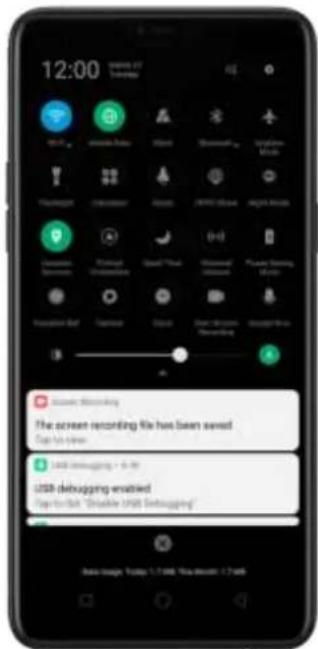
text_image
12:00 Windows 17 Thursday Google Microsoft Google Mobile TikTok Google Mobile Google Google Mobile Google Mobile Google Mobile Google Mobile Google Mobile Google Mobile Google Mobile Google Mobile Google Mobile Google Mobile Google Mobile Google Mobile Google Mobile Google Mobile Google Mobile Google Mobile Google Mobile Google Mobile Google Mobile Google Mobile Google Mobile Google Mobile Google Mobile Google Mobile Google Mobile Google Mobile Google Mobile Google Mobile Google Mobile Google Mobile Google Mobile Google Mobile Google Mobile Google Mobile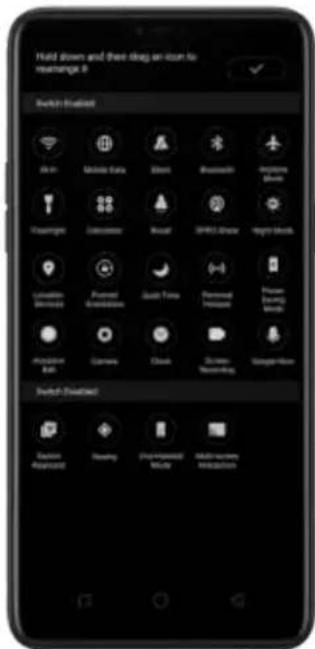
text_image
Hold down and then drag an issue to rearrange it Switch Enabled File Edit Mobile Data Stream Bluetooth Airplane Passenger Calendar Broadcast GPRS Show Right blocks Location Services Powered Communication Quick Time Personal Protocol Accession Bus Camera CLK Calendar Networking Google Host Switch Enabled Connection Request Reading Print/Download Make HomeControl the brightness. Drag the slider to adjust the brightness of the screen. When you drag the slider, other parts of Control Center will be temporarily hidden.
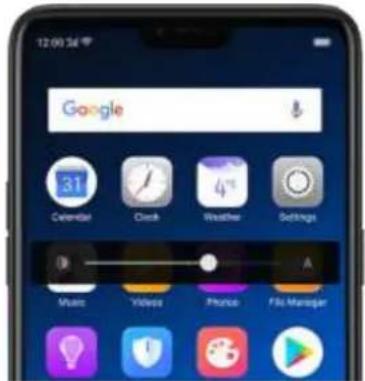
text_image
12:00:36 Google Calendar Clock Weather Settings Music Video Prize File ManagerNotifications
Notifications alert you of new messages, incoming calls, calendar events, and so on. When a notification appears, you can click it to open or swipe it away to dismiss.
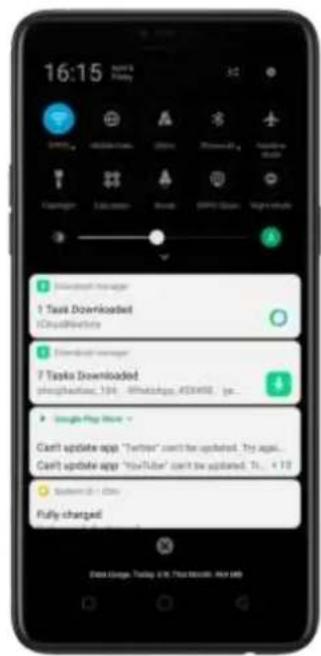
text_image
16:15 1 Task Downloaded iCloudMobile 1 Downloaded manager 7 Tasks Downloaded phosphatase, 134, WhatsApp, 433492, jpc... Google Help More Can't update apps "Turbo" can't be updated. Try app... Can't update app "YouTube" can't be updated. T1... + 10 Fully changedView all notifications. Swipe down from the very top to view recent notifications.
Open the app to respond. Click a notification to go to the related app.
When phone screen is locked, swipe the notification to the right. You may need to enter your passcode.
Dismiss notifications. Swipe the notification to the left, then click Delete. To dismiss all notifications, Click . ×
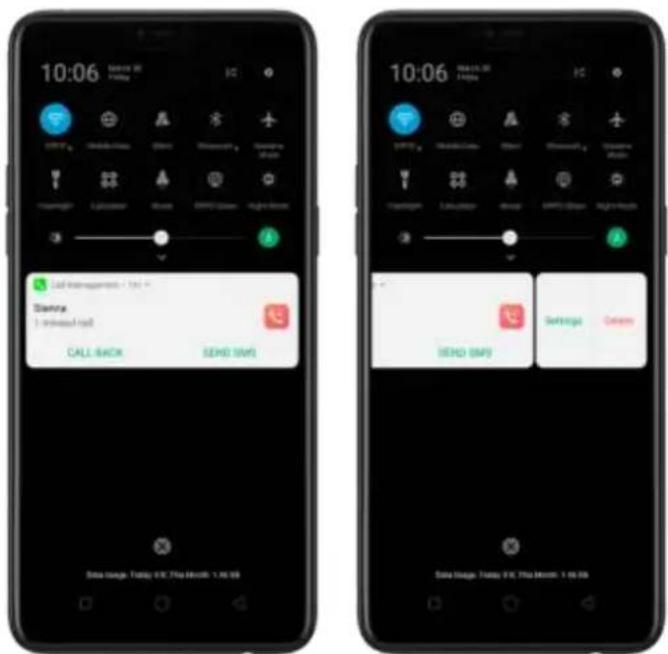
text_image
10:06 Send Information - 1st - Status: I received call CALL BACK SEND SMS 10:06 Send Information - 1st - Status: I received call CALL BACK SEND SMS Send Information - 1st - 08 Send Information - 1st - 08 Send Information - 1st - 08 Send Information - 1st - 08 Send Information - 1st - 08 Send Information - 1st - 08 Send Information - 1st - 08 Send Information - 1st - 08 Send Information - 1st - 08 Send Information - 1st - 08Manage your notification settings. Swipe the notification to the left, click
Settings, or go to [Settings] > [Notification & Status Bar] > [Manage notifications].
Select an app from the list to customize whether new notifications from that app appear on the lock screen or notification bar, display a banner, play a sound or vibrate, or whether show icon badges on the Home screen. You can also allow ringing for notifications when Do Not Disturb is on.
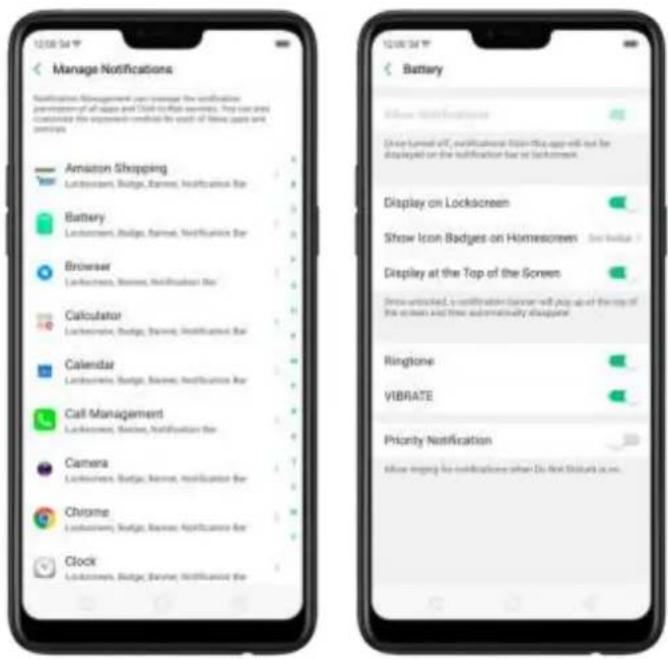
text_image
Manage Notifications Notification Management can manage the notifications previously of all apps and Quick-to-Share services. They can also continue the expansion candidate in each of these apps and services. Amazon Shopping Lockscreen, Badge, Banner, Notification Bar Battery Lockscreen, Badge, Banner, Notification Bar Browser Lockscreen, Banner, Notification Bar Calculator Lockscreen, Badge, Banner, Notification Bar Calendar Lockscreen, Badge, Banner, Notification Bar Call Management Lockscreen, Badge, Notification Bar Camera Lockscreen, Badge, Banner, Notification Bar Chrome Lockscreen, Badge, Banner, Notification Bar Clock Lockscreen, Badge, Banner, Notification Bar Battery Show Event Messages Show Event ID: #ifications from this app will not be displayed on the notification bar at Lockscreen Display on Lockscreen Show Icon Badges on Homescreens See Table 1 Display at the Top of the Screen Show unattached, a confirmation banner will put up at the top of the screen and how automatically disagree Ringtone VIBRATE Priority Notification Allow incoming no notifications when Do not discount it now.Show data usage at the bottom. Go to [Settings] > [Notification & Status Bar] and turn its slider to green. Your daily and monthly data usage will display at the bottom of the notification bar.
Turn on screen for notifications. Go to [Settings] > [Notification & Status Bar] and turn its slider to green.
Status Bar
Status icons are displayed on the status bar, indicating showing for instance wireless connectivity, the battery status, and time.
Display or hide battery percentage and network speed. Go to [Settings] > [Notification & Status Bar], and switch the sliders to green/white.
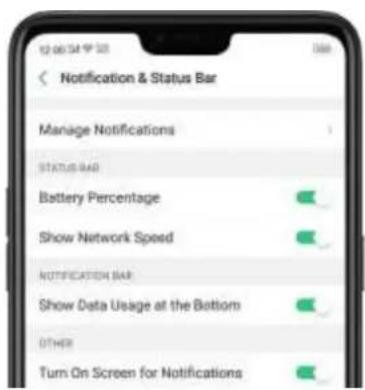
text_image
Notification & Status Bar Manage Notifications STATUS BAR Battery Percentage Show Network Speed NOTIFICATION BAR Show Data Usage at the Bottom OTHER Turn On Screen for Notifications5.12. Smart Assistant
The Smart Assistant combines information such as Weather, Steps Tracker, and Events, and puts them into an active day summary of what's on tap for today. Quick apps and favorite contacts allow you to open an app or call someone with only one tap. You can also customize Smart Assistant to better suit your needs, and to emphasize what you actually care about.
Open Smart Assistant. Go to [Settings] > [Smart & Convenient] and turn on [Smart Assistant]. Or swipe right from the left edge of the Home screen, then click Turn on Smart Assistant.

text_image
12:00' 34 Smart Assistant One-tip access to common functions, and one-step quick view of important information SZX PEK Turn On Smart Assistant Cancel
text_image
12:00' 3d Search Quick Functioner Cotton, Fats, Coffee, Sugar, Baby, Tea, Sugar, Coffee, Sugar, Sugar, Sugar, Sugar, Sugar, Sugar, Sugar, Sugar, Sugar, Sugar, Sugar, Sugar, Sugar, Sugar, Sugar, Sugar, Sugar, Sugar, Sugar, Sugar, Sugar, Sugar, Sugar, Sugar, Sugar, Sugar, Sugar, Sugar, Sugar, Sugar, Sugar, Sugar, Sugar, Sugar, Sugar, Sugar, Sugar, Sugar, Sugar, Sugar, Sugar, Sugar, Sugar, Sugar, Sugar, Sugar, Sugar, Sugar, Sugar, Sugar,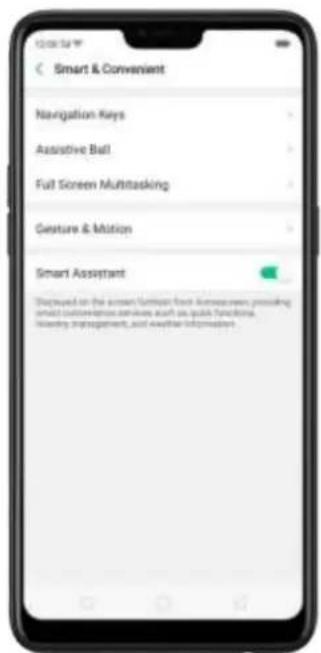
text_image
Smart & Convenient Navigation Keys Assistive Ball Full Screen Multitasking Gesture & Motion Smart Assistant Disclosed on the screen interface each session was provided. Email customer service as such as phone functions, Media Management, and other information.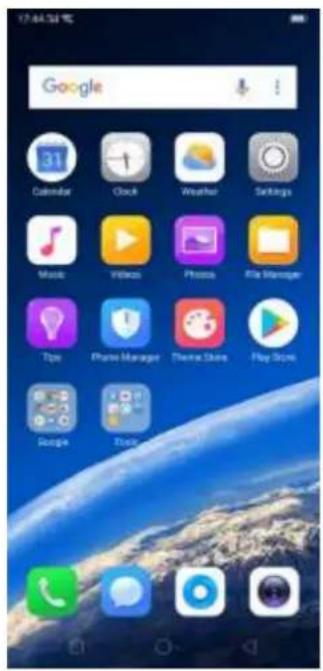
text_image
Google Calendar Clock Weather Settings Music Videos Photos File Manager Tips Phone Manager Theme Store Play Store Google BookCustomize Smart Assistant widgets. Scroll to the bottom of Smart Assistant screen, then click Edit. Click or to add or remove widgets. To arrange the order of your information, touch and hold, then drag to a new position.
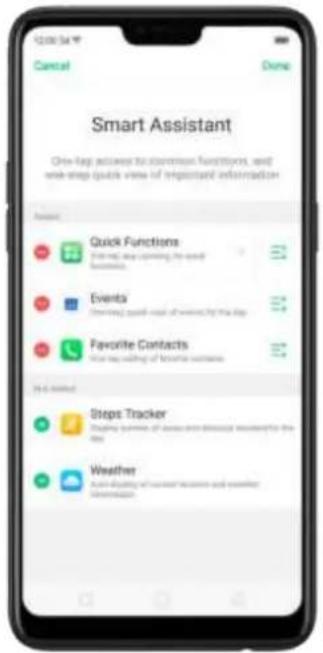
text_image
12:00:54 Cancel Dime Smart Assistant One-leg access to common functions, and one-leg quote view of important information Amount: Quick Functions Event, when calling my own Functions Events Event, when calling my own by the day Favorite Contacts Your leg asking of favorite contacts Hi-Go linked Steps Tracker Using your names of home from friends answered for the day Weather You are looking at current times and weather information
text_image
Google Calendar Clock Weather Settings Music Videos Photos File Manager Tips Photo Manager Theme Store Play Store Google TouchInformation you can get from Smart Assistant:
- Quick Functions: Provides you with quick access to apps. Click +, click Add More Apps, then choose an app. You can open the app directly by clicking its icon on Smart Assistant.
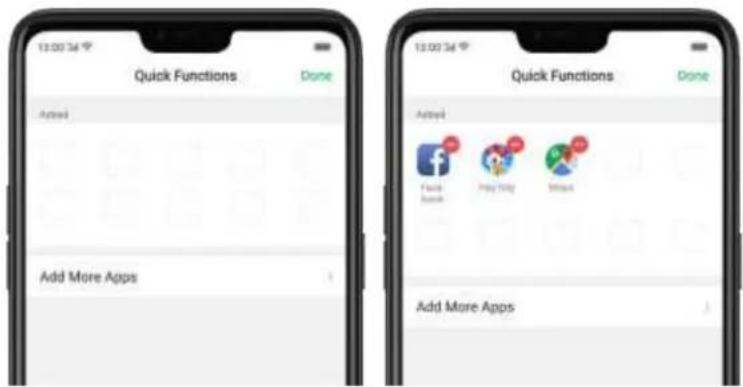
text_image
13:00:34 Quick Functions Done Add More Apps 13:00:34 Quick Functions Done Add More Apps Add More Apps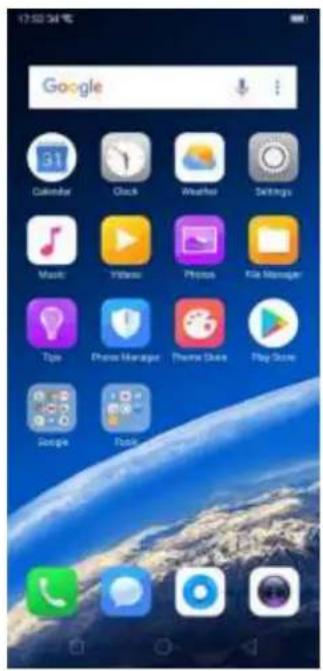
text_image
17:00:34 Google Calendar Clock Weather Settings Music Video Photo File Manager Tips Phone Manager Theme Store Play Store Google Book• Weather: Provides you with weather conditions of your current location.
• Steps Tracker: Keeps track of your daily steps and distance covered.

text_image
12:00:54:00 Steps Tracker Day Time Microsoft Status 97 Steps 0 Steps 88 Stenome 0 Stenome Ingredients recorded for 4 steps day. 2016/05/07 0 Steps 3 Minutes• Events: Keeps track of all your events on the Calendar app.
- Favorite Contacts: Lets you make call with one tap. Click +, then choose a
contact. Click the head portrait to call the person.
5.13. Search
- feature to find specific app respect to
messages, or quickly search the Internet.
- Search with OPPO phone. Swipe down on any page of the Home screen. Do not start swiping at the very top of the screen - that will open the Notification Center instead. Type in your search query, then click a search result on the list to open it.
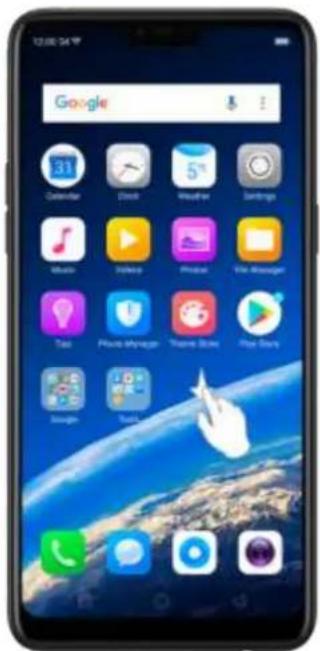
text_image
12:00:54 F Google 31 Calendar Clock Weather Settings Music Video Photo Web Manager Tie Photo shynagar Time 30ms Play Store Design Tools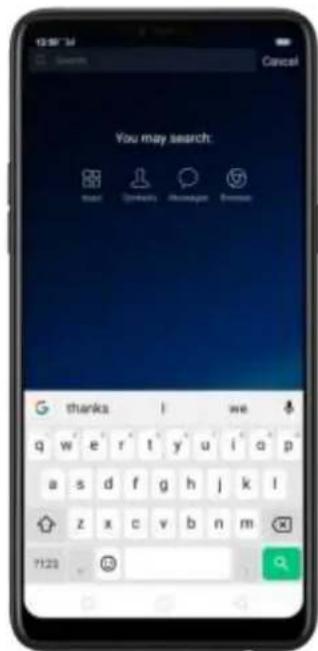
text_image
You may search: Start Update Welcome Preview thanks I we q w e r t y u i q p a s d f g h j k l z x c v b n m 7123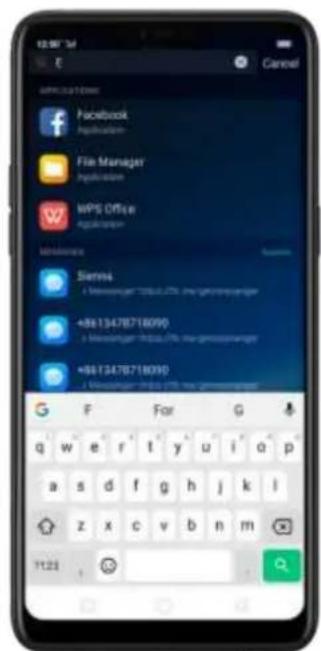
text_image
10:56'3d E Cancel Facebook Hippicalim File Manager Hippicalim WPS Office Hippicalim Mobile Sienna +8813478718090 +8813478718090 +8813478718090 F For G q w e r t y u i q p a s d f g h j k l z x c v b n m 1123
- Close Search. You can either Click "Cancel", press the Return button, or swipe up the "Back" gesture that you have set.
5.14. Test
5.13.1. Add or change keyboard languages
If you need to type in a foreign language on your OPPO phone, you can do so by adding and changing the input language:
Add installed languages. Go to [Settings] > [Additional Settings] > [Keyboard & Input Method] > [TouchPal for OPPO] > [Languages], then tick the languages to use.
You can also add languages as you type. Click Ⓗ > [Add language] and tick the languages to use.

text_image
12:00 PM Languages Switch language by Switching on operation Mixed language input Predict candidates from the secondary language Installed languages English @ CHARTY English (UK) @ CHARTY 拼音 @ CHARTY 笔画 @ CHARTY Français @ CHARTY Kiswahili @ CHARTY New Message Cancel Recipient Status Languages English Predecessor FILL 1x English (UK) Français Add Language... A S D F G H J K L Z X C V B N M 12# + English +Download available languages. Click to download the language pack. You'll see the language in Installed languages list when the download is completed.
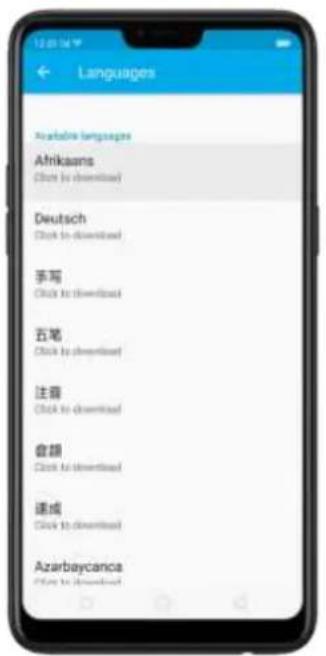
text_image
12:00:56 Languages Available languages Afrikaans Click to download Deutsch Click to download 手写 Click to download 五笔 Click to download 注册 Click to download 音圈 Click to download 速成 Click to download Azarbaycanca Click to download
text_image
Switch language by Switching not applicable Selected language input English Language Input English (UK) 拼音 Language 笔画 Language Afrikaans Language Français LanguageChange Keyboard languages. As you type, switch language by clicking EN or swiping on spacebar.
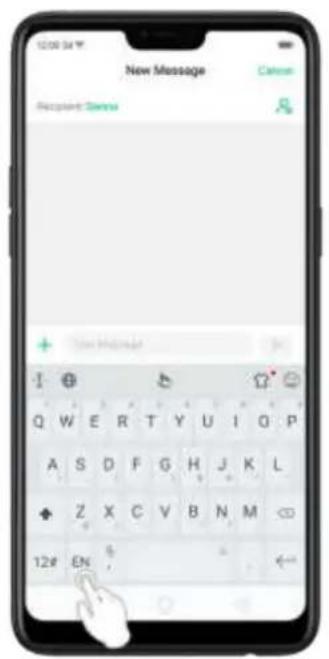
text_image
New Message Recognize Server + New Message Q W E R T Y U I Q P A S D F G H J K L Z X C V B N M 12# EN
text_image
New Message Cancel Recycle Danny + Dot Message Q W E R T Y U I O P A S D F G H J K L Z X C V B N M 12# 5 Digital5.14.1.Type, edit, and delete text
Type text
Click a text field to pop up the keyboard, then click the letter to type.
Type capital letters. OPPO smartphone is auto-capitalizing the first letter of a sentence, or you can click to type capital letters.
Turn on Caps Lock. Double-click . A line will appear under the arrow if you have done this correctly.
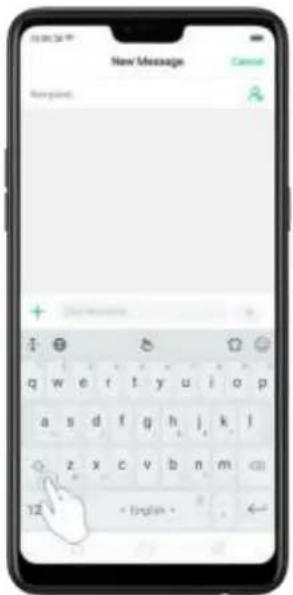
text_image
New Message Everyone: + -Enter numbers, punctuation, or symbols. Click 12#. To type alternate characters, touch and hold a key, then slide to choose one of the options.
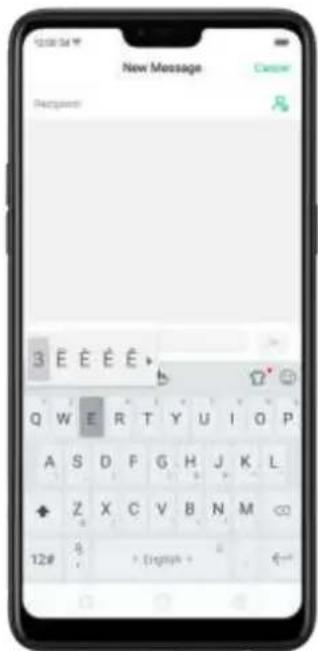
text_image
New Message Recipient: 3 E E E E Q W E R T Y U I O P A S D F G H J K L + Z X C V B N M 12# 4 + Engage +Switch language. Go to [Settings] > [Additional Settings] > [Keyboard & Input Method] > [TouchPal for OPPO] > [Languages].
Tick the languages to use, then switch language by clicking EN or swiping on spacebar.
Revise text. Click on your text to move the cursor to the insertion point.
Edit text
Select text. Touch and hold the target text, or double-click the target text to select. Drag the control points on either side of the highlighted word to select more or less text, or click [Select all] to highlight all of the text. You can cut, copy, paste or share your text then.
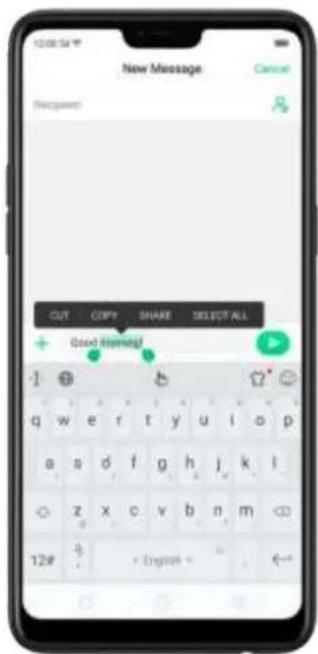
text_image
New Message Cancel Recipient: OUT COPY SHARE SELECT ALL Good answer? 1 2 3 4 5 6 7 8 9 10 11 12 13 14 15 16 17 18 19 20 21 22 23 24 25 26 27 28 29 30 31 32 33 34 35 36 37 38 39 40 41 42 43 44 45 46 47 48 49 50 51 52 53 54 55 56 57 58 59 60 61 62 63 64 65 66 67 68 69 70 71 72 73 74 75 76 77 78 79 80 q w e r t y u i o p a s d f g h j k l o z x c v b n m 12# > English → ←Delete text
Click to delete the selected text or characters before the cursor.

text_image
New Message Incorrect Good evening 12# • English •5.14.2.Prediction
Prediction feature lets you to enter text with ease and without errors.
Go to [Settings] > [Additional Settings] > [Keyboard & Input Method] > [TouchPal for OPPO] > [Prediction].
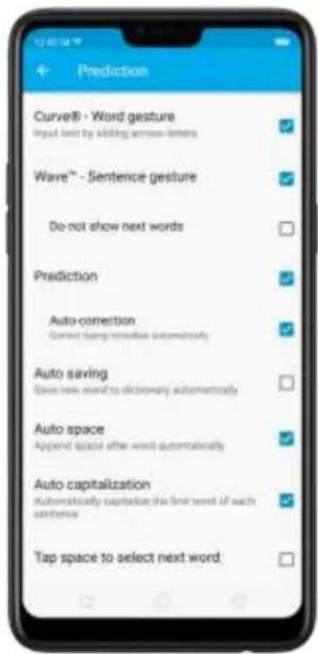
text_image
Prediction Curve® - Word gesture Input text by sliding arrows-livers Wave™ - Sentence gesture Do not show next words Prediction Auto-correction Correct taking instructions automatically Auto saving Save new word to dictionary automatically Auto space Append space after word automatically Auto capitalization Automatically capscite the first word of each sentence Tap space to select next wordUse TouchPal Curve to input text simply by swiping across the keyboard, from one letter to another.
Use Wave–Sentence gesture to input commonly used phrases/sentences.

text_image
New Message Recipient Good I: night morning q w e r t y u i o p a s d f g h j k i infornoon for morning ◇ z x c v b n m 12# + English +Predict text. While you type, the keyboard predicts your next word, and offer suggestions for likely words before you finish typing. Click the word or the spacebar to select

text_image
New Message Cancel Recycle How long: I have you have you q w e r t y u i o p a s d f g h j k l ◇ z x c v b n m 12# 5 + English +Correct spelling automatically. The keyboard will automatically check and correct the spelling of the text.
Auto saving new words, adding space, and capitalizing. As you type, the keyboard will also automatically save new words to the dictionary, add space after a word and capitalize the first word of each sentence.
Predict Emojis. As you type, the keyboard predicts what emoji comes next.
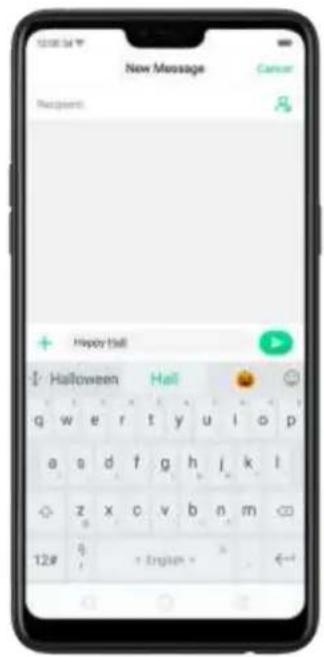
text_image
New Message Recipient: Happy Hall Halloween Hell q w e r t y u i o p a s d f g h j k l z x c v b n m 12# 9 + English -Contextual prediction. The keyboard will suggest what it thinks are the most likely words based on what you're typing.
Import contact names. The names of your contacts will be added to user dictionary.
Learn from messages. Let the keyboard learn from your conversations and predict words you use most.
User dictionary. Click Edit user words, then add your own words into the dictionary so that they appear in the word prediction fields when typing. You can also back up or restore your dictionary to or from the SD card, or rebuild, or clear your dictionary.
5.14.3. Voice typing
When you're connected to the Internet, you can use the built-in microphone to speak the text instead of typing it.
Start voice typing. Touch and hold the space bar on the bottom of the screen, or click 🤨[Voice], then speak.

text_image
New Message Message Browse Search + Text Message q w e r t y u i o p a s d f g h j k l z x c v b n m 128 English Done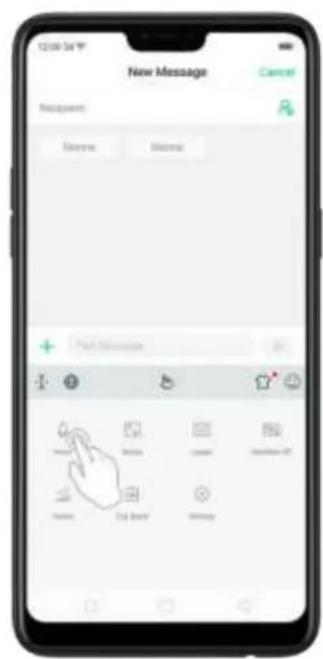
text_image
12:00:34 New Message Cancel Reagent: Search Browse + New Message - - - - - - - - - - - - - - - - - - - - - - - - - - - - - - - - - - - - - - - - - - - - - - - - - - - - - - - - - - - - - - - - - - - - - - - - - - - - - - - - - - - -Pause voice typing. Click the microphone icon to pause/continue dictating the words. Click ✗ to quit voice typing.
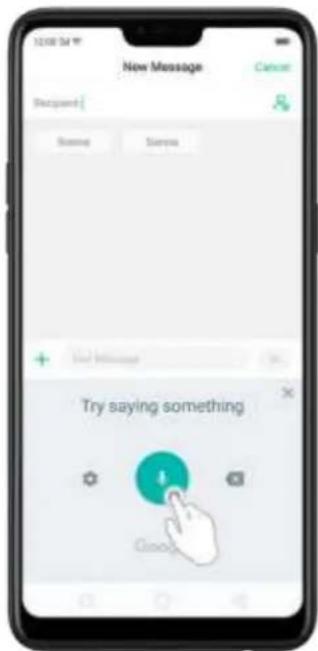
text_image
New Message Cancel [Decipant] Save Samples Add Message + Try saying something Cancel
text_image
New Message Recipient | Cancel Browse Search + New Information Tap to speak GoogleSelect input languages. Click 🎨 on the panel, or go to [Settings] > [Additional Settings] > [Keyboard & Input Method] > [Google voice typing] > [Languages].
Select your preferred languages. To select a primary language, touch and hold the
language.
Insert and delete text. To insert or delete text, click to place the insertion point first. Click

to the right of the microphone icon to delete text.
To enable voice input while offline: Click

on the panel to manage [Offline speech recognition].
5.14.4.TouchPal for OPPO
TouchPal Keyboard is the default keyboard on OPPO smartphones. You can use it to enter text by tapping on the keys or swiping across the keyboard, from one letter to another. Besides its basic typing features, TouchPal has introduced some innovations. Click

n the on-screen keyboard to get more information.
Multiple themes available. You can dress up the keyboard with various themes or customize the keyboard by yourself.

text_image
Summer FOOM THEME FOUT New Hot Recommended Skull New Christmas Puzzle Top Selected Theme Rose Gold MARS Water Drops Offlet Tower MARS Cute Puzzle MARS Green Light Skull MARS
text_image
Lobster Bernur Basischrift 2 Merrilweather Parisish Happy Monkey Federant Pompiere Dila Sweet Eddie Stardos Stencil Alice Merrilweather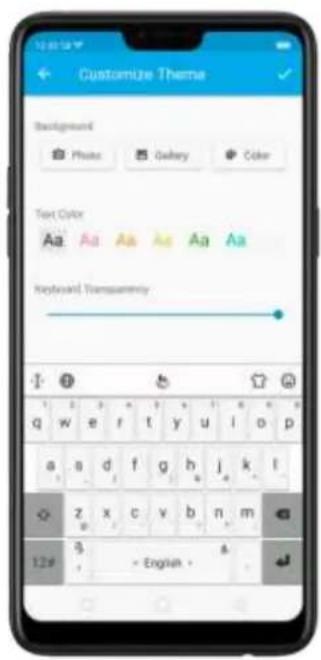
text_image
Customize Theme Background Photo Gallery Color Text Color Aa Aa Aa Aa Aa Aa Keyboard Transparency 12# 3 - English -Emojis and stickers. TouchPal has multiple emojis and stickers, and can predict what emoji comes next.
text_image
New Message Recipient Console Options + Text Messages CancelIntelligent input. With TouchPal Curve®, you can type by sliding from letter to letter instead of tapping. Advanced technologies such as Contextual Prediction, Autocorrection, and User Dictionary also make typing faster. See Prediction.
Different on-screen keyboard styles. In addition to the default keyboard style, the undocked, one-handed, and split keyboard on the screen makes typing with both thumbs a breeze. Position the keyboard feature to
anywhere on screen, or narrow the keyboard with one-handed mode, or split the keyboard in half.
Clip board. It allows you to type a long string of text by entering a shorter string. Create a keyboard shortcut for a word, phrase, or sentence. Whenever you type a specific shortcut, it will replace those letters with a predefined piece of text.

text_image
New Message Cancel Backup: + My name is Sterna. + CREATE VIEW My name is Sterna. + all My name is Sterna as q w e r t y u i o p a s d f g h j k l z x c v b n m 12# = 30000 (LH)5.15. Sound, Vibration, and System Feedback
You can set an OPPO smartphone to sound or vibrate for incoming calls, messages and other notifications, and let your phone send sound or haptic feedbacks on key clicks.
Set your phone to vibrate. Go to [Settings] > [Sound & Vibration]. Separate controls let you set your phone to vibrate in ring mode, silent mode, or both.
Turn ringing on or off. Toggle the [Silent] slider to green or white. You can also swipe down from the top of the screen to open the Control Center, then click

to turn on Silent mode.
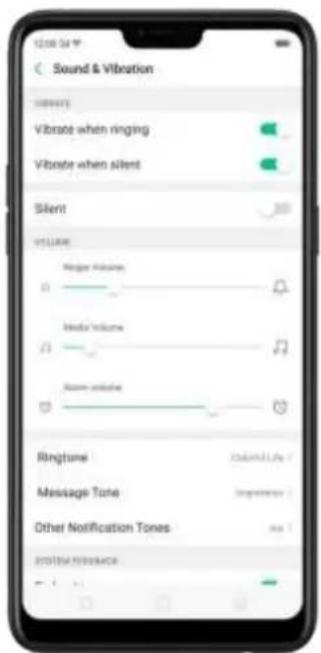
text_image
Sound & Vibration Vibration when ringing Vibration when silent Silent VELENE Ridge Volume Media Volume Zoom volume Ringtone Message Tone Other Notification Tones Product Resource
text_image
15:19 Soto Image, Today: 101-03: Play Music, Hot AMAdjust the ringer, media and alarm volume. Drag the control point left or right. Change ringtones for incoming calls, messages, and other notifications. In addition to the default ringtones, you can create ringtones using your own audio files.

text_image
12:00:34 P Ringtone CUSTOM Select From Files PHONE RING TUNG Colorful Life Playground Improvised Dance Toys FireflyTurn system feedback on or off. Toggle the sliders to green or white. When turn Vibrate on Touch on, your phone vibrates when you touch the Menu, Home, and Return buttons.
To temporarily silence incoming calls and alerts (without vibrations), see Quite Time.
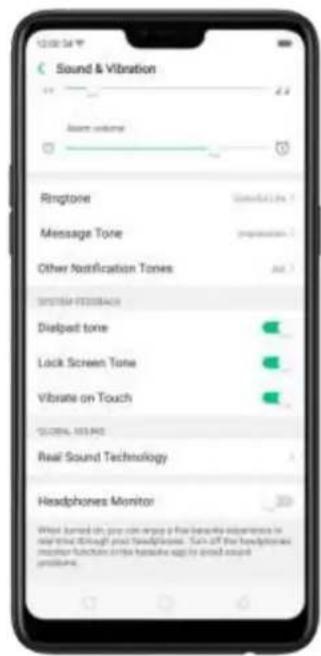
text_image
Sound & Vibration Sound volume Ringtone Message Tone Other Notification Tones SUPPORT RESEARCH Dispelt tone Lock Screen Tone Vibrate on Touch GLOBAL 103.45 Real Sound Technology Headphones Monitor What turned on, you can enjoy a fair balance experience to play the OZQI and Headphones. Turn off the headphones monitor function into the headache app to sound sound problems.Real Sound Technology. Real Original Sound Technology is jointly developed by Dirac Research AB and OPPO. It delivers original sound in full fidelity and creates a spatial three-dimensional sound arena to provide you with a listening experience that's just like being at a live performance. Plug in the headphones then select a scene you want the sound to change to.
Headphones Monitor. When turned on, you can enjoy a live karaoke experience in real-time through your headphones.
Turn off the default headphones monitor function in the karaoke app to avoid sound problems.
5.16. Charge and monitor the battery
OPPO smartphones are equipped with a non-removable, lithium-ion rechargeable battery. Do not attempt to open your phone. Charge the phone using the cable and USB power adapter that's included when you purchased it.
Charge the battery. Connect your phone to a standard power outlet or a Power Bank.
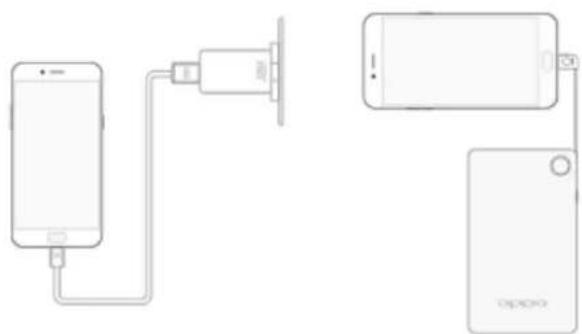
natural_image
Diagram showing two devices connected via a cable, one with a plug and the other with an open phone (no text or symbols present)Charge the battery and transfer files. Connect your phone to a computer.

natural_image
Line drawing of a laptop connected to a smartphone via a cable (no text or symbols)Note:
* All photos shown are for illustration purpose ONLY. Actual products may vary.
* Rechargeable batteries have a limited number of charge cycles and may eventually need to be replaced. The OPPO smartphone battery is not user replaceable; it can only be replaced by an authorized service provider. Removing the battery yourself will void your warranty and might cause damage to your phone.
Show percentage of battery in the status bar. Go to [Settings] > [Notification & Status Bar] and turn on [Battery Percentage]. Or go to [Settings] > [Battery] and turn on [Show battery percentage on status bar].
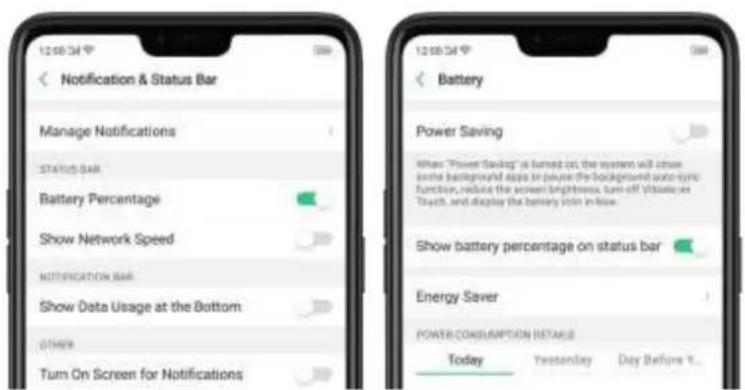
text_image
12:08:34 Notification & Status Bar Manage Notifications STATUS BAR Battery Percentage Show Network Speed NOTIFICATION BAR Show Data Usage at the Bottom: OTHER Turn On Screen for Notifications 12:08:34 Battery Power Saving When "Power Saving" is turned on, the system will close some background apps in play the background once-sync functions, reduce the screen brightness, turn-off videoless Touch, and display the battery icon in blue. Show battery percentage on status bar Energy Saver POWER CONSUMPTION DETAILS Today Yesterday Day Before 7...View detailed battery info listed for each app. Go to [Settings] > [Battery].

text_image
13:00:54 Battery Power Saving When 'Power Saving' is turned on; the system will clear some background implies to pause the background auto-ery function, reduce the screen brightness, turn off outside on Tower, and display the battery room in that. Show battery percentage on status bar Energy Saver POWER CONSUMPTION DETAILS Today Yesterday Day Before Y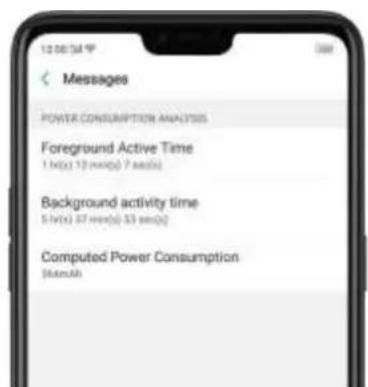
text_image
12:06:54 P Messages POWER CONSUMPTION ANALYSIS Foreground Active Time 1 h(x) 12 hrs(s) 7 sec(s) Background activity time 5 h(x) 37 hrs(s) 33 sec(s) Computed Power Consumption (54mAh)Use USB OTG. Go to [Settings] > [Additional Settings] and enable [OTG Connection]. Connect the OTG cable to your phone, then attach the USB Flash Drive. Once connected, you can directly view and transfer files between the USB Flash Drive and your phone without requiring a PC. You can also connect a gaming controller, an external hard drive, printer, and much more to your phone with the help of this feature.
5.17. Location Service
Apps like Maps, Weather, and Compass must know your exact position before it can provide accurate services and results.
Turn on Location Service. Swipe down from the top of the screen to open Control Center, then click 🔒. You can also go to [Settings] > [Google] > [Location] and toggle the slider to green.
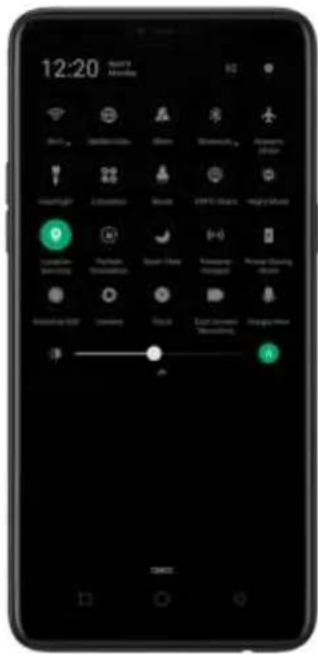
text_image
12:20 HAPPY AMOUNTS Mobile Mobile Phone Phone Smartphone App Store HomeRight Location About E-mail: 955-836-888 Highly Mail Location Mobile Phone About Phone Name: New York Phone: 400-700-888 Phone: 400-700-888 Phone: 400-700-888 Phone: 400-700-888 Phone: 400-700-888 Phone: 400-700-888 Phone: 400-700-888 Phone: 400-711-1233 Phone: 400-711-1233 Phone: 400-711-1233 Phone: 400-711-1233 Phone: 400-711-1233 Phone: 400-711-1233 Phone: 400-711-1233 Phone: Home Phone: Home Phone: Home Phone: Home Phone: Home Phone: Home Phone: Home Phone: Home Phone: Home Phone: Home Phone: Home Phone: Home Phone: Home Phone: Home Phone: Home Phone: Home Phone: Home Phone: Home Phone: Home Phone: Home Phone: Home Phone: Home Phone: Home Phone: Home Phone: Home Phone: Mobile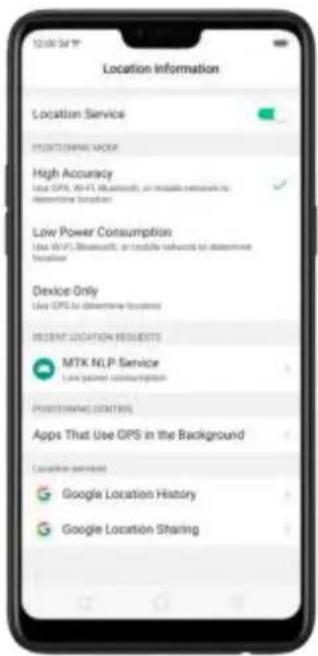
text_image
Location Information Location Service POSITIONS NAME High Accuracy Use GPS, Wi-Fi, Bluetooth, or portable networks to determine location Low Power Consumption Use Wi-Fi, Bluetooth, or portable networks to determine location Device Only Use GPS to determine location Recent LOCATION REQUESTS MTK NLP Service Low power consumption POSITORING CONTROLS Apps That Use GPS in the Background Location services Google Location History Google Location SharingYou can choose from three types of positioning modes, which differ in accuracy and battery drain:
- High accuracy (GPS, Wi-Fi, Bluetooth, and mobile network).
- Battery saving (Wi-Fi, Bluetooth, and mobile network).
- Device only (GPS).
A history of recent location requests. You'll see a list of apps that have requested location. Click an app to enter the App info page that allows you to manage the app directly.
Apps that use GPS on the background. Turn the slider to green if you allow the app to use GPS on the background. Keeping background GPS of the apps active may drain the battery significantly.

text_image
12:00:34 Apps That Use GPS in the Background Turning it off is recommended. System power consumption will increase when it is turned on Google Play Music Photos FacebookGoogle Location service
Use Google Location History to retrace your steps. Google Location History will customize search results for location and search history.
Use Google Location Sharing to share your locations with friends and contacts in real time.
5.18. Use the phone internationally
When you travel overseas, do the following steps to make sure you stay connected to friends and family while traveling - without paying more than you have to.
Unlock your phone. Call your wireless operator and ask if your phone needs to be unlocked. In order to prevent selling beyond agreed areas, you need to call the Customer Service Center to get the unlock code.
Shop international data roaming plans with your operator. Consult your operator or visit online websites to check for roaming plans and fees that are mostly used in the country or region that you will visit.
Buy or rent local Nano SIM cards. You can buy or rent SIM cards for most of the countries and regions. Learn more from travel guides and websites related to the country or region.
Use Wi-Fi. Turn off global roaming on your phone and head to a Wi-Fi hotspot, such
as a hotel lobby, or local cafes.
5.19. Power Saver
Power Saver helps increase battery life by turning off or limiting certain features, for example, turning off some background apps to pause background syncing, turning off Vibrate on Touch, and dimming the screen. Using Power Saver can give you at least extra 30 minutes to use the phone.
Turn on Power Saving. The phone will let you know when your battery level goes down to 20%, and again at 10%, and will ask you to turn on Power Saving. The battery indicator in-on the top right corner will turn blue while Power Saving is enabled.

text_image
Less than 20% of battery power remaining. Turn on "Power Saving"? When "Power Saving" is on 1. Background apps will be closed to pause the background auto-eyes function 2. The screen brightness will be reduced 3. Vibrate on Touch will be turned off 4. The battery icon will be displayed in like Please call to us at www.tuist.com or at www.tuist.com for the Battery Store. Notice you can't miss your 'Tulsting - Edition Power Saving' as it is "Not Applicable?"To manually turn on or off Power Saving Mode at any time, swipe down from the top of your screen to open Control Center, then click 📄 You can also go to [Settings] > [Battery] and enable Power Saving.
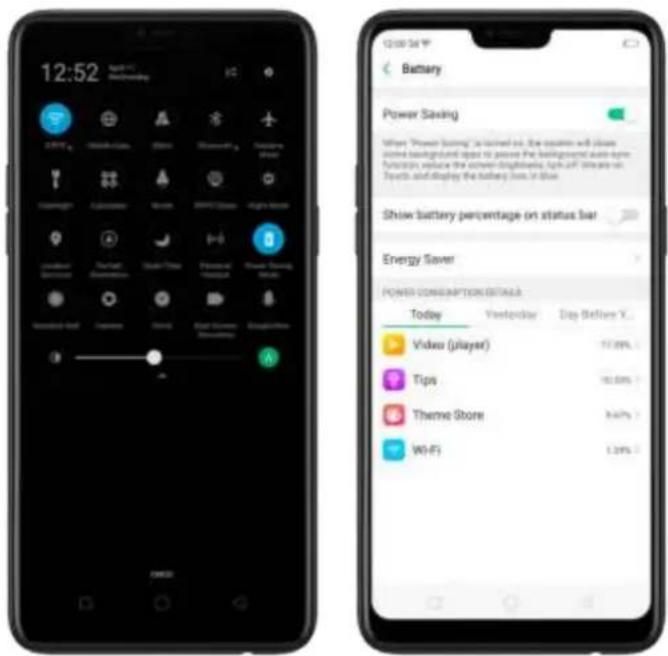
text_image
12:52 Battery Power Saving When "Power Saving" is installed on. The options will allow some background open to pass the background screen. Functions replace the power buttonless light off. We are on. Topics and display the battery line in blue. Show battery percentage on status bar Energy Saver POWER CONSUMPTION DETAILS Today Yesterday Day Before X... Video (player) Tips Theme Store Wi-FiNote: Your phone will automatically disable Power Saving when you charge it up to 80%. Power Saving is always temporary and only lasts until the next proper charge.
6. Personalize your OPPO phone
6.2. ColorOS 5.0 device name
If you scan for a Wi-Fi Direct or Bluetooth connection with your OPPO phone, your device name will display on the target devices.
Change device name for Wi-Fi and Bluetooth. Go to [Settings] > [About Phone]. You can also change the device name when you enable Bluetooth or Wi-Fi Direct.
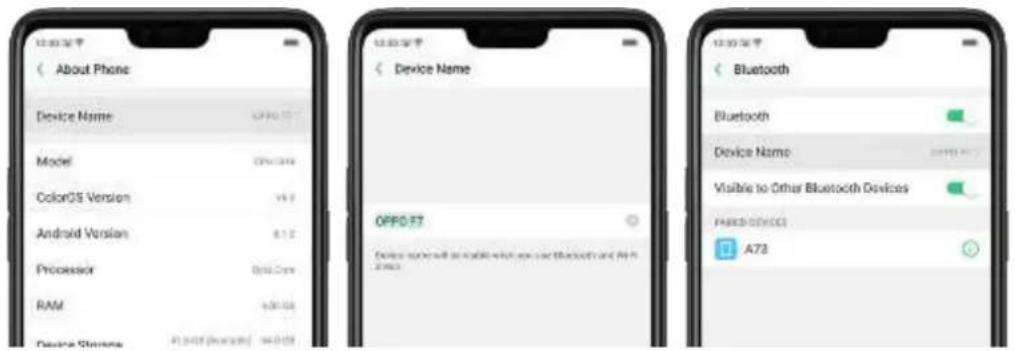
text_image
About Phone Device Name OPPO F7 Model ColorOS Version Android Version Processor RAM Device Status 41.049 (we tested) 46.049 Device Name OPPO F7 Device name will be available when you use Bluetooth and AR 5.2.2003 Bluetooth Bluetooth Device Name 20000 MHz Visible to Other Bluetooth Devices PARED DEVICE A736.3. Personalize the Home screen
6.2.1. Organize the Home screen
From the Home screen, you can access all your apps and widgets. To keep everything in order, you can organize your home screen to make it more manageable and keep it looking neat.
Add or Remove a Home screen page
Add a Home screen page. Swipe to the rightmost screen and drag an app or widget off the screen to the right.
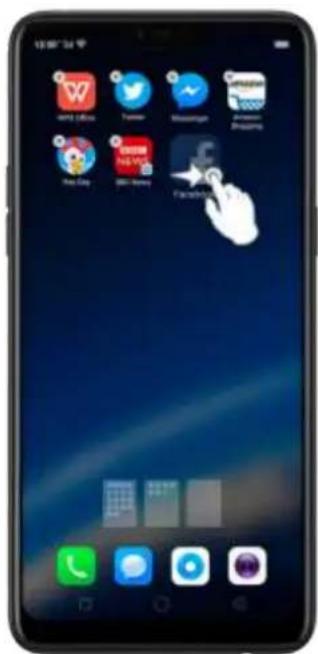
text_image
Smartphone home screen displaying app icons with Chinese labels, including Twitter, Facebook, and InstagramRemove a Home screen page. Drag all the apps and widgets on a Home screen page to another page. The empty Home screen page will be automatically deleted.
Group Apps
You can put apps in folders, which can keep your home screen neat or help to organize similar apps.
Create a folder. Tap and hold an app until the icons start wiggling. Drag one of the apps into the other, and lift your finger when the first app seems to merge into the second one. Add more apps by dragging them in.

text_image
Google Calendar Touch Message Settings Mobile Inbox Phone File Manager Phone Manager Phone Store Play Music Session HelpEdit the folder's name. When you first create a folder, your phone assigns a suggested name to it. To edit the name, tap on the text.
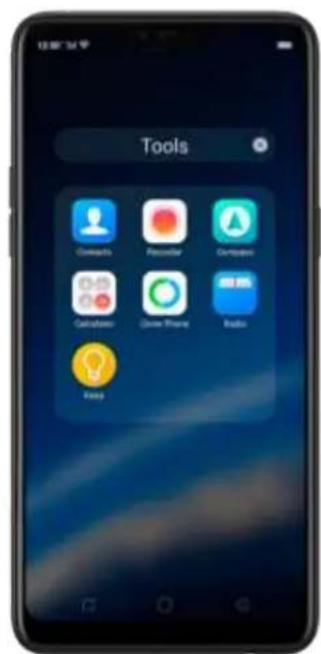
text_image
Tools Contacts Recorder Computer Chatbox Drive Phone Radio KeepRearrange apps and folders
OPPO smartphone has set a default arrangement for users, but you can still rearrange the apps and folders to fit how you use your phone.
Remove apps from a folder. Tap the folder, then tap and hold an app until the icons start wiggling. Drag the app out of the folder and into the home screen.
Delete a folder. Drag all the apps out of the folder and into the home screen, and the folder will disappear.
Rearrange apps. Tap and hold on an app until the icons start wiggling. Drag and drop the app icon to a new location. To save your changes, press the Home or Return button.
Note: Icons will be aligned to the left automatically.
Move the icon to a new screen. Drag the icon off the screen to the right and let it go when the new page appears.
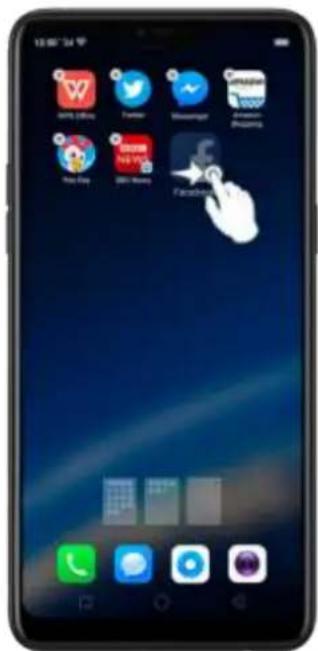
text_image
Smartphone home screen displaying app icons with Chinese labels, including Twitter, Facebook, and Google.Add or remove Home screen widgets. See Home screen widgets.
6.2.2. Home screen widgets & Transition Effects
You can give yourself a fancy home screen with a highly-detailed set of widgets, for example, clock, weather, battery or mail widgets. You can also use them to tweak
notifications, alarms and other options. In other words, there's considerably more here than just widgets. You can also change the transition effect on your phone, which is the style in which you slide the home screen right or left.
Manage widgets
Add a widget. Pinch your fingers together, then click [Widgets]. You'll see all available widgets. Touch, hold and drag one widget to the screen. Make sure there is enough space for that widget.
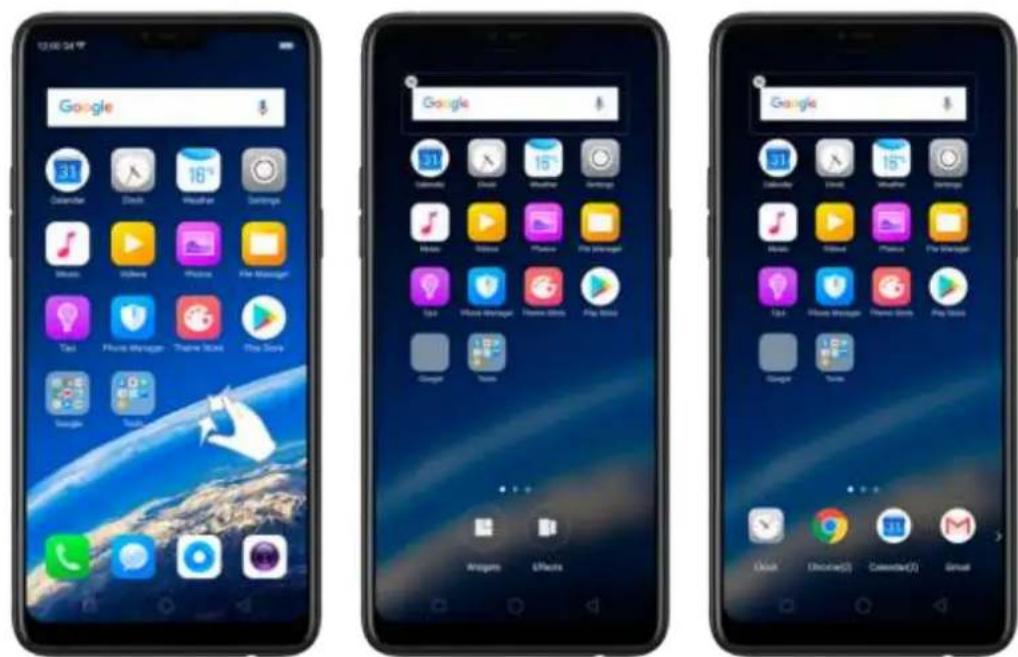
text_image
Three smartphone home screens displaying Google's home screen with app icons and status bar labelsMove a widget. Touch and hold a widget for about 2 seconds, then drag it around.
Delete a widget. Click in the upper left corner of the widget.
Customize transition effect
Set up transition effect. Pinch your fingers together, then click [Effects].

text_image
Google Calculator Clock MacArthur Settings Game Video Phone File Manager Play Play Manager Play Store Play Store Google Tools Google Calculator Clock MacArthur Settings Game Video Phone File Manager Play Play Manager Play Store Google Tools Default Mode Cube Style Fipping Slide Card EffectPreview and choose an effect. Click a transition effect and it will show the preview effect. You can choose one from the five options:
- Default Mode
- Cube Slide
- Flipping Slider
- Card Effect
- Tilting Mode
6.3. Change the wallpaper
You see a wallpaper background picture when you unlock your OPPO phone. You can select one of the images that came with the phone, or use a photo from your photo gallery, or get some more wallpapers online.
Change the wallpaper. Go to [Settings] > [Homescreen & Lockscreen Magazine]. Scroll to the end of the page, then click [Set wallpaper].
Tip: When setting the wallpaper as your Home screen or Lock screen, you can drag to move the image, or pinch to zoom in and out, so the image fits the screen.
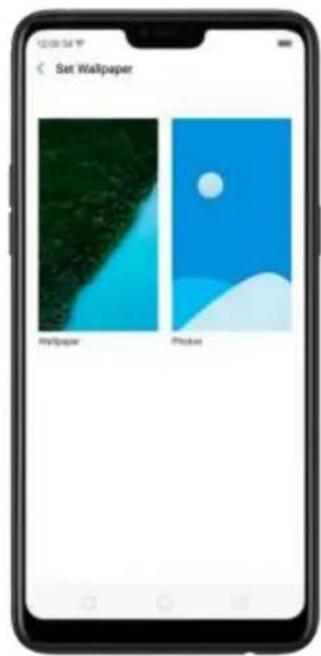
text_image
Set Wallpaper Happaper PhotoDownload online wallpapers. Click Wallpaper, then click Download more. You can also click Theme Store on the Home screen directly to find more.
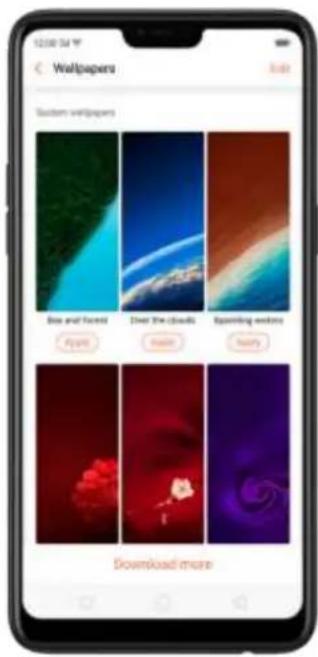
text_image
12:00:34 Wallpapers Isle Custom wallpapers Box and Forest Clear the clouds Expanding windows Apply Make Help Download more
text_image
12:00 PM NEWSPRING NEWS TARGETS Rank Topic POPULAR RECOMMENDATIONSUse your own photos. Click Photos, then select your favorite image from the photo gallery.
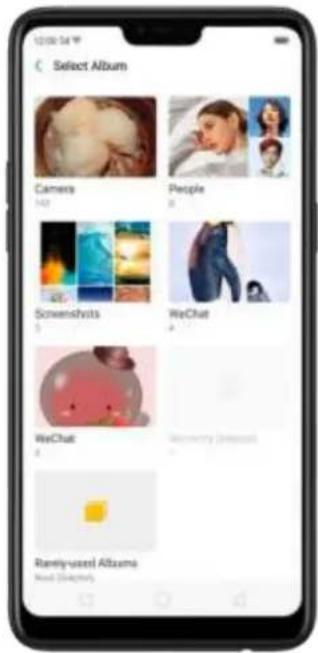
text_image
10:00:34 C Select Album Camers 142 People 8 Screenshysts 5 WeChat 4 WeChat 4 Ranly-used Albums Next SketchbyView more details in Change the wallpaper and theme on your OPPO smartphone.
6.4. Lock screen magazine
You can let your lock screen's wallpaper to switch to a new picture every time you wake up your phone, lessening the likelihood of you getting bored with the same look.
Turn on Lock screen magazine. Go to [Settings] > [Homescreen & Lockscreen Magazine] and turn on [Lockscreen magazine].
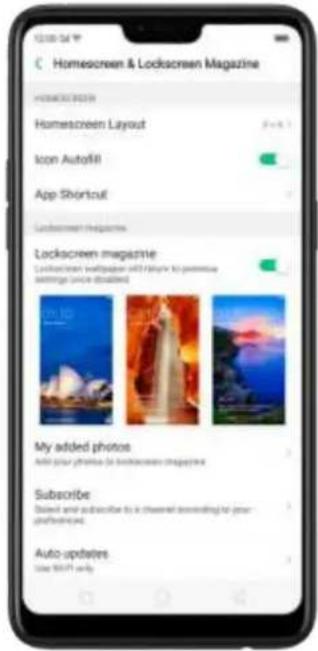
text_image
Homescreen & Lockscreen Magazine HOMESMO GAMES Homescreen Layout Icon Autofill App Shortcut Lockscreen magazine Lockscreen magazine Lockscreen magazine with privacy to permit any settings (or disabled) My added photos Add your photos to lockscreen magazine Subscribe Added and subscribed by a channel according to your preferences. Auto updates Use WiFi onlyAdd your local pictures to Lock screen magazine. Click My added photos, click
, then select your preferred pictures.

text_image
My added photos SELECTED photos you have the following image: #p@msnedsd.com/10.0000000
text_image
12/06/24 W Select Album Camera People Screemfests WeChat WeChat Rarely-used Albums Word 2nd-3rdAdd online pictures to Lock screen magazine. Click Subscribe and select your preferred channels, then go back and click Check for updates. You can also set the lock screen magazine to update automatically.
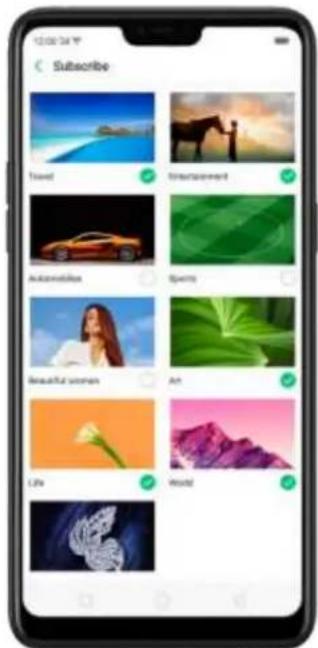
text_image
Subscribe Travel Entertainment Automobiles Sports Beautiful women An Life World6.5. Adjust the screen brightness and color temperature
Adjusting the brightness on your OPPO phone tailors visibility to suit your environment. You can manually dim the screen when reading in bed, for example, or make it brighter when you're in a direct sunlight situation. Or use Auto-Brightness, which can automatically change screen brightness depending on the level of ambient light. Reducing screen brightness can also help to conserve battery life.
Adjust the screen brightness. Swipe up from the bottom of the screen to open
Control Center, then drag 📄 Or go to [Settings] > [Display & Brightness], then drag the slider.

text_image
11:11 Display & Brightness Auto-Brightness Screen Color Transparency Adjustments Cooler Default Warmier Portrait Orientation Lock Auto-Screen Off Font Size App Display in Full-screen Might ShieldSet OPPO phone to adjust screen brightness automatically. Open Control Center, then click A. Or go to [Settings] > [Display & Brightness], then toggle the Auto-Brightness slider to green. If Auto-Brightness is on, your phone adjusts the screen brightness for current light conditions using the built-in ambient light sensor.
Use Night Shield. Go to [Settings] > [Display & Brightness] > [Night Shield]. Drag the control point to adjust color temperature. The warmer you set your screen, the less blue light will be emitted from the display. When you use the OPPO phone at night, you can turn on Night Shield to cut down on eye strain and sleeplessness you might get.

text_image
Night Shield Type on Night Shield to remove Black Light from this system. How programming has changed Scheduled Time Enable Now Start off automaticity on 07:30 nighttime. Color Sensitivity Cooker Warrant Adjust in TV (sum of seconds by color sensitivity offset) Screened Effects Display in Color Display in Black and White Comfortable Nighttime Reading Turn an Display in Colors to prevent your own website replacing the controls of the color, heading a sound pattern to reading experience.6.6. Change auto-lock time
By default, your OPPO smartphone locks automatically after 30 seconds. To modify this, alter the amount of time yourself.
Change auto-lock time. Go to [Settings] > [Display & Brightness] > [Auto Screen off]. Options range from 15 seconds to 30 minutes.
Tip: The longer your display, the more the battery drains.
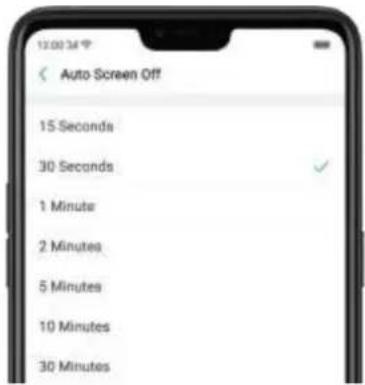
text_image
Auto Screen Off 15 Seconds 30 Seconds 1 Minute 2 Minutes 5 Minutes 10 Minutes 30 Minutes6.7. Change the font size
OPPO smartphone lets you change the font size to-that of your eyesight needs. Change the font size. Go to [Settings] > [Display & Brightness] > [Font Size]. Drag the slider to the left or right to shrink or enlarge sample text, then you'll see your new text size immediately applied to the menu text in the upper-left corner of the screen.
Tip: This will not affect the size of your icon text.

text_image
Sample Text The Wizard of Oz Chapter XI: The Wonderful Emerald City of Oz Even with their eyes protected by the green spectacles, Dorothy and her friends were at first dazzled by the brilliancy of the wonderful City. The streets were lined with beautiful houses all fault of green mantle and cludied everywhere with sparkling ever-olds. They walked over a pavement of the same green mantle, and where the blocks were joined together were rows of ever-olds, set closely, and gitter- ing in the brightness of the sun. The window pane were of green glass; even the sky above the City had a green tint, and the rays of the sun were green. There were many people—men, women, and children —walking about, and these were all dressed in green clothes and had greenish skin. They looked at Dorothy and her strongly assisted company with wondering eyes, and the children all ran away and had behind their mothers when they saw the Lion, but no6.8. Keyboard and input method
6.8.1. Customize the look of the keyboard
Make your own keyboard by customizing the font and appearance.
Go to [Settings] > [Additional Settings] > [Keyboard & Input Method] > [TouchPal for OPPO] > [Look & Feel].
Adjust the size of candidate words. Click [Candidate Size], then drag the control point to change font size to small, normal or large.
Customize keyboard appearance. Click [Candidate Size], or click 📄 on the on-screen keyboard > [Resize], then drag the control arrow to adjust keyboard height, width, and position.

6.8.2. Keyboard Layout
In addition to the default keyboard style, the undocked, one-handed, and split keyboard on the screen makes typing with both thumbs a breeze. You can use "Undock" feature to position the keyboard anywhere on screen, or narrow the keyboard with one-handed mode, or split the keyboard in half.
To change the keyboard layout, click 📊 on the on-screen keyboard, then click Layout.
• Normal keyboard. The default keyboard layout on your phone.

text_image
New Message Welcome to Home + 12# Q W E R T Y U I O P A S D F G H J K L Z X C V B N M 12# Q - English (UK) +- Undocked keyboard. The keyboard becomes suspended and can be moved around on the screen. Click to drag the keyboard to wherever on the screen that is most comfortable or convenient to you.
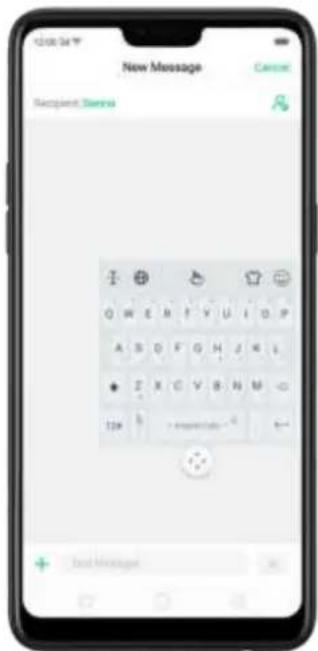
text_image
New Message Recipient: Sense OK W E M F Y U I O P A S D F G H J K L + Z X C V B N M 124 h + 10000000000000000000000000000000000000000000000000000000000000000000000000000000• One-handed keyboard. Shrink the keyboard so you can type with one hand
easily. Click or to adjust the keyboard left or right, depending on your preferred hand usage.

text_image
12:00 PM New Message Cancel Recipient Status + New Message 1 Q W E R T Y U I O P A S D F G H J K L + Z X C V B N M 10# + Discount (OK)
text_image
New Message Cancel Recognize Cards + Total Messages I ⚪ ⬆ B ○○ O W E N T Y U I O P A S D F G H J K L Z X C V B N M 12# 4 > English (OK) ←- Split keyboard. The keyboard will divide into two sections for easy thumb typing.

text_image
New Message Cancel Previous Address + New Message Q W E R T V U I O P A S D F G H J K L Z X C V B N M 12# 8. × English (UK) ←6.8.3. Trends
With TouchPal's Trends feature, you can download the buzzwords, change the keyboard theme and font, and get the latest headlines and games.
Get the latest trends. Click 🤒 on the on-screen keyboard, then click Trends.

text_image
New Message Cancel Mapland Summary [En] Boston NEW [En] Chicago HOLLYWOOD [En] Houston PAGE [En] Los Angeles PAGE6.8.4. Keyboard general settings
OPPO smartphones come preloaded with TouchPal Keyboard. You can change the keyboard settings directly on your phone. click 🤨 on the on-screen keyboard, then click [Settings] > [Look & Feel].

text_image
Look & Feel Keypress popup Normal Key long-press delay $20 mg Sound & Vibration Keypress sound Volume: Mbbl Keypress vibration Keypress vibration Aversion System default Candidates Candidate Size Customing keyboard height, width and position Classic style candidates Show more than 3 candidates set top Advanced Expand textbox to full screen In landscape media, expand textures in treacumen, binding the rest of the screen| Setting | Effect | |
| Keypress popup | A popup bubble displays when you click a key. | |
| Key long-press delay | Adjust the long-press delay time ranging from 200ms to 1000ms. | |
| Keypress sound | Adjust the key press sound, or use the system volume. | |
| Keypress vibration | Adjust the key press vibration duration, or use the system default setting. | |
| Candidate Size | Change the size of candidate words, and adjust keyboard height, width, and position.See Customize the look of the keyboard. | |
| Classic style candidate | Show more than three candidate words on top. | |
| Expand textbox to full screen | Keyboard opens as full screen in landscape mode. | |
| Expand textbox to full screen | Keyboard opens as full screen in landscape mode. | |
6.9. Set up Startup Manager
Startup Manager helps you to manage system startup entries. You can choose what apps to start first when your phone boots to meet your using habits.
* Too many self-starting apps may cause a low startup or operating speed.
Set up Startup Manager. Click Phone Manager on the Home screen, then click [Privacy Permissions] > [Startup Manager]. Toggle the sliders to white if you don't want to start apps when phone boots or in background.

text_image
Startup Manager Blocking Records Turning it out to be recommended. This way is the ability to secure messages when this is turned off. Facebook launching on cloud and in background allowed Messenger launching on cloud and in background allowed Twitter launching on cloud and in background allowed WeChat launching on cloud and in background allowed Turning it out a recommended System power assurance will include when Altio is turned off Alipay launching on cloud and sharing in background allowed Amazon Shopping launching on the background allowed Drive launching on cloud and sharing in background allowed Duo launching on cloud and sharing in background allowedTip: For apps that receive real-time messages, such as Facebook, Messenger, WhatsApp, and Twitter, it is best to allow them running in the background without their being suspended.
View the apps that had been blocked from starting in the background. Click Blocking Records.
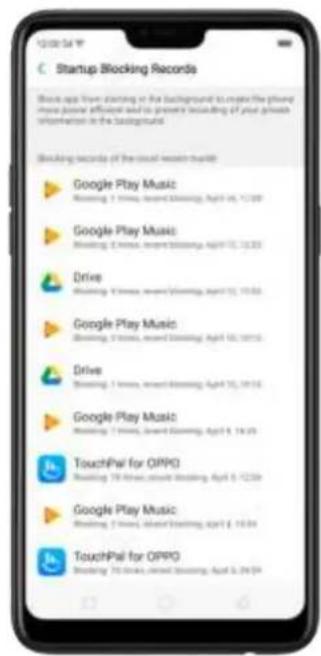
text_image
Startup Blocking Records Choose app from planting on the background to create the planned home power official and to prevent blocking of your growth information in the background. Blocking seconds of the virtual reach that will: Google Play Music Booking: 7 times, next session, April 10, 12:39 Google Play Music Booking: 8 times, next session, April 10, 12:35 Drive Booking: 9 times, next session, April 10, 10:56 Google Play Music Booking: 9 times, next session, April 10, 10:15 Drive Booking: 1 time, next session, April 10, 10:16 Google Play Music Booking: 1 time, next session, April 10, 14:29 TouchPai for OPPO Booking: 10 times, next session, April 10, 12:39 Google Play Music Booking: 1 times, next session, April 10, 10:34 TouchPai for OPPO Booking: 10 times, next session, April 10, 24:546.10. Clone Apps
Clone Apps allows an app to run two accounts on a single phone on parallel.
To turn on [Clone Apps], go to [Settings] > [Clone Apps], choose an app and turn on [Enable App Cloning]. A new copy of this app will be generated on the homescreen after Clone Apps is enabled. This copy and its original app can run simultaneously without affecting each other.
- "Clone Apps" works only if both the app itself and the phone supports it. If a cloned app does not work properly, it means that the function or operation is not supported by the app or phone.
- "Clone Apps" currently does not support data transfer between a cloned app and a computer.
- "Clone Apps" currently does not support to run more than two app clones simultaneously.
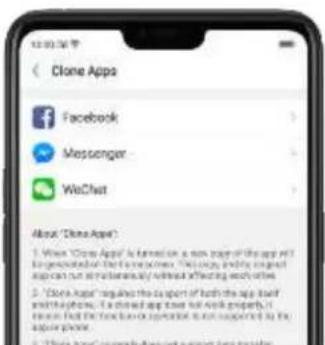
text_image
Clone Apps Facebook Messenger WeChat About "Clone Apps" 1. When "Clone App" is turned on a new page of the app will be generated by the following: This app also generates up an additional amount of attention to which it is affected with others. 2. "Clone App" regularly has the support of both the app itself and its own features. It is closed up that book has been used. It means that this app can not be supported to the app or phone. 3. "Clone App" currently does not support any other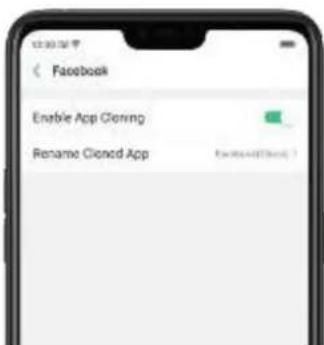
text_image
Facebook Enable App Cloning Rename Cloned App
text_image
12:00:34:57 Facebook FacebookChina6.11. Manage Default App
What is Default App: If you've installed two different applications that essentially do the same thing, for example, Google Chrome and Firefox Web Browser, you'll likely be presented with a pop-up menu when trying to open a web page, asking you which application you'd like to complete the action with. You can manage your default app and never be bothered when performing that action again.
Manage Default App. Go to [Settings] > [App Management] and click [Default App Management].
Take [Browser] as an example, there are three apps and you can choose one of them to be the default one. You are suggested to use the original apps to get the best performance.

text_image
< App Management Default App Management App List Alipay Amazon Shopping Duo Facebook Energhorn(1954) Default app Assistive App and Voice Input Homescreen Messages Call Browser Camera Photos Browser Recommended Apps Chrome OTHER APPS: Cloud GPs/ADY SET IN A&E TO PROPERTY FOR FIELD OF THIS CATEGORY AND ARE AFFECT THE PROCES STATED BY CONTAINANCE? Browser Firefox6.12. Gesture & Motion
Gestures
OPPO smartphone is designed to understand gestures. You can use gestures such as tap, swipe, drag, and spread to operate your phone.

natural_image
Four hand icons pointing at a blue square, showing different finger movement and rotation (no text or symbols)To set up complex gestures for specific functions, go to [Settings] > [Smart & Convenient] > [Gesture & Motion].

text_image
Settings Sound & Vibration Quiet Time Fingerprint, Face & Passcode Smart & Convenient Security Battery Language & Region Smart & Convenient Navigation Keys Assistive Ball Full Screen Multitasking Gesture & Motion Smart Assistant Displaced on the proper footprint from homescreen, providing smart coherence covers such as quick functions, memory management, and weather informationScreen-off Gestures
To set up screen-off gestures, you need to turn it on first.
Double tap to turn screen on: Turn it on to wake up your locked screen with a double-click on the screen.
Draw O to start camera: When on lock or sleep mode, you can draw O on the locked screen to open Camera app.
Draw V to open torchlight: When on lock or sleep mode, you can draw V on the locked screen to open the torchlight.
Music control: When on lock or sleep mode, you can draw || to pause/play a track, or draw < or > to switch the track when the screen is off.
Add more screen-off gestures: OPPO smartphone of ColorOS 5.0 gives you 7 options, which are Draw ^, Slide up, Slide down, Slide left, Slide right, Draw M and Draw W. Choose one to unlock the phone, call someone or start an app.
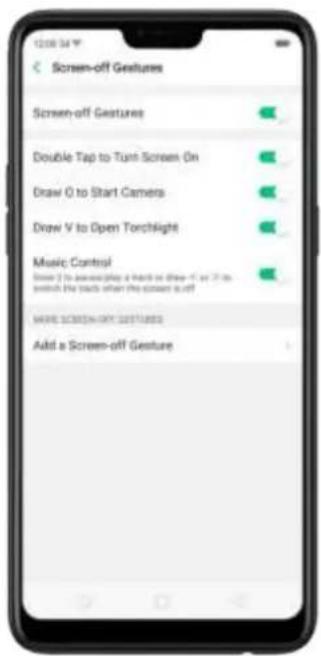
text_image
Screen-off Gestures Screen-off Gestures Double Tap to Turn Screen On Draw O to Start Cameras Draw V to Open Torchlight Music Control Draw 2 to append a touch or draw <1 or 2 to switch the track when the screen is off MAKE SCREEN-DRY GUSTURES Add a Screen-off Gesture
text_image
Add a Screen-off Gesture Draw A Slide Uji Slide Down Slide Left Slide Right Draw M Draw W3-Finger Gesture
Take a screenshot. Swipe down the screen with three fingers.
Use Split-screen. Under the interface of an app, swipe up the screen with three fingers to enter split-screen mode.
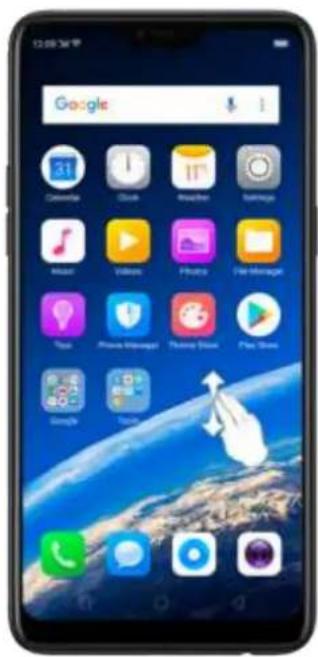
text_image
Google 31 Catevate Clock Apache Airbags Music Video Photo File Manager Top Phone Manager Facebook Drive Play Drive Google TerryMotion
The motion-sensing technology is used in OPPO smartphone. Use it to let your phone response to motion.
Smart call
Auto call when place at the ear: Before you can use auto call, you need to set the default SIM card for calling. Go to a contact detail, call detail, message conversation or info interface, put the phone near your ear and your phone will automatically call that specific person.
Auto answer when near the ear: This function lets your phone to answer any incoming calls automatically when putting the phone near your ear.
Switch from speaker for calls: Use it to automatically switch from speaker to receiver when you put the phone near your ear during phone calls.
Flip to mute incoming calls: Use it to silence the ringer by turning the phone over on the table or other flat surfaces.

text_image
13:00:34 ° Smart Call Auto Call When Place at the Ear Available at the interfaces of contact details, sell details, and message conversations Auto Answer When Near the Ear Switch from Speaker for Calls Automatically switches scale from speaker to receiver when the phone is held near your ear Flip to Mute Incoming CallsMistouch Prevention Mode
Turn it on to prevent incorrect operations if the lock screen is covered.
Take selfies
Open Camera app and switch to the front camera. Click > Gesture on the top of the screen. Pose the same hand gesture towards the camera, once the camera captures that, it will take a photo automatically after two seconds. You can change your pose and expression within this two seconds.
6.13. Preset device on/off time
The feature helps you to automatically turn on or off your OPPO smartphone at the scheduled time you specify for example, you can fall asleep while listening to your favorite music without having to worry about turning off your phone. It also gives you different ways to schedule the events for your needs, such as daily, weekly and only once.
Turn on Device ON/OFF Preset. Go to [Settings] > [Additional Settings] > [Device ON/OFF Preset], then toggle the sliders to green as needed.
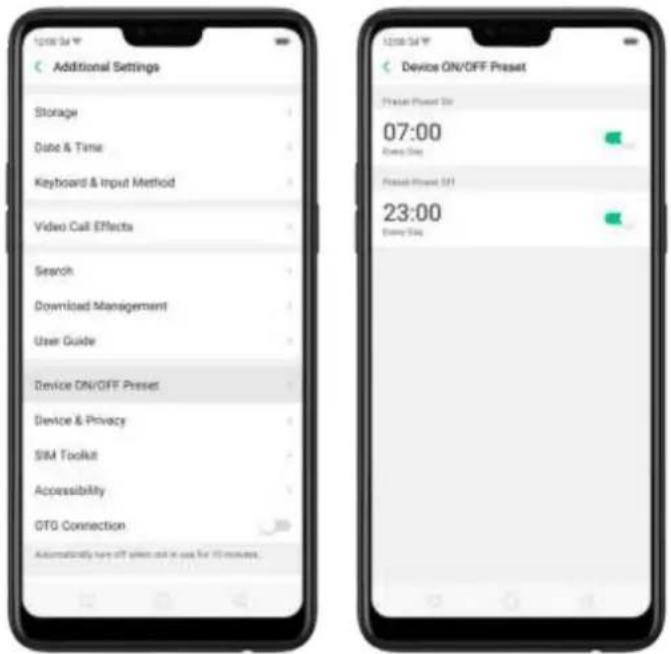
text_image
Additional Settings Storage Date & Time Keyboard & Input Method Video Call Effects Search Download Management User Guide Device ON/OFF Preset Device & Privacy SIM Toolkit Accessibility GTG Connection Automatically have OFF prices and in use for 10 minutes. Device ON/OFF Preset 07:00 Every Day Press-Power $11 23:00 Every DaySet when to turn on or off the phone automatically. Click the time, drag your finger across each column to change the time, then click Save.

text_image
12:00 PM Cancel Preset Power On Save 04 23 05 29 06 30 07 31 08 67 Repeat Every Day ?Repeat the event on certain days. Click the time, click Repeat, then choose the days.
text_image
12:00:34 Repeat Every Sunday Every Monday Every Tuesday Every Wednesday Every Thursday Every Friday Every Saturday6.14. Game Acceleration
Game Acceleration feature is an all-in-one game optimization tool that allows you to run your games at its best performance. When you're running a game, your phone will automatically adjust the distribution of system resources, optimize the game display configuration, and disable auto brightness to provide the best gaming experience available. To prevent from being interrupted during games, you can also turn on Do Not Disturb mode.

text_image
Settings Accounts and Sync Google App Management Clone Apps Game Acceleration Split-screen Call Contacts Messages Phone Manager Camera Weather Theme Store Screen Recording Game Acceleration Graphics Acceleration Outline the game closing configuration for fully offline hardware resources. Do Not Disturb Show App store Prohibit Auto Brightness Adjustment App Manager Show app store on Fig 1 (games) Other Functions of Game Restoration Diminities Optimization Intelligibly virtual system resources for a smart gaming experience Networking Protection Newest hardware version of hard-growth apps for a more mobile gaming experience Grow with access Use social network with an extrapolated listing between us that garden will not be interactive. Whether it is new equipmentManage games that can be accelerated. Go to [Settings] > [Game
Acceleration], click [App Manager] and you will see a list of your games that can be accelerated by your phone. To accelerate a game, switch its slider to green.

text_image
13:00:34 App Manager Acceleration was for 2 games Candy Crush Saga Clash of Clans Acceleration has not been turned on for 2 games Hay Day- Your phone will automatically speed up your game. Notice that acceleration
details display on the screen, and appears on the status bar when you launch the game.

text_image
Candy's SAGA Candy's Saga Courage the stress of today Standing... Did you mean? Go PPD Game Acceleration GPPD Game Acceleration GPPD Game Acceleration GPPD Game Acceleration GPPD Game Acceleration GPPD Game Acceleration GPPD Game Acceleration GPPD Game Acceleration GPPD Game Acceleration GPPD Game Acceleration GPPD Game Acceleration GPPD Game Acceleration GPPD Game Acceleration GPPD Game Acceleration GPPD Game Acceleration GPPD Game Thriller GPPD Game Thriller GPPD Game Thriller GPPD Game Thriller GPPD Game Thriller GPPD Game Thriller GPPD Game Thriller GPPD Game Thriller GPPD Game Thriller GPPD Game Thriller GPPD Game Thriller GPPD Game Thriller GPPD Game Thriller GPPD Game Thriller GPPD Game Thriller HAPPD Game Thriller HAPPD Game Thriller HAPPD Game Thriller HAPPD Game Thriller HAPPD Game Thriller HAPPD Game Thriller HAPPD Game Thriller HAPPD Game Thriller HAPPD Game Thriller HAPPD Game Thriller HAPPD Game Thriller HAPPD Game Thriller HAPPD Game Thriller HAPPD Game Thriller HAPPDGame Thriller HAPPDGame Thriller HAPPDGame Thriller HAPPDGame Thriller HAPPDGame Thriller HAPPDGame Thriller HAPPDGame Thriller HAPPDGame Thriller HAPPDGame Thriller HAPPDGame Thriller HAPPDGame Thriller HAPPDGame Thriller HAPPDGame Thriller HAPPDGame Thriller HAPPDGame Thrill HAPPDGame Thrill HAPPDGame Thrill HAPPDGame Thrill HAPPDGame Thrill HAPPDGame Thrill HAPPDGame Thrill HAPPDGame Thrill HAPPDGame Thrill HAPPDGame Thrill HAPPDGame Thrill HAPPDGame Thrill HAPPDGame Thrill HAPPDGame Thrill HAPPDGame Thrill NIPP DAppidition 100% NIPP DAppidition 100% NIPP DAppidition 100% NIPP DAppidition 100% NIPP DAppidition 100% NIPP DAppidition 100% NIPP DAppidition 100% NIPP DAppidition 100% NIPP DAppidition 100% NIPP DAppidition 100% OIP DAppidition 100% OIP DAppidition 100% OIP DAppidition 100% OIP DAppidition 100% OIP DAppidition 100% OIP DAppidition 100% OIP DAppidition 100% OIP DAppidition 100% OIP DAppidition 100% OIP TAP DAppidition 100% OIP TAP DAppidition 100% OIP TAP DAppidition 100% OIP TAP DAppidition 100% OIP TAP DAppidition 100% OIP TAP DAppidition 100% OIP TAP DAppidition 100% OIP TAP DAppidition 100%Set up Game Acceleration. Go to [Settings] > [Game Acceleration].
- Graphics Acceleration: optimize the game display configuration to fully utilize hardware resources.
- Do Not Disturb: block calls and notifications so that you can get fully immersed in the games.

text_image
Do Not Disturb Close Block Notifications Block Calls and Notifications- Close: do not block any calls or notifications.
- Block Notifications: block notifications except calls, alarm clocks and scheduled reminders. Notifications will be displayed with a banner on the top screen.

text_image
176.0000 10000: Sailing Learning Player Sailing 08:03 Player 4 Score: 120 Player 4 Score: 120- Block Calls and Notifications: block all calls and notifications.
- Prohibit Auto Brightness Adjustment: your phone will not automatically adjust the brightness of the screen when ambient light changes.
Tip: Currently, games that can be accelerated are Candy Crush, Clash of Clans, My Talking Tom, Candy Crush Soda, 8 Ball Pool, My Talking Angela, Farm Heroes, Toy Blast, Hay Day, Temple Run 2, Garena Liên Quân Mobile, Garena RoV, Garena AOV, Garena, Zombie Tsunami, Teen Patti, Tiến lên, Mobile Legends: Bang Bang, Pokemon Go, Asphalt 8: Airborne, Subway Surfers, NARUTO X BORUTO, Clash Royale, and PUBG Mobile. More games will be added soon.
6.15. App display in Full-screen
ColorOS 5.0 device features a new display format with an aspect ratio of 19:9, and most of the apps are supposed to adapt their size automatically to the new screen size. If some apps are not suitable for full screen mode, they will display at the 16:9 ratio by default, but you can let the phone to make changes in your app to accommodate the new screen's size and rounded corners.
Adjust your app layouts. Go to [Settings] > [Display & Brightness] > [App Display in Full-screen] and you will see a list of apps that doesn't support the 19:9 aspect ratio. Toggle the sliders to green if you want the apps to display in full-screen. Or you can open an app, then click "Tap full screen display." App will restart when you turn on this feature.

text_image
Safety Information Full-screen Display You'll get a better app experience when Full-screen Display is on. App restart is required for this action. When "Full-screen Display" is turned on, It may cause display issues for apps not optimized for full screen. This function can be turned off in "Settings - Display & Brightness - App Full-screen Display" Cancel OK Top Full-screen display
text_image
Safety Information Medical Through is following information regularly: Tafson or Flotier/Refriger safety promotion and support in the drug or drug combination. Safe Stung As a key point on the drug, we can use a preclinical trial for a 40% dose of medication as needed. Traffic Safety Find To play, please call for a health emergency. Use of a patient's preoperative drug to bring a vehicle or driving, playing on a self-renewable tool as much as your home. They will continue to be standardization. Steering off an Eye Stinger To play, please call for a drug, use of a preoperative antibiotic prescription, use of a patient's preoperative drug. Spreads to first-day care, post-visit, use in patients with a walking in common eye in major illness. Steering off other Training on Instance Prevention of use might be professional visits at the end of the safety system of injection. Study, all administered loans and services off you simply to contain any available tools. Steering off near medical equipment Weighting is no maintenance function, which uses a preoperative medical equipment. They are relevant to what appropriate. Overhanging off an Steering Room The same setting with monitoring capabilities, take off from phone within a steering room, so it is necessary (e.g. "I am easy to use" or "I can't use" etc.). Audience Model training environment releases using a clinical attention program, using a single device to achieve the best performance. We also provide it.Control the display of notch area. When app content is obscured by the notch area, click [Notch Area Display Control] and toggle the slider to white, then your app content will be positioned below the status bar. App will restart when you turn on this feature.
text_image
Safety Information Share through the following information security: Passes to follow these safety operations on account in 2016 (e.g. 498-503) Safe Storage To ensure that the safety is not allowed for any other 3 or more maintenance on account. Drafted Safety First Traffic setting is required if first replacement is not available or nonstandardized while drinking is likely to be able to maintain the best performance but it is also possible. They are also related to the system. They are also related to the system. Switching off at Free Status Use all your own device to use all other systems to support existing conditions and use your own device to provide free access. Spreads to your own system should are upgraded in the switching off system using in real devices. Switching off at Home Safety System Information is not enough to be provided with the same or less available or appropriate design. All instrument has been used to provide a suitable or accessible system. Switching off at Local Medical Equipment Using all instructions to ensure that the safety being provided is required to be the necessary needs and responsibilities. Switching off at Sharing issues To avoid additional issues, we will be responsible for safe access to the system. We can use this model to allow access to your own system. Evaluation Really many of these users have off available. We don't get out from about them to go to your own system in your home system. It will be support to improve. Experience Really, making personal details or capabilities, and making your personal resources. If you should be interested in a database, you will help you create new maintenance with free status.
text_image
Safety Information Made through the following: 100% of your phone. You can be able to access safety information, and you need to change or update it on phone. It is also available. Style Strapping Device controls are the daily other phone and is permitted as if they may have a limitation of stop Traffic Selving File Details are available for the other department. Use of phones and instructions while setting instructions on the website or to non-conditional service. If you need to switch or update, please call and follow all relevant instructions. Switching off at Get Stellers Take off phone to help you with customally medical insurance use, such as your interest in pay after testing time. Signed or some words continue to be updated on the website or to provide your own health. Switching off that is taking an Insurance Allowing personal care, using a professional visit or to play a long time post on or returning. They will understand how a patient will have helped us to prepare your care. Switching off your Medical Equipment Improve the health care system, might use a longer time setting routine or expensive. Only, we feel able to get out health care. Switching off at Missing Data To always working with missing data, use off your phone when so I'm looking out to be a patient's “You will not receive policy” (If you still need and make sure) Accession Please enjoy information between them and users. Please you want to answer for the best waiting time or to offer a better service. The effect is Success to highlight Interference Make any more details for you to account for the external resources. Please check up a link between the other and the other hand. We will need to receive a wider feedback from your home.Note: Turning on "Full screen display" will improve your experience, but it may cause display issues due to incompatibility or other reasons.
7. Apps
7.1. Phone
7.1.1 Make and Answer Phone Calls
Make a call
To make a call and talk to your friends, you can manually enter a phone number on the dialer, choose a number on your Contacts or Favorites, or click one of the recent calls.
Note: The signal indicator at the upper-left corner of the screen shows whether you're in range of your operator's make and receive calls. The more bars, the stronger the signal.
Dial the number you want to call. Click Phone, click the keypad to enter the
number, then click . Click if you make a mistake. You can also copy a phone number and open the keypad, then click the number to paste it to the keypad.
Besides, if you're not sure what the exact phone number is, you can quickly search the contact by dialing the numbers that contain the contact's name or initial letters on the keypad. For example, if you want to call Sienna, click "743" and you'll see the contact.
text_image
180 01 Add to Existing Contact Create New Contact 1 2 3 4 5 6 7 8 9 * 0 #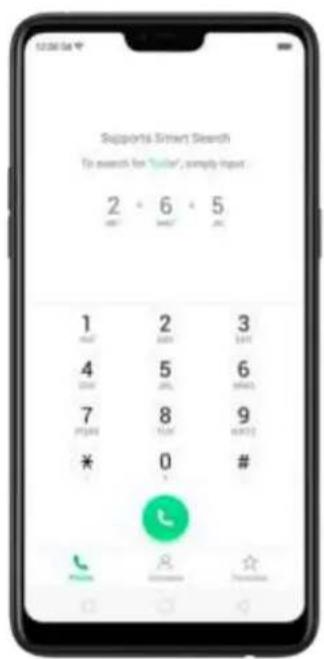
text_image
Supports Smart Search To search for "train", simply import 2 6 5 1 2 3 MUST MINT MINT 4 5 6 ONION ONION 7 8 9 POMEEN POMEEN * 0 # #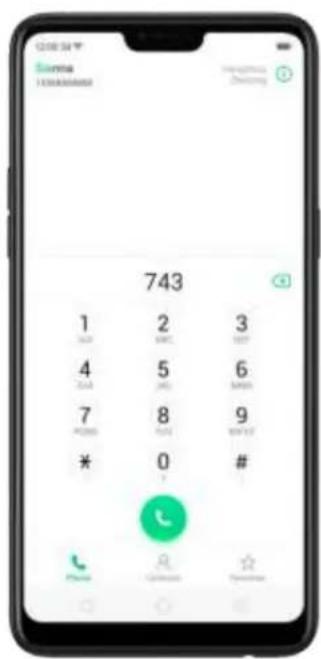
text_image
743 1 2 3 0 1 2 4 5 6 0 7 8 9 * 0 # * 0 1 * 0 2 * 0 3 * 0 4 * 0 5 * 0 6 * 0 7 * 0 8 * 0 9 * 0 10 * 0 11 * 0 12 * 0 13 * 0 14 * 0 15 * 0 16 * 0 17 * 0 18 * 0 19 * 0 20 * 0 21 * 0 22 * 0 23 * 0 24 * 0 25 * 0 26 * 0 27 * 0 28 * 0 29 * 0 30 * 0 31 * 0 32 * 0 33 * 0 34 * 0 35 * 0 36 * 0 37 * 0 38 * 0 39 * 0 40 * 0 41 * 0 42 * 0 43 * 0 44 * 0 45 * 0 46 * 0 47 * 0 48 * 0 49 * 0 50 * 0 51 * 0 52 * 0 53 * 0 54 * 0 55 * 0 56 * 0 57 * 0 58 * 0 59 * 0 60 * 0 61 * 0 62 * 0 63 * 0 64 * 0 65 * 0 66 * 0 67 * 0 68 * 0 69 * 0 70 * 0 71 * 0 72 * 0 73 * 0 74Call someone on your contacts list. Click Contacts and choose a contact, then click the phone number to make a call. You can also use Search feature to find a contact, see Search.

text_image
Contacts My Groups B David P Peter B Sienna
text_image
1800000000 Status Share Contact Add to Favorites Add to VIP Contacts Add to Blankets Delete ContactCall someone on your favorites list. Click Favorites and choose a contact. To add favorites, click . +

text_image
Favorite Sienna 1000000000Call someone you've recently called or who has recently called you. Click
Phone, and you'll see the recent calls. Click a number to make the call. Click ⓘ to get more info about the call, or the caller. Click "All" to see all, only missed, or only blocked calls.
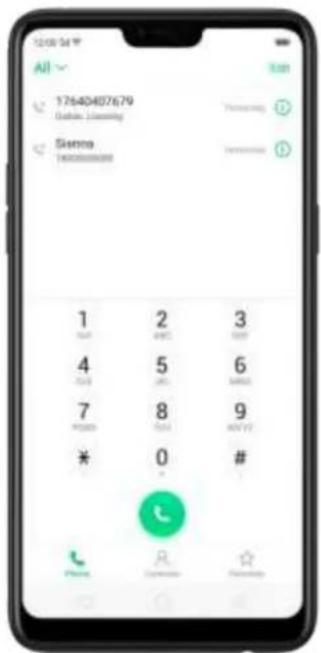
text_image
12:00:54 All 77640407679 Weather Conditioning Sienna Weather Conditioning 1 2 3 4 5 6 7 8 9 * # *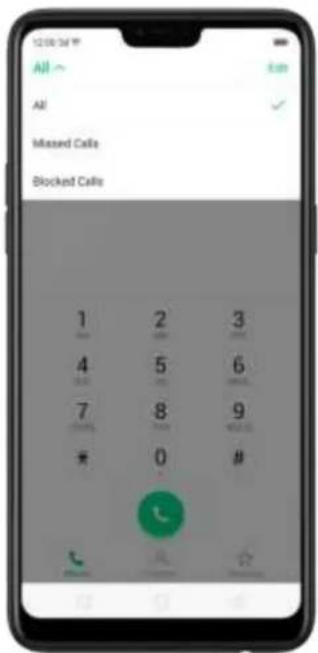
text_image
12:00:04 PM All ~ All Missed Calls Blocked Calls 1 2 3 4 5 6 7 8 90 #
Phone OK CancelAnswer or reject a call
When someone calls you, the OPPO smartphone rings and displays the caller's information, if available.
Answer a call. Click Answer. If the phone is locked, click Slide up to answer.
text_image
Read Message Reject Answer
text_image
Reject Skip up to answer Message- If you're listening through the headset, you can click the mic button to answer.
Silence a call. Click Mute, or press the Sleep/Wake button or either of the volume buttons once to stop the phone from ringing or vibrating.
Reject a call. Click Reject, or press the Sleep/Wake button twice quickly.
Respond with a text message instead of answering. Click Message, then choose a reply or click Customize to reply with your own words. To create your own default replies, go to [Settings] > [Call] > [Respond with SMS]. Click a reply and edit the message.

text_image
Sorry, I can't answer the phone now. Can I call you back later? Can't talk now. Can you call me later? I'll be there in a moment Customize... CancelWhile you're on a call
While on a call, call options will show up on your screen.

text_image
OPPO 176 0000 0000 Dalian, Liaoning 09:02 Contacts Mail Add Call Main Speaker DraperTo
Get contact info.
Put a call on hold.
Mute the microphone.
Activate speakerphone.
Use the dialpad to enter information.
Make a second call during a call.
Do this
Click Contacts.
Click Hold.
Click Mute. The caller can't hear you when you are on mute, but you can still hear the caller. Click Mute again to cancel it.
Click Speaker.
Click Dialpad.
Click Add call and make a second call. The first call will be put on hold. Click the phone number to switch back to the first call and put the second call on hold. Click Merge calls to merge the two calls, so all three of you can talk and hear each other. See Conference calls.
Respond to a second call, do one of the following:
• To reject the call, click Reject.
• To hold the first call and answer the new call, click Answer.
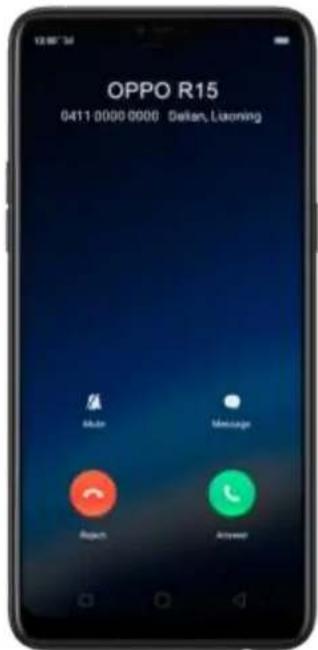
text_image
OPPO R15 0411 0000 0000 Gelian, Luxoring Main Message Report AnswerUse other features while on a call. Click the Home button or swipe up the middle bottom to return home. Click the green status bar on the top of the screen to return the call.
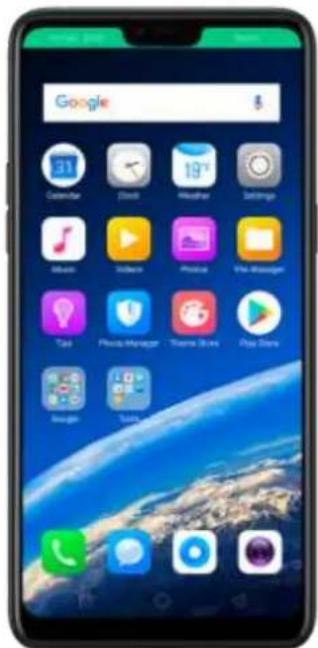
text_image
Google Calendar Cloud Weather Settings Email iTunes Photo View Messages Tate Phone Manager Theme Joints Play Slots Google Tunes7.1.2. Conference calls
A conference call lets you talk to more than one person at a time. You can merge up to six calls including the host for a phone conference.
Notice: You might need to contact your network operator to activate conferencing
services first.
Make a conference call. Do the following:
- Make a call.
- Tap Add Call and make another call. The first call will be put on hold.
- Tap Merge calls. The calls are merged onto one line and everyone can hear each other.
- Repeat the second and third steps to add more calls to the conference.
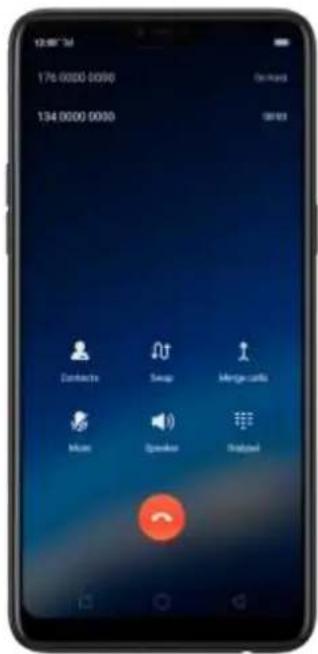
text_image
12:48" 3d 176.0000 0090 On hand 134.0000 0090 Griest Contacts Swap Merge cards Music Speaker Helped7.1.3. Block calls
Block feature does help to prevent unwanted phone calls. You can also add numbers to blacklist to block specific phone numbers from calling.
Block calls. Go to [Settings] > [Call] > [Block], or go to [Settings] > [Security] > [Anti-harassment/Fraud]. Click [Block Calls], you'll see several options available for blocking incoming calls:
• Block one-ring incoming calls
• Block calls from hidden numbers
• Block all unknown incoming calls (Do not block repeated incoming calls)
• Block all incoming calls
Note: The unknown number refers to an unsaved real phone number, and your phone is able to show its number and location; while the hidden number means the caller's number or location is not accessible, which usually is a harassing call.

text_image
Block Calls You can view all blocked calls by filtering blocked Calls on last Accessory Tap by Row Block One-ring Incoming Calls Unknown Numbers Only Block Calls From Hidden Numbers Block All Unknown Incoming Calls OFF 1 Block All Incoming Calls
text_image
Block All Unknown Incoming Calls Block All Unknown Incoming Calls RULES FOR UNLOCKING Do not Block Repasted Incoming Calls Incoming calls from the same number within 3 minutes will not be blockedAdd a contact or a phone number to the blacklist. Click Phone, then click Contacts. Choose a contact, then click Add to Blacklist. You can also go to [Settings] > [Call] > [Block], or go to [Settings] > [Security] > [Block], click [Blacklist], click , then enter the number or choose your contacts.

text_image
Sienna 18000000000 Contact Share Contacts Add to Favorites Add by VIP Comments Add to Blockchain Deere Contact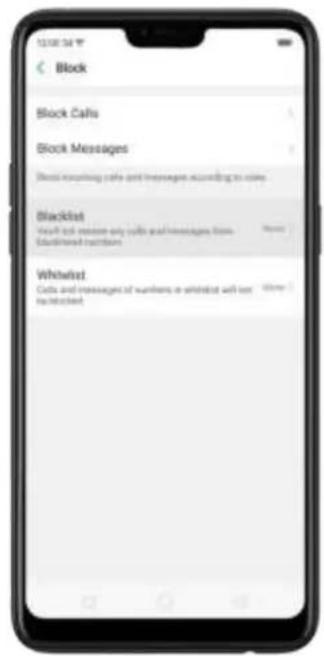
text_image
Block Block Calls Block Messages Block requiring calls and messages according to code. Blacklist You'll not remove any calls and messages from Englished accounts Whirlist Calls and messages of www.swhlist with less than blocklet
text_image
BlackBox Enter Number Select Number CancelYou can also add contacts or phone numbers to the whitelist, which calls and messages from these numbers will not be blocked.
7.1.4. Emergency calls
What is emergency Number? Emergency numbers are numbers of emergency services which provide immediate help during Medical emergency, Threat to life, Fire, Accidents.
In many countries the public telephone network has a single emergency telephone number (sometimes known as the universal emergency telephone number or occasionally the emergency services number) that allows a caller to contact local emergency services for assistance.
You can make an emergency call even if you do not have a SIM card installed on your OPPO smartphone.
Make an emergency call. Click Phone, click keypad and dial the number, then click

. Or if your phone is locked with a passcode, click Emergency Call, then dial the emergency number.

text_image
Please enter passcode 1 2 3 4 5 6 7 8 9 0 Emergency Call Back7.1.5. Carrier's Call Settings
OPPO smartphone includes several calling features such as Call Forwarding, Call Waiting, Voicemail, and more.
Set up calling features. Go to [Settings] > [Call] > [Carrier's Call Settings].
- Voicemail: When you're away or can't get to the phone, your Voicemail does the answering for you. Callers can leave recorded audio messages to you, and you can view, listen to, and manage the messages.
- Fixed Dialing Numbers: Add numbers to the FDN list, and when activated, FDN restricts outgoing calls to only those numbers listed, or to numbers with certain prefixes.
- Call Forwarding: An incoming call will be redirected to another telephone number where the desired called party is able to answer. Notice that appears on the status bar.
- Call Barring: Certain types of outgoing calls (such as international calls) and/or incoming calls will be restricted.
- Call Waiting: You'll hear short beeps if someone calls you while you're on the a call.
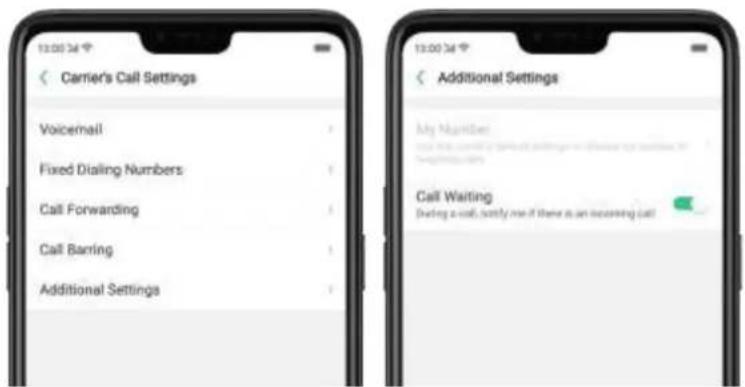
text_image
Carrier's Call Settings Voicemail Fixed Dialing Numbers Call Forwarding Call Barring Additional Settings Additional Settings My Monitor Call Waiting During a call, notify me if there is an incoming call7.2. Message
7.2.1. Send and receive messages
You can send and receive text messages anytime you're in range of the cell network. Depending on your phone plan, you may be charged for messages you send or receive.
Send a new message. Click, then enter a phone number or name. Contacts
matching what you've typed appear below. Or click and choose a contact from
your contacts list. Type a message and click .
Tip: As you type, click next to the text field to add an attachment.
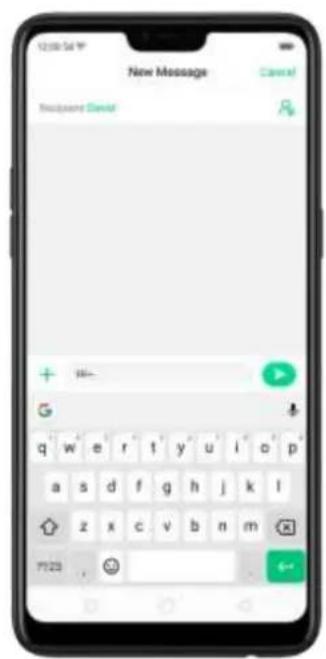
text_image
New Message Password Check + - G q w e r t y u i o p a s d f g h j k l z x c v b n m 7123 + -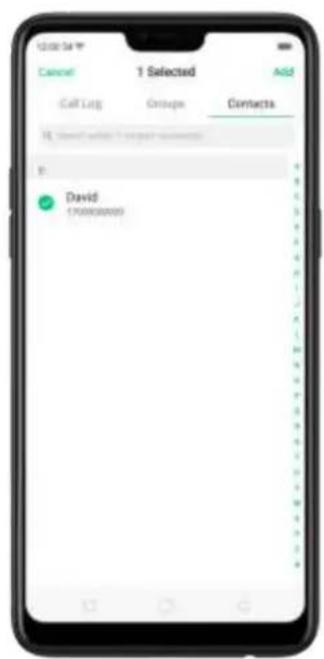
text_image
12nd St Cancel 1 Selected Add Call List Onshore Contacts ID: Status: when I could be answered ID: David (700830999)
text_image
New Message Cancer Recipient Guide + - Picture Token Photos Elements Audio Status Miscellaneous MessagesSend a message to multiple people. Click, then enter multiple recipients, or click and tick all contacts you wish to include in the group message, then click Add.
Read and reply to a new message. Click the notification on the top of your screen, or click . When phone screen is locked, swipe the notification right. Type your message and click .

text_image
+9477603000000 Calendar Climb Weather Delphi Mobile Video Music File Manager Tao Phone Manager Theme Store File Store Login Tools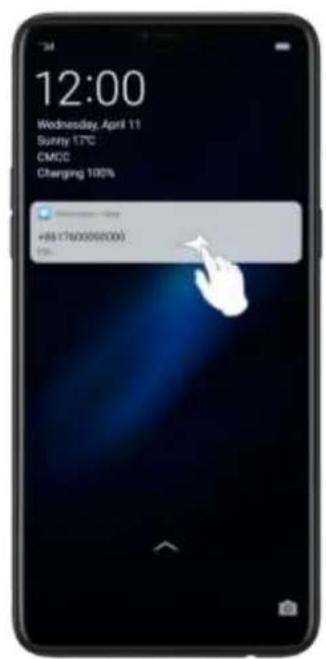
text_image
12:00 Wednesday, April 11 Surtry 17°C CMCC Charging 100% +$4.176/0000/000 YesTip: The Messages icon on the Home screen shows the total number of unread text messages you have.
Delete conversations from the Messages list. Click Edit, tick the conversations and click Delete. You can also delete a conversation by swiping left over a conversation and clicking Delete.
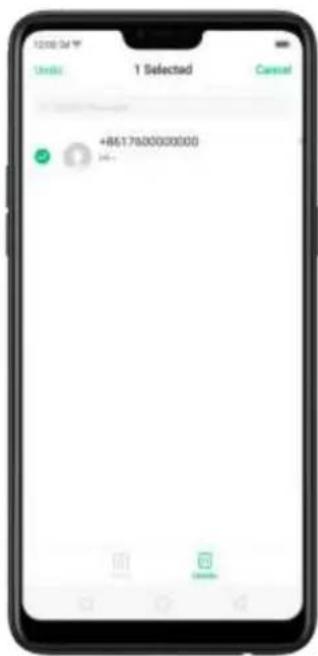
text_image
1 Selected Cancel +8617900000000 Hi-
text_image
Messages from Unknown Sources 0851760000000 Delete7.2.2. Customize message settings
The Messages settings menu lets you control options for your text and MMS messages including message limits, displays, notifications, and more. Go to [Settings] > [Messages].
Block messages. Click [Block] > [Block Messages]. Enter the keywords for spam messages. To block all unknown messages, toggle the slider to green.
Note: When Block all unknown messages is turned on, you might miss important verification text messages, as well as messages from people who you know, but are not on your contact list.
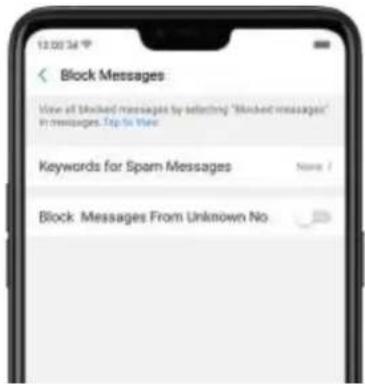
text_image
Block Messages View all blocked messages by selecting "Blocked messages" in messages. Trip to Web Keywords for Spam Messages Name: Block: Messages From Unknown NoManage Messages settings. To display notifications of new messages, turn on [Allow Notifications]. You can customize whether new notifications from Messages appear on the lock screen or notification bar, display a banner, play a sound or vibrate, or whether show icon badges on the Home screen. You can also allow ringing for notifications when Do Not Disturb is on.

text_image
Messages Allow Notifications Show font size (F), notifications from any text and the displayed on the combination far or nothing screen. Display on Lockscreen Show icon badges on Homestcreen Display at the Top of the Screen Show unmasked, a notification between you can be at the top of the screen and then automatically dragged. Ringtone VIBRATE Priority Notification Allow ringing for notifications when Do not think it's again.Display received messages in pop-up window. The phone will automatically pop up a window with the content of the message. You can close the window or reply to the message directly.
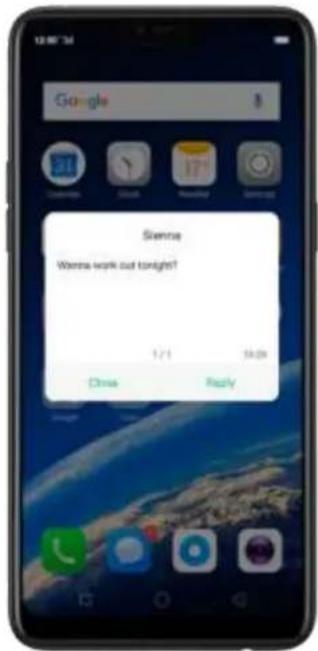
text_image
Google Svenne Worres work out tonight? 1:1 5:00 Close ReplyReceive instant SMS messages. Toggle the slider to green if you want to receive life related messages pushed by your operator during a call.
Display recent contacts when sending a message and show contact's portrait in the Message list. Toggle the sliders to green.
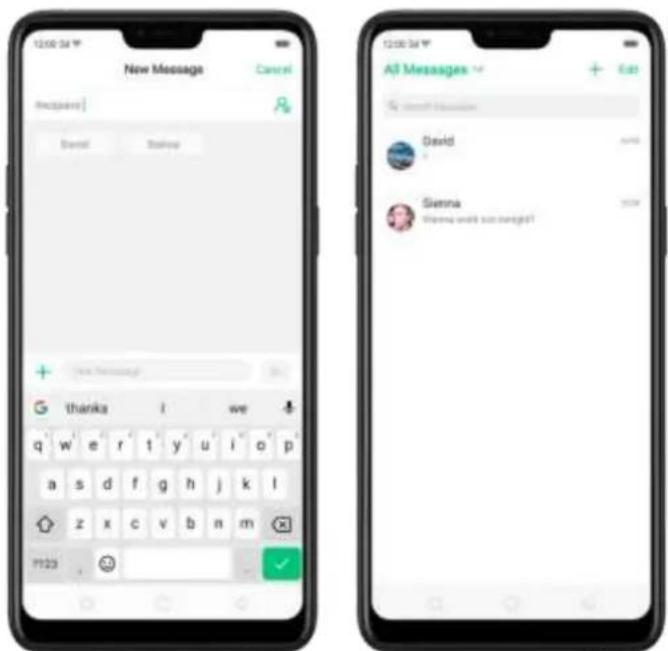
text_image
12:00:34 New Message Cancel Recycle Send Backup + Thank I we q w e r t y u i o p a s d f g h j k l z x c v b n m P123 - All Messages + + Eat Send! I have David Sienna Strong will not want? -Customize advanced settings. Click [More Message Settings], then set up more
SMS, MMS, system, and emergency alert related settings.

text_image
More Message Settings SMS Fetch SMS Delivery Reports SMS Auto Download MMS Auto-Relieve When Roaming Fetch MMS Messages Delivery Reports Turn on WAP Push Message Center v6413856417000 SIM Card SMS Emergency Alerts Emergency Alerts Settings Emergency Alerts Records7.3. Contacts
7.3.1. Add a contact
With OPPO smartphone Contacts, it's easy to have all your contact information with you.
Add a new contact. Click Contacts, click , then enter the contact information.

text_image
Contacts My Groups David Peter Sienna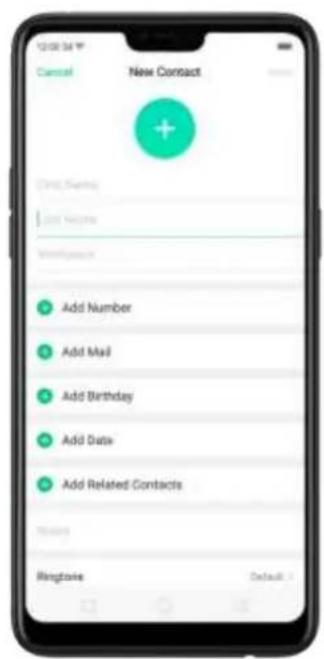
text_image
New Contact Add Number Add Mail Add Birthday Add Data Add Related Contacts Ringtons Default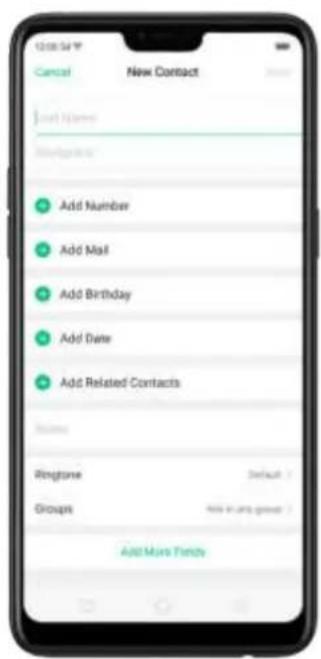
text_image
Cancel New Contact Add Name Add Number Add Mail Add Birthday Add Date Add Related Contacts Options Ringsone Default Groups Add More FundsAdd a contact from a number entered using the keypad. Click Phone and enter a number, then click Create New Contact and enter the contact information, or click Add to Existing Contact and choose a contact.
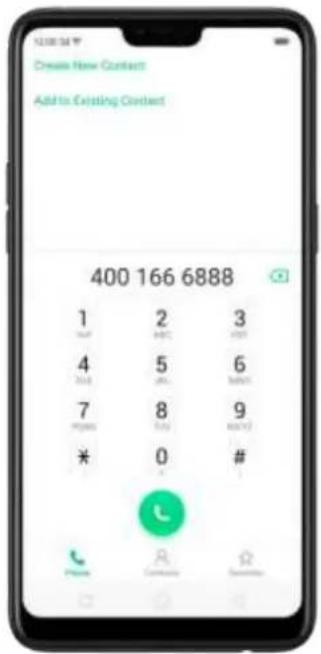
text_image
400 166 6888 Create New Contact Add to Existing ContactAdd a recent caller's information to your contacts. Click Phone, and you'll see the recent calls. Click ⓘ, then click Create New Contact or Add to Existing Contact.
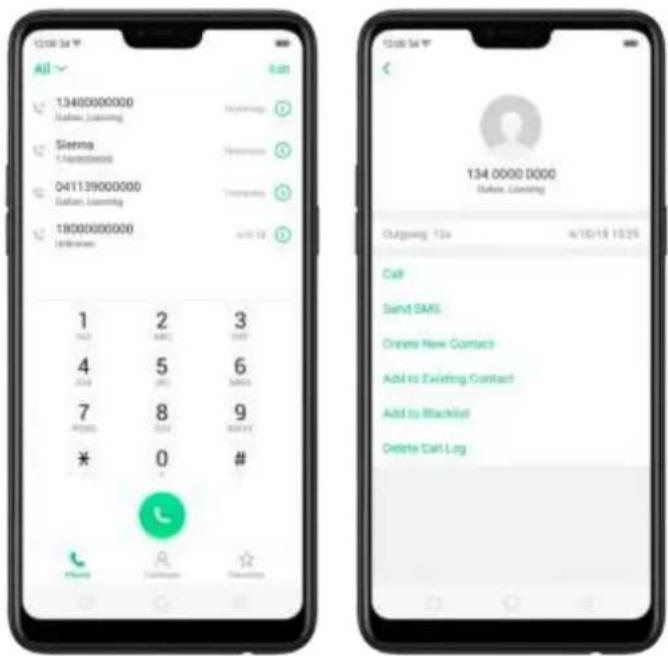
text_image
12:00:54 All 13400000000 Sloven, Streaming Sloven C.Aubrotronics 041139000000 Sloven, Streaming 18000000000 Sloven 1 2 3 1/2 2/2 2/2 4 5 6 2/2 3/2 3/2 7 8 9 P/C/D 12.1 12.1 * 0 # 134 0000 0000 Station, Clustering Outgoing 12s 4/10/16 18:25 Call Send SMS Cream New Contact Add to Existing Contact Add to Blacklist Delete Call Log7.3.2. Edit and delete a contact
You can make changes to your contacts directly on your OPPO smartphone.
Edit a contact's phone number, address, and other information. Click Contacts and choose a contact, then tap Edit.
- To add an item - such as an Email address or phone number, click next to the item.
• To delete an item, click next to it.
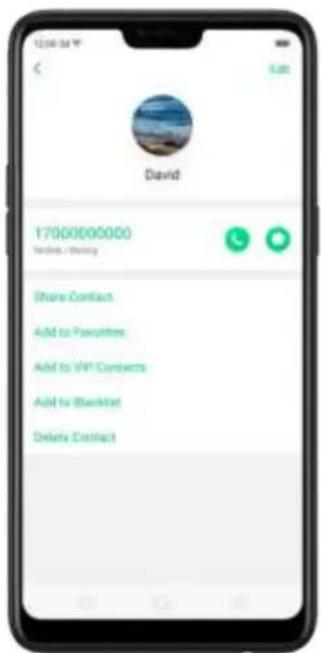
text_image
David 1700000000 Phone: / Sharing Share Contact Add to Favorites Add to VIP Contacts Add to Blacknet Delete Contact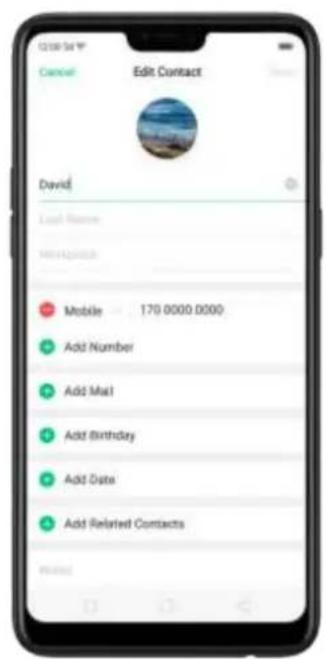
text_image
Edit Contact David Local Revenue 170 0000 0000 Add Number Add Mail Add Birthday Add Date Add Related ContactsAssign a photo to a contact or change a contact's photo.
- Click, or click the existing photo.
- Click Take Photo to use the camera to take a picture, or click Select a Photo and select an existing photo, or click Delete Photo to delete the photo.
- Drag to region to crop the photo, then click Done.

text_image
Edit Contact David Mobile 170-0000 0000 Add Number Add Mail Take Photo Select a Photo Delete Photo Cancel
text_image
12:00:54 Cropping Photo DoneDelete a contact. Click Delete Contact on the contact Details page or Scroll to the bottom of the contact information and click Delete Contact.
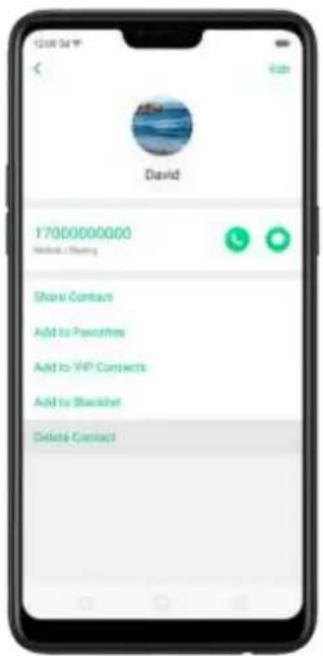
text_image
1200 54 David 17000000000 Website / Sharing Shared Contacts Add to Favorites Add to VIP Contacts Add to Blacknet Delete Contacts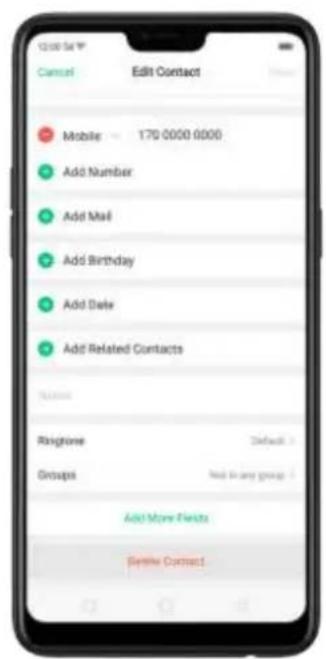
text_image
12:00 PM Contact Edit Contact Mobile 170 0000 0000 Add Number Add Mail Add Birthday Add Date Add Related Contacts Rongrove Default > Groups Next to any group Add More Orders Send Home Contact7.3.3. Import and export contacts
You can import/export contacts from/to the phone storage or your SIM card. If you have contacts stored on your old phone, you can transfer them through Bluetooth from that phone. If there are repeat contacts, the phone will automatically merge them when you import contacts.
Import contacts. Go to [Settings] > [Contacts] > [Import/Export Contacts].
- Import from storage device. Save the imported contacts to your phone.
- Import from other phones. Import the contacts stored on other phones to your OPPO phone through Bluetooth.

text_image
Import/Export Contacts IMPORT CONTACTS Import from Storage Device Import from Other Phones EXPORT CONTACTS Export to Storage Device SHARE CONTACTS Send Contacts
text_image
Import from Other Phones Select the Type of the Other Phone Use Bluetooth to import the interfaces from other phones to this phone. iPhone Android phoneExport Contacts. Export your contacts to the phone storage. Contacts you export are saved as .vcf file.
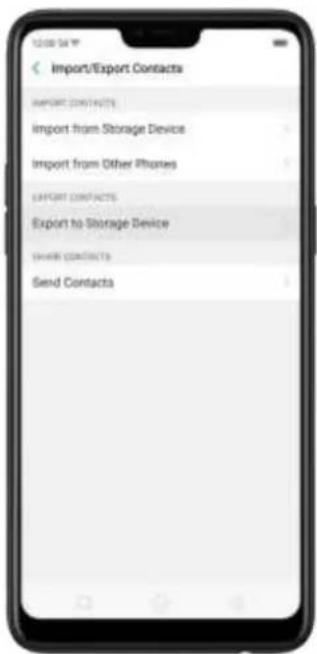
text_image
Import/Export Contacts IMPORT CONTACTS import from Storage Device import from Other Phones EXPORT CONTACTS Export to Storage Device SHARE CONTACTS Send Contacts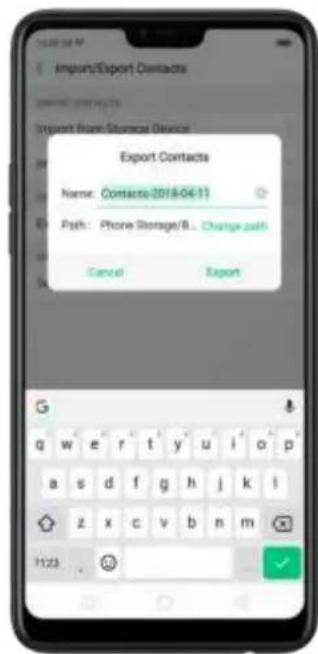
text_image
Import/Export Contacts Import from Storage Device Export Contacts Name: Contacts/2018-04-11 Path: Phone Storage/B. Change path Cancel Export G q w e r t y u i o p a s d f g h j k i z x c v b n m 1:23 .Import/export SIM card contacts. Go to [Settings] > [Contacts] > [SIM Card Contacts], click Import or Export, then tick the contacts and move them to either SIM or phone.

text_image
SIM1 Anna OPPO OPPO Singapore William Chat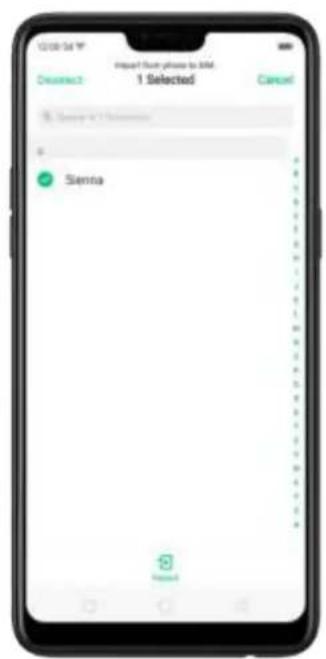
text_image
12:00:54 Impact Your phone to XIM 1 Selected Choose: Cancel Sienna Sienna
text_image
12:00 PM Export from Internet phones 4 Selected Dearest Cancel Anna OPPO OPPO Singapore William ChanView more details in Import and export contacts on your OPPO smartphone.
7.3.4. SIM contacts
You can add, edit, delete, import, and export SIM contacts directly on your OPPO smartphone. Go to [Settings] > [Contacts] > [SIM card Contacts].
Add a SIM contact. Click +, then enter the contact information and click Save.

text_image
12/06/54 Cancel New Contact Sens William Chan Mobile 180 0000 0000 Mobile Email Email Storage Location SNATEdit and delete a SIM contact. Click a contact, then click Edit. Click Delete Contact to delete the contact.

text_image
William Chan 18000000000 Mobile Delete Contact Edit Contact William Chan Mobile 160 0000 0000 Mobile No number Email Error! From that following account SIM1 (accessing) Delete ContactDelete SIM contacts at a time. Click Edit in the upper-right corner, tick the contacts and click Delete.
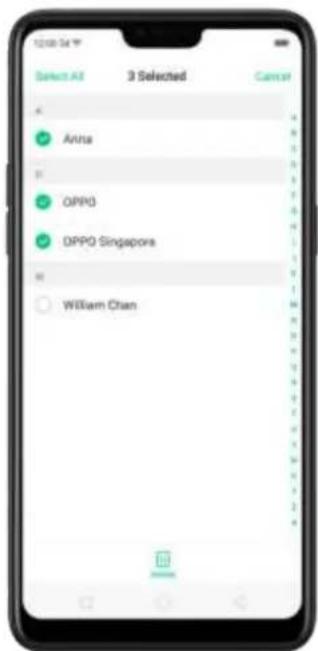
text_image
12:00:54 Select All 3 Selected Cancel Anisa OPPO DPPO Singapore William OtanDisplay SIM contacts on the Contacts list. You need to import SIM contacts to your phone. See Import and export contacts.
7.3.5. Manage contacts
Contacts allows you to easily save and edit contact information, including names, numbers, addresses, and more. To make your contacts more organized and available, do the following:
Add a new contact. Click Phone on the Home screen, click Contacts, then click + The contact will be saved to your phone storage.
Modify existing contacts. If you want to add details to an existing account, click the account then edit.
Import or export contacts. Go to [Settings] > [Contacts], then select the import/export path. View Import and export contacts on your OPPO smartphone.

text_image
13:00:34 Contacts Import/Export Contacts SIM Card Contacts CONTACTS MANAGEMENT Contacts to Display Merge Duplicate Contacts Manage Contacts Import/Export Contacts IMPORT CONTACTS Import from Storage Device Import from Other Phones EXPORT CONTACTS Export to Storage Device SHARE CONTACTS Send ContactsContacts to Display. Go to [Settings] > [Contacts] then click Contacts to Display. To only show contacts with numbers, toggle the slider to green. You can also click a category of contacts that you want to display. Click Customize to select contacts by group.

text_image
13:00:34 Cancel Contacts to Display Done Only Show Contacts with Numbers CHOOSE CONTACTS TO DISPLAY All Contacts Total2 contacts(s) Phone Total2 contacts(s) Customize SIM contacts have been revised in "Settings - Contacts - SIM Contacts"Merge duplicate contacts. Click Merge duplicate contacts. The phone will
automatically merge contacts with the same name.
Manage contacts. To manage contacts without name or number, or quickly remove invalid numbers, click [Manage Contacts].
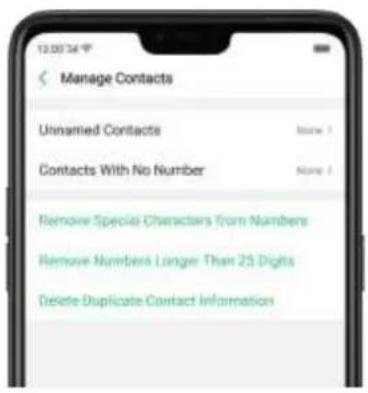
text_image
Manage Contacts Unnamed Contacts Issue 1 Contacts With No Number None 1 Remove Special Characters from Numbers Remove Numbers Longer Than 25 Digits Delete Duplicate Contact InformationSend Contacts. Go to [Settings] > [Contacts] > [Import/Export Contacts] > [Send Contacts]. All contacts stored on your phone will be shared.

text_image
Import/Export Contacts IMPORT CONTACTS Import from Storage Device Import from Other Phones IMPORT CONTACTS Export to Storage Device SAVE CONTACTS Send Contacts OPPO Share. Tap here to turn on WiFi and Bluetooth to send via "OPPO Share". Messages Small Bluetooth Save In China CancelBackup your contacts. Go to [Settings] > [Additional Settings] > [Back up & reset] > [Backup & Restore] > [Create New Backup]. View Back up your OPPO smartphone.
7.3.6. Back up your contacts
If you use your OPPO smartphone on a regular basis, it is necessary to back up the contacts so that you can easily restore them or use them on another device.
Use the built-in backup tool. Go to [Settings] > [Additional Settings] > [Back up and reset], then click [Backup and Restore]. Back up your contacts. You need to make a copy of the existing backup file and move it to another storage device.
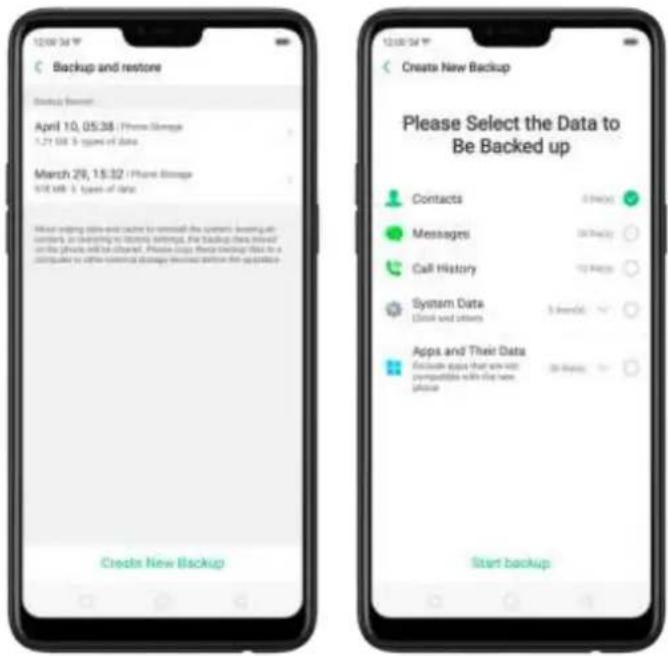
text_image
Backup and restore Backup (New) April 10, 05:38 / iPhone Storage 1.21 KB - 3 types of data March 29, 15:32 / iPhone Storage 5/16 KB - 3 types of data Create New Backup Please Select the Data to Be Backed up Contacts Messages Call History System Data Cloud and others Apps and Their Data Exclude apps that are not preputable with the new please Start backupExport contacts. Export your contacts to your SIM card or a folder on your phone. See Import and export contacts.
7.3.7. VIP Contacts
When you put the phone into Silent mode, or when you set the phone to block calls and nocaons using Quiet Time, Game Acceleraon, or Anti-harassment, you can add certain contacts to VIP Contacts, which will allow them to override the phone sengs and have their calls come through and ring.
Add contacts to VIP Contacts. Go to Contacts, select a contact, and then click Add to VIP Contacts.
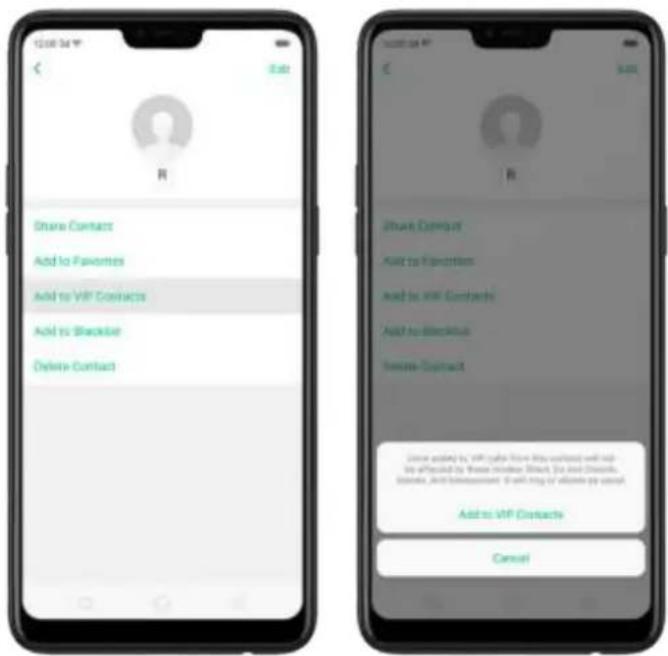
text_image
Share Contact Add to Favorites Add to VIP Contacts Add to Blackface Delete Contact Share Contact Add to Favorites Add to VIP Contacts Add to Blackface Delete Contact Close adding by VIP links from the website will not be affected by these minutes Black, Ju and Diarris, Slarks, and Blackface. If will ring of accounts or prompts Add to VIP Contacts Cancel7.4. Phone Manager
7.4.1. Scan and optimize the phone
Regularly optimizing your OPPO smartphone can make it perform steadily and faster.
Automatic optimization items. Go to [Phone Manager], the system will start scanning your phone automatically. After the scan is over, click [Go to optimize], then click [One Touch Optimization]. You can also select the items that you want to optimize optionally.

text_image
77 File for optimization Clean up Storage Space Privacy Permissions Virus Scan Payment Protection Common Problems Detection 77 Security threats found. Please optimize now AUTOMATIC OPTICALIZATION ITEMS Memory Cleanup 120x86 and 2 times on total Cache Junk 11.4MB only by service on total Uninstall Residuals 12.4MB and 2 times on total Security Protection 2 times on total 安全管理 (OPTICALIZATION) Enable App Lock Protected the app from privacy tasks One Touch OptimizationManual optimization items. Click the green button on the right side of each item, respectively, then
7.4.2. Clean Storage
Use Clean Storage to quickly detect and remove hidden temp (temporary folders or files), cookie and cache files generated by inner calculations and data exchanges to free up more storage space. You can also quickly browse and delete unnecessary user files.
Delete junk files. Click Phone Manager, then click Clean storage. Click End all to delete all kinds of junk files. You can also choose files to be deleted.
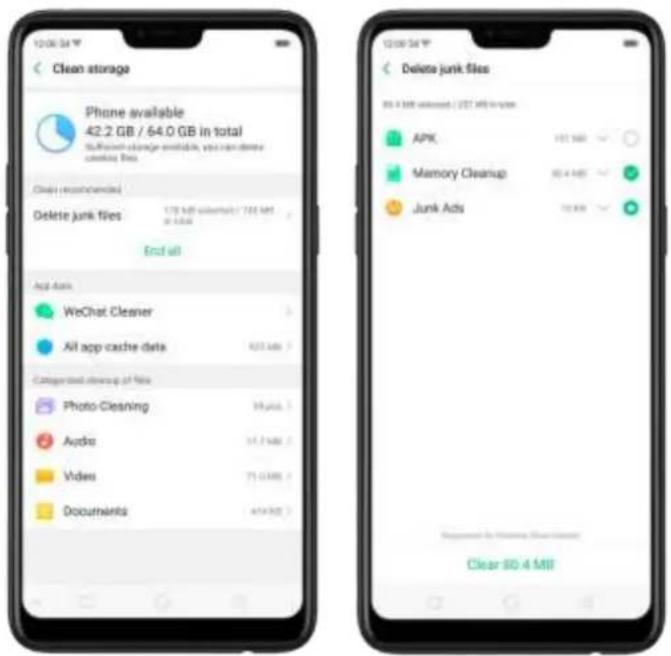
text_image
Clean storage Phone available 42.2 GB / 64.0 GB in total Different change available, you can remove cleaning files. Clear re-scanization Delete junk files 178 KB percent / 725 MB 3 KB percent End all App Data WeChat Cleaner All app cache data Categorized cleanup of files Photo-Cleaning Audio Video Documents Delete junk files 80.4 MB percent / 257 MB in size APK Memory Cleanup Junk Ads Clear 80.4 MBDelete app data. Click All app cache data, select the apps that has caches, then click Delete. The action cannot be undone.
For some commonly used instant-messaging apps like WeChat and WhatsApp, the Phone Manager provides separate entries for you to clean up their files. See Frequently Used Functions.
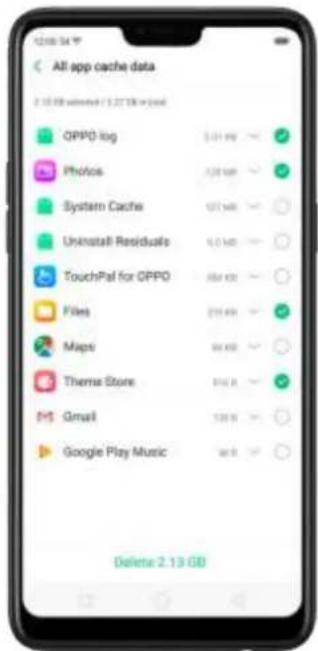
text_image
All app cache data 2.13 GB deleted: 5.27 GB in last OPPO log Photos System Cache Uninstall Residuals TouchPal for OPPO Files Maps Therms Store Gmail Google Play Music Delete: 2.13 GBFree up more storage space. You can delete your unnecessary files on the phone, including photos, audio, videos, and documents.
7.4.3. Privacy Permissions
Use Privacy permissions feature to manage app permissions, protect your privacy, and manage apps that start when phone boots up-Click Phone Manager, then click Privacy Permissions.
text_image
Privacy Permissions Permissions Monitoring 10 apps Startup Manager 4 apps( ) allowed Floating Windows Mgmt 1 app( ) allowedManage the app permissions. Open Phone Manager, then click Privacy Permissions. You can go through each permission or app on your phone and, with full control, accept, decline or limit each permission of apps according to your requirements.

text_image
12:00:34 Permissions Appn Phone: Call Read Call Log Write or Delete Call Loge Obtain Phone Identification No. CONTACT) Read Contacts Write or Delete Contacts mail Read SMS Read MMS Send SMS Send MMS Write or Delete SMS Write or Delete MMS 1 week 1 week 1 week 1 week 1 week 1 week 1 week 1 week 1 week 1 week 1 week 1 week 1 week 1 week 1 week 1 week 1 week 1 week 1 week 1 week 1 week 1 week 1 week 1 week 1 week 1 week 1 week 1 week 1 week 1 week 1 week 1 week 1 week 1 weekClick [Set Individual Permission] to view and set more detailed permissions.

text_image
Amazon Shopping Phone Contacts SMS Location Info Camera Storage Set Individual Permission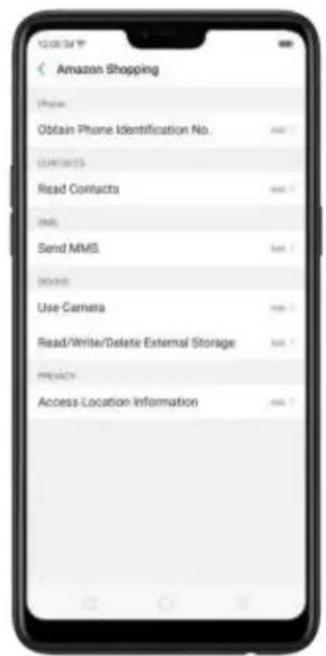
text_image
Amazon Shopping Phone: Obtain Phone Identification No. CONTACTS Read Contacts Send MMS NAME: Use Camera Read/Write/Delete External Storage PRESACY Access Location InformationAllow apps to start when phone boots or in background. Click Startup Manager. Toggle the app sliders to green. See Set up Startup Manager.
To view the apps that had been blocked from starting in the background, click Blocking Records.
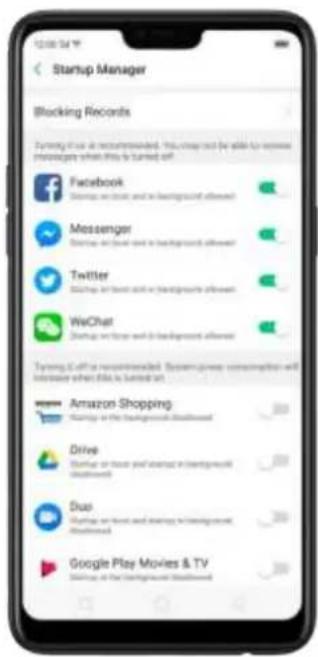
text_image
Startup Manager Blocking Records Running in the recommendation. This image is not able to review managers when this is turned off. Facebook Startup on track and in background allowed Messenger Startup on foot and in background allowed Twitter Startup on foot and in background allowed WeChat Startup on foot and in background allowed Tanning Office recommended. System power consumption will increase when this is turned off. Amazon Shopping Starting in the background allowed Drive Startup on foot and using in background allowed Duo Starting on foot and using in background allowed Google Play Movies & TV Starting at the background allowedEnable floating windows. Toggle the app slider to green. Your app message will be displayed in the floating window for easy viewing and use. (Only for apps which can support Floating window feature.)
View more details in Use Phone Manager on your OPPO smartphone.
7.4.4. Virus Scan
For better security, you can regularly scan and remove potential and actual threats to your phone.
Scan for virus. Click Phone Manager, then click Virus Scan. Wait for the scan to complete. If threats were found, remove them; if not, you will see a message that says your phone is in a good state.
text_image
100% Your phone is on a general copy Molicious App Malicious files Back Forward Back Forward Casp7.4.5. Payment protection
While you shop online, your OPPO phone will provide protection for the mobile transactions, such as detecting the security of system, captcha, and the app itself. Set up payment protection for apps. Open Phone Manager, then click Payment Protection. You can also go to [Settings] > [Security] and click [Payment Protection].
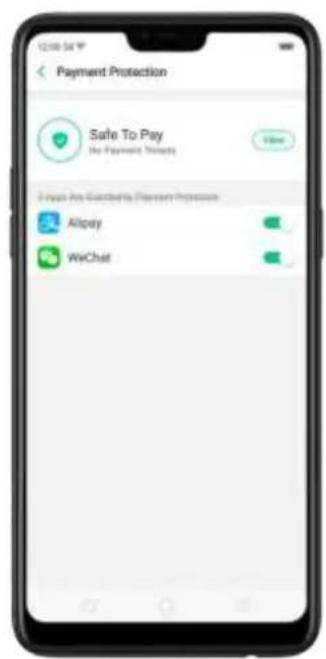
text_image
Payment Protection Safe To Pay No Payment Protection Hi Now 3-Page Any Guidance Payment Protection Alipay WeChat
text_image
Security System Security Permissions Floating Windows Protect Personal Information Payment Protection Protected Information Operations Pension and Fraud Prevention Anti-harassment/Fraud Pseudo Base Station Blocking Privacy Protection App Lock Kids Space Private Safe Other Security Features Secure Keyboard The system automatically switches to the OFF/ Second Platform when you are referring positive information from an account, OFF/DO!7.4.6. Frequently Used Functions
In Phone Manager, you can quickly clear your downloads and junk files of the apps which are used frequently, such as WeChat, WhatsApp, and more.

text_image
82 Go to optimize Clean storage Privacy Permissions Virus Scan Payment Protection WeChat Cleaner WhatsApp Cleaner Common Problems DetectionWhatsApp Cleaner
Clear cache and junk files. Click [Clear Now] button to clear the cache files generated when the app was in use.
Clear other app files. You can delete the app files to free up the phone storage, including pictures, videos, audio, voice messages, and files. Select an option, click Select to select the files, then click Delete.
WeChat Cleaner

text_image
WeChat Cleaner WeChat can be cleaned 11.7 MB Cleaning WeChat supplementary files is recommended Cache Junk Files Audio & audio files. The use of WeChat will not be affected Clean: note Viewed Moments pictures and videos Can be mitigated the Internet after being missed Clean: note Low-resolution pictures from chats Clean: note Real packet pictures, soundlets, sounds and other pictures from chat Clean: note WeChat Cleaner Clean: note Low-resolution pictures from chats Clean: note Chat pictures Chat videos Favorite emoji Voice Received filesClear junk files. Click [Clear Now] button to clear the cache files generated when the app was in use.
Clear view history. Click [Clear Now] button to clear all the viewed pictures and videos. When The next time you view the post, the photos and videos can be downloaded from the internet again.
To delete part of the view history, click [Viewed moments, pictures and videos], choose the pictures and videos you want to delete, then click Delete.
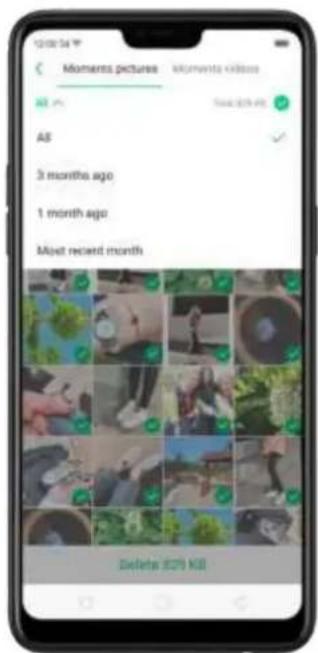
text_image
Moments pictures Moments videos AS New (24th Aug) AS 3 months ago 1 month ago Meet recent month Delete (E20) KillClear low-resolution pictures from chats. Click [Clear Now] button to clear the red packet pictures, thumbnails, icons, and other pictures.
Clear files received or sent through chat. You can delete the app files to free up the phone storage, including chat pictures and videos, emojis, voice files, and received files. Select an option, click to select the files, then click Delete.
Note: These kinds of files cannot be recovered after cleaning.

text_image
Chat pictures Delete 26 KB Chat pictures Delete 1.8 MB7.4.7. Common Problems Detection
Phone Manager allows you to diagnose common phone problems and find solutions to quickly deal with them.
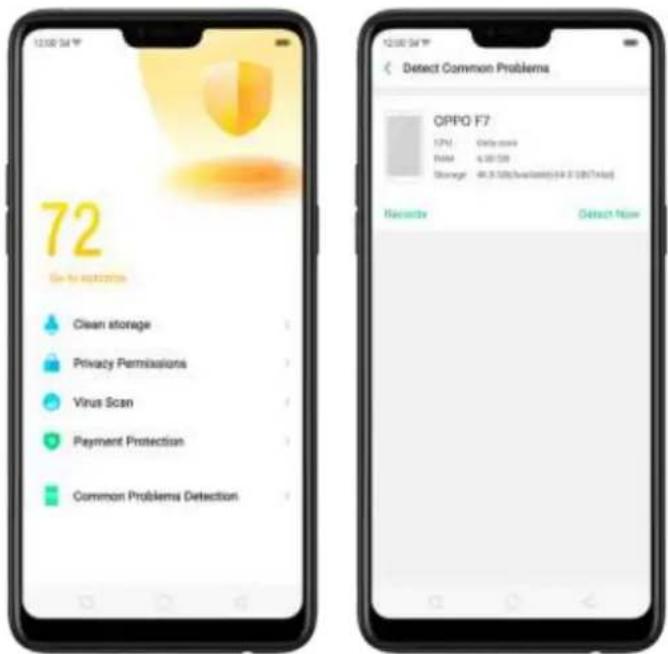
text_image
12:00 PM 72 Get to 6/23/2019 Clean storage Privacy Permissions Virus Scan Payment Protection Common Problems Detection Detect Common Problems OPPO F7 12% Daily score PAM 4.00 500 Storage 48.5 GB/Service(s) (0.0 GB/1x load) Havestre Detect NowDetect common phone problems. Click [Phone Manager] > [Common Problems Detection], select the items you want to detect, then click [Start Detection].
- Auto detection items: including phone memory, SIM card(s), and system version. The phone will automatically complete the detection.
- Manual detection items: including sensors, connections, battery and charging, physical keys, screen, camera, audio, and vibration. During the detection, you need to operate the phone as per the onscreen instructions.
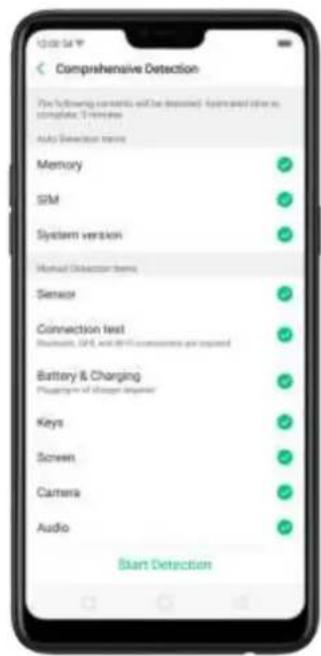
text_image
Comprehensive Detection For following content, will be deleted. Apply used other in complete 3 items. Auto Detection terms Memory SIM System version Manual Detection terms Sensor Connection test Bluetooth, GPS, and WiFi connections are copied Battery & Charging Plugging out of a computer adapter Keys Screen Camera Audio Start DetectionThe phone will list all the test results of the system, and intuitively display the abnormal items. Click the abnormal item to view the solution your phone offers.

text_image
Detection Results 1 abnormal items found Detecting after sales activity for professional testing is recommended 1 abnormal items 2 Good items 37 normal items 4 stopped items Abnormal Testing Gravity Sensor Error All test results Memory Size: 1.81 GB / 0.00 GB Storage: 45.7 GB / 44.5 GB SIM SIM Identification: 1 pass Down: SIM | Have any signal: Yes Signal strength of SIM 1: 700000 System version System version: 600000 up to 16.0000 Sensor Priority Sensor: Selected Light Sensor: Normal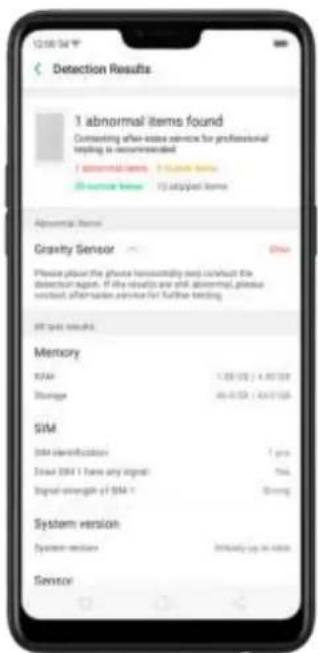
text_image
1 abnormal items found Customing after-index service for professional tepping is recommended 1 abnormal items 2 student items 30-ssrictal items 32 adopted items Abnormal Items Gravity Sensor Please place the phone heronometry test to construct the detection region. If the results are still abnormal, please wepted after-index service for further testing. All spot results. Memory KIAA 1: 08:00 / 4:00:00 Storage 26:00:00 / 4:00:00 SIM Data identification 7 pro Stream SIM 1 here any input? Yes Signal strength of SIM 1 Strong System version System version highly up to zero SensorDetection records. Click [Records] and you can view all the detection records.

text_image
Records March 27, 2:38 AM | Latest Newest home board7.4.8. WeChat Cleaner
In Phone Manager, you can use WeChat Cleaner to selectively delete any photo, video, voice recording, or any other data sent or received through WeChat to reclaim more space on your phone.
* You can also click File Manager, click Clean Storage, then click WeChat Cleaner.
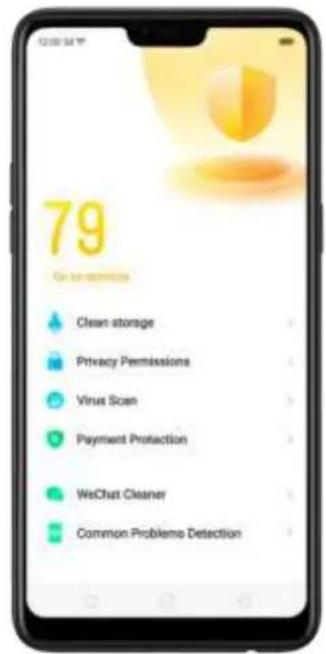
text_image
79 On session(s) Clean storage Privacy Permissions Virus Scan Payment Protection WeChat Cleaner Common Problemo Detection
text_image
WeChat Cleaner WeChat can be cleaned 11.7 MB Cleaning WeChat unnecessary file as recommended. Cache Jack Files Jack cache files. The use of WeChat will not be affected! Clean now Viewed Moments pictures and videos Can be restructured my Internet after being ignored Clean now Low-resolution pictures from chats This format pictures, blockchains, movies and other pictures from chat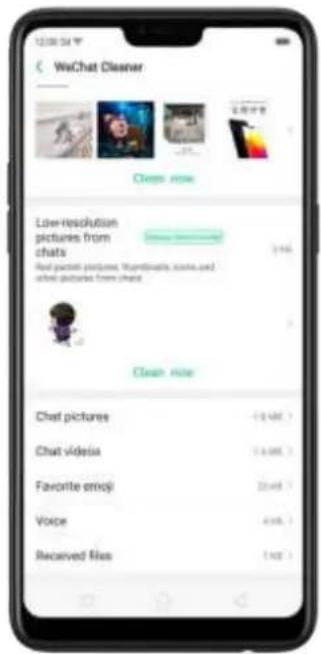
text_image
WeChat Cleaner Clean here Low-resolution pictures from chats Real picture pictures, Shapelets, icons and email pictures from chat Clean here Chat pictures Chat videos Favorite emoji Voice Received filesClear junk files. Click [Clear Now] button to clear the cache files generated when the app was in use.
Clear view history. Click [Clear Now] button to clear all the viewed pictures and videos. The next time you view the post, the photos and videos can be downloaded from the internet again.
To delete part of the view history, click [Viewed moments, pictures and videos], choose the pictures and videos you want to delete, then click Delete. You can also click All, then choose a period of time.

text_image
Moments pictures Moments Videos Sweetstore All 3 months ago 1 month ago Most recent month Delator H209-830Clear low-resolution pictures from chats. Click [Clear Now] button to clear the red packet pictures, thumbnails, icons and other pictures.
Clear files received or sent through chat. You can delete the app files to free up the phone storage, including chat pictures and videos, emojis, voice files and received files. Select an option, click to select the files, then click Delete.
Note: These kinds of files cannot be recovered after cleaning.
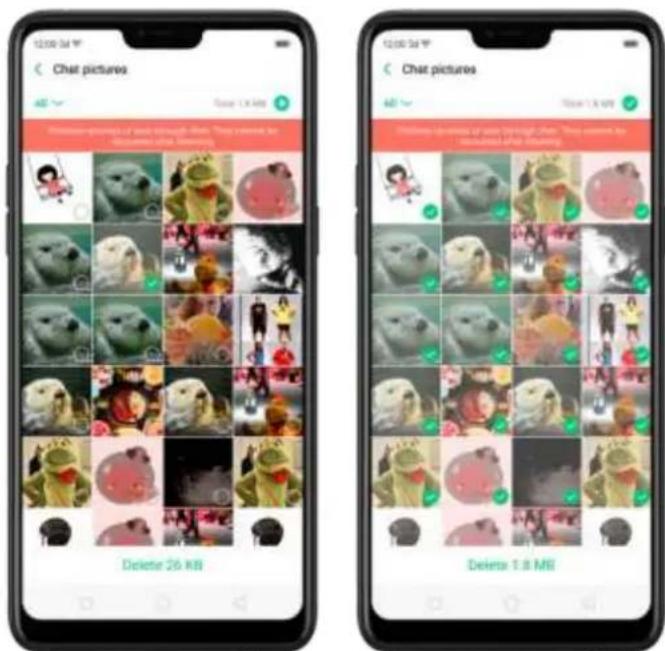
text_image
Chat pictures Delete 26 KB Chat pictures Delete 1.8 MB7.5. Weather
Click Weather from the Home screen to see the latest weather conditions and forecasts for the city of your choice, including the current temperature, hourly forecasts for the next 24 hours, and up to 15-days of forecast information. You can store multiple cities for quick access.

text_image
Shahekou District 17 Sunny Air Good Today Thu 6-17°C 23 11 22 13 14 15 17°C 17°C 120% 130% 120% 4/13 Fri 5-10°C 6/14 Sat 5-11°C 4/13 Sun 5-12°C 8/16 Mon 7-12°C 4/17 Tue 7-12°C Weather forecast for the next 12 days > Shahekou District 4/17 Tue 3-12°C Weather forecast for the next 15 days > Temperature Fatt HPS Humidity TNS Minibility Time RE 12 March 24 May 24 Air Pressure UPS DPs ARQ 046.97 56 Good 162 129 127 Mar-04 Nov-03 Dec-03 171 112 12 Dec-03 Nov-03 Dec-03 Floating-AccrWeatherLook at your local weather. Open Weather, and your phone will attempt to find your current location using the Location Services. Scroll down to see more details, including humidity, visibility, and more.
View the hourly forecast. Swipe the hourly display left or right. It also provides you the time of sunrise and sunset.
Get daily forecast for 15 days. The phone shows the forecast information for the upcoming five days. Click View weather forecast for the next 15 days to get extended forecasts on your browser.
Add a city. Click ≡, then click +. Enter a city name, then click Search.
Switch to another city. Swipe left or right. The number of dots below the city name shows how many cities are stored. You can also click, then choose a city from the list.
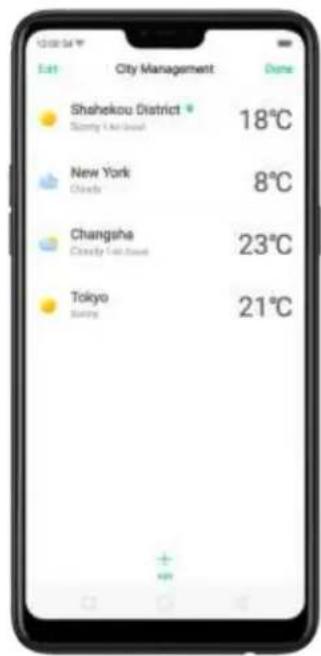
text_image
Shahekou District 18°C New York 8°C Changsha 23°C Tokyo 21°CDelete a city. Click ≡, swipe left on the city, then click Delete, or click Edit, click

next to a city, then click Delete.
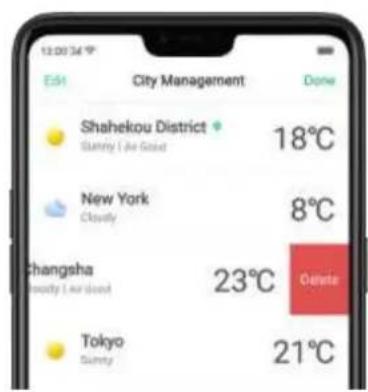
text_image
12:00:34 ° Edit City Management Done Shahekou District 18°C Sunny I are Good New York 8°C Cloudy Changsha 23°C Oate Cloudy I are Good Tokyo 21°C Sunny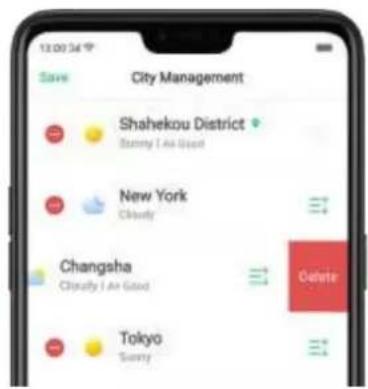
text_image
13:00:34 Save City Management Shahekou District Sunny 1 Ave Good New York Cloudy Changsha Cloudy 1 Ave Good Delete Tokyo SunnyReorder cities. Click , click Edit, then drag next to a city up or down in the list.
Turn on Disaster warning. Go to [Settings] > [Weather] and toggle the slider to green.
Choose Fahrenheit or Celsius. Go to [Settings] > [Weather] > [Temperature unit].

text_image
Weather Disaster warning Temperature unit Deluxe/PC 17.6. Camera
7.6.1. Take photos
You can use the cameras to take pictures and videos.
Open camera. Click Camera icon. To quickly get to the camera, touch Camera icon on the Lock screen and swipe up.
Choose a photo mode. Click 📄, then choose to shoot standard, square-format, or full screen photos.
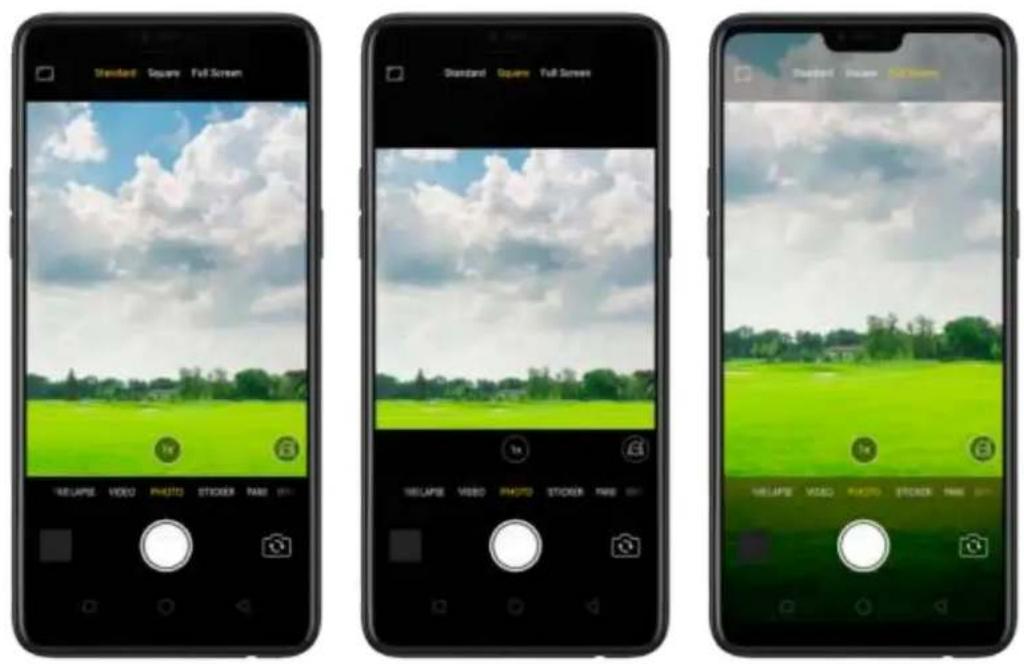
text_image
Standard Square Full Screen Standard Square Full Screen RELIPE VIDEO PHOTO STICKER NAME RELIPE VIDEO PHOTO STICKER NAME RELIPE VIDEO PHOTO STICKER NAME RELIPE VIDEO PHOTO STICKER NAMESwitch the cameras. Click

Take a photo. Aim your camera at the subject and click
Zoom in or out. The camera captures full-resolution video and stills at 1x and 2x zoom. To quickly switch, toggle 📋. You can also pinch the screen to zoom in and out.
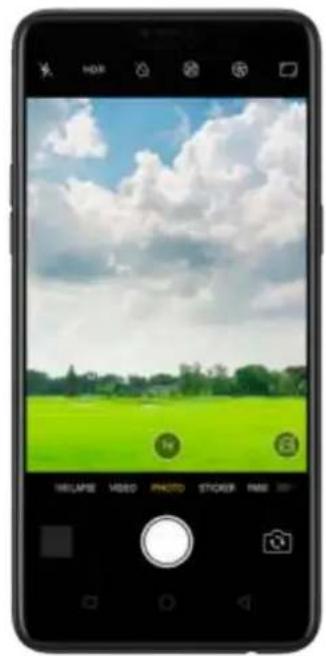
natural_image
Smartphone displaying a scenic landscape with green field, blue sky, and clouds (no text or symbols visible on the image itself)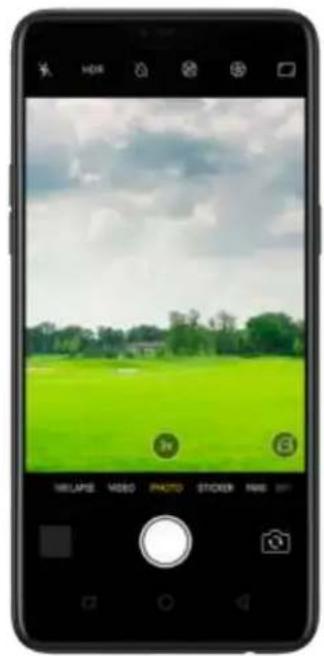
natural_image
Smartphone displaying a scenic photo of a green field under a cloudy sky, with no visible text or symbols on the image itself.
natural_image
Smartphone screenshot showing a green field photo with a white hand icon and UI buttons (no readable text or symbols on the image itself)Turn the flash on or off. Click , then click On or Off. When you click Auto, your phone will automatically detect lighting conditions and determine if flash is necessary. When you click Fill Light, your phone will use the built-in flash as the fill light.
Turn HDR on or off. Click HDR, then click On, Off or Auto. When HDR (high dynamic range) is on, photos take multiple exposures of the same scene and then combine them to create a better looking, more detailed image.
Turn Depth Effect on for a photo. Click ☑ the top of the screen. Depth Effect blurs the background while keeps the face in the foreground perfectly focused.
Turn on super vivid mode. Click 📄. The camera will set color enhancement to vivid and make colors of your photo more striking.
Use the capture timer. Capture timer gives you time to get in the picture. Click then click 3s or 10s. Click Tap if you want to take photos by tapping on the screen.
Use Beauty Mode. Click the built-in beauty filter will automatically adjust the skin tone, enhance facial features, and make other minor changes to your appearance. The camera offers six beauty levels.
Add a filter. You can apply a filter before you take a photo. Click , click FILTER, then you'll see a serious of filter options, with each one showing a preview of what it will look like when applied to your photo. Click the filter you want to use. Switch to ORIGINAL to remove the filter.
Add an AR sticker. Use stickers to decorate your photo. Choose STICKER, click

then choose an AR sticker.
Take a panorama photo. Choose PANO.
- With the rear cameras, click the Shutter button, then move the phone slowly and steadily across the subject you want to capture. Click the button again when you've got your full photo.
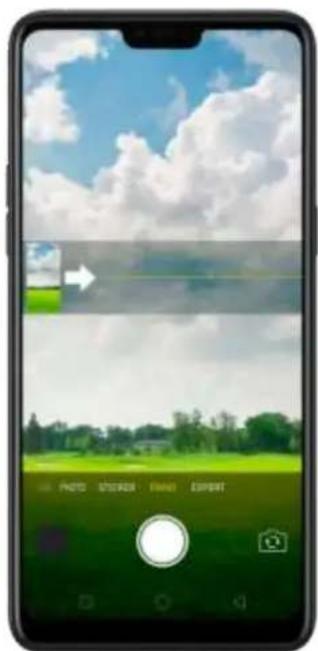
text_image
Smartphone screenshot showing a photo editing interface with Chinese menu options and a landscape image below.- With the front camera, click the Shutter button and you'll hear a "Ding" sound. Rotate the phone left or right until the phone sounds again. The photo will be taken automatically.

natural_image
Smartphone screen displaying a person's face with a smartphone interface overlay (no readable text or symbols)Use Expert mode. Expert Mode allows you to take more professional-looking photos. Choose EXPERT, and then you can adjust camera's white balance, exposure compensation, ISO, shutter speed, and more.
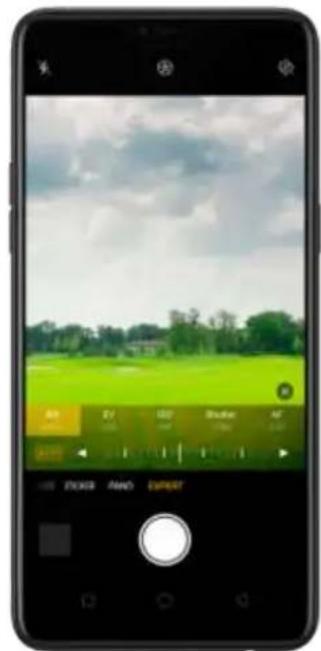
text_image
Smartphone screenshot displaying a photo editing interface with a green field and sky background, showing playback controls and UI elements.Take Burst shots. Touch and hold the Shutter button screen you'd reen count rapidly rise, which shows the number of photos you're taking. Lift your finger to stop. To select the photos you want to keep, click Gallery, click , select the photos, then click Done.
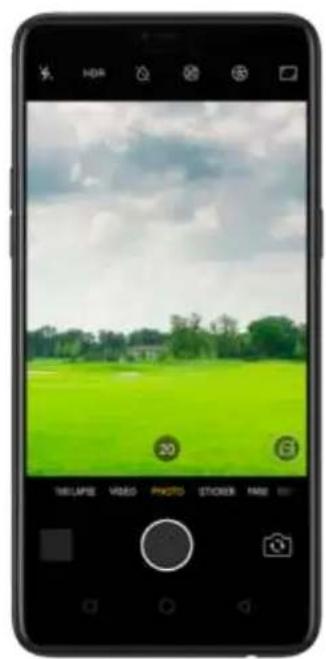
natural_image
Smartphone displaying a green field under cloudy sky with UI buttons and camera controls (no readable text or symbols on the image itself)
natural_image
Smartphone displaying a scenic photo of a green field under a cloudy sky, with no visible text or symbols on the image itself.
natural_image
Smartphone displaying a photo of a green field with white clouds and trees under a blue sky (no text or symbols visible)7.6.2. Take a selfie
To switch to the front-facing camera, click 📄 in the lower-right corner of the screen.
natural_image
Smartphone screenshot displaying a photo of a smiling woman in a yellow sleeveless top (no text or symbols visible on the image itself)Turn the flash on. Click, then click On. A white screen at full brightness is used as front-facing flash.
text_image
Hue TRELLAME VIDEOS PHOTO STICKER PAETurn Front 3-HDR on or off. Click 📄 when click Off, On or Auto. When capturing images in bright sunlight or shade, front 3-HDR helps you to adjust the ratio of light to dark in the photo and make your subject look better.
text_image
HDMI 14 TIE LAPSE VIDEO PHOTO STICKER PAID
natural_image
Smartphone screenshot showing a smiling woman in a yellow top, no visible text or symbols on the image itself.Turn Depth Effect on for a photo. Click ☑ the top of the screen. Depth Effect blurs the background while keeps the face in the foreground perfectly focused.
Turn on super vivid mode. Click ☒. The camera will set color enhancement to
vivid and make colors of the photo more striking.
Use the capture timer. Capture timer gives you time to get in the picture. Click then click 3s or 10s. Click Tap if you want to take photos by tapping on the screen.
Show palm to take photo. Click , 📄en click Palm. Show your palm to the front camera. After recognizing your palm, the phone will take a photo after two seconds.
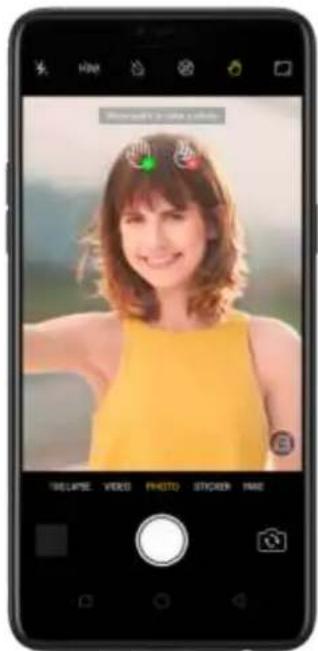
text_image
Blowna's to write a white THE LAPSE: VIDEO PHOTO STICKER PAGEChoose a photo mode. Click 📄, then choose to shoot standard, square-format, or full screen photos.

text_image
Standard Square Full Screen THE LIME VIDEO PHOTO STICKER PAIDAdd a filter. You can apply a filter before you take a photo. Click , click FILTER, then you'll see a serious of filter options, with each one showing a preview of what it will look like when applied to your photo. Click the filter you want to use. Switch to ORIGINAL to remove the filter.
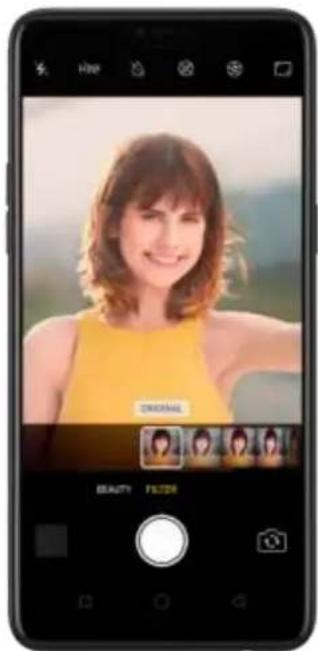
text_image
Hue DISHNA BEAUTY FILTERUse Beauty Mode. Click 📄. The built-in beauty filter will automatically adjust the skin tone, enhance facial features, and make other minor changes to your appearance.
- Use AI beauty: Click AI. Personalized AI Beauty provides functionality for precise recognition and delicate beautification of each individual facial feature. Everyone is unique in the camera.
- Choose a beauty level: Add the same beautifying effect for all the people in the photo. The camera offers six beauty levels.
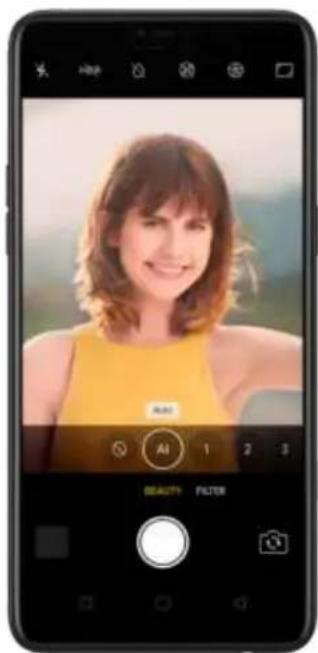
text_image
Mobile photo editing interface showing a portrait with AI filter options and adjustment controls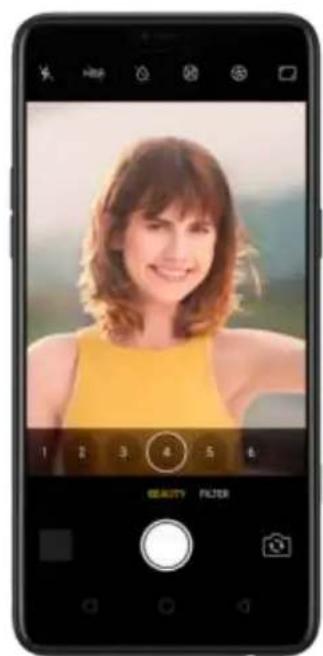
text_image
Mobile photo editing interface showing a woman's portrait with adjustment sliders and filter optionsAdd an AR sticker. Use stickers to decorate your photo. Choose STICKER, click then choose an AR sticker.

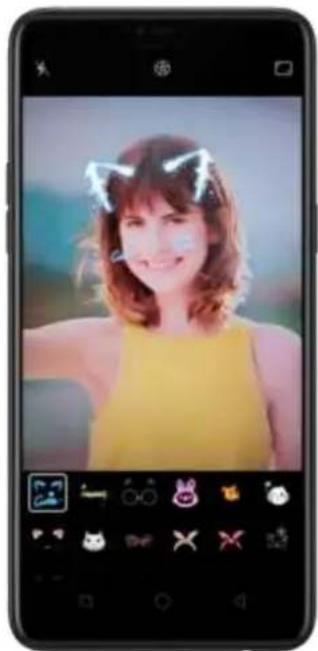
natural_image
Portrait of a smiling woman with cat ears on her head, displayed in a smartphone (no text or symbols visible)Take a panorama photo. Choose PANO. Click the Shutter button and you'll hear a "Ding" sound. Rotate the phone left or right until the phone sounds again. The photo will be taken automatically.
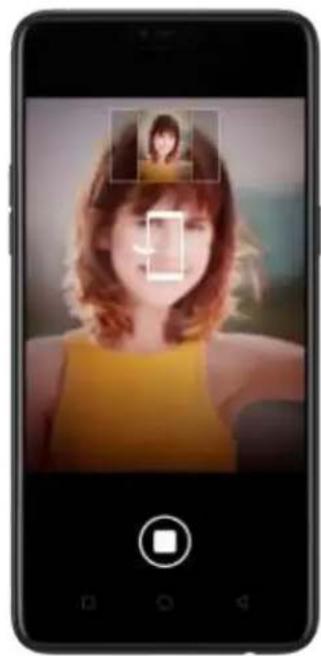
natural_image
Smartphone displaying a portrait of a woman with facial features, no visible text or symbols on the image itself.7.6.3. Shoot video
With Camera you can shoot video, including time-lapse and 10s short videos.
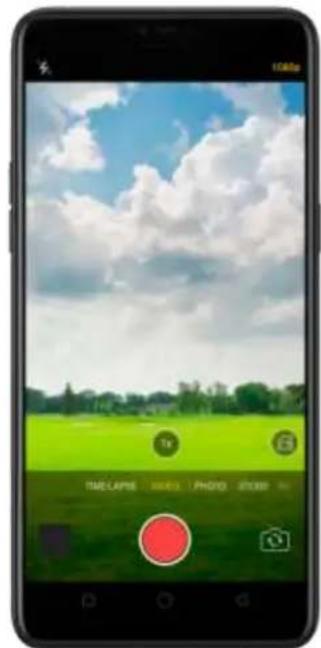
text_image
Smartphone screenshot displaying a photo editing interface with a green field, sky background, and UI controlsRecord a video. Choose Video, then click the Record button, or press either volume button, to start and stop recording. You can choose between 720p and 1080P video.
Zoom in or out when shooting video. (rear camera) Toggle 📁 or 📃. You can
also pinch the screen to zoom in and out.
Turn the flash on or off. Click ✗ to turn on the flash. Click ⚙ to turn off the flash.
Capture time-lapse video. Choose Time-Lapse. It records a scene or object that has a slow state-of-change and turns it into a video that plays back in high speed.
Take photos when shooting a video. Click the Shutter button in the lower-left corner of the screen.
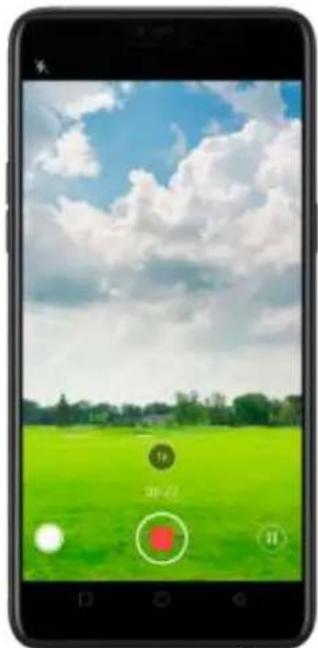
text_image
Smartphone screenshot displaying a photo editing interface with Chinese UI elements and a green field background under a cloudy sky.Use Beauty Mode. Click 📄 the built-in beauty filter will automatically adjust the skin tone, enhance facial features, and make other minor changes to your appearance. The camera offers six beauty levels.
Add a filter. You can apply a filter before you take a photo. Click , click FILTER,
then you'll see a serious of filter options, with each one showing a preview of what it will look like when applied to your photo. Click the filter you want to use. Switch to ORIGINAL to remove the filter.
7.6.4. Camera settings
Camera settings are special options that help you to take pictures or record videos easier. Go to [Settings] > [Camera].
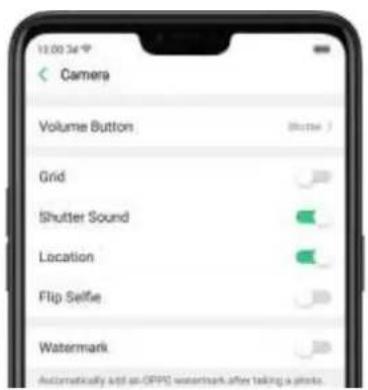
text_image
13:00:34 Camera Volume Button Shutter Grid Shutter Sound Location Flip Selfie Watermark Automatically add an OFFC watermark after taking a photo.Volume button: Set the Volume buttons to function as the a volume or zoom controls, or the shutter release.
Grid: Display grid lines to ensure the camera is leveled.
Shutter sound: Make or mute camera shutter sound when capturing photos.
Location: Tag your photos with geo-locations.
Flip selfie: Mirror flips your front facing camera photos.
Watermark: Automatically add an OPPO watermark after taking a photo.
7.7. Photos
7.7.1. Photos overview
The Photos app is where you store your photos and videos, including those you've taken with the built-in camera, saved from an app or a webpage, copied from optional storage devices, and more. You can view, share, and edit your photos and videos directly on your phone.
View Photos. You can view the roll of photos in either Camera or Photos. All photos are sorted by the dates and times-they were taken. In Photos, select Year or Month view in timeline to quickly lock the look-up scope. Click an album to view the photos or videos on that album.

text_image
Year 2016 2017 2018
text_image
12:00:34 Y Month September 2016 January 2017 May 2017 January 2018 March 2018
text_image
10:00:54 Moment Select Sep 6, 2016 Jan 8, 2017 May 10, 2017 Jan 2 Mar 27
text_image
Albums Carriers 1% People 8 Videos 0 Screenshots 0 WeChat 0 Movies 17.7.2. Albums
Each time you take a new photo, by default, it gets stored in the Photos album. Within the Photos app, there are a number of default albums into which your photos get automatically organized. In addition to these, you can also create your own albums into which you can organize photos further.
You can see your photo albums by clicking Albums at the bottom right of the
Photos app.
text_image
Albums Camera Video WeChat People Screensheets MoviesCreate a new album. Click +, enter a name, then click Save. Select photos and videos, then click Done.

text_image
New Album Family Cancel Save Family Family'sAdd items to an existing album. While viewing photos, click Select, select items, click Add to, click Albums, then select an album.

text_image
Picturee Select i Photo)
text_image
Select All 2 Selected Cancel X Photo
text_image
SELECTOR Selector ✓ Selector Cancel Albums Private Safe CancelRemove items from an album. From the album screen, click Select, select items, click Delete, then click Delete photo.
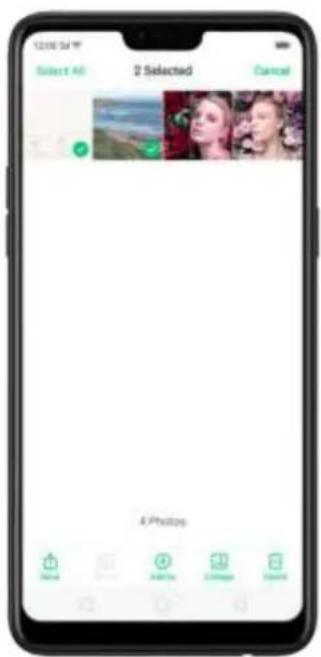
text_image
12:00 PM Select All 2 Selected Cancel 4 Philips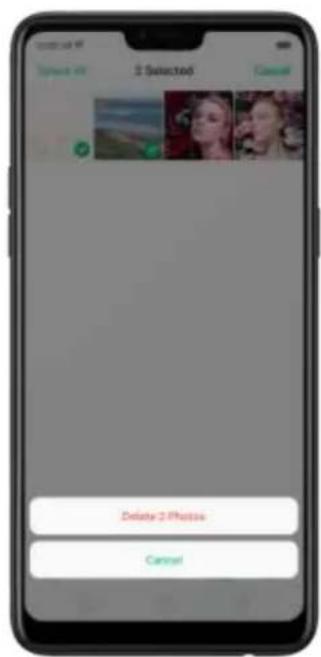
text_image
2 Selected Delete 2 Photos CancelDelete an album. From the Albums screen, click Select, click the album, then click Delete Album. Default photo albums cannot be deleted.
Delete a photo or video from Photos. Click a photo or video, then click Delete Photo, or click Select, select the photos or videos to be deleted, then click Delete. Deleted photos and videos are kept in the Recently Deleted album for 30 days before they're permanently removed.
Restore a deleted photo or video. In the Recently Deleted album, click the photo or video, click Restore, then click Restore Photo or Restore Video to move the item back to the Photos. Or from the Recently Deleted album, click Select, select the photos and videos you want to restore, then click Restore.
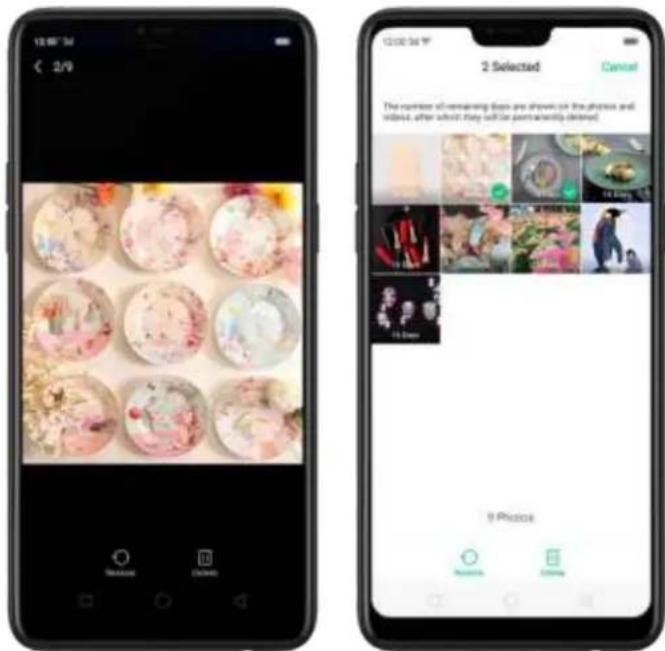
text_image
12:00:34 € 2/9 2 Selected Cancel The number of remaining days are shown on the photos and indents, after which they will be permanently deleted. 9 PhotosSmart album search and cleanup. You can search your photo library depending on the date, location, people, and content of the photos on your device. In Phone Manager, you can also clean up photos in batches such as similar and blurry photos. See Smart album search and cleanup.
Optimized album management.
- In addition to the frequently used social apps, images downloaded from third-party apps will be saved in Rarely-used Album. You can put other albums into Rarely-used Album by clicking Select > Set as rarely-used.

text_image
Albums Videos WeChat Pictures Rarely-used Albums Screenshots Movies Recently Deleted Rarely-used Albums Downloaded- Your photos will be put into sequential order by modification time. In other words, once an old photo or video has been modified, it will be saved as the latest photo or video.
- Photos downloaded from spam applications will be controlled by phone's blacklist and will not be displayed in albums.
7.7.3. Memories
Using the on-device families recognition and AI detection of what's your phone can combine photos into themed mini-movies complete with transitions and a soundtrack. For instance, ColorOS is going to put together an album about your last vacation in Europe, or an album of your kids growing up. You can also edit them and share them with others.
Play a Memory movie. Open Photos, click Memories, click a Memory movie, then click . The movie will play in landscape mode by default. To pause, click the movie, then click .II
Note: Your phone categorizes your photos weekly while your phone is plugged and locked.
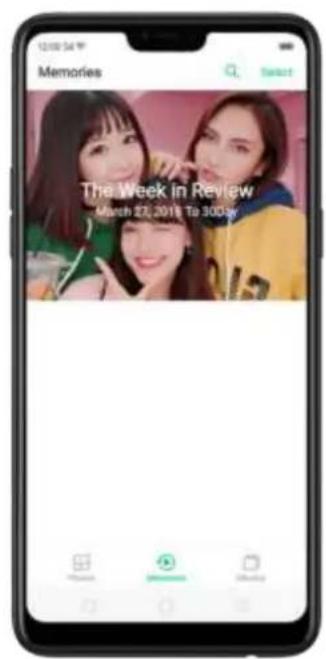
text_image
Memories The Week in Review March 22, 2019 To 300yr
text_image
The Week in Review March 23, 2018 To 30Day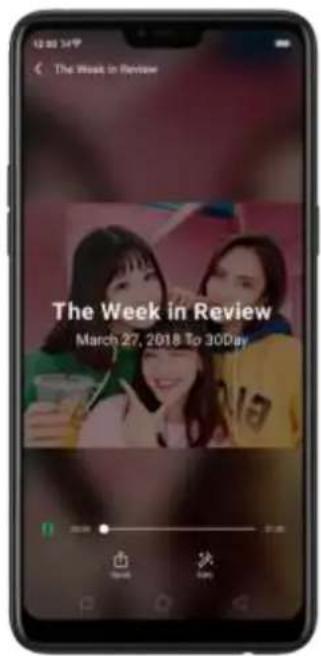
text_image
The Week in Review The Week in Review March 27, 2018 To 30DayCustomize a Memory movie. Click a Memory movie while it's playing, then click Edit to do the following:
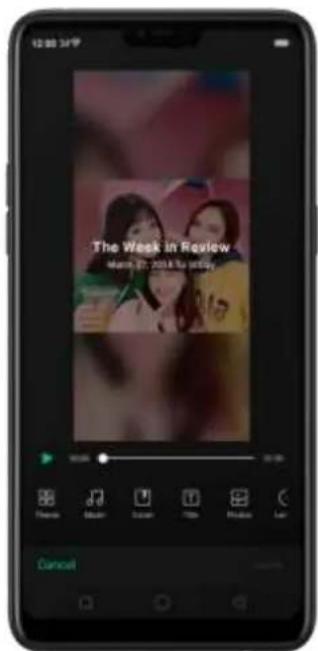
text_image
12:00:34/F The Week in Review Wednesday 27, 2014 to 9:57 Cancel- Change the theme: Click Theme, then click a theme, or swipe the themes left or right to pick a new one, such as Joyful, Cozy, and more. For each theme there is a music of the Memory movie.
- Choose different music: Click Music, then swipe the music left or right to pick a new one. You can also use your local and saved music.
- Choose a cover: Click Cover, then click the photo you want to use.
• Edit the title: Click Title, edit the title, then click Save.
- Choose or delete photos: Click Photos, click +, then select the photos you
want in the movie. Click to remove the photos from the movie.
- Change the movie length: Click Length, then scroll the wheels to change the length.
Share a Memory movie. Playing, theory, click Send while it's
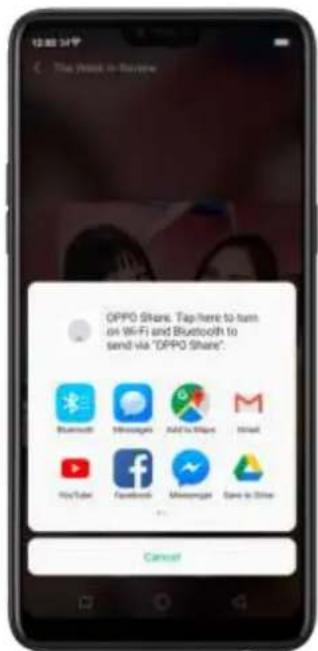
text_image
OPPO Share. Tap here to turn on Wi-Fi and Bluetooth to send via "OPPO Share". Bluetooth Messages Add to Mail Mail YouTube Facebook Messenger Save to Other Cancel7.7.4. People
In the Photos app, there's an album called "People." It uses facial technology to identify the people in the pictures or those with combine identifications, then group pictures of the same people together. You can name or rename a People album, hide People albums, merge People albums into one, and more.
* Your phone generates People album while your phone is plugged and locked.
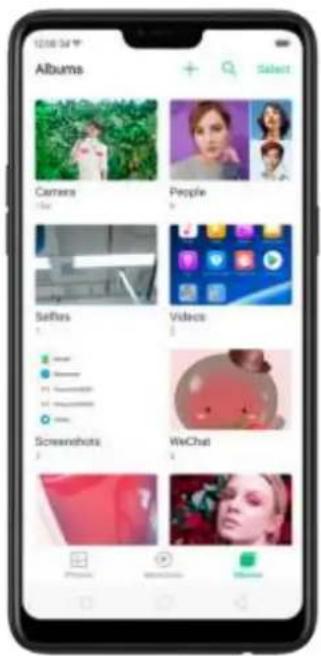
text_image
Albums Carvers People Senses Videos Screewhots WeChat
text_image
12:00 PM People Mag Merry Vheng Li Hebe William Yuan Weig Kerry Wang PeopleName or rename a People album
If a profile is unnamed, click the People album, click "+ Add Name when the name you want to use and click Save.
If a profile has a wrong name, click the People album, click the name, then type in the name you want to use and click Save.

text_image
Untitled + Add Name 12h40s Select
text_image
Add Name Please write your name. CancelHide, display, and merge People albums
Hide People albums. Click Select, select the People albums, then click Hide. The hidden albums are collected in More People.
Display People albums. To display the hidden albums, click More People, select the People albums, then click Display.
Merge People albums into one. Click Select, select at least two People albums, then click Merge.
Remove misidentified photos from an album
Click a People album you want to remove photos from, click Select, select the misidentified photos, then click Wrong Person. The photos will be moved to More People.
Set a cover of the People album
Click a click the portrait, then choose the photo you want as the cover.

text_image
13:00:34 PM Select a Cover for the Figure CancelAdd photos to a People album
- Click a People album, click Select, select the photos you want to add to the other album, and then click Wrong Person. The photos will be collected in an album in More People.
- In More People, click Select, select the album, and then click Display.
- Go to the People albums' screen, click Select, select both the album and the one you want to add the photos to, and then click Merge.
7.7.5. View and use photos and videos
View your photos and videos. Click Photos, and then click a photo or video. Click to play a
video. Or click Camera, and then click the thumbnail on the lower-left corner of the screen.
View a photo at full screen. Click a photo, and then click the screen to hide the controls.
View the next or previous photo. Flick left or right.
View a photo in landscape orientation. On Control center, turn [Portrait Orientation] off, then rotate your phone sideways. The photo automatically reorients and, if it's in landscape format, expands to fit the screen.
Zoom in or out. Double-click or pinch a photo to open or closed. Drag to see other parts of the photo.
See photo and video details. Click a photo or video, and then click.

text_image
12:00:54 V Details Name: RM20180330193109 Time: 3/30/2018 19:31:09 Dimensions: 3456 x 4608 Pixels Size: 3.8 M9 Path: Phone/DCM/Camera/ RM20180330193109.jpg Device: OPPO F7 Focal Length: 3.62 mm Aperture: 1/1.8 ISO: 100 Flash: Flash Not Used White Balance: Auto Exposure Time: 1/149 sSend a photo or video. Click Send, and then choose where to send your photo or video.
text_image
1 photo(s) selected: Cancel OPPO Share. Tap how to turn on WiFi and Bluetooth to send via "OPPO Share". Messenger Facebook Direct Messenger MacChat WeChat Gmail Messenger BluetoothUse a photo as wallpaper. Click a photo, click Set as, and then click Set as wallpaper. Drag the photo to pan, or pinch the photo to zoom in or out, until it looks the way you want. Then click Set as to set the wallpaper as your Home screen or Lock screen.
text_image
Set on Wallpaper Set on Contacts Photo Cancel
text_image
10:40 Friday, April 18 Cancel Set as
text_image
10:40 Friday, April 21 Set as Lockszenzen Walljagen Approvable by Sift all Wimmetzen 6.5% Set as Hmotzogen Walljagen CancelAssign a photo to a contact. Click a photo, click Set as, click Set as contact's photo, select a contact, crop the photo, and then click Done.

text_image
相册"34 A/2 Sel in Wallpaper Sel in Camera Photo Cancel
text_image
Select a Contact Cancet Rita B Sikina Y Yumeng
natural_image
Two penguins, one adult and one child, sitting side by side on a smartphone screen (no text or symbols visible)Add a photo or video to an existing album. Click Add to, and then select the album.
Edit the photo. Click Edit. You can edit your photos using a set of professional editing tools, including cropping, adding text and filters, and more. See Edit photos and videos.
natural_image
Smartphone displaying a photo of two penguins, one adult and one child, against a plain background (no text or symbols visible on the image itself)Delete a photo or video. Click Delete.
Combine the photos. From the Photos screen, click Select, select the photos, then click
Collage. Choose a collage template, then click Done.
text_image
12:00 PM Select all 2 Selected Cancel 4 Photos
natural_image
Mobile phone screenshot showing a penguin perched on a branch, with a close-up of its head and foliage (no text or symbols visible)7.7.6. Edit photos and videos
You can edit your photos and videos on the Photos app directly using a set of professional editing tools, including cropping, adding text and filters, and more.
Edit a photo. Open the Photos app and view the photo full screen, click Edit, then click a tool. Click Compare to view changes. Which Donee finished,

natural_image
Smartphone displaying a portrait of a woman with red roses in the background (no visible text or symbols on the image itself)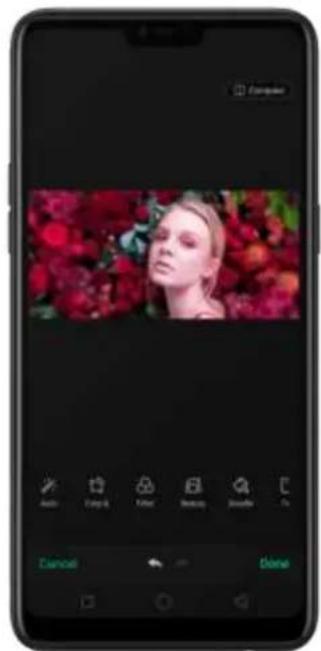
text_image
Computer Anti Cancel Finish Balance Balance Cancel Done- Auto Enhance: Enhances the photo's light levels, contrast, saturation, color temperature, and other qualities to make the photo more visually balanced.
- Crop and rotate: To crop the photo, click and drag a corner or side of the photo, or click Ratio and apply a preset aspect ratio to the photo, such as 1:1 or 9:16. To rotate the photo, move the wheel to your desired angle, or click Rotate to rotate the photo 90 degrees. Click Undo to reset these changes.
• Filter: Add a color filter to the photo, such as Matcha, Autumn, and Lime.
- Beauty: Click One-tap to Beautify to automatically improve both the appearance and the shape of your face. You can choose from 6 beauty levels. To beautify part of the face, choose a tool and make adjustments to the face, such as whiten skin, remove unwanted blemishes, enlarge eyes, and more.
- Doodle: Write or draw on the photo. You can adjust colors and thickness of your handwriting.
- Text: Click the photo to add the text. You can adjust colors and thickness of your text. Click and drag the text to move its position; click and drag to
adjust the font size; click and drag to rotate the text; click to delete the text.

text_image
Smartphone screenshot displaying a video thumbnail with a woman's face and color adjustment sliders below.- Adjust: Manually adjust the photo's brightness, contrast, saturation, and color temperature.
- Mosaic: Pixelate part of the photo. You can change the pattern and thickness of the mosaic.
- Blur: Set the blur effect over the photo with circle or straight lines. The area within the circle or lines represents the non-blur part. Click the screen and drag the circle or the lines to select where to blur. Drag the slider to left or right to adjust the blur Intensity.
- Eraser pen: Erase people, watermarks, and any unwanted objects that's on your photo.
Edit a video. Open the Photos app, click the video, click Edit, then click a tool. When you're finished, click Done.
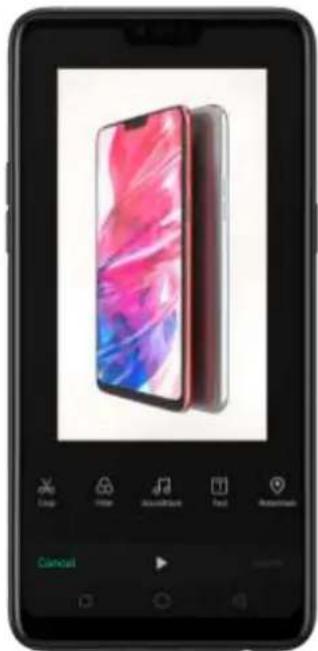
natural_image
Smartphone displaying a foldable smartphone with colorful wallpaper, shown in a black font on the screen (no visible text or symbols on device)- Crop: Drag either end of the bar to cut out the parts of the video you don't want to save. You can only save continuous segments of the video.
- Filter: Add a color filter to the photo, such as Sunlight, Midsummer, and Polaroid.
- Soundtrack: Add a soundtrack to the video. You can also use your local and saved music. Click 📄 turn off the original sound of the video.
- Text: Click 📄 to add overlay text on the video. Click and drag the text to move its position. Drag the frame viewer to control when the text showed up.
- Watermark: Add a watermark with the location and date of the video. If the video doesn't contain the details of location and date, you cannot add the watermark.
7.8. Music
7.8.1. Music
Use the Music app to enjoy music stored on your phone. You can also create playlists, set songs as ringtones for incoming calls, and more.
To see what you can do with your music, click to the right side of the song name.
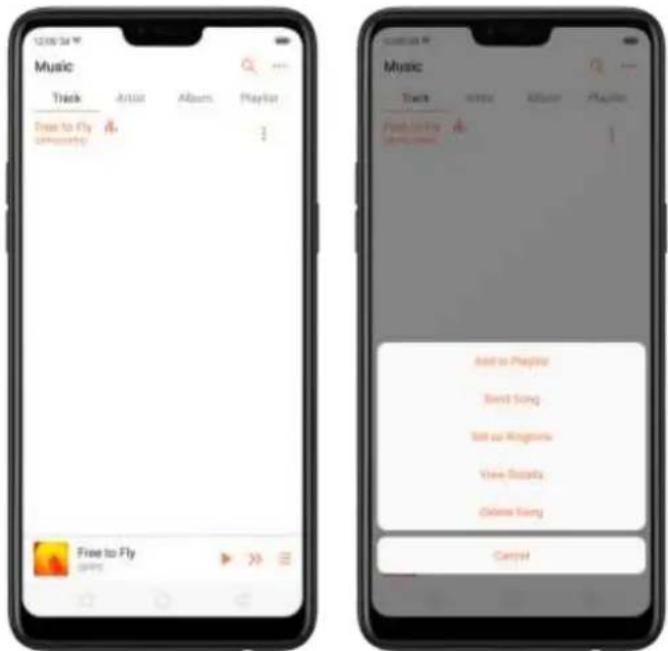
text_image
12:00:34 Music Track Artist Albums Playfon Free to Fly university 3 Free to Fly OFFS Add to Playfon Send Song Send to Kingdoms View Details Online Sing CancelAdd to playlist. Add a song to an existing playlist. You can also create a new playlist.
Send song. You can share a song with your friends using multiple ways.
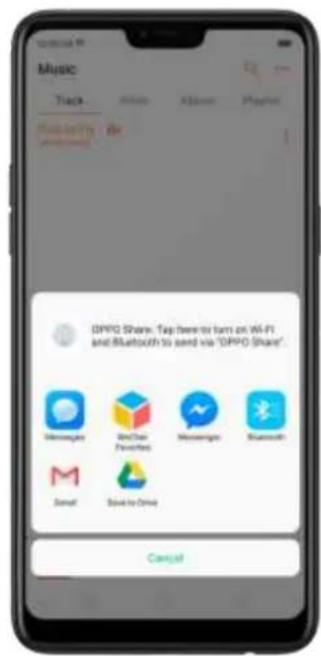
text_image
OPPO Share: Top here to turn on Wi-Fi and Bluetooth to send via "OPPO Share". Messages Bluetooth Preferred Message Bluetooth Mail Send to Drive CancelSet as ringtone. You can set a song as a ringtone for all incoming calls and messages, or for a contact. You can also set a song as an alarm tone.

text_image
Music Track Audio 3Diller Playtin Find out the minutes Set as Call Rightmove Set as Draft Rightmove Set as Alarm Rightmove Set as Contract Rightmove CancelView details. Click to view the name, artist, album, format, size, and storage location of a song.
Delete song. Remove the song from the playlists and your phone storage.
7.8.2. Change sort mode
By sorting your playlist, you can easily order the songs on your phone.
Change the order of your songs. From the Music screen, click Track, click •••• in the upper-right corner of the screen, and then click Select Sort Mode. Your songs can be sorted alphabetically, by time when the song is added, or by folders the songs are in.

text_image
Music Track Artist Album Playlist Free to Fly component Music Track Artist Album Playlist Select Sort Mode Custom Display Alphabetically Display by Time Added (Default) ✓ Display by Folder Subject Sort Mode Enter Local Stringer Manage weight track Control7.8.3. Scan local songs
The Music app contains all music-related materials on your phone storage. To manually scan for local songs, or choose which songs can be displayed on your list, do the following:
Scan all local songs. Click •••• on the upper-right corner of the Music screen, then click Scan Local Songs. Your phone will automatically start scanning.

text_image
Track Music Click to the with options Subject Start Menu Show Lument Settings Manage length/short Cancel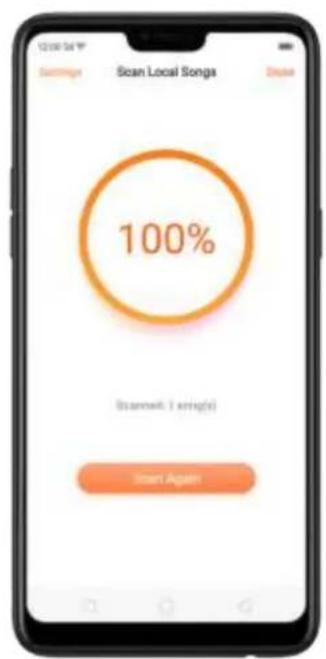
text_image
Scan Local Songs 100% Start AgainScan specific folders. Click Settings, click Scan specific folders, and then choose the folders you want the phone to scan for. Go back to the Scan Local Songs screen, and then click Scan again.

text_image
Scan specific folders 260 Android Backup ColorOS Download DCIM Movies Pictures TouchPaz2015 BackupsFilter audio files. To filter tracks that are too short (under 60 seconds) and too small (under 100KB), toggle the sliders to orange.

text_image
Scan Settings Done Skip Songs Under 60 Secs Skip Songs Smaller than 100 KB File smaller than the standard will not be scanned. Scan specific folders7.9. Videos
Use Videos to watch videos downloaded or taken with the built-in camera.
Play a video. Click Videos on the Home screen, then click the video.
Control video playback. Click the screen to show or hide the controls.

natural_image
Smartphone displaying a colorful abstract screen with a red and blue abstract background (no visible text or symbols on screen)TO
| Play or pause a video | Click for . |
| Raise or lower the volume | Click the volume buttons on the side of the |
DO THIS
| phone, or swipe your finger up or down on the right side of the screen. | |
| Increase or dim the brightness | Swipe your finger up or down on the left side of the screen. |
| Skip to the next or previous video | Click or . |
| Rewind or fast-forward | Swipe your finger left or right on the screen. |
| Start a video over | Click twice quickly. |
| Skip to any point in the video | Drag the play head left or right. |
| Lock the screen rotation and disable bottom keys | Click . |
Sort videos. From the video screen, click → and choose to sort by name, added date, or duration.
Send videos. From the Videos screen, click Select, choose videos, click Send, then choose an option for sending the video (for example, Messages, Gmail, third-party apps, and so on).
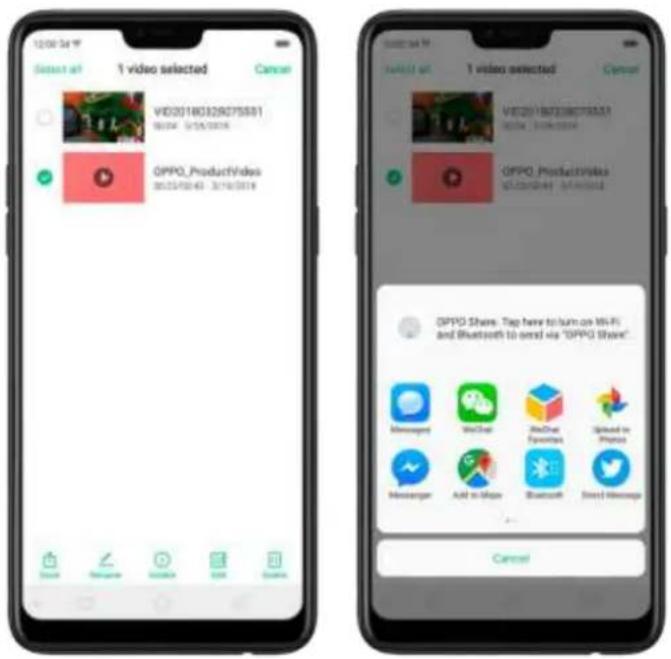
text_image
12:00:54:19 Select all 1 video selected Cancel VID3018G32RQ75581 06:00 07:35:00:00 OPPO_ProductVideos 06:35/00:40 37:16:00:19 1 video selected Cancel VID3018G32RQ75581 06:00 07:35:00:00 OPPO_ProductVideos 06:35/00:40 37:16:00:19 OPPO Share. Top here to turn on WiFi and Bluetooth to send via "OPPO Share" Messenger Add in Main MacOne Expressors Shared in Pharma Messenger Add in Main Bluetooth Send Messages CancelRename a video. Click Select, choose a video, and then click Rename. Enter the name, then click Save.
See details about a video. Click Select, choose a video, and then click Details.
Edit a video. Click Select, choose a video, and then click Edit. See Edit photos and videos.
Delete videos. Click Select, choose videos, click Delete, and then click Delete videos.
7.10. Theme Store
7.10.1. Online phone theme
A phone theme refers to the general look and feel of the phone's user interface. It changes color schemes for background images, icons, and more. The entire phone's functions will not be affected.
Change the phone theme. Click Theme Store on the Home screen, then click Themes. Click your desired theme, then click Download. Choose to apply the theme you've downloaded to the Home screen, Lock screen, or Home screen icons, then click Apply and wait a few seconds for the changes to apply.
Tip: Your phone will suggest similarthemes based on the ones you've viewed or downloaded.
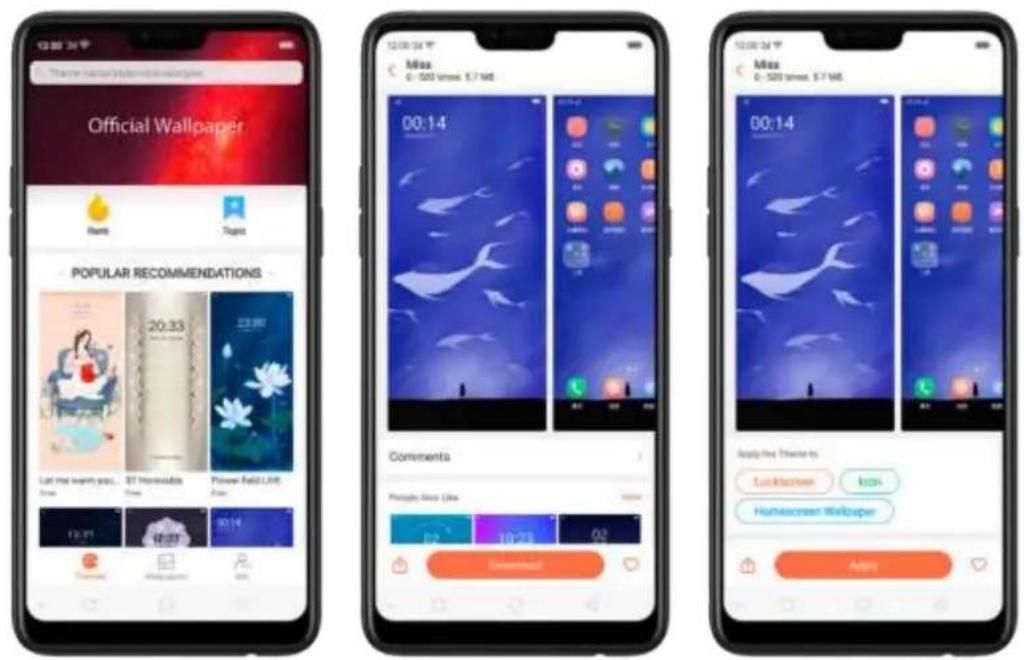
text_image
Official Wallpaper Mills Tapeo POPULAR RECOMMENDATIONS 20:33 ST Homeable Power Field LIVE 12:37 16:27 00:14 Comments Phospy Magic (Jia) 10:28 02 Download Apply live visits to: Lockdown Icon Homecast Wallpaper ApplySearch a theme. Click the search bar on the top of the screen, enter the theme name, then click Search.
7.10.2. Online wallpaper
In addition to using your photos as wallpaper, you can get some more wallpaper online from
Theme Store.
Change the wallpaper. Click Theme Store on the Home screen, then click Wallpapers.
Click your desired wallpaper, click Download, and then click Apply.
Drag to move the image. Or pinch to zoom in and out, so the image fits the screen. Click Set as to set the wallpaper as your Home screen or Lock screen.
text_image
POPULAR RECOMMENDATIONS
text_image
14:04 Thursday, April 26 Cancel Set as
text_image
14:04 HAPPENDY.COM FOR Set as LOCKSICEM WALL Paper applicable to Delphi 8 mm/second only Set as HOMMISICEM WALL Paper CancelSearch a wallpaper. Click the search bar on the top of the screen, enter the wallpaper name, and then click Search.
7.10.3.Manage your downloads
You can view and delete your downloaded themes and wallpapers in Local.
View download history. Click Theme Store, click Me, then click Download Management. You'll see all your downloads on the phone. Click Clear History to clear all download histories. Click View Download History, sign in your OPPO ID, then you can see your download histories within two years that are stored on the cloud.

text_image
Download management Downloadment 12: Wheat 3 3.4 KB - Download pagestring Mica 3.3 KB - Download pagestring 3ms Download History
text_image
Download management Download (S) Clear All Download History Cancel
text_image
Download History Only displays 2 pages of download history by learning and wallpaper. This download library is displayed in that section without selling up private website. Wheel 3 2 x 100 Downloaded Flower Road 6.5 KBW Air on this phone Forest deer 6.5 KBW Not on this phone Flower Field LIVE 1.5 KBW Not on this phone My Home CommentsChange phone themes and wallpapers. Under Download Management screen, click a theme or wallpaper, and then click Apply. See Change the wallpaper and theme on your OPPO smartphone.
Delete downloaded themes and wallpapers. Click Me, then click My Themes or My Wallpapers. Click Edit, select the themes and wallpapers you want to delete, then click Delete.

text_image
1 Selected theme Untitled Theme Miaq7.11. Clock
7.11.1.Set Alarm Clocks
With the Clock app, you can set an alarm that plays a sound at a specific time, so you will be reminded to do things in time. You also set multiple o overtime. alarms, set each alarm to repeat on days you specify, or to sound only once.
Set an alarm. Click Alarm and click , scroll wheels to change the time, then adjust any of the following settings:
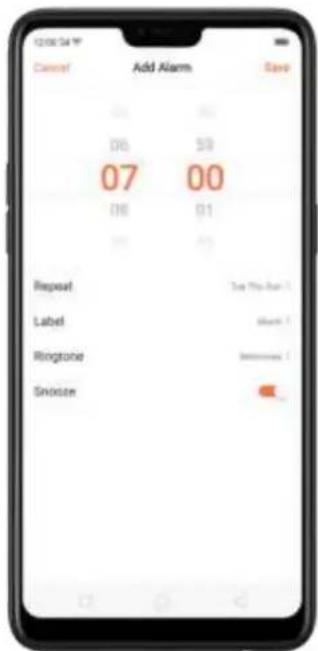
text_image
12:00:54 Y Cancel Add Alarm Cancel 06 50 07 00 08 01 Repeat Date Time Label Month Ringtonie Minutes Snioze• To set the alarm to repeat on certain days, click Repeat and choose the days.
- To give the alarm a description, click Label. Your phone displays the label when the alarm sounds.
• To choose the ringtone that sounds when the alarm goes off, click Ringtone.
• To set whether the alarm gives you the option to hit snooze, turn Snooze on or off.
If Snooze is on and you click Snooze when the alarm sounds, the alarm stops and then sounds again in five minutes.

text_image
12:00 Clase 12:00 Alarm Squeeze Sleep 12:00 Alarm, Tue Thu Sun 21:00 SleepTurn an alarm on or off. Toggle the slider to orange or white. If at least one alarm is set and turned on, appears on the status bar at the top of the screen.
Tip: The alarm still works even if your phone is turned off.

text_image
12:00 34 Alarm 07:00 Alarms 12:00 Alarms, See You Hot 21:00 SorryChange settings for an alarm. Click the alarm.
Delete an alarm. Click Edit, then click next to an alarm and click Delete. Or swipe left on the alarm, then click Delete.

text_image
12:00 Alarm 07:00 Alarm 12:00 Alarm, See The Sun 21:00 Sleep Alarm 7:00 Alarm 12:00 Alarm, See The Sun 21:00 Sleep Save Delete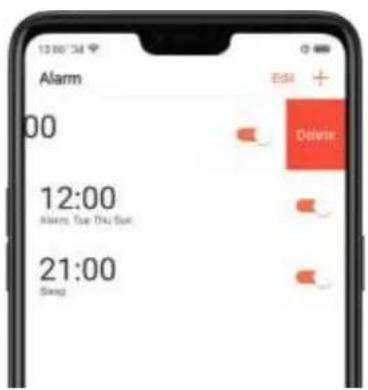
text_image
Alarm 00 12:00 Alarms Tue Thu Sun 21:00 Send Edit + Delete7.11.2.Add and view clocks for locations around the world
You can add multiple clocks to show the time in major cities around the world.
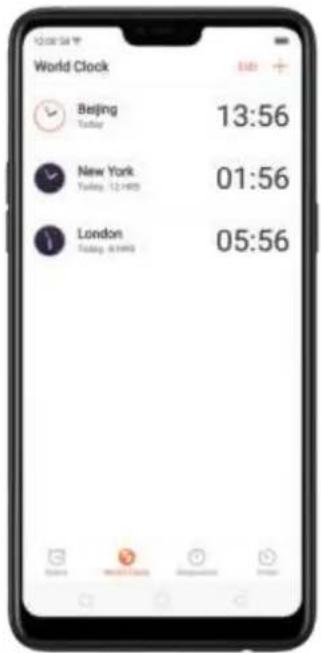
text_image
12:00:54 World Clock Beijing Tudong 13:56 New York Turkey 12:485 01:56 London Tudong 9:485 05:56View clocks. Click World Clock. If the clock face is white, it's daytime in that city. If it's black, it's nighttime.
Add a clock. Click and type the name of a city. Cities matching what you ve typed appear below. Click a city to add a clock for that city.
Delete a clock. Swipe left on the clock, then click Delete. Or click Edit, then click next to a
clock and click Delete.
Rearrange clocks. Click Edit, then drag next to a clock to a new place in the list.
7.11.3. Use the stopwatch
You can measure the duration of an event with the stopwatch.
Use the stopwatch to measure time. Click Stopwatch. Click Start to start the stopwatch. To record lap times, click Lap after each lap. Click Stop to pause the stopwatch. Then click Start to resume, or click Reset to reset the stopwatch to zero.
If you start the stopwatch and go to another application, the stopwatch continues running in the background.
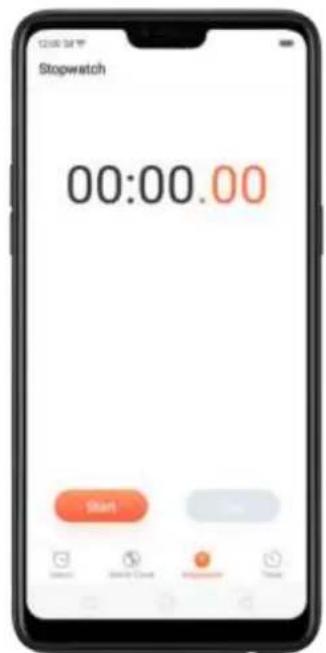
text_image
Stopwatch 00:00.00 Start
text_image
Stopwatch 00:06.73 z 00:05.12 +00:01.65 1 03:03.45 +00:03.45 Stop Stop
text_image
Stopwatch 00:11.0000:05.12 +00:01.65
00:03.46 +00:02.46
Start Reset7.11.4.Set the timer
In the Clock app, you can count down from a specified time with the timer.
Set and start the timer. Click Timer, scroll the wheels to set the duration of time, then click Start.
If you start the timer and go to another application, the timer continues running in the background. You can cancel or pause the timer at any time before it ends. When the timer ends, your phone sounds and vibrates to prompt you that it is already time to stop the timer.

text_image
Timer 00:00:29 Start Cancel Finish Start 23 0 0 hours 1 min 1 2 3 4 5 6 7 8 9 10 11 12 13 14 15 16 17 18 19 20 21 22 23 24 25 26 27 28 29 30 31 32 33 34 35 36 37 38 39 40 41 42 43 44 45 46 47 48 49 50 51 52 53 54 55 56 57 58 59 60 61 62 63 64 65 66 67 68 69 70 71 72 73 74 75 76 77 78 79 807.12. Files
7.12.1.Optimized File management
The optimized File Manager provides you a more convenient way to work with the file system and perform various operations on files and folders such as search, create, edit, rename, copy, delete, compress, batch process etc.
Optimized search capability. You can search for a file under the root directory, or on a specific folder if you know its general location. This will make the search more specific and faster.

text_image
Phone storage Frequently Used Files All Files Bluetooth 1 March (A) Apr 11, 2018 ODM 4 March (A) Mar 26, 2019 documents 1 March (A) Mar 27, 2019 Movies 1 March (A) Mar 15, 2019 Music 1 March (A) Mar 28, 2019 Pictures 3 March (A) Apr 4, 2018
text_image
Phone storage Phone.engage: - 100000000000000000000000000000000000000000000000000000000000000000 aviatar A4 Barn(s): Apr-6, 2018 image2 12 Barn(s): Apr-6, 2018 openapi 12 Barn(s): Apr-6, 2018 openim 7 Barn(s): Apr-6, 2018 package 3 Darn(s): Apr-6, 2018 stre 12 Barn(s): Apr-6, 2018File classification
- The Files app automatically categorizes your files based on their extensions so you can browse them more clearly and conveniently. Options vary by apps you've downloaded. For example, if you download Messenger, Messenger becomes another option for classification.

text_image
File Manager Audio Video Pictures Document APK Messenger Phone storage Clean Storage Iramotily Manage Phone Files- Under Phone storage, your frequently used files will be listed separately so that you can quickly look up to them later.
text_image
Phone storage Frequently Used Files: All Files Bluetooth 0 (mm): Apr 11, 2018 OCIM 4 (mm): Mar 25, 2018 documents 0 (mm): Mar 27, 2018 Movies 1 (mm): Mar 19, 2018 Music 1 (mm): Mar 26, 2018 Pictures 5 (mm): Apr 4, 2018- In [Phone storage] > [All Files] > [Android] > [data], select an app folder, you can see that app files and the files you downloaded from the app are saved in different folders, so you can quickly find the files you need.

text_image
Phone storage Phone storage cschtl 0 (new): Apr 15, 2018 file 0 (new): Apr 16, 2018Select All feature. Select All feature is added in Files, so you can process the files in batches.

text_image
Phone storage Select Phone storage - 2018-03-29-153243.conf 1 KB Apr 26, 2018 2018-04-10-053852.conf 1 KB Apr 10, 2018 cn.amazon.mShop.android.apk 2018-04-07 Apr 26, 2018 cn.amazon.mShop.android.tar 2018-04-10-053852.conf 1 KB Apr 10, 2018 cn.amazon.mShop.android.apk 2018-04-10-053852.conf cn.amazon.mShop.android.tar 2018-04-10-053852.conf cn.wps.moffice_eng.apk 2018-04-10-053852.conf cn.wps.moffice_eng.tar 2018-04-10-053852.conf cn.wps.moffice_eng.tar 2018-04-10-053852.conf cn.wps.moffice.eng.tar 2018-04-10-053852.conf cn.wps.moffice.eng.tar 2018-04-10-053852.conf cn.wps.moffice.eng.tar 2018-04-10-053852.conf cn.wps.moffice.eng.tar 2018-04-10-053853.conf cn.wps.moffice.eng.tar 2018-04-10-053853.conf cn.wps.moffice_eng.jarik 2018-04-10-053853.conf cn.wps.moffice_eng.jarik 2018-04-10-053853.conf cn.wps.moffice_eng.jarik 2018-04-10-053853.conf cn.wps.moffice_eng.jarik 2018-04-10-0539999999999999999999999999999999999999999999999999999999999999999999999999999999999999999999999999999 com.cooltek.amarti..ge.oem.arabic.apk 2018-04-10-053852.conf 1 KB Apr 16, 2018 cn.amazon.mShop.android.apk 2018-04-10-053852.conf cn.amazon.mShop.android.tar 2018-04-10-053852.conf cn.wps.moffice_eng.jarik 2018-04-10-053852.conf cn.wps.moffice_eng.jarik 2018-04-10-053852.conf cn.wps.moffice_eng.jarik 2018-04-10-053852.conf cn.wps.moffice_eng.jarik 2018-04-10-053646777777777777777777777777777777777777777777777777777777777777777777777777777777777.12.2.Fast file browsing
File Manager automatically categorizes your files based on their extensions so you can browse them more clearly and conveniently.
Fast file browsing. Click Files, then you'll see all five categories, including Audio, Video, Pictures, Document, and APK. Options vary by apps you've downloaded. For example, if you download Messenger, Messenger becomes another option for classification. Click a category to browse and manage files.

text_image
File Manager Audio Video Pictures Document APK Messenger Phone storage Clean Storage Remotely Manage Phone Files7.12.3.View and manage files
File Manager provides you various ways to manage your files and folders.
text_image
Phone storage Frequently Used Files Bluetooth 0 March(1) Apr 11, 2019 OCIM 4 March(2) Mar 08, 2019 documents 0 March(3) Mar 27, 2019 Movies 1 March(4) Mar 19, 2019 Music 1 March(5) Mar 26, 2019 Pictures 5 March(6) Apr 4, 2019Frequently Used Files. You can view the folders which files are commonly used. Click any one to enter and choose the file to manage.
Search a document or folder. Click Phone Storage, click All Files, click the search icon, then
enter the name of a document or folder.
Create a new folder. Click New Folder. Enter the folder name, then click Save.
Sort files and folders. Click Sort, then choose to sort your files and folders by name, size, type or the time they were generated.
Send, cut, copy, delete, compress, show details, rename a document or a folder. Click Select, choose the document or folder, then choose an option.
Move documents to Private Safe. Click Select, choose the documents, click More, then click Add to Private Safe. Folders cannot be moved to Safe. See Private Safe.

text_image
2 Selected Cancel Cahor 1/13.jpg 1.870 1119.jpg 1d35465a669c466, 108d1497b242.jpg 16779617548037, free79d218900.jpg Corporate File Add to Private Safe View Details CancelSelect all. In any page when you click Select, you can quickly choose all by clicking Select all in on the top left corner.
text_image
12:08:34 Select all Select item Cancel Photo/Message Cshot (1 month(s) Apr 10, 2019) 1 (1).jpg 12/19 Feb 10, 2019 1.jpg 245-03 May 29, 2019 1111.jpg 242-03 May 29, 2019 1d39463a8f9cb4b0...fd8d1497b242.jpg 28-03 May 29, 2019 1d776617548b37...see79d2191b2.jpg 65-03 May 29, 2019 2 (1).jpg 245-03 May 29, 2019 2.jpg 201-03 May 29, 2019 2222.jpg
text_image
1:53 Selected Phone badge | CDAI | CDSO | Cshot 4 hampd Mar 10, 2018 1 (1).jpg 402.90 Mar 06, 2018 1.jpg 246.40 Mar 28, 2018 1111.jpg 243.40 Mar 05, 2018 1d39463at9rcb4b0...fd8d1497b242.jpg (9.40 Mar 05, 2018) 1d776417548b37...6ee79d2190b2.jpg (0.40 Mar 05, 2018) 2 (1).jpg 341.90 Mar 25, 2018 2.jpg 244.40 Mar 05, 2018 2222.jpg7.12.4.Clean Storage
In File Manager, click Clean Storage will let you use the cleanup feature in Phone Manager directly.
Delete junk files. Click Phone Manager, then click Clean storage. Click End all to delete all kinds of junk files. You can also choose files to be deleted.

text_image
12:00 PM Clean storage Phone available 16GB Nufficient voltage available, you can detail cleaning files. Deep recommended Delete junk files 81.2 MHz selected / 537 MHz to total. Exit of! App data All app cache data 0.01 MHz Categorical cleanup of files Photo Cleaning 11.2 MHz Audio 9.2 MHz Video 60.4 MHz Documents 0.0 %
text_image
Delete junk files 60.3 MB (modified / 257 MB in total) APK 127 MB Memory Cleanup 80.4 MB Junk Ads 124 MB Accessed by: Microsoft Access Clear 80.4 MBDelete app data. Click All app cache data, select the apps that has caches, then click Delete.
The action cannot be undone.
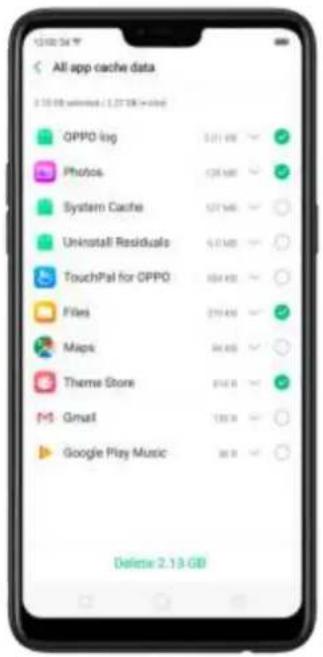
text_image
All app cache data 10.00 selected /27.38 > 500 OPPO log Photos System Cache Uninstall Residuals TouchPal for OPPO Files Maps Theme Store Gmail Google Play Music Delete 2.13 GBFree up more storage space. You can delete your unnecessary files on the phone, including photos, audio, videos, and documents.
7.12.5.Remotely Manage Phone Files
Remote Management can turn your phone into an FTP server so you can view and download files stored on your phone remotely from your computer.
Remotely view and download files. Click File Manager, then click Remotely Manage Phone Files. Connect to a Wi-Fi network, then click Start Service. Search the URL displayed on your phone screen with your computer, then you can view your phone's file system and download files directly to your computer.
Note: Make sure that your phone and computer are connected to the same Wi-Fi network.
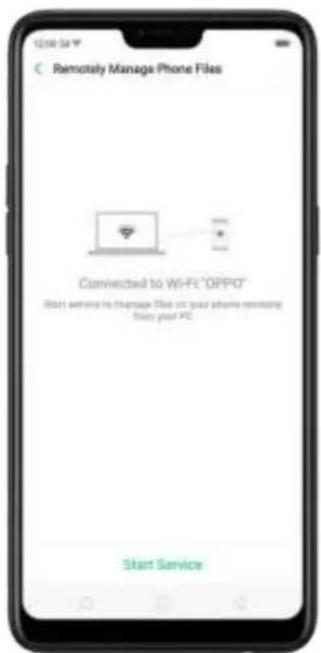
text_image
Remotely Manage Phone Files Connected to WiFi"OPPO" Start setting to manage Fios on your phone remaining from your PC Start Service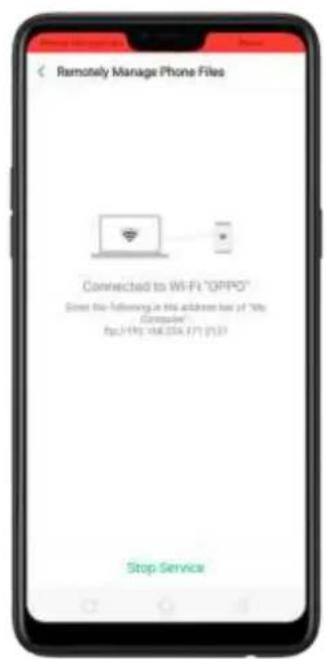
text_image
Remotely Manage Phone Files Connected to Wi-Fi "OPPO" Direct this following in the address bus of "My "Connected" Fax:1930-166.054 271 01:27 Stop Service7.13. Calculator
The Calculator app combines the standard and scientific calculators, which fits all objects with different demands.
text_image
189 C % @ ÷ 7 8 9 × 4 5 6 — 1 2 3 + 0 • =Clear the calculation results. Click

Hide or show the keypad. Click in the middle of the screen to hide the keypad.
Click Calculate or the calculation formula to resume.
text_image
1,512+8 =1,520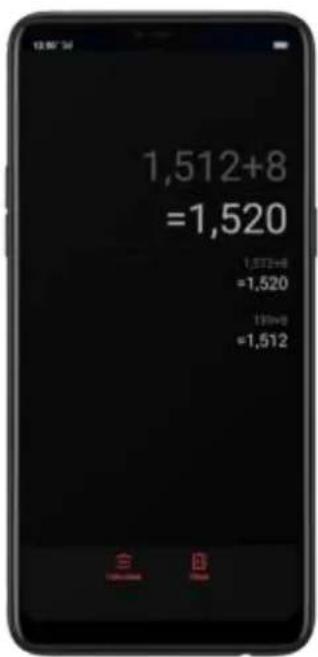
text_image
1,512+8 =1,520 1,512+8 =1,520 139+8 =1,512Copy a calculation result to clipboard. Click the calculation formula.

text_image
12:36:24 1,512+8 =1,520 1,512+8 =1,520 129+8 =1,512 Calculation results copied to clipboardUse the scientific calculator. Rotate your phone to landscape orientation.
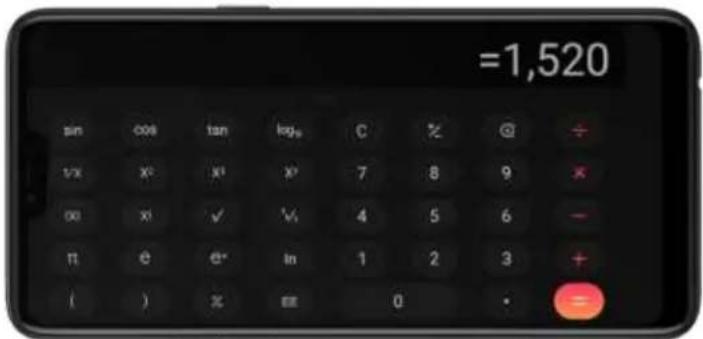
text_image
=1,520 sin cos tan log∞ C % @ ÷ 1/x x² x¹ x² 7 8 9 × ∞ x¹ √ √ 4 5 6 - π e e* in 1 2 3 + ( ) % ≡ 0 • =7.14. Sound Recording
7.14.1. Recorder
With the Recorder app, you can use your phone built-in microphone to record sounds when you need it.
Make a sound recording. Open Recorder, click to start recording. Click to pause or
continue. Click to stop and save the recording.
text_image
12:00:34 00:00:00
text_image
00:00:22 PDC01F8541673488.mai Recording.
text_image
00:00:00 Saved to Phone/RecordingsIf you start the sound recorder and go to another application, the sound recorder continues running in the background. To return to Sound Recorder, click the red bar at the top of the screen.

text_image
Google Calendar Clock Weather Settings Master Midbrain Photo File Manager Tie Photos Manager Video Store Play Zone Hoopin Phone7.14.2.Manage recordings
Play the sound back. Open Recorder, then click
The recordingal
on your phone including general recordings and call recordings. Click a recording to play it back.
text_image
13:00:34 00:00:00
text_image
12:00 14:15 General Recordings Select General Recording Call Recording REC20180416173102.mp3 4/14/2019 00:00:00 REC20180416172553.mp3 4/14/2019 00:00:00 REC20180416172453.mp3 4/14/2019 00:00:27Send, rename or delete a recording. Click Select, choose the recording, then choose an option.
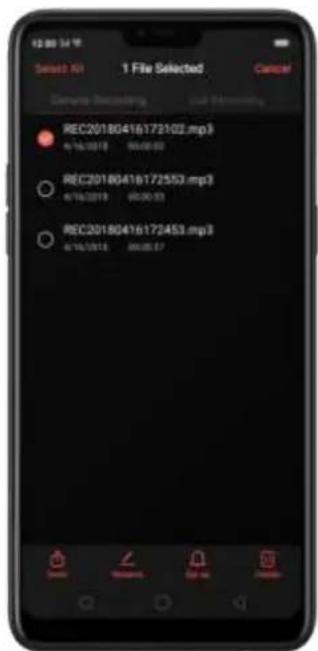
text_image
1 File Selected Cancel Camera Selecting Add Home/My REC20180416172102.mp3 4/16/2018 00:00:00 REC20180416172553.mp3 4/16/2018 00:00:00 REC20180416172453.mp3 4/16/2018 00:00:07Set the recording as ringtones. Click Select, choose the recording, click Set as Ringtone, then set the recording as the call, SMS, alarm or contact ringtone.
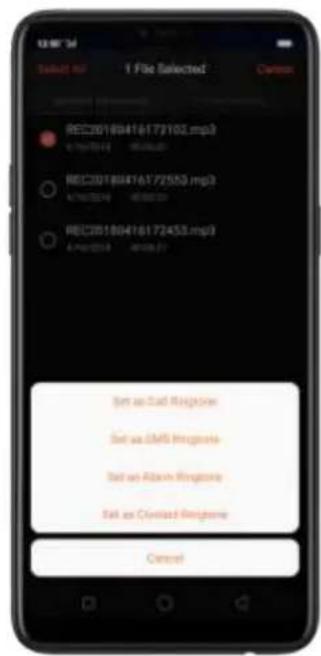
text_image
13:00:34 Default 967 1 File Selected Caption REC20180416173102.mp3 A: 5000000 REC20180416172553.mp3 A: 5000000 REC20180416172453.mp3 A: 5000000 Set as Ctrl Register Set as SMS Register Set as Abain Register Set as Ctrlated Register Cancel7.15. Compass
You can use the compass app to quickly find the direction you're facing.
Calibrate the compass when prompted. Move away from the interference and spin your phone in the pattern of an infinity symbol.
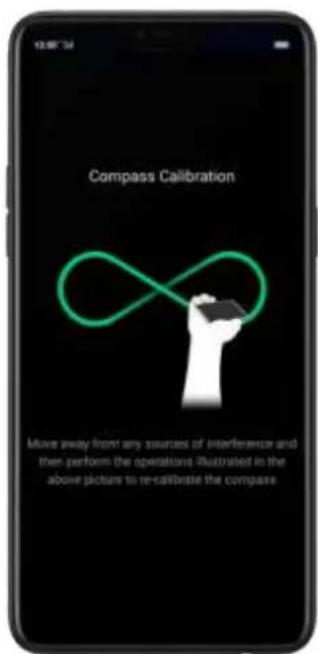
text_image
Compass Calibration Move away from any sources of interference and then perform the operations illustrated in the above picture to re-calibrate the compassFind your direction. Turn on Location Service first, then click Tools folder on the Home screen,
click Compass, and you can quickly find your direction, see your latitude and longitude.
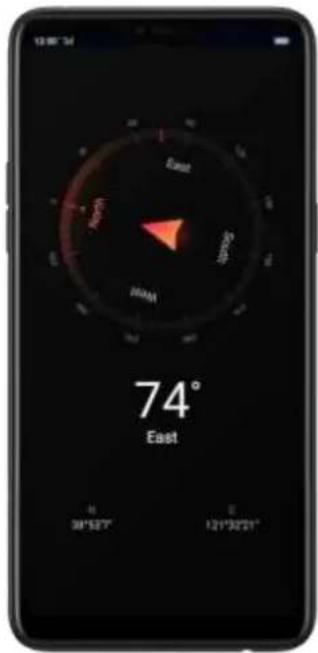
text_image
13:00'34 East North South 80°53'7" 121°32'01" 74° East7.16. Chrome
7.16.1. Search the web
The Browser lets you see webpages just as they were designed to be seen in computer-based browsers. Pinch the screen to zoom in and out; rotate the phone sideways for a wider view. You can also add page icons and bookmarks for quick accesses:
Search the web. Click the icon on the left side of the search bar to change the search engine or website. Click and say whatever you want to search for, or click the search bar, type the content or web address, then click a matching result under the search bar, or click 🔒, or click Go on the lower-right corner of the keyboard.
As you type, any web address on your bookmarks or history list that contains those letters appears below. Click a web address to visit its webpage.

text_image
Deprays to answer publishers Google Create ADP Wikipedia B. Marketing to... Taharon finally shows at SunTrust, Browes beat Phibbes 2-1 3 injured by 8-year-old in Minnesota school brief attack
text_image
Bestu Yahoo Bing DuckDuckGo Amazon eBay IMGb Wikipedia
text_image
Try saying something Google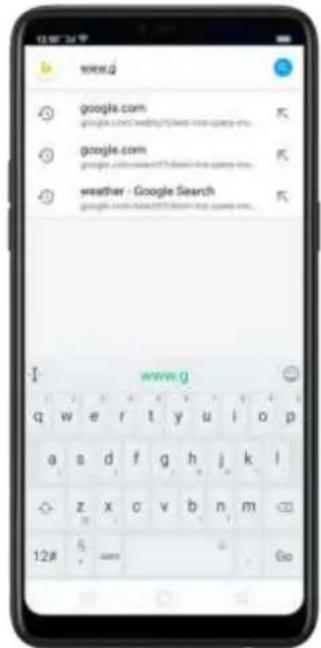
text_image
www.g google.com google.com weather - Google Search 12# 5.0000 GoYou can also click the Google search bar on the Home screen, then type or say whatever you want to search for.

text_image
12:00 24 F Google Calendar Clock Weather Siblings Mission History History File Manager Tax Play Manager Theme Store File Store Explore Search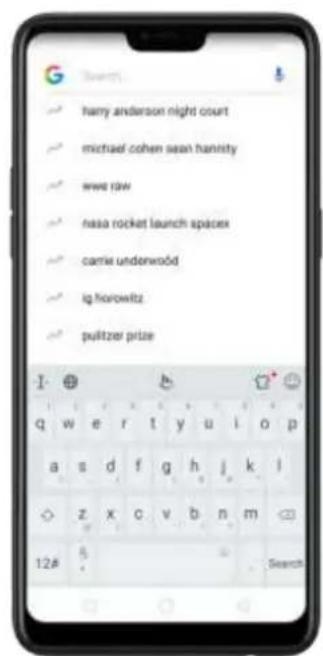
text_image
hamy anderson night court michael cohen sean hanristy www.raw nasa rocket launch spacex carrie underwoód iq horowitz pulitzer prizeErase all the text on the address field. Click the address field, then click Open a suggested article. The browser will suggest several hot topic articles that you might be interested in on its home page. Click an article to view it. To delete
articles that you dislike, click . Scroll to the top of the home page and pull down to refresh the articles.
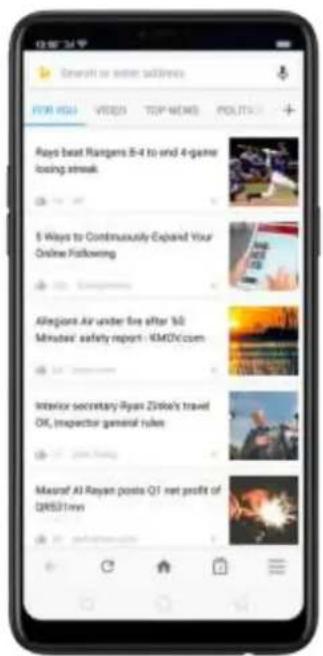
text_image
Rays beat Rangers 8-4 to end 4-game losing streak. 5 Ways to Continuously Expand Your Online Following Allegion Air under live after 50 Minutes' safety report: KMTV.com Interior secretary Ryan Zistke's travel OK, Inspector general rules Maxraf Al Rayan posts Q1 net profit of QRS31mn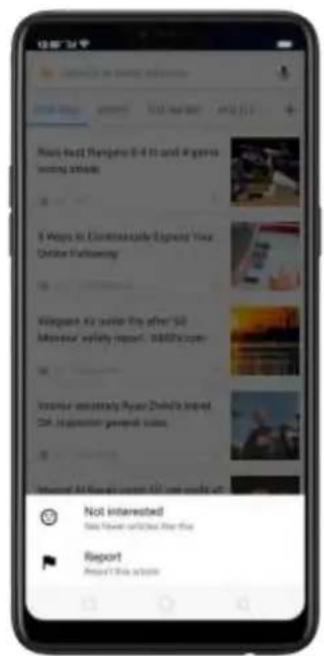
text_image
New Next Hangzhou 8-10 and 4 games working articles. 5 Ways to Continue Square Signing Your Online Following... Wangwan Kit video the after 50 Museum safety report. 36896 copies... Vanone consistently Ryan Zhid's Impact CM: Inception general video... Not interested Get fewer out/just for this Report Present This article
text_image
Search or more details Release by raltport Google Smart Adaptom Wikipedia B + + Booking e... Pays beat Rangers 0-4 to end 4-game using steak 5 Ways to Continuously Expand Your Online Following Allegiant Air under fire after '10 Made in the next week, $125/20007.16.2.Browse the web
View a webpage in widescreen orientation. Swipe up from the bottom of the screen to open Control Center, then turn off [Portrait Orientation Lock]. Rotate the phone sideways. The Browser automatically reorients and expands the page.
text_image
Wiki This article is about the type of website. For other users, we are Wiki (streamlines) "Wikipedia" reviews here. For WikiMode of Wikipedia, we Wikipedia www.wkinfo. For the app for the Apple iPad, we Wikipedia. Play media interview with Irish Courtrighten, investee of the wiki A wiki (/wiki/ (e latest) wiki-ed) is a website on which users collaboratively modify content and structure directly from the web browser. In a typical wiki, best is written using a simplified markup language and often edited with the help of a rich-text editor. A wiki is not under what off-use information.
text_image
Wiki 文A This article is about the type of websites: For other cases, see Wiki (Kuarchiagwate) WikNowal/ Indirects here. For WikiHook of Wikipedia, see Wikipedia Wiknowa. For the apps for the Apple iPod, see WikNowa.Zoom in or out. Pinch to zoom in or out. When you browse a website which has a mobile-specific view that prevents you from pinching in to zoom, you can use the Force enable zoom feature to override the site's demands. Click ≡, click [Settings], then turn on [Force enable zoom]. You can now pinch to zoom wherever you want, whether the website technically supports it or not.
Scroll around the page. Drag up, down, or sideways. When scrolling, you can touch and drag anywhere on the page without activating any links.
Follow a link on a webpage. Click the link. Many images also have links. A link can take you to another place on the web, open another app, call a phone number, and more.
Return to the previous or next webpage. Click or ← at the bottom of the screen.
Return to the Home page. Click .
Reload a webpage. Click
Share a webpage. Click ,click Share, then choose how to send your webpage.
Translate a webpage. When at the foreign language website, click ☐, click Translate, then the browser automatically translates the language to your default language. Translating the webpage takes time, so be patient.
To set your default language, click ≡, click [Settings], then click [Country and language].
Find in page. Click , click Find in Page, enter the text, then the browser will find text matches on the current webpage.
text_image
Play media Interview with Word Cunningham, several of the wiki A wiki (/wicky /e/listen) wiki-end is a website on which users collaboratively modify content and structure directly from the wiki browser. In a typical wiki, text is written using a simplified markup language and often edited with the help of a rich text editor.[1] A wiki is run using wiki software, otherwise known as a wiki engine. A wiki engine is a type of content management system, but it office from most other web engines. q w e r t y u i o p a s d f g h j k l z x c v b n m 12# + com + English (UO) SearchOpen a new tab. Click ☐, then click + to open a new tab.
text_image
en.in.wikipedia.org/wiki/wise WIKIPEDIA Wiki This article is about the type of website. For other users, new Wiki (compartially). "WikiNote" views here. For iViNada of Wikipedia, new Wikipedia #WikiNote. For the app for the Apple iPad, new WikiNews. Play media ideas with Read Cunningham, inventor of Parviki A wiki ("wiki" [e fister] wikv.edu) is a website on which users collaboratively modify content and structure directly from the web browser.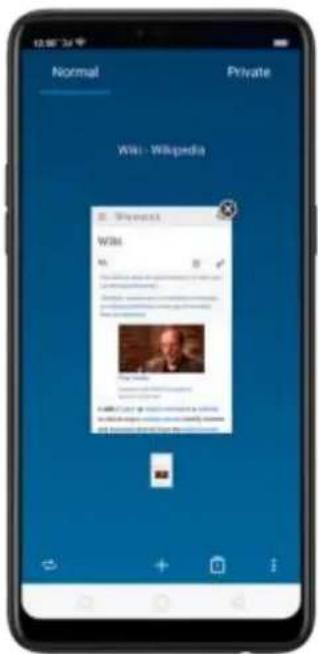
text_image
Normal Private Wiki - Wikipedia Wiki Wiki Wiki Wiki Wiki WikiView all open tabs. If you open three tabs, for example, click , then swipe left or right. To go to another tab , swipe up the tab, then click it. To close a tab, swipe up on the tap, or click . Reopen the last page or close vallvisited
taps, click :and choose an option.
Tip: Save the browsing history of your private tabs.

text_image
Normal Private Speed Dial ESEER NEWS Recycling the fungry within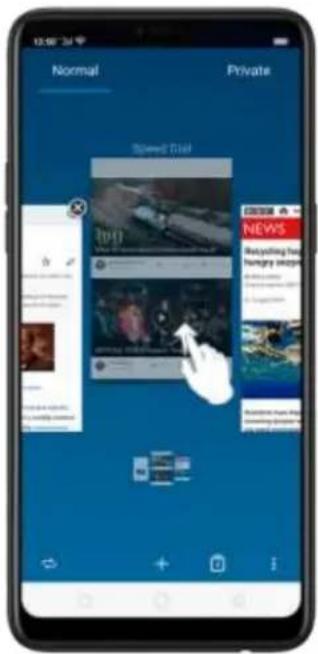
text_image
Normal Private Speed Dial [pp] CRESER NEWS Bestselling for hungry image Starting from the applying to the applying to the applying to the applying to the applying to the applying to the applying to the applying to the applying to the applying to the applying to the applying to the applying to the applying to the applying to the applying to the applying to the applying to the applying to the applying to the applying to the applying to the applying to the applying to the applying to the applying to the applying to the applying to the applying to the applying to the applying to the applying to the applying to the applying to the applying to the applying to the applying to the applying to the applying to the applying to the applying to the applying to the Applying to the Applying To The Applying To The Applying To The Applying To The Applying To The Applying To The Applying To The Applying To The Applying To The Applying To The Applying To The Applying To The Applying To The Applying To The Applying To The Applying To The Applying To The Applying To The Applying To The Applying To The Applying To The Applying To The Applying To The Applying To The Applying To The Applying To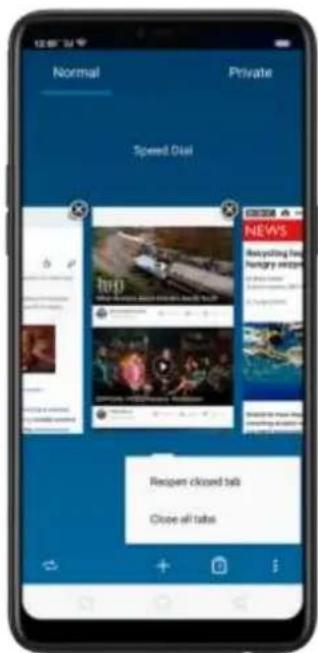
text_image
Normal Private Speed Dial Recipient closed talk Close all talks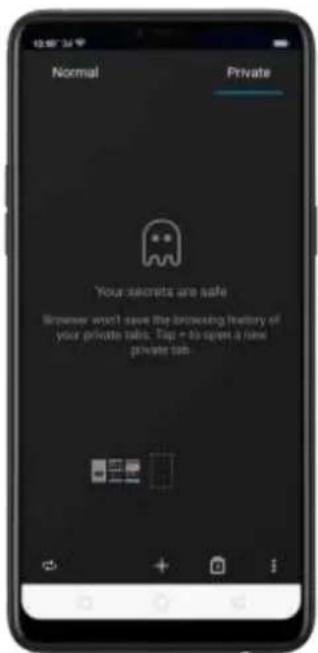
text_image
Normal Private Your secrets are safe Browser won't save the browsing history of your private tabs. Tap + to open a new private tabRequest desktop site. To see webpages just as they were designed to be seen in computer browsers, click ,then enable Desktop site.

text_image
en.m.wikipedia WIKIP Wiki 女 Share Translate Find in page Desktop site Add to Speed Dial Bookmarks Offline pages Home screen Play media Interviews with Wind Cunningham, review of the web A wiki (/vick/v (e) listen) will we) is a website on which users collaboratively modify content and structure directly from the web browser.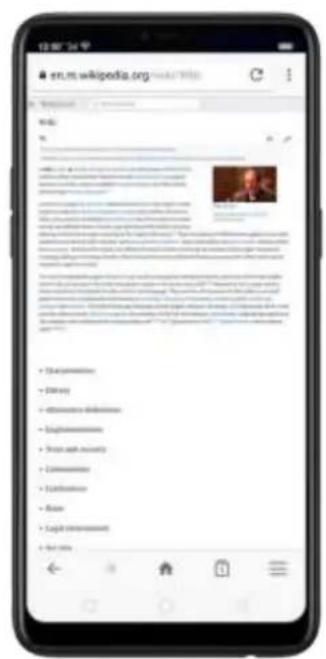
text_image
en.m.wikipedia.org • Plan dimensions • Delivery • Implementation differences • Implementation • Steps with security • Implementation • Implementation • None • Single implementation • For only7.16.3. Quick accesses
You can add webpages to Bookmarks, so that you can quickly return to them at any time without having to type the address. You can also add page icons to the Home screen for quick access, and download the webpages to view them offline.
Add a webpage to Speed Dial. Open the Home page of the Browser, click Speed
Dial, then click .Enter the webpage name and address, then click . You can also open the page and click .Then click Speed Dial.
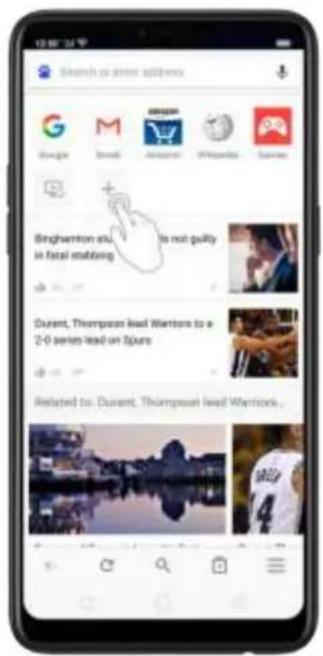
text_image
Search or steer addpress Binghamton situ is not guilty in fatal stabbing Durant, Thompson lead Warriors to a 2-0 series lead on Spurs Related to: Durant, Thompson lead Warriors.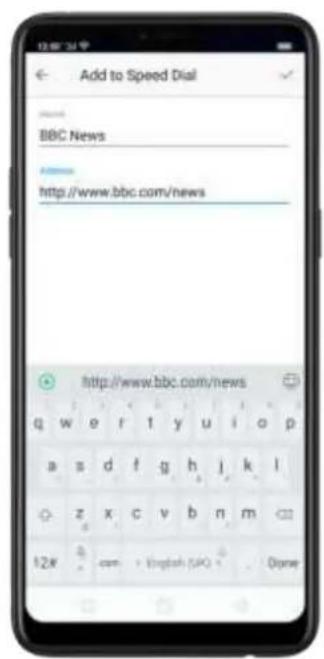
text_image
Add to Speed Dial BBC News http://www.bbc.com/news http://www.bbc.com/news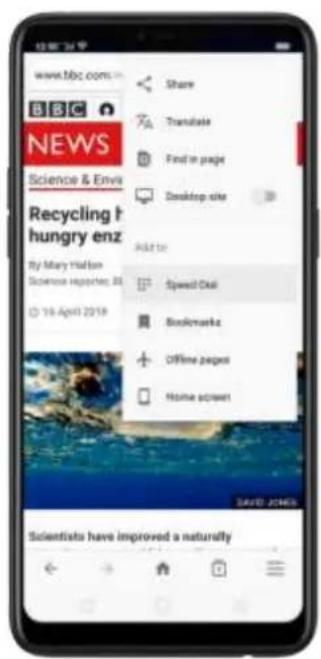
text_image
www.bbc.com BBC NEWS Science & Envis Recycling the hungry enz by Mary Maldon Science reporters: 31 © 19 April 2019 Share Translate Find in page Desktop site Add to Speed! Oki Stockworks Offline pages Home screent Scientists have improved a naturallyBookmark a webpage. Open the page, click , then click Bookmarks, edit its title or choose where to save it, then click OK.
* To manage your bookmarks and folders, click from the webpage screen, then click Bookmarks.
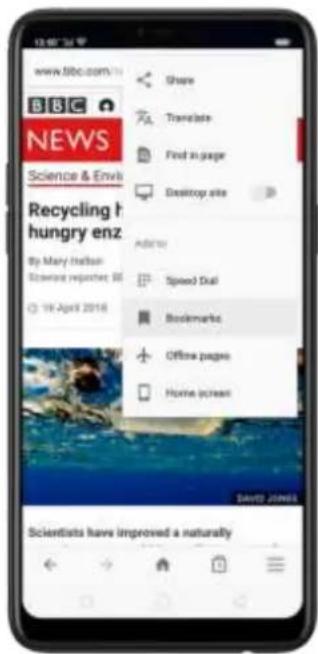
text_image
www.bbc.com/16 BBC NEWS Science & Envi Recycling the hungry enz by Mary Haldon Biosware reparchet: 50 18 April 2016 Share Translate Find in page Desktop site Address Speed Dial Bookmarks Offline pages Home access Scientists have improved a naturally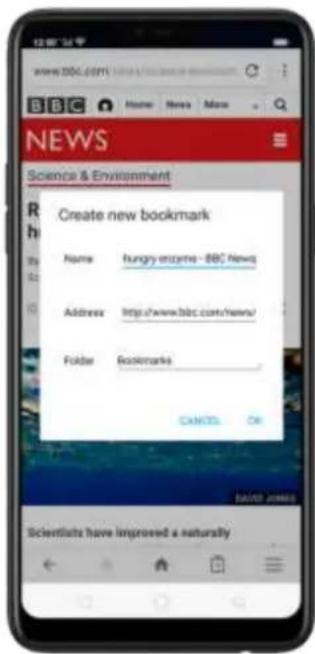
text_image
NEWS Science & Environment Create new bookmark Name hungry enzeme - BBC News Address http://www.bbc.com/news/ Folder Bookmarks CANCEL OK Scientists have improved a naturallySave a webpage for offline reading. Open the page, click, then click Offline pages. To open an offline page, click, click Offline pages, then click a page.
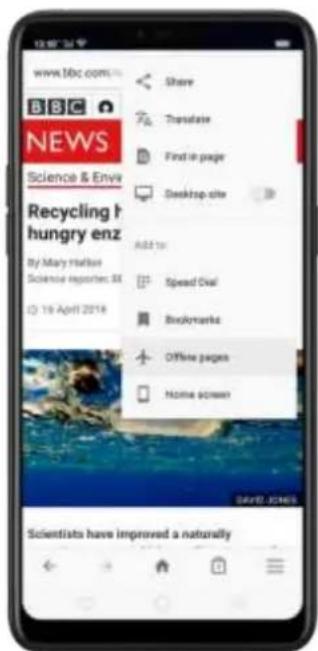
text_image
www.1bc.com.in BBC NEWS Science & Envy Recycling the hungry enz By Mary Mathes Science Reports: 31 © 19 April 2016 Share Translate Find in page Desktop site Add to Speed Dial Bookmarks Offline pages Home screen Scientists have improved a naturally
text_image
Offline pages Recycling hope for plastic-hungry enzyme - BBC News 新经典 NEWSAdd an icon for the current page to your Home screen. Open the page, click :
then click Home screen, edit its title, then click Add.

8. Safety & Privacy
8.1. Device security
8.1.1. Lock screen password
Security on your OPPO smartphone begins at the lock screen. You can set a passcode that will be needed to unlock your phone.
Set, change, or turn off the passcode. Go to [Settings] > [Fingerprint, Face & Passcode]. You can draw a pattern, use a 4-Digit, 6-Digit, or 4-16 Digit Numeric Code or 4-16 Character Alphanumeric Code.
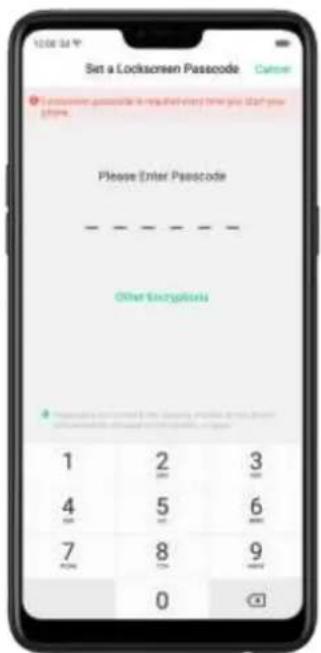
text_image
Set a Lockscreen Passcode Please Enter Passcode Other Encryption 1 2 3 4 5 6 7 8 9 0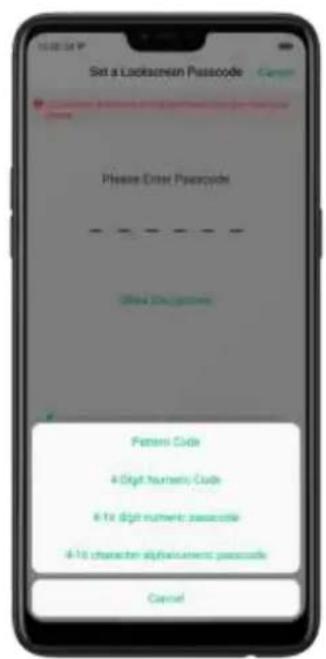
text_image
Set a Lockscreen Passcode Please Enter Passcode Open All-Systems Passer Code 4 Digit Numbers Code 6-16 Digit numeric passcode 4-16 character displacement passcode CancelAdd a fingerprint. Before you can add a fingerprint, you need to create a passcode. You can use the fingerprint to unlock the phone. You can add up to 5 different fingerprints on your phone.
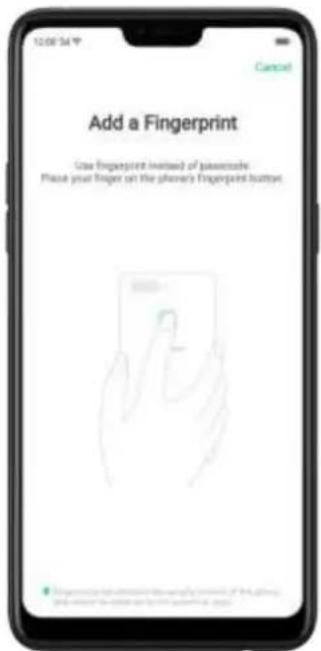
text_image
Add a Fingerprint Use fingerprint instead of manoeuvre Please your finger on the plenary's fingerprint button
text_image
Place Your Finger on the Sensor Place your Finger on the fingerprint button and then drive it away. Repeat this step.Enroll face. Before you can enroll a face, you need to create a passcode. You can use the face to unlock the phone instead of the fingerprints or passcode. You can enroll only one face on your phone.
View more about setting a passcode, face ID and fingerprint on your OPPO phone, see Fingerprint, Face and Passcode.

text_image
Please keep your face displayed at the circle until the enrollment is done.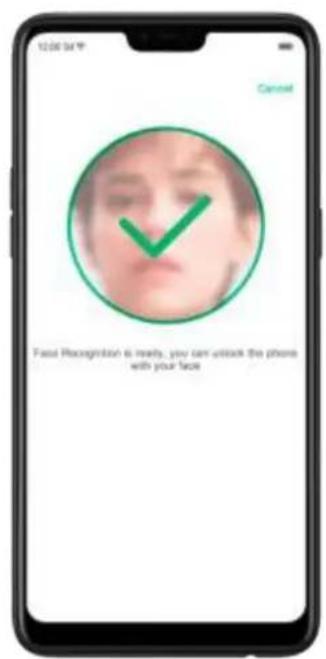
text_image
12:00 PM Cancel Face Recognition is ready, you can unlock the phone with your face8.1.2. Smart Lock
Smart lock is an easy and handy way to gain access to your phone.
Turn on Smart Lock options. Go to [Settings] > [Additional Settings] > [Device & Privacy] > [Smart Lock], then enter your phone passcode.
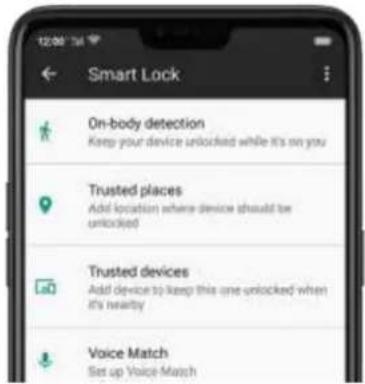
text_image
Smart Lock On-body detection Keep your device unlocked while it's on you Trusted places Add location where device should be unlocked Trusted devices Add device to keep this one unlocked when it's nearby Voice Match Set up Voice Match- On-body detection. Once enabled, your device will be kept unlocked while it's with you, like when you are holding it or carrying it. Your device will lock when it detects that it's been set down, like putting it on the table or is away from your body.
-
Trusted places. If you have added trusted places, your device will be kept unlocked when it's nearby those areas. For example, if you have added your home as a trusted place and you're away from your house the device will be kept in unlocked mode.
-
Trusted devices. If you have added trusted devices, for example, your Bluetooth watch, your car's Bluetooth system, when they are connected, your device will be kept in unlock mode. (Note: Bluetooth connections have a range of up to 100 meters.)
- Trusted voice. Say "OK Google" and save it on your Google account. When you say "OK Google" the next time, your device will be unlocked once it recognizes your voice.
Note: When Smart Lock is on, your phone will remain unlocked if you're carrying the phone, which will quickly drain your phone's battery. This will also lead to accidental commands if you put the phone in your pocket. Therefore, if you want to use Smart Lock, use it wisely and properly.
8.1.3. Payment protection
While you shop online, your OPPO phone will provide protection for the mobile transactions, such as detecting the system, captcha and, app security. You can see the detected information of the current payment environment on the uapper-right corner of the screen.
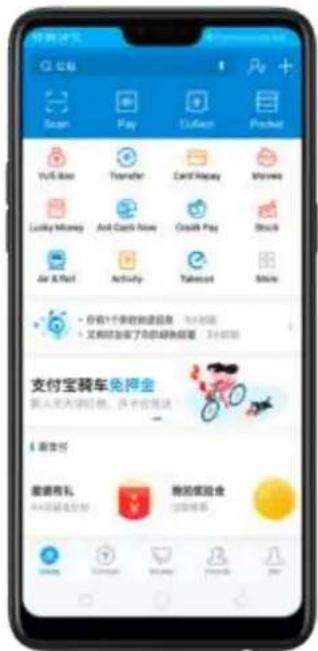
Set up payment protection for apps. Go to [Settings] > [Security] > [Payment Protection]. Your phone alerts you if risks exist, or it will say "Safe to Pay". Click View and do as what the phone prompts to remove the risks.
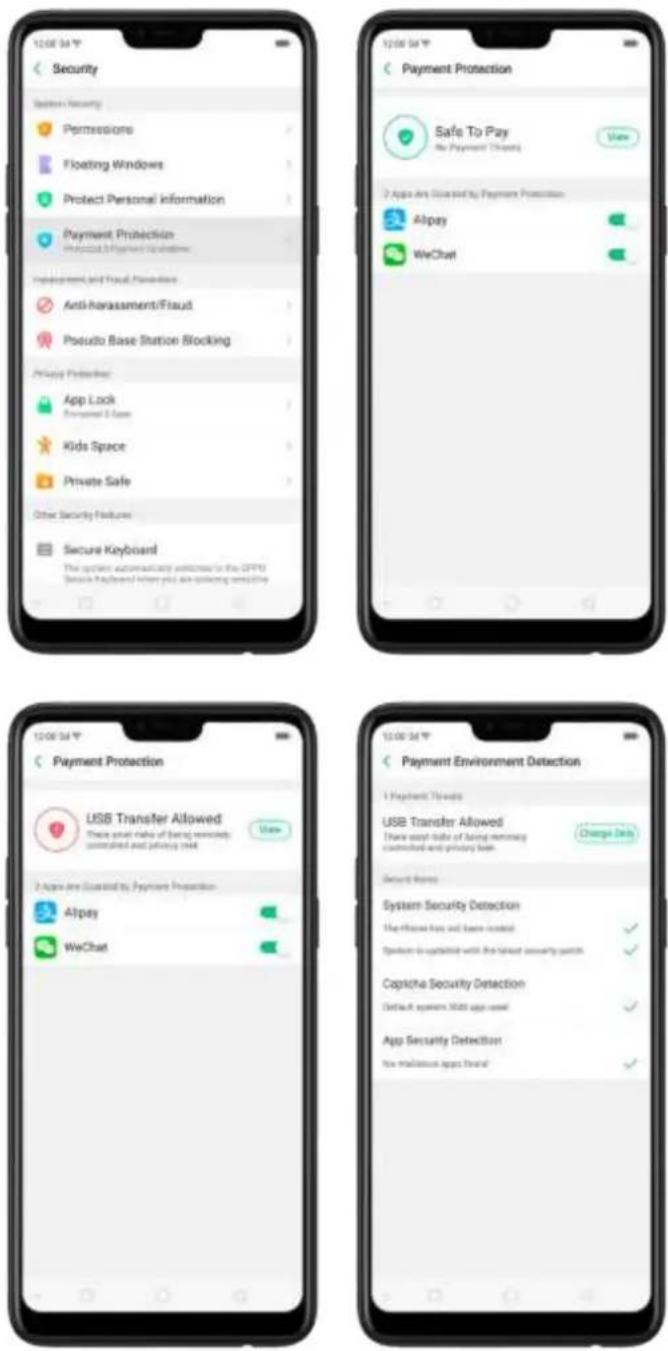
text_image
12:00:34 Security Sunknown Security Permissions Floating Windows Protect Personal Information Payment Protection Protected Payment Operations Impairment and Fraud Preferences Anti-harassment/Fraud Pseudo Base Station Blocking Privacy Protection: App Lock Environment 3 Space Kids Space Private Safe Other Security Features Secure Keyboard The system automatically aversion to the CPPG Secure Portfolio/Where you are spinning alongside 12:00:34 Payment Protection USB Transfer Allowed There are what make of being necessary. completed and privacy 1944 View 2. Apps are located by Payment Protection Alpay WeChat 12:00:34 Payment Environment Detection 1 Payment Threats USB Transfer Allowed There must take off taking memory constructed and privacy both Change Daily Security Items System Security Detection Use other tools and hardware used Speak to update with the latest security switch Copythe Security Detection Default system SMS app used App Security Detection Now additional apps saved8.1.4. Set up a SIM card lock
For better security, you can set up a SIM card lock. The SIM lock will make sure that only those who know the password can use the phone.
Set up a SIM card lock. Go to [Settings] > [Additional Settings] > [Device & Privacy] > [Set up SIM card lock]. Click the slider next to Lock Sim Card, type in the PIN code and then click OK.
Note: If the wrong PIN is entered more than three times, both your SIM card and phone will be locked. You can enter the PUK code to unlock them. See About SIM
card PIN & PUK code
Change the SIM card PIN code. Click Change SIM PIN, type in the current PIN code, click OK. Then you can type in the new PIN code, click OK, retype your new PIN code when prompted, then click OK.

text_image
Old SIM PIN New SIM PIN Re-type new PIN8.1.5. Virus Scan
For better security, you should regularly scan and remove potential and actual threats to your phone.
Scan for virus. Click Phone Manager, then click Virus Scan. Wait for the scan to complete. If threats were found, remove them; if not, you will see a message that says your phone is in a good state.
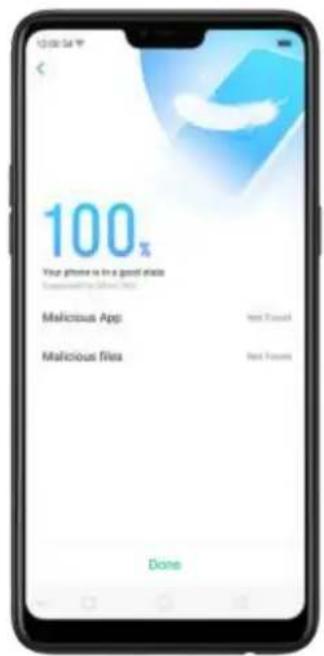
text_image
100% Your phone is in a good state Connected by: (8/26/2014) Malicious App: Next Forward Malicious files: Next Future Done8.1.6. Pseudo Base Station Blocking
Your phone might receive many spam messages (including investment advice, promotional messages, and more), or be infected by mobile viruses sent from the pseudo base stations. When these stations are identified, your phone will automatically block the information sent by them, thus safeguarding your property and securing your information.
Block pseudo base stations. Go to [Settings] > [Security] > [Pseudo Base
Station Blocking] and you will see a list of pseudo base stations if they are identified and blocked by the phone.

text_image
Security System Security Permissions Floating Windows Protect Personal Information Payment Protection Preensions / Payment Restrictions Reimbursement and Fraud Prevention Anti-harassement/Fraud Pseudo Base Station Blocking Privacy Palestine App Lock Disordered & Baby Kids Space Private Safe Other Security Features Secure Keyboard The system automatically switches to the OFFIC Secure Keyboard when you are missing activities Pseudo Base Station Blocking Please focus stations on file base directories, designed on base certificate of formal clients. They are used by manuals to send fraud/bank messages and admin/termers to promote via account/number and save quick links. No Pseudo Base Station Blocking Records8.1.7. Protect Personal Information
Apps automatically read your personal information to access restricted functions, while most of these information are sensitive, such as call history, contacts, messages, and calendar events; some apps will probably engage in malicious activities like uploading or exposing your private data and monitoring your activities. By using this feature, when an app tries to read information that it needs, your phone will provide empty information instead of what you really have, which helps you protect your privacy.
Protect your call history, contacts, messages, and events. Go to [Settings] > [Security] > [Protect Personal Information], then choose an option. You will see a list of apps that require the certain information. If you don't want to give an app your real information, switch the app slider to green, then click [Turn on feature]. Your phone will then provide empty information.
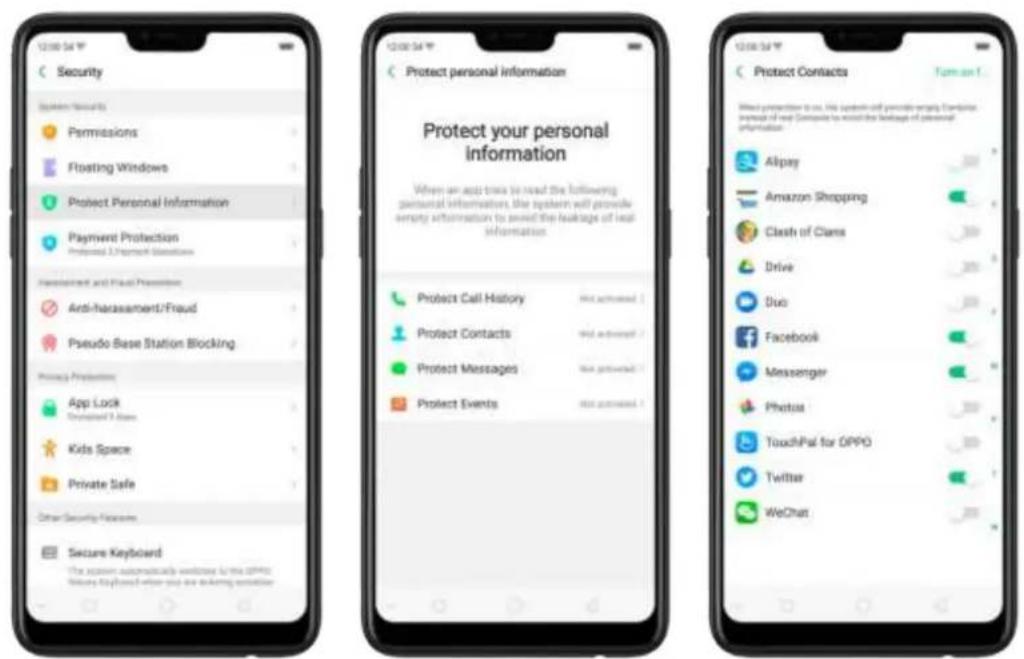
text_image
Security Open Security Permissions Floating Windows Protect Personal Information Payment Protection Preferred 3/Payment Glations Development and Fraud Promotion Anti-harassament/Fraud Pseudo Base Station Blocking Privacy Protection App Lock Protected 2 Items Kids Space Private Safe Other Security Features Secure Keyboard The system automatically switches to the OPPO. Fixtures like phone when you are seeking aversion Protect personal information Protect your personal information When an app tries to read the following personal information, the system will provide empty information to avoid the leakage of local information: Protect Call History Not activated Protect Contacts Not activated Protect Messages Not activated Protect Events Not activated Protect Contacts Toman 1. Wheat protection is on. This system will provide empty content in a way. Complete to avoid the leakage of personal information. Alipay Amazon Shopping Clash of Clans Drive Duo Facebook Messenger Photos TouchPal for OPPO Twitter WeChat8.2. Device administration
8.2.1. Allow and install apps from unknown sources
By default, you are not allowed to install apps outside the official Play Store on your OPPO phone - unless you have allowed your phone to do that.
If you run an APK on your phone without first enabling the feature, you will see the following on your screen.
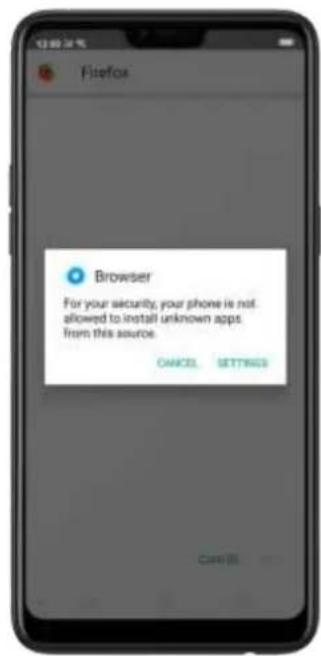
text_image
Fisefice Browser For your security, your phone is not allowed to install unknown apps from this source. CANCEL SETTINGSInstall apps from unknown sources. Go to [Settings] > [Additional Settings] > [Device & Privacy] and click [Apps Installed from Unknown Sources]. Here are sources you can download or receive apps other than Google Play Store to your phone.
Switch the sliders to green if you want to install apps from these sources. For example, if you want to install apps downloaded from your browser, then enable Browser.
Note: Installing apps from unknown sources means that you are now responsible for your phone's safety. Don't ever install any apps unless you are absolutely sure that it is not a malware.

text_image
Device & Privacy SERVICE SECURITY Security Locks Security Security Google Play Project App store yesterday at 31:48 Find My Device My Google account to their devices Security update February 5, 2019 GROWPTION AND LOCKING Set up SIM card lock Show password Show display password characters when they are being pressed in the password lists App installation App installed from unknown NOTES Device password.txt Device Manager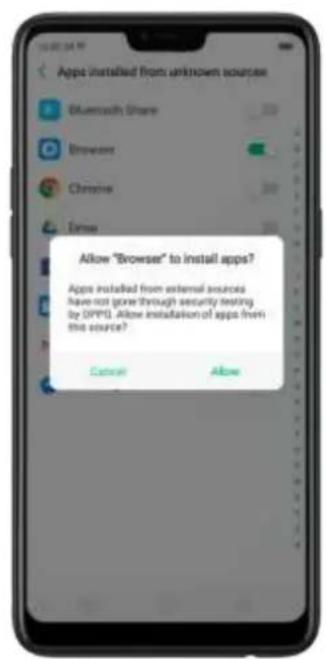
text_image
Apps installed from unknown source Bluetooth Share Browser Chrome Error Allow "Browser" to install apps? Apps installed from external sources have not gone through security testing by OPPG. Allow installation of apps from this source? Cancel Allow8.2.2. App permissions
Every application installed on your OPPO smartphone may require certain data or access to your phone's other features (mic, camera, etc.). To check and manage what an app is trying to access, do the following:
Check all permission details. Go to [Settings] > [Security] > [Permissions]. You will find all the permission categories on your phone. Click "Apps" to view apps installed on your phone and the permission groups an app has.

text_image
12:00:54 Security System Security Permissions Floating Windows Protect Personal Information Protected 1. Active of Personal Information Payment Protection Protected 2. Payment Operations Implementation and Privacy Provider Anti-harassment/Fraud Pseudib Base Station Blocking Privacy Properties App Lock Settlement 7 Area Kids Space Private Safe Other Security Features Secure Keyboard This system automatically covers this IP36.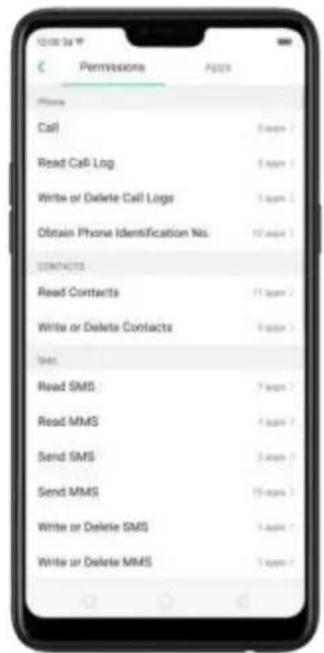
text_image
12:00:34 C Permissions Apps Phone Call 5 apps Read Call Log 5 apps Write or Delete Call Logs 5 apps Obtain Phone Identification No. 12 apps CONTACTS Read Contacts 11 apps Write or Delete Contacts 9 apps Sales Read SMS 7 apps Read MMS 4 apps Send SMS 3 apps Send MMS 16 apps Write or Delete SMS 5 apps Write or Delete MMS 9 apps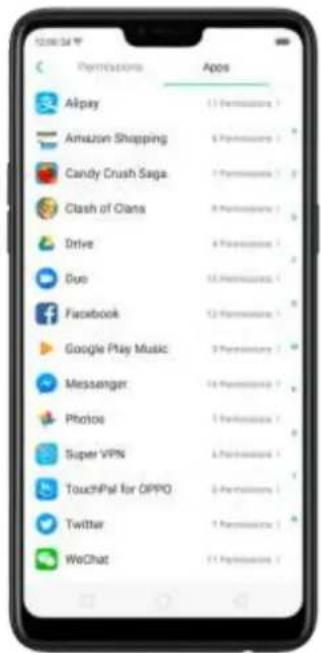
text_image
Airpay Amazon Shopping Candy Crush Saga Clash of Clans Drive Due Facebook Google Play Music Messenger Photos Super VPN TouchPal for OPPO Twitter WeChat Apos 13 Permissions 6 Permissions 7 Permissions 8 Permissions 4 Permissions 12 Permissions 12 Permissions 9 Permissions 14 Permissions 5 permissions 5 permissions 5 permissions 5 permissions 5 permissions 5 permissionsChange the permission. You can go through each permission or app on your phone and, with full control, allow, forbid or limit each permission according to your requirements.
- Allow: Always allow the app to use the required permissions.
- Forbid: Disable the required permissions completely for the app.
- Ask: Every time you start the app, it asks you to grant the permissions that are required.
8.2.3. Hide Home screen icon
Without deleting the app from your phone, you can simply hide the app icons from view if you want to quickly hand in your phone off- to someone else and don't want them having access to the personal data contained within some apps.
Before you can hide Home screen icons, you must encrypt the apps first.
Hide Home screen icon. After encrypting the apps, do the following:
- Go to [Settings] > [Security] > [App Lock], then enter the verification passcode to enter the App Encryption screen.
- Click an app, turn on [Start Passcode Verification], then turn on [Hide Home screen icon].
- A pop-up message will display on the screen to ask you to set an access number. You can open the hidden applications by dialing the number. This message will only pop up when you use the hidden feature for the first time. Click Set Access Number.
- Set a number that contains one of six characters, then click Done.
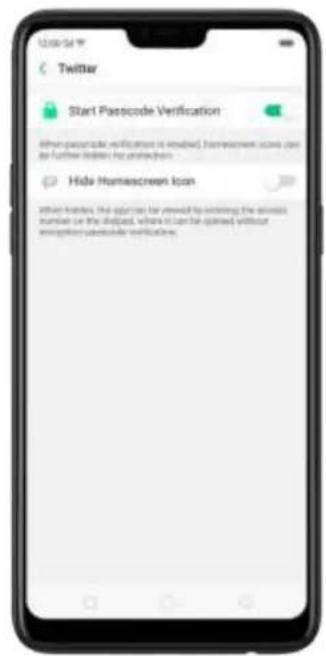
text_image
Twitter Start Plasocode Verification Other placeholder verifications is resolved, homescreen scores are for further hidden list attachments. Hide Homescreen Icon Other headers, the origin can be viewed by ordering the answers. Number on the layout, where it can be ignored without remiping plasocode verifications.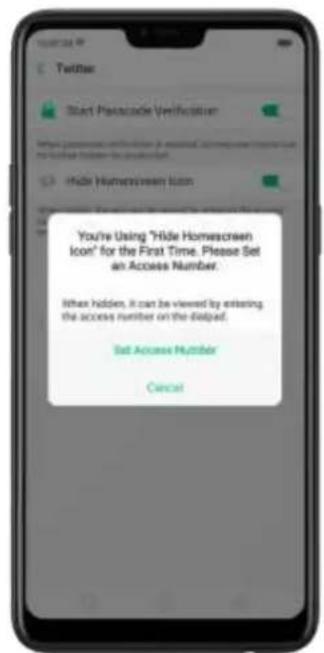
text_image
You're Using "Hide Homescreen Icon" for the First Time. Please Set an Access Number. When hidden, it can be viewed by entering the access number on the helpad. Set Access Number Cancel
text_image
1234567890# File access number in 1234567890#- You can also set the hidden app not to display in Recent Tasks, or disable its notifications.

text_image
13:00:34 °F Twitter Start Passcode Verification When passcode verification is enabled, homescreen icons can be further hidden for protection Hide Homescreen Icon Don't Display in Recent Tasks Don't Display Notifications What listen, the app can be viewed by entering the access number on the displayed, where it can be opened without encryption passwords verification. Apps that are not displayed in recent tasks can be cleaned in the background using the new tag cleaning function.Open hidden apps. Click Phone, click the keypad to enter your access number, then the Hidden Apps folder will pop-up.
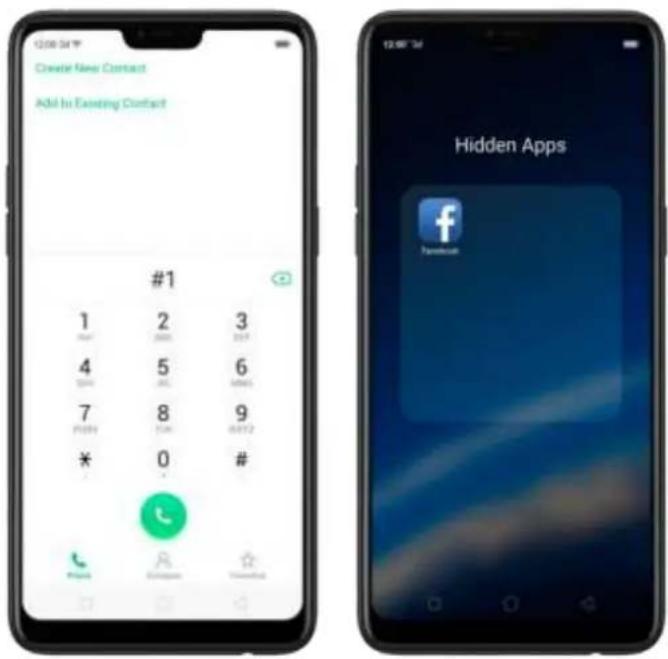
text_image
12:08:54 Create New Contact Add to Existing Contact #1 1 2 330#
4 5 67 8 9
FOSO 1AM 00:12 * 0 # Hidden Apps FacebookNote:
- You can override encryption passcode and open hidden apps directly by dialing the access number.
- lose busing then't displayed in Recent Tasks can be one-tap cleanup function.
- Access number can be set only once when you use the hidden feature for the first time. If you forgot the number, reset the phone to its factory settings to reset the number.
8.2.4. Kids Space
With Kids Space, parents can set limits especially for the children's use of the phone, such as setting up phone usage time and apps that are allowed to be accessed. It does a good job in charge prevention, system modification, and addiction prevention when your kids use the phone.
Set up Kids Space. Go to [Settings] > [Security] > [Kids Space]. Select the apps your kids can access, set how long they can use the phone, and choose whether to use cellular data, then click Enter Kids Space.

text_image
12:00:34 Security System Security Permissions Floating Windows Protect Personal Information Protected / Non-Of Personal Information Payment Protection Protected / Payment Options Impairment and Fraud Prevention Anti-harassment/Fraud Pseudo Base Station Blocking Privacy Projection App Lock Embedded 2 space Kids Space Private Safe Other Security Features Secure Keyboard File system automatically interfaces to the (2019) 12:00:34 Kids Space Duration allowed for each use Apps Allowed to be Accessed Turn Off Cellular Note from above all Kids Space Challor Preview(s) • Download games to code kids smoking charges like skills in messages • Review or filter usage Public System Modifications • Public square settings modification • Accept app notification and approval Ambition Preview(s) • Limit available apps • Use phones using them You can add your label to which for kids space is "No Preference" status - Quick switch warning. Enter Kids Space 12:00:34 Canary Music Phone WOMY WPS Office Get Kids SpaceQuit Kids Space. When the duration of time you set ends, your phone will alert you and lock the screen after 30 seconds, or you can quit Kids Space at any time by clicking Quit Kids Space at the bottom of the screen. Input your fingerprint or lock screen passcode to return to the normal mode.
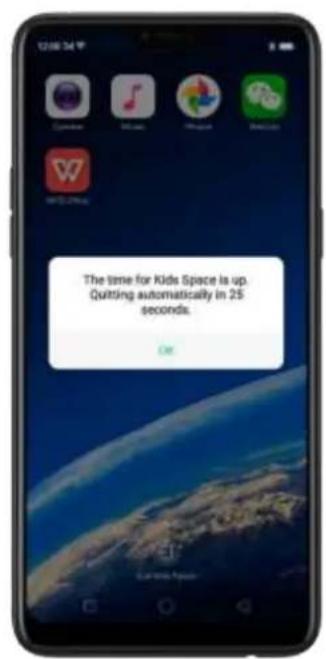
text_image
The time for Kids Space is up. Quitting automatically in 25 seconds.
text_image
Smartphone home screen displaying app icons including Zanwei, Music, Huawei, and WeChat with a globe background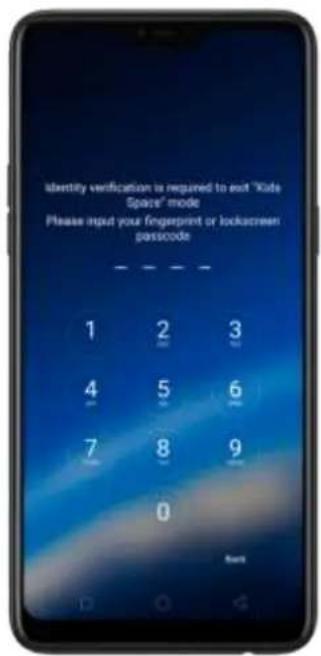
text_image
Identity verification is required to exit 'Kids Spaces' mode Please input your fingerprint or lockscreen passcode 1 2 3 4 5 6 7 8 9 0 OK8.2.5. Block unwanted calls and messages
Block feature helps you to prevent unwanted phone calls and messages from reaching you. You can also add numbers to blacklist or to block specific phone numbers, or add numbers to whitelist to allow their calls to come through all the time.
Block calls and messages. Go to [Settings] > [Security] > [Anti-harassment/Fraud], or go to [Settings] > [Call] > [Block], or go to [Settings] > [Messages] > [Block].
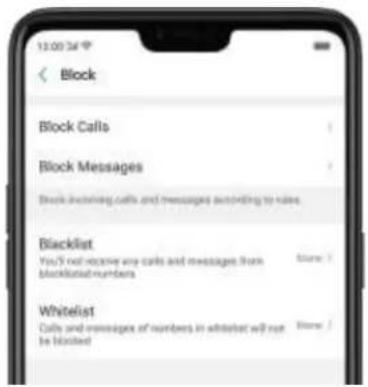
text_image
13:00:34 Block Block Calls Block Messages Block receiving calls and messages according to values. Blacklist You'll not receive any calls and messages from blacklist members Whitelist Calls and messages of members in whether will not be blocked- Block Calls: Choose the options available for blocking incoming calls. See Block calls.
- Block Messages: You can block all unknown messages, or block specific spam messages by entering the keywords.
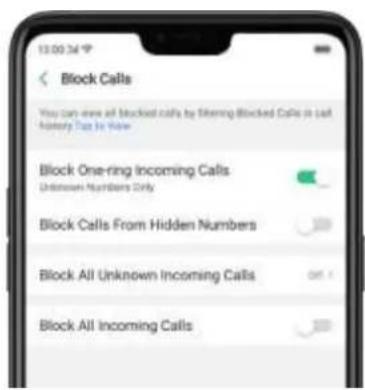
text_image
13:00:34 Block Calls You can store all blocked calls by filtering blocked Calls in last memory due to Now Block One-ring Incoming Calls Unknown Numbers Only Block Calls From Hidden Numbers Block All Unknown Incoming Calls Block All Incoming Calls
text_image
Block Messages View all blocked messages by selecting 'Blocked messages' in messages. Top to View Keywords for Spam Messages None > Block: Messages From Unknown No.Add a contact or a phone number to the blacklist. Click Blacklist, click Add, then enter the number or choose your contacts. Or open a caller's contact card in Contacts, then click Add to Blacklist.
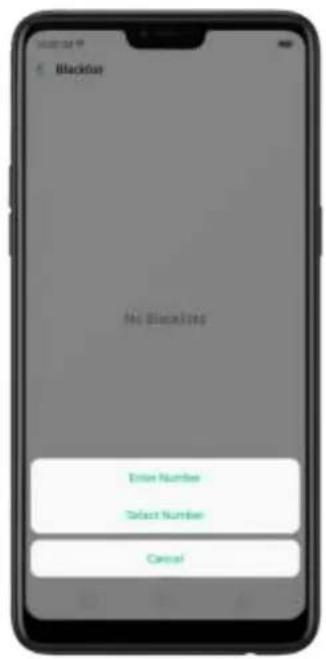
text_image
No BlackBox Error Number Select Number Cancel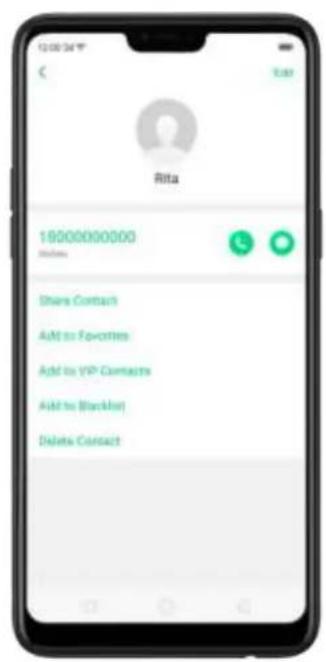
text_image
16000000000 Shares Share Contact Add to Favorites Add to VIP Contacts Add to Blacknet Delete ContactAdd a contact or a phone number to the whitelist. Click Whitelist, click Add, then enter the number or choose your contacts. Calls and messages from these numbers will not be blocked.
8.2.6. Find my device
In the event that your phone is lost or stolen, you can use Google's Find My Device to locate, lock or factory wipe your phone. You need to sign in your Google account and turn on Location Service on your phone.
Activate and use Find my Device. Go to [Settings] > [Google] > [Security] and
click Find My Device. Switch the slider to blue. To use Find My Device, you can click Find My Device to download the app, or click Web or Google to direct you to "Find my phone" webpage.

text_image
Google Device (minutes) (min) Device phone number Google Fit Instant Apps Location Nearby Restore contacts Search Security Set up nearby device Set up work profile Smart Lock for Passwords Security Find My Device Find My Device Randomly local this device Security Status Google Play Protect Apps stored at 12:15 Find My Device On Ways to locate your Android Device Find My Device Open App Web Visit android searchlist Google Search "Find My device" Find My Device helps you locate this device temporarily. It also helps you keep your data safe, if the device is lost- Remotely locate this device. The phone's geographic location will appear in the search results, along with an option to help relocate it.
- Play sound. Let the phone play a loud tone continuously at full volume for five minutes even if you turned the ringer off.
- Allow remote lock and erase. If you believe your phone has been stolen, use this feature to remotely lock your phone and erase the entire data saved on the phone so that no one can access it.

text_image
Find My Device Oppo CPH1819 in your Heart 100% OPPO PLAY SOUND > ENABLE LOCK & ERASE >8.3. Privacy
8.3.1. Location Service
Apps like Maps, Weather and Compass must know your exact position before it can provide accurate services and results.
Turn on Location Service. Swipe down from the top of the screen to open Control Center, then click 🔔. You can also go to [Settings] > [Google] > [Location] and toggle the slider to green.
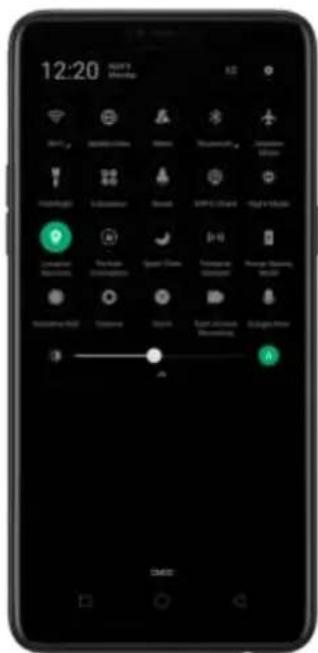
text_image
12:20 OK!? Cancel
text_image
Location Information Location Service POSITIONS NAME High Accuracy Use GPS, AT-FT (Microsoft), or available networks to determine location Low Power Consumption Use WiFi, Bluetooth or cable network to determine location Device Only Use GPS to determine locations RECEIVED LOCATION RESULTS MTK NLP Service Low power colourisation POSITIONS AND CONTENTS Apps That Use GPS in the Background Location services Google Location History Google Location SharingYou can choose from three types of positioning modes, which differ in accuracy and battery drain:
- High accuracy (GPS, Wi-Fi, Bluetooth, and mobile network).
- Battery saving (Wi-Fi, Bluetooth, and mobile network).
- Device only (GPS).
A history of recent location requests. You'll see a list of apps that have requested location. Click an app to enter the App info page that allows you to manage the app directly.
Apps that use GPS in the background. Turn the slider to green if you allow the app to use GPS in the background. Keeping background GPS of the apps active may drain the battery significantly.

text_image
13:00 24 P Apps That Use GPS in the Background Turning it off is recommended. System power consumption will increase when it is sorted on Google Play Music Photos FacebookGoogle Location service
Use Google Location History to retrace your steps. Google Location History will customize search results for location and search history.
Use Google Location Sharing to share your locations with friends and contacts in real time.
8.3.2. Join User Experience Project
"User Experience Project" is a continuous plan to improve OPPO products, features, and services. You are free to decide whether to join the project or not. If you agree to join, we will collect the related data of your usage to OPPO products, features, and services, then conduct research and analysis of these information to provide you a better user experience. We will not collect any of your private information in this process.
Join User Experience Project. The first time you switch your OPPO phone on, it will prompt you to join User Experience Project, or you can go to [Settings] > [Additional Settings] > [Device & Privacy] and switch [Join "User Experience Project"] slider to green.
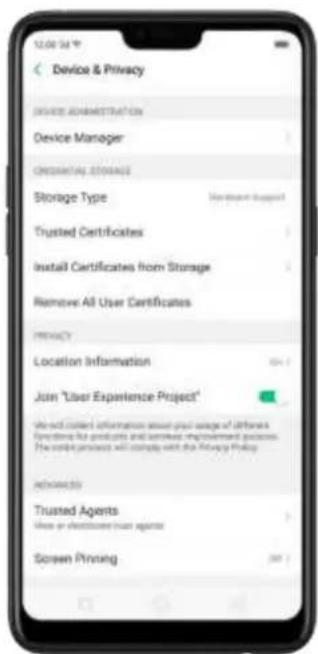
text_image
Device & Privacy DEVICE ADMINISTRATION Device Manager ORIGINAL STORAGE Storage Type Trusted Certificates Install Certificates from Storage Remove All User Certificates PRINACY Location Information Join "User Experience Project" We will collect information about your usage of different functions for products and store improvement processes. We create processes will comply with the Privacy Policy. Advanced Trusted Agents View or displayed user agents Screen Printing8.3.3. Privacy Protecting and Security Warning
The phone provides several measures in place to protect your privacy and security.
Privacy protecting
When you're typing with Secure Keyboard, viewing Private Safe, or using other privacy-related features, you will not be able to capture or record the screen. If you try to capture the screen, the phone will alert you "Cannot capture screenshot. The
page contains personal information." If you try to record the screen, you will only record a black screen.
Security warning
Some Android malware can spy on your activities in the background, and can take pictures or make recordings without notifying you, resulting in leaking of the information. With Security Warning function, your phone will remind you every time the malware performs these activities.
Prevent apps from taking pictures in the background. A warning window will pop up on your phone screen.
Prevent apps from making recordings in the background. If any app starts the sound recorder, the status bar turns red.
8.4. Advanced
8.4.1. Screen pinning
Screen Pinning temporally restricts the user from leaving the task or being interrupted by nocaons. Once your app activates Screen Spinning, your phone is restricted to only display interface of this app, you cannot see nocaons, access other apps, or return to the Home screen, until your app exits this mode.
Acvate screen pinning
Go to [Settings] > [Additional Sengs] > [Device & Privacy], scroll to the boom of the screen and turn on [Screen Pinning].
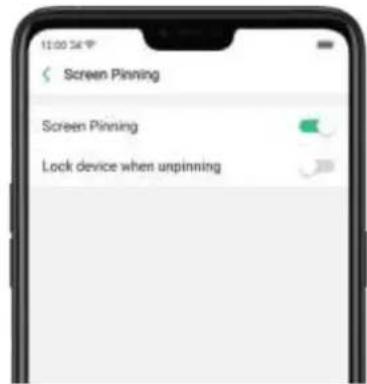
text_image
11:00:34 P Screen Pinning Screen Pinning Lock device when unpinningOpen the app you want to pin and click the Overview/Menu button ☐ to access the multasking tray. You can nd the pushpin icon on the app preview interface. Click the icon to pin this app to your phone screen.
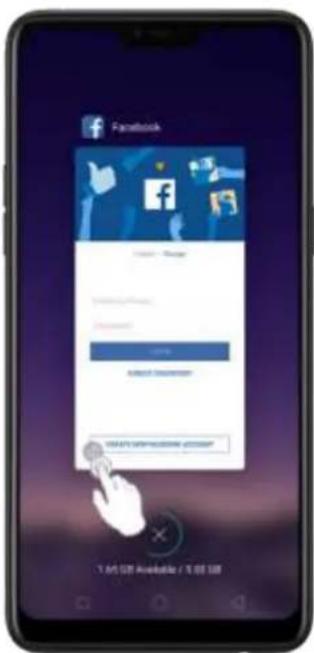
text_image
Facebook I'm not available / I'll be 100
text_image
This phone is restricted to only display interfaces related to "Facebook" To fill the restrictions and return to normal use, please press and hold the multi-task shortcut key. OK FOROUT NAME/ORDER? CREATE NEW ACCOUNT ACCOUNT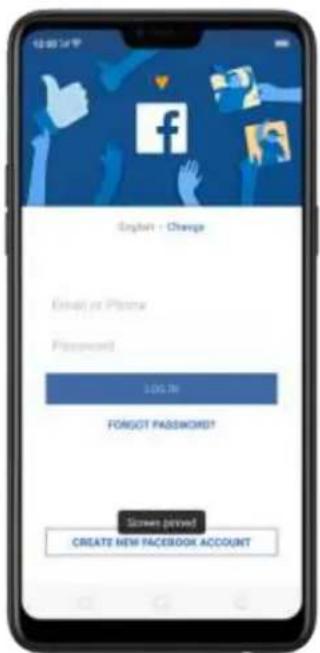
text_image
English - Change Email at Ptoona Password 100.36 FANGOT PASSWORD! Senses saved CREATE NEW FACEBOOK ACCOUNTUnpin the screen. Touch and hold the Overview/Menu button until you see "Screen unpinned". If you want to lock the phone screen directly when unpinning the screen, switch the [Lock device when unpinning] slider to green.

text_image
Screen Pinning Screen Pinning Lock device when unpinning9. Share Internet connection and files
9.1.1. Tether your phone's Internet connection
Using tethering can make you share your phone's Internet conneccon with several devices, such as your computer, tablet or other gadgets. Tethering works when your phone is connected to the Internet via mobile data or Wi-Fi network.
Turn your phone into a personal hotspot.
- Go to [Setngs] > [Other Wireless Connecons] > [Personal Hotspot], then switch the slider to green.
- Set the hotspot name and password.
- On another device, choose your hotspot from the list of available Wi-Fi networks.
Note: When a device is connected, a blue band appears at the top of the phone screen.
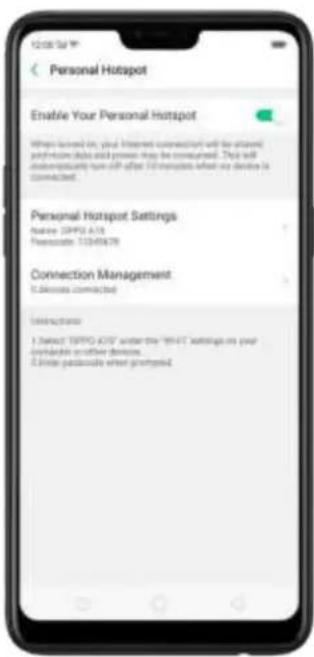
text_image
Personal Hotspot Enable Your Personal Hotspot Wings formed on, your Internet connection will be allowed performance data and press may be considered. This will underapplicately turn off after 10 minutes when no device is connected. Personal Hotspot Settings Notice SPRG A18 Passengers: 13249678 Connection Management 6 Devices connected Interaction 1. Select SPRG A18 under the 'MNTC Settings on your connections or other devices. 2. These passengers were prompted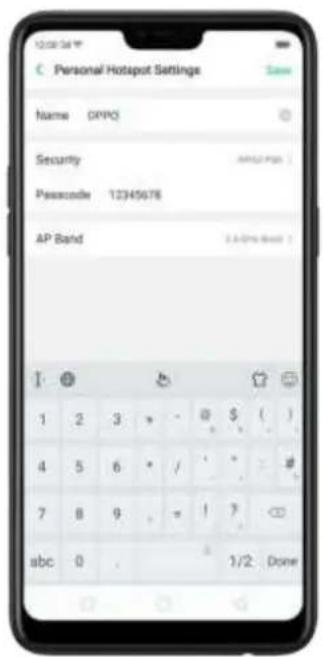
text_image
Personal Hotspot Settings Name OPPO Security Passcode 12345678 AP Band 1 2 3 * - 0 $ ( ) 4 5 6 * / ' * # 7 8 9 = ! ? <. abc 0 , 1/2 Done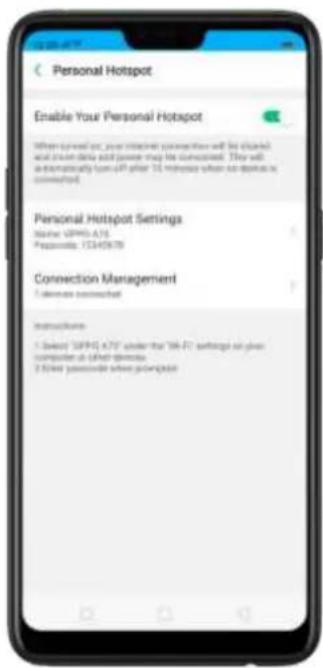
text_image
Personal Hotspot Enable Your Personal Hotspot When saved on your internet connection will be obtained and then data and power may be connected. They will be internationally run off after 10 minutes when no remote is connected. Personal Hotspot Settings Name: SPMOS A75 Password: 13340678 Connection Management 1 device connected Instructions 1 Select "SPMOS A75" under the "OK-F2" settings so you computer at other devices 2 Select password when pointingUse USB Tethering.
- Connect your phone to your computer using the cable that came with it.
- Go to [Setngs] > [Other Wireless Connecons] > [USB Tethering], then switch the slider to green.
- In your computer's Network preferences, choose your OPPO phone, then conjure the network sengs.

text_image
Other Wireless Connections VPN USB Tethering Bluetooth Tethering WISLOSE TRANSPORT Wi-Fi Disney Multi-accuracy Communication DLNA Please touch any Wi-Fi Ethernet using WiFi Ethernet and High-order EthernetTether via Bluetooth.
- Go to [Setngs] > [Other Wireless Connecons] and enable [Bluetooth Tethering].
- In [Setngs] > [Bluetooth], pair and connect your phone with your Bluetooth device.
- Click ⓘ next to the device's name, then click [Internet Connecon Sharing].
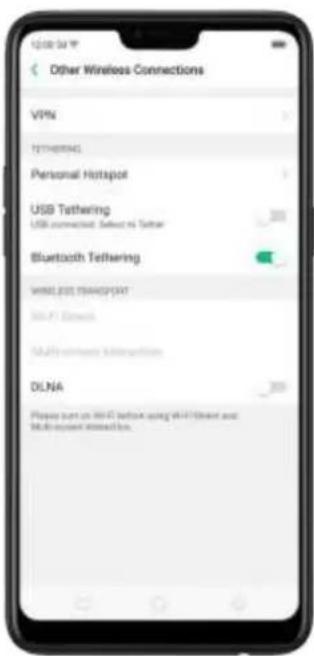
text_image
Other Wireless Connections VPN Tethering Personal Hotspot USB Tethering USB connected: Select to Tether Bluetooth Tethering WINS-205 TRANSPORT SIA-F1 Windows SIA-6000000000000000000000000000000000000000000000000000000000000000000000000000000000000000000 DLNA Please turn on SSL4 before using WiFi/Internet and Multi-Channel Connection.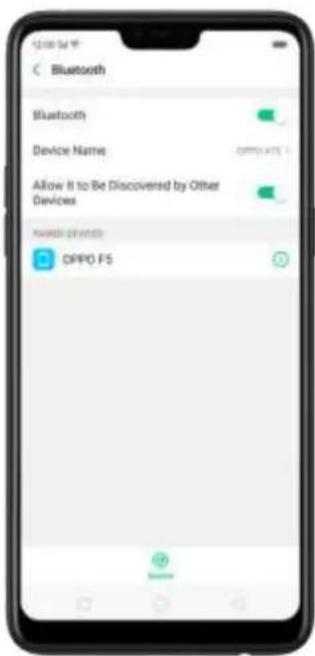
text_image
Bluetooth Bluetooth Device Name Allow It to Be Discovered by Other Devices Number of devices DIPPO FS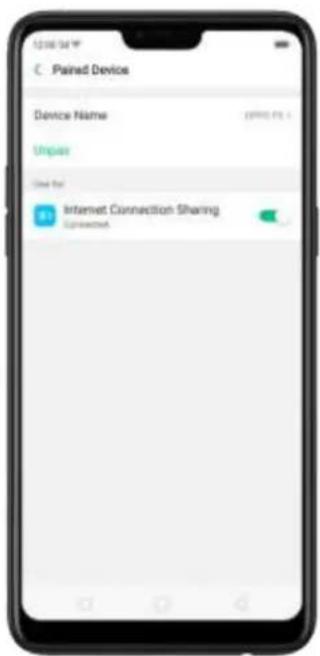
text_image
C Paired Device Device Name Unpay Use for Internet Connection Sharing ConnectedMonitor your mobile data network usage. Go to [Setngs] > [Dual SIM & Cellular Data].
9.2. Share Files
9.2.1. Wireless file sharing
You can share les wirelessly between wireless devices.
Use OPPO share. Share les between OPPO smartphones.
- Open Control Center, then turn on OPPO Share on both OPPO phones.
- Select the les to be shared and the device to share with, click Send, then click the detected OPPO phone.
- Click Receive on the other device and start sharing.

text_image
16:21 Data change, today: 2014/08, info. news: 91.2 kWh
text_image
1 photos selected Cancel Find the profile picture to take via QAP30 (Brazil) QAP30.5 Facebook M Dana Microsoft Amazon Mail to Music Arapi Alipay Sare as StoreTransfer les with Clone Phone. With Clone Phone, you can transfer all the phone data from a phone to another phone. See Clone Phone.
Share via Bluetooth.
- Go to [Setngs] > [Bluetooth] and enable Bluetooth. Then pair and connect your phone with your Bluetooth device.
- Select the les to be shared, click Send, then click Bluetooth.
- Click Accept on your Bluetooth device and start sharing.
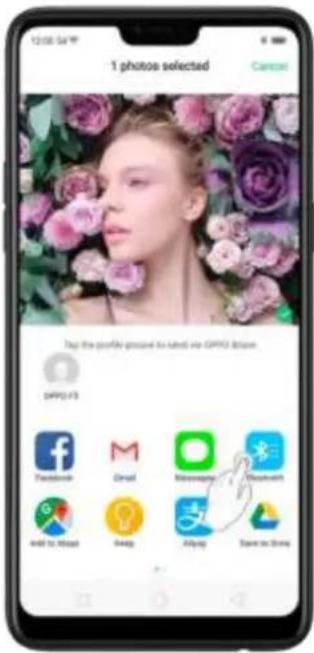
text_image
1 photos selected Cancel Tag this portfolio should be latest via APPS BIoms APPS 193 Facebook Dread Macromedia Microsoft 400 to 9000 4000 Airplay Save to ShowUse Remote Management to view and download les.
- Connect your phone and laptop to the same Wi-Fi network.
- Click Files, click Remotely Manage Phone Files, then click Start Service. Search the URL displayed on your phone screen with your computer, then you can view your phone's le system and download les directly to your computer. See Remotely Manage Phone Files.
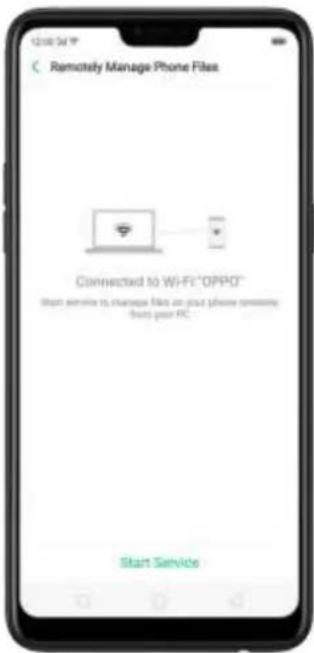
text_image
Remotely Manage Phone Files Connected to Wi-Fi "OPPO" Start service to manage file on your phone security start your PC. Start Service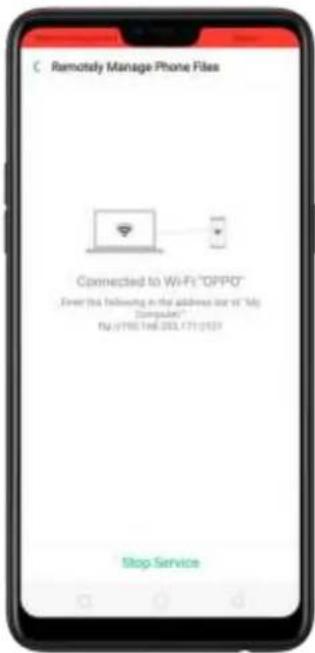
text_image
C Remotsly Manage Phone Files Connected to Wi-Fi "OPPO" First this following in the address nor of "Help Computer" Tel: (198) 146-203, (71) 2157 Stop ServiceWi-Fi Direct. Wi-Fi Direct allows devices to connect to each other directly through Wi-Fi, without the need of a Wi-Fi network or hotspot, and without having to set up the conncon. You can also use Wi-Fi Direct to share les with the help of third-party apps, such as ZAPYA.
- Go to [Setngs] > [Wi-Fi] and enable Wi-Fi.
- Go to [Setngs] > [Other Wireless Connecons] > [Wi-Fi Direct].
- Click Search to start scanning for nearby Wi-Fi Direct devices. Aer the scan, select a device, then follow the prompts to pair the devices.
Mul-screen Interacon. You can stream your phone screen to TV sets, TV Boxes, or computers which is cered with Wi-Fi Miracast technology.
Stream to computer
Noce:
Connect your OPPO smartphone and computer to the same Wi-Fi network.
The funcon is only supported by Win 10. For Win 8 system, you can install additional soware and apps like AirServer to support.
Computer Seng
Go to [Setngs] > [System] > [Project onto the computer].
Allow projeccon on all locaons and every me when a request comes.
Enable the PIN code and remember your computer name.
OPPO smartphone Seng
Go to [Seings] > [Other Wireless Connecons] > [Mul-screen Interacon], switch [Mul-screen Interacon] to green to start searching devices.
Select your computer name from the list and match it to your smartphone. You will see the shared screen on computer once it's connected successfully.

text_image
Other Wireless Connections VIPS FIRIWRING Personal Hotspot USB Tethering USB-connected Selected Tether Bluetooth Tethering WIRELESS TRANSPORT Wi-Fi Direct Multi-screen Interaction DLNA Multi-screen Interaction iPhone screens can be projected to 75 bits, 75 threads and other appoums through Wi-Fi Display technologies. AMALABE SERVICESStream to TV
Connect your OPPO smartphone and TV to the same Wi-Fi network.
Select your TV name from the list and match it to your smartphone. You will see the shared screen on TV once it's connected successfully.
If you want to stream the video playing on your smartphone to your TV, you can install additional apps like IQIYI to support.
9.2.2. Wired file sharing
Transfer files between your phone and a computer.
- Connect your phone to your computer using the cable that came with it.
- Click phone's notification, then click File Transfer.
- On the computer, click your phone name, click Internal shared storage, then you can copy phone files to the computer.

text_image
10:00:54 USB Debugging - free Transferring Photos via USB Tap to like more options Cash Weather Settings Music Mobile Music File Manager Type Phone Manager Theme Store File Drive Grynn Tools Google Change Only Transfer Files CancelTransfer files with USB OTG. You can connect and add additional storage devices or USB flash drives directly to your phone using USB OTG cable.
- Go to [Settings] > [Additional Settings] and enable [OTG Connection].
- Connect a storage device to your phone using USB OTG cable. You can directly access data on the external storage device and play movies or music without having to store them on your device.
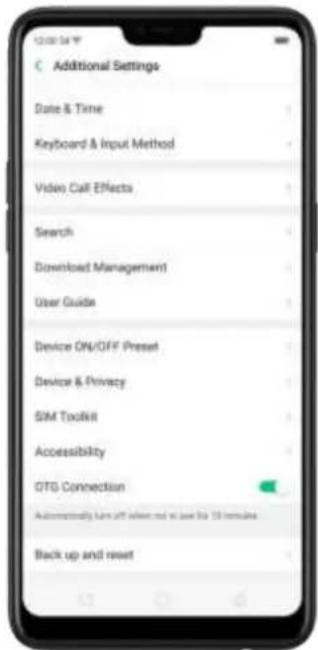
text_image
Additional Settings Date & Time Keyboard & Input Method Video Call Effects Search Download Management User Guide Device ON/OFF Presset Device & Privacy SIM Toolkit Accessibility GTG Connection Automatically turn off select out to use the 10 items. Back up and reset9.2.3. Share from apps
In addition to sharing your informaon from the Files app, you can also share from many other apps on your OPPO smartphone.
Share from apps. In many apps, you can click Send or 📋 to choose how to share your informaon. The choices vary depending on the app you're using. Additional opons may appear if you've downloaded apps with sharing opons.
Take the Photos app as an example, click 📂 and you'll see all the sharing opons.
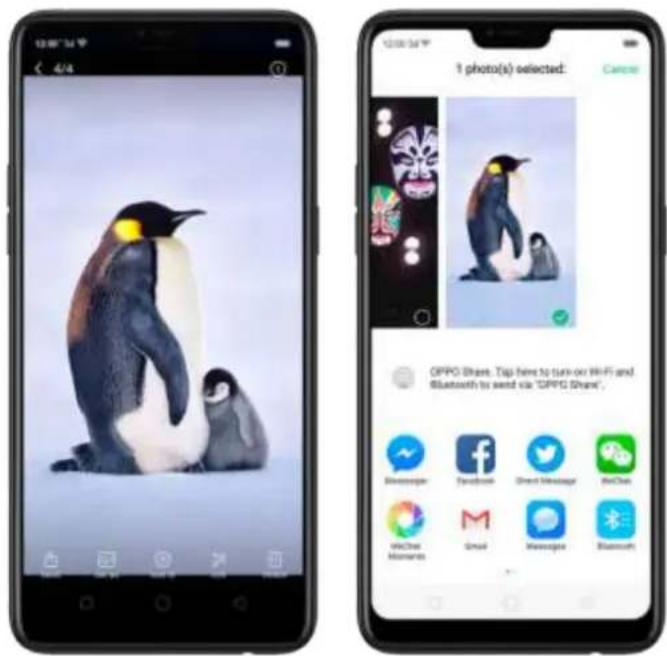
text_image
1 photo(s) selected: OPPO Share: Top info to turn-on WiFi and Bluetooth is sent via "OPPO Share"10. Restart, update, reset, and restore
10.1. Restart the phone
If something isn't working right, try restarting the phone.
Restart OPPO phone. Press and hold the Sleep/Wake button until the Slide down to power off message appears. Drag the power icon down to turn off the phone.
To turn the phone back on, press and hold the Sleep/Wake button until you see the OPPO logo.
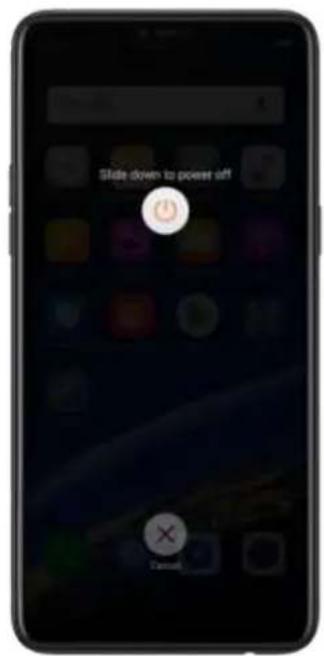
text_image
Slide down to power off CancelForce restart OPPO phone. If the phone is not responding, press and hold the Sleep/Wake and Volume Up buttons for at least 8 seconds until you see the OPPO logo.
10.2. Back up and restore the phone
10.2.1. Back up your OPPO phone
If you use your OPPO phone on a regular basis, having a reliable backup is essential in case something goes wrong.
Use the built-in backup tool. Go to [Settings] > [Additional Settings] > [Back up and reset] and click [Backup & Restore]. All your personal data, system data, and applications will be backed up to phone storage.

text_image
Back up and reset Card Rating Backup & Restore Textured Backup Back up my data Back up app data, Wi-Fi bars, and other settings in the Google name. Back up update after update (check next) Information updates Windows 8.0 performance info: 13.2 software Windows 8.0 performance info: 13.2 software Personal data Factory data reset Where all data is phone
text_image
Backup and restore Backup Status: April 10, 05:38 / Phone Storage 1.21 KB / type of data March 29, 15:32 / Phone Storage 9/18 KB / type of data When opening data each outlet to create the socket, opening all contents or listening to directly settings, the Backup data outlet on the phone will be closed. Please log these backup files at a computer or other optional storage disk before the expiration Create New Backup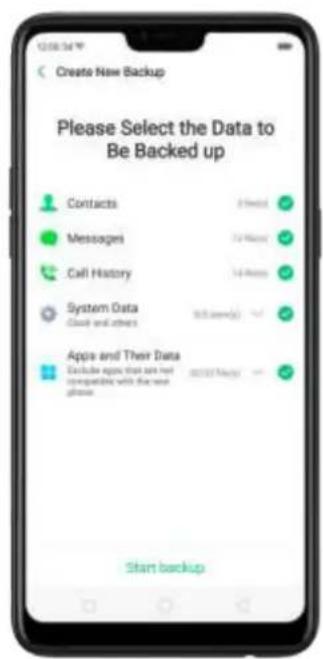
text_image
Create New Backup Please Select the Data to Be Backed up Contacts Messages Call History System Data Close and others Apps and Their Data Exclude apps that can not compatible with the new phone Start backupBack up to Google. Go to [Settings] > [Additional Settings] > [Back up and reset] and turn on [Back up my data]. You can back up your app data, Wi-Fi data, and other settings to the Google server.
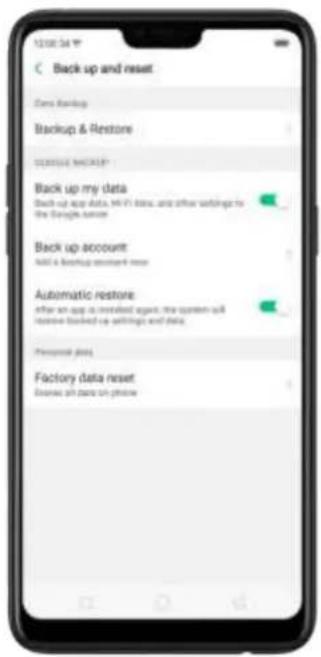
text_image
Back up and reset Down Backup Backup & Restore CLOSURE ORDER Back up my data Back-up app data, Hi-Fi bits, also after waiting for the Google server Back up account Add a backup button reset Automatic restore after an app is installed against the system will receive backed up settings and data. Personal data Factory data reset Enter all data on phoneUse OPPO Cloud. OPPO Cloud allows you to back up the Contacts and SMS to the cloud drive. You need to register or sign in OPPO account first.
text_image
OPPO Cloud Contacts Backup your contact to the cloud drive us that you will not load them. SMS Backup your important SMS to the cloud driveConnect your phone to a computer to create a backup on it. This is a common way to back up all your data. Don't disconnect your phone during the backup process.
View Back up your OPPO smartphone for more details.
10.2.2.Restore data on your phone
There are various methods to restore data on OPPO smartphone. Select the corresponding restoration method according to the way you have made the backup.
Restore your OPPO smartphone from Local backup
Before you start, make sure that you have copied and saved the data on OPPO smartphone via [Local backup].
Go to [Settings] > [Additional Settings] > [Back up and reset] and click [Backup & Restore]. You can find the data you want to restore according to its backup time.

text_image
Back up and reset Take Backup Backup & Restore STORAGE MIRUP Back up my data Back up up data, the IT data, also after settings to the Google name Back up account M&T's Backup account now Automatic restores after set up is installed again; the system will restore backed up settings and data. Personal data Factory data reset Entrain all data on phone
text_image
12:00:34 Y Backup and restore Backup Status April 10, 05:38 | iPhone Storage 1.27 KB 9 types of disk March 29, 15:32 | iPhone Storage 9/16 KB 9 types of disk When waiting drive and auto to store the system (using all control, or searching to loading settings), the backup data required on the phone will be stored. Please copy then backing file in a computer to either optional dosage decision before the operation Create New BackupSelect data to be restored, including Contacts, Messages, Call history, system data and Apps and their data. Then start the restoration.

text_image
Backup and restore Please select the data to be restored Contacts 3 Pack Messages 3 Pack Call History 2 Pack System Data Clock and buttons 5.0 Pack Apps and Their Data Exclude apps that save out compatible when the new please 3/11 Pack Start restoringOPPO smartphone will display the progress and details till the restoration is done. You can click Stop Restoring at any time during the process.
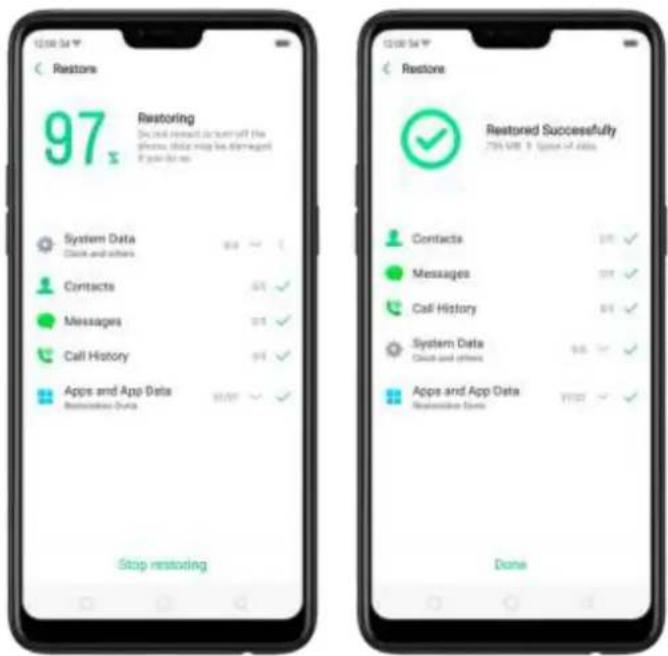
text_image
Restoring 97 x Restoring Do not request to turn off the phone, data may be damaged If you're too System Data Click and others Contacts Messages Call History Apps and App Data Reinstoring Data Stop restoring Restored Successfully 70% WBE @ Space of data Contacts Messages Call History System Data Click and others Apps and App Data Reinstoring Data Done* DO NOT turn off or restart your phone during the restoration process, otherwise data may be damaged or lost.
* After restoration has succeeded, you can delete data that are no longer needed.
Restore your OPPO smartphone via computer
If your backup files are stored on external storage such as SD card, removable hard drive, etc., copy these files to your OPPO smartphone to complete data restoration.
Restore Contacts and SMS on OPPO smartphone from OPPO Cloud
If you have backed up your Contacts and SMS to OPPO Cloud, you can restore them after signing in to your OPPO account.
* Network connection is required when you back up or restore data with OPPO Cloud.
text_image
OPPO Cloud Contacts A reliable your contacts to the cloud drive us that you will not have friends. SMS Backup join important SMS to the cloud timeTransfer your data with Clone Phone
If you have switched to a new OPPO phone, you can transfer your data from old phone to your new OPPO phone through Clone Phone.
Restore your OPPO smartphone data from third-party APPs
OPPO does not recommend you back up, transfer or restore data via third-party APPs, for they may conflict with OPPO system, leak personal information, or cause other safety problems.
10.3. Reset the phone
Resetting your OPPO phone will reset the phone back to its original factory settings, and will permanently erase all your personal data. You can do Factory data reset if your phone starts to lag, ,there's a decly junk files and caches, or has issues with system or applications. Before you do factory reset, back up all the needed data.
Reset your phone to factory settings
Go to [Settings] > [Additional settings] > [Back up and reset] > [Factory data reset], choose an option available for factory data reset.
* Any reset option cannot be revoked once it is operated.
Reset System Settings
This option will reset all system settings without deleting any data or media files.
Erase All App Data and Deletable Apps
This option will delete all third-party apps and app data. But the data saved by the user will be kept such as photos, music, and videos.
Erase All Content and Settings
Through this option, all data of OPPO smartphone will be cleared including contents, settings, photos, and music. OPPO smartphone will be reset to its inactivated initial state, which is the factory state.
Erase Contacts and Call Logs
By choosing this option, all the contacts and call history on the phone will be erased. Only the contacts on the SIM card will be preserved. Other data on OPPO smartphone will not be affected.
Erase All SMS and MMS
By choosing this option, all the SMS and MMS messages on the phone will be erased. Only the SMS messages on the SIM card will be preserved. Other data on OPPO smartphone will not be affected.
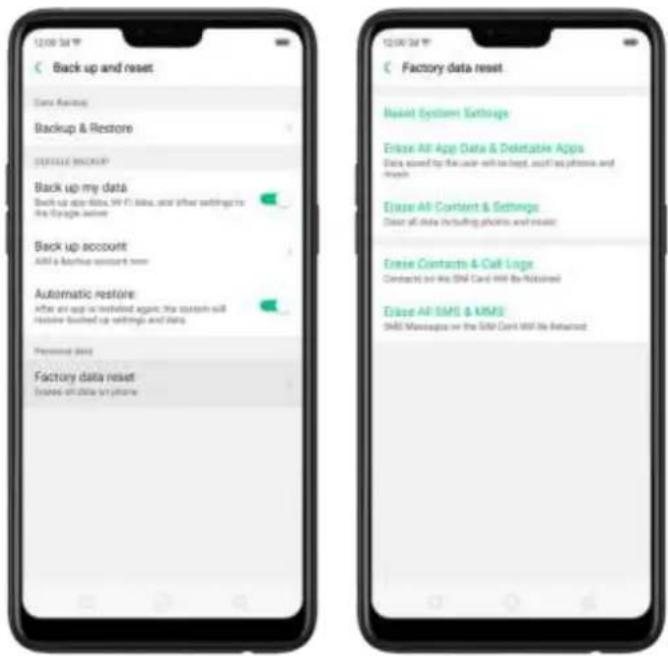
text_image
Back up and reset Data Review Backup & Restore DEFAULT POSTUP Back up my data Back up data files, 39 F1 files, and other settings to the Image file Back up account AMI a Startup account book Automatic restore After an app is installed again, the custom will restore backed up settings and data. Personal data Factory data reset Explain off data by phone Factory data reset. Update System Settings Elease All App Data & Deletable Apps Data stored by the user will be kept, such as phones and phones. Elease All Content & Settings Clear all data including photos and resets Elease Contacts & Call Loge Contracts on the SIM Card HW Be Retained Elease All SMS & SMS SMS Messages on the SIM Card HW Be Retained10.4. Reset password with fingerprint
When you enter the wrong pass forget five yones in a row, or you've passcode, you can easily reset the passcode with your fingerprint.
Before you can use the reset feature, you must add at least one fingerprint to your phone.
Reset passcode with fingerprint after restarting the phone.
-
When you enter the wrong password five times from the lock screen of your phone, your phone will temporarily restrict you from entering the passcode again and ask you to wait 30 seconds.
-
When the waiting period is up, click Use Fingerprint to Reset Passcode on the bottom of the screen.
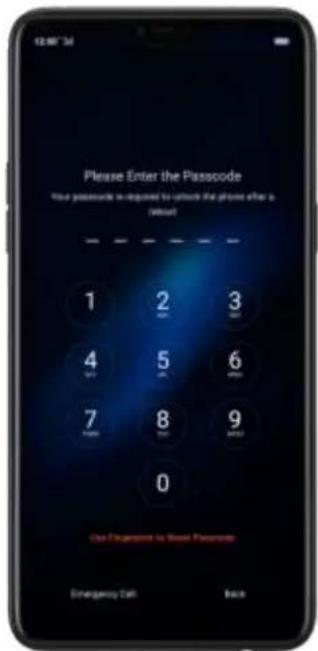
text_image
Please Enter the Passcode Your passcode is required to unlock the phone after it (Missu) 1 2 3 4 5 6 7 8 9 0 Use Draper to New Passwords Emergency Call Back- Place your finger on the fingerprint sensor, then enter your new passcode and confirm it.
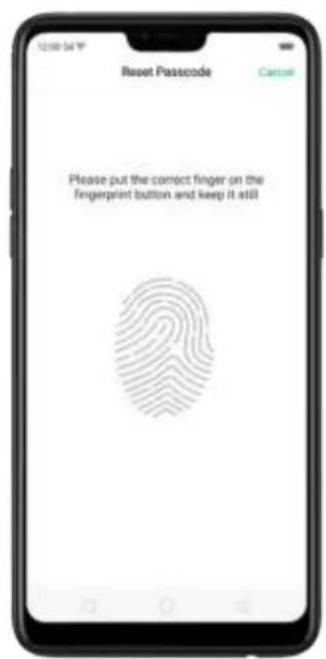
text_image
Reset Passcode Please put the correct finger on the fingerprint button and keep it still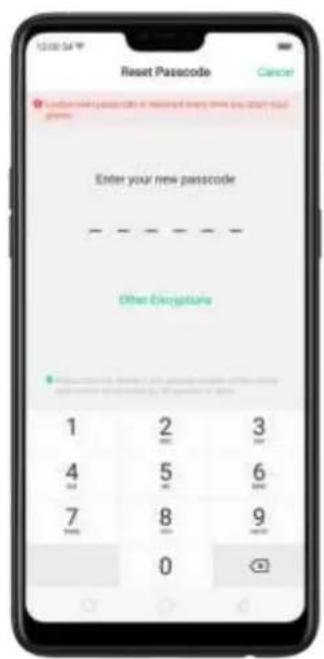
text_image
Reset Passcode Enter your new passcode Other Encryptures 1 2 3 4 5 6 7 8 9 0
text_image
Reset Passcode Cancel ✓ Additional Passcode is required every time you start your code. Verify the New Passcode 1 2 3 4 5 6 7 8 9 0Reset passcode with fingerprint when the phone is unlocked.
When your phone is unlocked, you can change the lock screen password directly from the Settings page.
-
Go to [Settings] > [Fingerprint, Face & Passcode], enter the wrong password five times, then your phone will temporarily restrict you from entering the passcode again and ask you to wait 30 seconds.
-
When the waiting period is up, click Tap to reset passcode.
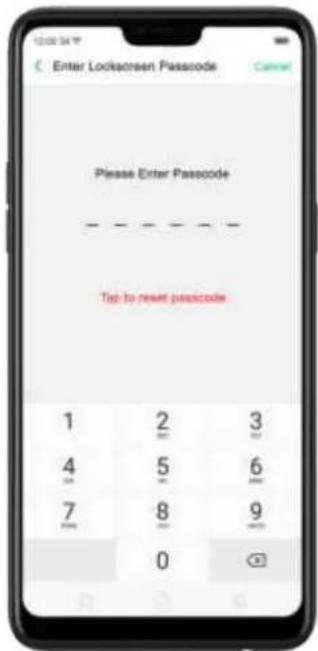
text_image
Enter Lockscreen Passcode Please Enter Passcode - - - - - - - - - - - - - - - - - - - - - - - - - - - - - - - - - - - - - - - - - - - - - - - - - - - - - - - - - - - - - - - - - - - - - - - - - - - - - - - - - - - - - - - - - - - - - - - - - - - - -- Place your finger on the fingerprint sensor, then enter your new passcode and
confirm it.

text_image
Reset Passcode Please put the correct finger on the fingerprint button and keep it still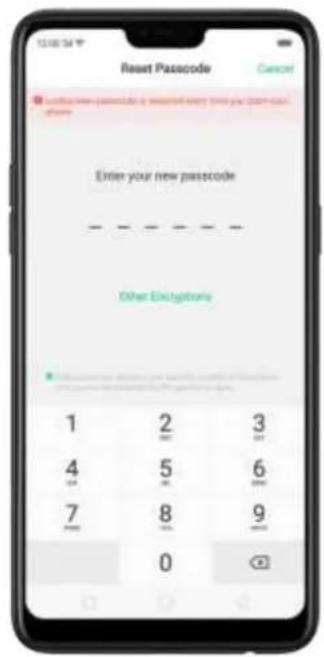
text_image
Reset Passcode Cancel Enter new passcode as required every time you want your shares Enter your new passcode Other Encipitions 1 2 3 4 5 6 7 8 9 0
text_image
Reset Passcode Cancel Verify the New Passcode 1 2 3 4 5 6 7 8 9 011. Barrier-free
11.1. TalkBack
TalkBack helps blind and vision-impaired users to interact with the phones more easily. It uses spoken word, vibration, and other audible feedback to let you know what's on your screen, what you're touching, and what you can do with it.
Turn TalkBack on. Go to [Settings] > [Additional Settings] > [Accessibility] and enable TalkBack.
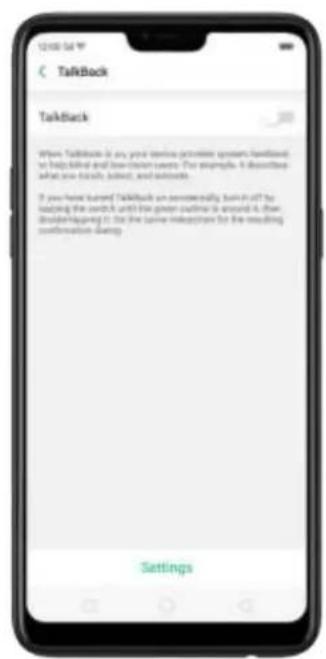
text_image
TalkBack TalkBack When TalkBack is an your daily activities system facilitated to help behind and low-cost savings. The example, it describes what you choose, join, and install. If you have turned Talkback as personally turn in off the leading the cards, then the green routine is around it, then should be given it for the same instructions for the resulting confirmation during.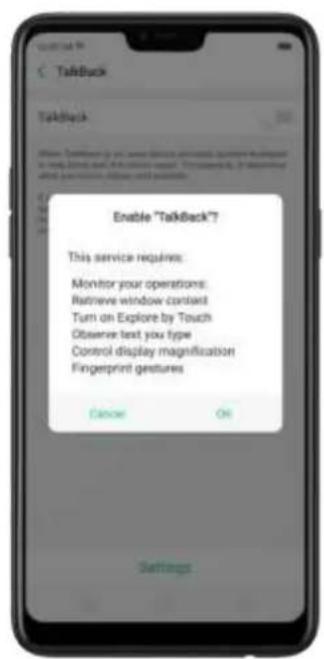
text_image
Enable "TalkBack"? This service requires: Monitor your operations: Retrieve window content Turn on Explore by Touch Observe test you type Control display magnification Fingerprint gestures Cancel OK Settings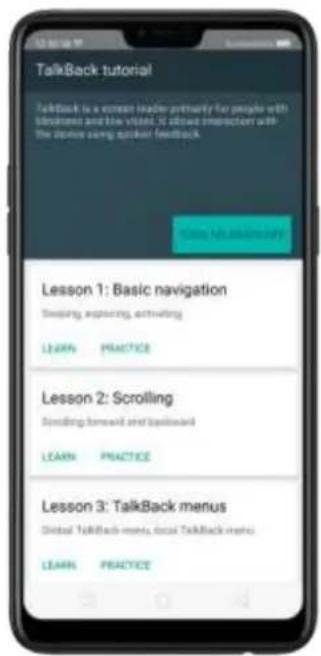
text_image
TalkBack tutorial TalkBack is a cross leader primarily for people with blodiment and blue vision. It allows implementation with the outline using spacker feedback. Lesson 1: Basic navigation Sleeping, expanding, activating LEARN PRACTICE Lesson 2: Scrolling Scrolling forward and backward LEARN PRACTICE Lesson 3: TalkBack menus Global TalkBack menus, local TalkBack menus LEARN PRACTICEWhen TalkBack is on:
Your device provides spoken feedback to help blind and low-vision users. For example, it describes what you touch, select, and activate.
- To select an option: Click the option to show the green border, then double click to activate it.
• To scroll the screen: Swipe upward or downward with two fingers.
text_image
Google 31 Gelbender Cloud Weather Vertrigo Music Video Phone File Manager Topic Phone Manager Share Icon Play Drive Snap TouchTurn Talkback off. Go to [Settings] > [Additional Settings] > [Accessibility] >
[TalkBack], switch the slider to white, then click Off.
text_image
C TalkBack TalkBack When TalkBack is on, your video preview (using) feedback to help kindred and how content uses. For example, it describes what you have, about, and almost. If you have turned TalkBack when simultaneously built off by copying the switch and the green buttons is around it, then divide againing it. Do the same interaction for the resulting information being. Settings
text_image
Disable "TalkBack?" Cancel Help11.2. Magnification Gestures
Magnification gestures work similarly to the full screen magnifiers, which allows users to zoom in and pan the whole screen to get a closer look at screen content.
Enable magnification gestures. Go to [Settings] > [Additional Settings] > [Accessibility] and enable [Magnification Gestures].
text_image
Accessibility Accessibility Quick Operation Screen Reader Select to Speak TalkBack Text-to-Speech Output Display Magnification Gestures Large Mouse Printer
text_image
Magnification Gestures Magnification Gestures Quickly triple-tap one finger to, "absent is and out. 1. Drop their or there fingers to suit" 2. Push or unpunch two or more fingers to adjust the power level! To temporarily zoom is, please quickly triple tap and help holding down on the last clock. 1. Drop your finger to drive around the screen 2. Lift your finger to cancel zooming You cannot clearly the keyboard or navigation bar- Quickly triple-tap the screen to zoom in and out. The triple-tapping does not work well on the keyboard or on the navigation bar - if you have the magnifier running while the keyboard is shown, only the area above the keyboard will be magnified.
- Drag two or more fingers across the screen to pan across the screen.
- Pinch your fingers together or apart to adjust the zoom level.

text_image
12:06:34 Google 31 Calendar 32 Storm Weather Settings Mobile Flame Photos Play Manager Tips Picture Manager Engine Board Play Board English Today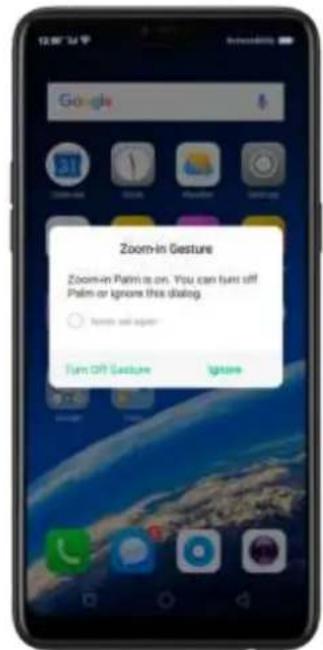
text_image
Zoom-in Gesture Zoom-in Palm is on. You can turn off Palm or Ignore this dialog. Turn Off Gesture Ignore
text_image
Clock Weather Se Videos Photos File th The Manager Theme Store Play Tools
text_image
New Me Recipient: u Sienna YumeTurn the magnifier on temporarily. Triple-tap the screen and hold the third click.
- Drag one finger around the screen to move the view.
- Lift the finger to cancel zooming.
- Quickly triple-tap to exit.
11.3. Press Power Button to End Call
- In addition to end calls by clicking 🔍, you can make the Power button do this function.
- End Calls with the Power button. Go to [Settings] > [Additional Settings] > [Accessibility] and turn on [Press Power Button to End Call]. Then you can end calls by clicking Decline or pressing the Power button.

text_image
Accessibility Screen Reader Select to Speak TalkBack Text-to-Speech Output Display Magnification Gestures Large Mouse Pointer Interpretive Context Switch Access Click When the Pointer Stops Moving Press Power Button to End Call Touch & Hold Delay Audio and Computer Set Mono Audio Morgan Disseminate When Playing Audio Subtitle12. Safety, handling and support
12.1. Health & Safety
12.1.1. Using Environment
Keep in mind the following rules. Switch off your phone when it is prohibited, or might cause disturbance or danger.
- The ideal phone working temperature is 0^ C to 35^ C and 35% to 85% humidity. A too high or too low temperature might affect the performance or cause damages. The ideal phone storage temperature is -20^ C to 45^ C.
-
Your phone might interfere with electronic and medical equipment. Obey the related rules and switch off your phone in these places.
-
Try not to use your phone in weak signal areas or near high-precision electronic devices. Radio interference might lead to malfunction or other issues in electronic devices, especially pay attention when near the following devices: hearing aids, pacemakers and other medical devices, fire detectors, automatic doors and other automatic control devices.
- In rare cases, the phone might interfere with the electronic systems in certain cars, such as the ABS anti-lock brakes and the air bag. Consult your network operator or car manufacturer before connecting the phone.
- Before connecting to other devices, carefully read the user manual for more detailed, accurate, and safety instructions. Do not connect to incompatible products.
- Do not use your phone in rain, or near washbasins or other wet locations.
12.1.2.Battery Safety
Battery Precautions
- Do not disassemble the built-in lithium polymer battery yourself, otherwise it might cause battery leakage, overheat, explosion, and fire. Go to an OPPO designated after-sales service center if battery replacement is needed.
- Do not puncture or pierce the battery with hard objects (e.g., needles and tacks) to avoid battery leakage.
- Liquid in the battery is harmful to your skin. If liquid can be seen leaking from the battery, do not attempt to touch it. If the liquid contacts with the skin and eyes rinse immediately with water and go to a doctor if needed.
- Do not expose the battery to extreme ambient temperatures, fire, wet locations, and direct sunlight.
- If the battery sends out strange smell, turn off your phone immediately, and send it to an authorized service provider for battery replacement. Do not attempt to disassemble or replace the battery yourself.
- Do not continuously charge the battery over 12 hours.
Battery Life Tips
- Use OPPO original accessories. Use OPPO original charger (power adapter and USB cable) that matches your phone model. Charging with third-party or
counterfeit charger accessories might impact battery lifespan or even cause security incidents.
- Charge at a suitable temperature. The ideal charging temperature is 5^ C to 40^ C. Battery life might temporarily shorten in low-temperature conditions, or irreversibly damage when temperature is too high. The battery should be charged within the ideal temperature range to avoid decreased battery performance and standby time.
- Turn off phone features when not in use. Using features such as Bluetooth, Wi-Fi and GPS or keeping them active in the background may drain the battery significantly. Turn them off when not in use to save the battery. Dimming your screen and reducing the screen timeout setting can also preserve the battery life.
- Do not use when charging. Your phone might quickly get warm or even cause damage if you use it a lot during charging.
- Do not fully drain your phone's battery. Charge your phone when your battery level goes down to 10%. If phone's battery is fully drain, the battery could fall into a deep empty/drain state, which will cause it to be slightly damaged.
- Store the phone long term. If you plan to store the phone for a long time, charge it to 60% or above every month.
- External environment. Avoid exposing your phone battery to high or low temperature, humid environment or sun exposure.
12.1.3. Charger Usage Notes
- Only use the charger specified by OPPO.
- Charging voltage should be consistent with that specified on the charger. Using mismatched voltage might cause leakage, fire, and damages.
- Do not use a power socket that is incompatible with the charger. Make sure the charger is plugged in firmly to avoid any fire hazard.
- Do not charge your phone with a partially damaged charger, for that could result in electric shock, fire or other damages.
- Do not charge your phone near washbasins or other water containers, or in wet locations such as bathrooms. Take caution to not spill any food or liquid on your phone or charger. Do not touch chargers, cables or power sockets with
wet hands. In case the charger gets wet, unplug all cables, allow it to dry thoroughly before charging again.
- Do not disassemble or modify the charger or cables yourself.
- Do not place heavy objects on the charger, for that might cause electric shock and fire.
- Before cleaning the charger, unplug all cables (hold and pull the plug instead of pulling the cable, otherwise the cable will be ripped off).
- Do not charge your phone when there is lightening or thunderstorm. Do not make phone calls while charging.
- Avoid exposing your charger to following conditions: exposing to direct sunlight, temperatures lower than 5^ C or higher than 40^ C, damp and dusty places or that with excessive vibrations (might cause breakdowns), places near electrical appliances such as TV and radio sets (might cause interference to images and sound).
12.2. Traffic Safety
Use both hands when driving, and give full attention to driving and on the road. If you decide to use your phone while driving or riding a bicycle, keep in mind the following conditions:
▶ Safety should always come first while driving or riding a bicycle. Make sure to follow the related regulations in the area or country.
- Keep your eyes on the road. If you get an incoming call at an inconvenient time, let your voicemail answer it for you, or answer with a Bluetooth headset.
▶ An air bag in your vehicle inflates with great force. Do not store your phone or any of its accessories in the area over the air bag or in the air bag deployment area.
- Do not rely solely on the map on your phone when searching for locations, buildings, directions, and distances. Map routes and compass change as information provided by the service provider changes, so the map might be incorrect, incomplete or unsupported.
- Do not ship the phone, with its components or accessories in the same compartment with flammable liquids, gases or explosives
12.3. FCC Compliance Statement
FCC Statement
This device complies with part 15 of the FCC rules. Operation is subject to the following two conditions: (1) This device may not cause harmful interference, and (2) this device must accept any interference received, including interference that may cause undesired operation.
Note
The manufacturer is not responsible for any radio interference caused by unauthorized modifications to this product. Such modifications could negate the user's authority to operate the product.
This product has been tested and found to comply with the limits for a Class B digital device, pursuant to part 15 of the FCC Rules. These limits are designed to provide reasonable protection against harmful interference in a residential installation. Using this product can radiate radio frequency energy and, if not installed and used in accordance with the instructions, it may cause harmful interference to radio communications. However, there is no guarantee that interference will not occur in some conditions. If this product does cause harmful interference to radio or television reception itself, follow one or more of these measures to correct that:
- Reorient or relocate the receiving antenna.
- Keep a longer distance between the product and receiver.
- Plug the product and receiver into outlets of different circuits.
- Consult the dealer or an experienced radio/TV technician for help.
FCC Caution
- Any changes or modifications not expressly approved by the party responsible for compliance could void the user's authority to use the product.
The antenna(s) used for this transmitter must not be co-located or operated in conjunction with any other antenna or transmitter.
The country code selection is for non-US model only and is not available to all US models. Per FCC regulation, all Wi-Fi products marketed in US must fixed to US operation channels only.
▶ Operations in the 5.15-5.25 GHz band are restricted to indoor usage only.