BSPORT-16-V - Sports Watch BRIGMTON - Free user manual and instructions
Find the device manual for free BSPORT-16-V BRIGMTON in PDF.


User questions about BSPORT-16-V BRIGMTON
0 question about this device. Answer the ones you know or ask your own.
Ask a new question about this device
Download the instructions for your Sports Watch in PDF format for free! Find your manual BSPORT-16-V - BRIGMTON and take your electronic device back in hand. On this page are published all the documents necessary for the use of your device. BSPORT-16-V by BRIGMTON.
USER MANUAL BSPORT-16-V BRIGMTON
natural_image
Abstract black circular logo design with curved and angular elements (no text or symbols)BRIGMTON
surfing technology
natural_image
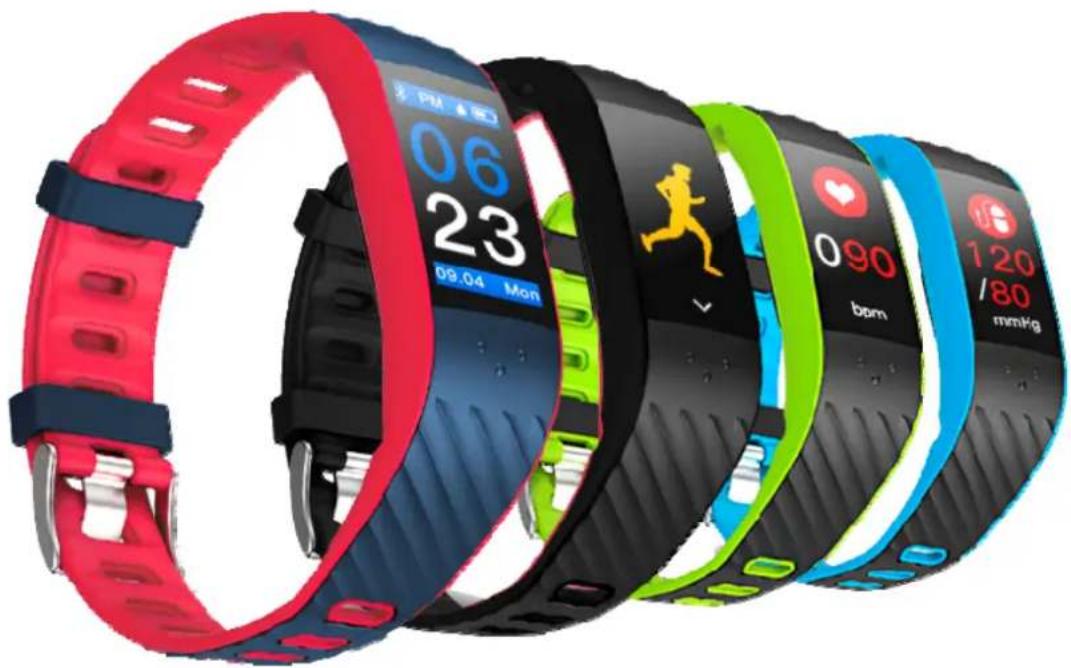
Five colorful fitness tracker designs arranged in a row, each displaying a digital display with time, speed, and running icon (no readable text or symbols beyond branding)natural_image
Close-up of a red and black mechanical component with springs and clamps (no visible text or symbols)FUNCIONES
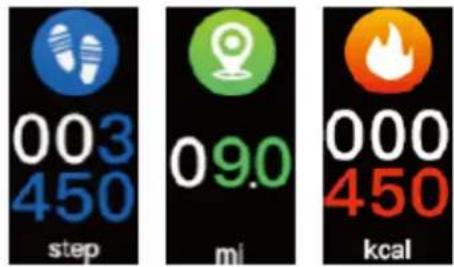
PODÓMETRO - DISTANCIA - CALORÍAS
MONITOR DE PRESION
IOS
GooglePlay
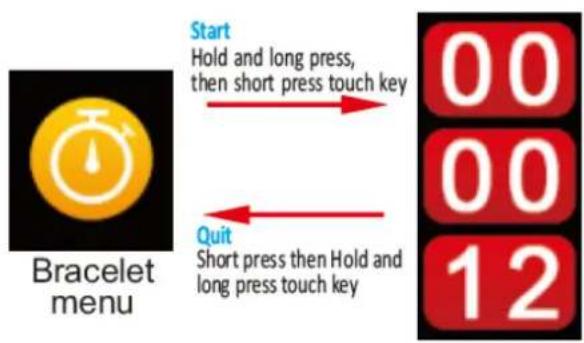
flowchart
graph TD
    A["Start: Hold and long press, then short press touch key"] --> B["Quit: Short press then Hold and long press touch key"]
    B --> C["00: 12"]
natural_image
Abstract black circular logo design with curved and angular elements (no text or symbols)BRIGMTON
surfing technology
natural_image
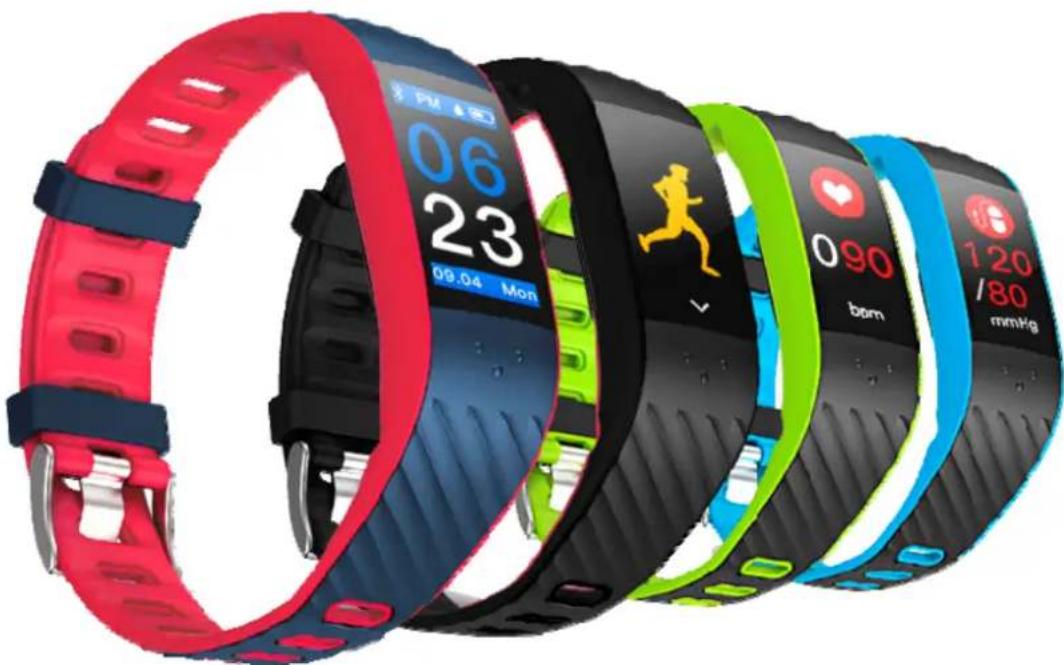
Row of five colorful fitness tracker designs with visible brand logos and status tags (no readable text beyond branding)INSTRUCTION MANUAL
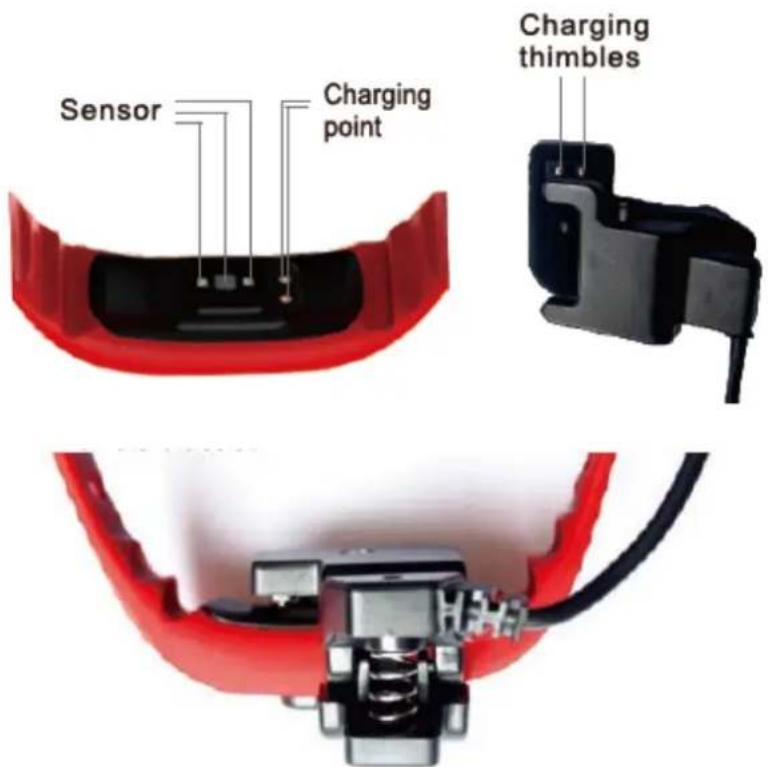
Charge the battery before use.
FUNTIONS
ON/OFF: Hold and long press the key to power on or power off.
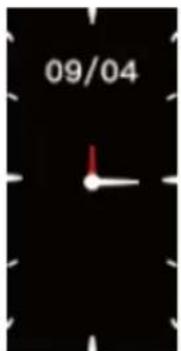
TIME, DATE: After the device has been connected via Bluetooth with your phone, the clock, date and week will auto-synchronize according to your phone clock, date and week.
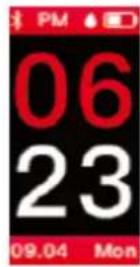
MODE
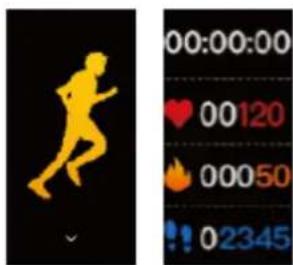
SPORT: Hold and long press the touch key to enter sport mode, it will automatic enter running mode and change into dynamic heart rate, during the mode, short press the key to choose "pause" 🎨 and "quit" 🔍 menu, if you want to make a pause, then hold and long press the pause icon, and then you will find "continue" 🔍 icon and back icon 🔍 , if you need quit from the mode, hold and long press the quit icon. You will see sport time, dynamic heart rate, steps, and calorie. The heart rate records will not save to APP.
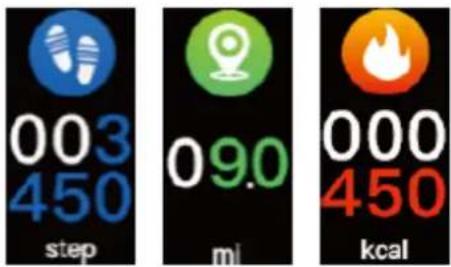
PEDOMETER - DISTANCE - CALORÍES
BLOOD PRESSURE MONITOR
NOTE: This function is merely informative. To know the correct measure go to a specialized center.
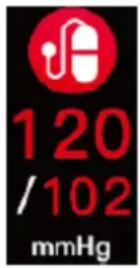
Press the touch key to get to the blood pressure page. The icon will flicker (please stay still while the blood pressure test runs) If you need to save the data, please use the APP to test and to save blood pressure data. Manual activation of this function on the device will not save the result to the APP. And you can open real time blood pressure from APP, then the device will automatic test and record BP by each 10 minutes, you can see the records from Dashboard of APP.
PULSOMETER
NOTE: This function is merely informative. To know the correct measure go to a specialized center.
Cycle through to the heart rate page, the heart rate icon will flicker. It is advisable to wear the smart bracelet around the middle of your wrist, and please make sure the heart rate sensor is close to your skin. Manual activation of this function on the device will not save the result to the APP. The APP there will show heart rate data collected automatically every 30 minutes if you open real-time heart rate from APP.
SLEEPING MONITOR:
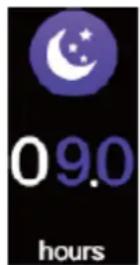
Device will monitor sleeping data automatically, please check the sleeping detail data on APP Dashboard
BLUETOOTH PARING
- Turn on the smart bracelet.
- Turn on Bluetooth on your smart phone.
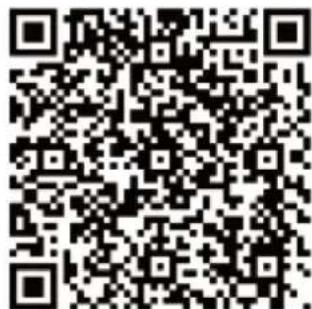
- Download the H Band APP in your smart phone by scanning the below QR code or search H band App from Google play store or Apple store
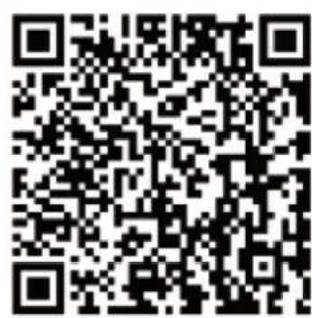
IOS
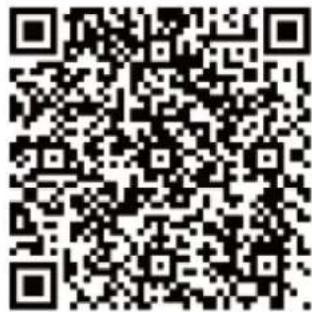
GooglePlay
- Tap Device in Settings inside the H Band APP, the device's Bluetooth name will appear, select to pair with the APP. After Bluetooth paired there will be a Bluetooth icon that appears on the Date and time screen.
BLUETOOTH REMOVE
- Disconnect the device in the APP
- Turn off the App on the smart phone
- Remove the Bluetooth name on the setting of the smart phone.
APP FUNCTIONS AND INSTRUCTIONS
After installing the H Band App, you may be required to fill in your personal information such as gender, weight, etc. Please then connect smart bracelet via Bluetooth (reference the Bluetooth Pairing steps)
Dashboard: You can check all data here from today, yesterday and a data summary.
- STEP: Tap to check Step, Distance, Calorie data.
- SLEEP: Tap to check sleeping data (sleep duration, deep sleep, light sleep)
- HEART RATE:
- Check your full day heart rate data and the average HR, which is recorded by the device automatically every 30 minutes if you open real-time HR from APP settings.
- You can also test manually heart rate from APP by Tap icon, when the results come out, then click to stop. This will not save on APP.
4. BLOOD PRESSURE:
- Check your full day blood pressure data which is recorded by device automatically every 10 minutes if you open real time BP from APP settings.
- Tap 📄 icon to start manually blood pressure function (please stay still while the blood pressure test runs) after finish test you can choose to save the data for reference. There are two Blood Pressure test modes: Normal and Personal. If you have hypertension or hypotension, please select Personal. Otherwise, please select Normal.
RUNNING
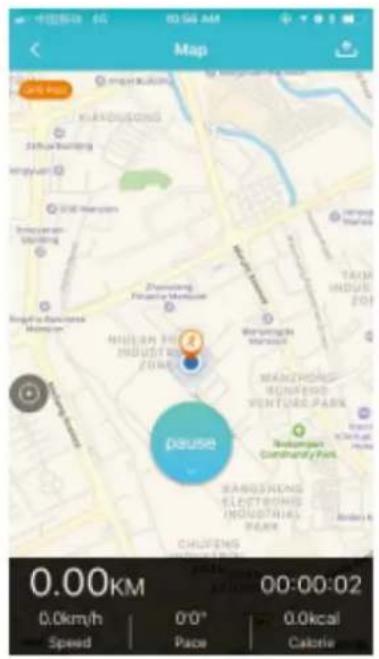
1.GPS MOVEMENT:
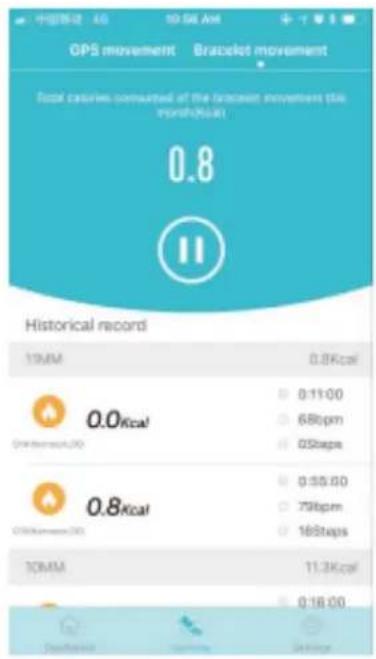
Tap to start the movement, and allow the device to get your position, you can tap stop to finish the record. Each start and stop is a complete record of
movement, records include the activity time, speed, pace, calories burned, and routes etc.
2.BRACELET MOVEMENT:
Click to start sport mode of the bracelet, you will find records on this dashboard.
Settings: My device: Tap to find the device name to get paired. Click "paired device name" then you will find:
a) Message notification: select the notification for phone calls and messages.(Paring request appears on APP when Bluetooth connected with the smart phone, please select "pair" to get message notifications pushed on the smart watch, select "no" for no message notification push.)
b) Alarm: Set alarm clock.
c) Sedentary setting: Set sedentary reminder
d) Heart rate alarm: Set heart alarm limit level.
e) Turn the wrist: Open to turn on wrist brightness.
f) Pair devices: Turning on this function the data on the APP can be uploaded
g) BP private mode: Set personal BP level for private testing reference.
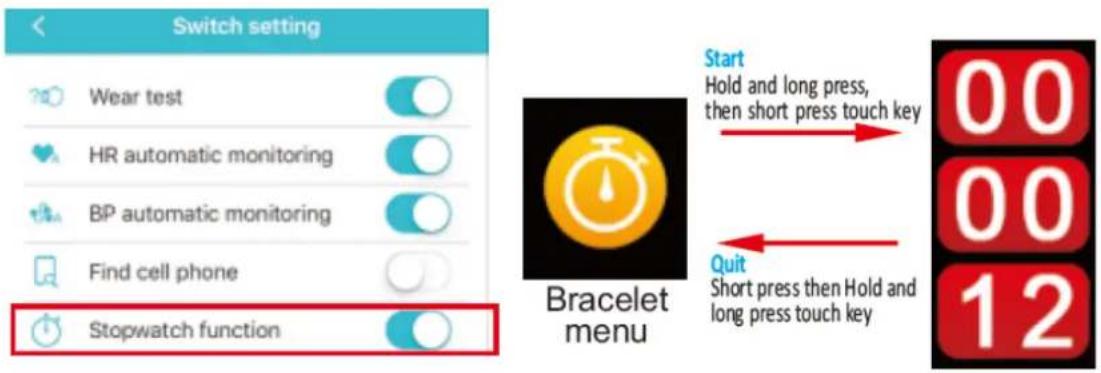
h) Switch setting:
- Wear detection: Turning on this function will allow the device to detect if it is worn on a wrist.
- HR automatic monitoring: Turn on to open real time HR.
- BP automatic monitoring: Turn on to open real time BP.
- Find cell phone
- Stopwatch function: Turn on and there will appear stopwatch menu on bracelet, hold and Long press touch key to enter and short press to start stopwatch, then short press to stop and long press to quit from this mode.
i) Take photo: Remote mobile phone take pictures by tap bracelet key.
j) Count down: Set count down time and choose to display on bracelet or not.
k) Reset password: You can set a password for the device (so other mobile phone cannot connect with your device) The default password is 0000. If your forget the password, press and hold on the device sleep screen until the device vibrates, the password will be reset to the default 0000.
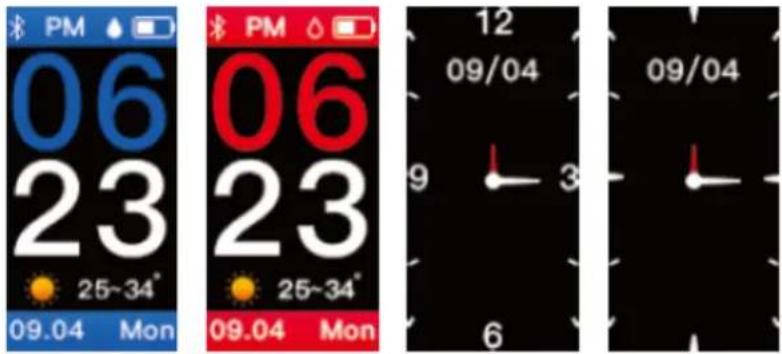
I) Screen styles: Choose the main menu styles.
m) Firmware upgrade: Upgrade firmware of the device.
n) Clear data: Factory reset of the bracelet.
Sport goal: Set the steps goal of each day.
Sleep goal: Sleep suggestion based on personal data.
Unit setting: Choose to set metric or imperial unit
Note: the device green light sensor Automatic turns on every 10 minutes (for detecting and collecting sleeping and heart rate data).
"Features can change without notice"
BRIGMTON
surfing technology
IMPORTED
FERSON ELECTRÓNICA, S.A.
CIF: A-41111881
SANTA CLARA DE CUBA 12
TEL/FAX: 954256645/954256822
SEVILLA
ESPAÑA
Ferson Electrónica, S.A. declares under our responsibility that the equipment meets the requirements indicated in the following directives:
DIRECTIVAS EMC
EN60950-1:2006+A2:2013
EN62479:2010
EN301 489-1 V1.9.2 (2011-09)
EN301 489-17 V2.1.1 (2012-09)
ETSI EN300 328 V1.9.1 (2015-02)
IEC62321-1:2013