BQ13374 - Safe Barska - Free user manual and instructions
Find the device manual for free BQ13374 Barska in PDF.


User questions about BQ13374 Barska
0 question about this device. Answer the ones you know or ask your own.
Ask a new question about this device
Download the instructions for your Safe in PDF format for free! Find your manual BQ13374 - Barska and take your electronic device back in hand. On this page are published all the documents necessary for the use of your device. BQ13374 by Barska.
USER MANUAL BQ13374 Barska
BARSKA® Optics, as manufacturer, warrants this new precision optical product to be free of original defects in materials and/or workmanship for the length of time specified by this warranty. This warranty does not include damage caused by abuse, improper handling, installation, maintenance, normal wear-and-tear, unauthorized repairs or modifications and tampering in anyway.
This warranty is limited to the original purchaser and is not transferable. This warranty applies only to products purchased in the United States of America and Canada.
In the event of a defect within 30 days, the consumer must return the defective unit to the BARSKA dealer (the place of purchase) at his/her own expense.
Beyond 30 days, BARSKA products should be sent to the following address for warranty repairs. Products must be packed carefully and sturdily to prevent damage in transit, and returned freight prepaid to:
BARSKA® OPTICS
Repair Department
855 Towne Center Drive
Pomona, CA 91767
For additional and updated information
please visit our website at www.barska.com
Please email info@barska.com or call 1-888-666-6769 for Return Merchandise Number (RMA#) before any returns.
NOTE: All merchandise received without a valid RMA # will be returned to shipper at his/her own expense.
Please include all of the following when returning BARSKA products for service and/or replacement:
-
Please write your complete details (Name, Address, Telephone #, E-mail address, RMA#, etc.)
-
Purchase receipt or Proof of Purchase. (Original/Copy)
-
A brief explanation of the defect.
-
A Check/Money Order of \$25.00 to cover inspection, shipping and handling.
*Please allow 6-8 weeks for delivery.
This product will either be replaced or repaired at the discretion of the warrantor. If i's a discontinued item, we will replace the product with an equivalent product. Should the repair not be covered by this warranty, an estimate will be sent for your approval. Non-warranty repairs or refurbishing of your optical products are always provided at a reasonable cost.
BARSKA® Optics shall not be liable for any consequential, incidental and/or contingent damages whatsoever. We will not pay shipping, insurance or transportation charges from you to us, or any import fees, duties and or taxes. This warranty supersedes all previous BARSKA® Optics warranties.

BARSKA®
NVX300
natural_image
Black handheld optical device labeled 'MEXAV MARSISKA' with visible lens and control buttons (no additional text or symbols)BARSKA
Table Of Contents
General Overview 3
Using The Night Vision Binocular 4
Display Information 5
Taking Pictures And Videos 5
Setting Menu Navigation 5
Downloading Footage To Your PC 6
Viewing Footage On The Night Vision Binocular 7
Troubleshooting 7
Specification 7
BARSKA
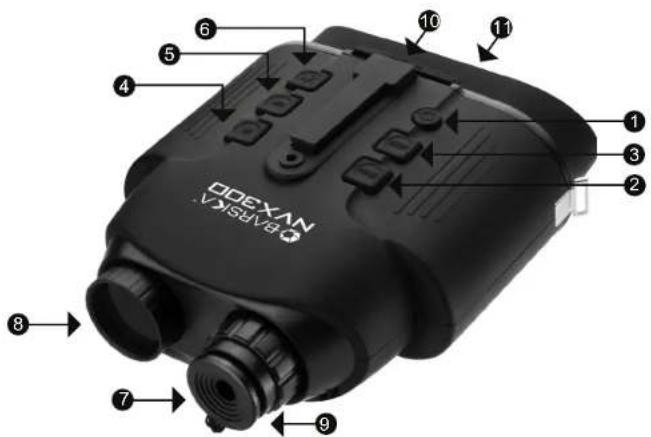
General Overview
-
Power: Long press for power on and off
-
Zoom: Under Menu mode: Press Zoom to go up. Under Photo and Video Mode, press Zoom to zoom in at multiple levels. The maximum zoom is 2X. Once reaching 2X, keep pressing to go back to 1X (1.0->1.07->1.14->1.22->1.30->1.38->1.48->1.58->1.68->1.79->1.92-> 2.0->1.0)
-
Mode: Press Mode to change to the next mode. Press to flick between 4 modes: Photo, Video, Gallery, and Setting
-
IR: Under Menu mode: Press IR to go down. Under Photo and Video Mode: Press IR for 7 levels of brightness (0->IR1->IR2->IR3->IR4->IR5->IR6->IR7->0....) when using the Binocular at night.
-
OK:
-
In Photo mode, OK takes a photo
- In Video mode, OK starts and stop the video recording
-
In Gallery / Setting mode, press OK to select options – for example, start
playing a recorded video or to select an option from the menu. -
Intensity. Pop up TFT backlight adjusting bar for easy adjusting the TFT brightness. Use Zoom and IR button to increase/decrease the TFT brightness. Press OK to save
BARSKA
- Focus Adjustment: Focus the picture by turning the focus wheel clockwise or anti-clockwise
- IR LED
- Lens cap: Take off for night-time use. Failure to do so will result in severely limited performance. (Note: Uncovering the lid during the day time will NOT damage the lens, but it will affect the image quality.)
- TF card and USB slot: These are located just above the eyepiece. First make sure the power is off. Then push the card into the slot to lock it. To remove the card, first turn off device then push it in to release. When the card is partially ejected, pull it out.
- Eyepiece
Using The Night Vision Binocular
- Turn the night vision by press the ON button down for a short period.
- Pick an infrared power level by pressing the IR button to illuminate at night. There are 3 brightness setting. A higher setting will provide a brighter picture, but will deplete the batteries quicker.
- Focus the picture by turning the focus wheel clockwise or anti-clockwise
- You can use digital zoom to increase the zoom ratio more by press the Zoom button to magnify the picture from 1.0x->1.07->1.14...to 2.0x then will go back to 1x magnification.
- When need, adjusting the LCD brightness level by press down the INTEN button. Operating night vision at night may have LCD brightness to bright issue, use intensity button for adjusting LCD brightness easily.
- Press the Mode button to switch modes - the night vision four modes are Photo, Video, Gallery and Setting. These are explained in the next sections.
BARSKA
Display information
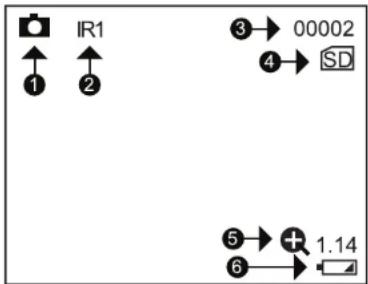
- Photo/Video mode icon
- IR level Indication
- No. of photos taken
- TF card insert indication
- Zoom Ratio indication
- Battery level indicator
Taking Pictures And Videos
- To take a picture: go to Photo mode (this is the default mode when the night vision is switched on.) A camera icon shows at the bottom of the screen. To take a photo, press the OK button.
- To record a video: go to Video mode. A small video icon will appear at the bottom of the screen. To start recording, press the OK button. To stop recording, press the OK button again. Video will save automatically onto the Micro SD memory card.
Setting Menu Navigation
BARSKA
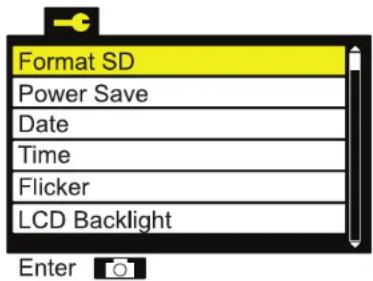
a. To get the settings menu, use the MODE button to flick through the photo, video and gallery modes until you reach this setting menu. (Pictured)
b. Use the Zoom and IR buttons to go up and down, and the OK button to enter/exit menus.
c. Pressing the MODE button will go back to Photo mode.
Menu Options
Format SD: Erase everything on your installed memory card.
Power Save: Configure the Night Vision Binocular to Turn off after a certain of non-use.
Date: Edit current date for displaying date information on the Photos/Videos.
Time: Edit current time for showing time information on the Photos/Videos.
Flicker: Select 50Hz/60Hz according to power system frequency. For example, select 50Hz for 220V/50Hz power system.
LCD Backlight. Change the brightness of the screen. Use the ZOOM and IR buttons to increase/decrease the brightness. Press OK to save.
Date/Time Tag: ON/OFF Date and Time information on the Photos/Videos Version: Display software version installed.
Downloading Footage To Your PC
The night vision has a small connection port just above the eyepiece (next to the memory card slot.) Using the supplied USB cable, connect your PC to the night vision.
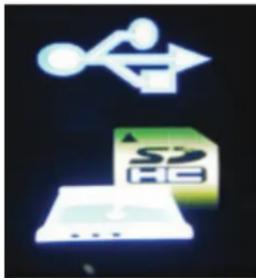
When the night vision is turned off, plug it into your PC. A card reader icon will display on the screen of your night vision.
natural_image
Two glowing icons: a white abstract symbol above a green cube with 'S2' text, and a light blue arrow pointing upward (no readable text or symbols)On Windows, navigate to your File Explorer. The Night Vision Binocular may appear as "USB DISK", "REMOVABLE STORAGE" or something similar, normally processed by a "D or E:".
Within this drive, your photos and videos will be in a folder call DCIM\100JLCAM.
BARSKA
Viewing Footage On The Night Vision Binocular
You can review your photos and videos on the Night Vision Binocular itself. Keep pressing the MODE button until you get to the Gallery mode.
Use the ZOOM and IR buttons to scroll up and down your photos and videos.
You can start playing a video by pressing the OK button on a selected video, and selecting "Play" from the sub-menu using the OK button.
To delete a photo or video, press OK button and select "Delete" from the submenu.
Troubleshooting
Poor image
- Check that the Night Vision Binocular is focused by adjusting the focus wheel at the front of the device.
- Check that the IR illumination level is will adjust.
- Check Lens cap attachment takes off when operation at night mode
- Check if Low level battery but using IR6 or IR7 illumination.
No power
- If the Binocular fails to activate, check for defective, missing or improperly-installed batteries. Replace or install batteries correctly. Please make sure to use Alkaline batteries.
- Please make sure to use only alkaline AA batteries.
Specification
Optical Zoom 7x
Objective aperture: 20mm
Viewing angle: 5.5°
Exit pupil distance: 20mm
Min focus range: 1m
F# for object lens: Night 1.311/Day 2.8
Viewing distance at night: 100m
Sensor: CMOS
Recording resolution: 640 x 480
Display resolution: 320 x 240
IR LED power: 1.5W
Wavelength: 850nm
Digital Zoom: 12 levels/Max 2x
Battery life: Operation Time \~ 8hrs (IR off)/ 2hrs (IR7)
Power supply: AA x 4 batteries (not included)
Memory card: Max 32GB TF card (not included)