L24FE12I - TV Logik - Free user manual and instructions
Find the device manual for free L24FE12I Logik in PDF.


| Product Type | LED TV |
| Screen Size | 24 inches (60.9 cm) |
| Resolution | 1366 x 768 pixels |
| Display Technology | LED |
| Dimensions (with stand) | 55.0 x 34.0 x 15.0 cm |
| Weight (with stand) | 3.5 kg |
| Power Consumption (typical) | 30 W |
| Standby Power Consumption | < 0.5 W |
| Input Voltage | 100-240 V AC, 50/60 Hz |
| Tuner | DVB-T/T2/C |
| HDMI Ports | 2 |
| USB Ports | 1 |
| VGA Input | 1 |
| Composite Input | 1 |
| Headphone Output | 1 |
| VESA Mount Pattern | 100 x 100 mm |
| Remote Control | Included |
| Energy Efficiency Class | A+ |
| Special Features | Sleep Timer, Parental Lock, Teletext |
| Maintenance | Clean with soft dry cloth, avoid solvents |
| Safety | Do not expose to water, unplug during storm |
| Spare Parts Availability | Contact manufacturer for parts |
| Repair Information | Only qualified personnel should open the unit |
Frequently Asked Questions - L24FE12I Logik
User questions about L24FE12I Logik
0 question about this device. Answer the ones you know or ask your own.
Ask a new question about this device
Download the instructions for your TV in PDF format for free! Find your manual L24FE12I - Logik and take your electronic device back in hand. On this page are published all the documents necessary for the use of your device. L24FE12I by Logik.
USER MANUAL L24FE12I Logik
22" / 24" Full HD LED TV
Instruction Manual
natural_image
Black-and-white photo of a LOGIK desktop monitor displaying a soccer player jumping over sky, with a remote control nearby (no text or symbols visible on screen)L22FE12I
natural_image
Black-and-white photo of a retro television set with a car driving on a curved road, accompanied by a remote control (no visible text or symbols)L24FE12I
WE KNOWHOW™ TO HELP YOU WITH YOUR TV
We want you to be able to enjoy your new TV for many years. From getting it home and setting it up, to helping you to get the most out of your new purchase. And in the unlikely event your product lets you down, we can get it working again in no time.
Here are some of our TV services but if you want to know more look us up at knowhow.com or call us on: 0844 561 1234
TV SET UP & DEMO
We'll assemble the stand and connect your new TV to the existing equipment. We'll tune your TV so it's ready to watch. We'll also give you a demonstration of your new TV's functions.
TV WALLMOUNT & DEMO
We'll fix your TV to a suitable position on the wall and connect to your existing equipment, so it's all ready to go. We'll use neat wire management so you don't have to look at any untidy cabling and to complete your fuss-free installation, we'll test and demonstrate your TV's functions.
FREESAT® SET UP & DEMO
We'll set up the Freesat® receiver and connect it to your existing dish, TV and cabling. We'll then tune in all available channels.
AERIAL INSTALL & TUNE
We'll supply, install and align a new, high quality aerial and connect it to your Freeview receiver and TV. Then we'll scan and tune in all available digital channels.
HOME THEATRE SET UP & DEMO
We'll un-box, connect and set up your new and existing equipment. We'll then configure, calibrate and optimise the equipment. To avoid ugly trailing cables, we'll clip them to your skirting board, if you'd like us to. Then we'll give you a demonstration.
FAULT & FIX SERVICES
With our FAULT & FIX services, we can repair a wide range of products at our new state-of-the-art repair lab. This service is available for:
- Computer Desktops
- Laptops
- Netbooks
- TVs
- Games Consoles
- Sky & Freeview Digi Boxes
Preparation....5
Unpacking the TV 5
Installing / Removing the Base Stand 6
Front / Right Side View and Controls....7
Rear View and Sockets 8
Installing Batteries in the Remote Control 9
Remote Control Operation Range....9
Remote Control 10
Connections....13
Making Video and Audio Connections....13
Connecting an AV Device Using an HDMI Cable....13
Connecting a Computer Using a VGA Cable 14
Connecting an AV Device Using a Component (YPbPr) Cable 14
Connecting an AV Device Using a SCART Cable 15
Connecting an AV Device Using Composite Cable 15
Connecting Headphones....16
Initial Setup 17
Turning the TV On for the First Time 17
- Target Region Descriptor....18
- Selecting the Input Source....19
- Channel Selection ....19
- Display Channel Information ....19
– Volume Adjustment....19
Customising TV Settings 20
Channel Setting (DTV, TV or Radio Mode)....20
- Auto Tuning (DVB-T) 20
- Auto Tuning (DVB-C) 21
- DTV Manual Tuning (DVB-T) 22
- DTV Manual Tuning (DVB-C)....22
- ATV Manual Tuning 23
- Channel Edit (DTV / ATV Mode) 24
– Signal Information (DTV Mode) (DVB-T) 25
– Signal Information (DTV Mode) (DVB-C) 25
- CI (Common Interface) (DTV Mode) 26
- Software Update (USB) 27
Picture Setting 27
Sound Setting 29
- Stereo / Dual Sound Reception (ATV Mode)....30
Time Settings.... 30
Option Setting 32
- OSD Language 32
– Audio Language (DTV Mode).... 32
- Subtitle Language (DTV Mode) 33
– Hearing Impaired....33
– Country....34
- PVR File System (DTV Mode)....34
- CEC (Consumer Electronics Control) 35
- Restore Factory Default....36
Lock Setting 36
- Lock System 36
- Set Password 37
- Block Channel 38
- Parental Guidance 39
Using the Features 41
EPG (Electronic Programme Guide) (DTV Mode) 41
- Switch On / Off EPG....41
- Select a Programme ....41
Teletext (ATV Mode)....42
- To Turn on Teletext Function.... 42
Digital Teletext (DTV Mode) 43
- Teletext within Digital Service....43
Entertainment 44
Connecting a USB Storage Device....44
Viewing Photos....44
Listening to Music....45
Viewing Movies 46
My Text....47
PVR (Personal Video Recorder)....48
Time Shift Function 48
Recording DTV Programme onto a USB Storage Device 49
Timer Programming 50
Play Recorded Programme ....51
Maintenance....52
Hints and Tips....52
Display Modes ....54
YPbPr Mode 54
PC Mode 54
HDMI Mode 54
Specifications ....55
Safety Warnings 57
Thank you for purchasing your new Logik 22" / 24" Full HD LED TV.
Your new TV has many features and incorporates the latest technology to enhance your viewing experience. We recommend that you spend some time reading this instruction manual so that you fully understand these features. You will also find some hints and tips to help you resolve any issues.
Read all the safety instructions carefully before use and keep this instruction manual for future reference.

Unpacking the TV
Remove all packaging from the TV. Retain the packaging. If you dispose of it please do so according to local regulations.
The following items are included:
natural_image
Blank rectangular frame with gradient gray background (no text or symbols)TV
TV Stand Support (P.N.: 115C2461101)

TV Base
(P.N.: 506C1961101)
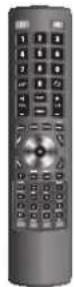

Remote Control / AAA Batteries x 2 (P.N.: 504C1961101 & 32200007158)

Screw A x 1
(P.N.: 209100422B1)
text_image
LOGIK 22" / 24" Full HD LED TV Innovative Market LOGIK LOGIK D3 HDTV 10MPInstruction Manual (P.N.: 4031C226105)
text_image
LOGIK LOGIK NAME: LOGIK LOGIK NAME: LOGIK LOGIK NAME: LOGIK LOGIK NAME: LOGIK LOGIK NAME: LOGIK LOGIK NAME: LOGIK LOGIK NAME: LOGIK LOGIK NAME: LOGIK LOGIK NAME: LOGIK LOGIK NAME: LOGIK LOGIK NAME: LOGIK LOGIK NAME: LOGIK LOGIK NAME: LOGIK LOGIK NAME: LOGIK LOGIK NAME: LOGIKQuick Start Guide (P.N.: 4033C226111)

Screw B x 1
(P.N.: 20912223101)

Installing / Removing the Base Stand

The LCD display is very fragile, and must be protected at all times when installing and removing the base stand. Be sure that no hard or sharp object, or anything that could scratch or damage the LCD display, comes into contact with it. DO NOT exert pressure on the front of the TV at any time because the screen could crack.
- Disconnect all cables connected to the TV.
- Lay the TV down on a flat surface with the back side facing up. Please make sure a soft cushioned material (such as a pillow or thick piece of foam) is placed beneath the screen.
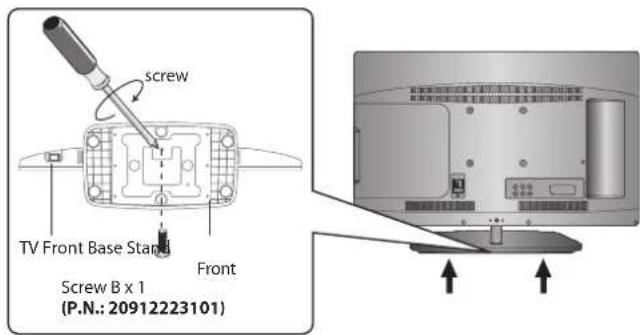
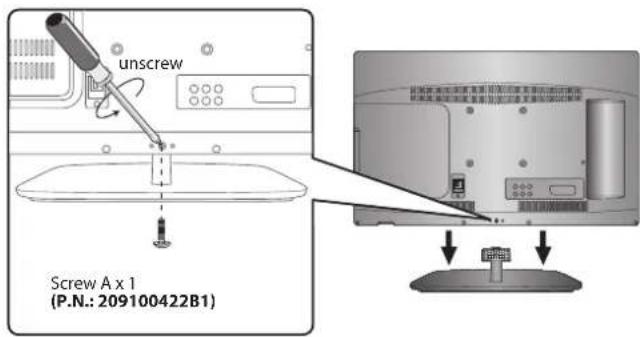
- To install the TV stand, first attach the stand support to the TV by using screw A. Align the screw hole then use screw A to fix the stand support to the TV.
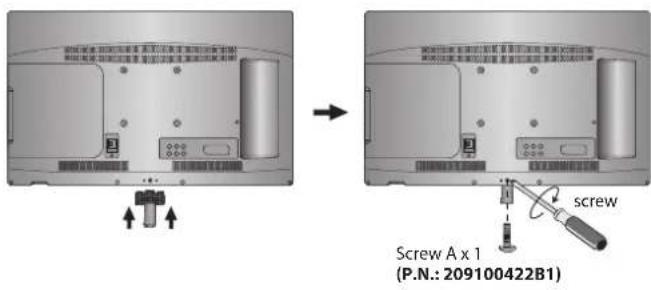
text_image
Screw A x 1 (P.N.: 209100422B1)- To install the base stand, align the screw hole, then secure with a screw driver (not included) using the screw B provided.
text_image
screw TV Front Base Stand Front Screw B x 1 (P.N.: 20912223101)
Remove the stand assembly before mounting the TV onto the wall.
- To remove the stand assembly, untighten the screw holding the stand assembly to the rear of the TV. Slide the stand assembly out.

Keep all the spare screws should you want to use the stand assembly option.
text_image
unscrew Screw A x 1 (P.N.: 209100422B1)- Mounting on the wall. This TV is designed to be wall-mounted with a standard 100 mm x 100 mm mounting kit (sold separately) designed for flat-panel TVs. Mount this TV according to the instructions included in the mounting kit. Due to space restrictions, we recommend that you make all connections (refer to page 13-16 and page 44 for details) before mounting on to the wall.

text_image
100 mm 100 mm Four mounting holes (size M4x8 screw)
- Please read this instruction manual carefully while setting up your TV.
- If you require additional assistance please call our UK Call Centre on 0844 561 1234. Our UK Customer Contact Centre is open Monday-Saturday 8am-8pm or Sunday 8am-6pm.
text_image
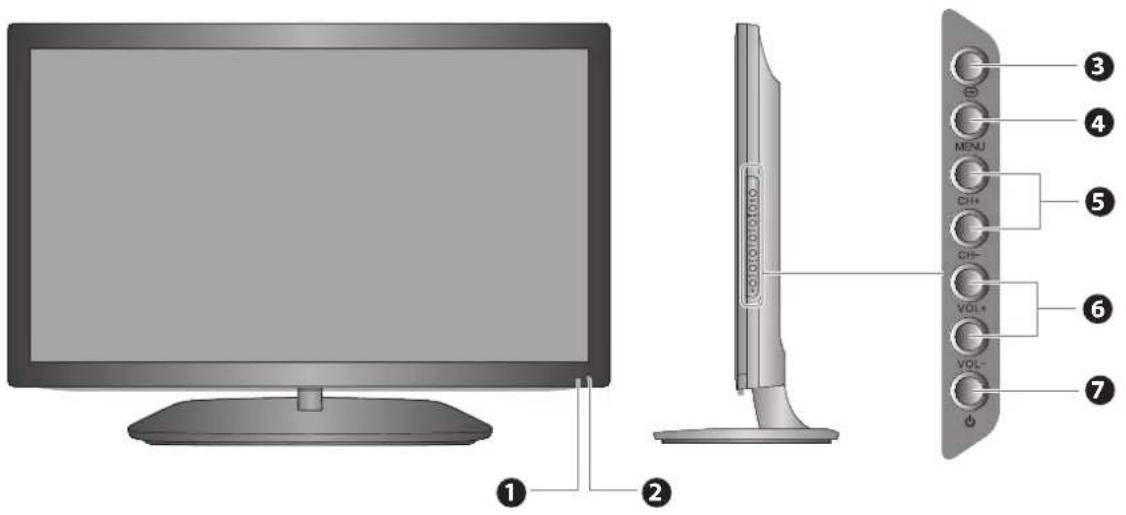
Diagram of a monitor with labeled parts including front panel, screen, and control buttons| Item Description | |
| 1 POWER LED | Illuminates blue when the TV is turned on. Illuminates red when the TV is in standby mode. The LED will flash blue and red when the timer programming has started in standby mode. |
| 2 IR (Infrared Receiver) | Receives IR signals from the remote control.Do not put anything near the sensor, as its function may be affected. |
| 3 INPUT | Press to select among different input signal sources:DTV / ATV / SCART / YPbPr / PC / HDMI1 / HDMI2 / AV / USB.Use the ▲▼ buttons on the remote control to select the input, and then press the OK button to confirm. |
| 4 MENU Displays the OSD (on screen display) menu. | |
| 5 CH + / - Press to select a channel or select a sub-menu from the OSD menu. | |
| 6 VOL + / - | Adjusts the volume.Press to select and adjust a setting in the OSD menu. |
| 7 ⏻ | Switches the TV on from standby mode.Switches the TV back to standby mode. |
text_image
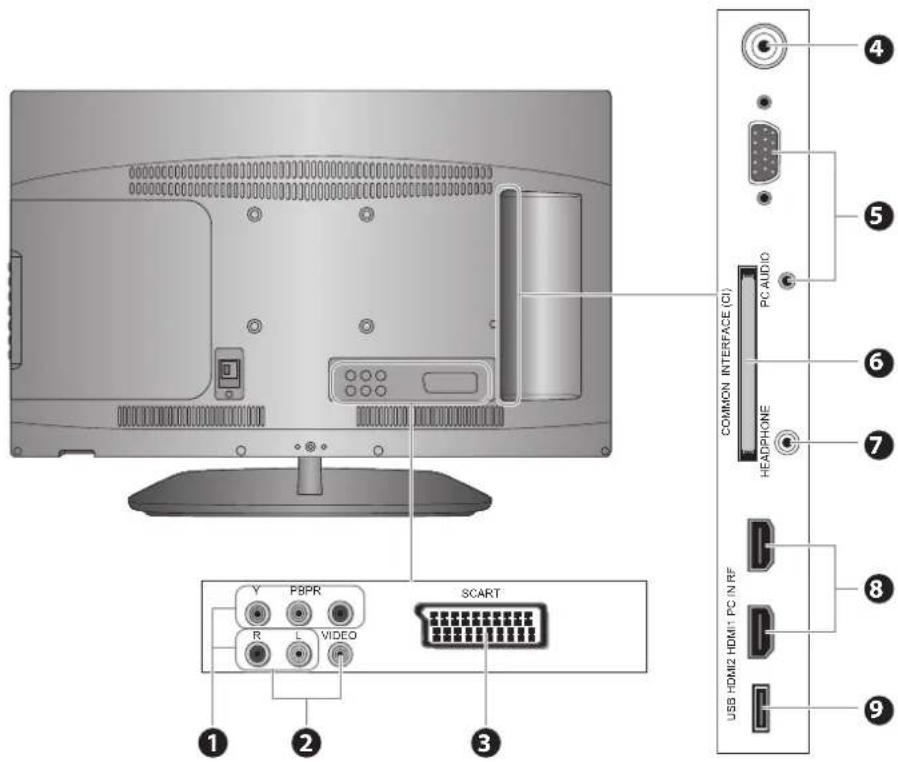
1 2 3 Y PBP8 R L VIDEO SCART 4 5 6 7 COMMON INTERFACE (CI) PC AUDIO HEADPHONE 8 USB HDMI2 HDMI1 PC IN RF 9| Socket Description | |
| 1 Y, PB, PR / AUDIO (L/R) | Connects to a DVD player, Digital Set-Top-Box, or other AV devices with component (YPbPr) video and audio output sockets. |
| 2 VIDEO / AUDIO (L/R) | Connects to the Composite VIDEO and AUDIO (L/R) output sockets on external video devices. |
| 3 SCART Connects to a VCR, DVD Player, or other AV device with a SCART output socket. | |
| 4 RF Aerial Connects to the aerial socket on the wall with the RF coaxial cable. | |
| 5 PC IN / PC AUDIO Connects to a computer or other devices with a VGA interface. | |
| 6 COMMON INTERFACE Allows the insertion of a Common Access Module. (Refer to page 26 for details.) | |
| 7 HEADPHONE Connects to the headphones. | |
| 8 HDMI1 / HDMI2 | Connects to a High-Definition (HD) signal output device, such as a set-top box, blu-ray disc player or AV receiver. |
| 9 USB | Allows the insertion of a USB storage device to play video, audio, photo and text files (USB mode) and record DTV programmes on to a USB storage device. |

Installing Batteries in the Remote Control
-
Press and lift the back cover to open the battery compartment of the remote control.
-
Insert two AAA size batteries. Make sure the (+) and (-) ends of the batteries match the (+) and (-) ends indicated in the battery compartment.
-
Close the battery compartment cover.
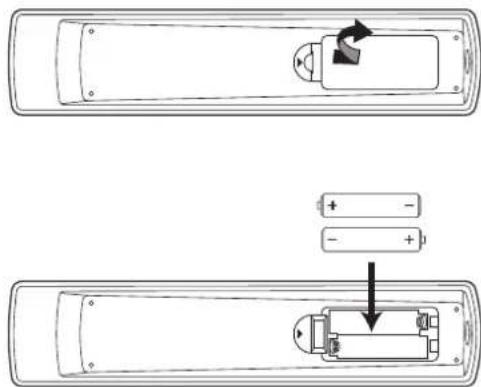
text_image
Diagram showing a remote control panel with battery and switch, before and after disassembly with polarity indicators.
Handling the Batteries
- Improper or incorrect use of batteries may cause corrosion or battery leakage, which could cause fire, personal injury or damage to property.
• Only use the battery type indicated in this manual. - When the batteries are exhausted, the remote will not function. Replace both batteries at the same time with new ones.
- Do not install new batteries with used ones and do not mix different types of batteries.
- Do not dispose of used batteries as domestic waste. Dispose of them in accordance with local regulations.
Handling the Remote Control
• Take care of your fingernails when you press and hold the battery release tab.
- Do not drop or cause impact to the remote control.
- Do not spill water or any liquid on the remote control.
• Do not place the remote control on a wet object.
- Do not place the remote control under direct sunlight or near sources of excessive heat.
- Remove the battery from the remote control when not in use for a long period of time, as it could cause corrosion or battery leakage and may result in physical injury and/or property damage including fire.

Remote Control Operation Range
Point the remote control at the TV no more than 5 metres from the remote control sensor on the TV and within 60° in front of the TV. The operating distance may vary depending on the brightness of the room.
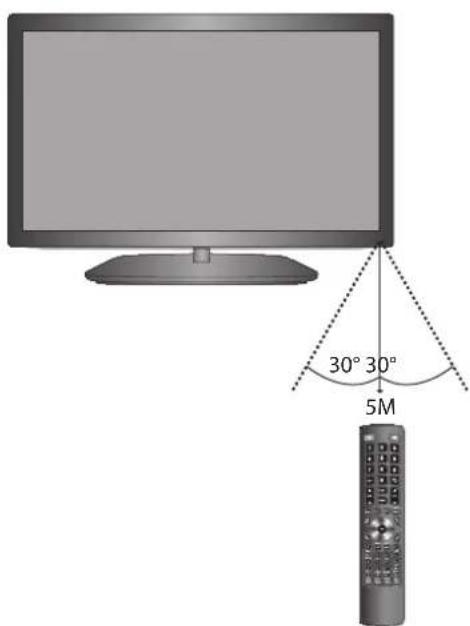
text_image
30° 30° 5M
Remote Control
1. ⏻
Switch the TV between on and standby mode.
2. MUTE
Mute and restore your TV sound.
3. 0-9 Number Button
• Press to select a programme.
- Select numbered items in a menu. (DVD mode)
4. LIST
• Display the channel list. (ATV / DTV mode)
• Display the text page on the teletext screen. (ATV mode)
5. ↔RECALL
• Return to the previous viewing channel. (ATV / DTV mode)
• Return to menu (DVD mode)
6. SLEEP
Set the TV sleep timer: OFF / 10 / 20 / ... / 180 / 240 min.
7. VOL + / -
Adjust the volume.
8. CH + / -
Select a channel.
9. PROG
• Display the channel edit menu. (ATV / DTV mode)
• Programme the DVD. (DVD mode)
10. S.MODE
Select sound mode: Standard / Music / Movie / Sports / User.
11. ASPECT
Watch the screen in various formats: Auto / 4:3 / 16:9 / Zoom / Subtitle / Smart Zoom / Full.
12. GUIDE
Display the EPG Electronic Programme Guide. (DTV mode)
TITLE
Display the DVD title content. (DVD mode)
13. P.MODE
Select picture mode: Standard / Mild / User / Dynamic.
14. MENU
Display the OSD (On Screen Display) menu.
15. INPUT
Select among the different input signal sources: DTV / ATV / SCART / YPbPr / PC / HDMI1 / HDMI2 / AV / USB
16.
Allow you to navigate the OSD menus and adjust the system settings to your preference.
OK
Confirm the selection in the OSD menus.
17. BACK
Return to the previous menu in the OSD menus.
18. Exit
Exit the OSD menu.
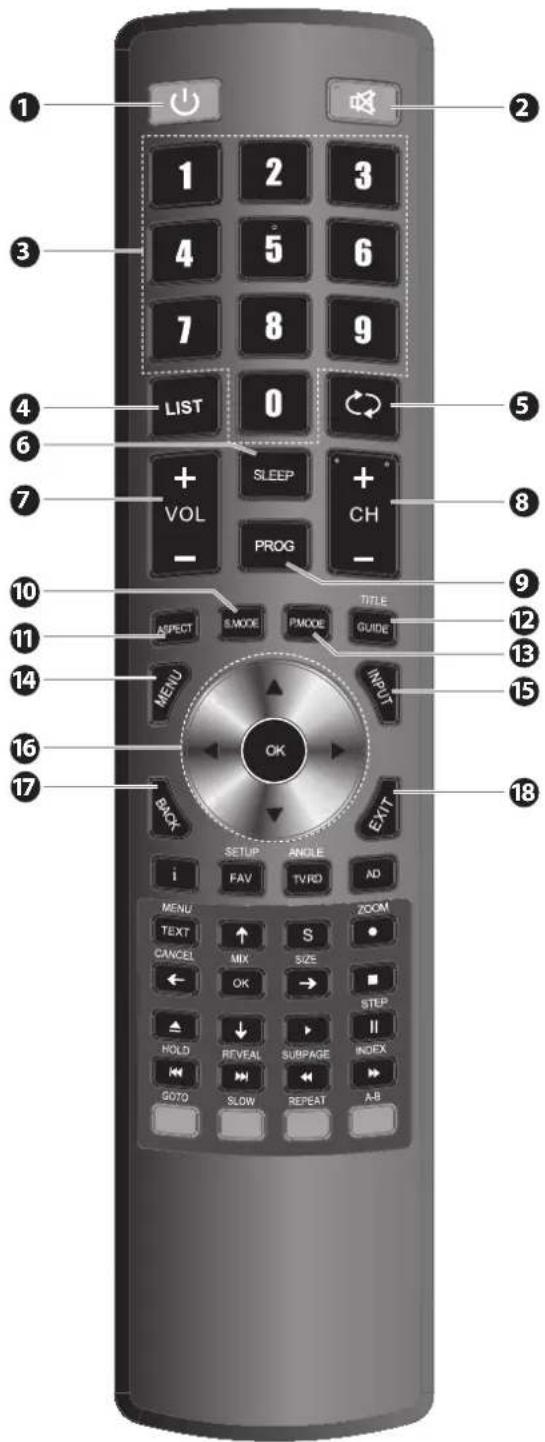
text_image
Diagram of a remote control with numbered keys and function buttons for navigation and function functions.
Please note that there are DVD mode functions on the remote control only operate on TV models with a built-in DVD player.
19. FAV
Display the favourite channel list. (ATV / DTV mode)
SETUP
Display and exit the DVD setup menu. (DVD mode)
20.i
Display the present screen information such as the current channel on ATV / DTV mode and the input source except ATV / DTV mode.
21. TV.RD
A short-cut to switch input source to TV / Digital radio channels.
ANGLE
Select different angles for the video. (DVD mode)
22. AD (Audio Description)
- Turn on / off the Audio Description (AD) function (only applicable when the TV programme has this feature). (DTV mode)
- Select different Audio modes on DVD mode. (DVD mode)
• Select Stereo / Dual Sound Reception. (ATV mode)
23. TEXT
Turn on and off the teletext function. (ATV / DTV mode)
MENU
Display the DVD menu. (DVD mode)
24. S (Subtitle)
• Display subtitles which are broadcast with the programme. (DTV mode)
• Display subtitles on the DVD. (DVD mode)
25. ● REC
Record the current programme. (DTV mode).
ZOOM
Zoom in on the displayed frame. (DVD mode)
26. ←↑↓→
Navigate the DVD menu and adjust the system settings to your preference. (DVD mode)
OK
Confirm the selection in the DVD menus. (DVD mode)
CANCEL
Exit the teletext mode. (ATV mode)
MIX
Select TELETEXT with a TV programme. (ATV mode)
SIZE
Enlarge the picture on the TV in teletext. (ATV mode)
27. ■Stop
Stop the playback or recording. (DVD / USB / DTV mode)
28.
Eject a disc. (DVD mode)
29. II Pause
• Pause playback. (DVD / USB mode)
• Start the time-shift function (DTV mode)
STEP
Play the playback forwards frame by frame. (DVD mode)
30. PLAY
Start playback. (DVD / USB mode)

Please note that there are DVD mode functions on the remote control only operate on TV models with a built-in DVD player.
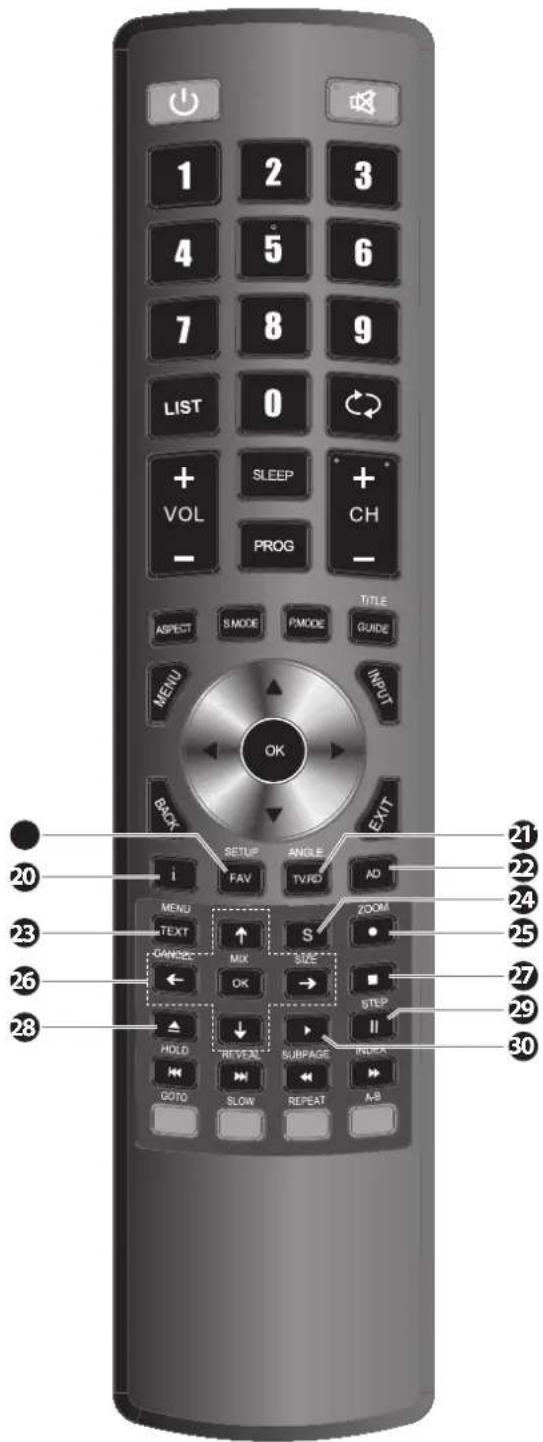
text_image
1 2 3 4 5 6 7 8 9 LIST 0 + SLEEP + + VOL CH - PROG - ASPECT S MODE PMODE GUIDE MENU INPUT OK BACK EXIT SETUP ANGLE i FAV TVRD AD MENU SIZE ZOOM TEXT MIX CHANGE OK → ■ HOLD REVEE SURPAGE INDEXA GOTO SLOW REPEAT A-B 20 21 22 22 23 24 25 26 27 27 29 28 3031.
Skip to the beginning of the next chapter / track / photo. (DVD / USB mode)
REVEAL
Reveal hidden information such as the answer to a quiz in teletext. (ATV mode)
32.
To skip to the beginning of the previous chapter / track / photo. (DVD / USB mode)
HOLD
Freeze a multi-page passage on screen in teletext. (ATV mode)
33.
Reverse playback rapidly. (DVD / USB mode)
SUBPAGE
Display the subpage on the teletext screen. (ATV mode)
34.
Advance playback rapidly. (DVD / USB mode)
INDEX
Select the page number of the index from teletext. (ATV mode)
35. Coloured buttons
Access the TELETEXT items or channel edit when using Digital / Freeview TV Channels. (ATV / DTV mode)
GOTO (RED)
Skip to a specific location on a DVD / CD. (DVD mode)
SLOW (GREEN)
Play video slowly. (DVD mode)
REPEAT (YELLOW)
Select between different repeat modes. (DVD mode)
A-B (BLUE)
Repeat a segment between A and B. (DVD mode)

text_image
1 2 3 4 5 6 7 8 9 LIST 0 + VOL SLEEP + PROG CH - ASPECT S MODE P MODE TITLE GUIDE MENU INPUT BACK EXIT SETUP ANGLE i FAV TVRD AD MENU ZOOM TEXT ↑ S CANCEL MIX SIZE ● ← OK → ■ HOLD ↓ ▶ HOLD REVEAL SUBPAGE INDEX → ↔ ↔ ↔ QUTO SLOW REPEAT A-B 31 32 33 35
Please note that there are DVD mode functions on the remote control only operate on TV models with a built-in DVD player.

Making Video and Audio Connections
Not all AV devices have the ability to connect to a TV, please refer to the owner's manual of your AV device for compatibility and connection procedures.
When connecting any external AV device, do not connect the mains cable to the mains socket until all other connections are complete.
| Signal Type | Separate Audio Connection Required | |
 | HDMI(480i/480p/576i/576p/720p/1080i/1080p) | No |
PC IN | PC | YesPC AUDIO |
YPRPR | Component Video(480i/480p/576i/576p/720p/1080i/1080p) | Yes |
SCART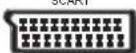 | SCART (RGB Input) No | |
VIDEO | Composite Video | Yes |

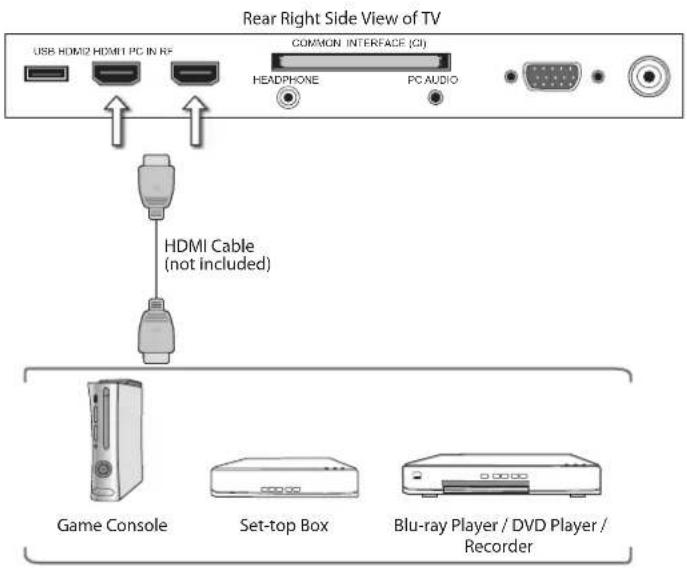
Connecting an AV Device Using an HDMI Cable
- This TV can accept High-Definition Multimedia Interface (HDMI) supports HDCP (High-Bandwidth Digital Content Protection) Protocol.
- This TV has a total of 2 HDMI input sockets, please make sure the correct input source is selected and corresponds to your connected HDMI input socket.
- When you connect to the output of an HD ready player (blu-ray disc player, game console, set-top box or computer) switch to the HDMI function and the TV will automatically detect the resolution used by the HDMI source.
-
To get the best picture quality, adjust the blu-ray disc player, game console or set-top box output resolution up to 1920 x 1080p.
-
Use an HDMI cable to connect the TV's HDMI input socket to the external AV device's HDMI output socket.
- Plug the connected devices into the mains socket before switching on the TV.
- Press the ⏻ button on the right side panel of the TV or on the remote control to turn on your TV.
- Press the button on the right side panel of the TV or the INPUT button on the remote control to display the Source List. Use the ▲▼ buttons to select HDMI1 / HDMI2 and then press the OK button to confirm.

Although this TV is able to connect to an HDMI device, it is possible that some devices may not operate correctly.
text_image
Rear Right Side View of TV USB HDMI2 HDMI1 PC IN RF COMMON INTERFACE (CI) HEADPHONE PC AUDIO HDMI Cable (not included) Game Console Set-top Box Blu-ray Player / DVD Player / Recorder
Connecting a Computer Using a VGA Cable
- Use a VGA cable to connect the TV's PC IN input socket to a computer's VGA output socket. Use an audio cable to connect the TV's PC AUDIO input socket to the computer's audio output socket.
- Plug the connected devices into the mains socket before switching on the TV.
- Press the ⏻ button on the right side panel of the TV or on the remote control to turn on your TV.
- Press the ⏻ button on the right side panel of the TV or the INPUT button on the remote control to display the Source List. Use the ▲▼ buttons to select PC and then press the OK button to confirm.

• The best resolution is 1920 x 1080.
- If your computer is set to shut down after a few minutes in the idle mode, the TV will also switch to standby due to no signal being received, this is to save energy. Press the ⏻ button on the right side panel of the TV or on the remote control to restart the TV.
Rear Right Side View of TV

text_image
USB HDMI2 HDMI1 PC IN RF COMMON INTERFACE (CI) HEADPHONE PC AUDIO Audio Cable (not included) VGA Cable (not included) Computer
Connecting an AV Device Using a Component (YPbPr) Cable
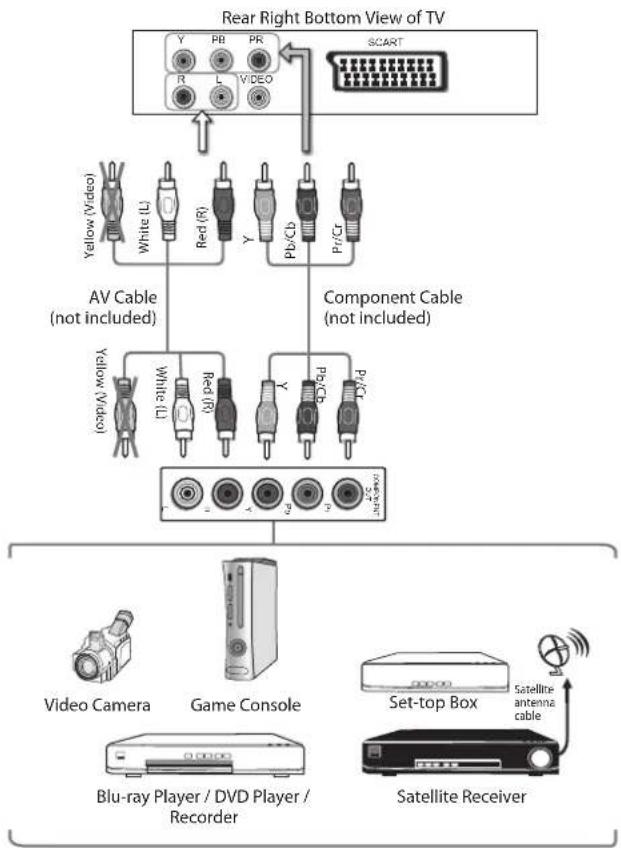
- Use a component cable to connect the TV's YPbPr input sockets to an external AV device's component output sockets.
- Use an AV cable to connect the TV's AUDIO(L/R) input sockets to the external AV device's component audio output sockets. (Audio Left = white, and Audio Right = red)
| Component port on the TV Y Pb Pr |
| Video output ports on DVD player | Y Pb | Pr | |
| Y Cb | Cr |
- Plug the connected devices into the mains socket before switching on the TV.
- Press the ⏻ button on the right side panel of the TV or on the remote control to turn on your TV.
- Press the ⏻ button on the right side panel of the TV or the INPUT button on the remote control to display the Source List. Use the ▲▼ buttons to select YPbPr and then press the OK button to confirm.
flowchart
graph TD
    A["ScART"] --> B["Yellow (Video)"]
    A --> C["White (L)"]
    A --> D["Red (R)"]
    A --> E["Y"]
    A --> F["Pb/Cb"]
    A --> G["Pr/Cr"]
    A --> H["AV Cable (not included)"]
    A --> I["Component Cable (not included)"]
    J["Video Camera"] --> K["Game Console"]
    L["Blu-ray Player / DVD Player / Recorder"] --> K
    M["Set-top Box"] --> N["Satellite antenna cable"]
    O["Satellite Receiver"] --> N
    K --> P["Computer"]
    K --> Q["Video Cable"]

Connecting an AV Device Using a SCART Cable
- Use a SCART cable to connect the TV's SCART input socket to an external AV device's SCART output socket.
- Plug the connected devices into the mains socket before switching on the TV.
- Press the ⏻ button on the right side panel of the TV or on the remote control to turn on your TV.
- The TV will change the input source to SCART automatically once the AV device is switched on.

flowchart
graph TD
    A["ScART Cable (not included)"] --> B["SCART"]
    B --> C["VCPBPR"]
    B --> D["RLVIDEO"]
    B --> E["SCART"]
    F["Set-top Box"] --> G["Satellite antenna cable"]
    H["Satellite Receiver"] --> I["Satellite Antenna Cable"]
    J["VCR"] --> K["DVD Player / Recorder"]

Connecting an AV Device Using Composite Cable
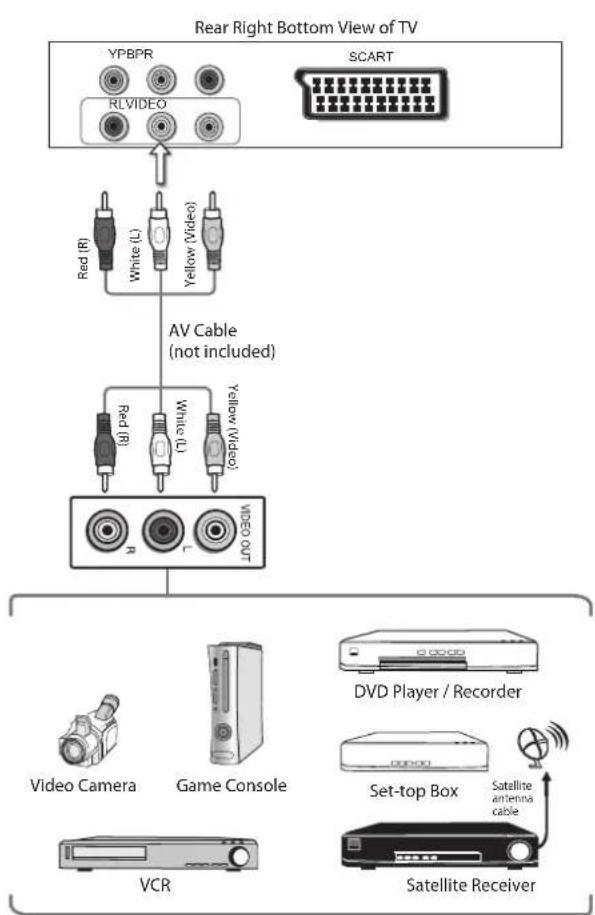
- Use an AV cable to connect the TV's AUDIO(L/R) / VIDEO input sockets to the external AV device's composite audio / video output sockets. (VIDEO = yellow, Audio Left = white, and Audio Right = red)
- Plug the connected devices into the mains socket before switching on the TV.
- Press the ⏻ button on the right side panel of the TV or on the remote control to turn on your TV.
- Press the ⏻ button on the right side panel of the TV or the INPUT button on the remote control to display the Source List. Use the ▲▼ buttons to select AV and then press the OK button to confirm.
flowchart
graph TD
    A["VPBPR"] --> B["RLVIDEO"]
    C["SCART"] --> D["AV Cable (not included)"]
    B --> E["Red (R)"]
    B --> F["White (L)"]
    B --> G["Yellow (Video)"]
    D --> H["Red (R)"]
    D --> I["White (L)"]
    D --> J["Yellow (Video)"]
    H --> K["Video OUT"]
    I --> K
    J --> K
    K --> L["Video Camera"]
    K --> M["Game Console"]
    K --> N["VCR"]
    K --> O["Satellite Receiver"]
    P["DVD Player / Recorder"] --> Q["Set-top Box"]
    Q --> R["Satellite antenna cable"]

Connecting Headphones
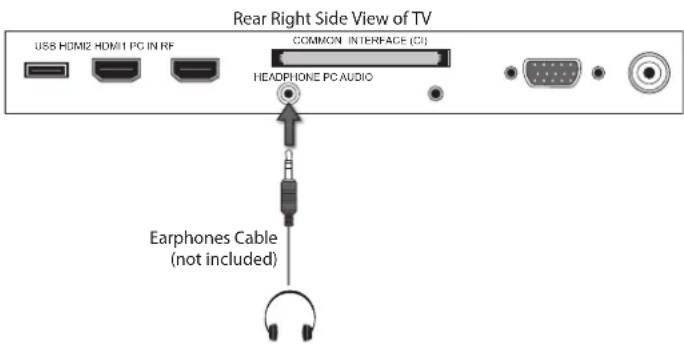
Connect your headphones to the TV's HEADPHONE socket.
Before putting on the headphones, turn the volume down then put the headphones on and slowly increase the volume until you reach a comfortable listening level.

Long-term exposure to loud music may cause hearing damage. It is best to avoid extreme volume when using headphones, especially for extended periods.
text_image
Rear Right Side View of TV USB HDMI2 HDMI1 PC IN RF COMMON INTERFACE (CI) HEADPHONE PC AUDIO Earphones Cable (not included)
Turning the TV On for the First Time
- Connect one end of the RF coaxial cable to the aerial socket on the wall and the other end of the cable to the RF (75Ω) socket at the rear right side of your TV.

Do not connect the TV to the mains supply until you have completed all the connections.

text_image
OR RF coaxial cable (not included) USB HDMI HDMI PC IN RF COMMON INTERFACE (CI) HEATPHONE PC AUDIO- Connect the mains cable to the mains socket after you have completed all the connections.
- At this stage, the TV switches to standby mode. The red LED indicator will illuminate on the front panel of the TV.
- In standby mode, press the ⏻ button on the right side panel of the TV or on the remote control to turn the TV on. The red LED indicator will turn blue.

text_image
To the mains socket
• Always disconnect the TV from the mains socket when not in use for a long period of time.
- The button on the right side panel of the TV or on the remote control is only used for switching the TV into standby, it does not disconnect the TV from the mains power. To completely disconnect the mains power, please remove the mains plug from the mains socket.
- The first time you turn the TV on, it will go straight into the First Time Installation menu. Please ensure the aerial is plugged in and then press the OK button. (If you have already installed the TV using the Quick Start Guide, please go to the section "Selecting the Input Source" on the next page.)
- Press the ▲◀▶buttons to select your desired language to be displayed on the menu. The default on-screen menu language is set as English. Press the OK button to confirm.
- Press the ▲▼ buttons to select DVB-T / DVB-C and then press the OK button to confirm.
| First Time Installation |
| Please ensure aerial is plugged in! |
| Then press OK button. |
| OSD Language | ||||
| Česky | Français | Magyar | Polski English | |
| Dansk | Español | Hrvatski | Nederlands | Portugues |
| Deutsch | Eλληνικο | Italiano | Norsk | Pycck μ |
| DVB SELECT TYPE |
| DVB-T |
| DVB-C |
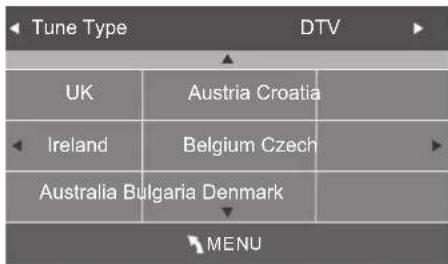
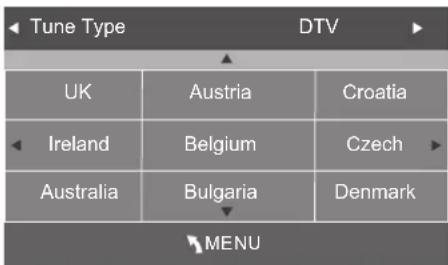
a. If you select DVB-T, press the ▲◀▶buttons to select the desired country and then press the OK button to start tuning.
b. If you select DVB-C, the next step is to configure the DVB-C system (Scan type / Frequency / Network ID / Symbol(ks/s). Press the OK button to go to the tune type and add country select menu. This step is the same as the DVB-T's select the tune type (DTV) process. Press the ▲◀▶buttons to select the desired country and then press the OK button to start tuning.
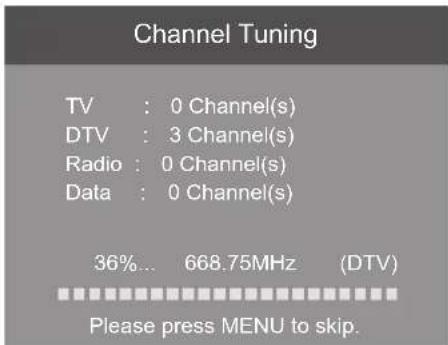
- Channel tuning will commence. This operation may take up to 6 minutes. The display will show the progress of the tuning and the number of channels found.
- If you have selected DTV+ATV and want to skip the ATV tuning, press the MENU button to interrupt the tuning half way. A pop-up screen will be displayed, press the ◀button to select YES to confirm. You will then go straight to DTV tuning. You may repeat the above step if you also want to skip the DTV tuning. An installation reminder will appear the next time you turn on the TV.
- After tuning is complete, the channels are arranged in a preset order. If you wish to skip channels, modify the preset order or rename channels, select Channel Edit under the Channel menu (refer to page 24 for details).
Target Region Descriptor
During tuning your TV may have received signals from more than one transmitter. If this has occurred the Target Region Descriptor screen will be displayed. This will enable you to select the correct regional transmission for the local news service that you require.
Press the ◀▶ buttons to adjust each option's setting and then press the OK button to confirm.
| Country Code This will be shown as GBR for the UK. | |
| Primary Region | This will show the regional country (England, Wales, Scotland, Northern Ireland (NI)). |
| Secondary Region | This will allow you to set the region for your local news service. |
| Tertiary Region | You may receive signals from more than one transmitter within the Secondary Region, (e.g Beds and Cambs may have Luton or Sandy Heath). |
text_image
Tune Type DTV UK Austria Croatia Ireland Belgium Czech Australia Bulgaria Denmark MENU| DVB-C Scan Menu | |
| Scan type Full | |
| Frequency | 610000 |
| Network ID | Auto |
| Symbol(ks/s) | Auto |
text_image
Channel Tuning TV : 0 Channel(s) DTV : 3 Channel(s) Radio : 0 Channel(s) Data : 0 Channel(s) 36%... 668.75MHz (DTV) Please press MENU to skip.| Target Region Setting | |
| Country Code | GBR |
| Primary Region | England |
| Secondary Region | London |
| Tertiary Region | |
Selecting the Input Source
- Press the ➕ button on the right side panel of the TV or the INPUT button on the remote control to display the Input source list.
- Press the ▲▼ buttons to select the input source that you want: DTV / ATV / SCART / YPbPr / PC / HDMI1 / HDMI2 / AV / USB.
- Press the OK button to confirm your selection.

Alternative
Press the TV.RD button to switch to TV / digital radio channels directly.
| Input Source |
| DTV |
| ATV |
| SCART |
| YPbPr |
| PC |
| HDMI1 |
| HDMI2 |
| AV |
| USB |
| OK |
Channel Selection
- Press the CH + / - buttons on the remote control repeatedly or the 0-9 buttons to select the channel.

Alternative
Press the LIST button to enter the Channel List. Then use the ▲▼ buttons to highlight and select the channel. Press the OK button to view the selected channel.
- If a blocked channel is selected, the password screen will be displayed. Press the 0-9 buttons to enter the password, the channel will then be unlocked (refer to page 38 for details on Block Channel).
- Press the FAV button to view the Favourite List. Then use the ▲▼ buttons to highlight and select the channel. Press the OK button to view the selected channel (refer to page 24 for details on Channel Edit).
- Press the ⬆ button to return to the previously viewed channel.
Display Channel Information
- Press the i button to view the current information.
Volume Adjustment
- Press the VOL + or – button on the side panel of the TV or on the remote control to adjust the volume.
- If you wish to switch the sound off, press the ⓍMUTE button. Press the ⓍMUTE button again or the VOL + or - button to resume audio listening.

Channel Setting (DTV, TV or Radio Mode)
Auto Tuning (DVB-T)
Use this to automatically find and store all available channels. This is normally recommended if some channels have been added or removed by the broadcaster or if you have moved house.
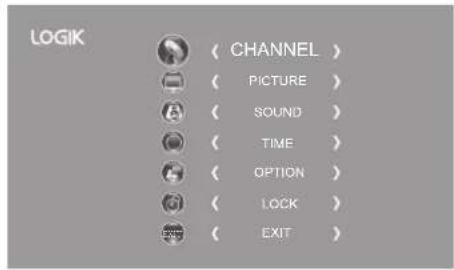
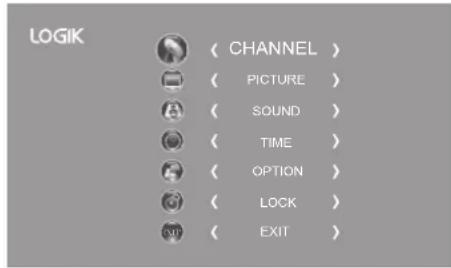
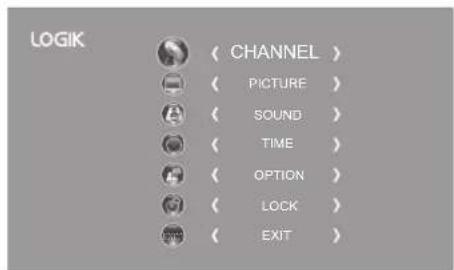
- Press the MENU button and then press the ▲▼ buttons to select the CHANNEL menu and then press the OK button.
- Press the ▲▼ buttons to select Auto Tuning and then press the OK button.
- Press the ▲▼ buttons to select DVB-T and then press the OK button to confirm.
- In the Tune Type menu, press the ◀buttons to select DTV / ATV / DTV + ATV. Press the ▼button and then press the ▲buttons to select the country where you will operate the TV. Press the OK button to confirm.
- Channel tuning will commence. This operation may take up to 6 minutes. The display will show the progress of the tuning and the number of channels found.
- If you have selected DTV+ATV and want to skip the ATV tuning, press the MENU button to interrupt the tuning half way. A pop-up screen will be displayed, press the ◀button to select YES to confirm. You will then go straight to DTV tuning. You may repeat the above step if you also want to skip the DTV tuning. An installation reminder will appear the next time you turn on the TV.
- After tuning is complete, the channels are arranged in a preset order. If you wish to skip channels, modify the preset order or rename channels, select Channel Edit under the channel menu (refer to page 24 for details).
text_image
LOGIK Auto Tuning DTV Manual Tuning ATV Manual Tuning Channel Edit Signal Information CI Information Software Update(USB)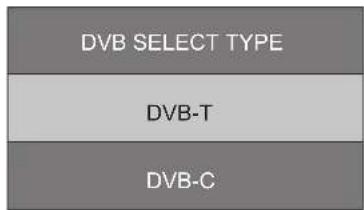
text_image
DVB SELECT TYPE DVB-T DVB-C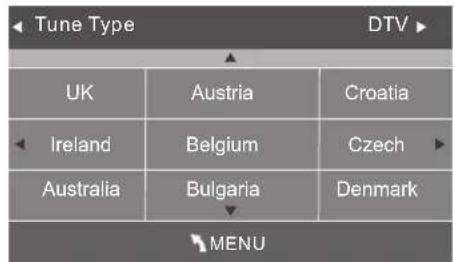
text_image
Tune Type DTV UK Austria Croatia Ireland Belgium Czech Australia Bulgaria Denmark MENU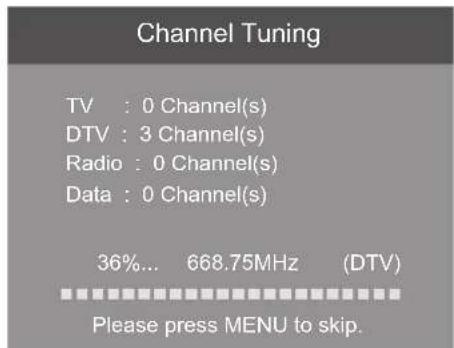
text_image
Channel Tuning TV : 0 Channel(s) DTV : 3 Channel(s) Radio : 0 Channel(s) Data : 0 Channel(s) 36%... 668.75MHz (DTV) Please press MENU to skip.Auto Tuning (DVB-C)
Use this to automatically find and store all available channels. This is normally recommended if some channels have been added or removed by the broadcaster or if you have moved house.
- Press the MENU button and then press the ▲▼ buttons to select the CHANNEL menu and then press the OK button.
- Press the ▲▼ buttons to select Auto Tuning and then press the OK button to confirm.
- Press the ▲▼ buttons to select DVB-C and then press the OK button to confirm.
- Press the ▲▼ buttons to select Scan type/Symbol(ks/s) and then press the OK button to confirm.
- In the Tune Type menu, press the ◀buttons to select ATV / DTV / DTV + ATV. Press the ▼button and then press the ▲buttons to select the country where you will operate the TV. Press the OK button to confirm.
- Channel tuning will commence. This operation may take up to 6 minutes. The display will show the progress of the tuning and the number of channels found.
- If you have selected DTV+ATV and want to skip the ATV tuning, press the MENU button to interrupt the tuning half way. A pop-up screen will be displayed, press the ◀ button to select YES to confirm. You will then go straight to DTV tuning. You may repeat the above step if you also want to skip the DTV tuning. An installation reminder will appear the next time you turn on the TV.
- After tuning is complete, the channels are arranged in a preset order. If you wish to skip channels, modify the preset order or rename channels, select Channel Edit under the channel menu (refer to page 24 for details).
text_image
LOGIK Auto Tuning DTV Manual Tuning ATV Manual Tuning Channel Edit Signal Information CI Information Software Update(USB)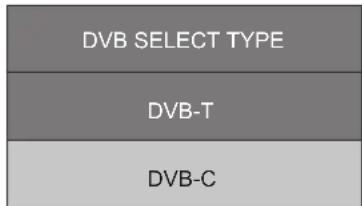
text_image
DVB SELECT TYPE DVB-T DVB-C| DVB-C Scan Menu | |
| Scan type | Full |
| Frequency | 610000 |
| Network ID | Auto |
| Symbol(ks/s) | Auto |
| OK | MENU |
text_image
Tune Type DTV UK Austria Croatia Ireland Belgium Czech Australia Bulgaria Denmark MENU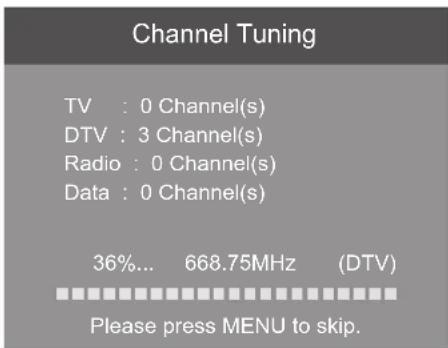
text_image
Channel Tuning TV : 0 Channel(s) DTV : 3 Channel(s) Radio : 0 Channel(s) Data : 0 Channel(s) 36%... 668.75MHz (DTV) Please press MENU to skip.DTV Manual Tuning (DVB-T)
Allows you to make manual fine tuning adjustments to the channel under DTV mode.
- Press the MENU button and then press the ▲▼ buttons to select the CHANNEL menu and then press the OK button.
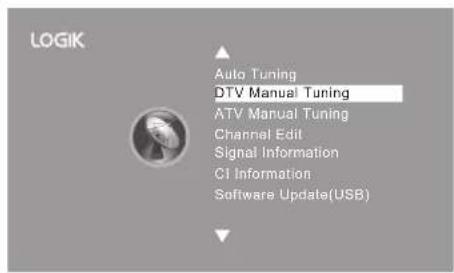
- Press the ▲▼ buttons to select DTV Manual Tuning and then press the OK button.
text_image
LOGIK Auto Tuning DTV Manual Tuning ATV Manual Tuning Channel Edit Signal Information CI Information Software Update(USB)-
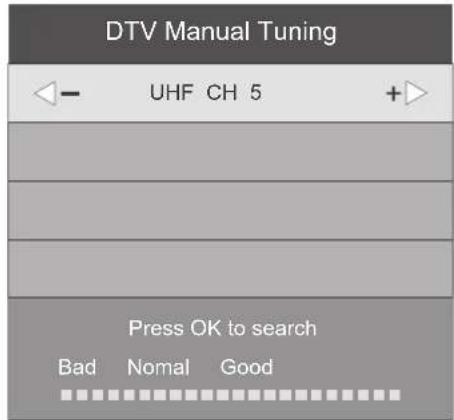
The DTV Manual Tuning screen will pop up. Press the ◀buttons to select the desired UHF channel and then press the OK button to commence the search of that channel. When the signal has been tuned, the picture and signal strength will be displayed on the screen.
-
Press the MENU button to return to the main menu.
-
Press the EXIT button to exit the menu.
text_image
DTV Manual Tuning UHF CH 5 Press OK to search Bad Nomal GoodDTV Manual Tuning (DVB-C)
Allows you to make manual fine tuning adjustments to the channel under DTV mode.
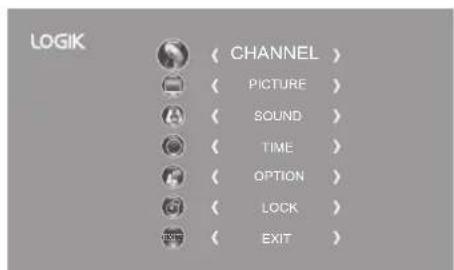
- Press the MENU button and then press the ▲▼ buttons to select the CHANNEL menu and then press the OK button.
text_image
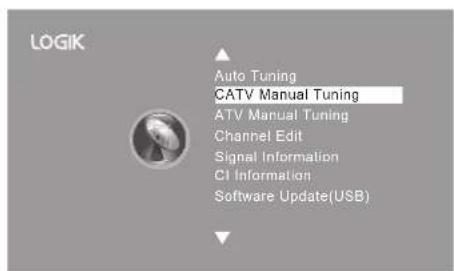
LOGIK ( CHANNEL ) ( PICTURE ) ( SOUND ) ( TIME ) ( OPTION ) ( LOCK ) ( EXIT )- Press the ▲▼ buttons to select CATV Manual Tuning and then press the OK button.
text_image
LOGIK Auto Tuning CATV Manual Tuning ATV Manual Tuning Channel Edit Signal Information CI Information Software Update(USB)- The CATV Manual Tuning screen will pop up. Press the ▲▼ buttons to select (Frequency / Symbol(ks/s / QAM Type QAM). Press the OK button to commence the search of that channel. When the signal has been tuned, the picture and signal strength will be displayed on the screen.
- The DTV Manual Tuning screen will pop up. Press the ◀buttons to select the desired UHF channel and then press the OK button to commence the search of that channel. When the signal has been tuned, the picture and signal strength will be displayed on the screen.
- Press the MENU button to return to the main menu.
- Press the EXIT button to exit the menu.

text_image
CADTV Manual Tuning Frequency 610000 Symbol(Ks/s) 6875 QAM Type QAM 64 Bad Nomal GoodATV Manual Tuning
Allows you to make manual fine tuning adjustments if the channel reception is poor under ATV mode.
- Press the MENU button and then press the ▲▼ buttons to select the CHANNEL menu and then press the OK button.
- Press the ▲▼ buttons to select ATV Manual Tuning and then press the OK button.
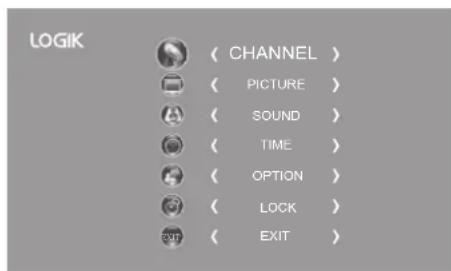
- The ATV Manual Tuning screen will pop up. Use the ▲▼ buttons to select the following options and the ◀▶buttons to adjust the setting.
| Storage To Presets the channel number. | |
| Sound System | Selects the sound system: I / DK / BG / L (for SECAM). |
| Current CH Displays the current channel number. | |
| Search | Press the◀buttons to start the manual tuning. |
| Fine-Tune | Press the◀buttons to make manual fine tuning adjustments. |
| Frequency Displays the current tuned frequency. | |
- After finishing the manual tuning adjustment of a channel, press the RED button to save your channel before tuning the next channel.
- Press the MENU button to return to the main menu.
- Press the EXIT button to exit the menu.
text_image
LOGIK Auto Tuning DTV Manual Tuning ATV Manual Tuning Channel Edit Signal Information CI Information Software Update(USB)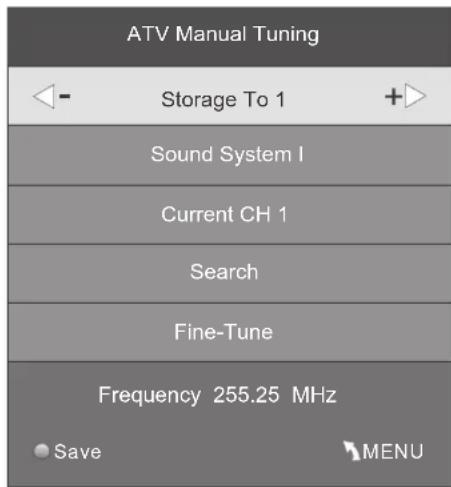
text_image
ATV Manual Tuning Storage To 1 Sound System I Current CH 1 Search Fine-Tune Frequency 255.25 MHz Save MENUChannel Edit (DTV / ATV Mode)
Allows you to edit TV channel information in the Channel List.
-
Press the MENU button and then press the ▲▼ buttons to select the CHANNEL menu and then press the OK button.
-
Press the ▲▼ buttons to select Channel Edit and then press the OK button.
-
A Channel Edit screen will pop up. Press the ▲▼ buttons to select the programme you want to edit.

All channels (DTV and ATV) are listed, please ensure that you edit the correct channel.
a. Delete
Press the RED button to delete the selected channel.
b. Rename (ATV channels)
Press the GREEN button to rename the selected channel. Press the ▲▼ buttons to select the characters to represent the station name. Press the ◀buttons to move to the next character and then press the GREEN button again to confirm the new name.
c. Move
Press the YELLOW button and then press the ▲▼ buttons to move to the selected channel. Press the YELLOW button or the OK button to confirm.
d. Skip
Press the BLUE button to skip the selected channel. Press the BLUE button again to undo it.
e. FAV (Favourite)
Press the FAV button to set the selected channel as one of the favourite programmes. Press the FAV button again to undo it.
- Press the MENU button to return to the main menu.
- Press the EXIT button to exit the menu.

Care should be taken when editing the position of digital channels as this may affect EPG and reminder settings.

text_image
LOGIK ( CHANNEL ) ( PICTURE ) ( SOUND ) ( TIME ) ( OPTION ) ( LOCK ) ( EXIT )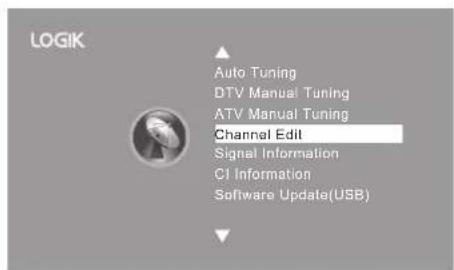
text_image
LOGIK Auto Tuning DTV Manual Tuning ATV Manual Tuning Channel Edit Signal Information CI Information Software Update(USB)
text_image
Channel Edit 800 SZTVM01 DTV 800 SZTVM02 DTV 800 SZTVM03 DTV 800 SZTVM04 DTV 804 Date DTV 1C-51 ATV 2C-53 ATV 3C-61 ATV OK MENUSignal Information (DTV Mode) (DVB-T)
Allows you to view the signal information.
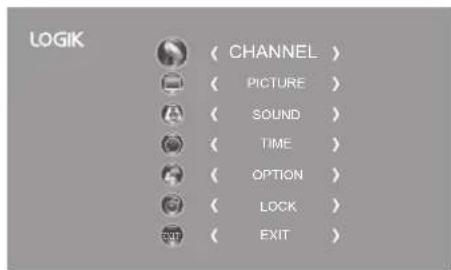
- Press the MENU button and then press the ▲▼ buttons to select the CHANNEL menu and then press the OK button.
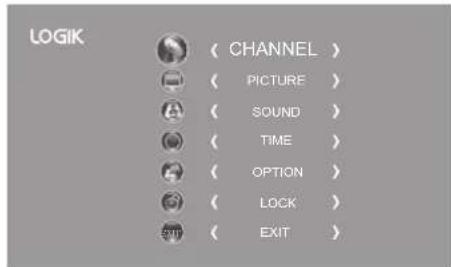
- Press the ▲▼ buttons to select Signal Information and then press the OK button to view the signal information.
- Press the BACK button to return to the previous menu or press the MENU button to return to the main menu.
- Press the EXIT button to exit the menu.
text_image
LOGIK ( CHANNEL ) ( PICTURE ) ( SOUND ) ( TIME ) ( OPTION ) ( LOCK ) ( EXIT )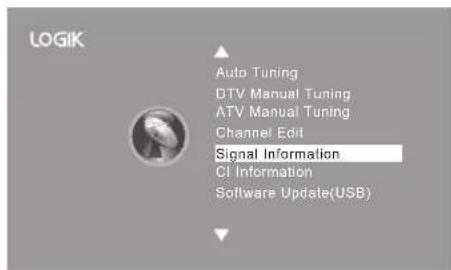
text_image
LOGIK Auto Tuning DTV Manual Tuning ATV Manual Tuning Channel Edit Signal Information CI Information Software Update(USB)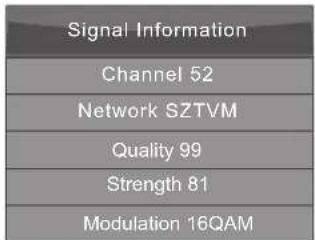
text_image
Signal Information Channel 52 Network SZTVM Quality 99 Strength 81 Modulation 16QAMSignal Information (DTV Mode) (DVB-C)
Allows you to view the signal information.
- Press the MENU button and then press the ▲▼ buttons to select the CHANNEL menu and then press the OK button.
- Press the ▲▼ buttons to select Signal Information and then press the OK button to view the signal information.
- Press the BACK button to return to the previous menu or press the MENU button to return to the main menu.
- Press the EXIT button to exit the menu.
text_image
LOGIK ( CHANNEL ) ( PICTURE ) ( SOUND ) ( TIME ) ( OPTION ) ( LOCK ) ( EXIT )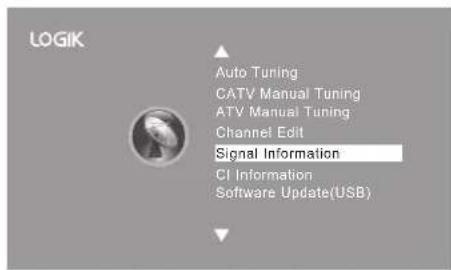
text_image
LOGIK Auto Tuning CATV Manual Tuning ATV Manual Tuning Channel Edit Signal Information CI Information Software Update(USB)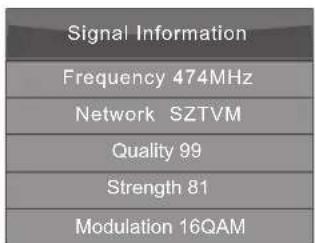
text_image
Signal Information Frequency 474MHz Network SZTVM Quality 99 Strength 81 Modulation 16QAMCI (Common Interface) (DTV Mode)
The common interface allows the use of a Common Access Module to enable you to view scrambled (pay to view) services. These services are provided by TopUp TV (UK only) and others. The Common Access Module and viewing card can be obtained from the service provider.

Do not repeatedly insert or remove the Common Access Module as this may damage the interface and cause a malfunction.
This feature is not available in all countries.
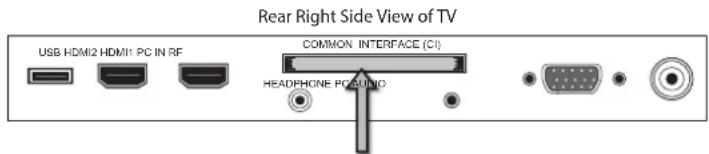
text_image
Rear Right Side View of TV USB HDMI2 HDMI1 PC IN RF COMMON INTERFACE (CI) HEADPHONE POSUDIOCI (Common Interface)
Allows the Common Access Module to be inserted and access the content that has been encrypted.
To insert the Common Access Module
- Before you insert the Common Access Module, ensure that the TV is switched off and the viewing card is inserted in accordance with the Service Provider's instructions.
- Insert the Common Access Module into the slot. Flip the Common Access Module to another side and try again if you feel resistance.
- Switch the TV on.
To remove the Common Access Module
- Before you remove the Common Access Module, ensure that the TV is switched off.
- Pull the Common Access Module from the slot.
- Switch the TV on.
To view the module information
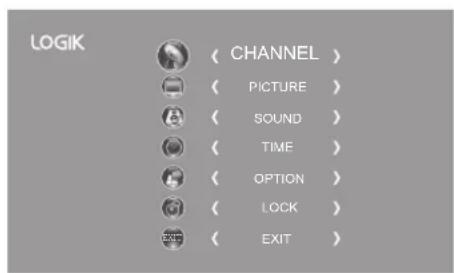
- Press the MENU button and then press the ▲▼ buttons to select the CHANNEL menu and then press the OK button.

flowchart
graph TD
    A["COMMON INTERFACE"] --> B["CARD FACE FRONT"]
    B --> C["Common Access Module"]
    C --> D["Downward arrow"]
    C --> E["Upward arrow"]
text_image
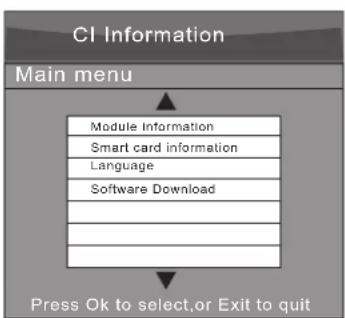
LOGIK Auto Tuning DTV Manual Tuning ATV Manual Tuning Channel Edit Signal Information CI Information Software Update(USB)- A CI Information Main menu will pop up. Press the ▲▼buttons to display the module information, smart card information, language, software download. Press the OK button to confirm.
- Press the EXIT button to return to the previous menu. Press the EXIT button again to exit the menu.

This screen is for illustration only.
flowchart
graph TD
    A["CI Information"] --> B["Main menu"]
    B --> C["Module Information"]
    B --> D["Smart card information"]
    B --> E["Language"]
    B --> F["Software Download"]
    B --> G["Press Ok to select, or Exit to quit"]
Software Update (USB)
This function is only for servicing purposes. Any update information for this TV (if any) will be available at the following website: http://knowhow.com/ or call our UK Call Centre on 0844 561 1234. Our UK Customer Contact Centre is open Monday-Saturday 8am-8pm or Sunday 8am-6pm.

Picture Setting
Allows you to set your preferred picture mode.
- Press the MENU button and then press the ▲▼ buttons to select the PICTURE menu and then press the OK button.

- Press the ▲▼ buttons to select the following picture options and then press the OK button.

text_image
LOGIK Picture Mode Standard Colour Temperature Aspect Ratio Noise Reduction Screen- Press the ▲▼ buttons to select the options. Press the OK button and then press the ◀▶ buttons to adjust each option's setting.
Picture Mode Cycles among picture mode: Standard / Mild / User / Dynamic.

Alternative
You may press the P.MODE button to select the picture mode directly.
| Contrast Adjusts the difference between light and dark levels in the picture (for User mode). | |
| Brightness Increases or decreases the amount of white in the picture (for User mode). | |
| Colour Controls the colour intensity (for User mode). | |
| Sharpness Adjusts the level of crispness in the edges between light and dark areas of the picture (for User mode). | |
| Tint (For NTSC format) | Adjusts the balance between red and green levels (Tint is only available for NTSC signal reception). |
| Picture Mode | Standard |
| Contrast 82 | |
| Brightness 50 | |
| Colour 50 | |
| Sharpness 50 | |
| Tint 50 | |
| Colour Temperature | Cycles among colour temperature: Medium / Cool / User / Warm. Adjusts the colour components independently to achieve a warm or cool (for User mode).Red: Increases red tintGreen: Increases green tintBlue: Increases blue tint | Colour Temperature Medium |
| Red 40 | ||
| Green 31 | ||
| Blue 50 | ||
| Colour Temperature Medium | |
| Red 40 | |
| Green 31 | |
| Blue 50 | |
| Aspect Ratio | Allows you to watch the screen in various picture formats: Auto / 4:3 / 16:9 / Zoom / Subtitle / Smart Zoom / Full. | ||||
| Input Signal 4:3 Input Signal | 16:9 | ||||
| Auto This selection | will displaythe picture according tothe aspect ratio of theinput source. | 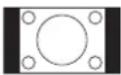 | This selection will displaythe picture according tothe aspect ratio of theinput source. | ||
| 4:3 This selection will allowyou to view a picture withan original 4:3 aspectratio. Black bars willappear on both the leftand right of the screen. | 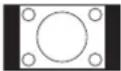 | This selection will allowyou to adjust the picturehorizontally, in linearproportion. Black bars willappear on both the leftand right of the screen. | |||
| 16:9 This selection will allowyou to adjust the picturehorizontally, in linearproportion, to fill the entirescreen. |  | This selection will allowyou to view a picture withan original 16:9 aspectratio. | |||
| Zoom This selection will allowyou to zoom in thepicture without anyalteration, while filling theentire screen. However,the top and bottomof the picture will becropped. | 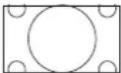 | This selection will allowyou to zoom in thepicture without anyalteration, while the 4sides of the picture willbe cropped. | |||
| Subtitle This selection will allowyou to zoom in the picturewithout any alternation,while filling the entirescreen with subtitlesshown at the bottom of thescreen. | 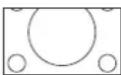 | This selection willallow you to zoom inthe picture withoutany alternation, whileshowing subtitles at thebottom of the screen. | |||
| Smart Zoom This selection is similar to16:9 mode, but the pictureslightly stretches verticallyand clips off a little fromthe top and bottom. | 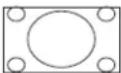 | This selection is similarto 16:9 mode, but thepicture slightly stretchesvertically and clips off alittle from the top andbottom. | |||
| Full(HDMI mode, PCmode and YPbPrmode only) | This selection will detectthe resolution of the HDMIsignal and display an imagewith the same number ofpixels. |  | This selection will detectthe resolution of theHDMI signal and displayan image with the samenumber of pixels. | ||
| Noise Reduction | Select to reduce the noise level of the connected device: Off / Low / Middle / High. (ATV mode) | ||||
| Screen Allows you to adjust the PC desktop content. (PC mode only) | |||||
| Auto Adjust Allows you to synchronise a PC signal automatically. | |||||
| Horizontal Pos.Adjusts the position of the picture left and right inthe window. | |||||
| Vertical Pos.Adjusts the position of the picture up and down inthe window. | |||||
| Size Allows you to adjust the picture horizontally, in linearproperties | |||||
| Phase | Controls the signal phase, which can improve focusclarity and image stability based on the PC mode. | ||||
- Press the BACK button to return to the previous menu or press the MENU button to return to the main menu.
- Press the EXIT button to exit the menu.
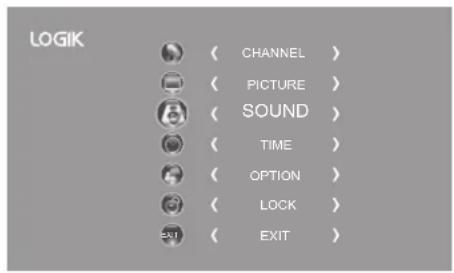
Allows you to select an audio-enhancement technique.
- Press the MENU button and then press the ▲▼ buttons to select the SOUND menu and then press the OK button.
text_image
LOGIK ( CHANNEL ) ( PICTURE ) ( SOUND ) ( TIME ) ( OPTION ) ( LOCK ) ( EXIT )- Press the ▲▼ buttons to select the following sound options and then press the OK button.
text_image
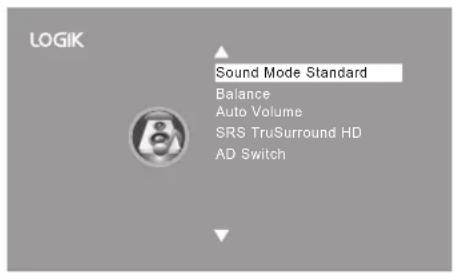
LOGIK Sound Mode Standard Balance Auto Volume SRS TruSurround HD AD Switch- Press the ▲▼ buttons to select the options. Press the OK button and then press the ◀▶ buttons to adjust each option's setting.
| Sound Mode | Allows the selection of an audio-enhancement technique: Standard / Music / Movie / Sports / User.AlternativeYou may press theS.MODEbutton to select the sound mode directly. | |
| TrebleControls the | relative intensity of higher pitched sounds (for User mode). | |
| BassControls the relative intensity of lower-pitched sounds (for User mode). | ||
| BalanceAdjusts the relative volume of the speakers in a multiple speaker system. | ||
| Auto Volume | Volume levels are automatically controlled (e.g., advertisements tend to be louder than the programmes). | |
| SRS TruSurround HD | SRS TruSurround HDTM(TS HD) is a robust multichannel virtualisation technology developed by SRS Labs that provides an enhanced listening experience unlike any other technology that has been offered for a two speaker playback environment. TruSurround HD builds upon its predecessor, the industry leading surround sound virtualiser, SRS TruSurround XT®. Not only does TruSurround HD process up to 6.1 channels for playback over two speakers or headphones, but it also utilises additional proprietary algorithms from SRS Labs to optimise bass performance, for deep rich bass, dialogue clarity for better intelligibility of vocals, and definition control for maximum high-frequency clarity. Press theOKbutton to selectOn / Off. | |
| AD Switch(for DTV mode) | Audio Description is an auxiliary audio function that provides an additional audio track for visually challenged persons. This function handles the Audio Stream for the AD (Audio Description), when it is sent along with the main audio from the broadcaster.Set to “Off” for normal broadcasting sound coming out from speakers.Set to “On” to activate the description sound track if available. The availability of Audio Description sound track is indicated by the visually impaired icon "V.I." in the information banner. | |
- Press the BACK button to return to the previous menu or press the MENU button to return to the main menu.
- Press the EXIT button to exit the menu.
Stereo / Dual Sound Reception (ATV Mode)
When a programme is selected, press the AD button to display the sound information for the selected station.
| Broadcast On Screen Display | |
| Mono | MONO / NICAM MONO |
| Stereo | MONO / NICAM STEREO |
| Dual | MONO / NICAM DUAL I, NICAM DUAL II, NICAM DUAL I+II |
Mono sound selection
If the stereo signal is weak, you can switch to mono by pressing the AD button. In mono reception, the clarity of sound is improved. To switch back to stereo, press the AD button again.
Language selection for dual language broadcast
If a programme can be received in two languages (dual language), you can switch to NICAM DUAL I, NICAM DUAL II, NICAM DUAL I+II or MONO by pressing the AD button repeatedly.
| NICAM DUAL I | Sends the primary broadcast language to the loudspeakers |
| NICAM DUAL II | Sends the secondary broadcast language to the loudspeakers |
| NICAM DUAL I+II | Sends the primary and secondary broadcast languages to the loudspeakers |

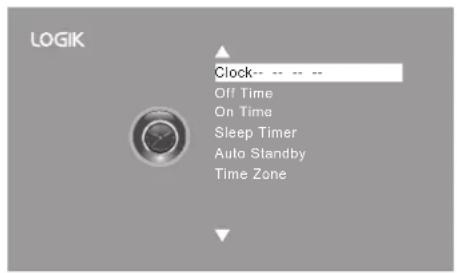
Time Settings
Allows you to adjust power on / off time, sleep timer, auto standby and time zone.
- Press the MENU button and then press the ▲▼ buttons to select the TIME menu and then press the OK button.
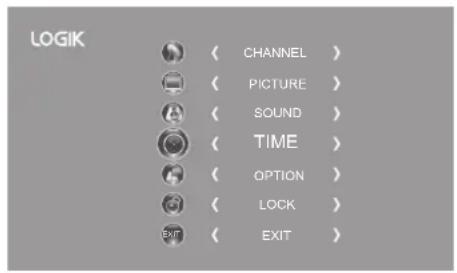
- Press the ▲▼ buttons to select the following time options and then press the OK button.
text_image
LOGIK Clock-- Off Time On Time Sleep Timer Auto Standby Time Zone- Press the ▲▼ buttons to select the options. Press the OK button and then press the ◀▶ buttons to adjust each option's setting.
| Clock The clock is set automatically when receiving a digital signal. | |
| Off Time | Allows you to set the off time that will automatically switch off the TV. Cycle through and select from the following off time options: Off / Once / Every Day / Mon.~Fri. / Mon.~Sat. / Sat.~Sun. / Sunday. |
| On Time | Allows you to set the on time that the TV will automatically switch on the TV and tune to the source, channel and volume you select. Cycle through and select from the following on time options: Off / Once / Every Day / Mon.~Fri. / Mon.~Sat. / Sat.~Sun. / Sunday. Ensure your SCART device is turned off before entering the ON TIME menu. If your SCART device is turned on, the ON TIME menu will default to the SCART device. Ensure your SCART device is turned off before entering the ON TIME menu. If your SCART device is turned on, the ON TIME menu will default to the SCART device. |
| Sleep Timer | The sleep timer automatically switches the TV to standby mode after the preset time has elapsed. The clock will be set automatically when receiving a digital signal. Time must be set before using Sleep Timer function.Press the ▲▼ buttons to select a period of time after which the TV automatically switches to standby mode: OFF / 10 / 20 / ... / 180 / 240 min. The timer begins to count down from the number of minutes selected. If you turn the TV off after setting the sleep timer, the sleep timer setting will be erased. If you turn the TV off after setting the sleep timer, the sleep timer setting will be erased. Alternative1. You may press the SLEEP button repeatedly to select the number of minutes: OFF / 10 / 20 / ... / 180 / 240 min directly.2. To cancel the sleep time, press the SLEEP button repeatedly until Off appears. Alternative1. You may press the SLEEP button repeatedly to select the number of minutes: OFF / 10 / 20 / ... / 180 / 240 min directly.2. To cancel the sleep time, press the SLEEP button repeatedly until Off appears. |
| Auto Standby The unit will automatically switch to standby mode4 hours after the last time the remote control was used. A reminder screen will pop up and count down before the unit switches to standby mode. To turn off the auto standby function, press the MENU button to display the main menu. Press the ▲▼ buttons to select the Time option and then press the OK button. Press the ▲▼ buttons to select the Auto Standby option and then press the OK button to select "Off". Press the EXIT button to exit the main menu. To save energy you should always turn the auto standby function back to "3H" or "4H". | |
| Time Zone | When you select a Time Zone, the TV time is set by the time offset information based on Time Zone and GMT (Greenwich Mean Time) which is received with the broadcast signal and the time is set automatically by a digital signal. |
- Press the BACK button to return to the previous menu or press the MENU button to return to the main menu.
- Press the EXIT button to exit the menu.
OSD Language
Allows you to select your desired on screen menu language.
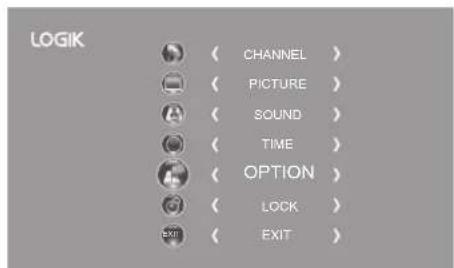
- Press the MENU button and then press the ▲▼ buttons to select the OPTION menu and then press the OK button.
- Press the ▲▼ buttons to select OSD Language and then press the OK button. The default on-screen menu language is English.
- Press the 🔊 to navigate the menu and change the settings. Press the OK button to confirm.
- Press the BACK button to return to the previous menu or press the MENU button to return to the main menu.
- Press the EXIT button to exit the menu.
text_image
LOGIK ( CHANNEL ) ( PICTURE ) ( SOUND ) ( TIME ) ( OPTION ) ( LOCK ) ( EXIT )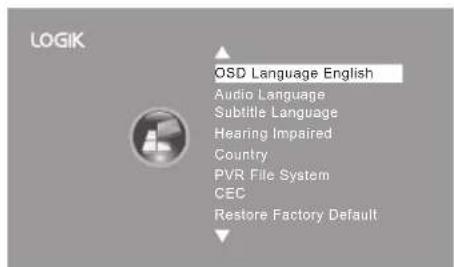
text_image
LOGIK OSD Language English Audio Language Subtitle Language Hearing Impaired Country PVR File System CEC Restore Factory Default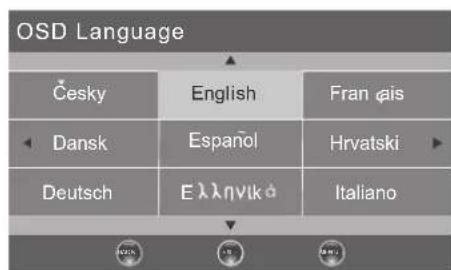
text_image
OSD Language Česky English Fran φis Dansk Espanõl Hrvatski Deutsch Eλληνικά ItalianoAudio Language (DTV Mode)
Allows you to select your desired audio language. (Available for digital channels if multiple audio languages are broadcast.)
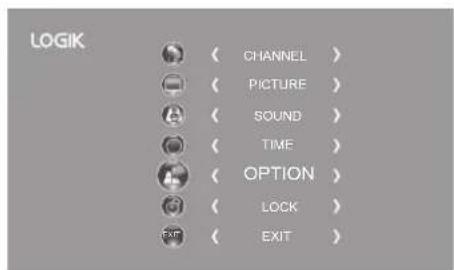
- Press the MENU button and then press the ▲▼ buttons to select the OPTION menu and then press the OK button.
- Press the ▲▼ buttons to select Audio Language and then press the OK button.
text_image
LOGIK ( CHANNEL ) ( PICTURE ) ( SOUND ) ( TIME ) ( OPTION ) ( LOCK ) ( EXIT )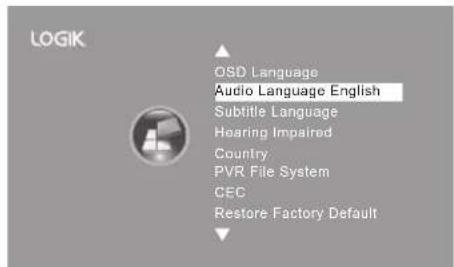
text_image
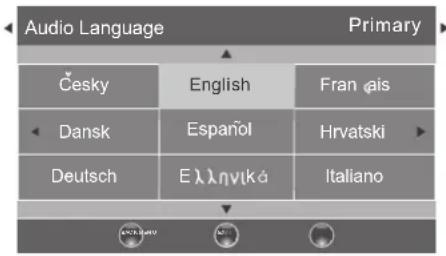
LOGIK OSD Language Audio Language English Subtitle Language Hearing Impaired Country: PVR File System CEC Restore Factory Default- Press the ▲▼ buttons to select the Primary / Secondary Audio Language. Press the ▼ button and then press the ▲buttons to select your desired audio language. Press the OK button to confirm.
- Press the BACK button to return to the previous menu or press the MENU button to return to the main menu.
- Press the EXIT button to exit the menu.
text_image
Audio Language Primary Česky English Fran çais Dansk Espanöl Hrvatski Deutsch Eλληνικά ItalianoSubtitle Language (DTV Mode)
Allows you to select your desired subtitle language or turn off the subtitle. (Available for digital channels if multiple subtitle languages are broadcast.)
- Press the MENU button and then press the ▲▼ buttons to select the OPTION menu and then press the OK button.
- Press the ▲▼ buttons to select Subtitle Language and then press the OK button.
- Press the ◀buttons to select the Primary / Secondary Subtitle Language. Press the ▼button and then press the ▲buttons to select your desired subtitle language. Press the OK button to confirm.
- Press the BACK button to return to the previous menu or press the MENU button to return to the main menu.
- Press the EXIT button to exit the menu.

While watching a DTV programme, you can press the S button on the remote control to display the Subtitle Language List and then press the ▲▼ buttons to select the Subtitle Language OFF. Press the OK button to confirm. (Only applicable when the TV programme has this feature.)
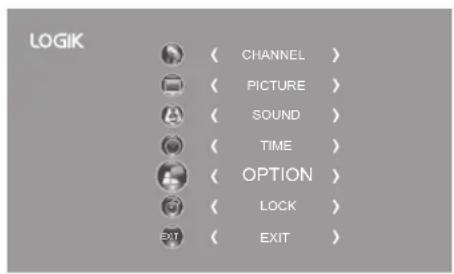
text_image
LOGIK OSD Language Audio Language Subtitle Language English Hearing Impaired Country PVR File System CEC Restore Factory Default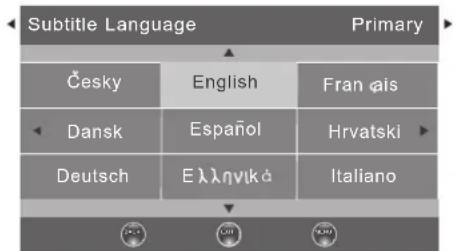
text_image
Subtitle Language Primary Česky English Fran φis Dansk Espanöl Hrvatski Deutsch Eλληνικά ItalianoHearing Impaired
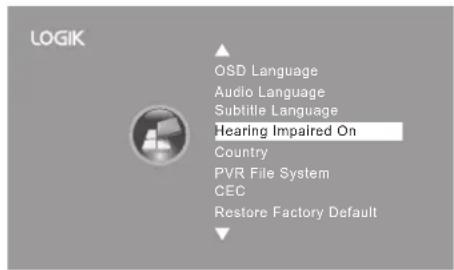
Shows information for the hearing-impaired in some programmes. (For DTV channels only if available.)
- Press the MENU button and then press the ▲▼ buttons to select the OPTION menu and then press the OK button.
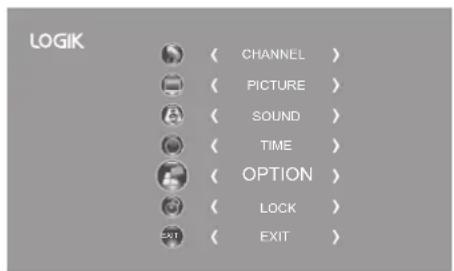
- Press the ▲▼ buttons to select Hearing Impaired and then press the OK button to select On / Off.
- Press the BACK button to return to the previous menu or press the MENU button to return to the main menu.
- Press the EXIT button to exit the menu.
text_image
LOGIK OSD Language Audio Language Subtitle Language Hearing Impaired On Country PVR File System CEC Restore Factory DefaultCountry
This shows the country you selected in auto tuning. If you want to change the country, please refer to Auto Tuning on page 20-21.
PVR File System (DTV Mode)
Allows you to select your preferences in the PVR File System.
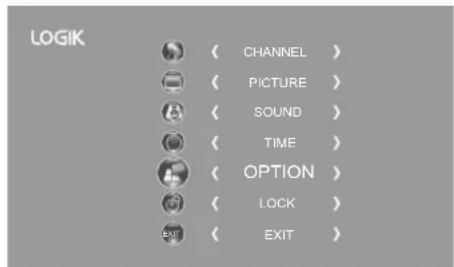
- Press the MENU button and then press the ▲▼ buttons to select the OPTION menu and then press the OK button.
text_image
LOGIK ( CHANNEL ) ( PICTURE ) ( SOUND ) ( TIME ) ( OPTION ) ( LOCK ) ( EXIT )- Press the ▲▼ buttons to select PVR File System and then press the OK button.

text_image
LOGIK OSD Language Audio Language Subtitle Language Hearing Impaired Country PVR File System CEC Restore Factory Default- Press the ▲▼ buttons to select the following PVR File System options and then press the OK button.
| Select Disk Select the disk where you want to store your recorded content. | |||
| Check PVR File System | Press the OK button, the system will now check your USB device's suitability for PVR. The system will show "Checking". Upon the completion the system will show either "SUCCESS" or "FAIL". | Select Disk C:Check PVR File System StartUSB DiskFormatTime Shift SizeSpeedFree Record Limit 6 Hr. | Select Disk C:Check PVR File System SUCCESSUSB Disk PassFormat PassTime Shift Size AISpeed Transport 2048 KB/sFree Record Limit 6 Hr. |
| Menu | Menu | ||
| USB Disk | If no USB storage device is connected, it will show "No USB Disk". If the Check PVR File System has a "SUCCESS" it will show "Pass". | ||
Format
Press the OK button, a File System Size menu will pop-up. Press the ◀▶ buttons to select your preferred file type between FAT32 and HiSpeed FS. If you select HiSpeed FS, press the ▼ button and then press the ◀▶ buttons to select your preferred file size. Press the OK button to confirm and then press the ◀ button to start formatting.
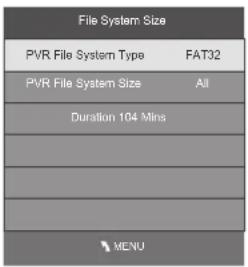
text_image
File System Size PVR File System Type FAT32 PVR File System Size All Duration 104 Mins MENU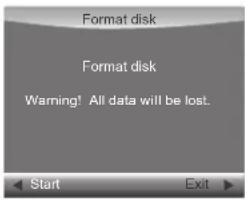
text_image
Format disk Format disk Warning! All data will be lost. Start Exit
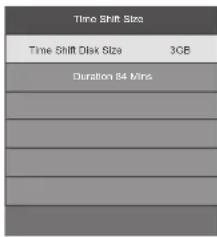
Time Shift Size After
formatting the Time Shift Size menu will appear if you have selected HiSpeed FS in PVR File System Type. Press the ▶buttons to select your preferred file size. Press the OK button to confirm. This option cannot be chosen if you have selected FAT32 in PVR File System Type.
text_image
Time Shift Size Time Shift Disk Size 30B Duration 14 MinsSpeed This shows you the transfer rate of your USB storage device.
Free Record Limit Press the
◀buttons to set the recording time limit from 1-4 hours.
CEC (Consumer Electronics Control)
Allows you to command and control two or more CEC-enabled devices, that are connected through HDMI, by using only one of the TV remote controls (e.g. controlling a TV set, set-top box and DVD player using only the remote control of the TV). CEC also allows individual CEC-enabled devices to command and control each other without user intervention.
Make sure that your CEC compliant device is connected to your TV using a HDMI cable and the correct HDMI input source is selected prior to using this function. (Some HDMI cables may not support HDMI-CEC functions.)
-
Press the MENU button and then press the ▲▼ buttons to select the OPTION menu and then press the OK button.
-
Press the ▲▼ buttons to select CEC and then press the OK button to select On / Off.
- Press the BACK button to return to the previous menu or press the MENU button to return to the main menu.
- Press the EXIT button to exit the menu.

- This unit can only communicate with HDMI-CEC compatible devices.
- To be sure that the HDMI-CEC device has this feature, check to see if there is HDMI-CEC compatible logo on it.
- Some HDMI-CEC compliant devices may not support this function.
- HDMI-CEC function only works when the AV device supporting CEC is turned on.
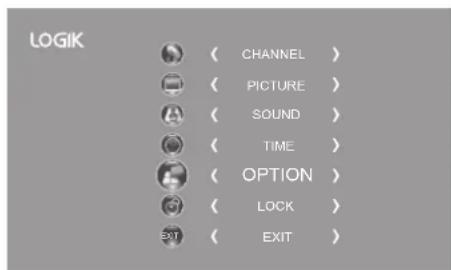
text_image
LOGIK ( CHANNEL ) ( PICTURE ) ( SOUND ) ( TIME ) ( OPTION ) ( LOCK ) ( EXIT ) ( EXIT )
text_image
LOGIK OSD Language Audio Language Subtitle Language Hearing Impaired Country PVR File System CEC Off Restore Factory DefaultRestores all settings to the factory defaults.
-
Press the MENU button and then press the ▲▼ buttons to select the OPTION menu and then press the OK button.
-
Press the ▲▼ buttons to select Restore Factory Default and then press the OK button.
-
Press the ◀ button to select "Yes". The TV will turn off and restart after a few seconds. Press the ▶ button to select "No" to cancel and return to the main menu.

All channel and user settings will be lost and the TV will revert to "First Time Installation".
text_image
Are you sure?
Lock Setting
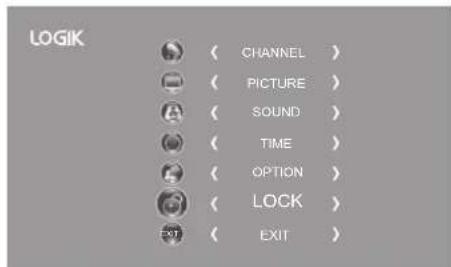
To access the LOCK menu, you must enter the password. Enter the default password "6666" for first time use. To change the password, refer to "Change Password" (see below).
Lock System
The Lock System is designed to prevent accidental retuning of the TV / losing channels and prevent children watching unsuitable programmes.
The Lock System must be set to On for this function to operate. If the Lock System is set to On, a valid password must be entered when you access Auto Tuning / Manual Tuning / Restore Factory Default.
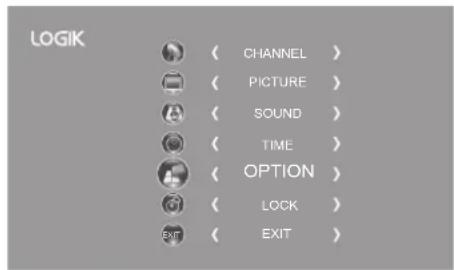
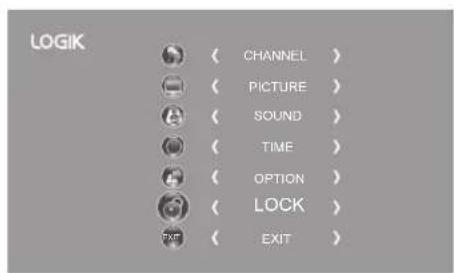
- Press the MENU button and then press the ▲▼ buttons to select the LOCK menu and then press the OK button.
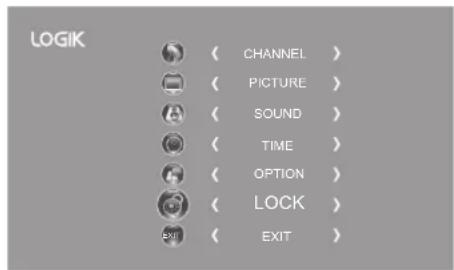
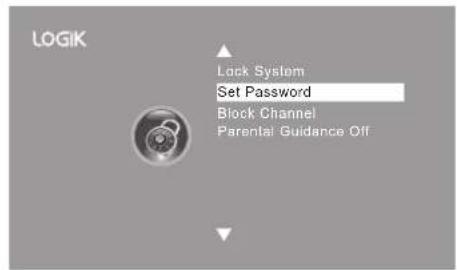
- Press the ▲▼ buttons to select Lock System and then press the OK button.
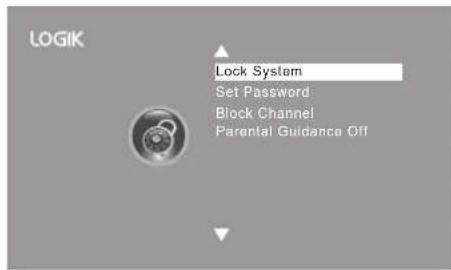
text_image
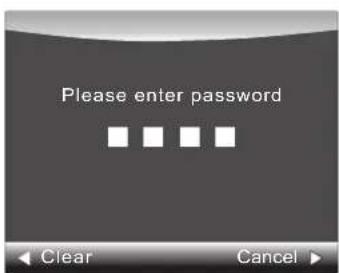
LOGIK Lock System Set Password Block Channel Parental Guidance Off- Use the 0-9 buttons to input a 4-digit password to enter the LOCK menu.

The default password is "6666". If you change the password, be sure to remember the new password! If you forget the new password, enter the master password"9527".
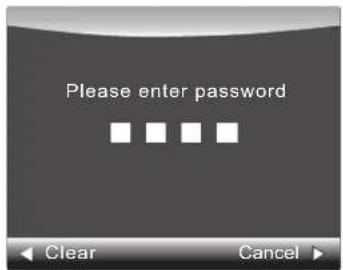
text_image
Please enter password Clear Cancel- Press the ▲▼ buttons to select Lock System and then the OK buttons to select On / Off. If the Lock System is set to On, a valid password must be entered when you access Auto Tuning / Manual Tuning / Restore Factory Default.
- Press the BACK button to return to the previous menu or press the MENU button to return to the main menu.
- Press the EXIT button to exit the menu.
Set Password
- Press the MENU button and then press the ▲▼ buttons to select the LOCK menu and then press the OK button.
- Press the ▲▼ buttons to select Lock System and then press the OK button.
- Use the 0-9 buttons to input a 4-digit password to enter the LOCK menu.

The default password is "6666". If you change the password, be sure to remember the new password! If you forget the new password, enter the master password"9527".
text_image
LOGIK ( CHANNEL ) ( PICTURE ) ( SOUND ) ( TIME ) ( OPTION ) ( LOCK ) ( EXIT )
text_image
LOGIK Lock System Set Password Block Channel Parental Guidance Off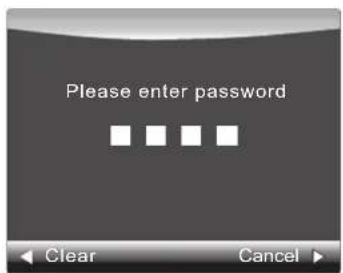
text_image
Please enter password Clear Cancel-
Press the ▲▼ buttons to select Set Password and then press the OK button.
-
Use the 0-9 buttons to input the old password and then input the new 4-digit password. Re-enter new password for confirmation.

The default password is "6666".
If you change the password, be sure to remember the new password! If you forget the new password, enter the master password"9527".
text_image
LOGIK Lock System Set Password Block Channel Parental Guidance Off
text_image
Please enter old password Please enter new password Confirm new password ◀ Clear Cancel ►- Press the ▶ button to return to the previous menu. Press the MENU button to return to the main menu.
- Press the EXIT button to exit the menu.
Block Channel
Block Channel is designed to prevent children watching unsuitable programmes.
When a channel is blocked, a valid password must be entered.
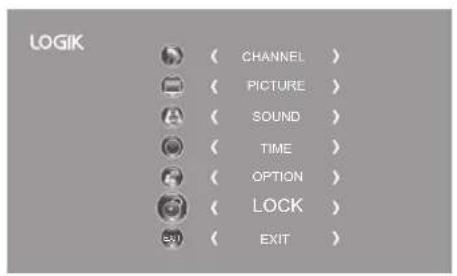
- Press the MENU button and then press the ▲▼ buttons to select the LOCK menu and then press the OK button.
text_image
LOGIK CHANNEL > PICTURE > SOUND > TIME > OPTION > LOCK > EXIT >- Press the ▲▼ buttons to select Lock System and then press the OK button.

text_image
LOGIK Lock System Set Password Block Channel Parental Guidance Off- Use the 0-9 buttons to input a 4-digit password to enter the LOCK menu.

The default password is "6666".
If you change the password, be sure to remember the new password! If you forget the new password, enter the master password"9527".
text_image
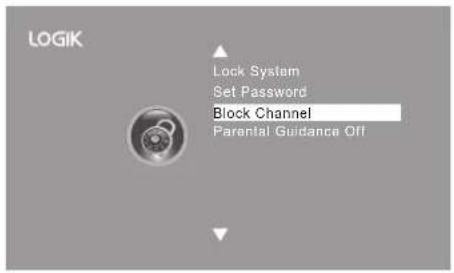
Please enter password Clear Cancel- Press the ▲▼ buttons to select Block Channel and then press the OK button.
text_image
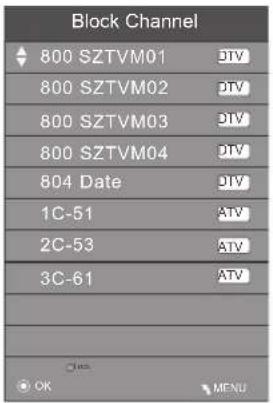
LOGIK Lock System Set Password Block Channel Parental Guidance Off- A Block Channel screen will pop up. Press the ▲▼ buttons to select a channel. Press the GREEN button on the remote control to block or unblock the channel. Press the GREEN button again to unblock.
- Press the MENU button once to return to the previous menu. Press the MENU button again to return to the main menu.
- Press the EXIT button to exit the menu.
text_image
Block Channel 800 SZTVM01 DTV 800 SZTVM02 DTV 800 SZTVM03 DTV 800 SZTVM04 DTV 804 Date DTV 1C-51 ATV 2C-53 ATV 3C-61 ATV OK MENUParental Guidance
This function allows you to set up blocking schemes to block specific channels and ratings. It operates according to information from the broadcasting station, therefore if the signal has incorrect information, this function will not operate. This allows you to set up blocking schemes to block specific channels and ratings.
This TV is programmed to remember which option it was last set to even if you switch the TV off.
When a programme is locked or rated with delayed state, a valid password must be entered.
- Press the MENU button and then press the ▲▼ buttons to select the LOCK menu and then press the OK button.
- Press the ▲▼ buttons to select Lock System and then press the OK button.
- Use the 0-9 buttons to input a 4-digit password to enter the LOCK menu.

The default password is "6666". If you change the password, be sure to remember the new password! If you forget the new password, enter the master password"9527".
text_image
LOGIK ( CHANNEL ) ( PICTURE ) ( SOUND ) ( TIME ) ( OPTION ) ( LOCK ) ( EXIT )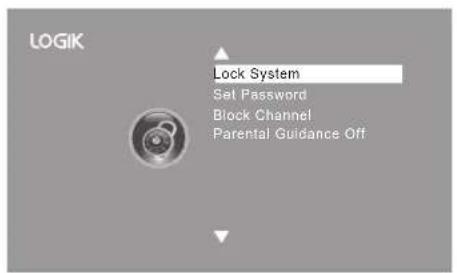
text_image
LOGIK Lock System Set Password Block Channel Parental Guidance Off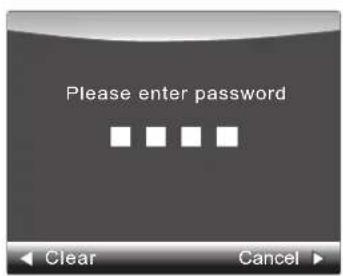
text_image
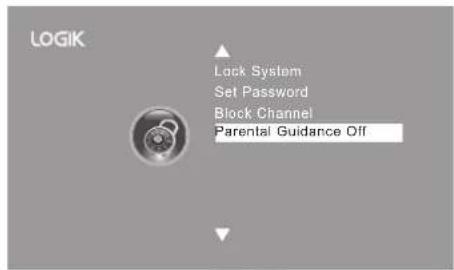
Please enter password Clear Cancel- Press the ▲▼ buttons to select Parental Guidance and then press the OK button.
text_image
LOGIK Lock System Set Password Block Channel Parental Guidance Off- Press the ▲▼ buttons to select an age rating: Off, 4-18. Then press the OK button to confirm.
- Press the BACK button to return to the previous menu or press the MENU button to return to the main menu.
- Press the EXIT button to exit the menu.
| Parental Guidance |
| Off |
| 4 |
| 5 |
| 6 |
| 7 |
| 8 |

EPG (Electronic Programme Guide) (DTV Mode)
This system has an Electronic Programme Guide (EPG) to help you navigate through all the possible viewing options.
The EPG supplies information such as programme listings, start and end times for all available services. In addition, detailed information about the programme is often available in the EPG (the availability and amount of programme information will vary, depending on the particular broadcaster).
This function can be used only when the EPG information is broadcast by broadcasting companies.
The EPG displays the programme details for the next 7 days.
Switch On / Off EPG
- Press the GUIDE button to switch on EPG.
- Press the GUIDE button or the EXIT button again to switch off EPG and return to normal TV viewing.
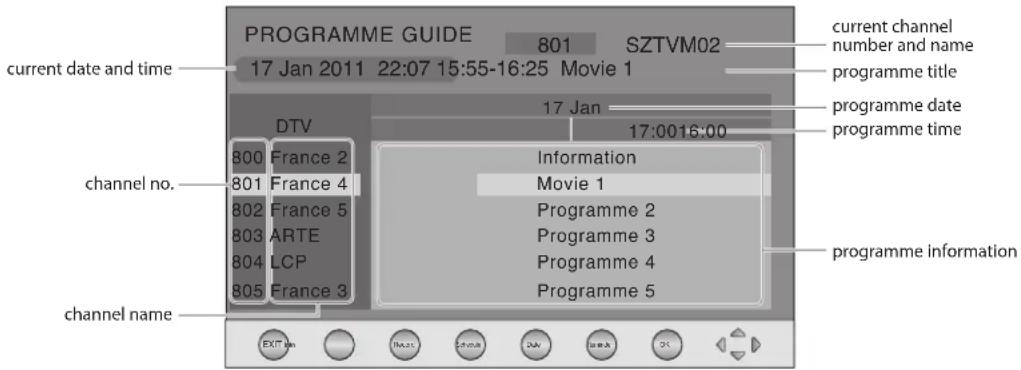
text_image
PROGRAMME GUIDE 801 SZTVM02 current date and time 17 Jan 2011 22:07 15:55-16:25 Movie 1 DTV 17 Jan 17:0016:00 channel no. 800 France 2 Information 801 France 4 Movie 1 802 France 5 Programme 2 803 ARTE Programme 3 804 LCP Programme 4 805 France 3 Programme 5 channel name EXIT IM MAX Cancel OK programme informationSelect a Programme
Press the ▲▼ buttons to select the desired channel and then press the ◀▶ buttons to select the desired programme. Press the OK button to confirm.
Button Functions in a 7 Days Guide
| Remote Control Button Function | |
| RED (Record) | Timer ProgrammingSee page 50 for details on Timer Programming.Press the RED button in the Schedule list to delete the selected preset reminder. |
| GREEN (Schedule) | Press the GREEN button to view the preset reminders or scheduled recordings in the Schedule list. Press the GREEN button again to return to the EPG. |
| YELLOW (Date) | Press the YELLOW button and then press the◀buttons to view the schedule of the previous / next day. Press the YELLOW button again to return to the EPG. |
| BLUE (Remind) | Press the BLUE button while on the selected programme, the Reminder setting menu will be displayed.Press the▲◀buttons to adjust the settings and then press the OK button to confirm the settings. After confirmation, the Schedule list will then be displayed with your preset reminders shown. Press the GREEN button to return to the EPG. The TV will automatically tune to the selected programme when it starts. |
| i Press to display detailed information of the selected programme (if available). | |
| ▲or▼ | Press to select a channel. |
| ◄or► | Press to select a programme. |
| OK Press to confirm and view the selected channel. | |
| GUIDE / EXIT | Press to switch off the EPG. |

Teletext (ATV Mode)
Teletext is a free service broadcast by some TV stations which gives up-to-the-minute information on news, weather, television programmes, share prices and many other topics. Using the Teletext control buttons you can view pages of information that are listed in the teletext index.
To Turn on Teletext Function

Make sure the TV channel you are watching transmits teletext. "No Teletext" sign will show on the screen if teletext is not available.
In ATV mode, press the TEXT button to enter Teletext mode. Press the INDEX button to display the index page.
Press the TEXT button once to exit and the TV will return to the channel you were watching.
To select a page of text
Find the number of the page in the index and enter it using the 0-9 buttons. The number of the page will appear on the top left corner of the screen.
The page counter will search for your page. When it finds it, the page will be displayed.
To move to the next page of text, press the CH + button.
To move to the previous page, press the CH - button.
To return to the index page, press the INDEX button.
Mix
Press the TEXT button to display the teletext page and then press the MIX button. The text will be superimposed over the TV programme.
Press the MIX button again to return to the text page.
Double height text
If you have difficulty reading the text on the TV you can double the height of the text.
Press the SIZE button. The top half of the page will be displayed in double height text.
Press the SIZE button again. The bottom half of the page will be displayed in double height text.
Press the SIZE button again to return to the full page.
Page STOP
If the page of text you have selected contains subpages, these subpages will automatically be displayed in order with a delay to allow you to have enough time to read the page.
Press the HOLD button. "≡" will appear on the top left corner of the screen.
While the page is on-hold, press the ◀buttons to scroll through the subpages in your own time.
Alternatively, press the SUBPAGE button, use the colour buttons to scroll through the subpages.
To Reveal Information
Press the REVEAL button to reveal concealed information (quiz answers etc.).
Press the REVEAL button again to conceal the information again.
Fasttext
At the bottom of the teletext screen is a row of subject headings in red, green, yellow and blue.
The remote control has a row of colour buttons corresponding to the row of coloured subjects on the screen.
Pressing one of the colour buttons will take you directly to the page corresponding to the subject heading.
Digital teletext can access special digital teletext services and specific services which broadcast digital teletext. You will need to turn off Subtitle Function before using teletext (refer to page 33 for details).
Teletext within Digital Service
- In DTV mode, press the LIST button to display the Channel List. Press the ▲▼ buttons and then press the OK button to select the teletext channel. Press the LIST button to exit the Channel List and the teletext page will be displayed after a few seconds.

Alternative
Press the TEXT button while watching some programmes to reveal the teletext page (MHEG).
-
Follow the instructions on digital teletext and move onto the next step by pressing OK, ▲◀▶▼, RED, GREEN, YELLOW, BLUE or 0-9 buttons etc.
-
To change digital teletext service, select a different service by pressing the 0-9 buttons.
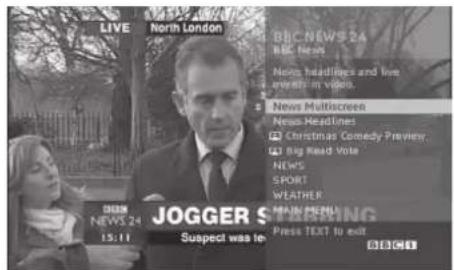
text_image
LIVE North London BBC NEWS 24 BBC News News headings and live events in video. News Multiscreen News Headlines Christmas Comedy Preview Big Read Vote NEWS SPORT WEATHER JOGGER S 15:11 Suspect was let. Press TEXT to exit.
Connecting a USB Storage Device
- Switch off the TV before connecting any USB storage device.
- Connect your USB storage device to the USB port of your TV.
- Plug the connected devices into the mains socket before switching on the TV.
- Press the ⏻ button on the right side panel of the TV or on the remote control to turn on your TV and your USB storage device.
- Press the ⏻ button on the right side panel of the TV or the INPUT button on the remote control to display the Source List. Use the ▲▼ buttons to select USB and then press the OK button to confirm.
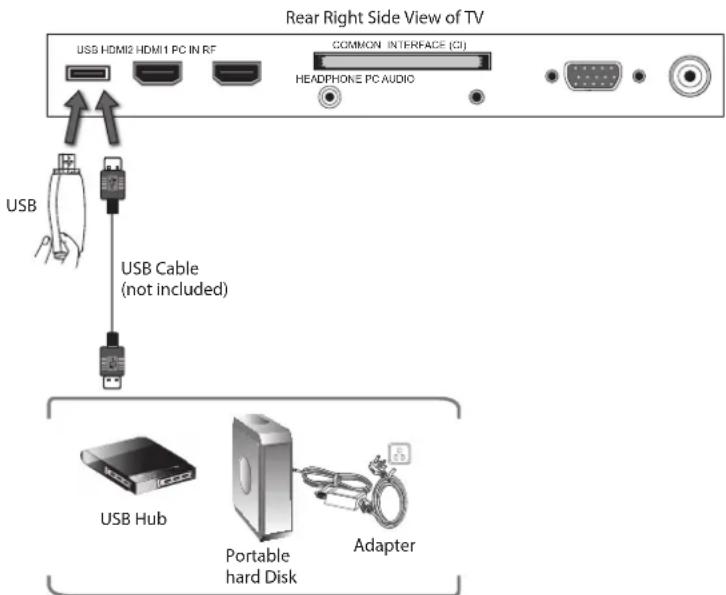
text_image
Rear Right Side View of TV USB HDMI2 HDMI1 PC IN RF COMMON INTERFACE (CI) HEADPHONE PC AUDIO USB USB Cable (not included) USB Hub Portable hard Disk Adapter
- Some versions of portable hard disk may require more power than the TV USB socket can provide. To ensure correct operation please use the power adapter for that device.
- If a USB hub is used, make sure its mains adapter is connected to the mains supply as the total current consumption may exceed 500mA.
• The maximum supported storage space of the hard disk is 1 TB.
• The file system only supports FAT32 format. - If you want to store the video streaming of a DTV programme, the transfer rate of the USB storage device must not be less than 5MB/s, otherwise the picture and sound of the programme will be affected and a warning statement will be shown on the screen. If this happens, please upgrade your USB storage device.
- The TV screen will be blank temporarily as it will take time to start up and stabilise the connected hard disk. This is normal and the starting time may vary depending on the brand and the memory size of the connected hard disk.
- Disconnect the USB storage device if it is not in use.

Viewing Photos
- Press the ⊖ button on the right side panel of the TV or the INPUT button on the remote control then press the ▲▼ buttons to select the USB mode and then press the OK button.
- Press the ◀▶ buttons to select PHOTO and then press the OK button.
- Press the ◀buttons to select your storage device and then press the OK button.
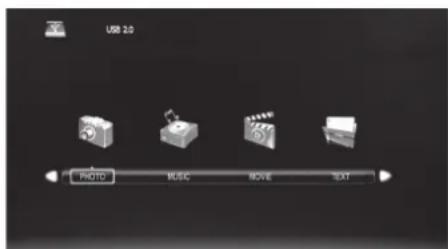
text_image
USB 2.0 PHOTO MUSIC MOVIE TEXT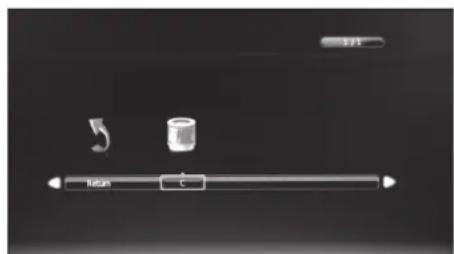
text_image
1/1 Raton C- Press the ▲◀▶buttons to navigate in the picture folder and then press the OK button.
If you want to select the specified photos, press the ▲◀buttons to select the picture file and then press the OK button. A tick box will be displayed. If you want to delete the file, press the RED button to enter the Sub Menu and then press the ◀button to confirm.

File format supported: JPG.
-
Press the ▶ PLAY button to view.
-
Press the OK button or the i button to display the function bar. Press the ◀▶ buttons and then press the OK button to select the function: Pause / Prev. / Next / Stop / Repeat (Repeat All / Repeat Off / Repeat 1) / Music / Playlist / Info / Rotate clockwise / Rotate anti-clockwise / Zoom In / Zoom Out / Move View.

If this folder also contains music files, you can select a music track to play at the same time you view your photos.
- Press the EXIT button to return to the previous menu.
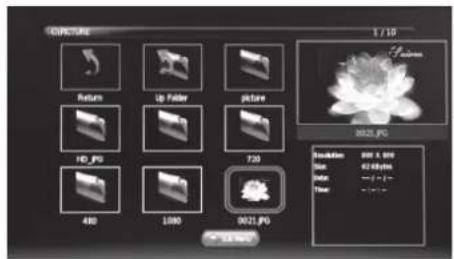
text_image
0021.PG 1 / 10 Return Up Folder picture 720 480 1000 0021.PG Resolution: 999 X 500 Size: 62.68 px Color: 0.00-1.00 Time: 0:00:00 OK/Cancel
Listening to Music
-
Press the ⊖ button on the right side panel of the TV or the INPUT button on the remote control then press the ▲▼ buttons to select the USB mode and then press the OK button.
-
Press the ◀▶ buttons to select MUSIC and then press the OK button.
-
Press the ◀buttons to select your storage device and then press the OK button.
-
Press the ▲◀▶buttons to navigate in the music folder and then press the OK button.
If you want to select the specified music, press the ▲◀▶buttons to select the music file and then press the OK button. A tick box will be displayed. If you want to delete the file, press the RED button to enter the Sub Menu and then press the ◀button to confirm.

- Some audio file formats will not be supported. - Supported file formats: mp3 / wma.
- Press the ▶ PLAY button to start to play.
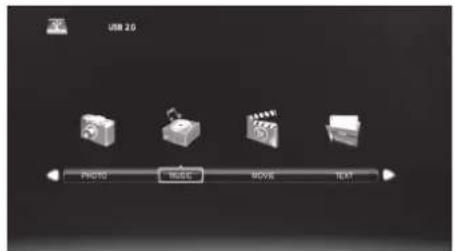
text_image
USB 2.0 PICKING MUSIC MOVIE TEXT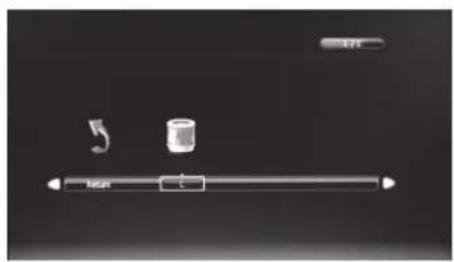
natural_image
Pure electrical circuit lines without any symbols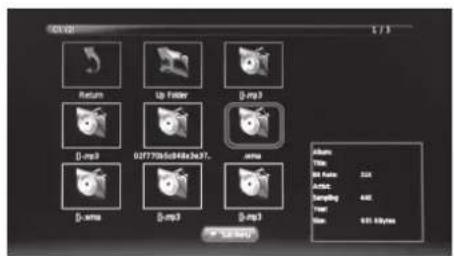
text_image
01.12 173 Return Up Folder β-m3 β-m3 027705d48e3637. Jmm β-m3 β-m3 β-m3 Jmm index View: 01.12 Auto: Sampling: 440 Time: 00:00:00:00 01.12.00:00- Select the music you want to play, it will show the music information (Album / Title / Bit Rate / Artist / Sampling / Year / Size). Then press the ▶ PLAY button to play.
- Press the ▲▼ buttons and then press the OK button to select the function: Pause / FB / FF / Prev / Next / Stop / Repeat All / Playlist / Goto Time.
- Press the EXIT button to return to the previous menu.
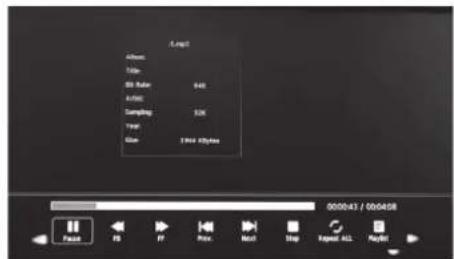
text_image
Audio Color: 80 fps Audio Sampling: Total: Giant: 1.00 fps 0000x43 / 00x458 Finish PS PF Prev. Next Stop Repeat ALL Next
Viewing Movies
- Press the ⏰ button on the right side panel of the TV or the INPUT button on the remote control then press the ▲▼ buttons to select the USB mode and then press the OK button.
- Press the ◀▶ buttons to select MOVIE and then press the OK button.
- Press the ◀buttons to select your storage device and then press the OK button.
- Press the ▲◀▶buttons to navigate in the movie folder and then press the OK button.
If you want to select the specified movie, press the ▲◀▶buttons to select the movie file and then press the OK button. A tick box will be displayed. If you want to delete the file, press the RED button to enter the Sub Menu and then press the ◀button to confirm.

• Some audio file formats will not be supported.
• Supported file formats: MPEG1/2.
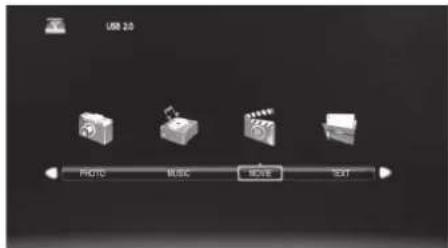
text_image
USB 2.0 Photo Music MOVIE SAT
natural_image
Pure electrical circuit lines without any symbols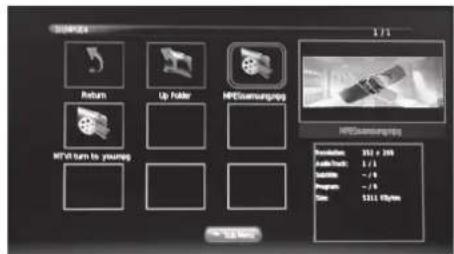
text_image
MP-24 Return Up Floher MPExsammungsg MP'lt turn to young MPExsammungsg Reversation: 350 x 285 Audio Tools: 1.1 Settings: -7.9 Preview: -2.0 Color: 531.1 Hz/Hz OK OK- Press the ▶ PLAY button to view.
- Press the OK button or the i button to display the function bar. Press the ◀▶ buttons and then press the OK button to select the function: Pause / FB / FF / Prev. / Next / Stop / Repeat (Repeat All / Repeat Off / Repeat 1) / Set A / Playlist / Info / Aspect Ratio.
- Press the EXIT button to return to the previous menu.
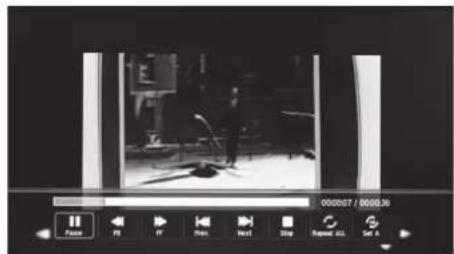
natural_image
Black-and-white photo of a vintage office interior with a desk and equipment, no visible text or symbols.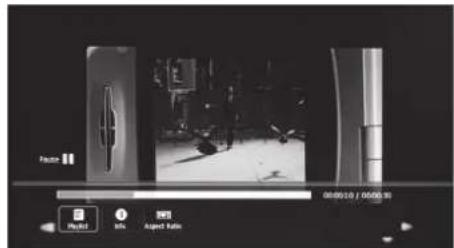
text_image
Radio 00:00:10 / 00:00:35 Player Info Agent Table
My Text
-
Press the ⏻ button on the right side panel of the TV or the INPUT button on the remote control then press the ▲▼ buttons to select the USB mode and then press the OK button.
-
Press the ◀▶ buttons to select TEXT and then press the OK button.
-
Press the ◀buttons to select your storage device and then press the OK button.
-
Press the ▲◀buttons to navigate in the text folder and then press the OK button.
If you want to select the specified text file, press the ▲◀▶buttons to select the text file and then press the OK button. A tick box will be displayed. If you want to delete the file, press the RED button to enter the Sub Menu and then press the ◀button to confirm.
-
Press the ▶ PLAY button to view.
-
Press the OK button or the i button to display the function bar. Press the ◀ buttons and then press the OK button to select the function: Prev. page / Next page / Prev. / Next / Stop / Music / Playlist / Info.

If this folder also contains music files, you can select a music track to play at the same time you view your photos.
- Press the EXIT button to return to the previous menu.
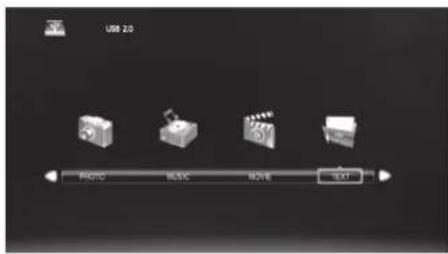
text_image
USB 2.0 RADIO MUSIC MOVIE TEXT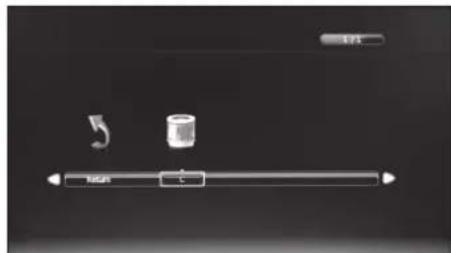
natural_image
Pure electrical circuit lines without any symbols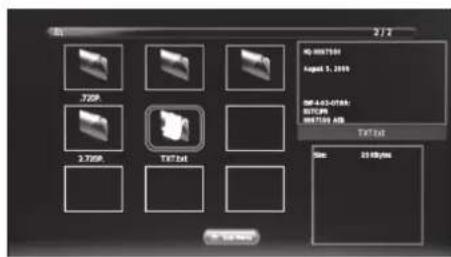
text_image
2/1 TFTP 2.750P TFTP 2/1 TFTP 84-0017301 August 1, 2019 DF:413-076A STCIP SPT:100 AB TFTP Size: 22 KB/MB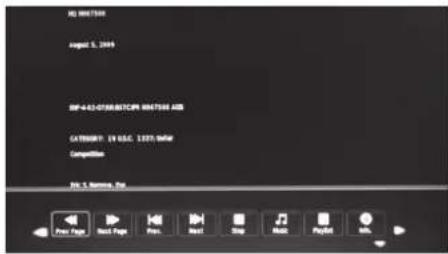
text_image
ID: 100158 August 3, 2019 RF-4.2-CTM/ASTCM: 100158.AS CATR/BY: 19 U.S.C. 1227.5x64 Competition RF & Nause Top Free Page Next Page Pres Next Stop Match Paylist OK
Time Shift Function
This function allows the TV to virtually record the live viewing broadcast programme.

• Time Shift Mode and Recording functions may not work if the signal strength is weak.
- Stop the time-shift function before switching to another input source.

If the transfer rate of the USB storage device is too slow for recording or time shift function, a warning statement will be shown on the screen. If this happens, please upgrade your USB storage device. The minimum transfer speed is 5MB/s.
During normal TV viewing, you may press the ▪ button to virtually pause the live viewing broadcast programme if you want to go out for a while (e.g. going to the bathroom / kitchen). When you have returned, press the ▶ PLAY button to play the missed broadcast programme. The PVR Time Shift progress bar will be displayed on the screen.
There may be a few seconds delay in video and sound when the unit starts to playback the missed broadcast programme. It will return to normal.
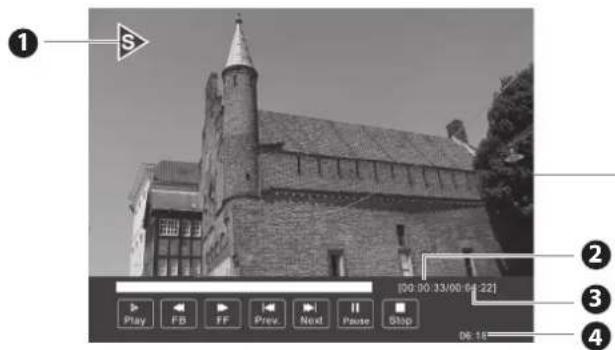
text_image
① S [00:00:33/00 04:22] Play FB FF Prev. Next Pause Stop 06:19The 'PVR Time Shift Progress Bar'
1 Indicates the status of the currently displayed video (▶/IV ▶, ▶)
2 Indicates the time lagging behind the live broadcast (DVR reviewing)
3 Indicates the available recording time on your USB storage device
4 Indicates the current time
Using the Remote Control
You can shift playback to any point of the virtually recorded programme.
| ◀ or ▶When playing,Press the◀button repeatedly to speed up ◀/ x 4 / x 8 / x 16.Press the▶button repeatedly to speed up ▶2 / x 4 / x 8 / x 16.During fast forward / fast backward state, press th▶PLAYbutton to return to normal playback. | |
| ◀ or ▶▶Press the button to ▶mp about 10% forward.Press the◀button to jump about 10% backward. | |
| ▶ PLAY or II | During playback, press the ||button to display a still screen and then press the ▶PLAYbutton again to resume playback.During fast forward / fast backward state, press th▶PLAYbutton to return to normal playback. |
| ■ | If you want to exit the PVR Time Shift progress bar and return to the current live broadcast, press the ■button. |

Recording DTV Programme onto a USB Storage Device
Use this function to record the DTV programme you are watching on the main screen and save it for future viewing.
The recording from timer programme or direct recording may have a little bit of delay when it starts to record the broadcast programme.
Please make sure the USB device is inserted. If not, a warning message will pop up.
- Press the ●REC button to record the programme that you are currently watching.
- Press the ●REC button again, the recording progress bar will disappear.
- Press the ■Stop button to stop recording.

Recording will stop automatically when the disk is full.
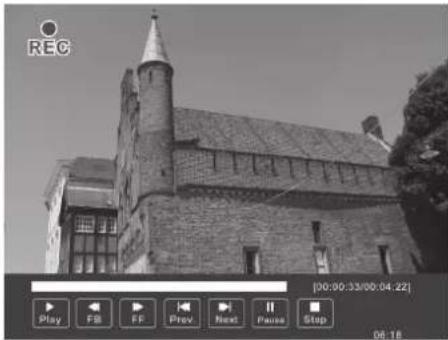
natural_image
Exterior view of a historic stone church with a pointed tower and brick facade (no signage or text visible)
If you want to turn off your TV during recording, press the button. A dialogue will display.
The recording is still in progress.
Do you want to switch off the TV?
Yes, Stop recording and switch off the TV.
Yes, turn off the screen and sound, but keep recording the programme.
No
Press the ▲▼ buttons to select your desired option and then press the OK button to confirm. If you select the middle option in the box, the screen will turn off but the recording will still in progress, the LED indicator will alternatively flash red and blue.

Timer Programming
This function is used to perform scheduled recording.
The recording from timer programme or direct recording may have a little bit of delay when it starts to record the broadcast programme.
Please make sure the USB device is inserted. If not, a warning message will pop up.
- Press the GUIDE button on the remote control. The EPG menu will appear.
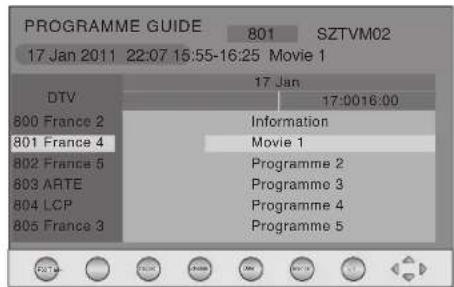
text_image
PROGRAMME GUIDE 801 SZTVM02 17 Jan 2011 22:07 15:55-16:25 Movie 1 DTV 17 Jan 17:0016:00 800 France 2 Information 801 France 4 Movie 1 802 France 5 Programme 2 803 ARTE Programme 3 804 LCP Programme 4 805 France 3 Programme 5- Press the RED button on the remote control while on the selected programme, the RECORDER menu will be displayed. Press the ▲◀▶▼ buttons to select the settings in the RECORDER menu for the Channel, Start time, End time and Mode.
| Channel Press the buttons◀ select the channel that you wanted to record. | |
| Start time(for Mode Once, Every Day, Weekly) | Press the ▲▼ buttons to select the Minutes / Hour / Month / Date and then press the ◀▶buttons to adjust the start time. |
| End time(for Mode Once, Every Day, Weekly) | Press the ▲▼ buttons to select the Minutes / Hour / Month / Date and then press the ◀▶buttons to adjust the end time. |
| Mode Press the | ◀▶buttons to select the Auto / Once / Every Day / Weekly. |
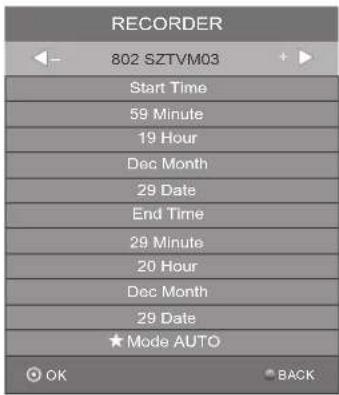
text_image
RECORDER 802 SZTVM03 Start Time 59 Minute 19 Hour Dec Month 29 Date End Time 29 Minute 20 Hour Dec Month 29 Date ★ Mode AUTO OK BACK- After finishing all the recorder adjustments, press the OK button to confirm your settings.

• After confirmation, you can press the GREEN button to view your scheduled recording in the Schedule list.
- If a programme recording starts when the TV is in standby mode, the LED indicator will flash red and blue.

Play Recorded Programme
You can play a recorded programme from the recorded programme list or from a USB Storage Device.
- Press the ⏻ button on the right side panel of the TV or the INPUT button on the remote control and then press the ▲▼ buttons to select the USB mode and then press the OK button.
-
Press the ◀▶ buttons to select MOVIE and then press the OK button.
-
Press the ◀buttons to select your storage device and then press the OK button.
-
Press the ▲◀▶▼ buttons to select the "MY PVR" folder and then press the OK button.
-
Press the ▲◀▶buttons to select your recorded programme and then press the OK button. A tick box will be displayed. If you want to delete the file, press the RED button to enter the Sub Menu and then press the ◀ button to confirm. Press the ▶ PLAY button to view.
-
Press the OK button or the i button to display the function bar.
-
Press the ◀▶ buttons and then press the OK button to select the function: Pause / FB / FF / Prev. / Next / Stop / Repeat (Repeat All / Repeat Off / Repeat 1) / Set A / Playlist / Info / Aspect Ratio.
-
Press the EXIT button to return to the previous menu.
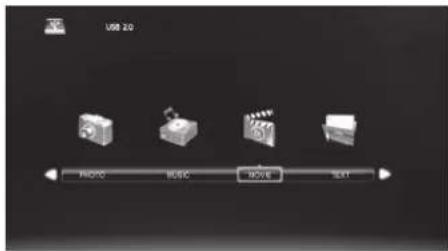
text_image
USB 2.0 RADIO BUSIC MOV NEXT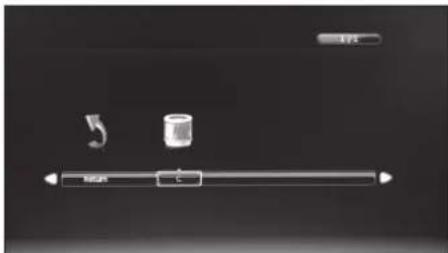
natural_image
Pure electrical circuit lines without any symbols
text_image
BOPR24 1:11 Return MY PVR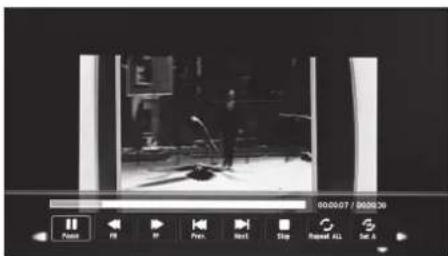
natural_image
Black-and-white photo of a person in a dimly lit room viewed through a video player interface (no readable text or symbols)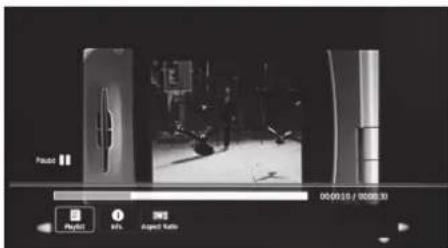
text_image
Paudet 00:09:10 / 00:09:31 Playoff Mfs. 202 Appel Radio
Maintenance
Careful and regular cleaning can prolong the life of your TV.

Be sure to press the button at the front right side of the TV or on the remote control to turn off the TV. Disconnect the mains cable from the mains socket before any cleaning.
- Use a soft dry cloth to wipe away the dust from the screen and surfaces.
- If the surfaces are extremely dirty, clean the TV with a cloth which has been dipped in a weak soapy water. Wring the cloth until it is almost dry, then use it to wipe the TV.
- Ensure there is no excess water on the screen. Allow any water or dampness to evaporate before switching the TV on.

Never use alcohol, benzine, paint-thinner, cleaning fluid or other chemicals. Do not use compressed air to remove dust.

natural_image
Illustration of a hand holding a computer monitor (no text or symbols visible)
Hints and Tips
The following table contains various hints and tips to get the best performance from your TV. If you require additional assistance please call our UK Call Centre on 0844 561 1234. Our UK Customer Contact Centre is open Monday-Saturday 8am-8pm or Sunday 8am-6pm.
| The TV does not operate properly. | |
| The TV does not respond when pressing any buttons | The TV may freeze up during use. Disconnect the mains cable from the mains socket for a few minutes. Reconnect the mains cable and try to operate it again as usual. |
| TV cannot be switched on | Check that the TV is connected to the mains supply.Make sure all connected AV devices are switched off before switching on your TV. |
| The remote control does not work | Check to see if there are any objects between the TV and the remote control causing an obstruction. Ensure that you are pointing the remote control directly at the TV.Ensure that the batteries are installed with the correct polarity (+ to +, - to -).Install new batteries. |
| Power is suddenly turned off | Check the power of the TV. The mains supply maybe interrupted.Check if the sleep timer is set.Check whether the Auto Standby is activated. |
| The video function does not work. | |
| No Picture & No Sound | Check whether the TV is switched on.Try another channel. The problem may be caused by the broadcaster. |
| Picture appears slowly after switching on | This is normal, the image is muted during the TV startup process. Please contact your service centre, if the picture has not appeared after five minutes. |
| No or poor colour or poor picture | Adjust the settings in the PICTURE menu.Try another channel. The problem may be caused by the broadcaster.Check if the video cables are connected properly. |
| Horizontal / Vertical bar or picture shaking | Check for local interference such as an electrical appliance or power tool. |
| Poor reception on some channels | Station or cable channel may be experiencing problems, tune to another station.Station signal is weak, reposition the aerial for better reception.Check for sources of possible interference. |
| Lines or streaks in pictures | Check aerial (Change the position of the aerial.) |
| No pictures when connecting HDMI | Check if the input source is HDMI1 / HDMI2. |
| Picture appears in wrong ratio | Adjust the Aspect Ratio settings in the PICTURE menu. |
| The audio function does not work. | |
| Picture OK but no sound | Press the VOL + / - buttons.Sound muted? Press the MUTE button.Try another channel. The problem may be caused by the broadcaster. |
| No output from one of the speakers | Adjust the Balance settings in the SOUND menu. |
| Unusual sound from Inside the TV | A change in ambient humidity or temperature may result in an unusual noise when the TV is switched on or off and does not indicate a fault with the TV. |
| No sound when connecting HDMI | Check if the input source is HDMI1 / HDMI2. |
| Audio noise | Keep the RF coaxial cable away from the other connected cables. |
| Password | |
| Lost password | Select the Set Password setting in the LOCK menu, then enter the following master password "9527". The master password clears your previous password and allows you to enter a new password. |
| There is a problem in PC mode. | |
| The signal is out of range (Invalid format) | Adjust the resolution, horizontal frequency, or vertical frequency. |
| Vertical bar or stripe on background & Horizontal Noise & Incorrect position | Use Auto configure or adjust clock, phase, or H/V position. |
| Screen colour is unstable or shows a single colour | Check the signal cable.Reinstall the PC video card. |
| FAQs (Frequently Asked Questions) | |
| Why have I lost some / all of my channels? | It happens sometimes if you have a weak signal. Usually it just means you'll need to rescan your digital box or TV. Don't worry, it easy to do. And once you've done it, you should get all the Freeview channels available to you. If problems persist you may need to get your aerial checked. Talk to your retailer or contact your local aerial installer. |
| Why do I get 'blocking' on my digital picture? | In most cases, blocking is caused by a reception problem – either the signal is too weak or there is some kind of interference. Talk to your retailer or contact your local aerial installer.Blocking can also be caused by a digital signal that is too strong. If you are still experiencing blocking and the signal is strong, consult your local aerial installer for advice. |
| Can I watch Freeview using a portable set-top aerial? | Some, but only a few, homes may be able to use a set top aerial. However, for a much better reception, we strongly recommend that you use a rooftop aerial.If you do not have access to a rooftop aerial – for example, if you rent a flat and the aerial is the responsibility of your landlord, or if you're using a second TV in the bedroom and don't want the hassle and expense of using extension cables, a set-top aerial may be your only option. |
| What type of aerial do I need? | If you are installing a new aerial, we recommend a wideband rooftop aerial rather than a loft aerial. Loft aerials generally receive a weaker digital signal and are more likely to get interference from other electrical devices in the home. We suggest you have an aerial survey done before getting an aerial upgrade.Talk to your retailer or contact your local aerial installer. |
The screen resolution has been optimised during production for the display modes listed below.
YPbPr Mode
| Resolution Vertical Frequency (Hz) Aspect Ratio | ||
| 480I: 720 x 480 | 60 | Auto / Smart Zoom / Subtitle / Zoom / 16:9 / 4:3 / Full |
| 480P: 720 x 480 | ||
| 576I: 720 x 576 | 50 | |
| 576P: 720 x 576 | ||
| 720P: 1280 x 720 | 50 | |
| 60 | ||
| 1080I: 1920 x 1080 | 50 | |
| 60 | ||
| 1080P: 1920 x 1080 | 50 | |
| 60 | ||
PC Mode
Please check the display settings of your computer before connecting to the TV. If the display setting of your computer does not match the TV, there may be no video.
| Resolution Vertical Frequency (Hz) Aspect Ratio | ||
| 640 x 480 | 60 | 4:3 / 16:9 / Full |
| 72 | ||
| 75 | ||
| 800 x 600 | 60 | |
| 72 | ||
| 75 | ||
| 1024 x 768 | 60 | |
| 70 | ||
| 75 | ||
| 1360 x 768 60 | ||
| 1920 x 1080 60 | ||
HDMI Mode
| Resolution Vertical Frequency (Hz) Aspect Ratio | ||
| 480I: 1440 x 480 60 | Auto / Smart Zoom / Subtitle / Zoom / 16:9 / 4:3 / Full | |
| 480P: 720 x 480 60 | ||
| 576I: 1440 x 576 50 | ||
| 576P: 720 x 576 50 | ||
| 720P: 1280 x 720 | 50 | |
| 60 | ||
| 1080I: 1920 x 1080 | 50 | |
| 60 | ||
| 1080P: 1920 x 1080 | 50 | |
| 60 | ||
| Model L22FE12I L24FE12I | ||
| Panel System 22 inch LED Backlit LCD Panel | 24 inch LED Backlit LCD Panel | |
| Display Resolution | 1920 pixels (horizontal) x 1080 pixels (vertical) | 1920 pixels (horizontal) x 1080 pixels (vertical) |
| Television System PAL I / BG / DK SECAM L / | BG / DK PAL I / BG / DK SECAM L / BG / DK | |
| Brightness 250 cd/m | ^2 | 250 cd/m ^2 |
| Contrast Ratio 1000:1 1000:1 | ||
| Power Source 100-240V~50/60Hz 100-240V~50/60Hz | ||
| Energy Efficiency Class B B | ||
| Screen Size (measured diagonally) | Approx. 54.6 cm (21.5 inch) | Approx. 59.8 cm (23.6 inch) |
| Power Consumption (In HOME / STANDBY mode) | 23.5 W 23.1 W | |
| Average Annual Energy Consumption | 34.3 kWh | 33.7 kWh |
| Standby Power Consumption | 0.4 W | 0.4 W |
| Operating Temperature | 0°C - 40°C | 0°C - 40°C |
| Operating Humidity | 10% - 80% | 10% - 80% |
| Mercury Content (mg) | X | X |
| Presence of Lead | √ | √ |
| Reference Period | 2010/1062 - 2011 | 2010/1062 - 2011 |
| Speaker Power | 3 W + 3 W | 3 W + 3 W |
| Dimension( W x D x H) with base | 518 x 160 x 363 mm | 562 x 160 x 388 mm |
| Weight (Net) | 3.3 kg | 3.9 kg |
| Inputs / Output | ||
| SCART | 1 | 1 |
| HDMI | 2 | 2 |
| PC IN | 1 | 1 |
| PC AUDIO | 1 | 1 |
| YPbPr | 1 1 | |
| Common Interface | 1 | 1 |
| AV | 1 | 1 |
| USB | 1 | 1 |
| ADUIO IN (RCA) | 1 (L + R) | 1 (L + R) |
| Aerial | 1 | 1 |
| Headphone (3.5mm) | 1 | 1 |
Features and specifications are subject to change without prior notice.
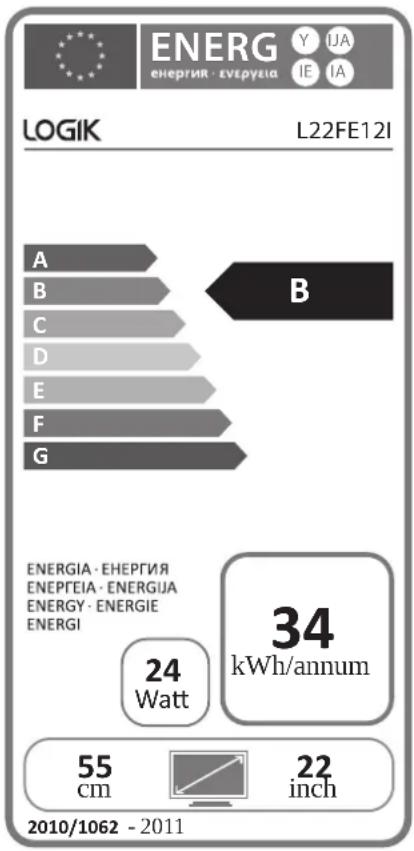
text_image
ENERG ENERGIE · EVEPEIA Y IJA IE IA LOGIK L22FE12I A B B ENERGIA · EHEPTEIA ENEPEIA · ENERGIJA ENERGY · ENERGIE ENERGI 24 Watt 34 kWh/annum 55 cm 22 inch 2010/1062 - 2011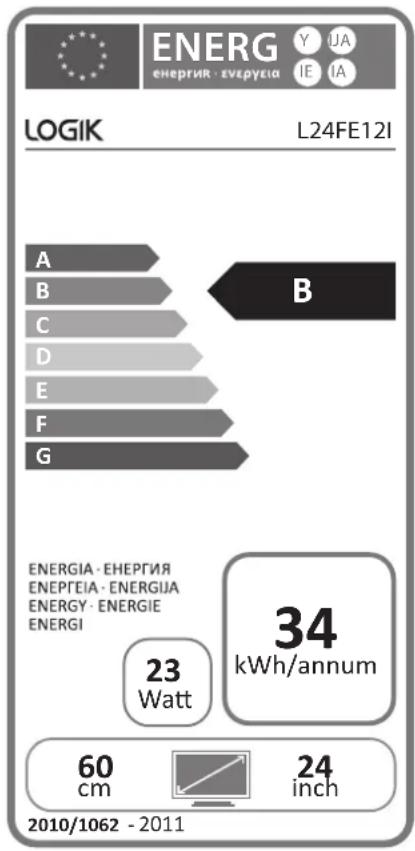
text_image
ENERG ENERGIE·Enerpyia Y UA IE IA LOGIK L24FE12I A B B ENERGIA·ENERGIA ENERGEIA·ENERGIJA ENERGY·ENERGIE ENERGI 23 Watt 34 kWh/annum 60 cm 24 inch 2010/1062 - 2011
Safety Warnings
- Read all the instructions carefully before using the unit and keep them for future reference.
- Retain the manual. If you pass the unit onto a third party make sure to include this manual.
- Check that the voltage marked on the rating label matches your mains voltage.
Damage
- Please inspect the unit for damage after unpacking.
- Do not continue to operate the unit if you are in any doubt about it working normally, or if it is damaged in any way - switch off, withdraw the mains plug and consult your dealer.
Location of Unit
- The unit must be placed on a flat stable surface and should not be subjected to vibrations.
- Do not place the unit on sloped or unstable surfaces as the unit may fall off or tip over.
- The mains socket must be located near the unit and should be easily accessible.
• This unit is designed for indoor use only.
Temperature
- Avoid extreme degrees of temperature, either hot or cold. Place the unit well away from heat sources such as radiators or gas / electric fires.
- Avoid exposure to direct sunlight and other sources of heat.
Naked Flames
- Never place any type of candle or naked flame on the top of or near the unit.
Moisture
- To reduce the risk of fire, electric shock or product damage, do not expose this unit to rain, moisture, dripping or splashing. No objects filled with liquids, such as vases, should be placed on the unit.
- If you spill any liquid into the unit, it can cause serious damage. Switch it off at the mains immediately. Withdraw the mains plug and consult your dealer.
Ventilation
- To prevent the risk of electric shock or fire hazard due to overheating, ensure that curtains and other materials do not obstruct the ventilation vents.
- Do not install or place this unit in a bookcase, built-in cabinet or in another confined space. Ensure the unit is well ventilated.
• Make sure that there is a gap of at least 10 cm on both sides and a gap of 20 cm at the top.
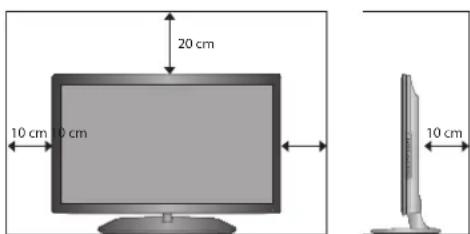
text_image
20 cm 10 cm 0 cm 10 cm 10 cmSafety
• Always disconnect the unit from the mains supply before connecting / disconnecting other devices or moving the unit.
- Unplug the unit from the mains socket during a lightning storm.
Mains Cable
- Make sure the unit or unit stand is not resting on top of the mains cable, as the weight of the unit may damage the mains cable and create a safety hazard.
- If the mains cable is damaged it must be replaced by the manufacturer, its service agent, or similarly qualified persons in order to avoid a hazard.
Interference
- Do not place the unit on or near appliances which may cause electromagnetic interference. If you do, it may adversely affect the operating performance of the unit, and cause a distorted picture or sound.
Optimum viewing
- View the unit in moderate light to prevent eye strain. It is recommended to watch the unit from a distance 3-7 times that of the screen height.
LCD screen
- The LCD screen is manufactured using high-precision technology. However, some tiny black points and / or bright points (red, blue or green in colour) may constantly appear on the LCD screen. These points are generated in the manufacturing process and are normal.
Screen Burn
- A characteristic of Plasma and TV Panels is that displaying the same image for a long time may cause a permanent after-image to remain on the screen. This is called screen burn. Most pictures shown on the unit will be constantly moving and fill the screen. - Examples of images that you need to watch out for are as follows (this is not an all-inclusive list):
- Black Bars: If black bars appear at the left / right or top / bottom of the screen, it is recommended to change the format so that the picture fills the entire screen.
- TV Channel Logos: e.g. Shopping channel logos and pricing displays - especially if they are bright and stationary. Moving or low-contrast graphics are less likely to cause ageing of the screen.
3. Time Displays
- Teletext: Do not view a stationary page for long periods of time.
5. TV Menus
- Pause Mode: Do not leave the screen in pause mode for long periods of time, e.g. when watching videos.
- To prevent screen burn if viewing any of the above for long periods of time, reduce contrast and brightness when viewing. Once burn-in occurs it will never disappear completely.
Standby
- The ⏻ button on the remote control does not switch off the unit completely. The unit will continue to draw electricity from the mains supply while in standby. In the interests of safety and to avoid unnecessary energy consumption, never leave the unit in standby while unattended for long periods of time, e.g. overnight, while on holiday or while out of the house. Disconnect the mains plug from the mains socket.
Batteries
- Batteries used in the remote control for this unit are easily swallowed by young children and this is dangerous.
- Keep loose batteries away from young children and make sure that the battery holder tray is secure in the remote control. Seek medical advice if you believe a cell has been swallowed.
- Please dispose of batteries correctly by following the guidance in this manual.
- The batteries shall not be exposed to excessive heat such as sunshine, fire or the like.
Supervision
• Children should be supervised to ensure that they do not play with the unit and the remote control.
- Never let anyone especially children push anything into the holes, slots or any other openings in the case - this could result in a fatal electric shock.

CAUTION
RISK OF ELECTRIC SHOCK
DO NOT OPEN


The lightning flash with arrowhead symbol, within an equilateral triangle, is intended to alert the user to the presence of uninsulated "dangerous voltage" within the unit's enclosure that may be of sufficient magnitude to constitute a risk of electric shock.

The exclamation point within an equilateral triangle is intended to alert the user to the presence of important operating and maintenance (servicing) instructions in the manual accompanying the unit.
Service
- To reduce the risk of electric shock, do not remove screws. The unit does not contain any user-serviceable parts. Please leave all maintenance work to qualified personnel.
- Do not open any fixed covers as this may expose dangerous voltages.
Maintenance
- Ensure to unplug the unit from the mains socket before cleaning.
- Do not use any type of abrasive pad or abrasive cleaning solutions as these may damage the unit's surface.
• Do not use liquids to clean the unit. - The wall socket plug is used as a disconnect device, the disconnect device should be readily accessible.
- This equipment is a Class II or double insulated electrical appliance. It has been designed in such a way that it does not require a safety connection to electrical earth.
To prevent the spread of fire, keep candles or other open flames away from this product at all times.
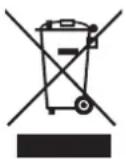
This symbol on the product or in the instructions means that your electrical and electronic equipment should be disposed at the end of its life separately from your household waste. There are separate collection systems for recycling in the EU.
For more information, please contact the local authority or your retailer where you purchased the product.
Notes for battery disposal
The batteries used with this product contain chemicals that are harmful to the environment. To preserve our environment, dispose of used batteries according to your local laws or regulations. Do not dispose of batteries with normal household waste.
For more information, please contact the local authority or your retailer where you purchased the product.
HDMI, the HDMI logo and High-Definition Multimedia Interface are trademarks or registered trademarks of HDMI Licensing LLC.
The FREEVIEW word and logo are trademarks of DTV services Ltd and are used under licence. ©DTV Services Ltd 2002
The "HD Ready" logo is a trademark of DIGITALEUROPE.
SRS TruSurround HD ^™ creates an immersive, feature-rich surround sound experience from two speakers, complete with rich bass, high frequency detail and clear dialogue.
TruSurround HD, SRS and the symbol are trademarks of SRS Labs, Inc.
All trademarks are the property of their respective owners and all rights are acknowledged.

natural_image
Gradient background transitioning from white to dark gray, no text or symbols present