LCD23-231-BL-G - Television Technika - Free user manual and instructions
Find the device manual for free LCD23-231-BL-G Technika in PDF.


User questions about LCD23-231-BL-G Technika
0 question about this device. Answer the ones you know or ask your own.
Ask a new question about this device
Download the instructions for your Television in PDF format for free! Find your manual LCD23-231-BL-G - Technika and take your electronic device back in hand. On this page are published all the documents necessary for the use of your device. LCD23-231-BL-G by Technika.
USER MANUAL LCD23-231-BL-G Technika
Full HD LCD TV with Freeview, DVD & USB PVR
User Guide
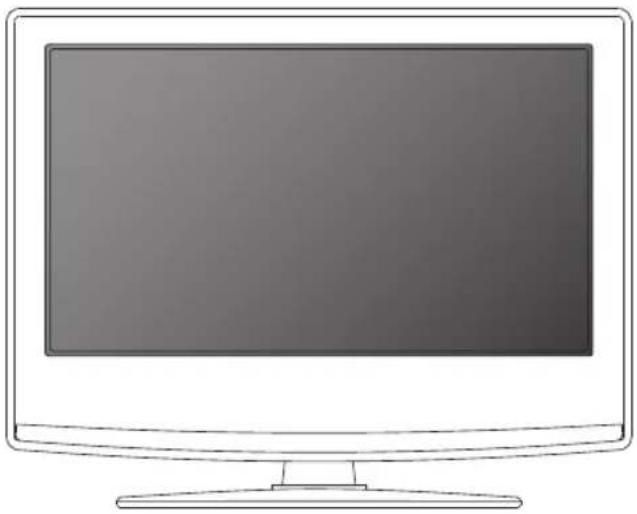
natural_image
Line drawing of a flat-screen computer monitor with no text or symbols on the screenModel No
LCD23-231-BL-G
IMPORTANT SAFETY INSTRUCTIONS

text_image
CAUTION RISK OF ELECTRIC SHOCK DO NOT OPENPlease read these instructions. All the safety and operating instructions should be read before the appliance is operated.
Warnings
- To reduce the risk of fire, electric shock or damage to the television, do not expose it to dust, rain moisture, or place any objects filled with liquids on or near the television.
- Do not place the television in a confined space, ensure that nothing can obstruct the ventilation openings at the rear of the television.
- Dispose of this television and any components including batteries in an environmentally friendly manner. If in doubt, please contact your local authority for details of recycling.
To prevent the spread of fire, keep candles or other open flames away from this product at all times

Safety
- For your safety, this appliance is fitted with a fused moulded 3 pin mains plug. Should the fuse need to be replaced, ensure that any replacement is of the same amperage and approved with the BSI mark.
- Never try and replace the mains plug unless you have adequate qualifications and are legally authorised to do so. In the event that a replacement Mains cable is required, contact the manufacturer for a suitable replacement.
- Never use the television if it is damaged in any way.
- Always place the television on a flat level surface avoiding anywhere which may be subject to strong vibration.
- Ensure the television is not placed on top of the power cable as the weight of the television may damage the cable and cause a safety hazard.
- Never place mobile phones, speakers or any other device which may cause magnetic or radio interference with the television. If interference is apparent, move the device causing the interference away from the television.
- To disconnect the apparatus from the mains, please use the all pole mains switch located on the side, underside or rear of the TV. The switch shall remain readily operable.
- Batteries (battery pack or batteries installed) shall not be exposed to excessive heat such as sunshine, fire or the like.
• Install the product at least 4 cm from the wall for ventilation
Maintenance
• To clean this unit, wipe with a soft dry cloth. If the surfaces are extremely dirty, use a cloth dipped in a soap and water solution or a mild detergent solution.
- Use eyeglass cleaner to remove stubborn dirt from the LCD/LED Screen.
- Never use alcohol, paint thinner or benzene to clean this unit.
- Before using a chemically treated cloth, read the instructions that came with the cloth carefully.
CAUTION: If water or other liquid enters the television through the display panel surface or back cover a malfunction may occur.
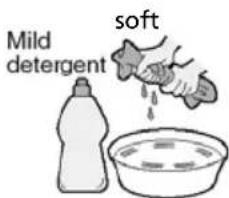
text_image
soft Mild detergentPackaging
- The safest way to transport your item is in the original box/packaging - please save your packaging for this.
- You will need original box/packaging in the event of warranty/service repair or support. We are unable to carry out warranty/service if you are unable to package it correctly.
IMPORTANT SAFETY INSTRUCTIONS

text_image
CAUTION RISK OF ELECTRIC SHOCK DO NOT OPENPlease read these instructions. All the safety and operating instructions should be read before the appliance is operated.
Important Information Regarding Use of Video Games, Computers, Captions or Other Fixed Image Displays
The extended use of fixed image program material can cause a permanent "shadow image" on the LCD panel.
This background image is viewable on normal programs in the form of a stationary fixed image. This type of irreversible LCD/LED panel deterioration can be limited by observing the following steps:
- Reduce the brightness/contrast setting to a minimum viewing level.
- Do not display the fixed image for extended periods of time.
- Turn the power off when not in actual use.
Examples of images that you need to watch out for are as follows (this is not an exhaustive list):
• TV Channel Logos: e.g. Shopping channel logos and pricing displays-especially if they are bright and stationary. Moving or low-contrast graphics are less likely to cause ageing of the screen.
- Time Displays
- Teletext: Do not view a stationary page for long period of time
• TV/DVD Menus: e.g. Listings of DVD disk content
- Pause Mode: Do not leave the TV in pause mode for long periods of time, e.g. When watching DVDs or videos.
Important - Once 'shadow image/screen burn' occurs, it will never disappear and is not repairable under warranty.
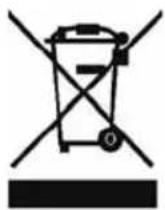
How do I dispose of this product?
UK: Waste electrical products should not be disposed of with household waste. Separate disposal facilities exist. For your nearest facilities, please see www.recycle-more.co.uk or in store for details.
ROI: Waste electrical products should not be disposed of with household waste. Separate disposal facilities exist. Check with your Local Authority or retailer for recycling advice.

Cd
Batteries
- Observe the correct polarity when inserting batteries.
- Do not use different types of batteries together or mix old and new batteries.
- Dispose of batteries in an environmentally friendly way.
- Certain regions may regulate the disposal of batteries.
Please consult your local authority.
CAUTION:
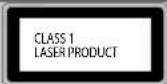
This caution label is located on the rear panel of the unit
THIS UNIT IS A CLASS 1 LASER PRODUCT. HOWEVER THIS UNIT USES A VISIBLE LASER BEAM WHICH COULD CAUSE HAZARDOUS RADIATION EXPOSURE IF DIRECTED. BE SURE TO OPERATE THE PLAYER CORRECTLY AS INSTRUCTED. WHEN THIS UNIT IS PLUGGED INTO THE WALL OUTLET, DO NOT PLACE YOUR EYES CLOSE TO THE OPENINGS TO LOOK INTO THE INSIDE OF THIS UNIT.
USE OF CONTROLS OR ADJUSTMENTS OR PERFORMANCE OF PROCEDURES OTHER THAN THOSE SPECIFIED HEREIN MAY RESULT IN HAZARDOUS RADIATION EXPOSURE.
DO NOT OPEN COVERS AND DO NOT REPAIR YOURSELF. REFER SERVICING TO QUALIFIED PERSONNEL.
CONTENTS
Manufacturers Guarantee Information....3
Important Safety Instructions....4-5
What is included in the box....8
Attaching/Detaching the stand and wall mounting....9
Getting Started - Initial Set Up....11
TV Buttons and Input Source Menu....12
Remote Control....13
Connections....14-15
TV Menu Operation 16-21
Channel Menu 16
Picture Menu 17
Sound Menu 18
Time Menu....19
Feature Menu 20
Setup Menu 21
DVD Menu....23
PC Operation....24-25
7 Day TV Guide / USB Record 26
USB Record / Digital Freeview mode 27
USB Mode / Media Player 28
General Information....29-34
Operating the TV with a universal or Sky (BSKYB) remote control ..... 29
Frequently Asked Questions 30
Technical Specifications....31
Digital Switchover 33
Index....33
WHAT IS INCLUDED IN THE BOX
Accessories
Included with this TV are the following accessories:
1 x User Guide
text_image
User Guide1 x Remote Control
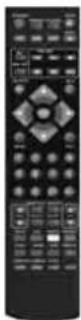
1 x Quick Start Guide
text_image
Quick Start Guide2 x AAA Batteries
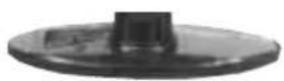
1 x Stand
1 x TV
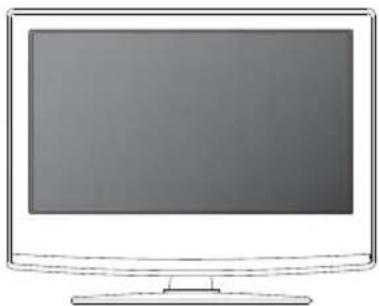
natural_image
Illustration of a flat-screen computer monitor with no visible text or symbols on the screen or side.1 x RF Cable
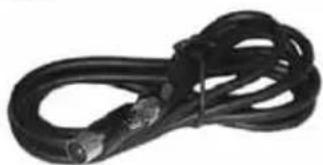
natural_image
Coiled black cable with connectors, no visible text or symbols1 x USB Memory Stick
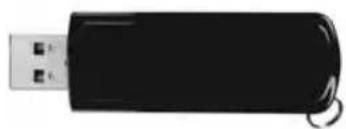
natural_image
Black USB flash drive with a key (no text or symbols visible)Please save your packaging as you will need this in the event of warranty/service repair or support. We are unable to carry out warranty/service if you are unable to package it correctly. The safest way to package your item in the event of warranty/service repair is in it's original box/packaging.
ATTACHING/DETACHING THE STAND
Attaching the Stand
1) Insert the TV into the stand at 45 degrees
2) Twist the TV into the CLOSE
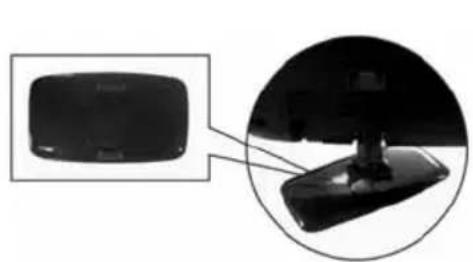
natural_image
Close-up of a black electronic device with an inset close-up showing its front view (no text or symbols visible)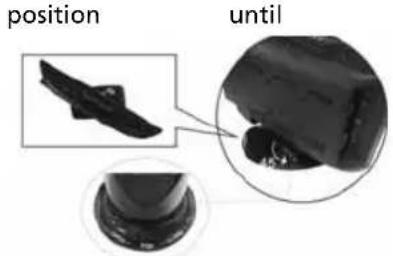
text_image
position untilit clicks
Detaching the Stand
1) To remove the base, press close and rotate 45 degrees.
2) Remove the 4 screws highlighted
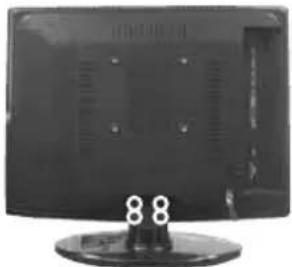
natural_image
Front view of a black flat-screen computer monitor with a circular base and ventilation slots (no visible text or symbols)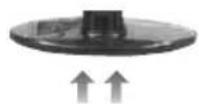
3) Remove the screw/s in the neck of the stand (where fitted)
IMPORTANT - Before drilling any holes in the wall ensure you are not drilling where there could be any electric wires, water or gas pipes. If in doubt please contact a qualified tradesman.
Wall mounting the TV
This television requires a VESA 100 wall mount, or equivalent.
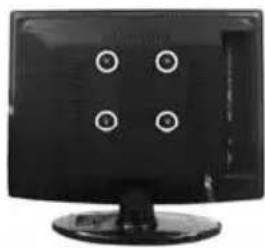
1) Remove the four screws highlighted below.
2) The wall mount can now be easily attached to the mounting holes on the rear of the TV. These holes are indicated in the picture below.
fi g 1
TV
natural_image
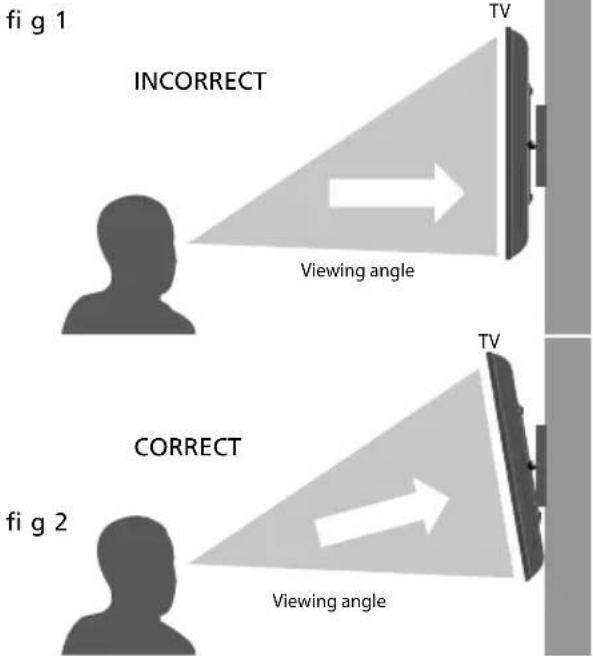
Front view of a black computer monitor with four circular buttons on the front panel (no visible text or symbols)For optimum viewing, if wall mounting the TV higher than eye level, the TV should be tilted downwards so that the TV's screen is 'face on'. See fig 1 and 2
Important – If wall mounting this TV, only use the screws already provided in the wall mounting holes. Using other screws which are longer could cause irreparable damage to internal parts.
text_image
fi g 1 INCORRECT Viewing angle TV fi g 2 CORRECT Viewing angle TVGETTING STARTED - INITIAL SET UP
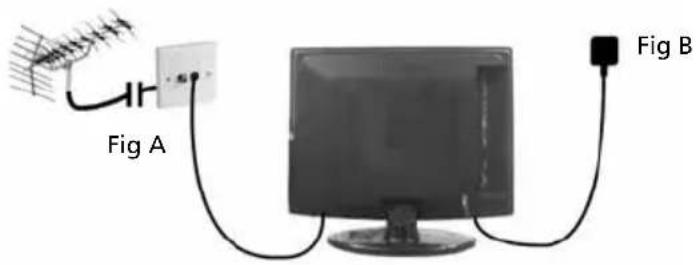
1) Using the RF cable supplied, connect the TV to the TV Aerial wall socket (Fig A)
2) Connect the power cable to the Electrical outlet (Fig B)
text_image
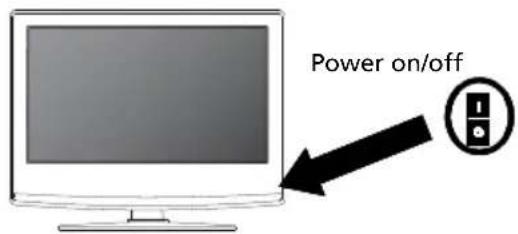
Fig A Fig B3) Switch on the television using the power on/off switch located on the side of the TV.
4) Insert the batteries supplied into the Remote control and press the Standby button to power on the TV
text_image
Power on/off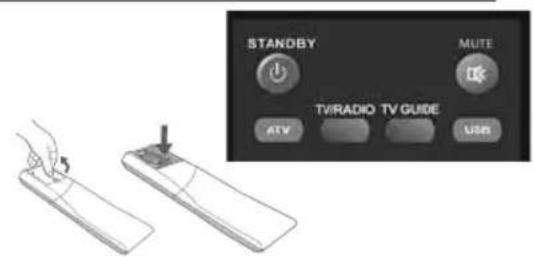
text_image
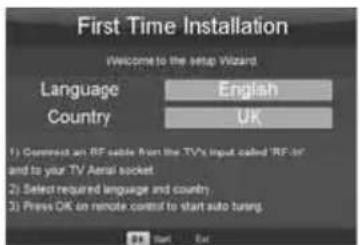
STANDBY MUTE TV/RADIO TV GUIDE ATV USB5) You will now be welcomed with the initial set-up screen. If it does not appear, on the remote control, please press [MENU] then 8-8-8-8 and the menu will appear. Press OK on the remote control and tuning will start.
6) After tuning the following screen will appear.
text_image
First Time Installation Welcome to the setup Wizard Language English Country UK 1) Comment an RF cable from the TV's input called "RF of" and to your TV Aerial socket. 2) Select required language and country. 3) Press OK on remote control to start auto turing.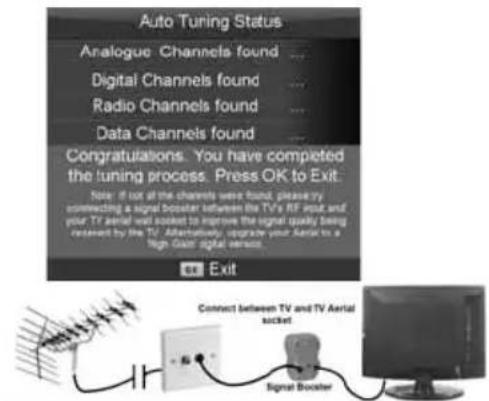
text_image
Auto Tuning Status Analogue Channels found ... Digital Channels found ... Radio Channels found ... Data Channels found ... Congratulations. You have completed the tuning process. Press OK to Exit. Note: if not all the channels were found, please try connecting a signal Booster between the TV's RF bus and your TV aerial was posted to improve the signal quality being centered by the TV. After you would require your Aerial to a high Gain signal service. Exit Connect between TV and TV Aerial socket Signal BoosterIf you are missing channels, the reason for this is likely to be signal strength, you should consider connecting signal booster and re-tuning the TV.
Tip: If the TV finds some, but not all, of the Digital channels, the TV is functioning correctly but the signal being received is not strong enough. (The signal strength needs to be above 85% - you can see the signal strength the TV is receiving when you change channels/ programmes) you will need to increase the signal reception in order to receive all of the channels available. The most economical way to do this is by purchasing and connecting a 'signal booster' in between the TV and the TV aerial socket. If this does not solve the problem, you will need to upgrade the TV aerial to a digital hi-gain compatible aerial
TV BUTTONS & SOURCE MENU
text_image
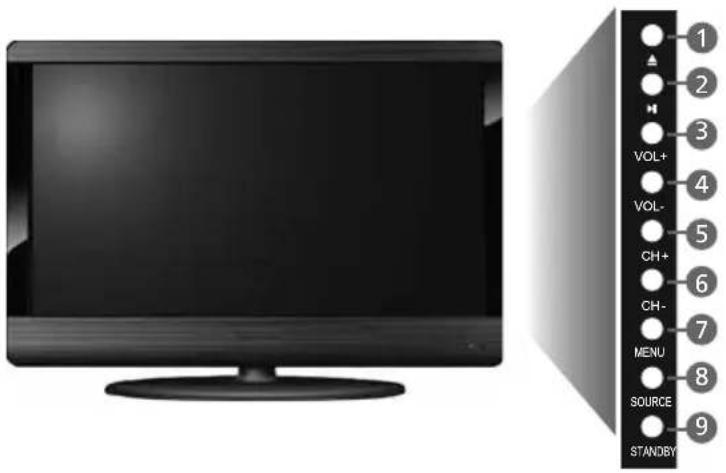
1 2 3 VOL+ 4 VOL- 5 CH+ 6 CH- 7 MENU 8 SOURCE 9 STANDBY1 Eject Disc
2 Play/Pause Disc
3 Volume up and menu right
4 Volume down and menu left
5 Programme/Channel up and menu up
6 Programme/Channel down and menu down
7 Displays Menu/OSD
8 Displays the input source menu
9 Standby Power On/Off
Choosing Mode Input/Source
To switch between the different input/ connections.
A) Using the buttons on the remote control:
1) Press [SOURCE/ AV] - The source menu will appear
2) Press [V] or [A] to select the input you require.
3) Press [OK]
B) Using the buttons on the Television:
1) Press [SOURCE]
2) Scroll up / down using CH+/CH- buttons to the input/source you require
3) Press Vol+ to change input/source to the one selected.
| Input Source |
| FREEVIEW |
| ANALOGUE |
| SCART |
| COMPONENT |
| DVD |
| VGA/PC |
| HDMI |
| VIDEO |
| USB MEDIA |
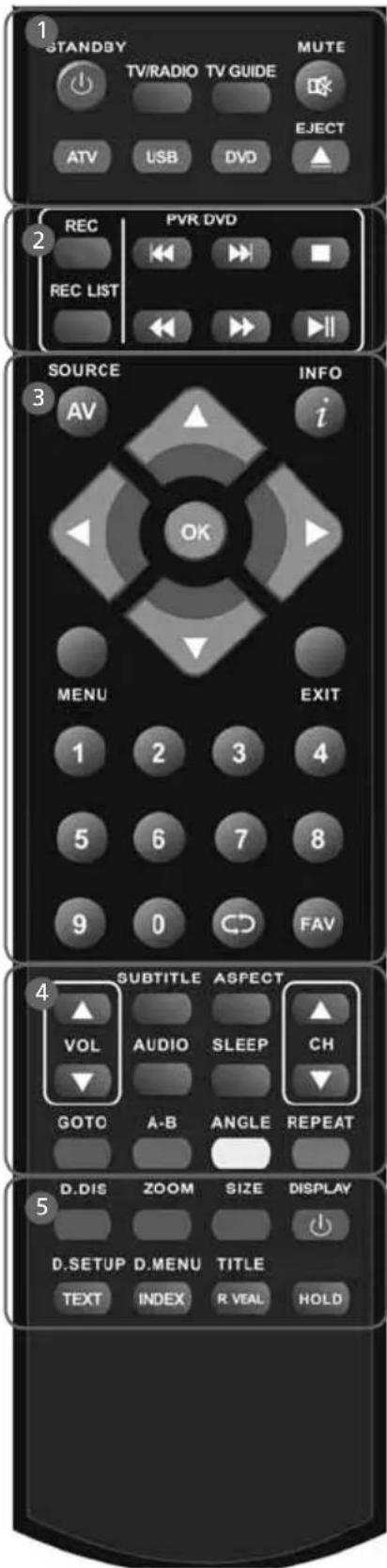
REMOTE CONTROL

STANDBY - Switch on TV when in standby or vice versa MUTE - Mute the sound or vice versa
TV/RADIO - Switch to Freeview and switch between TV and radio in Freeview mode
TV GUIDE - Opens the 7 Day TV Guide (Freeview mode) ATV - Switch to analogue TV source
USB - Switch to USB source DVD - Switch to DVD source EJECT - Eject disc in DVD mode

REC - To record what is currently on television
REC LIST - Opens the list of what you have previously recorded
- To restart the current chapter
- To advance forward to the next chapter
- To stop the playback
- To play in fast rewind mode
- To play in fast forward mode
- To play/pause (Pause live TV when USB Memory Stick is inserted)

SOURCE/AV - To display the input/source menu
INFO - Press once for now/next channel information Press twice for programme information about current programme
(▲/▼/◄/►/ OK) - Allows you to navigate the on-screen menus and adjust the system settings to your preference MENU - To display OSD menu
EXIT - To exit all menus
NUMBER BUTTONS - 0 - 9 to select a TV channel directly.
- To return to the previous channel viewed
FAV - To display favourites menu

VOL ▲-▼ To increase / decrease the sound level
SUBTITLE - To switch the dialogue at the bottom of the screen (on/off)
ASPECT - To switch the screen between the different picture formats
AUDIO - DVD mode - To change the audio language SLEEP - Press repeatedly to cycle through the sleep options CH ▲T□ increase or decrease the channel being watched GOTO - DVD mode - To go to a specific chapter A-B REPEAT - DVD mode - Press once to set point, press a second time to return to point
ANGLE - DVD mode - Select different angle of DVD (if available) REPEAT - DVD mode - To repeat playback

D.DIS - DVD mode - To display the current disc information ZOOM - DVD mode - To zoom in
SIZE - Teletext mode* - To change the display size in Teletext mode
DISPLAY - To switch off the screen when listening to radio DVD SETUP/TEXT - DVD mode - To display the DVD setup menu Teletext mode* - To enter Teletext
D.MENU/INDEX - DVD mode - To display the DVD disc menu Teletext mode* - To display the index page
TITLE/REVEAL - DVD mode - To display the DVD title menu Teletext mode* - To reveal or hide the hidden words. HOLD - Teletext mode - Hold current page which is displayed
text_image
1 STANDBY TV/RADIO TV GUIDE MUTE ATV USB DVD EJECT 2 REC PVR DVD REC LIST SOURCE INFO AV i OK MENU EXIT 1 2 3 4 5 6 7 8 9 0 C D FAV 4 SUBTITLE ASPECT VOL AUDIO SLEEP CH GOTO A-B ANGLE REPEAT 5 D.DIS ZOOM SIZE DISPLAY D.SETUP D MENU TITLE TEXT INDEX R VEAL HOLDCONNECTIONS

| HEAHONES 3.5mm Headphone output | |
| RF LB RF / TV Aerial Input | |
| AUDS IN (R/L) Component / Video audio input | |
| Component HD Component HD Input | |
| VIDEO Video input | |
| COAK Audio Out Digital Coax output | |
| CI CARD IN Common Interface Module Input | |
| SCATH SCART input | |
| VGA(PC) Audio In 3.5mm PC audio input | |
| VGA(PC) VGA-PC input | |
| HDMI HDMI input | |
| USB USB port |
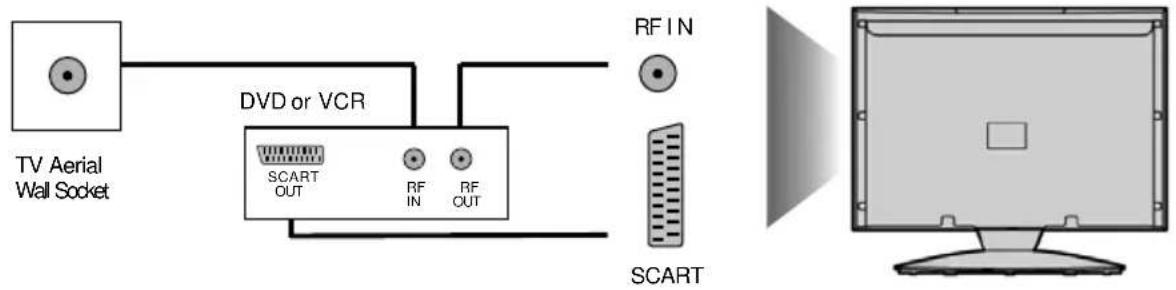
Connecting a DVD Player/Recorder, Video Recorder or Cable/Satellite Box
TVs Input/Source should be set to SCART
flowchart
graph LR
    A["TV Aerial Wall Socket"] --> B["DVD or VCR"]
    B --> C["SCART OUT"]
    B --> D["RF IN"]
    B --> E["RF OUT"]
    F["RFIN"] --> G["SCART"]
CONNECTIONS
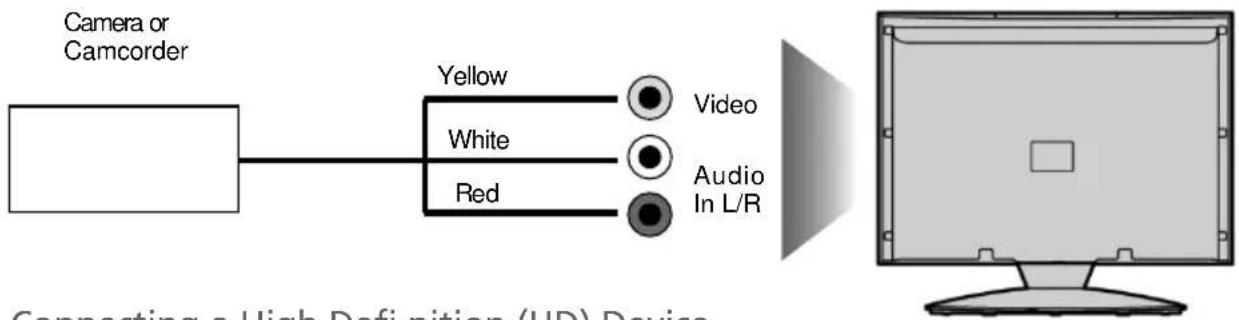
Connecting a Camcorder, Camera or Games Console
TVs Input / Source should be set to Video
flowchart
graph LR
    A["Camera or Camcorder"] --> B["Yellow"]
    B --> C["White"]
    B --> D["Red"]
    C --> E["Video"]
    D --> F["Audio In L/R"]
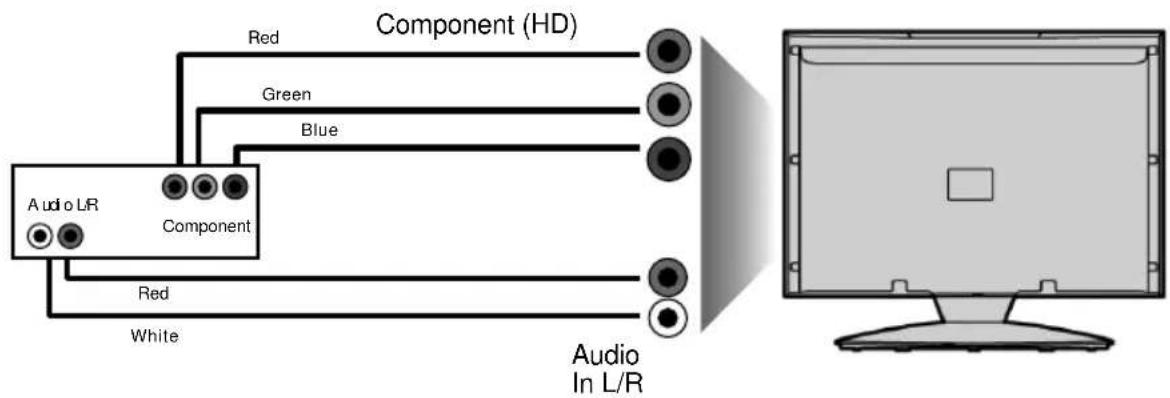
Connecting a High Definition (HD) Device
Option 1 - via HDMI to HDMI cable
A HDMI cable can output both video and audio and enables you to enjoy digital-quality video and audio with minimal loss of quality.
TVs Input/Source should be set to HDMI.

text_image
TVs Input/Source should be set to HDMI. HDMI OUT HDMIOption 2 - via Component cable
If you are supplied with a cable from the device which has RED, GREEN, BLUE, RED & WHITE connectors you must connect via Component (for picture) and by phono cable (for sound).
TVs Input / Source should be set to Component.
flowchart
graph TD
    A["Component (HD)"] --> B["Red"]
    A --> C["Green"]
    A --> D["Blue"]
    A --> E["Red"]
    A --> F["White"]
    G["Audio In L/R"] --> H["Computer"]
CHANNEL MENU
text_image
Auto Tuning Freerview Manual Tuning Analogue Manual Tuning Programme Edit CHANNEL Move Return Select Exit Help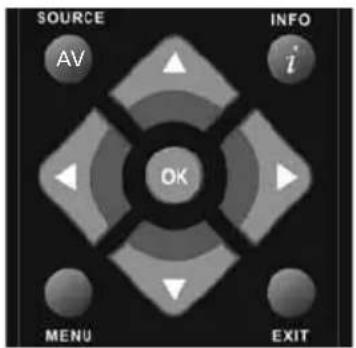
text_image
SOURCE AV INFO i OK MENU EXITTo access this menu, press [MENU] button on the remote control. To enter a menu press [OK]
If you wish to make changes to any of the default settings, use the scroll ▲▼▶▲ buttons. To confirm any settings press [OK] button.
To exit this menu at anytime, press [EXIT] button.
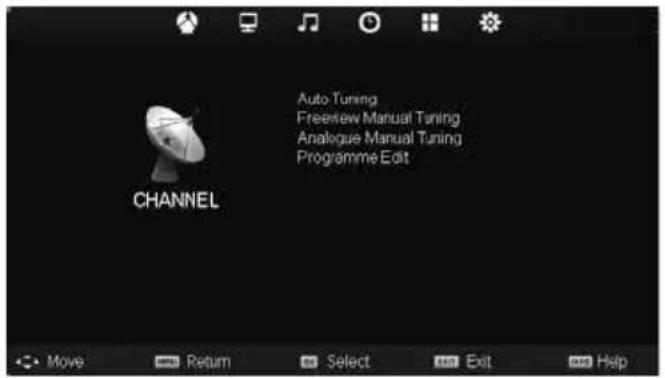
Auto Tuning - Allows you to retune the television for all digital channels, digital radio stations and analogue channels.
Freeview Manual Tuning- Allows you to manually tune your digital signal
Analogue Manual Tuning - Allows you to manually tune your analogue signal
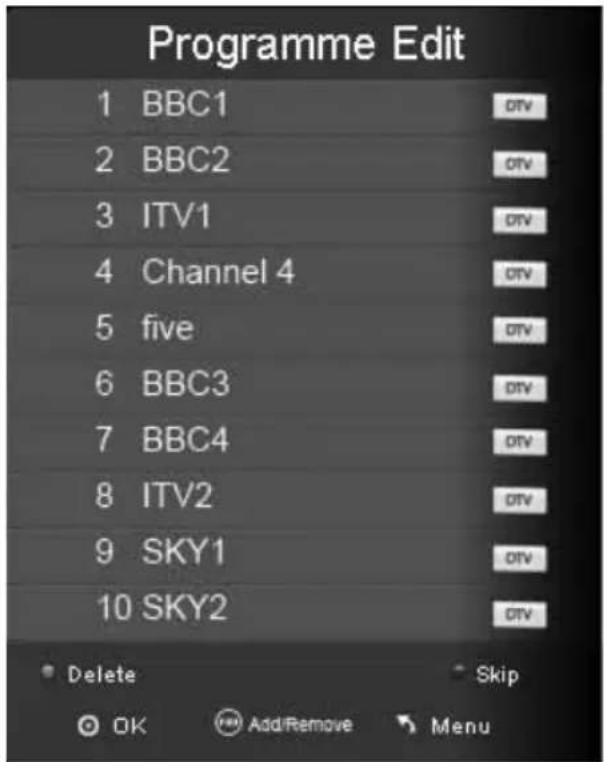
Programme Edit - Allows you to delete, skip and add favourite channels.
text_image
Programme Edit 1 BBC1 2 BBC2 3 ITV1 4 Channel 4 5 five 6 BBC3 7 BBC4 8 ITV2 9 SKY1 10 SKY2 Delete Skip OK Add/Remove MenuPICTURE MENU
text_image
Picture Mode Contrast Brightness Colour Tint Sharpness Colour Temp Noise Reduction Standard 50 50 50 Normal On Picture Move Return Select Exit Help
text_image
SOURCE AV INFO i OK MENU EXITTo access this menu, press [MENU] button on the remote control. To enter a menu press [OK]
If you wish to make changes to any of the default settings, use the scroll ▲▼▶◀ buttons. To confirm any settings press [OK] button.
To exit this menu at anytime, press [EXIT] button.
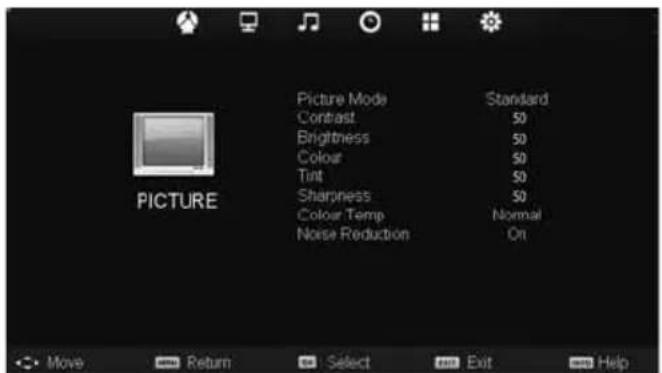
Picture Mode - Choose from the following presets
| Standard | Default | settings |
| Dynamic | Recommended settings for fast moving pictures | |
| Mild | Set to be lighter in colour and less bright | |
| Personal | Lets you manually alter all the settings | |
Contrast - Changes the balance between black and white
Brightness - Increase or decrease the brightness of the picture
Colour - Increases the colour from black and white
Tint - Lets you increase or decrease the level of tint within the picture
Sharpness - Increase or decrease the sharpness of the picture
Colour Temperature - Choose from the following presets
| Normal | Default | settings |
| Warm Increases red within the picture | ||
| Cool Increases blue within the picture | ||
Noise Reduction - Choose from the following presets
| Off Turns noise reduction off | ||
| Low Minor system adjustment | ||
| Middle Medium system adjustments | ||
| High Maximum system adjustments | ||
| Default | Default | settings |
Tip: If you do not press any buttons for 10 seconds, the menu will automatically exit. You can change the length of time before the menu exits automatically - see 'Menu Duration' section.
SOUND MENU
text_image
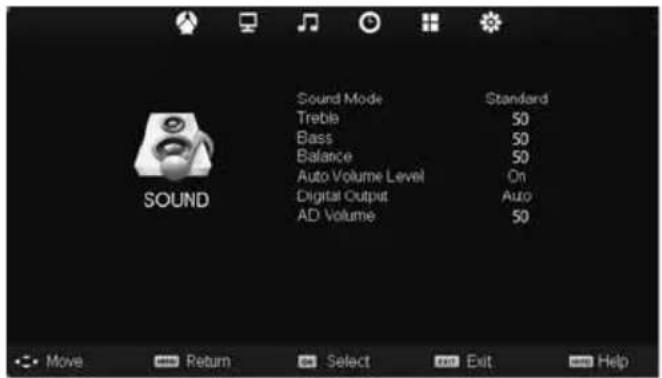
Sound Mode Treble Bass Balance Auto Volume Level Digital Output AD Volume Standard 50 50 50 On Auto 50 Move Return Select Exit Help
text_image
SOURCE AV INFO i OK MENU EXITTo access this menu, press [MENU] button on the remote control. To enter a menu press [OK]
If you wish to make changes to any of the default settings, use the scroll ▲▶▶ buttons. To confirm any settings press [OK] button.
To exit this menu at anytime, press [EXIT] button.
Sound Mode - Choose from the following presets
| Standard | Default | settings |
| Music | Emphasises music over voices | |
| Movie | Provides live and full sound for movies | |
| Personal | Selects your personal sound settings | |
| Sports | Emphasises sound for sports | |
Tip: Treble and bass levels can only be adjusted when the sound mode 'Personal' is selected.
Treble - To adjust the amount of high frequency within the sound
Bass - To adjust the amount of low frequency within the sound
Balance - To switch the sound between the left and right speakers
Auto Volume Level (AVL) - When 'on' is selected, the volume will stay at a constant level regardless of input/source
Digital Output - This is the digital COAX Audio output. Choose from the following options:
| Off | Off |
| Auto Selects the best settings automatically | |
| PCM Select this option if you are connecting to a Stereo Hi-fi via coax cable (Pulse-code modulation (PCM) is a digital representation of an analogue signal) | |
AD Volume - Increase or decrease the overall volume
TIME MENU
text_image
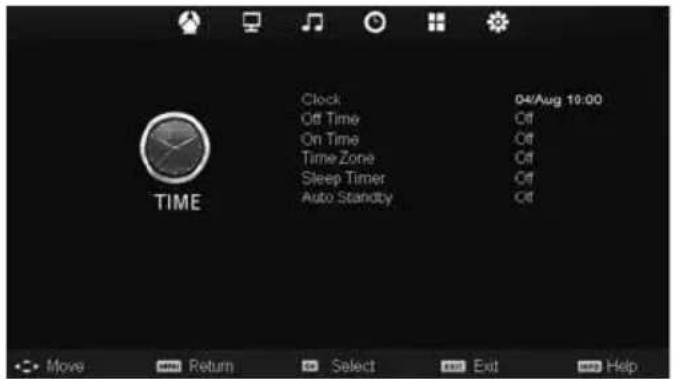
Clock Off Time On Time Time Zone Sleep Timer Auto Standby 04/Aug 10:00 Off Off Off Off Off TIME Move Return Select Exit Help
text_image
SOURCE AV INFO i OK MENU EXITTo access this menu, press [MENU] button on the remote control. To enter a menu press [OK]
If you wish to make changes to any of the default settings, use the scroll ▲▲▲▲ buttons. To confirm any settings press [OK] button.
To exit this menu at anytime, press [EXIT] button.
Clock - Set the date and time
Off Time - Allows you to set a specific time for your TV to turn off
On Time - Allows you to set a specific time for your TV to turn on, the channel it will then display, the source it will be on and also the volume. This function can then be toggled to repeat every day or a certain day.
Time Zone - Change your current time zone
Sleep Timer - Lets you set the sleep timer so the television automatically switches off after a set amount of time. Off -> 10min -> 20min -> 30min -> 60min -> 90min -> 120min -> 180min -> 240min
Auto standby - Switches the TV to standby when not receiving a signal. Toggle the Function on and off.
FEATURE MENU
text_image
Schedule List CI Information Sytem Lock FEATURE
text_image
SOURCE AV INFO i OK MENU EXITTo access this menu, press [MENU] button on the remote control. To enter a menu press [OK]
If you wish to make changes to any of the default settings, use the scroll ▲▶▶▲ buttons. To confirm any settings press [OK] button.
To exit this menu at anytime, press [EXIT] button.
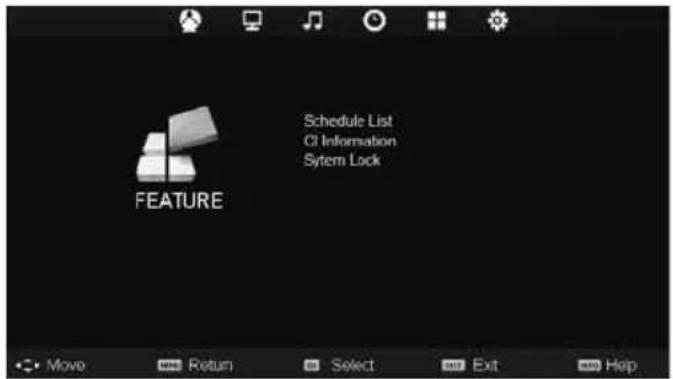
Schedule List - Lists your programme reminders
CI Information - Pay per view services require a "smartcard" to be inserted into the TV.
If you subscribe to a pay per view service the provider will issue you with a 'CAM' and a "smartcard". The CAM can then be inserted into the COMMON INTERFACE PORT (CI Card In).
System Lock - Allows you to lock or unlock the menu. You will be asked to enter a 4 digit password use the ◀ button to quit the password input. Use the ▶ button to clear. Default password is 0000
SETUP MENU
text_image
Menu Language Aspect Ratio Blue Screen Menu Duration Reset To Default Software Update (USB) English 16.9 Off 5.5 SETUP Move Return Select Exit Help
text_image
SOURCE AV INFO i OK MENU EXITTo access this menu, press [MENU] button on the remote control. To enter a menu press [OK]
If you wish to make changes to any of the default settings, use the scroll ▲▲▲▲▲▲▲▲▲▲▲▲▲▲▲▲▲▲▲▲▲▲▲▲▲▲▲▲▲▲▲▲▲▲▲▲▲▲▲▲▲▲▲▲▲▲▲▲▲▲▲▲▲▲▲▲▲▲▲▲▲▲▲▲▲▲▲▲▲▲▲▲▲▲▲▲▲▲▲▲▲▲▲▲▲▲▼▼▼▼▼▼▼▼▼▼▼▼▼▼▼▼▼▼▼▼▼▼▼▼▼▼▼▼▼▼▼▼▼▼▼▼▼▼▼▼▼▼▼▼▼▼▼▼▼▼▼▼▼▼▼▼▼▼▼▼▼▼▼▼▼▼▼▼▼▼▼▼▼▼▼▼▼▼▼▼▼▼▼▼▼▼▼▼▼▼▼▼▼▼▼▼▼▼▼▼●
To exit this menu at anytime, press [EXIT] button.
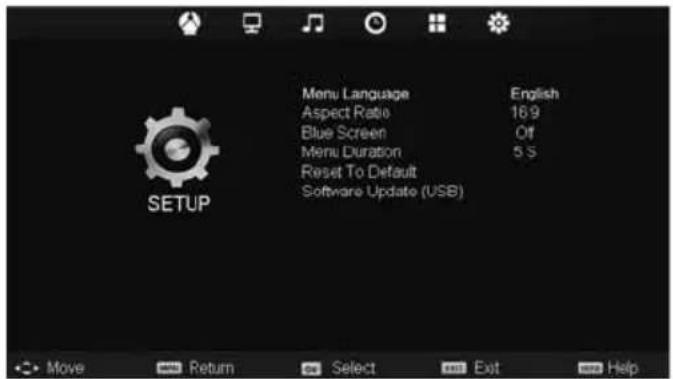
Menu language - Allows you to change the language of the menu
Aspect Ratio - Within the UK the picture format varies depending on the channel/broadcast. There are a number of different options to best meet your needs
Auto
Automatically displays the best picture format. So the picture is in the correct position. May have black lines At the top/bottom and/or sides.
Original
Will display the picture from the broadcaster without any change
Zoom
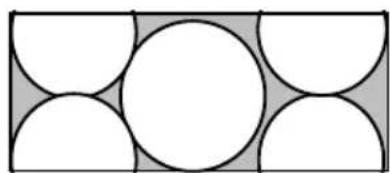
natural_image
Geometric pattern of overlapping circles and semicircles within a rectangle (no text or symbols)The picture is the correct proportion but zoomed in to fill the screen
4:3
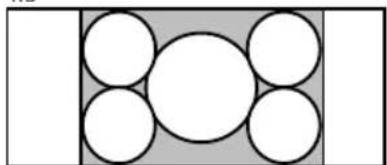
natural_image
Geometric diagram with five circles arranged in a grid within a rectangle (no text or symbols)Displays the 4:3 picture in its original size. Side bars are shown to fill the 16:10 screen
16:9
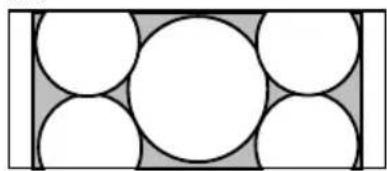
natural_image
Geometric pattern of overlapping circles within a rectangular frame (no text or symbols)Top and bottom bars are shown to fill the 16:10 screen. 4:3 pictures will be stretched
14:9
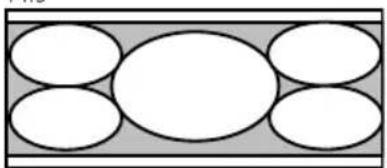
natural_image
Abstract diagram with five white oval shapes arranged in a rectangular pattern (no text or symbols)Displays the 14:9 picture in the correct proportion. As a result side bars are shown on the screen
Blue Screen - Changes the background when there is no input between clear and a blue background (Only available on some sources)
Menu Duration - Lets you adjust the amount of time the On Screen Menu stays on the screen before disappearing
Reset to default
Reset Menu System - This resets the menus to factory settings.
Reset TV Channels - This clears all the TV channels from the television.
Software Update (USB) - From time to time we may release new firmware to improve the operation of the television (available to download). This menu lets you install the new software/fi rmware onto the television. Further details of how to do this will be issued with the fi rmware. Contact the helpline or refer to the 'product support' section of the website.
DVD MENU
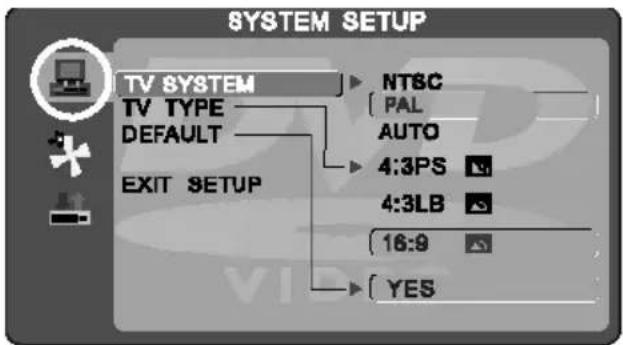
text_image
SYSTEM SETUP TV SYSTEM NTSC PAL DEFAULT AUTO 4:3PS 4:3LB EXIT SETUP 16:9 YES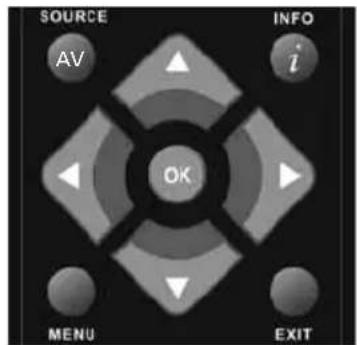
text_image
SOURCE AV INFO i OK MENU EXITTo access this menu, press [MENU] button on the remote control.
If you wish to make changes to any of the default settings, use the scroll any settings press [OK] button.

buttons. To confi rm
To exit this menu at anytime, press [EXIT] button.
TV System - Choose from the following options
NTSC Normally used for discs from North America, Japan etc
PAL The standard for discs from UK/Europe, most of Asia, Australia etc
Auto For both NTSC and PAL
TV Type - Choose from the following options
4:3PS Traditional picture format, often used on old fi Im
4:3 LB Traditional picture which has been adapted for widescreen
16:9 Widescreen picture format
Default - This option allows you reset all DVD settings to factory settings.
Tone - Choose from the following options
+ Increases the treble (high frequency sound)
- Increases the bass (low frequency sound)
Dynamic Range - This is the difference between the quietest and loudest sounds. This setting works only with DVD discs recorded in Dolby digital.
Full Set this to listen with the range recorded on the disc
4/8 Set this to listen with a range equivalent to a normal television
2/8 Set this to listen with a smaller difference between the maximum and minimum volume
Dual Mono
Stereo Outputs 2 channels of sound both left and right
Mono L Outputs left side sound
Mono R Outputs right side sound
Mix Mono Outputs a single channel of sound but mix between right and left
Tip: This TV/DVD player is pre-set to play Region 2 DVDs. In the event you wish to use the TV/DVD in another country that uses different region discs, please visit www.skymediauk.co.uk. Select 'Product Support', 'Changing Region'.
USING THE TELEVISION AS A COMPUTER MONITOR
IMPORTANT – Before connecting the computer to the television you must ensure the computer settings are correct for the television. You MUST do this using your old monitor.
How to set up for Windows XP & Windows Vista (connecting via VGA cable to the TV)
1) Switch on your computer
2) When fi nished booting up right click your mouse anywhere on the screen
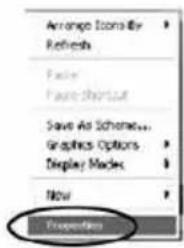
text_image
Arrange Iconify Refresh Paste Paste Shortcut Save As Schemen... Graphics Options Display Macks Now PropertiesXP Screen
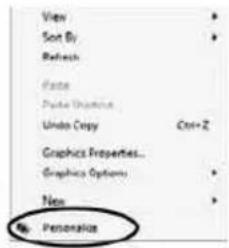
text_image
View Sort By Refresh Paste Paste Graphics Undo Copy Ctrl+Z Graphics Properties... Graphics Options Non PersonalizeVISTA Screen
4) Left click your mouse on Setting/Display Settings. Ensure the screen resolution is set to what is shown in the technical specifications section toward the rear of this user guide. To correct the resolution to that of the television move the slider.
3) Left click your mouse on Properties/Personalise
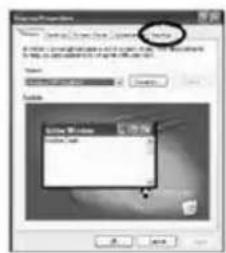
text_image
S - Comparison in Applications Name Reported by: 2016 Description of applications and tools • Use the data to create a new application on the main subject. • Use the data to create a new application on the main subject. • Use the data to create a new application on the main subject. • Use the data to create a new application on the main subject. • Use the data to create a new application on the main subject. • Use the data to create a new application on the main subject. • Use the data to create a new application on the main subject. • Use the data to create a new application on the main subject. • Use the data to create a new application on the main subject. • Use the data to create a new application on the main subject. • Utilize the data for each subject. • Utilize the data for each subject. • Utilize the data for each subject. • Utilize the data for each subject. • Utilize the data for each subject. • Utilize the data for each subject. • Utilize the data for each subject. • Utilize the data for each subject. • Utilize the data for each subject. • Utilize the data for each subject. • Utilize the data for each subject. • Utilize the data for each subject. • Utilize the data for each subject. • Utilize the data for each subject. • Utilize the data for each subject. • Utilize the data for each subject. • Utilize the data for each subject. • Utilize the data for each subject. • Utilize the data for each subject. • Utilize the data for each subject. • Utilize the data for each subject. • Utilize the data for each product. • Utilize the data for each product. • Utilize the data for each product. • Utilize the data for each product. • Utilize the data for each product. • Utilize the data for each product. • Utilize the data for each product. • Utilize the data for each product. • Utilize the data for each product. • Utilize the data for each product. • Utilize the data for each Product. • Utilize the data for each Product. • Utilize the data for each Product. • Utilize the data for each Product. • Utilize the data for each Product. • Utilize the data for each Product. • Utilize the data for each Product. • Utilize the data for each Product. • Utilize the data for each Product. • Utilize the data for each Product. • Utilize the data for each product. • Utilize the data for each product. • Utilize the data for each product. • Utilize the data for each product. • Utilize the data for each product. • Utilize the data for each product. • Utilize the data for each product. • Utilize the data for each product. • Utilize the data for each product. • Utilize the data for each product. • Utilize the data for each product. • Utilize the data for each product. • Utilize the data for each product. • Utilize the data for each product. • Utilize the data for each product. • Utilize the data for each product. • Utilize the data for each product. • Utilize the data for each product. • Utilize the data for each product. • Utilize the data for each Product. • Utilize the data for each Product. • Utilize the data for each Product. • Utilize the data for each Product. • Utilize the data for each Product. • Utilize the data for each Product. • Utilize the data for each Product. • Utilize the data for each Product. • Utilize the data for each Product. • Utilize the data for each Product. • Utilize the data for each product. • Utilize the data for each product. • Utilize the data for each product. • Utilize the data for each product. • Utilize the data for each product. • Utilize the data for each product. • Utilize the data for each product. • Utilize the data for each product. • Utilize the data for each product. • Utilize the data for each package. • Utilize the data for each package. • Utilize the data for each package. • Utilize the data for each package. • Utilize the data for each package. • Utilize the data for each package. • Utilize the data for each package. • Utilize the data for each package. • Utilize the data for each package. • Utilize the data for each package. • Utilize the data for each paper. • Utilize the data for each paper • Utilize the data for each paper • Utilize the data for each paper • Utilize the data for each paper • Utilize the data for each paper • Utilize the data for each paper - The actual values are not provided in this image.VISTA Screen
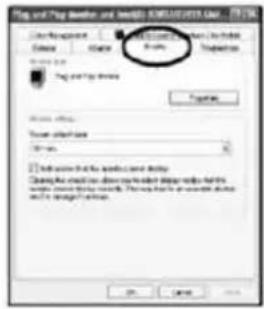
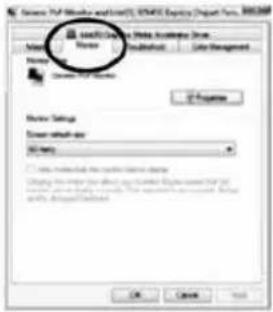
5) Left click your mouse on Advance/Advanced Settings and left click on Monitor
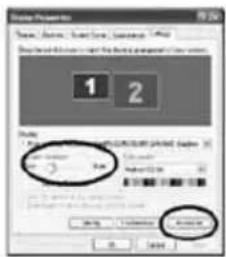
text_image
Display Properties Name: Windows Server Command Address: Windows 1234-8000-0000 1 2 Size: 1.5 mm x 1.5 mm x 1.5 mm x 1.5 mm 1.5 mm x 1.5 mm x 1.5 mm x 1.5 mm 确定 取消XP Screen
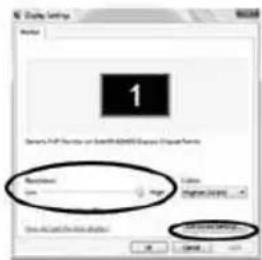
text_image
1 Refresh: OK Finish English (OK) OK OKVISTA Screen
text_image
File and Play Settings and Settings\2001\2002\DATA CAP User/Request Delete Change Show: View the image Preview Preview... Preview... Preview... Preview... Preview... Preview... Preview... Preview... Preview... Preview... Preview... Preview... Preview... Preview... Preview... Preview... Preview... Preview... Preview... Preview... Preview... Preview... Preview... Preview... Preview... Preview... Preview... Preview... Preview... Preview... Preview... Preview... Preview... Preview... Preview... Preview... Preview... Preview... Preview... Preview... Preview... Preview... Preview... Preview... Preview... Preview... Preview... Preview... Preview... Preview... Preview Preview Preview Preview Preview Preview Preview Preview Preview Preview Preview Preview Preview Preview Preview Preview Preview Preview Preview Preview Preview Preview Preview Preview Preview Preview Preview Preview Preview Preview Preview Preview Preview Preview Preview Preview Preview Preview Preview Preview Preview Preview Preview Preview Preview Preview Preview Preview Preview Preview PreviewXP Screen
text_image
Save/Control - Watch Available Drive Monitor Settings Screen default-up All rights File: Windows NT Control File Path: Windows NT Control File Type: All Files File Region: All Files File Name: All Files File Type: All Files File Path: All Files File Status: All Files File Date: 2015-07-23 OK Cancel HelpVISTA Screen
6) Left click on the drop down for Screen refresh rate and select 60 Hertz, if you experience picture noise or 'fl ickering', select 50 hertz or 70 hertz.
7) Click on Apply, then click Yes and the settings will be saved.
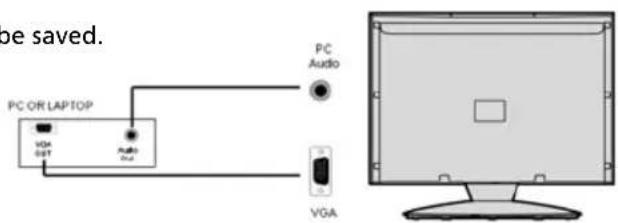
8) Now switch off your computer and connect the television (as shown)
9) Switch on the TV, select the input/source to VGA/PC and re-start your PC.
text_image
PC OR LAPTOP VGA OUT Audio Dual PC Audio VGAConnecting a Laptop
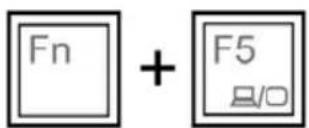
In addition to the above if you are connecting a laptop to the television you will also need to activate the VGA connection on the laptop. This can vary based on the brand of laptop you have, on many brands/models, it is as per below.
1) Connect the laptop to the television
2) On the Laptop push buttons
The screen will now switch to the television.
text_image
Fn + F5 B/OPC SETTINGS
text_image
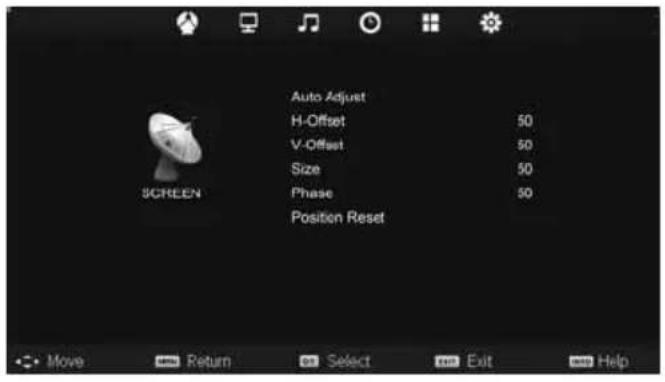
Auto Adjust H-Offset 50 V-Offset 50 Size 50 Phase 50 Position Reset SCREEN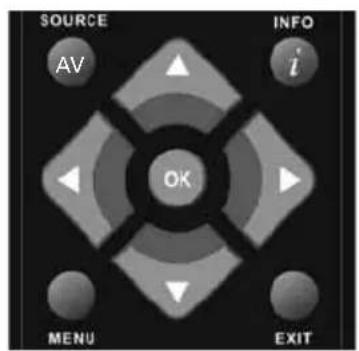
text_image
SOURCE AV INFO i OK MENU EXITTo access this menu, press [MENU] button on the remote control. To enter a menu press [OK]
If you wish to make changes to any of the default settings, use the scroll ▲▼▶▲ buttons. To confirm any settings press [OK] button.
To exit this menu at anytime, press [EXIT] button.
Auto Adjust - Lets you automatically configure the television to be used as a computer monitor
H Offset - Changes the horizontal position of the picture
V Offset - Changes the vertical position of the picture
Size - increase picture size
Phase - To adjust delay time of phase in order to reduce the noise of picture
Position Reset - Changes back to the original settings
Tip: If the computer is left in-active for a period of time, the television will switch into a 'sleep' state (the screen will power off to save power). To switch back on press the standby button.
7 DAY TV GUIDE / USB RECORD
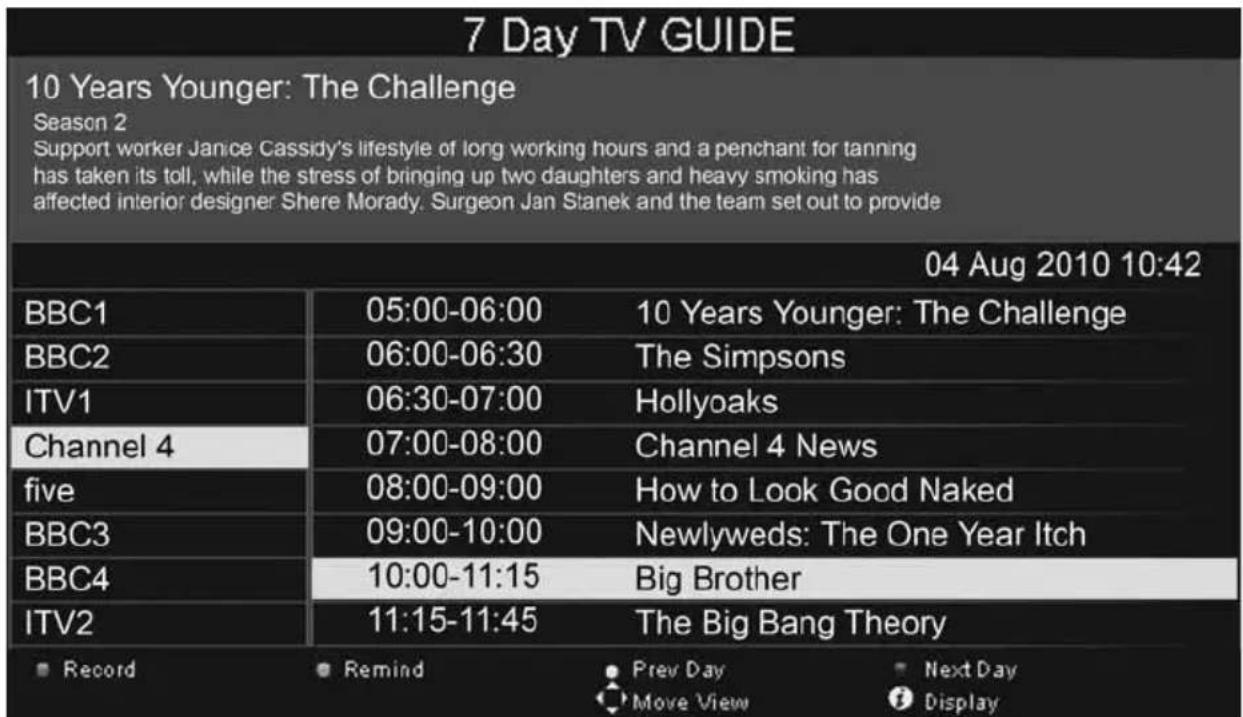
TV Guide is available in Digital TV mode. It provides information about forthcoming programmes (where supported by the freeview channel). You can view the start and end time of all programmes and on all channels for the next 7 days and set reminders.
1) Press [TV GUIDE]. The following 7 Day TV Guide will appear.
text_image
7 Day TV GUIDE 10 Years Younger: The Challenge Season 2 Support worker Janice Cassidy's lifestyle of long working hours and a penchant for tanning has taken its toll, while the stress of bringing up two daughters and heavy smoking has affected interior designer Shere Morady. Surgeon Jan Stanek and the team set out to provide 04 Aug 2010 10:42 BBC1 05:00-06:00 10 Years Younger: The Challenge BBC2 06:00-06:30 The Simpsons ITV1 06:30-07:00 Hollyoaks Channel 4 07:00-08:00 Channel 4 News five 08:00-09:00 How to Look Good Naked BBC3 09:00-10:00 Newlyweds: The One Year Itch BBC4 10:00-11:15 Big Brother ITV2 11:15-11:45 The Big Bang Theory Record Remind Prev Day Next Day Move View Display2) Navigate through the menu using

You can now:
Record a Programme by pressing RED
Set a reminder by pressing GREEN
View a previous day by pressing YELLOW
View the next day by pressing BLUE
3) Press [EXIT] to exit the 7 day TV Guide.
Note: This TV is designed to operate with USB memory sticks up to 32GB. It is possible to use either a USB memory stick or a USB portable Hard Drive of a larger capacity, however, it must be formatted to the FAT32 fi le system in order to operate correctly. At the time of printing this user guide, Windows XP/Vista computers are only capable of formatting up to 32GB, therefore, you will need a software programme/utility to format larger USB drives/hard drives to FAT32. Additional help and support is available from the web site.
USB RECORD - DIGITAL/FREEVIEW MODE
USB RECORD - DIGITAL/FREEVIEW MODE
Built into this television is a USB record facility. This function is available in Digital/Freeview mode when used in conjunction with a compatible USB memory stick or USB Hard drive. The benefits of this are as follows:
- Pause live TV/Radio and then playback, fast forward and rewind (up to live TV)
• One button record, if you decide you want to record the current programme - Easy programmable recording from the 7 day TV Guide
- Record TV/Radio and watch/listen back on your computer/laptop
Due to the nature of the product, it is necessary to use a high speed USB memory stick (as the TV reads from and writes to the memory stick at the same time, some memory sticks may not be suitable)
Minimum Specification - USB Memory Stick
Read Speed 20 MB/s (Mega Byte Per Second)
Write Speed 6 MB/s (Mega Byte Per Second)
If you wish to use a USB portable hard drive larger than 32GB, please refer to the FAQ section at the rear of this user guide.
Pause Live TV/Radio (Time Shift)
Pausing Live TV/Radio is very simple.
text_image
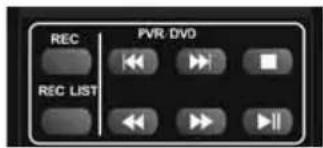
REC PVR DVD REC LIST- Press the play/pause button and the television will pause and the live content will be recorded. To resume watching press play/pause again.
- Press fast forward to go forward in a recording (i.e. to skip adverts)
- Press fast rewind to go back in a recording (i.e. if you fast forwarded too far)
Tip: When you switch the TV to standby or change channel the Time Shift memory is wiped. To restart time shift you must press play/pause button.
One Button Record
At any point in time you may decide to record the current channel that you are watching. To do this you need to press the [REC] button.
Tip: This television contains one TV tuner, therefore it can only record the channel you are watching or record one channel while the television is in standby mode.
Note: USB record function is only available in Digital/Freeview TV/Radio mode. Due to copyright laws and illegal copying/recording it is not possible to record to/from any other input/output source.
USB MODE / MEDIA PLAYER
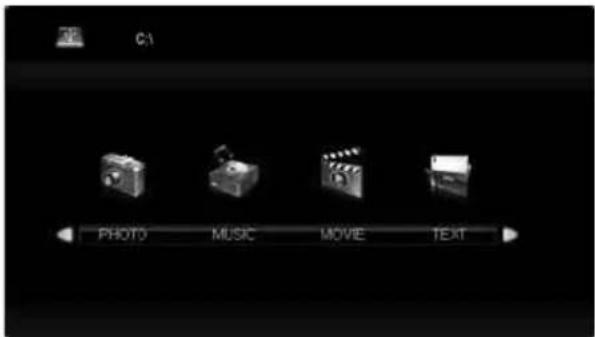
USB mode offers playback of various different types of content that you have saved on your USB Memory Stick.
On switching to USB source the above menu screen will appear. The content will be divided into Photo, Music, Movie and Text based on fi le type.
text_image
C1 PHOTO MUSIC MOVE TEXT1) You can navigate through the menus using the scroll ▲▼▶◀buttons. To confirm the item you wish to play/view press [OK] button.
text_image
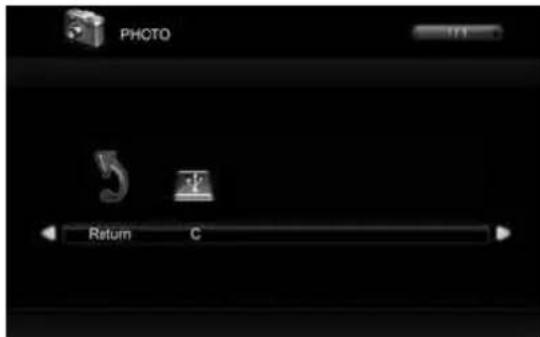
PHOTO Return C2) Select the drive you require. (If your drive only has 1 partition you will only see 1 item).
text_image
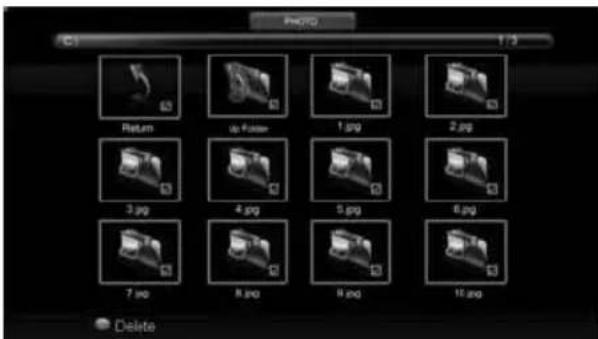
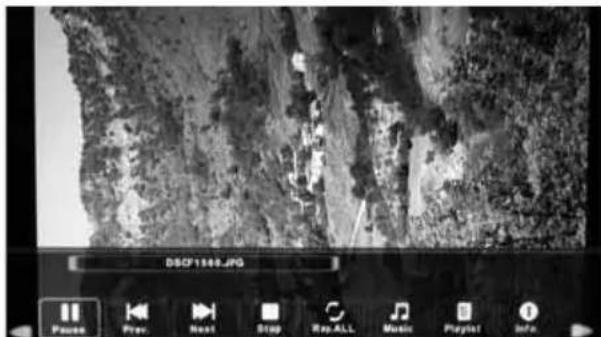
Photo C1 1 / 3 Return up filter 1.jpg 2.jpg 3.jpg 4.jpg 5.jpg 6.jpg 7.jpg 8.jpg 9.jpg 10.jpg Delete3) You can now access the item. Press OK to view. 4) While viewing you control the item using
text_image
DSCF1348.JPG Power Prev Next Stop Rep.ALL Music Playlist Info.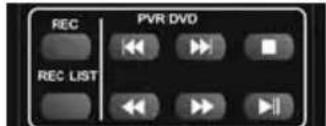
text_image
REC | PVR DVD REC LISTor by pressing (i) and using ▲▼▶◀ and (OK)
OPERATING THE TV WITH A UNIVERSAL OR SKY (BSKYB) REMOTE CONTROL
Using a Universal Remote Control.
You may wish to use a Universal Remote control to operate your Television. In order to do so, you will need to enter the 'code' below into your universal remote control, to do this, please follow the instructions included with the Universal remote control. Please note that if your remote control does not accept the code, this is because the software/fi rmware installed on the remote control is too old. Please contact the manufacturer of the Universal Remote control for assistance.
Universal Remote Code - 2106 (TV functions) 2302 (DVD Functions - where included on the TV)
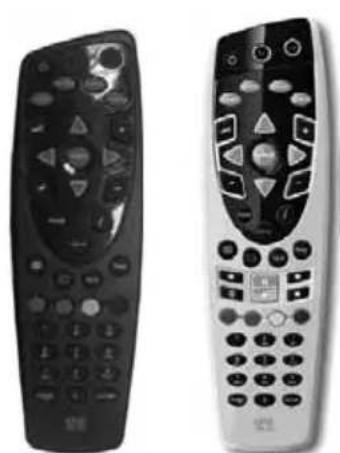
Using a Sky / Sky+ / Sky HD Remote Control
If you wish to use your Sky remote control to operate the your Television, you need to programme a 4 digit code into your Sky, Sky+ or Sky HD remote control.
Please note that the code below will only be accepted if the Sky remote control is a Revision 9 (launched Autumn 2010) or later.
To find out which version of Sky remote you have, remove the battery cover, you should see a sticker showing the 'Rev' number.
If your Sky remote is Rev 8 or earlier, you will need to purchase a new Sky Remote control in order to operate the TV's functions. At the point of manufacture of this TV, the latest Revision 9 remote controls are only available to purchase directly from Sky, alternatively, you can purchase our versions from the helpline / website.
natural_image
Two remote control devices shown side by side, one black and one white, with no visible text or symbols on the devices themselves.Sky Sky+/Sky HD
The very latest versions of remote controls to operate your Sky / Sky+ / Sky HD in addition to operating the functions of the Television can be purchased from the helpline or website.
Our versions (from One for All) are slightly smaller than the regular Sky remotes and operate your Sky box the same way your current Sky remote does, in addition, our versions operate the functions of your television as they include the very latest software/fi rmware.
Please note that as we have to install the necessary software / fi rmware onto the remote control prior to shipping, you must provide us with your TV model number in order that we can do this.
If your Sky remote control is a Revision 9 or later, please follow the instructions below.
1) Switch on the TV set
2) Press the 'TV' button on the Sky Remote
3) Hold down the 'select' and 'red' buttons for 2-3 seconds until the LED blinks twice
4) Press the 'TV' button on the Sky Remote again
5) Enter the 4 digit code (see below)
6) The LED should blink twice, if not recheck the 4 digit code used and go back to step 1
7) Press the 'standby' button on the Sky Remote (The TV should go to standby)
8) Press 'select' to store this setting
Sky / Sky+ / Sky HD Remote code - 2134 (Revision 9 or later only)
FREQUENTLY ASKED QUESTIONS
| General I would | like to have louder sound by connecting additional speakers | Subject to the TV model and connections, it is possible to connect the TV to an external amplifi er or surround sound (subject to connections/inputs on the device) as follows:-1) Connect a COAX cable* from the TV's COAX output to your amplifi er/surround systems COAX input2) Connect a 3.5mm jack to L/R phono cable* from the TV's headphone socket (where fi tted) to your amplifi er/surround sound L/R input. Please note sound to the TV's speakers will be disabled.3) On selected models, it maybe possible to connect a SCART input/output* switch with an additional L/R Phono cable* to the TV's SCART socket and to the L/R Phono Input of your amplifi er/surround sound. Please note due to copyright laws it is not possible to output video/sound from the TV on certain sources, i.e. HDMI, DVD etc.*cables and switches mentioned are available to purchase separately from your retailer. |
| General Why are | some options in the menu unavailable and greyed out | Some options are only available in certain sources, i.e. HDMI, PC/VGA. They are unavailable in the other sources where they have no affect. |
| TV I have tuned in | Digital TV but I am not receiving any or all of the channels and/or the channels I receive are breaking up | 1) Check you are in an area that can receive Freeview. Visit www.freeview.co.uk or call 08701 111 270.2) Check you are using an aerial that is able to receive a good digital signal. In most cases, you will need an outdoor digital hi-gain/wideband aerial. In areas that have excellent Freeview coverage, you may be able to use a loft type aerial but it is highly likely that you will also need to connect a booster between the back of the TV and the TV aerial wall socket. Unfortunately, to receive a good enough digital signal, it is not possible to use a portable/indoor type aerial. This may change once the analogue signal is switched off in 2012 and the Digital signal strength is increased. |
| TV I have re-tuned | my television but when I switch it off it is not storing the channels | Complete a fi rst time installation, please refer to the set-up menu section of the manual of how to do this |
| DVD I have inserted | a disc but it is not playing | 1) Ensure you have inserted put the disc in facing the correct way forward2) Ensure the disc is clean and is not scratched3) Some copied discs will not play.4) Check the DVD is a region 2 disc - to change the region of the DVD player, refer to section 'Changing Regions' on the website. |
| VCR/DVD Recorder | I have connected the TV to my VCR or DVD Recorder via SCART but it is not recording | In addition to connecting via SCART, you should connect the aerial cable from the wall socket to your VCR/DVD Recorder and another aerial cable from the VCR/DVD Recorder to the TV |
| Game Consoles I | have connected my PS3 to the TV via HDMI, but I am not receiving any pictures or sound on my TV | 1) Ensure the TVs source is on HDMI2) Check your settings on your PS3 are as per the PS3 instruction manual |
| Game Consoles I | have connected my Xbox 360 to the TV via Component Cables (Red, Green & Blue) but I am not receiving any sound | Component cables only provide HD Pictures. For the sound you will need to connect the Red & White audio cables on the Xbox to the Red & White phono inputs on the rear of the TV. Please refer to the 'Connections' pages. |
| USB Mode I have | inserted a USB Memory Key, but the TV does not recognise it | Ensure the USB Memory Key is formatted to type FAT32. |
| USB Mode Using | a USB portable hard drive | If you wish to use a portable hard drive larger than 32GB, please note that it must be formatted to the FAT32 fi le system in order to operate on this TV. Windows XP/ Vista computers are only capable of formatting up to 32GB, therefore, you will need a software programme/utility to format larger hard drives. Please refer to the web site for more information. |
| USB Record / TV | I can not change the channel, access the menu or use the red button | During Time Shift you can not change the channel, access the menu or use the red button |
| USB Record / TV | When using the USB to record the picture 'breaks up' or experience loss of sound. | Check the USB Memory Stick meet the minimum requirements of Read Speed - 20 MB/s (Mega Byte Per Second), Write Speed - 6 MB/s (Mega Byte Per Second) |
| System Lock I have | changed the password on the television and now forgotten it | There is a master password of 4711, to gain access to the TV menu and reset the normal password |
TECHNICAL SPECIFICATION
| Model LCD 23-231-BB-G/BR-G/BG-G/BL-G | |
| Screen size (diagonal) 23"/58cm | |
| Resolution 1920 x 1080 | |
| Contrast Ratio 1000:1 | |
| Brightness cd/m2 300 | |
| PC RGB Yes | |
| RF 75 ohm Antenna / PAL-SECAM | |
| Video Inputs 1 x SCART, 1 x Video, 1 x Component (YPbPr - 1080i),1 x HDMI (up to 1080p) | |
| Sound Inputs 1 x 3.5mm jack for PC audio input, 1 x pair RCA shared for Video & YPbPr (component) audio input | |
| Sound Outputs 1 x Coax Audio output, 1 x Headphone output | |
| Sound power,watts (RMS) | 2 x 3 |
| Voltage and power consumption | 110-240v 50/60Hz 1.5A 90W (in standby less than 1w) |
| Dimensions including stand (mm) | 561W x 402H x 178D |
| Net weight (Kgs) 6.3 | |
General Information
INDEX
7 Day TV Guide / USB Record 26
Aspect Ratio 21
Auto Configuration of screen (PC) 25
Auto Tuning 16
Auto Volume Level 18
Balance 18
Bass 18
Blue Screen 21
Brightness 17
Clock 19
Colour 17
Colour Temperature 17
Common Interface 20
Connections....14-15
Contrast 17
Detaching the base/stand 9
Digital Output 18
Digital Switchover 33
Dual Mono (DVD) 23
Dynamic Range (DVD) 23
First Time Installation 11
Frequently Asked Questions 30
Getting Started 11
Horizontal Position (PC) 25
Language 21
Manual Search 16
Noise Reduction 17
Operating the TV with a universal or
Sky (BSKYB) remote control 29
Phase (PC) 25
Picture Mode 17
Remote control 13
Returning to Default (DVD) 23
Reset to default 21
Sharpness 17
Sleep Timer 19
Software Update 21
Sound Mode 18
Source Menu 12
System Lock 20
Technical Specifications 31
Treble 18
TV buttons 12
TV Guide 26
TV System (DVD) 23
TV Type (DVD) 23
USB Record 27
USB Mode / Media Player 28
Using the television as a computer monitor 24
Vertical Position (PC) 25
Wall mounting 9
What is included in the box 8
DIGITAL SWITCHOVER
Television in the UK is going digital, bringing us all more choice and new services. Starting late 2007 and ending in 2012, television services in the UK will go completely digital, TV region by TV region.
How the switchover affects your TV equipment.
Your new TV has a digital tuner built in, which means it is ready to receive the Freeview signal by simply connecting it into your aerial socket (you can check if you can get digital TV through your aerial now or whether you will have to wait until the switchover at www.digitaluk.co.uk)
When the TV switchover happens in your area, there are at least two occasions when you will need to re-tune your TV in order to continue receiving your existing TV channels and also to pick up new ones. Digital UK, the body leading the digital switchover, will advise you when you need to retune during the switchover.
How to retune.
Retuning your TV is a very quick and simple process. We recommend that you retune every few months to ensure you are receiving the very latest TV and radio channels that are broadcast.
1) On the remote control press [MENU] followed by 8 - 8 - 8 - 8 (so the number 8 button four times)
2) The First Time Installation menu will appear. Press [OK] and tuning will take place.
For help and support regarding the digital switchover, please contact Digital UK:
Telephone: 08456 50 50 50 (calls charged at local call rate, approx 3p per minute daytime or 1p per minute evenings from a BT landline)
Digital UK website: www.digitaluk.co.uk
Technika
Tesco Stores Ltd.
Cheshunt EN8 9SL, UK