
PalmPix - Camera KODAK - Free user manual and instructions
Find the device manual for free PalmPix KODAK in PDF.


User questions about PalmPix KODAK
0 question about this device. Answer the ones you know or ask your own.
Ask a new question about this device
Download the instructions for your Camera in PDF format for free! Find your manual PalmPix - KODAK and take your electronic device back in hand. On this page are published all the documents necessary for the use of your device. PalmPix by KODAK.
USER MANUAL PalmPix KODAK
Congratulations on purchasing the KODAK PalmPix Camera, the camera that takes pictures using a PALM III, IIIe, IIIx, IIIc and VII CONNECTED ORGANIZERS (Palm), and IBM WORKPAD and TRGpro personal data assistants (PDAs). With the camera you can:
■Take great looking pictures in two different resolutions. Select a 640 x 480 picture resolution for printing and e-mail; select a 320 x 240 picture resolution for viewing online, or when you need extra space for picture-taking.
■Get close to the subject with a 2X digital zoom.
■Transfer pictures by HotSync Technology for instant editing, printing, and placement into documents.
■Save pictures to a laptop or desktop computer as a JPEG (JPG) or Bitmap (BMP) format.
■E-mail pictures in minutes to business associates, friends, and family anywhere in the world.
■Beam pictures to other Palm users. For details, refer to the guides that came with the Palm.
About the Software
Four applications are included on the Kodak CD supplied with the camera.
■KODAK PalmPix Software—runs on the Palm and controls the camera and picture transfer functions.
■KODAK PalmPix Conduit Software—provides the capability to perform a HotSync operation for transferring pictures from the Palm to the computer.
■Presto! Mr. Photo (NewSoft, Inc.)—lets you edit, enhance, e-mail, print, and organize pictures. For help, refer to the online manual or the NewSoft, Inc. Website at www.newsoftinc.com.
■Image Carousel (Rhode Island Soft Systems, Inc.)—lets you create scrolling screen savers and wallpapers for the computer. For help, refer to the online help or the Rhode Island Soft Systems, Inc. website at www.risoftsystems.com.
Loading the Software
- Exit all software programs.
- Place the CD into the CD-ROM drive.
- Follow the on-screen instructions to install the software.
- After the software is loaded on the computer, perform a HotSync operation to transfer the PalmPix software onto the Palm.
Customizing the Transfer Conduit
The KODAK PalmPix Conduit default settings are set when you install the software, but can be changed using the Advanced window of the HotSync Manager. You can:
■Save pictures in a JPEG (default) or BMP format.
■Specify folders for transferring and saving pictures. A default folder with the same name as your Palm user name, and a subfolder named PalmPix are automatically created in the Palm data directory on the {C:} drive.
■Select options for deleting pictures from the Palm after transfer. The default is No.
-
Right click the HotSync Manager icon, then select Custom.
-
Select PalmPix, then click Change to display the Change HotSync Action window.
Note: For information about this window, refer to the guides that came with the Palm.
- Click Advanced to display the Advanced window. Select the options you want, then click Done.
Preparing the Camera
Loading Batteries
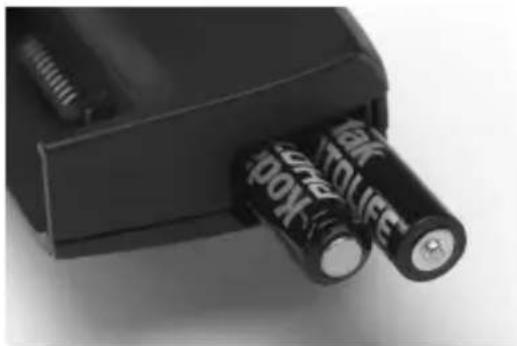
- Open the battery door (not shown).
- Insert two AAA batteries into the chamber as shown.
- Close the battery door.
natural_image
Close-up of two black batteries with visible internal components, no text or symbols presentChecking Batteries
A battery status symbol appears on the Palm when previewing a picture (page 6). A black battery symbol means batteries are charged; a partially black symbol means batteries are weak; and a blinking symbol indicates batteries are exhausted and need to be replaced.
Connecting the Camera
When connected, the camera lens faces the back of the Palm.
- Align the Palm connector and the camera connector.
- Push the camera and Palm together until they lock in place.
To remove the camera, pull it away from the Palm.

natural_image
Two black Kodak flip-flop devices with camera and display panels, shown from front and back angles (no visible text or symbols on body)Using the PalmPix Software
With the camera connected, turn on the Palm, tap the Applications button, then tap the PalmPix icon to display the main PalmPix window.
A. Picture File Name—name given to pictures stored on the Palm. Pictures can be renamed, deleted, and categorized using the Details window (page 7).
B. Self-Timer—tap the icon to create a ten-second delay.
C. Resolution—tap the icon to select 320 x 240 or 640 x 480 picture resolution.
D. Preview/Shutter Button—press the Date Book button once to preview the image, then press it again to take the picture.
E. Zoom Button—press the Scroll button up to zoom in, or down to zoom out on the image. Zoom is available only in 640 x 480 resolution.

F. Frame Counter—displays the number of pictures that can be stored on the Palm.
Using the PalmPix Software 5
Taking Pictures
With the camera connected to the Palm, picture-taking is controlled by the PalmPix Software. When PalmPix is activated, the Date Book button becomes the camera Preview/Shutter button.
- Press the Date Book button once to view the subject.
The Palm screen displays a live preview. To cancel the preview, tap the screen.
Note: Because of image processing time, color PDAs preview the image in grayscale.
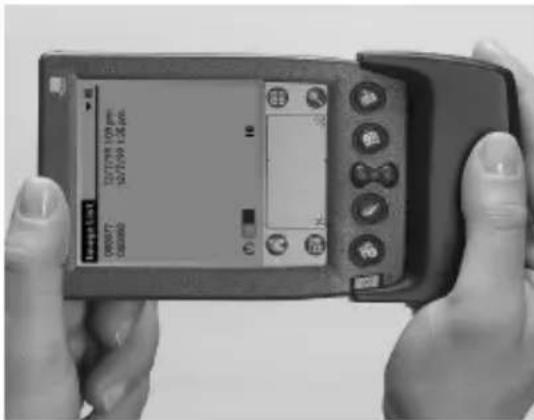
- Press the Date Book button a second time to take the picture.
Note: If the Self-Timer is activated, the Palm beeps for ten seconds, then beeps faster just before the picture is taken.
A progress bar appears below the picture displaying the transfer status of the picture to the Palm. To cancel the transfer, tap the trash can icon.
Viewing, Renaming, and Deleting Pictures
Viewing Pictures
Tap the file name to view the picture. The picture appears with the file name, and the date and time when the picture was taken. Press the Scroll button to navigate through the pictures.
Note: Pictures beamed between non-color and color PDAs appear as grayscale images on the color PDA.
Renaming Pictures
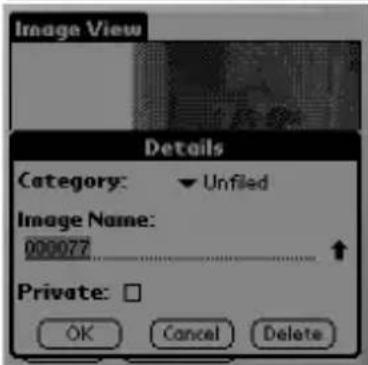
With the picture displayed, tap Details to display the Details window and rename the file. In the Details window, you can categorize, delete, and mark the file as private. For more information, refer to the guides that came with the Palm.
Deleting Pictures
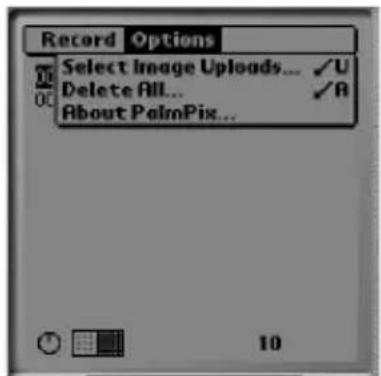
To delete a selected picture—tap the file name to be deleted, then tap Menu->Record->Delete Image.
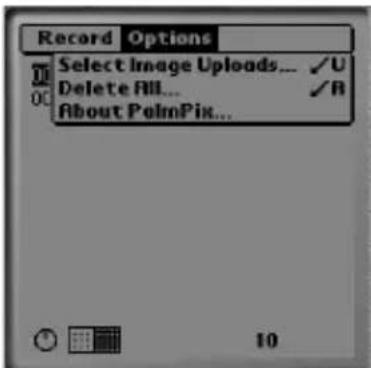
To delete all pictures—tap Menu->Options-> Delete All.
Note: You cannot access Options->Delete All when a picture is displayed.

Transferring Pictures to a Computer
- Tap Menu->Options->Select Image Uploads.
Note: You cannot access Options->Select Image Uploads when a picture is displayed.
- Highlight the file name and tap the single arrow button to add the picture, or tap the double arrow button to add all the pictures to be transferred to the Upload List.
To remove pictures from the Upload List, highlight the file name and tap Remove, or tap Remove All to remove all the pictures.
- Place the Palm in the cradle, then press the HotSync Manager button to transfer the images from the Palm to the PalmPix folder on your computer.

General Maintenance, Safety, and Tips
■To keep from damaging your camera, avoid exposing it to moisture and extreme temperatures.
■Clean the outside of the camera by wiping with a clean, dry cloth. Never use harsh or abrasive cleaners or organic solvents on the camera or any of its parts.
■Do not allow any chemicals, such as suntan lotion to come into contact with the surface of the camera.
■Never disassemble or touch the inside of the camera.
■Wipe the lens gently with a soft, lint-free cloth or an untreated lens-cleaning tissue.
■If pictures appear too dark when viewing on a computer, increase the available light source when taking pictures.
Using Your Batteries
■Kodak recommends KODAK PHOTOLIFE AAA Alkaline Batteries, or KODAK AAA Ni-MH Rechargeable Batteries.
■Remove the batteries when the camera is stored for extended periods of time.
■Always follow your battery manufacturer's directions fully. Do not attempt to disassemble, short circuit, or subject the battery to high temperature or fire.
■Replace all batteries of a set at the same time. New batteries should not be mixed with used ones. Do not mix rechargeable and nonrechargeable batteries. Do not mix alkaline or Ni-MH types of batteries. Do not mix different grades or brands of batteries. Failure to observe this precaution may result in some batteries in a set being driven beyond their normal exhaust point and increase their possibility of leakage.
■If you elect to use alkaline batteries in your camera, you will obtain better performance from “photo-flash grade” alkaline batteries, such as KODAK PHOTOLIFE alkaline batteries. These types of batteries last more than twice as long in digital cameras as ordinary alkaline batteries. Alkaline batteries are not rechargeable, do not attempt to recharge them in a charger.
■When using the camera, we recommend limiting continuous Preview or Review to less than 10-minutes per session.
- When disposing of batteries, follow the manufacturer's instructions and all federal, state, and local regulations. Kodak suggests customers take advantage of any community battery recycling programs that may exist in your area. Contact your local waste remover or recycler for details.
Specifications
| VGA Resolution High | 640 x 480=307,200 pixels | |
| Low 320 x 240= | 76,800 pixels | |
| Color 24-bit, millions of colors | ||
| Picture File Format BMP, JPEG | ||
| Lens Aperture F/2.0 | ||
| Zoom 2X digital | zoom | |
| Focal Length 6.1 mm | ||
| Focus Distance | 36 in. (0.9 m) to infinity | |
| Shutter Speed 1/15-1/500 seconds | ||
| Power 2 AAA-size, 1.5-volt alkaline, or | 2 AAA-size, 1.2-volt Ni-MH rechargeable | |
| Dimensions (w x d x h) 2.2 x 1.1 x 3.3 in. (55.9 x 28.0 x 83.8 mm) | ||
| Weight | 0.1 lb. (45 g) without batteries | |
| Operating Temperature | 40 to 104° F (4.4 to 40° C) | |
Design and specifications are subject to change without notice.
Customer Support
■Web—www.kodak.com/go/palmpix.
■ U.S. and Canada—call toll free, 1-888-375-6325, between 9:00 a.m. and 8:00 p.m. (Eastern Standard Time) Monday through Friday.
■ Europe—call toll free the number associated with your location, or the U.K. toll line, 44-0-131-458-6714, between 09.00 and 17.00 (GMT/CET) Monday through Friday.
■ Outside the U.S., Canada, and Europe—call the number on the following pages that is associated with your location.
| Country Help Number | Fax | |
| Argentina 54-1-808-300 54-1-808-3328 | ||
| Australia 1-800-674-831 61-3-9353-2092 | ||
| Austria 0179-567-357 44-0-131-458-6962 | ||
| Belgium 02-713-14-45 44-0-131-458-6962 | ||
| Brazil 0-800-15-0000 55-12-331-8571 | ||
| Caribbean | 78-7-757-5500 78-7-757-8760 | |
| Chile | 56-2-697-2000 56-2-697-0310 | |
| China-Shanghai | 8621-64720888 | 8621-64726582 |
| China-Beijing | 8610-63471155 | 8610-63475641 |
| Colombia | 57-1-629-0266 57-1-629-0673 | |
| Denmark | 3-848-71-30 | 44-0-131-458-6962 |
| Dominican Republic 809- | 563-1252 809-563-1264 | |
| Egypt 20-2-394-2205 20-2- | 393-1119 | |
| Eire 01-407-3054 44-0-131- | 458-6962 | |
| France 01-55-1740-77 44-0- | -131-458-6962 | |
| Finland 0800-117056 44-0- | -131-458-6962 | |
| Germany 069-5007-0035 44-0- | -131-458-6962 | |
| Greece | 00800-44125605 | 44-0-131-458-6962 |
| Hong Kong | 852-2564-9777 852-2564-9753 | |
| Hungary | 36-1-269-71-17 | 36-1-269-71-13 |
| India | 91-22-617-5823 | 91-22-617-6004 |
| Ireland | 1-800-409391 44-0-131-458- | -6962 |
| Italy | 02-696-334-52 44-0-131-458- | -6962 |
| Japan 81-3-5488-2390 | 81-3-5488-4512 | |
| Korea | 82-2-708-5400 82-2-708-5500 | |
| Latin America | 1-305-267-4700 | 1-305-267-4780 |
| Lebanon | 961-1-883822 961-1-881726 | |
| Malaysia | 60-3-757-2722 60-3-755-5919 | |
| Mexico | 52-5-449-4300 52-5-449-4400 | |
| Middle East 971-4-444-910 | 971-4-447-059 | |
| Netherlands 020-346-9372 | 44-0-131-458-6962 | |
| New Zealand | 0800-500-135 64-9-302-8637 | |
| Norway | 23-16-21-33 | 44-0-131-458-6962 |
| Panama 52-3-678-6200 52 | 3-678-6210 | |
| Peru 51-1-224-8610 51-1-2 | 24-8605 | |
| Philippines 63-2-810-0331 | 63-2-816-6718 | |
| Portugal 351-1-4149-500 3 | 51-14194-321 | |
| Russia 7-095-929-9166 7-0 | 95-929-9170 | |
| Singapore 65-470-9875 65 | 479-8397 | |
| South Africa 27-11-804-28 | 52 27-11-804-5013 | |
| Spain 91-749-76-53 | 44-0-131-458-6962 | |
| Sweden 08-587-704-21 44 | 0-131-458-6962 | |
| Switzerland | 01-838-53-51 | 44-0-131-458-6962 |
| Taiwan | 886-2-893-8210 886-2-895 | 1069 |
| Thailand | 66-2-271-3040 66-2-279-50 | 73 |
| Turkey | 90-216-342-3332 | 90-216-343-6743 |
| U.K. | 0870-2430270 | 44-0-131-458-6962 |
| Uruguay | 59-2-92-0473 | 59-2-92-1796 |
| Venezuela | 58-2-903-1111 58-2-943-20 | 81 |
Customer Support 13
Full One Year Warranty
Kodak warrants this product against any defects that are due to faulty workmanship or material for a one-year period after the original date of purchase. During that one-year period, Kodak will replace this product without charge if defective in material or workmanship. To obtain warranty service, please contact Kodak support at the telephone numbers provided in your user's manual. Proof of date of purchase is required to obtain service under the warranty. You may return the product registration card, within 30 days of purchase, to place proof of the date of purchase on file. Failure to return the card will not affect your rights under this warranty.
THIS WARRANTY DOES NOT APPLY WHEN FAILURE IS DUE TO SHIPPING DAMAGE, ACCIDENT, ALTERATION, MODIFICATION, UNAUTHORIZED SERVICE, MISUSE, ABUSE, USE WITH INCOMPATIBLE ACCESSORIES OR ATTACHMENTS, FAILURE TO FOLLOW KODAK'S OPERATION, MAINTENANCE OR REPACKING INSTRUCTIONS, OR FAILURE TO USE ITEMS SUPPLIED BY KODAK (SUCH AS ADAPTERS AND CABLES).
Liability for any special, consequential or incidental damages, (including but not limited to loss of revenue or profit, downtime costs, loss of use of the equipment, cost of substitute equipment, facilities or services, or claims of your customers for such damages resulting from the purchase, use or failure of the product), regardless of cause or for breach of any written or implied warranty is expressly disclaimed and excluded here from.
Some localities do not allow limitations on how long an implied warranty lasts, nor the exclusion or limitation of incidental or consequential damages, so the above limitation or exclusion may not apply to you. This warranty gives you specific legal rights, you may also have other rights.
Warranty Repair Coverage
This warranty will be honored within the geographical location that the product was purchased.
If the equipment does not function properly during the warranty period due to defects in either materials or workmanship, Kodak will, at its option, either repair or replace the equipment without charge, subject to the conditions and limitations stated herein. Such repair service will include all labor as well as any necessary adjustments and/or replacement parts.
If replacement parts are used in making repairs, these parts may be remanufactured, or may contain remanufactured materials. If it is necessary to replace the entire system, it may be replaced with a remanufactured system. Kodak will also provide telephone assistance during the warranty period.
How to Obtain Service
Visit us on the Internet at http://www.kodak.com.
When returning a camera for repair, pack the camera in its original packaging materials. A problem report should also be enclosed with the equipment. If the original packaging has been discarded or is not available, packaging will be at the owner's expense.
Unless a specific Kodak warranty is communicated to the purchaser in writing by a Kodak company, no other warranty or liability exists beyond the information contained above, even though defect, damage or loss may be caused by negligence or other act.
To obtain warranty repair service contact your local Kodak representative.
Regulatory Information
FCC Compliance and Advisory
This device complies with Part 15 of the FCC Rules. Operation is subject to the following two conditions: 1) this device may not cause harmful interference, and 2) this device must accept any interference received, including interference that may cause undesired operation.
This equipment has been tested and found to comply with the limits for a Class B digital device, pursuant to Part 15 of the FCC Rules. These limits are designed to provide reasonable protection against harmful interference in a residential installation.
This equipment generates, uses, and can radiate radio frequency energy and, if not installed or used in accordance with the instructions, may cause harmful interference to radio communications. However, there is no guarantee that interference will not occur in a particular installation.
If this equipment does cause harmful interference to radio or television reception, which can be determined by turning the equipment off and on, the user is encouraged to try to correct the interference by one or more of the following measures: 1) reorient or relocate the receiving antenna; 2) increase the separation between the equipment and the receiver; 3) connect the equipment to an outlet on a circuit different from that to which the receiver is connected; 4) consult the dealer or an experienced radio/TV technician for additional suggestions.
Any changes or modifications not expressly approved by the party responsible for compliance could void the user's authority to operate the equipment. Where shielded interface cables have been provided with the product or specified additional components or accessories elsewhere defined to be used with the installation of the product, they must be used in order to ensure compliance with FCC regulation.

FOR HOME OR OFFICE USE. Tested to comply with FCC standard.
Canadian DOC Statement
DOC Class B Compliance—This digital apparatus does not exceed the Class B limits for radio noise emissions from digital apparatus set out in the radio interference regulations of the Canadian Department of Communications.
- About the Software
- Loading the Software
- Customizing the Transfer Conduit
- Preparing the Camera
- Loading Batteries
- Checking Batteries
- Connecting the Camera
- Using the PalmPix Software
- Taking Pictures
- Viewing, Renaming, and Deleting Pictures
- Viewing Pictures
- Renaming Pictures
- Deleting Pictures
- Transferring Pictures to a Computer
- General Maintenance, Safety, and Tips
- Using Your Batteries
- Specifications
- Customer Support
- Full One Year Warranty
- Warranty Repair Coverage
- How to Obtain Service
- Regulatory Information
- FCC Compliance and Advisory
- Canadian DOC Statement
Brand : KODAK
Model : PalmPix
Category : Camera