L200 - Camera KODAK - Free user manual and instructions
Find the device manual for free L200 KODAK in PDF.


User questions about L200 KODAK
0 question about this device. Answer the ones you know or ask your own.
Ask a new question about this device
Download the instructions for your Camera in PDF format for free! Find your manual L200 - KODAK and take your electronic device back in hand. On this page are published all the documents necessary for the use of your device. L200 by KODAK.
USER MANUAL L200 KODAK
natural_image
Exterior view of a Kodak L200 digital camera with AF lens (no text or symbols on device body)Kodak and the Kodak trade dress are trademarks of Eastman Kodak Company used under license.
© 2009 Sakar International, Inc. All rights reserved.
WINDOWS and the WINDOWS logo are registered trademarks of Microsoft
Corporation. All other trademarks are the property of their respective companies.
Table of Contents
Introduction 2
Key Features....3
What your package includes.... 3
Computer System Requirements for WINDOWS XP 3
Computer System Requirements for WINDOWS VISTA or WINDOWS 7 .... 4
Computer System Requirements for MACINTOSH OS.... 4
A Quick Look at your KODAK Webcam 5
Using your KODAK Webcam....6
Install the Control Center for KODAK Webcams Software 8
Using the Control Center for KODAK Webcams Software 11
Parental Control Privacy Mode 13
Connect mode.... 15
Monitor mode 17
Record Video mode....21
Take Snapshot mode 24
Manage mode 27
Maintenance of Your KODAK Webcam 31
Sakar Warranty Card.... 32
Technical Support.... 33
Technical Specifications 34
Frequently Asked Questions.... 35
Introduction
Thank you for purchasing the KODAK L200 Webcam. Everything you need to use your webcam to visually connect with family, friends or colleagues in real time.
Take and share quality digital videos and photo snapshots and upload them to the most popular social network sites from within the software application.
Please read this manual carefully FIRST in order to get the most out of your KODAK Webcam.
Important Notice:
- This KODAK L200 Webcam is Plug & Play on WINDOWS and MACINTOSH OS compatible computers (see Minimum System Requirements section) and does not require a separate driver
- You can use the KODAK Webcam directly with webcam enabled VOIP applications including SKYPE Software and other popular instant messengers. These applications provide their own settings for the webcam
- We recommend installing and using the ‘Control Center for KODAK Webcams’ software in order to get the most out of your webcam
- Discover a world of webcam features that are easy to use and share
Key Features
- Adjustable clamp to mount the webcam on any LCD monitor
- Control Center for KODAK Webcams software for uploading and managing photos and videos to or from the most popular photo sharing and social network websites – KODAK GALLERY, PHOTOBUCKET, FLICKR, YOUTUBE, FACEBOOK, PICASA Web Albums or MYSPACE
- Built-in microphone and quality graphics combined with state-of-the-art technology provides an all-in-one webcam solution
- Customized ‘Movie Maker’ application for creating your own movies with special effects from your videos and photos
• Parental Control Privacy option
What your package includes
• KODAK Webcam with built-in USB cable
• Control Center for KODAK Webcams software Installation CD
- Quick Start Guide
Computer System Requirements for WINDOWS XP
To be able to use your webcam as well as download photos and videos to your PC, you will need the following minimum configuration:
- PENTIUM 4 processor or above with WINDOWS XP service pack 2
- 512 MB RAM, with 250MB of free disk space
• 1024 x 768 Recommended screen resolution
• 16-bit color or higher display adaptor -
CD-ROM Drive
-
QUICKTIME 6 or higher
- MICROSOFT INTERNET EXPLORER 7 or higher
• WINDOWS Media Player 10 or higher - DirectX 9 or higher
Computer System Requirements for WINDOWS VISTA or WINDOWS 7
To be able to download photos and videos to your PC your will need the following minimum configuration:
- WINDOWS VISTA or 7
• 800MHz processor and 512 MB of system memory
• 20GB hard drive with at least 15GB of available space
• Support for Super VGA graphics
• Available USB Interface - CD-ROM drive
- QUICKTIME 6 or higher
MICROSOFT INTERNET EXPLORER 7 or higher
Computer System Requirements for MACINTOSH OS
• MACINTOSH OS with INTEL processor running MAC OS X v10.5 or later
• 256 MB RAM, 250 MB free disk space
• Display: 1024 x 768 or higher-resolution monitor
- QUICKTIME 6 or higher
A Quick Look at your KODAK Webcam
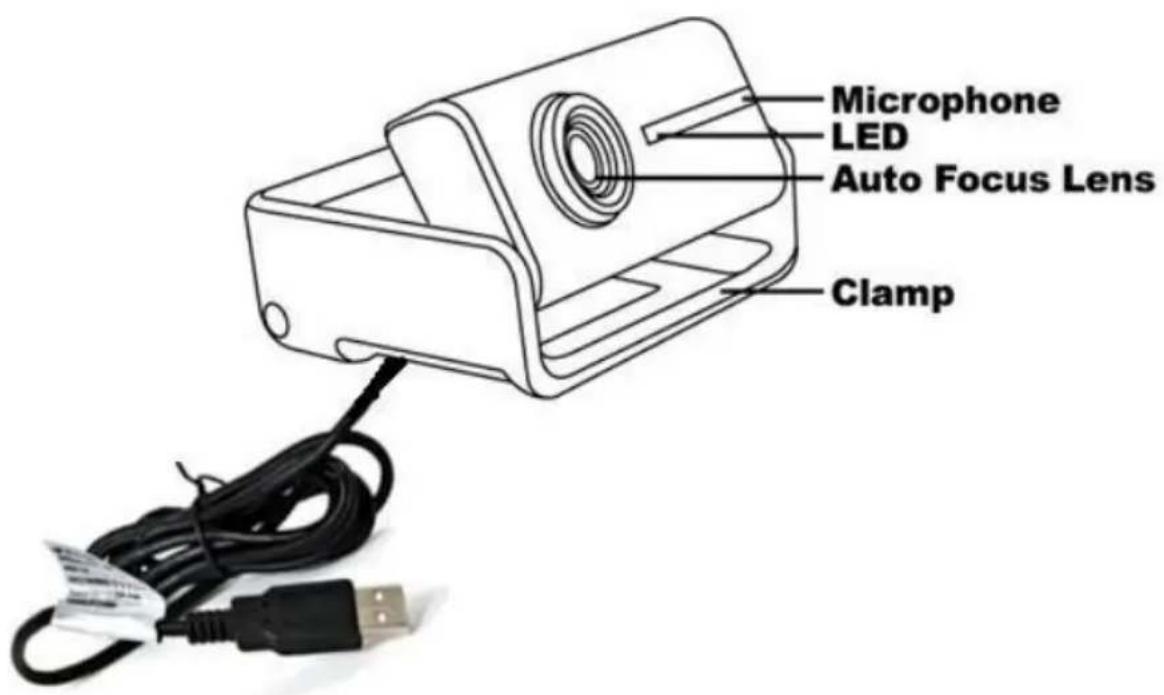
text_image
Microphone LED Auto Focus Lens ClampUsing your KODAK Webcam
To use your KODAK Webcam as a Plug & Play device with the VOIP and instant messenger application you have installed on your computer, follow these easy instructions:
- Connect and plug the USB cable attached to the webcam into an available USB 2.0 slot on your computer.
- Your KODAK Webcam will power on and the LED will light up.
- The first time you plug your webcam into the computer, wait a few moments for the computer to recognize your KODAK Webcam.

text_image
Found New Hardware Your new hardware is installed and ready to use. EN- Place the KODAK Webcam on a flat and sturdy surface and swivel the lens in the direction of the object you wish to capture.
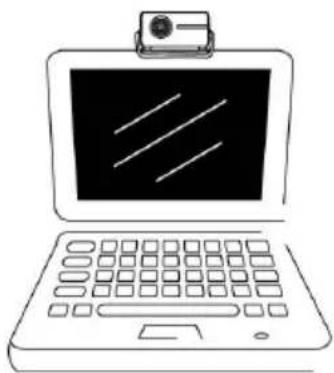
- Alternatively, perch and position your KODAK webcam on any LCD monitor by opening and adjusting the clamp on the base of the webcam.
natural_image
Line drawing of a laptop with a keyboard and a small monitor on top (no text or symbols)- Once in place, you can swivel the webcam up or down on its base to direct the lens.

flowchart
graph LR
    A["Device with internal structure"] --> B["Assembly step"]
    B --> C["Close-up assembly"]
    C --> D["Final device with internal components"]
-
Open the VOIP or instant messenger application you have installed on your computer (example: SKYPE Software) to recognize and setup your webcam.
-
This KODAK Webcam is an auto focus device.
-
If you need to change the webcam settings (Brightness, Contrast, Hue, etc.) to suit your capture environment, select the webcam's setup settings option within the application you are using.
-
Once the image sharpness and clarity is to your satisfaction save these settings and begin to use your KODAK Webcam with your VOIP, video conferencing or instant messenger application.
-
The Parental Control feature can only be enabled or disabled through the Control Center for KODAK Webcams application once the software is installed.
Install the Control Center for KODAK Webcams Software
Warning: Do not remove the installation CD from the computer until the software installation is complete.
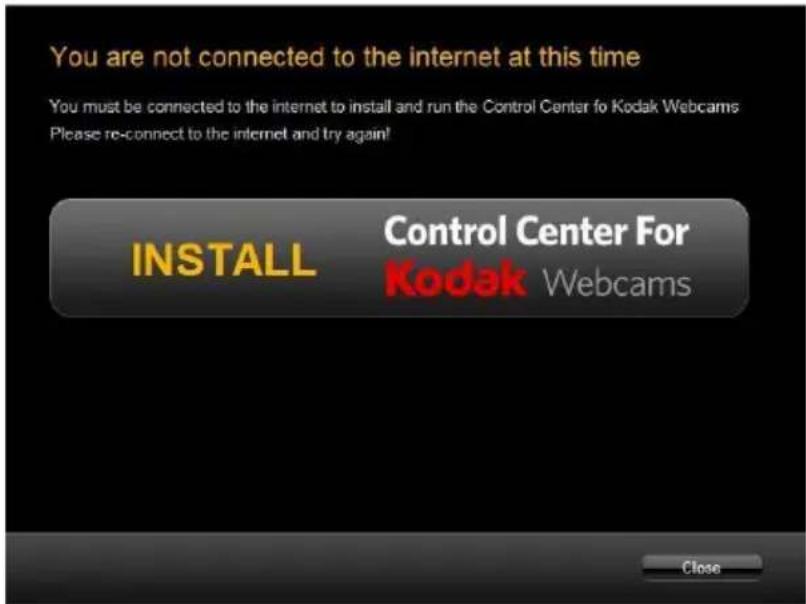
You must be connected to the internet to install and run the Control Center for KODAK Webcams software.
- Insert the installation CD into your CD-ROM drive. The installation screen should automatically open.

text_image
Control Center For Kodak Webcams Installer Please wait while we are preparing the installation package...- On PC: The Control Center for KODAK Webcams Installer window appears. If the window does not appear, open the application's CD/DVD drive and click on the 'Control Center for KODAK Webcams' to launch the installer.
- On Macintosh: Click the icon to install the Control Center for KODAK Webcams.
- If you do not have internet access at the time of inserting the CD-ROM, connect to the internet and then click the "Install Control Center for KODAK Webcams" button to begin the installation.
Note: You do not need to be connected to the Internet to use the webcam with this application.
text_image
You are not connected to the internet at this time You must be connected to the internet to install and run the Control Center for Kodak Webcams Please re-connect to the internet and try again! INSTALL Control Center For Kodak Webcams Close- If you have internet access, the "Select your webcam model" window opens.
- Select your webcam model from the list and click "Next" to open the next window.
- Click "Next" to confirm your webcam model selection and to install the application.
- Please wait while the application is being installed on your computer.
- Please review the license terms.
On PC and Macintosh: Click the "I accept the terms of this license agreement" and then click "Next" to continue.
- On PC only: Let the "Control Center for KODAK Webcams" installer create the folder to where the program will be installed, and then click "Install".
- Please wait while the application continues the installation process on your computer.
- On PC: Click the "Close" button when the installation is complete.
On Macintosh: Click the "Quit" button when the installation is complete.
- Click the "Launch Control Center for KODAK Webcams" to open the application.
- If you closed the application, open and run the application by clicking the desktop icon (PC) or select the application from the Programs or Applications menu on your computer.

Control Center for KODAK Webcams
Using the Control Center for KODAK Webcams Software
The Control Center for KODAK Webcams software is a custom built application that offers you an array of features and functions to make the most out of the KODAK Webcam you have purchased.
Easily access and utilize all the applications you use on your computer from one Control Center.

text_image
Control Center For Kodak Webcams* Connect Monitor Record Videos Take Snap Shots Manager Kodak License Product The Kodak Trademark is used under license from Kodak * Developed by Solar International Take a Taper Get User Manual- Connect – Click on the “Connect” button on the Control Center for KODAK Webcams main menu to automatically enable IM and VOIP applications that support your Web Cam. Open the window to select the video conferencing or instant messenger you use (example: SKYPE Software)
- Monitor – Click the “Monitor” button on the Control Center for KODAK Webcams main menu. The application will open to the Web Cam Tab / Monitor screen in the center of which the image of that what the webcam “sees” will appear. Use the “Controls” options on the right of the preview screen to manually adjust the webcam display settings
- Record Videos - Click the “Record Videos” button on the Control Center for KODAK Webcams main menu. The application will open to the Web Cam Tab / Record Videos screen in the center of which the image of what the webcam “sees” will appear. To start recording a video with sound of this image, click the ‘Record’ button at the bottom of the screen
- Take Snap Shots - Click the "Take Snap Shot" button on the Control Center for KODAK Webcams main menu. The application will open to the Web Cam Tab / Take Snap Shot screen in the center of which the image of what the webcam "sees" will appear. To take a Photo Snapshot of this image, click the 'Snapshot' button at the bottom of the screen
- Manager - Click on the "Manager" button on the Control Center for KODAK Webcams main menu to open to the Manager Tab to organize your images by creating albums. View, edit, upload, email or print the images saved on your computer
- Take a Tour – Click on the “Take a Tour” button on the bottom right corner of the main menu to open a visual tour of how to use the main features and get the most out of this Control Center for KODAK Webcams software
Parental Control Privacy Mode
The Control Center for KODAK Webcams software has a Parental Control feature that allows the owner of the webcam to apply a password to protect and prevent the webcam from being used especially on VOIP and instant messenger applications without their approval.
IMPORTANT: The Parental Control is webcam specific and once activated will not allow anyone to use the webcam whether through the application or directly using the webcam on VOIP applications (example: SKYPE) without entering the password.
- Setting an Initial Password for your Webcam: The Parental Control feature is disabled by default. To set a password for your webcam, you must first enable the Parental Control feature:
- Click the "Parental Control" option from the "File" menu to open the Parental Control submenu.
- Click the "Enable Privacy Mode" option from the submenu that appears
- Enter the password of your choice in the window that appears and press 'OK'.
- After enabling the Parental Controls, you will not be able to view the webcam display until the webcam is unlocked or the Parental Control is disabled from the Parental Control submenu in the application's File menu.
Important: Choose a password that is easy for you to remember as you will need this password to view the webcam display while the Parental Control is enabled
- Enabling and Disabling the Parental Control Privacy mode – The Parental Control Privacy mode can be enabled or disabled at any time from within the Control Center for Kodak Webcams application:
-
Click the "Parental Control" option from the "File" menu to open the Parental Control submenu.
-
Click the "Enable Privacy Mode/Disable Privacy Mode" option from the submenu that appears
- Enter the password of your choice in the window that appears and press 'OK'.
- Your webcam will be enabled or disabled as desired.
- Your webcam will remain in this selected state until it is changed again in the application.
- Locking and Unlocking your Webcam – When the Parental Control is enabled, you can still view the webcam display by unlocking your webcam:
- Click the "Parental Control" option from the "File" menu to open the Parental Control submenu.
- Click the "Unlock Webcam" option from the submenu that appears.
- Enter your password to unlock the webcam.
- The webcam can now be used as normal with all its features in this software and all compatible webcam applications.
- To lock your webcam again, select the 'Lock' option from the Parental Control submenu.
- When the webcam is unlocked, it will remain unlocked until it is disconnected from the computer. Once it is disconnected and reconnected to the computer, the webcam will return to its locked state.
- Change Your Password – You can change your webcam's password at any time through the Control Center for Kodak Webcams application:
- Click the "Parental Control" option from the "File" menu to open the Parental Control submenu.
- Select the "Change Password" submenu option.
- Follow the instructions on the screen to reset your password
- Retrieving a Forgotten Password - In the event that you have forgotten your password, please contact customer support.
Connect mode
The “Connect” window allows you to launch and automatically enable the following Instant Messenger (IM) and VOIP applications that support your Webcam

text_image
Control Center for Rabbit Webserver File: Website 7451 Chrome Manager Webware Control Groups Make Snapshot Control Centers For Modems Webserver Skype ADL Instant Messenger Google Tabs Tahoo Messenger Windows Live UI Not AV Brightness Connected Cable Connection Real-time Effect Text Options Video Settings Form Zoom- SKYPE
• AOL INSTANT MESSENGER - GOOGLE TALK
• YAHOO! MESSENGER
• WINDOWS Live IM -PC only -
ICHAT AV - MAC only
-
Click on the graphic button you want in the center of the screen.
-
Login - follow the instructions to login to your account if you are not yet logged in.
-
You will have to sign up to create a new user account if you don't have one.
-
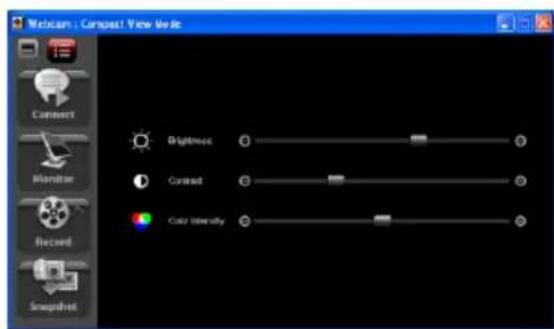
When you are connected to one of the applications, the Control Center for KODAK Webcams software goes into compact view mode. The application in compact view mode remains active while the 3rd party software is in use.
text_image
Metocum : Compact View Mode Connect Monitor Record Snapshot Brightness Contrast Color IntensityCompact View Mode on PC

text_image
WebCam : Compact View Mode Connect Monitor Record Snapshot skype Skype AOL Instant Messenger talk Google Talk Yahoo! Messenger Windows Live IM Ichat AVCompact View Mode on MAC
- The 'Brightness', 'Contrast' and 'Color Intensity' control options are active on PC only and can be used to change the image that appears while the 3^rd party software is in use. Drag the slider to change the setting(s) as needed.
Important:
The webcam will only appear in one of the applications at a time. To use the webcam with your VOIP or IM you need to open that application through the Connect mode.
Monitor mode
Click the "Monitor" button from the Control Center for KODAK Webcams Main Menu to open the application to the Monitor mode.

text_image
Kosbok Control Center For Kosbok Name: Matringer Pick Cart Control Motion Motion Vector Take Imagebox Growth Contrast Color Inside Sigma Effect Show Save Smaller Motion Refine Make Settings Play Dim: Resolution: 100.000- The image of what the webcam 'sees' appears in the preview window
- Use the Display control on the right of the preview window to adjust the image that appears on the screen per your specific lighting environment:

text_image
Brightness: Contrast Color intensity Special Effect: (None) Face Detection Motion Detection Video Settings Pan: Zoom:- Brightness - Move the "Brightness" slider to the left to lighten the image or move the slider to the right to darken the image
- Contrast - Move the "Contrast" slider to the left to reduce the contrast in the image or to the right to increase the contrast.
- Color Intensity (Saturation) - Move the "Color intensity" slider to adjust the saturation or the intensity of color in a picture. Move the slider to the left to reduce the saturation density and to the right to increase
- Special Effects - Add special effects to create gray scale, sepia or invert effects. Select the effect you want from the special effects drop down menu
-
Face Detection - The face detection tracking function is used to allow the camera to zoom and pan automatically in order to keep the face in the middle of the display at all times
-
Click on the "Face Detection" button to enable the function
- The Webcam Control Center indicates that it is scanning the face momentarily
- The face is “remembered” and the camera automatically zooms/pans per the movement of the face to keep it in the center of the display.
- Zoom – Move the Zoom slider to the right or left to enlarge or reduce the image size as it appear in the preview window
- Pan - The Pan control is inactive by default. After you zoom into the image, the pan control becomes active. Use the Up, Down, Left, Right direction arrows to navigate around the zoomed in image
- Motion Detection – In the Record Video mode, the webcam can be set to automatically activate the record feature if it senses movement
- Video settings – Click the Video Settings button to open the Video Settings menu and select the webcam, audio device and flicker (frequency) control setting:

text_image
Video Settings Video Source: USB Video Device Audio Sources: Audio_Device Flicker control: 60 Hz Cancel OK• Video Source – open the Video Source dropdown menu to select the video device you wish to use
Note: Use this option to select the KODAK Webcam you have connected to your computer if the computer's built in camera appears by default
- Audio Source – open the Audio Source dropdown menu to select the audio device you wish to use. The KODAK Webcam has its own built-in microphone
- Flicker Control – Adjust the lighting flicker control frequency according to your region
- The Resolution size of the image as it appears on the preview screen can also be changed:
-
Click to open the Resolution dropdown menu on the bottom left corner of the application below the preview window.
-
Click to select the resolution size from the menu that opens.
-
The image in the preview window automatically changes to the selected resolution size.
For more details on how to use the Control Center for KODAK Webcams open the Help file or click the "Take the Tour" button on the application's Home page.
Record Video mode
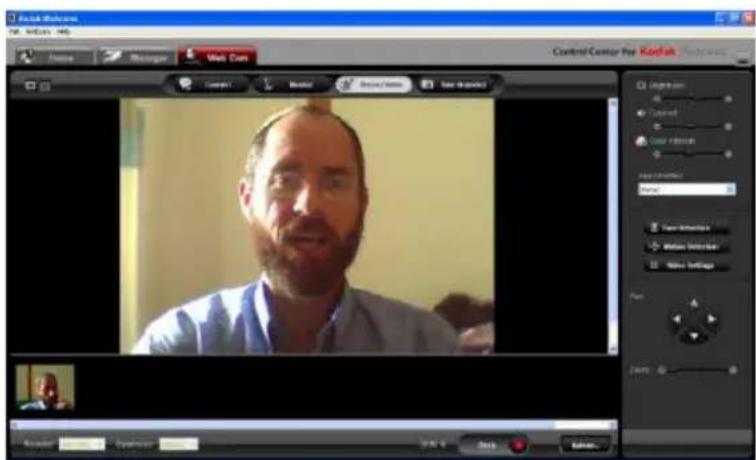
In the Record Video mode you can use your webcam to record videos.
text_image
Flash Makebox File Edit Help Name Manager Web Cuts Control Center for Koolish Command Animation Close Close Close Close Close Close Close Close Close Close Close Close Close Close Close Close Close Close Close Close Close Close Close Close Close Close Close Close Close Close Close Close Close Close Close Close Close Close Close Close Close Close Close Close Close Close Close Close Close Close Candle Release Candle Release Candle Release Candle Release Candle Release Candle Release Candle Release Candle Release Candle Release Candle Release Candle Release Candle Release Candle Release Candle Release Candle Release Candle Release Candle Release Candle Release Candle Release Candle Release Candle Release Candle Release Candle Release Candle Release Candle Release Candle release-
Set the desired "Brightness", "Contrast", "Color Intensify" and "Special Effects" options as desired (see instructions in "Monitor" section).
-
Select the video resolution you want from the "Resolution" drop down list on the bottom left corner of the application. You can record videos at variable resolutions.
Note: The default resolution setting for the KODAK L200 webcam is 640 * 480 (VGA) pixels.
- Select the video compression rate with which the recorded video will be saved, from the "Compression" drop down list – High, Medium or Low.
Note: The default compression setting for the KODAK L200 webcam is Medium.
The following is a table of the KODAK L200 resolutions and fps (frames per second) per each resolution setting:
| Resolution(in pixels) | fps(frames per second) |
| 1280 * 960 | 9 |
| 800 *600 | 20 |
| 640 * 480 (Default) | 30 |
| 352 * 288 | 30 |
| 320 * 240 | 30 |
| 176 * 144 | 30 |
| 160 * 120 | 30 |
Important: Video recording performance is based on using USB 2.0.
The fps is based on the 60Hz frequency. At a frequency of 50Hz the fps will be 25 for all resolutions except 1280 * 960 where the fps is 5 and the 800*600 where the fps is 15.

- Click the "Record" button on the bottom right of the preview window to start recording your video. The video counter will begin to count up. The 'Record' button will appear as the 'Stop' button while the video is recording.

-
Click the "Stop" button to stop and automatically save the video to the computer.
-
The new video is saved in AVI format on PC and MOV format on MAC and can be found in the "Webcam Video" album in the "Videos" tab directory in the Manager mode.
-
Click the "Upload" button to open the Upload menu. Select the social network site from the drop down menu and click the "OK" button to login and upload your videos to your account on that site.

text_image
Video Creation for YouTube Control Creator For YouTube Open Web Save As Save Print Save Text Save History Open Web Save As Save Print Save History Open Web Save As Save Print Save History Open Web Save As Save Print Save History Open Web Save As Save Print Save History Open Web Save As Save Print Save History Open Web Save As Save Print Save History Open Web Save As Save Print Save History Open Web Save As Save Print Save History Open Web Save As Save Print Save Historya. Once logged in, the videos you recorded will appear in the thumbnail strip of the upload Wizard window.
b. To remove a video, right click on the selected video thumbnail and select the "Remove" option.
c. Follow all the Upload Wizard instructions
d. Click the "Upload" button in the Upload Wizard to upload the selected videos.
For more details on how to use the Control Center for KODAK Webcams open the Help file or click the "Take the Tour" button on the application's Home page.
Take Snapshot mode
In the Take Snapshot mode you can use your Webcam to take JPEG photos.

text_image
Video Creation: Live Media Manager File Edit View Help General Creation Box Properties Compact Clear effect Photo frames Extra effects Image thumbnails Alpha frames Auto Auto Auto Auto Auto Auto Auto Auto Auto Auto Auto Auto Auto Auto Auto Auto Auto Auto Auto Auto Auto Auto Auto Auto Auto Auto Auto Auto Auto Auto Auto Auto Auto Auto Auto Auto Auto Auto Auto Auto Auto Auto Auto Auto Auto Auto Auto Auto Auto Auto 0.1.2.3.4.5.6.7.8.9.10.11.12.13.14.15.16.17.18.19.20.21.22.23.24.25.26.27.28.29.30.31.32.33.34.35.36.37.38.39.40.41.42.43.44.45.46.47.48.49.50.51.52.53.54.55.56.57.58.59.60.61.62.63.64.65.66.67.68.69.70.71.72.73.74.75.76.77.78.79.80.81.82.83.84.85.86.87.88.89.90.91.92.93.94.95.96.97.98.99.100.- Position the webcam and focus in on the object you wish to photograph.
- Set the desired "Brightness", "Contrast", "Color Intensify" and "Special Effects" options as desired (see instructions in "Monitor" section).
- Select the photo resolution you want from the "Resolution" drop down list on the bottom left corner of the application. You can take snap shot photos at variable resolutions.
Note: The default resolution setting for the KODAK L200 webcam is 1280 * 960 (1.3M) pixels.
The following is a table of the KODAK L200 photo resolutions:
| Resolution(in pixels) |
| 2400 * 1800 |
| 1600 * 1200 |
| 1280 * 960 (Default) |
| 800 * 600 |
| 640 * 480 |
| 352 * 288 |
| 320 * 240 |
| 176 * 144 |
| 160 * 120 |
Important: The resolution is based on using USB 2.0

- Click the "Snapshot" button on the bottom of the preview window to take the snapshot.
Note: After clicking the Snapshots button you need to hold the pose for 3 seconds. This is the delay time that it takes from clicking the button until for the webcam takes the photo. A '3 2 1' graphic counter will appear to the left of the Snapshot button. Please do not move until this counter disappears.
-
The snapshot photo is automatically saved to the computer.
-
The new photo is saved in jpeg format in the "Webcam Snapshots" album and can be viewed in the "Photos" tab directory in the Manager mode.
-
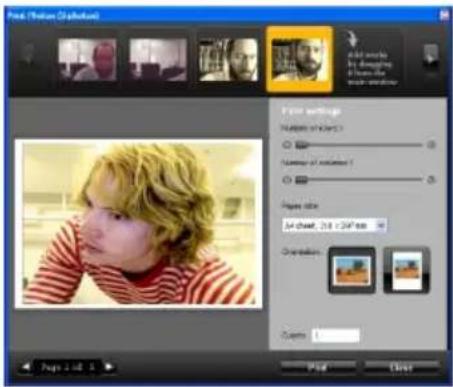
Click the "Print" button to the right of the 'Snapshot' button to open the Print wizard. Select and print all the photos that appear on the thumbnail strip. To remove a photo from the strip, right click on the selected photo and choose the "Remove" option.
text_image
Photo (Motion Settings) Add more by depicting Show the main view Enter settings Name of color: Number of selected: Angle: 34° Size: 250 x 250 mm Orientation: Counts: 1 Page 2-61 1 End Close- Click the "Email" button to open the Email Wizard. Follow all the instructions to select and email the photos that appear on the thumbnail strip.
To remove a photo from the strip, right click on the selected photo and choose the "Remove" option.
- Click the "Upload" button to open the Upload Wizard and menu. Select the social network site from the drop down menu and click the "OK" button to login and upload your photos to your account on that site.
a. Once logged in, the photos you recorded will appear in the thumbnail strip of the upload Wizard window.
b. To remove a photo, right click on the selected photo thumbnail and select the "Remove" option.
c. Follow all the Upload Wizard instructions
d. Click the "Upload" button in the Upload Wizard to upload the selected photos.
For more details on how to use the Control Center for KODAK Webcams open the Help file or click the "Take the Tour" button on the application's Home page.
Manage mode
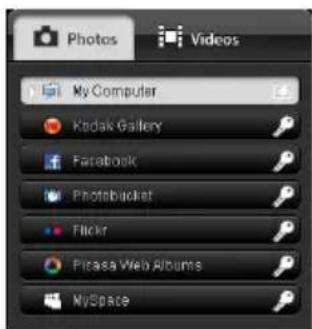
Select the Manage button on the Main Menu or click the Manage tab in the application to open the Manage mode. Organize your images by creating albums, view, edit, email or print the images saved on your computer. Easily upload your images to your account on popular social network sites.
There are 2 main tabs – Photos and Videos.
text_image
Photos Videos My Computer Kodak Gallery Facebook Photobucket Flickr Picasa Web Albums MySpace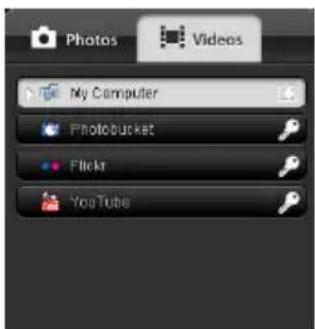
text_image
Photos Videos My Computer Photobucket Flickr YouTube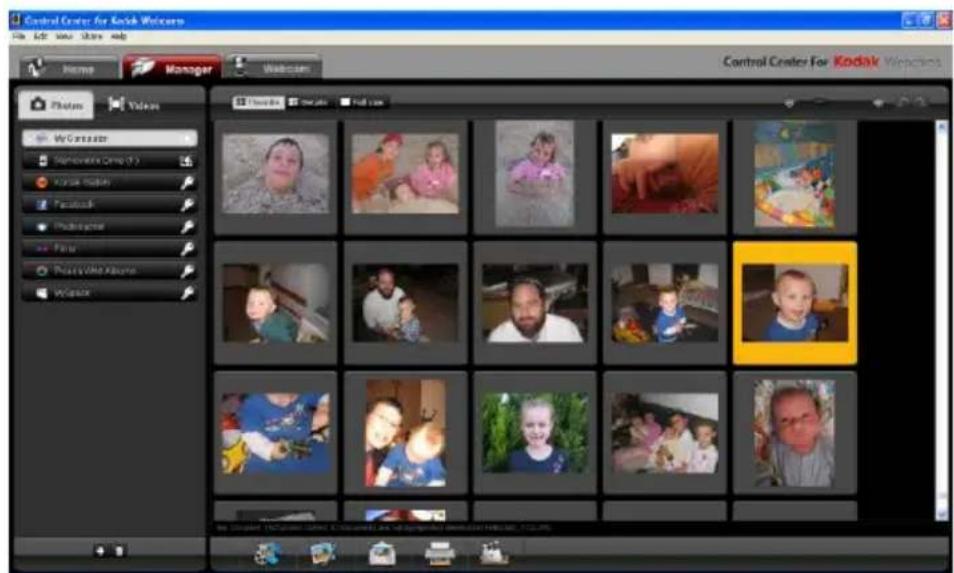
text_image
Control Center for Kodak Welcome File Edit View Show Help Home Manager Welcome Photos Videos My Creator Remove Time (Y) Korea Mobile Facebook Podcast Air Force Perry Web Archive Weskax Control Center For Kodak Welcome Documents: My Creator: 100% of the Web Project (2018/11/26, 7:32:59)Photos
-
By selecting the Photos tab you will be able to organize the photos on your computer into albums.
-
View the photos in Thumbnail or Full Size in the preview window
-
Rotate the photos with the click of a button.
-
Import Photos – Click the "Import Photos" button to select and import photos from your computer to the application.
-
Edit photo – Click the "Edit Photo" button to open the Edit Photo wizard to edit your photo.

text_image
File Image: C:\Documents and Settings\Operation\Desktop\Add Falls.JPG_1733.JPG Add to the by designing & how this create instructions Adjust FXF Uniform Red Eye Up Down Properties Centroid Saturation Temperature Tide Chrysler Sheepen Directy None Activate Photo Flip Picty Reset Back Save Cancel-
Upload to Social Network Sites – Drag your images from the preview window to easily upload them to your social network sites.
-
Email Photos – Click the "Email Photos" button to open the email wizard to select and email the photos through the application with the default email that you use on your computer.
-
Print Photos – Click the "Print Photos" button to open the print wizard to select and print the photos with the default printer connected to your computer.
-
Slideshow – Select the "Slideshow" button to view all the photos in the selected photo album as a slideshow. The Slideshow wizard allows you to add photos, select the time interval between photos and select background music to play during the slideshow.
text_image
Control Center for Kodak Webcam File Edit View Help Home Manager Window Control Center For Kodak Webcam Photos Videos My Computer Narrative Time (P) Professional From Video Events Edit Refina MAY 2014. AD MAY,2015. AD MAY,2016. AD MAY,2017. AD MAY,2018. AD MAY,2019. AD MAY,2020. AD MAY,2021. AD MAY,2022. AD MAY,2023. AD MAY,2024. AD MAY,2025. AD MAY,2026. AD MAY,2027. AD MAY,2028. AD MAY,2029. AD MAY,2030. AD MAY,2031. AD MAY,2032. AD MAY,2033. AD MAY,2034. AD MAY,2035. AD MAY,2036. AD MAY,2037. AD MAY,2038. AD MAY,2039. AD MAY,2040. AD MAY,2041. AD MAY,2042. AD MAY,2043. AD MAY,2044. AD MAY,2045. AD MAY,2046. AD MAY,2047. AD MAY,2048. AD MAY,2049. AD MAY,2050. AD MAY,2051. AD MAY,2052. AD MAY,2053. AD MAY,2054. AD MAY,2055. AD MAY,2056. AD MAY,2057. AD MAY,2058. AD MAY,2059. AD MAY,2060. AD MAY,2061. AD MAY,2062. AD MAY,2063. AD MAY,2064. AD MAY,2065. AD MAY,2066. AD MAY,2067. AD MAY,2068. AD MAY,2069. AD MAY,2070. AD MAY,2071. AD MAY,2072. AD MAY,2073. AD MAY,2074. AD MAY,2075. AD MAY,2076. AD MAY,2077. AD MAY,2078. AD MAY,2079. AD MAY,2080. AD MAY,2081. AD MAY,2082. AD MAY,2083. AD MAY,2084. AD MAY,2085. AD MAY,2086. AD MAY,2087. AD MAY,2088. AD MAY,2089. AD MAY,2090. AD MAY,2091. AD MAY,2092. AD MAY,2093. AD MAY,2094. AD MAY,2095. AD MAY,2096. AD MAY,2097. AD MAY,2098. AD MAY,2099. ADVideos
-
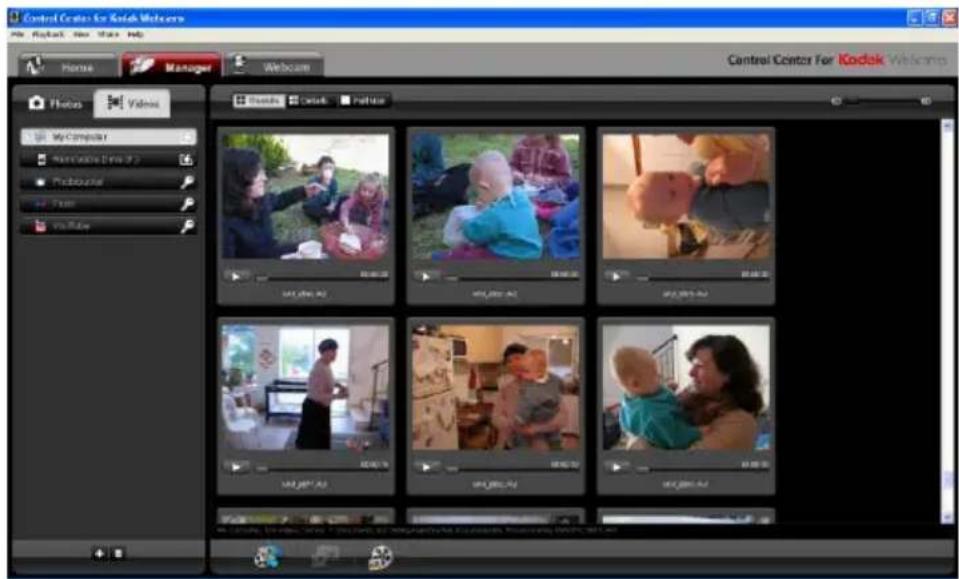
By selecting the Videos tab you will be able to organize the videos on your computer into albums.
-
View the videos in Thumbnail, Details or Full Size in the preview window
-
Import Videos – Click the "Import Videos" button to select and import videos from your computer to the application.
-
Take Snapshot – Select a video to play. While the video is playing click the "Take Snapshot" button to capture a photo snapshot from the video. The photo is saved to the computer.
-
Movie Maker – Select the "Movie Maker" button to open this custom built Movie Maker application, to edit and create your own movies with the videos and photos that you have on your computer.

text_image
Video Window General Project Settings Show Time 20:15:00 Show time by color Name: Time: 0.0 Sequence: Text Application And Transparency: WIFIAN SIF-100 SIF-100 CueFor more details on how to use the Control Center for KODAK Webcams open the Help file or click the "Take the Tour" button on the application's Home page.
Maintenance of Your KODAK Webcam
The KODAK Webcam is a delicate instrument- please handle it with care.
Sakar Warranty Card
This warranty covers for the original consumer and product purchased only and is not transferable. Products that fail to function properly UNDER NORMAL USAGE, due to defects in material or workmanship will be repaired at no charge for parts or labor.
This warranty is valid for a period of one year from the date of purchase
What Is Not Covered By Warranty:
Damages or malfunctions not resulting from defects in material or workmanship and damages or malfunctions from other than normal use, including but limited to, repair by unauthorized parties, tampering, modification or accident.
What To Do When Service Is Required:
When returning your defective product (postage pre-paid) for service, your package should include:
- Copy of original bill of sale
- A detailed written description of the problem.
- Your return address and telephone number (Daytime)
MAIL TO ADDRESS BELOW:
In the U.S.
Sakar International
Attention: Service Department
195 Carter Drive
Edison, NJ 08817
In the U.K.
Sakar UK
2D Siskin Parkway East
CV3 4PE, UK
Technical Support
For technical support issues please visit our website at www.sakar.com/kodaksupport.
You can find manuals, software and FAQ's at the website. Can't find what you are looking for?
For phone support please call, toll free 1-800-763-8491 in the US, or 0-800-917-4831 in the UK.
This device complies with the part 15 of the FCC rules. Operation is subject to the following two conditions: (1) this device may not cause harmful interference, and (2) this device must accept any interference received, including interference that may cause undesired operation.
Caution: changes or modifications not expressly approved by the party responsible for compliance could void the user's authority to operate the equipment.
NOTE: This equipment has been tested and found to comply with the limits for a Class B digital device, pursuant to Part 15 of the FCC Rule. These limits are designed to provide reasonable protection against harmful interference in a residential installation. This equipment generates, uses and can radiate radio frequency energy and, if not installed and used in accordance with instructions may cause harmful interference to radio or television reception, which can be determined by turning the equipment off and on. The user is encouraged to try to correct the interference by one or more of the following measures:
_ Reorient or relocate the receiving antenna.
_ Increase the separation between the equipment and receiver.
Connect the equipment into an outlet on a circuit different from that to which the receiver is connected.
Consult the dealer or experienced radio/ TV technician for help.
Technical Specifications
| Image Sensor | 1/5" Color Progressive CMOS |
| Video Resolutions | 1280*960, 800*600, 640*480 (Default), 352*288, 320*240, 176*144, 160*120 |
| Photo Resolutions | 2400*1800, 1600*1200, 1280*960 (Default), 800*600, 640*480, 352*288, 320*240, 176*144, 160*120 |
| Audio | Built-in Microphone |
| Lens | Auto Focus: F2.8, f=3.85mm |
| Depth of field | 6cm to infinity |
| Video Format | AVI (PC) and MOV (MAC) |
| Photo Format | JPEG |
| Flicker Control Frequency | None, 50Hz, 60Hz |
| Video Frame rate | 30 frames per second at 60Hz (9 fps @ 1280*960, 20 fps @ 800*600)25 frames per second at 50 Hz (5 fps @ 1280*960, 15 fps @ 800*600) |
| Exposure | Auto |
| White Balance | Auto |
| Snapshots | By software |
| Power source | From USB Port |
| Computer interface | USB 2.0 for best performance |
| Operating systems | WINDOWS XP / VISTA / WINDOWS 7 / MAC OS X 10.5 or higher |
Frequently Asked Questions
Q: I have connected my KODAK Webcam to my computer, but when I open the application I see the image that the inbuilt camera on my laptop "sees". What do I do to activate the KODAK Webcam?
In order to set your KODAK Webcam as the default webcam on your computer:
- Select the "Video Settings" button on the Control Display in the Control Center for KODAK Webcams application.
- From the "Video Source" dropdown menu select the KODAK Webcam from the list.
- From the "Audio Source" dropdown menu select the "Audio Device" option to select the KODAK Webcam's built-in microphone.
- Click "OK" to save your KODAK Webcam as the default webcam on your computer.
Q: If I have a MAC, will the device work?
Yes. This webcam is Plug & Play with both WINDOWS and MACINTOSH OS computers and does not require a separate driver (see Minimum System Requirement section).
Q: If the webcam does not work?
Make sure you have connected the camera correctly into an available USB port.
A01-071209GES