VisionLC-SDI - Video card Datapath - Free user manual and instructions
Find the device manual for free VisionLC-SDI Datapath in PDF.


User questions about VisionLC-SDI Datapath
0 question about this device. Answer the ones you know or ask your own.
Ask a new question about this device
Download the instructions for your Video card in PDF format for free! Find your manual VisionLC-SDI - Datapath and take your electronic device back in hand. On this page are published all the documents necessary for the use of your device. VisionLC-SDI by Datapath.
USER MANUAL VisionLC-SDI Datapath
Dual and Single Channel
Live Capture Cards
User Guide
natural_image
Close-up of a green printed circuit board with multiple Ethernet ports and connectors (no visible text or symbols)Safety Instructions....2
Introduction....3
Installing the Capture Card....3
VisionLC-HD....4
VisionLC-HD2....4
VisionLC-SDI....4
Hardware Overview......4
Software Overview....5
Software Install....5
Vision Configure Dialogue....6
Video Streaming....7
Firmware Upgrades....8
Specifications....9
Certifications and Compliances....11
Datapath Limited....12
Index....13
Safety Instructions (UK)

To prevent damage to your Datapath product or injury to personnel operating the equipment, please read the following safety precautions prior to operation. These instructions should be made available to all those who will use and operate Datapath products.
Power Supply
All Datapath products require a mains power supply. This power supply must be disconnected when equipment is being upgraded or relocated.
Cables
Do not expose cables to any liquids; doing so may cause a short circuit which could damage the equipment. Do not place heavy objects on top of any cables as this can cause damage and possibly lead to exposed live wires.
Ventilation
All computer equipment should be located in a well ventilated area. All ventilation holes on the computer casing must be kept clear of any obstruction at all times. Failure to do so will result in the system over heating and damaging your equipment.
Working Environment
The equipment should be located in an environment free from dust, moisture and extreme changes in temperature and should be placed on a stable and solid work surface. Liquids (hot/cold drinks etc) should not be placed near the equipment as spillage could cause serious damage.
Gas/Flammable Liquids
Electronic equipment should never be used in the presence of gas or any flammable liquid, doing so could result in an explosion or serious fire.
Smoke/Unusual Smells
Should you notice smoke or unusual smells being emitted from your computer, turn off and unplug the system from the mains supply. The system should then be passed to a qualified technician for inspection. Continued operation could result in personal injury and damage to property.
Maintenance
Maintenance should only be carried out by competent technicians, any Datapath plug-in cards that are physically damaged should be returned to Datapath for repair using Datapath RMA procedures.
Disposal
At the end of life all Datapath products should be disposed of as per local laws and regulations dictate. In UK contact Datapath to arrange disposal. Our WEE registration number is WEEE/AA0005ZR.
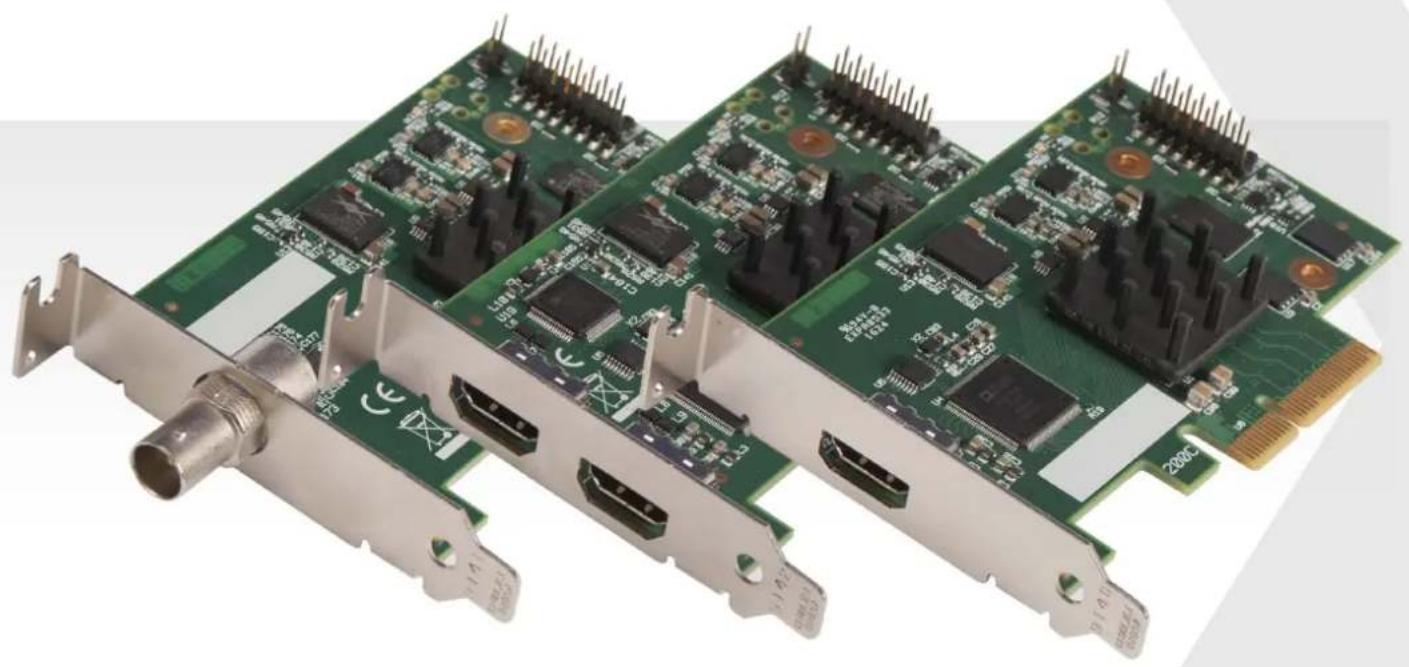
The VisionLC range of "Live Capture" cards provide single and dual channel high definition capture channels in a PCIe low profile card. The full range of LC capture cards include:
VisionLC-HD - Single channel, high definition HDMI live capture card
VisionLC-HD2 - Dual channel, high definition HDMI live capture card
VisionLC-SDI - Single channel, SDI live capture card
Datapath's LiveStream Capture architecture allows captured video to be processed and delivered in real time to a processor or graphics card. The VisionLC range of cards support on board colour space conversion and scaling, providing the ability to efficiently transfer the video signal in a suitable format for rendering or encoding applications. The VisionLC range natively supports 32, 24, 16 and 12 bit YUV and RGB formats.
The VisionLC range has been designed specifically for use within smaller applications:
• Medical operating theatres
- Simulation systems
- Lecture capture
• Real time Streaming
- Videoconferencing

Installing the Capture Card
You are likely to need a flat blade and /or a cross head screwdriver for the installation of your VisionLC card; it would be useful to have these to hand before you begin.
- Power down the PC (including peripherals), switch off at the mains and disconnect all the cables connected to the computer, noting the positions for accurate re-connection
- Remove the PC cover
- Locate a vacant PCI Express slot (x4 physical or higher) on the motherboard and remove the blanking plate (retain all screws)
If you are in doubt consult your motherboard documentation to correctly identify a PCI Express slot.
- Reconnect all cables to the PC then connect HDMI or SDI cables (not supplied) distributing the signal to the connections on your VisionLC card
- Power up the PC and commence the software installation.
Connecting Input Sources
Never use force when connecting cables to your VisionLC card as it could cause damage to the connector on the card and in turn, damage the card itself which is not covered under warranty.
VisionLC-HD
• Single HDMI capture channel
- Up to 297 Mp/s pixel clock capturing up to 3840x2160 @30Hz
• 800 MB/s DMA bandwidth
- PCIe Gen 1x4 low profile card
VisionLC-HD2
Capture channel 1 - Bottom Connector
• HDMI capture channel
• 3840x216op @30Hz (UHD)
Capture channel 2 - Top Connector
- HDMI capture channel
• 1920x108op @ 60Hz (HD)
• 1.6 GB/s total DMA bandwidth
• PCI Express Gen 2 x4 low profile
VisionLC-SDI
- Single SDI capture channel
- SD-HD-3G at 60 Hz
• 800 MB/s DMA bandwidth
• PCI Express Gen 1 x4 low profile
Combined features
• High performance up and down scaling
- Colour space conversion to supported output formats
- Datapath unified Windows® and Linux® driver support
Software Install
Software for your VisionLC card can be installed from the VisionLC CD supplied with your capture card:
Insert the CD into your CD drive, the CD will autorun and display the install dialogue. If the CD fails to autorun, browse the CD and double click the setup.exe file. Select Install Software... and follow the installation wizard instructions when prompted.
Regular software updates are available, check the downloads page on the Datapath website for details.
Also available on the Datapath CD:
• The Release Notes - The release notes contain the latest information on the VisionLC range of capture cards.
• Installation instructions.
- Release history
- Known problems
- Troubleshooting
- The application Help File - The help file must be stored located on the local machine to view its content.
The VisionLC software provided with the capture card allows HDMI or SDI inputs to be captured for either display or encoding.
The DirectShow®, Media Foundation or Video for Linux interfaces can be used in conjunction with the cards to stream video across a network or to disk. A graphical DirectShow® application interface under the Windows® platform can be used to configure properties of the card.
The supplied drivers and software require that you are using:
• A Pentium PCI bus computer.
- Linux, Windows® XP Professional, Windows® Server 2003, Windows® Server 2008, Windows® Vista, Windows® 7, Windows® 8 and Windows® 10
- CD ROM Drive.
Vision Configure Dialogue
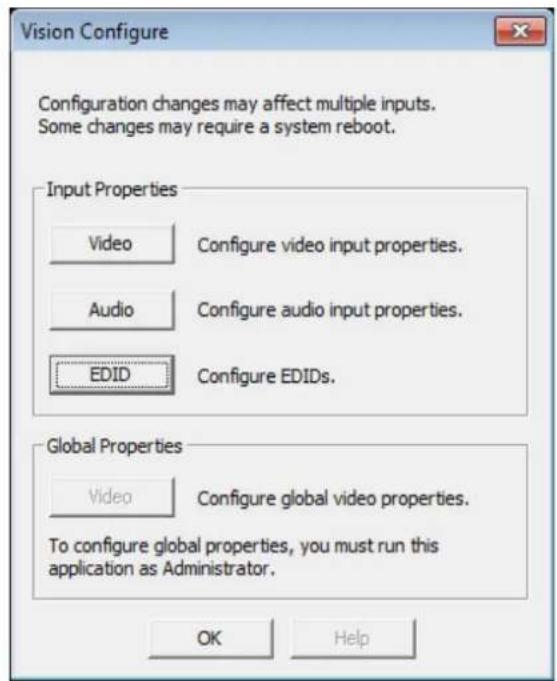
To configure the VisionLC properties under the Windows® platform, open Start\Vision\VisionLC Configure and the following dialogue is displayed:
text_image
Vision Configure Configuration changes may affect multiple inputs. Some changes may require a system reboot. Input Properties Video Configure video input properties. Audio Configure audio input properties. EDID Configure EDIDs. Global Properties Video Configure global video properties. To configure global properties, you must run this application as Administrator. OK HelpThe Vision Configure dialogue allows you to configure the input properties for Video, Audio and offers the ability to configure EDIDs.
Video Input Properties:
- Filter Properties
• Filter Colour Properties - Filter Configure
- Filter Information
Audio Input Properties:
- Audio Format
- Analogue Audio
- Output Mixer
- Line Out
Configure EDIDs:
- Create an EDID
- Reset an EDID
- Import an EDID
- Export an EDID
The Global Video properties can only be accessed if the application is run as Administrator.
Click on the Help button for more information regarding the Vision Configure dialogue.
Video Streaming
Built upon the Microsoft AV Stream framework, the VisionLC range of live capture cards can be accessed and enumerated by any DirectShow or Media Foundation supported application. A Video for Linux (V4L) driver package is also available for download.
Tested applications include:
• Microsoft Media Encoder
• VLC
- Telestream WireCast
- vMix
- VirtualDub
- VidBlaster
- OBS Project
- Adobe Flash Media Encoder
All cards in the VisionLC range allow firmware upgrades to be completed on site rather than returning the card to Datapath. Whenever a firmware upgrade is performed, the J4 Link MUST BE FITTED on the card.
To perform the upgrade, follow the step-by-step instructions provided by the upgrade application.
In the unlikely event that something goes wrong during the upgrade process (e.g. System power outage) it is possible to revert to the factory settings by powering down the system, temporarily removing the J4 link then powering up the system with the link removed. Once the system has rebooted, replace the J4 link (whilst the system is powered up) and restart the firmware upgrade process.
It should be noted that the latest driver installation program includes an automatic firmware update, if required. Therefore, prior to installing the application and driver, ensure that J4 link is fitted.
VisionLC-HD
| Board Format PCIe Gen 1 x4 low profile plug-in card | |
| Dimensions 103mm x 64mm (LxH) | |
| Connector HDMI | |
| Capture Rate 297Mp/s | |
| Maximum Capture Resolution | 2560x1600 at 60Hz3840x2160p at 30Hz (UHD) |
| Transfer Rate 800MB maximum DMA transfer rate | |
| Hardware Colour Space Conversion | 30 / 24 / 16bit RGB (4:4:4)16bit YUV (4:2:2)12bit YUV, NV12, YV12 (4:2:0) |
| Audio Support | Stereo pair PCM audio via HDMI channel at 16 bits in depth, sampling options include 44.1/48/96 kHz |
| Low Latency LiveStream Capture, Single frame time plus DMA transfer of final line | |
| Operating System Support | Windows® Vista / 7 / 8 / 8.1, Windows Server 2003, Windows Server 2008, Windows 10, and Linux® |
| Power Requirements | Max current at 1A 3.3VMax power =3.3W |
| Operating Temperature o to 35 °C (32 to 96°F) | |
| Storage Temperature -20 to 70 °C (-4 to 158°F) | |
| Relative Humidity 5% to 90% non-condensing | |
| Warranty 3 years | |
VisionLC-HD2
| Board Format PCIe Gen 2 x4 low profileplug-in card | |
| Dimensions 103mm x 64mm (LxH) | |
| Connector 2 x HDMI | |
| Capture Rate | Channel 1 - 297Mp/sChannel 2 - 165Mp/s |
| Maximum Capture Resolution | Channel 1 - 2560x1600 @ 60Hz, 3840x2160p @30Hz (UHD)Channel 2 - 1020x1080p @ 60Hz |
| Transfer Rate 1.6GB maximum | DMA transfer rate |
| Hardware Colour Space Conversion | 30 / 24 / 16bit RGB (4:4:4)16bit YUV (4:2:2)12bit YUV, NV12, YV12 (4:2:0) |
| Audio Support | Stereo pair PCM audio via HDMI channel at 16 bits in depth, sampling options include 44.1/48/96 kHz |
| Low Latency LiveStream: Capture, Single frame time plus DMA transfer of final line | |
| Operating System Support | Windows® Vista / 7 / 8 / 8.1, Windows Server 2003, Windows Server 2008, Windows 10, and Linux® |
| Power Requirements | Max current at 1.5A 3.3VMax power =5W |
| Operating Temperature o to 35 °C (32 to 96°F) | |
| Storage Temperature -20 to 70 °C (-4 to 158°F) | |
| Relative Humidity 5% to 90% | non-condensing |
| Warranty 3 years | |
VisionLC-SDI
| Board Format PCIe Gen 1 x4 low profile plug-in card | |
| Dimensions 103mm x 64mm (LxH) | |
| Connector SDI-BNC | |
| Maximum Capture Resolution | SD-HD-3G Level A and Level B at 60Hz |
| Transfer Rate 800MB maximum DMA transfer rate | |
| Hardware Colour Space Conversion | 30 / 24 / 16bit RGB (4:4:4)16bit YUV (4:2:2)12bit YUV, NV12, YV12 (4:2:0) |
| Audio Support | Stereo pair PCM audio via SDI input at 16 bits in depth, sampling options include 44.1/48/96 kHz |
| Video Modes | SD-SDI (48oi/576i) ST-259, EBU 3276HD-SDI (up to 108oi) ST-260, 274,2963G-SDI (up to 108op) ST-274, 2962K Digital Cinema modes ST-2048-2 |
| Low Latency LiveStream: Capture, Single frame time plus DMA transfer of final line | |
| Operating System Support | Windows® Vista / 7 / 8 / 8.1, Windows Server 2003, Windows Server 2008, Windows 10, and Linux® |
| Power Requirements | Max current at 1A 3.3VMax power =3.3W |
| Operating Temperature o to 35 °C (32 to 96°F) | |
| Storage Temperature -20 to 70 °C (-4 to 158°F) | |
| Relative Humidity 5% to 90% non-condensing | |
| Warranty 3 years | |
CE
EU- Class A Declaration of Conformity
Datapath Ltd declares that the capture card covered in this User Guide complies with the essential requirements and other relevant provisions of Directives 2001/108/EC and 2011/65/EU.
A copy of our Declaration of Conformity is available on request:
Datapath Ltd
Bemrose House
Bemrose Park
Wayzgoose Drive
Derby, DE21 6XQ
United Kingdom
FCC
These devices comply with part 15 of the FCC Rules. Operation is subject to the following two conditions: (1) These devices may not cause harmful interference, and (2) these devices must accept any interference received, including interference that may cause undesired operation.
This equipment has been tested and found to comply with the limits for a Class A digital device, pursuant to part 15 of the FCC Rules. These limits are designed to provide reasonable protection against harmful interference when the equipment is operated in a commercial environment. This equipment generates, uses and can radiate radio frequency energy and, if not installed and used in accordance with the instruction manual, may cause harmful interference to radio communications. Operation of this equipment in a residential area is likely to cause harmful interference in which case the user will be required to correct the interference at their own expense.

Caution. Changes or modifications to the equipment not expressly approved by the party responsible for compliance could void the user's authority to operate the equipment
Datapath has a long and very successful history in the computer graphics industry. Datapath has been designing and supplying high performance, high quality graphics display systems to the world's largest and most demanding companies and institutions since 1982. Datapath was one of the founding companies of multi-screen Windows acceleration using single and multi board solutions. Now using the very latest display technology Datapath offers some of the world's leading multi screen graphics accelerators for the most demanding applications.
As new technology advances, so we at Datapath improve the performance and functionality of both our hardware and software to give our customers more. Following a continuous development program, we pride ourselves on our support and responsive nature towards all our customers and their changing needs. As more sophisticated equipment and techniques become readily available, so we are there to exploit the power and potential that this technology presents.
Technical Support
Registered Users can access our technical support line using, email, and the Support page on the Datapath Web Site, usually with a response within 24 hours (excluding weekends).
Via Email
Send an email to support@datapath.co.uk with as much information about your system as possible. To enable a swift response we need to know the following details:
- Specification of the PC - including processor speed
- Operating System
- Application Software
• Datapath Hardware / Software - The exact nature of the problem - and please be as specific as possible.
Please quote version and revision numbers of hardware and software in use wherever possible.
Copyright Statement
© Datapath Ltd., England, 2017
Datapath Limited claims copyright on this documentation. No part of this documentation may be reproduced, released, disclosed, stored in any electronic format, or used in whole or in part for any purpose other than stated herein without the express permission of Datapath Limited.
Whilst every effort is made to ensure that the information contained in this User Manual is correct, Datapath Limited make no representations or warranties with respect to the contents thereof, and do not accept liability for any errors or omissions. Datapath reserves the right to change specification without prior notice and cannot assume responsibility for the use made of the information supplied. All registered trademarks used within this documentation are acknowledged by Datapath Limited.
| A | I |
| Analogue Audio 6 | Input Sources 3 |
| Audio Format 6 | J |
| B | J4 Link 8 |
| Bandwidth 4 | L |
| C | LC capture cards 3 |
| CE 11 | Line Out 6 |
| Class A Declaration of Conformity 11 | O |
| Combined features 4 | Output Mixer 6 |
| Configure EDIDs 6 | S |
| Copyright Statement 12 | Safety Instructions 2 |
| D | Single HDMI capture 4 |
| Datapath CD 5 | Single SDI capture 4 |
| Datapath Limited 12 | T |
| Driver support 4 | Technical Support 12 |
| F | Tested applications 7 |
| FCC 11 | V |
| FCC Rules 11 | Vision Configure Dialogue 6 |
| Filter Colour Properties 6 | VisionLC-HD 4 |
| Filter Configure 6 | VisionLC-HD2 4 |
| Filter Information 6 | VisionLC-SDI 4 |
| Filter Properties 6 | W |
| Firmware upgrades 8 | Warranty 3 |
| H | |
| Help File 5 |
Datapath Limited
Bemrose House, Bemrose Park,
Wayzgoose Drive,
Derby DE21 6XQ
England
Tel: +44 (0) 1332 294441
Fax: +44 (0) 1332 290667
Email: sales@datapath.co.uk
Datapath North America
2550 Blvd of the Generals
Suite 30
Norristown, PA 19403
U.S.A
Tel: +1 484 679 1553
sales@datapath.co.uk