VisionSDI2 - Computers Datapath - Free user manual and instructions
Find the device manual for free VisionSDI2 Datapath in PDF.


| Product Type | Video Capture Card |
| Interface | PCI Express x4 |
| Video Inputs | 2 x SDI (3G/HD/SD) |
| Input Resolution | Up to 1920x1080p60 |
| Output Format | DMA to host memory |
| Dimensions | 168 mm x 111 mm (half-height) |
| Weight | 200 g |
| Power Consumption | 15 W (from PCIe slot) |
| Operating Temperature | 0°C to 40°C |
| Storage Temperature | -20°C to 70°C |
| Supported Standards | SD-SDI, HD-SDI, 3G-SDI (SMPTE 259M/292M/424M) |
| Audio Support | Embedded audio up to 8 channels |
| Frame Buffer | 512 MB DDR3 |
| Drivers Supported | Windows 10/11, Linux (kernel 4.x+) |
| API Support | DirectShow, V4L2, Datapath API |
| Cleaning Instructions | Use dry compressed air to remove dust; avoid liquids |
| Safety Certifications | CE, FCC Class A, RoHS |
| Spare Parts Availability | Not user-serviceable; contact Datapath support |
| Repairability | Card must be replaced by qualified technician |
| Warranty | 3 years limited |
Frequently Asked Questions - VisionSDI2 Datapath
User questions about VisionSDI2 Datapath
0 question about this device. Answer the ones you know or ask your own.
Ask a new question about this device
Download the instructions for your Computers in PDF format for free! Find your manual VisionSDI2 - Datapath and take your electronic device back in hand. On this page are published all the documents necessary for the use of your device. VisionSDI2 by Datapath.
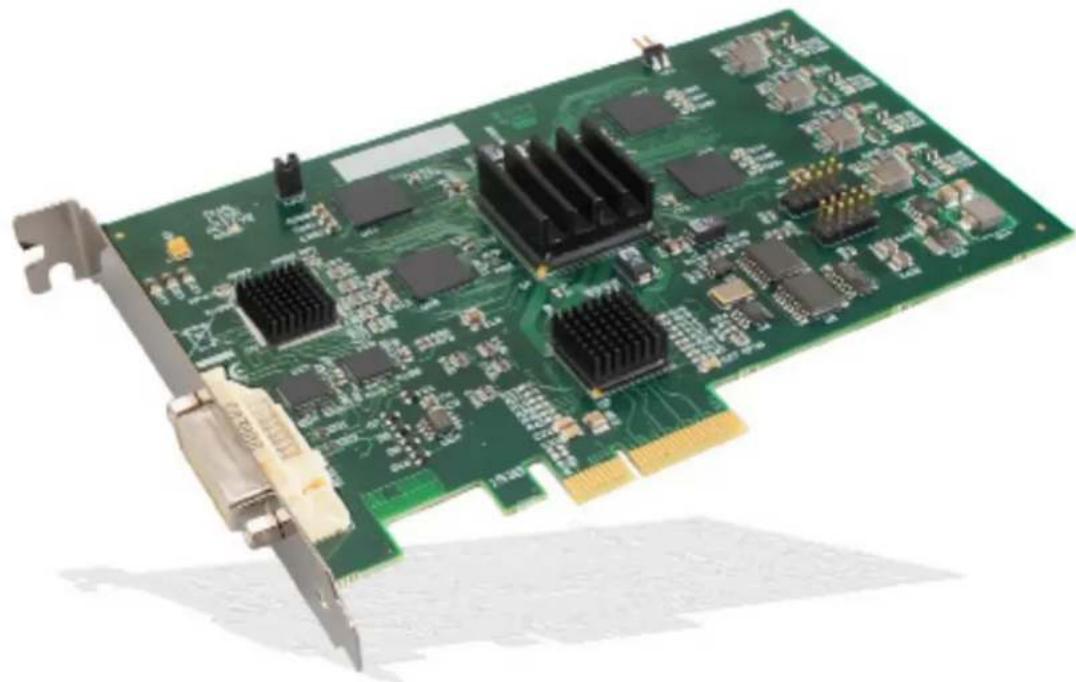
USER MANUAL VisionSDI2 Datapath
The Vision Range of Video Capture Cards
User Guide
natural_image
Green printed circuit board with various electronic components and connectors (no visible text or symbols)Contents
Chapter 1
Safety Instructions
Chapter 2
Introduction 2
Chapter 3
VisionRGB-E1/E1S 3
Chapter 4
VisionRGB-E2/E2S 13
Chapter 5
VisionRGB-X2 22
Chapter 6
VisionSD8 32
Chapter 7
VisionSD4+1/SD4+1S 40
Chapter 8
VisionSDI2 50
Chapter 9
VisionDVI-DL 59
Chapter 10
Datapath Limited
Chapter 11
Index 67
Chapter 1
Safety Instructions
Safety Instructions (UK)

To prevent damage to your Datapath product or injury to personnel operating the equipment, please read the following safety precautions prior to operation. These instructions should be made available to all those who will use and operate Datapath products.
Power Supply
All Datapath products require a mains power supply. This power supply must be disconnected when equipment is being upgraded or relocated.
Cables
Do not expose cables to any liquids; doing so may cause a short circuit which could damage the equipment. Do not place heavy objects on top of any cables as this can cause damage and possibly lead to exposed live wires.
Ventilation
All computer equipment should be located in a well ventilated area. All ventilation holes on the computer casing must be kept clear of any obstruction at all times. Failure to do so will result in the system over heating and damaging your equipment.
Working Environment
The equipment should be located in an environment free from dust, moisture and extreme changes in temperature and should be placed on a stable and solid work surface. Liquids (hot/cold drinks etc) should not be placed near the equipment as spillage could cause serious damage.
Gas/Flammable Liquids
Electronic equipment should never be used in the presence of gas or any flammable liquid, doing so could result in an explosion or serious fire.
Smoke/Unusual Smells
Should you notice smoke or unusual smells being emitted from your computer, turn off and unplug the system from the mains supply. The system should then be passed to a qualified technician for inspection. Continued operation could result in personal injury and damage to property.
Maintenance
Maintenance should only be carried out by competent technicians, any Datapath plug-in cards that are physically damaged should be returned to Datapath for repair using Datapath RMA procedures.
Disposal
At the end of life all Datapath products should be disposed of as per local laws and regulations dictate. In UK contact Datapath to arrange disposal. Our WEE registration number is WEEE/AA0005ZR.
The Datapath Vision range of video capture cards capture HD, HDMI, VGA/ RGB or DVI video sources in real time enabling you to view data from PCs, MACs, industrial / medical equipment, cameras and other video equipment.
The VisionSD8, VisionSD4+1 and the VisionSD4+1S captures PAL, SECAM and NTSC in both composite and S-Video.
The VisionSDI2 card supports SD-SDI, HD-SDI and 3G-SDI, ideal for Multi-display presentation, broadcasting, digital signage and machine vision. The VisionDVI-DL supports Dual-Link DVI, ideal for display wall controllers, broadcasting, machine vision: Acquire SDI camera outputs and advanced medical applications
The Windows® software provided with the cards allows the signal to be captured and displayed on your desktop or recorded and saved to your hard drive.
Windows Media Encoder ^® may also be used to stream video across a network or save the video to disk. Windows Media Player ^® can be used to display the stream or the video that has previously been saved.
Using our SDK, you can produce or customise your own application programs.
Chapter 3
FCC Compliance VisionRGB-E1
Federal Communications Commission Statement
This device complies with FCC Rules Part 15. Operation is subject to the following two conditions:
This device may not cause harmful interference, and
This device must accept any interference received, including interference that may cause undesired operation
This equipment has been tested and found to comply with the limits for a Class B digital device, pursuant to Part 15 of the FCC Rules. These limits are designed to provide reasonable protection against harmful interference in a commercial, industrial or business environment. This equipment generates, uses and can radiate radio frequency energy and, if not installed and used in accordance with the manufacturers instructions, may cause harmful interference to radio communications. However, there is no guarantee that interference will not occur in a particular installation. If this equipment does cause harmful interference to radio or television reception, which can be determined by turning the equipment off and on, the user is encouraged to try to correct the interference by one or more of the following measures.
- Re-orient or relocate the receiving antenna
- Increase the separation between the equipment and the receiver
- Connect the equipment to an outlet on a circuit different from that to which the receiver is connected
- Consult the dealer or an experienced radio/TV technician for help
Warning! Any changes or modifications to this product not expressly approved by the manufacturer could void any assurances of safety or performance and could result in violation of Part 15 of the FCC Rules.
Reprinted from the Code of Federal Regulations #47, part 15.193.1993. Washington DC: Office of the Federal Register, National Archives and Records Administration, US Government Printing Office.
DECLARATION OF CONFORMITY
Per FCC Part 2 Section 2. 1077(a)

| Responsible Party Name: | Datapath Limited |
| Address: | Alfreton Road, Derby |
| Phone: | +441332-294441 |
| Hereby declares the product: | |
| Product Name: | RGB Video Capture PCIe Card |
| Model Number: | VisionRGB-E1 |
| Conforms to the following specifications: | |
| FCC Part 15 Subpart b | Class A Digital Device |
| Supplementary Information:This device has been shown to be in compliance with and was tested in accordance with the measurement procedures specified in the Standards & Specifications listed above and as indicated in the measurement report number: 7G0507GUS3 | |
| Representative Persons Name: Tony Jones, Operations Director | |

Signature: Date: 22 May 2008
Introduction - VisionRGB-E1/ E1S
The VisionRGB-E1/E1S a single channel PCIe capture card can capture:
- Component HD up to 108oP at 60 frames per second HDMI up to 108oP DVI up to 1920 x 1200 (Audio not supported, HDCP not supported)
• RGB/VGA up to 2048 x 1536
The data is stored in a 32MB frame buffer on the card in real time. The data is transferred using PCI bus master DMA with scatter gather.
The data can be transferred to system memory or to off-screen memory on a Datapath graphics card
Models
VisionRGB-E1 - A single channel PCIe x4 low profile capture card - Data transfer rate 480MB/s.
VisionRGB-E1S - A single channel PCIe x4 low profile capture card - Data transfer rate 650MB/s.
| Board Format PCIe x4 low profile card, 68.mm x 167.6mmPCIe bus master with scatter gather DMA providing maximum data rate of 480MB/s for the VisionRGB-E1 and 650MB/s for the VisionRGB-E1S | |
| Connectors One DVI-I Type connector | |
| Maximum Sample Rate 170 Mpixel s per second analog RGB or 165MHz DVI | |
| Video Sampling Analog RGB: 24 bits per pixel / 8-8-8 format | |
| Video Capture Memory 32MB per channel (updated in real time). Triple buffered | |
| Analog RGB Mode Support 640 x 480, 800 x 600, 1024 x 768, 1280 x 1024, 1600 x 1200, 1920 x 1080, 2048 x 1536, Custom modes | |
| DVI Single Link Mode Support | 640 x 480, 800 x 600, 1024 x 768, 1280 x 1024, 1600 x 1200, 1920 x 1080, 1920 x 1200 and Custom modes |
| HD Modes 108op, 108oi, 72op, 567p, 48op and 48oi using a Component HD connector (HDCP not supported) | |
| Input Mode Detection Automatic detection of input modes in hardware enabling the tracking of mode changes in the source signal | |
| Pixel Transfer Formats RGB: 5-5-5 | 5-6-5 or 8-8-8 pixelsYUV 4:2:2 modes: UYVY, YUY2 or YVYUMONO: 8bit |
| Update Rate User defined, captured frame rate will match the source providing max data rate (480MB/s -VisionRGB-E1, 650MB/s -VisionRGBE1s) is not exceeded.Triple buffered to eliminate tearing artifacts | |
| Video Format Options: Analog RGB plus HSync and VSync (5 wire)Analog RGB with Composite Sync (4 wire)Analog RGB with Sync on Green (3 wire)DVI Single Link | |
| Operating System Support | Windows® XP, Windows® Vista, Windows® Server 2003, Windows® Server 2008 and Windows® 7 (x86 and x64 Operating Systems) |
| Power Requirements | Max current at +3.3V – 0.25AMax current at +12V – 0.5AMax power – 6.8 Watts |
| Operating Temperature | 0 to 35 deg C / 32 to 96 deg F |
| Storage Temperature | -20 to 70 deg C / -4 to 158 deg F |
| Relative Humidity | 5% to 90% non-condensing |
| Analog Input Range | Min 0.5Vpp Max 1.0Vpp |
| Input Offset: +/-2V | |
| Hsync | 15kHz - 110kHz |
| Vsync | No hardware limits, typically 25Hz - 200Hz for real signals |
| Separate Sync Polarity | Positive or Negative. (Separate H & V sync, Composite Sync) |
| Sync On Green Polarity | Negative |
| Inputs | 75 Ohm terminated |
| Warranty | 3 years |
Unpacking
Your packing box contains the following items:
- The VisionRGB-E1 or VisionRGB-E1S data capture card.
- 1 x DVI/VGA, 1 x DVI/Component and 1 x DVI/HDMI Adapter
- 1 x low profile card bracket
• Installation CD ROM
If there are any discrepancies, you should contact Datapath immediately.
Note:
All plug-in cards are static sensitive and are packed in anti-static material. Please keep the card in its packaging until you are ready to install.
It is recommended that you do not discard the packing box until you are completely satisfied with the VisionRGB-E1/E1S capture card and it is fully installed and working correctly. We also recommend that you make a note of the serial number of the card in a prominent place before the card is plugged into the computer. This should hasten any query should you need to contact our Technical Support Department. The serial number is displayed on the card itself and the box label.
Installing the Capture Card
You are likely to need a flat blade and a Phillips head screwdriver for the installation of the capture card; it would be useful to have these to hand before you begin.
Installing the card is a simple process, follow the steps below to be up and running in a few minutes:
- Power down the PC (including peripherals), switch off at the mains and disconnect all the cables connected to the computer, noting the positions for accurate reconnection. Remove the PC cover
- Locate a vacant PCIe (x4 or above) slot for the VisionRGB-E1/E1S on the motherboard and remove the backing plate (retain all screws). If in doubt consult your motherboard documentation to correctly identify a PCIe (PCI-express) slot. If the card is forced into a 32 or 64 bit PCI or PCI-X slot it will be irreparably damaged when the system is powered up and the warranty will be void.
- Remove the card from its packaging and secure it firmly into the empty PCIe slot. Extreme care should be taken when securing the card into the slot as some motherboards may have components that impede the siting of the card
- Screw the card bracket to the back panel of the PC and replace the cover
• Re-connect all cables to the PC - Connect the cable(s) distributing the RGB/DVI/HD signals to the connectors on the VisionRGB-E1/E1S card located on the back panel.
- Power up the PC and commence the software installation.
Connections
The VisionRGB-E1/E1S has one DVI-I type connector.
The card is connected using:
- DVI-D Cable
- DVI-A Cable
- Analog VGA (RGB) cable (adapter supplied)
• HDMI cable (adapter supplied) - Component HD cable (adapter supplied)
Connect one end of the cable to the source. Connect the other end of the cable to DVI-I type connector located on the VisionRGB-E1/E1S card in your computer
Installing Multiple Cards
Multiple cards can be installed in a system providing a large number of capture channels. Combinations of Vision capture cards in the same machine are supported by the driver.
To control the order in which the driver uses the cards, it is recommended when installing multiple cards that the J5 links on the VisionRGB-E1/E1S are configured. The illustration below shows the jumper link settings for up to 32 cards in a single system. When two cards have the same link settings, their order is determined by the PCI bus:

text_image
1st Card 9th 17th 25th 2nd 10th 18th 26th 3rd 11th 19th 27th 4th 12th 20th 28th 5th 13th 21st 29th 6th 14th 22nd 30th 7th 15th 23rd 31st 8th 16th 24th 32nd Indicates link fitted Indicates Link not fittedDirectShow
If you change the link ordering after installation you must run dplinks.exe. This program will update the existing input names used by the Windows®DirectShow interface.
To run the dplinks program open the Run by clicking on Start/Run and type dplinks and then press Enter.
The program will run, however no notifications are displayed.
Firmware Upgrades
The VisionRGB-E1/E1S cards allow firmware upgrades to be completed on site rather than returning the card to Datapath. Whenever a firmware upgrade is performed, LK4 MUST BE FITTED on the VisionRGB-E1/E1S. To perform the upgrade, follow the step-by-step instructions provided by the upgrade application.
In the unlikely event that something goes wrong during the upgrade process (e.g. System power outage) it is possible to revert to the factory settings by powering down the system, temporarily removing LK_4 then powering up the system with the link removed. Once the system has rebooted, replace the LK_4 link (whilst the system is powered up) and restart the firmware upgrade process.
It should be noted that the latest driver installation program includes an automatic firmware update, if required. Therefore, prior to installing the application and driver, ensure that LK_4 is fitted.
Extended Display Identification Data (EDID) - Disable Links
EDID is data provided by a display monitor and sent to the graphics device detailing the monitor's capabilities thereby enabling a system to identify the type of monitor that is attached.
The graphics device installed on your machine will see the card as a monitor and will expect to receive the EDID data from the card.
However, in rare circumstances it may be necessary that the VisionRGB-E1/E1S does not report an EDID of any kind. In this instance EDID support can be disabled by removing link LK3 on the VisionRGB-E1/E1S.
Software Installation
The Vision software (driver and application) is installed by inserting the CD that was shipped with your card into your CD ROM drive. The installation process should start automatically.
Should the CD fail to autorun use Explorer to browse the CD, locate then double click on install.exe file e.g. d:/install.exe and click on Install Software... and follow the installation wizard instructions as prompted.
Regular software updates are available from our website: www.datapath.co.uk
Also available on the Datapath CD:
- The Release Notes - The release notes contain the latest information on the VisionRGB-E1/E1S including:
Installation instructions.
Release history
Known problems
Troubleshooting
- The application Help File - Instructions on how to use the application.
- Test patterns to assist in setting up an analog RGB source.
Application Overview
The application displays the input source in a window; it has the following features:
- Scales the data to fit in the window
- Ability to set up sources accurately (settings automatically saved)
- Save a single frame to a file in one of the following formats: BMP, JPEG, GIF, TIFF, PNG
- Print a single frame
- Record and playback captured data using DirectShow
- Maintain the aspect ratio of the displayed data
- Cropping
- Display text over the data (on-screen display)
- Command line interface
• Help file documenting all features
Note:
The supplied drivers and software require that you are using:
- Windows® XP, Windows® Vista, Windows® Server 2003, Windows® Server 2008 or Windows® 7 (x86 and x64 Operating Systems)
• CD / DVD ROM Drive
Using the card with other Datapath products
The VisionRGB-E1/E1S captures the data and stores it in an on-board video buffer. This data is then copied using DMA to the host system for display, storage or streaming.
When a Datapath graphics card is used, the VisionRGB-E1/E1S transfers the data directly to the graphics card thereby increasing performance. The VisionRGB-E1/E1S sends the relevant portions of each captured image to each display channel and instructs each channel to use its graphics engine to render the data. This fully utilises the hardware and dramatically increases performance.
When a Direct3D compatible graphics card is used the data can be transferred direct to the graphics card in a similar manner to the Datapath graphics card with the added benefit of non-tearing captures.
When the data is displayed on a non Datapath graphics card, the VisionRGB-E1/E1S sends the data to system memory or direct to the graphics card, dependant on the software used for display.
Notes:
Chapter 4
FCC Compliance VisionRGB-E2
Federal Communications Commission Statement
This device complies with FCC Rules Part 15. Operation is subject to the following two conditions:
This device may not cause harmful interference, and
This device must accept any interference received, including interference that may cause undesired operation
This equipment has been tested and found to comply with the limits for a Class B digital device, pursuant to Part 15 of the FCC Rules. These limits are designed to provide reasonable protection against harmful interference in a commercial, industrial or business environment. This equipment generates, uses and can radiate radio frequency energy and, if not installed and used in accordance with the manufacturers instructions, may cause harmful interference to radio communications. However, there is no guarantee that interference will not occur in a particular installation. If this equipment does cause harmful interference to radio or television reception, which can be determined by turning the equipment off and on, the user is encouraged to try to correct the interference by one or more of the following measures.
- Re-orient or relocate the receiving antenna
- Increase the separation between the equipment and the receiver
- Connect the equipment to an outlet on a circuit different from that to which the receiver is connected
- Consult the dealer or an experienced radio/TV technician for help
Warning! Any changes or modifications to this product not expressly approved by the manufacturer could void any assurances of safety or performance and could result in violation of Part 15 of the FCC Rules.
Reprinted from the Code of Federal Regulations #47, part 15.193.1993. Washington DC: Office of the Federal Register, National Archives and Records Administration, US Government Printing Office.
DECLARATION OF CONFORMITY
Per FCC Part 2 Section 2. 1077(a)

| Responsible Party Name: | Datapath Limited |
| Address: | Alfreton Road, Derby |
| Phone: | +441332-294441 |
| Hereby declares the product: | |
| Product Name: | RGB Video Capture PCIe Card |
| Model Number: | VisionRGB-E2 |
| Conforms to the following specifications: | |
| FCC Part 15 Subpart b | Class A Digital Device |
| Supplementary Information:This device has been shown to be in compliance with and was tested in accordance with the measurement procedures specified in the Standards & Specifications listed above and as indicated in the measurement report number: 7G0507GUS3 | |
| Representative Persons Name: Tony Jones, Operations Director | |

Signature:
Date: 09 September 2009
Introduction–VisionRGB-E2/E2S
The VisionRGB-E2/E2S, a dual channel PCIe capture card can capture:
- Component HD up to 108oP at 6o frames per second
- HDMI up to 108oP (Audio not supported, HDCP not supported)
• DVI up to 1920 x 1200 - RGB/VGA up to 2048 x 1536
The data is stored in a 32MB frame buffer on the card in real time. The data is transferred using PCI bus master DMA with scatter gather.
The data can be transferred to system memory or to off-screen memory on a Datapath graphics card.
Models
VisionRGB-E2/E2S - A dual channel PCIe x4 low profile capture card.
| Board Format PCIe half size plug-in | in card, 110mm x 170mmPCIe bus master with scatter gather DMA providing maximum data rate of 480MB/s for the VisionRGB-E2 and 650MB/s for the VisionRGB-E2S |
| Connectors Two DVI-I Type connectors | |
| Maximum Sample Rate 170 Mpixel | s per second analog RGB or 165MHz DVI |
| Video Sampling Analog RGB: 24 bits per pixel / 8-8-8 format | |
| Video Capture Memory 64MB (updated in real time). Triple buffered | |
| Analog RGB Mode Support 640 x 480, 800 x 600, 1024 x 768, 1280 x 1024, 1600 x 1200, 1920 x 1080, 2048 x 1536, Custom modes | |
| DVI Single Link Mode Support | 640 x 480, 800 x 600, 1024 x 768, 1280 x 1024, 1600 x 1200, 1920 x 1080, 1920 x 1200 and Custom modes |
| HD Modes 108op, 108oi, 72op, 567p, 48op and 48oi using a Component HD connector (HDCP not supported) | |
| Input Mode Detection Automatic detection of input modes in hardware enabling the tracking of mode changes in the source signal | |
| Pixel Transfer Formats RGB: 5-5-5 | 5-6-5 or 8-8-8 pixelsYUV 4:2:2 modes: UYVY, YUY2 or YVYUMONO: 8bit |
| Update Rate User defined, captured frame rate will match the source providing max data rate (480MB/s -VisionRGB-E2, 650MB/s -VisionRGBE2S) is not exceeded.Triple buffered to eliminate tearing artifacts | |
| Video Format Options: Analog RGB plus HSync and VSync (5 wire)Analog RGB with Composite Sync (4 wire)Analog RGB with Sync on Green (3 wire)DVI Single Link | |
| Operating System Support | Windows® XP, Windows® Vista, Windows® Server 2003, Windows® Server 2008 and Windows® 7 (x86 and x64 Operating Systems) |
| Power Requirements | Max current at +3.3V – 0.25AMax current at +12V – 1.2AMax power – 15 Watts |
| Operating Temperature | 0 to 35 deg C / 32 to 96 deg F |
| Storage Temperature | -20 to 70 deg C / -4 to 158 deg F |
| Relative Humidity | 5% to 90% non-condensing |
| Analog Input Range | Min 0.5Vpp Max 1.0Vpp |
| Input Offset: +/-2V | |
| Hsync | 15kHz - 110kHz |
| Vsync | No hardware limits, typically 25Hz - 200Hz for real signals |
| Separate Sync Polarity | Positive or Negative. (Separate H & V sync, Composite Sync) |
| Sync On Green Polarity | Negative |
| Inputs | 75 Ohm terminated |
| Warranty | 3 years |
Unpacking
Your packing box contains the following items:
• The VisionRGB-E2/E2S
- 2 x DVI/VGA, 1 x DVI/Component and 1 x DVI/HDMI Adapter
- Installation CD ROM
If there are any discrepancies, you should contact Datapath immediately.
Note:
All plug-in cards are static sensitive and are packed in anti-static material. Please keep the card in its packaging until you are ready to install.
It is recommended that you do not discard the packing box until you are completely satisfied with the VisionRGB-E2/E2S capture card and it is fully installed and working correctly. We also recommend that you make a note of the serial number of the card in a prominent place before the card is plugged into the computer. This should hasten any query should you need to contact our Technical Support Department. The serial number is displayed on the card itself and the box label.
Installing the Capture Card
You are likely to need a flat blade and a Phillips head screwdriver for the installation of the capture card; it would be useful to have these to hand before you begin.
Installing the card is a simple process, follow the steps below to be up and running in a few minutes:
- Power down the PC (including peripherals), switch off at the mains and disconnect all the cables connected to the computer, noting the positions for accurate reconnection. Remove the PC cover
- Locate a vacant PCIe (x4 or above) slot for the VisionRGB-E2/E2S on the motherboard and remove the backing plate (retain all screws). If in doubt consult your motherboard documentation to correctly identify a PCIe (PCI-express) slot. If the card is forced into a 32 or 64 bit PCI or PCI-X slot it will be irreparably damaged when the system is powered up and the warranty will be void.
- Remove the card from its packaging and secure it firmly into the empty PCIe slot. Extreme care should be taken when securing the card into the slot as some motherboards may have components that impede the siting of the card
- Screw the card bracket to the back panel of the PC and replace the cover
• Re-connect all cables to the PC - Connect the cable(s) distributing the HD/HDMI/RGB/DVI signals to the connectors on the VisionRGB-E2/E2S card located on the back panel.
- Power up the PC and commence the software installation.
Connections
The VisionRGB-E2/E2S card has two DVI-I type connectors for two separate, simultaneous inputs. The top connector is referred to as Channel 1, the bottom connector, Channel 2.
- Connect to the source using:
- DVI-D Cable
- DVI-A Cable
• Analog VGA (RGB) cable (adapter supplied)
• HDMI cable (adapter supplied) - Component HD cable (adapter supplied)
Connect one end of the cable to the source. Connect the other end of the cable to DVI-I type connector located on the VisionRGB-E2/E2S card in your computer.
Installing Multiple Cards
Multiple cards can be installed in a system providing a large number of capture channels. Combinations of Vision capture cards in the same machine are supported by the driver.
To control the order in which the driver uses the cards, it is recommended when installing multiple cards that the J6 links on the VisionRGB-E2/E2S are configured. The illustration below shows the jumper link settings for up to 32 cards in a single system. When two cards have the same link settings, their order is determined by the PCI bus:

text_image
1st Card 9th 17th 25th 2nd 10th 18th 26th 3rd 11th 19th 27th 4th 12th 20th 28th 5th 13th 21st 29th 6th 14th 22nd 30th 7th 15th 23rd 31st 8th 16th 24th 32nd Indicates link fitted Indicates Link not fittedDirectShow
If you change the link ordering after installation you must run dplinks.exe. This program will update the existing input names used by the windows DirectShow interface.
To run the dplinks program open the Run by clicking on Start/Run and type dplinks and then press Enter.
The program will run, however no notifications are displayed.
Firmware Upgrades
The VisionRGB-E2/E2S cards allow firmware upgrades to be completed on site rather than returning the card to Datapath. Whenever a firmware upgrade is performed, LK1 MUST BE FITTED on the VisionRGB-E2/E2S. To perform the upgrade, follow the step-by-step instructions provided by the upgrade application.
In the unlikely event that something goes wrong during the upgrade process (e.g. System power outage) it is possible to revert to the factory settings by powering down the system, temporarily removing LK1 then powering up the system with the link removed. Once the system has rebooted, replace the LK1 link (whilst the system is powered up) and restart the firmware upgrade process.
It should be noted that the latest driver installation program includes an automatic firmware update, if required. Therefore, prior to installing the application and driver, ensure that LK1 is fitted.
Extended Display Identification Data (EDID) - Disable Links
EDID is data provided by a display monitor and sent to the graphics device detailing a monitors capabilities thereby enabling a system to identify the type of monitor that is attached.
The graphics device installed on your machine will see the card as a monitor and will expect to receive the EDID data from the card.
However, in rare circumstances it may be necessary that the VisionRGB-E2/E2S does not report an EDID of any kind. In this instance EDID support can be disabled by removing links LK2 or LK3.
Removing the LK2 link will disable the EDID function on Channel 1 and removing LK3 will disable the EDID function on Channel 2.
Software Installation
The VisionRGB software (driver and application) is installed by inserting the CD that was shipped with your card into your CD ROM drive. The installation process should start automatically.
Should the CD fail to autorun use Explorer to browse the CD, locate then double click on install.exe file e.g. d:/install.exe and click on Install Software... and follow the installation wizard instructions as prompted.
Regular software updates are available from our website: www.datapath.co.uk
Also available on the Datapath CD:
- The Release Notes - The release notes contain the latest information on the VisionRGB-E2/E2S Installation instructions.
Release history
Known problems
Troubleshooting
- The application Help File - Instructions on how to use the application. The help file is in d:/software/ rgbx.chm
- Test patterns to assist in setting up an analog RGB / DVI source (see help file topic How to set up an RGB / DVI Source)
Application Overview
The application displays the analog RGB / DVI source in a window; it has the following features:
- Scales the analog RGB / DVI data to fit in the window
- Ability to set up analog RGB / DVI sources accurately (settings automatically saved)
- Save a single frame to a file in one of the following formats: BMP, JPEG, GIF, TIFF, PNG
- Print a single frame
- Record and playback captured data using DirectShow
- Maintain the aspect ratio of the displayed RGB / DVI data
- Cropping
- Display text over the analog RGB / DVI data (on-screen display)
- Command line interface
• Help file documenting all features
Note:
The supplied drivers and software require that you are using:
- Windows® XP, Windows® Vista, Windows® Server 2003, Windows® Server 2008 or Windows® 7 (x86 and x64 Operating Systems)
• CD / DVD ROM Drive
Using the card with other Datapath products
The VisionRGB-E2/E2S captures the HD/HDMI/analog RGB/DVI data and stores it in an on-board video buffer. This data is then copied using DMA to the host system for display, storage or streaming.
When a Datapath graphics card is used, VisionRGB-E2/E2S transfers the data directly to the graphics card thereby increasing performance. The VisionRGB-E2/E2S sends the relevant portions of each captured image to each display channel and instructs each channel to use its graphics engine to render the data. This fully utilises the hardware and dramatically increases performance.
When a Direct3D compatible graphics card is used the data can be transferred direct to the graphics card in a similar manner to the Datapath graphics card with the same benefit of non-tearing captures.
When the RGB/DVI data is displayed on a non Datapath graphics card, the VisionRGB-E2/E2S sends the data to system memory or direct to the graphics card, dependant on the software used for display.
Chapter 5
FCC Compliance VisionRGB-X2
Federal Communications Commission Statement
This device complies with FCC Rules Part 15. Operation is subject to the following two conditions:
This device may not cause harmful interference, and
This device must accept any interference received, including interference that may cause undesired operation
This equipment has been tested and found to comply with the limits for a Class B digital device, pursuant to Part 15 of the FCC Rules. These limits are designed to provide reasonable protection against harmful interference in a commercial, industrial or business environment. This equipment generates, uses and can radiate radio frequency energy and, if not installed and used in accordance with the manufacturers instructions, may cause harmful interference to radio communications. However, there is no guarantee that interference will not occur in a particular installation. If this equipment does cause harmful interference to radio or television reception, which can be determined by turning the equipment off and on, the user is encouraged to try to correct the interference by one or more of the following measures.
- Re-orient or relocate the receiving antenna
- Increase the separation between the equipment and the receiver
- Connect the equipment to an outlet on a circuit different from that to which the receiver is connected
- Consult the dealer or an experienced radio/TV technician for help
Warning! Any changes or modifications to this product not expressly approved by the manufacturer could void any assurances of safety or performance and could result in violation of Part 15 of the FCC Rules.
Reprinted from the Code of Federal Regulations #47, part 15.193.1993. Washington DC: Office of the Federal Register, National Archives and Records Administration, US Government Printing Office.
DECLARATION OF CONFORMITY
Per FCC Part 2 Section 2. 1077(a)

| Responsible Party Name: | Datapath Limited |
| Address: | Alfreton Road, Derby |
| Phone: | +441332-294441 |
| Hereby declares the product: | |
| Product Name: | RGB Video Capture PCI-X Card |
| Model Number: | VisionRGB-X2 |
| Conforms to the following specifications: | |
| FCC Part 15 Subpart b | Class B Digital Device |
| Supplementary Information:This device has been shown to be in compliance with and was tested in accordance with the measurement procedures specified in the Standards & Specifications listed above and as indicated in the measurement report number: 03U2396-1 | |
| Representative Persons Name: Tony Jones, Operations Director | |

Signature:
Date: 17 January 2008
Introduction - VisionRGB-X2
The VisionRGB-X2, a dual channel PCI-X capture card can capture:
- Component HD up to 108oP at 6o frames per second
- HDMI up to 108oP (Audio not supported, HDCP not supported)
• DVI up to 1920 x 1200
• RGB/VGA up to 2048 x 1536
The data is stored in a 32MB frame buffer on the card in real time. The data is transferred using PCI bus master DMA with scatter gather.
The data can be transferred to system memory or to off-screen memory on a Datapath graphics card.
Models
VisionRGB-X2 - A dual channel PCI-X capture card.
| Board Format 64 bit, up to 66MHz | PCI-X, half size plug-in card 105mm x 170mm.PCI bus master with scatter gather DMA providing maximum data rate of 480MB/s |
| Connectors Two DVI-I Type connectors | |
| Maximum Sample Rate 170 Mpixel | s per second analog RGB or 165MHz DVI |
| Video Sampling Analog RGB: 24 bits per pixel / 8-8-8 format | |
| Video Capture Memory 64MB (updated in real time). Triple buffered | |
| Analog RGB Mode Support 640 x 480, 800 x 600, 1024 x 768, 1280 x 1024, 1600 x 1200, 1920 x 1080, 2048 x 1536, Custom modes | |
| DVI Single Link Mode Support | 640 x 480, 800 x 600, 1024 x 768, 1280 x 1024, 1600 x 1200, 1920 x 1080 Custom modes |
| HD Modes 108op, 108oi, 72op, 567p, 48op and 48oi using a Component HD connector (HDCP not supported) | |
| Input Mode Detection Automatic detection of input modes in hardware enabling the tracking of mode changes in the source signal | |
| Pixel Transfer Formats RGB: 5-5-5 | 5-6-5 or 8-8-8 pixelsYUV 4:2:2 modes: UYVY, YUY2 or YVYUMONO: 8bit |
| Update Rate User defined, typically up to 60 frames per second, limited by available PCI-X or PCIe bandwidthTriple buffered to eliminate tearing artifacts | |
| Video Format Options: | Analog RGB plus HSync and VSync (5 wire)Analog RGB with Composite Sync (4 wire)Analog RGB with Sync on Green (3 wire)DVI Single Link |
| Operating System Support | Windows® XP, Windows® Vista, Windows® Server 2003, Windows® Server 2008 and Windows® 7 (x86 and x64 Operating Systems) |
| Power Requirements | Max current at +3.3V - 0.5AMax current at +5V - 1.7AMax power - 10 Watts |
| Operating Temperature | 0 to 35 deg C / 32 to 96 deg F |
| Storage Temperature | -20 to 70 deg C / -4 to 158 deg F |
| Relative Humidity | 5% to 90% non-condensing |
| Analog Input Range | Min 0.5Vpp Max 1.0Vpp |
| Input Offset: +/-2V | |
| Hsync | 15kHz - 110kHz |
| Vsync | No hardware limits, typically 25Hz - 200Hz for real signals |
| Separate Sync Polarity | Positive or Negative. (Separate H & V sync, Composite Sync) |
| Sync On Green Polarity | Negative |
| Inputs | 75 Ohm terminated |
| Warranty | 1 year |
Unpacking
Your packing box contains the following items:
- The VisionRGB-X2
- 2 x DVI/VGA, 1 x DVI/Component and 1 x DVI/HDMI Adapter
- Installation CD ROM
If there are any discrepancies, you should contact Datapath immediately.
Note:
All plug-in cards are static sensitive and are packed in anti-static material. Please keep the card in its packaging until you are ready to install.
It is recommended that you do not discard the packing box until you are completely satisfied with the VisionRGB-X2 capture card and it is fully installed and working correctly. We also recommend that you make a note of the serial number of the card in a prominent place before the card is plugged into the computer. This should hasten any query should you need to contact our Technical Support Department. The serial number is displayed on the card itself and the box label.
Installing the Capture Card
You are likely to need a flat blade and a Phillips head screwdriver for the installation of the capture card; it would be useful to have these to hand before you begin.
Installing the card is a simple process, follow the steps below to be up and running in a few minutes:
- Power down the PC (including peripherals), switch off at the mains and disconnect all the cables connected to the computer, noting the positions for accurate reconnection. Remove the PC cover
- Locate a vacant PCI-X slot for the VisionRGB-X2 on the motherboard and remove the backing plate (retain all screws). If in doubt consult your motherboard documentation to correctly identify a PCI-X slot. If the card is forced into a non PCI-X slot it will be irreparably damaged when the system is powered up and the warranty will be void.
- Remove the card from its packaging and secure it firmly into the empty PCI-X slot. Extreme care should be taken when securing the card into the slot as some motherboards may have components that impede the siting of the card
- Screw the card bracket to the back panel of the PC and replace the cover
• Re-connect all cables to the PC
- Connect the cable(s) distributing the HD/HDMI/RGB/DVI signals to the connectors on the Vision-RGB-X2 card located on the back panel.
- Power up the PC and commence the software installation.
Connections
The VisionRGB-X2 has two DVI-I type connectors for two separate, simultaneous inputs. The top connector is referred to as Channel 1, the bottom connector, Channel 2.
Connect to the source using:
- DVI-D Cable
- DVI-A Cable
- Analog VGA (RGB) cable (adapter supplied)
• HDMI cable (adapter supplied) - Component HD cable (adapter supplied)
Connect one end of the cable to the input source. Connect the other end of the cable to DVI-I type connector located on the VisionRGB-X2 card in your computer.
Installing Multiple Cards
Multiple cards can be installed in a system providing a large number of capture channels. Combinations of Vision capture cards in the same machine are supported by the driver.
In order to control the order in which the driver uses the cards, it is recommended when installing multiple cards that the J6 links on the VisionRGB-X2 are configured. The illustration below shows the jumper link settings for up to 32 cards in a single system. When two cards have the same link settings, their order is determined by the PCI bus:

bar
| Rank | 1st Card | 9th | 17th | 25th | | :--- | :--- | :--- | :--- | :--- | | 1st | | | | | | 2nd | | | | | | 3rd | | | | | | 4th | | | | | | 5th | | | | | | 6th | | | | | | 7th | | | | | | 8th | | | | | | 9th | | | | | | 10th | | | | | | 11th | | | | | | 12th | | | | | | 13th | | | | | | 14th | | | | | | 15th | | | | | | 16th | | | | | | 17th | | | | | | 18th | | | | | | 19th | | | | | | 20th | | | | | | 21st | | | | | | 22nd | | | | | | 23rd | | | | | | 24th | | | | | | 25th | | | | | | 26th | | | | | | 27th | | | | | | 28th | | | | | | 29th | | | | | | 30th | | | | | | 31st | | | | | | 32nd | | | | | | Indicates link fitted; Indicates Link not fitted. The diagram uses black and white dots to represent data points for each digit. The legend indicates the number of linked elements in each digit.DirectShow
If you change the link ordering after installation you must run dplinks.exe. This program will update the existing input names used by the windows DirectShow interface.
To run the dplinks program open the Run by clicking on Start/Run and type dplinks and then press Enter.
The program will run, however no notifications are displayed.
Firmware Upgrades
The VisionRGB-X2 card allows firmware upgrades to be completed on site rather than returning the card to Datapath. Whenever a firmware upgrade is performed, LK1 MUST BE FITTED on the VisionRGB-X2. To perform the upgrade, follow the step-by-step instructions provided by the upgrade application.
In the unlikely event that something goes wrong during the upgrade process (e.g. System power outage) it is possible to revert to the factory settings by powering down the system, temporarily removing LK1 then powering up the system with the link removed. Once the system has rebooted, replace the LK1 link (whilst the system is powered up) and restart the firmware upgrade process.
It should be noted that the latest driver installation program includes an automatic firmware update, if required. Therefore, prior to installing the application and driver, ensure that LK1 is fitted.
Extended Display Identification Data (EDID) - Disable Links
EDID is data provided by a display monitor and sent to the graphics device detailing monitors capabilities thereby enabling a system to identify the type of monitor that is attached.
The graphics device installed on your machine will see the card as a monitor and will expect to receive the EDID data from the card.
However, in rare circumstances it may be necessary that the VisionRGB-X2 does not report an EDID of any kind. In this instance EDID support can be disabled by removing links LK2 or LK3.
Removing the LK2 link on the VisionRGB-X2 card will disable the EDID function on Channel 1 and removing LK3 will disable the EDID function on Channel 2.
Software Installation
The Vision software (driver and application) is installed by inserting the CD that was shipped with your card into your CD ROM drive. The installation process should start automatically.
Should the CD fail to autorun use Explorer to browse the CD, locate then double click on install.exe file e.g. d:/install.exe and click on Install Software... and follow the installation wizard instructions as prompted.
Regular software updates are available from our website: www.datapath.co.uk
Also available on the Datapath CD:
- The Release Notes - The release notes contain the latest information on the VisionRGB-X2 Installation instructions.
Release history
Known problems
Troubleshooting
- The application Help File - Instructions on how to use the application.
- Test patterns to assist in setting up an analog RGB / DVI source (see help file topic How to set up an RGB / DVI Source)
Application Overview
The application displays the analog RGB / DVI source in a window; it has the following features:
- Scales the analog RGB / DVI data to fit in the window
- Ability to set up analog RGB / DVI sources accurately (settings automatically saved)
- Save a single frame to a file in one of the following formats:
• BMP, JPEG, GIF, TIFF, PNG
- Print a single frame
- Record and playback captured data using DirectShow
- Maintain the aspect ratio of the displayed RGB / DVI data
- Cropping
- Display text over the analog RGB / DVI data (on-screen display)
- Command line interface
• Help file documenting all features
Note:
The supplied drivers and software require that you are using:
- Windows® XP, Windows® Vista, Windows® Server 2003, Windows® Server 2008 or Windows® 7 (x86 and x64 Operating Systems)
• CD / DVD ROM Drive
Using the card with other Datapath products
The VisionRGB-X2 captures the HD/HDMI/ RGB/DVI data and stores it in an on-board video buffer. This data is then copied using DMA to the host system for display, storage or streaming.
When a Datapath graphics card is used, the VisionRGB-X2 transfers the data directly to the graphics card thereby increasing performance. The VisionRGB-X2 sends the relevant portions of each captured image to each display channel and instructs each channel to use its graphics engine to render the data. This fully utilises the hardware and dramatically increases performance.
When a Direct3D compatible graphics card is used the data can be transferred direct to the graphics card in a similar manner to the Datapath graphics card with the same benefit of non-tearing captures.
When the data is displayed on a non Datapath graphics card, the VisionRGB-X2 sends the data to system memory or direct to the graphics card, dependant on the software used for display.
Chapter 6
FCC Compliance VisionSD8
Federal Communications Commission Statement
This device complies with FCC Rules Part 15. Operation is subject to the following two conditions:
This device may not cause harmful interference, and
This device must accept any interference received, including interference that may cause undesired operation
This equipment has been tested and found to comply with the limits for a Class B digital device, pursuant to Part 15 of the FCC Rules. These limits are designed to provide reasonable protection against harmful interference in a commercial, industrial or business environment. This equipment generates, uses and can radiate radio frequency energy and, if not installed and used in accordance with the manufacturers instructions, may cause harmful interference to radio communications. However, there is no guarantee that interference will not occur in a particular installation. If this equipment does cause harmful interference to radio or television reception, which can be determined by turning the equipment off and on, the user is encouraged to try to correct the interference by one or more of the following measures.
• Re-orient or relocate the receiving antenna
- Increase the separation between the equipment and the receiver
- Connect the equipment to an outlet on a circuit different from that to which the receiver is connected
- Consult the dealer or an experienced radio/TV technician for help
Warning! Any changes or modifications to this product not expressly approved by the manufacturer could void any assurances of safety or performance and could result in violation of Part 15 of the FCC Rules.
Reprinted from the Code of Federal Regulations #47, part 15.193.1993. Washington DC: Office of the Federal Register, National Archives and Records Administration, US Government Printing Office.
DECLARATION OF CONFORMITY
Per FCC Part 2 Section 2. 1077(a)

| Responsible Party Name: | Datapath Limited |
| Address: | Alfreton Road, Derby |
| Phone: | +441332-294441 |
| Hereby declares the product: | |
| Product Name: | SD Video Capture PCI-e x4 Card |
| Model Number: | VisionSD8 |
| Conforms to the following specifications: | |
| FCC Part 15 Subpart b | Class A Digital Device |
| Supplementary Information:This device has been shown to be in compliance with and was tested in accordance with the measurement procedures specified in the Standards & Specifications listed above and as indicated in the measurement report number: 9G2498GUS2 | |
| Representative Persons Name: Tony Jones, Operations Director | |

Signature:
Date: 09 September 2009
Introduction – VisionSD8
The VisionSD8 is an eight channel PCI express video capture card. The card supports PAL, NTSC and SECAM in both composite and S-Video input formats, supports de-interlaced video capture and allows display at 25/30 frames/sec for real-time video overlays.
The Windows® software provided with the card allows the analog video signal to be captured and displayed on your desktop.
Windows Media Encoder® may also be used to stream video across a network or save the video to disk. Windows Media Player® can be used to display the stream or the video that has previously been saved.
Hardware Overview
The VisionSD8 is an eight channel PCIe capture card and can capture up to 8x 720x576x16bit from eight simultaneous capture channels for real time video overlays.
- Four Lane PCI express video capture card
• Eight simultaneous capture channels
• Support for any mix of NTSC, PAL and SECAM
• Eight composite/S-Video inputs
• 32MB on board frame buffer
• Auto video mode and no-signal detection - Daisy chain input to output with selectable termination
• High performance DMA with scatter gather
• Data Transfer at 480MB/s
• Supports up to 16 windows with any mix of input channels - SDK available for OEM customers
Models
VisionSD8 - Eight channel PCIe capture card
Specification - VisionSD8
| Board Format 4 lane PCI express 1 | 10x170mm (approx) |
| Connectors Two 26 Way D Connectors | |
| Maximum Capture Resolution 8x 7 | 20x576x16bit |
| Frame Buffer Memory 32MB | |
| Supported Video Formats PAL, NT | SC, SECAM or S-Video for SD inputs. |
| Operating System Support Windows® XP Professional (x86 and x64), Windows® Server 2003 (x86 and x64), Windows Vista® (x86 and x64), Windows® Server 2008 (x86 and x64) and Windows 7 | |
| Max Number of Cards per System | 16 (128 capture channels) |
| Power Requirements Max current at +3.3V – 0.25AMax current at +12V – 0.6A | |
| Operating Temperature o to 35 deg C / 32 to 96 deg F | |
| Storage Temperature -20 to 70 deg C / -4 to 158 deg F | |
| Relative Humidity 5% to 90% non-condensing | |
| MTBF 100,000hrs | |
| Warranty | 3 years |
Unpacking
Your packing box contains the following items:
VisionSD8
• BNC16 Input Cable
• Installation CD ROM
If there are any discrepancies, you should contact Datapath immediately.
Note:
All plug-in cards are static sensitive and are packed in anti-static material. Please keep the card in its packaging until you are ready to install.
It is recommended that you do not discard the packing box until you are completely satisfied with the VisionSD8 video capture card and it is fully installed and working correctly. We also recommend that you make a note of the serial number of the card in a prominent place before the card is plugged into the computer. This should hasten any query should you need to contact our Technical Support Department. The serial number is displayed on the card itself and the box label.
Installing the VisionSD8 Capture Card
You are likely to need a flat blade and a Phillips head screwdriver for the installation of the capture card; it would be useful to have these to hand before you begin.
Installing the card is a simple process, follow the steps below to be up and running in a few minutes:
- Power down the PC (including peripherals), switch off at the mains and disconnect all the cables connected to the computer, noting the positions for accurate reconnection. Remove the PC cover
- Locate a vacant PCIe (x4 or above) slot on the motherboard and remove the backing plate (retain all screws). If in doubt consult your motherboard documentation to correctly identify a PCIe (PCI-express) slot. If the card is forced into a 32 or 64 bit PCI or PCI-X slot it will be irreparably damaged when the system is powered up and the warranty will be void.
- Remove the card from its packaging and secure it firmly into the empty PCIe slot. Extreme care should be taken when securing the card into the slot as some motherboards may have components that impede the siting of the card
- Screw the card bracket to the back panel of the PC and replace the cover
• Re-connect all cables to the PC
- Connect the BNC16 Input cable
• Power up the PC and commence the software installation
Connections
The VisionSD8 has two 26 Way D-type connectors. Either connector can be used to input video signals using a 16-way splitter cable (provided). The splitter cable consists of 16 BNC sockets numbered 1-16, connected to a 26-way D connector. To connect a video input, connect the Composite/S-Video Luma and Chroma as indicated in the table below.
| Input Composite/S-Video Luma = BNC Connector | Chroma = BNC Connector |
| 1 1 9 | |
| 2 2 10 | |
| 3 3 11 | |
| 4 4 12 | |
| 5 5 13 | |
| 6 6 14 | |
| 7 7 15 | |
| 8 8 16 |
Video Passthrough
By connecting a second BNC16 Input Cable (available from Datapath) to the second VisionSD8 connector it is possible to daisy-chain the video signals to another device. In this case the video will normally be terminated on the downstream device; therefore, the inbuilt terminations on the Vision SD8 should be disabled by removing the links as shown in the following table:
| Video Input Termination Links | |
| 1 J2 + J6 | |
| 2 J7 + J9 | |
| 3 J12 + J13 | |
| 4 J10+J11 | |
| 5 J14+J17 | |
| 6 J15+J16 | |
| 7 J18+J21 | |
| 8 J19+J20 | |
Installing Multiple Cards
Multiple cards can be installed in a system providing a large number of capture channels. Combinations of Vision capture cards in the same machine are supported by the driver.
To control the order in which the driver uses the cards, it is recommended when installing multiple cards that the J5 links on the VisionSD8 are configured. The illustration below shows the jumper link settings for up to 32 cards in a single system. When two cards have the same link settings, their order is determined by the PCI bus:
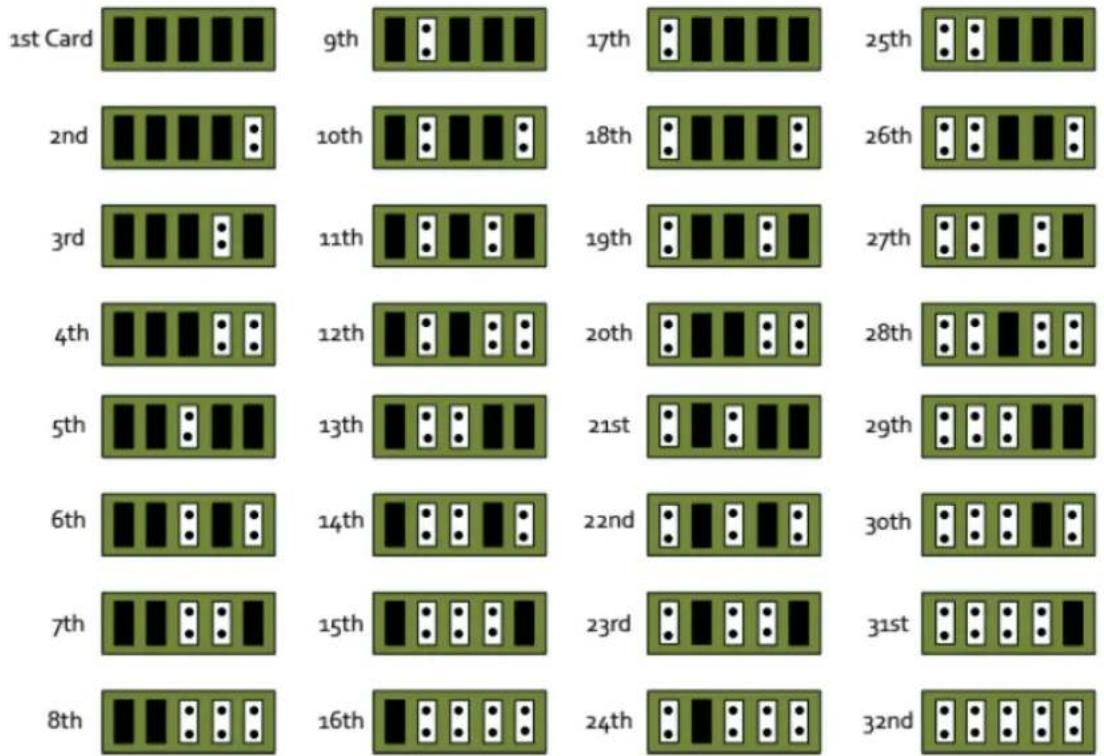
text_image
1st Card 9th 17th 25th 2nd 10th 18th 26th 3rd 11th 19th 27th 4th 12th 20th 28th 5th 13th 21st 29th 6th 14th 22nd 30th 7th 15th 23rd 31st 8th 16th 24th 32nd
Indicates link fitted

Indicates Link not fitted
DirectShow
If you change the link ordering after installation you must run dplinks.exe. This program will update the existing input names used by the windows DirectShow interface.
To run the dplinks program open the Run by clicking on Start/Run and type dplinks and then press Enter.
The program will run, however no notifications are displayed.
Firmware Upgrades
The VisionSD8 card allows firmware upgrades to be completed on site rather than returning the card to Datapath. Whenever a firmware upgrade is performed, LK4 MUST BE FITTED on the VisionSD8. To perform the upgrade, follow the step-by-step instructions provided by the upgrade application.
In the unlikely event that something goes wrong during the upgrade process (e.g. System power outage) it is possible to revert to the factory settings by powering down the system, temporarily removing LK_4 then powering up the system with the link removed. Once the system has rebooted, replace the LK_4 link (whilst the system is powered up) and restart the firmware upgrade process.
It should be noted that the driver installation program (Version 01.07.00 and above) includes an automatic firmware update, if required. Therefore, prior to installing the application and driver, ensure that LK4 is fitted.
Software Installation
The Vision software (driver and application) is installed by inserting the CD that was shipped with your card into your CD ROM drive. The installation process should start automatically.
Should the CD fail to autorun use Explorer to browse the CD, locate then double click on install.exe file e.g. d:/install.exe and click on Install Software... and follow the installation wizard instructions as prompted.
Regular software updates are available from our website: www.datapath.co.uk
Also available on the Datapath CD:
- The Release Notes - The release notes contain the latest information on the VisionSD8
Installation instructions
Release history
Known problems
Troubleshooting
- The application Help File - Instructions on how to use the application.
Application Overview
The application displays the video source in a window; it has the following features:
- Scales the video data to fit in the window
- Save a single frame to a file in one of the following formats: BMP, JPEG, GIF, TIFF, PNG
- Print a single frame
- Record and playback captured data using DirectShow
- Maintain the aspect ratio of the displayed video data
- Cropping
- Display text over the video data (on-screen display)
- Command line interface
• Help file documenting all features
Note:
The supplied drivers and software require that you are using:
- Windows® XP PRO/Server 2003/Server 2008, Windows® Vista or Windows® 7
- CD / DVD ROM Drive
Using the card with other Datapath products
The VisionSD8 captures video data and stores it in an on-board video buffer. This data is then copied using bus master DMA to the host system for display, storage or streaming.
When a Datapath graphics card is used, the VisionSD8 transfers the data directly to the graphics card thereby increasing performance. The VisionSD8 sends the relevant portions of each captured image to each display channel and instructs each channel to use its graphics engine to render the data. This fully utilises the hardware and dramatically increases performance.
When a Direct3D compatible graphics card is used the data can be transferred direct to the graphics card in a similar manner to the Datapath graphics card with the same benefit of non-tearing captures.
When the video data is displayed on a non Datapath graphics card, the VisionSD8 sends the data to system memory or direct to the graphics card, dependant on the software used for display.
Chapter 7
FCC Compliance VisionSD4+1
Federal Communications Commission Statement
This device complies with FCC Rules Part 15. Operation is subject to the following two conditions:
This device may not cause harmful interference, and
This device must accept any interference received, including interference that may cause undesired operation
This equipment has been tested and found to comply with the limits for a Class B digital device, pursuant to Part 15 of the FCC Rules. These limits are designed to provide reasonable protection against harmful interference in a commercial, industrial or business environment. This equipment generates, uses and can radiate radio frequency energy and, if not installed and used in accordance with the manufacturers instructions, may cause harmful interference to radio communications. However, there is no guarantee that interference will not occur in a particular installation. If this equipment does cause harmful interference to radio or television reception, which can be determined by turning the equipment off and on, the user is encouraged to try to correct the interference by one or more of the following measures.
• Re-orient or relocate the receiving antenna
- Increase the separation between the equipment and the receiver
- Connect the equipment to an outlet on a circuit different from that to which the receiver is connected
- Consult the dealer or an experienced radio/TV technician for help
Warning! Any changes or modifications to this product not expressly approved by the manufacturer could void any assurances of safety or performance and could result in violation of Part 15 of the FCC Rules.
Reprinted from the Code of Federal Regulations #47, part 15.193.1993. Washington DC: Office of the Federal Register, National Archives and Records Administration, US Government Printing Office.
DECLARATION OF CONFORMITY
Per FCC Part 2 Section 2. 1077(a)

| Responsible Party Name: | Datapath Limited |
| Address: | Alfreton Road, Derby |
| Phone: | +441332-294441 |
| Hereby declares the product: | |
| Product Name: | SD Video/RGB/DVI Capture PCI-e x4 Card |
| Model Number: | VisionSD4+1 (DGC 151) |
| Conforms to the following specifications: | |
| FCC Part 15 Subpart b | Class A Digital Device |
| Supplementary Information:This device has been shown to be in compliance with and was tested in accordance with the measurement procedures specified in the Standards & Specifications listed above and as indicated in the measurement report number: 9G2498GUS2 | |
| Representative Persons Name: Tony Jones, Operations Director | |

Signature:
Date: 09 September 2009
Introduction-VisionSD4+1/SD4+1S
The VisionSD4+1/SD4+1S is an ideal solution for applications that require the capture of up to four SD video sources and a single Component HD/HDMI/RGB/DVI source simultaneously. Typical applications include:
- Viewing Analog or DVI sources from PCs, MACs, Industrial/medical equipment, cameras and other video equipment
• Streaming video applications
• Video/Data Wall Controllers
The VisionSD4+1/SD4+1S is a four channel PCI express video capture card. The card supports PAL, NTSC and SECAM in both composite and S-Video input formats, supports de-interlaced video capture and displays at 25/30 frames/sec for real-time video windows.
In addition, the VisionSD4+1/SD4+1S is also a single channel PCIe capture card, able to capture:
- Component HD up to 108oP at 60 frames per second
- HDMI up to 108oP (Audio not supported, HDCP not supported)
• DVI up to 1920 x 1200
• RGB/VGA up to 2048 x 1536
The data is stored in two 32MB frame buffers on the card in real time. The data is transferred using PCI bus master DMA with scatter gather. The data can be transferred to system memory, to off-screen memory on a Datapath graphics card or via Direct 3D to third party graphics cards.
Windows Media Encoder ^® may also be used to stream video across a network or save the video to disk. Windows Media Player ^® can be used to display the stream or the video that has previously been saved.
Hardware Overview
- Four channel SD Video and a single channel RGB/DVI/Component video capture card
- Four Lane PCIe interface with a maximum data rate of 480MB/sec for the VisionSD4+1 and 650MB/sec for the VisionSD4+1S
• Maximum analog RGB capture resolution of 2048 x 1536 x 24bit
• Maximum DVI capture resolution of 1920 x 1200 x 24bit
• HD modes (HDCP not supported) - Four SD capture channels for PAL/NTSC, SECAM (composite or S-Video inputs)
- On card processor for real time mode and sync detection
- Support for multiple cards allowing up to 128 SD capture channels and 32 DVI-I capture channels. (32 cards)
- Direct DMA driver software and streaming driver
• High quality down scaling
- Support for YUV 4:2:2, RGB 5:5:5, 5:6:5 and 8:8:8 video formats
• High performance DMA to system memory or direct to graphics memory with scatter gather
- Support for separate H/V sync, Composite sync or Sync on Green
- Support for Windows® XP/Vista/Server 2003/Server 2008/Windows 7
Models
VisionSD4+1 - Maximum data capture rate 480MB/s.
VisionSD4+1S - Maximum data capture rate 650MB/s.
Specification
| Board Format PCI-e x4 plug-in card, 110mm x 204mm. PCI-e bus master with scatter gather DMA providing maximum data rate of 480MB/s for the VisionSD4+1 and 650MB/s for the VisionSD4+1S. | |
| Connectors One DVI-I type connector a and one D-type connector for SD inputs. | |
| Maximum Sample Rate:(RGB/DVI) 170M pixels per second analog RGB or 165 MHz DVI.Analog modes up to 340MHz pixel clock can be captured using dual-pass sampling. | |
| Video Sampling RGB: 24 bits per pixel / 8-8-8 format.Video: 16bits per pixel/YUV format. | |
| SD Maximum Capture Resolution 720x576x16bit | |
| Video Capture Memory 64 MB, triple buffered | |
| Analog RGB Mode Support 640x480, 800x600, 1024x768, 1280x1024, 1600x1200, 1920x1080, 2048x1536, custom modes. | |
| DVI Single Link Mode Support 640 x 480, 800 x 600, 1024 x 768, 1280 x 1024, 1600 x 1200, 1920x1080, 1900 x 1200, and custom modes. | |
| HD Modes 108op, 108oi, 720p, 576p, 576i, 48op and 48oi using a Component HD-DVI Adapter (HDCP not supported). | |
| Input Mode Detection Automatic detection of input modes in hardware, enabling the tracking of mode changes in the source signal. | |
| Pixel Output Formats | RGB: 5-5-5, 5-6-5 or 8-8-8 (24bit/32bit) pixels.YUV: 4:2:2 |
| Update Rate User defined, captured frame rate will match the source providing max data rate (480MB/s VisionSD4+1, 650MB/s VisionSD4+1S) is not exceeded.Multi-buffered to eliminate tearing artifacts. | |
| Video Format Options Analog RGB plus | HSync and VSync (5 wire).Analog RGB with Composite Sync (4 wire).Analog RGB with Sync on Green (3 wire).DVI Single Link.PAL, NTSC, SECAM or S-Video for SD inputs. |
| Operating System Support | Windows® XP Professional (x32 and x64), Windows® Server 2003 (x32 and x64), Windows Vista® (x32 and x64), Windows® Server 2008 (x32 and x64) and Windows 7®. |
| Warranty | 3 years. |
Unpacking
Your packing box contains the following items:
- VisionSD4+1 or VisionSD4+1S
- SD4-Cable
- 1 x DVI/VGA, 1 x DVI/Component and 1 x DVI/HDMI Adapter
- Installation CD ROM
If there are any discrepancies, you should contact Datapath immediately.
Note:
All plug-in cards are static sensitive and are packed in anti-static material. Please keep the card in its packaging until you are ready to install.
It is recommended that you do not discard the packing box until you are completely satisfied with the VisionSD4+1/SD4+1S video capture card and it is fully installed and working correctly. We also recommend that you make a note of the serial number of the card in a prominent place before the card is plugged into the computer. This should hasten any query should you need to contact our Technical Support Department. The serial number is displayed on the card itself and the box label.
Installing the VisionSD4+1/SD4+1S Capture Card
You are likely to need a flat blade and a Phillips head screwdriver for the installation of the capture card; it would be useful to have these to hand before you begin.
Installing the card is a simple process, follow the steps below to be up and running in a few minutes:
Power down the PC (including peripherals), switch off at the mains and disconnect all the cables connected to the computer, noting the positions for accurate reconnection. Remove the PC cover
Locate a vacant PCIe ( x_4 or above) slot on the motherboard and remove the backing plate (retain all screws). If in doubt consult your motherboard documentation to correctly identify a PCIe (PCI-express) slot. If the card is forced into a 32 or 64 bit PCI or PCI-X slot it will be irreparably damaged when the system is powered up and the warranty will be void.
Remove the card from its packaging and secure it firmly into the empty PCIe slot. Extreme care should be taken when securing the card into the slot as some motherboards may have components that impede the siting of the card.
Screw the card bracket to the back panel of the PC and replace the cover
Re-connect all cables to the PC
Connect the Input cables
Power up the PC and commence the software installation
Connections
The VisionSD4+1/SD4+1S has two connectors. The top connector is a DVI-I connector and the bottom connector is a D-Type connector.
The DVI-I Connector
Connect to the source using:
- DVI-D Cable
- DVI-A Cable
- Analog VGA (RGB) cable (adapter supplied)
• HDMI cable (adapter supplied) - Component HD cable (adapter supplied)
Connect one end of the cable to the source. Connect the other end of the cable to DVI-I type connector (top connector) located on the VisionSD4+1/SD4+1S card in your computer.
D-Type Connector
Connect SD inputs using the 4-way splitter cable (provided). The splitter cable consists of 4 RCA sockets numbered S1-S4, connected to a 26-way D connector. To connect a video input, connect as indicated in the table below.
| Video Input RCA Connetor | |
| 1 | S1 |
| 2 | S2 |
| 3 | S3 |
| 4 | S4 |
If you wish to connect Composite/S-Video Luma and Chroma you will require the Datapath BNC-16 cable supplied by Datapath at an additional cost, connect the BNC-16 as indicated in the table below.
| Input Composite | S-VideoLuma = BNC Connector | Chroma = BNC Connector |
| 1 1 9 | ||
| 2 2 10 | ||
| 3 3 11 | ||
| 4 4 12 |
Installing Multiple Cards
Multiple cards can be installed in a system providing a large number of capture channels. Combinations of Vision capture cards in the same machine are supported by the driver.
To control the order in which the driver uses the cards, it is recommended when installing multiple cards that the J6 links on the VisionSD4+1/SD4+1S are configured. The illustration below shows the jumper link settings for up to 32 cards in a single system. When two cards have the same link settings, their order is determined by the PCI bus:

text_image
1st Card 9th 17th 25th 2nd 10th 18th 26th 3rd 11th 19th 27th 4th 12th 20th 28th 5th 13th 21st 29th 6th 14th 22nd 30th 7th 15th 23rd 31st 8th 16th 24th 32nd
Indicates link fitted

Indicates Link not fitted
DirectShow
If you change the link ordering after installation you must run dplinks.exe. This program will update the existing input names used by the windows DirectShow interface.
To run the dplinks program open the Run by clicking on Start/Run and type dplinks and then press Enter.
The program will run, however no notifications are displayed.
Firmware Upgrades
The VisionSD4+1/SD4+1S card allows firmware upgrades to be completed on site rather than returning the card to Datapath. Whenever a firmware upgrade is performed, LK1 MUST BE FITTED on the Vision-SD4+1/SD4+1S. To perform the upgrade, follow the step-by-step instructions provided by the upgrade application.
In the unlikely event that something goes wrong during the upgrade process (e.g. System power outage) it is possible to revert to the factory settings by powering down the system, temporarily removing LK1 then powering up the system with the link removed. Once the system has rebooted, replace the LK1 link (whilst the system is powered up) and restart the firmware upgrade process.
It should be noted that the driver installation program includes an automatic firmware update, if required. Therefore, prior to installing the application and driver, ensure that LK1 is fitted.
Extended Display Identification Data (EDID) - Disable Links
EDID is data provided by a display monitor and sent to the graphics device detailing monitors capabilities thereby enabling a system to identify the type of monitor that is attached.
The graphics device installed on your machine will see the card as a monitor and will expect to receive the EDID data from the card.
However, in rare circumstances it may be necessary that the VisionSD4+1/SD4+1S does not report an EDID of any kind. In this instance EDID support can be disabled by removing links LK3.
Removing the LK3 link on the VisionSD4+1/SD4+1S card will disable the EDID function on the DVI/RGB channel.
Software Installation
The Vision software (driver and application) is installed by inserting the CD that was shipped with your card into your CD ROM drive. The installation process should start automatically.
Should the CD fail to autorun use Explorer to browse the CD, locate then double click on install.exe file e.g. d:/install.exe and click on Install Software... and follow the installation wizard instructions as prompted.
Regular software updates are available from our website: www.datapath.co.uk
Also available on the Datapath CD:
- The Release Notes - The release notes contain the latest information on the VisionSD4+1/SD4+1S including:
Installation instructions.
Release history
Known problems
Troubleshooting
- The application Help File - Instructions on how to use the application.
- Test patterns to assist in setting up an analog RGB / DVI source (see help file topic How to set up an RGB / DVI Source)
Chapter 8
VisionSDI2
The Datapath VisionSDI2 is a dual channel PCI express HD-SDI video capture card. The card supports SD-SDI, HD-SDI and 3G-SDI. The VisionSDI2, a stand alone PCIe x4 plug in card, delivers extreme performance with 650MB/s transfer bus bandwidth making it ideal for a wide range of applications including:
- Multi-display presentation software
- Broadcasting
- Digital Signage
- Machine Vision
DirectShow drivers for WDM Streaming driver supports the following applications to encode, record and stream video over networks or the Internet:
- Windows Media Encoder®
• VLC - StreamPix
- VirtualDub
- Adobe Flash Encoder
- AMCap
- Any other DirectShow encoding software
Hardware Overview
- Dual Channel PCI express HD-SDI capture card
- Four lane PCIe bus with maximum data rate of 650MB/sec
- Support for all SD and HD video modes up to 108op 60Hz
- Loop Through SDI BNC connections
- 64MB per channel, total 128MB on-board frame buffer
- On board processor for real time mode and sync detection
- Audio output for each channel to an onboard SPDIF header (use with the Datapath AOM)
- High performance DMA to system memory or direct to graphics memory with scatter gather.
• High quality scaling (7x5 Polyphase Filter) - Input indicator lights
- Long range, single co-ax cable support. (150 metres capturing 108op, 300 metres capturing SD)
• 16 cropping windows per capture channel
• Wall Control support and SDK
Models
VisionSDI2 - A dual channel SDI video capture card.
Specification
| Board Format PCI-e half size plug-in card, 110mm x 170mmPCI-e bus master with scatter gather DMA providing maximum data rate of 650MB/s | |
| Connectors Four BNC connectors for SDI inputs (Green LED) and Loop through outputs (Blue LED) | |
| Maximum Capture Resolution 2 x 2048x1556 | |
| Frame Buffer Memory 64MB per channel (total 128MB) | |
| Audio Format Audio output for each channel in Digital SPDIF format. Channelled out to RCA connectors using a Datapath Audio VIM. | |
| Video Format Options SD-SDI, HD-SDI and 3G-SDI | |
| Operating System Support Windows® XP, Windows® Vista, Windows® Server 2003, Windows® Server 2008 and Windows® 7 (x86 and x64 Operating Systems) | |
| Power Requirements Max current at +3.3V - 0.45A.Max current at +12V - 0.85A.Max power - 12W | |
| Operating Temperature o to 35 deg C / 32 to 96 deg F | |
| Storage Temperature -20 to 70 deg C / -4 to 158 deg F | |
| Relative Humidity 5% to 90% non-condensing | |
| Warranty 3 years | |
Unpacking
Your packing box should contain the following items:
- The VisionSDI2
• Installation CD ROM
If there are any discrepancies, you should contact Datapath immediately.
Note:
All plug-in cards are static sensitive and are packed in anti-static material. Please keep the card in its packaging until you are ready to install.
It is recommended that you do not discard the packing box until you are completely satisfied with the VisionSDI2 capture card and it is fully installed and working correctly. We also recommend that you make a note of the serial number of the card in a prominent place before the card is plugged into the computer. This should hasten any query should you need to contact our Technical Support Department. The serial number is displayed on the card itself and the box label.
Installing the Capture Card
You are likely to need a flat blade and a Phillips head screwdriver for the installation of the capture card; it would be useful to have these to hand before you begin.
Installing the card is a simple process, follow the steps below to be up and running in a few minutes:
- Power down the PC (including peripherals), switch off at the mains and disconnect all the cables connected to the computer, noting the positions for accurate reconnection. Remove the PC cover
- Locate a vacant PCIe (x4 or above) slot for the VisionSDI2 on the motherboard and remove the backing plate (retain all screws) If in doubt consult your motherboard documentation to correctly identify a PCIe (PCI-express) slot. If the card is forced into a 32 or 64 bit PCI or PCI-X slot it will be irreparably damaged when the system is powered up and the warranty will be void.
- Remove the card from its packaging and secure it firmly into the empty PCIe slot. Extreme care should be taken when securing the card into the slot as some motherboards may have components that impede the siting of the card
- Screw the card bracket to the back panel of the PC and replace the cover
• Re-connect all cables to the PC - Connect the cable(s) distributing the signals to the connectors on the VisionSDI2 card located on the back panel.
- Power up the PC and commence the software installation.
Connections
The VisionSDI2 card has four BNC type connectors for two separate, simultaneous inputs and two Loop Through outputs. The connectors are identified by coloured LED's; green for input and blue for Loop Through outputs:

text_image
Input 1 (Channel 1) Loop Through (Channel 1) Input 2 (Channel 2) Loop Through (Channel 2)Supported Formats
The VisionSDI2 card supports the following formats:
• SD-SDI (480i/576i)
• HD-SDI (up to 1080i)
• 3G-SDI (upto 108op)
Cable Length
The VisionSDI2 supports cable lengths of up to 150m for 3G-SDI and 300m for SD-SDI. These figures are based on using low loss co-ax cables (Belden 1694A).
Installing Multiple Cards
Multiple cards can be installed in a system providing a large number capture channels. Combinations of Vision capture cards in the same machine are supported by the driver.
In order to control the order in which the driver uses the cards, it is recommended when installing multiple cards that the J6 links on the VisionSDI2 are configured. The example below shows the jumper link settings for up to 32 cards in a single system. When two cards share the same link settings, their order is determined by PCI bus.
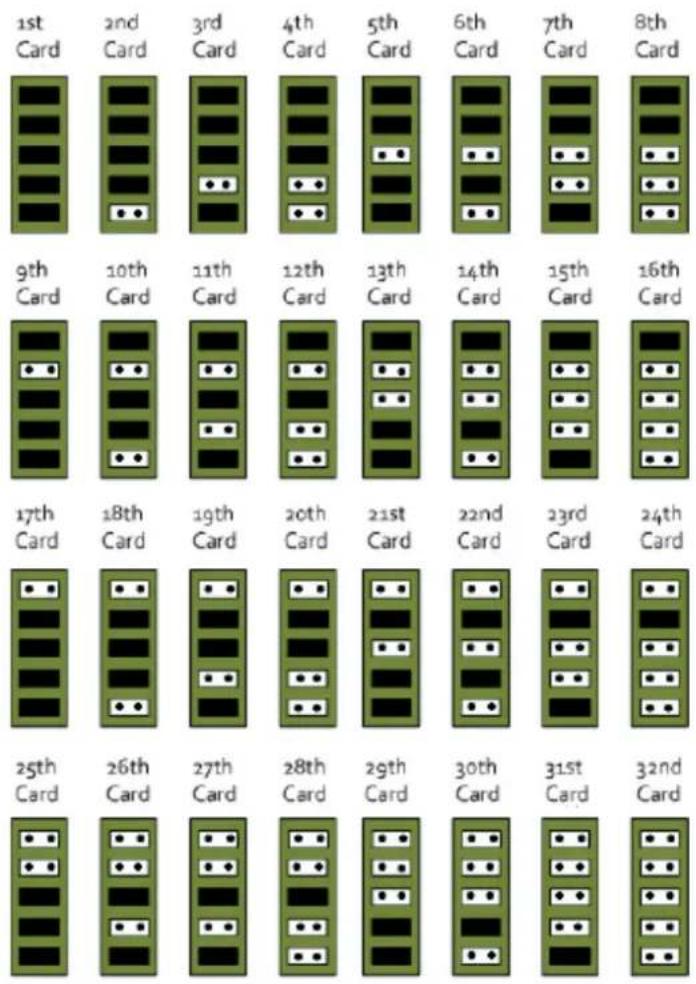
text_image
1st Card 2nd Card 3rd Card 4th Card 5th Card 6th Card 7th Card 8th Card 9th Card 10th Card 11th Card 12th Card 13th Card 14th Card 15th Card 16th Card 17th Card 18th Card 19th Card 20th Card 21st Card 22nd Card 23rd Card 24th Card 25th Card 26th Card 27th Card 28th Card 29th Card 30th Card 31st Card 32nd Card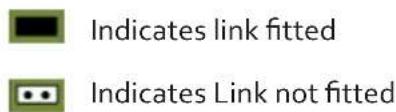
text_image
Indicates link fitted Indicates Link not fittedDirectShow
If you change the link ordering after installation you must run dplinks.exe. This program will update the existing input names used by the windows DirectShow interface.
To run the dplinks program open the Run by clicking on Start/Run and type dplinks and then press Enter.
The program will run, however no notifications are displayed.
Firmware Upgrades
The VisionSDI2 cards allow firmware upgrade to be completed on site rather than returning the card to Datapath. Whenever a firmware upgrade is performed, LK1 MUST BE FITTED on the VisionSDI2. To perform the upgrade, follow the step-by-step instructions provided by the upgrade application.
In the unlikely event that something goes wrong during the upgrade process (e.g. System power outage) it is possible to revert to the factory settings by powering down the system, temporarily removing LK1 then powering up the system with the link removed. Once the system has rebooted, replace the LK1 link (whilst the system is powered up) and restart the firmware upgrade process.
It should be noted that the latest driver installation program includes an automatic firmware update, if required. Therefore, prior to installing the application and driver, ensure that LK1 is fitted.
Software Installation
The Vision software (driver and application) is installed by inserting the CD that was shipped with your card into your CD ROM drive. The installation process should start automatically.
Should the CD fail to autorun use Explorer to browse the CD, locate then double click on install.exe file e.g. d:/install.exe and click on Install Software... and follow the installation wizard instructions as prompted.
Regular software updates are available from our website: www.datapath.co.uk
Also available on the Datapath CD:
- The Release Notes - The release notes contain the latest information on the VisionSDI2
• Installation instructions. - Release history
- Known problems
- Troubleshooting
- The application Help File - Instructions on how to use the application. The help file is in d:/software/rgbx.chm
Application Overview
The application displays the connected source in a window; it has the following features:
- Scales the data to fit in the window
- Ability to set up sources accurately (settings automatically saved)
- Save a single frame to a file in one of the following formats: BMP, JPEG, GIF, TIFF, PNG
- Print a single frame
- Maintain the aspect ratio of the displayed SDI data
- Cropping
- Display text over the data (on-screen display)
- Command line interface
• Help file documenting all features
Note:
The supplied drivers and software require that you are using:
- Windows® XP, Windows® Vista, Windows® Server 2003, Windows® Server 2008 or Windows® 7 (x86 and x64 Operating Systems)
• CD / DVD ROM Drive
Using the card with other Datapath products
The VisionSDI2 captures data and stores it in an on-board video buffer. This data is then copied using DMA to the host system for display, storage or streaming.
When a Datapath graphics card is used, VisionSDI2 transfers the data directly to the graphics card thereby increasing performance. The VisionSDI2 sends the relevant portions of each captured image to each display channel and instructs each channel to use its graphics engine to render the data. This fully utilises the hardware and dramatically increases performance.
When a Direct3D compatible graphics card is used the data can be transferred direct to the graphics card in a similar manner to the Datapath graphics card with the same benefit of non-tearing captures.
When the data is displayed on a non Datapath graphics card, the VisionSDI2 sends the data to system memory or direct to the graphics card, dependant on the software used for display.
Chapter 9
VisionDVI-DL
The VisionDVI-DL is a single channel PCI express Dual-Link DVI video capture card. A stand alone PCIe x4 plug in card, the VisionDVI-DL delivers extreme performance with 650MB/s transfer bandwidth.
A maximum canvas of 4kx4k allows any DVI source to be captured.
The VisionDVI-DL does not support analog sources
The VisionDVI-DL has integrated DVI equalizers on its inputs to support longer input cable lengths (up to 20m). The VisionDVI-DL is suitable for a wide range of applications
including:
- Large display walls
• High resolution, high bandwidth applications - Advanced Medical and Machine Vision capture
- Radar, Security/Surveillance and Military applications
• IP Render decode capture
Hardware Overview
- Single Channel PCI express Dual-Link capture card
- Support for 330MHz pixel clock and maximum canvas of 4kx4k
- HD video capture for all progressive and interlaced DVI/HDMI modes
• Captures Quad-HD Digital Cinema modes at 24/25/30fps
• 128MB on board frame buffer - Input equalisation supporting longer input cables
- High performance DMA to system memory or direct to graphics memory with scatter gather.
• High quality scaling (7x3 Polyphase filter)
Models
VisionDVI-DL - Single Channel PCIe Dual-Link capture card
| Board Format PCI-e x4 card, 110mm x 170mm. PCI-e bus master with scatter gather DMA providing a maximum data rate of 650MB/s. | |
| Connectors One Dual-Link DVI-D connector. | |
| Maximum Sample Rate 330 MHz DVI - Capable of Quad HD at 24/25/30fps. | |
| Video Capture Memory 128 MB, triple buffered. | |
| DVI-Dual-Link Single Link and Dual-Link modes auto detected. | |
| Input Mode Detection Automatic detection of input modes in hardware, enabling the tracking of mode changes in the source signal. | |
| Pixel Transfer Formats | RGB: 5-5-5, 5-6-5 or 8-8-8 (24bit/32bit) pixels. YUV: 4:2:2. MONO: 8bit. |
| Update Rate User defined, captured frame rate will match the source.Providing max data rate (650MB/s) is not exceeded. Multi-buffered to eliminate tearing artifacts. | |
| Video Format Options DVI Dual-Link. DVI Single-Link. | |
| Operating System Support Windows® XP, Windows® Vista, Windows® Server 2003, Windows® Server 2008 and Windows® 7. | |
| Power Requirements Max current at +3.3V - 0.2A. Max current at +12V - 0.9A. Max power - 12 W | |
| Operating Temperature o to 35 deg C / 32 to 96 deg F | |
| Storage Temperature | -20 to 70 deg C / -4 to 158 deg F |
| Relative Humidity | 5% to 90% non-condensing. |
| Warranty | 3 years |
Unpacking
Your packing box contains the following items:
• The VisionDVI-DL capture card
• Installation CD-ROM (for latest drivers go to www.datapath.co.uk)
If there are any discrepancies, you should contact Datapath immediately.
Note:
All plug-in cards are static sensitive and are packed in anti-static material. Please keep the card in its packaging until you are ready to install.
It is recommended that you do not discard the packing box until you are completely satisfied with the VisionDVI-DL capture card and it is fully installed and working correctly. We also recommend that you make a note of the serial number of the card in a prominent place before the card is plugged into the computer. This should hasten any query should you need to contact our Technical Support Department. The serial number is displayed on the card itself and the box label.
Installing the Capture Card
You are likely to need a flat blade and a Phillips head screwdriver for the installation of the capture card; it would be useful to have these to hand before you begin.
Installing the card is a simple process, follow the steps below to be up and running in a few minutes:
Power down the PC (including peripherals), switch off at the mains and disconnect all the cables connected to the computer, noting the positions for accurate reconnection. Remove the PC cover
Locate a vacant PCIe ( x_4 or above) slot on the motherboard and remove the backing plate (retain all screws). If in doubt consult your motherboard documentation to correctly identify a PCIe (PCI-express) slot. If the card is forced into a 32 or 64 bit PCI or PCI-X slot it will be irreparably damaged when the system is powered up and the warranty will be void.
Remove the card from its packaging and secure it firmly into the empty PCIe slot. Extreme care should be taken when securing the card into the slot as some motherboards may have components that impede the siting of the card.
Screw the card bracket to the back panel of the PC and replace the cover
Re-connect all cables to the PC
Connect the cable distributing the DVI Dual-Link signals to the connector on the VisionDVI-DL card located on the back panel.
Power up the PC and commence the software installation
Connections
The VisionDVI-DL has one DVI Dual-Link connector.
The card is connected to the source using a DVI Dual-Link Cable (not supplied).
Installing Multiple Cards
Multiple cards can be installed in a system providing a large number of DVI Dual-Link capture channels. Combinations of Vision capture cards in the same machine are supported by the driver.
To control the order in which the driver uses the cards, it is recommended when installing multiple cards that the J6 links on the VisionDVI-DL are configured. The illustration below shows the jumper link settings for up to 32 cards in a single system. When two cards share the same link settings, their order is determined by the PCI bus.

text_image
1st Card 9th 17th 25th 2nd 10th 18th 26th 3rd 11th 19th 27th 4th 12th 20th 28th 5th 13th 21st 29th 6th 14th 22nd 30th 7th 15th 23rd 31st 8th 16th 24th 32nd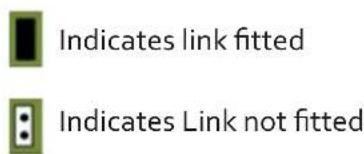
text_image
Indicates link fitted Indicates Link not fittedDirectShow
If you change the link ordering after installation you must run dplinks.exe. This program will update the existing input names used by the windows DirectShow interface.
To run the dplinks program open the Run by clicking on Start/Run and type dplinks and then press Enter.
The program will run, however no notifications are displayed.
Firmware Upgrades
The VisionDVI-DL card allows firmware upgrades to be completed on site rather than returning the card to Datapath. Whenever a firmware upgrade is performed, LK1 MUST BE FITTED on the VisionDVI-DL. To perform the upgrade, follow the step-by-step instructions provided by the upgrade application.
In the unlikely event that something goes wrong during the upgrade process (e.g. System power outage) it is possible to revert to the factory settings by powering down the system, temporarily removing LK1 then powering up the system with the link removed. Once the system has rebooted, replace the LK1 link (whilst the system is powered up) and restart the firmware upgrade process.
Extended Display Identification Data (EDID) - Disable Links
EDID is data provided by a display monitor and sent to the graphics device detailing monitors capabilities thereby enabling a system to identify the type of monitor that is attached.
The graphics device installed on your machine will see the card as a monitor and will expect to receive the EDID data from the card.
However, in rare circumstances it may be necessary that the VisionDVI-DL does not report an EDID of any kind. In this instance EDID support can be disabled by removing link LK2.
Removing the LK2 link on the VisionDVI-DL card will disable the EDID function.
Software Installation
The Vision software (driver and application) is installed by inserting the CD that was shipped with your card into your CD ROM drive. The installation process should start automatically.
Should the CD fail to autorun use Explorer to browse the CD, locate then double click on install.exe file e.g. d:/install.exe and click on Install Software... and follow the installation wizard instructions as prompted.
Regular software updates are available from our website: www.datapath.co.uk
Also available on the Datapath CD:
• The Release Notes - The release notes contain the latest information on the VisionDVI-DLincluding:
Installation instructions.
Release history
Known problems
Troubleshooting
• The application Help File - Instructions on how to use the application.
Application Overview
The application displays the source in a window; it has the following features:
- Scales the data to fit in the window
- Ability to set up sources accurately (settings automatically saved)
- Save a single frame to a file in one of the following formats: BMP, JPEG, GIF, TIFF, PNG
- Print a single frame
- Record and playback captured data using DirectShow
- Maintain the aspect ratio of the displayed data
- Cropping
- Display text over the data (on-screen display)
- Command line interface
• Help file documenting all features
Note:
The supplied drivers and software require that you are using:
- Windows® XP, Windows® Vista, Windows® Server 2003, Windows® Server 2008 or Windows® 7 (x86 and x64 Operating Systems)
• CD / DVD ROM Drive
Using the card with other Datapath products
The VisionDVI-DL captures the data and stores it in an on-board video buffer. This data is then copied using DMA to the host system for display, storage or streaming.
When a Datapath graphics card is used, the VisionDVI-DL transfers the data directly to the graphics card thereby increasing performance. The VisionDVI-DL sends the relevant portions of each captured image to each display channel and instructs each channel to use its graphics engine to render the data. This fully utilises the hardware and dramatically increases performance.
When a Direct3D compatible graphics card is used the data can be transferred direct to the graphics card in a similar manner to the Datapath graphics card with the added benefit of non-tearing captures.
When the data is displayed on a non Datapath graphics card, the VisionDVI-DL sends the data to system memory or direct to the graphics card, dependant on the software used for display.
Chapter 10
Datapath Limited
Datapath has a long and very successful history in the computer graphics industry. Datapath has been designing and supplying high performance, high quality graphics display systems to the world's largest and most demanding companies and institutions since 1982. Datapath was one of the founding companies of multi-screen Windows acceleration using single and multi board solutions. Now using the very latest display technology Datapath offers some of the world's leading multi screen graphics accelerators for the most demanding applications.
As new technology advances, so we at Datapath improve the performance and functionality of both our hardware and software to give our customers more. Following a continuous development program, we pride ourselves on our support and responsive nature towards all our customers and their changing needs. As more sophisticated equipment and techniques become readily available, so we are there to exploit the power and potential that this technology presents.
Technical Support
Registered Users can access our technical support line using, email, and the Support page on the Data-path Web Site, usually with a response within 24 hours (excluding weekends).
Via Email
Send an email to support@datapath.co.uk with as much information about your system as possible. To enable a swift response we need to know the following details:
- Specification of the PC - including processor speed
- Operating System
- Application Software
• Datapath Hardware / Software - The exact nature of the problem - and please be as specific as possible.
Please quote version and revision numbers of hardware and software in use wherever possible.
Copyright Statement
© Datapath Ltd., England, 2011
Datapath Limited claims copyright on this documentation. No part of this documentation may be reproduced, released, disclosed, stored in any electronic format, or used in whole or in part for any purpose other than stated herein without the express permission of Datapath Limited.
Whilst every effort is made to ensure that the information contained in this User Guide is correct, Datapath Limited make no representations or warranties with respect to the contents thereof, and do not accept liability for any errors or omissions. Datapath reserves the right to change specification without prior notice and cannot assume responsibility for the use made of the information supplied. All registered trademarks used within this documentation are acknowledged by Datapath Limited
UK Headquarters and Main Sales Office
Datapath Ltd.,
Wayzgoose Drive
Bemose House,
Bemrose Park,
Derby, DE21 6XQ, UK
Tel: +44 (0) 1332 294441
Fax: +44 (0) 1332 290667
Email: sales@datapath.co.uk
www.datapath.co.uk
Index
A
Application Overview 11, 64
C
cable 1
Connections - VisionRGB-E2/E2S 18, 54
Connections - VisionRGB-X2 27
Copyright Statement 65
D
Datapath Limited 65
DirectShow 9
DVI-I Connector 46
E
EDID 29
F
FCC Compliance VisionRGB-E1 3
FCC Compliance VisionRGB-E2 13
FCC Compliance VisionRGB-X2 22
FCC Compliance VisionSD4+1 40
FCC Compliance VisionSD8 32
Firmware Upgrades - VisionRGB-E1/E1S 10
Firmware Upgrades - VisionRGB-E2/E2S 19, 56
Firmware Upgrades VisionRGB-X2 29
Firmware Upgrades VisionSD4+1/SD4+1S 48
Firmware Upgrades VisionSD8 38
H
HD Modes VisionRGB-E1/E1S 6
HD Modes - VisionRGB-E2/E2S 16
|
Installing Multiple VisionRGB-E1/E1S Cards 9
Installing Multiple VisionRGB-E2/E2S Cards 18
Installing Multiple VisionRGB-X2 Cards 28
Installing Multiple VisionSD4+1/SD4+1S Cards 48
Installing Multiple VisionSD8 Cards 37
Installing the VisionRGB-E1/E1S Capture Card 8
Installing the VisionRGB-E2/E2S 17, 53
Installing the VisionRGB-X2 Capture Card 26
Installing the VisionSD4+1 Capture Card 46
Introduction - VisionRGB-E1/E1S 5
Introduction - VisionRGB-E2/E2S 15
Introduction - VisionRGB-X2 24
Introduction VisionSD4+1 42
Introduction VisionSD8 34
L
low profile card bracket 7
M
Maintenance 1
P
power supply 1
S
SDK 2
Specification - VisionRGB-E1/E1S 6
Specification - VisionRGB-E2/E2S 16, 52
Specification - VisionRGB-X2 25
Specification - VisionSD4+1 44
Specification - VisionSD8 35
T
Technical Support 65
U
UK Headquarters 66
Unpacking - VisionRGB-E2/E2S 17, 53
Up to 16 VisionRGB-E1/E1S cards 9, 18, 28, 37, 48
V
Video Passthrough VisionSD8 37
VisionRGB-E1/E1S 5