HXLU32 - CPU Fan Noctua - Free user manual and instructions
Find the device manual for free HXLU32 Noctua in PDF.


User questions about HXLU32 Noctua
0 question about this device. Answer the ones you know or ask your own.
Ask a new question about this device
Download the instructions for your CPU Fan in PDF format for free! Find your manual HXLU32 - Noctua and take your electronic device back in hand. On this page are published all the documents necessary for the use of your device. HXLU32 by Noctua.
USER MANUAL HXLU32 Noctua
Congratulations on choosing the Noctua NH-D15S. Tailored to provide superior RAM and PCIe compatibility, the NH-D15S is an asymmetrical single fan version of Noctua's award-winning flagship model NH-D15. I'm confident that you will be able to sense some of the research, attention and care we've put into making this cooler.
Enjoy your NH-D15S!
Yours sincerely,
Roland Mossig, Noctua CEO
This manual will guide you through the installation process of the SecuFirm2 ^™ mounting system step by step.
Prior to installing the cooler, please consult the compatibility list on our website (www.noctua.at/compatibility) and verify that the cooler is fully compatible with your motherboard.
Should you encounter any difficulties, please check the FAQs on our website (www.noctua.at/faqs) and don't hesitate to contact our support team at support@noctua.at.
Noctua cannot be held responsible for any damage or losses caused by compatibility issues.
Multilingual versions of this manual are available on our website: www.noctua.at/manuals
Required mounting parts:
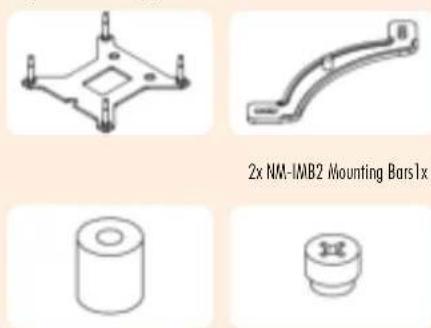
2x NM-IMB2 Mounting Bars1x NM-IBP2 Backplate
4x NM-ITS1 Thumbscrews4x NM-IPS! Spacers
Step 1
Removing the mainboard
In case you want to use the cooler on an assembled system and your case doesn't have a cut-out at the rear side of the mainboard tray, you first have to remove the mainboard from the case in order to be able to install the supplied backplate.
Step 2
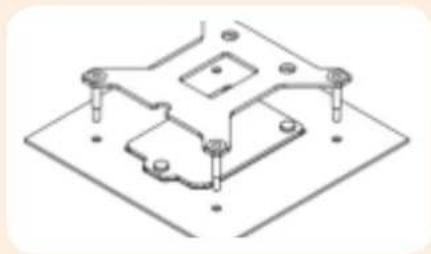
Attaching the backplate
natural_image
Isometric technical drawing of a mechanical component with mounting holes and mounting brackets (no text or symbols)Caution: The supplied backplate will install over the mainboard's stock backplate, so the mainboard's stock backplate must not be taken off.
Place the backplate on the rear side of the mainboard so that the bolts stick through the mounting holes.
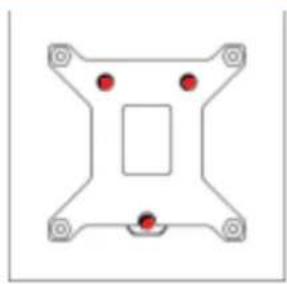
Caution: Please make sure that the three cut-outs in the supplied backplate align with the screws of the mainboard's stock backplate.
natural_image
Pure mechanical component diagram with no text, numbers, or symbolsStep 3
Installing the mounting bars
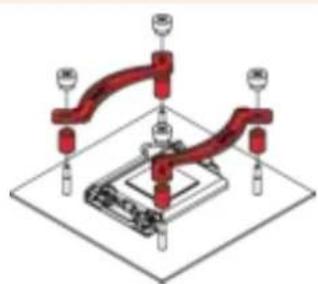
First put the plastic spacers onto the bolts of the backplate, then add the mounting bars.
natural_image
Isometric diagram of a mechanical assembly with red components and a central base (no text or symbols)ers
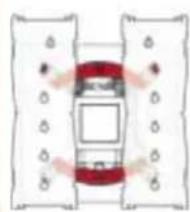
Caution: Choose the alignment of the mounting bars according to the desired final orientation of the cooler:
Orientation A Orientation B
natural_image
Top-down diagram of a car with red roof and white wheels, no text or symbols present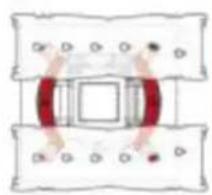
natural_image
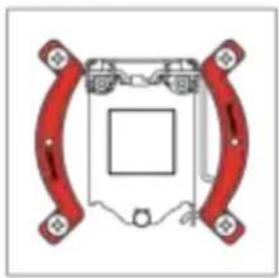
Simple line drawing of a car with red accents and circular elements, no text or symbols presentCaution: Make sure that the curved sides of the mounting bars are pointing outwards.
natural_image
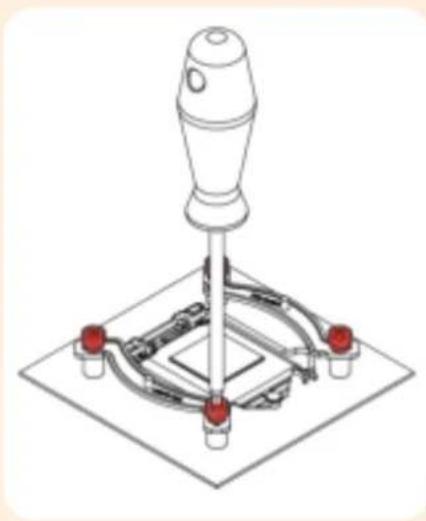
Pure diagram of a mechanical component with red curved arms and central square (no text or symbols)Fix the mounting bars using the 4 thumb screws.
natural_image
Technical illustration of a mechanical lever assembly with a handle and four red components (no text or symbols)Caution: Gently tighten the screws until they stop, but don't use excessive force.
Step 4
Applying thermal paste
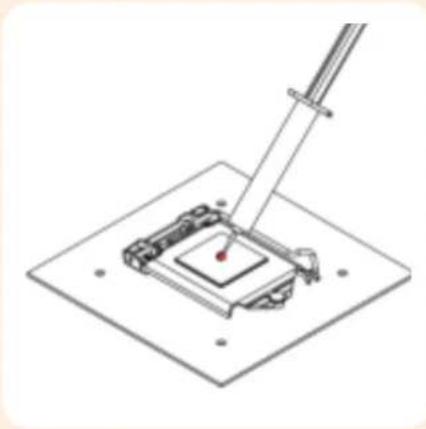
If there are residual traces of thermal paste or thermal pads on your CPU, please clean them off first. Then press a small drop (4-5mm diameter) of NT-H1 onto the centre of the heatspreader.
natural_image
Technical line drawing of a mechanical assembly with a lever and base plate (no text or symbols)Caution: Applying too much thermal paste will lower heat conductivity and cooling performance!
Step 5
Fastening the heatsink to the CPU
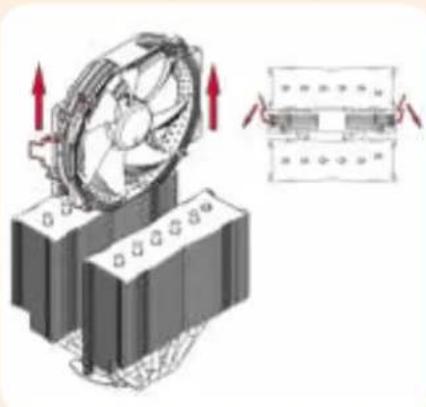
Caution: Please first take off the fan as well as the protection cover at the bottom side of the heatsink.
natural_image
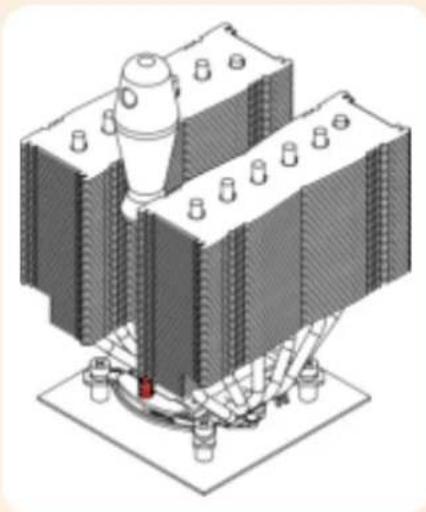
Illustration of a cooling fan mounted on a base with red arrows indicating airflow or heat transfer, alongside a schematic diagram showing a component being placed (no text or symbols present)Then put the heatsink onto the CPU and screw it to the screw threads of the mounting bars.
natural_image
Isometric technical illustration of a mechanical assembly with no visible text or symbolsCaution: Tighten the screws until they stop.
Step 6
Fan Setup
Reattach the fan using the supplied steel clips:
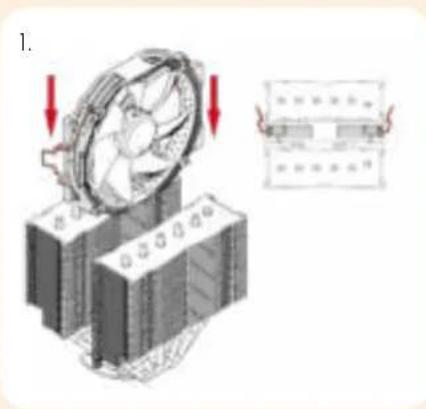
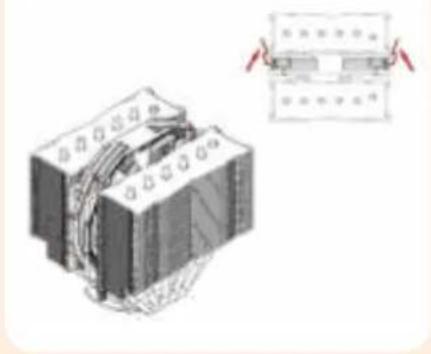
natural_image
Illustration of a mechanical device with attached wires and a separate panel showing a close-up view (no text or symbols)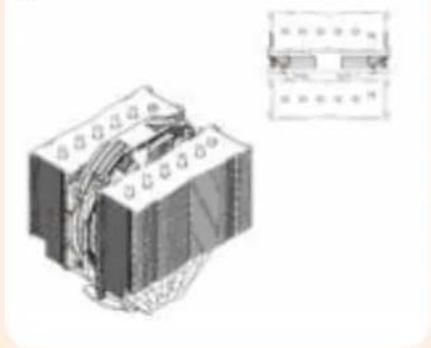
natural_image
Technical illustration of a mechanical component with attached parts, shown from two different angles (no text or symbols present)Connect the fan to the mainboard's CPU fan header. Depending on your CPU and the temperature inside the case, you may interconnect the supplied NA-RC7 Low-Noise Adapter (L.N.A.) in order to further reduce the fan's operating noise.
Caution: Never use one adaptor for both fans by putting it before the y-split cable.
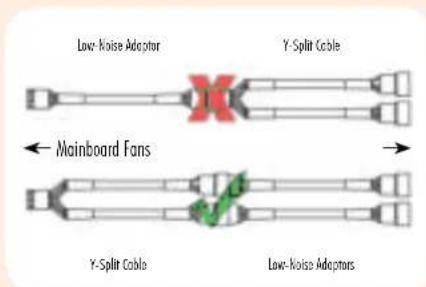
Caution: When using the L.N.A.s, check the temperature of your CPU using appropriate software (e.g. the respective applications of your mainboard manufacturer), in order to evade automatic throttling of the CPU due to the increased temperature. If the cooling performance is insufficient, please increase case ventilation or remove the L.N.A.s.
Adding a second fan
The NH-D15S includes an extra set of fan clips for installing a second fan to the front fin stack in push/pull mode in order to further improve cooling performance. The fan clips support:
- Round frame 140mm fans with 120mm mounting (105mm hole spacing) such as the NF-A15 PWM or the NF-P14r redux models
- Standard 120mm fans (105mm hole spacing) such as the NF-A12, NF-F12 or NF-P12 redux models
Caution:
- It is not possible to install 140mm fans with square frames (124.5mm hole spacing) such as the NF-A14 or NF-P14s redux.
- If you add a second fan to the front fin stack, it will sit above the RAM modules. Please verify that you have sufficient room inside your case before adding a second fan. For example, if you add a 140mm fan and use RAM modules that are 50mm high, you will need 190mm of clearance, adding a 120mm fan while using 50mm RAM requires 170mm, etc.
Warranty, Support and FAQs
Even with high-grade products and strict quality control, the possibility of defects cannot be eliminated entirely. Therefore, we aim at providing the highest possible level of reliability and convenience by offering a warranty period of 6 years and direct, fast and straightforward RMA service.
Should you encounter any problems with your NH-D15S, please don't hesitate to contact our support team (support@noctua.at).
Please also consult the FAQ section on our website: www.noctua.at/faqs.
Dear customer,
Congratulations on choosing the Noctua NH-D15S. Tailored to provide superior RAM and PCIe compatibility, the NH-D15S is an asymmetrical single fan version of Noctua's award-winning flagship model NH-D15. I'm confident that you will be able to sense some of the research, attention and care we've put into making this cooler.
Enjoy your NH-D15S!
This manual will guide you through the installation process of the SecuFirm2 ^™ mounting system step by step.
Prior to installing the cooler, please consult the compatibility list on our website (www.noctua.at/compatibility) and verify that the cooler is fully compatible with your motherboard.
Should you encounter any difficulties, please check the FAQs on our website (www.noctua.at/faqs) and don't hesitate to contact our support team at support@noctua.at.
Noctua cannot be held responsible for any damage or losses caused by compatibility issues.
Multilingual versions of this manual are available on our website: www.noctua.at/manuals
Required mounting parts:
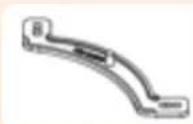
2x NM-IMB2 Mounting Bars
natural_image
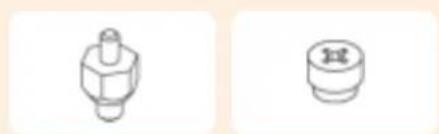
Two technical line drawings of mechanical components, one with a hexagonal nut and the other with a circular cap (no text or symbols)4x NM-ITS1 ThumbscrewsNM-IBT2 Bolts
Step 1
Installing the mounting bars
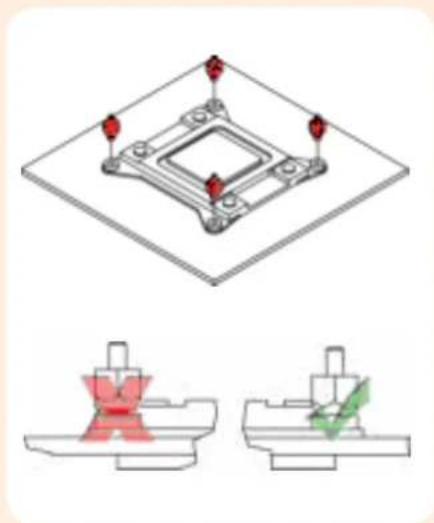
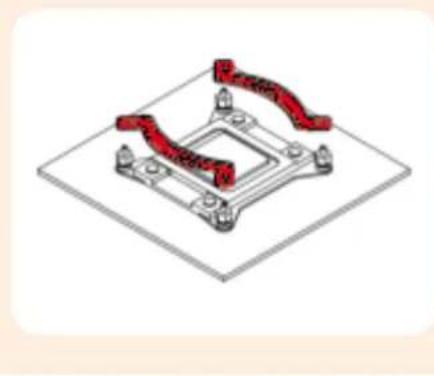
First screw the NM-IBT2 bolts into the screw threads of the LGA2011 socket frame.
natural_image
Technical diagram showing a mechanical component with red and green pins, no text or symbols presentThen put the NM-IMB2 mounting-bars onto the bolts.
natural_image
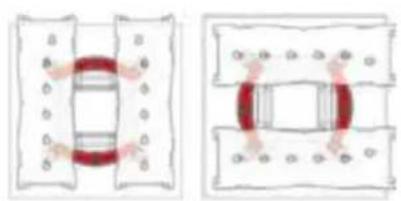
Isometric view of a mechanical component with red curved elements and mounting holes (no text or symbols)Caution: Choose the alignment of the mounting bars according to the desired final orientation of the cooler:
Orientation A Orientation B
natural_image
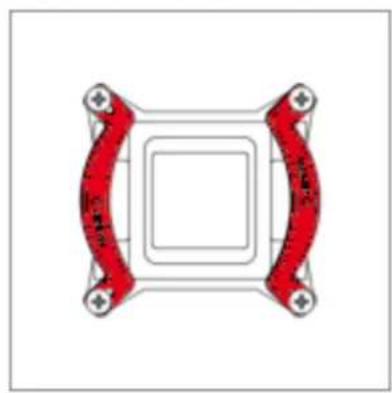
Two schematic diagrams showing a rectangular structure with internal red elements and surrounding dots, connected by lines (no text or symbols)Caution: Make sure that the curved sides of the mounting bars are pointing outwards.
natural_image
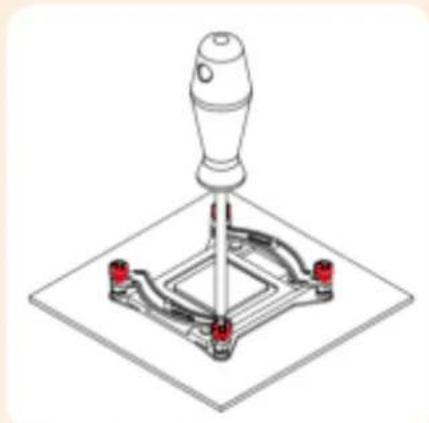
Pure diagram of a square frame with four red curved elements and mounting holes, no text or symbols present.Fix the mounting bars using the 4 thumb screws.
natural_image
Isometric line drawing of a mechanical lever assembly with a handle and four red components (no text or symbols)Caution: Gently tighten the screws until they stop, but don't use excessive force.
Step 2
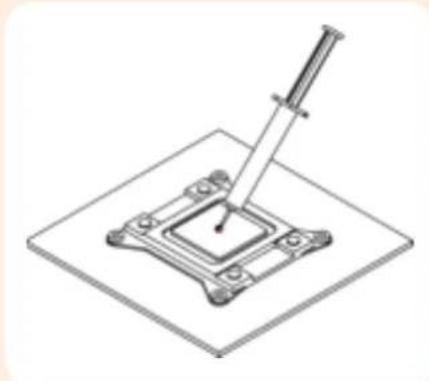
Applying thermal paste
If there are residual traces of thermal paste or thermal pads on your CPU, please clean them off first. Then press a small drop (4-5mm diameter) of NT-H1 onto the centre of the heatspreader.
natural_image
Technical line drawing of a mechanical assembly with a central pin and base plate (no text or symbols)Caution: Applying too much thermal paste will lower the heat conductivity and cooling performance!
Step 3
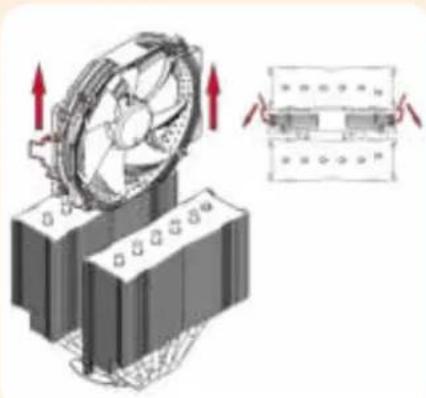
Fastening the heatsink to the CPU
Caution: Please first take off the fan as well as the protection cover at the bottom side of the heatsink.
natural_image
Diagram of a cooling fan mounted on a battery with a close-up view showing its internal structure (no text or symbols present)Then put the heatsink onto the CPU and screw it to the screw threads of the mounting bars.

natural_image
Isometric illustration of a mechanical or architectural component with layered blocks and a central cylindrical feature (no text or symbols)Caution: Tighten the screws until they stop.
Step 4
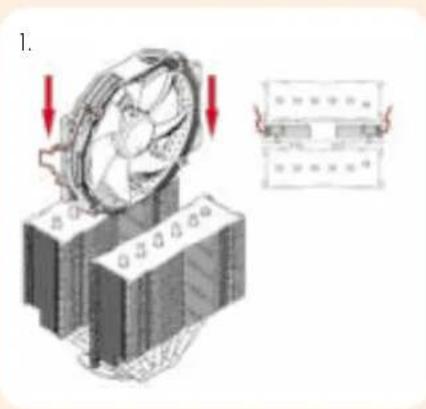
Fan Setup
Reattach the fan using the supplied steel clips:

natural_image
Illustration of a mechanical device with attached wires and a separate close-up view showing internal components (no text or symbols)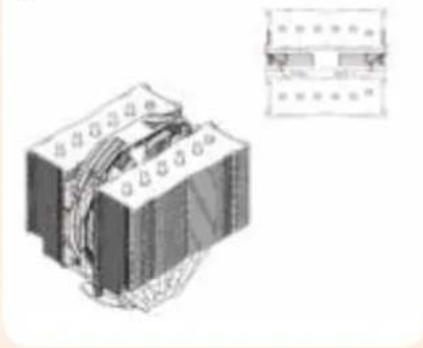
natural_image
Technical illustration of a mechanical component with no visible text or symbolsConnect the fan to the mainboard's CPU fan header. Depending on your CPU and the temperature inside the case, you may interconnect the supplied NA-RC7 Low-Noise Adapter (L.N.A.) in order to further reduce the fan's operating noise.
Caution: Never use one adaptor for both fans by putting it before the y-split cable.
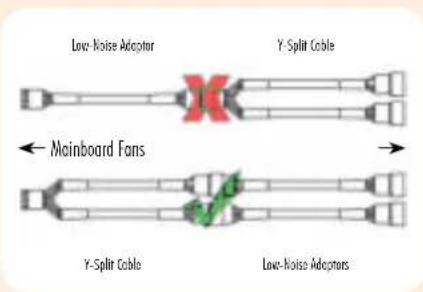
Caution: When using the L.N.A.s, check the temperature of your CPU using appropriate software (e.g. the respective applications of your mainboard manufacturer), in order to evade automatic throttling of the CPU due to the increased temperature. If the cooling performance is insufficient, please increase case ventilation or remove the L.N.A.s.
Adding a second fan
The NH-D15S includes an extra set of fan clips for installing a second fan to the front fin stack in push/pull mode in order to further improve cooling performance. The fan clips support:
- Round frame 140mm fans with 120mm mounting (105mm hole spacing) such as the NF-A15 PWM or the NF-P14r redux models
- Standard 120mm fans (105mm hole spacing) such as the NF-A12, NF-F12 or NF-P12 redux models
Caution:
- It is not possible to install 140mm fans with square frames (124.5mm hole spacing) such as the NF-A14 or NF-P14s redux.
- If you add a second fan to the front fin stack, it will sit above the RAM modules. Please verify that you have sufficient room inside your case before adding a second fan. For example, if you add a 140mm fan and use RAM modules that are 50mm high, you will need 190mm of clearance, adding a 120mm fan while using 50mm RAM requires 170mm, etc.
Warranty, Support and FAQs
Even with high-grade products and strict quality control, the possibility of defects cannot be eliminated entirely. Therefore, we aim at providing the highest possible level of reliability and convenience by offering a warranty period of 6 years and direct, fast and straightforward RMA service.
Should you encounter any problems with your NH-D15S, please don't hesitate to contact our support team (support@noctua.at).
Please also consult the FAQ section on our website: www.noctua.at/faqs.
Dear customer,
Congratulations on choosing the Noctua NH-D15S. Tailored to provide superior RAM and PCIe compatibility, the NH-D15S is an asymmetrical single fan version of Noctua's award-winning flagship model NH-D15. I'm confident that you will be able to sense some of the research, attention and care we've put into making this cooler.
Enjoy your NH-D15S!
This manual will guide you through the installation process of the SecuFirm2 ^™ mounting system step by step.
Prior to installing the cooler, please consult the compatibility list on our website (www.noctua.at/compatibility) and verify that the cooler is fully compatible with your motherboard.
Should you encounter any difficulties, please check the FAQs on our website (www.noctua.at/faqs) and don't hesitate to contact our support team at support@noctua.at.
Noctua cannot be held responsible for any damage or losses caused by compatibility issues.
Multilingual versions of this manual are available on our website: www.noctua.at/manuals
Required mounting parts:
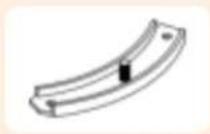
2x NM-AMB1 Mounting Bars
natural_image
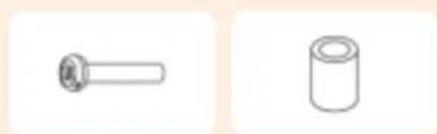
Two simple line drawings of mechanical parts: a cylindrical pin and a cylindrical cylinder (no text or symbols)4x NM-APS1 Plastic Spacers4x NM-ALS1 Screws
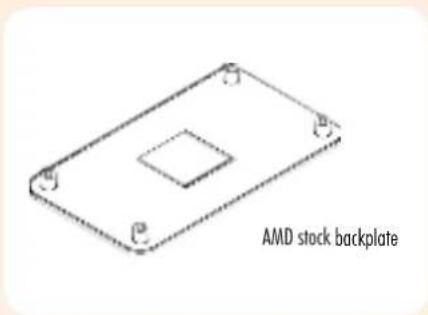
Caution: The SecuFirm2™ mounting system requires a backplate, which is preinstalled on most AMD mainboards. If your mainboard doesn't have a backplate, please contact our support team at support@noctua.at.
Step 1
Removing the retention module
If your mainboard uses a retention module for CPU cooler installation, please remove it first. The SecuFirm2 ^™ mounting system will install directly to your mainboard's stock backplate on the rear side of the socket.
Step 2
Attaching the mounting bars
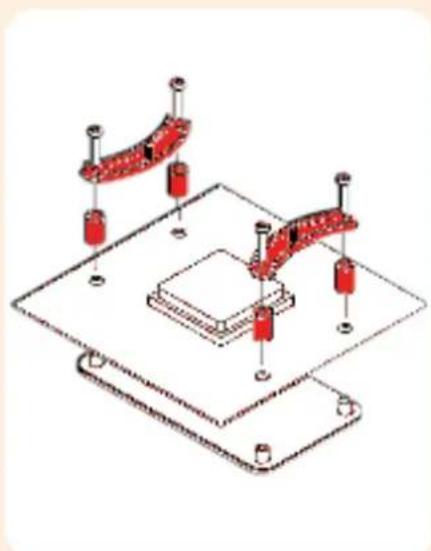
First put the plastic spacers onto the screw threads, then fix the mounting bars using the 4 long screws.
natural_image
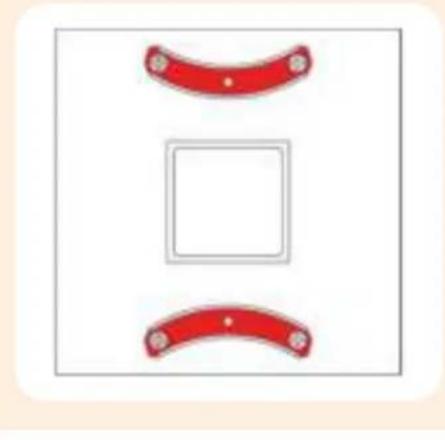
Isometric technical diagram of a mechanical assembly with red components and mounting base (no text or symbols)Caution: Make sure that the curved sides of the mounting bars are pointing outwards.
natural_image
Simple diagram with two red curved bands above a square, no text or symbols present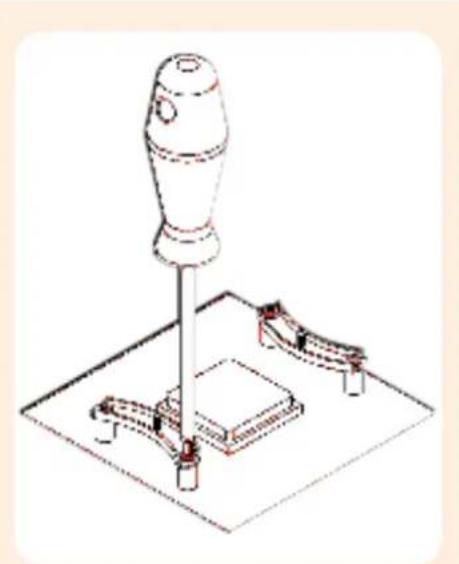
natural_image
Technical line drawing of a mechanical lever assembly with a handle and base mount (no text or symbols)Caution: Tighten the screws until they stop.
Step 3
Applying thermal paste
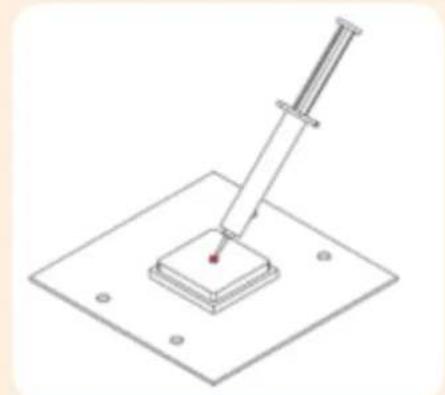
If there are residual traces of thermal paste or thermal pads on your CPU, please clean them off first. Then press a small drop (4-5mm diameter) of NT-H1 onto the centre of the heatspreader.
natural_image
Diagram of a pipette dispensing liquid into a square container on a base plate (no text or symbols)Caution: Applying too much thermal paste will lower the heat conductivity and cooling performance!
Step 4
Fastening the heatsink to the CPU
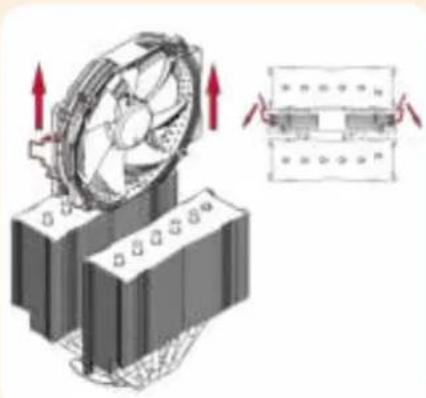
Caution: Please first take off the fan as well as the protection cover at the bottom side of the heatsink.
natural_image
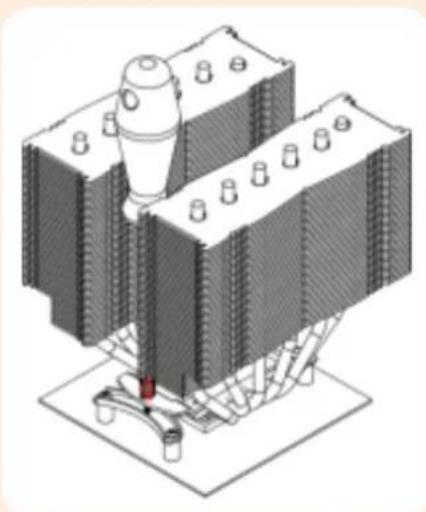
Diagram of a cooling fan mounted on a base with heat transfer arrows, alongside a schematic diagram showing heat distribution (no text or symbols)Then put the heatsink onto the CPU and screw it to the screw threads of the mounting bars.
natural_image
Isometric illustration of a mechanical assembly with a central component and base structure (no text or symbols)Caution: Tighten the screws until they stop.
Step 5
Fan Setup
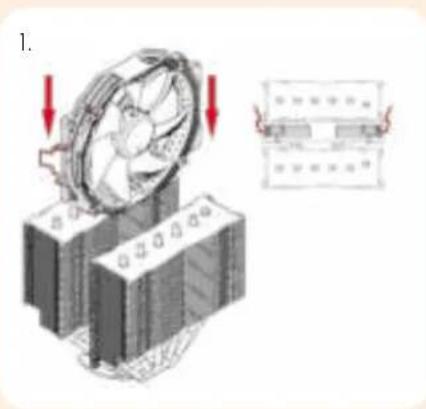
Reattach the fan using the supplied steel clips:
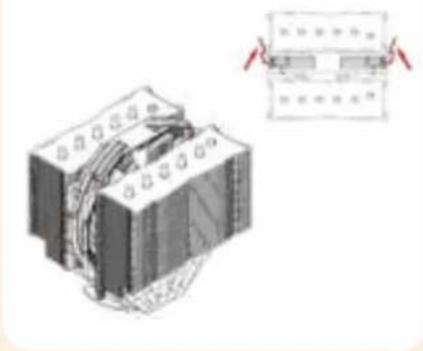
natural_image
Illustration of a mechanical device with attached components and a separate inset showing a close-up of its internal structure (no text or symbols visible)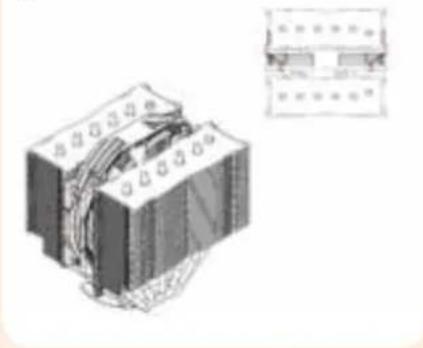
natural_image
Technical illustration of a mechanical or electrical component with no visible text or symbolsConnect the fan to the mainboard's CPU fan header. Depending on your CPU and the temperature inside the case, you may interconnect the supplied NA-RC7 Low-Noise Adapter (L.N.A.) in order to further reduce the fan's operating noise.
Caution: Never use one adaptor for both fans by putting it before the y-split cable.
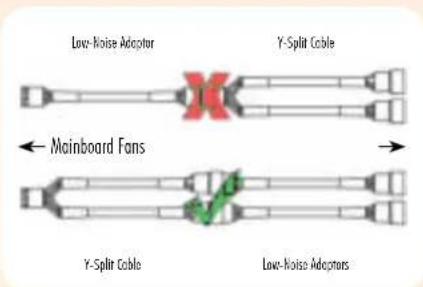
Caution: When using the L.N.A.s, check the temperature of your CPU using appropriate software (e.g. the respective applications of your mainboard manufacturer), in order to evade automatic throttling of the CPU due to the increased temperature. If the cooling performance is insufficient, please increase case ventilation or remove the L.N.A.s.
Adding a second fan
The NH-D15S includes an extra set of fan clips for installing a second fan to the front fin stack in push/pull mode in order to further improve cooling performance. The fan clips support:
- Round frame 140mm fans with 120mm mounting (105mm hole spacing) such as the NF-A15 PWM or the NF-P14r redux models
- Standard 120mm fans (105mm hole spacing) such as the NF-A12, NF-F12 or NF-P12 redux models
Caution:
- It is not possible to install 140mm fans with square frames (124.5mm hole spacing) such as the NF-A14 or NF-P14s redux.
- If you add a second fan to the front fin stack, it will sit above the RAM modules. Please verify that you have sufficient room inside your case before adding a second fan. For example, if you add a 140mm fan and use RAM modules that are 50mm high, you will need 190mm of clearance, adding a 120mm fan while using 50mm RAM requires 170mm, etc.
Warranty, Support and FAQs
Even with high-grade products and strict quality control, the possibility of defects cannot be eliminated entirely. Therefore, we aim at providing the highest possible level of reliability and convenience by offering a warranty period of 6 years and direct, fast and straightforward RMA service.
Should you encounter any problems with your NH-D15S, please don't hesitate to contact our support team (support@noctua.at).
Please also consult the FAQ section on our website: www.noctua.at/faqs.