EXT-WHD-1080P-LR-TX-EU - Émetteur AV Gefen - Free user manual and instructions
Find the device manual for free EXT-WHD-1080P-LR-TX-EU Gefen in PDF.


User questions about EXT-WHD-1080P-LR-TX-EU Gefen
0 question about this device. Answer the ones you know or ask your own.
Ask a new question about this device
Download the instructions for your Émetteur AV in PDF format for free! Find your manual EXT-WHD-1080P-LR-TX-EU - Gefen and take your electronic device back in hand. On this page are published all the documents necessary for the use of your device. EXT-WHD-1080P-LR-TX-EU by Gefen.
USER MANUAL EXT-WHD-1080P-LR-TX-EU Gefen
Wireless for HDMI 5 GHz w/ Dual Inputs and Local Output
EXT-WHD-1080P-LR-TX
EXT-WHD-1080P-LR-RX
User Manual

text_image
GEFEN® Wireless for HDMI 5 GHz R Info input 1 2 GEFEN® Wireless for HDMI 5 GHz S w/ Dual Inputs and Local Output input Info- Read these instructions.
- Keep these instructions.
- Heed all warnings.
- Follow all instructions.
- Do not use this product near water.
- Clean only with a dry cloth.
- Do not block any ventilation openings. Install in accordance with the manufacturer's instructions.
- Do not install or place this product near any heat sources such as radiators, heat registers, stoves, or other apparatus (including amplifiers) that produce heat.
- Do not defeat the safety purpose of the polarized or grounding-type plug. A polarized plug has two blades with one wider than the other. A grounding type plug has two blades and a third grounding prong. The wide blade or the third prong are provided for your safety. If the provided plug does not fit into your outlet, consult an electrician for replacement of the obsolete outlet.
- Protect the power cord from being walked on or pinched particularly at plugs, convenience receptacles, and the point where they exit from the apparatus.
- Only use attachments/accessories specified by the manufacturer.
- To reduce the risk of electric shock and/or damage to this product, never handle or touch this unit or power cord if your hands are wet or damp. Do not expose this product to rain or moisture.
- Unplug this apparatus during lightning storms or when unused for long periods of time.
- Refer all servicing to qualified service personnel. Servicing is required when the apparatus has been damaged in any way, such as power-supply cord or plug is damaged, liquid has been spilled or objects have fallen into the apparatus, the apparatus has been exposed to rain or moisture, does not operate normally, or has been dropped.
- Batteries that may be included with this product and/or accessories should never be exposed to open flame or excessive heat. Always dispose of used batteries according to the instructions.

This device complies with part 15 of the FCC Rules. Operation is subject to the following two conditions: (1) This device may not cause harmful interference, and (2) this device must accept any interference received, including interference that may cause undesired operation.
This equipment has been tested and found to comply with the limits for a class B digital device, pursuant to part 15 of the FCC Rules. These limits
are designed to provide reasonable protection against harmful interference in a residential installation. This equipment generates, uses and can radiate radio frequency energy and if not installed and used in accordance with the instructions, may cause harmful interference to radio communications. However, there is no guarantee that interference will not occur in a particular installation. If this equipment does cause harmful interference to radio or television reception, which can be determined by turning the equipment off and on, the user is encouraged to try to correct the interference by one or more of the following measures:
- Reorient or relocate the receiving antenna
- Increase the separation between the equipment and Receiver unit
- Connect the equipment into an outlet on a circuit different from that to which the Receiver unit is connected
- Consult the dealer or an experienced radio/TV technician for assistance.
In order to maintain compliance with FCC regulations, shielded cables must be used with this equipment. Operation with non-approved equipment or this equipment. Operation with non-approved equipment or unshielded cables is likely result in interference to radio and TV reception. The user is cautioned that changes and modifications made to the equipment without the approval of the manufacturer could void the user's authority to operate this equipment.
Technical Support
(818) 772-9100 (800) 545-6900
8:00 AM to 5:00 PM Monday - Friday, Pacific Time
Fax
(818) 772-9120
support@gefen.com
Web
http://www.gefen.com
Mailing Address
Gefen, LLC
c/o Customer Service
20600 Nordhoff St.
Chatsworth, CA 91311
Product Registration
Register your product here: http://www.gefen.com/kvm/Registry/Registration.jsp
- The Gefen Syner-G Software Suite is a free downloadable application from Gefen that provides firmware upgrades for this product. Always make sure that the Wireless for HDMI 5 GHz w/ Dual Inputs and Local Output is running the latest firmware.
- The maximum extension distance for this product is 100 feet (30 meters) with a clear line-of-sight. Obstructions such as walls and furniture, and RF interference may reduce performance and reception distance.
- This product operates in the 5 GHz RF region, and features a specific number of channels. For number and location of these channels, see the user manual. Other 5 GHz Transmitters, including Wi-Fi routers, may occupy the same channels and cause reception issues. When using 5 GHz Wi-Fi routers, it is important to either turn off the 5 GHz radio in the router or disable its Automatic Channel Assignment and manually select channels for the router that are not in the same area as the EXT-WHD-1080P-LR units are located.
- Due to different transmission power levels, using this product with the Wireless for HDMI 5 GHz (Gefen part no. EXT-WHD-1080P-SR) is not recommended.
• Using multiple Sender and Receiver units:
▶ US Models: Up to 8 Sender units can be registered per Receiver unit. Up to 4 Sender/Receiver systems can be operated in the same environment, simultaneously.
▶ EU Models: Up to 8 Sender units can be registered per Receiver unit. Up to 2 Sender/Receiver systems can be operated in the same environment, simultaneously.
▶ Each Sender and Receiver unit must placed at least 1 meter apart for optimum performance. If additional Sender / Receiver pairs are to be used, each set of units must be placed beyond the reception range (100 feet / 30 meters) of the other Sender / Receiver pairs in order to prevent interference.
- This product is not compatible with the Wireless for HDMI Extender LR (Gefen part no. GTV-WHD-1080P-LR) or the Wireless for HDMI Extender SR (Gefen part no. GTV-WHD-1080P-SR).
Wireless for HDMI 5 GHz w/ Dual Inputs and Local Output is a trademark of Gefen, LLC.
© 2016 Gefen, LLC. All Rights Reserved. All trademarks are the property of their respective owners.
Gefen, LLC reserves the right to make changes in the hardware, packaging, and any accompanying documentation without prior written notice.


Features
- Wireless extension of HDMI up to 100 feet (30 meters)
- Supports resolutions up to 1080p Full HD, up to 7.1 channels of LPCM digital audio, and up to 5.1 channels of Dolby® and DTS® formats
- Transmits through obstacles - does not require line-of-sight
- Long Range performance makes it ideal for multi-room use
- IR Back Channel for source control with carrier frequency selector
• HDMI Features Supported
▶ CEC
▶ 12-bit Deep Color
▶ 3DTV pass-through
▶ HDCP pass-through
▶ Lip Sync
- Uncompressed High Definition A/V from source to display
• Less than 1 frame latency
- AES 128 Encryption
- Compatible with legacy DVI displays
- Sender Unit
▶ 2 HDMI Inputs
▶ Local HDMI "Mirrored" Output
▶ IR Output port and included Emitter Array for source control
▶ Ideal for use with 2 sources in a fixed home theater type installation
▶ Flexible mounting options: 14 -20 thread, wall mounting, shelf placement
- Receiver Unit
▶ IR Extender module included for hidden installations
▶ Small and compact form factor - can be installed behind the TV
▶ Flexible mounting options: 14 "-20 thread, wall mounting, shelf placement
- Handheld IR remote for easy setup and operation
- Firmware update via Mini-USB port using Gefen Syner-G™ software
- WHDI 1.0, FCC Part 15, IC, and ETSI-compliant
• Additional Sender units (Gefen part no. EXT-WHD-1080P-LR-TX) available separately
Packing List
The Wireless for HDMI 5 GHz w/ Dual Inputs and Local Output ships with the items listed below. The packing contents for each product are listed below. If any of these items are not present in the box when you first open it, immediately contact your dealer or Gefen.
EXT-WHD-1080P-LR
• 1 x Wireless for HDMI 5 GHz LR Sender Unit
• 1 x Wireless for HDMI 5 GHz LR Receiver Unit
• 2 x 5 ft. HDMI Cables (M-M)
• 1 x 5 ft. USB to Mini USB Cable
- 1 x 3 ft. USB to DC plug Cable
- 2 x 5V DC Power Supplies with changeable AC plugs
• 1 x IR Remote Control
• 1 x IR Emitter Array Cable
• 1 x IR Extender Module
- 4 x Screws and Wall Anchors - for wall-mounting the Sender and Receiver
• 1 x Quick-Start Guide
EXT-WHD-1080P-LR-TX
• 1 x Wireless for HDMI 5 GHz LR Sender Unit
• 1 x 5 ft. HDMI Cable (M-M)
- 1 x 3 ft. USB to DC plug Cable
- 1 x 5V DC Power Supply with changeable AC plugs
• 1 x IR Emitter Array Cable
- 2 x Screws and Wall Anchors - for wall-mounting the Sender
• 1 x Quick-Start Guide

HIGH-DEFINITION MULTIMEDIA INTERFACE

PROGRESSIVE




Deep Color Support

Encryption

Up to 8
Senders
1 Getting Started
Introduction....2
Sender Unit 2
Receiver Unit....5
IR Remote Control 7
Installing the Batteries....8
Installation 9
Connection Instructions....9
Sample Wiring Diagram 10
2 Basic Operation
The Linking Process.... 14
Switching Sources.... 16
Getting Source Information 18
Setting the IR Frequency....20
Using Multiple Sender Units 21
Registering Sender Units 21
Selecting a Sender Unit 26
Changing the Name of a Sender Unit 28
Removing Sender Units 31
3 Appendix
Surface-mounting Instructions.... 36
LED Indicator Messages 37
Icon Messages 39
Supported Resolutions....40
Specifications 41
Index......43
This page left intentionally blank.
This page left intentionally blank.
Wireless for HDMI 5 GHz
w/ Dual Inputs and Local Output
1 Getting Started
Sender Unit

text_image
GEFEN® Wireless for HDMI 5 GHz S w/ Dual Inputs and Local Output Input1 2 Info 1 2 3 7 DC 6V HDMI 1 SINCE 2 HIND OUT UR OUT SERVICE 4 5 9 input 2 info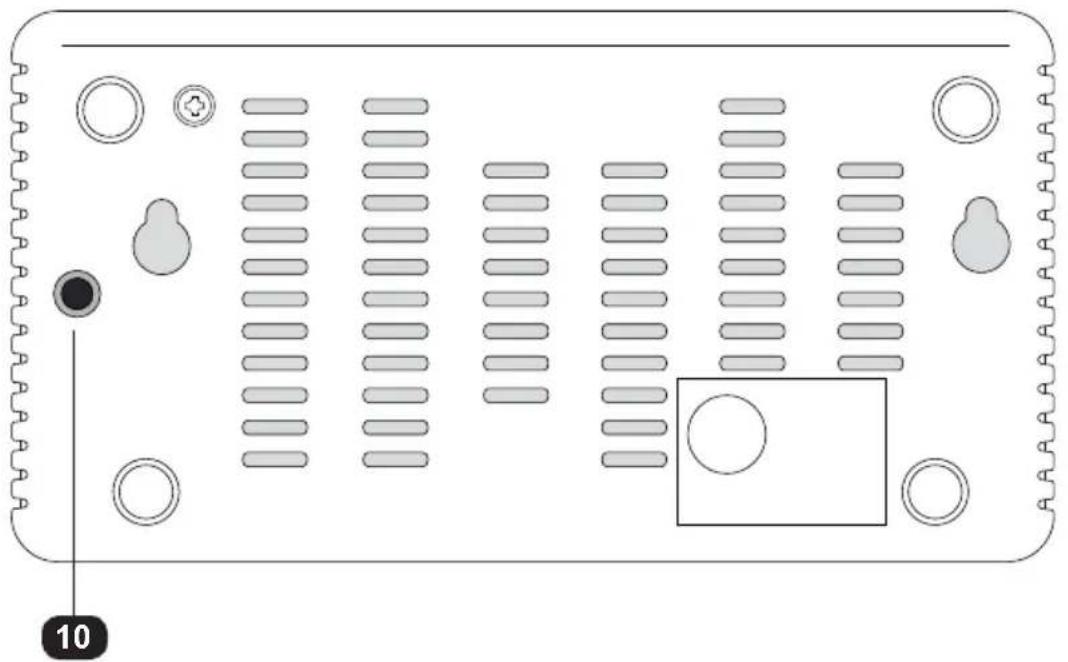
natural_image
Diagram of a computer monitor front panel with slots, buttons, and a highlighted screen (no text or symbols)| ID Name Description | |
| 1 1, 2 These LED indicators will glow solid blue to indicate the currently selected input. | |
| 2 Input Press and release this button to select the desired input. | |
| 3 Info Press this button to display the info screen on the connected display. The LED indicator indicates the current state of the Sender unit. See LED Indicator Messages (page 37) for more information on LED messages. | |
| 4 DC 5V Connect the included power supply from available AC outlet to this power connector. | |
| 5 HDMI 1, HDMI 2 Connect the included HDMI cables from each HD source to these HDMI inputs. | |
| 6 HDMI Out Connect an HDMI cable from this connector to a local HD display. The local display allows monitoring of the HD source at the Sender unit. |
ID Name Description
| 7 IR Out Connect the included IR emitter array from this jack to the HD sources to control the source from the viewing location. | |
| 8 SERVICE This mini-B USB port is used for firmware upgrades using Gefen Syner-GTM. | |
| 9 IR sensor This IR sensor receives signals from the included IR remote control. | |
| 10 Tripod connector This 1/4” 20-thread hole can be used to connect the Sender unit to a camera tripod. |
Receiver Unit
GEFEN®

flowchart
graph TD
    A["Info"] --> B["1"]
    C["Input"] --> D["2"]
    E["1"] --> F["3"]
    G["2"] --> H["3"]
Wireless for HDMI 5 GHz R
text_image
4 5 6 7 HDMI R IN 8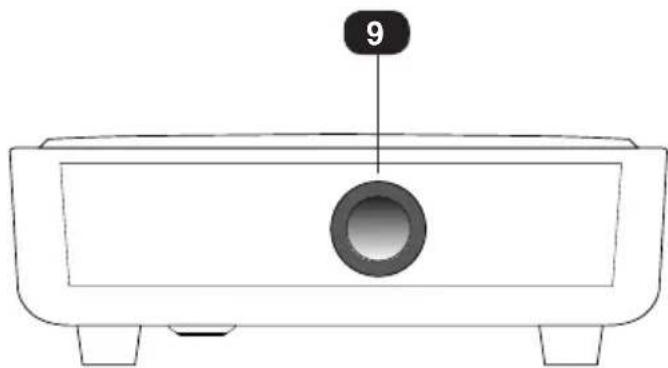
natural_image
Line drawing of a rectangular basin with a circular opening and a numbered label '9' pointing to the top (no text or symbols on the basin itself)
natural_image
Diagram of an electronic device casing with labeled ports and buttons (no readable text or symbols)ID Name Description
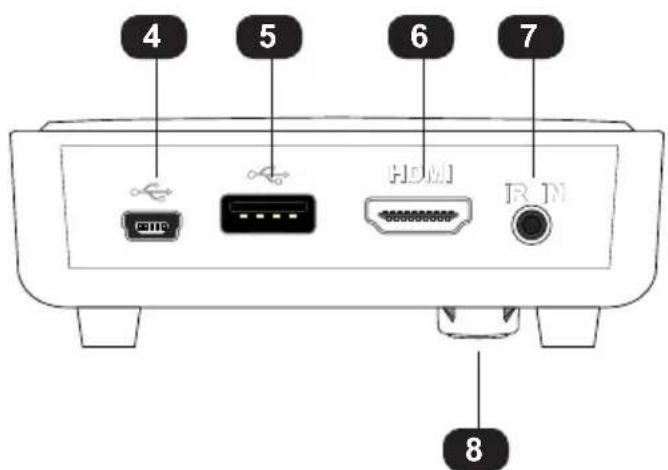
| 1 Info Press this button to display the info screen | on the connected display. The LED indicator indicates the current state of the Receiver unit. SeeLED Indicator Messages(page 37) for more information on LED messages. |
| 2 Input Press and release this button to select the desired input. | |
| 3 1, 2 These LED indicators will glow solid blue to indicate the selected input on the Sender unit. | |
| 4 Mini-B USB port Connect the included power supply with the mini-B USB connector to this port. | |
| 5 USB port This port is factory use only. | |
| 6 HDMI Connect an HDMI cable from this connector to an HD display. | |
| 7 IR In Connect the included IR Extender to this port, if required. | |
| 8 Tripod connector This 1/4” 20-thread hole can be used to connect the Receiver unit to a camera tripod. | |
| 9 IR sensor This IR sensor receives IR signals. See Connection Instructions (page 9). |
IR Remote Control

text_image
1 SenderIR 5 Input 2 OK 3 4 GEFEN® RMT-WHD-1080P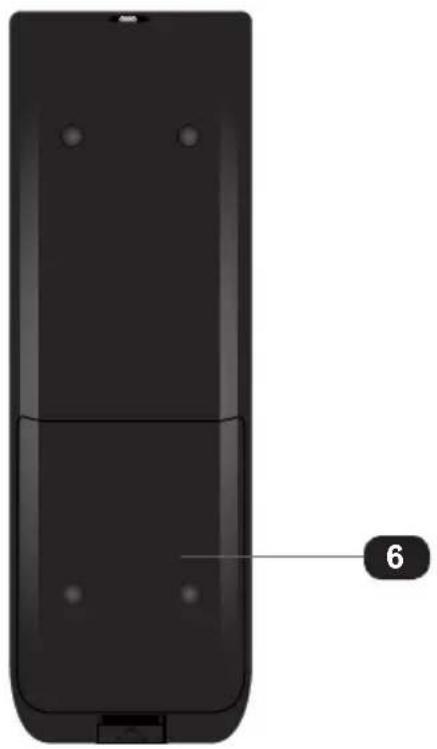
natural_image
Top-down view of a black remote control panel with labeled component '6' (no text or symbols on the panel itself)ID Name Description
| 1 IR Press this button to set the IR frequency | required by the source device to use the IR emitter array. See Setting the IR Frequency (page 20) for more information. | |
| 2 Input Press this button to select the desired input on the active Sender unit. | ||
| 3 | ▲, ▼, ◀, ▶ | Press these buttons to select the desired option in the Information Window. |
| 4 OK Press this button to accept the current | change within the OSD. | |
| 5 Sender Press this button to add, delete, or edit | Sender units. See Using Multiple Sender Units (page 21) for more information. | |
| 6 Battery cover See Installing the Batteries (page 8) for more information. | ||
Installing the Batteries

Warning!
Risk of explosion if battery is replaced by an incorrect type. Dispose of used batteries according to the instructions.
- Push and pull-up the tab at bottom of the IR remote to remove the battery cover.
- Make sure that the batteries are installed with the correct polarity, as shown in the illustration, below. Always use two 1.5V AAA-type batteries.
- Replace the battery cover. Push the battery cover down until the tab snaps in place.
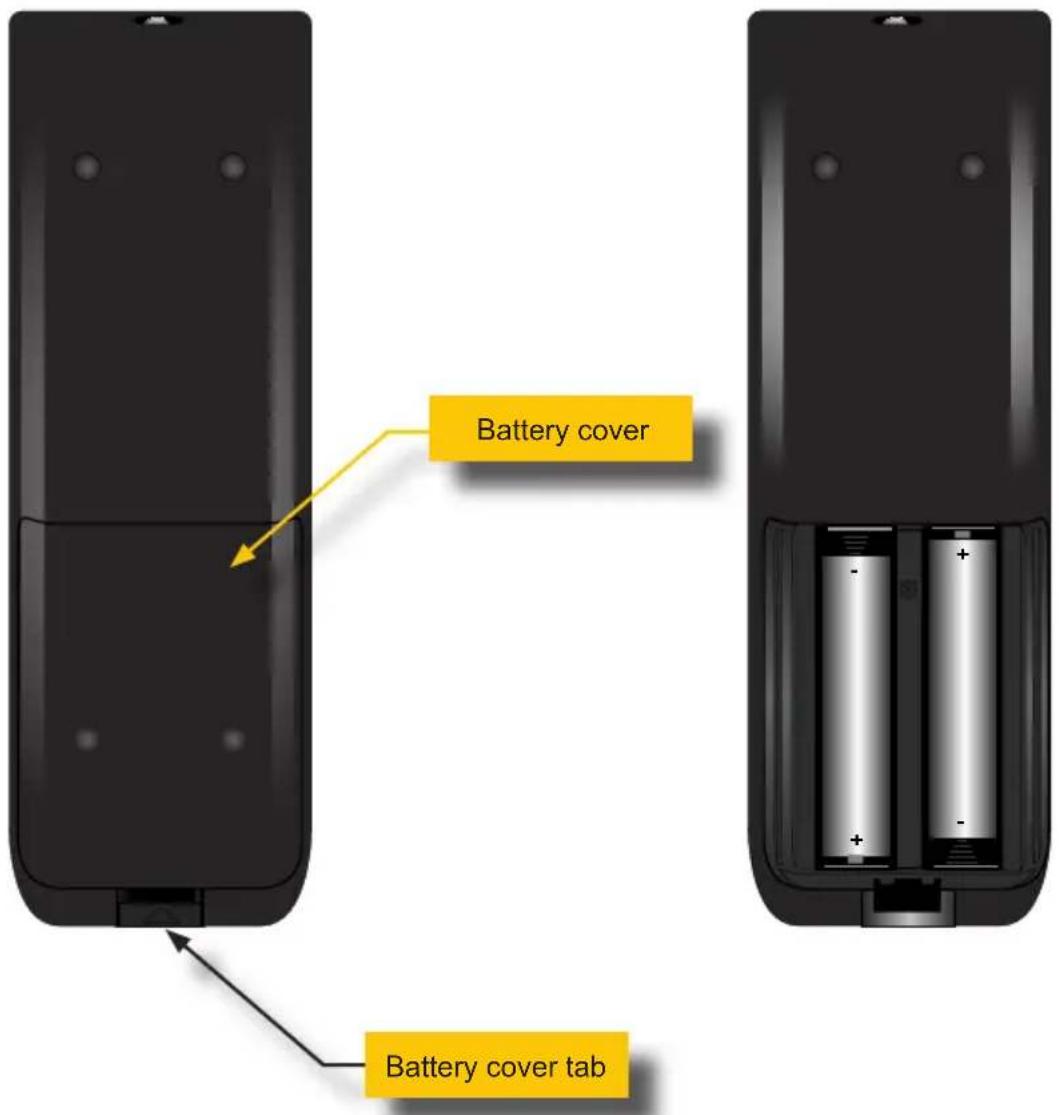
text_image
Battery cover Battery cover tabConnection Instructions
The maximum extension distance for this product is 100 feet (30 meters) with a clear line-of-sight. Obstructions such as walls and furniture, and RF interference may reduce performance and reception distance.
This product operates in the 5 GHz RF region, and features a specific number of channels. For number and location of these channels, see the User Manual. Other 5 GHz transmitters, including Wi-Fi routers, may occupy the same channels and cause reception issues. When using 5 GHz Wi-Fi routers, it is important to either turn off the 5 GHz radio in the router or disable its Automatic Channel Assignment and manually select channels for the router that are not in the same area as the EXT-WHD-1080P-LR units are located.
▶ Video
- Connect one of the included HDMI cables from the HD source to the HDMI 1 port on the Sender unit.
- Connect the other (included) HDMI cable from a second HD source to the HDMI 2 port.
- Connect an HDMI cable from the HDMI Out port on the Sender unit to a local HD display. This display will allow monitoring of the HD source.
For best results, the local display should be identical, or have the same capabilities as the main display in terms of resolution and features (e.g. CEC, 3D, 1080p).
▶ IR Control - see Sample Wiring Diagram (page 10)
- Connect the included IR emitter array from the IR Out port on the Sender unit to the HD sources. This will allow the sources to be controlled from the viewing location.
- Connect the included IR Extender to the IR In port on the Receiver unit.

Information
Once the IR extender is connected to the Receiver unit, the IR sensor on the Receiver unit will be disabled.
▶ Power
- Connect the power supply with the round power connector to the Sender unit.
- Connect the power supply with the mini-B USB connector to the Receiver unit.
Sample Wiring Diagram
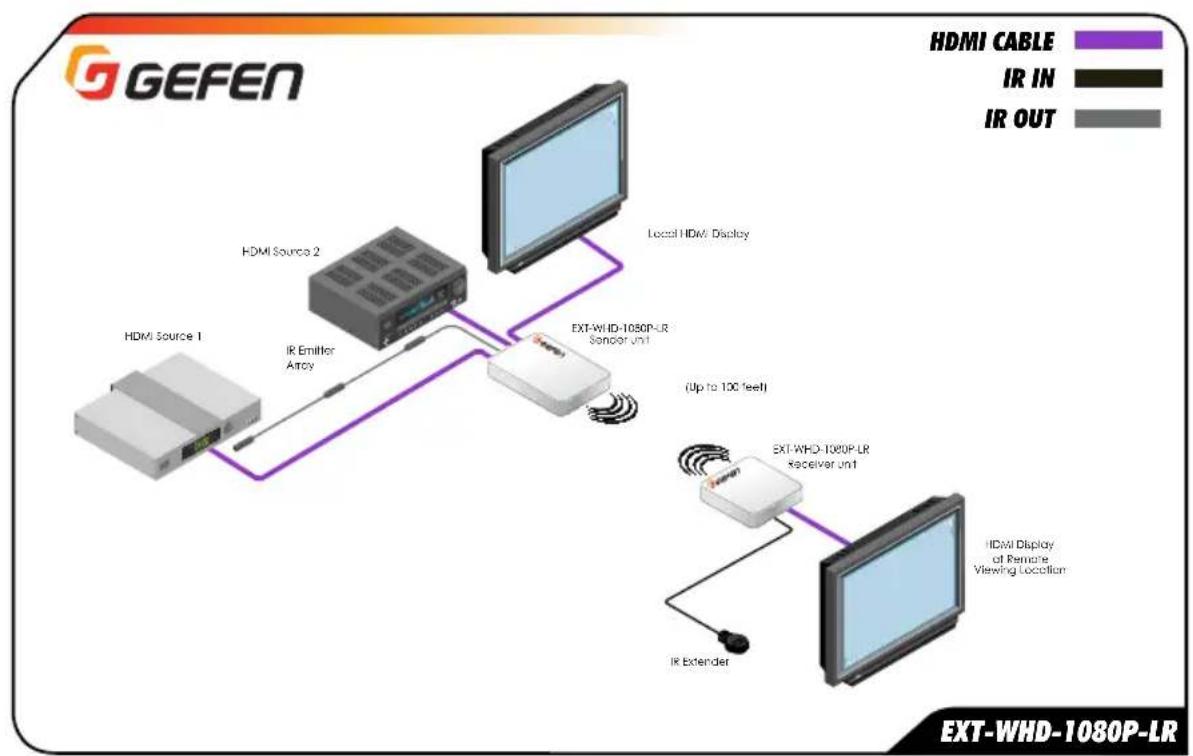
flowchart
graph TD
    A["HDMI Source 1"] -->|IR Emitter Array| B["Exter-WHD-1080P-LR Sensor Unit"]
    C["HDMI Source 2"] -->|Local HDW Display| D["Local HDW Display"]
    B -->|Up to 100 feet| E["Ext-WHD-1080P-LR Receiver Unit"]
    E --> F["Remote Viewing Location"]
    G["IR Extender"] --> E
    H["IR IN"] --> B
    I["IR OUT"] --> D
    J["EXT-WHD-1080P-LR"] --> E
This page left intentionally blank.
This page left intentionally blank.
Wireless for HDMI 5 GHz w/ Dual Inputs and Local Output
2 Basic Operation
The Linking Process
Once the power supplies are connected, the Sender and Receiver unit(s) will begin the linking process. During this time, the LED indicator on the Info buttons and Input LED Indicators will flash blue for approximately 10 - 15 seconds. After this time, the source will be shown on the display that is connected to the Receiver unit.
Figure 2.1 - Info and Input LED indicators flash blue during the linking process.

flowchart
graph TD
    A["GeFEN®"] -->|Wireless for HDMI 5 GHz S w/ Dual Inputs and Local Output| B["1 2 Input Info"]
    C["GeFEN®"] -->|Wireless for HDMI 5 GHz R| D["Info Input 1 2"]
    B --> E["1 2 Input Info"]
    D --> F["Info Input 1 2"]
    E --> G["Flashing Input LED"]
    F --> H["Flashing Info LED"]
By default, HDMI 1 is selected. Therefore, the Input LED indicator for HDMI 1 will flash along with the Info LED indicator. If HDMI 2 is selected, then the LED indicator will flash along with the Info LED indicator. See Switching Sources (page 16) for more information on switching sources.
Figure 2.2 - Info and Input LED indicators are solid blue when linked.

flowchart
graph TD
    A["HDMI1 CH1 1920x1080"] --> B["An information window will be shown, in the upper-left corner of the display, for a few seconds after the Sender and Receiver unit are successfully linked. This window can be displayed at anytime by pressing the Info button. See Getting Source Information (page 18) for more information."]
    B --> C["Wireless for HDMI 5 GHz S w/ Dual Inputs and Local Output"]
    C --> D["Input 1 Info"]
    D --> E["Solid Input LED"]
    C --> F["Wireless for HDMI 5 GHz R"]
    F --> G["Info Input"]
    G --> H["Info"]
    H --> I["Solid Info LED"]
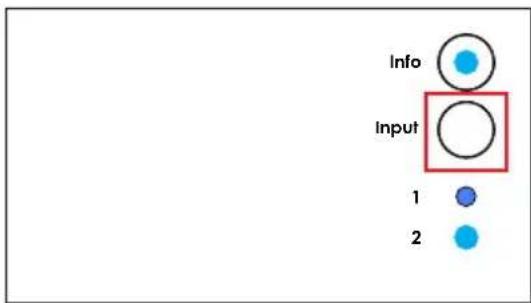
Two HD sources can be connected to a single Sender unit. Press the Input button on the Sender or Receiver unit or on the included IR remote control to toggle between HDMI 1 and HDMI 2 input ports.

Information
Note that before switching sources, a Sender unit must be registered with the Receiver unit. Refer to Registering Sender Units (page 21) if you need to pair units.
- Make sure two sources are connected to the Sender unit.
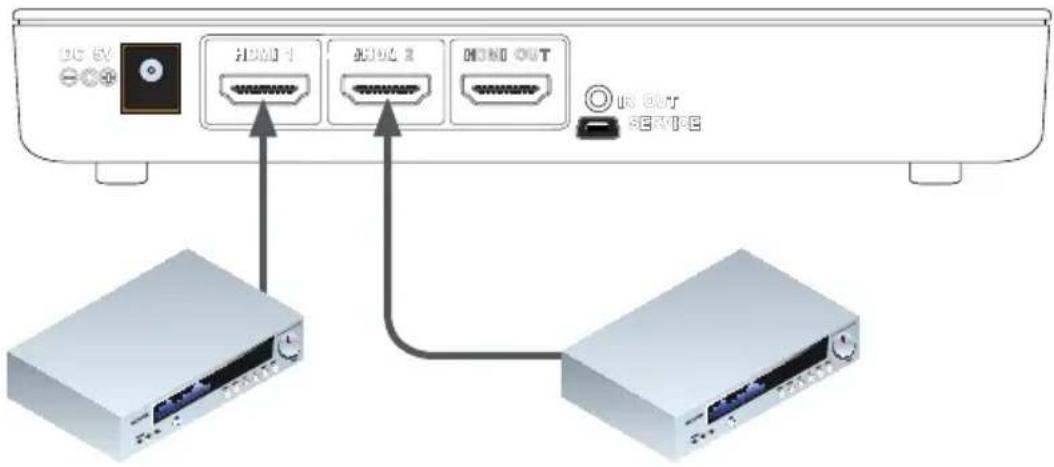
text_image
DC 6V HDMI WiFi HDMI OUT USB OUT SERVICE- Press the Input button on the Sender or Receiver unit or on the IR remote control. In the example, both the Sender and Receiver indicate that HDMI 2 is the active input.
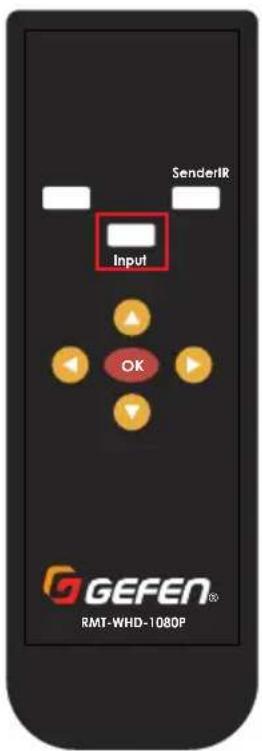
text_image
SenderIR Input OK GEFEN® RMT-WHD-1080P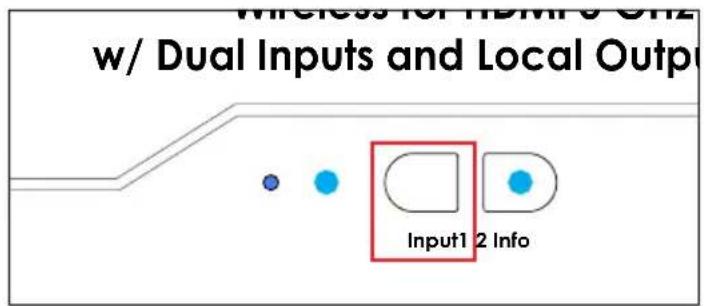
text_image
Wireless for HDMI 6 GHz w/ Dual Inputs and Local Outp Input1 2 InfoSender unit
text_image
Info Input 1 2Receiver unit
If the IR remote control is being used, make sure to point the remote at the IR sensor on the Sender or Receiver unit. If using an IR extender, point the IR remote at the sensor of the IR extender.
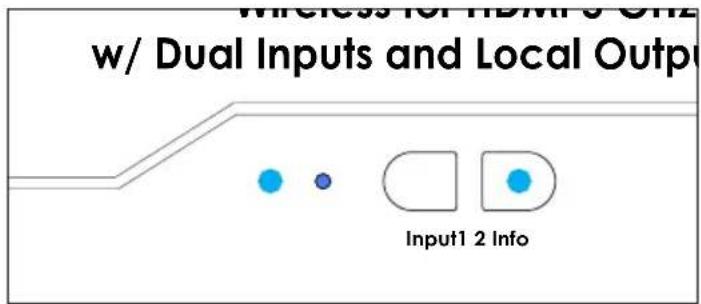
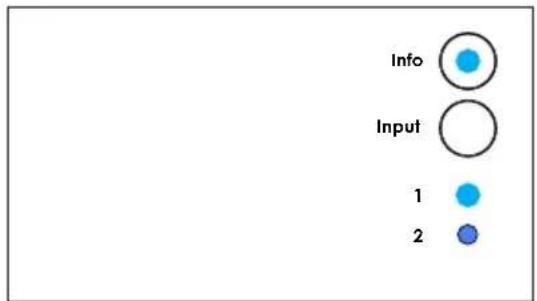
- The input indicator on the Sender and Receiver unit will switch to the opposite input. In our example, HDMI 1 is now the active input.
text_image
Wireless for HDMI-3 GHz w/ Dual Inputs and Local Outp Input1 2 InfoSender unit
text_image
Info Input 1 2Receiver unit
- To return to switch to the other input, press the Input button again.
Getting Source Information
- Make sure at least one HD source is connected to the Sender unit and the source is connected to the active input.
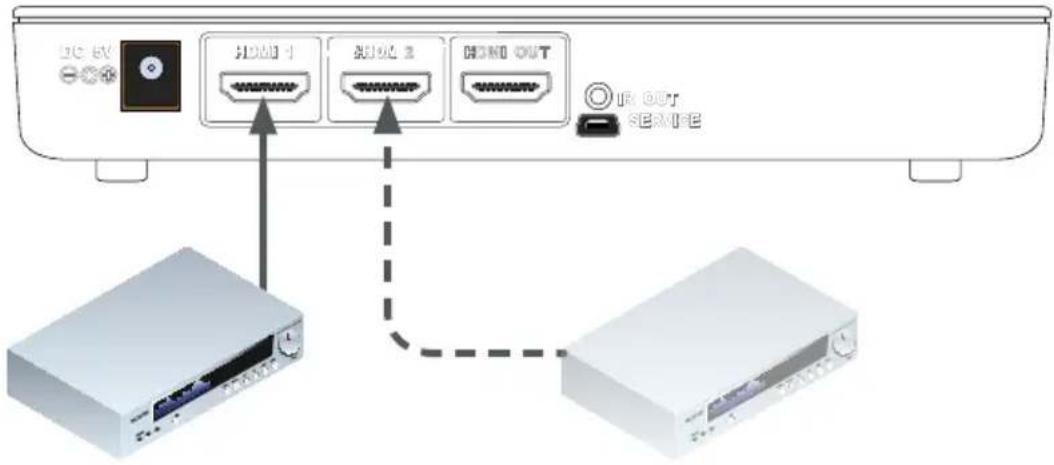
flowchart
graph TD
    A["IC 6V"] --> B["HDMI 1"]
    B --> C["OUTPUT 2"]
    C --> D["CHINA OUT"]
    D --> E["IR OUT SERVICE"]
- Press the Info button on the Sender or Receiver unit.

flowchart
graph TD
    A["GEFEN"] --> B["Wireless for HDMI 5 GHz S w/ Dual Inputs and Local Output"]
    B --> C["1 2 Input Info"]
    B --> D["Info button"]
    E["GEFEN"] --> F["Wireless for HDMI 5 GHz R"]
    F --> G["Info Input"]
    F --> H["Info Button"]
- Information, similar to the following, will be shown on the display connected to the Receiver unit. Note that this information window is not displayed on the local output.
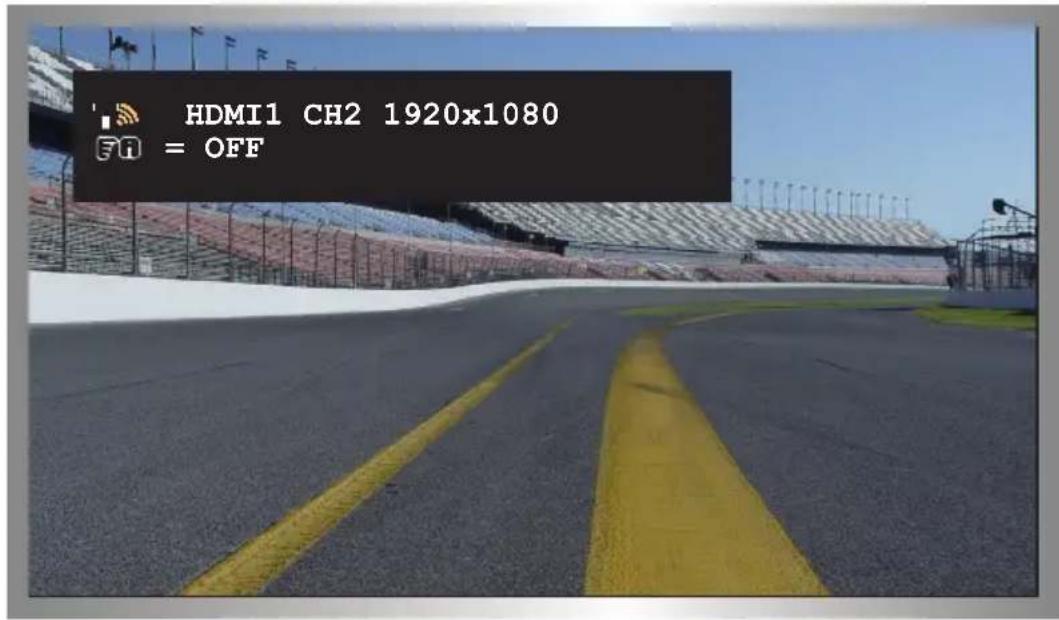
text_image
HDMI1 CH2 1920x1080 = OFF
flowchart
graph TD
    A["Link icon"] --> B["Input"]
    B --> C["Channel Resolution"]
    C --> D["HDMI1 = OFF"]
    C --> E["CH2"]
    C --> F["1920x1080"]
The Link icon indicates that the Receiver unit is connected to the Sender unit and is passing A/V data. See LED Indicator Messages (page 37) for more information on status icons.
The currently selected (active) HDMI input is indicated, along with the channel and output resolution. The channel is automatically selected to provide the best connection between the Sender and Receiver unit.
The icon below the Link icon indicates that the Info button can be pressed to dismiss the information window.
- Press the Info button to dismiss the window.
The IR frequency of the Sender unit can be changed to accommodate the IR frequency of the source device. Three frequencies are available: 38 kHz, 47 kHz, and 56 kHz.
Most sources operate on 38 kHz IR frequency, but there are some cable/satellite boxes that require 56 kHz. In cases where the Sender unit needs to control both types of devices, the 47 kHz frequency may deliver the best results, depending on the devices being controlled. The IR frequency of the Sender unit can be changed to accommodate the IR frequency of the source device. Three frequencies are available: 38 kHz, 47 kHz, and 56 kHz. See Sample Wiring Diagram (page 10) for more information on connecting the IR emitter array.
- Point the IR remote control at the IR sensor on Sender or Receiver unit. If using an IR extender, point the remote at the sensor of the IR extender.
- Press the IR button on the IR remote control. The current IR frequency will be displayed in the information window.

text_image
HDMI1 CH2 1920x1080 ir = 47KHz SenderIR Input OK GEFEN® RMT-WHD-1080P- Press and release the IR button to cycle through each of the available frequencies, until the desired frequency is displayed.

text_image
HDMI1 CH2 1920x1080 ir = 38KHz IR frequency- The new IR frequency is now set.
- The information window will disappear after a few seconds.
Registering Sender Units
If purchasing additional Sender units, each Sender unit must be registered with a Receiver unit in order for the Sender unit to communicate with the Receiver unit. Up to eight Sender units can be registered to a Receiver unit.
In the example, below, Sender unit S1 is already registered with the Receiver unit, allowing both Sender unit S1 and the Receiver unit to communicate. We will be adding Sender unit S2.
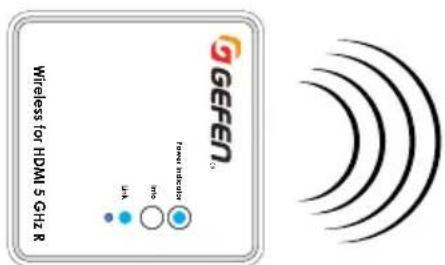
text_image
GEFEN Wireless for HDMI 5 GHz R USA INFO TAFE RECORDERReceiver unit

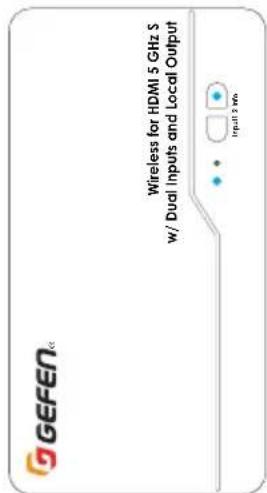
text_image
G E F E N Wireless for HDMI 5 GHz S w/ Dual Inputs and Local Output Input 2 mmSender unit S1

text_image
GEVEN Wireless for HDMI 5 GHz S w/ Dual Inputs and Local Output Input 2 secSender unit S2
- Connect up to two HD sources to the new Sender unit, using ports HDMI 1 and HDMI 2.
- Point the IR remote control at the IR sensor of the Receiver unit.
- Press the Sender button on the included IR remote control.
- The Select Transmitter window will be displayed.

text_image
Select Transmitter 1080PLRS Setup SenderIR Input OK GEFEN® RMT-WHD-1080P- Press the ▼ button on the IR remote control to highlight the Setup option.
Select Transmitter
1080PLRS
Setup
- Press the OK button.
- The Setup window will be displayed. The Add New Transmitter option will be highlighted.
Setup
Add New Transmitter
→ Remove Transmitter
→ Modify Transmitter Name
Return
-
Press the OK button.
-
The display will go black and the following message will be displayed as the Receiver unit searches for additional Sender units.

text_image
Searching....- The Info LED indicator on the Receiver unit will slowly flash bright magenta, indicating that it is in register mode.
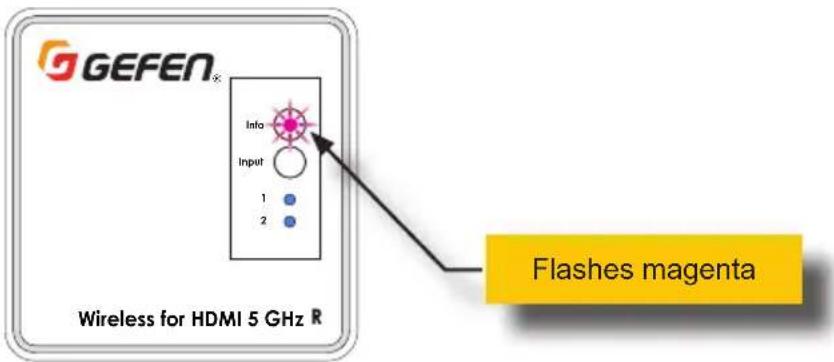
text_image
GEFEN® Info Input 1 2 Flashes magenta Wireless for HDMI 5 GHz R- Press and hold the Info button on the new Sender unit while connecting the power supply. Continue pressing the Info button for a few seconds until the Info LED turns to bright magenta.
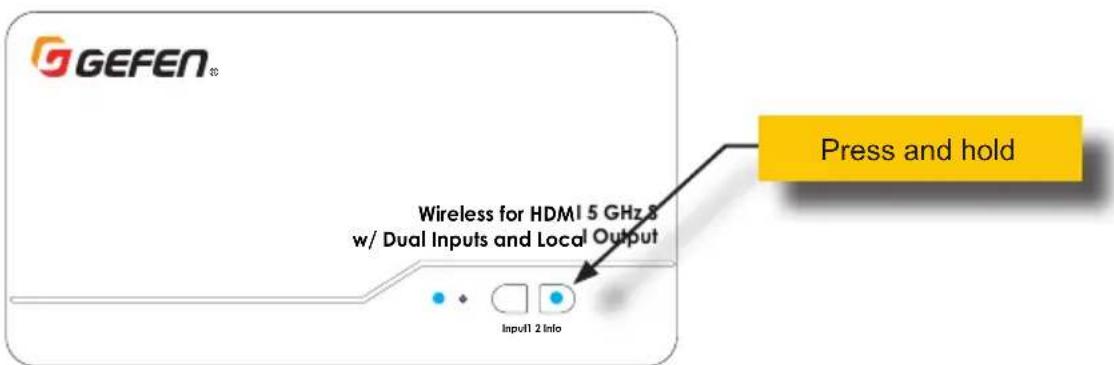
text_image
GEFEN® Wireless for HDMI 5 GHz 8 w/ Dual Inputs and Local Output Input1 2 Info Press and hold- After a few moments, the Info LED indicator on both the Receiver unit and the new Sender unit will flash bright magenta. Both units are now in register mode.

text_image
GEFEN® Flashes magenta Wireless for HDMI 5 GHz S w/ Dual Inputs and Local Output Input1 2 Info
text_image
GEFENₓ Info Input 1 2 Wireless for HDMI 5 GHz R- Release the Info button on the Sender unit.
- After the new Sender unit has been found, the registration process will begin:

text_image
Adding 1080PLRS- To cancel the searching process, press the Sender button on the IR remote control. You will be returned to the Select Transmitter screen:
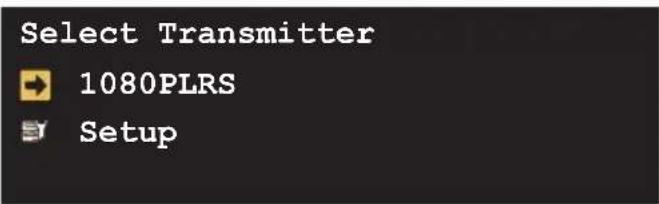
text_image
Select Transmitter 1080PLRS Setup- If no additional Sender units are found, then the following message will be displayed.

text_image
New WHDI source was not foundThe Select Transmitter screen will then be displayed.
Select Transmitter

1080PLRS

Setup
- Once the pairing has completed, The video from the registered Sender will be displayed or it will go to Search mode, then you must choose between the registered Senders in the Select Transmitter window.
text_image
Wireless for HDMI 5 GHz G EGFEN U.S. SNO. Power indicatorReceiver unit



text_image
GEFE9 Wireless for HDMI 5 GHz S w/ Dual Inputs and Local Output Input: 2 mmSender unit S1


text_image
G E F E N Wireless for HDMI 5 GHz S w/ Dual Inputs and Local Output HDMI 5 BitsSender unit S2

Information
By default, the Sender unit will use HDMI 1 as the input, when connecting to another Sender unit. If the source image is not displayed, check to make sure a source is connected to the HDMI 1 port and that HDMI 1 is the active input. See Switching Sources (page 16) if necessary.
Selecting a Sender Unit
Use this feature to switch between multiple Sender units. To switch between source devices on the active Sender unit, see Switching Sources (page 16).
- Point the IR remote control at IR sensor (or the IR extender) of the Receiver unit.
- Press the Sender button on the IR remote control.
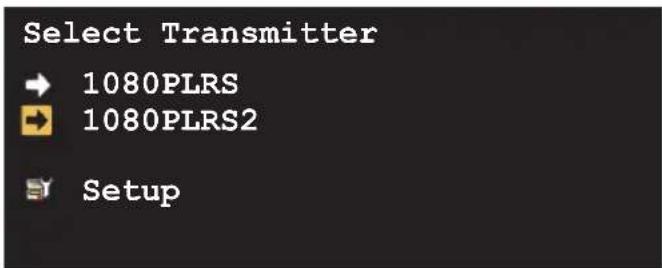
- The list of available Sender units will be displayed within the Select Transmitter window.
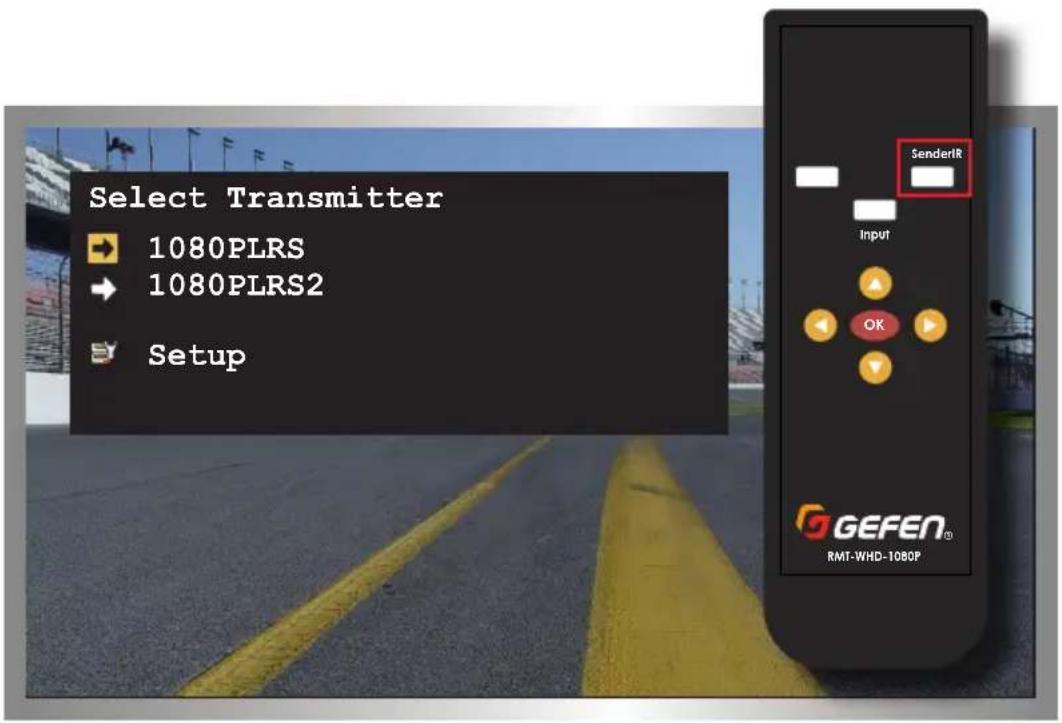
text_image
Select Transmitter 1080PLRS 1080PLRS2 Setup SenderIR Input OK GEFEN® RMT-WHD-1080P- Press the ▼ and ▲ buttons to highlight the desired Sender unit.
text_image
Select Transmitter 1080PLRS 1080PLRS2 Setup- Press the OK button.
-
The display will go blank.
-
After about 10 seconds, the image from the source device on the selected Sender unit will appear on the display.

natural_image
Nighttime cityscape with illuminated skyscrapers reflected in water, no visible text or signageChanging the Name of a Sender Unit
This feature allows the default name of a Sender unit, in the list, to be modified.
- Point the IR remote control at IR sensor (or the IR extender) of the Receiver unit.
- Press the Sender button.
- The list of available Sender units will be displayed within the Select Transmitter window.

text_image
Select Transmitter 1080PLRS 1080PLRS2 Setup SenderIR Input OK GEFEN® RMT-WHD-1080P- Press the ▼ button on the IR remote control to highlight the Setup option.
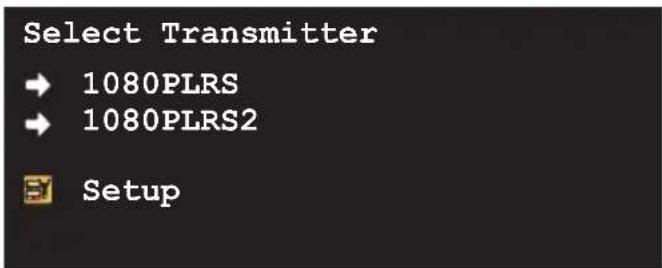
text_image
Select Transmitter → 1080PLRS → 1080PLRS2 Setup- Press the OK button.
- The Setup window will be displayed. The Add New Transmitter option will be highlighted.
- Press the ▼ button on the IR remote control to highlight the Modify Transmitter Name option.
Setup

text_image
Add New Transmitter Remove Transmitter Modify Transmitter Name Return- Press the OK button.
- The first item in this list will be highlighted. Use the ▲ or ▼ buttons to highlight the desired Sender unit to be edited.
Edit Registered Transmitter Name
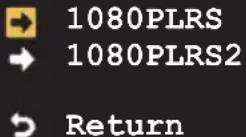
- Press the OK button.
- The Edit transmitter name window will be displayed.
Edit transmitter name
1080PLRS
IR = Delete
- The first character in the name will be highlighted with a cursor, as shown below.
1080PLRS
▶ Use the ◀ or ▶ buttons to move the cursor forward and backward within the name.
▶ Press the IR button to erase the current character. When the character is erased, the remaining characters will be shifted to the left as shown:
080PLRS
▶ Use the ▲ or ▼ button to select the desired character. The maximum length for the Sender unit description is 16 characters.
Table 1.1 - Available characters for naming Sender units. The character in the upper-left corner of the table is a [SPACE] character.
| 01 | 234 | 56 | 789 | abcd | |||||||||
| efghijklmnopqrs | |||||||||||||
| tuvwxyzABCDEFGH | |||||||||||||
| IJKLMNO PQ RSTUVW | |||||||||||||
| XYZ | |||||||||||||
- Once the desired name has been entered, press the OK button to accept the change.
- Press the Sender button to immediately dismiss the window. If the Sender button is not pressed, then the window will automatically be dismissed within 10 seconds. Rebooting the Sender unit is not required.
Removing Sender Units
When a Sender unit is removed (unregistered), it will be removed from the Receiver unit and will no longer be recognized.
- Point the IR remote control at IR sensor (or the IR extender) of the Receiver unit.
- Press the Sender button on the IR remote control.
- The Select Transmitter window will be displayed.
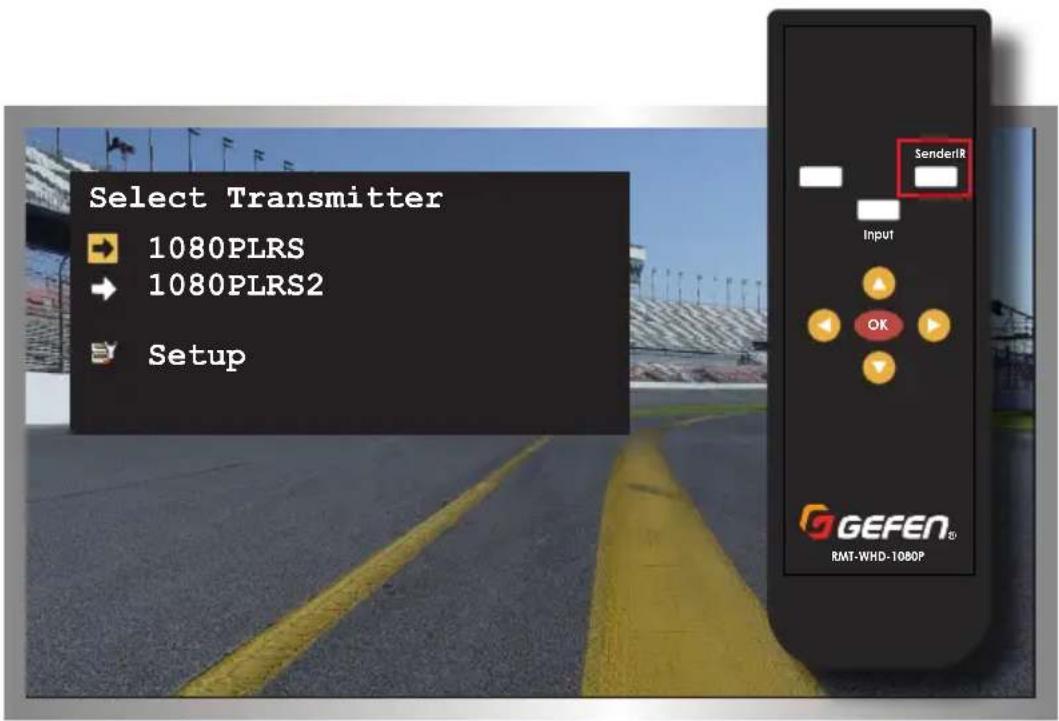
text_image
Select Transmitter 1080PLRS 1080PLRS2 Setup SenderIR Input OK GEFEN® RMT-WHD-1080P- Press the ▼ button on the IR remote control to highlight the Setup option.
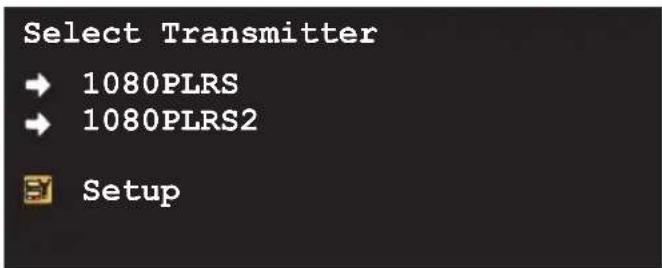
text_image
Select Transmitter → 1080PLRS → 1080PLRS2 Setup- Press the OK button.
- The Setup window will be displayed. The Add New Transmitter option will be highlighted.
Setup
Add New Transmitter
→ Remove Transmitter
→ Modify Transmitter Name
Return
- Press the ▼ button on the IR remote control to highlight the Remove Transmitter option.
Setup
→ Add New Transmitter
Remove Transmitter
Modify Transmitter Name
Return
- Press the OK button.
- The Remove Registered Transmitter window will be displayed.
Remove Registered Transmitter
1080PLRS
1080PLRS2
Return
- The first item in this list will be highlighted. Use the ▲ or ▼ buttons to highlight the desired Sender unit to be removed.
Remove Registered Transmitter
1080PLRS
1080PLRS2
Return
- Press the OK button.
- The selected Sender unit will be removed from the list.

text_image
Removing 1080PLRS2- Once the Sender has been removed, select the Sender to be used. See Selecting a Sender Unit (page 26) for more information.
Note that if the only remaining Sender unit is removed from the list, then at least one Sender unit must be added to the list. See Registering Sender Units (page 21) for more information.
This page left intentionally blank.
Wireless for HDMI 5 GHz w/ Dual Inputs and Local Output
3 Appendix
The Sender and Receiver unit can be mounted to any flat surface, using the included wall anchors and screws.
- Drill two pilot holes for the Sender and Receiver unit, using the following measurements.
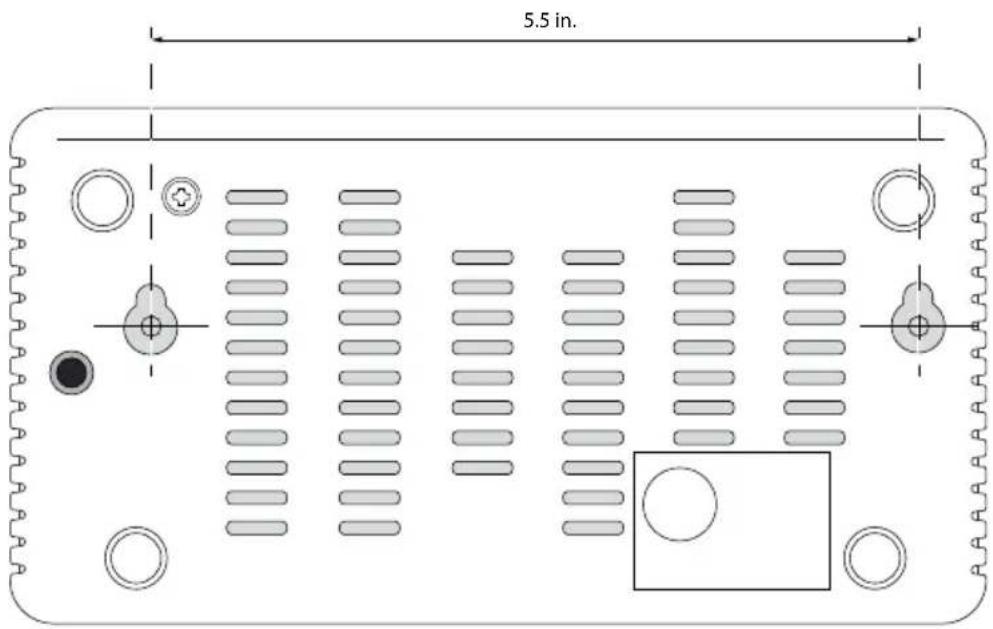
text_image
5.5 in.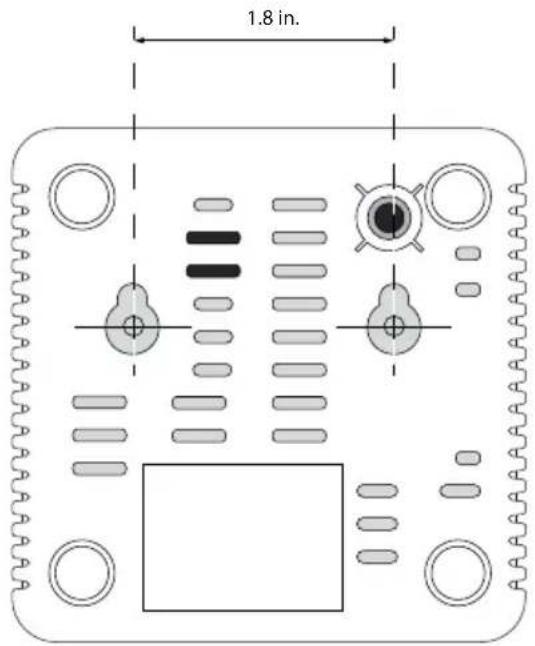
text_image
1.8 in.-
Insert the supplied wall anchors into the holes.
-
Insert the screws into each wall anchor. Make sure to leave at least 1/8" for mounting the Sender and Receiver unit.
-
Place the Sender and Receiver unit behind the head of each screw and slide to lock in place.
The LED indicators on the Sender and Receiver unit provides basic information on the current state of the Wireless for HDMI 5 GHz w/ Dual Inputs and Local Output.
Table 3.1 - Sender unit LED indicator messages
| Status Description | |
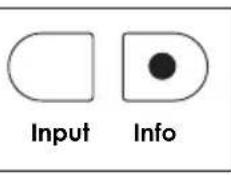 | Info LED is offNo power supplied to the Sender unit. Make sure the power supply is connected to the Sender unit. |
 | Power supplied to the Sender unit.Sender unit is linked to Receiver unit. |
 | Info LED is flashing blueLink mode. In this mode, the Sender unit is attempting to link with the Receiver unit. The Sender unit must be registered by the Receiver unit. |
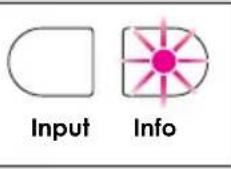 | Info LED is flashing magentaRegister mode. In this mode, the Sender unit is being registered by the Receiver unit. Once registered, the Sender unit will appear in a list that is stored in the Receiver unit.See Registering Sender Units (page 21) for more information. |
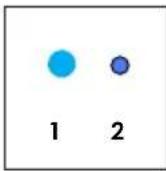 | Input LED 1 is solid blueHDMI 1 is the active input. |
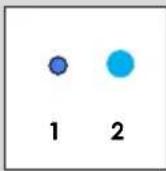 | Input LED 2 is solid blueHDMI 2 is the active input. |
Table 3.2 - Receiver unit LED indicator messages
| Status Description | |
 | Info LED is offNo power supplied to the Receiver unit. Make sure the power supply is connected to the Sender unit. |
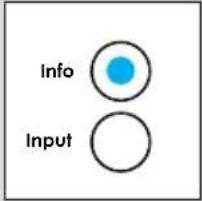 | Info LED is solid bluePower supplied to the Receiver unit.The Receiver unit is linked to the Sender unit. |
 | Info LED is flashing blueLink mode. In this mode, the Receiver unit is attempting to link with Sender unit that is already registered by the system. |
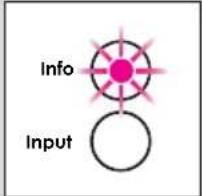 | Info LED is flashing magentaRegister mode. In this mode, the Receiver unit is attempting to register a Sender unit that has not been registered by the Receiver unit. When a Sender unit is registered, it will appear in a list that is stored in the Receiver unit. See Registering Sender Units (page 21) for more information. |
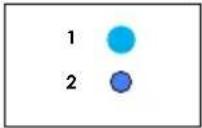 | Input LED 1 is solid blueHDMI 1 is the active input on the Sender unit. |
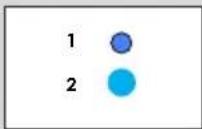 | Input LED 2 is solid blueHDMI 2 is the active input on the Sender unit. |
The following table lists the icon messages that are used and their meaning.
Table 3.3 - Icon messages
| Message Description | ||
 | Initial power-upThis icon is displayed when the Sender and Receiver unit are both powered and attempting to link with one another. | |
 |  | Searching available channelsThese two icons will flash, alternately. |
 |  | No input from selected source.These two icons will flash, alternately.Make sure the source is powered and connected to the active HDMI input. |
 | Video format not recognizedThese two icons will flash, alternately.Check the resolution and timing of the input (source) signal.See Supported Resolutions (page 40) for a list of compatible video formats. | |
The following table lists all available resolutions and timings that are supported by the Wireless for HDMI 5 GHz w/ Dual Inputs and Local Output. VESA timings are only supported when using DVI.
Table 3.4 - Supported SD, HD, and VESA timings
| Resolution Timings | |
| 480p • 640 x 480 @ 59.94 / 60 Hz | • 720 x 480 @ 59.94 Hz• 720 x 480 @ 60 Hz |
| 576p • 720 x 576 @ 50 Hz | |
| 720p • 1280 x 720 @ 50 Hz | • 1280 x 720 @ 59.94 / 60 Hz |
| 1080i • 1920 x 1080 @ 50 Hz | • 1920 x 1080 @ 59.95 / 60 Hz |
| 1080p • 1920 x 1080 @ 50 Hz | • 1920 x 1080 @ 59.94 / 60 Hz• 1920 x 1080 @ 23.98 / 24 Hz• 1920 x 1080 @ 25 Hz• 1920 x 1080 @ 29.97 / 30 Hz |
| VGA • 640 x 480 @ 59.94 / 72.809 Hz | |
| SVGA • 800 x 600 @ 60.317 / 72.188 Hz | |
| XGA • 1024 x 768 @ 60 / 70.069 Hz | |
| WXGA • 1280 x 768 @ 60 Hz | |
| SXGA • 1280 x 1024 @ 60 Hz | |
Table 3.5 - Supported 3D formats and timings
| Format Timings | |
| Top-bottom • 1280 x 720p @ 50 Hz | • 1280 x 720p @ 59.94 / 60 Hz• 1920 x 1080p @ 23.98 / 24 Hz |
| Frame packing • 1280 x 720p @ 50 Hz | • 1280 x 720p @ 59.94 / 60 Hz• 1920 x 1080p @ 23.98 / 24 Hz |
| Side-by-side • 1920 x 1080i @ 50 Hz | • 1920 x 1080i @ 59.94 / 60 Hz |
Supported Formats
Resolutions (max.) • 1080p Full HD
Connectors, Controls, and Indicators
| HDMI 1 (Sender) • 1 x HDMI Type A 19-pin, female |
| HDMI 2 (Sender) • 1 x HDMI Type A 19-pin, female |
| HDMI Out (Sender) • 1 x HDMI Type A 19-pin, female |
| HDMI (Receiver) • 1 x HDMI Type A 19-pin, female |
| Power Connector (Sender) • 1 x 3.5mm barrel-type |
| Power Connector (Receiver) • 1 x USB Mini-B |
| IR Out (Sender) • 1 x 2.5mm mini-mono |
| IR In (Receiver) • 1 x 2.5mm mini-stereo |
| USB Connector (Receiver) • 1 x USB Type-A (not used) |
| Service (Sender) • 1 x USB Mini-B |
| Tripod Connector (Sender / Receiver) • 1 x 1/4” 20-thread |
| Input button (Sender / Receiver) • 1 x tact-type |
| Info button (Sender / Receiver) • 1 x tact-type |
| Input Indicator 1 (Sender / Receiver) • 1 x LED, blue |
| Input Indicator 2 (Sender / Receiver) • 1 x LED, blue |
| Info Indicator (Sender / Receiver) • 1 x LED, multi-color (blue / magenta) |
Operational
| Maximum Senders per Receiver | 8 |
| Channel frequencies (US)(maximum four Receivers) | 5.19 GHz5.230 GHz5.755 GHz5.795 GHz |
| Channel frequencies (EU)(maximum two Receivers) | 5.19 GHz5.230 GHz |
| Power Input | 5V / 2A DC |
| Power consumption (Sender) • 7W (max.) | |
| Power consumption (Receiver) | 6W (max.) |
| Operating Temperature | +32 to +104 °F (0 to +40 °C) |
| Operating Humidity • +10 to +85%, RH (non-condensing) | |
| Storage Temperature | +14 to +140 °F (-10 to +60 °C) |
| Storage Humidity | +5 to +90%, RH (non-condensing) |
| Physical | |
| Dimensions (W x H x D) • 7.2" x 1.3" x 3.9" | (182mm x 33mm x 98mm) (Sender)• 3.8 x 1.4" x 3.8"(95mm x 35mm x 95mm) (Receiver) |
| Unit Weight • 0.5 lbs (0.25 kg) (Sender) | • 0.3 lbs (0.15 kg) (Receiver) |
| Shipping Weight • 2.6 lbs (1.2 kg) (EXT-WHD-1080P-LR)• 1.5 lbs (0.65 kg) (EXT-WHD-1080P-LR-TX) | |
C
Connection Instructions 9
F
FCC Statement iii
Features vi
G
Getting source information 18
I
Installation 9
IR Remote Control 7
Battery cover 7
Cursor, buttons 7
Input, button 7
Installing the Batteries 8
IR, button 7
OK, button 7
Sender, button 7
L
Link mode 38
M
Messages
Icon 39
LED Indicator 37
Multiple Sender Units
registering sender units 21
Removing Sender Units 31
Renaming a Sender Unit 28
Selecting a Sender Unit 26
using 21
0
Operating Notes v
P
Packing List vii
R
Receiver Unit 5
HDMI, port 5
Info, button 5
Input, button 5
Input, indicators 5
IR In, port 5
IR sensor 5
Mini-B USB, port 5
Tripod connector 5
Tripod connectpr 6
USB A, port 5
Registering Sender Units 21
Register mode 24, 37, 38
S
Safety Instructions ii
Sender Unit 2
HDMI 1, port 2
HDMI 2, port 2
HDMI Out, port 2
Info button 2
Input button 2
Input, indicators 2
IR Out, port 2
IR sensor 2
Service, port 2
Tripod connector 3
Setting the IR frequency 20
Specifications 41
Supported Resolutions 40
Surface-mounting Instructions 36
Switching sources 16
T
Table of Contents viii
Technical Support iv
W
Wiring Diagram 10

GEFEN
20600 Nordhoff St., Chatsworth CA 91311
1-800-545-6900 818-772-9100 fax: 818-772-9120
www.gefen.com support@gefen.com