GTV-WHD-1080P-LR-BLK - Émetteur AV Gefen - Free user manual and instructions
Find the device manual for free GTV-WHD-1080P-LR-BLK Gefen in PDF.


User questions about GTV-WHD-1080P-LR-BLK Gefen
0 question about this device. Answer the ones you know or ask your own.
Ask a new question about this device
Download the instructions for your Émetteur AV in PDF format for free! Find your manual GTV-WHD-1080P-LR-BLK - Gefen and take your electronic device back in hand. On this page are published all the documents necessary for the use of your device. GTV-WHD-1080P-LR-BLK by Gefen.
USER MANUAL GTV-WHD-1080P-LR-BLK Gefen
natural_image
Modern living room with large windows overlooking a mountain landscape, featuring a flat-screen TV and beige sofa (no visible text or symbols)
HDMI® HIGH-DEFINED MULTIMEDIA INTERFACE
1080P PROGRESSIVE
Wireless for HDMI
Multi-Room Solution
GTV-WHD-1080P-LR GTV-WHD-1080P-LR-BLK
User Manual
gefentv.com
Technical Support:
Telephone (818) 772-9100
(800) 545-6900
Fax (818) 772-9120
Technical Support Hours:
8:00 AM to 5:00 PM Monday through Friday, Pacific Time
Write To:
Gefen LLC
c/o Customer Service
20600 Nordhoff St
Chatsworth, CA 91311
www.gefentv.com
support@gefentv.com
Notice
Gefen, LLC reserves the right to make changes in the hard ware, packaging, and any accompanying doc u men ta tion without prior written notice.
Wireless for HDMI - Multi-Room Solution is a trademark of Gefen, LLC
1 Introduction
2 FCC Statement
3 Operation Notes
5 Features
6 Panel yaut
6 Sender Unit
7 ReceiveUnit
8 Panel Descriptions
8 Sender Unit
8 ReceiveUnit
9 IR RemotControl Unit
9 Lout and Descriptions
10 Connecting the Wireless for HDMI
10 Wiring Diagram
10 Operating the Wireless for HDMI
11 The Linking Process
12 Using Multiple S ender units
12 Addin g a New VideoSource
15 Renamin g Sources
18 Switching between Sources
20 Deletin g Sources
24 Disconnecting the Wireless Link
25 Reconnectin g the Wireless Link
26 Power-Down Mode
27 Powering-Up after a Power-Down
28 Specifications
29 Warranty
Congratulations on your purchase of the GefenTV Wireless for HDMI. Your complete satisfaction is very important to us.
About Gefen
We specialize in total integration for your home theater, while also focusing on going above and beyond customer expectations to ensure you get the most from your hardware. We invite you to explore our distinct product line. Please visit http://www.gefen.com for the latest offerings in High-Definition signal solutions or call us between the hours of 8:00 am and 5:00 pm Monday-Friday, Pacific Standard Time for assistance with your A/V needs. We'll be happy to assist you.
The GefenTV Wireless for HDMI Multi-Room Solution
The GetenTV Wireless for HDMI - Multi-Room Solution sends high definition audio and video to any HDTV display up to 100 feet (30 meters) away. It extends HDMI from computers, set-top boxes, Blu-ray players, and other audio/video sources to a remote HDTV display. The Wireless for HDMI - Multi-Room Solution supports resolutions up to 1080p Full HD along with support for up to 7.1-channels of digital audio in PCM, and up to 5.1 channels in Dolby® and DT S® formats. The included IR emitter can be connected to the Sender unit and placed by the Hi-Defsource*, allowing full control of the source from another room simply by pointing the IR remote at the Receiver unit. The Wireless for HDMI - Multi-Room Solution transmits through walls and does not require line-of-sight for good reception. Additional features allow multiple units using the included handheld remote control.
How It Works
Connect one of the included HDMI cables from the Hi-Def source to the Sender unit. Connect the other included HDMI cable from the Receiver unit to the HDTV display. Connect the included power supplies to the Sender and Receiver units and to available electrical outlets. Connect the included IR Emitter to the Sender unit and place it near the IR sensor window of the device to be controlled*. Power-up the source and the display. Within approximately one minute, the "Video" indicators on both units should now glow solid blue to indicate a successful connection between the Sender and Receiver unit. If the Sender and Receiver units do not pair automatically, the LEDs on the Sender will continue to blink. Navigate through the on-screen menu and have the Receiver unit look for a Sender unit. If the remote is not available, you can press and hold the recessed pairing button on the Receiver with a paper clip until its Link LED stops blinking and goes dark. Press and hold its recessed pairing button on the Sender unit with a paper clip until the Link LED stops blinking and goes dark. It navigating the menu using the remote, press the OK button on the IR remote. A message indicating that the Sender and the Receiver units have been paired will appear on the display. Point the source's IR remote at the IR window on the Receiver unit to control the source that is placed near the Sender unit.
*Please see www.gefentv.com for a list of compatible brands and models.
FC
This device complies with part 15 of the FCC Rules. Operation is subject to the following two conditions: (1) This device may not cause harmful interference, and (2) this device must accept any interference received, including interference that may cause undesired operation
INSTRUCTION TO THE USER
This equipment has been tested and found to comply with the limits for a class B digital device, pursuant to part 15 of the FCC Rules. These limits are designed to provide reasonable protection against harmful interference in a residential installation. This equipment generates, uses and can radiate radio frequency energy and if not installed and used in accordance with the instructions, may cause harmful interference to radio communications. However, there is no guarantee that interference will not occur in a particular installation. If this equipment does cause harmful interference to radio or television reception, which can be determined by turning the equipment off and on, the user is encouraged to try to correct the interference by one or more of the following measures:
• Reorient or relocate the receiving antenna
- Increase the separation between the equipment and Receiver unit
- Connect the equipment into an outlet on a circuit different from that to which the Receiver unit is connected
- Consult the dealer or an experienced radio/TV technician for help.
In order to maintain compliance with FCC regulations, shielded cables must be used with this equipment. Operation with non-approved equipment or unshielded cables is likely to result in interference to radio and TV reception. The user is cautioned that changes and modifications made to the equipment without the approval of the manufacturer could void the user's authority to operate this equipment.
READ THESE NOTES BEFORE INSTALLING OR OPERATING THE GEFENTV WIRELESS FOR HDMI - MULTI-ROOM SOLUTION
• Maximum extension distance is 100 feet (30 meters) with a clear line-of-sight.
• Supported resolutions:
»1080p60, 1080p50, 1080p24, 1080i60, 1080i50, 720p60, 720p50, 576p50, 480p60 (no SD resolution on LR)

NOTE: The Wireless for HDMI - Multi-Room Solution does not support Standard-Definition resolutions.
» VESA: 1600x1200, 1366x768, 1280x1024, 1024x768, 800x600, 640x480
- Obstructions such as walls and furniture may reduce performance and reception distance.
• DVI-D Support - Gefen recommends placing both units into the provided stands, with the Gefen logo pointing down, to help maintain the strongest possible transmission signal.
- Interference caused by other RF products may reduce performance and reception distance.
• Use with multiple Sender units:
» Can be used with a single Receiver unit to provide source-switching capability
» Up to 8 Senders are supported. Local RF interference can limit the number of Sender units that can be used. Each Sender unit needs to be placed at least 1 meter apart for optimum performance.
US Models: Up to 4 pairs of Sender and Receiver units can be operated in the same environment. Local RF interference can limit the number of units that can be used. Each Sender unit needs to be placed at least 1 meter apart for optimum performance. If additional Sender / Receiver pairs are to be used, each set of units must be placed beyond the reception range (100 feet / 30 meters) of the other in order to prevent interference.
Continued on next page
Continued from previous page
» EU Models: Up to 2 pairs of Sender and Receiver units can be operated in the same environment. Local RF interference can limit the number of units that can be used. Each Sender unit needs to be placed at least 1 meter apart for optimum performance. If additional Sender / Receiver pairs are to be used, each set of units must be placed beyond the reception range (100 feet / 30 meters) of each other in order to prevent interference.
- IR back-channel compatibilit y:
» Only products with 38 kHz IR carrier frequency are compatible. If in doubt, please check with the equipment manufacturer.
» Due to complexity in some manufacturers' IR codes, not all 38kHz IR devices may be compatible with the IR BackChannel of the Wireless for HDMI. The following brands have been tested by Gefen: Panasonic, Sony, and Samsung.
• Operational Limitations:
» Regarding US and EU models, note that all RF devices are designed by compliance regulation to accept interference from all other devices. Operation of wireless products is therefore dependent on the environment they are in. Other RF products, even ones that seemingly might not be in the frequency range, do create harmonics and other artifacts that could interfere with the operation of the Wireless for HDMI.
HDMI Features Supported
• Resolutions up to 1080p Full HD
- 12-bit Deep Color
• Linear CM digital audio up to 7.1 channels
- Dolby® TrueHD, Dolby® Digital Plus, and DTS-HD® Master Audio™ up to 5.1 channels
• 3DTV pass-through
• HDCP pass-through
• Lip Sync pass-through
Features
- Wireless extension of HDMI up to 100 feet (30 meters)
• Uncompressed High-Definition A/V from source to display - No latenc
- Included IR remote for switching between up to eight Sender units
• WHDI 1.0, F CCPart 15, and ET SI-compliant
Package Includes
(1) Wireless for HDMI - Multi-Room Solution - Sender unit
(1) Wireless for HDMI - Multi-Room Solution - Receiver unit
(2) 5 ft. HDMI cables (M-M)
(1) IR Remote Control
(1) IR Emitter
(2) C radles for Sender and Receiver units
(2) 5V/2A DC Power Supplies
(1) Quick Start Guide
Sender unit
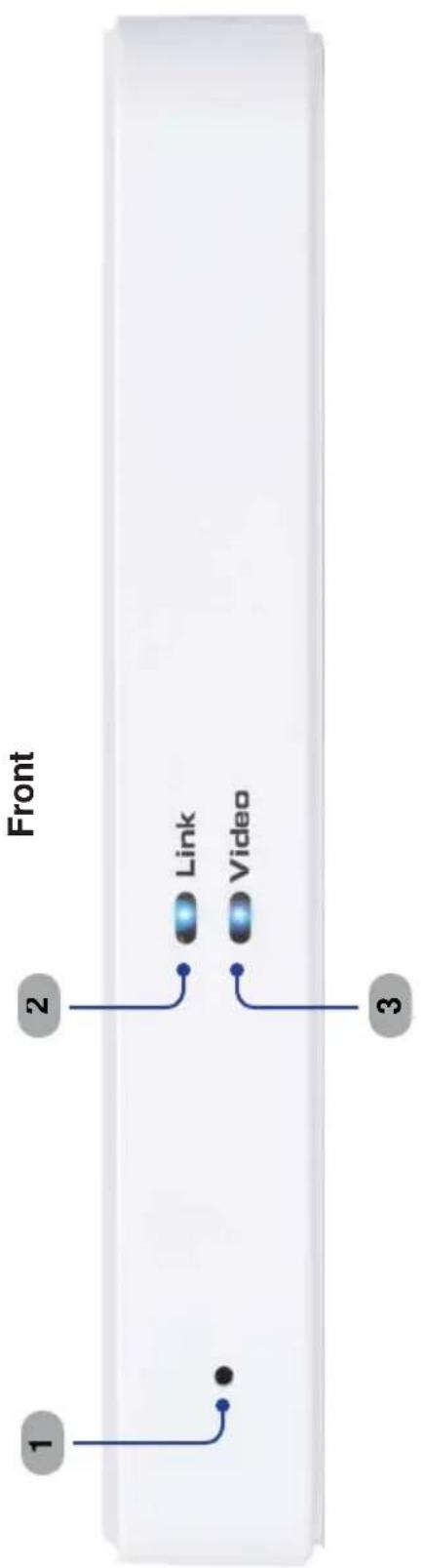
text_image
Front 1 2 Link Video 3Back

text_image
GTV-WHD-1080P-LRS IR Emitter HDMI In 5V DC 4 5 6Receiver unit
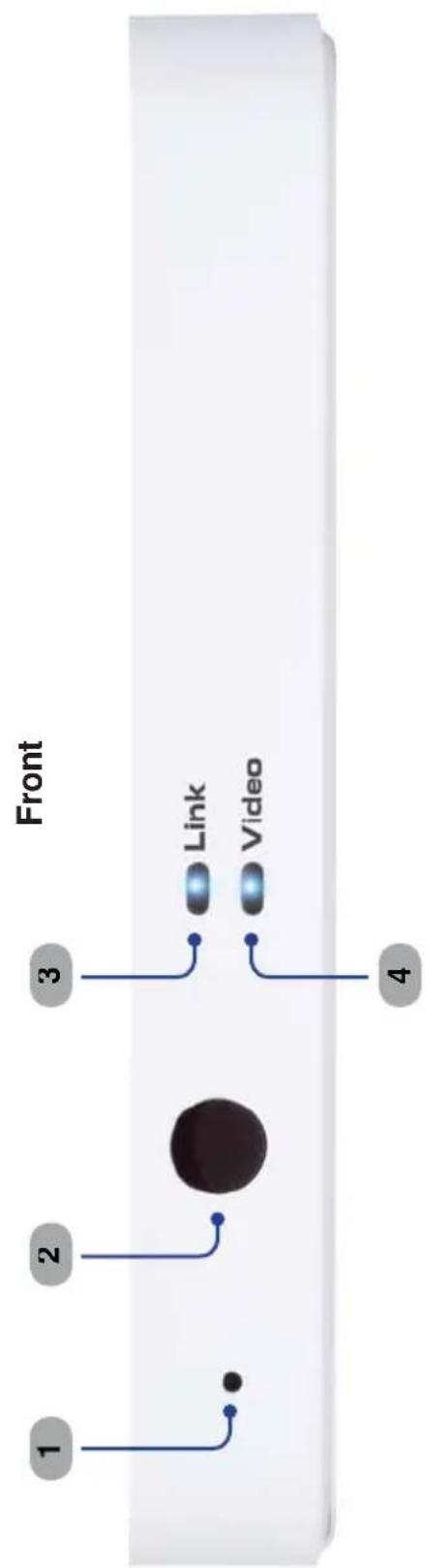
text_image
Front 1 2 3 Link Video 4Back
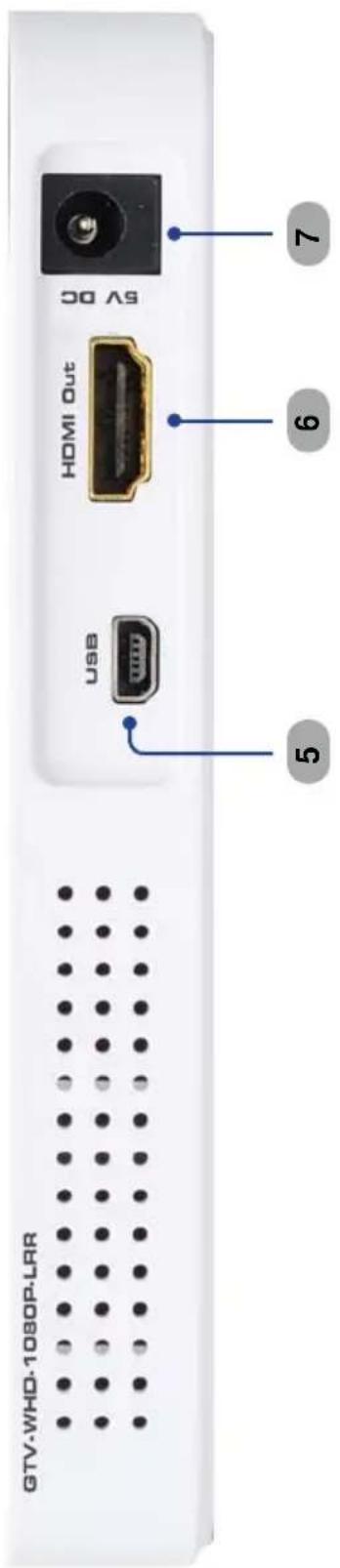
text_image
GTV-WHD-1080P-LAR USB HOMI Out 5 6 7 5V DCSender Unit
1 Pairing button
Press and hold this recessed button using a paper clip for approximately 3 seconds to pair the Sender unit with the Receiver unit.
2 Link
This LED indicator will glow bright blue once a link is established between the Sender unit and the Receiver unit.
3 Video
This LED indicator will glow bright blue once a video link is established between the Sender unit and the Receiver unit.
4 IH
Connect the included IR Emitter to this port and place it near the IR sensor of the source device* to be controlled.
5 HDMI In
This input will accept a single HDMI source device.
6 Powe r
Connect the included 5V DC power supply to this receptacle.
Receiver Unit
1 Pairing button
Press and hold this recessed button using a paper clip for approximately 3 seconds to pair the Sender unit with the Receiver unit.
2 IR Senso
Receives IR commands from the included IR Remote Control unit and the IR remote of the source unit to be controlled.
3 Link
This LED indicator will glow bright blue once a link is established between the Receiver unit and the Sender unit.
4 Video
This LED indicator will glow bright blue once a video link is established between the Receiver unit and the Sender unit.
5 USB
Mini-US B service port (for factory use only).
6 HDMI ①u
Connect the included HDMI cable from this connector to an HD display.
7 Powe r
Connect the included 5V DC power supply to this receptacle.
* Please see www.gefentv.com for a list of compatible brands and models.
Layout and Descriptions

text_image
MENU EXIT SOURCE 1 2 3 4 5 9 8 OK DELETE ADD GUEST 6 INPUT DEVICES 1 2 31 Menu
Press this button to display the Setup menu.
2 Cursor button
Used to control Left, Up, Right, and Down cursor motion within a menu system.
3 OK
Press this button to accept the current operation or menu selection.
4 Delete
When using multiple Sender units, press this button to delete a Sender unit from the wireless network.
5 Input Device
When using multiple Sender units, use these buttons to select any of the first three linked Sender units. Use the Source button to select Senders 4 - 8.
6 Guest
Powers down the wireless system.
7 Add
When using multiple Sender units, press this button to add a Sender unit (source).
8 Exit
Press this button to cancel an operation or exit any menu system.
9 Source
When using multiple Sender units (sources), press this button to select a different Sender unit.
How to Connect the Wireless for HDMI - Multi-Room Solution
- Connect a Hi-Def source to the Sender unit using the included HDMI cable.
- Connect an HD display or projector to the Receiver unit using the included HDMI cable.

NOTE: The Wireless for HDMI - Multi-Room Solutiondoes not support DVI devices.
-
Connect the included 5V DC power supplies to the Sender and Receiver unit and connect them to available electrical outlets.
-
OPTIONAL: Connect the included IR emitter to the Sender unit and place it near the IR sensor of a source device* to be controlled.
To control the IR source connected to the Sender unit, point the source's IR remote at the IR sensor on the Receiver unit.
- The Link and Video LED indicators on both the Sender and Receiver unit will glow bright blue to indicate a successful connection between the Sender and Receiver unit. Ordinarily, no pairing is required out of the box. However, the Sender and Receiver can also be paired manually if needed.
Wiring Diagram for the Wireless for HDMI - Multi-Room Solution
Gefen tv®
HDMI CABLE
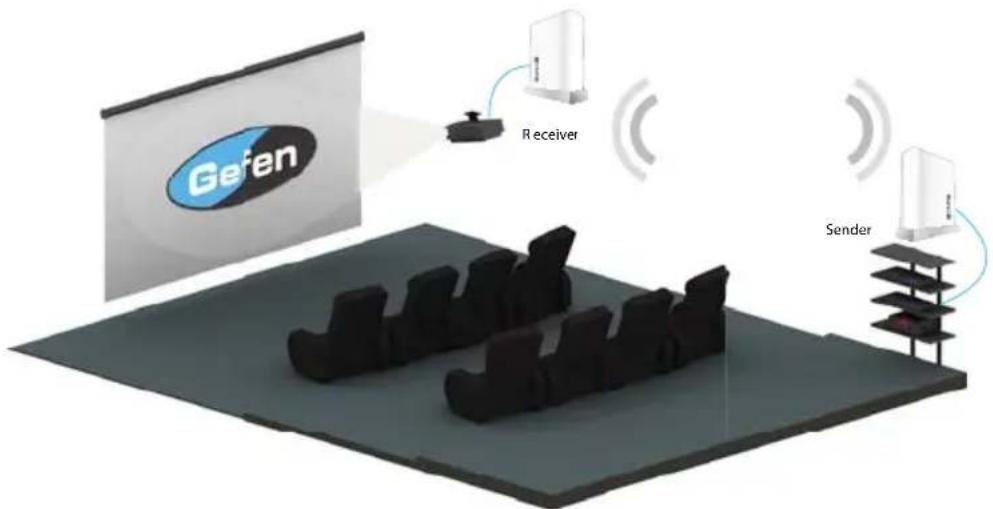
text_image
Gelen Receiver SenderGTV-WHD-1080P-LR
*Please see www.gefentv.com for a list of compatible brands and models.
The Linking Process
After all the connections have made (see page 10) to the Wireless for HDMI, the Receiver unit will attempt to negotiate with the Sender unit.

text_image
Status Message Provides information on the current status of the Wireless for HDMI Connecting to Sender...After a few moments, the source signal will appear on the display. The status message will disappear after a few seconds.

text_image
Connected to SenderUsing Multiple Sender Units
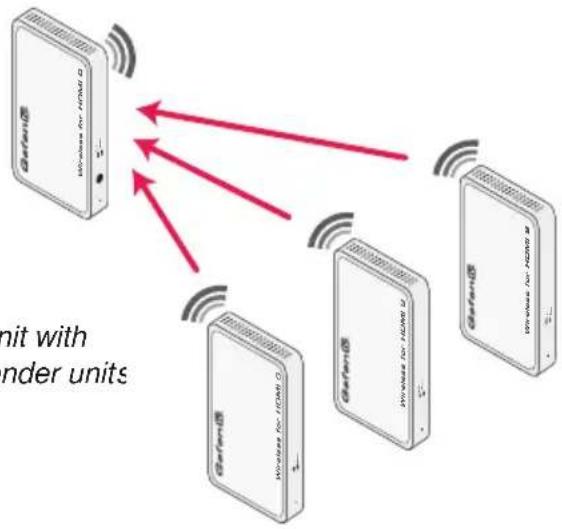
The Wireless for HDMI can be used with up to eight Sender units to provide switching capability between Sender units.
text_image
Unit with under unitsFigure 1: Receiver unit with multiple Sender units
Adding a new Video Source
Before adding an additional Sender unit to the Wireless for HDMI network, makes sure that a single Sender / Receiver pair function correctly.
- Connect the Sender unit to a Hi-Def source using an HDMI cable.
- Connect the power supply to the Sender unit.
- Point the IR Remote Control at the Receiver unit and press the MENU button. The Setup menu will be displayed.

text_image
Setup → Add new Video Source → Remove Video Source → Modify Video Source Name → Disconnect Wireless Link- Use the cursor buttons on the IR Remote Control to select Add new Video Source from the Setup menu.
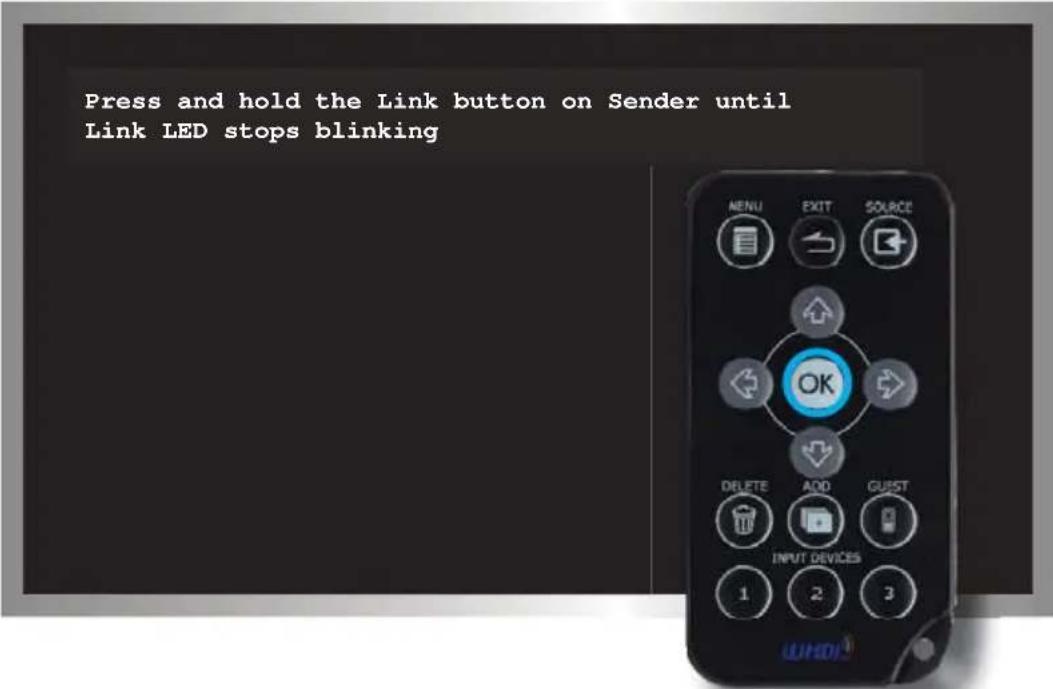
- Press the OK button. The following message will be displayed:
text_image
Press and hold the Link button on Sender until Link LED stops blinking- Press and hold down the Pairing button (see pages 6 - 8) on the Sender unit for about 5 seconds.

text_image
Adding Sender Press OK to continue or Exit to cancel- Press the OK button to continue adding the Sender unit.

NOTE: When pairing multiple Senders, it is recommended that you rename the ones already linked to avoid confusion.
As the Sender unit is added to the Wireless for HDMI network, a progress bar will be displayed:

text_image
Adding SenderAfter afew moments the source signal connected to the additional Sender unit will be displayed:

text_image
Connected to Sender- If desired, repeat steps 1 - 7 to add another Sender unit to the Wireless for HDMI network.

TIP: Use the ADD button (see page 9) on the IR Remote Control to bypass the Setup menu and jump directly to registering the Sender unit.
Renaming Sources
By default, each Sender unit is assigned the name "Sender". This can be confusing when multiple Sender unit are used. However, this identifier can be changed to reflect, for example, the source to which each Sender unit is connected.
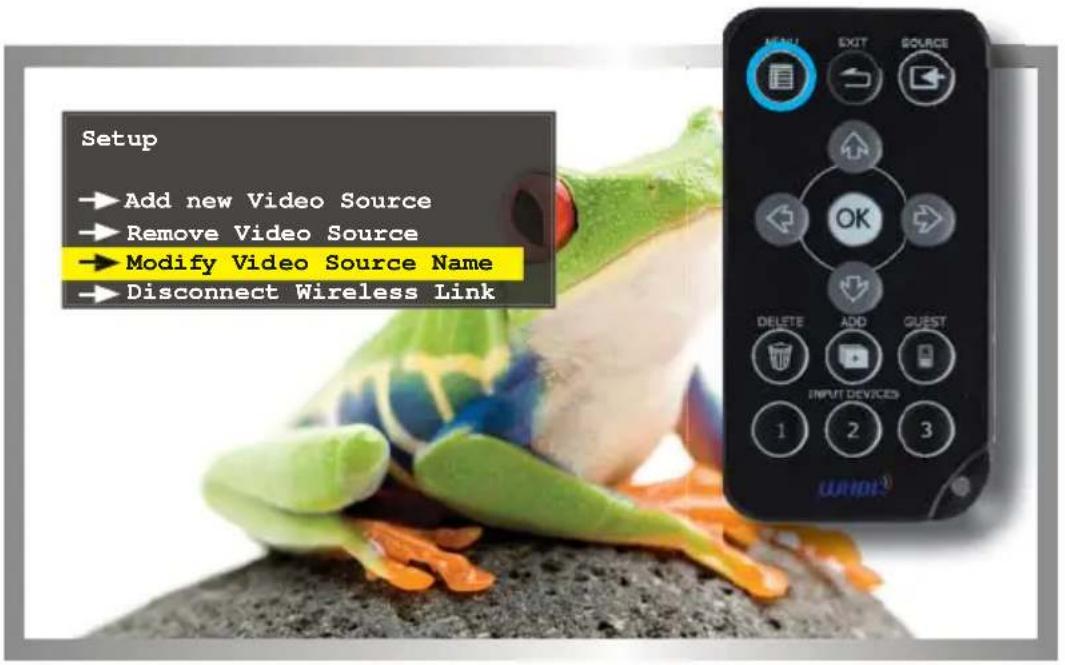
- Point the IR Remote Control at the Receiver unit, press the MENU button, select Modify Video Source Name, then press the OK button.
text_image
Setup →Add new Video Source →Remove Video Source →Modify Video Source Name →Disconnect Wireless Link- Select the source to rename from the menu by using the cursor keys:

text_image
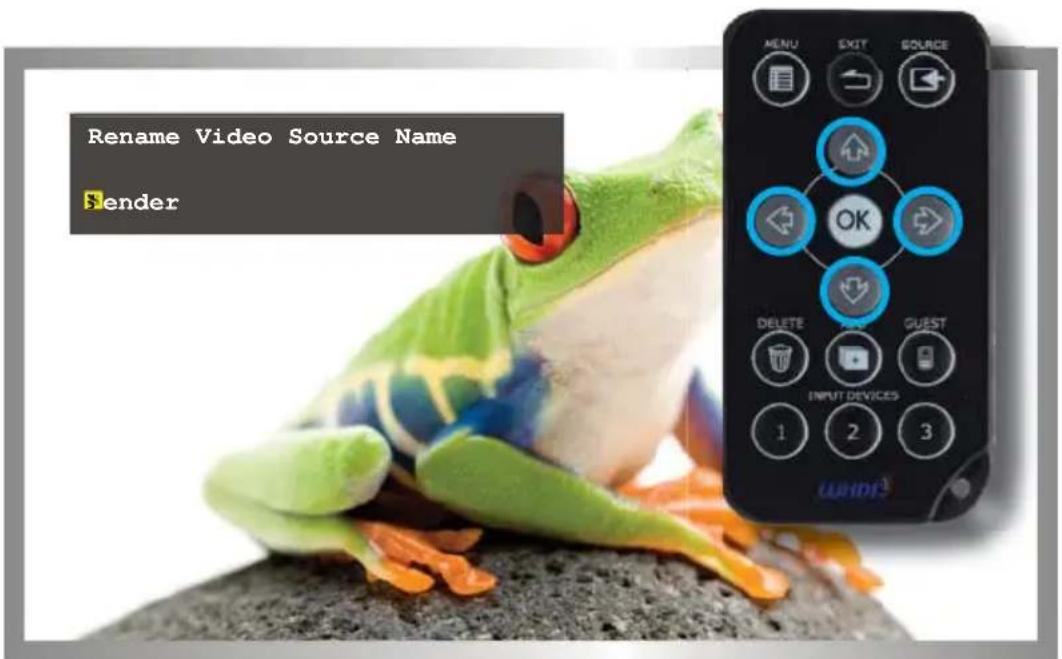
Choose Source to Rename → Sender → Sender MENU EXIT SOURCE OK DELETE INPUT GUEST INPUT DEVICES 1 2 3- The Rename Video Source Name menu will be displayed, along with the selected Source.
Use the ▲ and ▼ cursor keys to change the highlighted character.
The ▲ key moves forward within the list of available characters and the ▼ key moves backward through the list. The list of available characters is listed in the table below. The first character (first row, first column) is a space and can be used anywhere in the name. The maximum length of the Source name cannot exceed nine characters, including any spaces.
Figure 2: Available characters for source naming
| ) | 1 | 2 | 3 | 4 | 5 | δ | 7 | 8 | 9 | a | b | ɔ | d | |
| e | f | g | h | i | j | k | l | m | n | o | p | q | . | s |
| t | u | v | w | x | y | ∠ | A | B | C | D | E | F | ʒ | H |
| l | . | K | L | M | N | O | P | Q | R | ʒ | T | U | V | W |
| X | Y | ∠ |
text_image
Rename Video Source Name SenderUse the ◀ and ▶ cursor keys to select the character in the name to be changed.
- After the video source has been renamed, press the OK button to save the changes.

text_image
Select Video Source → Sender → BluRay → SetupSwitching between Sources
Once two or more Sender units have been connected to a Receiver unit, use the IR Remote Control unit to switch between each source.
- Point the IR Remote Control at the Receiver unit and press the Source button. The Select Video Source menu will be displayed.
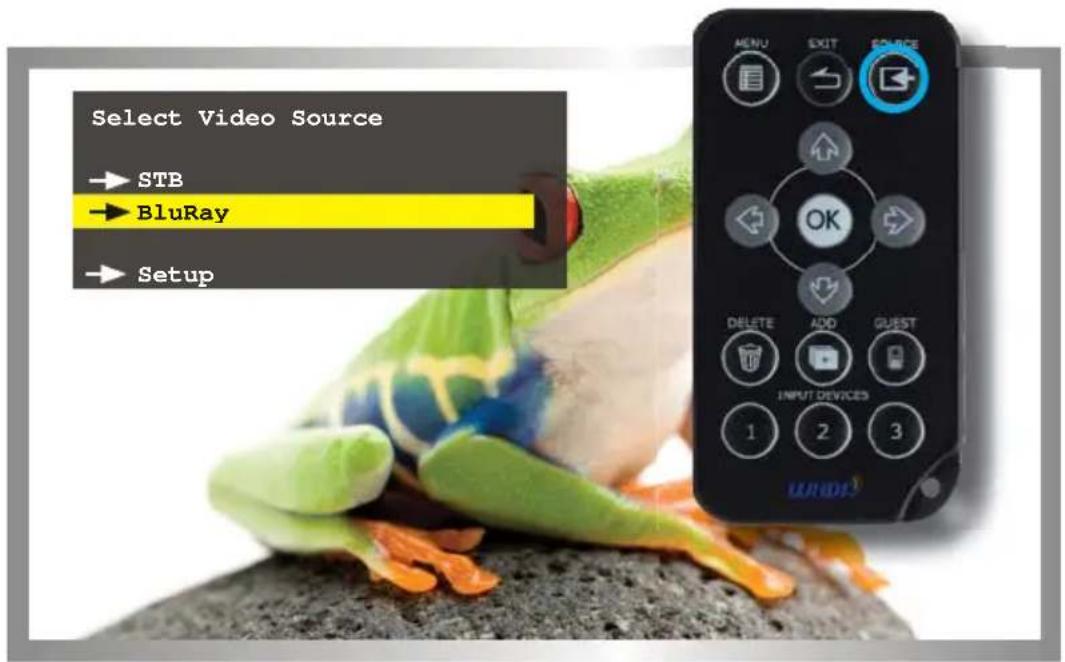
text_image
Select Video Source → STB → BluRay → Setup- Use the Cursor buttons on the IR Remote Control to select the desired source.

text_image
Select Video Source → STB → BluRay → Setup- Once the desired source has been selected, press the OK button.
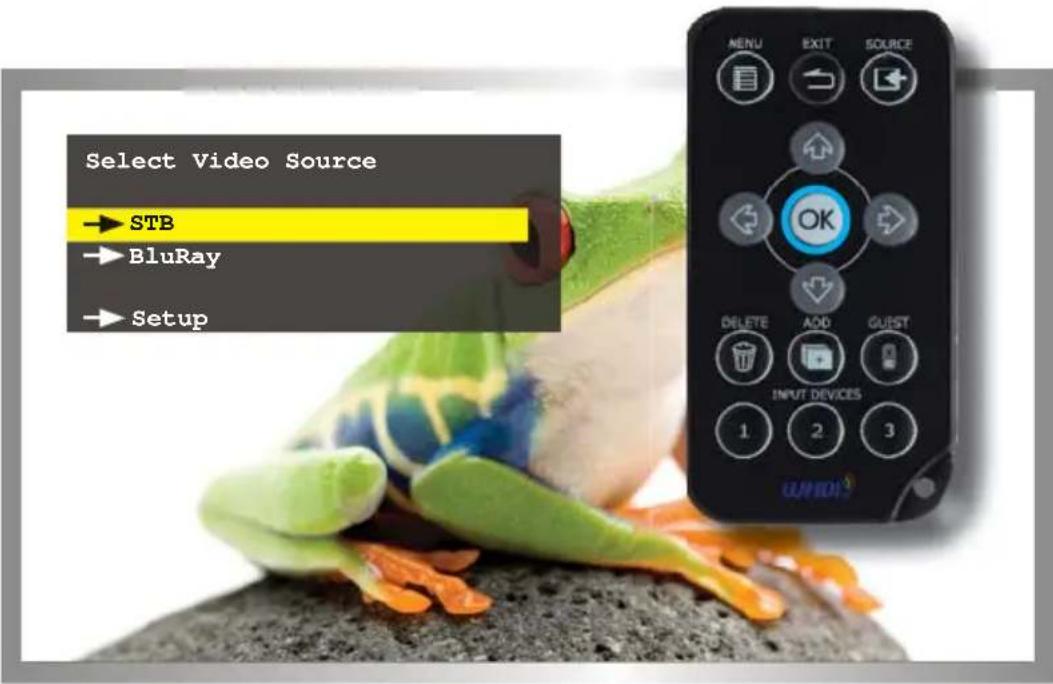
text_image
Select Video Source → STB → BluRay → Setup-
The screen will go blank momentarily and the "Connecting to...." status message will be displayed, indicating that the Receiver unit is switching to the selected Sender unit (source).
-
After a few moments, the selected source signal will be displayed.

text_image
Connected to Sender
TIP: Use the INPUT DEVICES buttons (see page 9) on the IR RemoteControl to bypass the Select Video Source menu and directly switch to another Sender unit.
Deleting Sources
If a Sender unit (source) will no longer be necessary, it can be removed from the Wireless for HDMI network.
- Point the IR Remote Control at the Receiver unit and press the MENU button.
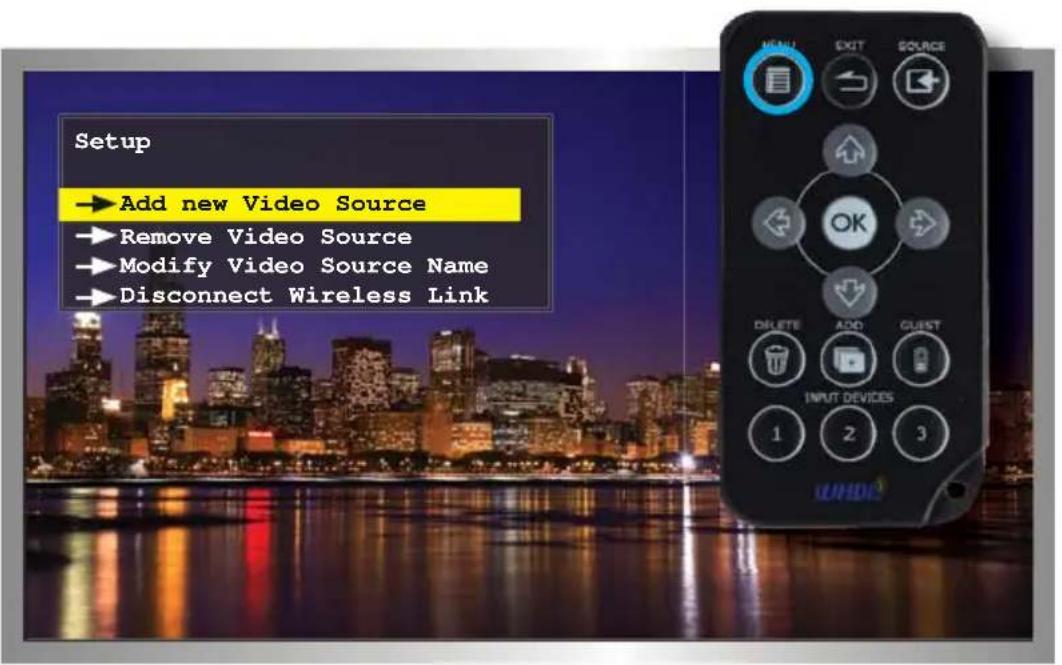
text_image
Setup → Add new Video Source → Remove Video Source → Modify Video Source Name → Disconnect Wireless Link- Select Remove Video Source from the Setup menu, using the cursor buttons on the IR Remote Control.

text_image
Setup → Add new Video Source → Remove Video Source → Modify Video Source Name → Disconnect Wireless Link- Click the OK button to confirm the selection.
- The Chose Source to Remote menu will be displayed.
- Select the source to be removed and press the OK button.
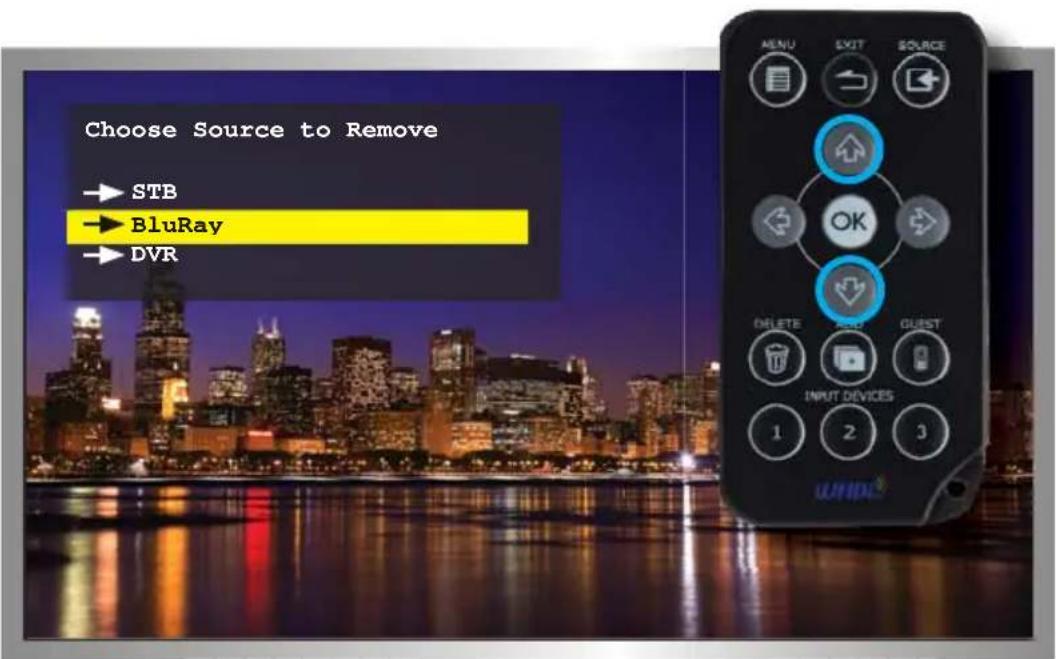
text_image
Choose Source to Remove → STB → BluRay → DVR- Press the OK button to confirm the removal of the selected device.

text_image
Removing BluRay Press OK to continue or Exit to cancel-
After a few seconds, the screen will go blank.
-
Press the SOURCE button to display the Select Video Source menu.
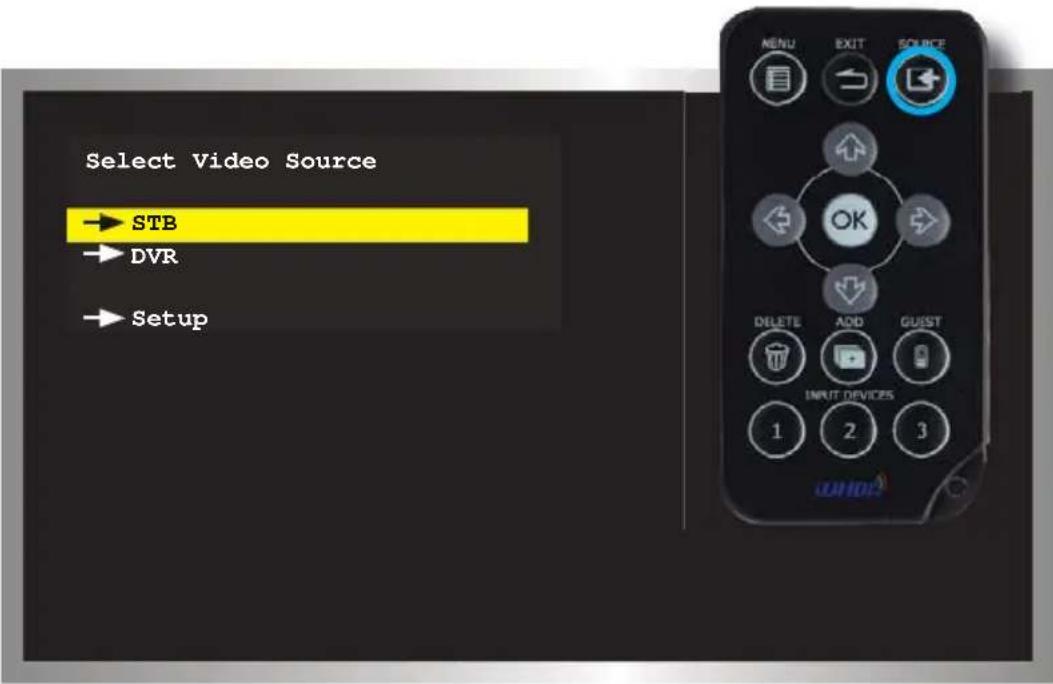
text_image
Select Video Source → STB → DVR → Setup- Select the desired source using the cursor buttons. Then, press the OK button to confirm the selection.
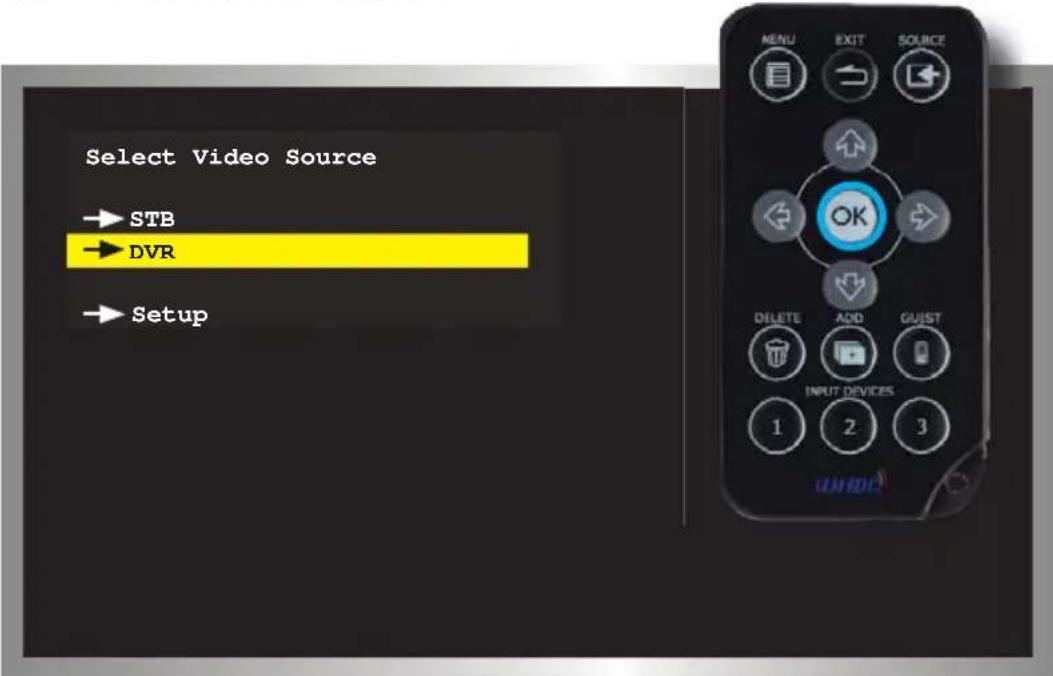
text_image
Select Video Source → STB → DVR → Setup
TIP: Use the DELETE button on the IR Remote Control to jump directly to the Select Video Source menu, when deleting sources.
- The "Connecting to..." status message will be displayed:
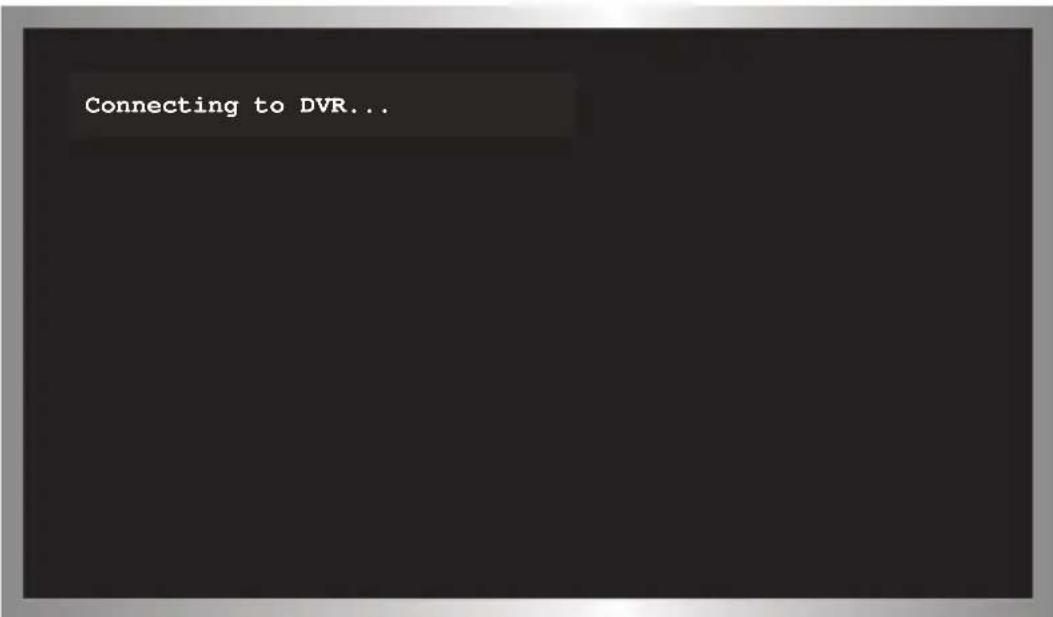
text_image
Connecting to DVR...- A tter a few moments, the selected source signal will be displayed.
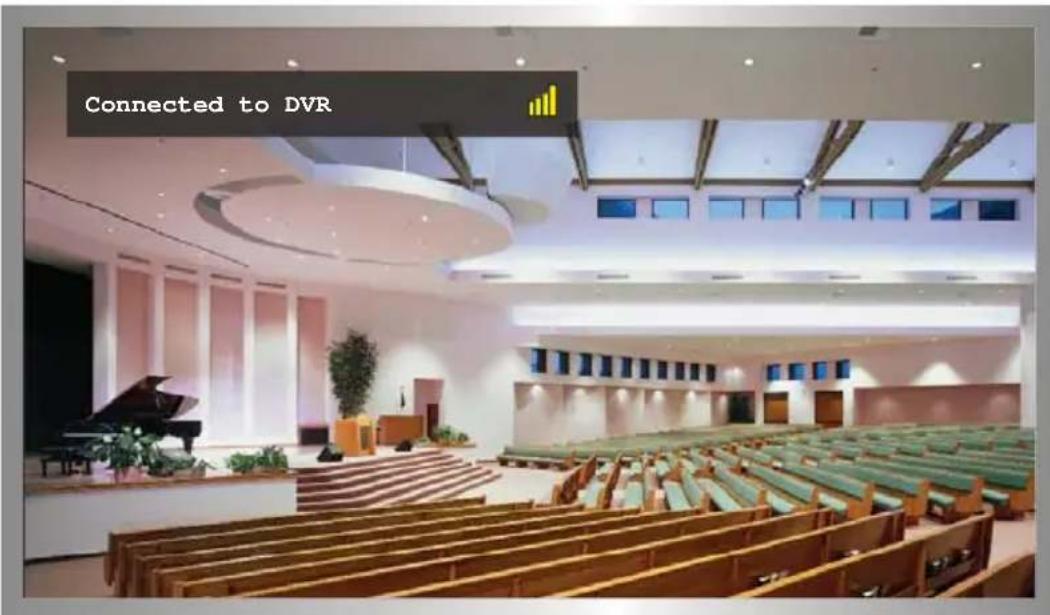
text_image
Connected to DVR
NOTE: The video source will always need to be selected, even if the source currently being viewed is not deleted.
Disconnecting the Wireless Link
The Wireless for HDMI network can be completely disconnected, if necessary. This can be used in order to restrict the source from being viewed.
-
Point the IR Remote Control at the Receiver unit and press the MENU button.
-
Select Disconnect Wireless Link and press the OK button.

text_image
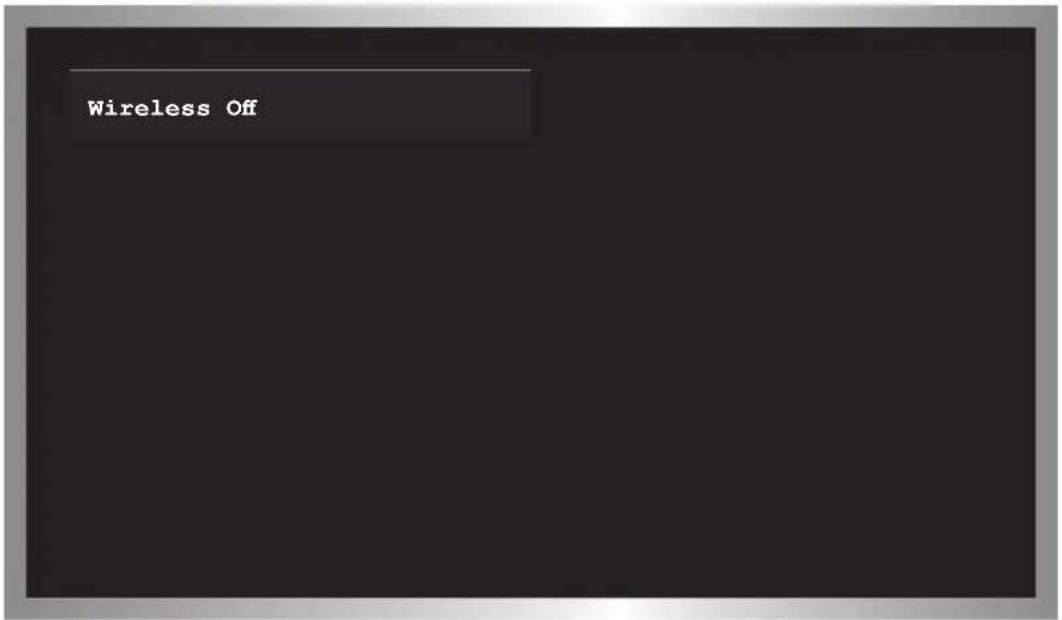
Setup → Add new Video Source → Remove Video Source → Modify Video Source Name → Disconnect Wireless Link- After a few seconds, the screen will go blank. A status message, indicating that the wireless has been turned off, will be displayed. The Wireless for HDMI network is now in standby mode.
text_image
Wireless OffReconnecting the Wireless Link
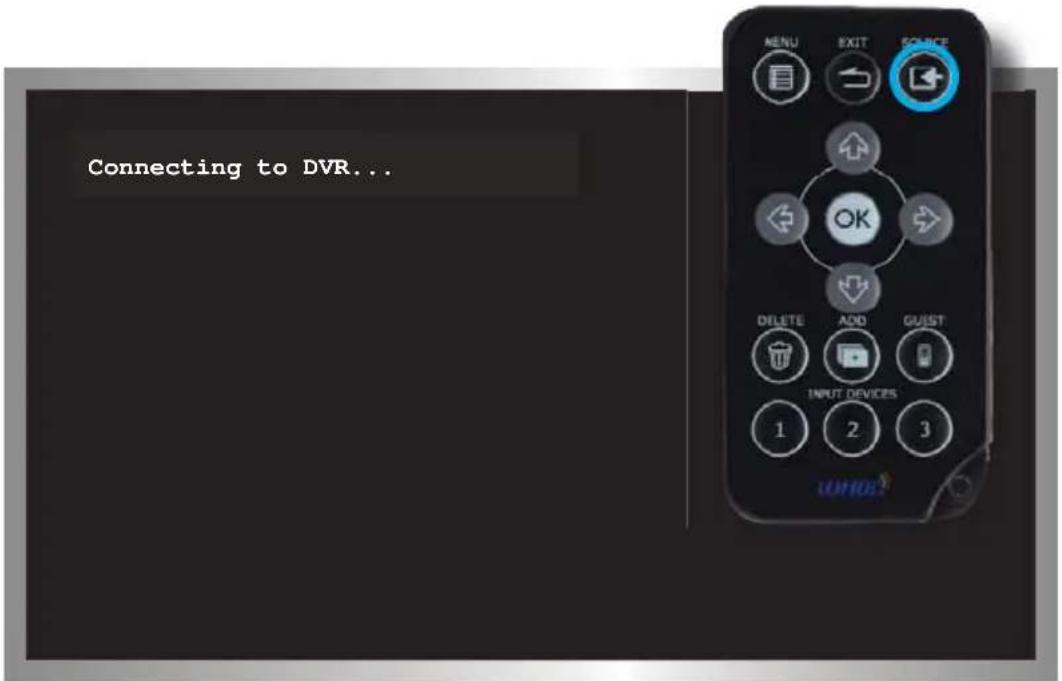
- Press the Source button on the IR Remote Control. The "Connecting to..." message will be displayed
text_image
Connecting to DVR...- After a few seconds, the wireless link will be restored and the source signal will be displayed.

text_image
Connected to DVRPower-Down Mode
The Wireless for HDMI can be powered-down when not in use.
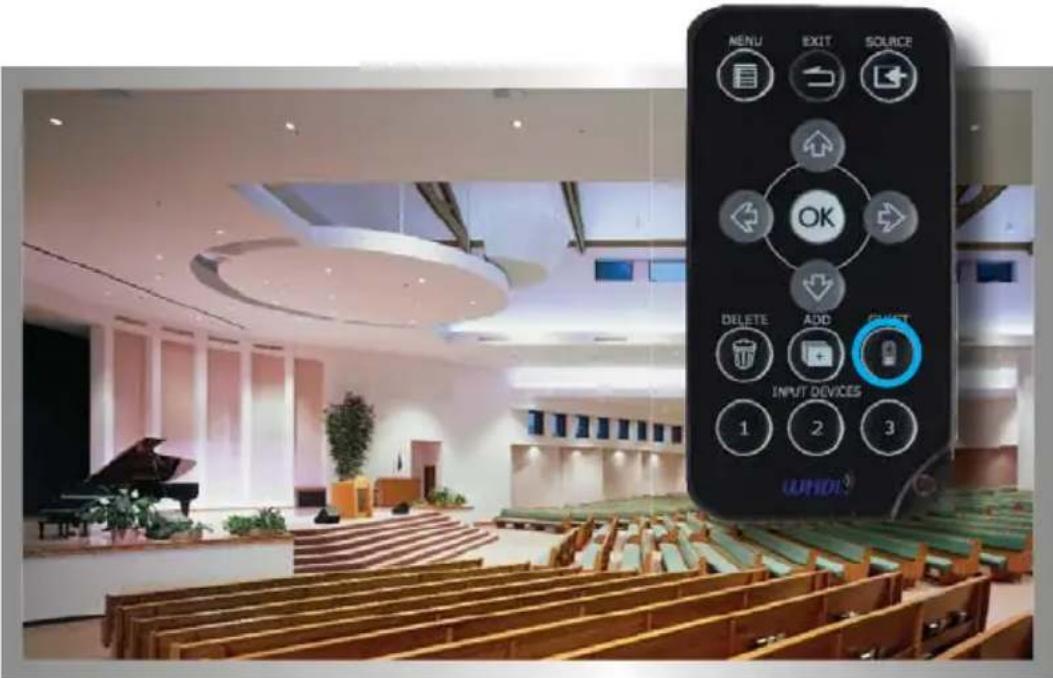
- Point the IR Remote Control at the Receiver unit and press the GUEST button.
text_image
MENU EXIT SOURCE OK DELETE ADD INPUT DEVICES 1 2 3- After a few seconds, the screen Receiver and Sender unit(s) will power-down. A status message, indicating that the Wireless for HDMI has been powered-down, will be displayed.

text_image
Powering Down...- After the Wireless for HDMI has been successfully powered-down, the "Wireless Off" message will be displayed on the screen.

text_image
Wireless OffPowering-Up after a Power-Down
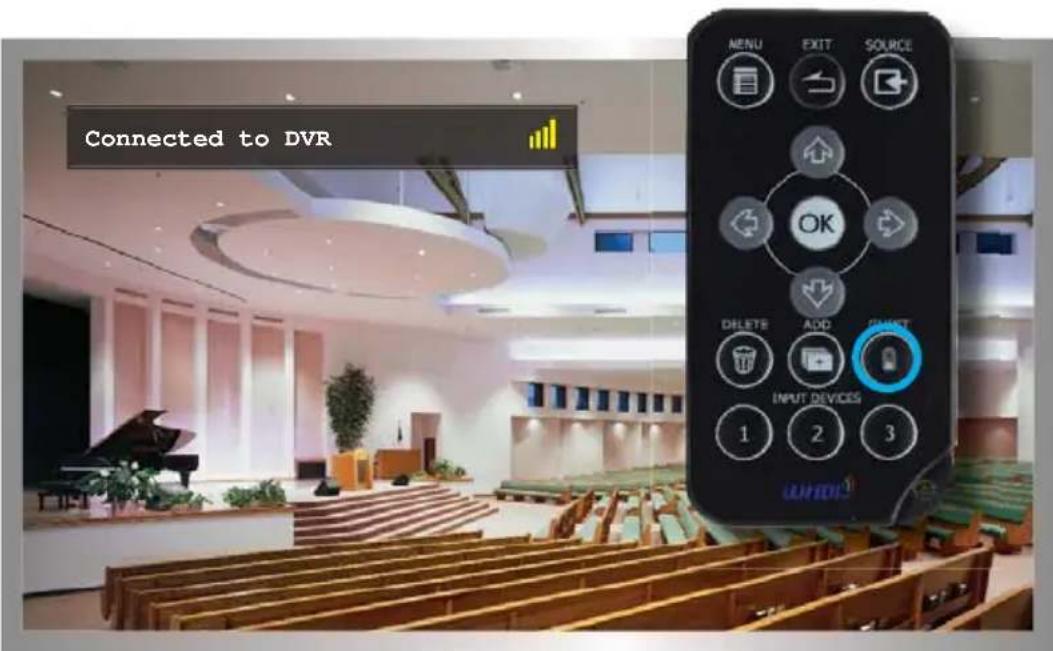
- Point the IR Remote Control at the Receiver unit and press the GUEST button.
- The "Connecting to..." message will be displayed.
- After a few moments, the selected source signal will be restored.
text_image
Connected to DVR MENU EXIT SOURCE OK DELETE ADD RESET INPUT DEVICES 1 2 3Operating Frequency.... 5 GHz
Supported resolutions.... 480p to 1080p
Video Input Connector (Sender).... (1) HDMI Type A, 19-pin, female
Video Output Connector (Receiver).... (1) HDMI Type A, 19-pin, female e
USB Connector (Receiver)....(1) Mini-B (factory use only)
Power Supply (Sender/Receiver)....(2) 5V DC
Power Consumption (Sender / Receiver).... 8W (max.) / 8W (max.)
Dimensions (S ender/ Receiver) (W x H x D) 5.83" x 0.8" x 3.8"
(148mm × 20mm × 96mm)
Shipping Weight.... 2.8 lbs (1.27 kg)
Gefen warrants the equipment it manufactures to be free from defects in material and workmanship.
If equipment fails because of such defects and Gefen is notified within two (2) years from the date of shipment, Gefen will, at its option, repair or replace the equipment, provided that the equipment has not been subjected to mechanical, electrical, or other abuse or modifications. Equipment that fails under conditions other than those covered will be repaired at the current price of parts and labor in effect at the time of repair. Such repairs are warranted for ninety (90) days from the day of reshipment to the Buyer.
This warranty is in lieu of all other warranties expressed or implied, including without limitation, any implied warranty or merchantability or fitness for any particular purpose, all of which are expressly disclaimed.
- Proof of sale may be required in order to claim warranty.
- Customers outside the US are responsible for shipping charges to and from Gefen.
- Copper cables are limited to a 30 day warranty and cables must be in their original condition.
The information in this manual has been carefully checked and is believed to be accurate. However, Gefen assumes no responsibility for any inaccuracies that may be contained in this manual. In no event will Gefen be liable for direct, indirect, special, incidental, or consequential damages resulting from any defect or omission in this manual, even if advised of the possibility of such damages. The technical information contained herein regarding the features and specifications is subject to change without notice.
For the latest warranty coverage information, refer to the Warranty and Return Policy under the Support section of the Geten Web site at www.geten.com.
PRODUCT REGISTRATION
Please register your product online by visiting the Register Product page under the Support section of the Gefen Web site.
text_image
*MA-GTV-WHD-1080P-LR*Rev A3

text_image
QR code image containing encoded data, no visible human-readable text20600 Nordhoff St., Chatsworth CA 91311
1-800-545-6900 818-772-9100 fax: 818-772-9120
www.gefentv.com support@gefentv.com


