PV-27D53 - Television PANASONIC - Free user manual and instructions
Find the device manual for free PV-27D53 PANASONIC in PDF.


User questions about PV-27D53 PANASONIC
0 question about this device. Answer the ones you know or ask your own.
Ask a new question about this device
Download the instructions for your Television in PDF format for free! Find your manual PV-27D53 - PANASONIC and take your electronic device back in hand. On this page are published all the documents necessary for the use of your device. PV-27D53 by PANASONIC.
USER MANUAL PV-27D53 PANASONIC
natural_image
Front view of a black CRT television with a blank screen (no visible text or symbols)Panasonic®
TV/DVD Combination Operating Instructions
Model No. PV-20D53/PV-27D53
natural_image
Black-and-white interior photo of a modern living room with a glass coffee table, a fireplace, and floral arrangement (no visible text or symbols)- Initial Setup and Connection Procedures are on pages 10 to 11.


MULTI FORMAT PLAYBACK



*Ability to play back may depend on recording conditions.


As an ENERGY STAR® Partner, Matsushita Electric Corporation of America has determined that this product or product model meets the ENERGY STAR® guidelines for energy efficiency.
Please read these instructions carefully before attempting to connect, operate or adjust this product. Please save this manual. Spanish Quick Use Guide is included. (Guía para rápida consulta en español está incluida.)

This operating instruction book is designed for use with models PV-20D53 and PV-27D53. Illustrations in this manual show the PV-27D53. Features may vary, so please read care fully.
For assistance, please call : 1-800-211-PANA(7262) or send e-mail to : consumerproducts@panasonic.com
LSQT0669B
Important Safeguards and Pre cautions
READ AND RETAIN ALL SAFETY AND OPERATING INSTRUCTIONS. HEED ALL WARNINGS IN THE MANUAL AND ON UNIT
INSTALLATION
1 POWER SOURCE CAUTION
Operate only from power source indicated on unit or in this manual. If uncertain, have your Electric Utility Service Company or Video Products Dealer verify your home power source.
2 POWER CORD PLUG
For safety, this unit has a polarized type plug (one wide blade), or a three-wire grounding type plug. Always hold the plug fi rmly and make sure your hands are dry when plugging in or unplugging the AC power cord.
Regularly remove dust, dirt, etc. on the plug. POLARIZED PLUG CAUTION:
The plug fi ts into outlet only one way. If it cannot be fully inserted, try reversing it. If it still will not fi t, have an electrician install the proper wall outlet. Do not tamper with the plug.
GROUNDING PLUG CAUTION:
The plug requires a three-hole grounding outlet. If necessary, have an electrician install the proper outlet. Do not tamper with the plug.
3 POWER CORD
To avoid unit malfunction, and to protect against electrical shock, fire or personal injury:
Keep power cord away from heating appliances and walking traffic c. Do not rest heavy objects on, or roll such objects over the power cord.
- Do not tamper with the cord in any way.
An extension cord should have the same type plug (polarized or grounding) and must be securely connected.
Overloaded wall outlets or extension cords are fire hazards.
Frayed cords, damaged plugs, and damaged or cracked wire insulation are hazardous and should be replaced by a qualified electrician.
4 DO NOT BLOCK VENTILATION HOLES
Ventilation openings in the cabinet release heat generated during operation. If blocked, heat build-up may result in a fire hazard or heat damage to discs.
For your protection:
a. Never cover ventilation slots while unit is ON, or operate unit while placed on a bed, sofa, rug, or other soft surface.
b. Avoid built-in installation, such as a book case or rack, unless properly ventilated.
5 AVOID EXTREMELY HOT LOCATIONS OR SUDDEN TEMPERATURE CHANGES
Do not place unit over or near a heater or radiator, in direct sunlight, inside closed ve hi cles, in high temperature [over 95 °F (35 °C)], or in over 75% humidity. If unit is suddenly moved from a cold place to a warm one, moisture may con dense in unit and on the disc causing dam age. Never sub ject unit to vibration, im pact, or place it so that the sur face is tilted as in ter nal parts may be se ri ous ly dam aged.
6 TO AVOID PERSONAL INJURY
- Never place unit on support or stand that is not firm, level, and adequately strong. The unit could fall causing serious injury to a child or adult and damage to the unit.
- Move any appliance and cart combination with care. Quick stops, excessive force, and uneven surfaces may cause objects to overturn.
- Carefully follow all operating instructions.

OUTDOOR ANTENNA INSTALLATION
1 SAFE ANTENNA AND CABLE CONNECTION
An outside antenna or cable system must be properly grounded to provide some protection against built up static charges and voltage. Section 810 of the National Electrical Code, ANSI/NFPA 70 (in Canada, part 1 of the Canadian Electrical Code) provides information regarding
Codey provides information regarding proper grounding of the mast and supporting structure, grounding of the lead-in wire to an antenna discharge unit, size of grounding conductors, location of antenna discharge unit, con nec tion to grounding electrodes, and requirements for the grounding electrode.
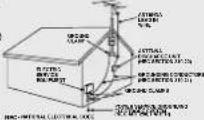
2 KEEP ANTENNA CLEAR OF HIGH VOLTAGE POWER LINES OR CIRCUITS
Locate an outside antenna system well away from power lines and electric light or power circuits so it will never touch these power sources should it ever fall. When installing antenna, absolutely never touch power lines, circuits or other power sources as this could be fatal.
USING THE UNIT
Before unit is brought out of storage or moved to a new location, refer again to the INSTALLATION section of these safe guards.
1 KEEP UNIT WELL AWAY FROM WATER OR MOISTURE, such as vases, sinks, tubs, etc.
2 IF EXPOSED TO RAIN, MOISTURE, OR STRONG IMPACT, unplug unit and have it inspected by a qualified service technician before use.
3 ELECTRICAL STORMS
During a lightning storm, or before leaving unit unused for extended periods of time, disconnect all equipment from the power source as well as the antenna and cable system.
4 WHEN UNIT IS PLUGGED IN
• DO NOT OPERATE IF
- liquid has spilled into unit.
- unit was dropped or otherwise damaged.
- unit emits smoke, odours, or noises.
Immediately unplug unit, and have it inspected by a service technician to avoid potential fire and shock hazards. - Never drop or push any object through openings in unit. Touching internal parts may cause electric shock or fire hazard. Do not put any foreign object on the tray.
- Keep magnetic objects, such as speakers, away from unit to avoid electrical interference.
5 USING ACCESSORIES
Use only accessories recommended by the manufacturer to avoid risk of fi re, shock, or other hazards.
6 CLEANING UNIT
Unplug unit. Use a clean, dry, chemically untreated cloth to gently remove dust or debris. DO NOT USE cleaning fl uids, aerosols, or forced air that could over-spray, or seep into unit and cause electrical shock. Any substance, such as wax, adhesive tape, etc. may mar the cabinet surface. Exposure to greasy, humid, or dusty areas may adversely affect internal parts.
SERVICE
1 DO NOT SERVICE PRODUCT YOURSELF
If, after carefully following detailed operating in struc tions, the unit does not operate properly, do not attempt to open or remove covers, or make any adjustments not described in the manual. Unplug unit and contact a qualifi ed service tech ni cian.
2 REPLACEMENT OF PARTS
Make sure the service technician uses only parts specified by the manufacturer, or have equal safety characteristics as original parts. The use of unauthorized substitutes may result in fire, electric shock, or other hazards.
3 SAFETY CHECK AFTER SERVICING
After unit is serviced or repaired, request that a thorough safety check be done as described in the manufacturer's service literature to ensure video unit is in safe operating condition.
Warning: To prevent fi re or shock hazard, do not expose this equipment to rain or moisture.
Caution: To prevent electric shock, match wide blade of plug to wide slot, fully insert.
FCC WARNING : Any unauthorized changes or modifications to this equipment would void the user's authority to operate.
This television receiver provides display of television closed captioning.
CAUTION:
UNIT IS A CLASS I LASER PRODUCT. HOWEVER THIS UNIT USES A VISIBLE LASER BEAM WHICH COULD CAUSE HAZARDOUS RADIATION EXPOSURE IF DIRECTED. BE SURE TO OPERATE THE UNIT CORRECTLY AS INSTRUCTED. WHEN THIS UNIT IS PLUGGED TO THE WALL OUTLET, DO NOT PLACE YOUR EYES CLOSE TO THE OPENING OF THE DISC TRAY AND OTHER OPENINGS TO LOOK INTO THE INSIDE OF THIS UNIT. USE OF CONTROLS OR ADJUSTMENTS OR PERFORMANCE OF PROCEDURES OTHER THAN THOSE SPECIFIED HEREIN MAY RESULT IN HAZARDOUS RADIATION EXPOSURE. DO NOT OPEN COVERS AND DO NOT ATTEMPT TO REPAIR THE UNIT YOURSELF. REFER SERVICING TO QUALIFIED PERSONNEL.
CAUTION:
LASER RADIATION WHEN OPEN. DO NOT STARE INTO BEAM.
ATTENTION:
RAYONNEMENT LASER EN CAS D'OUVERTURE. NE PAS REGARDER DANS LE FAISCEAU.
(Inside of product)
FCC NOTICE:
This equipment has been tested and found to comply with part 15 of the FCC Rules. These limits are designed to provide reasonable protection against harmful interference when operated in a residential environment. If this equipment does cause interference to radio or television reception, which can be determined by turning the equipment off and on, use the equipment in another location and/or utilize an electrical outlet different from that used by the receiver. If necessary, consult the dealer or an experienced radio/TV technician for help. You may find the booklet, "Something About Interference" available from FCC local regional offices helpful.
This product utilizes both a Cathode Ray Tube (CRT) and other components that contain lead. Disposal of these materials may be regulated in your community due to environmental considerations. For disposal or recycling information please contact your local authorities, or the Electronics Industries Alliance: http://www.eiae.org.

CAUTION
OF ELECTRIC S
CAUTION: TO REDUCE THE RISK OF ELECTRIC SHOCK, DO NOT REMOVE COVER (OR BACK) NO USER-SERVICEABLE PARTS INSIDE REFER SERVICING TO QUALIFIED SERVICE PERSONNEL


This symbol warns the user that uninsulated voltage within the unit may have sufficient magnitude to cause electric shock. Therefore, it is dangerous to make any kind of contact with any inside part of this unit.
This symbol alerts the user that important literature concerning the operation and main te nance of this unit has been included. Therefore, it should be read carefully in order to avoid any problems.
Region Management Information
This unit is designed and man u fac tured to respond to the Region Management Information that is recorded on a DVD disc. If the Region number described on the DVD disc does not cor re spond to the Region number of this unit, this unit cannot play this disc.
• The region number of this player is "1."
- The player will play DVD-Video marked with labels containing "1" or "ALL."
Example:



Before Using
Congratulations
On your purchase of one of the most sophisticated and reliable products on the market today. Used properly, it will bring you and your family years of enjoyment. Please fill in the information below. The serial number is on the tag located on the back of your unit.
Date of Purchase
Dealer Purchased From
Dealer Address
Dealer Phone No.
Model No.
Serial No.
Loading the Batteries
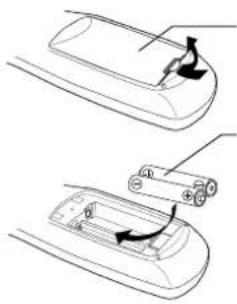
natural_image
Diagram showing two views of a remote control device with a handle and scroll (no text or symbols)1) Open the cover.
2) Insert batteries as marked.
3) Close the cover.
□ Battery replacement caution
- Do not mix old and new batteries.
- Do not mix alkaline with manganese batteries.
Features for a Quality Picture
PanaBlack™ Picture Tube (PV-27D53 only)
This unit uses a PanaBlack™ picture tube for better color reproduction and picture contrast.
Accessories
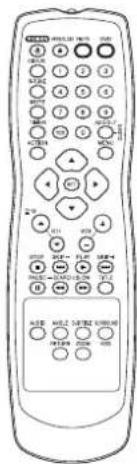
□ Remote Control LSSQ0373
□ Batteries 2 "AA"
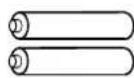
To order accessories, call toll free 1-800-332-5368.
Apparatus Claims of U.S. Patent Nos. 4,631,603, 4,577,216, 4,819,098, and 4,907,093, licensed for limited viewing uses only.
This product incorporates copyright protection technology that is protected by method claims of certain U.S. Patents and other intellectual property rights owned by Macrovision Corporation and other rights owners. Use of this copyright protection technology must be authorized by Macrovision Corporation, and is intended for home and other limited viewing uses only unless otherwise authorized by Macrovision Cor po ra tion. Reverse engineering or dis as sem bly is prohibited.
Table of Contents
TV
Important Safeguards and Precautions ......2
Information (Unit, Disc)....6
Location of Controls 8
Initial Setup (Ready to Play) 10
Reset Language, Channels, Clock, Time Zone Adjust.....12
Audio Connections....14
DVD
Basic DVD Operation ....16
TV
TV Operation....18
MTS Broadcast/TV Stereo System....19
Closed Caption System ....20
TV Timer Features 22
On-Screen Display (OSD) 23
FM Radio 24
TV
Special Features....26
V-Chip Control Feature 28
Video/Audio Menu 32
Video/Audio Adjustment....33
DVD
Disc Operation ....34
DVD Operation using On-Screen Displays ....39
MP3/WMA/JPEG Playback Operation....42
DVD Lock Feature....45
Settings for DVD Operation....46
Language Code List 49
TV
Before Requesting Service....50
Warning and Instruction Displays ....52
Spanish Quick Use Guide/Guía para rápida consulta....53
Limited Warranty 60
Customer Services Directory 61
Index 62
Information (Unit, Disc)
Specifications
| Display | ||
| Picture Tube | 20 inch measured diagonal 90° defl ection Picture Tube (PV-20D53)27 inch measured diagonal 100° defl ection Picture Tube (PV-27D53) | |
| Tuner | ||
| Broad cast Channels | VHF 2 ~ 13, UHF 14 ~ 69 | |
| CA BLE Channels | Midband A through I (14 ~ 22)Superband J through W (23 ~ 36)Hyperband AA ~ EEE (37 ~ 64)Lowband A-5 ~ A-1 (95 ~ 99)Special CABLE channel 5A (01)Ultraband 65 ~ 94, 100 ~ 125 | |
| FM Radio | ||
| Band Range 87.5 MHz ~ 108.1 MHz | ||
| General | ||
| Power Source 120 V | AC, 60 Hz | |
| Power Consumption | Power On | Approx. 117 W (PV-20D53)Approx. 150 W (PV-27D53) |
| Power Off | Approx. 3.5 W | |
| Television System E | A Standard NTSC color | |
| Speak er | 2 pieces 3 W (PV-20D53)2 pieces 5 W (PV-27D53) | |
| Op er at ing Temperature | 5 °C ~ 35 °C (41 °F ~ 95 °F) | |
| Op er at ing Humidity | 10 % - 75 % | |
| Weight | 23 kg (50.6 lbs.) (PV-20D53)39 kg (85.8 lbs.) (PV-27D53) | |
| Di men sions (W x H x D) | 515 mm (20-5/16") x 505 mm (19-7/8") x 474 mm (18-11/16") (PV-20D53)688 mm (27-1/16") x 653 mm (25-11/16") x 550 mm (21-11/16") (PV-27D53) | |
| Discs played | ||
| DVD disc (DVD-Video, DVD-R) | 12 cm (5") single-sided, single-layer12 cm (5") double-sided, double-layer(one layer per side)8 cm (3") single-sided, single-layer8 cm (3") double-sided, double-layer8 cm (3") double-sided, double-layer(one layer per side) | |
| Compact disc (CD-DA, VIDEO CD, CD-R, CD-RW) | 5" (12 cm) disc3" (8 cm) disc | |
| MP3, WMA, JPEG | ||
| Digital audio output | ||
| Optical digital output | Optical connector | |
| Pickup | ||
| Wavelength | 655 nm (DVD)790 nm (Video CD/CD)Laser power: CLASS II | |
Note
- Designs and specifications are subject to change without no tice.
Discs that can be played
| Disc type Disc Logo | Disc formats supported by this unit | |
| DVD-Video |  | • DVD-Video format |
 | ||
| DVD-R |  R4.7 R4.7 | • DVD-Video formatted discs (fi nalized*) It may not be possible to play these discs in all cases due to the type of disc or condition of the recording. |
| Video CD |  | • Video-CD format |
| CD-DA |  | • CD-DA format |
| CD-R |  | • CD-DA format• Video-CD format• MP3/WMA/JPEG fi le and fi nalized* |
| CD-RW |  | |
• Discs played 8 cm (3") or 12 cm (5")
- * A process that allows play on compatible equipment.
Discs which cannot be played with this unit
• DVD with Region No. • CD-ROM
other than "1" or "ALL"
• DVD of PAL system
- DVD-ROM
- DVD-AUDIO
- DVD-RW
- DVD+RW
- CD-ROM
• CDV
• CVD
- CD-G
- CD-TEXT
• SACD
- Photo-CD
Definition of Terms
Angle
Some DVD discs feature scenes si mul ta ne ous ly shot from different angles. The ANGLE button can be used to view the scene from different angles. (ANGLE Indicator lights up on the unit when a scene recorded at different angles is detected.)
Chapter Number
Titles are subdivided into numbered sections. You can quickly search for a favorite scene using these numbers.
DVD
A high-density optical disc on which high-quality pictures and sound have been digitally recorded. DVD incorporates new video compression technology (MPEG II) and high-density recording technology which allow entire movies to be recorded with incredible playback quality.
Playback Control
With Video CD (version 2.0), scenes or in for ma tion may be selected for viewing or listening from an interactive menu that appears on the TV screen.
Subtitles
Written dialogue which appears at the bottom of the screen.
Time Number
The elapsed play time from the start of a disc or title. Use to quickly find scenes.(May not work with some discs.)
Title Number
For DVD discs with two or more titles, the title is numbered as title 1, title 2, etc.
Track Number
Numbers assigned to tracks on Video CDs and CDs to allow specific tracks to be quickly located.
Video CD
CD containing picture and sound with same quality level as video tape. This unit also supports Video CDs with playback control (version 2.0).
Disc Handling
Handling precautions
- Sticking a label on the disc may impair DVD-R playback.
- Do not attach sticker to discs. (Do not use discs with exposed adhesive from tape or left over peeled-off stickers.)
- Only hold disc by edges as shown. Fingerprints, dirt, and scratches can cause skipping and distortion.
- Do not write on label side of disc.
- Never use record cleaning sprays, benzine, thinner, static electricity prevention liquids, or any other solvent.
- Be careful not to drop or bend disc.
- Do not place more than 1 disc on disc tray.
- Do not try to close disc tray when disc is not properly placed.
• Always store discs in their proper cases when not in use.
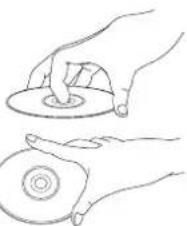
natural_image
Line drawing of two hands holding a circular object, one with a handle and the other a ring (no text or symbols)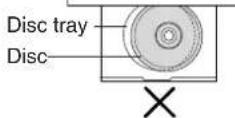
To clean disc surface
With a soft, damp (water only) cloth, gently wipe from the center hole to the outer edge as shown below. (Wiping in a circular pattern will scratch the surface.)
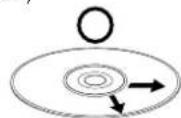
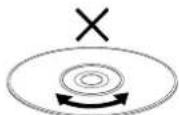
If disc is brought from a cold to a warm environment, moisture may form on the disc
Wipe away moisture with a soft, dry, lint-free cloth before using disc. (See above.)
Improper disc storage
Discs could be damaged if stored or left in areas:
• exposed to direct sunlight.
• that are humid or dusty.
- near heat (i.e. heater, radiator, etc.).
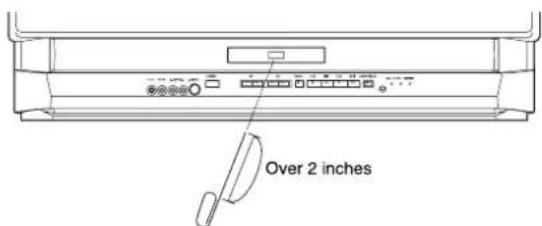
If the disc cannot be removed,
First unplug unit.
Then, prepare a rigid wire (e.g. an extended paper clip, etc.) and, applying moderate force, insert it straight into the hole at the base of the tray. The tray will eject a little. Now, pull the tray all the way out and remove the disc.
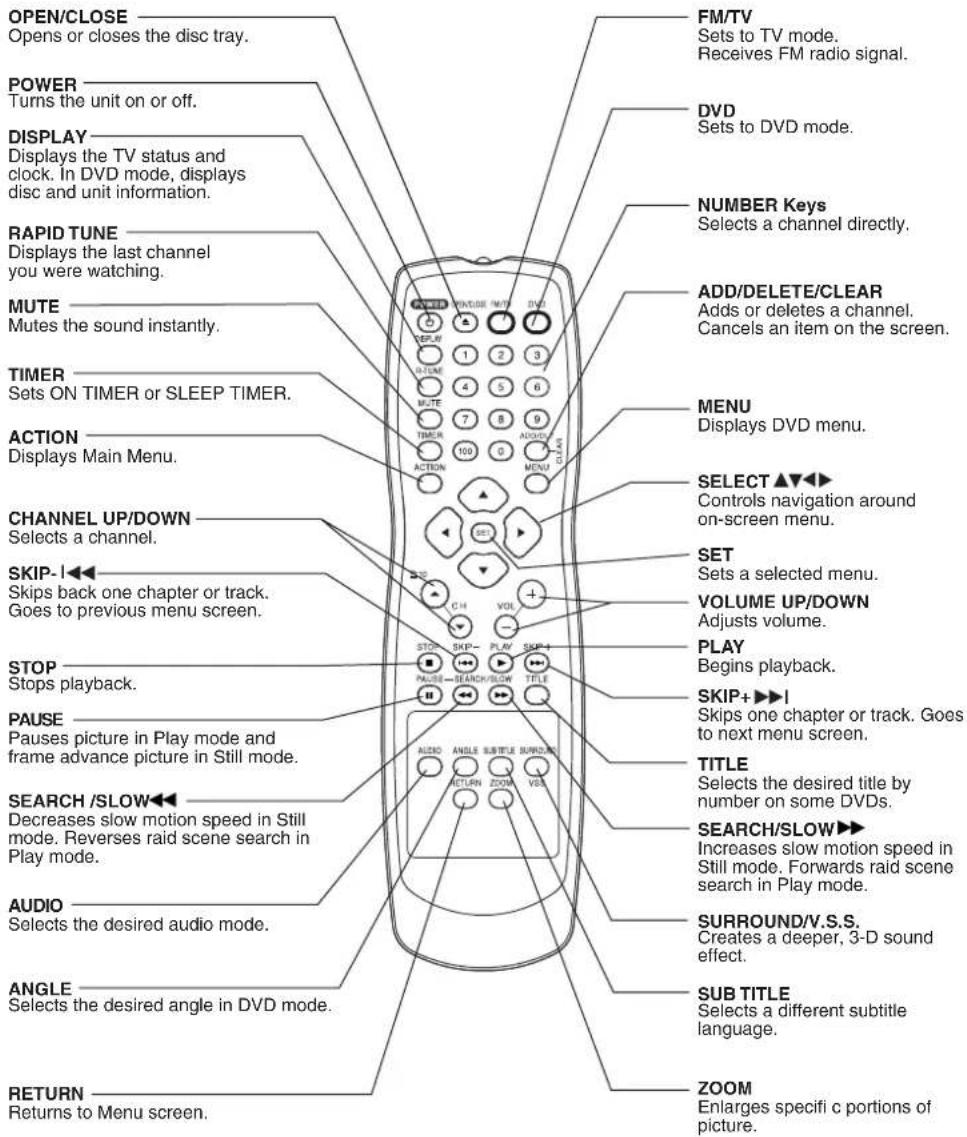
Location of Controls
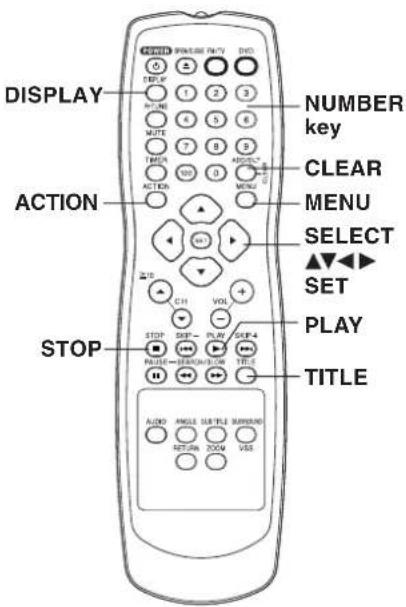
Remote Control Buttons

natural_image
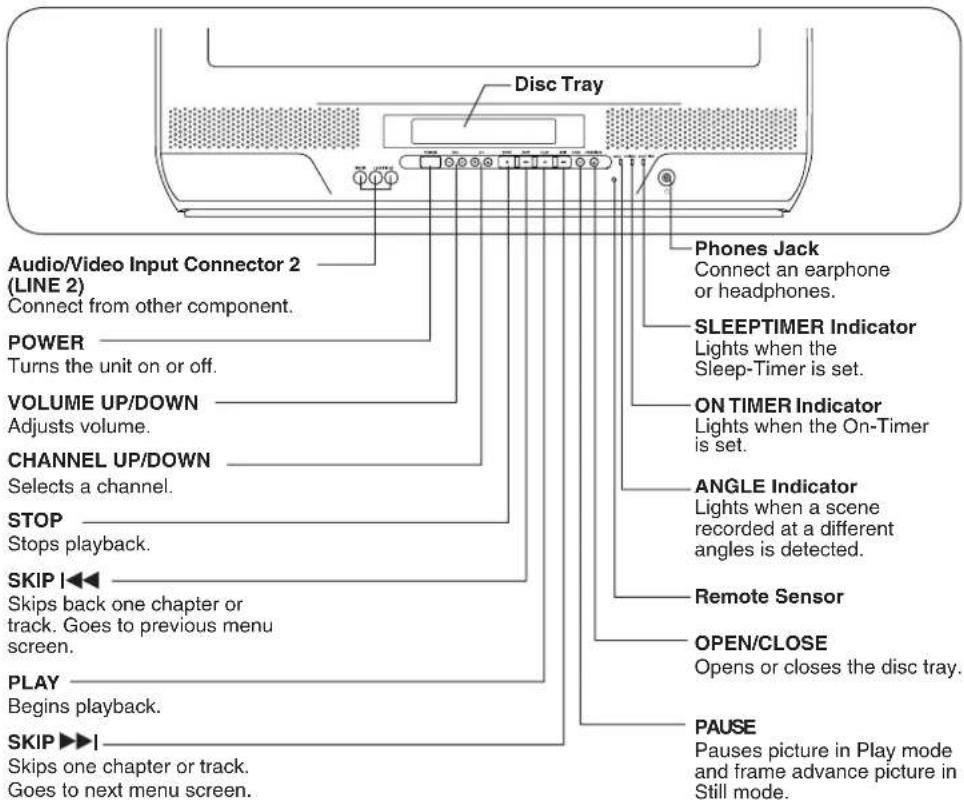
Pure geometric diagram with intersecting lines and a central circle, no text or symbols presentFront View of the unit and Indicators
(Model PV-27D53 unit shown>
Initial Setup
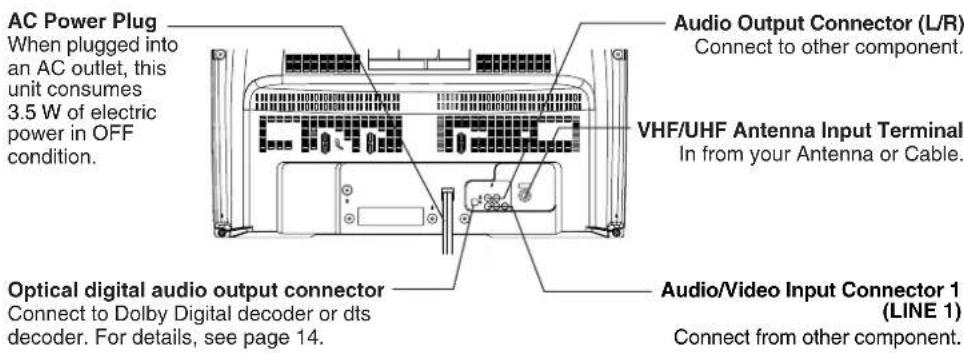
Rear View of the unit
(Model PV-27D53 unit shown>
Initial Setup (Ready to Play)
Please make all cable or antenna connections before powering on.
Connections
For ANT./Cable
Connect the cable from Antenna/Cable to the VHF/UHF terminal on the unit.
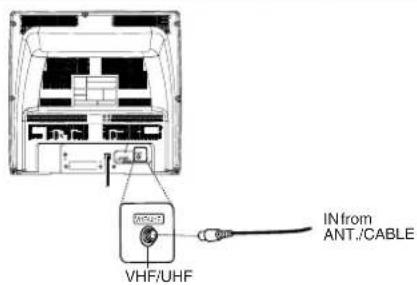
For DSS/Cable Box
Connect the OUT jack on your cable box to the VHF/UHF terminal on the unit with a RF cable.
WARNING
Overtightening "Nut type" RF coaxial cables may damage jacks. Finger tighten only.
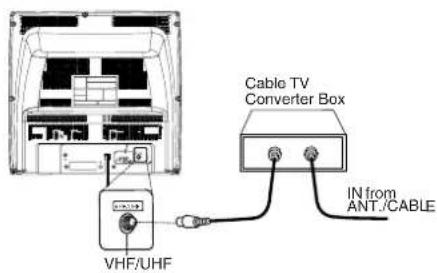
Initial Setup (Ready to Play)
1 Plug the unit power cord into an AC wall outlet.
2 Press POWER* on the remote or unit. The unit comes on and auto channel and clock set starts.
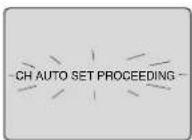
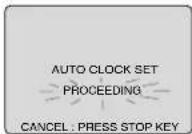
- If you use a cable box, turn it on and set it to the Public Broadcasting Service (PBS) channel in your time zone. If you use a DSS receiver, it must be turned off.
3 Settings are made automatically. When setup is done, this screen appears.
2/6/2003 THU 12:00PM
DST:ON SETTING : CH 10
AUTO CLOCK SET
COMPLETED
If AUTO CLOCK SET IS INCOMPLETE screen appears, set the clock using MANUAL CLOCK SET procedure on next page.
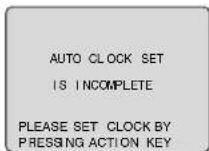
Notes
• Function buttons are inoperative during Initial Setup.
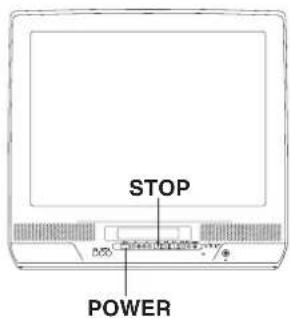
- Depending on conditions, Auto Clock Set may take longer than 30 minutes. If so, press STOP to stop setup and perform settings manually. (See page 12-13.)
*Important: If a remote control button does not work when pressed, press the FM/TV button on the remote and try the button again.
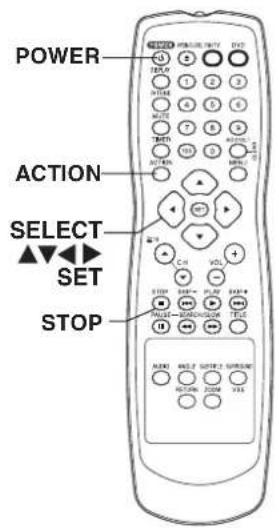
Manual Clock Set
If AUTO CLOCK SET was incomplete, manually set the clock as follows.
1
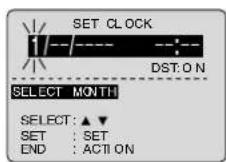
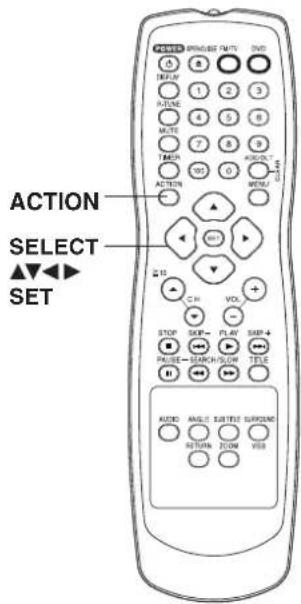
Press ACTION on the remote to display SET CLOCK Menu screen.
2
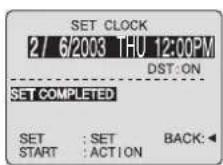
Press ▲▼ to select the month and press SET to set. In the same manner, select and set the date, year, time, and DST (Daylight Saving Time).
3
Press ACTION twice to start CLOCK and exit.
DST (Daylight Saving Time)
Unit auto adjusts clock for DST (Daylight Saving Time.)
■ Spring (First Sunday in April)
DST: ON → Sets clock ahead one hour.
■ Autumn (Last Sunday in October)
DST: OFF → Turns clock back one hour.
- If your area does not observe Daylight Saving Time, select DST : OFF (see "Clock" on pages 12 and 13).
Note to CABLE system installer: This re mind er is pro vid ed to call the CABLE (Cable TV) System Installers at ten tion to Article 820-40 of the NEC that pro vides guide lines for proper grounding and, in par tic u lar, specifi es that the cable ground shall be con nect ed to the ground ing system of the build ing, as close to the point of cable entry as practical.
Reset all unit Memory Functions
When moving unit to a new location, or if a mistake was made in the Initial Setup section.
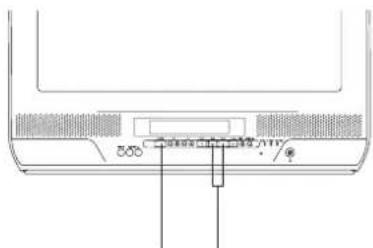
1
Turn the unit Power on.
2
Press and hold both PLAY and on the unit for more than 5 seconds. • The power will shut off.
3
Perform "Initial Setup" on page 10.
Reset Language, Channels, Clock,
1
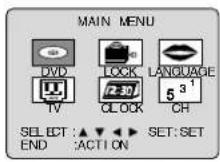
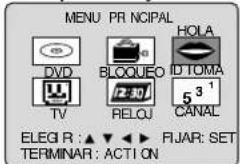
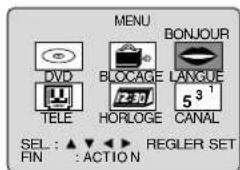
Press ACTION* to display MAIN MENU.
2
■ Language ■ Channels ■ Clock
1) Press ▲▼◀▶ select language icon.
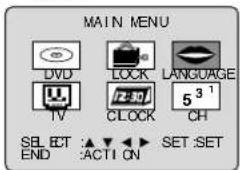
1) Press ▲▼◀▶ select "CH."
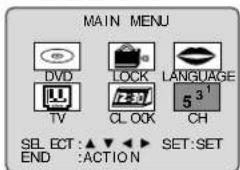
1) Press ▲▼◀▶ select "CLOCK."
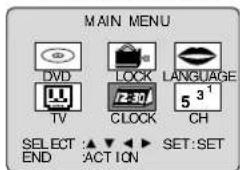
2) Press SET repeatedly.
2) Press SET.
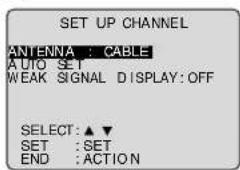
2) Press SET.
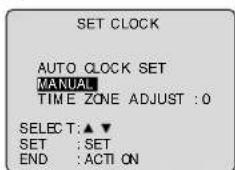
3) Press ▲▼ to select "ANTENNA," then press SET to set your antenna system ("TV" or "CABLE").
4) Press ▲▼to select "AUTO SET," then press SET.
- After Channel Auto Set is finished, Clock Auto Set will be performed. (If clock is set manually, Clock Auto Set will not be performed.)
("TIME ZONE ADJUST" appears only when auto clock is set.)
3) Press ▲▼ to select "MANUAL," then press SET.
(For Auto Clock Set, select "AUTO CLOCK SET," and press SET.)
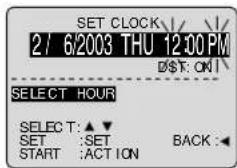
Continued on the next page.
Time Zone Adjust
*Important:
If a remote control button does not work when pressed, press the FM/TV button on the remote and try the button again.
4) Press ▲ and press SET to select and set the month, date, year, time, and DST (Daylight Saving Time).
To Make Corrections, repeatedly press ◀ to move to error, then correct.
5) Press ACTION twice to start the clock and exit this mode.
■ Time Zone Adjust
(Only when Auto Clock is set.)
1) Press ▲▼◀▶ select "CLOCK."
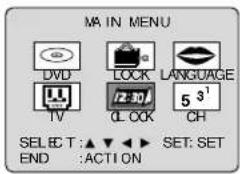
2) Press SET.
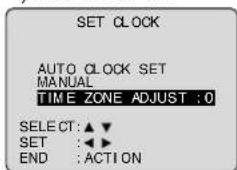
3) Press ▲▼ select "TIME ZONE ADJUST" and press ◀pr ▶ to subtract or add hour(s) as necessary.
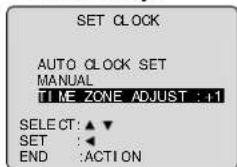
4) Press ACTION twice to exit.
- "TIME ZONE ADJUST" returns to "0" if clock is set manually.
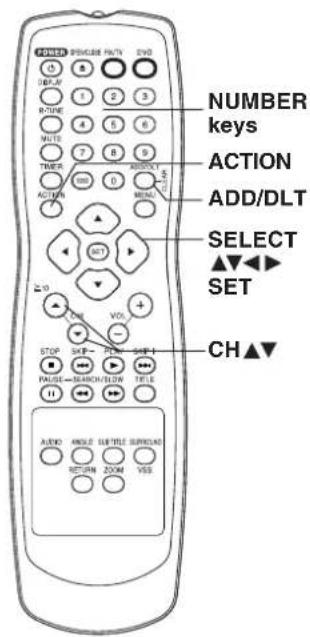
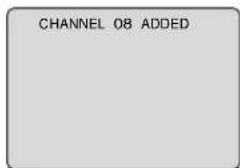
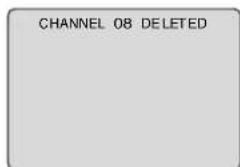
Add or Delete a Channel To add channel: Select channel with NUMBER keys and press ADD/DLT.
To delete channel: Select channel with CH ▲▼ or NUMBER keys and press ADD/DLT.
Audio Connections
Enjoy the powerful movie theater and hall-like sound available with multiple channel audio found on DVDs by connecting an amplifier and speakers. There are two types of connection, digital and analog.
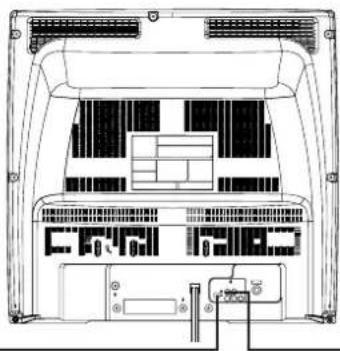
natural_image
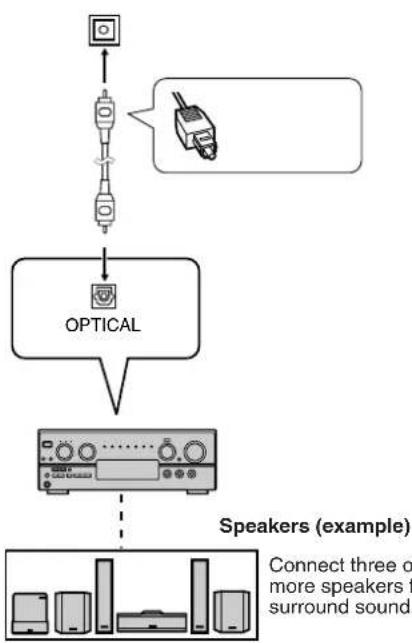
Technical line drawing of a server rack with internal components and ventilation ducts (no text or symbols)■ Digital connection
Connect an amplifi er with Dolby Digital and DTS decoders to enjoy surround sound. You can also enjoy stereo sound with sampling frequencies of 48 kHz if the material is not copy-protected and the equipment you connect is compatible with these signals.
flowchart
graph TD
    A["Sensor"] --> B["Analog/Amplifier"]
    B --> C["Optical"]
    C --> D["Speaker 1"]
    D --> E["Speaker 2"]
    E --> F["Speaker 3"]
    style A fill:#f9f,stroke:#333
    style B fill:#ccf,stroke:#333
    style C fill:#cfc,stroke:#333
    style D fill:#fcc,stroke:#333
    style E fill:#cff,stroke:#333
    style F fill:#ffc,stroke:#333
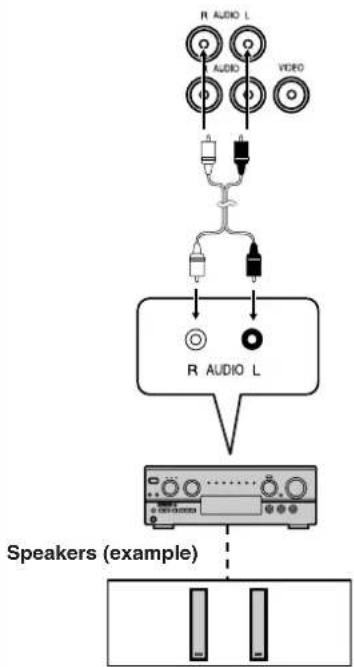
■ Analog connection
Connect an amplifier to enjoy high-quality stereo sound with sampling frequencies of 96 kHz.
flowchart
graph TD
    A["Speaker (example)"] --> B["R AUDIO L"]
    B --> C["Switch"]
    C --> D["Antenna"]
    D --> E["Antenna"]
    E --> F["Antenna"]
    F --> G["Antenna"]
    G --> H["Antenna"]
    H --> I["Antenna"]
    I --> J["Antenna"]
    J --> K["Antenna"]
    K --> L["Antenna"]
    L --> M["Antenna"]
    M --> N["Antenna"]
    N --> O["Antenna"]
    O --> P["Antenna"]
    P --> Q["Antenna"]
    Q --> R["Antenna"]
    R --> S["Antenna"]
    S --> T["Antenna"]
    T --> U["Antenna"]
    U --> V["Antenna"]
    V --> W["Antenna"]
    W --> X["Antenna"]
    X --> Y["Antenna"]
    Y --> Z["Antenna"]
Check List
☐ Turn down the volume, then turn this unit, as well as other equipment to be connected, off before pro ceed ing with connection.
☐ Do not block ventilation holes of any equipment and arrange them so that air can circulate freely.
☐ Read through the instructions before connecting other equipment.
☐ Ensure that you observe the color coding when connecting audio and video cables.
Enjoying digital audio output from the digital audio output con nec tor
Notes on audio output from the optical digital audio output con nec tor
| Disc | Sound recording format | Optical digital audio output from connector |
| DVD | Dolby Digital | Dolby Digital bitstream (1-5.1 ch) or PCM (48 kHz sampling/16 bit only)*1 |
| Linear PCM (48/96 kHz 16/20/24 bit) | Linear PCM (2ch) (48 kHz sampling/16 bit only)*2 | |
| dts | Bitstream or PCM (48 kHz sampling/16 bit only)*1 | |
| Video CD | MPEG 1 | PCM (44.1 kHz sampling) |
| CD Linear | PCM | Linear PCM (44.1 kHz sampling) |
| MP3 MP3 | Linear PCM (It depends on the MP3 fi le) | |
| WMA WMA | Linear PCM (It depends on the WMA fi le) |
*1 The type of audio output from the connector can be selected by the Settings for DVD Operation. (See page 47.)
*2 Sound having 96 kHz sampling is converted into 48 kHz sampling when it is output from the unit's optical digital audio output connector.
For your reference:
- Dolby Digital is a digital sound compression technique developed by the Dolby Laboratories Licensing Corporation. Supporting 5.1-channel surround sound, as well as stereo (2-channel) sound, this technique enables a large quantity of sound data to be efficiently recorded on a disc.
- Linear PCM is a signal recording format used in CDs. While CDs are recorded in 44.1 kHz/16 bit, DVDs are recorded in 48 kHz/16 bit up to 96 kHz/24 bit.
- If you have a Dolby Pro Logic Surround decoder, you will obtain the full benefit of Pro Logic from the same DVD movies that provide full 5.1 channel Dolby Digital soundtracks, as well as from titles with the Dolby Surround mark. For information on Panasonic or Technics Dolby Pro Logic Surround Sound Decoders please contact your local dealer.
IMPORTANT NOTE:
Caution for optical digital audio output connector:
- When connecting an amplifier (with an Optical digital input connector) which does not contain the Dolby Digital or dts decoder, be sure to select "PCM" at "Dolby Digital" and "PCM" at "dts" of the Settings for DVD Operation "AUDIO OUTPUT" (see page 47). Otherwise, any attempt to play DVDs may cause such a high level of noise that it may be harmful to your ears and damage your speakers.
- When a dts decoder is connected, please select "Bitstream" at "dts" of the Settings for DVD Operation "AUDIO OUTPUT." If "PCM" is selected, there will be stereo sound. (See page 47).
• Video CDs and CDs can be played as usual.
Note
- Some dts decoders which do not support DVD-dts Interface may not work properly with the unit.
Manufactured under license from Digital Theater Systems, Inc. US Pat. No. 5,451,942, 5,956,674, 5,974,380, 5,978,762 and other world-wide patents issued and pending. "DTS" is a registered trademark of Digital Theater Systems, Inc. Copyright 1996, 2000 Digital Theater Systems, Inc. All rights reserved.
Manufactured under license from Dolby Laboratories. "Dolby" and the double-D symbol are trade marks of Dolby Laboratories.
Basic DVD Operation
Check List
□ Cable or antenna is connected.
□ Power cord is plugged in.
□ If unit is connected to an audio amplifier, turn the stereo system's power on.
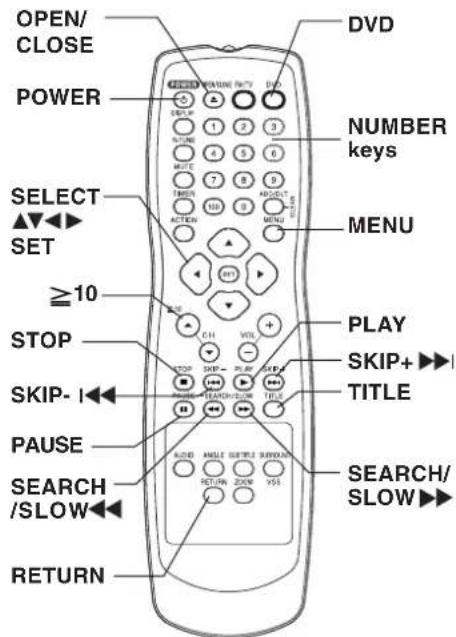
Operation using unit buttons
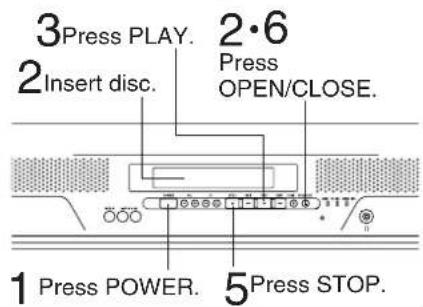
*1 Interactive DVD...
May include multiple camera angles, stories, etc.
*2 Video CD with playback control...
Particular scenes or information can be interactively selected from a menu that appears on the screen.
1 Press POWER\* on the remote or unit.
2 Insert a disc.
• If a disc is already inserted, go to step 3. (Depending on the disc, playback may start automatically.)
1) Press OPEN/CLOSE.
2) Place disc into disc tray.
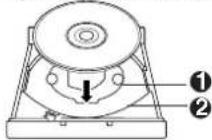
- Hold disc by its edges only (page 7) with printed side up and use guides to place into tray. Use 1 3"(8 cm) or 2 5" (12 cm) disc.
3 Press PLAY to start play. Disc tray closes automatically.
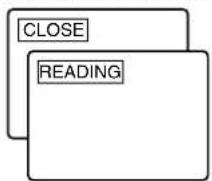
- You may also close the tray by pressing OPEN/CLOSE.
• Data reading time differs with each disc.
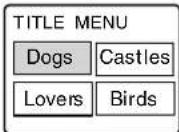
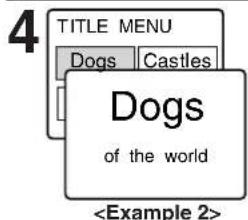
Press ▲▼◀▶r NUMBER key(s)
(see below) to select title, and press SET or PLAY to start playing.
- "Pressing SET or PLAY" is not necessary when using NUMBER keys.
Using NUMBER key(s) starts play automatically. The number of available titles varies with each disc.
1 digit number 1 ... 1
2 digit number 12 ⋯ ≥10 →1→2
3 digit number 123···100→1→2→3
Press SKIP+ ▶▶| or SKIP- |◀◀ to go to next or previous menu screen.
- SKIP function not available with all discs. Please refer to disc jacket for operation information.
To return to MENU (play stops) Press TITLE, MENU, or RETURN. (DVD) Press RETURN. (Video CD)
5 Press STOP to stop play.
6 Press OPEN/CLOSE to eject the disc.
*Important: If a remote control button does not work when pressed, press the DVD button on the remote and try the button again.
■ Forward/Reverse rapid scene search
→ Press SEARCH/SLOW ▶▶ or SEARCH/SLOW ◀◀ during play.
→ Press PLAY to release.
- Starting forward/reverse search during play started from menu on Video CDs may recall menu.
- Search speed, slow at first, increases with each additional press of the button up to 5 levels.
■ Forward/Reverse Chapter/Track Skip
→ Press SKIP+▶▶| or SKIP-|◀◀ during play.
Each press skips a chapter (DVD) or track (Video CD/CD).
Pressing SKIP- | once midway through a chapter/track returns to start of that chapter/track. Each additional press skips back one chapter/track.
- Pressing SKIP+▶▶| or SKIP-|◀◀ during play started from menu on Video CDs may recall menu.
Current playback position

flowchart
graph LR
    A["Chapter/Track"] --> B["Chapter/Track"]
    B --> C["Chapter/Track"]
    C --> D["TrackChapter/"]
    D --> E["Reverse Skip"]
    E --> F["Forward Skip"]
■ Still (Pause) Picture
→ Press PAUSE during play. → Press PLAY to release.
• DVD/Video CD : The unit will enter Still picture mode.
- CD: The unit will enter Pause mode.
■ Frame by Frame picture (DVD/Video CD)
→ Press PAUSE in Still mode. → Press PLAY to release.
• Each press advances picture one frame.
- Hold down for consecutive frame advance.
- Whether pictures are advanced by "FRAME" or "FIELD" is selected automatically (see page 48).
■ Slow Motion picture (DVD/Video CD)
→ Press SEARCH/SLOW▶▶ or SEARCH/SLOW◀◀(DVD only) in Still mode.
→ Press PLAY to release.
- Slow motion speed, slow at first, is increased with each additional press of the button up to 5 levels.
- Reverse slow motion is not available for video CDs.
- When appears on the screen while a button is being pressed, it means that the corresponding operation is prohibited by the unit or the disc.
RESUME function
The unit memorizes the point where STOP is pressed. Press PLAY to resume play from this point. Pressing STOP again or opening the tray cancels RESUME, however, RESUME is not canceled when power is turned off and on. • RESUME works only with discs for which elapsed play time is displayed during play.
Auto-Power Off function
Power turns off after unit has been in Stop mode (DVD) for about 5 minutes.
Enjoy Video CDs featuring playback control without using menus (Video CDs only)
- Do steps 1-3 (previous page).
When menu appears, press STOP. - Press NUMBER key(s) to select desired track (play begins).
- Check disc for track numbers.
- Press "1" to start at beginning of disc.
To Resume Menu use, Press STOP, and press PLAY, then the menu appears. Now, go to step 4 (previous page).
Notes
- Please read the disc jacket for operation information.
- If a single sided disc is placed in upside down, "THIS TYPE OF DISC CANNOT BE PLAYED. PLEASE INSERT A DIFFERENT DISC" is displayed.
- Remove disc and press unit POWER off when not in use.
- Disc continues to rotate with menu displayed even after play is done. Press STOP to clear menu display when fi nished with menu.
TV Operation
*Important: If a remote control button does not work when pressed, press the FM/TV button on the remote and try the button again.
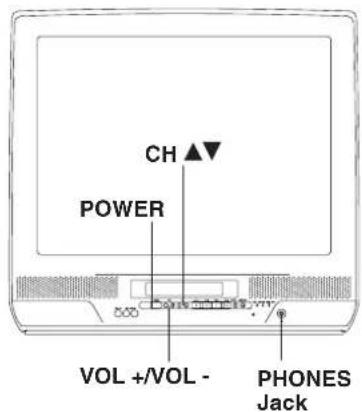
1 Press POWER* on the remote or unit.
Check List
□ Cable or antenna is connected.
□ Power cord is plugged in.
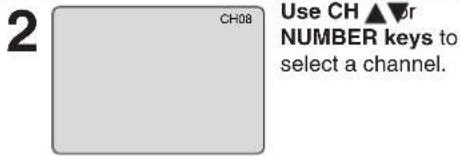
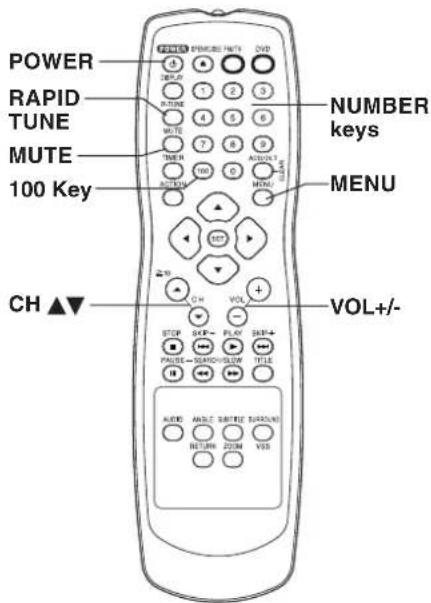
■ Using the 100 key
When selecting CABLE channels 100 to 125 with the NUMBER keys, first press the 100 key, and then enter the remaining two digits.
■ Rapid Tune
Press R-TUNE to display the last channel you were watching.
■ Audio Mute
Press MUTE to instantly mute the sound. Press again to restore the previous sound level.
■ Phones
Connect an earphone (not supplied) or headphones (not supplied) to the Phones Jack.
MTS Broadcast/TV Stereo System
Equipped with dbxV Noise
Reduction for true MTS reproduction.
dbx ^® -TV Noise Reduction is required for good stereo separation and audio fi delity.
dbx ^® is a registered trademark, and is licensed by dbx ^® Technology Licensing.
Receivable Broadcast Types
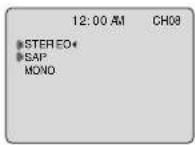
The following are possible audio broadcast types and on-screen displays. The signal being received is indicated with an "I" mark while the selected audio mode is indicated with an arrow. To change the audio mode for these broadcasts, see the "Audio Mode for TV Viewing" section below.
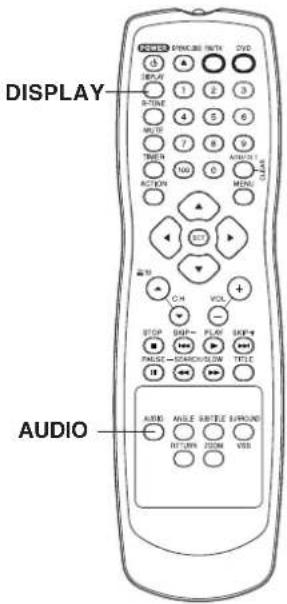
Press DISPLAY to display the broadcast signal being received.
MTS Stereo and SAP broadcast
Multi-channel Television Sound Stereo (main language) and Secondary Audio Program (sub language) broadcasts are being received simultaneously. Select the STEREO or SAP audio mode.
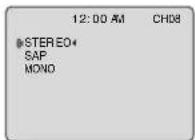
MTS Stereo broadcast
Multi-channel Television Sound Stereo broadcast. Select STEREO audio mode.
- If stereo broadcast is weak and the display fl ickers, select MONO audio mode for possible improvement.
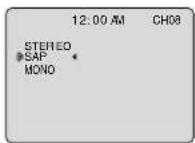
SAP broadcast
Secondary Audio Program (sub language). Select SAP audio mode for the sub language.
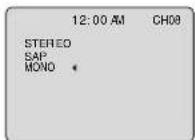
MONO broadcast
Normal monaural sound broadcast.
Audio Mode for TV Viewing
Press AUDIO to select the desired audio mode as described above.
(Arrow shows selection.)
• Each press of AUDIO will change the audio mode as shown below.
- "SAP" is selected with first press of AUDIO.
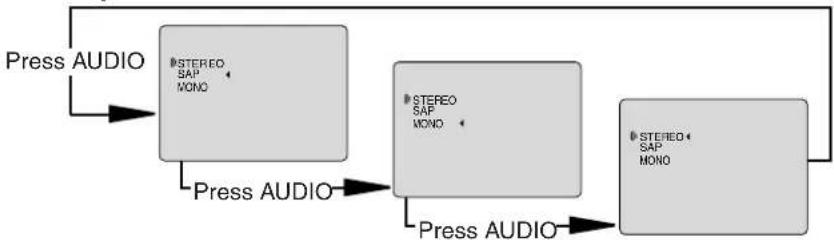
flowchart
graph TD
    A["Press AUDIO"] --> B["STEREO SAP MONO"]
    B --> C["Press AUDIO"]
    C --> D["STEREO SAP MONO"]
    D --> E["Press AUDIO"]
    E --> F["STEREO SAP MONO"]
    F --> G["Press AUDIO"]
    G --> H["STEREO SAP MONO"]
    H --> I["Press AUDIO"]
    I --> J["STEREO SAP MONO"]
    J --> K["Press AUDIO"]
Closed Caption System
Closed Caption is ...
This multi-use system not only allows the hearing impaired to enjoy selected programs, but also makes useful information from TV stations available to everyone.
Closed Caption Mode Feature
1 Press ACTION* to display MAIN MENU.
2
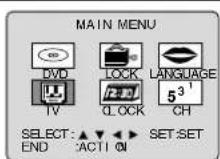
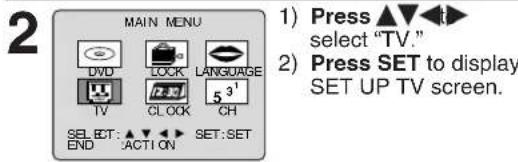
1) Press ▲▼◀
▶ to select
"TV."
2) Press SET to display SET UP TV screen.
3
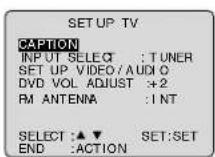
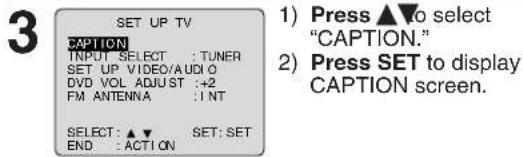
1) Press ▲▼to select "CAPTION."
2) Press SET to display
CAPTION
screen.
4
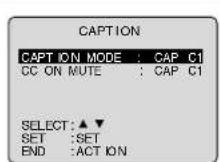
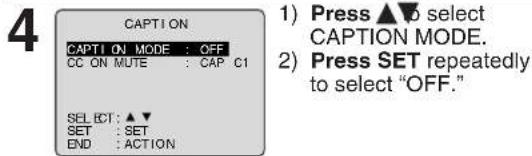
1) Press ▲▼to select CAPTION MODE.
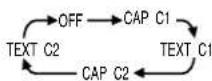
2) Press SET repeatedly to select mode. (See left.)
5
Press ACTION three times to return to the normal screen.
Closed Caption Mode Selections Caption Mode: CAP C1 or C2
A narration of selected TV programs is displayed. Check TV program listings for CC (Closed Caption) broadcasts.
Caption Mode: TEXT C1 or C2 Most of the screen will be blocked out. When the TV station broadcasts information, such as program listings, it will appear in this space.
Caption Mode: OFF
Closed Caption/Text narration will not be displayed.
Note
- The closed caption or text signal may be broadcast over C1, C2, or both. Also, text contents can vary so you may wish to try different settings.
*Important: If a remote control button does not work when pressed, press the FM/TV button on the remote and try the button again.
Caption On Mute Feature
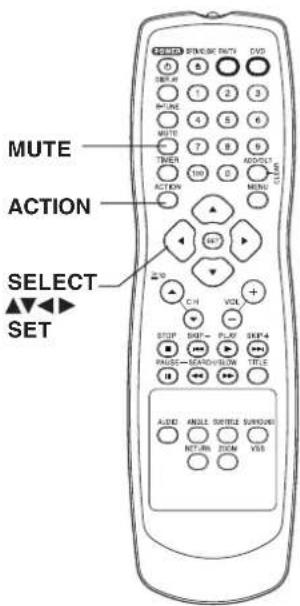
Closed Caption narration, if available, is displayed when MUTE button is pressed.
1 Press ACTION to display MAIN MENU.
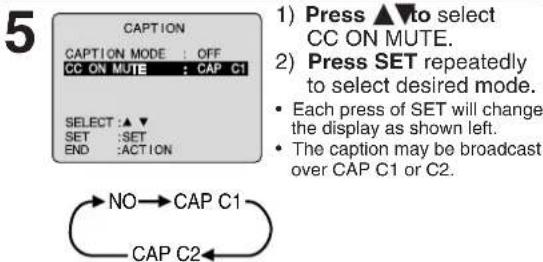
6 Press ACTION three times to return to the normal screen.
7 Press MUTE to mute the sound and display closed captioning.
• To cancel, press MUTE again.
TV Timer Features
ON-TIMER with Alarm
This unit can be set to automatically power on in one of 3 modes (TV, FM radio, or DVD/Video CD/CD.) You can also combine the On-Timer with a one minute alarm that gradually increases in volume.
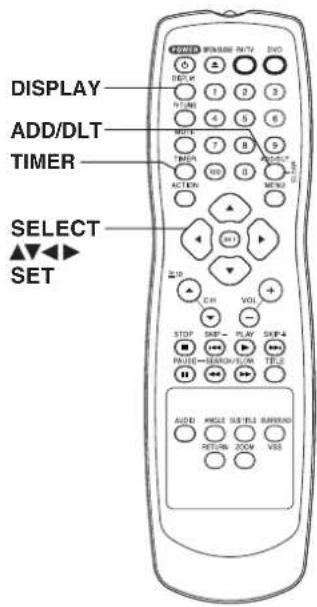
1 Press TIMER* to display SET TIMER screen.
2
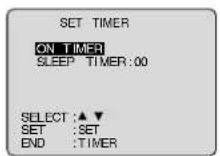
1) Press ▲▼to select "ON TIMER."
2) Press SET to display ON TIMER screen.
3
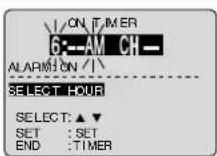
1) Press ▲▼to select desired settings.
2) Press SET to set the ON-TIMER time or ON-TIMER mode.
• Make sure a disc is inserted if DVD (DVD/Video CD/CD) mode is selected.
- See "FM Radio" on pages 24 and 25 for instructions on how to preset FM stations.
• ON-TIMER mode selection order
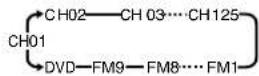
4
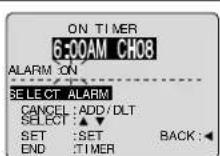
Press ▲▼ to select ALARM "ON" or "OFF."
When "ON" is selected,
an alarm will gradually increase in volume for one minute or until canceled by pressing any button (including VOL + -).
To Make Corrections,
use ▲▼ and ◀▶ to move back and correct.
5
Press TIMER to set ON TIMER.
- "ON TIMER SET" is displayed.
- ON-TIMER Indicator lights up on the unit.
To Cancel ON-TIMER,
Repeat steps 1 and 2. Then, press ADD/DLT to clear the time in step 3. Now, press TIMER to end.
"ON TIMER END" briefl y appears on-screen.

Check List
☐ The clock is set to the correct time.
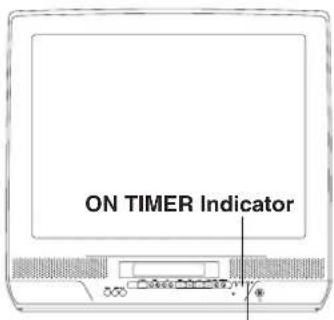
SLEEP TIMER Indicator
Sleep Timer
This unit can be set for auto power off.
1 Press TIMER to display SET TIMER screen.
2
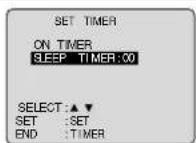
1) Press ▲▼
select SLEEP
TIMER.
2) Press SET repeatedly to select the desired time.
SLEEP TIMER
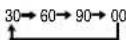
To cancel,
press SET repeatedly until 00 appears.
3
Press TIMER to return to the normal screen.
- Pressing DISPLAY with sleep timer set displays remaining time.
- SLEEP TIMER Indicator lights up on the unit.
Note
- If no button on the remote or unit (including a button used to turn off the alarm) is pressed within 60 minutes after unit turns itself on, it will turn itself back off.
On-Screen Display (OSD)
- Important: If a remote control button does not work when pressed, press the V button on the remote and try the button again.
TV Status & Clock Display
Press DISPLAY to display or remove the overlay.
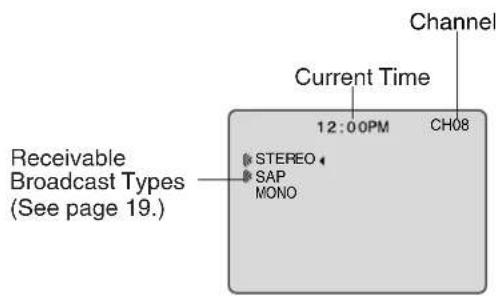
TV Operation
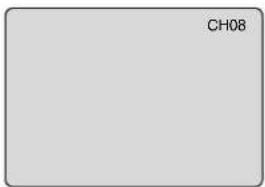
Blue Screen Display
Whenever the selected channel has no broadcast signal with the Weak Signal Display Feature set to "OFF" (see page 26), the screen will turn solid blue.
Channel Display
When you change channels, the channel number will be displayed.
FM Radio
FM Radio is ...
This unit has an FM radio with built-in antenna, 9 station preset, and a band range of 87.5 \~ 108.1 MHz. You can set the On-Timer (page 22) to wake up to your favorite radio station.
FM Radio Setup
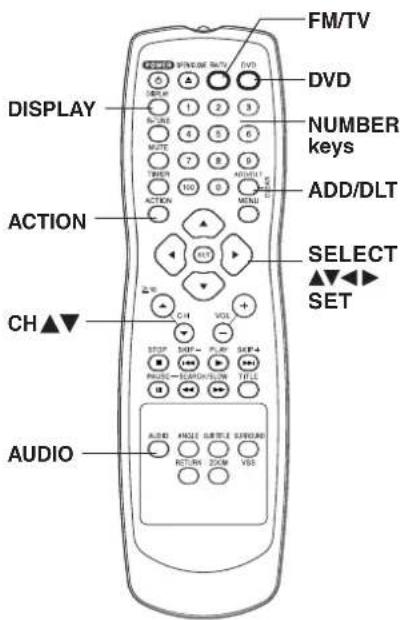
1 Press FM/TV* on the remote to display FM radio mode.
2
12:00PM
FM 1 87.5MHz
Press a NUMBER key (1\~9) to select the FM preset number.
3
12:00PM
FM 1 87.7MHz
MEMD RY: PRESS ADD:DLT KEY
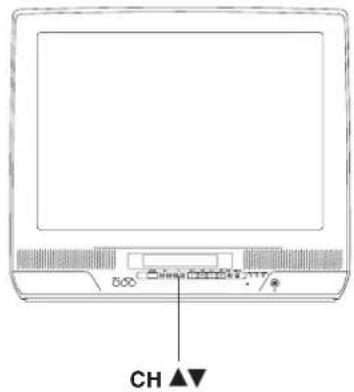
1) Press CH▲▼ select the desired radio station. (Each press changes frequency by 200 kHz.)
12:00PM
FM 1 87. MHz
MEMORIZED
2) Press ADD/DLT to set the radio station. Hold down CH ▲ or ▼ for a few seconds, then release to quickly scan for FM stations in your area.
• To cancel, press CH▲ or ▼ while in search mode.
To Make Corrections,
select station with a NUMBER key, then do step 3 again.
To exit FM mode,
press FM/TV or DVD on the remote.
FM Antenna Setup
Make sure FM tuning is done correctly (see FM Radio Setup).
1 Press ACTION to display MAIN MENU.
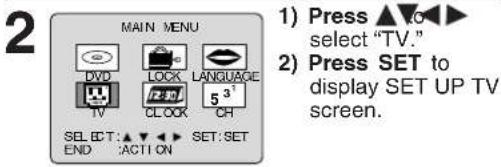
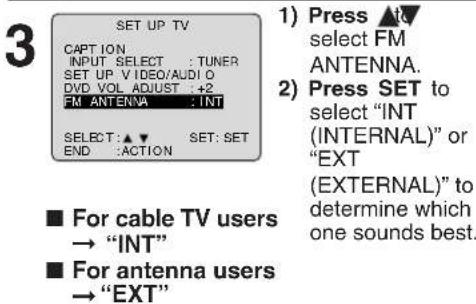
4 Press ACTION twice to end setup.
Audio Mode for FM Radio
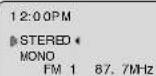
Press AUDIO repeatedly to select "STEREO" or "MONO" in FM Radio mode.
Notes
- You may get better reception by repositioning the unit.
- You cannot select FM Radio mode while a blue back screen (ACTION, MENU) is displayed.
- Once stations are set, the selected station and current time are displayed when FM Radio mode is entered. To remove time, press DISPLAY. If DISPLAY is pressed again, the unit status screen appears.
Using FM Radio
1 Press FM/TV on the remote to display FM radio mode.
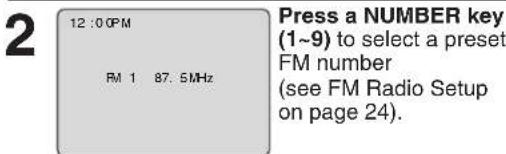
To exit FM mode, press FM/TV or DVD on the remote.
Special Features
Weak Signal Display Feature
When "ON" is selected, the picture is displayed even when a broadcast signal is weak or non-existent.
1 Press ACTION* to display MAIN MENU.
2
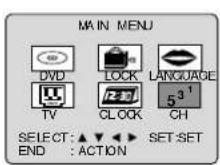
1) Press ▲▼◀
▶ to select
"CH."
2) Press SET to display SET UP CHANNEL screen.
3
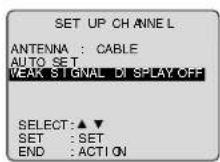
1) Press ▲▼
select WEAK
SIGNAL
DISPLAY.
2) Press SET to set "ON" or "OFF."
Notes
- "ON" = Picture is displayed regardless of signal condition, and may not always be clearly visible.
"OFF" = Screen turns solid blue when signal is absent or weak. - If unit is connected to equipment which has blue back feature, selecting "ON" will have no effect on the other equipment.
4 Press ACTION twice to return to the normal screen.
Selecting Input Mode
Method 1:
Press CH ▲▼The display will change as follows.
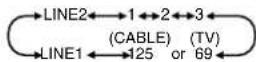
Method 2:
a Press ACTION for MAIN MENU.
b Press ▲▼◀▶ to select "TV," then press SET for SET UP TV screen.
c Press ▲▼ to select "INPUT SELECT," and then press SET to select "TUNER," "LINE1" or "LINE2."
d Press ACTION twice to exit this mode.
Auto Operation Functions
■ Auto Shut Off
No broadcast signal in TV mode (Only when Weak Signal Display is set to OFF.), DVD stops for 5 minutes.
→ Power turns off
- This feature is canceled if any button is pressed during above conditions.
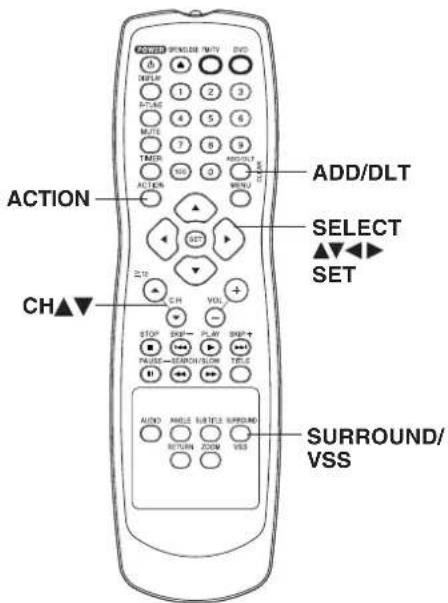
*Important: If a remote control button does not work when pressed, press the FM/TV button on the remote and try the button again.
DVD Volume Adjust
Some DVDs are recorded in lower average volume level. For these DVDs, this unit can be set so that the average volume is increased automatically.
1
Press ACTION to display MAIN MENU.
2
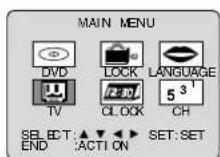
1) Press ▲▼◀
▶ to select "TV."
2) Press SET to display SET UP TV screen.
3
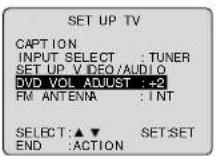
1) Press ▲▼
select DVD
VOL ADJUST.
2) Press SET to set the level (0, +1, or +2).
4
Press ACTION twice to return to the normal screen.
V.S.S. (Virtual Surround Sound) [DVD only]
Enjoy a surround-like effect if you are using two front speakers only. The effect is broadened and sound seems to come from virtual speakers on either side if the disc has surround signals recorded on it.
Press VSS in DVD mode.
- The Surround sound effects can be changed by pressing VSS repeatedly as shown by the figure below.
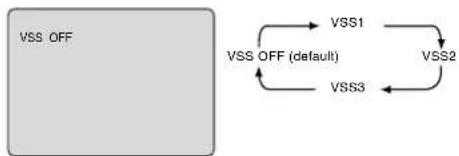
flowchart
graph TD
    A["VSS OFF"] --> B["VSS1"]
    B --> C["VSS2"]
    C --> D["VSS3"]
    D --> E["VSS OFF (default)"]
    E --> A
Notes
• V.S.S. effects is available in DVD mode only.
- Turn off the surround effects on the other equipment.
• V.S.S. will not work, or will have less effect, with some discs.
- Turn V.S.S. off if it causes distortion.
Surround Sound System
You can hear a deeper, 3-D sound effect using just the unit's two front speakers.
Press SURROUND.
- "SURROUND ON" is displayed.
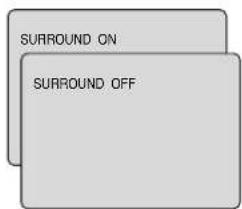
- Surround sound effect is not available for normal (mono) broadcasts.
- The surround effect (TV mode only) is not output to Audio Output L/R Connector.
V-Chip Control Feature
V-Chip Control Feature is...
This unit has a built-in V-Chip Control which allows you to block unwanted TV usage based on US MOVIES and US TV PROGRAMS Ratings.
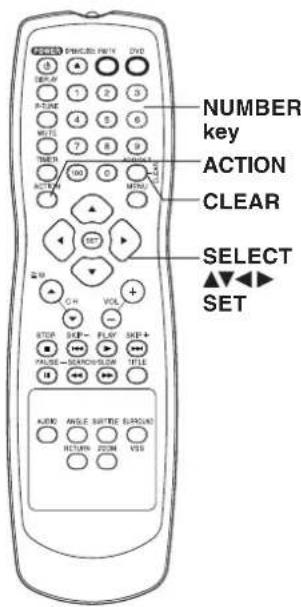
Enter Secret Code
A 4-digit code must be entered to view a blocked program or change rating settings.
1
Press ACTION* to display MAIN MENU.
2
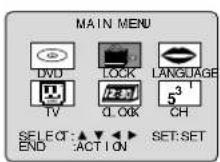
1) Press ▲▼◀▶ select "LOCK."
2) Press SET to display LOCK screen.
3
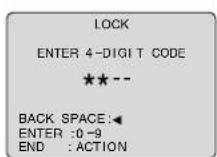
1) Press NUMBER keys to enter your secret code.
2) Enter same code again for confirmation.
- Step 2) not necessary when changing rating or secret code.
• Take care that you are not observed entering the secret code.
To Make Corrections
Press ◀ repeatedly to move the cursor.
Press NUMBER keys to make the correction.
4
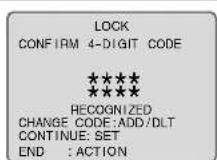
Press SET to display US Ratings menu (see pages 29, 30).
Or
Press ACTION twice to exit.
Changing your secret code
- You will need your current code.
Do steps 1 - 3. In step 4, press CLEAR to clear current code.
Repeat steps 3 and 4 to enter new code.
Process of V-Chip Control Feature
Enter Code
Setup Blocking
Notes
• DO NOT forget your secret code.
- Once ratings are set, restricted programs cannot be accessed unless the secret code is entered.
* Important: If a remote control button does not work when pressed, press the FM/TV button on the remote and try the button again.
If LOCK menu is not displayed, perform "Enter Secret Code" steps on page 28.
Process of V-Chip Control Feature
Setup BlockingEnter Code
US MOVIES Ratings
1

1) Press ▲▼ select US MOVIES.
2) Press SET to set "ON" or "OFF."
■ "ON" → V-Chip Control is activated.
■ "OFF" → V-Chip Control is deactivated.
Note
- "NEXT PAGE" displays CANADIAN V-Chip setting menu. Not necessary except when viewing Canadian discs or broadcasts.
2
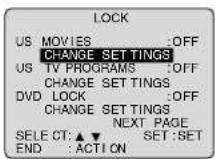
1) Press ▲▼ select CHANGE SETTINGS.
2) Press SET to display screen.
3
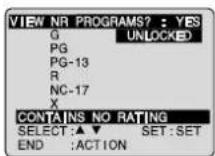
1) Press ▲▼ select VIEW NR PROGRAMS?
2) Press SET to set "YES" or "NO."
NR (Not Rated) PROGRAMS
Some movies, such as old movies or foreign movies usually have no ratings.
4
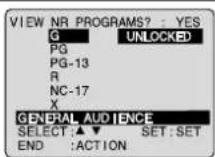
Press ▲to select and SET to set ratings to be blocked. (See ratings chart on this page.)
5 Press ACTION to redisplay LOCK menu and continue with US TV PROGRAMS Ratings (page 30). Or, press ACTION three times to exit.
US MOVIES RATINGS
| G | GENERAL AUDIENCE:All ages admitted. |
| PG | PARENTAL GUIDANCE:Some material may not be suitable for children. |
| PG-13 | PARENTS CAUTIONED:Some material may be inappropriate for children under 13. |
| R | RESTRICTED:Children under 17 must be accompanied by a parent or adult. |
| NC-17 | OVER AGE 17 ONLY:No one 17 and under admitted. |
| X ADULTS ONLY: | |
V-Chip Control Feature (continued)
If LOCK menu is not displayed, do "Enter Secret Code" steps on page 28.
Process of V-Chip Control Feature
Enter Code → Setup → Blocking
US TV PROGRAMS Ratings
1
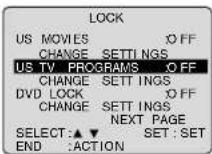
1) Press ▲▼ to select US TV PROGRAMS.
2) Press SET to set "ON" or "OFF."
- “ON” → V-Chip Control is activated.
- “OFF” → V-Chip Control is deactivated.
Note
- "NEXT PAGE" displays CANADIAN V-Chip setting menu. Not necessary except when viewing Canadian discs or broadcasts.
2
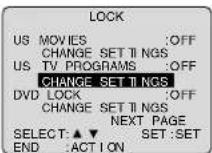
1) Press ▲▼to select CHANGE SETTINGS.
2) Press SET to display screen.
3
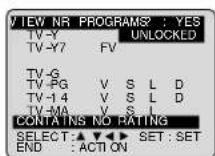
1) Press ▲▼ select VIEW NR PROGRAMS?.
2) Press SET to set "YES" or "NO."
NR (Not Rated) PROGRAMS
Some TV shows, such as news, sports, weather, bulletins, emergency information usually have no ratings.
4
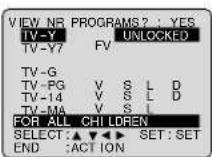
Press ▲▼ to select and SET to set ratings to be blocked. (See ratings charts on this page.)
- Ratings highlighted in green will be blocked. Ratings in white letters will not be blocked.
Note
- You may select from standard TV ratings (chart 1), or customize to a specific content rating (chart 2).
5
Press ACTION three times to exit this mode.
US TV PROGRAMS RATINGS: Chart 1
| TV-Y FOR ALL CHILDREN:Content specifi cally geared to young viewers ages 2-6. | |
| TV-Y7 FOR AGE 7 AND OLDER:May contain mild physical or comedic violence which may frighten children under 7. | |
| TV-G GENERAL AUDIENCE:Contains little or no violence, strong language, or sexual dialogue or situations. | |
| TV-PG PARENTAL GUIDANCE:May contain infrequent coarse language, limited violence, some suggestive sexual dialogue and situations. | |
| TV-14 PARENTS CAUTIONED:May contain sophisticated themes, sexual situations, strong language, and more intense violence. | |
| TV-MA MATURE AUDIENCE:May contain mature themes, profane language, graphic violence, and sexual situations. |
US TV PROGRAMS RATINGS: Chart 2
| FV Fantasy Violence |
| V Violence |
| S Sexual Situations |
| L Adult Language |
| D Sexually Suggestive Dialogue |
*Important: If a remote control button does not work when pressed, press the FM/TV button on the remote and try the button again.
Process of V-Chip Control Feature
Enter Code → Setup → Blocking
Blocking Message
| CH08 | |
| PROGRAM RATING EXCEEDED | |
| RATING:PG-13 | |
| ACCESS CODE | ---- |
| ENTER:0-9 | |
- If a program or movie exceeds the ratings you have set, a message will appear on a black background and sound is muted.
To View a Blocked Program/Movie
[Temporarily Deactivate V-Chip Control] Enter your secret code (ACCESS CODE) in the Blocking Message screen.
- V-Chip Control is reactivated when power is turned off or power failure occurs.
[Deactivate V-Chip Control]
Enter your secret code (steps 1-3 page 28). Then, set US MOVIES and/or US TV PROGRAMS to "OFF" using ▲▼ and SET. (Ratings set on pages 29 and 30 is retained and will be in effect when V-Chip Control is activated again.)
Video/Audio Menu
This feature allows easy setting of picture and sound suitable for each program source.
Video Menu
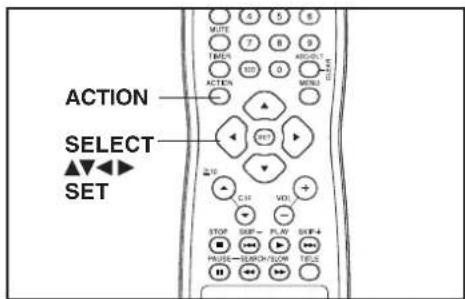
1 Press ACTION* to display MAIN MENU.
2
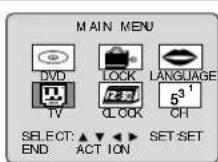
1) Press ▲▼◀▶ to select "TV." 2) Press SET to display SET UP TV screen.
3
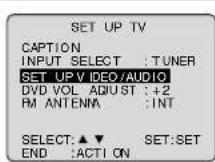
1) Press ▲▼ select "SET UP VIDEO/AUDIO." 2) Press SET to display.
4
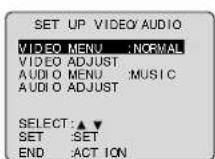
1) Press ▲▼ select "VIDEO MENU." 2) Press SET repeatedly to select desired mode. (See below.)
5 Press ACTION three times to end setup.
[Video Menu]
■ NORMAL
Factory setting.
■ MOVIE
Picture is adjusted for a movie-like feel.
■ NIGHT
Color and picture intensity are adjusted to be easier on the eyes for night viewing.
Audio Menu
a
Do steps 1 - 3 left.
b
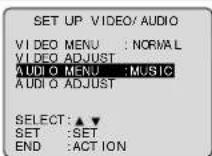
1) Press ▲▼ to select "AUDIO MENU." 2) Press SET to select desired mode. (See below.)
C
Press ACTION three times to end setup.
[Audio Menu]
NORMAL
■ AUTO
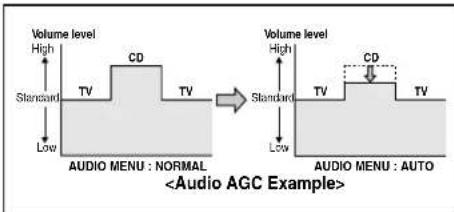
[Audio AGC (Auto Gain Control)]
The sound level is automatically adjusted to suit the program source (see below left).
■ MOVIE
Sound suited to movies.
MUSIC
Sound suited to music. (Factory setting)
■ SPEECH
Sound suited to dialogue.
Notes
- The effects of this feature on the signal is not output to the Audio/Video Output Connector.
- When AUDIO MENU mode is "AUTO," the AUDIO ADJUST setting will be "STANDARD."
• AUDIO MENU settings remain in memory.
• VIDEO MENU settings do not remain in memory.
Video/Audio Adjustment
Important: If a remote control button does not work when pressed, press the FM/TV button on the remote and try the button again.
Video Adjustment
1 Press ACTION to display MAIN MENU.
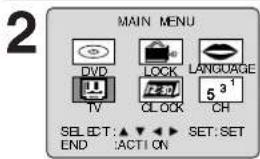
1) Press ▲▼◀▶ to select "TV."
2) Press SET to display SET UP TV screen.
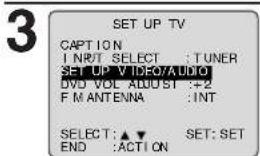
1) Press ▲▼to select "SET UP VIDEO/AUDIO."
2) Press SET to display.
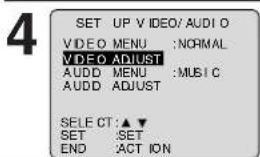
1) Press ▲▼to select "VIDEO ADJUST."
2) Press SET to display.
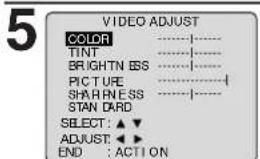
1) Press ▲▼to select an item. (See below.)
2) Press ◀▶ to adjust.
To Reset VIDEO Controls, press ▲▼ and SET to select and set "STANDARD." All controls return to their factory settings.
6 Press ACTION four times to end setup.
[VIDEO Adjustment]
■ COLOR Control
Adjust color intensity.
■ TINT Control
Adjust for natural flesh tones.
Adjust picture brightness.
■ PICTURE Control
Adjust picture intensity by adjusting both contrast and color level in the proper balance.
■ SHARPNESS Control
Adjust picture sharpness.
Audio Adjustment
a Press ACTION to display MAIN MENU.
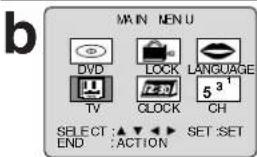
1) Press ▲▼◀▶ to select "TV."
2) Press SET to display SET UP TV screen.
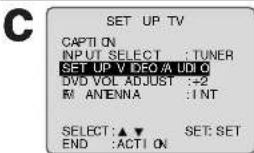
1) Press ▲▼to select "SET UP VIDEO/AUDIO."
2) Press SET to display.
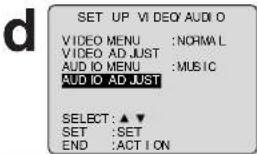
1) Press ▲▼to select "AUDIO ADJUST."
2) Press SET to display.
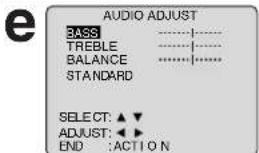
1) Press ▲▼to select an item. (See below.)
2) Press ◀▶ to adjust.
To Reset AUDIO Controls, press ▲▼ and SET to select and set "STANDARD." All controls return to their factory settings.
f Press ACTION four times to end setup.
[AUDIO Adjustment]
BASS Control
To adjust the intensity of low frequency sound.
■ TREBLE Control
To adjust the intensity of high frequency sound.
BALANCE Control
To adjust the (L/R) unit speaker output level.
- The levels set here do not affect other audio equipment when connected to the Audio Output L/R Connector.
Disc Operation
Subtitle Language (DVD only)
You can select a different subtitle language (if offered) than the one set at the Settings for DVD Operation. (See page 46.)
1
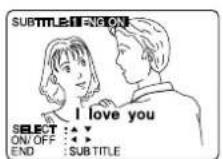
Press SUB TITLE* in Play mode to display the subtitle selection on-screen.
• Display disappears after 5 seconds.
- When no subtitles are offered, “-” will be displayed instead of the language number.
2
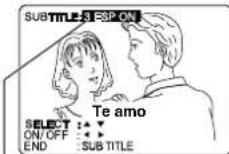
1) Press ▲▼ select desired language.
2) Press ▶ (or ◀ to select "ON" or "OFF."
Number of subtitle language being played back.
Notes
- When closed captioning is used along with subtitles, they may overlap. If so, turn one function off. (See pages 20 and 21.)
- If after several presses of the button the language does not change, language selection is not offered on the disc.
- Subtitles may not change to the selected language immediately.
- When disc is removed, subtitles revert to initial setting language. If the initial language is not recorded on the disc, the disc's priority language will appear.
Audio Soundtrack Language (DVD only)
You can change the audio soundtrack language, selected at the Settings for DVD Operation, to a different language if available. (See page 46.) (This operation works only with discs on which multiple audio soundtrack languages are recorded.)
a
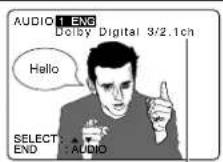
Press AUDIO in Play mode to display the audio selection on-screen.
• Display disappears after 5 seconds.
Audio attribute 1 type, sampling frequency, bit No. of the disc.
b
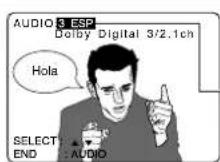
Press ▲▼to select desired language.
Audio soundtrack language being played back.

Check List
☐ Please read "Basic DVD Operation" on page 16.
[Subtitle language]
[Audio soundtrack language]
| ENG | English |
| FRA | French |
| DEU | German |
| ITA | Italian |
| ESP | Spanish |
| NLD | Dutch |
| SVE | Swedish |
| NOR | Norwegian |
| DAN | Danish |
| POR | Portuguese |
| RUS | Russian |
| JPN | Japanese |
| CHI | Chinese |
| KOR | Korean |
| MAL | Malay |
| VIE | Vietnamese |
| THA | Thai |
| * | Other |
- Change the No. by pressing ▲▼, and press SET.
[Audio attribute 1 type, sampling frequency, bit No. of the disc (see page 47)]
| LPCM | 96 kHz or 48 kHz | 16 bit | Linear PCM disc |
| 20 bit | |||
| 24 bit | |||
| Dolby Digital | 1 ch - 5.1 ch | Dolby Digital disc | |
| dts | 1 ch - 5.1 ch | dts disc | |
Notes
- If, after several presses of the AUDIO button the language does not change, language selection is not offered on the disc.
- When disc is removed, language reverts to initial setting. If this language is not recorded on the disc, the language recorded will be heard.
*Important: If a remote control button does not work when pressed, press the DVD button on the remote and try the button again.
When ⏻ appears on the screen while a button is being pressed, it means that the corresponding operation is prohibited by the unit or the disc.
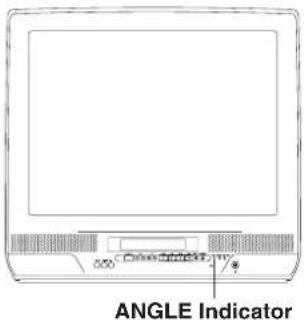
Notes
• ANGLE Indicator lights up on the unit when a scene recorded at different angles is detected.
- The angle number can be set beforehand so that the angle is switched whenever ANGLE Indicator lights up.
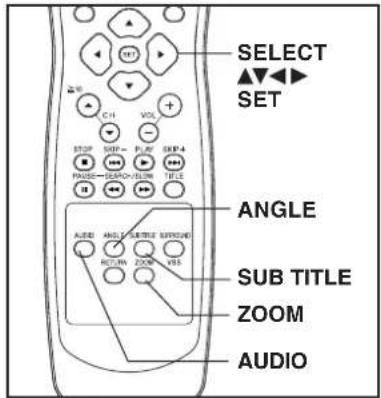
Notes
- Closed captioning will not be displayed while Picture Zoom is used. To see subtitles, set the subtitle feature to ON (see page 34).
- The subtitle cannot be enlarged nor can it's position be changed.
- The picture zoom feature does not work with a Video CD.
- During picture zoom, "ZOOM1" or "ZOOM2" appears on-screen for 5 second.
- Zooming, on some discs, may result in poor picture quality, or may not operate at all.
Multiple Angle Viewing (DVD only)
DVDs may contain scenes shot from multiple camera angles allowing the same scene to be viewed at different angles. You can view these angles, if available, using the ANGLE button.
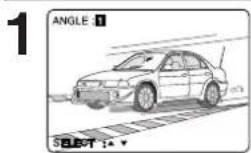
Press ANGLE in Play mode to display the angle selection on-screen.
• Display disappears after 5 seconds.
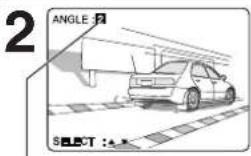
Press ▲▼to select the desired angle.
Number of angle being played back.
Vocal selection for Karaoke discs (DVD/Video CD)
a Press AUDIO in Play mode to display the audio screen.
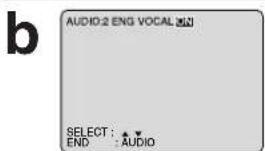
1) Press ▲▼(or ◀) to select as shown below. 2) Press ▶ (or ◀) to set. (DVD only)
- DVD Karaoke (1 vocal) VOCAL ON←VOCAL OFF - DVD Karaoke (2 vocals) VOCAL V1→VOCAL V2→VOCAL V1+ V2→VOCAL OFF - Video CD LR→L→R
Picture Zoom (DVD only)
You can enlarge specific portions of a picture and select the zoom ratio using the ZOOM button on the remote during DVD playback.
Set Zoom size.
Press ZOOM repeatedly to change display as follows.
- You can enlarge the center portion of the image to one of 2 magnifi cations.
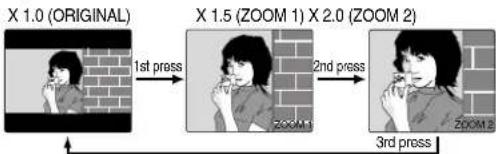
flowchart
graph LR
    A["X 1.0 (ORIGINAL)"] -->|1st press| B["X 1.5 (ZOOM 1) X 2.0 (ZOOM 2)"]
    B -->|2nd press| C["3rd press"]
■ Use the ▲, ▼, ◀ and ▶ buttons to move the position up, down, left and right.
Disc Operation (continued)
Title menu (DVD only)
Some DVDs have more than one title, e.g. movies. If the disc offers a title menu, you can select the desired title number. (Operation may vary according to the disc.)
1
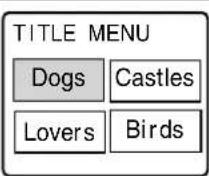
Press TITLE* in Play mode to display title screen.
2
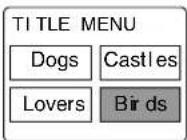
Birds of the world
1) Press ▲▼◀▶ or NUMBER key(s) to select a title.
2) Press SET or PLAY to start play.
- Step 2) not necessary when using NUMBER key(s).
DVD menu (DVD only)
DVDs may offer a special menu. This menu may include guides to unique contents, audio/subtitle languages, etc. Although contents and operation may vary, the following steps show basic steps for using the menu.
a
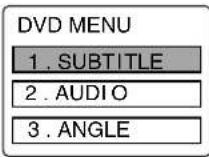
Press MENU in Play mode to display DVD menu.
b
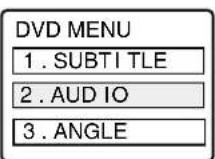
1) Press ▲▼◀▶ or NUMBER key(s) to select an item.
2) Press SET or PLAY to access.
- Step 2) not necessary when using NUMBER key(s).
Repeat step "b" if there is more than one menu.
*Important: If a remote control button does not work when pressed, press the FM/TV, DVD button on the remote and try the button again.
Program Play (Video CD/CD)
You can program specific tracks and order of play.
1 Press ACTION in Stop mode to display MAIN MENU.
2
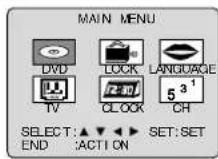
1) Press ▲▼◀▶o select "DVD."
2) Press SET to display screen.
3
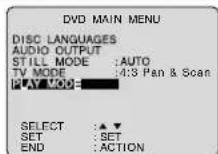
1) Press ▲▼ to select "PLAY MODE."
2) Press SET to display screen.
4
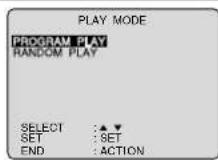
1) Press ▲▼ to select "PROGRAM PLAY."
2) Press SET to display screen.
5
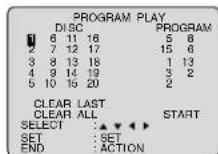
1) Press ▲▼◄► select a track number. (Track numbers on disc are displayed.)
2) Press SET to set.
- Repeat step 5 to select another track.
•The selected track is added on the right side.
6
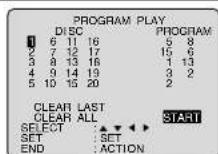
1) Press ▲▼◀▶ to select "START."
2) Press SET to start play of programs in the sequence selected.
•To cancel, press STOP during play, then press CLEAR.
Notes
- Up to 15 tracks can be programmed.
- “◀” or “▶” (depending on disc) indicates additional PROGRAM PLAY screen. Press ▲▼◀▶ for next or previous screen.
- To clear the last program one by one, Press ▲▼◀ to move to "CLEAR LAST" and press SET. (Pressing CLEAR also clears last program.)
- To clear all programs, Press ▲▼◀▶to move to "CLEAR ALL" and press SET. (Programs are also cleared when the power is turned off or the disc is removed.)

Check List
☐ Unit is in TV mode, press FM/TV.
□ Video CD or CD is inserted.
Program Repeat Play (Video CD/CD)
a
Do steps 1 through 6 on this page.
b
Press DISPLAY to display Disc Information screen.
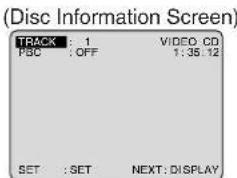
C
Press DISPLAY again to display Unit Information screen.
d
Press SET to enter Select mode. Cursor move to "OFF."
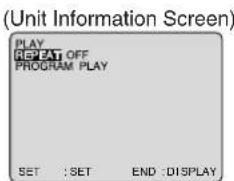
e
Press ▲▼ to select "DISC."
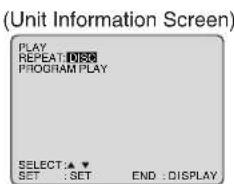
f
Press SET to set mode. Cursor move to "REPEAT." To cancel, select "REPEAT: OFF" in step e, then press SET.
Disc Operation (continued)
Random Play (Video CD/CD)
Tracks are played in a random order.
1 Press ACTION* in Stop mode to display MAIN MENU.
2
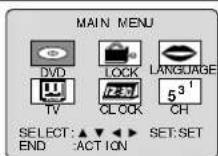
1) Press ▲▼◀▶ to select "DVD."
2) Press SET to display screen.
3
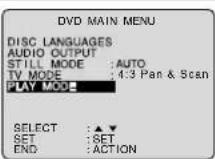
1) Press ▲▼ select "PLAY MODE."
2) Press SET to display screen.
4
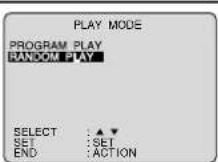
1) Press ▲▼to select "RANDOM PLAY."
2) Press SET to begin random play.
• To cancel, press STOP during play, then press CLEAR.
* Important: If a remote control button does not work when pressed, press the FM/TV button on the remote and try the button again.
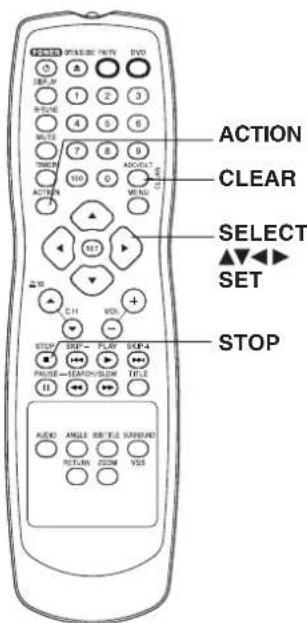
DVD Operation using On-Screen Displays
When DISPLAY is pressed, On-Screen Displays show disc information (title/chapter/track number, elapsed playing time) and unit information (Repeat Play, Play mode).
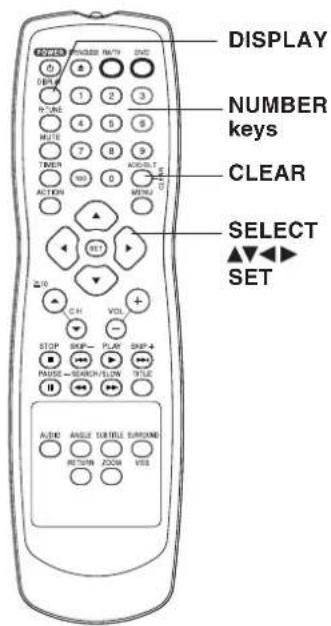
1 Press DISPLAY in Play or Stop mode to display "On-Screen Display."
• Each press of DISPLAY changes the on-screen display as follows. (Please refer to page 40 or 41.)
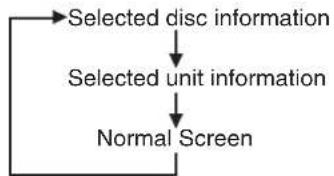
flowchart
graph TD
    A["Normal Screen"] --> B["Selected unit information"]
    B --> C["Selected disc information"]
Note
- DISPLAY button does not function while DVD TITLE MENU is displayed.
2 1) Press ▲▼ (or ◀▶) to select an item. 2) Press SET to set.
3 1) Press ▲▼ to select the setting. 2) Press SET to set.
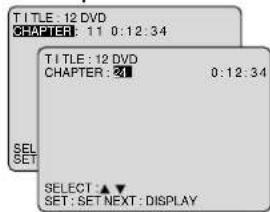
- When numbers are displayed (e.g. title number), the NUMBER keys are also available.
- If the number entered is not on the disc, the entry will have no effect. Re-enter the correct number.
• For more details, refer to the disc operation information.
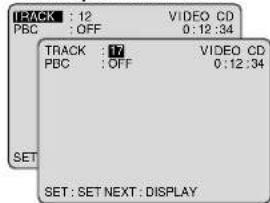
To return to the normal screen, press CLEAR or DISPLAY repeatedly.
Check List
□ Unit is in DVD mode, press DVD.
Notes
- When DISPLAY is pressed during play of a Video CD with Play control, the NUMBER keys are not available on the displayed screen. In this case, press DISPLAY again to remove the displayed screen.
- When appears on the screen while a button is being pressed, it means that the corresponding operation is prohibited by the unit or the disc.
DVD Operation using On-Screen Displays (continued)
Detailed Descriptions of Each On-Screen Display
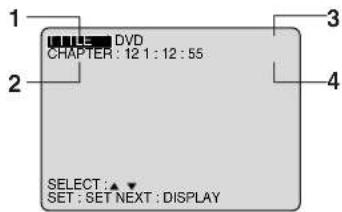
Disc information screen (for DVD)
1. TITLE No.
- Select "TITLE," and press SET*.
- Change the No. by pressing ▲▼ or NUMBER keys, and press SET.
2. Chapter No.
- Select "CHAPTER," and press SET.
- Change the No. by pressing ▲▼ or NUMBER keys, and press SET.
3. Disc currently being played
4. Elapsed playing time
The screen may be changed by selecting the elapsed time.
- Select the elapsed playing time ("xx:xx:xx"), and press SET.
- Change the elapsed time by pressing NUMBER keys. Hours → Minutes → Seconds are entered in order. If the time entered is not on the disc, the entry will have no effect.
Re-enter the correct time.
$$ e. g., \text { press } 0 - 1 - 2 - 3 - 4 - 5 \text { for } 0 1: 2 3: 4 5. $$
$$ \text { Hour Minutes Seconds } $$
• This function does not work with some discs.
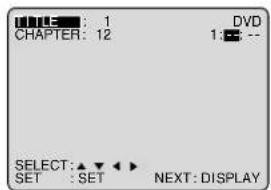
If SET is pressed while making entries, unit returns to the condition before entries were made.
Disc information screen (for Video CD/CD)
A. Track No.
- Select "TRACK," and press SET.
- Change the No. by pressing ▲▼ or NUMBER keys, and press SET.
B. Playback control ON/OFF
[Video CD with playback control only]
| ON | Video CD menu play is displayed. |
| OFF | Video CD menu play is not displayed. |
C. Disc currently being played
| Video CD | CD |
D. Elapsed playing time
Notes
- Track No. and elapsed playing time are not displayed during play started from menu of Video CDs with playback control.
- When appears on the screen while a button is being pressed, it means that the corresponding operation is prohibited by the unit or the disc.
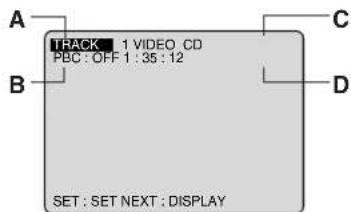
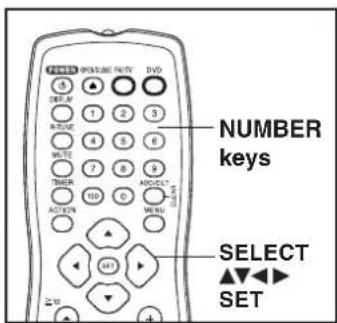
*Important: If a remote control button does not work when pressed, press the DVD button on the remote and try the button again.
Detailed Descriptions of Each On-Screen Display
Unit information screen
- Select "REPEAT," and press SET.
- Change the desired mode during play by pressing ▲▼, and press SET.
a. Repeat Play
| DVD CHAPTER REPEAT TITLE REPEAT REPEAT OFF | |
| Video CD/CD TRACK REPEAT DISC REPEAT REPEAT OFF |
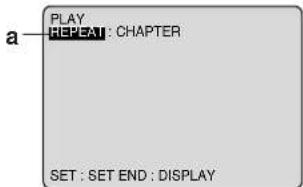
b. Play mode [Video CD/CD only] (See page 37 or 38.)
| PROGRAM PLAY program play | |
| RANDOM PLAY | random play |
| ---- | normal play |
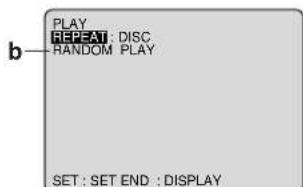
For your reference
• CHAPTER/TITLE REPEAT PLAY (DVD)
CURRENT PLAYBACK POSITION
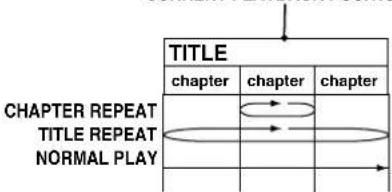
flowchart
graph TD
    A["NORMAL PLAY"] --> B["TITLE"]
    B --> C["CHAPTER REPEAT"]
    C --> D["TITLE REPEAT"]
    D --> E["chapter"]
    E --> F["TITLE"]
    F --> G["chapter"]
    G --> H["TITLE"]
    H --> I["chapter"]
    I --> J["TITLE"]
    J --> K["TITLE"]
- TRACK/DISC REPEAT PLAY (Video CD/CD)
CURRENT PLAYBACK POSITION
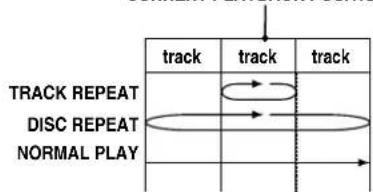
flowchart
graph TD
    A["TRACK"] --> B["TRACK REPEAT"]
    B --> C["DISC REPEAT"]
    C --> D["NORMAL PLAY"]
    D --> E["->"]
    E --> F["->"]
    F --> G["->"]
    G --> H["->"]
    H --> I["->"]
    I --> J["->"]
    J --> K["->"]
    K --> L["->"]
    L --> M["->"]
    M --> N["->"]
    N --> O["->"]
    O --> P["->"]
    P --> Q["->"]
    Q --> R["->"]
    R --> S["->"]
    S --> T["->"]
    T --> U["->"]
    U --> V["->"]
    V --> W["->"]
    W --> X["->"]
    X --> Y["->"]
    Y --> Z["->"]
    Z --> A
MP3/WMA/JPEG Playback Operation
This unit can play MP3/WMA/JPEG format CD-R or CD-RW recorded for personal use on a PC, etc. Some discs may not play due to recording condition.
1 Press POWER* on the remote or unit.
2 Press OPEN/CLOSE, and then place an MP3/WMA/JPEG disc into the disc tray. Press OPEN/CLOSE to close.
3 • MP3/WMA/JPEG menu is displayed.
- Playback starts automatically (except JPEG files).
- CD directory is displayed.
4 Press ◀▶ to move cursor to File area or PLAY MODE. (In STOP mode)
■ File area Operation (In STOP mode)
Press ▲▼ to select items and SET or PLAY to start.
Press SKIP+ ▶▶▶ I (next) or SKIP- |◀◀ (previous) to skip a fi le/folder page (7fi les) in the File area.
Select an MP3/WMA fi le (☐/). MP3/WMA Playback (See next page)
Select an JPEG file (☐). JPEG Playback (See next page)
Select a folder (☐). Display files/folders contained in the folder.
Select a Parent folder (1). Make changes to the previous directory display.
■ Play mode Operation (In STOP mode) Press ▲▼ to select the desired PLAY MODE.
5 Press ACTION to return to the DVD MAIN MENU. (Press ACTION again to return to the MP3/WMA/JPEG MENU.)
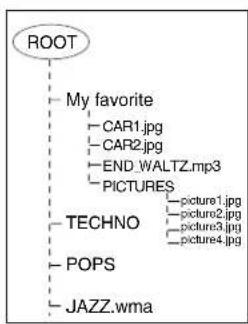
flowchart
graph TD
    A["ROOT"] --> B["My favorite"]
    B --> C["CAR1.jpg"]
    B --> D["CAR2.jpg"]
    B --> E["END_WALTZ.mp3"]
    B --> F["PICTURES"]
    B --> G["TECHNO"]
    G --> H["POPS"]
    G --> I["JAZZ.wma"]
    H --> J["picture1.jpg"]
    H --> K["picture2.jpg"]
    H --> L["picture3.jpg"]
    H --> M["picture4.jpg"]
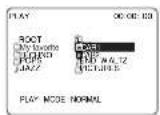
Example: If the CD-R/CD-RW file hierarchy is displayed on the PC as shown in diagram at left, MP3/WMA/JPEG Menu Screen, like the one below is displayed.
Note
- File names are displayed in ascending order (1, 2, 3...9, A, B, C...Y, Z) in the MP3/WMA/JPEG MENU Screen ROOT.
MP3/WMA/JPEG MENU SCREEN
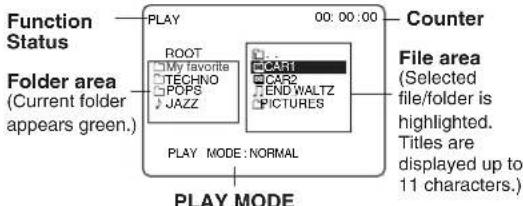
Explanation of Icons
PLAY MODE selection
| PLAY MODE: | MP3/WMA Playback | JPEG Playback - Slide-show - |
| NORMAL | All MP3/WMA fi les are selected and played back one time only. | All JPEG fi les are selected and played back one time only. |
| SINGLE REPEAT | The selected MP3/WMA fi le is played back repeatedly. | The selected JPEG fi le is played back repeatedly. |
| FOLDER REPEAT | The MP3/WMA fi les contained in the selected folder are played back repeatedly. However, folders below the selected folder are not played back. | The JPEG fi les contained in the selected folder are played back repeatedly.However, folders below the selected folder are not played back. |
| DISC REPEAT | All MP3/WMA fi les are played back repeatedly. | All JPEG fi les are played back repeatedly. |
MPEG Layer-3 audio decoding technology licensed from Fraunhofer IIS and Thomson multimedia.

Windows Media, and the Windows logo are trademarks, or registered trademarks of Microsoft Corporation in the United States and/or other countries. WMA is a compression format developed by Microsoft Corporation. It achieves the same sound quality as MP3 with a file size that is smaller than that of MP3.

For assistance, please call : 1-800-211-PANA(7262) or send e-mail to : consumerproducts@panasonic.com
MP3/WMA Playback
1 Do steps 1\~3 on page 42. Press ▲▼ to select an MP3/WMA file (♩/♩) in STOP mode.
2 Press SET or PLAY to start playback.
■ Forward/ Reverse Search
Press SEARCH/SLOW ▶▶ or SEARCH/SLOW ◀ during play.
Press PLAY to release.
- Search speed, slow at first, increases with each additional press of the button up to 5 levels.
■ Forward/ Reverse Track Skip
Press SKIP+ ▶▶| or SKIP- |◀◀ during play. Each press skips a track.
- If pressed within first 3 seconds of playback, skips to the previous track. If over 3 seconds, returns to top of track. (SKIP- | only.)
- Put unit in Stop mode before performing folder/fi le selection (see step 4 on previous page.)
■ Pause
Press PAUSE during play.
Press PLAY to release.
3 Press STOP to stop play.
4 Press OPEN/CLOSE to eject the disc. The MP3 MENU is closed automatically.
Note
• Copyright protected files and files containing errors cannot be played back. The unit skips to the next file.
JPEG Playback
You can play JPEG images.
Displayable Image Size: 32x32\~7680x7680 pixels
Note
- Some JPEG format may not be played back.
Do steps 1\~3 on page 42.
Press ▲▼to select an JPEG file (☐).
2 Press SET or PLAY. Selected file is displayed.
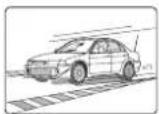
JPEG Playback Screen
■Next/Previous Search
Press SKIP+▶▶| or SKIP- |◀◀
ROOT
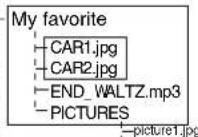
Only the JPEG fi les in a folder that were saved while being displayed are displayed.
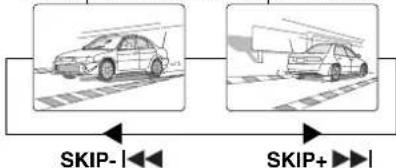
flowchart
graph LR
    A["Car"] --> B["Skip-"]
    C["Car"] --> D["Skip+"]
■ Start Slide-show
Press SEARCH/SLOW ▶or SEARCH/SLOW ◀◀◀ (see next page)
■ Enlarging an image
Press ZOOM. (see next page)
■ Rotating an image
Press ANGLE. (see next page)
■ Returned on the MP3/WMA/JPEG MENU Press STOP. (see previous page)
3 Press ACTION to return to the DVD MAIN MENU.
MP3/WMA/JPEG Playback Operation (continued)
JPEG Playback - Zoom -
(During JPEG Playback.)
You can enlarge specific portions of a JPEG picture and select the zoom ratio using the ZOOM button on the remote during JPEG Playback.
Set Zoom size.
Press ZOOM repeatedly to change display as follows.
Press STOP to return to the MP3/WMA/JPEG MENU.
- You can enlarge the center portion of the image to one of 2 magnifications.
• Operation can be done during Rotation (below).
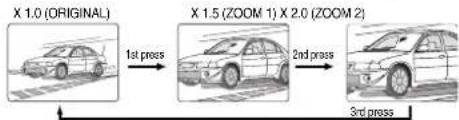
■ Use the ▲, ▼, ◀ and ▶ buttons to move the position up, down, left and right.
Note
- Position cannot be changed on X1.0 ORIGINAL images.
JPEG Playback - Rotation -
(During JPEG Playback.)
You can rotate a JPEG picture using the ANGLE button on the remote during JPEG Playback. (The JPEG picture will be rotated 90° clockwise.)
Set rotation.
Press ANGLE repeatedly to change display as below. (During JPEG Playback screen) Press STOP to return to the MP3/WMA/JPEG MENU.
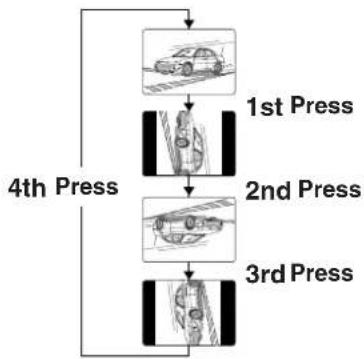
flowchart
graph TD
    A["Car Image"] --> B["1st Press"]
    B --> C["2nd Press"]
    C --> D["3rd Press"]
    D --> E["4th Press"]
Notes
• Operation can be done during ZOOM (above).
- The vertical/horizontal ratio of rotated JPEG images may vary when they are displayed.
JPEG Playback - Slide-show -
(During JPEG Playback.)
JPEG fi les are displayed automatically (about every 3 seconds) as a slide-show.

Press SEARCH/SLOW ▶ or SEARCH/SLOW ◀◀
Only the JPEG files in a folder that were saved while being displayed are displayed.
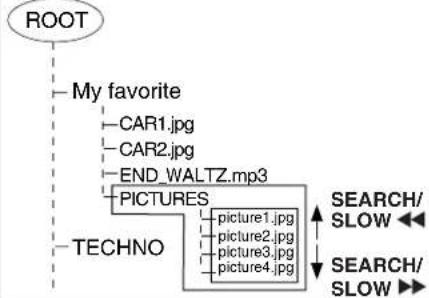
flowchart
graph TD
    A["ROOT"] --> B["My favorite"]
    B --> C["CAR1.jpg"]
    B --> D["CAR2.jpg"]
    B --> E["END_WALTZ.mp3"]
    B --> F["PICTURES"]
    F --> G["picture1.jpg"]
    F --> H["picture2.jpg"]
    F --> I["picture3.jpg"]
    F --> J["picture4.jpg"]
    G <--> K["SEARCH/SLOW ↔"]
    H <--> L["SEARCH/SLOW ↔"]
    I <--> L
    J <--> L
If SEARCH/SLOW ▶ is pressed while picture 1 is displayed.
picture 1 picture 2 picture 3 picture 4

Image changes every 3 seconds.
If SEARCH/SLOW ◀ is pressed while picture 3 is displayed.
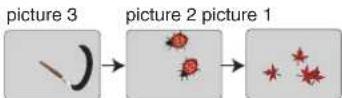
Image changes every 3 seconds.
■ Still picture
Press PAUSE (only SLIDE)
■ Forward/Reverse Track Skip
Press SKIP+▶▶| or SKIP- |◀◀. Each press skips a file.
■ Cancel slide show
Press STOP to return to the MP3/WMA/JPEG MENU.

Press ACTION to return to the DVD MAIN MENU.
For assistance, please call : 1-800-211-PANA(7262) or send e-mail to : consumerproducts@panasonic.com
DVD Lock Feature
Important:
If a remote control button does not work when pressed, press the FM/TV, DVD button on the remote and try the button again.
You can prevent playback of DVDs with a specific rating level which may be unsuitable for children.
- Some DVDs are encoded with a rating level. If the disc rating is higher (stricter) than the one you preset, playback will be prohibited.
Caution
Discs not encoded with a rating level will play even if the jacket states it is for mature audiences. For these discs, the DVD Lock Ratings will not work.
DVD Lock Ratings (DVD only)
Perform DVD Lock setting in TV mode. Enter your secret code to display LOCK menu. (Perform "Enter Secret Code" steps on page 28.)
1
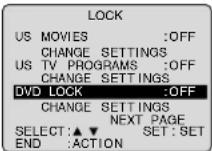
1) Press ▲▼ to select "DVD LOCK."
2) Press SET to set "ON" or "OFF."
■ "ON" → DVD Lock is activated.
■ "OFF" → DVD Lock is deactivated.
2
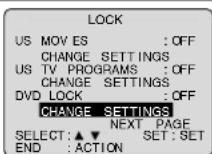
1) Press ▲▼ to select "CHANGE SETTINGS."
2) Press SET to display screen.
3
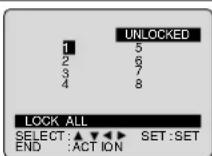
1) Press ▲▼◀▶ to select rating level.
2) Press SET to select "LOCKED" or "UNLOCKED."
LEVEL 1: LOCK ALL: Playback of all DVDs, CDs and Video CDs is prohibited. (Use to prohibit play of mature theme DVDs not encoded with a rating level.)
LEVEL 2: DVDs expressly for children can be played back.
LEVEL 3 to 7: DVDs for general audiences/children can be played back. (DVDs with mature content are prohibited.)
LEVEL 8: NO LIMIT: (Factory preset) All DVDs can be played back.
- Ratings which are highlighted in Green will be blocked; those not highlighted (white letters) will not be blocked.
4
Press ACTION three times to exit.
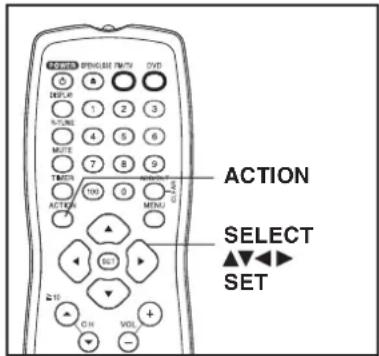
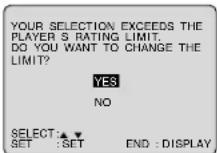
After DVD Lock is set and a blocked DVD is played, this message will appear. The message may differ depending on the disc.
To continue viewing a blocked program for now,
Press ▲▼ to select "YES" and SET. Then, enter your 4-digit secret code. When "NO" is selected, blocked programs cannot be viewed.
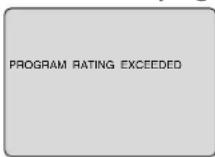
To change DVD LOCK settings After entering your secret code in step 3 on page 28, select "OFF" to deactivate DVD Lock or change the rating level.
Settings for DVD Operation
1 Press ACTION* in Stop mode to display MAIN MENU.
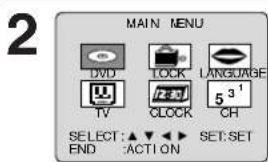
1) Press ▲▼◀▶ to select "DVD." 2) Press SET to display screen.
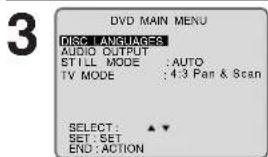
1) Press ▲▼to select an item. 2) Press SET to set.
DISC LANGUAGES (See below.)
Any languages offered on the disc can be set. If a language not offered is set, the original disc language will be selected.
AUDIO OUTPUT (See page 47.)
You can set the audio output that comes from the digital audio output terminal.
STILL MODE (See page 48.)
To select "FIELD" or "FRAME" to prevent jitter or to make small text or fi ne patterns clearly visible in a still picture. When "AUTO" is set, "FIELD" or "FRAME" is selected automatically.
TV MODE (See page 48.)
To select whether the video material for a wide-screen will be played back in Pan & Scan style or in Letterbox style.
DISC LANGUAGES (DVD only)
To select and set the language of the audio soundtrack, subtitles, or title/DVD menus for all discs to be played.
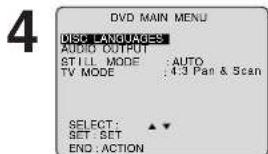
1) Press ▲▼ select "DISC LANGUAGES." 2) Press SET to display screen.
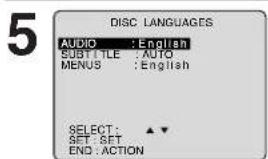
1) Press ▲▼to select an item. 2) Press SET repeatedly for desired language. (Please refer right.)
6 Press ACTION to redisplay DVD MAIN MENU and go to step 3 to setup another item. Or, press ACTION three times to exit.
Once initial settings are done, they remain in memory (even after the power is off) until changed. This means the unit will always operate under the same conditions (especially DVDs) each time.
Check List
☐ Unit is in TV mode, press FM/TV.
"AUDIO" selections
To select the audio soundtrack language.
(Factory preset: English)
English/Spanish/French/Japanese
Original: Original disc language
OTHER ****: Other language selection*1
"SUBTITLE" selections
To select the subtitle language.
(Factory preset: AUTO)
AUTO: Same language selected for "AUDIO"
- If language set for "AUDIO" is used in playback, subtitles will not appear.
- If another language is used during playback, the subtitles will appear in the language selected at "AUDIO" setup.
English/Spanish/French/Japanese
OTHER ****: Other language selection*
"MENUS" selections
(Factory preset: English)
To select the language used in title menus or DVD menus.
English/Spanish/French/Japanese
OTHER ****: Other language selection*1
To enter OTHER \*\*\*\* code number, Press NUMBER keys (Please refer to language codes on page 49).
To make corrections, press ◀ repeatedly to delete language code number, and correct.
If the selected language is not offered, the original disc language is selected.
*Important: If a remote control button does not work when pressed, press the FM/TV, DVD button on the remote and try the button again.
AUDIO OUTPUT
Select the digital output to be output from the optical digital audio output connector of the unit.

Do steps 1 and 2 on page 46.

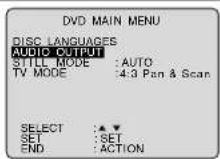
1) Press ▲▼o select "AUDIO OUTPUT."
2) Press SET to display screen.

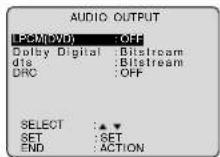
1) Press ▲▼to select an item.
2) Press SET repeatedly for output. (See below.)
■ "LPCM (DVD)" selections
OFF: Linear PCM of less than 48 kHz/16 bit is output. When playing DVDs recorded in linear PCM of over 48 kHz/20 bit, no digital audio is output. (Factory preset)
PCM: When playing DVDs recorded in linear PCM of 48 kHz/20 bit/24 bit or more, digital audio converted to 44.1 kHz/16 bit or 48 kHz/16 bit is output. (Digital output of PCM audio is restricted to 48 kHz/16 bit or below for copyright protection.)
■ "Dolby Digital" selections
Bitstream: Dolby Digital bitstream (1ch-5.1ch) is output. (Factory preset)
PCM: When you have connected a amplifier that doesn't have a built-in Dolby Digital decoder.
■ "dts" selections
Bitstream: dts bitstream is output. (Factory preset) PCM: When you have connected a amplifier that doesn't have a built-in dts decoder.
■ "DRC (Dynamic Range Compression)" selections
OFF: Normal audio range is selected. (Factory preset)
ON: For dynamic sound even at low volume, this is useful for late-night listening. [Dolby Digital DVDs only].
4 Press ACTION to redisplay DVD MAIN MENU and go to step 2 to setup another item. Or, press ACTION three times to exit.
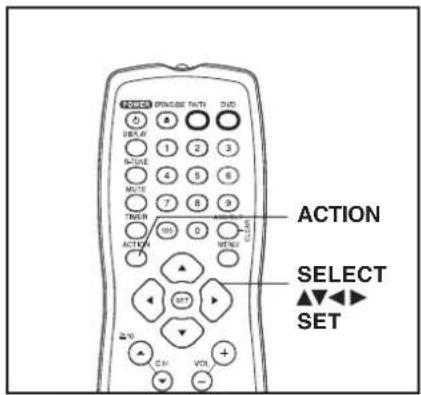
| Type of amplifi er to be connected | Recommended setting | ||
| LPCM (DVD) | Dolby Digital | dts | |
| No amplifier is connected | |||
| AV amplifier without Dolby Digital/dts decoder | PCM | PCM^*1 | PCM^*1 |
| AV amplifier including Dolby Digital decoder | PCM | Bitstream | PCM |
| AV amplifier including Dolby Digital/dts decoder | PCM | Bitstream | Bitstream^*2 |
- Make settings according to amplifier connected to optical audio output as shown in above table.
*1 When connecting an amplifier (with an optical digital input connector) which does not contain the Dolby Digital or dts decoder, be sure to select "PCM." If "Bitstream" is selected, starting DVD play may cause such a high level of noise as to be harmful to your ears and damage the speakers.
*2 When a dts decoder is connected, please select "Bitstream" in "dts." If "PCM" is selected, there will be stereo sound.
Settings for DVD Operation (continued)
STILL MODE
Set to reduce jitter in a displayed still picture or a motion picture.
1
Do steps 1 and 2 on page 46.
2
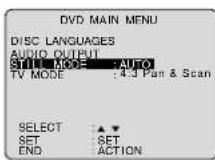
1) Press ▲▼ to select "STILL MODE."
2) Press SET repeatedly for mode. (See below)
AUTO: "FIELD" (Field still) or "FRAME" (Frame still) is automatically selected during the still mode. (Factory preset)
FIELD: "FIELD" (Field still) is always selected. This setting will reduce jitter when compared with "AUTO" on some discs.
FRAME: "FRAME" (Frame still) is always selected. Some texts and fi ne patterns will be seen clearly when compared with "AUTO" on some discs.
3
Press ACTION twice to exit this mode.
Selecting TV MODE
Set the screen display style for widescreen video material playback.
a
Do steps 1 and 2 on page 46.
b
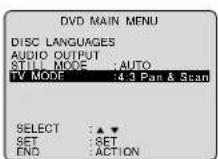
1) Press ▲▼to select "TV MODE."
2) Press SET repeatedly for mode. (See below.)
4:3 Pan & Scan : Widescreen video data is played in Pan (Factory preset) & Scan style (left and right of screen is trimmed.)
• Video data not formatted in Pan & Scan will play in letterbox style.
4:3 Letterbox : Widescreen video data is played in Letterbox style (top and bottom of screen has black margin).
C
Press ACTION twice to exit this mode.
*Important:
If a remote control button does not work when pressed, press the DVD button on the remote and try the button again.
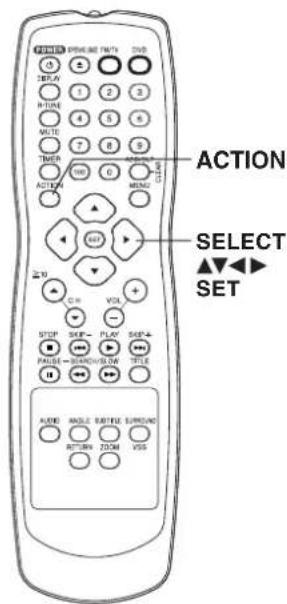
Example
4:3 Pan & Scan (Factory preset)
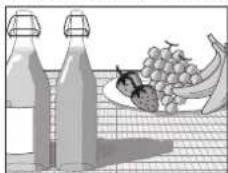
natural_image
Illustration of a glass bottle, a plate of grapes, and a banana on a grid surface (no text or symbols)4:3 Letterbox
natural_image
Illustration of two bottles and a plate of grapes on a striped surface (no text or symbols)Language Code List
Enter the appropriate code number for the initial settings "AUDIO," "SUBTITLE" and/or "MENUS" (see page 46).
| Code | Language |
| 6565 | Afar |
| 6566 | Abkhazian |
| 6570 | Afrikaans |
| 6577 | Ameharic |
| 6582 | Arabic |
| 6583 | Assamese |
| 6588 | Aymara |
| 6590 | Azerbaijani |
| 6665 | Bashkir |
| 6669 | Byelorussian |
| 6671 | Bulgarian |
| 6672 | Bihari |
| 6678 | Bengali;Bangla |
| 6679 | Tibetan |
| 6682 | Breton |
| 6765 | Catalan |
| 6779 | Corsican |
| 6783 | Czech |
| 6789 | Welsh |
| 6865 | Danish |
| 6869 | German |
| 6890 | Bhutani |
| 6976 | Greek |
| 6978 | English |
| 6979 | Esperanto |
| 6983 | Spanish |
| 6984 | Estonian |
| 6985 | Basque |
| 7065 | Persian |
| 7073 | Finnish |
| 7074 | Fiji |
| Code | Language |
| 7079 | Faroese |
| 7082 | French |
| 7089 | Frisian |
| 7165 | Irish |
| 7168 | Scots Gaelic |
| 7176 | Galician |
| 7178 | Guarani |
| 7185 | Gujarati |
| 7265 | Hausa |
| 7273 | Hindi |
| 7282 | Croatian |
| 7285 | Hungarian |
| 7289 | Armenian |
| 7365 | Interlingua |
| 7378 | Indonesian |
| 7383 | Icelandic |
| 7384 | Italian |
| 7387 | Hebrew |
| 7465 | Japanese |
| 7473 | Yiddish |
| 7487 | Javanese |
| 7565 | Georgian |
| 7575 | Kazakh |
| 7576 | Greenlandic |
| 7577 | Cambodian |
| 7578 | Kannada |
| 7579 | Korean |
| 7583 | Kashmiri |
| 7585 | Kurdish |
| 7589 | Kirghiz |
| 7665 | Latin |
| Code | Language |
| 7678 | Lingala |
| 7679 | Laothian |
| 7684 | Lithuanian |
| 7686 | Latvian, Lettish |
| 7771 | Malagasy |
| 7773 | Maori |
| 7775 | Macedonian |
| 7776 | Malayalam |
| 7778 | Mongolian |
| 7779 | Moldavian |
| 7782 | Marathi |
| 7783 | Malay |
| 7784 | Maltese |
| 7789 | Burmese |
| 7865 | Nauru |
| 7869 | Nepali |
| 7876 | Dutch |
| 7879 | Norwegian |
| 7982 | Oriya |
| 8065 | Panjabi |
| 8076 | Polish |
| 8083 | Pashto, Pushto |
| 8084 | Portuguese |
| 8185 | Quechua |
| 8277 | Rhaeto-Romance |
| 8279 | Romanian |
| 8285 | Russian |
| 8365 | Sanskrit |
| 8368 | Sindhi |
| 8372 | Serbo-Croatian |
| 8373 | Singhalese |
| Code | Language |
| 8375 | Slovak |
| 8376 | Slovenian |
| 8377 | Samoan |
| 8378 | Shona |
| 8379 | Somali |
| 8381 | Albanian |
| 8382 | Serbian |
| 8385 | Sundanese |
| 8386 | Swedish |
| 8387 | Swahili |
| 8465 | Tamil |
| 8469 | Telugu |
| 8471 | Tajik |
| 8472 | Thai |
| 8473 | Tigrinya |
| 8475 | Turkmen |
| 8476 | Tagalog |
| 8479 | Tonga |
| 8482 | Turkish |
| 8484 | Tatar |
| 8487 | Twi |
| 8575 | Ukrainian |
| 8582 | Urdu |
| 8590 | Uzbek |
| 8673 | Vietnamese |
| 8679 | Volapük |
| 8779 | Wolof |
| 8872 | Xhosa |
| 8979 | Yoruba |
| 9072 | Chinese |
| 9085 | Zulu |
Before Requesting Service
Check the following points once again if you are having trouble with your unit.
| Power Correction | |
| No power... | Completely insert Power Plug into an AC outlet.Set POWER button to ON. |
| Power turns itself off... | Auto power-off (shut off) occurs after about 5 min. in DVD mode with no operation, or if there is no broadcast signal in TV mode. Turn the power back on. (P. 17, 26) |
| Monitor Correction | |
| No picture or sound... | Make sure your antenna system (TV or CABLE), is correctly set. (P. 10)Completely insert Power Plug into an AC outlet.Set POWER button to ON. |
| Poor picture with normal sound... | Adjust BRIGHTNESS, SHARPNESS, and PICTURE controls in the SET UP Video Adjustment. (P. 33) |
| Poor sound with normal picture... | Adjust VOLUME control. (P. 18) |
| Poor TV reception... | Adjust SHARPNESS and PICTURE controls in the SET UP Video Adjustment. (P. 33) |
| No color or poor color... | Adjust TINT and COLOR controls in the SET UP Video Adjustment. (P. 33) |
| Ghost (multiple) images... | Install a directional antenna. |
| TV programs cannot be watched... | Make sure the selected channel is in unit's memory. (P. 12) |
| Remote Control Correction | |
| Unit cannot be controlled... | Aim Remote directly at the remote sensor on the unit. (P. 9)Avoid any object blocking signal path.Inspect the remote batteries. (P. 4)Exposing unit remote sensor to direct fl fluorescent or outdoor light may cause signal interference. |
| ACTION, SELECT, SET POWER, etc. buttons cannot be selected... | Press FM/TV for TV mode. (P. 18)Press DVD for DVD mode. (P. 16)Press FM/TV for FM mode. (P. 24)Check remote batteries. |
| DVD/Video CD/CD | Correction |
| Play fails to start even when PLAY is pressed... | This unit cannot play discs other than DVDs, Video CDs and CDs.The disc may be dirty and require cleaning. |
| Play starts but then stops immediately... | Be sure disc is installed with label side up. |
| Picture is distorted during rapid advance or rapid reverse... | The picture will be somewhat distorted at times: this is normal. |
| No Forward/Reverse search play... | Some discs may have sections which prohibit Forward/Reverse search. (P. 17) |
| Play does not start even when title is selected... | Confirm the “DVD LOCK” setting. (P. 45) |
| Audio soundtrack and/or subtitle language is not the one selected at the initial settings... | If the audio soundtrack and/or subtitle language selected at DVD initial settings does not exist on the disc, it will not be accessible. |
| No subtitles... | Subtitles appear only when available on disc.Select “ON” at the “Subtitle language” section (P. 34) to display subtitles. |
| Alternative audio soundtrack (or subtitle) language cannot be selected... | Alternative language cannot be selected with discs which do not contain more than one language.For some discs, alternative language cannot be selected with the AUDIO or SUB TITLE button. Try selecting it from the DVD MAIN MENU if available. |
| Angle cannot be changed... | This function is dependent on software availability. Even if disc has multiple angles, they may be recorded for specifi c scenes only (ANGLE Indicator on unit lights up). (P. 35) |
| Miscellaneous Correction | |
| The disc cannot be removed... | First, unplug unit. Then, prepare a rigid wire (e.g. an extended paper clip, etc.) and, applying moderate force, insert it straight into the hole at the base of the tray. The tray will eject a little. Now, pull the tray all the way out and remove the disc. (P. 7) |
If you cannot resolve the problem, please call the Customer Satisfaction Center for product assistance at 1-800-211-PANA(7262).
To locate an authorized servicenter call toll free 1-800-211-PANA(7262)
or send e-mail to : consumerproducts@panasonic.com.
Warning and Instruction Displays
These displays will alert you of a missed operation or provide further instructions.
| OSD Caution | |
| PLEASE SET CLOCK BEFORE TIMER SETTING | If you attempt to set the On-Timer and the Clock is not set... (P.12) |
| PLEASE CHECK THE DISC, AND FOR STAINS OR SCRATCHES ON DISC | If you press PLAY, or the unit reads data from a stained or scratched disc in DVD mode. Also, if the type of disc is other than DVD, Video CD or CD... (P.6) |
| THIS DISC MAY NOT BE PLAYED IN YOUR REGION | Playback of a disc with different region number was attempted. Only discs marked region “1,” “ALL,” or those that include “1” are playable on this unit. (P.3) |
| THIS TYPE OF DISC CANNOT BE PLAYED. PLEASE INSERT A DIFFERENT DISC | An unusable disc is inserted in the unit. (P.6) |
| CANNOT PLAY THIS FILE | This fi le format cannot be played.(Appears during MP3/WMA/JPEG fi le playback)(P.42) |
| THIS FILE IS PROTECTED | This fi le is copyright protected and cannot be played back.(Playback is prohibited.)(P.42) |