Digital Lock - Logiciel de photo/vidéo Lavasoft - Free user manual and instructions
Find the device manual for free Digital Lock Lavasoft in PDF.


User questions about Digital Lock Lavasoft
0 question about this device. Answer the ones you know or ask your own.
Ask a new question about this device
Download the instructions for your Logiciel de photo/vidéo in PDF format for free! Find your manual Digital Lock - Lavasoft and take your electronic device back in hand. On this page are published all the documents necessary for the use of your device. Digital Lock by Lavasoft.
USER MANUAL Digital Lock Lavasoft
LAVASOFT
DIGITAL LOCK
FILE ENCRYPTOR
SOFTWARE MANUAL
Table of Contents
Install and Uninstall
Install Using a CD I
Install Using a File I
Uninstall the Application
Activation 2
What is the Subscription Center 2
Purchase and Activate your Subscription 2
Re-activate an Existing Subscription 2
User Guide – Digital Lock 3
About Digital Encryption 3
Symmetric Encryption 4
Asymmetric Key Encryption 4
Main Encryption Menu 5
Encrypt Files and Folders 5
Decrypt Files and Folders 6
Create Self Extracting Files 7
How to Create a Secure E-Mail 8
How to create a secure e-mail 8
How to Open a Secure E-mail 9
Recipient Requirements 1 0
Troubleshooting 1 0
Miscellaneous 11
Log Files II
Settings II
Software Updates 12
Schedule Operations 13
Schedule Tasks in Microsoft Windows 13
Available Commands 15
Examples 17
Frequently Asked Questions 18
Contact and Support 20
Support Center 20
Install and Uninstall
This chapter will help you to install Lavasoft software.
Install Using a CD
Insert the Lavasoft installation CD into your optical drive (CD-ROM or DVD).
Choose "Install" from the menu.
Follow the instructions on the screen.
Enter your personal license information when prompted.
The application will start automatically as soon as the installation process has been completed.
Install Using a File
Double click on the installation file.
Follow the instructions on the screen.
The application will start automatically as soon as the installation process has been completed.
Enter your personal license information when prompted or activate later for a trial version.
Uninstall the Application
Open the Control Panel.
Choose "Add/Remove Programs".
Select the application you wish to remove.
Follow the instructions on the screen.
Activation
This chapter offers an overview of how to activate your product subscription.
What is the Subscription Center
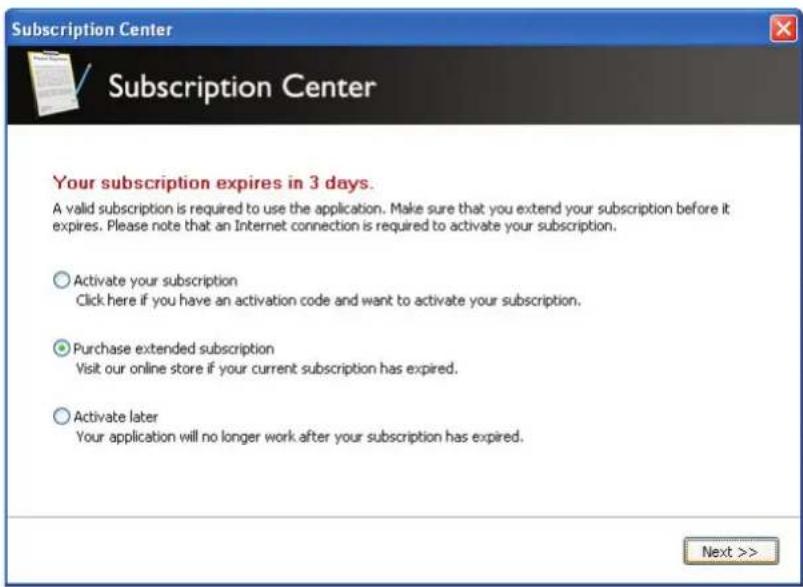
You will always need an active subscription in order to use the application. When you first install the application will be able to run the application for free during a "grace period". When this evaluation period expires you will need to purchase an activation code. This code is used to activate your subscription. Use the Subscription button in the main window in order to handle your subscription.
Purchase and Activate your Subscription
Open the Subscription Center to purchase or activate your personal activation code.
When you have received your activation code simply enter it in the Subscription Center and enter your personal activation code. The code will automatically be validated against our server and your subscription will begin.
Important: Activating your subscription requires an Internet connection.
Re-activate an Existing Subscription
When your current subscription expires you will need to purchase an extended subscription. This can be done by using the Subscription Center. From here you will be able purchase additional time to your current subscription.
When you purchase additional time on your subscription, it will need to be re-activated against our server. Please use the Subscription Center in the program to do this. You will need to enter your new code into the program; therefore it is recommended that you enter your new code once your current license has expired so that you will not lose any time on your license.
Important: Re-activating your subscription also requires an Internet connection.
User Guide – Digital Lock
This chapter offers a brief overview of the main functionality of Digital Lock. Read below if you want to find out how to use the application in a safe and efficient manner.
About Digital Encryption
Encryption is the cryptographic transformation of data (called "plaintext") into a form (called "ciphertext") that conceals the data's original meaning to prevent it from being known or used. If the transformation is reversible, the corresponding reversal process is called "decryption", which is a transformation that restores encrypted data to its original state. A cryptographic algorithm, also called a cipher, is a mathematical function used for encryption or decryption.
With most modern cryptography, the ability to keep encrypted information secret is based not on the cryptographic algorithm, but the key that must be used with the algorithm to encrypt or decrypt the information. Decryption with the correct key is simple. Decryption without the correct key is very difficult, and in some cases impossible for all practical purposes. Encryption strength is often described in terms of the size of the keys used to perform the encryption: in general, longer keys provide stronger encryption. Key length is measured in bits. For example, the Lavasoft algorithm uses key lengths of 480 bits.
Good password practices:
When creating a password...
- Use longer passwords (at least seven characters)
- Include upper and lower case letters, numerals, and symbols
- Use at least one symbol character in the second through sixth position
- Use at least four different characters (don't repeat the same characters)
- Try to use random numbers and letters
- Do not use adjacent keys on your keyboard (e.g. "qwert")
- Do not use consecutive letters or numbers (e.g. "234567")
- Do not use a real word in any language
- Do not use all or part of your login name
When using it...
• Always keep your password secret
- Never write it down
- Use different passwords for different web sites
- Disable the "remember my password" features on the web
• Periodically change your passwords at least every six months
Symmetric Encryption
In symmetric-key encryption, a private key is an encryption/decryption key known only to the party or parties that exchange secret messages. Implementations of symmetric-key encryption can be highly efficient, avoiding any significant time delay as a result of the encryption and decryption. Symmetric-key encryption also provides a degree of authentication, since information encrypted with one symmetric key cannot be decrypted with any other symmetric key. Symmetric-key encryption is effective only if the symmetric key is kept secret by the two parties involved. If anyone else discovers the key, it affects both confidentiality and authentication.
Asymmetric Key Encryption
Asymmetric encryption (also called “public key encryption”) involves a pair of keys - a public key and a private key - associated with an entity that needs to authenticate its identity electronically or to sign or encrypt data. Each public key is published, and the corresponding private key is kept secret. Data encrypted with your public key can be decrypted only with your private key.
TIP: You can also create platform independent encrypted files that can be opened on any platform. All the recipient will need is a browser and the correct password to unlock the encrypted information.
"Security is a chain; it's as strong as the weakest link. Mathematical cryptography /.../ is the strongest link in most security chains. The computer security, the network security, the people security - these are all much worse"
Bruce Schneier
Main Encryption Menu
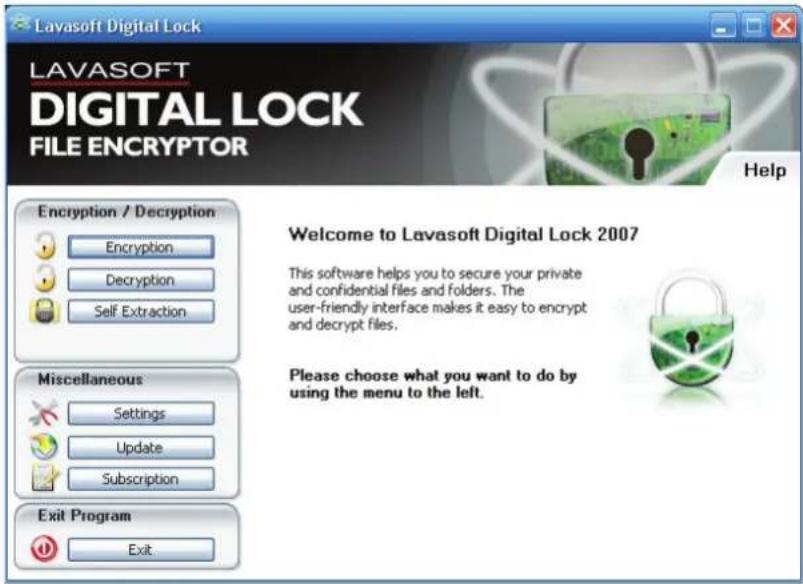
This is the main menu of the application and the user interface. There are other ways to interact with the application but this is where you will spend most of your time. The buttons on the left represent the different program functions. Each one is described in detail below.
Encrypt Files and Folders
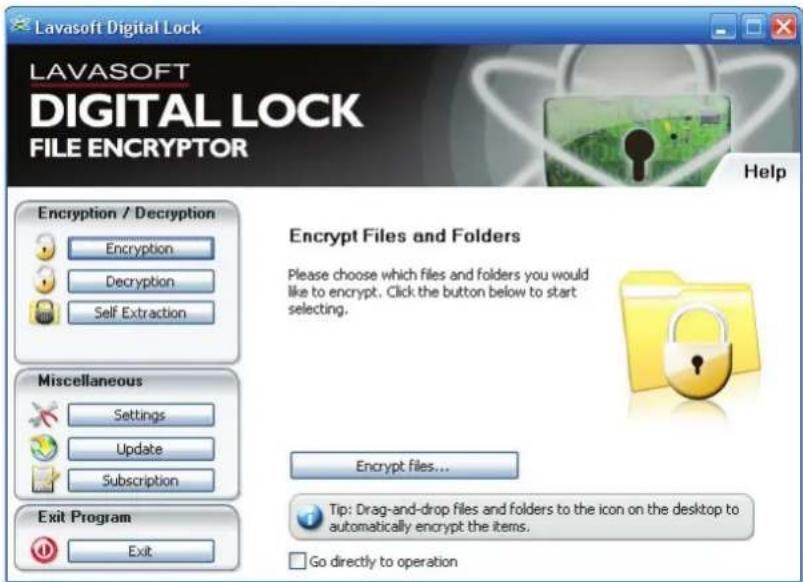
Click on the "Encryption"-button to display a new window (see below). In order to encrypt files and folders, simply drag and drop them to the window and they will be automatically added. You can also use the Browse-buttons on your right to add objects to the list.
Remember to choose what you wish to do with original files. You can choose to leave the files, delete the files or shred the files. Please be advised that you will not be able to recover any shredded files.
Decrypt Files and Folders
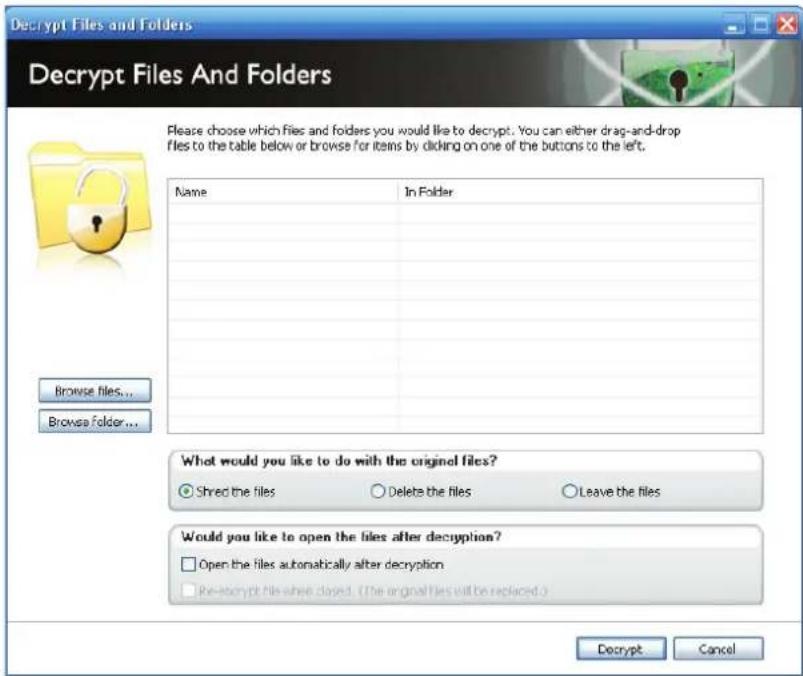
Click on the "Decryption"-button to display a new window (similar to the Encryption window above). In order to decrypt files and folders, simply drag and drop them to the window and they will be automatically added. You can also use the Browse-buttons on your left to add objects to the list.
Remember to choose what you wish to do with original files. You can choose to leave the files, delete the files or shred the files. Please be advised that you will not be able to recover any shredded files.
You can always decrypt Lavasoft encrypted files (*.safe) on computers that doesn't have the software installed. Simply download our free encryption reader - all you need is the correct password to unlock the files.
Visit our homepage to download this free reader application.
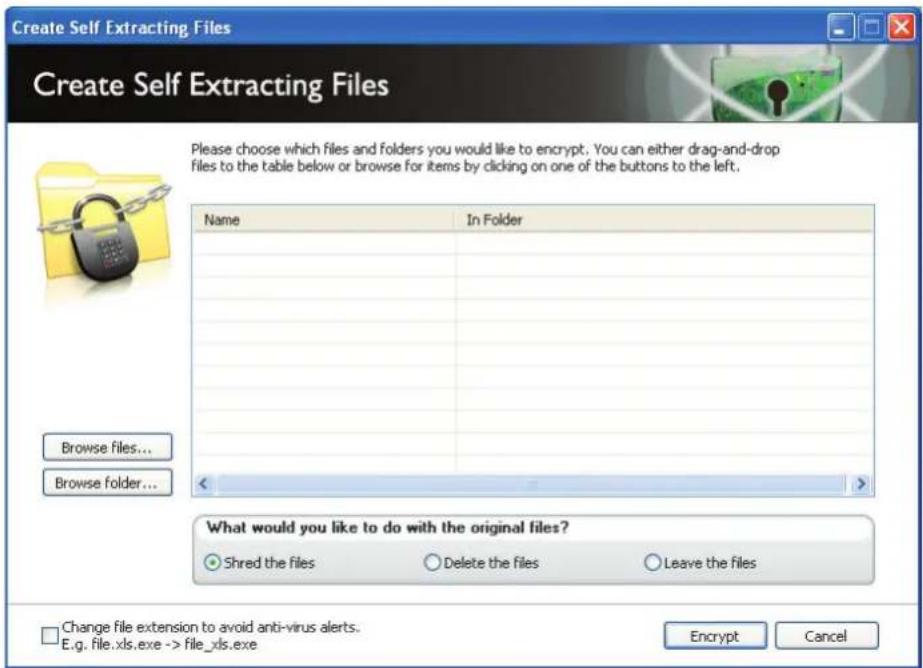
Create Self Extracting Files
If you wish to be able to protect your files without being restricted to Digital Lock, you can create self extracting files. The files you encrypt will be protected by the password of your choice and then turned into executable files. These files can then be decrypted without requiring a software installation.
How to Create a Secure E-Mail
Lavasoft Secure E-mail is a portable document encryption component included in Digital Lock. The component includes functionality for creating encrypted documents to any recipient, independent of the recipient's platform.
Lavasoft Secure E-mail includes functionality for converting a file into an HTML document with the original file embedded in cipher text. The embedded file is secured with strong encryption using a secret password. The HTML document can be opened and viewed in any web browser (such as Microsoft Internet Explorer, Mozilla Firefox, and Apple Safari). This is achieved by having the HTML document reference a Java applet that can decrypt the cipher text and open/save the original file to a desired location. The benefit of this functionality is to secure sensitive information being sent through an open network, either internal or external, with a bare minimum of requirements of the recipient side. In order to access the encrypted files the user only needs the correct password, a web browser and a Java engine installed.
How to create a secure e-mail
Select the files you wish to encrypt by selecting a file in Windows Explorer. Right click on the file and select the "Lavasoft" menu. In the sub-menu select the option "Encrypt and send to mail recipient...".

A new dialog will open where you will be prompted to enter a password. Select the default option "Platform Independent Encrypted File (.html)". You can also select one of the other options if you prefer a different encryption format.
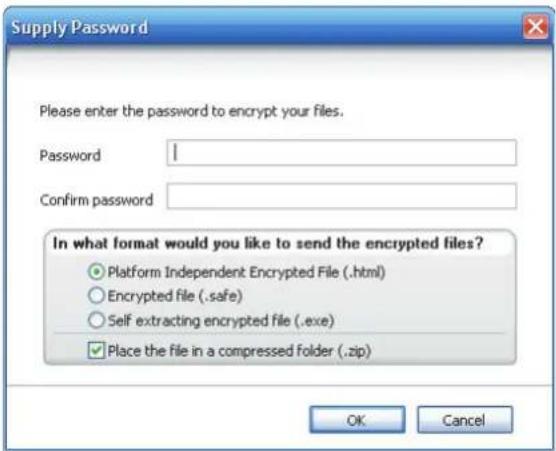
Select the option "Place the file in a compressed folder (.zip)" if you wish to decrease the size of the files to send.
When you click "OK" an e-mail will automatically be created, complete with information on how to open the attached encrypted file.
How to Open a Secure E-mail
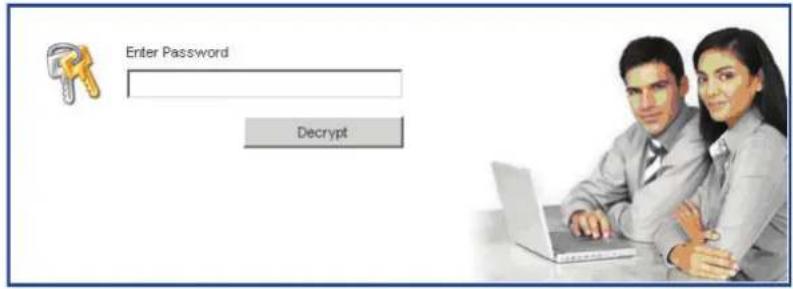
When you receive a Lavasoft Secure E-mail, follow these instructions to decrypt the file(s). Open the attached file by double-clicking on it. This will open the file in your default browser (e.g. Internet Explorer). Make sure you allow all security warnings to be displayed in order to be able to decrypt the file. If Java is not installed, you will be prompted to install it. You will not be able to decrypt the attachment without Java. Enter the password the recipient has communicated to you and press the button "Decrypt".
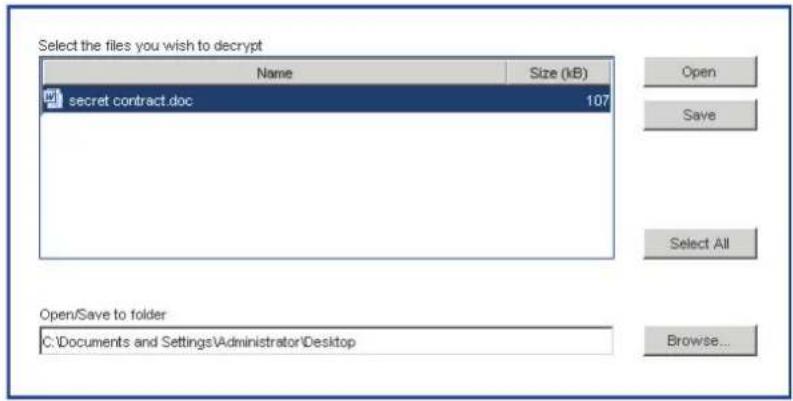
When you enter the correct password a list of the encrypted files will be displayed. Select the files you wish to open or save. The path displayed in the dialog will be used when opening the file. If you prefer a different path click on the "Browse..." button to select a different path.
Recipient Requirements
These are the requirements for opening a secure e-mail:
• Web browser (i.e. Microsoft Internet Explorer, Mozilla Firefox, Opera, Netscape and Apple Safari)
- Java Runtime Environment 1.5.0 (if this requirement is not fulfilled, the necessary components will automatically be installed/updated after acceptance.)
• The correct password (required for decryption)
• An Internet connection
The functionality has been tested on Microsoft Windows, Apple Mac OS X, Red Hat Linux, Ubuntu Linux, Solaris. Any platform compatible with Java Runtime Environment 1.5 should be able to decrypt a secure e-mail.
Troubleshooting
If you are having problems decrypting a secure e-mail please make sure that...
- Your browser allows Java Components and that Java is enabled.
• You are connected to the Internet.
• The website www.Lavasoft.com is available.
• You grant privileges when requested.
Please make sure that the above points are ok, and then try again.
Contact the Lavasoft Support Center at www.lavasoft.com if the above suggestions do not work.
Miscellaneous
This chapter offers some insight on various features in your Lavasoft software.
Log Files
When the operation has finished, a summary window will be displayed with the result of the operation. Please read the text for a description of the summary.
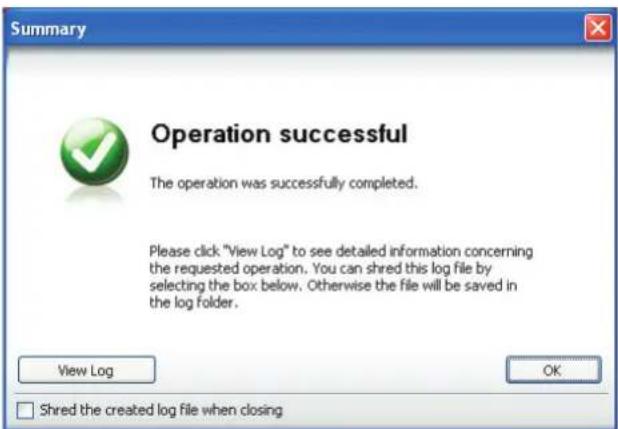
If you want to inspect your operation you can click on the "View Log File"-button. This will open your default browser with detailed information about your shredding. The log files are automatically saved in the application directory. If you want to access your files there is a shortcut available in the Settings dialog and in the Start Menu's program directory.
Settings
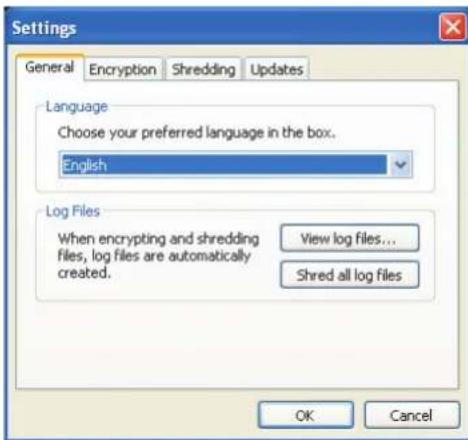
Use the Settings menu to change different aspects of the user interface. The different options include:
General – Provides options for changing languages and other miscellaneous settings. Also helps you to handle your log files.
File Shredding – Provides the option to change the default shredding algorithm and also contains brief information about them. Not available in Digital Lock.
File Encryption – Provides the option to change the default encryption algorithm and also contains brief information about them. Not available in File Shredder.
Updates – Used for enabling and disabling automatic updates. Also lets you set the periodicity.
Software Updates
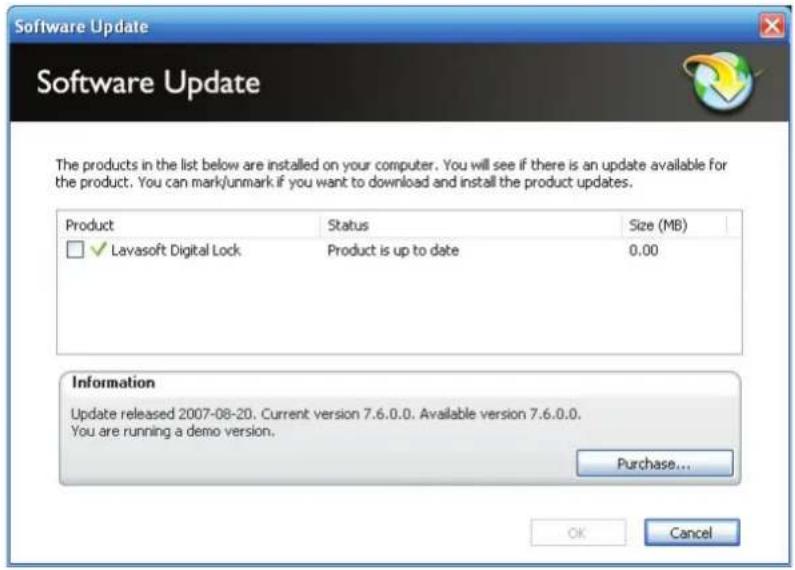
Make sure that you always have the latest version of the software you are using. Use the update feature in the main menu to download the latest version of our software. This can also be done automatically using the Settings menu.
Schedule Operations
This software supports scheduling operations at regular intervals. This chapter offers some advice on how to schedule operations.
Schedule Tasks in Microsoft Windows
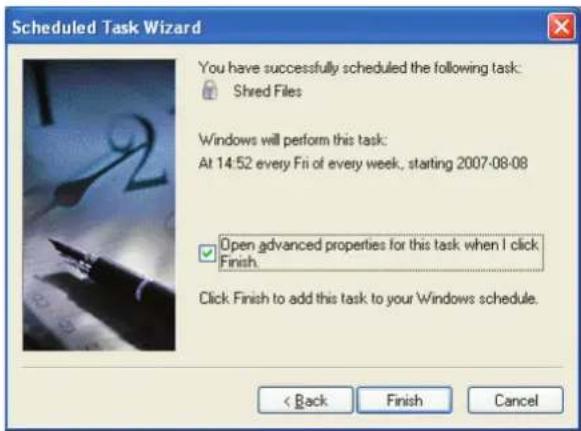
You can add a scheduled task in Microsoft Windows by opening the "Control Panel" and select "Schedule Tasks". Open "Add Scheduled Task". A guide will open.
When you are requested to select an application. Select the appropriate Lavasoft product in the program list. You can also browse to the correct application that is located in the Lavasoft application directory (e.g. C:\Program files\Lavasoft).
Executables might be "LSFileShredder.exe", "LSDigitalLock.exe" or "LSPivacyToolbox.exe"
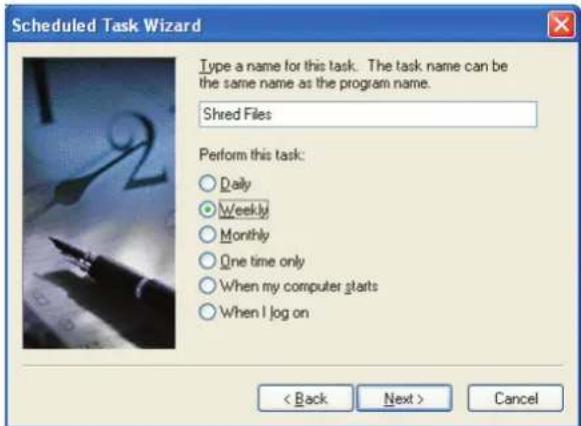
Continue through the guide and select time, date and frequency of the operation you wish to perform. You can also select the user that should run the operation.
Before you finish the guide, make sure that you have selected "Open advanced properties when I click Finish". See the picture below.
The advanced properties window will open when you are finished. Go to the textfield "Run:" and enter the appropriate command after the quotation mark. This is an example of how the text in the "Run:" field could look like:
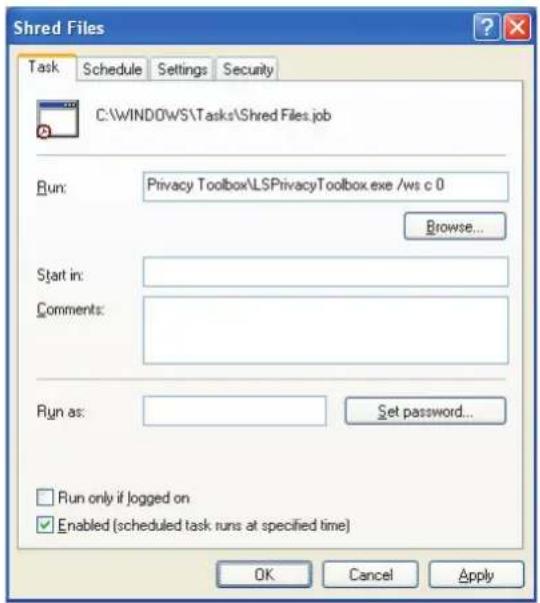
E.g. "C:\Program files\
Available Commands
Use the following parameters to achieve the desired operation. The parameters should be passed on to the operation according to the example above. Some operations require you to enter an algorithm – the list of available numerical representations are listed in the last table. Parameters listed in brackets “[ ]” are optional and not required for the operation.
| Silent Encrypt Files and Folders (without the GUI). No log will be generated. | |
| Command | /es /p:PASSWORD files |
| Flags | |
| PASSWORD | Specifies the password to use for encryption. Insert the password after the colon. E.g. /p: qwer1234 |
| files | One or more files to be encrypted. |
| Silent Shred Temporary Internet Files (without the GUI). | |
| Command | /stifs algorithm [stfs] |
| Flags | |
| algorithm | Specifies the algorithm to run. The value must be from 0-10. See below. |
| stfs | [optional] Run Shred Temporary Files after completing the Shred Temporary Internet Files operation. |
| Silent Shred Temporary Files (without the GUI). | |
| Command | /stfs algorithm [stifs] |
| Flags | |
| algorithm | Specifies the algorithm to run. The value must be from 0-10. See below. |
| stifs | [optional] Run Shred Temporary Internet Files after completing the Shred Temporary Files operation. |
| Silent Shred Recycle Bin (without the GUI). Log is created. | |
| Command | /rs |
| Silent Shred Free Disk Space (without the GUI). | |
| Command | /ws drive algorithm [wfs] |
| Flags | |
| drive | Defines one or more drives to run the operation on. i.e. “iok” should perform the operation on drive I: then O: and last K:. |
| algorithm | Specifies the algorithm to run. The value must be from 0-10. See below. |
| wfsdrive | [optional] Run Shred File Slack operation with the same parameters after completion of Shred Free Disk space.Defines one or more drives to run the operation on. l.e. “iok” should perform the operation on drive I: then O: and last K:. |
| algorithm | Specifies the algorithm to run. The value must be from 0-10. See below. |
| wfs | [optional] Run Shred File Slack operation with the same parameters after completion of Shred Free Disk space. |
| Silent Shred File Slack (without the GUI). | |
| Command | /wfs drive algorithm [ws] |
| Flags | |
| drive | Defines one or more drives to run the operation on. i.e. “iok” should perform the operation on drive I: then O: and last K:. |
| algorithm | Specifies the algorithm to run. The value must be from 0-10. See below. |
| ws | [optional] Run Shred Free Disk Space operation with the same parameters after completion of Shred File Slack. |
| Silent Shred files or folders (without the GUI). | |
| Command | /ss algorithm file [file...] |
| Flags | |
| algorithm | Specifies the algorithm to run. The value must be from 0-10. See below. |
| file | Specifies the file or folder to shred. Folders are shredded recursively. More files can be specified, separated by space. The whole path should be specified, ie c:\temp.txt |
| Shredding Algorithms (as used above) | |
| 0 HMG Infosec, Baseline | |
| 1 HMG Infosec, Enhanced | |
| 2 Peter Guttman's Algorithm | |
| 3 U.S Department of Defense | |
| 4 Bruce Schneier's Algorithm | |
| 5 Navy Staff Office Publ. | |
| 6 NCS Center | |
| 7 Air Force System Security | |
| 8 US Army | |
| 9 German Standard VSITR | |
| 10 OPNAVINST | |
| 11 NSA 130-1 | |
| 12 DoD 5220.22-M ECE |
Examples
This operation will shred free disk space on C:\ with the HMG Infosec, Baseline algorithm:
LSFileShredder.exe /ws c 0
This operation will shred the recycle bin with the default algorithm:
LSFileShredder.exe /rs
This operation will shred temporary system files and Internet files with OPNAVINST:
LSFileShredder.exe /stifs 8 stfs
Frequently Asked Questions
This chapter offers advice on known problems and frequently asked questions with Lavasoft software. Please note that this is a compilation of our various security solutions. All of the below might not apply to the software that is currently installed on your computer.
Why do I receive an error while shredding empty folders?
An application error causes the shredding of an empty folder to fail. Shredding a single empty folder will give an "Operation Failed" result. The cause of this is that empty folders does not include any information to shred and this error is therefore safe to ignore.
Why does shredding system files not remove all the selected files?
Windows and many open applications are constantly using various temporary files. Since these files are in use, they cannot be modified by other applications. As a result, the operation "Shred System Files" will usually generate the result "Operation completed with errors". If you wish to remove more files, simply restart your computer and try again. The operation "Shred Free Space" can also be used to ensure that there is a bare minimum of sensitive temporary files on your system.
Why does it take a long time to start a shredding of the Recycle Bin?
When you select the Recycle Bin Shredder this operation might take a while to complete depending on your configuration. This is usually caused by an unusually large amount of files in the root of the recycle bin. In order for File Shredder to be able to list the paths of the files to be shredded, a lot of processing power is required. In older systems, this can sometimes cause a delay of several minutes before the application can be used again. If this occurs, please make sure that you empty or shred the content of your recycle bin regularly to avoid this problem in the future.
What is the Subscription Center?
The Subscription Center is used to keep track of your software subscription and also helps you to keep your software up-to-date. You will always need an active subscription in order to use the application. When you first install the application will be able to run the application for free during a “grace period”. When this evaluation period expires you will need to purchase an activation code. This code is used to activate your subscription. This subscription feature is becoming standard for most security products and helps to ensure that you are using the latest version of your security software.
How can I activate my software subscription without an Internet connection?
Please contact us for more information on how to activate your software subscription if you do not have access to an Internet connection.
Why aren't my encrypted files received correctly when I send them?
It is likely that the receiver is using some sort of e-mail filtering software which removes the encrypted files attached in the e-mail. This software can be either installed locally or on the e-mail server. One reason can be that the filtering software does not recognize the file format since it is encrypted and therefore removes the file. Try to use different encryption formats the circumvent this problem. You can also try to send the encrypted file inside a compressed folder (.zip).
Why am I having difficulties opening a Lavasoft Secure E-mail with Internet Explorer 7?
Microsoft has included new security features in Internet Explorer 7 that makes it difficult to run active content like to Java Applet used to decrypt Lavasoft Secure E-mails. This can be solved by modifying the security settings of Internet Explorer 7. Contact your local administrator to change the appropriate settings. You can also use an alternative browser – like Firefox or Internet Explorer 6 or older to open the secure e-mail.
What is the folder "C:\SITShred" and why is it full of files?
You are currently running an operation for shredding free disk space. This operations creates a temporary folder on each selected drive and fills it with large files until there is no more space left on the disk. This folder can also be present if the operation has terminated unexpectedly. If this folder is present without the Lavasoft application running it will automatically be removed the next time to start your application.
Why am I running out of this space when I try to shred free disk space?
This is Windows reaction when the operation is shredding the empty disk space. It is safe to ignore this warning since the disk space will be made available continuously until the shredding is done.
Contact and Support
Address
Lavasoft AB
Lilla Bommen I
411 04 Gothenburg
Sweden
Phone
+46-(0)31-777 77 50 (no support inquiries)
Fax:
+46-31-15 69 10
office@lavasoft.com (no support inquiries)
Support Center
For support inquiries, please contact our customer support via the Support Center.
www.lavasoft.com/support/supportcenter/