Registry Tuner - Software Lavasoft - Free user manual and instructions
Find the device manual for free Registry Tuner Lavasoft in PDF.


User questions about Registry Tuner Lavasoft
0 question about this device. Answer the ones you know or ask your own.
Ask a new question about this device
Download the instructions for your Software in PDF format for free! Find your manual Registry Tuner - Lavasoft and take your electronic device back in hand. On this page are published all the documents necessary for the use of your device. Registry Tuner by Lavasoft.
USER MANUAL Registry Tuner Lavasoft
natural_image
Stacked 3D cubes in various colors and shades, floating above (no text or symbols)Registry Tuner
Software Manual
Table of Contents
Introduction 1
System Requirements 2
Frequently Asked Questions 3
Using the Lavasoft Registry Tuner 5
Scan and Fix Registry Errors 7
Optimize Registry 11
Manage Registry Backup 12
Settings of Lavasoft Registry Tuner 13
Registry Optimization Settings 13
Exclusion List 1
Schedule 1
Copyright 17
5
6
Introduction
Lavasoft Registry Tuner is PC maintenance software that helps to maintain the integrity of the Windows Registry. It provides a simple and effective solution to keep your PC running fast, clean, and error free. It scans and fixes invalid registry entries found in the registry, optimizing the performance of your system.
Lavasoft Registry Tuner repairs common problems and answers your questions, including:
• My computer and Internet have suddenly slowed down.
• I cannot remove certain programs from my computer.
• The program worked yesterday, but it's not working today.
- The application worked until I installed a software or hardware, and now I can't use it.
• My system doesn't work the way it used to.
- When I try to shut down the computer, it just keeps beeping over and over.
• My computer won't start.
Run Lavasoft Registry Tuner regularly for the following benefits:
- Faster system speed
• Improved system response time - Smooth system operation
- Fewer error messages
- Optimized registry
- Stable system
System Requirements
Lavasoft Registry Tuner supports Windows XP, Windows Server 2003 and Windows Vista.
The program automatically adapts itself to the operating system on which it runs, eliminating the need for manual settings.
Recommended system configuration:
- Intel Pentium or processor equivalent to industry standards with 500 MHz or faster
- 128 MB RAM
• Graphics mode 800x600 with 16.7 m colors. - 5 MB free hard disk space (an additional 10 MB is needed during installation only to accommodate the initial setup files).
• CD-ROM or DVD-ROM drive. - Operating Systems: Windows XP, Windows Server 2003 and Windows Vista
Frequently Asked Questions
What is the registry?
The Windows registry is the central database of Windows and stores information about every program installed on the system. For more information, see the Wikipedia article at: http://en.wikipedia.org/wiki/Windows_Registry
How does the registry get corrupted?
When programs are installed and uninstalled, or settings are saved in the registry, the entries are not removed automatically - resulting in an increased registry size. The outdated entries that are no longer valid result in a corrupted registry.
What does Lavasoft's Registry Tuner do?
The Lavasoft Registry Tuner has categorized certain areas in the registry and scans these areas for invalid entries. When the scan is complete, it identifies the invalid entries that can be removed selectively and safely. The program creates a backup of the registry before removing any invalid entries, adding an extra level of safety when working with the registry.
What impact does Lavasoft's Registry Tuner have on my computer?
Regular use of the Lavasoft Registry Tuner will result in a faster and more stable system, improved program performance, and a reduction in system crashes.
I want to purchase the program. How will the product be delivered to me?
When you purchase the Lavasoft Registry Tuner, you will receive an e-mail with the serial number and a link to download the product in order to install it directly on your computer.
I have purchased and installed the product, but it still says that I need to purchase it. Why?
In this case, please uninstall the existing copy and then reinstall the product. Enter the password carefully as it is case sensitive and can result in a faulty activation if entered incorrectly.
What is the correct procedure for installation of the product?
First, you must uninstall any free trial versions from your computer. Then run the setup file and follow the steps provided by the installation wizard.
I have purchased the product, but I have lost the necessary information to install it?
In the event that you have misplaced your serial number and download link, please contact customer support through the Lavasoft Support Center at www.lavasoft.com/support/supportcenter/.
I am not familiar with the registry in my computer. What if I use the Lavasoft Registry Tuner and something goes wrong with my system?
The Lavasoft Registry Tuner is designed with all levels of computer users in mind. Information is included within the software that allows you to easily reverse changes by using the 'Backup Registry' option and selecting the desired registry backup for restoration. Your system will revert to the previous settings.
I want to use the Lavasoft Registry Tuner, but is it safe to delete registry entries?
We have built in the necessary safeguards to put your ease at mind when using our product to optimize your Windows registry. A system restore point is always created, that includes a registry backup, before anything is deleted. You can easily revert to the previous state by using the 'Backup Registry' option.
How will I be informed about updates to this program?
We will notify you when a new update is released. You will then be able to update directly through our Customer Support Center on the Lavasoft website at www.lavasoft.com.
Using the Lavasoft Registry Tuner
Home
The Home tab is the default screen when Lavasoft Registry Tuner is launched, and includes the path to all features and functions in the application. Scan Registry, Optimize Registry, Backup Registry and Settings are displayed in the upper tabs, and selection of any tab will activate that screen. You may choose to run a scan first, and then optimize your registry. Alternatively, you may opt to click on the One Click Optimization button – which scans, repairs, and optimizes the registry with the push of a single button.
Actions performed from the Home screen include:
• One Click Optimization
- Scan and Fix Registry Now
- Optimize Registry Now
- System Summary
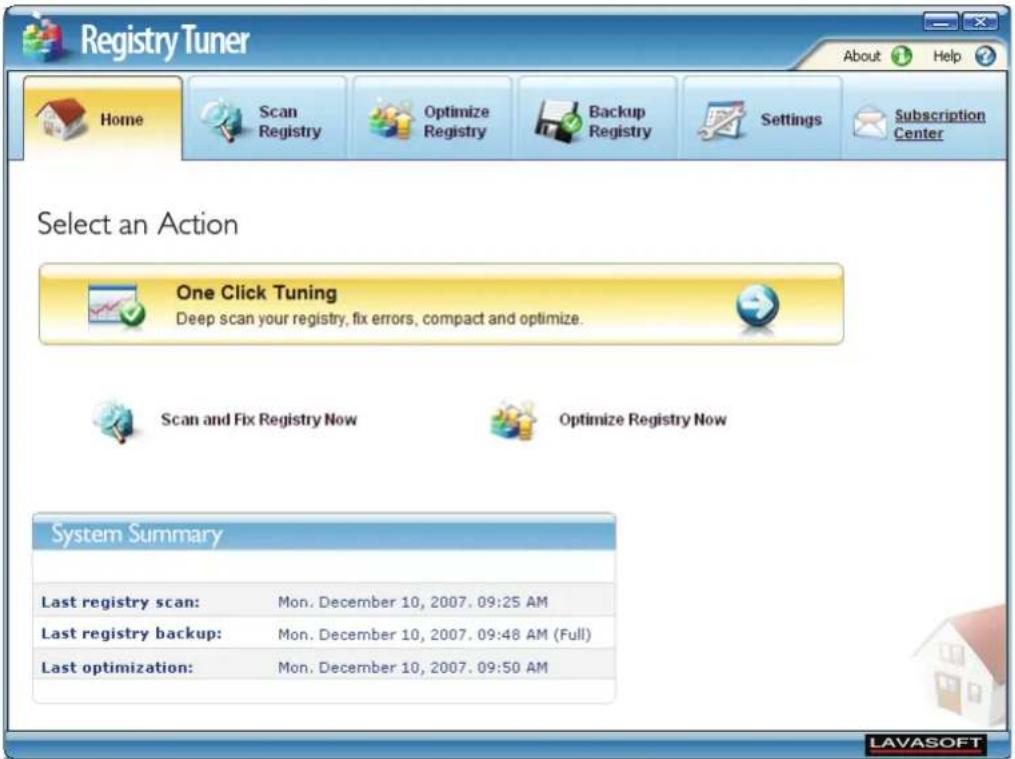
One Click Optimization
Lavasoft Registry Tuner comes with an advanced registry cleaning and optimization mechanism. When you click on the One Click Optimization button the program performs following tasks:
• Takes a complete registry backup so that it can be restored in case of system failure.
• Scans for errors in the specified registry areas.
- Removes any invalid registry entries found during the scan.
• As a final step, optimizes and compacts the size of registry.
Scan and Fix Registry Now
Click this option to start the scanning process by activating the Scan Registry screen. This section cleans-up and streamlines your registry by finding and removing the invalid data references. On clicking the Scan and Fix Registry Now button the tasks performed are:
• Scans for errors in the specified registry areas.
• Takes a partial backup of the registry i.e. backs up the areas where errors are found.
- Removes the invalid registry entries found during the scan.
Optimize Registry Now
This function implements a more linear registry structure in order to lower application response time and minimize registry access time.
• Scans for empty slots in the registry.
- Reboots your system for the changes to take effect (after receiving your consent).
System Summary
The System Summary section highlights the scanning, optimization and backup operations performed on your system. The options given with System Summary section are:
- Last Registry Scan: Shows the date and time of the last registry scan performed.
- Last Registry Backup: Shows the date and time of the last registry backup taken.
- Last Registry Optimized: Shows the date and time when the registry was last optimized.
Scan and Fix Registry Errors
The registry in which Windows and other applications store information on your computer can contain invalid and outdated data after the installation and uninstallation of software applications. This outdated information points to a location on the hard drive where there was once a file, but now it no longer exists. While there may be several reasons behind invalid registry entries, most the most common reasons include uninstalled programs that do not completely remove their registry entries, programs that were not correctly uninstalled by the computer user, etc. These invalid entries eventually begin to clutter your registry, slowing your computer operating system and causing other performance problems.
Invalid links are common, and it is good practice to regularly clean the registry. The Scan Registry option will clean and streamline your registry by finding and removing these invalid data references.
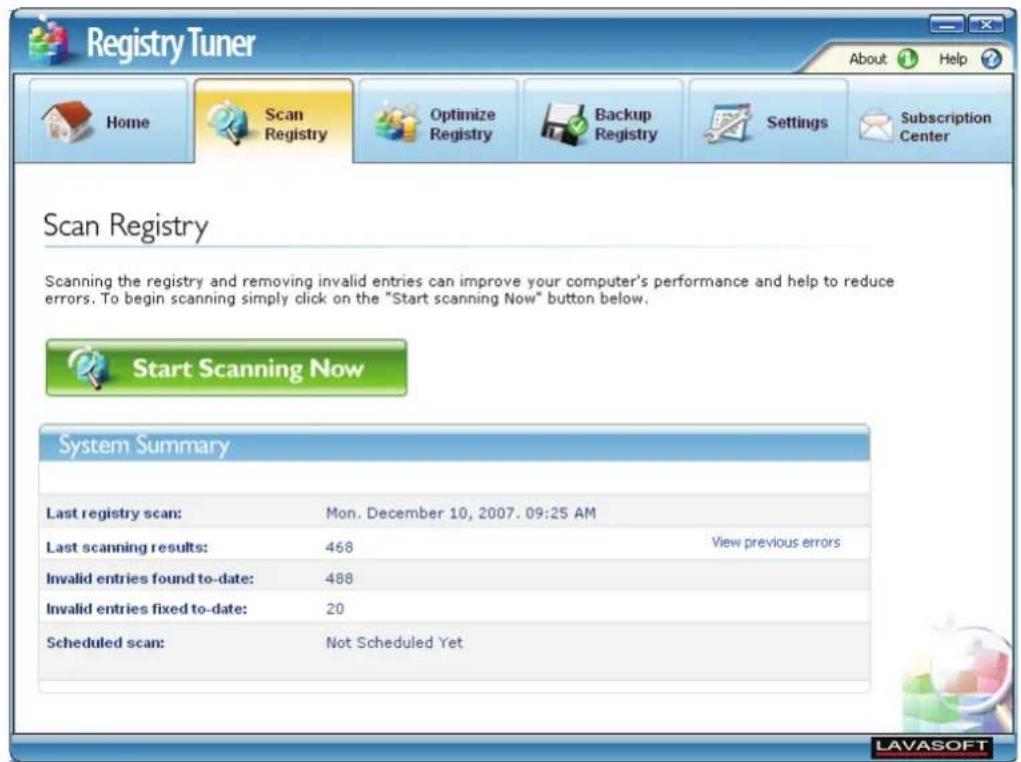
To start the cleaning process, click the Scan and Fix Registry Now button on the home screen - or press Start Scanning Now on the Scan Registry tab. The recommended default setting selects all registry areas given with the application.
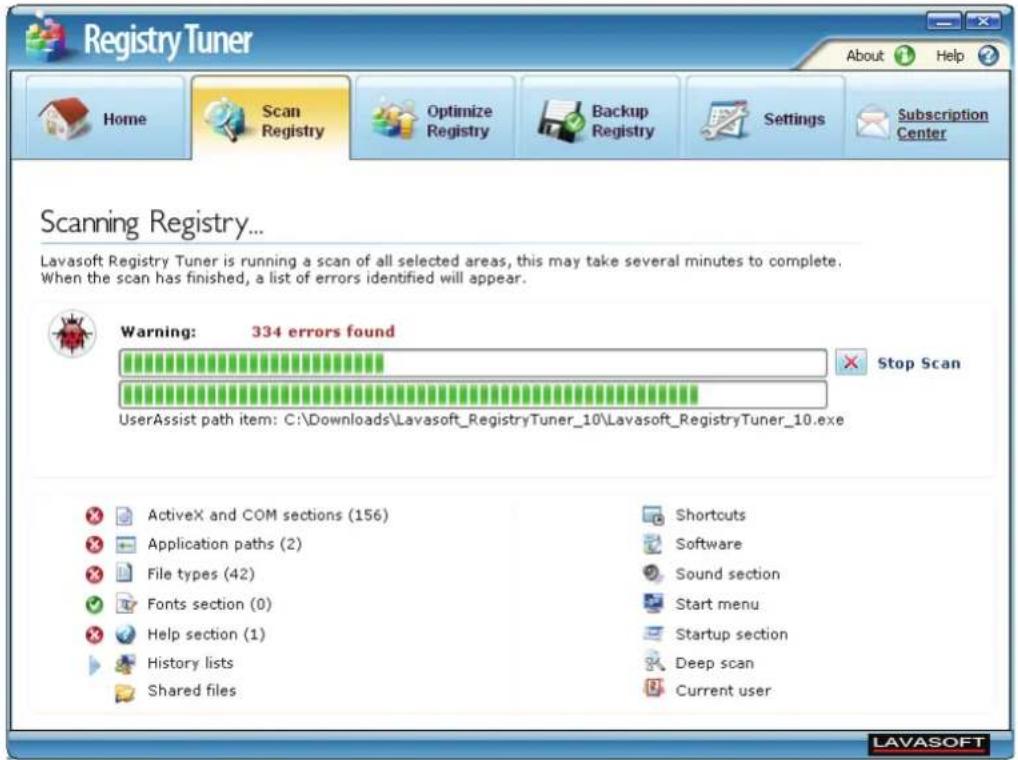
During the scanning process you can see the Registry keys being analyzed. At any time you can abort the scan process by clicking the Stop Scan button.
When the scanning process is complete, the program displays the results window, which summarizes all the registry categories scanned and the total errors found under each category.
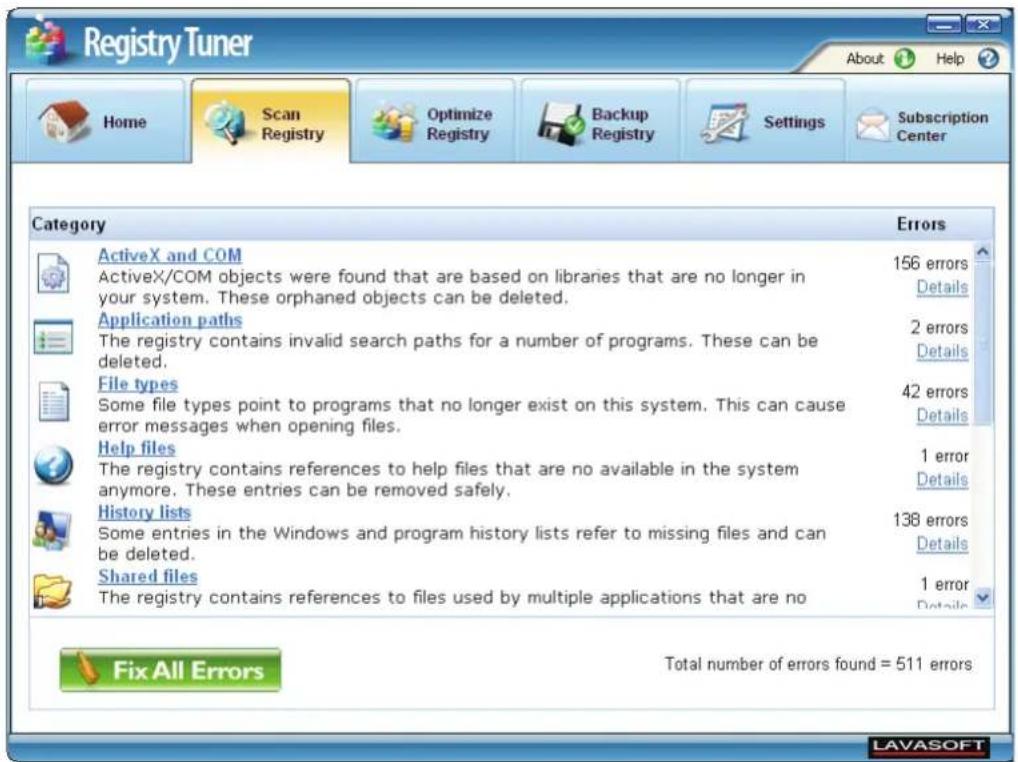
Each of the category headings links to a new window that details each and every error found under that category. The error entry describes the name of the invalid reference and the path/location referring to it. The invalid registry entries are by default selected for repair in this window. Uncheck the box Select All and then uncheck individual entries to exclude them from the repair process.
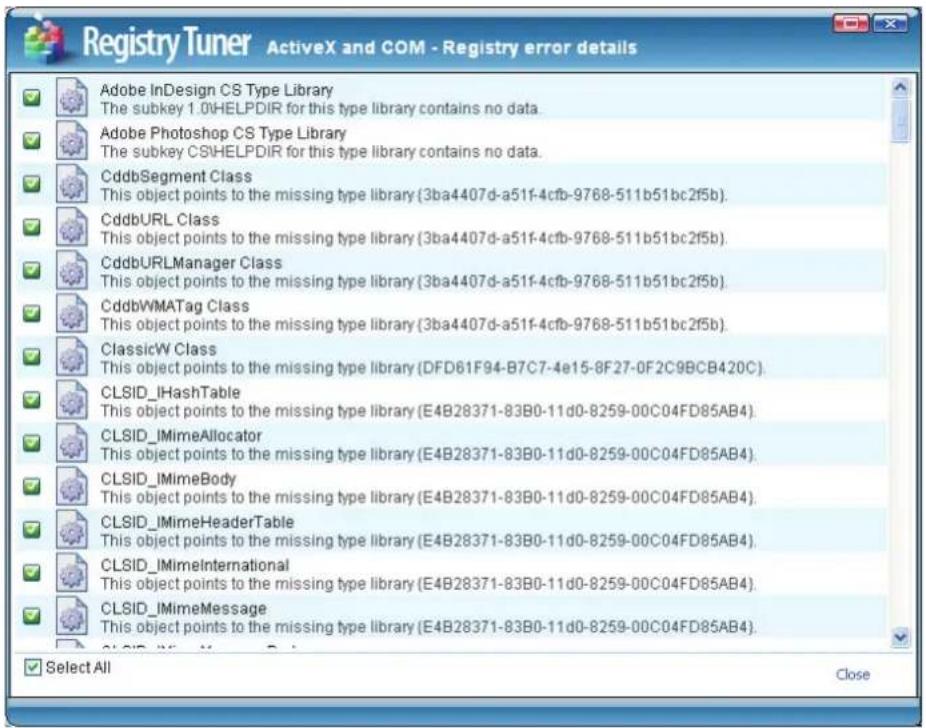
Right-click menu options on the results window:
- Unselect All or Select All: Use this option to exclude/include all of the entries in the deletion list.
- Unselect this/Select this: Checks/unchecks the selected entry.
- Invert Selection: Inverts the current selection - i.e. all the checked items will get unchecked and the unchecked items will get checked.
- Copy Description: Copies the name and description of a particular entry so it can be pasted into another location or file.
- Go to Key: Opens the selected key in the Windows Registry editor.
Before fixing the erroneous entries, you can review them individually and exclude any item from the list by unchecking the box associated with it. It is advisable to be extremely careful when deleting the Registry entries manually.
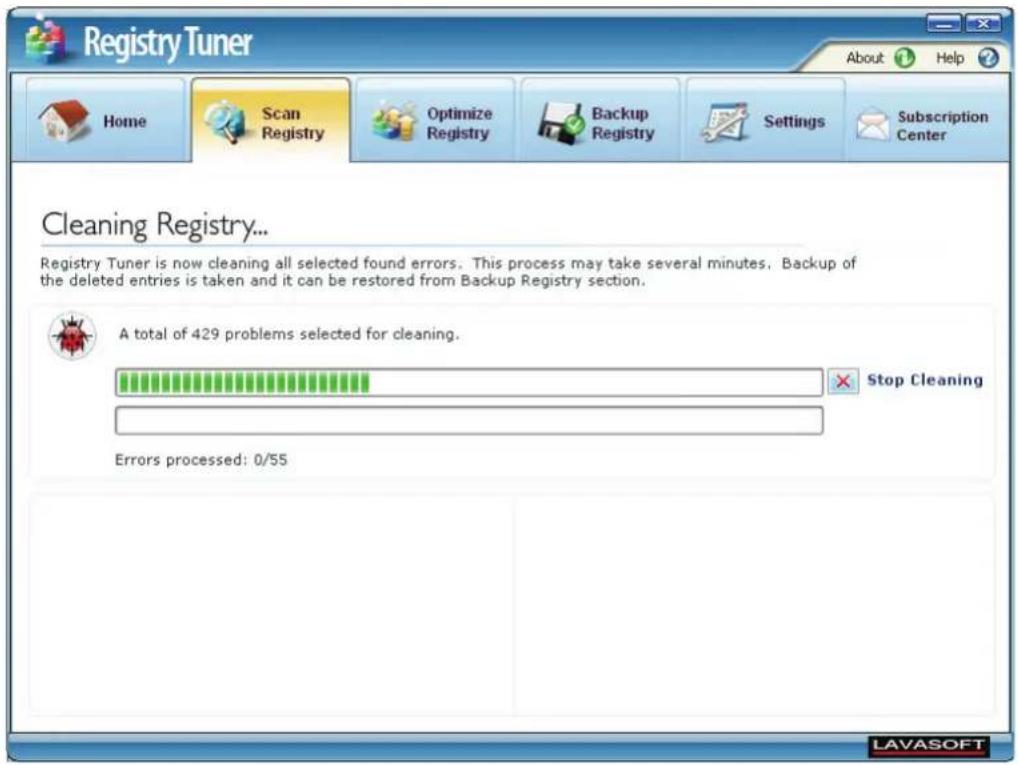
Click on Fix All Errors to start the removal of invalid registry entries, resulting in an error free, smooth and stable computer.
Optimize Registry
The registry plays a key role in the configuration and control of the Windows operating systems. It is the repository for both system-wide and per-user settings. The data in the registry is stored in hundreds of keys and sub-keys. Windows and other programs repeatedly query the registry for information. With passing time, as more programs are used, installed and uninstalled, data is scattered throughout the registry with sporadic free spaces in between. Think of the registry database as a chart with rows and columns in a big queue. Even when the data is deleted from a registry block, it still maintains a reference to the next registry block consuming the same amount of space that it occupied before. When new items are added to the registry, they are added at the bottom in a queue. So over time, the registry includes multiple blank cells. If any of these blank registry cells are corrupt, they may pass invalid information to the calling program, causing a system halt and slowdowns, or can even cause a system crash.
Faster performance results from querying a cleaned registry with fewer entries. Furthermore, optimizing the registry makes the load time shorter.
How to Optimize the Registry
Lavasoft Registry Tuner compacts the registry to improve the performance of your computer. The Lavasoft Registry Tuner eliminates registry fragmentation, thereby giving you a fresh registry with no redundant or obsolete data.
Select Optimize Registry Now to begin optimization or move to the Optimize Registry tab to see when you did your last registry optimization.
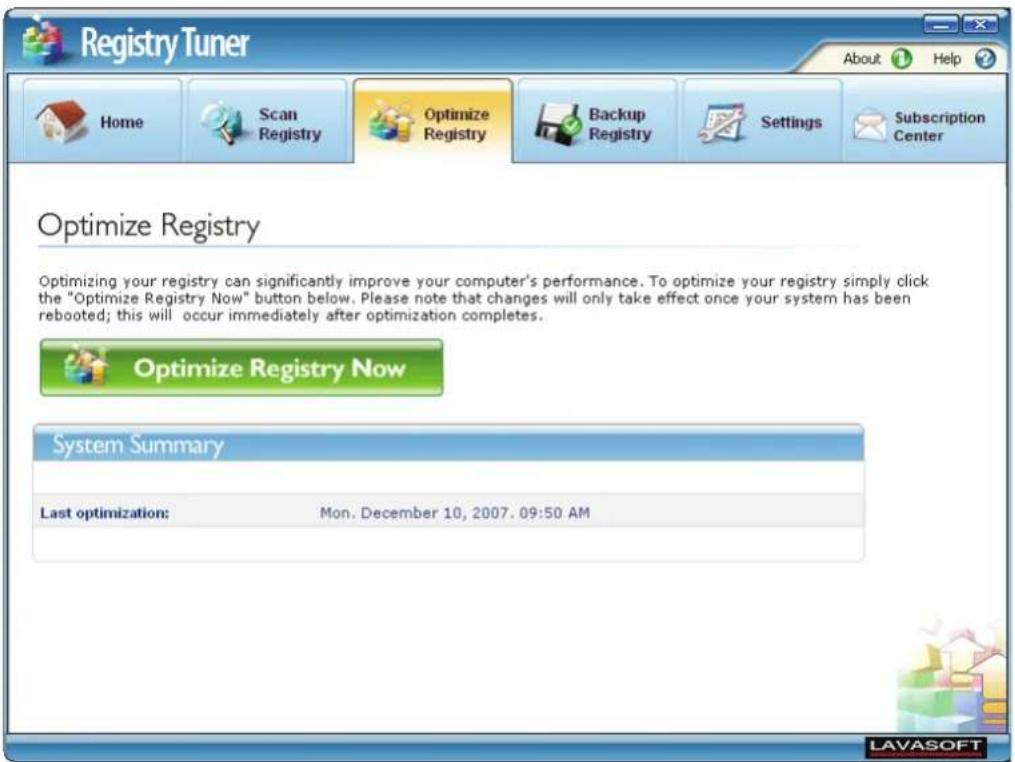
You should close all open documents and applications before optimizing the registry. Click on the Optimize Registry Now button and the Optimizing Registry screen will be displayed, where you can monitor the progress of the optimization. When it finishes, your system will automatically reboot for the optimization to take effect.
Manage Registry Backup
Lavasoft Registry Tuner has been designed in way that makes it absolutely safe to remove and optimize the registry. In case you feel that the removal of a registry entry has caused any program not to work properly, you can always revert to the last known working configuration. There may be a situation where you encounter problems like the system running slow or taking a lot of time of boot, or programs not running properly. All of this may happen when removing a registry entry which is required for a certain program to run. Lavasoft Registry Tuner can help you to get back to your last smooth-functioning registry stage and solve the problem.
In the Backup and Restore Registry section you can take backup in couple of ways:.
Full Backups
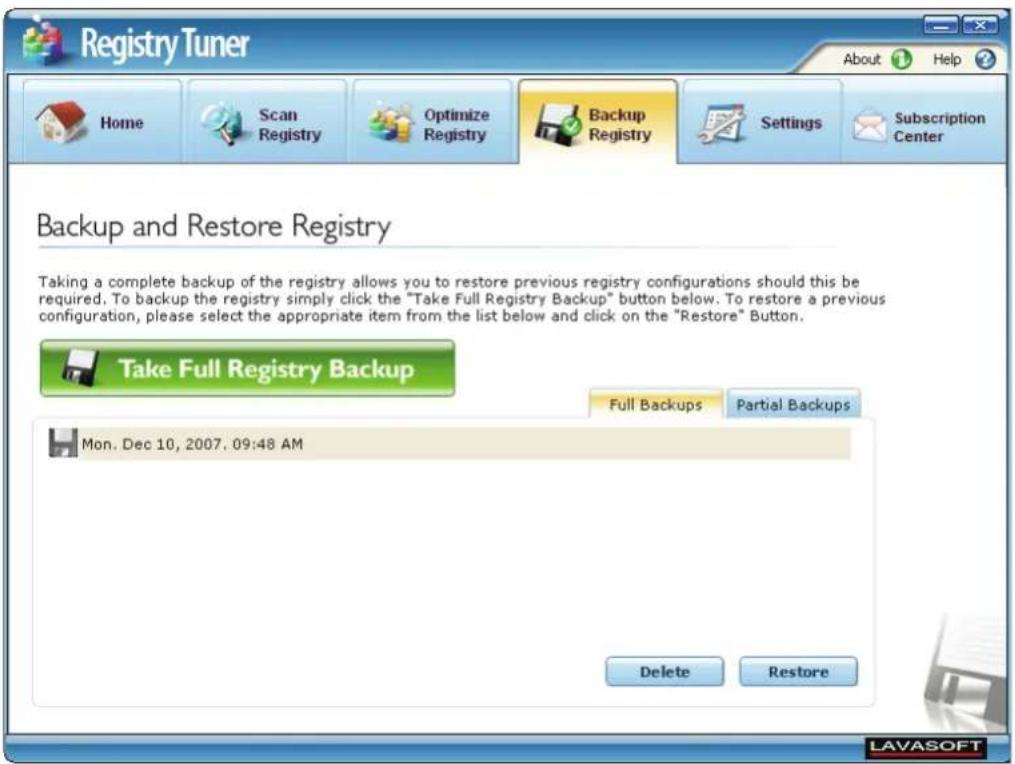
Complete registry backups can be taken manually by clicking the Take Full Registry Backup button. When you press the button One Click Optimization on the main screen, a full registry backup is automatically made before any action is taken.
Partial Backup
Whenever you scan and clean the registry manually, after selecting the desired registry categories, the program automatically takes a backup of these categories before removing the invalid entries. This way you always know that you have a backup to revert to, should anything go wrong.
In the Partial Backup section, the backups are organized by dates, i.e. they are always categorized under the headers: Today, This Month, This Year, and Last Year.
How to Restore?
Simply select a backup record from the Full Backups or Partial Backups section and press the Restore button. The registry entries on the said date and time are then restored to their previous values. All backups are saved in this list until you choose to remove them.
Settings of Lavasoft Registry Tuner
Lavasoft Registry Tuner allows you to configure settings as per your requirements for best and optimum output. The three tab sections are:
• Registry Optimization Settings
- Exclusion List
- Schedule
Registry Optimization Settings
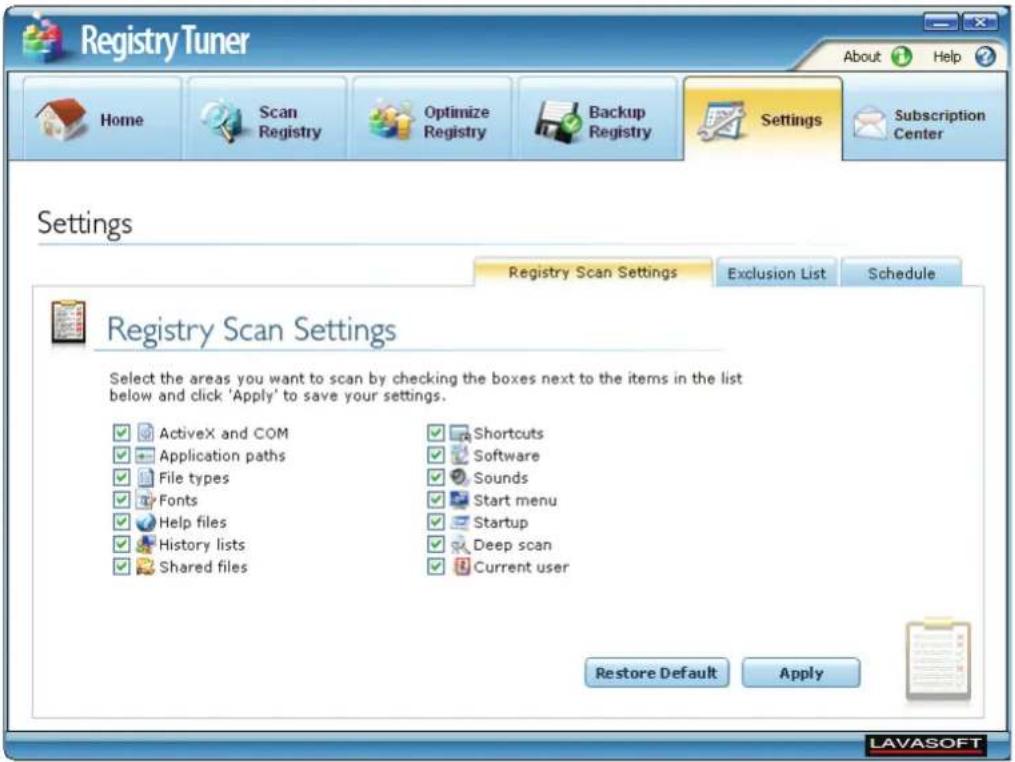
By default all areas of the registry are selected for scanning, however, you can unselect an area by un-checking the box next to it and then clicking on the Apply button. Pressing the Restore Defaults button reselects all the areas excluded from the scanning process.
Lavasoft Registry Tuner scans the following areas in the registry for errors:
| Registry Areas Impact on | System |
| ActiveX and COM An | ActiveX control is a component program object that has a set of rules for how programs should share information. ActiveX and COM components are installed on the system when you browse the Internet or install an application. Not only can these controls serve as a vehicle for spyware and adware distribution but they also increase the size of the registry and can cause some programs to malfunction if they are invalid. |
| Application Paths Incorrect path information in the registry may cause programs to malfunction. These paths are typically paths that are not removed when programs are uninstalled or paths which are written to the registry by applications and where the physical path is removed or changed, leaving an invalid application path in the registry. | |
| File Types In Windows | , a file type is associated with a certain program and information about this mapping is stored in the registry. Invalid file type entries occur whenever a file type is associated with a program that is no longer available on the system. |
| Fonts | Invalid font entries occur when fonts are removed from the system without the registry being updated accordingly. This can cause program crashes, especially in word processing applications. |
| Help Files When a program is installed it makes entries relating to the help files associated with it in the registry. If a help file is deleted or moved from the folder where it was originally installed, it results in invalid registry entry. | |
| History Lists In the registry, Windows maintains a list of all the files that you have opened recently, for easy access via the Start Menu. These entries remain even if the files they refer to are removed from the disk, which results in invalid registry entries. | |
| Shared Files The registry includes paths of files and program libraries (dlls) that are used by multiple programs. If these files are moved or deleted physically from the disk it results in invalid registry paths. | |
| Shortcuts Invalid shortcuts are registry entries that point to paths which do not exist on the disk. | |
| Software Control Panel's 'Add and Remove Program' window lists all the programs installed on the computer. Software that does not have an uninstall program instead use entries containing information about the uninstall in a special area in the registry. | |
| Sounds Paths to sound files that are played when certain events are fired on the system are stored in the registry. There may be entries in the registry which point to sound files which no longer exits. | |
| Start Menu | The Start Menu provides quick access to the programs installed on the system, if a program is moved or deleted from its original location, or the Start Menu folder is moved, it will result in invalid registry entries. |
| Startup | There may be programs which are scheduled to be launched on Windows startup but are actually removed from the disk. This will result to invalid registry entries. |
| Deep Scan | Scans everything in your registry section LOCAL_MACHINE and will catch more errors than other scans. The downside is that it takes longer to complete the scanning process. |
| Current User | This option scans for errors in HKEY_CURRENT_USER section of the registry that contains the profile for the user currently logged on to the computer. The user profile includes environment variables, personal program groups, desktop settings, network connections, printers, and application preferences. |
Exclusion List
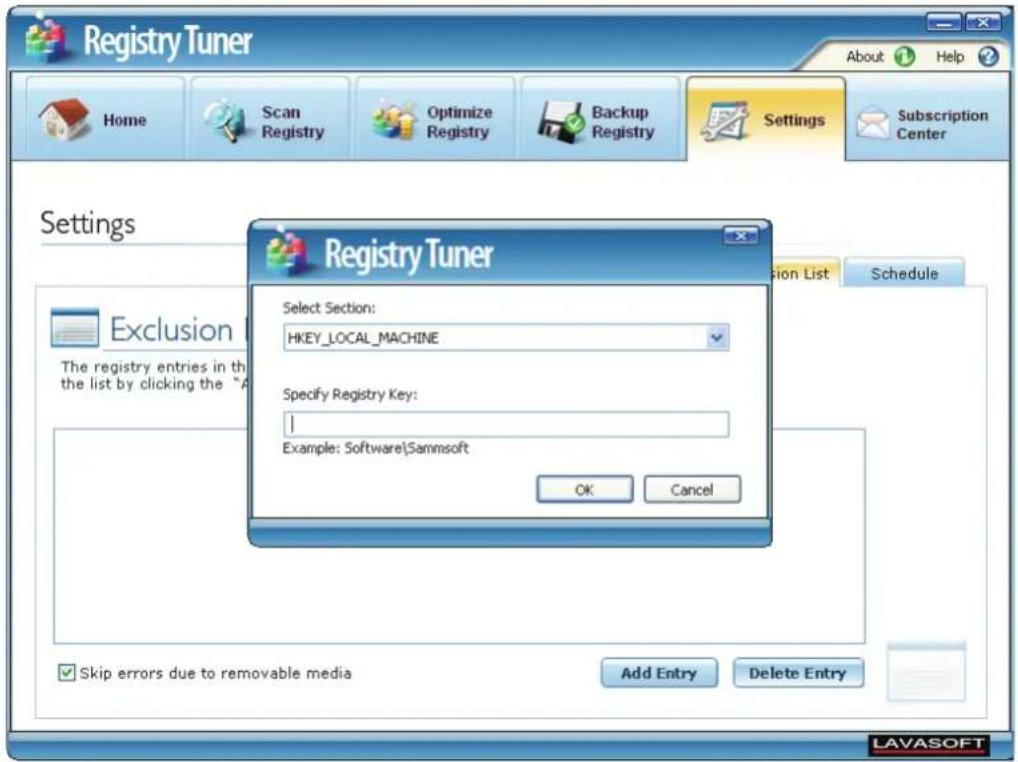
Lavasoft Registry Tuner provides an Exclusion List which helps you to create a list of registry paths which will be excluded from scan of invalid entries by the program. These paths will not be scanned by Lavasoft Registry Tuner for invalid registry entries.
You just need to click on Add Entry and select the section which you want to add to the exclusion list. The drop-down list provides the name of the sections selected for the exclusion list. To be more specific, type the complete path of the registry key in the next box given, Specify Registry Entry. You can delete an entry from the exclusion list just by selecting the entry and clicking on Delete Entry button.
Skip errors due to removable media: When you install removable drives, it creates certain registry entries, but if the drive is removed, the registry references will be invalid as it will link to a drive not found on your system. However, if you know that you will plug in the same drive again, we suggest not deleting such registry errors because it will require you to reinstall the drivers of the drive. Simply check the option to skip registry errors to avoid removing these entries.
Schedule
Lavasoft Registry Tuner comes with a built in scheduler for launching a registry scan automatically. You can create schedules that will run only once, daily or weekly.
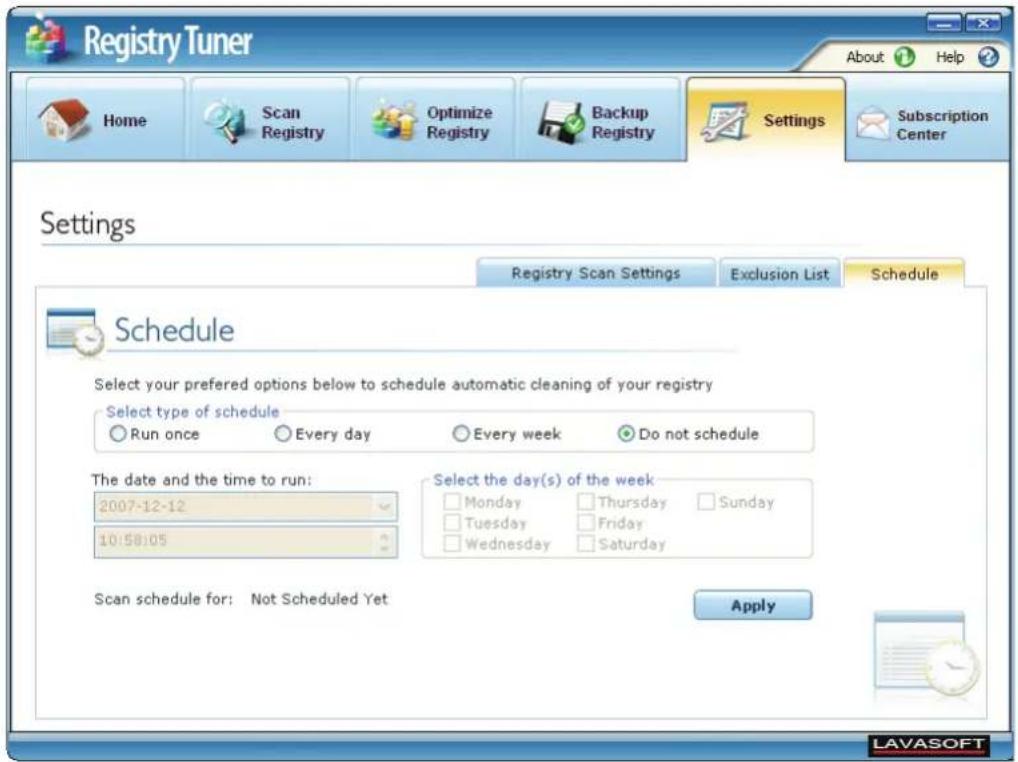
Steps to create a scan schedule:
- To create a schedule you need to select when you want the schedule to run (once, every day or every week).
- Select the date, time, or week day when you want the schedule to run.
- Click the Apply button to create the schedule.
These simple steps will create a schedule for the program to launch automatically and start scanning for errors in the registry at the specified date and time.
| Set Schedule Description | |
| Run Once Select date | and time on which you want Lavasoft Registry Tuner to run automatically.This schedule will run only once. |
| Every Day For daily scheduling you need to specify the time when you want the program to run. | |
| Every Week To create | this type of schedule you need to specify weekdays on which you want the program to run. |
| Do Not Schedule If you want to manually scan your system for registry errors, you can opt not to schedule any scans. | |
Subscription Center
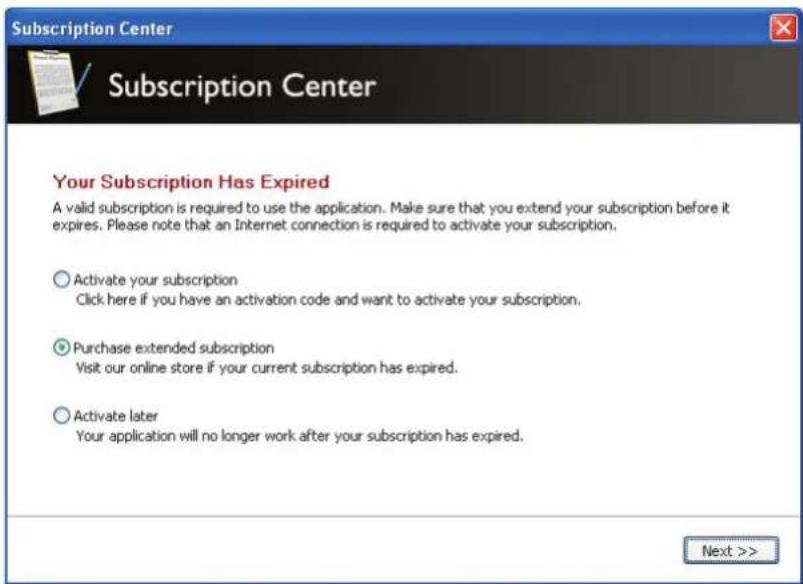
You will always need an active subscription to use your copy of Lavasoft Registry Tuner. Lavasoft will send you an activation code/serial number to activate the software when you purchase a copy of the program - if you have not received this code or your code is not working, please visit http://www.lavasoft.com/support/supportcenter/ for assistance. All aspects relating to your subscription is handled using the Subscription Center; to enter, simply click the Subscription Center button in the application, here you can manage your subscription of Lavasoft Registry Tuner and see the status of your current license.
Purchase and Activate Your Subscription
Open the Subscription Center to purchase or activate your personal activation code. When you have received your activation code simply enter it in the Subscription Center and enter your personal activation code. The code will automatically be validated against our server and your subscription will begin.
Important: Activating your subscription requires an Internet connection.
Re-activate an Existing Subscription
When your current subscription expires you will need to purchase an extended subscription. This can be done by using the Subscription Center. From here you will be able to purchase additional time to your current subscription. When you purchase additional time on your subscription, it will need to be re-activated against our server. Please use the Subscription Center in the program to do this. You will need to enter your new code into the program; therefore it is recommended that you enter your new code once your current license has expired so that you will not lose any time on your license.
Important: Re-activating your subscription also requires an Internet connection.
Copyright
Lavasoft Registry Tuner is Copyright ©2007 Lavasoft AB. All rights reserved.
For further queries related to Lavasoft Registry Tuner program contact us through the Lavasoft Support Center at www.lavasoft.com/support/supportcenter/