Ad-Aware 2008 - Antivirus Lavasoft - Free user manual and instructions
Find the device manual for free Ad-Aware 2008 Lavasoft in PDF.


User questions about Ad-Aware 2008 Lavasoft
0 question about this device. Answer the ones you know or ask your own.
Ask a new question about this device
Download the instructions for your Antivirus in PDF format for free! Find your manual Ad-Aware 2008 - Lavasoft and take your electronic device back in hand. On this page are published all the documents necessary for the use of your device. Ad-Aware 2008 by Lavasoft.
USER MANUAL Ad-Aware 2008 Lavasoft
natural_image
Illustration of a stylized globe with Earth and surrounding oceans, no text or symbols present.Ad-Aware® 2008
User Manual
Table of Contents
What Is Ad-Aware 2008? I
nstall Ad-Aware 2008 3
Registering Your Product 4
Ad-Aware 2008's Interface 6
First Step Settings 7
Status 8
Main Status Screen 8
General Statistics 9
Detailed Statistics 9
Log Files 10
Scan 11
Choose A Scan Mode 11
Custom Scan Settings - Sections 12
Custom Scan Settings - Files & Folders 13
Performing Scan 14
Scan Results 14
Critical Objects 15
Repair Window 19
Privacy Objects 19
Log File 21
Scan Summary 22
Quarantine & Ignore List 23
Quarantine 23
Ignore List 24
Scheduler 25
Ad-Watch 27
Ad-Watch Status 27
Event Log 28
Ad-Watch RegShield 28
Ad-Watch Processes 30
Ad-Watch Connect 31
Ad-Watch TrackSweep 32
Ad-Watch Settings 33
Web-Update 34
Update Ad-Aware 2008 34
Web-Update Settings 35
Tools & Plug-ins 36
Process Watch 36
Hosts File Editor 39
TrackSweep 41
Settings 42
Browsers 43
Scanning 43
Auto Scans 45
User Interface 46
Log Files 48
Using Command Line Parameters 49
Uninstall Ad-Aware 2008 52
Resources 53
Lavasoft Security Center 54
Ad-Aware End User License Agreement 55
Software License Agreement 55
Purchasing Additional Lavasoft Products 57
Glossary 57
What Is Ad-Aware 2008?
Ad-Aware 2008 is the latest version of Lavasoft's industry leading anti-spyware solution. Ad-Aware 2008 allows you to combat the growing threats and latest advancements of malicious spyware and malware. Our powerful anti-spyware software now includes integrated anti-virus protection, as well as extended threat detection, for Ad-Aware 2008 Plus and Pro versions.
Ad-Aware 2008 protects you from spyware and malware that secretly takes control of your computer, resulting in aggressive advertising pop-ups, sluggish computer activity and even identity theft through stolen private information. We give you the tools to detect hazardous content on your computer, clearly identify their threat level, and then give you the ability to remove unwanted content, so that your private information remains right where it should - under your control.
Lavasoft's advanced Code Sequence Identification (CSI) technology roots out deeply hidden malware and then searches for similar codes in order to identify emerging variants. Ad-Aware 2008 thoroughly scans your memory, registry, Hosts file, hard, removable and optical drives for known data-mining, aggressive advertising, parasites, scumware, keyloggers, Trojans, dialers, malware, browser hijackers, tracking components and rootkits. The extended engine in Ad-Aware 2008 Plus and Pro boosts detection to include over one million additional virus and malware threats.
Ad-Aware 2008 Features
Advanced Code Sequence Identification Technology – Boost your privacy protection with precise detection of embedded malware, including Trojans, worms, spyware and other forms of deceptive malware.
Enhanced Rootkit Removal System – Guard against hidden threats attempting to access your system with our amplified rootkit removal technology.
Improved Threat Detection – Powerful protection against cyber threats – including a defense against spyware, Trojans, bots, and other malicious programs – with an expanded threat database.
Extensive Detection Database – Stay protected with regular updates from our extensive library of identified and analyzed threats.
Fast, Efficient Updates – Save precious time and resources with compressed files resulting in quick product updates.
Easy to Install and Use – Effortlessly maneuver the complexities of malware detection and removal with Ad-Aware's user-friendly interface.
Lavasoft ThreatWork – Direct access to submit suspicious files for analysis via ThreatWork, an alliance of global anti-spyware security volunteers actively fighting online threats.
TrackSweep – Control privacy by erasing tracks left behind while surfing the Internet on multiple browsers, including Internet Explorer, Firefox and Opera, with one easy click of a button.
Multiple Browser Support – Choose Internet Explorer, Firefox or Opera with expanded browser support.
System Restore Point – Set a Windows system restore point after a scan to easily revert back to your clean system to recover from a spyware attack.
Integrated Anti-Virus Protection - Powerful anti-spyware software now includes extended anti-virus protection. Lavasoft's extended anti-virus engine boosts detection to include over one million additional virus and malware threats..
Customizable Scans – Customizable scanning of RAM, registry, hard drives, external storage devices, and optical drives means you save time by scanning selected areas where known spyware programs are located.
Substantially Reduced Use of Computer Memory – Tread lightly on system resources with a significant reduction in computer memory used while in watchguard mode.
Hosts File Editor – Allows users to add, delete or make changes to the Hosts File to create Web navigational shortcuts and block specific sites
Ad-Watch Real-Time Monitor – Immediate detection of malware, spyware, and viruses means deceptive applications can be safely removed before they are able to cause any damage to your PC..
The Scheduler – Set automatic scans and updates to fit your personalized needs and optimize time and resources.
Ad-Watch Connect – Monitors outgoing network traffic, providing an additional channel for identifying active threats.
Process Watch Module – View an in-depth snapshot of all running processes and quickly stop any known offending processes.
Advanced Command Line Support – Allows users to scan and remove spyware without launching the interface window.
Ad-Aware 2008 System Requirements
Processor: Pentium III 600MHz or faster
RAM: Operating system + 100 MB
Hard Disk: 50 MB free space recommended
Operating Systems:
Windows Vista (32- and 64-bit)
Windows XP (Home and Pro)
Windows Server 2003
Windows 2000 Pro
Web Browsers:
Internet Explorer (version 5.5 or higher)
Firefox (version 1.5 or higher)
Opera (version 9 or higher)
nstall Ad-Aware 2008
For specific questions related to your download or purchase of Ad-Aware 2008, please log in to the Support Center at www.lavasoft.com.
If you are installing Ad-Aware 2008 on Windows 2000 or XP operating systems, please make sure you have administrative rights. Ad-Aware 2008 is a service and as such has escalated rights. You must have administrative rights in order to install Ad-Aware 2008. If you are unsure if you have the necessary permission, please contact your system administrator or refer to your computer's user guide before installing.
Start Installation
If you are installing Ad-Aware 2008 from a CD, insert the CD into the CD-ROM drive. If you downloaded your copy of Ad-Aware 2008, locate and double-click on the downloaded file to start the installation.
Uninstall Previous Versions of Ad-Aware
Ad-Aware 2008 will not function correctly if old versions are not removed prior to installing a new version or an upgrade. When you proceed with the installation of Ad-Aware 2008, all prior Ad-Aware versions will automatically uninstall.
Welcome Screen
Please read the License Agreement before you proceed. When you have completed reviewing the agreement and if you agree to the terms, choose the radio button option next to "I accept the license agreement" and press "Next" to continue with the installation of the software.
User Information
Write in your full name and organization. Please specify if this application can be installed for the current user or for all users that share this computer and click "Next."
Type of Installation
Choose the type of installation (standard or advanced) and then click "Next."
Destination Location
Click "Next" to accept the default location or use "Browse" to specify where you want Ad-Aware 2008 installed.
Start Installation
Click "Next" to begin installing Ad-Aware 2008 onto your computer. After the files finish copying, you will receive a confirmation message that the installation was successful.
Installation Successful
Click "Finish" to complete the installation process. Wait for the update manager to download updates. Ad-Aware will automatically start-up.
Registering Your Product
If you have bought Ad-Aware 2008 Plus or Pro you will need to register your product in order to use its extended functionality. The registration is accessed from the main status screen:
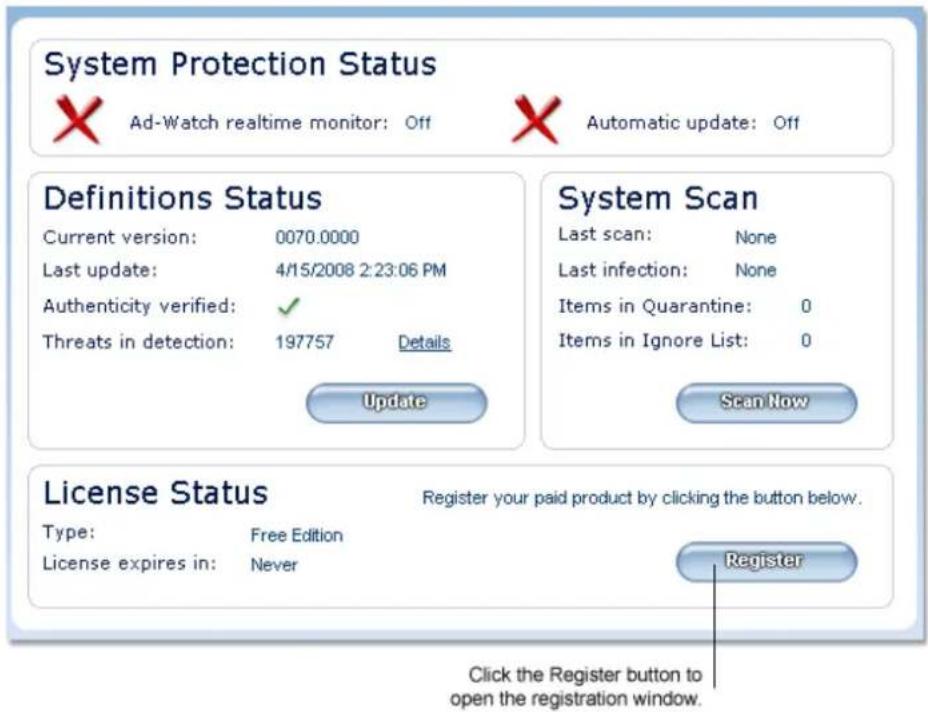
In the License Information Window
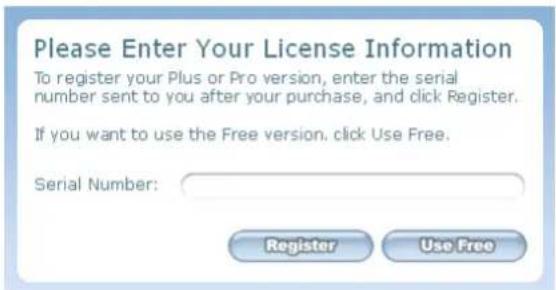
Enter your serial number for your product in the Serial Number box and press the Register button. The program will then try to activate your license.
Depending on your serial number, you may be presented with another dialog box before the license can be activated:
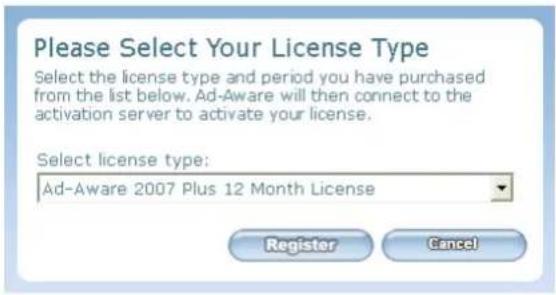
If you get this second dialog, please select the appropriate license version from the drop-down list and press 'Register' and the program will connect to the activation server to activate the license.
Ad-Aware 2008's Interface
Quick Launch Menu

Opens copyright and contributor information about Ad-Aware 2008.

Opens the Ad-Aware 2008 Product Manual.
Main Menu
Click the main menu buttons on the interface to open the drop-down menu in each section.
Status

Main Status Statistics Log Files
View the status of the components that make up Ad-Aware 2008, statistics from your scans, and log files from your scans.
Scan

Scan Mode Quarantine & Ignore Scheduler
Perform spyware scans, manage your Quarantine and Ignore lists, and use the Scheduler to set up automatic scans and Web Updates.
Ad-Watch

Ad-Watch
Launch the Ad-Watch real-time monitor. Plus Pro
Web Update

Web Update Settings
Use Web Update to keep Ad-Aware 2008's threat database up-to-date with the latest Definitions File, and to receive software updates.
Tools & Plug-Ins

Tools TrackSweep
Choose additional privacy and protection options like the stand alone tools Process Watch and Hosts File Editor, and the convenient TrackSweep feature.
Settings

Settings
Change Ad-Aware 2008's settings to fit your individual needs.
First Step Settings
Before you scan your computer with Ad-Aware 2008 for the first time, use Web Update to make sure that you are using the latest Definitions File and software version updates.
To stay protected from the latest threats, it is important that you regularly update Ad-Aware 2008's threat database, the Detection Database, with the latest Definitions File update. Regular scans are highly recommended.
The Scheduler feature allows you to manage Ad-Aware 2008 by setting up automatic scans and Web Updates to take place on scheduled dates and at specific times.
We also recommend having Ad-Aware 2008 set to automatically quarantine files prior to removal. You can set up Ad-Aware 2008 to automatically perform Web Updates, scan, remove infections, and quarantine detected objects. In order to make these adjustments, follow the instructions below.
Automatic Web Update
Use the Scheduler to schedule automatic Web Updates to occur at set times. To open the Scheduler, click the "Scan" menu button and then click "Scheduler" in the drop-down menu. Click "Add," select "Web Update" from the list of tasks, and then specify the frequency, date and time for the Web Update to occur. (More information is available in the "Using Ad-Aware 2008" chapter, under "Scheduler".)
You can also adjust Ad-Aware 2008 settings to automatically update the Detection Database prior to scanning your computer. Click the "Settings" button to open the Ad-Aware 2008 settings menu. Select the "Auto Scans" tab. Under "System," check the box next to "Update Definitions File before scanning." If an updated file is available, it will automatically be downloaded to your computer before scanning. Click "Save" to save your changes.
Automatic Scans
Use the Scheduler to schedule automatic scans to occur at set times. To open the Scheduler, click the "Scan" menu button and then click "Scheduler" in the drop-down menu. Click "Add," select "Smart Scan" or "Full Scan" from the list of tasks, and then specify the frequency, date and time for the scan to occur. (More information is available under the "Using Ad-Aware 2008" chapter, under "Scheduler".)
You can also adjust the Ad-Aware 2008 settings to automatically scan your computer when Ad-Aware 2008 is launched. Click the "Settings" button to open the Ad-Aware 2008 settings menu. Select the "Auto Scans" tab. Under "Start-Up Scan," select a scan mode. Click "Save" to save your changes.
Automatic Cleaning
You can change the Ad-Aware 2008 settings so that threats detected on your system after a scan with a certain TAI (Threat Analysis Index) level are automatically removed from your system. Click the "Settings" button to open the Ad-Aware 2008 settings menu. Select the "Auto Scans" tab. Under "System," select a setting in the "Automatically remove infection with TAI higher than 'X'." Click "Save" to save your changes.
Automatic Quarantine
You can change the Ad-Aware 2008 settings so that detected threats are automatically quarantined prior to being removed from your system. Click the "Settings" button to open the Ad-Aware 2008 settings menu. Select the "Auto Scans" tab. Under "Safety," check the box next to "Quarantine objects prior to removal." Click "Save" to save your changes.
Status
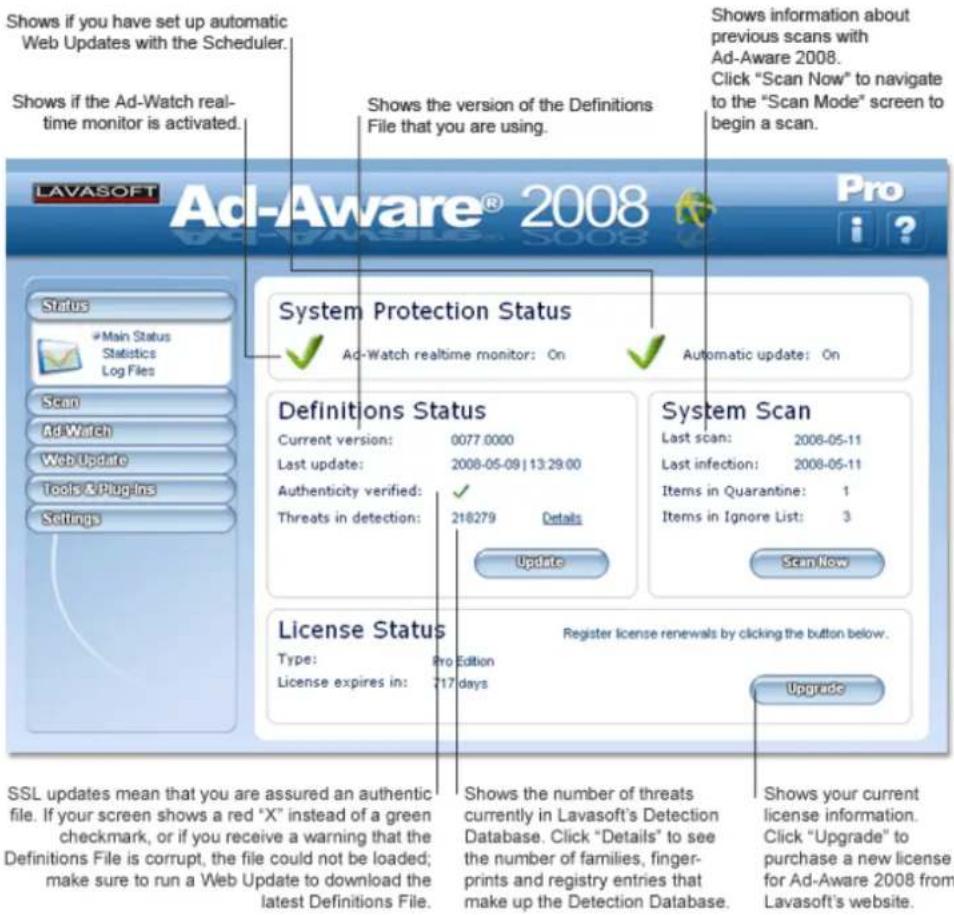
Click the "Status" menu button to open the drop-down Status menu. Click "Main Status" in the drop-down menu to see the Ad-Aware 2008 Main Status screen, Statistics, and Log Files.
Main Status Screen
General Statistics
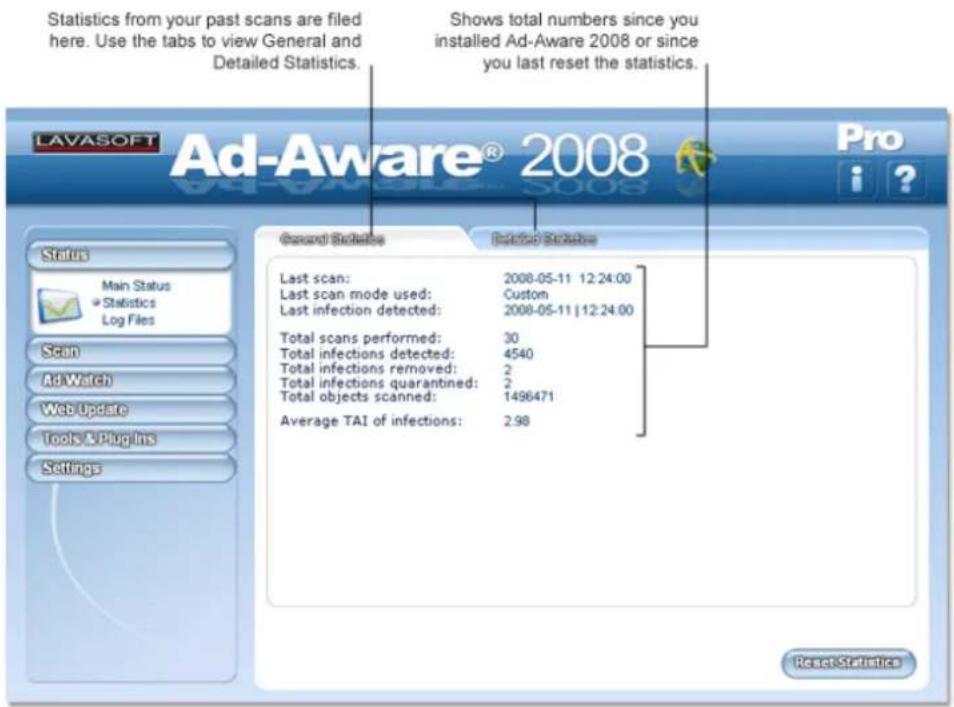
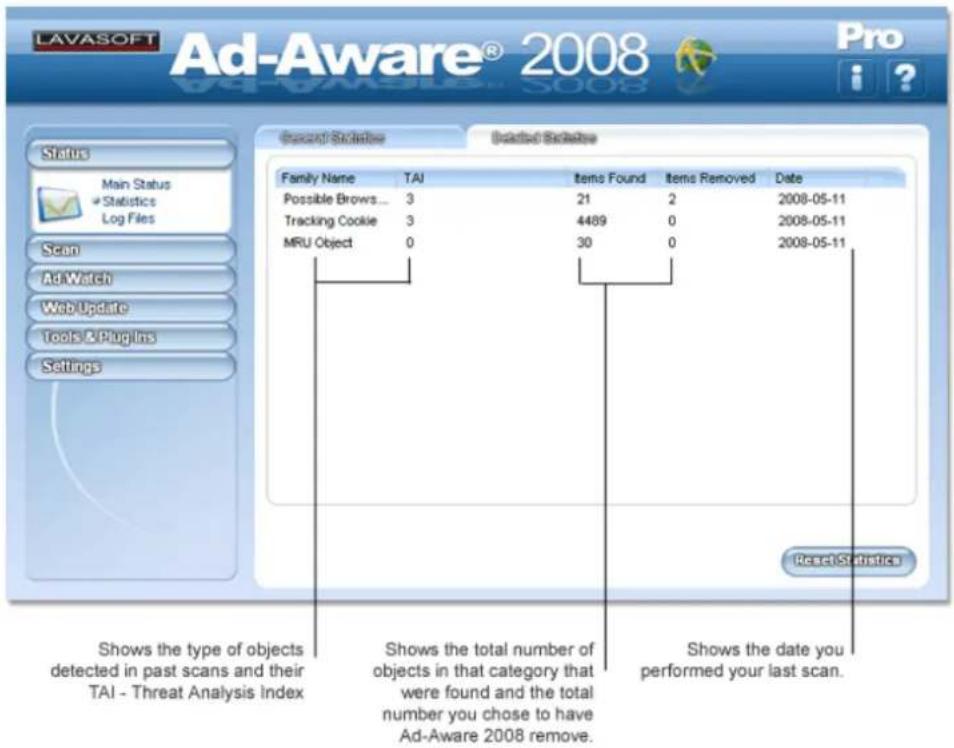
Detailed Statistics
Shows in-depth statistics about the objects detected in past scans.
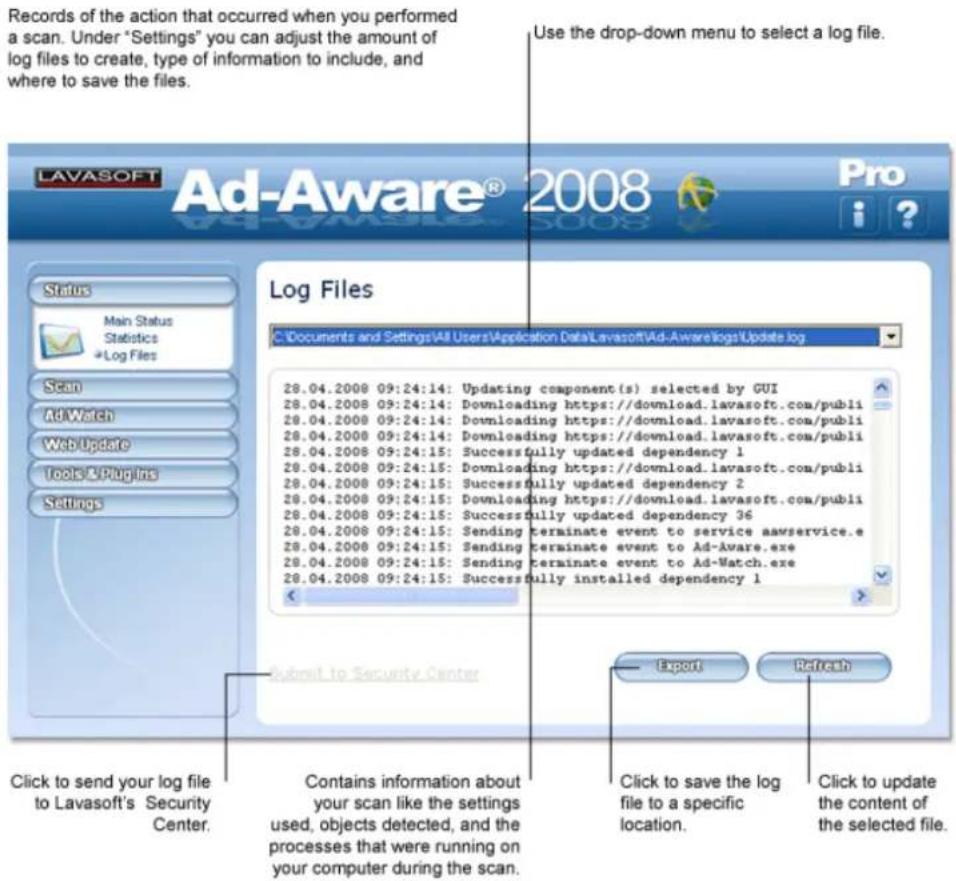
Log Files
Scan
Click the "Scan" menu button to open the "Scan Mode" screen, where you can choose the type of scan you would like to perform- a Smart Scan, Full Scan, or Custom Scan. Before you scan your computer, you should always be sure to have the most recent Definitions File by performing a Web Update.
Choose A Scan Mode
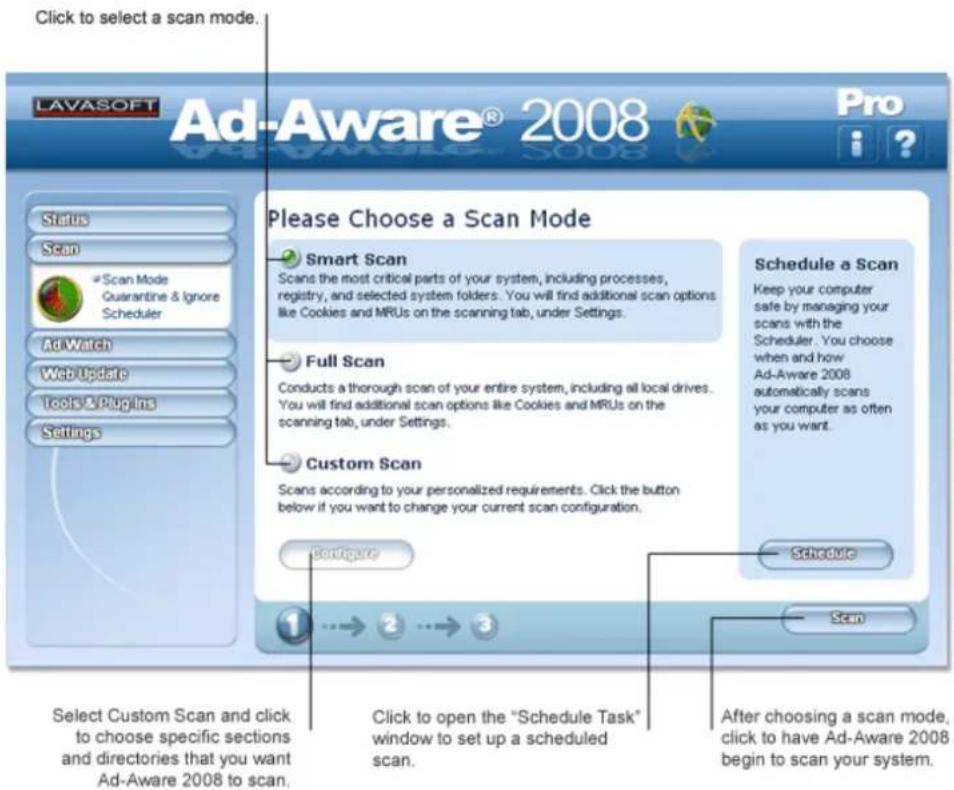
Smart Scan
The Smart Scan is a fast system check that scans only the most critical sections of your system. The Smart Scan will scan your memory, registry, cookies, favorites, and Hosts file. The directories scanned are Windows, Temp and Program Files. The Smart Scan does not scan archived content.
This scan mode should only be used for daily system maintenance; use this scan if you are sure that your system is clean and you have performed a Full Scan or an in-depth Custom Scan on your main hard drive at least once during the past month. If this is your first scan, you suspect that your system has become infected with suspicious content, or you have used another anti-spyware product prior to installing and using Ad-Aware 2008, we recommend performing a Full Scan.
Full Scan
The Full Scan is an in-depth scan mode that thoroughly scans your entire system including all local drives. We recommend using the Full Scan when you use Ad-Aware 2008 for the first time, and at regular intervals to ensure that your system is clean.
The Full Scan takes longer to scan your system than the Smart Scan, but is more likely to find infections that have been installed on drives other than your main hard disk or in your archives. In addition to the areas scanned during a Smart System Scan, all fixed drives and archive files are also scanned.
Custom Scan
The Custom Scan scans your system using your pre-configured settings. You can customize Ad-Aware 2008 to scan specific sections or directories.
Custom Scan Settings - Sections
Custom Scan Settings
After clicking "Configure," choose from the following customized scan settings. See a description of each section you can choose to scan below.
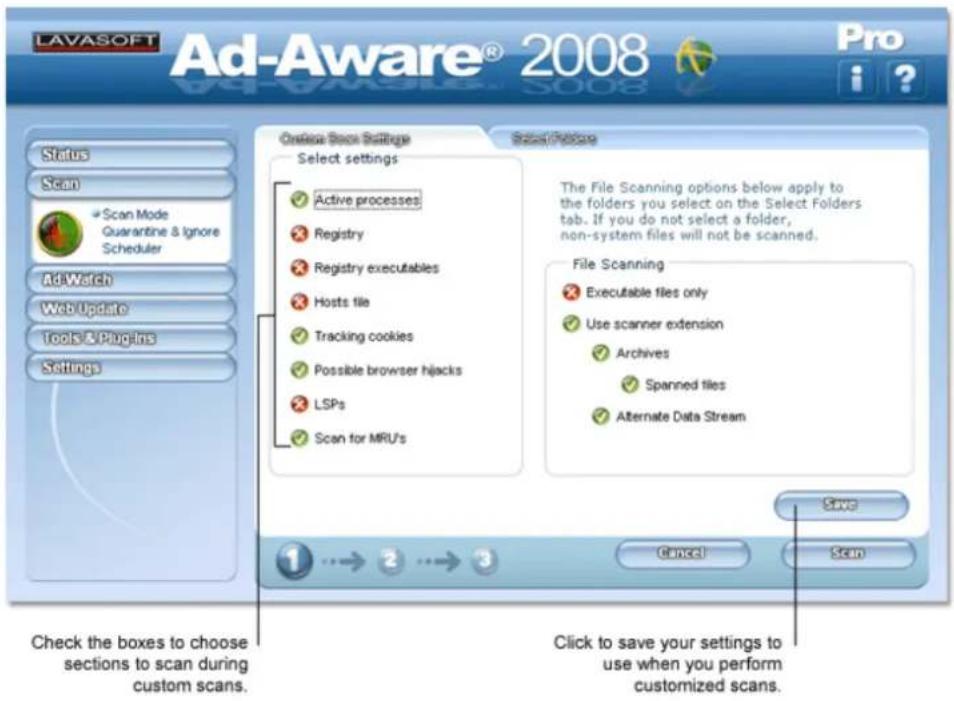
Sections to Scan
Active processes: Scans all active processes currently running on your system.
Registry: Scans known spyware areas of the registry for the current user.
Registry executables: Scans within the registry for malicious executables.
Hosts file: Scans your Hosts file. Edits to the Hosts file may occur due to home page hijackers. If you use a Hosts file editor to block content, this option can cause some entries to be detected and presented for removal. To avoid any unwanted changes to your Hosts file, please review the content at the end of a scan and select the entries that you want to ignore in subsequent scans.
Tracking cookies: Scans for tracking cookies in Internet Explorer, Mozilla Firefox, and Opera.
Possible browser hijacks: Scans browser settings (like start page and search page), favorites, and desktop for malicious URLs.
LSPs: Detects and unloads malicious LSP (Layered Service Providers). LSP are used by malicious software to detect network activity. The LSPs must be loaded for Ad-Aware to detect them.
Scan for MRUs: Scans MRU (Most Recently Used) objects.
Executable files only: Scans only for executable files. This option should be used by advanced users because this will eliminate detection of related content that could cause the removed executables to be reinstalled at a later time.
Use scanner extension: Scans with Ad-Aware's extended virus scanner.
Archives: Scans within archives such as .zip, .cab, etc.
Spanned files: Scans CAB files which are spanned. Spanned CABs occur where several CAB files make up a single CAB archive.
Alternate Data Stream (ADS): Scans files and simultaneously investigates ADS streams for malicious objects.
Custom Scan Settings - Files & Folders
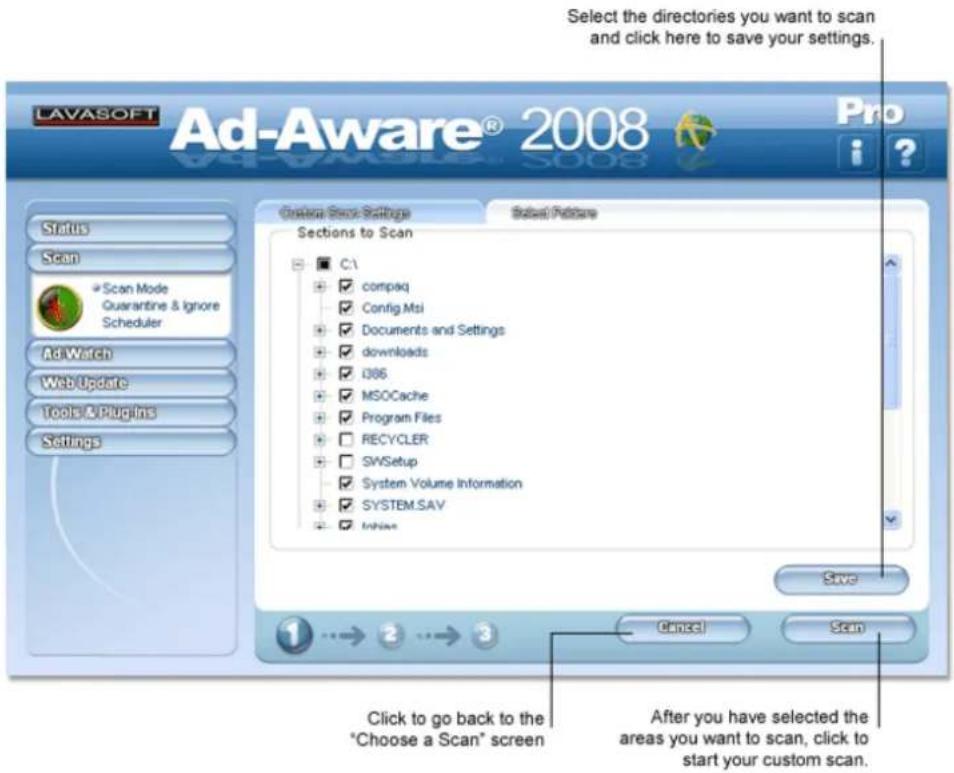
Select Folders
Click the "Select Folders" tab to select folders and directories you want to scan.
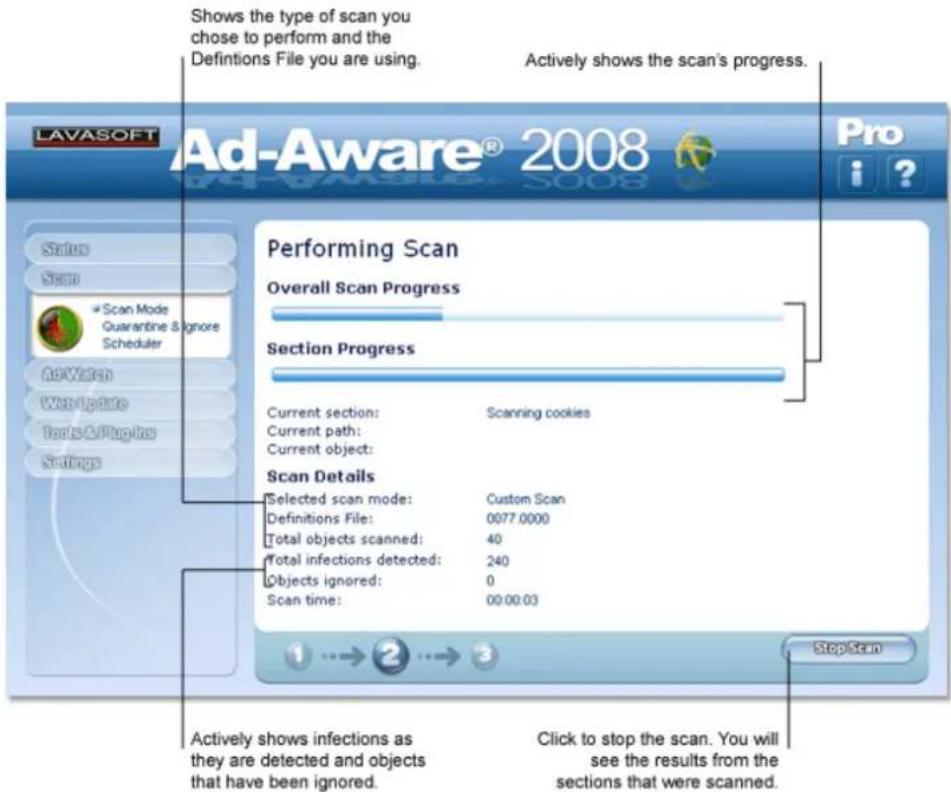
Performing Scan
After you select a scan mode and click "Scan", Ad-Aware 2008 will begin to scan your system, and the "Performing Scan" screen will appear.
Note! Virus Warnings
While performing a scan with Ad-Aware 2008, a background anti-virus monitor (from another provider) may issue an alert, stating that a virus has been found in the temporary directory (%temp%) for the current user. This does not necessarily mean your computer has been infected with an active virus.
Most anti-virus resident scanners will not scan compressed files and only monitor your memory for signs of an active viral process. During a scan, Ad-Aware 2008 will temporarily decompress files to scan their contents without activating the content, but in doing so, the file is noticed by the anti-virus' resident scanner. Also, some anti-virus applications include an option to quarantine infected files, and when Ad-Aware 2008 decompresses these quarantined files, the anti-virus background scanner detects the virus moving outside the quarantine area.
To avoid this, you can either remove the quarantined files through your anti-virus application, or have Ad-Aware 2008 ignore the anti-virus program's quarantine folders/files during a scan.
Scan Results
After the scan is complete, you will be presented with a detailed listing of the items that were detected in the "Scan Results" screen. Please review each detected item in the results screen before removing it. We do not suggest or recommend that everything detected by Ad-Aware 2008 should be removed. You have the final say in what to delete from your system.
Ad-Aware 2008 is designed to report possible suspicious content on your system, give you a straightforward method to understand the content detected, and then provide a simple way to remove threats.
In the Scan Results screen, detected objects are separated into critical objects and privacy objects. The total
number of critical objects and privacy objects detected during the scan are listed at the top of each tab.
Ad-Aware 2008's anti-spyware protection now includes an extended anti-virus engine in the Plus and Pro versions. Detected items are categorized to show if they were detected using the extended virus engine, and to show if they were detected using Heuristics during an extended scan. (The option to use Heuristics during an extended scan is turned off by default, but may be turned on through Ad-Aware 2008's settings.)
Critical Objects
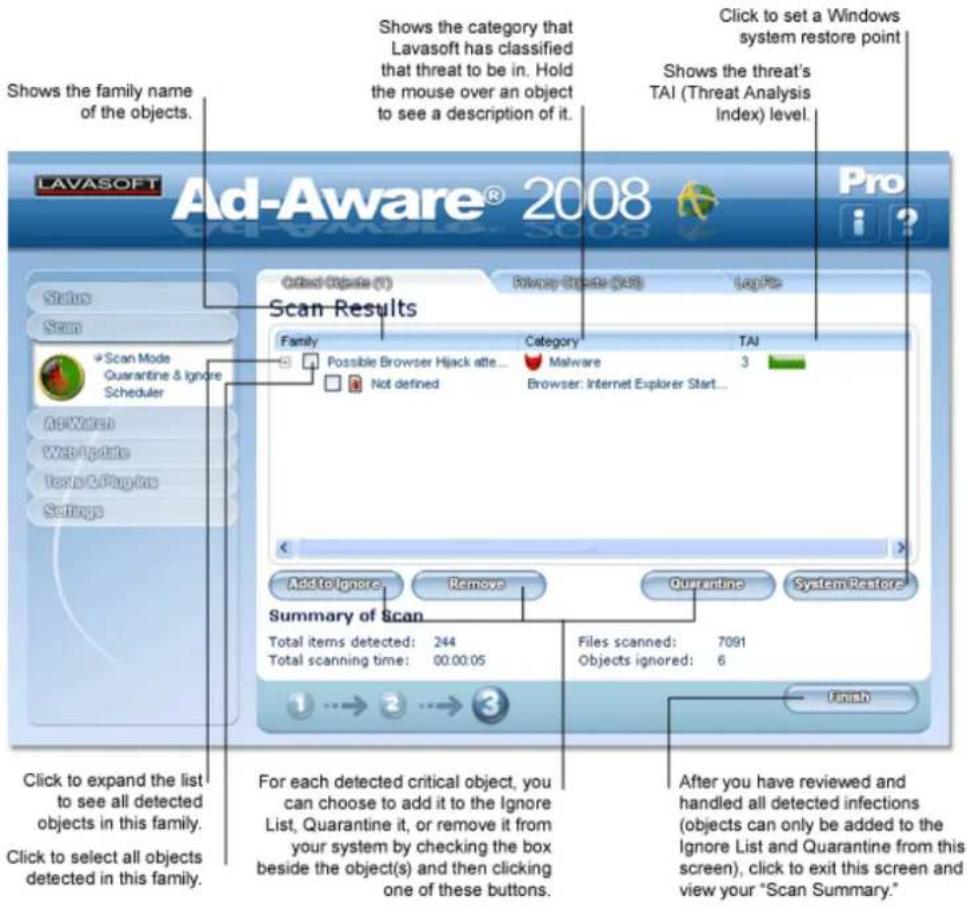
Critical objects are detected objects that may pose a threat and should be considered for removal.
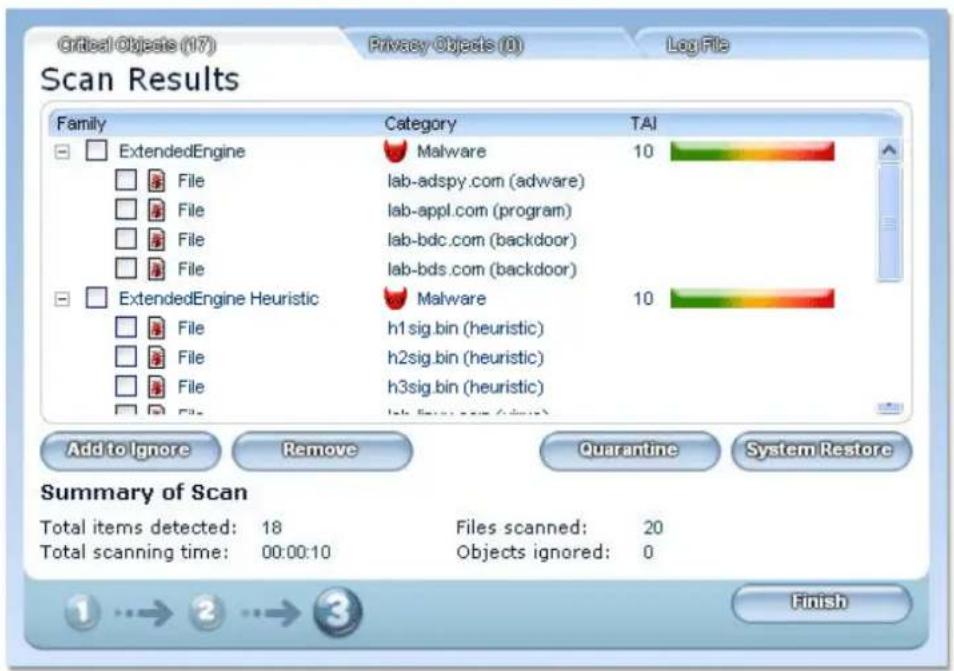
Items detected during an extended scan, which uses Ad-Aware's extended virus scanner, are grouped under the heading "Extended Engine." Items detected during an extended scan using Heuristics are grouped under the heading, "Extended Engine Heuristics."
In order to give you information about each critical object detected, items are grouped under their family name, and are listed with their category and assigned Threat Analysis Index (TAI) level. The Threat Analysis Index (TAI) associated with each detected object enables you to easily understand what constitutes an annoying threat and what should be recognized as a high risk to your privacy and security. The TA point system is based on a 10-point scale, with 1 representing the lowest threat and 10 representing the highest.
More information is available in the Resources chapter on the Threat Analysis Index, or in the Lavasoft Security Center. (The Threat Analysis Index was previously known as the Threat Assessment Chart).
For each detected critical object, you can choose to:
Add to Ignore: Add the object to the Ignore List; keep the item on your system and make sure it is not detected in future scans.
Quarantine: Add the object to the Quarantine; isolate and back-up the object in quarantine, where it does not pose a threat to your system.
Remove: Delete the object from your system.
You can either select each object individually by checking the box beside it, or use the selection options in the context menu.
Before deleting critical objects, you have the option to create a system restore point. A system restore point allows you to restore your computer to a previous working state, in the event of a problem. System restore creates backups, or restore points, of vital system configurations and files. You may choose to create a system restore point prior to deleting objects that you are unsure of removing, or after handling items detected by a scan, when you know that your system is clean.
Lavasoft ThreatWork
Lavasoft ThreatWork is a feature of Ad-Aware that allows you to submit suspicious files for analysis via ThreatWork, an alliance of global anti-spyware security volunteers actively fighting online threats. After a scan, you can use ThreatWork to submit detected suspicious files directly to Lavasoft research analysts for an in-depth evaluation of a possible threat.
After scanning with an extended scan using Heuristics, the ThreatWork dialogue window will appear if an object selected for removal is not in Lavasoft's Detection Database. To submit a file via ThreatWork, in the ThreatWork dialogue window, select a suspicious file and select "Submit."
You can also submit files via ThreatWork using drag and drop functionality. To submit a file, open ThreatWork through your system's start menu. From the ThreatWork dialogue window, you can submit files by either dragging and dropping files for submission or by selecting items using the "Add" button.
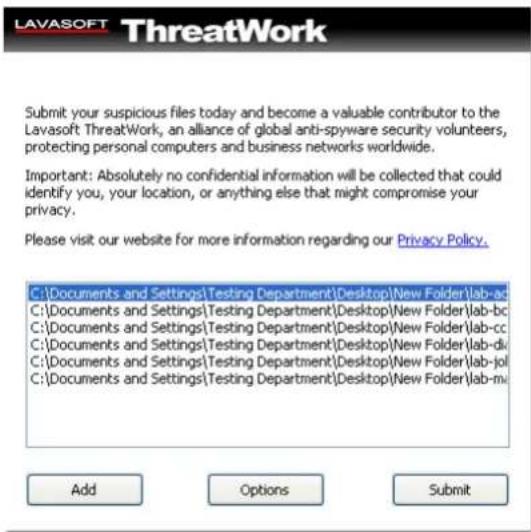
Add• – Use to select files to be submitted
- Options – Through ThreatWork's options menu, you can choose to not run ThreatWork automatically, to automatically submit all suspicious files to Lavasoft, or to integrate with Windows Explorer.
Critical Objects Context Menu
Right-click within the "Critical Objects" section of the "Scan Results" screen to open the context menu where you can choose from the following operations:
Select All Objects: • Select all of the detected critical objects.
- Unselect All Objects: Unselect all of the detected critical objects.
• Show family description: Shows the critical object's family description. - Add to Ignore List: Add all of the selected critical objects to the Ignore List.
• Quarantine Selection: Add all of the selected critical objects to the Quarantine. - Export to XML: Export the selected critical objects.
Extended Engine Results
If objects are detected with the extended virus scanner or with the extended scanner using Heuristics, the results are displayed under the headers 'ExtendedEngine' and 'ExtendedEngine Heuristic', respectively.
Repair Window
After a scan, if a detected virus cannot be removed, a message will appear to show the detected items which are able to be repaired.
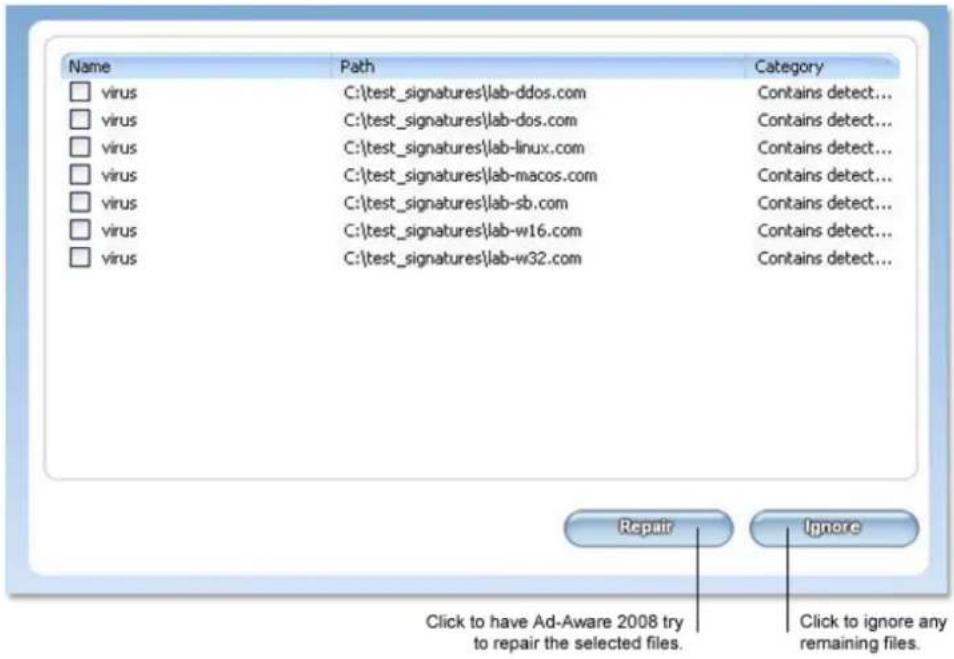
Should Ad-Aware 2008 be unable to repair a virus-infected file it will remain in the repair window.
Note: Viruses sometimes infect system-critical files, that are needed for Windows to operate. If you are unsure of what action to take with an infected file that is not repairable, please contact customer support
Privacy Objects
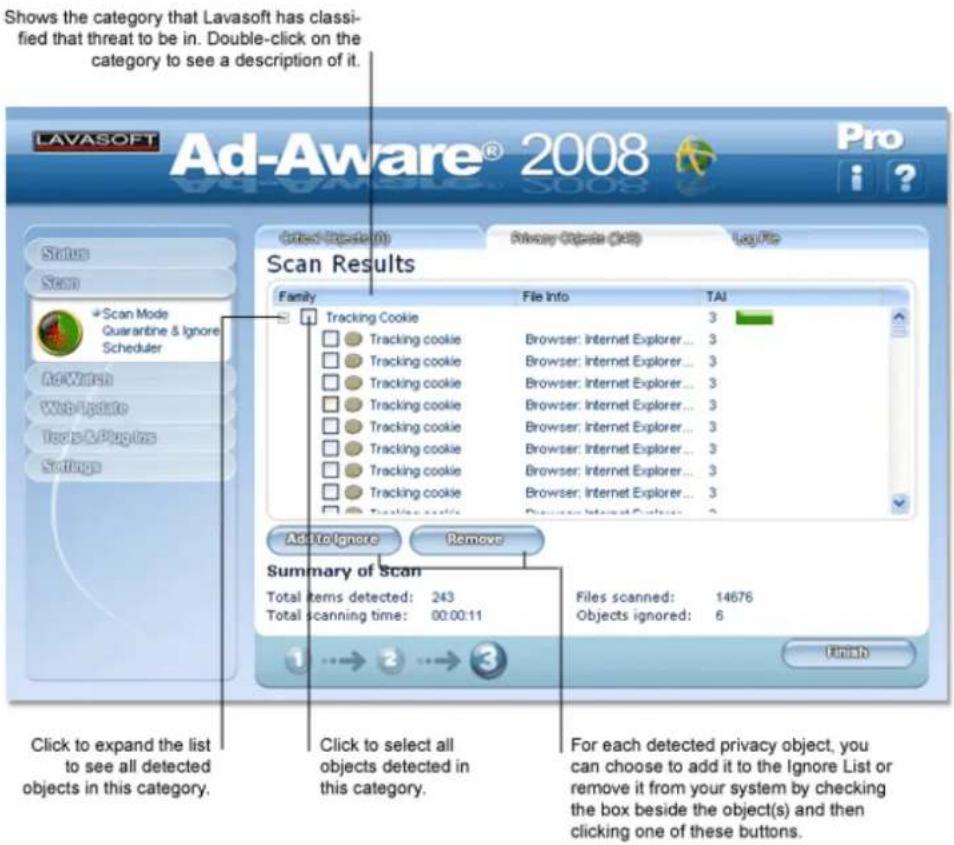
Privacy objects consist of tracking cookies and MRU (Most Recently Used) lists. These objects are not considered to be a critical threat to your security, but they may be removed if you desire.
For each detected privacy object, you can choose to:
- Add to Ignore: Add the object to the Ignore List; keep the item on your system and make sure it is not detected in future scans.
Remove: Delete the object from your system.
You can either select each object individually by checking the box beside it, or use the selection options in the context menu.
Privacy Objects Context Menu
Right-click within the "Privacy Objects" section of the "Scan Results" screen to open the context menu where you can choose from the following operations:
Select All Objects:• Select all of the detected privacy objects.
Unselect All Objects:• Unselect all of the detected privacy objects.
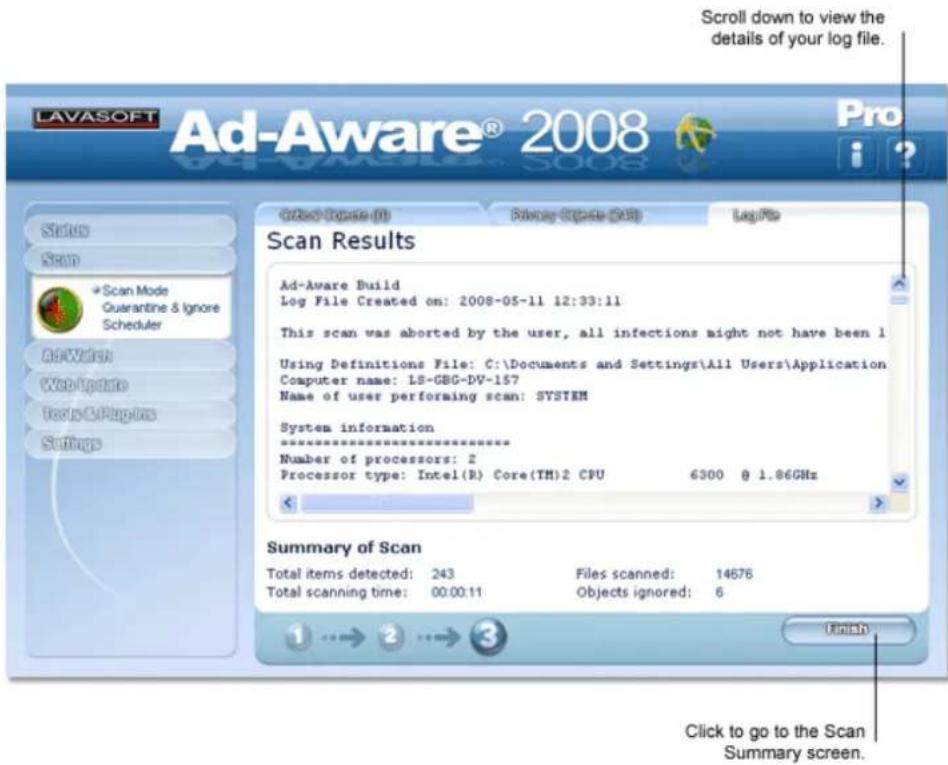
Log File
The log file contains information about the scan; it is a record of the action that occurred during the scan. You can adjust the amount and type of information contained in the log file in the Ad-Aware 2008 settings.
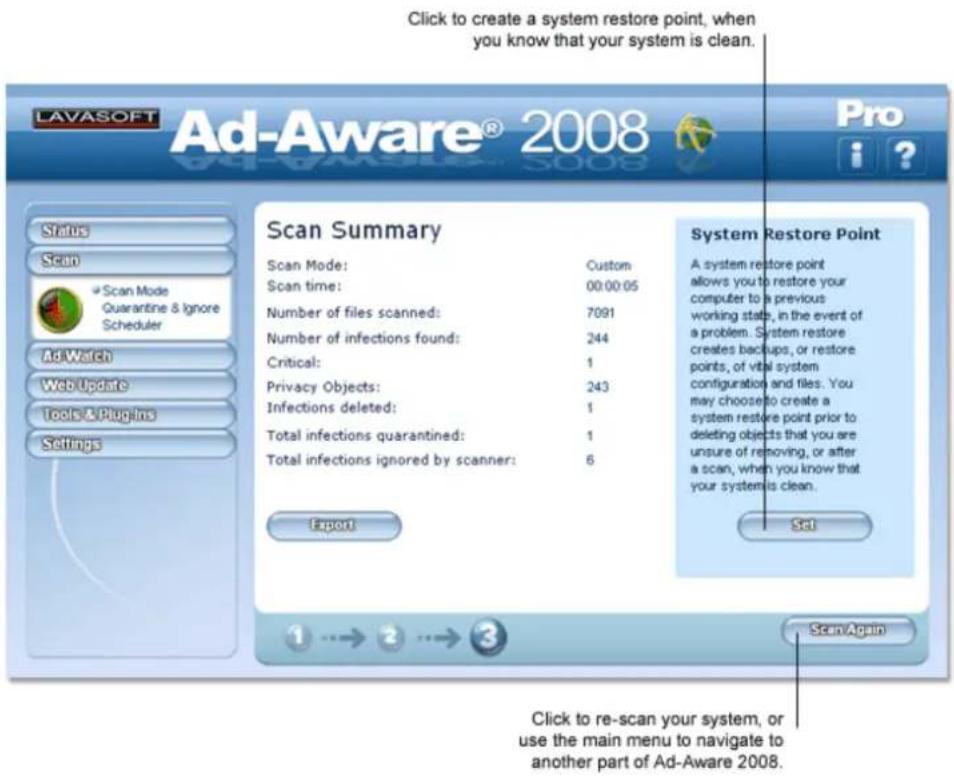
Scan Summary
The "Scan Summary" screen shows information about the scan that you performed and the number of objects that were detected, deleted, ignored by the scanner, and quarantined.
Quarantine & Ignore List
From the drop-down Scan menu, click "Quarantine & Ignore" to open the Quarantine manager and Ignore List.
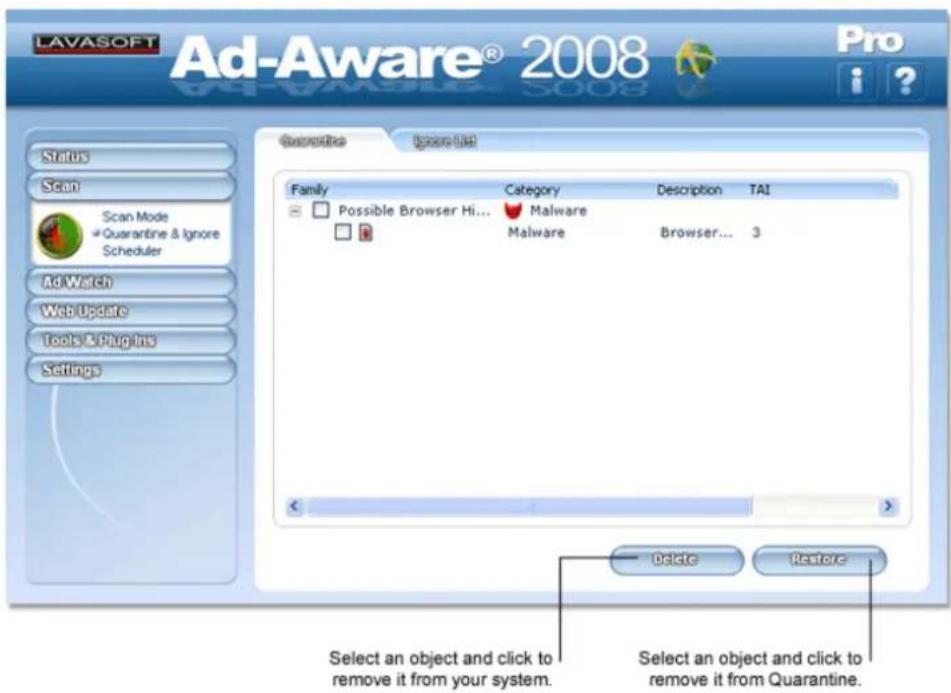
Quarantine
Quarantine is used to isolate and backup objects detected during an Ad-Aware 2008 scan. You then have the option to restore them at a later time. Objects that are quarantined will be encrypted and compressed, and can only be read and restored using the Ad-Aware 2008 Quarantine manager. Objects stored in Quarantine do not pose a threat to your computer.
The Quarantine manager lists objects by:
Family: • Shows the family associated with the detected objects.
- Category: Shows the category that Lavasoft has classified that threat to be in.
Description: • Shows a description of the object's location.
TAI: • Shows the Threat Analysis Index (TAI) of the detected object.
• Time: Shows the date and time you quarantined the object.
Add Objects to Quarantine
To add an object to Quarantine, you must first run an Ad-Aware 2008 scan. From the Scan Results screen, select the object or objects you would like to Quarantine by checking the box beside it. Click the “Quarantine” button to quarantine the object or objects. You can then open the Quarantine manager to see a list of quarantined objects.
Restore Quarantined Objects
In the Quarantine manager, select the quarantined object or objects you would like to restore by checking the box beside it. When you click "Restore," the object/objects will be removed from Quarantine.
Automatic Quarantine
You can set Ad-Aware 2008 to automatically quarantine objects prior to removal. Click the "Settings" button and select the "Auto Scans" tab. Under "Safety," check the button next to "Quarantine objects prior to removal."
Ignore List
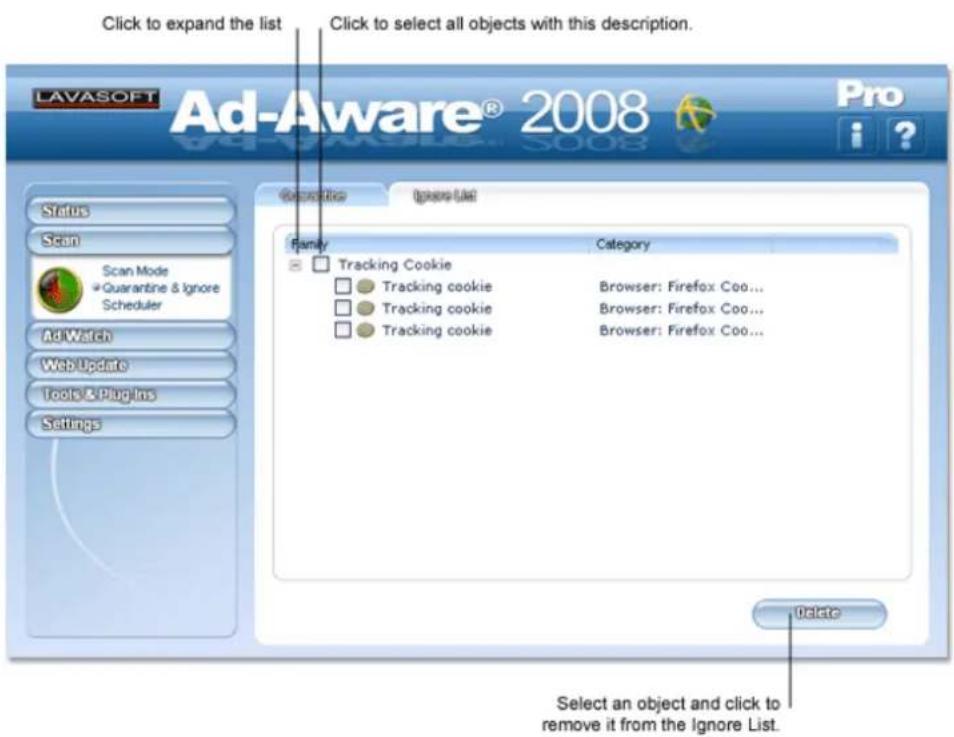
The Ignore List can be used when you want to keep a particular detected item installed on your system, and do not want Ad-Aware 2008 to remove it. When you add items to the Ignore List, Ad-Aware 2008 will not detect them when your system is scanned.
The Ignore List lists types of objects together by category, and shows a description of each object's location.
Add Objects to Ignore List
To add an object to the Ignore List, you must first run an Ad-Aware 2008 scan. From the Scan Results screen, select the object or objects you would like to add to the Ignore List by checking the box beside it. Click the “Add to Ignore” button and the object/objects will be added to the Ignore List.
Remove Objects from Ignore List
After accessing the Ignore List, select the object or objects you would like to remove from the Ignore List by checking the box beside it. Click "Delete" to remove the selected object/objects from the Ignore List.
Scheduler
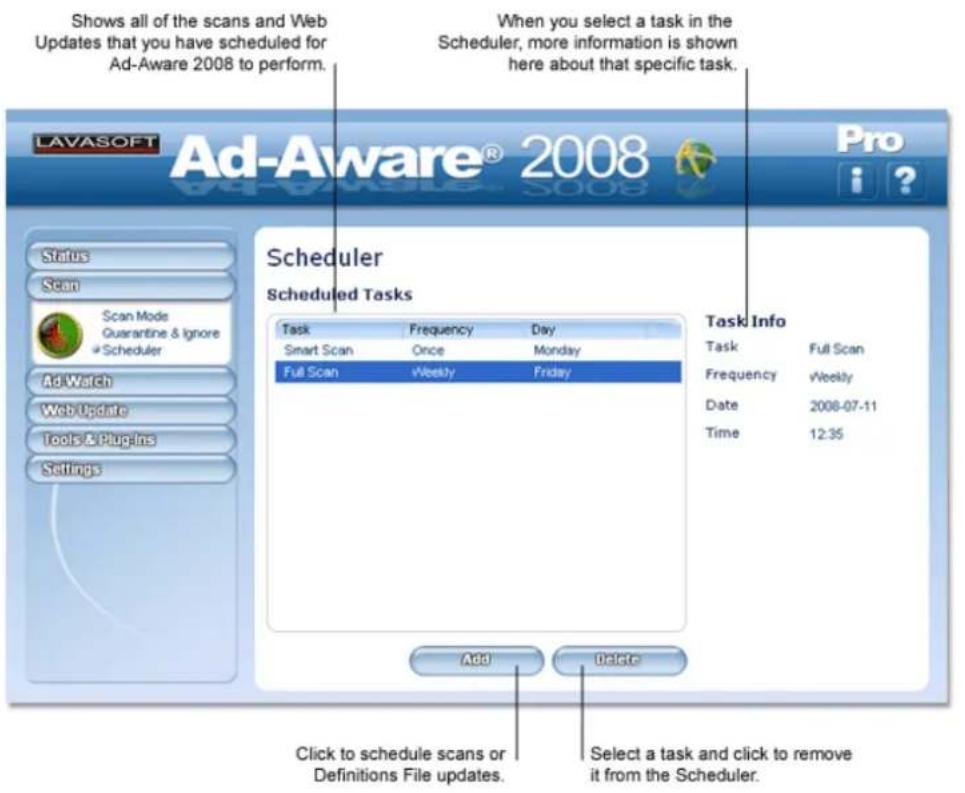
Click "Scheduler" from the drop-down "Scan" menu to open the Ad-Aware 2008 Scheduler. You can use the Scheduler to automatically perform Web Updates and automatically scan your computer on specific dates, at set times.
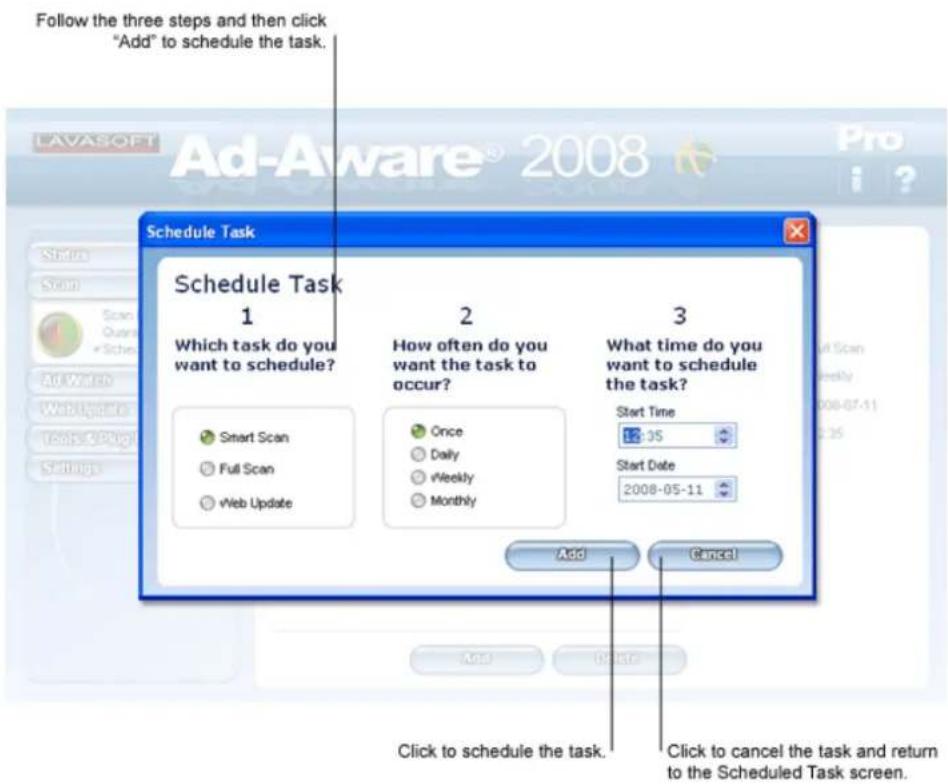
Schedule Task
To schedule a task, click "Add" and follow the steps in the "Schedule Task" window to schedule the type of task to perform, its frequency, and the date/time you want it to start.
A message will appear in the notification area of your taskbar when a scheduled Web Update is taking place.
The Ad-Aware 2008 icon in the notification area of your taskbar will begin to blink, and a message will appear to let you know when a scheduled scan has begun and finished. To stop a scheduled scan that is in progress, you can ight-click on the Ad-Aware 2008 icon in the system tray and select "Stop Scan."
Note! If your computer is not turned on at the date and time a task is scheduled to occur, the task will not occur until the next scheduled time.
Ad-Watch
After clicking "Ad-Watch" on the Ad-Aware 2008 main menu, launch the program by clicking "Start".
The Ad-Watch module will open, displaying the main menu screen.
Ad-Watch is the real-time monitor featured in both Ad-Aware 2008 Plus and Ad-Aware 2008 Pro. The scanner in Ad-Aware 2008 detects and cleans malware and viruses from your system, but Ad-Watch goes a step further. From the moment your machine is turned on, Ad-Watch is watching, actually catching these programs before they integrate and install on your PC. If malware or parasites are detected, an Ad-Watch notification window will appear in the notification area of your taskbar, giving you the choice to allow or block that particular process or registry change or addition.
Ad-Watch allows you to lock the start-up sections of your registry, block possible and actual browser hijack attempts, block suspicious processes, lock executable file associations, and block malicious cookies.
Because Ad-Watch uses the same Definitions File as Ad-Aware, it is important to get updates regularly from Lavasoft's Detection Database.
The Ad-Watch family includes: RegShield, Processes, Connect, TrackSweep, and Cookies. Similar to the Ad-Aware 2008 interface, Ad-Watch also has a "Settings" screen where you can make specific changes to the actions that Ad-Watch performs.
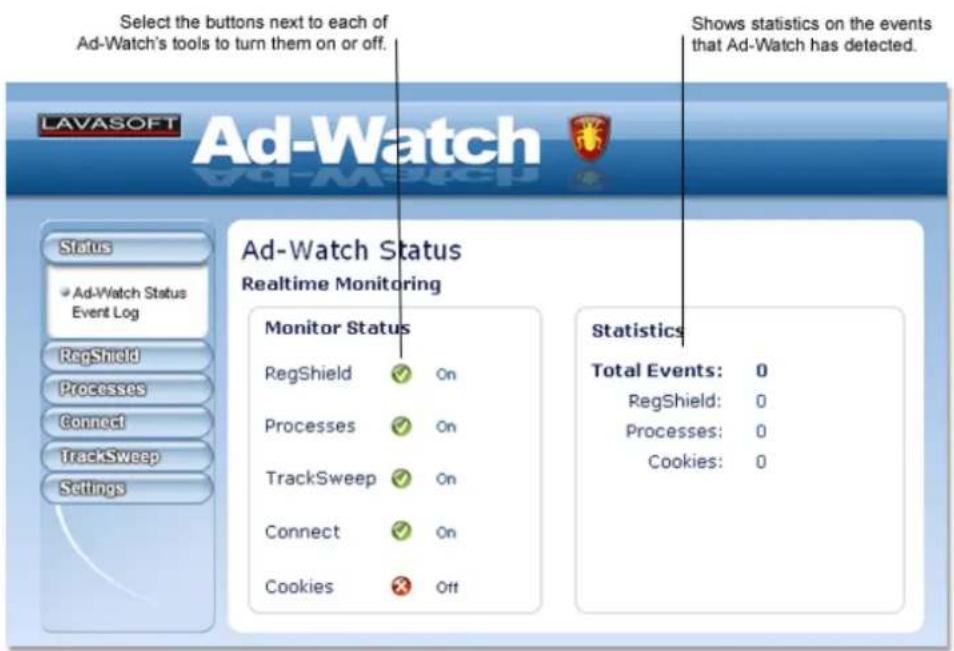
Ad-Watch Status
The Ad-Watch "Status" screen gives you an overview of the Ad-Watch real-time monitor, allows you to activate the tools it consists of, and shows statistics from events you have been alerted about.
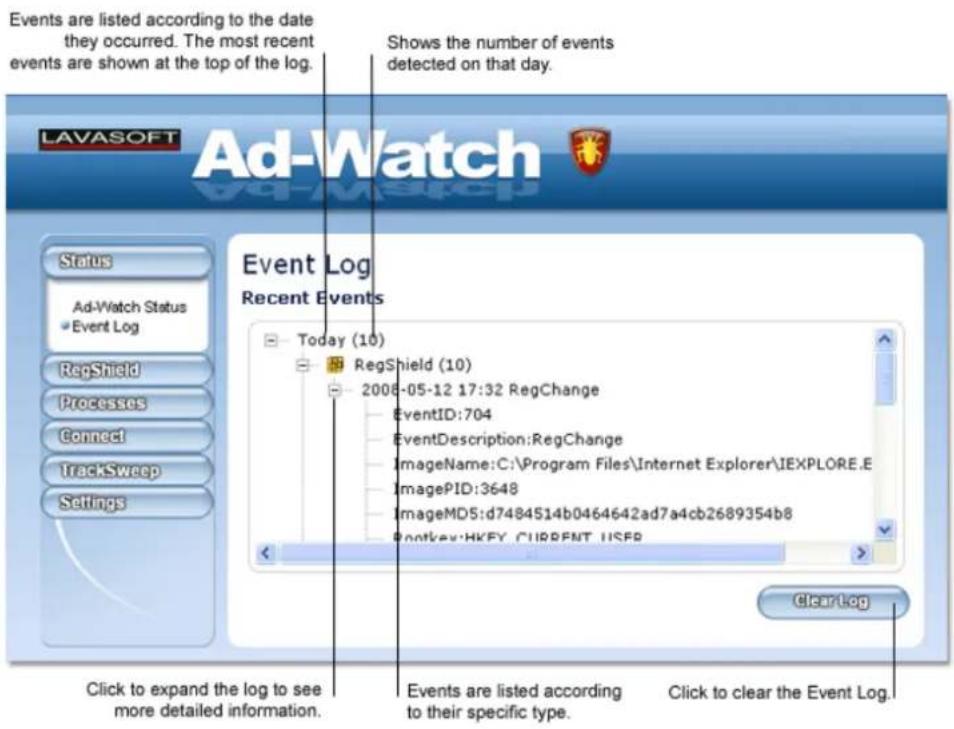
Event Log
Ad-Watch's "Event Log" shows a list of all of the events detected by Ad-Watch, such as blocked processes, blocked registry changes or cleaning events (items cleaned by TrackSweep).
Ad-Watch RegShield
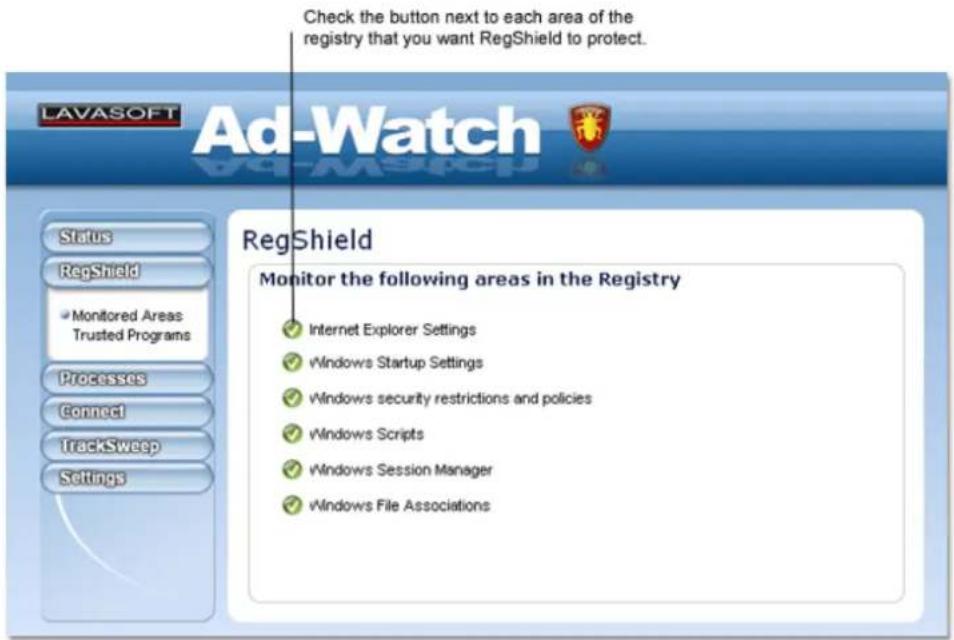
Select "RegShield" in the Ad-Watch main menu to open the RegShield screen.
The registry is a database that stores settings and options for the operating system for Microsoft Windows 32-bit and 64-bit versions. The registry contains information and settings for the hardware, operating system software, users, and preferences of your computer.
RegShield allows you to protect the areas in your registry that are common targets for malware by alerting you when a program attempts to make changes to sections in your registry.
Protected Areas
RegShield allows you to protect the following areas of your registry:
Internet Explorer Settings: Internet Explorer stores settings in the registry that contain information on your default home page and default search page, as well as other user settings that control the browser's behavior. These settings are common targets for browser hijackers.
Windows Start-up Settings: Windows start-up settings affect which parts of Windows are loaded at start-up and what programs are started.
Windows security Restrictions and Policies: These are settings for user access rights, and other security settings that are used to protect the system's integrity by making it harder to change files and folders that are vital for Windows to run properly.
Windows Scripts: Windows Scripts are executed when logging-in to Windows.
Windows Session Manager: Session Manager keeps track of your current system state, including the applications that are open and the documents each application has opened, so that the same state can be restored when you log-in or log-out.
Windows File Associations: This data is needed to associate certain file types with certain programs (for example, to associate ".psd" with Photoshop, or ".html" with your browser of choice).
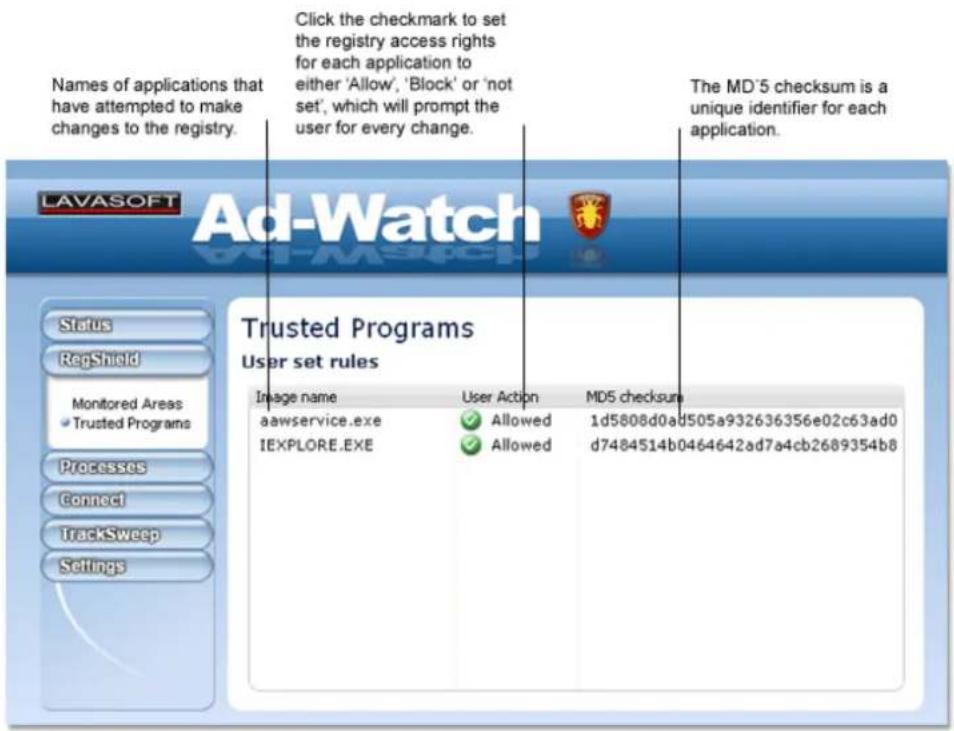
Trusted Programs
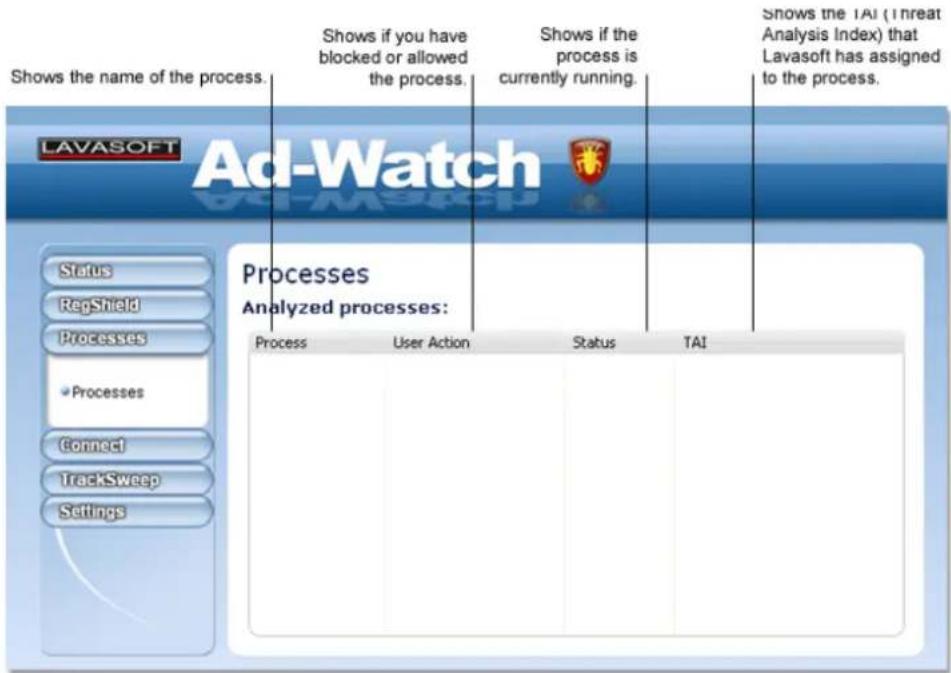
Ad-Watch Processes
Select "Processes" in Ad-Watch's main menu to open the Ad-Watch Processes screen.
The Processes screen displays the processes that you have been alerted about by Ad-Watch because they are in detection in the Lavasoft Detection Database. Each process is show with its corresponding TAI (Threat Analysis Index) rate so you can easily assess its threat level. You can choose to remove analyzed processes from the list of processes, block any processes that you had previously chosen to allow, and allow any processes that you had previously chosen to block.
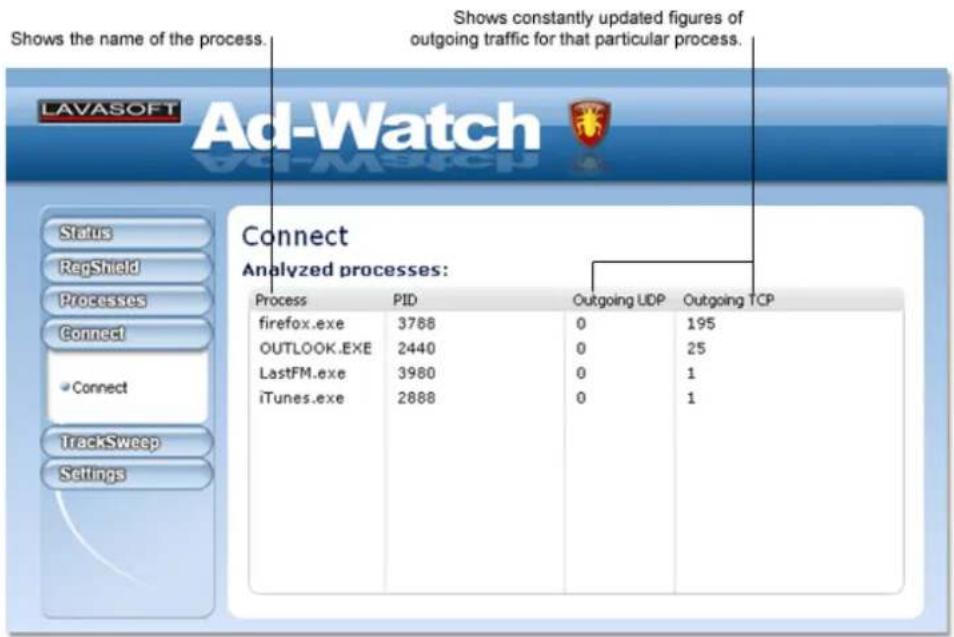
Ad-Watch Connect
Select "Connect" in the Ad-Watch main menu to open the Ad-Watch Connect screen.
Ad-Watch Connect allows you to monitor network traffic, so that you are able to examine network statistics for all running processes.
The Ad-Watch Connect screen shows a list of all running processes, and allows you to see detailed network information on each process. If the process is in detection, its TAI (Threat Analysis Index) rate will be shown, so you can easily assess its threat level.
Connect Context Menu
Right-click on a process and choose "Traffic Details," to open the Traffic Details window, which shows you detailed information on that particular process.
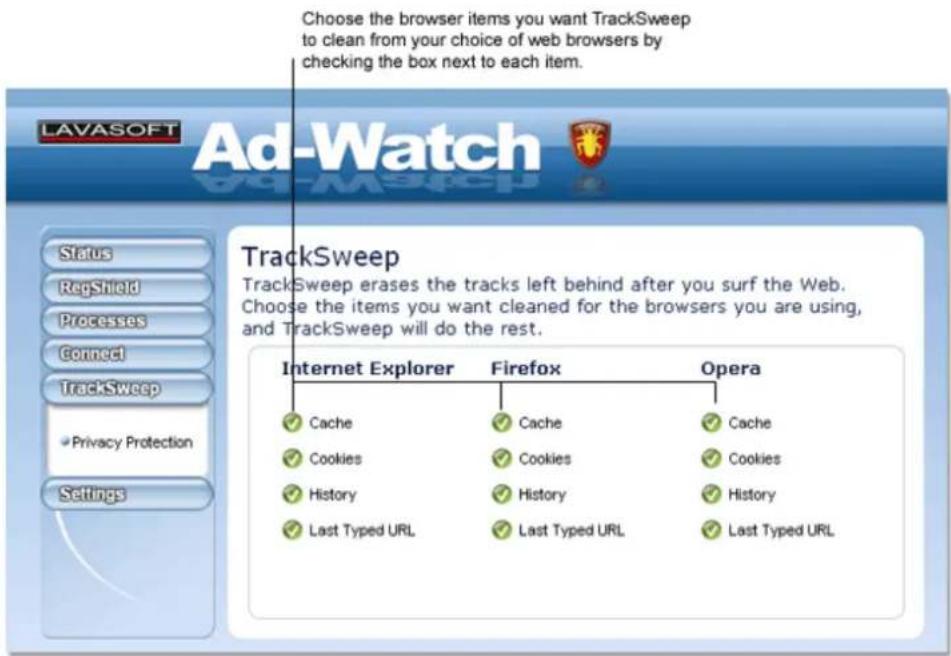
Ad-Watch TrackSweep
Select "TrackSweep" in the Ad-Watch main menu to open the TrackSweep screen.
TrackSweep is a privacy tool that allows you to remove the traces of your Internet browsing from your system.
By checking the buttons next to the items of your choice, the tracks left behind when you surf the Internet can be cleaned from Internet Explorer, Firefox, and Opera web browsers whenever you close a web browser.
You can choose to clean the following areas:
Cache:• Clears your browser cache, or Temporary Internet Files.
- Cookies: Clears browser cookies – data that a website saves on your computer's hard drive and retrieves when you revisit the site.
History:• Clears your full history of visited websites.
- Last typed URLs: Clears the list of last accessed URL's from your web browser's address bar.
Ad-Watch Settings
Select "Settings" in the Ad-Watch main menu to open the settings screen to adjust Ad-Watch to better suit your individualized specifications.
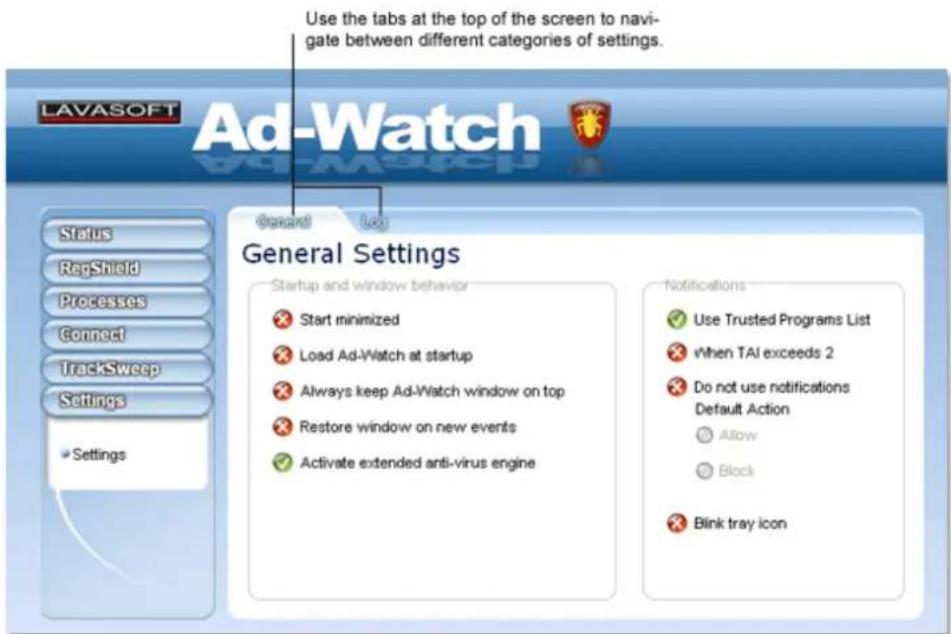
Below is a description of the different settings that you can select in each category. Check the button next to each setting you would like to implement.
General
Ad-Watch
Start minimized: Ad-Watch icon will show in your taskbar.
- Load Ad-Watch on start-up: If activated, Ad-Watch will start with Windows.
- Always keep Ad-Watch window on top: This option will force the Ad-Watch window to stay on top of all other open windows.
- Restore window on new events: This will cause the Ad-Watch window to open only when a new event has been detected.
- Activate extended anti-virus engine: Use Ad-Aware's extended anti-virus scanner.
Notifications
- Use Trusted Programs List: Allows you to set rules in RegShield's Trusted Programs list.
- When TAI exceeds 2: Notification messages will only appear if the Threat Analysis Index is greater than 2,
- Do not use notifications: Notification messages will not be used. Select either allow or block as the default action.
- Blink tray icon: Ad-Aware icon in system tray will blink upon detection of events.
Log
By default, Ad-Watch logs all events in the Event Log. You may choose to change the event log options for Registry Events, Process Events, TrackSweep Events, and Cookies Events. Check the button next to the events that you want Ad-Watch to log.
Web-Update
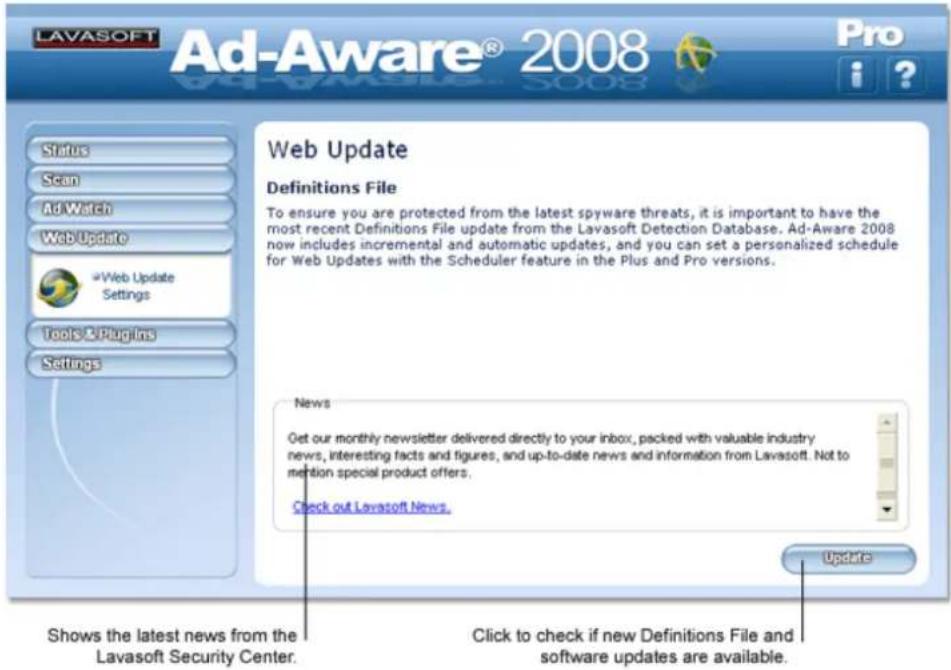
Click "Web Update" on the main menu and select "Web Update" from the drop-down menu to open the Web Update screen.
Web Update allows you to connect directly to the Lavasoft Security Center to look for Definitions File and software updates for Ad-Aware 2008. To stay protected from the latest threats, it is important to run regular Web Updates, to have the most recent Definitions File update from the Lavasoft Detection Database. You can also receive software version updates through Web Update as they become available.
The Detection Database is Ad-Aware 2008's extensive threat detection list, and allows Ad-Aware 2008 to detect the latest threats on your system. When you update the Detection Database with the latest Definitions File, you download an incremental update from the database, guaranteeing you a quick, easy update. The file will automatically be stored in the correct location on your computer
Update Ad-Aware 2008
While you can get the latest Definitions File by performing a manual update, Web Update is a simple way to update the Detection Database. When you perform a Web Update, you will receive verification that your Definitions File is up-to-date or you will be prompted to confirm that you want to download the latest file. The update manager will then launch if there is a new software version available, allowing you to choose to update the software.
You can also use the Scheduler to set up automatic Web Updates to occur at specific dates and times, and change the Ad-Aware 2008 settings so that an automatic Web Update is performed prior to scans.
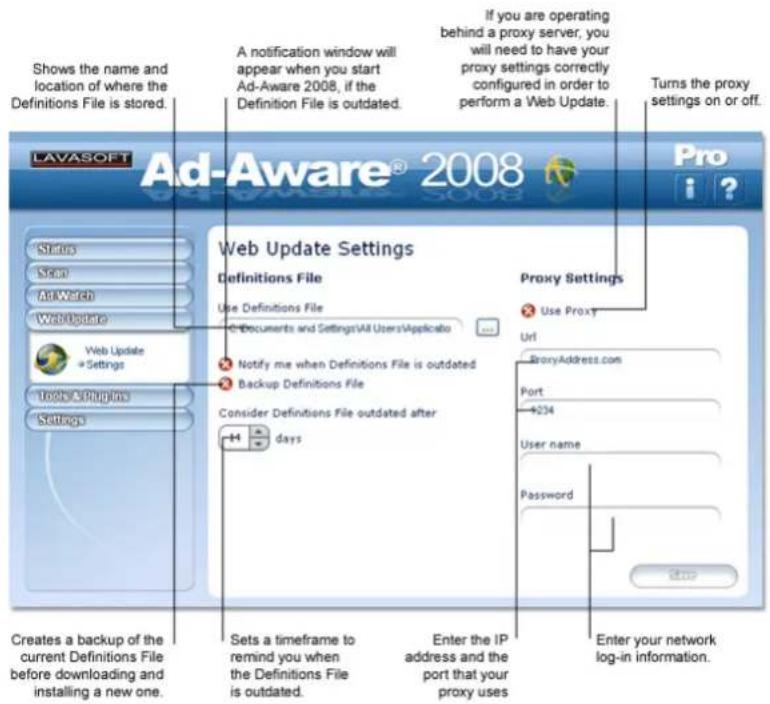
Web-Update Settings
Select "Settings" from the Web Update drop-down menu to change the Definitions File and Proxy settings.
Automatic Web Update
You can use the Scheduler to schedule automatic Web Updates to occur at set times. To open the Scheduler, click the "Scan" menu button and then click "Scheduler" in the drop-down menu. Click "Add," select "Web Update" from the list of tasks, and then specify the frequency, date and time for the Web Update to occur.
You can also adjust the Ad-Aware 2008 settings to automatically update the Detection Database prior to scanning your computer. Click the "Settings" button to open Ad-Aware 2008's settings menu. Select the "Auto Scans" tab. Under "System," check the box next to "Update Definitions File before scanning." If an updated file is available, it will automatically be downloaded to your computer before scanning. Click "Save" to save your changes.
Manual Update
In some circumstances, such as if your proxy settings are not configured properly, you may not be able to update the Detection Database by using Web Update. You can manually update the Detection Database with the latest Definitions File by following the steps below.
Close Ad-Aware 2008.1.
Download the latest Definitions File in a ZIP file from the Lavasoft website.2.
Save the file to a temporary location.3.
- When complete, unzip the contents of the file to the installation directory of Ad-Aware 2008, which is usually C:\Program Files\Lavasoft\Ad-Aware 2008.
- Open Ad-Aware 2008. You can confirm the latest Definitions File is installed by looking at "Update Status" on Ad-Aware 2008's main status screen.
Tools & Plug-ins
Click the "Tools & Plug-ins" menu button to open the "Tools & Plug-ins" drop-down menu. Click "Tools" to open the Process Watch and Hosts File Editor menu screen. Click "Start" to launch Process Watch or Hosts File Editor. Process Watch and Hosts File Editor are both stand-alone tools, and their modules will be launched separately from the Ad-Aware 2008 user interface.
Process Watch
Process Watch is a powerful process viewer and manager. It is a stand-alone tool that allows you to browse and terminate running processes and their associated modules.
Process Watch allows you to view detailed information on all processes that are running on your system to see if there are any known offending processes. By default, Process Watch lists all processes that are connected to visible windows on your desktop. You can then choose to quickly terminate any running process or unload a module, if necessary.
Note! Be careful; some processes and modules are needed by Windows or other software in order to function.
Using Process Watch
When the Process Watch module is launched, it shows you a snapshot of all the running processes (top window), their associated modules (lower left window), and a list of threads running for current processes (lower right window). This snapshot is constantly refreshed, and your screen is automatically updated.
The Process Watch displays three main lists of information. The upper list is the process window, displaying the processes that are currently running in your system. In order to see a more in-depth picture of where each process originated, the module shows a "graphic tree"; the parent process tops each "graphic tree," and branches down to show the spawned sub-processes. The lower left list is the module window, showing a list of the modules the selected process has loaded into memory. The lower right list is the thread window, showing a module's thread, or path of execution.
![The process window shows the processes currently running in your system. LAVASOFT Process Watch Image name PID CPU Memory Threads Priority Created Path [System Process] 0 - 2 System 4 0 236 K 72 Normal smst.exe 756 0 416 K 3 Normal 2008-05-01 08:10:13 C:\WINDOWS\System ccrss.exe 824 0 5824 K 15 Normal 2008-05-01 08:10:16 C:\WINDOWS\System winlogon.exe 852 0 1544 K 25 High 2008-05-01 08:10:21 C:\WINDOWS\System explorer.exe 2012 0 12956 K 14 Normal 2008-05-01 08:11:43 C:\WINDOWS\SExplc Scheduler.exe 216 0 6720 K 1 Normal 2008-05-01 08:11:48 C:\WINDOWS\SMIN thunderbird.exe 260 0 36236 K 10 Normal 2008-05-11 10:04:19 C:\Program Files\Moc aliptaxx.exe 1268 0 4920 K 2 Normal 2008-05-01 08:11:46 C:\Program Files\ATI vmware-tray.exe 1528 0 19440 K 5 Normal 2008-05-01 08:11:54 C:\Program Files\VM- hqtray.exe 1556 0 3832 K 2 Normal 2008-05-01 08:11:55 C:\Program Files\VM- citlmon.exe 1580 0 3120 K 1 Normal 2008-05-01 08:11:55 C:\WINDOWS\System RTHDCPL.exe 1664 0 31140 K 5 Normal 2008-05-01 08:11:48 C:\WINDOWS\SRTHI Module Base address Size Way Thread ID Priority Spmm Turmatics Pro The module window shows a list of the modules the selected process has loaded into memory. The thread window shows a module's thread, or path of execution.](/content/2026/06/1183549/images/ab0ba3e2c4d86c07b6fe0b900a0d6061dad904638b83f2a839381c2de2eaaeff.jpg)
Process Window
The top window of the Process Watch module is the process window. The columns of specific information on each process are listed below.
Processes are briefly color-coded as an action occurs, to give you quick, additional information. When a process is highlighted green, it indicates that the process has recently started. A process will be highlighted yellow when suspended, and will remain yellow until you choose to resume it. A process is highlighted red when it has been terminated.
The process window lists information by:
- Process: Lists the file name of all processes running in your system.
PID: Shows the process ID – a unique identifier for each process.
- CPU: Shows the percentage of CPU time being used by a given process. (The Process Watch can support more than one process; these are taken into account, and you are given an accurate CPU percentage.)
Memory:• Shows the amount of memory used by the process.
Threads:• Shows the number of threads the process uses.
- Priority: Shows the operating system's assigned level of importance.
• Created: Shows a time stamp of when the process was created.
• Path: Shows where the operating system loaded the process into memory.
Process Window Context Menu
Right-clicking on a process in the top, main screen opens the process window context menu, showing the operations you can perform on any given process.
You can choose from the following operations:
Terminate: • Terminates the selected process.
- Terminate Tree: Terminates the selected parent process and all of its sub-processes.
Restart:• Starts the process again from the beginning.
- Suspend: Freezes a selected process, so that it temporarily stops running.
- Resume: Resumes the execution of a process that has been suspended.
- Set Priority: Manually change the priority level that was assigned by the operating system. The priority level can be reassigned to:
• Real Time: Highest possible priority level; pre-empts all other processes, including operating system processes performing important tasks.
High: Priority level of time-critical tasks that must be executed immediately.
Above Normal*: Priority level above the normal level.
Normal: Priority level with no special scheduling needs.
Below Normal*: Priority level below the normal level.
Low: Priority level set to run the process when the system is idle.
- Open Folder: Opens the folder that contains the file spawning the selected process.
- Google: Brings you directly to a Google search to access more information about the selected process.
- Process Details: Opens the "Process Details" window which shows a graph of the estimated CPU usage of the process and more detailed information on that particular process. (You can also access Process Details by double-clicking on a process.)
Module Window
The lower left window of the Process Watch module is the module window. Click a process in the process window to have its details shown in the windows below.
The module window lists information by:
- Module: File name of the module.
- Base Address: Module's point of origin - where it started executing.
- Size: Allocated memory size for the selected module.
- Path: Full path of the module - where the module is located.
Module Window Context Menu
Right-clicking on a module in the module window opens the module window context menu, showing the operations you can perform on any given module.
You can choose from the following operations:
- Unload: Unloads the selected module from memory.
- Open Folder: Opens the folder that contains the file spawning the selected module.
- Google: Brings you directly to a Google search to access more information about the selected module.
Thread Window
The lower right window of the Process Watch module is the thread window. Click a process in the process window to have its details shown in the windows below.
The thread window lists information by:
- Thread: ID number assigned by the operating system - the thread's unique identifier.
Priority: • Priority level allocated by the operating system.
Hosts File Editor
The Hosts File Editor is a stand-alone tool that allows you to create navigation shortcuts, reverse browser hijack entries, block advertisement sites, assist with parental controls, and make other exceptions to normal Internet navigation.
Your Hosts File is used to associate host names with IP addresses. For example, the host name for Yahoo! is www.yahoo.com, while its IP address is 204.71.200.67. Both addresses will bring you to Yahoo!'s site, but the "www" address will first have to be translated into the IP address by your Hosts File.
Using Hosts File Editor
The Hosts File Editor allows you to make changes to normal Internet navigation by redirecting a host name to a different IP address.
Some spyware and malware attempt to change your Hosts File in order to redirect your browsing to another site. You can use the Hosts File editor to reverse browser hijack attempts, block advertisements sites, and redirect your Internet navigation.
Computers have a host address of their own, which is known as the "localhost" address. The localhost IP address is 127.0.0.1. If you type in a host name to the Hosts File Editor, and then redirect it to your localhost IP address, you have effectively blocked that host, since all attempts to access it will lead back to your localhost. Using this method, you can block sites that serve advertisements, sites that serve objectionable content, or any other site that you choose.
The Hosts File Editor lists your current Hosts File information by:
- Status: Shows if the entry is active or inactive. Changes to your Hosts File will only occur when the status of an entry is marked "ACTIVE."
- Hostname: Shows the URL that leads to the IP address of the entry.
• IP: Shows the IP address of the entry. - Comment: Allows you to write in a brief comment of your own about that specific entry.
Hosts File Editor Context Menu
Right-click within the "Current Host File" screen to open the context menu where you can choose from the following operations:
- Add new entry: Add a new entry to your Hosts File. After you choose to add a new entry, a new entry will appear in "Current Hosts File" list. You can then double-click within the hostname, IP address or comments column in order to add that information.
- Delete entry: Delete a specific entry. Highlight an entry and then select "Delete entry" in order to delete that entry.
- Flush: Reset your Hosts File into a single localhost entry. If selected, all of your current entries will be deleted.
TrackSweep
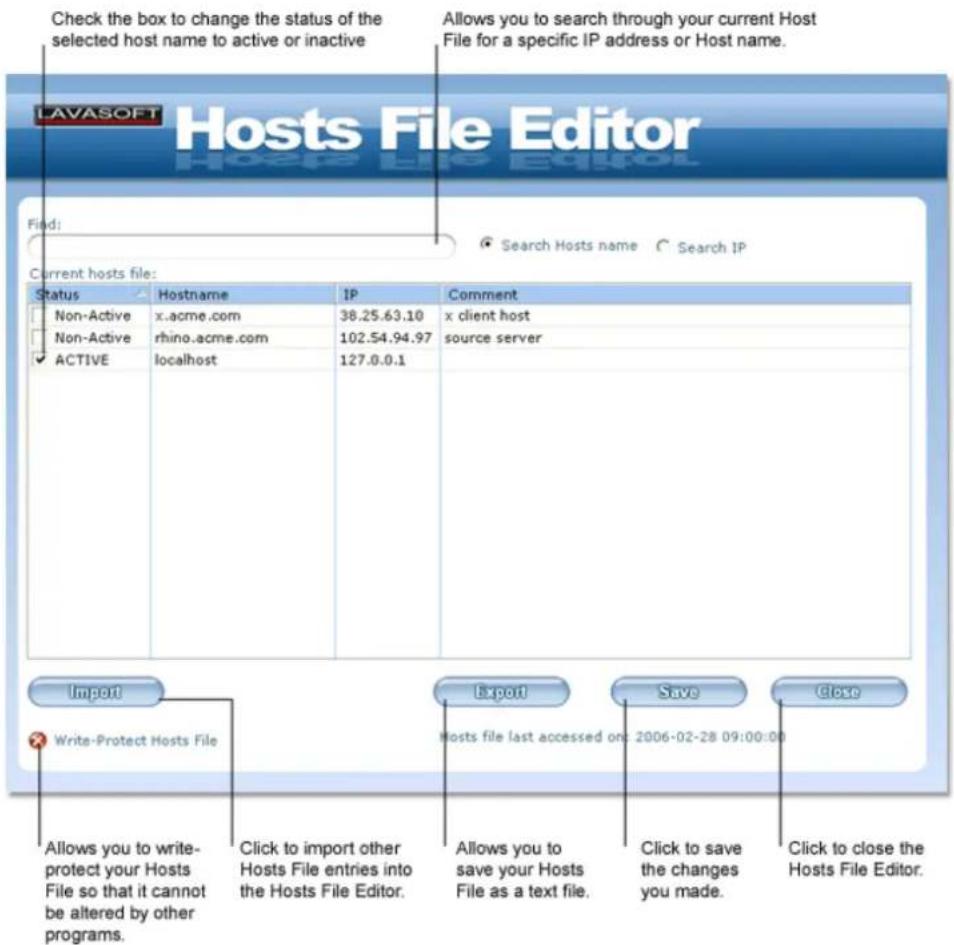
Select "TrackSweep" from the Tools and Plug-ins drop-down menu to access TrackSweep.
Ad-Aware 2008's TrackSweep feature is a privacy tool that allows you to remove all traces of your Internet browsing from your system.
By checking the buttons next to the items of your choice, and clicking "Clean", the tracks left behind when you surf the Internet can be cleaned from Internet Explorer, Firefox, and Opera web browsers. All browsers that are not running will be cleaned.
You can choose to clean the following areas:
Cache:• Clears your browser cache, or Temporary Internet Files.
- Cookies: Clears browser cookies – data that a website saves on your computer's hard drive and retrieves when you revisit the site.
History:• Clears your full history of visited websites.
- Last typed URLs: Clears the list of last accessed URL's from your web browser's address bar.
- Clean tabs: If you use tabbed browsing, your browser tabs will be cleared.
TrackSweep Context Menu
Right-click within TrackSweep's selection screen to open the context menu where you can choose from the following operations:
- Check all: Marks all items to be cleaned from every browser.
- Uncheck all: De-selects all items from being cleaned.
- Check all Explorer: Marks all Internet Explorer items to be cleaned.
- Uncheck all Explorer: De-selects all Internet Explorer items from being cleaned.
- Check all Firefox: Marks all Firefox items to be cleaned.
- Uncheck all Firefox: De-selects all Firefox items from being cleaned.
- Check all Opera: Marks all Internet Explorer items to be cleaned.
- Uncheck all Opera: De-selects all Internet Explorer items from being cleaned.
Settings
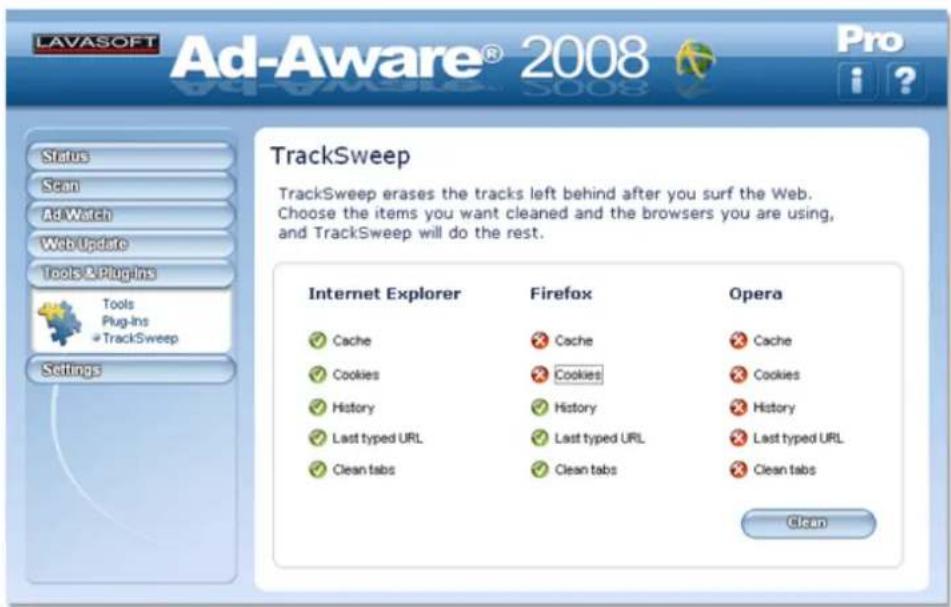
Click "Settings" in the main menu to open the Settings screen where you can customize Ad-Aware 2008 to fit your needs. Use the tabs to navigate between different categories of settings.
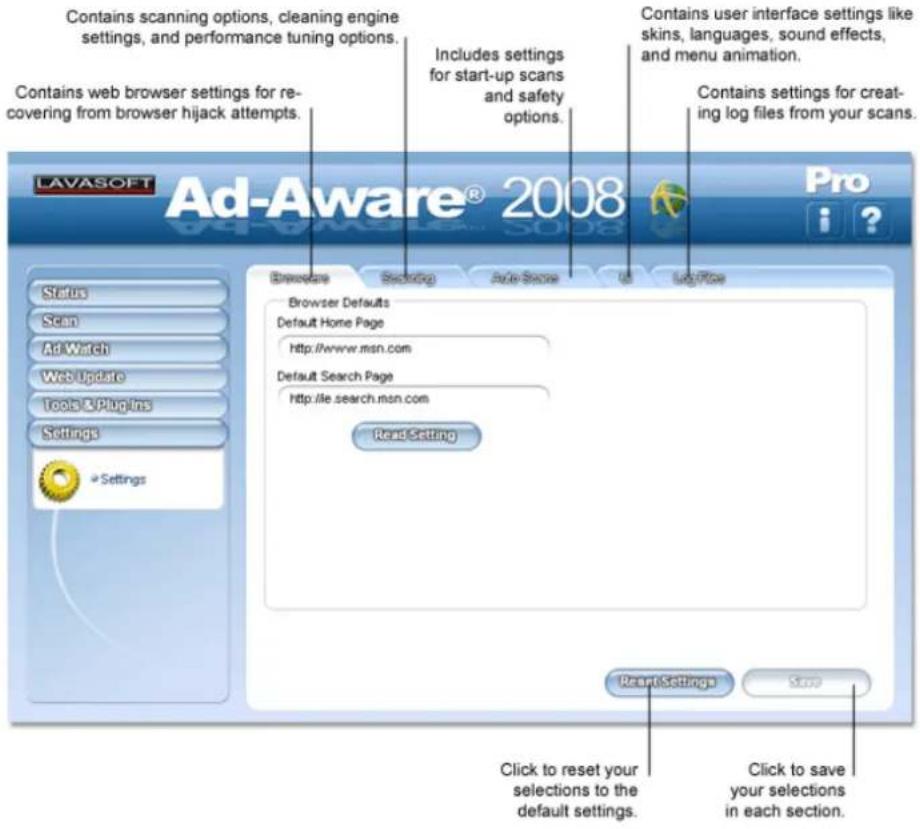
Browsers
Browser Defaults
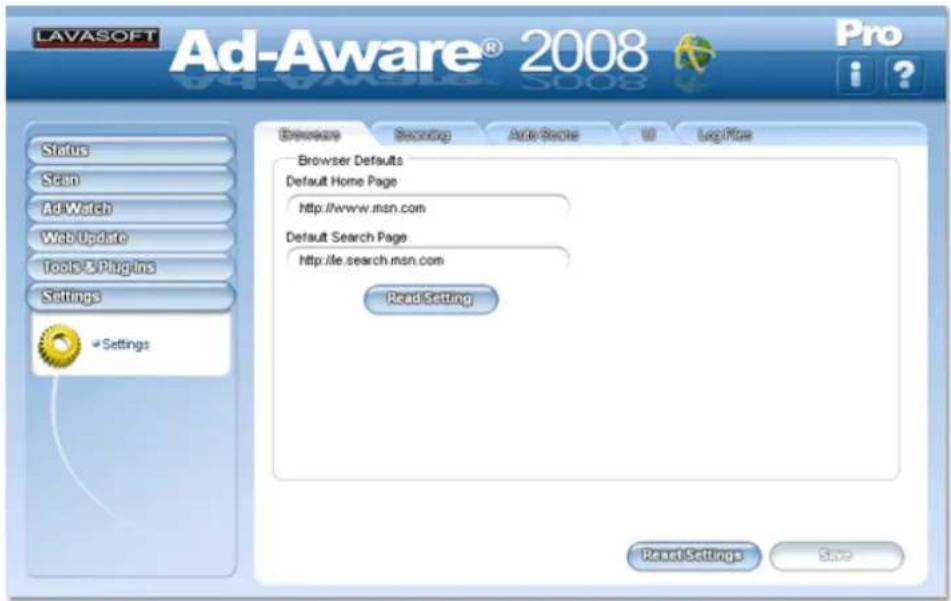
- Default home page: Ad-Aware 2008 uses the specified Internet Explorer home page when recovering from a browser hijack. When you click "Read Setting," your current Internet Explorer home page setting will be used.
- Default search page: Ad-Aware 2008 uses the specified Internet Explorer search page when recovering from a browser hijack. When you click "Read Setting," your current Internet Explorer search page will be used.
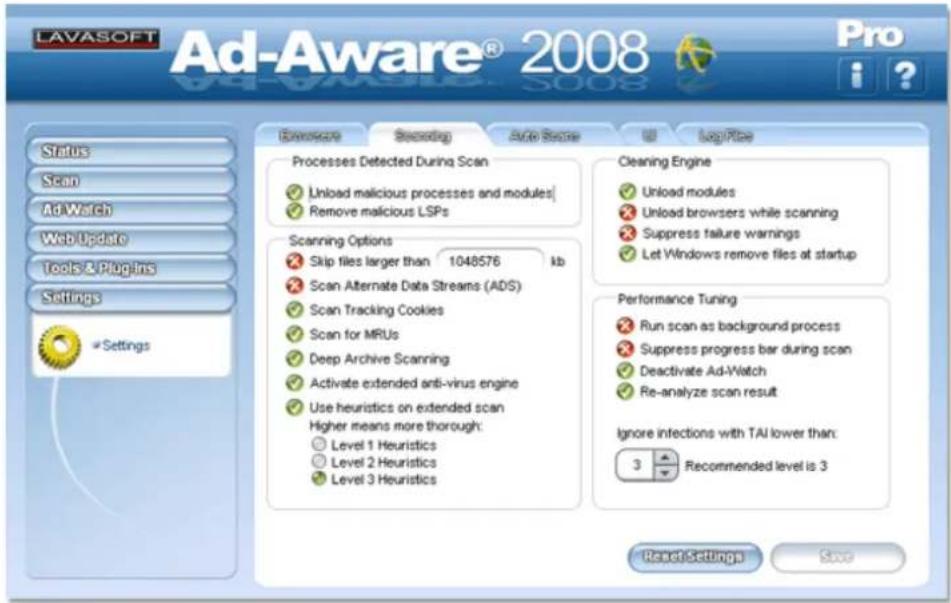
Scanning
Processes Detected During Scan
- Unload malicious processes & modules: This allows Ad-Aware 2008 to close any currently running process or module that is recognized by the Detection Database. If this setting is disabled, the recognized process or module will continue to run during the remainder of the scan. Deactivation of this option does not imply that Ad-Aware 2008 will not be able to remove the executable if selected for removal by the user, just that removal will happen more efficiently if the process has already been stopped.
- Remove malicious LSPs: LSPs, or layered service providers, are often exploited by spyware and adware. If selected, Ad-Aware 2008 will remove LSPs in detection.
Scanning Options
- Skip files larger than "X" kb: Ad-Aware 2008 will skip files that are larger than the specified value. This is most useful for those with large (clean) files such as music or digital imaging files. This will decrease scanning time.
- Scan Alternate Data Streams (ADS): Ad-Aware 2008 will scan files and investigate ADS streams for malicious objects.
- Scan tracking cookies: Ad-Aware 2008 will scan for tracking cookies in Internet Explorer, Mozilla Firefox, and Opera.
- Scan MRU objects: Ad-Aware 2008 will scan MRU (Most Recently Used) objects.
- Deep archive scan: Ad-Aware 2008 will thoroughly scan archives to ensure authenticity.
- Activate extended anti-virus engine: If selected, Ad-Aware 2008 will scan using the extended virus scanning engine. This option is turned on by default.
- Use Heuristics on extended scan: During an extended scan, Ad-Aware 2008 will scan objects using Heuristics – files are analyzed based on behavior to assess if they may pose a threat. This option is turned off by default. If you choose to scan using Heuristics, select the Heuristics level to be used.
Cleaning Engine
- Unload modules: Ad-Aware 2008 will unload running process modules that have matches in the Detection Database.
- Unload browsers while scanning: Any browsers that are open will be closed before a scan is performed.
- Suppress failure warnings: Messages with certain objects that cannot be removed will be suppressed.
- Let Windows remove files at start-up: If it is necessary to restart your computer to remove a file, Ad-Aware 2008 will request that the files be removed during the next system restart. Ad-Aware 2008 will instruct Windows to remove these files at start-up.
Performance Tuning
- Run scan as a background process: Forces Ad-Aware 2008 to run in the background with a lower priority level. This allows other running programs to obtain more processor time.
- Suppress progress bar during scan: When a scan is performed, Ad-Aware 2008 will not show the progress bar on the "Performing Scan" screen.
- Deactivate Ad-Watch: Ad-Watch will be deactivated when Ad-Aware 2008 scans your system.
- Re-analyze scan result: After a scan is completed, Ad-Aware 2008 will re-analyze the findings before presenting them.
- Ignore infections with TAI lower than "X": Items that receive a TAI (Threat Analysis Index) level less than 3 are considered to be low risk threats. You may choose to ignore low risk infections.
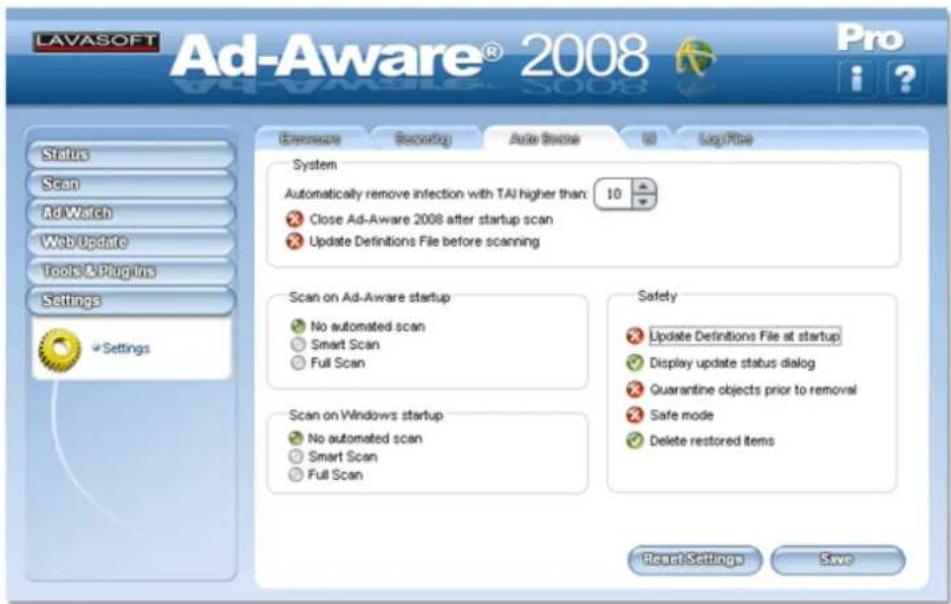
Auto Scans
System
- Automatically remove infection with TAI higher than "X": Allows you to automatically remove infections above a specified TAI rating in a start-up scan.
- Close Ad-Aware 2008 after start-up scan: Once the scan is complete and any detected objects have been handled, Ad-Aware 2008 will automatically shut down.
- Update Definitions File before scanning: Automatically checks for updates to the Detection Database before scanning. If an updated file is available, it is automatically downloaded to your computer
Scan on Ad-Aware Start-up
- No automated scan: No automated scanning will be performed when you start Ad-Aware 2008. This is independent from command line parameters.
• Smart Scan: A Smart Scan will be performed when you start Ad-Aware 2008.
• Full Scan: A Full Scan will be performed when you start Ad-Aware 2008.
Scan on Windows Start-up
- No automated scan: No automated scanning will be performed at Windows start-up. This is independent from command line parameters.
• Smart Scan: A Smart Scan will be performed at Windows start-up.
• Full Scan: A Full Scan will be performed at Windows start-up.
Safety
- Update Definitions on start-up: When you start Ad-Aware 2008, the program will check for Definitions File updates.'
- Display update status dialog: A dialogue box showing update status will be displayed.
- Quarantine objects prior to removal: Quarantines objects that have been marked for automatic clean.
- Safe mode: A dialog box requesting confirmation will be displayed when altering (removing, quarantining, etc.) objects.
- Delete restored items: After the objects in Quarantine are restored, the quarantine file is deleted. If disabled, the quarantine file will remain on the system even after restoring its contents.
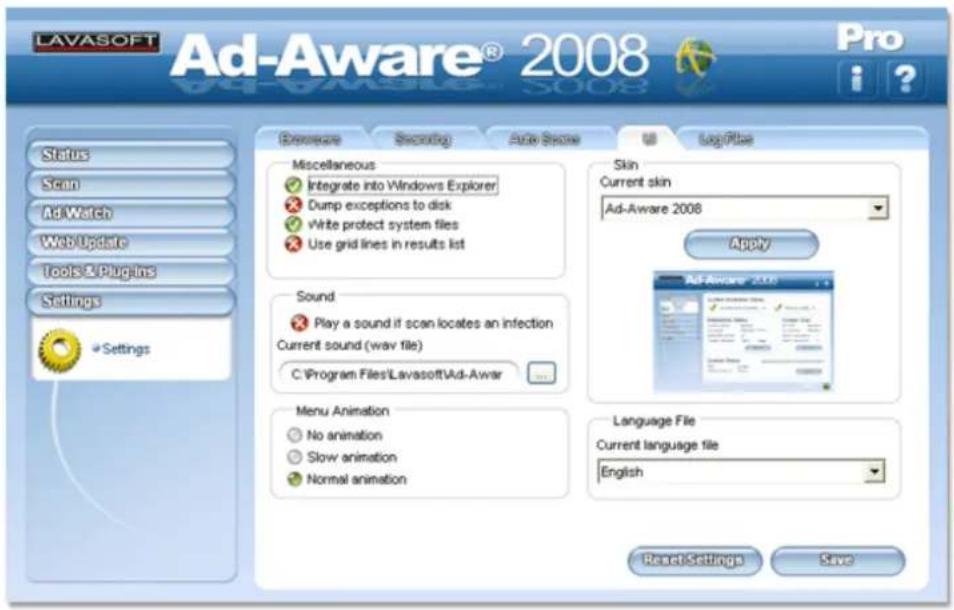
User Interface
Miscellaneous
- Integrate into Windows Explorer: This setting allows you to use the right-click menu to scan a file or folder with Ad-Aware 2008.
- Dump exceptions to disk: If an exception occurs that cannot be handled, Ad-Aware 2008 will append to (or create) a special log file for later trouble-shooting and/or product support.
- Write protect system files: Ad-Aware 2008 will write-protect certain system files after repairing them, such as the Hosts File.
- Use grid lines in results list: Display grid lines in the scan result lists.
Sound
Play a sound if scan locates an infection: Check the box to have Ad-Aware 2008 play a sound at the end of a scan if any critical objects are detected. You can choose a wave-file to be played when content is detected. Any file with a .wav extension can be used.
Menu Animation
• No animation: The Ad-Aware 2008 main menu will have no animation when selecting headings.
- Slow animation: The Ad-Aware 2008 main menu will be set to slow animation when selecting headings.
- Normal animation: The Ad-Aware 2008 main menu will be set to normal animation when selecting headings.
Skin
You can change the look of the program by changing skins. When new skins are available, they will be downloaded automatically when you update Ad-Aware 2008.
Under "Current skin" in the Settings menu, select the skin that you would like to use from the drop-down menu. Click "Apply" to apply the skin you selected.
Language File
You can change the interface of the program to the language of your choice. When new language files are available, they will be downloaded automatically when you update Ad-Aware 2008. Under "Current language file" in the Settings menu, you will be able to select the language of your choice from the drop-down menu. Click "Save" to save your settings.
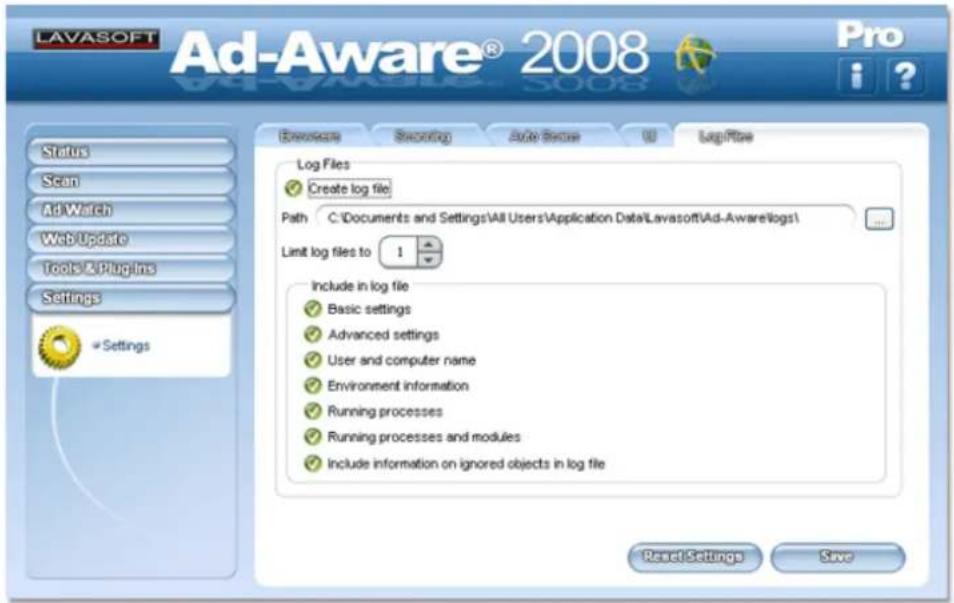
Log Files
Log Files
Create log file: Check the box to have Ad-Aware 2008 create log files from your scans. Use the browse feature to locate the folder you wish to store the log files in. Click on the folder and navigate to your chosen location.
Limit log files to "X": Allows you to set a limit to the amount of log files created. This may be useful so that log files do not take up added hard drive space. The default setting limits your log files to one.
Include in Log file
Basic settings:• Includes basic settings information in the log file.
- Advanced settings: Includes detailed settings information in the log file.
- User and computer name: Includes the computer's name and the user name currently logged on in the log file.
- Environment information: Includes system related as well as Ad-Aware 2008 specific environment information in the log file.
- Running processes: Includes a list of all running processes in the log file.
- Running processes and modules: Includes a list of all running processes and their associated modules in the log file.
- Include information on ignored objects in log file: Includes information about detected objects that you have added to the Ignore List in the log file.
Using Command Line Parameters
Ad-Aware 2008 can be operated without using the graphical user interface (GUI). It can be controlled by using command line parameters. UNC paths are supported.
Example:
Ad-Aware /Smart /Silent /Cookies
Ad-Aware will run in the background (without the GUI) and perform a Smart Scan with cookie scan turned on.
Scanning Parameters
/extended
This parameter will turn on Ad-Aware's extended anti-virus engine.
/extendedheuristiclevel [0-3]
This parameter sets the heuristics level of Ad-Aware's extended engine (the default level is 3). Setting the level at 0 turns the heuristics off.
This settings also turns on the /extended option, so there is no need to use both these options.
/Full
Performs a Full Scan. If set, this parameter will override all other scanning parameters, except the optional Full Scan settings: /Cookie /ADS and /MRU.
/Smart
Performs a Smart Scan. If set, this parameter will override all other scan parameters except the optional Smart Scan settings: /Cookie /ADS and /MRU, and /Full, which takes precedence over /Smart.
/Processes
Scans all active processes.
/Reg
Scans the registry.
/RegPE
Scans registry executables.
/Hosts
Scans the Hosts file.
/exe
Scans only executable files.
/zip
Scans archives
/deepzip
Deep-scans archives.
/Spanned
Scans spanned files.
/ukpds
Unloads all malicious programs. The /process option has to be set for this option to have effect.
/PBH
Scans for possible browser hijacks.
/LSP
Scans Layered Service Providers.
/Path [filepath]
Sets a folder to be scanned. If you want to scan more than one folder, you will have to use this parameter for each folder.
Usage:
/Path C:\Windows\ /Path C:\Program Files\
/Cookies
Scans Tracking Cookies.
/ADS
Scans Alternate Data Streams.
/MRU
Scans Most Recently Used (MRU) lists.
Other Scanning Options
/FileSize [0]
Sets the maximum size of the files to be scanned in kilobytes. If it is not set, it will default to 0 (i.e. all files will be scanned).
Usage:
/FileSize 4000
/ScanTAI [1-10]
Sets the lowest TAI to scan for. If not set, TAI 3 will be used.
Usage:
/ScanTAI 5
Cleaning
/Clean
Detected malware will be cleaned.
/CleanTAI [1-10]
Set the lowest TAI to clean.
Usage:
/CleanTAI 4
/NoQuarantine
Infections will not be quarantined before removal. If this option is not set, all infections will be quarantined.
Updates
/Update
Performs a Web Update to look for a new Definitions File. If there is a newer version it will be downloaded and installed.
/Software
Performs a software update of Ad-Aware.
Note: This option cannot be run together with a scan. If you want to create a batch script that performs a software update followed by a full scan, the recommended way of doing this is as follows:
lsupdatemanager /silent ad-aware /update /full
/Backup [filename]
Creates a backup of the current Definitions File before updating.
Usage:
/Backup defs.bak
Miscellaneous
/Silent
Runs Ad-Aware 2008 without showing the graphical user interface and performs a scan that automatically quarantines any detected objects.
/Stat [filename]
Creates a file containing statistics, version numbers and settings for the scan.
Usage:
/Stat scanstats.txt
Uninstall Ad-Aware 2008
You can use one of the methods below to uninstall Ad-Aware 2008.
Uninstaller
Go to the "Lavasoft Ad-Aware 2008" folder in your Start menu.
Run "Uninstall Ad-Aware 2008".
Verify uninstalling by selecting "Yes."
When the program exits, Ad-Aware 2008 has been uninstalled.
Control Panel
Go to the Control Panel.
Run "Add or Remove Programs".
Select Ad-Aware 2008 in the list and click the "Change/Remove" button.
Verify uninstalling by selecting "Yes."
When the program exits, Ad-Aware 2008 has been uninstalled.
Resources
Lavasoft Support Center
Under the Support menu tab at www.lavasoft.com, you can access the FAQs, the Support Forums, and the Support Center. Access to the Support Center is only available to customers who have purchased Ad-Aware 2008 Plus, Ad-Aware 2008 Pro, or Ad-Aware Enterprise.
FAQs
The FAQs provide you with answers to some of the most frequently asked questions about Lavasoft products. For your convenience, we have sorted the Frequently Asked Questions (FAQs) by topic to include technical, sales, and reseller sections.
Support Forums
In the Lavasoft Support Forums, at www.lavasoftsupport.com, you will find useful information about our products, browse solutions to problems, and post questions to be answered by Lavasoft staff, experienced professionals and knowledgeable Ad-Aware users.
Support Center
Your purchase of Ad-Aware 2008 provides you with unlimited access to Lavasoft's Support Center. By logging into the Support Center, you have easy access to your user information (your license and personal information), the Customer E-Store (ordering instructions, version update information, etc.) product resources (product downloads and manuals) and support (technical and sales support).
Through the Support Center, you can contact the Lavasoft Support Center staff by e-mail. After logging in to the Support Center, send in a Technical Support or Sales Support inquiry.
We provide large corporations and Enterprise customers with Point of Contact (POC) support. Service Level Agreements (SLA's) are also available upon request.
Lavasoft Security Center
Using Lavasoft's Security Center, available from our website, you are able to submit new suspicious files for review, access resources for beta testers and for vendors, get a deeper understanding of the Threat Analysis Index, visit the Spyware Education Center, and download Definitions File updates from the Detection Database.
Threat Analysis Index
Information about the items detected by Ad-Aware 2008 can be found in Lavasoft's Security Center, in the Threat Analysis Index pages.
When you scan your computer using Ad-Aware 2008, potential threats are analyzed using specific criteria. The weights of the criteria are tallied, to give the threat a specific Threat Analysis Index (TAI) level. This determines if the threat should be added to our Detection Database, and gives you the power to make quick decisions about what to do with the detected spyware and malware.
The TAI point system is based on a 10-point scale, with 1 representing the lowest threat and 10 representing the highest. A minimum TAI value of 3 is required before the malware is put into detection at the Lavasoft Security Center.
When creating the TAI level, the behavior of the threat carries a stronger weight than its technical aspects; if the malware secretly attaches without your full understanding and approval, then the threat is automatically given higher TA points. Applications that are difficult to remove and cause system instability due to poor coding but do not contain any further violations are not considered for inclusion in the Detection Database.
Information on TAI categories and TAI analysis criteria can be found on the Lavasoft website. See more information on the Threat Analysis Index.
Spyware Education Center
The Spyware Education Center is a resource for everyone - from computer novices to spyware experts - to find out more about one of the most menacing technological applications of the cyber era. Visit the Spyware Education Center to read about the history of spyware, ways to protect yourself, a glossary of key terms, and spyware statistics.
Ad-Aware End User License Agreement
As part of Ad-Aware's installation process, users must agree to Lavasoft's End User License Agreement for Ad-Aware 2008 software prior to installing the program. You can read Lavasoft's Ad-Aware software license agreement, below.
Software License Agreement
Please read the terms and conditions of this license agreement (the "License") before installing the computer software (the "Software"). By installing and using the Software you accept and agree to the terms of this License. This License constitutes the entire agreement concerning the Software between you and Lavasoft AB and it supersedes any prior proposal or representation. If you do not agree with these terms and conditions, promptly un-install the Software and, if you paid for a License, contact your distributor for a refund of the amount that you paid.
The term "Software" includes, and these terms and conditions also apply to, any updates, modifications and upgrades to the Software that you may receive from time to time.
I. License Grant
This License permits you, as purchaser of the Software, to use one copy of the Software solely for your use on one computer per purchased copy of the software, or, for users of Windows® Terminal Server ("WTS"), solely for use by users covered under the WTS License. The enclosed documentation ("Documentation") may not be copied. You agree that you will not sub-license, assign, transfer, distribute, pledge, lease, rent or share your rights under this License except with prior written permission from Lavasoft AB. You agree that you will not modify, adapt or translate, disassemble, decompile, reverse engineer or otherwise attempt to discover the source code of the Software.
Note: Ad-Aware Free (previously referred to as Ad-Aware SE Personal) is not available for commercial use. If you are not a personal home user, un-install Ad-Aware Free (freeware) and visit www.lavasoft.com for available products.
2. Standard Maintenance and Support
All updates and technical support for your purchased Software are free of charge for the license duration. If you choose not to renew your license and the Software reverts to Ad-Aware Free (freeware), you are not entitled to technical support. Renewal fees and technical support do not apply to Ad-Aware Free (freeware) users.
3. Lavasoft AB's Rights
You acknowledge and agree that the Software and Documentation (the “Licensed Products”) are proprietary products of Lavasoft AB under international copyright law and disclosed to you by Lavasoft AB in confidence. You shall take all reasonable steps to safeguard the Licensed Products. Lavasoft AB owns and retains all copyright-, trademark-, trade secret- and other proprietary rights in and to the Licensed Products. This License conveys only a non-exclusive and limited right of use to you, revocable in accordance with the terms and conditions of this License.
4. Service Level Agreements
Support services may be purchased under separate agreement with Lavasoft AB.
5. Limited Warranty
Lavasoft AB warrants that for your benefit alone, for ninety (90) days from the day of delivery to you (the "Warranty Period"), the Software media, under normal use in a compatible execution environment, will be free from defects in material and workmanship. Any replacement program will be warranted for the remainder of the
original warranty period or thirty (30) days from the date of receipt by you, whichever is longer. In no event may you bring any claim, action or proceeding arising out of the warranty set forth in this Article 4 more than six (6) months after the date on which the breach of warranty occurred.
6. Exceptions to Warranties; Disclaimers
EXCEPT FOR THE ABOVE MENTIONED LIMITED WARRANTY, Lavasoft AB DISCLAIMS ANY AND ALL OTHER WARRANTIES, EXPRESSED OR IMPLIED, INCLUDING ANY IMPLIED WARRANTIES OF MERCHANTABILITY OR FITNESS FOR PARTICULAR PURPOSE. Lavasoft AB does not warrant that the Software, its use, operation or your ability to use the Software will be uninterrupted or error-free or that all Software errors will be corrected. The warranty set forth above shall not apply to any defect or problems caused by any defect in any hardware or software used in combination with the Software, or use of the Software in execution environments not
specified in the Documentation. Lavasoft AB does not warrant that the Software or service will meet your requirements or that the operation of the Software will be uninterrupted or error free.
Lavasoft AB's limited warranty is void if a breach of the warranty has resulted from (i) accident, corruption or misuse of the Software; or (ii) acts or omissions by someone other than Lavasoft AB.
7. Refund Policy
Lavasoft AB will refund the full price of the Software if the Software is damaged, defective, or does not function as advertised. A refund will only be received if Lavasoft AB is notified of the refund request within thirty (30) days after the date you purchased the Software.
8. Exclusive Remedies
You agree that if a defect in the Software media appears during the Warranty Period, your exclusive remedy will be, in Lavasoft AB's sole option, to replace the media or to credit the amount paid by you to Lavasoft AB, if any, and terminate this License. The later remedy is subject to the return of all copies of the Licensed Products.
9. Limitations of Liability
In no event shall Lavasoft AB be liable for any damages to you or any other party whether arising out of contract or from tort including loss of data, profits or business, or other special, incidental, exemplary or consequential damages, even if Lavasoft AB has been advised of the possibility of such loss or damages. Lavasoft AB's cumulative liability shall not exceed the license fee paid, if any, for use of this Software and Documentation. This section shall survive termination of this License.
10. Termination
This agreement is in effect until terminated. You may terminate the agreement at any time by destroying all copies of the Software and Documentation and erasing any copies on storage media. The agreement also terminates if you fail to comply with any terms and conditions of this agreement. In such an event, you agree to destroy and erase all copies of the Software and Documentation, and Lavasoft AB will be entitled to all remedies in accordance with applicable law.
II. General
This agreement is governed by the laws of Sweden.
12. Contact
Use of the Software other than for your internal operations on a single computer requires that you enter into a separate license agreement with Lavasoft AB. Please e-mail sales@lavasoft.com for further information.
Purchasing Additional Lavasoft Products
Please use the following links to our website for more information on Lavasoft products.
Home Users
Please visit our Select Your Product page. You can also browse the Product Comparison Chart to find the Lavasoft product that is right for you.
For sales questions, please contact our Worldwide Sales Department at sales@lavasoft.com. (This address is for sales questions only; technical support questions will not be answered.)
Business Users
Please visit our Select Your Product page where you can browse products in the Small Business or Enterprise category.You can also use the Product Comparison Chart to find the Lavasoft product that is right for you.
If you have joined our global network of Lavasoft partners or if you are a registered reseller, you may use the resources available by logging in to the Partner Center or Reseller Center.
For sales questions, please contact our Worldwide Sales Department. at sales@lavasoft.com (This address is for sales questions only; technical support questions will not be answered.)
Academic & Non-Profit
At Lavasoft, we realize that it is sometimes difficult for students and non-profit organizations to commit money towards technology upgrades. Because we strongly believe that everyone has the right to privacy and security of their personal information, we offer a 50 percent discount off our products for students and non-profit organizations. For more information, please visit the Academic/Non-Profit page.
Glossary
To view a glossary of key terms frequently associated with spyware and adware, please visit Lavasoft's Spyware Education Center. Lavasoft is one of the founding members of the Anti-Spyware Coalition (ASC), which annually publishes security industry reports; Lavasoft's glossary is a condensed version of the ASC's terms and definitions.