TFTV3839DT - Television Palsonic - Free user manual and instructions
Find the device manual for free TFTV3839DT Palsonic in PDF.


| Product Type | LCD TV with built-in DVD player |
| Brand | Palsonic |
| Model | TFTV3839DT |
| Screen Size | 15.4 inches (diagonal) |
| Display Type | TFT LCD |
| Brightness | 180 cd/m² |
| Contrast Ratio | 400:1 |
| Maximum Resolution | 1440 x 900 pixels |
| Aspect Ratio | 16:9 (adjustable) |
| Video Inputs | 1 x HDMI, 1 x VGA (D-Sub 15-pin), 1 x YPbPr (Component), 1 x S-Video, 1 x Composite Video (RCA), 1 x RF (Antenna) |
| Audio Inputs | 1 x PC Audio (3.5mm), 1 x Audio L/R (RCA) |
| Audio Outputs | 1 x Headphone (3.5mm), 1 x Coaxial Digital Audio (SPDIF) |
| Power Supply | DC 12V 5A (external adapter) |
| Power Consumption | 60W |
| Built-in DVD Player | Yes (supports DVD, SVCD, VCD, CD, HD-CD, WMA, JPEG, Digital Audio discs) |
| Remote Control | Infrared (IR), 7m range, requires 2 x AA batteries |
| Wall Mount | VESA compliant (M4 x 8mm screws, max length 8mm) |
| Teletext | Supported with dedicated remote buttons |
| Parental Control | Lock system with password (default 0000), rating limit |
| Languages | Multiple OSD languages (English, etc.), audio and subtitle languages selectable |
| Dimensions (Approx.) | Desktop stand included; wall mount holes provided |
| Weight (Approx.) | Not specified in manual; typical for 15.4" LCD TV with DVD |
| Accessories Included | User's guide, power adapter, remote control |
| Warranty | Contact Palsonic customer service |
Frequently Asked Questions - TFTV3839DT Palsonic
User questions about TFTV3839DT Palsonic
0 question about this device. Answer the ones you know or ask your own.
Ask a new question about this device
Download the instructions for your Television in PDF format for free! Find your manual TFTV3839DT - Palsonic and take your electronic device back in hand. On this page are published all the documents necessary for the use of your device. TFTV3839DT by Palsonic.
USER MANUAL TFTV3839DT Palsonic
natural_image
Line drawing of a flat-screen computer monitor with a blank screen (no text or symbols)Safety Precautions
- Power Supply .... 1
- Installation 2
- Use and Maintenance .... 3
- Important Safety Instructions .... 4\~5
User Guidance Information
- Names of each part (Front View) / Accessories. 6
- Names of each part (Back View) 7
- Mounting on a Desktop / Installation Precautions .... 8
- Installing an Antenna .... 9
- Remote control 10\~11
- Precautions / How to use remote control 12
Connection
• VCR Connections / Watching Video Tape 13
- Satellite/Cable TV Set-Top Box Connections / Watching Cable TV 14
• DVD Connections / Playing the DVD 15
- PC Connections / How to use as PC 16
• Audio Amplifier and Monitor Connections / Digital Amplifier Connection .... 17
Basic Use
- Powering the LCD TV / Selecting input source .... 18
Application
- Operating the Menu 19
- Customizing the PICTURE Settings 20
- Customizing the SOUND Settings 21
- Customizing the TIMER Settings 22
- Customizing the SETUP Settings 23
- Customizing the LOCK Settings 24
- Customizing the CHANNEL Settings 25\~26
- DVD operation 27\~32
- Disc care .... 33
Maintenance and Service
- Trouble shooting 34
- Specifications 35
Power Supply
Warnings
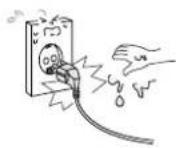
Do not touch the power plug with wet hands.
- Doing so may result in electric shock.
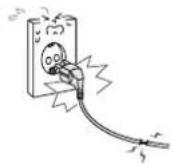
Do not use a damaged power cord or plug or a loose outlet.
- Doing so may result in fire or electric shock.
Do not plug several devices into the same outlet.
- Doing so may cause the outlet to overheat and start a fire.

Insert the power plug fully into the outlet.
- A loose or improperly inserted power plug may result in fire.

Do not bend the power cord excessively or place heavy objects on it.
- Doing so may result in fire or electric shock.
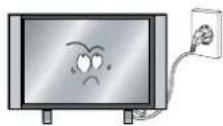
Be sure to ground the unit.
- Failing to do may lead to electric shock when a short circuit overload occurs. If necessary, install a ground fault circuit breaker. Never ground to a telephone line, lightning rod, or metal gas pipe. (doing so may result in fire, elect rick shock or other hazards.)

Cautions
When disconnecting the power cord from an AC outlet, always grasp it by the plug.
- Pulling on the cord can damage the internal wire and may result in fire.

Always unplug the unit before cleaning.
• Not doing so may result in fire or electric shock.

The purpose of these precautions is to ensure user safety and prevent property damage.
Be sure to read and observe all safety precautions.

Installation
Warnings
Do not place containers with liquids such as flower vases, soft drink cans, or medicine bottles or small metallic objects on top of the unit.
- If liquid enters the unit or any metal object fall into the unit, it may result in short-circuit, fire, or electric shock.

Do not place the unit where it is exposed to rain, excessive moisture or grease.
- Doing so may result in fire, electric shock, malfunction or deformation.

Do not use or store flamm albe or combustible materials near the unit.
- Doing so may result in fire or explosion.

Do not place the unit on an unstable surface, such as a wobbly stand or sloped table, or on any surface whose area is smaller than the bottom area of the unit.
- If a child climbs on the unit, it could topple and fall onto the child, resulting in serious injury to the child or damage to the unit. Place the unit on a flat stable surface.

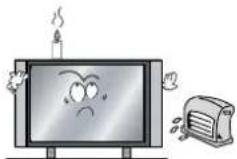
Do not place a burning candle burning anti-mosquito incense, or lighted cigarette on top of the unit. do not place the unit near any heat source such as a fireplace or space heater.
- Doing so poses a serious risk of fire.
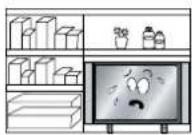
Do not place the unit in a poorly ventilated enclosure, such as a cabinet.
- Doing so poses a serious risk of fire.
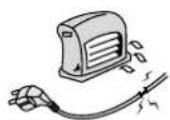
Do not run power cords near heat producing appliances such as radiators, stoves, or irons.
- The excessive heat could melt the insulation and expose live wires, resulting in fire or electric shock
Do the antenna away from high voltage power lines and communication cables and make sure it is installed securely.
- If the antenna touches a power line, contact with the antenna could result in fire, electric shock, serious injury, or death.

Cautions
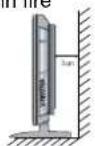
Install the unit at an adequate distance from the wall to ensure sufficient ventilation.
- It the temperature inside the unit rises, it may result in fire
Do not cover the unit with a tablecloth, curtain, or other material.
- If the temperature inside the unit rises, it may result in fire.

Be sure to place the unit on a level surface.

⚠️Warnings
Form a drip loop where the coaxial antenna cable enters your building to prevent rainwater from travelling along the cable and coming in contact with the antenna input terminal.
- If rainwater finds its way inside the unit, it may result in fire or electric shock.
- The following precautions are divided into "Warnings" and "Cautions".
Warning: Ignoring this precaution may result in death or serious injury. Caution: Ignoring this precaution may result in injury or property damage.
Use and Maintenance
Warnings
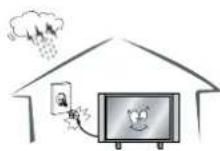
Disconnect the power cord from the wall outlet during an electrical storm.
- Not doing so may result in fire or electric shock.

Do not insert any metal objects, such as a screwdriver paper clip, or bent wire into the ventilation openings or A/V terminals.
- Doing so poses a serious risk of fire or electric shock.

Do not allow children to climb or hang on the unit.
• The unit could topple over on to a child and result in serious injury.

Never disassemble or modify the unit in anyway. Do not attempt to service the unit yourself.
- Doing so may result in fire or electric shock. If the unit requires repair, contact the service centre.

Cautions
When not using the unit for long periods of time, disconnect the power cord from the wall outlet.
- Dust could accumulate over time on the unit and cause it to generate heat and ignite or deteriorate insulation, which in turn may result in an electrical fire.
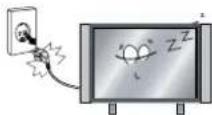
When moving the unit be sure to turn off the unit and unplug the power cord from the wall outlet.
- Moving the unit with the power cord connected to the outlet may cause damage to the cord, resulting in fire or electric shock.

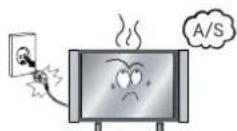
If you notice any unusual odours or smoke around the unit, immediately disconnect the unit from the outlet and contact the service centre.
- Failure to do so may result in fire or electric shock.
Warnings
When removing the batteries from the remote control, make sure children do not swallow them. Keep the batteries out of the reach of infants and children.
- If a child has swallowed a battery, seek medical attention immediately.

Always use two or more people to lift or move the unit.
- If the unit is dropped, it could be damaged or other wise cause injury.
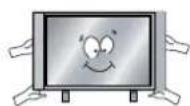
Wipe off any moisture, dirt, or dust on the power plug pins with a clean dry cloth.
- Failure to do so may result in fire or electric shock.

It is advisable to clean the interior of the unit at least once a year. Contact the store of purchase or service centre for information.
- Continuing to use the unit without cleaning off the dust build-up inside it may result in fire or electric shock.

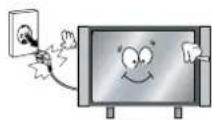
Always turn off the unit and unplug the power cord when cleaning the unit. Use a soft dry cloth to clean the unit.
- Never clean with industrial strength polish, wax, benzene, paint thinner, air freshener, lubricant, detergent, or other such chemicals. Also, do not clean with a damp cloth.
Important Safety Instructions
Warnings and Precautions
To prevent any injuries, the following safety precautions should be observed in the installation, use, servicing and maintenance of this equipment.
Before operating this equipment, please read this manual completely, and keep it near by for future reference.
1) Read these instructions.
2) Keep these instructions.
3) Heed all warnings.
4) Follow all instructions.
5) Do not use this apparatus near water.
6) Clean only with a dry cloth.
7) Do not block any of the ventilation openings. Install in accordance with the manufacturer's instructions.
8) Do not install near any heat sources such as radiators, heat registers, stoves, or other apparatus (including amplifiers) that produce heat.
9) Do not defeat the safety purpose of the polarized or grounding type plug. A polarized plug has two blades with one wider than the other. A grounding type plug has two blades and a third grounding prong. The wide blade or the third prong is provided for your safety. When the provided plug does not fit into your outlet, consult an electrician for replacement of the obsolete outlet.
10) Protect the power cord from being walked on or pinched particularly at plugs, convenience receptacles, and the point where they exit from the apparatus.
11) Only use the attachments / accessories specified by the manufacturer.
12) Use only with a cart, stand, tripod, bracket, or table specified by the manufacturer, or sold with the apparatus. When a cart is used, use caution when moving the cart/apparatus
combination to avoid injury from tip over

Important Safety Instructions
13) Unplug this apparatus during lightning storms or when unused for long periods of time.
14) Refer all servicing to qualified service personnel. Servicing is required when the apparatus has been damaged in any way, such as power supply cord or plug is damaged, liquid has been spilled or objects have fallen into the apparatus, the apparatus has been exposed to rain or moisture, does not operate normally, or has been dropped.
- Apparatus shall not be exposed to dripping or splashing and no objects filled with liquids, such as vases, shall be placed on the apparatus

Apparatus with Class 1 construction shall be connected to a Mains socket outlet with a protective earthing connection.
WARNING
TO PREVENT DAMAGE WHICH MAY RESULT IN FIRE OR ELECTRIC SHOCK HAZARD, DO NOT EXPOSE THIS APPLIANCE TO RAIN OR MOISTURE.
Caution:
- These servicing instructions are for use by qualified service personnel only. To reduce the risk of electric shock, do not perform any servicing other than that contained in the operating instructions unless you are qualified to do so.
- Any changes or modifications not expressly approved by the party responsible for compliance could void the user's authority to operate the equipment.
Names of each part
Front View
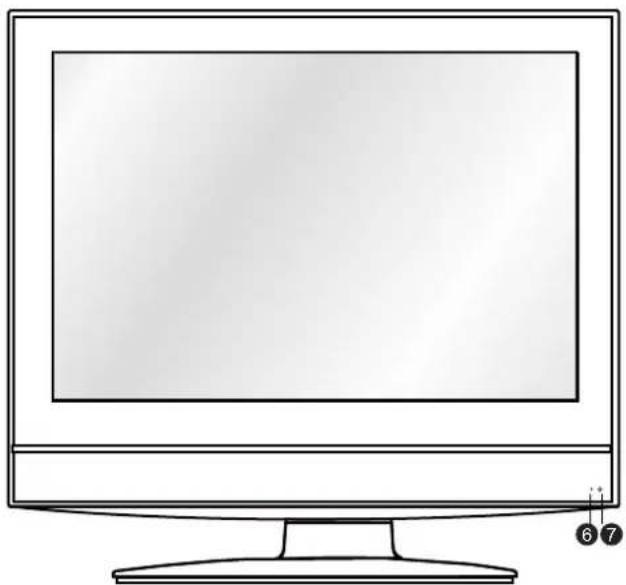
natural_image
Line drawing of a flat-screen computer monitor with no text or symbols on the screen or side
1 MENU button - OSD Menu Display Button
2 CH+/- button - Channel/Program +,- Button
3 VOL+/- button - Volume +,- Button
4 TV/AV button - Input Source Select Button
5 POWER button
6 LED Indicator
7 Remote Control Window
8 Play the next track or chapter
9 Play the previous track or chapter
10 ▲ Eject the disc
11 ▶ Play the disc playing
12 II Pause the disc playing
13 ■ Stop the disc playing
Accessories
● The configuration of the components may look different from the following illustration.

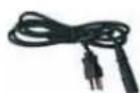
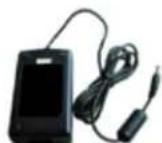
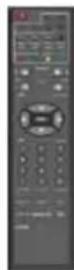
User's Guide Power Cable Adaptor Remote Control
Names of each part

1 DC POWER IN (DC 12V 5A)
5 S-VIDEO
9 HEADPHONE OUT
2 HDMI
6 VIDEO
10 RF
3 VGA (D-Sub 15PIN)
7 AUDIO IN (R/L)
11 COAX OUT
4 YPbPr
8 PC AUDIO IN
Power Connecting
- Connect the small round plug on the power adaptor cable to the power input socket at the rear of the set.
- Connect the mains cable between the power adaptor and the mains supply.

Mounting on a Desktop

natural_image
Line drawing of a flat-screen computer monitor (no text or symbols)- Your LCD TV can be mounted on a Desk top as shown in the figure above.
- This is not a floor-standing unit.
Installation Precautions
Wall Mounting
- Please secure enough space for safe use. (Please refer to A and B.) - Installation of the LCD TV in an improperly ventilated location can cause a fire or damage to the LCD TV due to increased temperature.
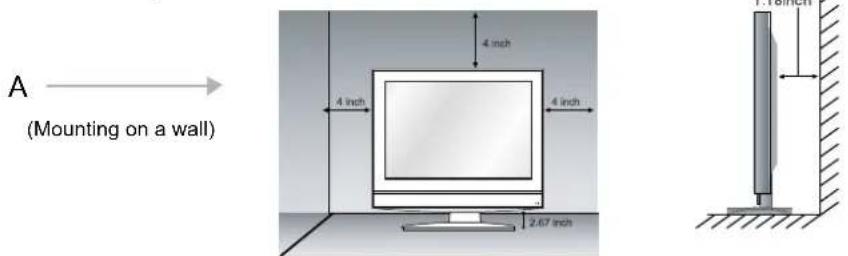
- Contact your dealer to purchase the "Adjustable-angle wall mount" required for wall-mounted installation.
Wall Mounting
The TV is provided with mounting holes for a VESA approved wall mounting bracket (NOT SUPPLIED). Remove the Two Posi screws holding the base to the base bracket and lift the base away (do not remove the base mounting bracket). Mount the VESA bracket using 4 x M4 x 8 Iso metric threaded screws (not supplied). Do not use screws longer than 8 mm, damage will occur to the internal parts. Fit the wall bracket securely following the manufacturers instructions.
Using the Stand
- Do not install on an unstable location with support area smaller than the LCD TV.
- Please refer to the desktop stand manual for details of installation.

Installing an Antenna

flowchart
graph TD
    A["Power"] --> B["HDMI"]
    B --> C["VGA"]
    C --> D["Y"]
    C --> E["Pb"]
    C --> F["Pr"]
    D --> G["S-VIDEO"]
    E --> H["VIDEO"]
    F --> I["L"]
    G --> J["R"]
    H --> K["Audio in"]
    I --> L["PC-IN"]
    L --> M["Ω"]
    M --> N["RF"]
    N --> O["Coax"]
    O --> P["Headphone out"]
    Q["External Antenna"] --> R["Coaxial (Round) Antenna Cable"]
    R --> S["RF"]
    T["Wall Jack with F-Connector"] -.-> R
    U["Analog+Digital 75 Ω"] --> V["RF"]
Press TV/AV button on the remote control to display the input source menu, press ▲ / ▼ button to select TV, then press ▶ button to confirm. Then you can receive the signal.
Remote Control
● Functions of remote control buttons
The remote control is Infra Red (IR). Point it towards the front of the LCD TV. The remote control may not work correctly if it is operated out of range or out of angle.
POWER
Turn the TV on/standby
Buttons for TELETEXT operating
You could use the functions of the buttons only in TELETEXT.
TV/TXT
Turn off/on the Teletext display.
CANCEL
Cancel the Teletext display.
REVEAL
Reveal any hidden text.
HOLD
Hold or carry on the current
subpage.
SIZE
Press to see top half of page
double size, Press again
to see the bottom half of page
double size. Press again for
normal size.
SUBPAGE
Press to subpage, again to cancel.
INDEX
Go to index.
Colour buttons
Short cuts-follow the coloured
links in the text.

Buttons for Basic operating TV-MENU
Press to display the OSD menu.
TV/AV
Display the input source menu.
CH+/-
Channel/Program +/-
VOL+/-
Volume +/-
DTV
Switch to DTV source.
DVD-SETUP
Press to display the DVD menu.
EXIT
Press to exit the OSD menu.
DISPLAY
Press to display the current mode's information.
Press to display the disc's
information in DVD mode.
THUMBSTICK(▲/▼/◄/►/OK)
Allows you to navigate the on-screen menus and adjust the system settings to your preference.
NUMBER BUTTONS
Choose channel directly.
Press number buttons and press
OK button to play the channel.
Number buttons for DVD.
Pressing “-/--” button to display “-”, and press a number button to play the program;
Pressing “-/--” button to display “- -”, and press two number buttons to play the program;
Pressing “-/--” button to display “- - -”, and press three number buttons to play the program;

Return to the previous channel viewed.
Remote Control
PICTURE
Press repeatedly to cycle through the available video picture modes.
SOUND
Press to cycle through the different sound settings.
NICAM/A2
Nicam/A2 select.
MUTE
Press to mute the sound. Press again or press VOL+ to un-mute.
SLEEP
Shutdown timer.
INFO
Means information, to display brief information concerning the current channel you are viewing.
SUBTITLE
To switch the dialog at the bottom of the screen.
CHANNEL LIST
Display the programs list.
EPG
To show the Electronic Program Guide during no-menu state only.
TV/RADIO
Disc menu change between TV and Radio
FAV
Display the favourite program list.

Buttons for DVD operating
You could use the functions of the buttons only in DVD mode.
: Load/eject DVD disc.
: Play/pause DVD program.
: Stop DVD program.
: DVD fast forward.
: DVD fast reverse
: DVD previous chapter.
: DVD next chapter.
LANGUAGE
Select DVD disc language.
ZOOM
Adjust picture size in DVD mode.
SUBTITLE
Select DVD disc subtitle.
MENU (PBC)
DVD play list/Disc menu
ANGLE
Select DVD picture angle.
TITLE
DVD title.
GOTO
Play your favourite title/chapter/track.
PROGRAM
Edit the program and play.
SLOW
Play DVD programs at slow speed.
REPEAT
Repeat playing the title or chapter.
A-B
Select and play the preferable paragraph of DVD program by pressing this key twice at the beginning and end of it.
Precautions
Avoiding Remote Control Problems
- Check the polarity (+, -) of the batteries in the remote control.
- Check that the batteries have power.
- Check that the LCD TV is powered and that it is properly plugged in.
- Check if any three-wavelength lamp, special fluorescent or neon sign is turned on near the LCD TV.
Inserting Batteries in the Remote Control
- Open the cover completely.
- Insert the two supplied batteries (AA, 1.5V). Ensure that the polarities (+ and -) of the batteries are aligned correctly.
- Slide back the cover.


CAUTION : Risk of explosion if battery is replaced by an incorrect type.
Dispose of used batteries according to the national code (Recycling program).
How to use remote control
- The remote control should be operated within 30 feet (7m) and 30° to the left and the right of the IR receiver at the front of the LCD TV.
• Used batteries should be disposed properly.
VCR Connections
- Connecting to the Composite terminal
- Connection terminals of other equipment differ by manufacture and model.

- Connect LCD TV's Composite In terminal to the VCR's Composite Out terminal using the Composite Cable. (Make sure the colour of the terminals and the colour of the cables are the same)
- Connecting to the S-Video terminal
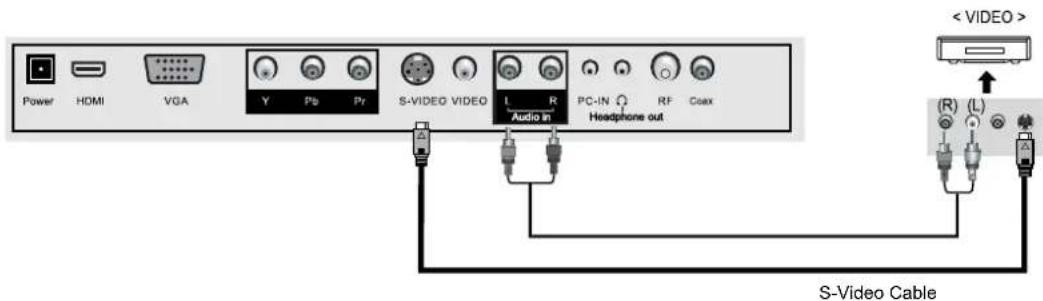
- Use the S-Video cable for higher picture quality.
Watching Video Tape
- Turn on the LCD TV and press on the remote control.
- Use ▲ ▼ to move to "AV", press OK button to confirm.
- If S-Video has been connected, select "S-Video".
- Turn on the VCR, insert the tape and press play button.
Satellite/ Cable TV Set-Top Box Connections
- Connecting to the Composite terminal
- In order to watch Cable TV, Subscribe to your local Cable TV company and install a separate receiver (Set-Top-Box).
- Connection terminals of other equipment differ by manufacture and model.
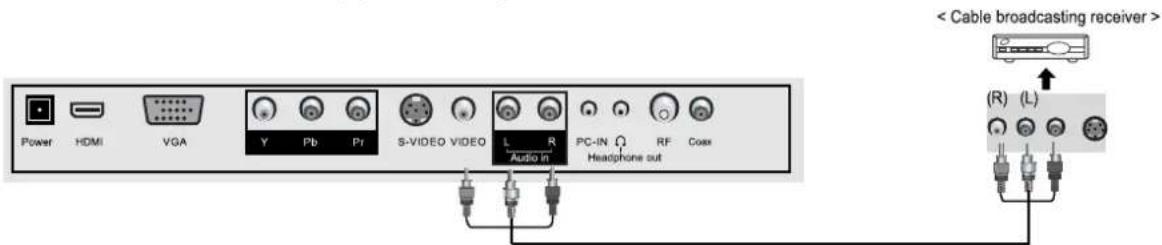
Composite Cable
- Connect LCD TV's Composite In terminal to the cable broadcasting receiver Composite Out terminal using the Composite cable. (Make sure the colour of the terminals and the colour of the cables are the same)
- Connecting to the S-Video terminal
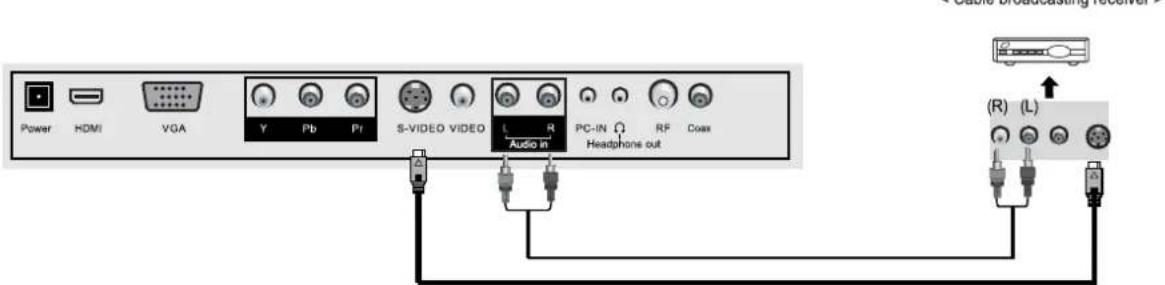
- Use the S-Video cable for higher picture quality.
S-Video Cable
- Connecting to the HDMI terminal

< Cable broadcasting receiver >
Watching Cable TV
- Turn on the LCD TV and press

on the remote control.
- Use

to move to "AV", press OK button to confirm.
- If S-Video has been connected, select "S-Video".
-
If HDMI has been connected, select "HDMI".
-
Turn on the broadcasting receiver and select the channel you wish to view.
DVD Connections
- Connecting to the Component terminal
- Connection terminals of other equipment differ by manufacture and model.

- Connect LCD TV's Y, Pb, Pr terminal to DVD's Video Out terminal using the external cable
- Connect LCD TV's Audio terminals (left & right) to DVD's Audio Out terminal using the Audio cable.
- It must match the component connection cable Y, Pb, Pr between the LCD TV and DVD Player.
- Connecting to the S-Video terminal
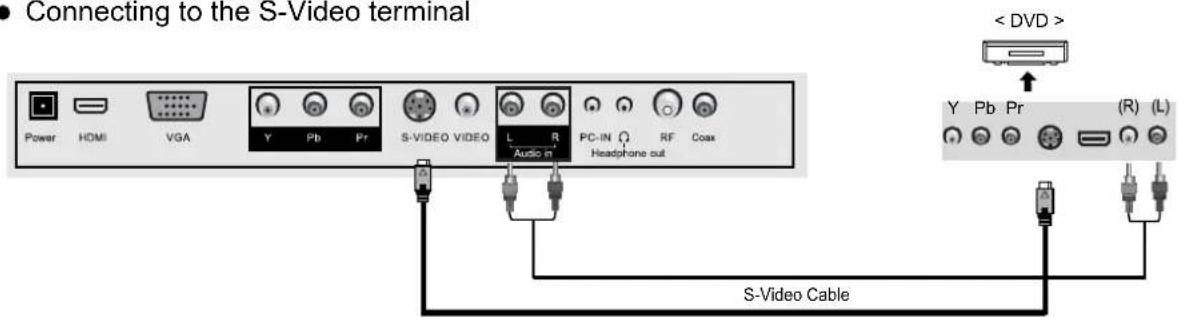
- S-Video cable an be used if there is an S-Video terminal.
- Connecting to the HDMI terminal

- Connecting from HDMI terminal to HDMI terminal.
Playing the DVD
- Turn on the LCD TV and press

on the remote control.
- Use

to move to "Component", press OK button to confirm.
- If S-Video has been connected, select "S-Video".
-
If HDMI has been connected, select "HDMI".
-
Turn on the DVD, insert the DVD disc and press Play button.
PC Connections
- Connection terminal of other equipment differ by manufacture and model.
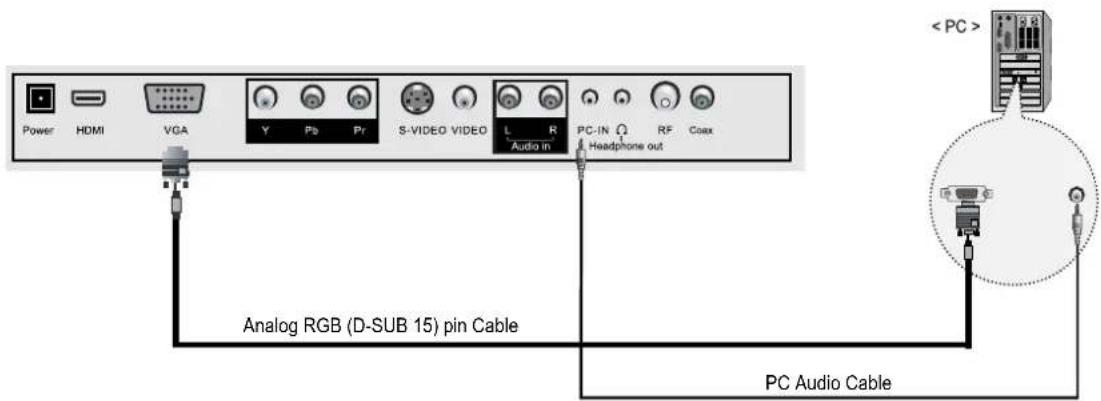
- Connect LCD TV's PC Input terminals to PC's RGB terminal using the D-Sub cable.
- Connect LCD TV's PC Audio terminal to PC's Audio terminal using the Audio cable. (Only for PC's with Audio terminal)
How to Use as PC Monitor
- Turn on the LCD TV and press

on the remote control.
- Use ▲ ▼ to move to "VGA", press OK button to confirm.
Headphone Connections
- Connecting to the Headphone
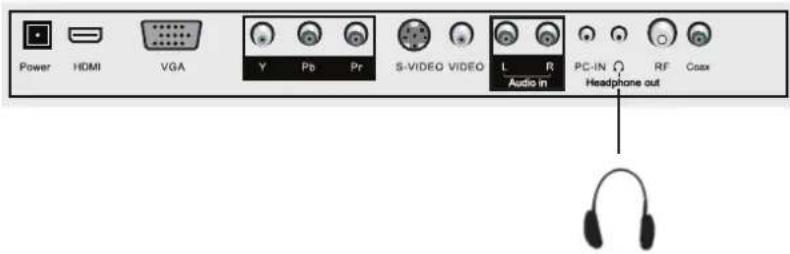
Digital Amplifier Connections
- Connecting to the Digital Amplifier
- Connection terminals of other equipment differ by manufacture and model.

Power the LCD TV
- Power on/off
- To turn the LCD TV on: Press "POWER" button on the LCD TV.
- To turn the LCD TV off: Press "POWER" button on the LCD TV.
- To turn on/off by remote control: Press the 🔒 button on remote control.
Selecting Input Source
- You can select between the TV signal and the input signal of other equipment connected to the TV. - Use this function to switch to the input source you wish to view.
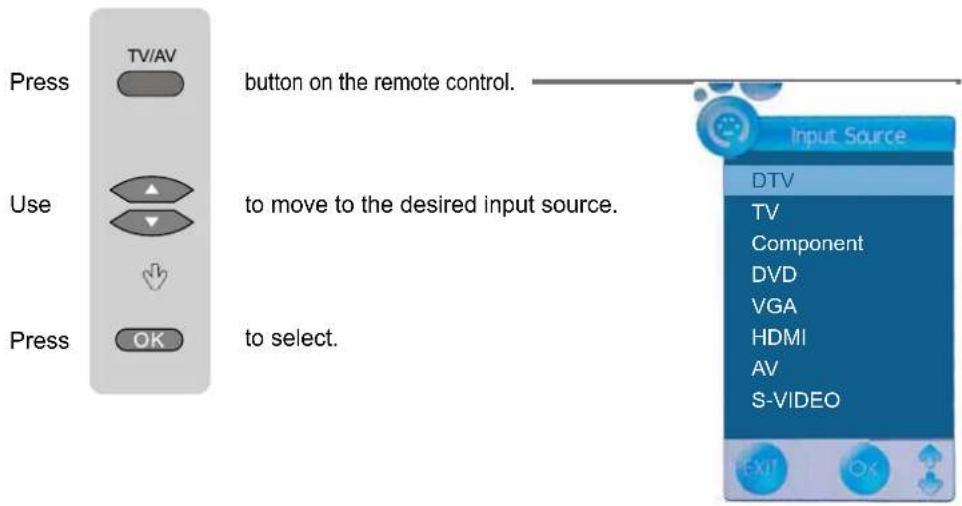
Operating the Menu
- Press the POWER button to turn the LCD TV on.
- Press the TV-MENU button on the remote control, the on screen menu will appear.
- Use the ◀ and ▶ buttons to select your main menu option.
PICTURE MENU:
Allows you to make adjustments to your picture settings.
(Select TV source for example)
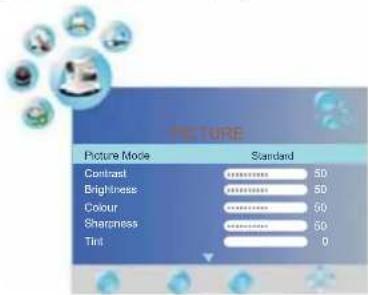
SOUND MENU:
Allows you to customize the sound options and effects.
(Select TV source for example)

TIMER MENU:
Allows you to set up a variety of timer options.
(Select TV source)

OPTION MENU:
Allows you to setup a variety of setup options.
(Select TV source)

LOCK MENU:
Allows you to set up a variety of lock options.
(Select TV source)

CHANNEL MENU:
Allows you to search channels and set up a variety of channel options.
(Select TV source)
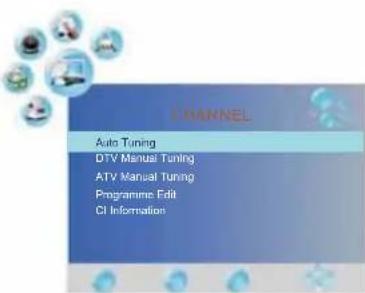
- Use the ▼ /▲ buttons to select an option of the sub-menu, and press the ▶ button.
While in adjusting mode, use the ◀ / ▶ to change the value of the item.
- Press the EXIT button to exit the menu.
Note:
Only when you input the suitable signal, the relevant items can be activated.
Customizing the PICTURE Settings

natural_image
Circular icon set with medical equipment icons (no text or symbols)PICTURE PICTURE
| Picture Mode Standard | |
| Contrast | 50 |
| Brightness | 50 |
| Colour | 50 |
| Sharpness | 50 |
| Tint | 0 |

natural_image
Circular icon set with medical equipment icons (no text or symbols)| Color Temperature | Medium |
| Red | 50 |
| Green | 50 |
| Blue | 50 |
| Aspect Ratio | 16:9 |
| Noise Reduction | On |
Use the ◀ and ▶ buttons to select the PICTURE menu (as the picture above), press ▼ button to enter the menu.
The PICTURE menu includes the following options :
| Picture Mode | Cycles among picture display modes: Standard, Dynamic, Soft, Personal. |
| Contrast | Controls the difference between the brightest and darkest regions of the picture. |
| Brightness | Controls the overall brightness of the picture. |
| Colour | Control the colour. |
| Sharpness | Increase this setting to see crisp edges in the picture; decrease it for soft edges. |
| Tint | Controls the tint. |
| Color Temperature | Cycles among colour modes: User,Warm, Medium, User.When you select “User” mode, you could adjust the colours below (Red, Green, Blue) by yourself. |
| Aspect Ratio | Cycles among screen display modes: Auto, 4:3, 16:9, Zoom1, Zoom2. |
| Noise Reduction | Reduce the noise point of the picture when you turn on the function by selecting “On”. |
| Screen (only exist in PC-RGB mode)Press ▶ button to enter the submenu to adjust the picture of the screen. | |
Customizing the SOUND Settings

Use the ◀ and ▶ buttons to select the SOUND menu (as the picture above), press ▼ button to enter the menu.
The SOUND menu includes the following options :
| Sound Mode | Allows you to select among: Standard, Music, Movie, Sports and Personal. |
| Treble (Could be adjusted when the sound mode is User)Controls the relative intensity of higher pitched sounds. | |
| Bass (Could be adjusted when the sound mode is User)Controls the relative intensity of lower pitched sounds. | |
| Balance | To adjust the balance of the left and right sound track, or turn off the volume of the left and right sound track. |
| Auto Volume | Control the volume of the program automatically when you turn on the function by selecting “On”. |
| Surround Sound | Turn on/off the surround sound function by selecting “on”/“off”. |
Customizing the TIMER Settings
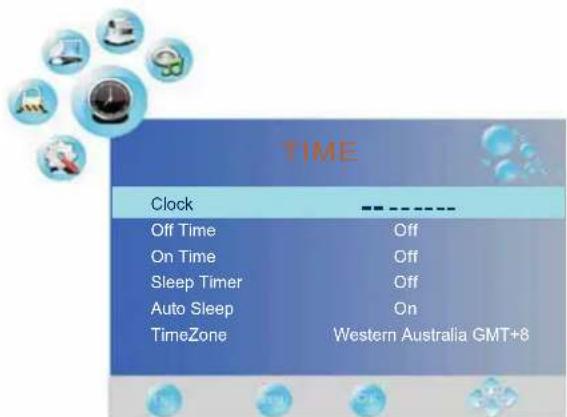
Use the ◀ and ▶ buttons to select the TIMER menu (as the picture above), press ▼ button to enter the menu.
The TIMER menu includes the following options :
| Clock | Use the ◀ and ▶buttons to select the position, and use the ▼and ▲button to set the time. |
| Off Time | Press ▶ button to enter the submenu, you could set the time when the TV set will be turned off automatically, you could also set the frequency. |
| On Time | Press ▶ button to enter the submenu, you could set the time when the TV set will be turned on automatically, you could also set the frequency, volume and program. |
| Sleep Timer | Allows you to setup the sleep timer among: 5min, 10min, 15min, 30min, 45min, 60min, 90min, 120min, 180min, 240min and off. |
| Auto Sleep | Turn on/off the auto sleep function. |
| TimeZone | Allows you to select the time zone. |
Customizing the SETUP Settings

natural_image
Collection of circular icons representing various office or technology services, including computer, laptop, and gear (no text or symbols)OPTION
Language
English
Audio Language
English
Subtitle Language
English
Country
Australia
Use the ◀ and ▶ buttons to select the OPTION menu (as the picture above), press ▼ button to enter the menu.
The SETUP menu includes the following options:
| Language | Allows you to select menu language. |
| Audio Language (Could be selected in TV mode) Allows you to select audio language. | |
| Subtitle Language (Could be selected in TV mode) Allows you to select subtitle language. | |
| Country | Display the current Country. |
| Restore Factory Default | Press ▶ button to restore factory default. |
Customizing the LOCK Settings
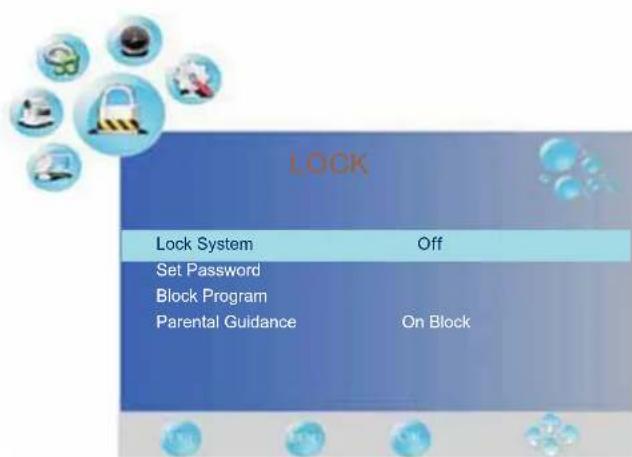
Use the ◀ and ▶ buttons to select the LOCK menu (as the picture above), press ▼ button to enter the menu.
Note: You should enter the code to operate the menu.(original code is 0000)
The LOCK menu includes the following options :
| Lock System | Allows you to turn on or off the system lock. | |
| Set Password | Press ▶ button to enter the submenu, and you could change the password here. | |
| Block Program | Press ▶ button to enter the submenu as the right picture, select a program, and press GREEN button to block it. |  |
| Parental Guidance | Cycles among block modes: Block R and Above, Block AV and Above, Block MA and Above, Block M andAbove, Block PG and Above, Block G and Above, Block All and No Block. | |
Customizing the CHANNEL Settings

Use the ◀ and ▶ buttons to select the CHANNEL menu (as the picture above), press▼ button to enter the menu.
The CHANNEL menu includes the following options :
| Auto Tuning | Press ▶ button to start auto tuning (It contains ATV and DTV signals) | |
| DTV Manual Tuning | Press ▶ button to enter the submenu. Press ◀ or ▶ button to select a channel and press OK button to start search. | 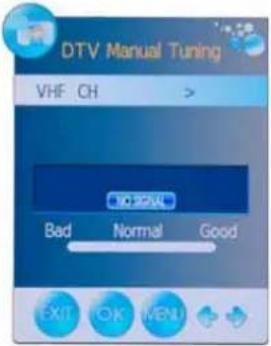 |
| ATV Manual Tuning | Press ▶ button to enter the submenu. | |
| Storage To Current CH Search Fine-Tune Skip Frequency | Select a position to store the program. Select a program you want to tuning. Press ◀ and ▶ buttons to manual search. Press ◀ and ▶ buttons to fine-tune. Select “Yes” to skip the program when you scan the programs by CH+/- Display the current channel's frequency. |  |
| Press RED button to save all the setups you have changed. | ||
Customizing the CHANNEL Settings
Program Edit: Press ▶ button to enter the submenu as the following picture.

Delete: Select a program, and press RED button to delete the program.
Rename: Select a program, and press GREEN button, then you could use ◀ and ▶ buttons to select the position of the program's name you want to change, and press ▼ and ▲ buttons to change the character, press ◀ or ▶ button to confirm the change.
Move: Select a program, and press YELLOW button, then you could use ▼ and ▲ buttons to change the position of the program, press YELLOW again to confirm the change.
Skip: Slect a program, and press BLUE button to sign the program, while the program have been signed, it will be skipped when you scan programs by CH+/-.
FAV: Select a program, press FAV button to set the program as the favorite channel.
Note: The function of "RENAME" and "MOVE" could not be used in DTV source.
DVD Operation
Press the Power button on the TV or the remote control, then press the TV/AV button to select DVD mode. If there is no disc in the DVD player the screen will show "NO DISC".
Place a disc
Insert Disc according to picture next to disc slot.
Do not touch the playing surface.
Hold the disc around the outside with your fingers and place the disc into the slot. The player will automatically draw the disc into the player.
To "Eject" the disc, press the "▲" button on the TV or the AUTO EJECT button on the remote control.
Play
The contents of each disc vary, as to how the disc was authored and what features are included. Some discs start playing as soon as they have been read, some need "Play" selecting in the Menu. Different play modes are offered, such as Menu Play, Sequence Play and other modes.
Menu Play
- Compatible with DVD, SVCD or VCD2.0.
- If the disc is a DVD, ROOT MENU will appear on the screen. If it is SVCD or VCD 2.0, please press the Menu button to see the menu.
- When a DVD disc is loaded, press the Arrows buttons to highlight the menu item you want to choose. With SVCD or VCD 2.0, press the numeric buttons to select a track to play.
- Press ENTER or Play to start when highlighted.
- Return to Menu when Playing: When playing a DVD disc press the Menu button to return to the "ROOT" menu. When playing a SVCD or VCD, and PBC is "on" press the Menu or Return button to return to the disc menu.
Title Play
- Compatible with DVD discs only.
- During DVD playback, press Title button to display the DVD title content.
- Press the Arrow buttons to highlight the title you want to choose, and press Enter; also you can press numeric buttons to choose.
- The DVD player begins with the chapter 1 of the chosen title.
Sequence Play
- Compatible with DVD, SVCD, VCD, CD, HD-CD, WMA, Digital Audio disc / JPEG discs.
- When a SVCD or VCD disc is loaded and PCB is "on", press the MENU button once switches the PBC "off". The player can now playback in sequence mode. To turn the PBC back on press the MENU button again.
- Except for SVCD or VCD discs, when in stop state, press the Play button, the player will play in the "Sequence" mode. This is for all compatible discs.
Program Play
- Compatible with DVD, SVCD, VCD, CD, HD-CD, WMA, Digital Audio disc / JPEG discs.
- The Program Playback option allows you to enter the order in which you want chapters or tracks to play, maximum to 16.
- Program Menu: If PBC is on, this operation will turn PBC off while the chapters / tracks play in programmed order.
- According to the highlight, use the Numeric buttons to enter the chapters / tracks in the order you want them to play. Then press Play or use Arrow buttons to highlight the "PLAY" item and press Enter. The chapters / tracks will play in the programmed order. You can program maximum 16 titles / chapters / tracks.
DVD Operation
- According to the Direction Indicator on the menu, you can press Arrow buttons to highlight where you want to enter.
- During Program Playback, if program button is repressed, the program order and the contents will be displayed on the screen, and the Program Playback will be stopped; also you can press Stop and Play to resume normal playback.
- Notes:
To clear the program order, use Arrow buttons to highlight the "CLEAR" item, then press Enter. To modify the program order, use Arrow buttons to highlight the item you are changing and enter the new chapter / track you want to program directly. - The program indicator in the screen and the playing chapter / track illuminate.
Additional operation
Selecting Tracks
- Compatible with DVD, SVCD, VCD, CD, HD-CD, WMA, Digital Audio disc / JPEG discs.
- When playing a DVD disc, press Numeric buttons on the menu or title page to select tracks; During DVD playback, you can input desired title numbers directly.
- During sequence playback of a SVCD or VCD disk, press the numeric buttons to select tracks. (During Program Playback and when the PBC is on, you can only press Prev / Next button to select)
- As for CD, HD-CD, discs, press Numeric buttons directly to select tracks.
- When playing WMA, Digital Audio disc / JPEG discs, press Numeric buttons to select different tracks on current track list.
Skipping Tracks
- Compatible with DVD, SVCD, VCD, CD, HD-CD, WMA, Digital Audio disc / JPEG discs.
- To skip forward to the beginning of the next title / chapter / track on a disc, press Next on the remote or the right side of the player.
- To skip backward to the beginning of the preceding title / chapter/track on a disc, press Prev on the remote or the right side of the player.
Multispeed Fast/Slow Motion Play
- Compatible with DVD, SVCD, VCD, CD, HD-CD, WMA, Digital Audio disc / JPEG discs.
- Press the Multispeed Fast/Slow button on the remote during play to search through a disc. Multispeed Fast/Slow has four speeds: x2, x4, x8, x20. With each consecutive press of the button, the search speed increases. If you press the button five times, Fast Multispeed Fast/Slow cycles back to normal play.
- During DVD play, when Multispeed Fast/Slow gets to the beginning of the next title / chapter, it resumes normal play; During SVCD or VCD play with PBC on, when Fast Forward Play gets to the beginning of the next track, it resumes normal play.
Multiphase Slow Motion Play
- Compatible with DVD, SVCD, VCD, CD, HD-CD, WMA, Digital Audio disc / JPEG discs.
- Multiphase Slow has six speeds: 1/2, 1/3, 1/4, 1/5, 1/6, 1/7 of the normal Speed play when pressing the "Slow" button consecutively when playing discs.
- When you press Play or the "Slow" button 7 times the player returns to normal play.
Freeze Frame
- Compatible with DVD, SVCD, VCD, CD, HD-CD, WMA, Digital Audio disc / JPEG discs.
- During CD, HD-CD, WMA or Digital Audio disc / JPEG playback, press Pause once to freeze playback; Press Play button to resume normal playback.
Using the Repeat Feature
- Compatible with DVD, SVCD, VCD, CD, HD-CD, WMA, Digital Audio disc / JPEG discs.
DVD Operation
- While a disc is playing, press Repeat button once and the repeat banner appears to show current repeat mode.
a) In SVCD, VCD, CD, HD-CD, WMA or Digital Audio disc/JPEG sequence playback mode. Press Repeat button again to turn on repeat mode. Press the button again on the remote to turn to the next repeat mode. There are three repeat options: Off, Track Repeat and Disc Repeat. With each consecutive press of the button, the repeat mode switches. If you press the button four times, repeat mode cycles back to Off.
b) In DVD playback, press Repeat button again to turn on repeat mode. There are three repeat options Off, Chapter Repeat and Title Repeat. With each consecutive press of the button, the repeat mode switches. If you press the button four times, repeat mode cycles back to Off.
c) In WMA, Digital Audio disc /JPEG playback, press Repeat button again to turn on repeat mode There are four repeat options: Off, Track Repeat, Directory Repeat, and Disc Repeat. With each consecutive press of the button, the repeat mode switches. If you press the button five times, repeat mode cycles back to Off.
Using the Display Feature
- Compatible with DVD, SVCD, VCD, CD, HD-CD, WMA, Digital Audio disc discs.
- Loading and playing DVDs (two pages)
- Press DISPLAY button once to show the first page:
- "Disc Type, Title */ * (the playing title / total titles), Chapter */ * (the playing chapter / total chapters), Elapsed Time of the Disc".
- Press the button again to show the second page:
- "Language */* (the serial number of playing language / the amount of optional languages) or Off, Language Type, Audio Type, Subtitle */ * (the serial number of playing subtitle / the amount of optional subtitles) or Off, Angle */ * (the serial number of playing angle / the amount of optional angles) or Off".
-
Press the button for the third time, the display menu fades out.
-
Loading and playing SVCD discs (two pages)
- Press Display button once to show the first page:
- "Disc Type, Track */ * (the playing track / total tracks), Mute, PBC, Repeat Mode, Elapsed Time of the Playing Track".
- Press the button again to show the second page:
- "Language * / * (the serial number of playing language/ the amount of optional languages) or Off, Language Type, Audio Type, Subtitle * / * (the serial number of playing subtitle / the amount of optional subtitles) or Off".
- Press the button for the third time, the display menu fades out.
- Loading and playing VCD
- Press Display button once to show the first page:
- "Disc Type, Track */ * (the playing track / total tracks), Mute, PBC, Repeat Mode, Elapsed Time of the Playing Track".
- Press the button again, the display menu fades out.
- Loading and playing CD, HD-CD, WMA, Digital Audio / JPEG discs
- Press Display button once to show the first page:
- "Disc Type, Track */ * (the playing track / total tracks), Mute, Repeat Mode, Elapsed Time of the Playing Track".
- Press the button again, the display menu fades out.
Using the Search Feature
- Compatible with DVD, SVCD, VCD, CD, HD-CD discs.
- You can use Search feature to select a title/ chapter/track number or go to a specific point in a title. First, press GOTO button on the remote controller to bring up the search menu and enter the edit state. Secondly, press Arrow buttons to highlight the title / chapter/ track number or the time option; Thirdly, use Numeric buttons to enter the title / chapter/ track you want to play or the elapsed time you want to go to in that title. At last, press ENTER button to start playback.
For example, entering 01:23:56 will start playback one hour, twenty-three minutes and fifty-six seconds into the title.
3. Notes
a) This feature does not work in Program Play mode.
b) If PBC is on, it will turn off automatically when Search Playback starts.
c) When playing WMA, MP3 / JPEG discs, Search Feature does not work.
Changing the Sound track or Language
- Compatible with DVD SVCD, VCD, CD, HD-CD, WMA, Digital Audio disc /JPEG discs.
- Press the LANGUAGE button to display current sound track.
a) Press the button to switch sound tracks.
b) Press the button again on the remote to turn to next sound track. - When playing a SVCD or VCD disc, there are five sound tracks: Stereo (L/R), L/L, R/R, L/LAutoA/D Detect, and R/RAutoA/D Detect. With each consecutive press of the button, the sound track switches. If you press the button six times, sound track cycles back to Stereo.
- When playing a CD, HD-CD, WMA, Digital Audio disc, there are three: Stereo (L/R), L/L, and R/R.
- When playing a DVD or SVCD disc, press LANGUAGE button to display current language, press the button again to turn to next language if the disc has different languages.
Subtitles
- Compatible with DVD, SVCD discs.
- Press the Subtitle button on the remote once, and the subtitle info banner appears.
- When a DVD or SVCD is recorded with subtitles, you can use the Subtitle feature to view the subtitles on-screen. By default, subtitles are off. The info banner will display Subtitle Off.
- To display subtitles, press the Subtitle button again. The default language with its responding serial number will be displayed in the info banner and subtitles will be displayed in that language. There are 8 supported subtitles: Chinese, English, Japanese, French, Spanish, Portuguese, Germany and Latin. With each consecutive press of the Subtitle button, the subtitle switches.
For example, "Language Icon: [1 English DTS 6CH] or [Off]" (the availability of the subtitles are disc-dependent). To turn subtitles off, press the Subtitle button until Subtitle Off is displayed.
Mute the Audio Output
- Compatible with DVD, SVCD, VCD, CD, HD-CD, WMA, Digital Audio disc / JPEG discs.
- Pressing the Mute button allows you to reduce sound to an inaudible level, and the icon of "MUTE" will be displayed on screen. Press the button again or press the Vol +/- button to return to the normal condition.
- If the player has no sound, check that the "Mute" is not on.
Zoom In the Video Image
- Compatible with DVD, SVCD, VCD, JPEG discs.
- The Zoom Function allows you to enlarge the video image.
- Press Zoom repeatedly to activate the function and choose the required zoom factor: Zoom 1, Zoom 2, Zoom 3, Zoom 4, Zoom 1/2, Zoom 1/3, Zoom 1/4, Zoom Off.
Repeat a Specific Segment on the Disc that You Define
- Compatible with DVD, SVCD, VCD, CD, HD-CD, WMA, Digital Audio disc.
- During normal or fast playback, press the A-B button once. REPEAT "A" appears on the screen. This indicates the start point of the loop.
- Press A-B again, REPEAT A-B will be shown, this indicates the end point of the loop.
- The segment will now be repeated until you press the "REPEAT" button again to turn off the feature.
- Press A-B again to cancel the loop points.
- When playing a SVCD, VCD, or CD disc, you can repeat a specific segment only in one track. When the next track begins, A-B Repeat turns off automatically.
- When playing a DVD disc, you can repeat a specific segment only in one title.
Digital Audio Disc
- Compatible with Digital Audio discs
- The player will search the disc directory automatically and display the contents on screen.
DVD Operation
- The player will then start to play the first track, of the selected directory.
- To change directories use the direction buttons.
DVD System Operation
System operation will define the setting of the set; these definitions will be stored until you change them again.
General Steps of Setup Menu
- Pause or Stop the player. Press DVD SETUP on the remote control. The main menu will be shown as below.

- Press the ↑/↓ buttons to select the Icon of the desired section, e.g. "TV System" and press ⇒ button to open that section.
- Press ↑ / ↓ to select the desired feature and again press ⇒ button to open that section.
- Press ↑ / ↓ to select the desired feature and then press "OK" to select the new setting.
- To exit the menu, press "DVD SETUP" or ↓ to select EXIT SETUP and then press "OK" When launching the setup routine, the pressing of the following buttons will turn off the setup menu, while the choices that have been changed will be saved.
Menu specification
1. SYSTEM SETUP
The system setup options are illustrated below:
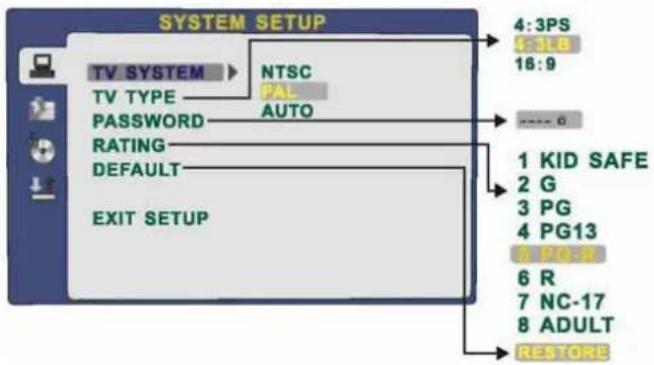
TV SYSTEM
According to the Colour system of your TV, select proper TV TYPE. PASSWORD
The password option is initialized as locked. You cannot set the ratings limit or change the password. To enable these features you must unlock the Password. The default password is "0000". Using the ↑/↓ button, move the highlight to "PASSWORD", press the ⇒ button and enter "0000". You will see the padlock symbol open. You may now change the RATING or put in a new password number. If the Lock symbol is BLUE you must press the ⇒ button to enter the lock field, the lock symbol will change to YELLOW, you may now enter a new 4 digit number. Please remember or write down the new Password and keep safe.
DVD Operation
RATING
The Rating feature is a rating limit feature, like movie ratings. This helps you to control what DVD the family watches. There are 8 levels of selection, from KIDS SAFE to ADULT. Adult is the "play all" selection.
2. LANGUAGE SETUP
The language setup options are illustrated below:
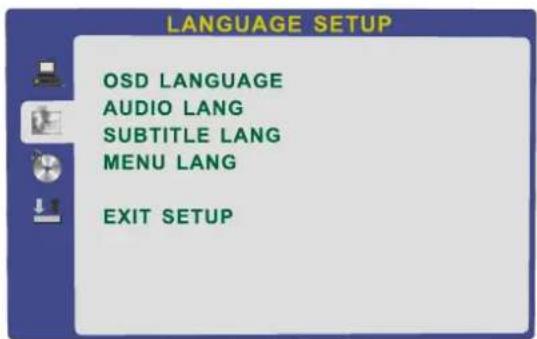
- OSD LANGUAGE: The OSD will display in the language you choose.
-AUDIO LANG: If the disc you are playing has the language you choose, it will output audio in that language. - SUBTITLE LANG: If the disc you are playing has the language you require you may select this either in the Menu or using the "SUBTITLE" button on the Remote control. You may also switch this OFF.
- MENU LANG: If the disc you are playing has the language you require you may select this.
3. AUDIO SETUP
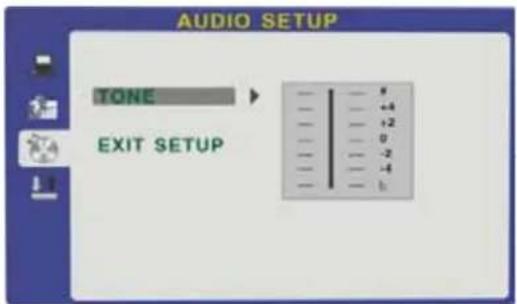
-TONE: Use the ↑/↓ button to move the scroll and adjust the tone.
4. DIGITAL SETUP
The video setup options are illustrated below:
- DYNAMIC RANGE: Use the ↑ /↓ button to move the scroll and adjust the dynamic range.
- DUAL MONO: Choose the mode of the audio output.
-There are four modes: STEREO, MONO L, MONO R, MIX MONO.

Disc Care
Disc Care
About Disc Terms
Title
Generally, pictures or music compressed on a DVD are divided into several sections, "title".
Chapter
The smaller section unit of picture or music in a DVD under the title, usually one title is comprised of one or more chapters and each of them is numbered for easy searching, but some discs may not have a recording chapter.
Track
A segment of picture or music on a CD, Each track is numbered for searching.
Care of Disc
Video disc contains high-density compressed data that needs proper handling.
- Hold the disc with fingers by outer edge and/or the centre spindle hole. Do not touch the discs surface.
- Do not bend or press the disc.



- Do not expose the disc to direct sunlight or heating sources, Store discs in cabinet vertically, and in dry condition.
Prevent exposure to:
Direct sunlight
Heat or exhaust from a heating device
Extreme humidity
Clean the disc surface with a soft, dry cleaning cloth, Wipe the disc surface gently and radically from centre toward the outer edge.
Do not apply thinner, alcohol, chemical solvent, or sprays when cleaning. Such cleaning fluids will permanently damage the disc surface.
Trouble shooting
- Do not use other functions that are not mentioned in this user's manual.
- In case a problem occurs with your LCD TV, please take the following steps first.
- If you still have the problem, turn the power off and contact your dealer or an authorized service centre.
| ActionProblem | |
| The screen does not appear. | Is the power plug pulled out? Insert the power plug.Press the power button of the remote control. |
| The screen appears too slowly after the power is turned on. | This problem occurs for a brief time in the process of image elimination processing in order to hide temporary screen noise that occurs when the power is turned on. But if the screen does not come after 1 minute contact your dealer or an authorized service centre. |
| Screen is too bright or too dark | Perform brightness adjustment or Contrast adjustment. |
| Screen is too large or too small | Adjust the screen size. |
| Stripes appear on the screen and it shakes. | Stop using wireless telephones, hair driers and electric drills. |
| The screen does not move | Press the PAUSE button. Check if the Pause button is pressed on external equipment. |
| Screen appears, Voice is not heard | 1. Press the "MUTE" button.2. Increase the sound level by pressing volume adjustment button.3. Check if sound terminal of external input is connected properly.4. Check if audio cables are connected properly.5. Select and check the other input.If the sound still does not work and the other channels are the same after you have done as the above, contact your dealer or an authorized service centre. |
| Remote control does not work | 1. Check if main power is On.2. Check that the batteries of the remote controller were loaded properly.3. Check to see if any obstacle exists between the LCD TV and the remote control, then remove it, if any.4. If the batteries have no power, replace them with two new batteries. |
- This LCD TV is for household use and registered as harmless on electromagnetic waves.
- Therefore, you can use it in every location as well as residential areas.
Specifications
| LCD Panel | Panel Size | 15.4" TFT LCD |
| Brightness | 180 | |
| Contrast Ratio | 400:1 | |
| Max. Resolution | 1440 x 900 | |
| Input Connector | VIDEO | 1 |
| S-VIDEO | 1 | |
| YPbPr | 1 | |
| AUDIO (L/R) | 1 | |
| PC/AUDIO(L/R) | 1 | |
| HDMI | 1 | |
| RF | 1 | |
| Output Connector | HEADPHONE | 1 |
| COAX | 1 | |
| Power Source | DC 12V 5A | |
| Power Consumption | 60W | |
- The cabinet design and electronics specifications will be modified without prior notice for improving the performance.
PALSONIC CORPORATION PTY LTD
1 JOYNTON AVENUE
WATERLOO NSW 2017 AUSTRALIA
TEL: (02) 9313 7111
FAX: (02) 9313 7555
www.palsonic.com.au
PALSONIC CUSTOMER SERVICE
TELEPHONE
AUSTRALIA: 1300 657 888
- Safety Precautions
- User Guidance Information
- Connection
- Basic Use
- Application
- Maintenance and Service
- Power Supply
- Warnings
- Cautions
- Installation
- ⚠️Warnings
- Use and Maintenance
- Important Safety Instructions
- Warnings and Precautions
- WARNING
- Caution:
- Names of each part
- Front View
- Accessories
- Power Connecting
- Mounting on a Desktop
- Installation Precautions
- Wall Mounting
- Using the Stand
- Installing an Antenna
- Remote Control
- POWER
- Buttons for TELETEXT operating
- TV/TXT
- Buttons for Basic operating TV-MENU
- TV/AV
- CH+/-
- VOL+/-
- DTV
- DVD-SETUP
- EXIT
- DISPLAY
- THUMBSTICK(▲/▼/◄/►/OK)
- NUMBER BUTTONS
- PICTURE
- SOUND
- NICAM/A2
- MUTE
- SLEEP
- INFO
- SUBTITLE
- CHANNEL LIST
- EPG
- TV/RADIO
- FAV
- Buttons for DVD operating
- LANGUAGE
- ZOOM
- MENU (PBC)
- ANGLE
- TITLE
- GOTO
- PROGRAM
- SLOW
- REPEAT
- A-B
- Precautions
- Avoiding Remote Control Problems
- Inserting Batteries in the Remote Control
- How to use remote control
- VCR Connections
- Watching Video Tape
- Satellite/ Cable TV Set-Top Box Connections
- Watching Cable TV
- DVD Connections
- Playing the DVD
- PC Connections
- How to Use as PC Monitor
- Headphone Connections
- Digital Amplifier Connections
- Power the LCD TV
- Selecting Input Source
- Operating the Menu
- PICTURE MENU:
- SOUND MENU:
- TIMER MENU:
- OPTION MENU:
- LOCK MENU:
- CHANNEL MENU:
- Note:
- Customizing the PICTURE Settings
- Customizing the SOUND Settings
- Customizing the TIMER Settings
- Customizing the SETUP Settings
- OPTION
- Customizing the LOCK Settings
- Customizing the CHANNEL Settings
- DVD Operation
- Place a disc
- Play
- Menu Play
- Title Play
- Sequence Play
- Program Play
- Additional operation
- Selecting Tracks
- Skipping Tracks
- Multispeed Fast/Slow Motion Play
- Multiphase Slow Motion Play
- Freeze Frame
- Using the Repeat Feature
- Using the Display Feature
- Using the Search Feature
- Notes
- Changing the Sound track or Language
- Subtitles
- Mute the Audio Output
- Zoom In the Video Image
- Repeat a Specific Segment on the Disc that You Define
- Digital Audio Disc
- DVD System Operation
- General Steps of Setup Menu
- Menu specification
- SYSTEM SETUP
- TV SYSTEM
- RATING
- LANGUAGE SETUP
- AUDIO SETUP
- DIGITAL SETUP
- Disc Care
- About Disc Terms
- Chapter
- Track
- Care of Disc
- Trouble shooting
Brand : Palsonic
Model : TFTV3839DT
Category : Television