TFTV535WS - Television Palsonic - Free user manual and instructions
Find the device manual for free TFTV535WS Palsonic in PDF.


User questions about TFTV535WS Palsonic
0 question about this device. Answer the ones you know or ask your own.
Ask a new question about this device
Download the instructions for your Television in PDF format for free! Find your manual TFTV535WS - Palsonic and take your electronic device back in hand. On this page are published all the documents necessary for the use of your device. TFTV535WS by Palsonic.
USER MANUAL TFTV535WS Palsonic
WATERLOO NSW 2017 AUSTRALIA
TEL: (02) 9313 7111
FAX: (02) 9313 7555
www.palsonic.com.au
PALSONIC CUSTOMER SERVICE
TELEPHONE
AUSTRALIA: 1300 657 888
Important Information .... 1
Important Safety Precautions 2
Preparations 5
Identification of Controls 7
Connections 10
Turning the Unit On and Off 14
Memorising the Channels 15
Basic Operations 17
Setting Picture 18
Adjusting Image in D-Sub mode 19
Setting Sound 20
Other Functions 21
Troubleshooting 22
Care and Maintenance 23
Specifications 24
WARNING: TO REDUCE THE RISK OF OR ELECTRIC SHOCK, DO NOT EXPOSE THIS APPARATUS TO RAIN OR MOISTURE.

text_image
CAUTION RISK OF ELECTRICAL SHOCK DO NOT OPEN CAUTION - To reduce the risk of electric shock, do not perform any servicing other than that contained in the operating instructions unless you are qualified to do so.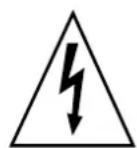
The lightning flash with arrowhead symbol, within an equilateral triangle is intended to alert the user to the presence of insinuated dangerous voltage within the product's enclosure that may be of sufficient magnitude to constitute a risk of electric shock to persons.

The exclamation point within an equilateral triangle is intended to alert the user to the presence of ,important operating and maintenance (servicing) instructions in the literature accompanying the appliance.
Note to CATV system installer: This reminder is provided to call the CATV system installer's attention to Article 820-40 of the National Electrical Code that provides guidelines for proper grounding and, in particular, specifies that the cable ground shall be connected to the grounding system of the building, as close to the point of cable entry as practical. (America only)
This product utilises tin-lead solder, and fluorescent lamp containing a small amount of mercury. Disposal of these materials may be regulated due to environmental considerations. For disposal or recycling information, please contact your local authorities or the Electronic Industries Alliance: www.eia.org (America only)
FCC STATEMENT (America only)
FCC Notice
LCD TV: A CLASS B digital device
This equipment has been tested and found to comply with the limits for a Class digital device, pursuant to part 15 of the FCC Rules. These limits are designed to provide reasonable protection against harmful interference when the equipment is operated in a commercial environment.
This equipment generates, uses, and can radiate radio frequency energy and, if not installed and used in accordance with the instruction manual, may cause harmful interference to radio communications. Operation of this equipment in a residential area is likely to cause harmful interference in which case the user will be required to correct the interference at his own expense.
FCC CAUTION:
Pursuant to 47CFR, Part 15.21 of the FCC rules, any changes or modifications to this monitor not expressly approved by the manufacturer could cause harmful interference and would void the user's authority to operate this device.
WARNING: This is a CLASS B product. In a domestic environment this product may cause radio interference in which case the user may be required to take adequate measures to counter interference.
Electrical energy can perform many useful functions, but it can also cause personal injuries and property damage if improperly handled. This product has been engineered and manufactured with the highest priority on safety. But IMPROPER USE CAN RESULT IN POTENTIAL ELECTRICAL SHOCK OR FIRE HAZARD. In order to prevent potential danger, please observe the following instructions when installing, operating and cleaning the product. To ensure your safety and prolong the service life of your PDP TV product, please read the following precautions carefully before using the product.
- Read these instructions---All operating instructions must be read and understood before the product is operated.
- Keep these instructions---These safety and operating instructions must be kept in a safe place for future reference.
- Heed all warnings---All warnings on the product and in the instructions must be observed closely.
- Follow all instructions---All operating instructions must be followed.
- Do not use this apparatus near water---for example, near a bathtub, washbowl, kitchen sink, or laundry tub, in a wet basement, or near swimming pool, and the like.
Do not use immediately after moving from a low temperature to high temperature environment, as this causes condensation, which may result in fire, electric shock, or other hazards.

natural_image
Simple line drawing showing a no-smoking sign, a road with smoke, and a computer monitor (no text or symbols)- Clean only with dry cloth---Unplug this product from the wall outlet before cleaning. Do not use liquid cleaners or aerosol cleaners. Use a damp cloth for cleaning.

text_image
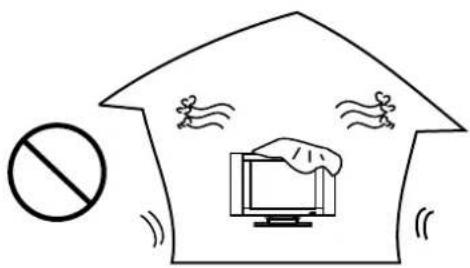
Illustration showing a medical worker cleaning a patient's face with a computer monitor and a device, indicating facial care or health advice.- Ventilation---Do not block any ventilation openings. Install in accordance with the manufacturer instructions. The vents and other openings in the cabinet are designed for ventilation. Do not cover or block these vents and openings since insufficient ventilation can cause overheating and/or shorten the life of the product. Do not place the product on a bed, sofa, rug or other similar surface, since they can block ventilation openings. This product is not designed for built-in installation; do not place the product in an enclosed place such as a bookcase or rack, unless proper ventilation is provided or the manufacturer's instructions are followed.
text_image
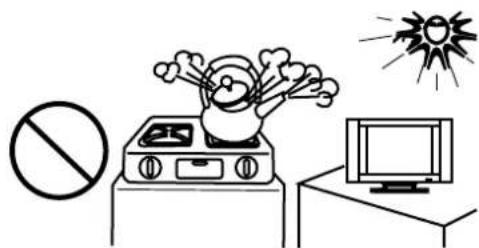
Diagram showing a house with a prohibition symbol, a computer monitor, and swimming gear, implying a social or environmental hazard.- Heat sources---Do not install near any heat sources such as radiators, heat registers, stoves, or other apparatus (including amplifiers) that produce heat.
text_image
Safety warning illustration showing a explosion incident on a stove, no explosion symbol, and a TV with a sunburst background.- Grounding or Polarisation---Do not defeat the safety purpose of the polarised or grounding-type plug. A polarised plug has two blades with one wider than the other. A grounding type plug has two blades and a third grounding prong. The wide blade or the third prong are provided for your safety. If the provided plug does not fit into your outlet, consult an electrician for replacement of the obsolete outlet. (America only)
- Power cord protection---Protect the power cord from being walked on or pinched particularly at plugs, convenience receptacles, and the point where they exit from the apparatus.
-
Attachments---Only use attachments/ accessories specified by the manufacturer. Do not use attachments not recommended by the manufacturer. Use of improper attachments can result in accidents.
-
Stand---Use only with the cart, stand, tripod, bracket, or table specified by the manufacturer, or sold with the apparatus. Do not place the product on an unstable trolley, stand, tripod or table. Placing the product on an unstable base can cause the product to fall, resulting in serious personal injuries as well as damage to the product. When mounting the product on a wall, be sure to follow the manufacturer's instructions. Use only the mounting by the hardware recommended manufacturer.

natural_image
Simple line drawing of a desktop with monitor, chair, and prohibition symbol (no text or labels)- Carefully move---When a cart is used, use caution when moving the cart/apparatus combination to avoid injury from tip-over. Sudden stops, excessive force and uneven floor surfaces can cause the product to fall from the trolley.

natural_image
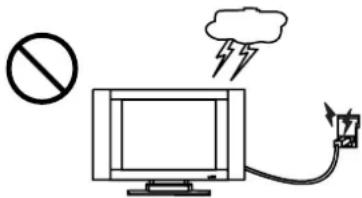
Silhouette of a person holding a large circle with a diagonal line, next to a small diagram (no text or symbols)- Lightning---Unplug this apparatus during lightning storms or when unused for long of periods time. For added protection for this television equipment during a lightning storm, or when it is left unattended and unused for long periods of time, unplug it from the wall outlet and disconnect the antenna. This will prevent damage to the equipment due to lightning and power-line surges.
text_image
Diagram showing a computer monitor connected to a power plug with a lightning bolt and no sign, indicating wireless power or monitoring setup.-
Servicing---Refer all servicing to qualified service personnel. Servicing is required when the apparatus has been damaged in any way, such as power-supply cord or plug is damaged, liquid has been spilled or objects have fallen into the apparatus, the apparatus has been exposed to rain or moisture, does not operate normally, or has been dropped.
-
Replacement parts---In case the product needs replacement parts, make sure that the service person uses replacement parts specified by the manufacturer, or those with the same characteristics and performance as the shock and/or original parts. Use of unauthorised parts can result in fire, electric other danger.
-
Overloading---Do not overload wall outlets, extension cords, or convenience receptacles on other equipment as this can result in a risk of fire or electric shock.
-
Entering of objects and liquids---Never insert an object into the product through vents or openings. High voltage flows and/or in the product, and inserting an object can cause electric shock short internal parts. For the same reason, do not spill water or liquid on the product.
-
Damage, requiring service---If any of the following conditions occurs unplug the power cord from the AC outlet, and repairs. request a qualified service person to perform
a. When the power cord or plug is damaged.
b. When a liquid is spilled on the product or when objects have fallen into the product.
c. When the product has been exposed to rain or water.
d. When the product does not operate properly as described in the operating instructions.
Do not touch the controls other than those described in the operating instructions. Improper adjustment of controls not described in the instructions can cause damage, which often requires extensive adjustment work by a qualified technician.
e. If the product has been dropped or the cabinet has been damaged in any way.
f. When the product displays an abnormal condition or exhibits a distinct change in performance. Any noticeable abnormality in the product indicates that the product needs servicing.
-
Safety checks---Upon completion of service or repair work, request the service technician to perform safety checks to ensure that the product is in proper operating condition.
-
Wall or ceiling mounting---When mounting the product on a wall or ceiling, be sure to install the product according to the method recommended by the manufacturer. This is a safety feature.
-
Power source---This product is intended to be supplied by a listed power supply indicated on the marking label. If you are not sure of the type of power supply to your home, consult your product dealer or local power company. For added protection for this product during a lightning storm, or when it is left unattended and unused for long periods of time, unplug it from the wall outlet and disconnect the cable system. This will prevent damage to the product due to lightning and power line surges. When the unit has to be used with another power supply voltage, the power cable must be changed. Consult your product dealer. The socket outlet should be installed near the equipment and easily accessible. Use only the power cord designated by our dealer to ensure safety and EMC. When connecting other products such as VCRs and personal computers, you should turn off the power of the unit for protection against electric shock.
-
Panel protection---The LCD panel used in this product is made of glass. Therefore, it can break when the product is dropped or impacted upon by other objects. Be careful not to be injured by broken glass pieces in case the LCD pa

text_image
aks.- Pixel defect---The LCD panel is a very high technology product, giving you finely detailed pictures. Occasionally, a few non-active pixels may appear on the screen as a fixed point of blue, green or red. Please note that this does not affect the performance of your product.
If an outside antenna is connected to the television equipment, be sure the antenna system is grounded so as to provide some protection against voltage surges and built-up static charges. Section 810 of the National Electrical Code provides information with respect to proper grounding of the mast and supporting structure, grounding of the lead-in wire to an antenna discharge unit, size of grounding conductors, location of antenna-discharge unit, connection to grounding electrodes, and requirements for the grounding electrode. (America only)
EXAMPLE OF ANTENNA GROUNDING AS PER NATIONAL ELECTRICAL CODE

text_image
ANTENNA LEAD IN WIRE ANTENNA DISCHARGE UNIT (NEC SECTION 810-21) GROUNDING CONDUCTORS (NEC SECTION 810-21) GROUN CLAMPS POWER SERVICE GROUNDING ELECTRODE SYSTEM (NEC ART 250, PART H) ELECTRIC SERVICE EQUIPMENTNEC---NATIONAL ELECTRICAL CODE
■ An outside antenna system should not be located in the vicinity of overhead power lines or other electric light or power circuits, or where it can collide with such power lines or circuits. When installing an outside antenna system, extreme care should be taken to keep from touching such power lines or circuits, as contact with them might be fatal.

text_image
Diagram showing a prohibition symbol above a utility pole with grid lines and a roof structure below, likely illustrating a safety or monitoring concept.Using the Remote Control
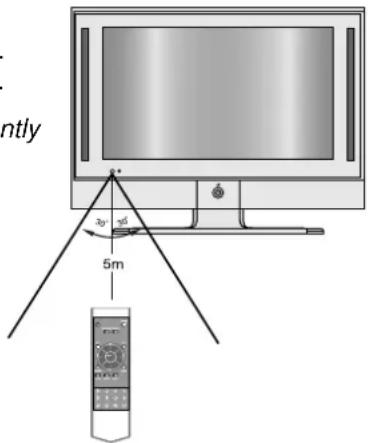
■ Use the remote control by pointing it towards the remote sensor window of the set. Objects between the remote control and sensor window may prevent proper operation.
Note: the illustration is for your reference only, the remote sensor may locate differently with different model.
text_image
ntly 3y 5mCautions regarding use of remote control
■ Do not expose the remote control to shock. In addition, do not expose the remote control to liquids, and do not place in an area with high humidity.
■ Do not install or place the remote control under direct sunlight. The heat may cause deformation of the unit.
■ The remote control may not work properly if the remote sensor window of the main unit is under direct sunlight or strong lighting. In such a case, change the angle of the lighting or LCD TV set, or operate the remote control closer to the remote sensor window.
Batteries for the Remote Control
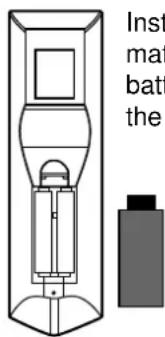
If the remote control fails to operate the LCD TV functions, replace the batteries in the remote control.
1 Open the battery cover.

2 Insert two size-AAA batteries.
text_image
Inst mat batt the3 Replace the battery cover.

Precautions on battery use
Improper use of batteries can result in a leakage of chemicals and/or explosion. Be sure to follow the instructions below.
■ Place batteries with their terminals corresponding to the (+) and (-) indications.
■ Different types of batteries have different characteristics. Do not mix batteries of different types.
■ Do not mix old and new batteries. Mixing old and new batteries can shorten the life of new batteries and/or cause old batteries to leak chemicals.
■ Remove batteries as soon as they are non-operable. Chemicals that leak from batteries can cause a rash. If chemical leakage is found, wipe with a cloth.
■ The batteries supplied with the product may have a shorter life expectancy due to storage conditions.
■ If the remote control is not used for an extended period of time, remove the batteries from the remote control.
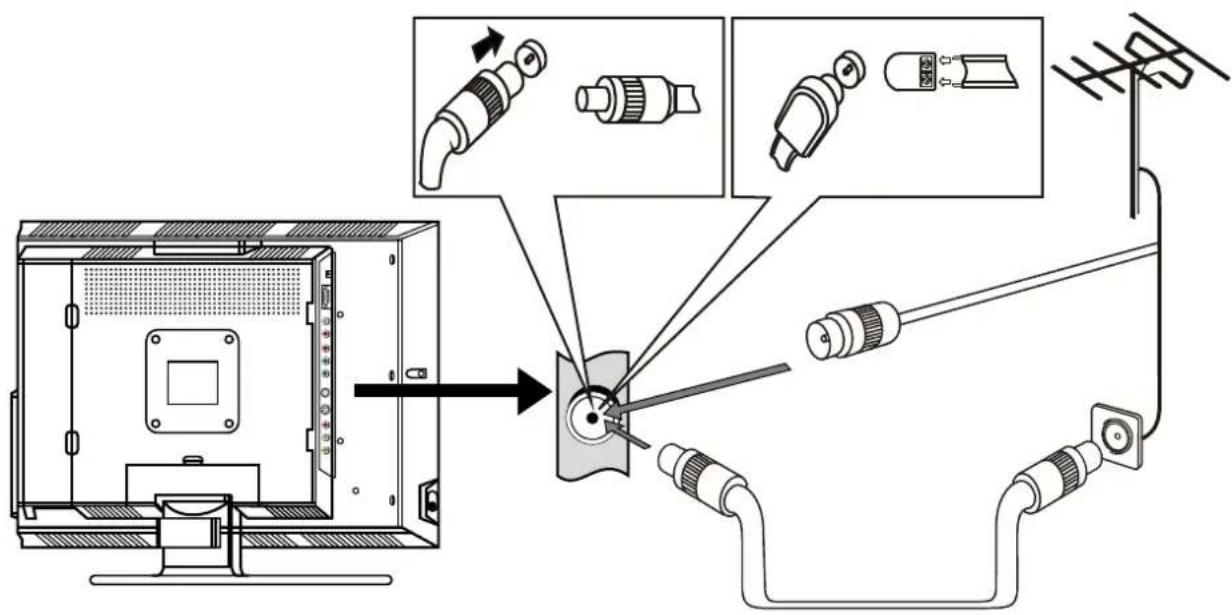
Antenna Connection
INSTALL the unit in a room where direct light will not fall upon the screen. Total darkness or a reflection on the picture screen may cause eyestrain. Soft and indirect lighting is recommended for comfortable viewing.
Optimum reception of colour requires a good signal and will generally mean that an outdoor aerial must be used. The exact type and position of the aerial will depend upon your particular area.
text_image
Diagram illustrating cable installation and connection to a monitor, showing connector disassembly and cable routing steps.Note:
It is recommended that the 75-ohm coaxial cable be used to eliminate interference and noise which may occur due to radio wave conditions.
The aerial cable should not be bundled with the power cord and the like.
Main Unit
text_image
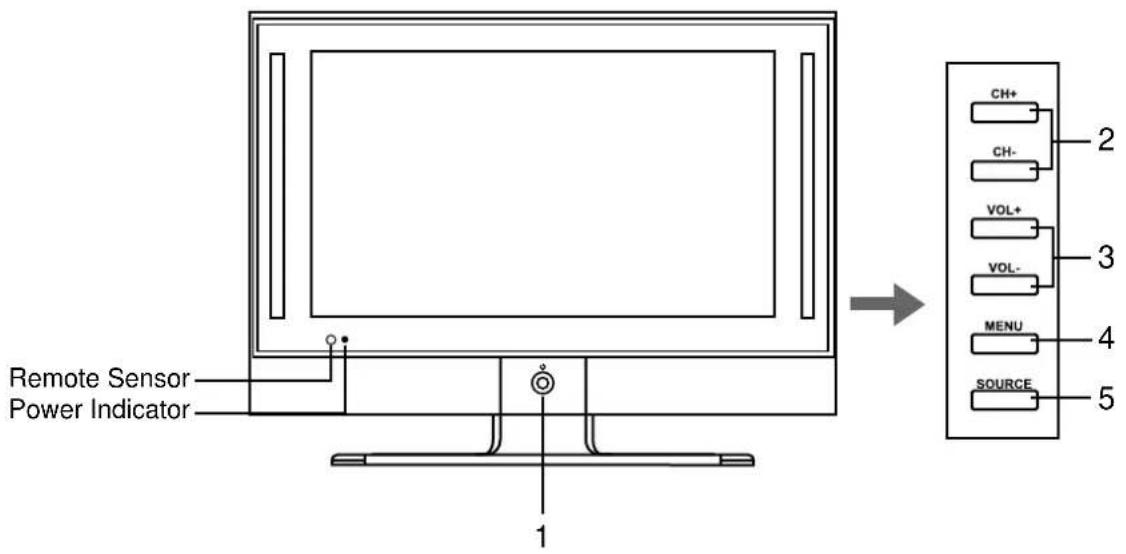
Remote Sensor Power Indicator 1 → CH+ CH- VOL+ VOL- MENU SOURCE 2 3 4 51. POWER ⏻
Press this button to turn the unit ON from STANDBY mode. Press it again to turn the set back to STANDBY.
2. CH+/-
Press these two buttons to directly change the TV channel;
In OSD MENU, press these buttons to choose the OSD items.
3. VOL+/-
Press the VOL+ or VOL- button to directly increase or decrease the sound volume level;
In OSD MENU, press these buttons to adjust the value or setting of each item.
4. MENU
Press this button to access the MENU main page.
5. SOURCE
To select the input signal source.
Note:
Functions of VOL+/-, CH+/-, MENU, SOURCE and POWER are also provided to the remote control. This operation manual provides a description based on operating functions with the remote control.
Main Unit

text_image
LINE IN D-Sub IN 1 L AUDIO R Pf/Cr Pb/Cb COMPONENT IN Y RF S-VIDEO R AUDIO L/MONO AV IN 5 VIDEO 6- D-Sub input /Audio Line in
Connect to the D-Sub/audio output jacks on your PC.
- Component inputs
Connect to the audio and component output jacks of a DVD player or Set-Top Box.
- Antenna input
Allows you to connect cable or outdoor antenna.
- S-Video input
Receive a S-Video signal from external source such as VCR or DVD player.
- AV inputs
Receive video/audio signals from external sources such as VCR or DVD player.
- POWER SWITCH
Remote Control
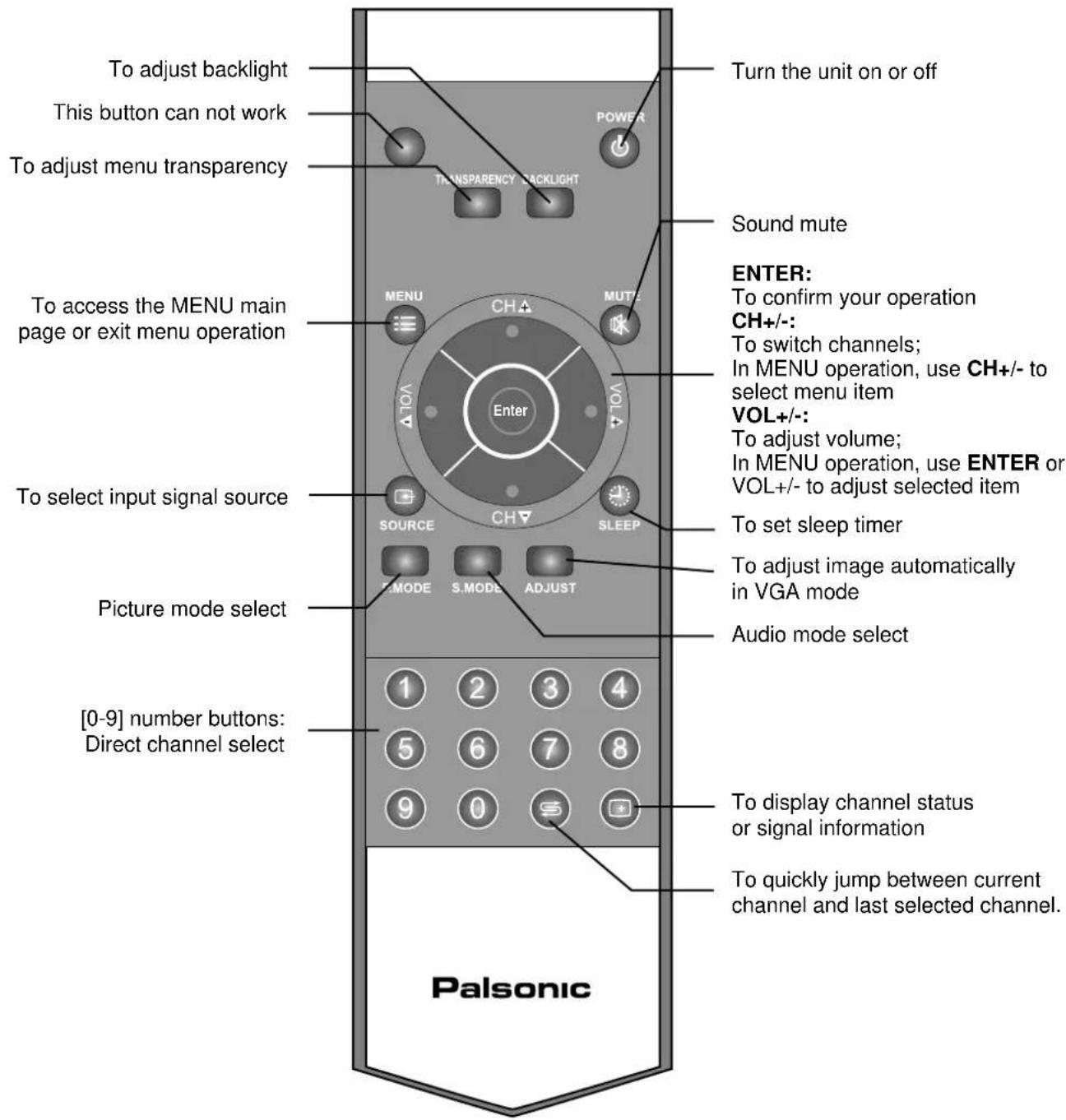
text_image
To adjust backlight This button can not work To adjust menu transparency To access the MENU main page or exit menu operation To select input signal source Picture mode select [0-9] number buttons: Direct channel select To adjust backlight Turn the unit on or off POWER TRANSPARENCY BACKLIGHT Sound mute MENU CHA MUTE VOL Enter S.MODE S.MODE ADJUST Palsonic ENTER: To confirm your operation CH+/-: To switch channels; In MENU operation, use CH+/- to select menu item VOL+/-: To adjust volume; In MENU operation, use ENTER or VOL+/- to adjust selected item To set sleep timer To adjust image automatically in VGA mode Audio mode select 1 2 3 4 5 6 7 8 9 0 To display channel status or signal information To quickly jump between current channel and last selected channel.Cautions before connecting
● Carefully check the terminals for position and type before making any connections.
● The illustration of the external equipment may be different depending on your model.
- Loose connectors can result in image or colour problems. Make sure that all connectors are securely inserted into their terminals.
● Refer to the operating manual of the external device as well.
- When connecting an external device, turn the power off on the panel to avoid any issues.
Connect a VCR

text_image
LINE IN- D-Sub IN L AUDIO R P1/Cr Pb/Cb Y RF COMPONENT IN VCR S-Video cable Audio cable Video cable Yellow (VIDEO) White (AUDIO L) Red (AUDIO R)How to connect:
Connect the Audio/Video cables between the Audio (L/R)/Video jacks on the unit and VCR.
Note:
For better video, you can use the S-video jack if your source supports it.
The unit automatically identifies S-Video if you are using S-Video jack. We recommend you to disconnect S-Video cable before you use Video jack.
To play VCR
-
Turn on your LCD TV, press SOURCE button repeatedly to select Video.
-
Turn on your VCR, insert a videotape and press the Play button.

Connect a Camcorder
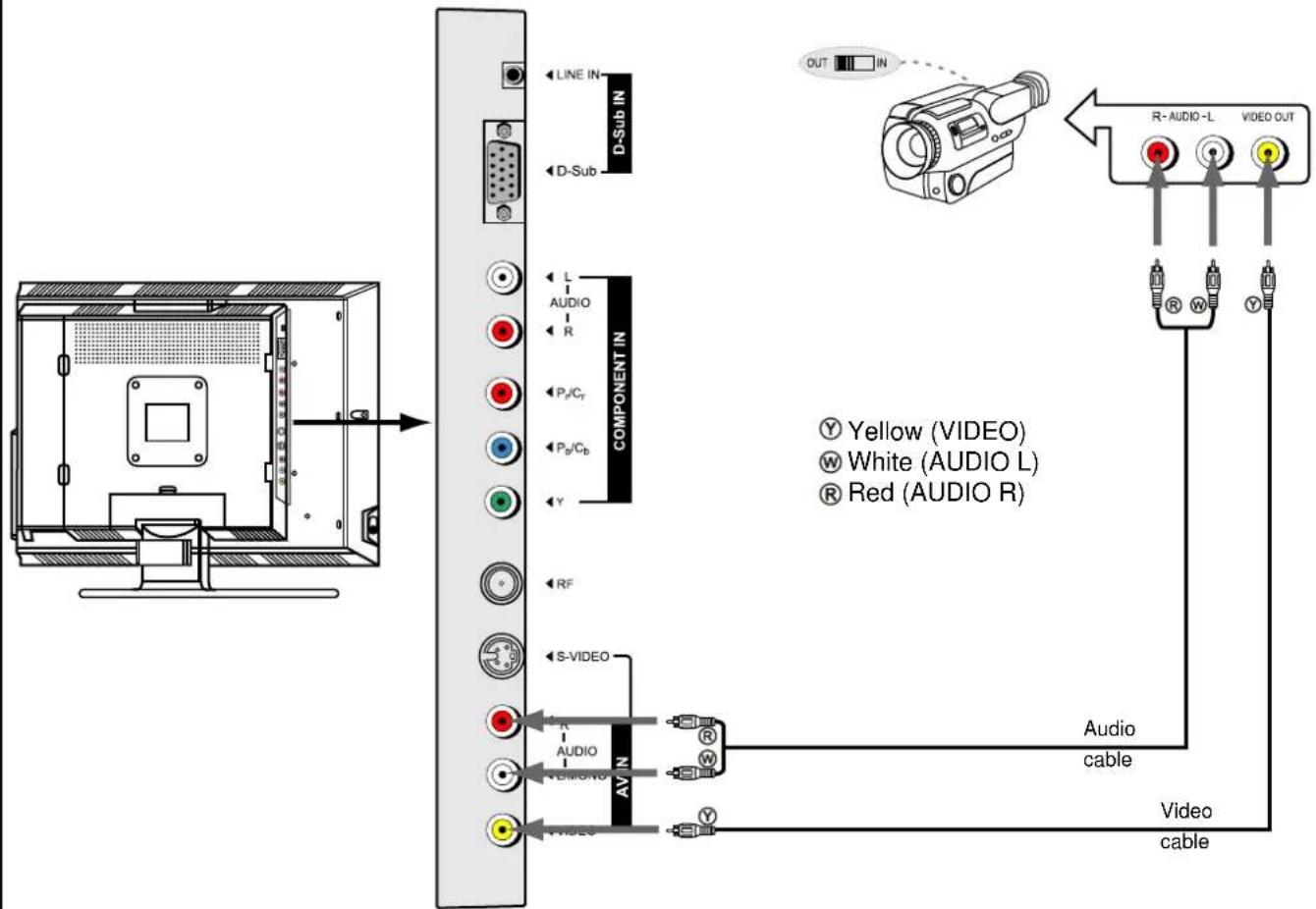
text_image
LINE IN D-Sub IN L AUDIO R Pf/Cf Pb/Cb Y RF S-VIDEO AVIN AUDIO VEMONO VIDEO OUT R-AUDIO-L VIDEO OUT Yellow (VIDEO) White (AUDIO L) Red (AUDIO R) Audio cable Video cableHow to connect:
Connect the Audio/Video cables between the Audio (L/R)/Video jacks on the unit and camcorder.
To playback Camcorder
- Turn on your LCD TV, press SOURCE ☐ button repeatedly to select Video.
- Turn on your camcorder and set it to output mode. (For details, refer to your camcorder owner's manual.)
- Insert the tape into the camcorder and press Play button.
Note:
The operations of the camcorder may be different and is dependent on your model. Please read the owner's manual of your camcorder to confirm operation.

Connect a DVD Player
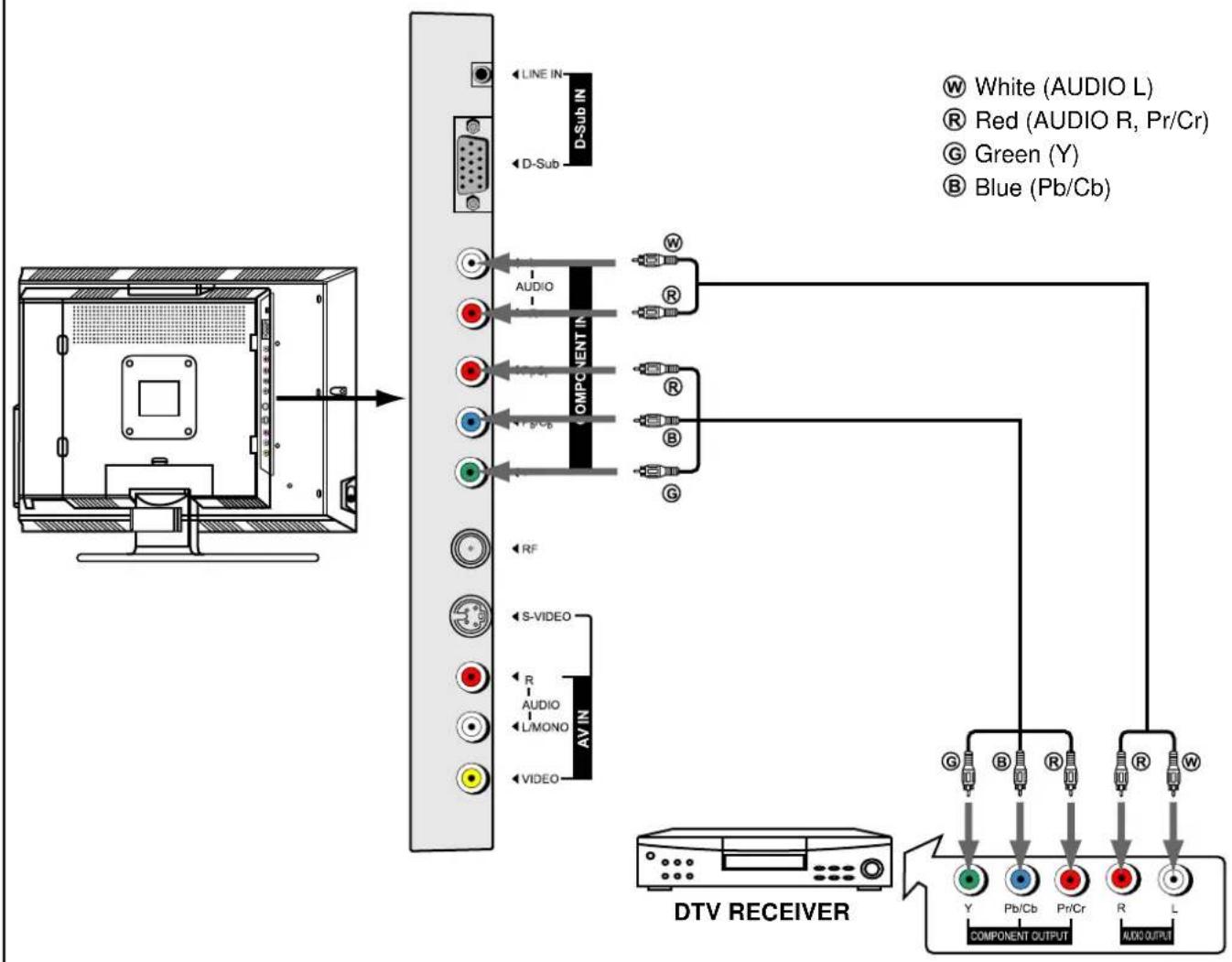
text_image
LINE IN D-Sub IN W White (AUDIO L) R Red (AUDIO R, Pr/Cr) G Green (Y) B Blue (Pb/Cb) A/DIO COMPONENT IN W R R B G RF S-VIDEO AV IN R AUDIO L/MONO VIDEO DTV RECEIVER G B R Y Pb/Cb Pr/Cr R L COMPONENT OUTPUT AUX OUTPUTHow to connect a DVD Player using Component Video Connections:
Connect the Video cable between the Y, Pb, Pr input jacks on the unit and Y, Pb, Pr (or Y, Cb, Cr) output jacks on the DVD player.
Connect the Audio cable between the AUDIO input jack on the unit and AUDIO output jacks on the DVD player.
To play DVD
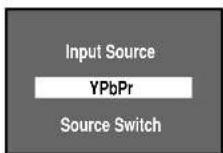
- Turn on your LCD TV, press SOURCE button repeatedly to select YPbPr.
- Turn on your DVD player.
- Insert a disc and press PLAY button.
Connect a PC

flowchart
graph TD
    A["Computer Interface"] --> B["D-Sub cable"]
    B --> C["Audio cable"]
    C --> D["PC"]
    B --> E["Component IN"]
    E --> F["L AUDIO R"]
    E --> G["Pc/Cr"]
    E --> H["Pb/Cb"]
    E --> I["Y"]
    E --> J["RF"]
    E --> K["S-VIDEO AV IN"]
    K --> L["R AUDIO L/MONO"]
    K --> M["VIDEO"]
How to connect:
Connect a D-Sub cable between the D-Sub jack on the PC and the D-Sub input jack on the unit. Connect an Audio cable between the AUDIO output on the PC and AUDIO input jack on the unit.
To Watch the PC screen
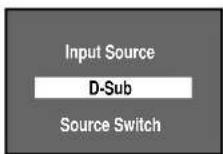
- Turn on your LCD TV, press SOURCE ← button repeatedly to select D-Sub.
- Turn on your PC and check for PC system requirements.
- Adjust the screen resolution and settings on your computer to the preferred settings.
Turning the Unit On and Off
Turning On
Insert the power cord into the wall outlet.
Press the Power Switch on the unit.
Press the Power ⏻ button on the remote control.
The unit will be turned on and you will be ready to use its features.
Turning Off
With the power on, press the Power ⏻ button on the remote control to turn off. If you want to cut off the power completely, press the Power Switch on the unit directly.

text_image
POWER TRANSPARENCY BACKLIGHTNote:
You can also use the Power ⏻ button on the control panel on the main unit.
Viewing the MENUs and Displays
Your LCD TV has a simple, easy-to-use menu system that appears on the screen. This system makes it convenient and fast to use features on the unit. The unit also lets you display the status of many of your LCD TV features.
Viewing the MENUs
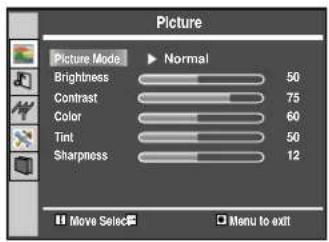
1 With the power on, press the MENU button on the remote control. The main menu appears on the screen. The picture menu is selected.
2 Use the CH+/- to select submenu page. Use ENTER or VOL+/- to access the selected submenu page.
3 Use the CH+/- to select menu item. Use VOL+/- to adjust value of item. Use ENTER or VOL+/- to confirm.
you can press the MENU button repeatedly to return or exit the menu operations.
Note:
- To clearly introduce the menu operations, this operation manual provides a description based on operation with the remote control.
- When performing confirmation in MENU operation, you may press either ENTER or VOL+/- button.
text_image
Picture Picture Mode ▶ Normal Brightness 50 Contrast 75 Color 60 Tint 50 Sharpness 12 Move Select □ Menu to exit
text_image
MENU CH MUTE VOLT Enter SOURCE CH SLEEPDisplaying Status Information
Press the DISPLAY ☐ button on the remote control, the unit will display current status information such as channel number, signal source, etc.

text_image
1 2 3 4 5 6 7 8 9 0 = + + +Your LCD TV can memorise and store all the available channels for both antenna and cable channels. After the available channels are memorised, use CH+/- to scan the channels.
Storing Channels in Memory Automatically
1 Press MENU to display the menu main page.
2 Press CH+/- repeatedly to select Channel page.
3 Press ENTER or VOL+/- to access the submenu.
4 The Auto Search item will be highlighted automatically.
5 Press ENTER or VOL+/- to store channels in memory automatically.
The unit will begin memorising all the available channels. During the process of the Auto Search, you can press Menu to exit.
Note:
Before you start Auto Search, please refer to the part of [Setting Color and Sound System] to select a proper sound system according to your area.

text_image
Channel Auto Search Manual Search Skip Off Fine Tune AFC On Sound Mode B/G Color Mode Auto Frequency Channel Edit 55.25 Move Select Menu to exitManual Search
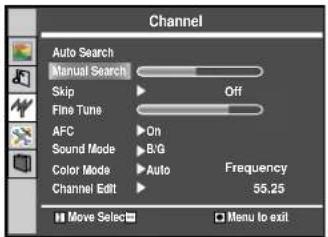
Use Manual Search if desired channels cannot be memorised or if you would like to store channels to specific channel numbers one by one.
1 Repeat steps 1\~3 in [Storing Channels in Memory Automatically] to access the Channel menu page.
2 Press CH+/- repeatedly to select Manual Search item.
3 Press VOL+/- to start manual search.
Pressing VOL+, the set searches towards higher frequency;
Pressing VOL-, the set searches towards lower frequency;
The search stops when a program is found and this program will be stored in current channel.
text_image
Channel Auto Search Manual Search Skip Off Fine Tune AFC On Sound Mode B/G Color Mode Auto Frequency Channel Edit 55.25 Move Select Menu to exitManual Fine Tuning
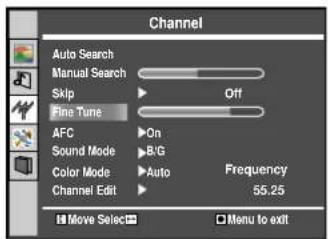
1 Repeat steps 1\~3 in [Storing Channels in Memory Automatically] to access the Channel menu page.
2 Press CH+/- repeatedly to select Fine Tune item.
3 Press VOL+/- to fine tune till the best possible picture and sound are obtained.
If you fine tune a program manually, the AFC will be turned off automatically.
text_image
Channel Auto Search Manual Search Skip Off Fine Tune AFC On Sound Mode B/G Color Mode Auto Frequency Channel Edit 55.25 Move Select Menu to exitSetting Auto Frequency Control (AFC)
1 Repeat steps 1\~3 in [Storing Channels in Memory Automatically] to access the Channel menu page.
2 Press CH+/- repeatedly to select AFC item.
3 Press ENTER or VOL+/- to select On or Off.
When the AFC is set to On, the unit will automatically tune the program frequency to provide the best possible picture and sound.
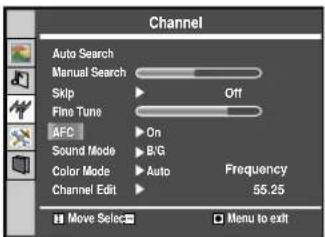
text_image
Channel Auto Search Manual Search Skip Off Fine Tune AFC On Sound Mode B/G Color Mode Auto Frequency Channel Edit 55.25 Move Select Menu to exitAdding and Erasing Channels
1 Use number buttons to directly select a channel that will be added or erased.
2 Repeat steps 1\~3 in [Storing Channels in Memory Automatically] to access the Channel menu page.
3 Press CH+/- repeatedly to select Skip item.
4 Press ENTER or VOL+/- to select On or Off.

text_image
Channel Auto Search Manual Search Skip Off Fine Tune AFC On Sound Mode B/G Color Mode Auto Frequency Channel Edit 55.25 Move Select Menu to exitWhen the item is set to on, the selected channel will be erased.
When the item is set to off, the selected channel will be added.
The erased channels can not be selected by using the CH+/- buttons unless you use number buttons to input channel number directly.
Setting Colour and Sound System
1 Repeat steps 1\~3 in [Storing Channels in Memory Automatically] to access the Channel menu page.
2 Press CH+/- repeatedly to select Sound Mode or Color Mode item.
3 Press VOL+/- to select a proper colour system and sound system according to your area's broadcasting system.

text_image
Channel Auto Search Manual Search Skip Off Fine Tune AFC On Sound Mode B/G Color Mode Auto Frequency Channel Edit 55.25 Move Select Menu to exitEditing Channels
The channel editing function is for you to arrange channel order as you wish.
1 Repeat steps 1\~3 in [Storing Channels in Memory Automatically] to access the Channel menu page.
2 Press CH+/- repeatedly to select Channel Edit item.
3 Press VOL+/- to access the submenu.
4 Press CH+/- repeatedly to select Current Channel or Object Channel item.
5 Using number buttons to input channel number.
6 Press CH+/- repeatedly to select Change item.
7 Press Enter to exchange the contents between current channel and object channel.

text_image
Channel Auto Search Manual Search Skip Off Fine Tune AFC On Sound Mode B/G Color Mode Auto Frequency Channel Edit 55.25 Move Select Menu to exit
Changing Channels
Using the Channel Buttons (CH+ or CH-)
Press the CH+ or CH- to change channels.
When you press the CH+ or CH-, the unit changes channels in sequence. You will see all the channels that the unit has memorised.
You will not see channels that were erased.
Direct Accessing Channels
Press the number buttons to go directly to a channel.
To select a one-digit channel: press the 0-9 number buttons to input the channel number and press ENTER or wait for some seconds to go to the selected channel.
To select a two-digit channel: press the 0-9 number buttons to input the channel number and press ENTER or wait for some seconds to go to the selected channel.
To select a three-digit channel: press the 0-9 number buttons to input the channel number one by one, then the unit goes to the selected channel.
Note:
When you use the number buttons, you can directly select channels that were erased.
Using the Return button
Press this button to switch between the current channel and the previous channel.
Adjusting the Volume
Using the volume buttons (VOL+ and VOL-)
Press the VOL+ or VOL- to increase or decrease the volume.
Using the MUTE button
At any time, you can temporarily cut off the sound using the MUTE button.
1 Press the MUTE button and the sound cuts off.
2 To turn mute off, press the MUTE button again.
Selecting a MENU Language
1 Press MENU to display the menu main page.
2 Press CH+/- repeatedly to select Display page.
3 Press ENTER or VOL+/- to access the submenu. The Language item will be highlighted automatically.
4 Press ENTER or VOL+/- to select a proper menu language.
5 Press Menu to exit.
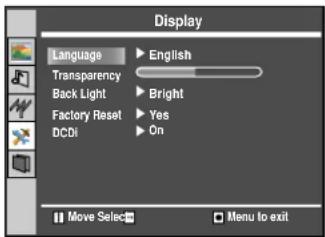
text_image
Display Language ▶ English Transparency ▶ Bright Back Light ▶ Yes Factory Reset ▶ On DCDI Move Select □ Menu to exitNote:
In some models, there may be only one menu language available. In this case, the menu language not be adjusted by the user.
Using the Preset Picture Mode
1 Press MENU to display the menu main page. The picture page will be displayed automatically.
2 Press ENTER or VOL+/- to access the Picture submenu. The Picture Mode item is highlighted automatically.
3 Press ENTER or VOL+/- to select a desired picture mode. You may also use the P.MODE button to quickly select picture mode.
There are three preset picture modes (Bright, Soft and Normal) and one user-set picture mode (User). Each preset mode has its own picture settings.
Bright: Select for a bright picture.
Soft: Select for a finely detailed picture.
Normal: Select for a normal picture.
Adjusted settings are stored in User mode.

text_image
Picture Picture Mode ▶ Normal Brightness 50 Contrast 75 Color 60 Tint 50 Sharpness 12 Move Select □ Menu to exitCustomising the Picture
1 Press MENU to display the menu main page. The picture page will be displayed automatically.
2 Press ENTER or VOL+/- to access the Picture submenu.
3 Press CH+/- to select the item you wish to change.
4 Press VOL+/- to adjust the value of the item.
5 Press Menu to exit.
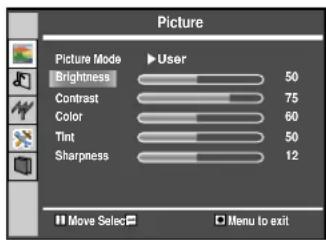
text_image
Picture Picture Mode ▶ User Brightness 50 Contrast 75 Color 60 Tint 50 Sharpness 12 Move Select □ Menu to exitIn TV/Video mode
| Option | Function | Operation |
| Brightness | Adjusts screen brightness for easier viewing of dark picture such as night scenes and black hair. | VOL+ lighter VOL- darker |
| Contrast | Adjusts image contrast. | VOL+ stronger VOL- weaker |
| Color | Adjusts colour saturation. | VOL+ deeper VOL- paler |
| Tint* | Adjusts tint for image. | VOL+ greenish VOL- purplish |
| Sharpness | Adjusts image sharpness and displays a sharp image. | VOL+ sharper VOL- softer |
* The Tint is for NTSC only.
In D-Sub mode
| Option | Function | Operation |
| Brightness | Adjusts screen brightness for easier viewing of dark picture such as night scenes and black hair. | VOL+ lighterVOL- darker |
| Contrast | Adjusts image contrast. | VOL+ strongerVOL- weaker |
| Color | Adjusts colour saturation. | VOL+ deeperVOL- paler |
With working in D-Sub mode, this unit allows you to perform several adjustments for image
Adjusting the Picture Automatically
1 Press MENU to display the menu main page.
2 Press CH+/- repeatedly to select Image page.
3 Press ENTER or VOL+/- to access the Image page. The Auto Adjustment item will be highlighted automatically.
4 Press ENTER or VOL+/- again to access the Auto Adjustment page. The Auto Adjustment / Yes item will be highlighted automatically.
5 Press ENTER or VOL+/- again to start Auto Adjustment. The unit automatically adjusts phase, clock or position, etc.
Note: You may use the ADJUST button to quickly perform the Auto Adjustment.
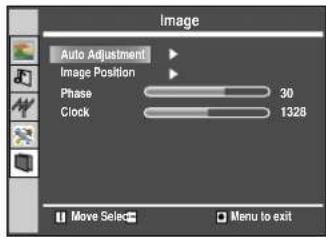
text_image
Image Auto Adjustment Image Position Phase 30 Clock 1328 Move Select Menu to exit
text_image
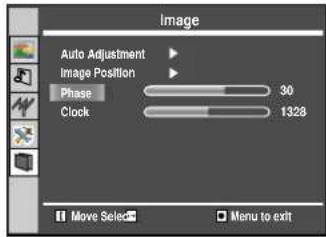
Auto Adjustment Auto Adjustment Yes Move Select Menu to exitAdjusting Clock and Phase
1 Repeat steps 1-3 in [Adjusting the Picture Automatically] to access Image page.
2 Press CH+/- repeatedly to select Clock or Phase item.
3 Press VOL+/- to adjust the value of the item until the screen is well-aligned.
text_image
Image Auto Adjustment Image Position Phase 30 Clock 1328 Move Select Menu to exitAdjust the clock frequency of the set's internal clock signal. If shimmering or rainbow-like noise is apparent in the image, try adjusting the clock frequency setting. You may find that images blur, depending on the clock phase of your PC's Processor. If you experience blurring, you can obtain a clearer image by adjusting the phase setting.
Adjusting the Image Position
The unit allows you to adjust the image position of the screen if it is not well-aligned.
1 Repeat steps 1\~3 in [Adjusting the Picture Automatically] to access Image page.
2 Press CH+/- to select Image Position item.
3 Press ENTER or VOL+/- to access the Image Position page.
4 Press CH+/- or VOL+/- to adjust the image position until the screen is well-aligned.

text_image
Image Position Move Select Menu to exitCustomising the Sound
1 Press MENU to display the menu main page.
2 Press CH+/- repeatedly to select Audio page.
3 Press ENTER or VOL+/- to access the submenu.
4 Press CH+/- to select Bass, Treble or Balance item.
5 Press VOL+/- to adjust the value of the item.

text_image
Audio Bass 14 Treble 16 Balance 43 Move Select Menu to exit| Option | Function | Operation |
| Bass | Adjust Bass (low sounds). | VOL+ strongerVOL- weaker |
| Treble | Adjust Treble (high sounds). | VOL+ strongerVOL- weaker |
| Balance | Adjust volume balance (left and right volumes). | VOL+ Higher volume from right speaker.VOL- Higher volume from left speaker. |
Using the Preset Sound Mode
Use the S.MODE button to quickly select Sound mode.
There are three preset Sound modes (News, Movie and Music) and one user-set Sound mode (User). Each preset mode has its own audio settings.
Movie: Select for a movie program.
Music: Select for a music program.
News: Select for a speech or conversation program.
Adjusted settings are stored in User mode.
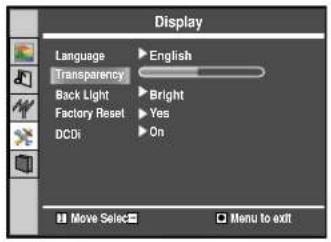
Adjusting Menu Transparency
1 Press MENU to display the menu main page.
2 Press CH+/- repeatedly to select Display page.
3 Press ENTER or VOL+/- to access the submenu.
4 Press CH+/- to select Transparency item.
5 Press VOL+/- to adjust transparency.
text_image
Display Language English Transparency Back Light Bright Factory Reset Yes DCOi On Move Select Menu to exitNote:
You may use the TRANSPARENCY button to quickly adjust the menu transparency.
Adjusting Back Light
1 Repeat steps 1\~3 in [Adjusting Menu Transparency] to access Display page.
2 Press CH+/- repeatedly to select Back Light item.
3 Press ENTER or VOL+/- to adjust panel back light.
You may use the BACKLIGHT function to quickly adjust the panel backlight.
Note:

text_image
Display Language ▶ English Transparency Back Light ▶ Bright Factory Reset ▶ Yes DCDI ▶ On Move Select □ Menu to exitSetting DCDi Function
1 Repeat steps 1\~3 in [Adjusting Menu Transparency] to access Display page.
2 Press CH+/- repeatedly to select DCDi item.
3 Press ENTER or VOL+/- to select On or Off.
You may set this function to On when viewing motion picture, which helps to enhance picture quality by reducing sawtooth in the motion picture.

text_image
Display Language Transparency Back Light Factory Reset DCDI English Bright Yes On Move Select Menu to exitLoading Default Values
You may quickly load default values by using the Factory Reset item.
Caution: please be careful to use Factory Reset item. Once you confirm to use this function all your settings will be reset and the unit loads default values.
1 Repeat steps 1\~3 in [Adjusting Menu Transparency] to access Display page.
2 Press CH+/- repeatedly to select Factory Reset item.
3 Press ENTER or VOL+/- to load default values.

text_image
Display Language ▶ English Transparency ▶ Bright Back Light ▶ Yes Factory Reset ▶ On DCOI Move Select □ Menu to exitSetting Sleep Timer
Press the SLEEP button repeatedly to set a sleep time to automatically turn off the unit. Each press of the button, the value changes as below.

flowchart
graph LR
    A["Off"] --> B["30 min. 60min. 90min."]
    B --> C["120min."]
Sleep Time: Off
Before calling for repair service, check the following items for possible remedies to an encountered symptom.
| Symptoms | Check item |
| "Ghost" or double images | This may be caused by obstruction to the antenna due to high rise buildings or hills. Using a highly directional antenna may improve the picture. |
| No power | Check that the AC power cord is plugged into the mains socket.Unplug the power cord, wait for 60 seconds. Then reinsert plug into the mains socket and turn on the unit again. |
| No picture | Check antenna connections at the rear of the unit to see if it is properly connected to the unit.Possible broadcast station trouble. Try another channel.Adjust the contrast and brightness settings.Select a correct input.Is a non-compatible signal being input? |
| Good picture but no sound | Increase the VOLUME.Check that the unit is not muted. |
| Good sound but poor colour | Adjust the contrast, colour and brightness settings. |
| Poor picture | Sometimes, poor picture quality occurs when having activated an S-VHS camera or camcorder connected and having connected another peripheral at the same time. In this case, switch off one of the other peripherals.Check whether the room is too bright. |
| Horizontal dotted line | This may be caused by electrical interference (e.g. hair dryer, nearby neon lights, etc.)Turn off the equipment. |
| Television not responding to remote control | Check whether the batteries are working. Replace if necessary.Clean the remote control sensor lens on the unit.Do not use the remote control under strong or fluorescent lighting.The batteries should be inserted with polarity (+,-) aligned. |
| Snowy picture and noise | Check the aerial connection. |
| No stable or not synchronised D-Sub picture | Check if you have selected the correct D-Sub mode in your PC. |
| No output from one of the speakers | Adjust Balance in the SOUND (AUDIO) menu. |
| Controls buttons do not work | Unplug the power cord, wait for some seconds. Then re-plug the power cord and turn on the unit again. |

Do not use in hot and cold rooms (location)
When the unit is used in rooms (locations) with low temperature, the picture may leave trails or appear slightly delayed. This is not a malfunction, and the unit will recover when the temperature returns to normal.
Do not leave the unit in a hot or cold location. Also, do not leave the unit in a location exposed to direct sunlight or near a heater, as this may cause the cabinet to deform and the LCD panel to malfunction.
(Storage temperature: 0^ C to +50^ C; Working temperature: 5^ C to +40^ C.)
Note:
If your problem is not solved, restart your TV by turning it off and then on again once.
Never attempt to repair a defective TV yourself.
LCD Display panel information
Note:
The marking or retained image on the LCD panel resulting from fixed image use is not an operating defect and as such is not covered by Warranty. This product is not designed to display fixed image patterns for extended periods of time.
Important Information Regarding Use of Video Games, Computers, Captions or Other Fixed Image Displays.
The extended use of fixed image program material can cause a permanent "shadow image" on the LCD panel.
This background image is viewable on normal programs in the form of a stationary fixed image. This type of irreversible
LCD panel deterioration can be limited by observing the following steps:
A. Reduce the brightness/contrast setting to a minimum viewing level.
B. Do not display the fixed image for extended periods of time.
C. Turn the power off when not in actual use.
Note:
The marking or retained image on the LCD panel resulting from fixed image use is not an operating defect and as such is not covered by Warranty. This product is not designed to display fixed image patterns for extended periods of time.
Cleaning and Maintenance
To clean this unit, wipe with a soft, dry cloth.
If the surfaces are extremely dirty, use a soft cloth dipped in a soap and water solution or a weak detergent solution.
- Use eyeglass cleaner to remove stubborn dirt from the LCD.
- Never use alcohol, paint thinner or benzine to clean this unit.
- Before using a chemically treated cloth, read the instructions that came with the cloth carefully.
| Power supply: | AC 100-240V 50/60Hz |
| Power Consumption: | 130W |
| Screen: | 51cm |
| Dimensions: | 568 (W) x 162 (D) x 434 (H) (mm) |
| Weight: | 9kg |
TV system & channel coverage:
| System | VHF | UHF | CATV |
| PAL-B/G | 2-12 | 21-69 | X~Z+2, S1~S41 |
| TV system: | PAL BG, NTSC (AV) |
| Speaker: | 8W, 8Ω x 2 |
| Accessories | Owner's manual x 1Remote control unit x 1 |

Design and specification are subject to change without notice.
PALSONIC CORPORATION PTY LTD
1 JOYNTON AVENUE
WATERLOO NSW 2017 AUSTRALIA
TEL: (02) 9313 7111
FAX: (02) 9313 7555
www.palsonic.com.au
PALSONIC CUSTOMER SERVICE
TELEPHONE
AUSTRALIA: 1300 657 888
604-L20Y193-04
Ver.1.0