TFTV663R - Television Palsonic - Free user manual and instructions
Find the device manual for free TFTV663R Palsonic in PDF.


User questions about TFTV663R Palsonic
0 question about this device. Answer the ones you know or ask your own.
Ask a new question about this device
Download the instructions for your Television in PDF format for free! Find your manual TFTV663R - Palsonic and take your electronic device back in hand. On this page are published all the documents necessary for the use of your device. TFTV663R by Palsonic.
USER MANUAL TFTV663R Palsonic
WATERLOO NSW 2017 AUSTRALIA
TEL:(02)9313 7111
FAX:(02)9313 7555
PALSONIC CUSTOMER SERVICE
TELEPHONE
AUSTRALIA:1300 657 888
Contents
Important Information 3
Important Safety Precautions 4
Important Notice 6
Identification of Controls 7
Preparations 9
Making Connections II
First Time Configuration / Basic Operations 15
Memorizing the Channels 19
Programme Edit 20
Adjusting the Picture 23
Adjusting the Sound 24
Adjusting Basic Settings/Adjusting the Computer Image 25
Setting Clock & Timer 26
Setting Child and Rating Locks 28
Making Use of PVR recording Function 30
Teletext & Subtitle 34
Using USB Multi Media Player 35
Troubleshooting 38
Specifications 39
IMPORTANT INFORMATION
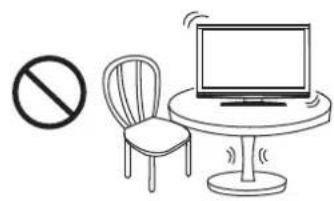
If a television is not positioned in a sufficiently stable location, it can be potentially hazardous due to falling. Many injuries, particularly to children, can be avoided by taking simple precautions such as:
• Using cabinets or stands recommended by the manufacturer of the television.
• Only using furniture that can safely support the television.
- Ensuring the television is not overhanging the edge of the supporting furniture.
- Not placing the television on tall furniture (for example, cupboards or bookcases) without anchoring both the furniture and the television to a suitable support.
- Not standing the televisions on cloth or other materials placed between the television and supporting furniture.
- Educating children about the dangers of climbing on furniture to reach the television or its controls.
Warning:
To prevent the spread of fire, keep candles or other open flames away from this product at all times.
Important Safety Precautions
Electrical energy can perform many useful functions, but it can also cause personal injuries and property damage if improperly handled. This product has been engineered and manufactured with the highest priority on safety. But IMPROPER USE CAN RESULT IN POTENTIAL ELECTRICAL SHOCK OR FIRE HAZARD. In order to prevent potential danger, please observe the following instructions when installing, operating and cleaning the product. To ensure your safety and prolong the service life of your TV product, please read the following precautions carefully before using the product.
I. Read these instructions---All operating instructions must be read and understood before the product is operated.
2. Keep these instructions---These safety and operating instructions must be kept in a safe place for future reference.
3. Heed all warnings--All warnings on the product and in the instructions must be observed closely.
4. Follow all instructions---All operating instructions must be followed.
5. Attachments---Only use attachments/accessories specified by the manufacturer. Do not use attachments not recommended by the manufacturer. Use of improper attachments can result in accidents.
6. Power source---This product is intended to be supplied by a listed power supply indicated on the marking label. If you are not sure of the type of power supply to your home, consult your product dealer or local power company. For added protection for this product during a lightning storm, or when it is left unattended and unused for long periods of time, unplug it from the wall outlet and disconnect the cable system.
7. Power cord protection---Protect the power cord from being walked on or pinched particularly at plugs, convenience receptacles, and the point where they exit from the apparatus.
NOTE: where the mains plug or an appliance coupler is used as the disconnect device, the disconnect device shall remain readily operable.
8. Overloading---Do not overload wall outlets, extension cords, or convenience receptacles on other equipment as this can result in a risk of fire or electric shock.
9. Entering of objects and liquids---Never insert an object into the product through vents or openings. High voltages are present in the product, and inserting an object can cause electric shock and/or short internal parts. For the same reason, do not spill water or liquid on the product.
10. Servicing---Refer all servicing to qualified service personnel. Servicing is required when the apparatus has been damaged in any way, such as power-supply cord or plug is damaged, liquid has been spilled or objects have fallen into the apparatus, the apparatus has been exposed to rain or moisture, does not operate normally, or has been dropped.
11. Damage requiring service---If any of the following conditions occurs, unplug the power cord from the AC outlet, and request a qualified service person to perform repairs.
a. When the power cord or plug is damaged.
b. When a liquid is spilled on the product or when objects have fallen into the product.
c. When the product has been exposed to rain or water.
d. When the product does not operate properly as described in the operating instructions.
Do not touch the controls other than those described in the operating instructions. Improper adjustment of controls not described in the instructions can cause damage, which often requires extensive adjustment work by a qualified technician.
e. If the product has been dropped or the cabinet has been damaged in any way.
f. When the product displays an abnormal condition or exhibits a distinct change in performance. Any noticeable abnormality in the product indicates that the product needs servicing.
12. Replacement parts---In case the product needs replacement parts, make sure that the service person uses replacement parts specified by the manufacturer, or those with the same characteristics and performance as the original parts. Use of unauthorized parts can result in fire, electric shock and/or other danger.
13. Safety checks---Upon completion of service or repair work, request the service technician to perform safety checks to ensure that the product is in proper operating condition.
14. Wall or ceiling mounting---When mounting the product on a wall or ceiling, be sure to install the product according to the method recommended by the manufacturer. This is a safety feature.
Important Safety Precautions (Continued)
natural_image
Simple line drawing of a chair, monitor, and prohibition symbol (no text or labels)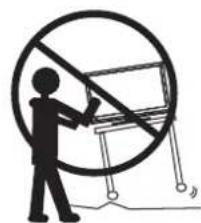
natural_image
Silhouette of a person holding a large circle with a diagonal line, next to a table with weights (no text or symbols)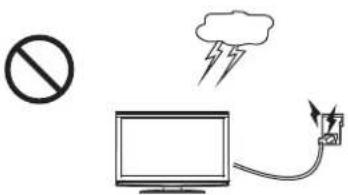
text_image
Diagram showing a prohibition symbol, a computer monitor with lightning, and a wind storm, likely illustrating a basic safety or monitoring concept.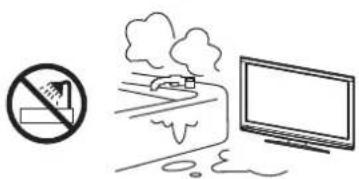
natural_image
Simple line drawing showing a no-smoking sign, smoke plume, and computer monitor (no text or symbols)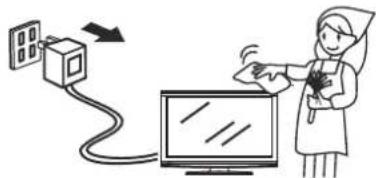
text_image
Illustration showing a medical procedure involving a device and a monitor, with a nurse gesturing to the screen.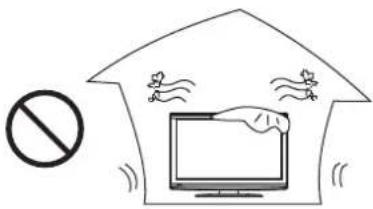
text_image
Diagram illustrating a prohibition symbol and a computer monitor with floating icons, likely representing a social media or monitoring system.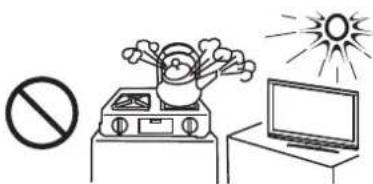
natural_image
Simple line drawing of a house with a clock, a lamp, and a prohibition symbol (no text or labels)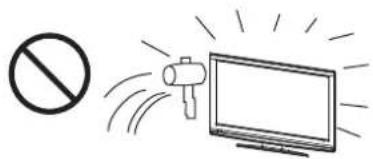
text_image
Safety warning symbol with prohibition sign and megaphone illustration- Stand---Use only with the cart, stand, tripod, bracket, or table specified by the manufacturer, or sold with the apparatus. Do not place the product on an unstable trolley, stand, tripod or table. Placing the product on an unstable base can cause the product to fall, resulting in serious personal injuries as well as damage to the product. When mounting the product on a wall, be sure to follow the manufacturer's instructions. Use only the mounting hardware recommended by the manufacturer.
- Careful move---When a cart is used, use caution when moving the cart/apparatus combination to avoid injury from tip-over. Sudden stops, excessive force and uneven floor surfaces can cause the product to fall from the trolley.
Never attempt to move the TV unless the AC power cord has been disconnected.
- Lightning---Unplug this apparatus during lightning storms or when unused for long periods of time.
For added protection for this television equipment during a lightning storm, or when it is left unattended and unused for long periods of time, unplug it from the wall outlet and disconnect the antenna. This will prevent damage to the equipment due to lightning and power-line surges.
- Do not use this apparatus near water---for example, near a bathtub, washbowl, kitchen sink, or laundry tub, in a wet basement, or near a swimming pool, and the like. The apparatus shall not be exposed to dripping or splashing and that no objects filled with liquids, such as vases, shall be placed on the apparatus.
Do not use immediately after moving from a low temperature to high temperature environment, as this causes condensation, which may result in fire, electric shock, or other hazards.
- Clean only with dry cloth---Unplug this product from the wall outlet before cleaning. Do not use liquid cleaners or aerosol cleaners. Use a damp cloth for cleaning.
- Ventilation---Do not block any ventilation openings. Install in accordance with the manufacturer instructions. The vents and other openings in the cabinet are designed for ventilation. Do not cover or block these vents and openings since insufficient ventilation can cause overheating and/or shorten the life of the product. Do not place the product on a bed, sofa, rug or other similar surface, since they can block ventilation openings. This product is not designed for built-in installation; do not place the product in an enclosed place such as a bookcase or rack, unless proper ventilation is provided or the manufacturer's instructions are followed.
- Heat sources---Do not install near any heat sources such as radiators, heat registers, stoves, or other apparatus (including amplifiers) that produce heat.
- Panel protection---The display panel used in this product is made of glass. Therefore, it can break when the product is dropped or impacted upon by other objects. Be careful not to be injured by broken glass pieces in case the display panel breaks.
23.Pixel defect---The display panel is a very high technology product, giving you finely detailed pictures. Occasionally, a few non-active pixels may appear on the screen as a fixed point of blue, green or red. Please note that this does not affect the performance of your product.
WARNING: For continued safety, apparatus with class I construction shall be connected to a mains socket outlet with a protective earthing connection.
Important Notice
About Temperature
Do not use in hot and cold rooms (locations)
- When the unit is used in rooms (locations) with low temperature, the picture may leave trails or appear slightly delayed. This is not a malfunction, and the unit will recover when the temperature returns to normal.
- Do not leave the unit in a hot or cold location. Also, do not leave the unit in a location exposed to direct sunlight or near a heater, as this may cause the cabinet to deform and the screen malfunction.
• Storage temperature: 0°C to 50°C
• Working temperature: 5°C to 40°C
About After-Image
The extended use of fixed image programme material can cause a permanent after the image.
This background image is viewable on normal programs in the form of a stationary fixed image. This type of irreversible screen deterioration can be limited by observing the following steps:
A. Reduce the brightness/contrast setting to a minimum viewing level.
B. Do not display the fixed image for extended periods of time.
C. Turn the power off when not in actual use.
Important Information Regarding Use of Video Games, Computers, Captions or Other Fixed Image Displays.
- Do not allow a still picture to be displayed for an extended period, as this can cause a permanent after-image to remain on the screen.
Examples of still pictures include logos, video games, computer images, teletext and images displayed in 4:3 mode.
CAUTIONS:
- The permanent after-image on the screen resulting from fixed image use is not an operating defect and as such is not covered by the warranty.
- This product is not designed to display fixed images for extended periods of time.
■ Cleaning and Maintenance
To clean this unit, wipe with a soft, dry cloth.
If the surfaces are extremely dirty, use a soft cloth dipped in a soap and water solution or a weak detergent solution.
- Use eyeglass cleaner to remove stubborn dirt from the screen.
- Never use alcohol, paint thinner or benzine to clean this unit.
- Before using a chemically treated cloth, read the instructions that came with the cloth carefully.
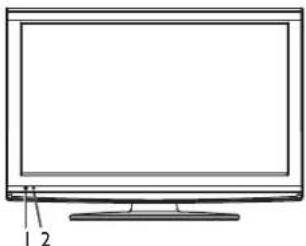
Main Unit (Front View/Side View)
natural_image
Line drawing of a flat-screen monitor with labeled parts 1 and 2 (no text or symbols on the screen)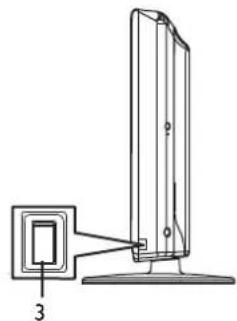
natural_image
Diagram of a vertical panel mounted on a base with a separate labeled component (no text or symbols present)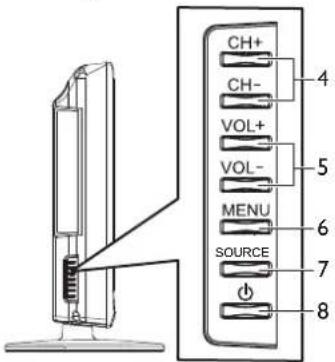
text_image
CH+ CH- VOL+ VOL- MENU SOURCE 7 8 4 5 6 7I. Remote sensor
Receives signals from the remote control. Do not block.
2. Power indicator
Lights blue when in operating mode.
Lights red when in standby mode.
3. Power Switch
4. CH+/-
Press these two buttons to directly change the TV channel; In menu operations, these buttons serve as up/down buttons.
5. VOL+/-
Press the VOL+ or VOL- button to directly increase or decrease the sound volume level; In menu operations, these buttons serve as right/left buttons.
6. MENU
Press this button to access the main menu screen.
7. SOURCE
To access Input Source menu
8. POWER ⏻
Press this button to turn the unit ON from STANDBY mode. Press it again to turn the set back to STANDBY.
text_image
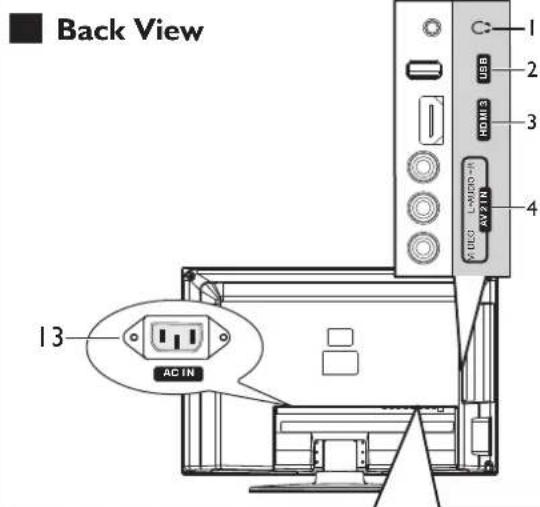
Back View 13 AC IN C: 1 USB 2 HOME 3 IN-DC-ROM 4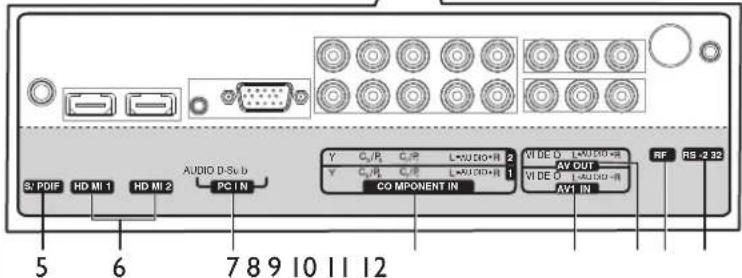
text_image
5 6 7 8 9 10 11 12 SX PDIF HD MI 1 HD MI 2 PC 1 N AUDIO D/Sb b Y C/R C/R L*U3IO+R 2 Y C/R C/R L*U3IO+R 1 CO MPONENT IN VIDEO L*U3IO+R AV OUT VI DE O L*U3IO+R AVT IN RF RS -2 32I. Headphone: Connect headphones to this jack.
2. USB port: Connect a USB device to this port.
3. HDMI3: Connect an HDMI device to this jack.
4. AV2 INPUT: Connect an AV device to these jacks.
5. S/PDIF: Connect a digital sound system to this jack.
6. HDMI1/HDMI2: Connect HDMI devices to these jacks.
7. PC IN D-SUB/AUDIO: Connect a computer to these jacks.
8. COMPONENT IN 1/2 : Connect component video devices to these jacks.
9. AVI INPUT: Connect an AV device to these jacks.
- AV OUTPUT: Connect a VCR to these jacks to record programs.
II. RF: Connect an antenna or cable TV to this jack. - RS-232: For service only. Do not use.
- AC IN: Plug the AC cord into this jack and into a power outlet.
Identification of Controls (Continued)
Remote Control
text_image
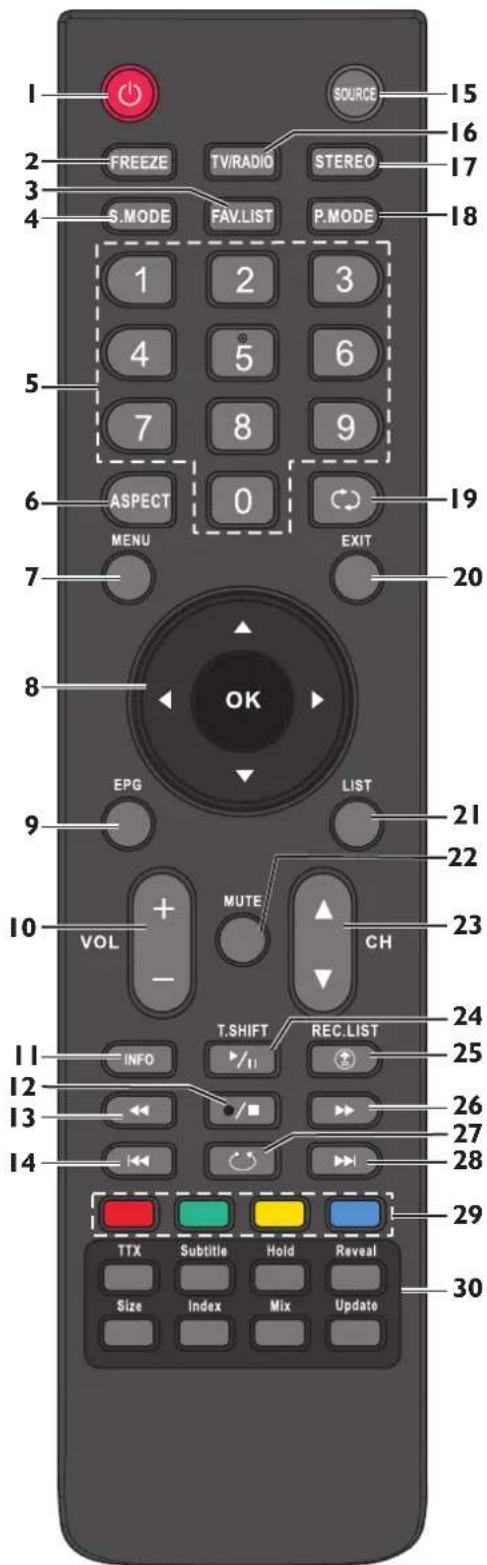
1 2 3 4 FREEZE TV/RADIO STEREO S.MODE FAV.LIST P.MODE 1 2 3 4 5 6 7 8 9 ASPECT 0 19 MENU EXIT 20 OK EPG LIST 21 22 10 VOL MUTE CH 11 INFO T.SHIFT REC.LIST 24 25 12 13 /■ 26 27 14 TTX Subtitle Hold Reveal Size Index Mix Update 28 29 30I. POWER ⏻: Switches the TV power on or Standby.
2. FREEZE: To freeze current picture.
3. FAV.LIST: Displays the favourite channel list.
4. S.MODE: Selects sound mode.
5. 0 - 9 number buttons: Press to enter channel numbers or input password.
6. ASPECT: Selects the screen aspect ratio.
7. MENU: Displays the main menu screen.
8. ▲/▼/◄/►/OK: Press the arrows to navigate through the menus or adjust an item. Press OK to confirm a selection or enter a sub-menu.
9. EPG: Displays the Electronic programme Guide (DTV only).
10. VOL+/-: Increases or decreases the volume.
II. INFO: Displays the information banner.
12. ●/■INSTANT RECORD/STOP button (PVR recording)
13. Fast reverse
14. Previous
15. SOURCE: Displays input source menu.
16. TV/RADIO: Switches between TV and Radio mode. (DTV only)
17. STEREO: Selects bilingual, stereo or mono (ATV only), or audio track(DTV only).
18. P.MODE: Selects picture mode.
19. 📊 Returns to the previous channel.
20. EXIT: Exits the menu screen.
21. LIST: Displays the channel list.
22. MUTE: Press to mute the sound. Press again to restore the sound.
23. CH ▲ / ▼ : Changes channel up and down.
24. T.SHIFT(11): time shift button;
Play/Pause button (when in time shifting or USB Media Play)
25.REC.LIST(⊕) button: Shows Recorded List; BACK button (USB Media Play)
26.▶▶Fast forward
27. ○: Repeat mode select (USB Media Play)
28.▶▶Next
29. Coloured buttons (RED/GREEN/YELLOW/BLUE): Direct access to the coloured items or corresponding pages. (Teletext)
30. Teletext control buttons
.TTX: Used to enter or exit teletext mode. (Teletext)
. Subtitle: Displays the subtitle; or the teletext subpage (Teletext)
. Hold: To stop or resume sub-page acquisition. (Teletext)
. Reveal: To reveal or hide the concealed information. (Teletext)
. Size: Press this button several times to display the upper, then the lower part of the screen and then return to the normal size teletext page. (Teletext)
. Index: Press this button to view the main index page. (Teletext)
. Mix: Press the button to display the Teletext on the screen with transparent background while viewing the TV programme simultaneously. (Teletext)
. Update: Press the button to view the updated teletext page (Teletext)
Preparations
Installing and removing the stand
If the stand is provided, please read these instructions thoroughly before attempting this installation.
You must install your TV into the stand in order for it to stand upright on a cabinet or other flat surface. If you intend to mount your TV on a wall or other vertical surface, you must remove the stand column.
Cautions:
Make sure that you handle your TV very carefully when attempting assembly or removal of the stand. If you are not sure of your ability to do this, or of your ability to use the tools necessary to complete this job, refer to a professional installer or service personnel. The manufacturer is not responsible for any damages or injuries that occur due to mishandling or improper assembly.
When using a table or bench as an aid to assembly, make sure that you put down a soft cushion or covering to prevent accidental scratching or damage to your TV's finish.
The speaker is not intended to support the weight of your TV. Do not move or handle your TV by the speaker. This can cause damage to your TV that is not covered by the manufacturer's warranty.
Before attempting assembly or removal of the stand, unplug the AC power cord.
text_image
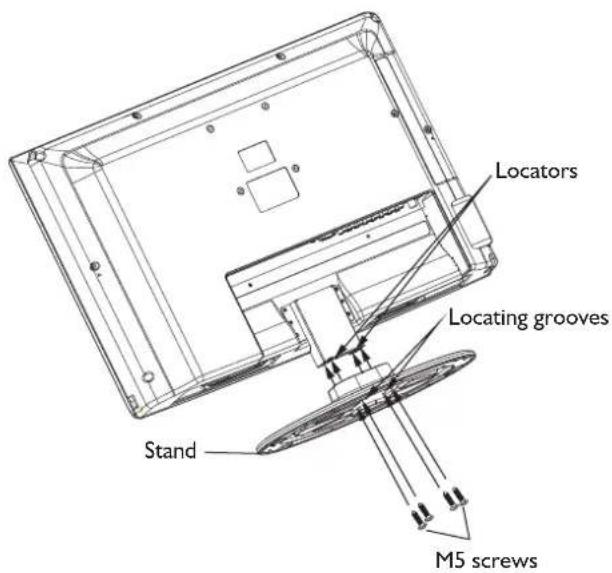
Locators Locating grooves Stand M5 screwsTo install the stand
I. Remove the stand from the box and place it on a table or bench.
You must pay attention to the direction of the stand. The wide portion of the stand should go towards the front of the TV.
-
Lay your TV flat (screen down) on the edge of a table or bench. Make sure that you put down a soft cushion or cloth so that your TV is not scratched.
-
Put the stand close to the TV back, align the stand with the TV by moving the stand steadily until the Stand Locators align with the locating grooves on the stand. And align the screw holes on the TV with the holes in the stand, then secure the stand to the TV with provided screws.
To remove the stand from the TV, perform these steps in reverse order.
NOTE:
The appearance of this product in these illustrations may differ from your actual product, and is for comparative purposes only.
Preparations (Continued)
Using the Remote Control
Selecting a location
You should select a location for the TV:
• Where direct light does not reflect on the screen.
• That has indirect and soft lighting.
• Where the TV has access to an antenna or cable TV connection.
• Where the TV has access to a power outlet.
Note: Watching TV in total darkness or with a reflection on the screen may cause eyestrain.
Installing remote control Batteries
I Open the battery cover.
2 Insert two AAA batteries into the battery compartment. Make sure that the + and - symbols on the batteries match the + and - symbols in the battery compartment.
3 Replace the cover.
Battery precautions:
Improper use of batteries can result in a leakage of chemicals and/or explosion. Be sure to follow the instructions below.
- Place batteries with their terminals corresponding to the (+) and (-) indications.
- Different types of batteries have different characteristics. Do not mix batteries of different types.
- Do not mix old and new batteries. Mixing old and new batteries can shorten the life of new batteries and/or cause old batteries to leak chemicals.
- Remove batteries as soon as they are non-operable. Chemicals that from batteries can cause a rash. If chemical leakage is found, wipe with a cloth.
- Dispose of batteries in a proper manner.
- If the remote control is not used for an extended period of time, remove the batteries.
- The batteries shall not be exposed to excessive heat such as sunshine, fire or the like.
Aiming the remote control
text_image
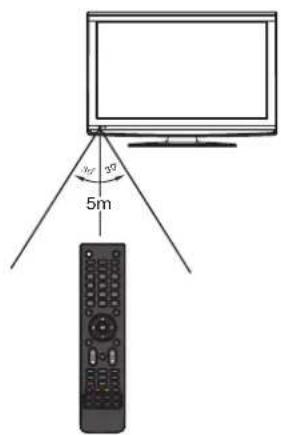
30° 5mUse the remote control by pointing it towards the remote sensor on the front of your TV. Objects between the remote control and the remote sensor may prevent proper operation.
Cautions regarding use of remote control
- Do not expose the remote control to shock. In addition, do not expose the remote control to liquids, and do not place in an area with high humidity.
- Do not install or place the remote control under direct sunlight. The heat may cause deformation of the unit.
- The remote control may not work properly if the remote sensor window of the main unit is under direct sunlight or strong lighting. In such a case, change the angle of the lighting or the TV set, or operate the remote control closer to the remote sensor window.
Making Connections
Before you make any connections
Cautions Before Connecting
- When connecting an external device to the TV, make sure that the TV and the device are turned off.
- Check the plugs on the ends of cables to make sure that they are the correct type before you try plugging them into jacks on the TV.
● Make sure that all plugs are securely inserted into the jacks. Loose connections can result in image or color problems.
● The illustration of the external device may be different depending on your model.
• Refer to the operating manual of the external device as well.
Antenna connection
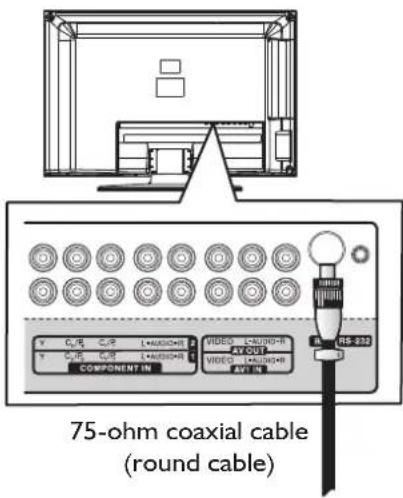
text_image
75-ohm coaxial cable (round cable)- Connect one end of your antenna cable to the RF jack on the back of the TV, then connect the other end of the cable to the antenna wall jack.
Note:
It is recommended that the 75-ohm coaxial cable be used to eliminate interference and noise which may occur due to radio wave conditions.
The antenna cable should not be bundled with the power cord and the like
- If the antenna is not installed properly, contact your dealer for assistance.
Power connection
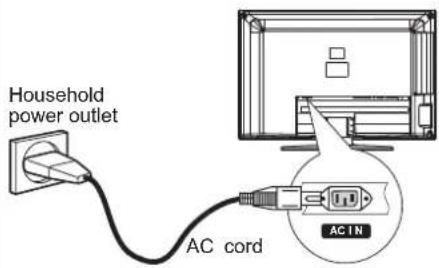
text_image
Household power outlet AC cord ACINConnect the power cord to a power outlet.
Note:
This product should be operated only from the type of power source indicated on the marking label.
● Always unplug the AC cord from power outlet when not using for a long period of time.
This illustration is for reference only. The AC plug may be different on different models.
Making Connections (Continued)
Headphone connection
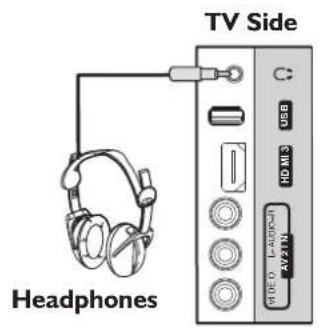
text_image
TV Side Headphones USB HD/MI 3 AVZIN WIDE TO L-ADPCHI ACV21NTo connect headphones:
Insert the plug of the headphone into the TV's Headphone jack. When using headphones, adjust the headphone volume so as to avoid excessive levels, as hearing damage may result.
USB connection
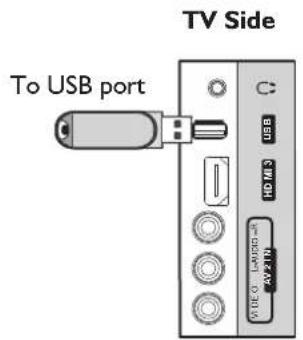
text_image
To USB port TV SideInsert your USB device into the USB port.
To play from the USB device:
I. Turn on your TV, then press SOURCE button. The Input Source menu opens.
2. Press ▲ or ▼ to select USB, then press OK to confirm.
Never remove the USB device or turn off the TV while using the USB device.
Digital sound system connection
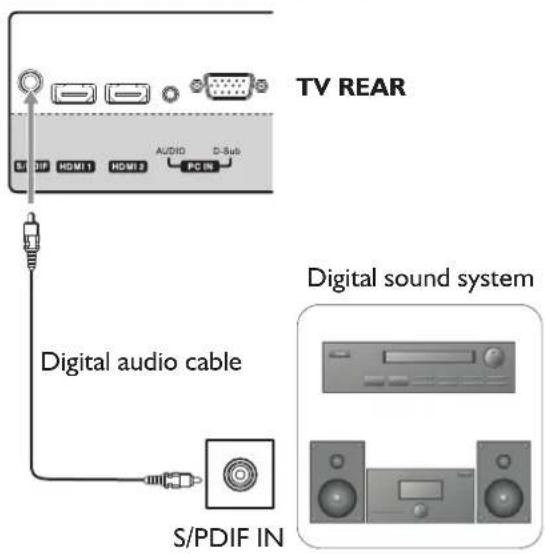
text_image
TV REAR Digital audio cable S/PDIF IN Digital sound systemFor a full Home Theater sound experience, you must connect your digital sound system to the S/PDIF OUT(Mini-TOSLINK) jack on the TV.
Making Connections (Continued)
HDMI device connection
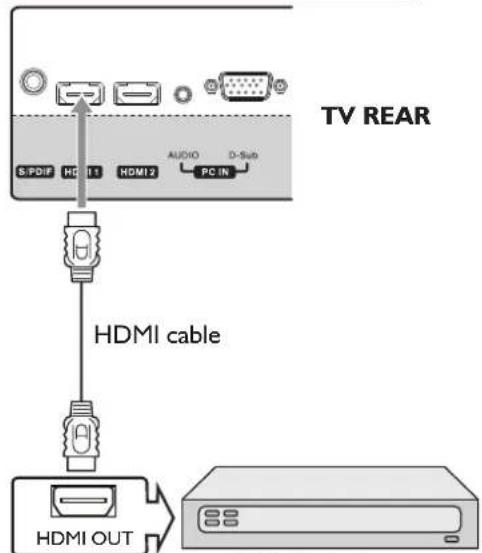
text_image
TV REAR S:PDIF HD 11 HDMI 2 AUDIO PC IN HDMI cable HDMI OUTHDMI device
How to connect an HDMI device:
Connect the HDMI cable between the HDMI jack on the TV (HDMI1 and HDMI2 located at TV rear, while HDMI3 at TV side) and HDMI output jack on the device.
Note: If your device has an HDMI connection, we recommend you use that to get the best quality possible.
To play from the HDMI device:
I. Turn on your TV, then press SOURCE button. The Input Source menu opens.
2. Press ▲ or ▼ to select HDMI1 or HDMI2 or HDMI3 correspondingly, then press OK to confirm.
3. Turn on the HDMI device and set it to the correct mode. Refer to the instructions that came with the HDMI device.
Note:
If the external device has DVI output only, use a DVI to HDMI adapter cable to connect to the HDMI terminal. Connect the audio cable to the PC IN AUDIO jack on the TV rear.
Component Video device connection
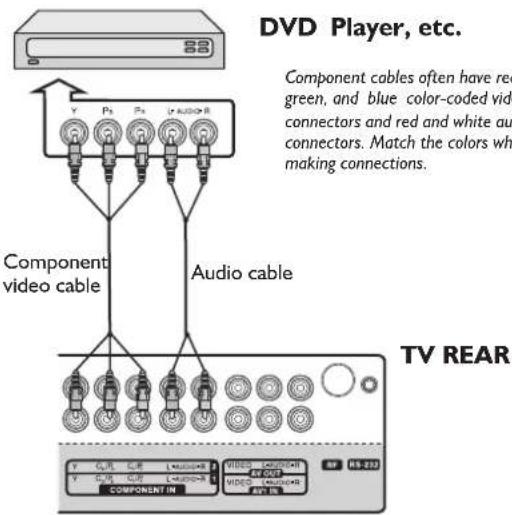
text_image
DVD Player, etc. Component cables often have red green, and blue color-coded video connectors and red and white au connectors. Match the colors wh making connections. Component video cable Audio cable TV REAR V QJL QJE L Audio+R V QJL QJE L Audio+R COMPONENT IN VIDEO VIDEO VIDEOTo connect a component video device:
Connect the Component Video cable between the Y, Pb, Pr input jacks on the TV and Y, Pb, Pr output jacks on the device.
Connect the Audio cable between the AUDIO input jacks on the TV and AUDIO output jacks on the device.
To play from the component video device:
I. Turn on your TV, then press SOURCE button. The Input Source menu opens.
2. Press ▲ or ▼ to select Component I (or Component 2 if COMPONENT 2 jacks are connected), then press OK to confirm.
3. Turn on your external device and set it to the correct mode. See the device's user guide for more information.
Computer connection
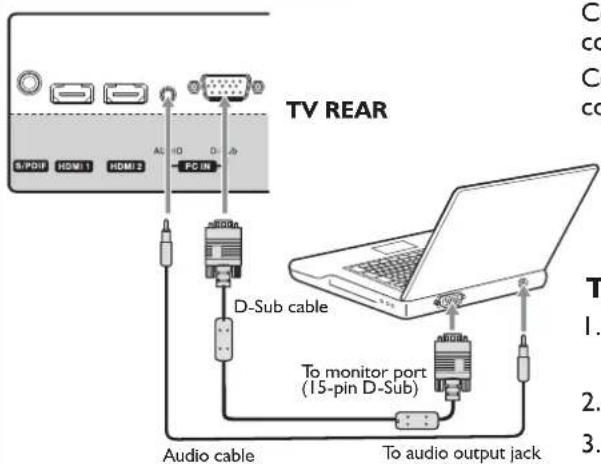
text_image
TV REAR B/PDIF HDMI 1 HDMI 2 A1 HD D Sub PC IN D-Sub cable To monitor port (15-pin D-Sub) Audio cable To audio output jack T 1. 2. 3.To connect a computer:
Connect a D-SUB(VGA) cable between the D-SUB jack on the computer and the D-SUB input jack on the unit.
Connect an Audio cable between the AUDIO output on the computer and AUDIO input jack on the unit.
To play video from the computer:
- Turn on your TV, then press SOURCE button. The Input Source menu opens.
- Press ▲ or ▼ to select D-SUB, then press OK to confirm.
- Turn on your computer, and adjust the display properties as required.
Making Connections (Continued)
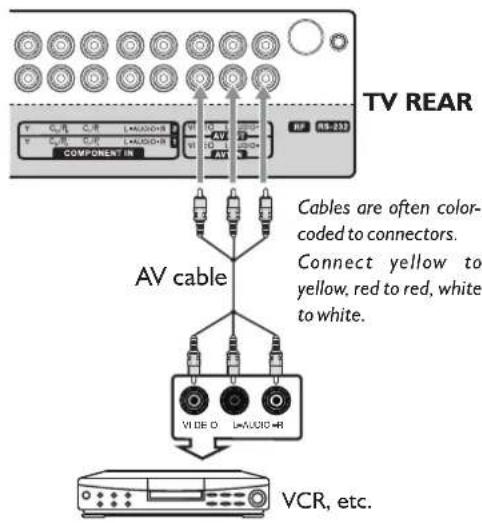
VCR connection (for playback)
text_image
TV REAR Cables are often color-coded to connectors. Connect yellow to yellow, red to red, white to white. AV cable VCR, etc.To connect a VCR:
Connect the Audio/Video cables between the Audio (L/R)/Video jacks on the TV and VCR.
To play the VCR:
- Turn on your TV, then press SOURCE button. The Input Source menu opens.
- Press ▲ or ▼ to select AVI, then press OK to confirm.
- Turn on your VCR, insert a videotape and press the Play button.
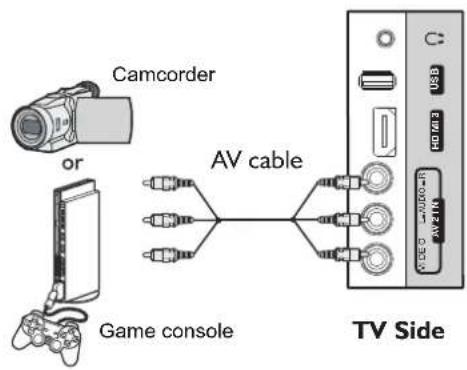
Camcorder/game console connection
text_image
Camcorder or AV cable Game console TV SideTo connect a camcorder or game console:
Connect the Audio/Video cables between the Audio (L/R)/Video jacks on the TV and the camcorder or game console.
Note: If your game console has an HDMI connection, you will get better quality using the HDMI connection instead of the AV connection.
To playback the camcorder or play the game console:
I. Turn on your TV, then press SOURCE button. The Input Source menu opens.
2. Press ▲ or ▼ to select AV2, then press OK to confirm.
3. Turn on the camcorder or game console, then follow the instructions that came with the device to play from the camcorder or game console.
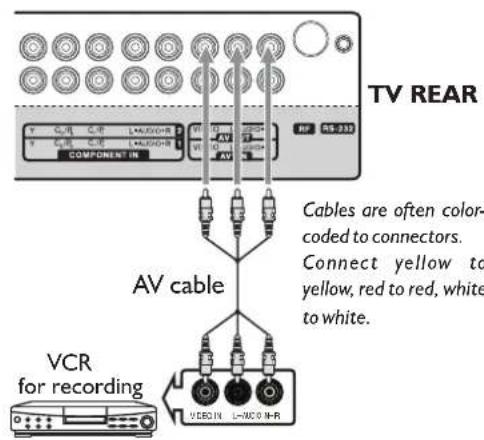
VCR connection (for recording)
text_image
TV REAR Cables are often color- coded to connectors. Connect yellow to yellow, red to red, white to white. AV cable VCR for recordingTo connect a VCR for recording
Connect an AV cable to the AV OUT jacks on the side of your TV and to the AV IN jacks on the back of the VCR.
To record a program:
- Turn on your TV, then select the programme you want to record.
- Turn on your VCR, then insert a videotape.
- Press RECORD on your VCR to start the recording.
Note: Only TV and AV programs can be recorded.
First Time Configuration/Basic Operations
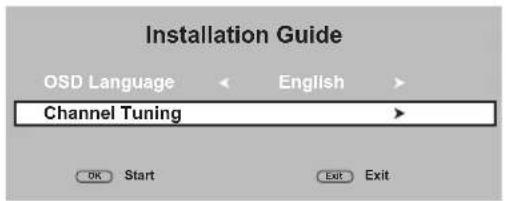
Initial setup
The first time you use the TV, you need to configure your TV.
To configure your TV:
Make sure that you have inserted the batteries in the remote control, have connected your antenna to the TV properly, and have connected the AC power.
text_image
Installation Guide OSD Language ← English → Channel Tuning → OK Start Exit Exit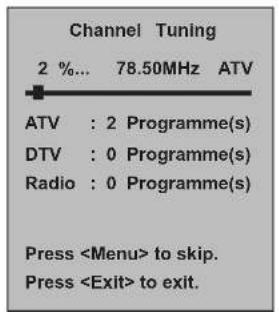
text_image
Channel Tuning 2 %... 78.50MHz ATV ATV : 2 Programme(s) DTV : 0 Programme(s) Radio : 0 Programme(s) Press2 Press the Power Switch on the TV, then press POWER ⏻ to turn on the TV.
3 Now the Installation Guide screen appears with Channel Tuning highlighted. Press OK to begin the auto tuning for all available channels, first for ATV then DTV (including Radio) channels. It may take several minutes, please wait until it is finished.
During searching, the screen will display a report about found stations.
When complete, it will go to digital programme position one. Now channel list has been created and you can start to watch TV.
Note: During ATV tuning, if you want to skip it and go to DTV tuning, press MENU. To exit tuning, press EXIT.
Turning the TV on or off
natural_image
Technical line drawing of a vertical-mounted device with a rectangular base and cable connector (no text or symbols)Power Switch
text_image
SOURCE FREEZE TV/RADIO STEREO S.MODE FAV.LIST P.MODE 1 2 3To turn the TV on or off:
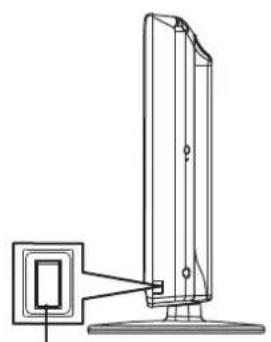
Plug the power cord into an AC power outlet. Press Power Switch on the TV.
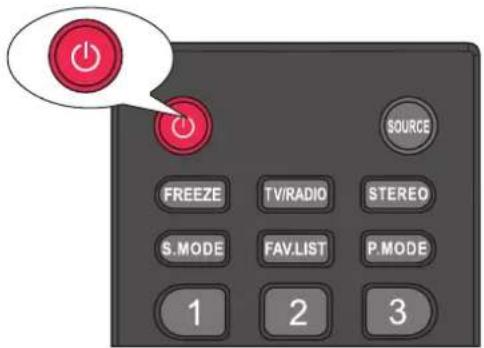
2 Now the set is in standby mode. Wait some seconds until the power indicator lights up, then press POWER ⏻ to turn on the TV. (Be sure to wait some seconds before pressing POWER button. If you promptly press POWER button then the TV may not respond or act wrongly.)
3 Press ∅button again to turn off the TV and put the TV in standby mode.
To cut off the power completely, press Power Switch on the TV.
Warning: When the TV is in standby mode, power is still flowing into the TV. To save power, please press Power Switch to completely cut off the power. After you turn off the TV, you should wait at least 5 seconds (the power indicator goes out) before you turn it on again.
Note: If the TV does not receive a broadcast signal for several minutes, the TV goes into standby mode automatically.
Input Source Selection
text_image
Input Source DTV ATV AV1 AV2 Component1 Component2 D-SUB HDMI1 HDMI2 HDMI3 USB A→ Move ⚫ SelectTo select the input source:
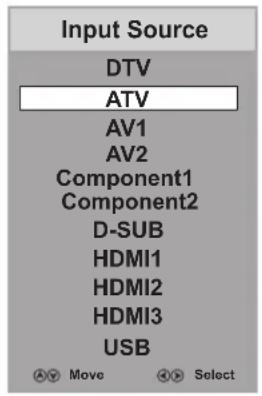
I Press SOURCE button. The Input Source list appears.
2 Press ▼ or ▲ to select the input source, then press OK or ▶ to confirm your choice. The TV switches to the selected source.
Programme Selection
text_image
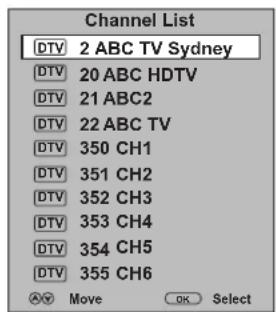
Channel List DTV 2 ABC TV Sydney DTV 20 ABC HDTV DTV 21 ABC2 DTV 22 ABC TV DTV 350 CH1 DTV 351 CH2 DTV 352 CH3 DTV 353 CH4 DTV 354 CH5 DTV 355 CH6 OK Select MoveDigital programme selection
After you have tuned the TV, you have several ways to select DTV programmes.
Be sure to select DTV through the Input Source menu (See the above steps for source selection).
When watching digital programme and you want to listen to radio, simply press TV/RADIO button to switch. To return to TV program, press TV/RADIO button again. (When watching analogue programme, the TV/RADIO button does not work.)
text_image
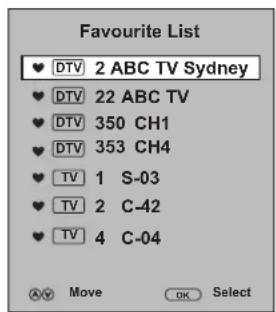
Favourite List ♥ DTV 2 ABC TV Sydney ♥ DTV 22 ABC TV ♥ DTV 350 CH1 ♥ DTV 353 CH4 ♥ TV 1 S-03 ♥ TV 2 C-42 ♥ TV 4 C-04 A♥ Move OK Select- Press CH ▲ or CH ▼ to go to the next or previous channel. The skipped channels can not be selected.
- Press the number buttons to directly select any channel you want, then wait for the channel to change.
Note: Button presses must be within three seconds of each other.
- Press LIST to display the Channel List, then press ▼ or ▲ to select a channel, and then press OK.
- After you have created the favorite channel list, you can press FAV.LIST button to display the favorite channel list. Use ▲ or ▼ to select a channel and then press OK.
• To go to the previous channel viewed, press
text_image
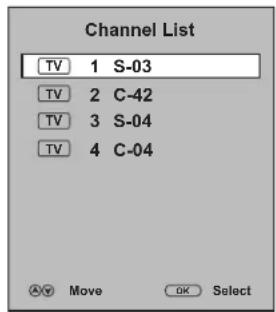
Channel List TV 1 S-03 TV 2 C-42 TV 3 S-04 TV 4 C-04 Move OK SelectAnalogue programme selection
Be sure to select ATV through the Input Source menu (See the above steps for source selection).
- Press CHge to the next or previous channel. The skipped channels can not be selected.
- Press the number buttons to directly select any channel you want, then wait for the channel to change.
Note: Button presses must be within three seconds of each other.
- Press LIST to display the Channel List, then press ▼ or ▲ to select a channel, and then press OK.
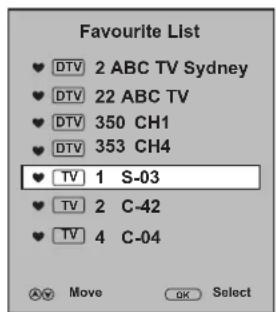
- After you have created the favorite channel list, you can press FAV.LIST button to display the favorite channel list. Use ▲ or ▼ to select a channel and then press OK.
• To go to the previous channel viewed, press
text_image
Favourite List DTV 2 ABC TV Sydney DTV 22 ABC TV DTV 350 CH1 DTV 353 CH4 TV 1 S-03 TV 2 C-42 TV 4 C-04 A V Move OK SelectVolume adjustment
To adjust the volume:
- Press the VOL+/- to increase or decrease the volume.
- Press the MUTE button to temporarily turn off the sound. To restore the sound, press the MUTE button again.
Displaying program information
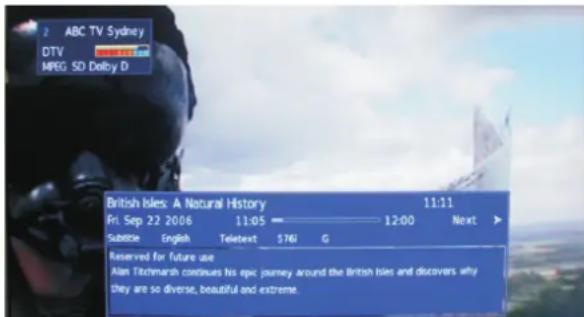
Press the INFO button to display the information banner. The information banner displays current status information such as the channel number and signal source.
Depending on the mode, different information is displayed. In DTV mode, more information will be displayed. Below figure is an example banner in DTV mode.
text_image
2 ABC TV Sydney DTV MPEG SD Dolby D British Isles: A Natural History 11:11 Fri. Sep 22 2006 11:05 ———————— 12:00 Next > Subtle English Teletext $76i G Reserved for future use Alan Titchmarsh concludes his epic journey around the British Isles and discovers why they are so diverse, beautiful and extreme.Note:
- The above OSD is only served as an example, and it is in DTV mode.
• Information banner content varies, depending on the broadcaster and your settings.
In DTV mode, the information banner may contain:
• Current channel number and name.
- Current time.
• Current programme name, start and end play times.
- Next programme name and start and end play times.
• TV or Radio.
• Audio mode, audio track.
• Signal strength for current channel.
• Signal resolution.
- Subtitle/teletext availability.
• Video format of the current programme (SD/HD).
• Parental rating (G, PG, M, MA, etc.)
Using the EPG - digital only -
text_image
EPG 22 Sep 2011 09:00 20 2 ABC TV Sydney 22 British Isles: A Natural History 22 Sep 08:47- 09:05 British Isles: A Natural History 22 Sep 09:05 - 10:00 Designers: Agriculture 22 Sep 10:00 - 10:32 Midday Report 22 Sep 10:32 - 11:31 Parkinson 22 Sep 11:31 - 12:03 Men Behaving Badly 22 Sep 12:03 - 12:33 The Lenny Henry Show Prev. Day Next Day REC INFO EXIT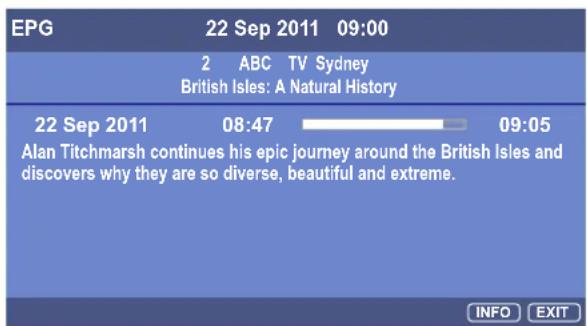
text_image
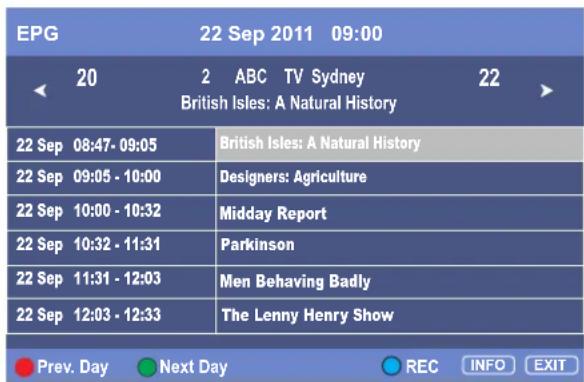
EPG 22 Sep 2011 09:00 2 ABC TV Sydney British Isles: A Natural History 22 Sep 2011 08:47 09:05 Alan Titchmarsh continues his epic journey around the British Isles and discovers why they are so diverse, beautiful and extreme. INFO EXITThe Electronic Programme Guide (EPG) makes it possible for users to see details about the programme they are watching, other programmes and even a schedule of the next 7 days (if available). The information available includes the number and name of the channel, the name of programme, the start and end time, and a summary. Thus viewers can easily get information about future programmes.
To use EPG
Press the EPG button to open the EPG. In the EPG window (as shown on the left), current channels' now and upcoming program's information will be displayed.
2 At upper screen, the channel number/name is shown, you can use ◀ or ▶ to select a channel whose information you want to know. At the lower screen, this selected channel's now and future programme events are listed. Use ▲ or ▼ to navigate among the programme events (To quickly navigate among the list, press RED button to go to previous day list and GREEN button to next day list), and press INFO button to get more detailed information (if available) about the programme you choose.
3 To close the EPG, press EXIT or EPG button.
Note:
- The above OSD is only served as an example. The availability of EPG information depends upon the broadcaster.
- To enable EPG to work properly, it is suggested to set the appropriate time zone.
On-screen menu overview
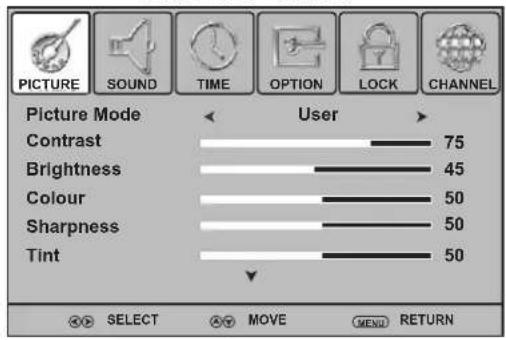
■ List of main menus to help you with operations
PICTURE menu
text_image
PICTURE SOUND TIME OPTION LOCK CHANNEL Picture Mode User Contrast 75 Brightness 45 Colour 50 Sharpness 50 Tint 50 SELECT MOVE MENU RETURNSOUND menu
text_image
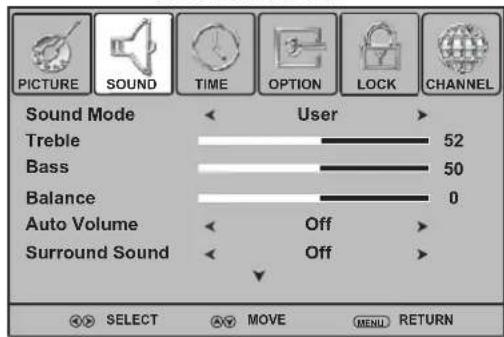
PICTURE SOUND TIME OPTION LOCK CHANNEL Sound Mode User Treble 52 Bass 50 Balance 0 Auto Volume Off Surround Sound Off SELECT MOVE MENU RETURNTIME menu
text_image
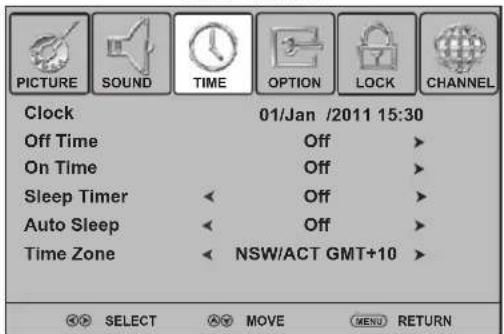
PICTURE SOUND TIME OPTION LOCK CHANNEL Clock 01/Jan /2011 15:30 Off Time Off On Time Off Sleep Timer Off Auto Sleep Off Time Zone NSW/ACT GMT+10 SELECT MOVE MENU RETURNOPTION menu
text_image
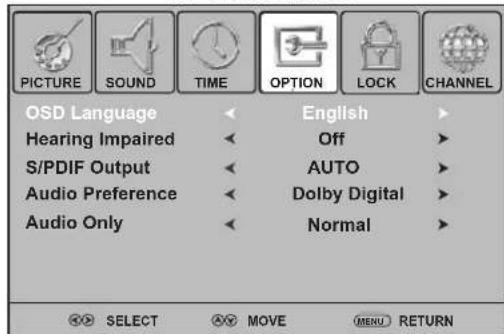
PICTURE SOUND TIME OPTION LOCK CHANNEL OSD Language Hearing Impaired S/PDIF Output Audio Preference Audio Only English Off AUTO Dolby Digital Normal SELECT MOVE MENU RETURNLOCK menu CHANNEL menu
text_image
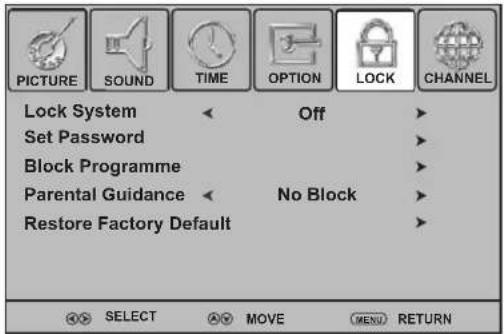
PICTURE SOUND TIME OPTION LOCK CHANNEL Lock System Off Set Password Block Programme Parental Guidance No Block Restore Factory Default SELECT AV MOVE MENU RETURN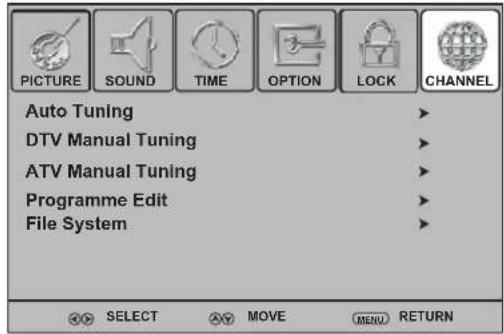
text_image
PICTURE SOUND TIME OPTION LOCK CHANNEL Auto Tuning DTV Manual Tuning ATV Manual Tuning Programme Edit File System SELECT AVY MOVE MENU RETURNNote:
- Depending on the signal tuned, you may see different menu options on your screen. The above main menus are illustrated under TV mode.
- Menu items that are not selectable are grayed out. If without special indication, this manual is described under TV mode.
- The illustrations and on-screen displays in this manual are for explanation purposes (some are enlarged, others cropped) and may vary slightly from the actual ones.
■ To operate the OSD (on-screen display)menu:
- Press MENU to call up the OSD main menu.
- The screen will now display Picture menu.
- Press ◀ or ▶ one or more times to select menu, press ▼ to access.
- PICTURE, SOUND, TIME, OPTION, LOCK, CHANNEL menu can be selected.
- From the menu, press ▲▼◀▶ to navigate or adjust. Press OK to confirm an entry or selection.
• To return to previous menu, press MENU.
• To close the menu, press EXIT.
Memorizing the Channels
Note: If the Lock System is On, Auto Tuning/DTV manual tuning/ATV manual tuning can not be operated without password. For details, please see
When in PVR recording/time shifting, CHANNEL menu can not be accessed.
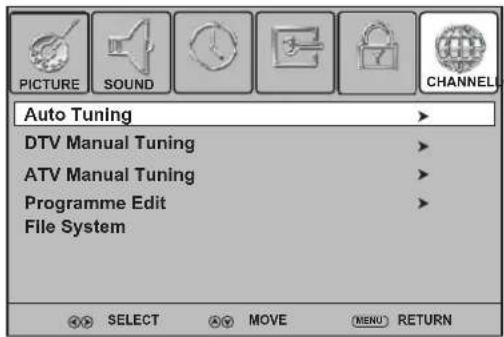
Auto Tuning
Auto Tuning will completely re-tune the TV and can be used to update the channel list.
It is recommended that Auto Tuning is run periodically to ensure that all new services are added. All current channels and settings, e.g. locked channels, will be lost.
text_image
PICTURE SOUND CHANNEL Auto Tuning DTV Manual Tuning ATV Manual Tuning Programme Edit File System SELECT MOVE MENU RETURNNote:
As new services are broadcast, it will be necessary to retune the TV in LOCKOPTIONTIME order to view them.
Go to Input Source menu and select ATV or DTV first.
2 Press MENU. Press ◀ or ▶ to select CHANNEL menu, press to access.
3 Highlight Auto Tuning item, and press ▶ or OK to access.
4 Now a pop-up screen opens with Australia as default country and Start is highlighted. Now simply press OK to begin the auto tuning. (If you want to cancel, press ▶ to select Cancel and press OK.)
All ATV/DTV channels available in your area will be searched and stored into memory. Please wait until the searching is complete.
5 During the process, if you want to skip, press MENU. To exit searching, press EXIT.

text_image
PICTURE SOUND CHANNEL Auto Tur DTV Man ATV Man Program File Syst Country selection < Australia > Start Cancel SELECT MOVE MENU RETURNDTV manual tuning - digital only -
text_image
PICTURE SOUND CHANNEL Auto Tuning DTV Manual Tuning ATV Manual Tuning Programme Edit File System SELECT MOVE MENU RETURN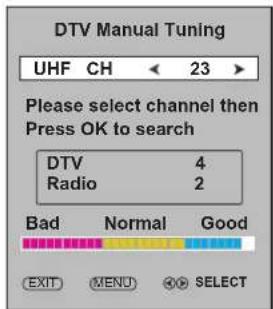
text_image
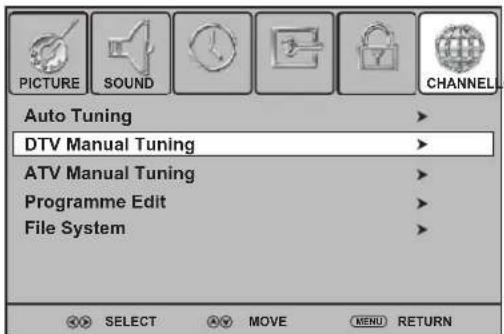
DTV Manual Tuning UHF CH < 23 > Please select channel then Press OK to search DTV 4 Radio 2 Bad Normal Good EXIT MENU SELECTThis feature is available for service engineers or can be used for direct channel entry if the multiplex channel is known.
In CHANNEL menu, press ▼ or ▲ to select DTV Manual
Tuning, then press ▶ or OK to access.
2 Highlight UHF CH item, press ◀ or ▶ button to select your desired multiplex number.
3 Press OK to begin the search for that multiplex.
At the bottom of the menu screen the DTV Signal strength bar is displayed. You can make use of it to check how strong your DTV signal is and whether you need to adjust your antenna. The higher the signal strength is, the less likely you are to experience picture degradation.
4 When the multiplex is found, any channels that are not currently in the channel list will be added and the channel information will be updated.
During the process, you can press MENU or EXIT to exit the search.
Memorizing the Channels & Programme Edit
ATV manual tuning
- analogue only -
text_image
PICTURE SOUND TIME OPTION LOCK CHANNEL Auto Tuning DTV Manual Tuning ATV Manual Tuning Programme Edit File System SELECT MOVE MENU RETURN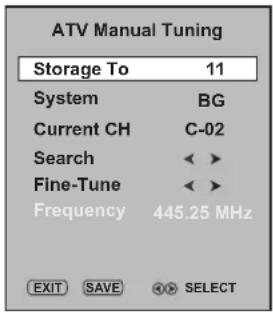
text_image
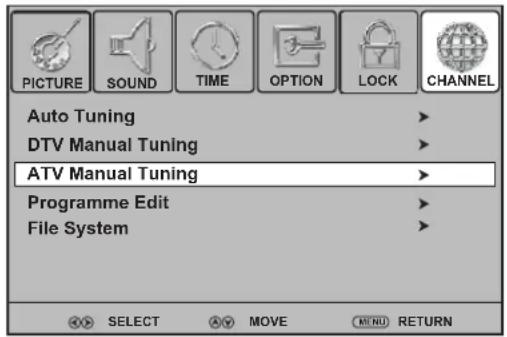
ATV Manual Tuning Storage To 11 System BG Current CH C-02 Search < > Fine-Tune < > Frequency 445.25 MHz EXIT SAVE SELECTUse the Manual Tuning operation if desired channels can not be preset by Auto Tuning or if you would like to preset channels to specific position numbers one by one.
In CHANNEL menu, press ▼ or ▲ to select ATV Manual Tuning, then press ▶ or OK to access the setting menu.
2 From ATV Manual Tuning setting menu, press ▼ or ▲ to select an item, press ◀ or ▶ to set the item as shown below.
A. Storage To: Position selection. Press ◀ or ▶ button to select the position you want to store.
B. System: Sound system selection. If certain channel's sound is abnormal, it may be that the sound system setting is wrong. In this case, select another sound system.
C. Current CH: Selects current channel using ◀ or ▶.
D. Search: Channel search operation.
Press ▶ to search up the band or ◀ to search down the band.
Press ◀ or ▶ repeatedly until your desired channel is displayed.
E. Fine-Tune: Manual fine tuning.
Press ◀ or ▶ until better picture and sound are obtained.
F. Frequency: Shows current frequency, it can not be adjusted. (During the process, you can press EXIT to exit the operation.)
3 Press RED button to save your settings.
Adding or changing a channel label
- analogue only -
text_image
PICTURE SOUND TIME OPTION LOCK CHANNEL Auto Tuning DTV Manual Tuning ATV Manual Tuning Programme Edit File System SELECT MOVE MENU RETURN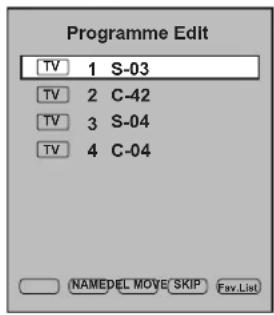
text_image
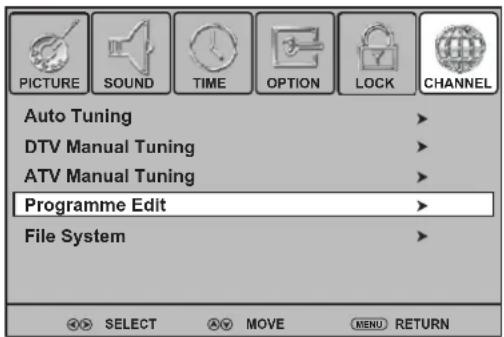
Programme Edit TV 1 S-03 TV 2 C-42 TV 3 S-04 TV 4 C-04 NAMEDEL MOVE/ SKIP Fav.ListIf a channel is not already labeled, you can label the channel to make it easier to identify. You can also relabel a channel that is already labeled.
Press MENU. Press ◀ or ▶ to select CHANNEL menu, press ▼ to access.
2 Press ▼ or ▲ to select Programme Edit, press ▶ or OK to open the Programme Edit menu and a programme list is displayed.
3 Within the programme list, press ▼ or ▲ to select a channel you want to label, press GREEN button to start to label. A cursor appears at the edit field.
4 Use ▼ or ▲ to select a character, use ◀ or ▶ to move the cursor. When finished, press OK to confirm.
The maximum length of label is 5 characters.
5 Repeat the above steps to label more channels.
Note: The labels of DTV channels are automatically assigned and cannot be changed by user.
Programme Edit (Continued)
Setting up a favourite channel list
text_image
PICTURE SOUND TIME OPTION LOCK CHANNEL Auto Tuning DTV Manual Tuning ATV Manual Tuning Programme Edit File System SELECT MOVE MENU RETURN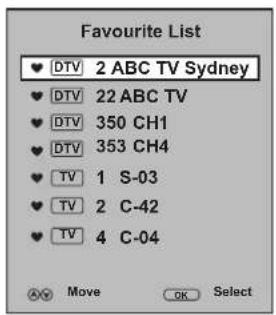
text_image
Favourite List DTV 2 ABC TV Sydney DTV 22 ABC TV DTV 350 CH1 DTV 353 CH4 TV 1 S-03 TV 2 C-42 TV 4 C-04 Move OK SelectYou can create a favourite channel list so you can quickly browse through your favourite channels by pressing FAV.LIST, then selecting a channel from the favourite channel list.
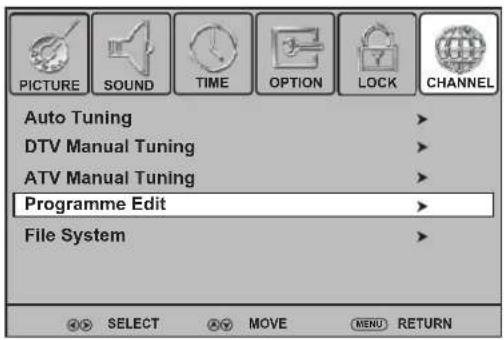
| Navigate to the CHANNEL menu, press ▲ or ▼ to select Programme Edit, press ▶ or OK to open the Programme Edit menu.
2 Use ▼ or ▲ to select your favourite program, use FAV.LIST button to mark the selected programme as favourite (a favourite symbol appears). To cancel the favourite mark, just press FAV.LIST button again and the symbol disappears. If the programme list has more than one page, you can press ▼ or ▲ to scroll the page.
3 Repeat the above steps to set more favorite programs.
4 Press EXIT button to close the menu.
5 Now you can press FAVUIST to display the avoriteflist, press to browse through the favorite programs and press OK to access the channel.
Reorder/rearrange channels
- analogue only -
text_image
PICTURE SOUND TIME OPTION LOCK CHANNEL Auto Tuning DTV Manual Tuning ATV Manual Tuning Programme Edit File System SELECT MOVE MENU RETURN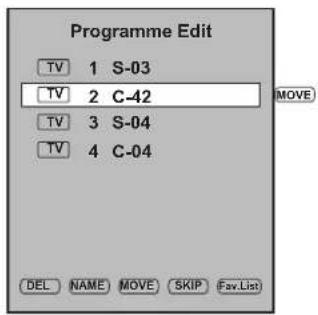
text_image
Programme Edit TV 1 S-03 TV 2 C-42 TV 3 S-04 TV 4 C-04 MOVE DEL NAME MOVE SKIP Fav.ListATV channels can be arranged in your favourite order.
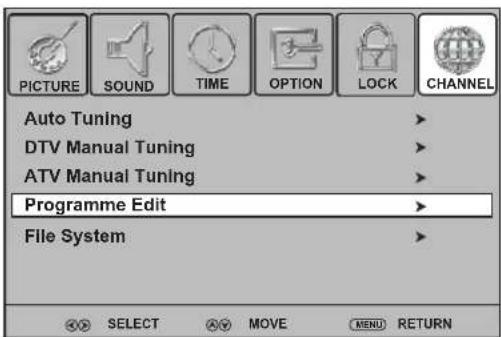
| Navigate to the CHANNEL menu, press ▲ or ▼ to select Programme Edit, press ▶ or OK to open the Programme Edit menu.
2 Use ▼ or ▲ to select a channel you want to move.
3 Press YELLOW button and a move symbol appears alongside the selected channel in the list, then use ▼ or ▲ to move the channel upward or downward to a desired new position. Press YELLOW button again to finish the moving.
4 Repeat the above steps to move more programs.
Note:
- If the Programme Edit menu has more than one page, you may press ▲ or ▼ to scroll the page upward or downward.
- The order of the DTV channels is automatically assigned and cannot be changed by user.
Programme Edit (Continued)
Skipping channels
text_image
PICTURE SOUND TIME OPTION LOCK CHANNEL Auto Tuning DTV Manual Tuning ATV Manual Tuning Programme Edit File System SELECT MOVE MENU RETURN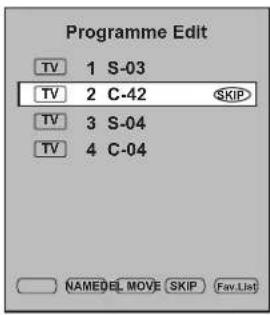
text_image
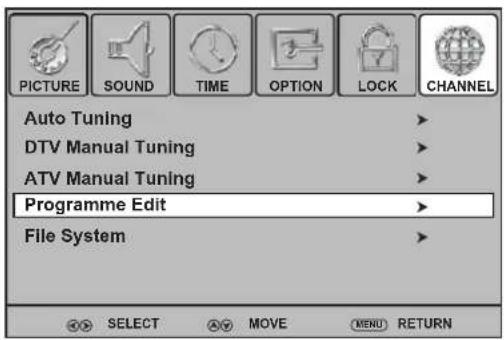
Programme Edit TV 1 S-03 TV 2 C-42 SKIP TV 3 S-04 TV 4 C-04 NAMEDEL MOVE SKIP Fav.ListYou can skip unnecessary channels so that only the channels you want to watch can be selected by CH▲ / CH▼. You can still tune to the skipped channel by using the number buttons.
| Navigate to the CHANNEL menu, press ▲ or ▼ to select Programme Edit, press ▶ or OK to open the Programme Edit menu.
2 Press ▼ or ▲ to select your unwanted channel, press BLUE button and a skip symbol appears alongside the selected channel in the list, which means this channel will be skipped. (To cancel the skip setting, press BLUE button again and the symbol disappears.)
3 Repeat the above steps to set more programs to skip.
4 Press EXIT to close the menu. Now when you press CH▲/▼, these unwanted channels will be skipped.
Note: If the Programme Edit menu has more than one page, you may press ▲ or ▼ to scroll the page upward or downward.
Deleting channels
text_image
PICTURE SOUND TIME OPTION LOCK CHANNEL Auto Tuning DTV Manual Tuning ATV Manual Tuning Programme Edit File System SELECT MOVE MENU RETURN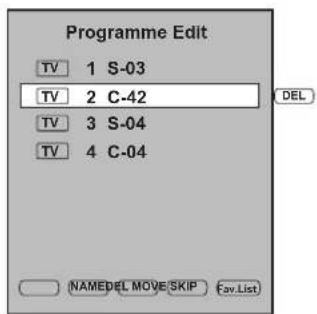
text_image
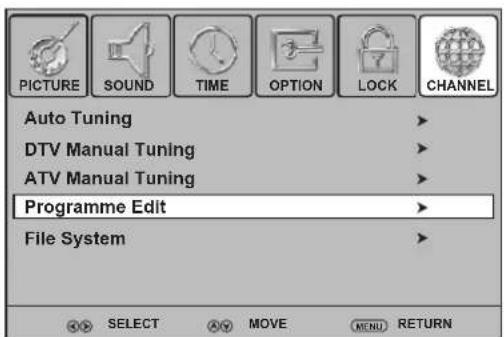
Programme Edit TV 1 S-03 TV 2 C-42 TV 3 S-04 TV 4 C-04 NAMEDL MOVE SKIP Fav.ListYou can delete your unwanted channels from the channel list. After deleting, you can not find them unless you perform a new channel search.
| Navigate to the CHANNEL menu, press ▲ or ▼ to select Programme Edit, press ▶ or OK to open the Programme Edit menu.
2 Press ▼ or ▲ to select your unwanted channel, press RED button and a delete symbol appears alongside the selected channel in the list. Press RED button again to confirm the deleting and this channel is deleted.
3 Use ▼ or ▲ to select other unwanted program and press RED button to delete.
4 Press EXIT to close the menu.
Note: If the Programme Edit menu has more than one page, you may press ▲ or ▼ to scroll the page upward or downward.
Adjusting the Picture
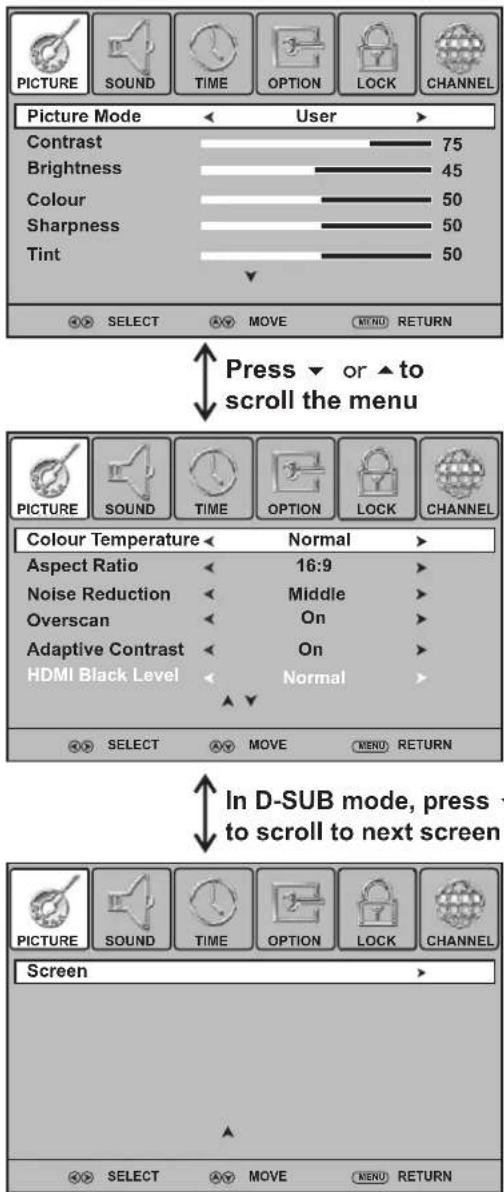
Adjusting the picture
text_image
PICTURE SOUND TIME OPTION LOCK CHANNEL Picture Mode User Contrast 75 Brightness 45 Colour 50 Sharpness 50 Tint 50 SELECT MOVE MENU RETURN Press▼ or ▲ to scroll the menu PICTURE SOUND TIME OPTION LOCK CHANNEL Colour Temperature Normal Aspect Ratio 16:9 Noise Reduction Middle Overscan On Adaptive Contrast On HDMI Black Level Normal SELECT MOVE MENU RETURN In D-SUB mode, press to scroll to next screen Screen PICTURE SOUND TIME OPTION LOCK CHANNEL SELECT MOVE MENU RETURNFreezing the picture
Press the FREEZE button to freeze the image on the screen (the video sources still run). Press again to restore.
Note:
- If a fixed image is displayed on the screen for a long time, that fixed image may become imprinted on the screen and remain visible. Therefore do not freeze the picture for a long time.
- In some mode, the FREEZE function can not work.
To adjust the picture:
I Press MENU. The on-screen menu opens with the PICTURE menu displayed, then press ▼ to access.
2 Press ▼ ▲ to highlight an option, press ◀ ▶ to adjust the option; If a sub-menu exits, press ▶ or OK to access. You can select:
• Picture Mode — Selects the picture mode. You can select:
. Dynamic (a bright and vivid picture)
. Standard (a standard picture)
. Mild (a soft picture)
. User (user customized picture).
Note: You can also press P.MODE to select the picture mode.
• Contrast — Adjusts the contrast.
• Brightness — Adjusts the brightness.
• Colour — Adjusts the colour saturation.
• Sharpness — Adjusts the sharpness.
• Tint — Adjusts the image tint. (Only for NTSC system)
- Colour Temperature — Selects the colour temperature. You can select Warm (to enhance the reds), Cool (to enhance the blues), or Normal.
- Aspect Ratio — Selects the aspect ratio of the picture. You can select:
. 16:9 — Shows a full-screen picture in 16:9 mode.
. 4:3 — Shows picture in 4:3 display mode. (Recommended not let TV remain in this mode for extended period of time as to protect the screen.)
. Auto — Selects the correct aspect ratio automatically.
. Zoom1 — Enlarges the picture vertically. The top and bottom may be cropped.
. Zoom2 — Enlarges picture both horizontally and vertically. The edges may be cropped.
. I:1 pixel mapping (D-SUB, HDMI only) — Displays an input source without scaling it (This option is available on either of these two conditions: ①native resolution:1920x1080, input resolution:1920 x 1080p; native resolution:1366x768, input resolution:1360 x768).
Note: You can also press ASPECT to select the aspect ratio.
- Noise Reduction — Selects the noise reduction mode to reduce picture noise (snow). You can select Low, Middle, High, or Off.
- Overscan (D-SUB,HDMI only) — Turn this On to adjust the picture's reproduction rate (available when the TV's aspect ratio is in 4:3 or 16:9 and the input signal is in video format).
- Adaptive Contrast — Turn this On to optimize the picture display for a more vivid image.
- HDMI Black Level (HDMI only) — Selects the black level on the screen. Select Low for darker screen, Normal for brighter screen. (Available when RGB signal is input through HDMI jack).
• Screen (D-SUB only) — Adjusts the computer image.
Adjusting the Sound
Adjusting the sound
text_image
PICTURE SOUND TIME OPTION LOCK CHANNEL Sound Mode User Treble 52 Bass 50 Balance 0 Auto Volume Off Surround Sound Off SELECT MOVE MENU RETURN
text_image
PICTURE SOUND TIME OPTION LOCK CHANNEL Visual Impairment: Mode On Volume 10 SELECT MOVE MENU RETURNTo adjust the sound:
I Press MENU. The on-screen menu opens.
2 Press ◀ or ▶ to select SOUND menu, press ▼ to access.
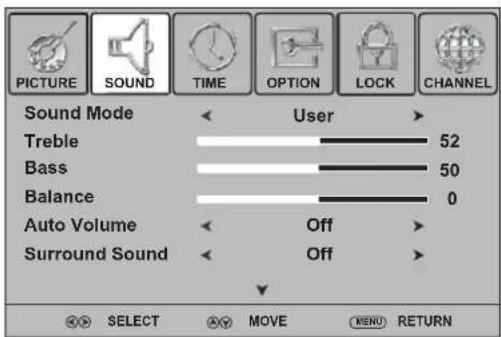
3 Press ▼ or ▲ to highlight an option, press ◀ or ▶ to adjust the option. You can select:
• Sound Mode — Selects the sound mode. You can select:
. Standard (for normal programs)
. Music (for musical programs)
. Movie (for movies)
. Sports (for sports programs)
. User (for user setting sound mode).
Note: to You can also press S.MODE on the remote control to select the sound mode.
• Treble — Adjusts Treble (high sounds).
• Bass — Adjusts Bass (low sounds)
• Balance — Adjusts the balance between the left and right audio channels.
- Auto Volume — Turns on to equalize the overall volume levels for all channels.
- Surround Sound — Turns the Surround sound effect on or off.
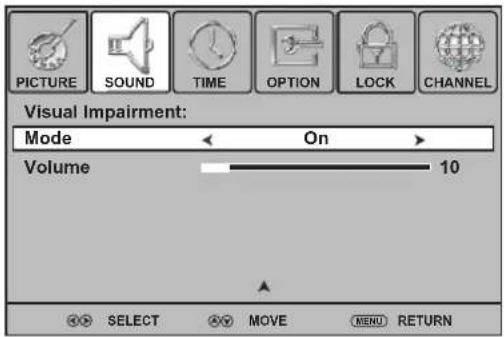
- Visual Impairment — Sets the mix of visually impaired audio with regular audio. When available, visually impaired audio includes audio descriptions of on-screen action.
Enable this by setting Mode to On, also you can adjust the volume from this menu.
4 To close the menu, press EXIT button.
Stereo and Bilingual transmissions
For ATV programmes
If stereo or dual language broadcasts are transmitted, the word Stereo or Dual will appear on the screen each time you change channels, disappearing after a few seconds. If the broadcast is not in stereo, the word Mono will appear.
Stereo ... Press STEREO button to select Stereo or Mono.
Bilingual ... Bilingual transmissions are rare. If they are transmitted, the word DUAL will display. Choose the desired channel number, and if the word DUAL appears, press STEREO to select NICAM DUAL A, NICAM DUAL B, Mono (NICAM broadcast), or DUAL A or DUAL B (German stereo/bilingual broadcast).
For DTV programmes
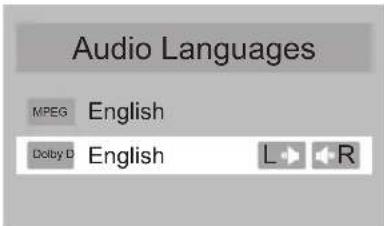
The digital-TV transmission system is capable of simultaneous transmission of many audio tracks (for example, simultaneous translations of the programme into foreign languages, or different commentators for sport events). You can press STEREO button and then use ▼ or ▲ to select the audio track.
text_image
Audio Languages MPEG English Delby D English L RNote: The availability of these additional "multi-tracks" depends upon the broadcaster.
Adjusting basic settings
text_image
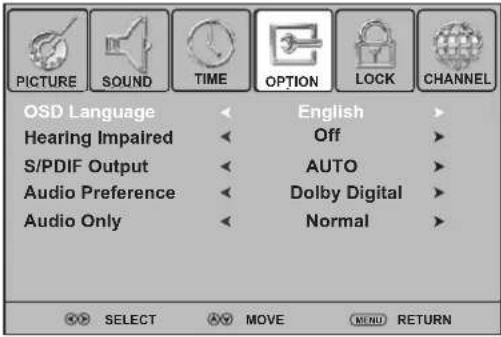
PICTURE SOUND TIME OPTION LOCK CHANNEL OSD Language Hearing Impaired S/PDIF Output Audio Preference Audio Only English Off AUTO Dolby Digital Normal SELECT MOVE MENU RETURNTo adjust basic settings:
I Press MENU. The on-screen menu opens.
2 Press ◀ or ▶ to display OPTION menu, press ▼ to access.
3 Press ▼ or ▲ to select an option, press ◀ or ▶ to adjust the option.
4 To close the menu, press EXIT button.
From Option menu you can select and adjust the following:
- OSD Language — Selects on-screen menus language. In this model, only ENGLISH is available.
- Hearing Impaired (digital only) — Selects On to display the subtitles (if available) for the hearing impaired.
- S/PDIF Output (digital only) — Selects the digital audio output mode for S/PDIF. You can select AUTO or PCM.
. AUTO: This mode outputs Dolby Digital or PCM to the digital audio output jack (S/PDIF) providing it is being broadcast.
. PCM: Select this when a 2ch digital stereo amplifier is connected to the TV. When you select a Dolby Digital or MPEG audio track, the sound is converted to the PCM (2ch) format and output.
• Audio Preference (digital only)— Selects the audio track to output. You can select MPEG or Dolby Digital*.
. MPEG: If the programme has MPEG and Dolby Digital tracks, select MPEG to output MPEG track in preference.
. Dolby Digital*: If the programme has MPEG and Dolby Digital tracks, select Dolby Digital to output Dolby Digital track in preference.
* Manufactured under license from Dolby Laboratories.
Dolby and double-D symbol are trademarks of Dolby Laboratories.

- Audio Only — When listening to radio programs, or listening to MP3 music (under USB music play), you can set Audio Only to Power Saving for energy save. The backlight will turn off automatically after some seconds. Select Normal then the backlight works normally.
Adjusting the Computer Image - PC only -
text_image
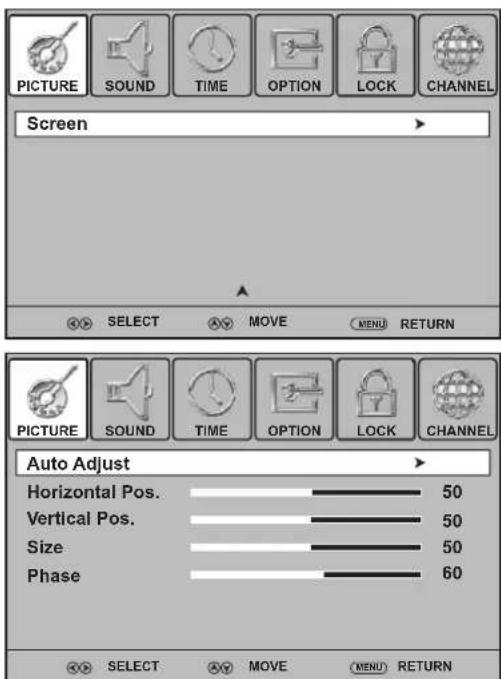
PICTURE SOUND TIME OPTION LOCK CHANNEL Screen SELECT MOVE MENU RETURN Auto Adjust Horizontal Pos. 50 Vertical Pos. 50 Size 50 Phase 60 SELECT MOVE MENU RETURNBefore adjusting the screen, make sure that you select the correct source (D-SUB).
To adjust the computer image:
I Press MENU. The on-screen menu opens with PICTURE menu displayed.
2 Press ▲ or ▼ repeatedly to scroll the menu page until you select the Screen item, then press ▶ or OK to access.
3 Press ▼ or ▲ to highlight an option, press ◀ or ▶ to adjust the level, or press OK to confirm. You can select:
- Auto Adjust — Automatically adjusts the image settings such as position and phase.
• Horizontal Pos. — Moves the image right or left.
• Vertical Pos. — Moves the image up or down. - Size — Adjust the horizontal width of the image on the screen.
• Phase — Adjusts the focus of stable images.
4 To close the menu, press EXIT button.
Setting Clock & Timer
Setting Time Zone & TV clock
text_image
PICTURE SOUND TIME OPTION LOCK CHANNEL Clock 01/Jan /2011 15:30 Off Time Off On Time Off Sleep Timer Off Auto Sleep Off Time Zone NSW/ACT GMT+10 SELECT MOVE MENU RETURN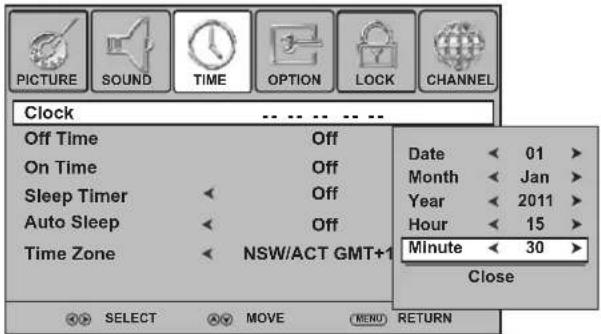
text_image
PICTURE SOUND TIME OPTION LOCK CHANNEL Clock Off Time Off On Time Off Sleep Timer Off Auto Sleep Off Time Zone NSW/ACT GMT+1 Date 01 Month Jan Year 2011 Hour 15 Minute 30 Close SELECT MOVE MEND RETURNTo set Time Zone/TV clock
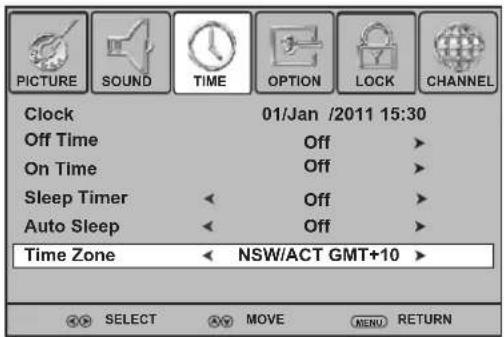
- For DTV programs, the clock displays the current time using time data received from your TV service provider. This information is based on a digital channel and does not need to be set manually, but you need to select your time zone firstly.
- For ATV programs, if the clock is not set, you may set the clock manually.
- To set OFF timer/ON timer, you should set the clock first.
I Press MENU. Press ◀ or ▶ to display TIME menu, press ▼ to access.
2 A. For DTV programs, you need to select your time zone.
Press ▲ or ▼ to select Time Zone, use ◀ or ▶ to select your local area time zone.
Then the clock will be automatically set by the TV signal source, based on the time zone you selected.
B. For ATV programs (and the clock is not set), press ▲ or ▼ to select Clock, press ▶ or OK to access its setting menu.
Within the menu, use ▲ or ▼ to highlight the Date, Month, Year, Hour or Minute item, and use ◀ or ▶ to adjust the values.
When finished, use ▲ or ▼ to select Close and press OK to confirm the setting and close this sub-menu.
3 To close the menu, press EXIT button.
Setting OFF timer
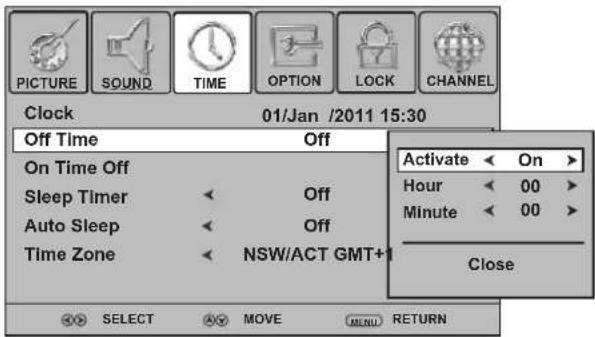
text_image
PICTURE SOUND TIME OPTION LOCK CHANNEL Clock 01/Jan /2011 15:30 Off Time Off On Time Off Sleep Timer Off Auto Sleep Off Time Zone NSW/ACT GMT+ Activate On Hour 00 Minute 00 Close SELECT MOVE MENU RETURNTo set OFF timer
You can set OFF timer to switch the TV to standby at a specified time. Once you set OFF timer, it will effect every day.
I Press MENU. Press ◀ or ▶ to display TIME menu, press ▼ to access.
2 Press ▲ or ▼ to select Off Time, press ▶ or OK to access its setting menu.
3 Now the Activate item is highlighted automatically, press ◀ or ▶ to select On to turn on the function (To cancel the function, select Off).
4 After Activate is set to On, press ▲ or ▼ to select Hour or Minute, press ◀ or ▶ to adjust the value.
5 When finished, use ▲ or ▼ to select Close and press OK to confirm the setting and close this sub-menu.
6 To close the menu, press EXIT button.
Setting Sleep timer
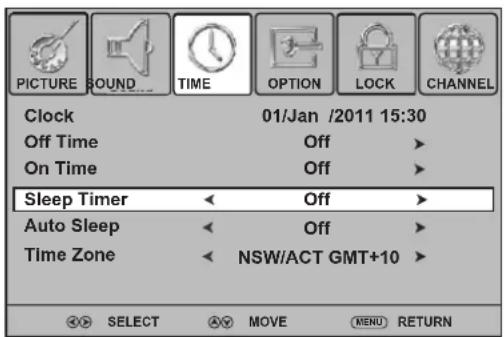
text_image
PICTURE SOUND TIME OPTION LOCK CHANNEL Clock 01/Jan /2011 15:30 Off Time Off > On Time Off > Sleep Timer Off > Auto Sleep Off > Time Zone NSW/ACT GMT+10 > SELECT MOVE MENU RETURNTo set Sleep timer
Sleep timer lets you select the amount of time before your TV turns itself off automatically. This setting is cleared when the TV is turned off.
Press MENU. Press ◀ or ▶ to display TIME menu, press ▼ to access.
2 Press ▲ or ▼ to select Sleep Timer.
3 Press ◀ or ▶ to select the amount of time; to turn off the timer, please select Off.
Note:
After you have set sleep timer, when the last 60 seconds comes, the Power Off screen will appear to remind you after how many seconds the TV will power off. You can press any button to quit.
Setting Auto Sleep
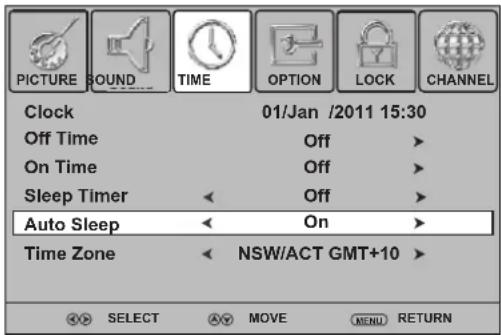
text_image
PICTURE SOUND TIME OPTION LOCK CHANNEL Clock 01/Jan /2011 15:30 Off Time Off > On Time Off > Sleep Timer Off > Auto Sleep On > Time Zone NSW/ACT GMT+10 > SELECT MOVE MENU RETURNTo set Auto Sleep
Auto Sleep will bring the TV to standby automatically when there is no signal input (except USB source) for a certain time.
I Press MENU. Press ◀ or ▶ to display TIME menu, press ▼ to access.
2 Press ▲ or ▼ to select Auto Sleep.
3 Press ◀ or ▶ to select On to turn on Auto Sleep. (To cancel the function, select Off.)
4 To close the menu, press EXIT button.
Setting ON timer
text_image
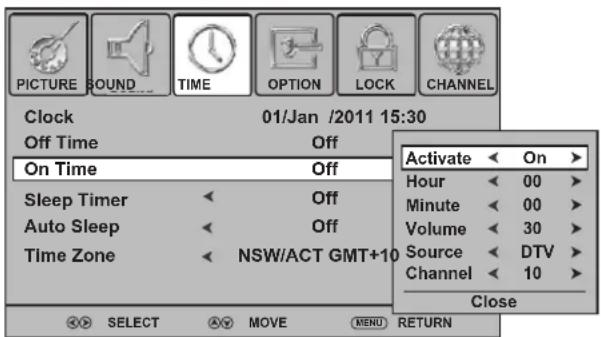
PICTURE SOUND TIME OPTION LOCK CHANNEL Clock 01/Jan /2011 15:30 Off Time Off On Time Off Sleep Timer Off Auto Sleep Off Time Zone NSW/ACT GMT+10 Activate On > Hour 00 > Minute 00 > Volume 30 > Source DTV > Channel 10 > Close SELECT MOVE MENU RETURNTo set ON timer
ON timer feature allows you to set the TV to turn on automatically to a preset channel or source at a certain time and at certain volume. Once you set ON timer, it will effect every day.
I Press MENU. Press ◀ or ▶ to display TIME menu, press ▼ to access.
2 Press ▲ or ▼ to select On Time. Press ▶ or OK to access the submenu.
3 Now the Activate item is highlighted, press ◀ or ▶ to select On to enable ON timer (To cancel, select Off).
4 After Activate is set to On, press ▲ or ▼ to go through the item list adding the details of the on timer by using ◀ or ▶ to make selections.
•Hour/Minute: Sets the desired time to turn on the TV.
•Volume: Sets the volume level for the On Timer program.
- Source: Sets the source to be viewed when the TV turns on.
- Channel: Sets the channel that will be tuned when the TV turns on.
5 When finished, use ▲ or ▼ to select Close item and press OK to close the sub-menu.
Press EXIT button to close the main menu.
6 Press to switch the TV to standby mode. At the preset time, the TV will auto turn on and broadcast the preset programme at the preset volume.
Setting Child and Rating Locks
You can prevent your children from watching TV by locking the TV and using age ratings.
To enable child lock and rating feature, you must set Lock System to On through LOCK menu. Also you can set Lock System to On to lock auto tuning/manual tuning to protect some TV settings from being accidentally changed. To cancel child and rating lock, you can directly set Lock System to Off.
Setting or changing the child lock password
text_image
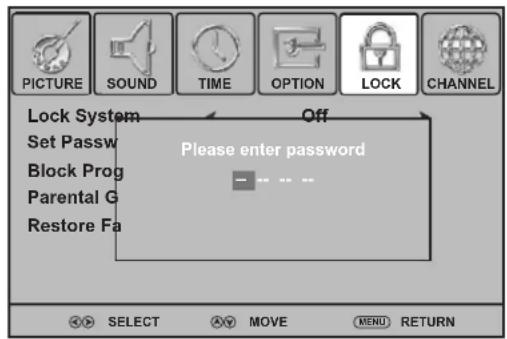
PICTURE SOUND TIME OPTION LOCK CHANNEL Lock System Set Passw Block Prog Parental G Restore Fa Off Please enter password - - - - - - SELECT AVY MOVE MENU RETURN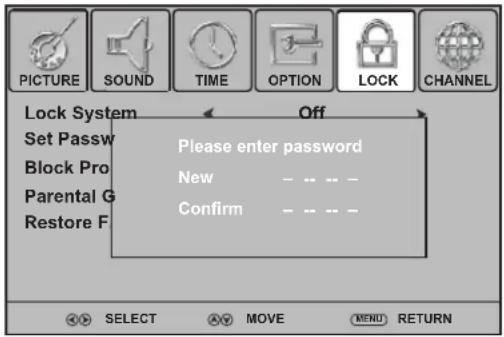
text_image
PICTURE SOUND TIME OPTION LOCK CHANNEL Lock System Set Passw Block Pro Parental G Restore F Please enter password New Confirm - - - - - - - - - - - - - - - - - - - - - - - - - - - - - - - - - - - - - - - - - - - - - - - - - - - - - - - - - - - - - - - - - - - - - - - - - - - - - - - - - - - - - - - - - - - - - - - - - - - - -Select AV MOVE MENU RETURNTo set or change the child lock password
From LOCK menu you can set a new child lock password or to change an existing child lock password. By default, the password is 0000 and you should change it. To access LOCK menu, to lock or unlock channels, to view locked channels, etc., the child lock password is required.
Press MENU. Press ◀ or ▶ to display LOCK menu, press ▼ to access.
2 Now a password is required to input. Use number buttons to input the correct password (the default password is 0000).
3 Press ▲ or ▼ to select Set Password, and then press ▶ or OK button to access its submenu.
4 Use the number buttons to input a new password (4-digit). Input the new password again.
Now the new password has been created successfully.
Note: Be sure to write down your password and retain it for future use. If you do forget the password, the unit provides a super password "2580". Please DO NOT let your children know the super password.
Locking the TV programmes
text_image
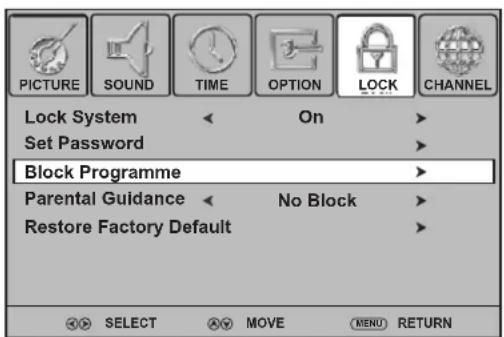
PICTURE SOUND TIME OPTION LOCK CHANNEL Lock System On Set Password Block Programme Parental Guidance No Block Restore Factory Default SELECT MOVE MENU RETURN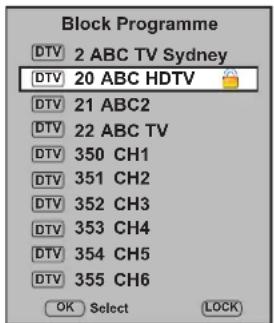
text_image
Block Programme DTV 2 ABC TV Sydney DTV 20 ABC HDTV DTV 21 ABC2 DTV 22 ABC TV DTV 350 CH1 DTV 351 CH2 DTV 352 CH3 DTV 353 CH4 DTV 354 CH5 DTV 355 CH6 OK Select LOCKTo lock or unlock the TV programmes
Locking the TV programs prevents your children from viewing any channels which you do not want them to watch. To use lock feature, you have to enable the Lock System.
I Navigate to the LOCK menu and input the correct password to access.
2 Now the Lock System item will be highlighted automatically. Use ◀ or ▶ to select On to enable the lock system.
3 Use ▲ or ▼ to highlight Block Programme item, press ▶ or OK to access.
4 Now the Block Programme screen opens with a programme list displayed. Use ▲ or ▼ to select the programme you want to lock, then press GREEN button to set lock to it. A lock symbol appears alongside. (To unlock, press GREEN button again.)
Select other programs and press GREEN button to set lock to them.
5 Press MENU to return to previous menu. Press EXIT to exit the menu screen directly.
Then the lock comes into effect and these locked programmes are blocked.
To viewed locked programmes, just input the password.
To disable the lock system, set Lock System to Off and all locked programmes can be viewed.
Setting parental ratings - digital only -
text_image
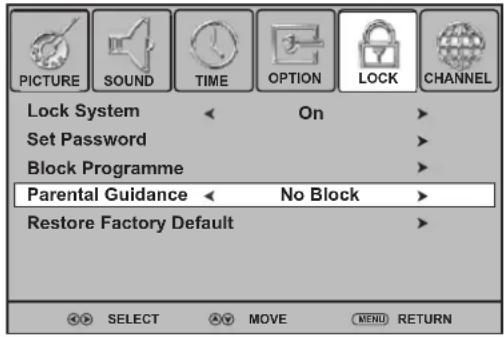
PICTURE SOUND TIME OPTION LOCK CHANNEL Lock System On Set Password Block Programme Parental Guidance No Block Restore Factory Default SELECT MOVE MENU RETURNG (General Audiences): Content not offensive to most viewers.
PG (Parental Guidance Suggested): Content is such that parents may not want their children to view the programme.
M (Mature Audience): Suitable for mature audience.
MA(Mature Adult Audience): May contain mature themes, profane language, graphic violence, and sexual situations.
AV (Adult Audience): Strong violence.
R (Restricted viewing): Not for children under age 17. Strong elements of sex and/or violence.
To set and enable parental ratings
Some digital broadcasters rate their programmes according to age. You can set your TV to display only programmes with age ratings higher than your child's age. Before setting parental ratings, you have to enable the lock system.
Use password to access LOCK menu, highlight Lock System and use ◀ or ▶ to select On to enable the lock system.
2 Press ▲ or ▼ to highlight the Parental Guidance, use ◀ or ▶ to select an age rating. All programmes beyond the selected age rating will be blocked. You can select:
- Block All
- Block G and above
• Block PG and above
• Block M and above
• Block MA and above
• Block AV and above - Block R and above
- No Block
3 Press MENU to return to previous menu. Press EXIT to close the menu directly.
Restoring factory default
text_image
PICTURE SOUND TIME OPTION LOCK CHANNEL Lock System Set Password Block Progra Parental Guid Are you sure? Yes No Restore Fact SELECT MOVE MENU RETURNTo restore factory default
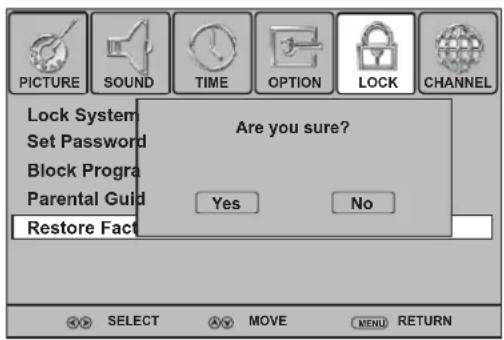
Caution: When you restore factory default, all settings including password will be cleared and reset to default (the password is reset to 0000). So make sure you do want to reset the settings to its original factory condition before you perform this operation.
I Navigate to the LOCK menu and input the correct password to access.
2 Press ▲ or ▼ to select the Restore Factory Default item, and then press ▶ or OK.
A message appears prompting you to confirm again.
3 Use ◀ or ▶ to select between YES (to reset) or NO (to cancel) item, and press OK to confirm.
4 Press MENU to return to previous menu. Press EXIT to close the menu directly.
PVR recording
- digital only -
This TV provides PVR (personal video recorder) recording function, which allows the viewer to pause and rewind any DTV program (that is, time shifting function), as well as record and play back selected programs. The program content will be recorded in a digital format onto an external memory device (such as USB device, memory card, or other mass storage device).
Below all operations in this section require the external memory device be connected with the TV. Otherwise the operation can not be done.
Before proceeding, please pay attention to the following notes.
- Before PVR recording, you need to check the external memory device's File System successfully.
- Do not disconnect the memory device from the TV while recording, or the data will be lost.
- During recording, a directory will be automatically created at the external memory device to temporarily save the data.
- The recorded contents cannot be played on any other product or computer, it also can not be played on the TV through the USB input source.
- Important Copyright Information: Unauthorized use, copying, distribution, broadcasting, public performance, lending or revision of the recorded TV programs are prohibited. Please refer to your local area copyright laws for more details.
- The recorder once in time shift mode will continue recording what you are watching and overwrite any information already on the memory device.
- If malfunction, then information already on the memory device may lose. So please back up your memory device data.
- When Time Shifting, the external memory device need to write and read data simultaneously. So during the process it may occur slight picture/sound pause or standstill depending on the memory device's speed and stability.
• After recording, you can connect the memory device to your PC to delete temporary data or format a partition to completely clear those unnecessary data. - Certain types of memory device (such as some USB devices) may not be compatible with this TV.
Checking file system of the external memory device
text_image
PICTURE SOUND TIME OPTION LOCK CHANNEL Auto Tuning DTV Manual Tuning ATV Manual Tuning Programme Edit File System SELECT MOVE Menu RETURNTo check PVR File System
Connect your USB device or portable hard disk to the USB port on TV side firstly.
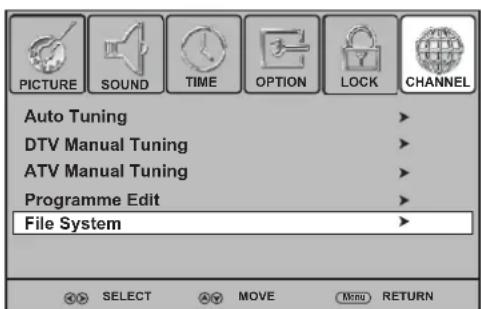
2 Navigate to CHANNEL-File System menu to check file system.
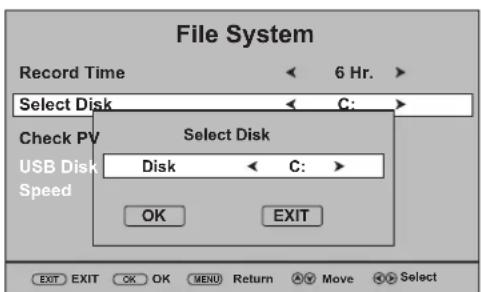
(Press MENU, then use ◀ or ▶ to select CHANNEL menu, press ▼ to access. Press ▲ or ▼ to highlight File System, then press ▶ to access.) Now do the following to check file system.
text_image
File System Record Time 6 Hr. > Select Disk C: Check PV USB Disk Speed Select Disk Disk C: OK EXIT EXIT EXIT OK OK MENU Return A Move R SelectA. Set Record Time
From File System menu, highlight Record Time, press ◀ or ▶ to set the recording length of time (1Hr \~ 6Hr can be selected).
(Note: The record time also depends on your timer setting through the EPG and your disk space. If the recording timer setting is shorter, then the timer setting has priority over the Record Time setting at the File System menu. If no disk space left, then the recording stops)
B. Select Disk:
From File System menu, highlight Select Disk, press ▶ to access. Use ◀ or ▶ to select a disk, then move the highlight to OK box and press OK to confirm. (To cancel, select EXIT to exit).
(Instructions continue on the next page)
PVR recording - digital only -
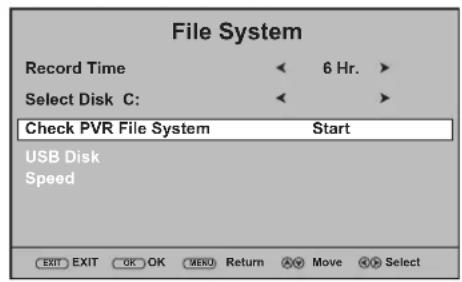
text_image
File System Record Time 6 Hr. > Select Disk C: Check PVR File System Start USB Disk Speed EXIT EXIT OK OK MENU Return A Move Select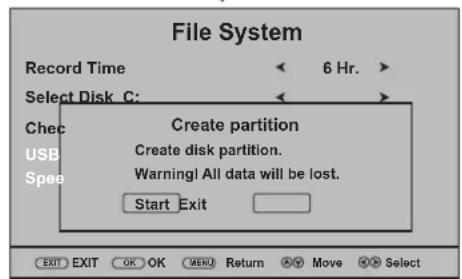
text_image
File System Record Time 6 Hr. Select Disk C: Create partition Create disk partition. Warning! All data will be lost. Start Exit EXIT EXIT OK OK MENU Return Move Select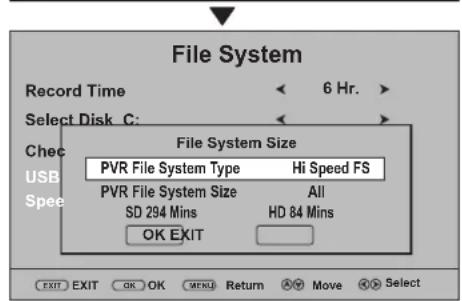
text_image
File System Record Time 6 Hr. > Select Disk C: Check USB Speed File System Size PVR File System Type Hi Speed FS PVR File System Size All SD 294 Mins HD 84 Mins OK EXIT EXIT EXIT OK OK MENL Return Move Select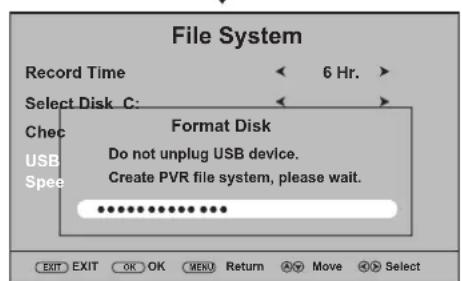
text_image
File System Record Time 6 Hr. Select Disk C: Check USB Spee Format Disk Do not unplug USB device. Create PVR file system, please wait. ************ EXIT EXIT OK OK MENU Return A Move Select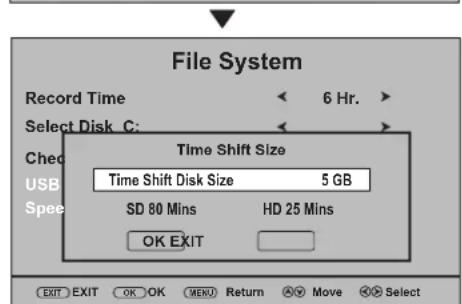
text_image
File System Record Time Select Disk C: 6 Hr. Time Shift Size Time Shift Disk Size 5 GB SD 80 Mins HD 25 Mins OK EXIT EXIT EXIT OK OK MENU Return Move Select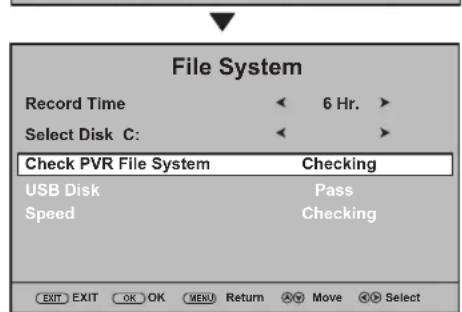
text_image
File System Record Time 6 Hr. > Select Disk C: Check PVR File System Checking USB Disk Pass Speed Checking EXIT EXIT OK OK MENU Return AN Move ✗ SelectC. Check PVR File System
I. From File System menu, highlight Check PVR File System, press OK to start.
2. Now a dialogue box appears prompting you to start to create disk partition. Highlight Start and press OK to proceed to format the disk, all data will be lost. (Or select Exit to abandon and exit).
(If your disk file system is FAT32, then it is unnecessary to format the disk, and the TV starts to check the disk speed directly.)
- Now File System Size screen pops up with PVR File System Type highlighted. Hi Speed FS (select for high recording speed) and FAT32 can be selected with ◀ or ▶ button. (Note: If Hi Speed FS is chosen, it will occupy disk space based on your PVR File System Size setting, while FAT32 will not)
•If Hi Speed FS is chosen, then press ▼ to highlight PVR File System Size, use ◀ or ▶ to select a size (the greater the size, the longer you can make recording). The next line will show the recording time allowed (for example, if shows “SD 294 Mins, HD 84 Mins”, that means recording SD programs can last 294 minutes, while for HD programs, only 84 minutes is allowed at your disk). Then highlight OK and press OK to start formatting the disk. The format may take several minutes, please wait. When finished, Time Shift Size setting screen will pop up.
•If FAT32 is chosen, then PVR File System Size can not be set. The screen will show the recording time allowed. Highlight OK and press OK to start formatting the disk. The format may take several minutes, please wait. When finished, it starts to check disk speed.
- After you chosen Hi Speed FS and set size and the format is finished, the Time Shift Size screen pops up. Use ◀ or ▶ to set Time Shift size for time shifting (the time shift size ranges from 512MB to 8GB, but is within PVR File System Size you have set above. The greater the size, the longer the duration allowed for time shifting), then highlight OK and press OK to proceed to check disk speed.
Checking speed may take several minutes, please wait. When finished, if SUCCESS appears at the Check PVR File System line then you can start PVR recording function.
(At File System menu bottom screen, USB Disk state and speed information will appear, they can not be adjusted)
Note:
- After PVR File System checking, if "SD Fail" appears on the screen, that indicates this external memory device is not suitable to be used for recording, please replace with other one and try it again. If "SD Support" appears, that means this external device is suitable to record SD program, but not HD program. If "HD Support" appears, then both SD and HD programs are OK.
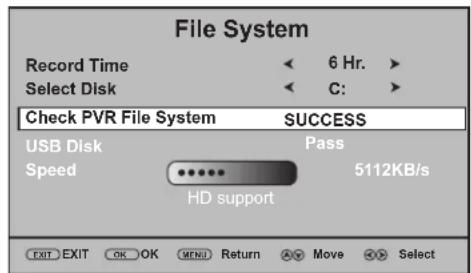
text_image
File System Record Time < 6 Hr. > Select Disk < C: > Check PVR File System SUCCESS USB Disk Pass Speed 5112KB/s HD support EXIT EXIT OK OK MENU Return Move SelectPVR recording - digital only -
You can record DTV programs in two ways — instant recording and timer recording.
■ Instant recording (current program recording)
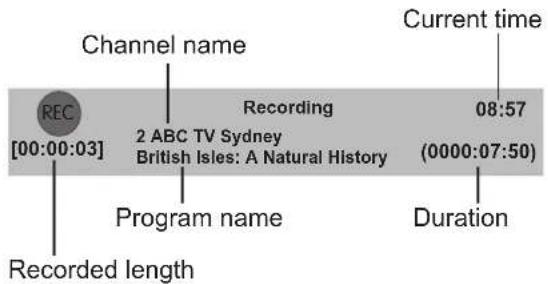
To record a programme instantly, simply press the ■ button on your remote control.
text_image
Channel name REC [00:00:03] Recording 2 ABC TV Sydney British Isles: A Natural History Program name Recorded length Current time 08:57 (0000:07:50) DurationI. Select a DTV programme you desired to record, press
•/button to begin recording.
Now a control bar will appear at the bottom screen for you to control.
From the control bar you can obtain information such as channel name, programme name, current time and recorded length, duration, etc.
After some seconds, this control bar will be minimized in size and glitter on the bottom right corder. (To restore, press OK).
- To stop recording, press the/■button again.
■ Timer recording (future program recording)
EPG (Electronic Program Guide) is your on-screen digital program guide for navigating, selecting, and discovering program event by time, title, channel. You can also enjoy the scheduling of future recordings by setting the timer recording through EPG, then go on vacation and come back to watch the program event as if it were live broadcast.
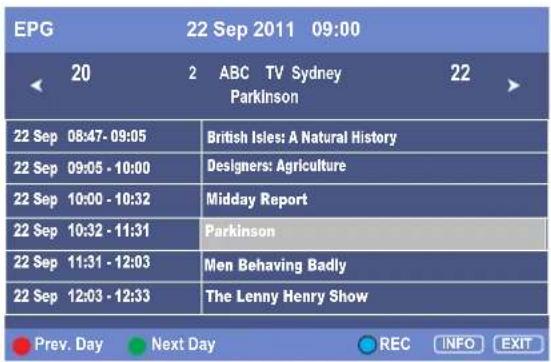
text_image
EPG 22 Sep 2011 09:00 20 2 ABC TV Sydney 22 Parkinson 22 Sep 08:47- 09:05 British Isles: A Natural History 22 Sep 09:05 - 10:00 Designers: Agriculture 22 Sep 10:00 - 10:32 Midday Report 22 Sep 10:32 - 11:31 Parkinson 22 Sep 11:31 - 12:03 Men Behaving Badly 22 Sep 12:03 - 12:33 The Lenny Henry Show Prev. Day Next Day REC INFO EXIT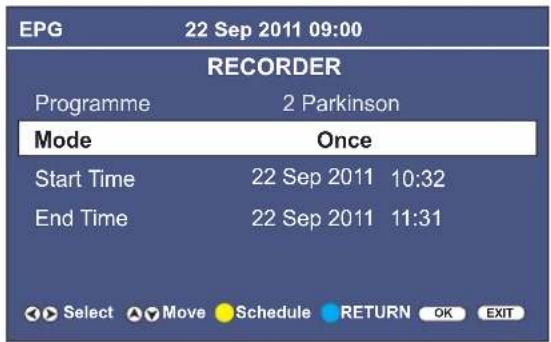
text_image
EPG 22 Sep 2011 09:00 RECORDER Programme 2 Parkinson Mode Once Start Time 22 Sep 2011 10:32 End Time 22 Sep 2011 11:31 Select Move Schedule RETURN OK EXITNote:
•Future program recording can be done in standby mode. During recording in standby, the backlight is off while the Indicator turns blue to remind you that the set is at recording. Pressing POWER button can turn on the backlight.
- During recording, do not change channel or source. If you do want to change channel or source, a reminding message will pop up.
- If no disk space left, a warning will pop up and the recording stops.
I. Press EPG button to open the EPG window.
-
Press ◀ or ▶ button to select a channel you want to record. Press ▼ or ▲ to navigate and select a desired program event.
-
Press BLUE button to open RECORDER menu. Now do the following operations.
A. Mode select: From RECORDER menu, highlight Mode item, use ◀ or ▶ to select a recording mode. Once (recording once), Every Day (recording everyday), Weekly (recording weekly), or AUTO (automatically record your selected program event) can be selected.
B. If you set Mode to Once or Every Day or Weekly, you can set Start Time and End Time freely:
- Start Time: Highlight Start Time, then press ▶ to open its pop-up menu. Press ▼ or ▲ to select Year, Month, Date, Hour, Minute item, use ◀ or ▶ to adjust the setting. When finished, highlight Close and press OK.
- End Time: Highlight End Time, then press ▶ to open its pop-up menu. Press ▼ or ▲ to select Year, Month, Date, Hour, Minute item, use ◀ or ▶ to adjust the setting. When finished, highlight Close and press OK.
C. Be sure to press OK button again to save the timer.
D. Repeat the above steps if you want to schedule more program recording. Note that only one program can be recorded at the same time.
Once the timer reached, this program will be recorded and stored at the connected external memory device.
Making use of PVR recording function (Continued)
PVR recording - digital only -
Editing Recorder List
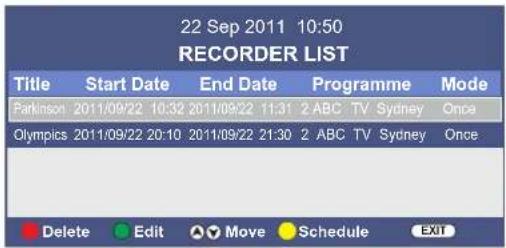
text_image
22 Sep 2011 10:50 RECORDER LIST Title Start Date End Date Programme Mode Parkinson 2011/09/22 10:32 2011/09/22 11:31 2 ABC TV Sydney Once Olympics 2011/09/22 20:10 2011/09/22 21:30 2 ABC TV Sydney Once Delete Edit Move Schedule EXITWhen you have scheduled future program recording through EPG window successfully, you can call out the RECORDER LIST to know your schedule list. Also you can delete some unwanted recording schedule from the window.
I. From EPG RECORDER (pressing EPG then BLUE button to access) window, press YELLOW button to call out the RECORDER LIST.
2. If you want to cancel some schedule, press ▲ or ▼ to select the programme event, then press RED button to delete it.
3. To return to EPG window, press YELLOW button.
To go back to EPG RECORDER window to edit the selected item, press GREEN button.
To directly close the menu, press EXIT.
■ Playing back the recorded contents
When your scheduled programs have been recorded onto your connected external memory device, the TV can show the Recorded List. From the list, you can select program you want to play back. In addition, you can sort the list by your preference, obtain more information about the program event, or delete some unwanted programmes.
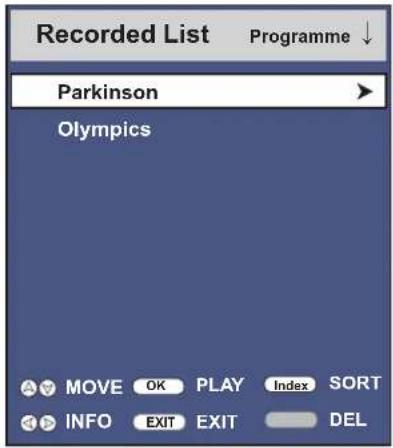
text_image
Recorded List Programme ↓ Parkinson Olympics MOVE OK PLAY Index SORT INFO EXIT EXIT DEL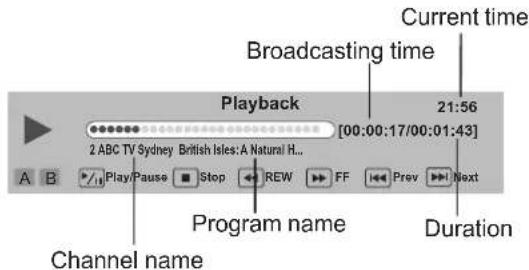
text_image
Current time Broadcasting time Playback 21:56 [00:00:17/00:01:43] 2 ABC TV Sydney British Isles: A Natural H... Play/Pause Stop REW FF Prev Next Program name Duration Channel nameI. Press REC. LIST button to open the Recorded List.
- If you want to sort the program list by your preference, press Index button one or more times to select different order (by channel number, by time, or by program title alphabetical order), and the programmes are automatically sorted in this order.
- If you want to delete some unwanted programmes, press ▲ or ▼ to select, then press RED button.
-
If you want to obtain more program information such as Date, Time, Duration, Program Name, Channel Name, press ▲ or ▼ to select your desired program, then press ▶ button. To close the information, press ◀ button.
-
If you want to play back some recorded programme, press ▲ or ▼ to select, then press OK to start playing.
During playing back, you can press:
• ▶/11: PLAY/PAUSE button.
- ⚙: A-B repeat button. During play, you can pause and repeat any specified section simply by pressing this button at the starting and ending points. To cancel, press this button once again.
- : fast forward/rewind.
• ◀◀ /▶▶:Go to previous/next by 30 seconds in time period.
Time shift
Time Shift function is the recording of live programme to an external memory device to be viewed at a later time more convenient to the user. With the miracle of Time Shift, you can pause, rewind and replay live TV by temporarily saving a programme onto the connected external memory device.
After successful PVR File System check, you can use Time Shift function now. Press T.SHIFT button to start time shifting. The live programme stops at the current state. At the bottom screen, a control bar will appear for your help. After some seconds, this control bar will be minimized in size and glitter on the screen. To restore, please press OK.
During the process, you can press:
• ▶/11: PLAY/PAUSE button.
•/STOP button.
-▶:←st forward/rewind
- |◀◀ / ▶▶▶ : Go to previous/next by 30 seconds in time period.
Current time

text_image
Time Shift 11:10 [00:00:06/00:20:00] Play/Pause Stop REW FF Prev NextDuration
Teletext & Subtitle
Teletext & Subtitle
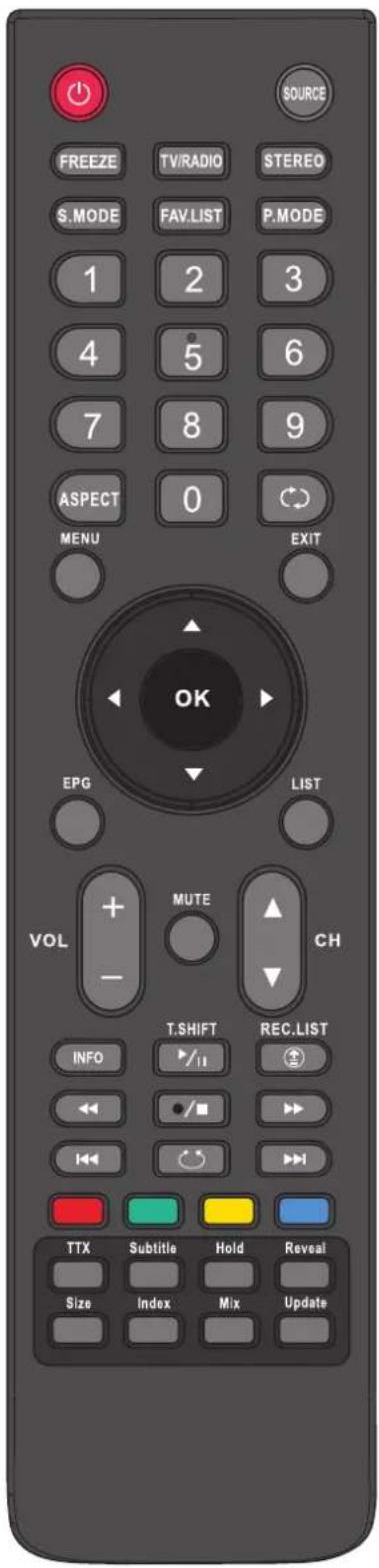
text_image
SOURCE FREEZE TV/RADIO STEREO S.MODE FAV.LIST P.MODE 1 2 3 4 5 6 7 8 9 ASPECT 0 MENU EXIT OK EPG LIST VOL + MUTE CH - T.SHIFT REC.LIST INFO //II << /■ >> I<< 😊️ >> TTX Subtitle Hold Reveal Size Index Mix UpdateWhat Is Teletext?
Your System receives Teletext signals broadcast by a TV network, and decodes them into graphical format for viewing. News, weather and sports information, stock exchange prices and programme previews are among the many services available.
■ To Turn On/Off Teletext
Select a TV channel providing the Teletext program.
Press TTX button to display the teletext.
Press TTX button again to switch back to TV screen.
■ Teletext control button list
- ▲/▼ button
Used to scroll page upward or downward.
- 0 - 9 button
Directly select any page by using 0 - 9.
• Coloured buttons (RED/GREEN/YELLOW/BLUE)
Coloured areas are displayed at the bottom of the screen. The 4 coloured buttons are used to access the items or corresponding pages.
- Hold button
Certain pages contain sub-pages which are automatically displayed successively. This button is used to stop or resume sub-page acquisition.
- Reveal button
Press the button to reveal the concealed information such as games solutions. Press the button again to hide the information.
- Size button
Press this button several times to display the upper, then the lower part of the screen and then return to the normal size teletext page.
- Index button
In teletext mode, press this button to display the index page.
- Mix button
Press the button to display the Teletext on the screen with transparent background while viewing the TV programme simultaneously
- Update button
Press the button to view the updated teletext page.
- Subtitle button
Press the button to display the teletext subpage if available.
Subtitle
- For analogue programs, if the programme has subtitle, press Subtitle button to display subtitle on the screen. To cancel, press EXIT.
- For digital programs, if the programme has subtitle, press Subtitle button to display Subtitle Languages list and then use ▼ or ▲ to select subtitle, press OK to confirm.
To cancel the subtitle, go to Subtitle Languages list, use ▼ or ▲ to select Off and then press OK.
Using USB Multi Media Player
Notes about using USB
You can connect a compatible USB device (such as U disk, portable hard disk, MP3 card) to your TV to view compatible photo, movie, text or play compatible music.
To use USB multi media player, please go to USB source through Input Source menu by pressing SOURCE button.
Notes:
• Never remove the USB device or turn off the TV while using the USB device.
• It is recommended that you back up your USB device data.
• The USB menu may vary in different situation.
- If you want to pull out the USB device, please exit USB mode first. For instructions on using your USB device, refer to the owner's manual of your USB device.
- Please use English to name your files. Otherwise the file names can not be shown correctly.
Viewing photos
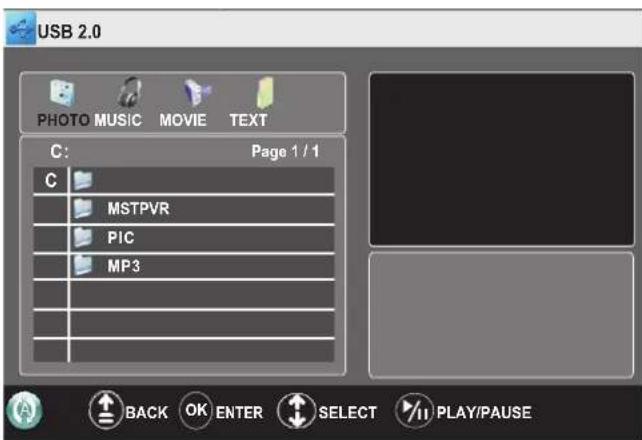
text_image
USB 2.0 PHOTO MUSIC MOVIE TEXT C: Page 1 / 1 C MSTPVR PIC MP3 A BACK OK ENTER SELECT PLAY/PAUSE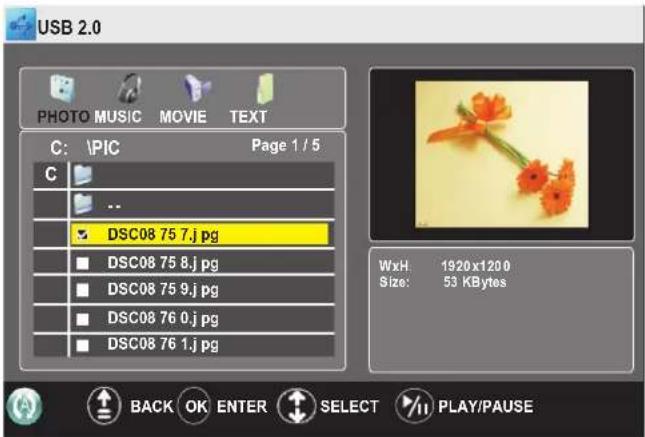
text_image
USB 2.0 PHOTO MUSIC MOVIE TEXT C: \PIC Page 1 / 5 C ... DSC08 75 7.j pg DSC08 75 8.j pg DSC08 75 9.j pg DSC08 76 0.j pg DSC08 76 1.j pg WxH: 1920x120.0 Size: 53 KBytes BACK OK ENTER SELECT PLAY/PAUSEYou can connect the USB device to the TV to display most photos in JPG, BMP and PNG formats, but for the sake of technical updating, some formats above may not be supported.
To view photos:
Connect USB device and switch to USB mode, the USB main menu will appear automatically.
2 Press ◀ or ▶ to select PHOTO menu, and press OK to access.
3 Press ▲ or ▼ to navigate among files or folders.
4 Press ▶to start slide show from current photo file or press OK to open the highlighted folder. After a photo folder is opened, you can press GREEN button to view photos in thumbnail, then use ▶
▶/11 to start slide show from current photo.
During photo slide show, you can press:
▶/11: Play /pause.
•/■: Stop.
Go to the previous photo.
▶▶: Go to the next photo.
○: Rotate the photo clockwise (To restore to slide show, press ▶/11).
▶: Press one or more times to zoom in the photo. In zoom in mode, you can press arrow buttons to pan the photo.
◀: Press one or more times to zoom out the photo.
EXIT: Exit slide show.
: Exit slide show and return to USB main menu.
When USB main menu is on the screen, you can press:
: Press one or more times to select a repeat mode. You can select ⏻ (repeat to show one photo), ⏻ (repeat to show all photos when slide show reaches end), ✕ (no repeat when it reaches end and go to USB main menu).
Note: When a photo file is selected, you can press OK button to mark it as favourite and a check mark appears (press OK again to cancel the mark). Do so to create your favourite photo list, then slide show goes among these favourite photos. To quickly select/unselect all photos inside this folder, move the cursor to its volume row (first row) and press OK, then choose "Select" or "UnSelect".
Using USB Multi Media Player (Continued)
Playing music
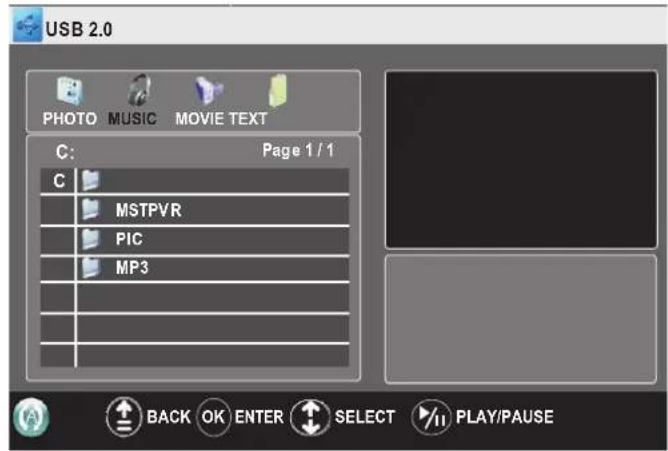
text_image
USB 2.0 PHOTO MUSIC MOVIE TEXT C: Page 1 / 1 C MSTPVR PIC MP3 BACK OK ENTER SELECT PLAY/PAUSE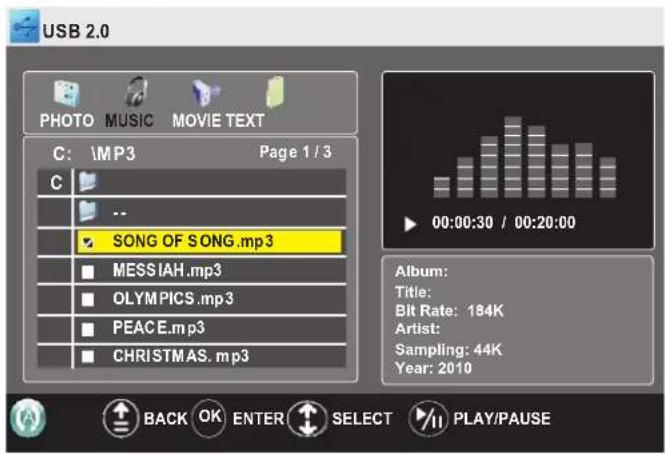
text_image
USB 2.0 PHOTO MUSIC MOVIE TEXT C:\MP3 Page 1 / 3 C -- SONG OF SONG.mp3 MESSIAH.mp3 OLYMPICS.mp3 PEACE.mp3 CHRISTMAS.mp3 Album: Title: Bit Rate: 184K Artist: Sampling: 44K Year: 2010 BACK OK ENTER SELECT PLAY/PAUSEGenerally, audio player supports MP3, WMA and AAC formats, but for the sake of technical updating, some formats above may not be supported.
To listen to music:
Connect USB device and switch to USB mode, the USB main menu will appear automatically.
2 Press ◀ or ▶ to select MUSIC menu, and press OK to access.
3 Press ▲ or ▼ to navigate among files or folders and select your desired one.
4 Press ▶to start music playing from current file or press OK to open the highlighted folder.
During music playing, you can press:
▶: Play /pause.
■/■: Stop playing.
▶: Fast forward.
◀: Fast reverse.
◀: Play the previous.
▶▶: Play the next.
EXIT: Exit music play.
: Exit and return to USB main menu.
When USB main menu is on the screen, you can press:
: Press one or more times to select a repeat mode. You can select ⏻ (repeat to play one music), ⏻ (repeat to play all music files when it reaches end), ✕ (no repeat when it reaches end and go to USB main menu).
Note:
- When selecting file or folder from the list, you can press ◀ / ▶ to scroll the page.
- When a music file is selected, you can press OK button to mark it as favourite and a check mark appears (press OK again to cancel the mark). Do so to create your favourite music list, then music play goes among these favourites. To quickly select/unselect all files inside this folder, move the cursor to its volume row (first row) and press OK, then choose "Select" or "UnSelect".
Playing movie
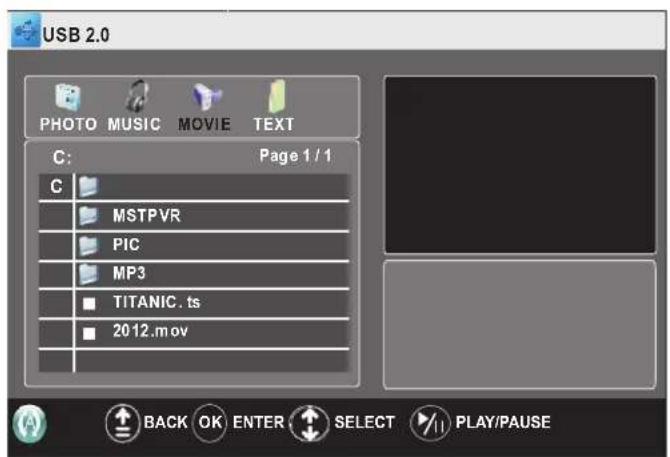
text_image
USB 2.0 PHOTO MUSIC MOVIE TEXT C: Page 1 / 1 C MSTPVR PIC MP3 TITANIC.ts 2012.mov BACK OK ENTER SELECT PLAY/PAUSEGenerally, video playback supports MPG, MPEG, MP4, TS, TRP, M4V, RM/RMVB formats, but for the sake of technical updating, some formats above may not be supported.
To watch movie:
From the USB main menu, press ◀ or ▶ to select MOVIE menu, and press OK to access.
2 Press ▲ or ▼ to navigate among your files or folders.
3 Press▶to play the selected movie full-screen or press OK to access the folder to select your desired movie to play.
Using USB Multi Media Player (Continued)
Playing movie (continued)
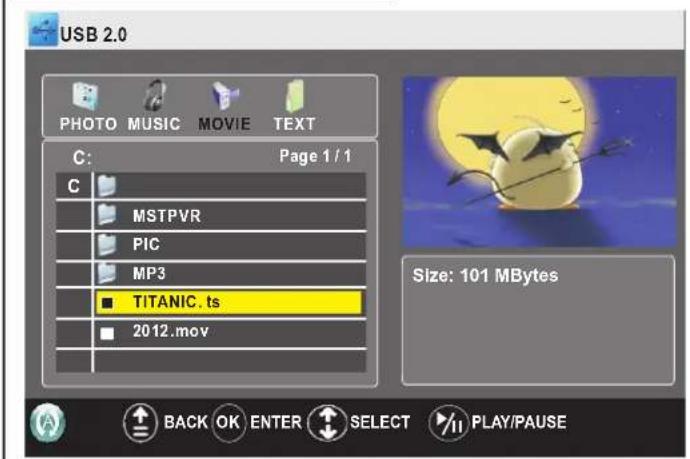
text_image
USB 2.0 PHOTO MUSIC MOVIE TEXT C: Page 1 / 1 C MSTPVR PIC MP3 TITANIC.ts 2012.mov Size: 101 MBytes BACK OK ENTER SELECT PLAY/PAUSEDuring movie play, you can press:
▶/:Play /pause.
•/■: Stop playing.
▶: Fast forward.
←: Fast reverse.
Subtitle: Shows subtitle if available.
STEREO: Selects audio track if available.
EXIT: Exit movie play.
: Exit and return to USB main menu.
When USB main menu is on the screen, you can press ⏻ one or more times to select a repeat mode. You can select Ⓓ (repeat to play one movie), Ⓤ (repeat to play all movies when it reaches end), ✕ (no repeat when it reaches end).
Also you can press RED button for A-B repeat, BLUE button for time search so that the play starts from the specific time.
• A-B repeat: During play, you can pause and repeat any specified section simply by pressing RED button at the starting and ending points. To cancel, press RED button once again.
- Time search: Press BLUE button to call out Input search time screen, then use number buttons to input time, use / / to move the cursor, and then highlight OK and press OK button for time search, and the playback starts from the specific time. (Pressing INFO button can get time information from the screen)
Note:
- When selecting photo or folder from the list, you can press ◀ / ▶ to scroll the page.
- When the highlight rest on a file for some seconds, its content preview will appear automatically.
Playing text
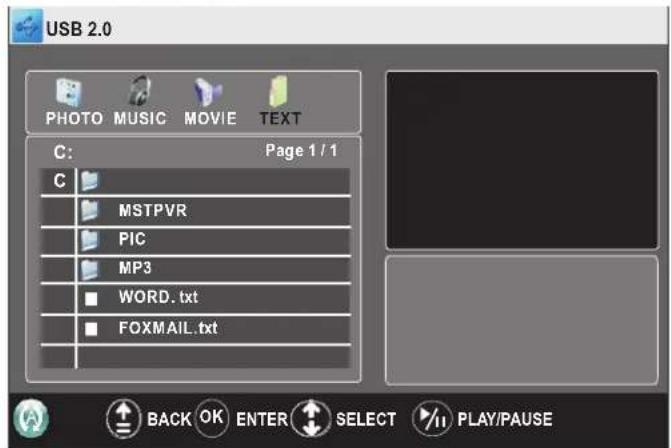
text_image
USB 2.0 PHOTO MUSIC MOVIE TEXT C: Page 1 / 1 C MSTPVR PIC MP3 WORD.txt FOXMAIL.txt BACK OK ENTER SELECT PLAY/PAUSE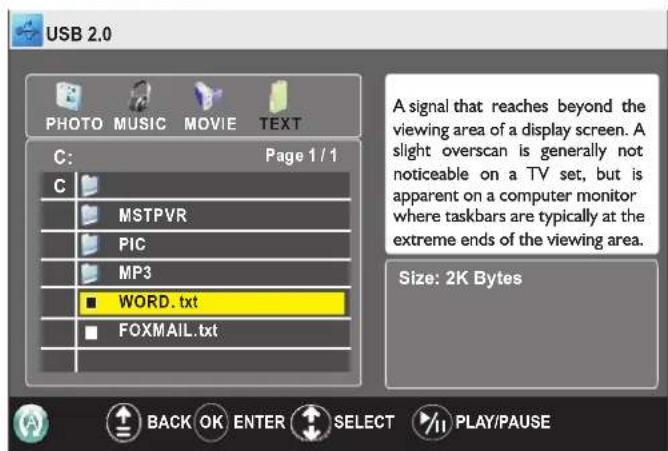
text_image
USB 2.0 PHOTO MUSIC MOVIE TEXT C: Page 1 / 1 C MSTPVR PIC MP3 WORD.txt FOXMAIL.txt A signal that reaches beyond the viewing area of a display screen. A slight overscan is generally not noticeable on a TV set, but is apparent on a computer monitor where taskbars are typically at the extreme ends of the viewing area. Size: 2K Bytes BACK OK ENTER SELECT PLAY/PAUSEText play supports TXT format, but for the sake of technical updating, not all TXT format files can be played.
To view text:
From the USB main menu, press ◀ or ▶ to select TEXT menu, and press OK to access.
2 Press ▲ or ▼ to navigate among files or folders.
3 Press ▶ to open the highlighted file and show its text or press OK to open the highlighted folder.
During text playing, you can press:
▶//: Play the text.
◀: Go to the previous.
▶: Go to the next.
▲ / ▼
EXIT: Exit text playing.
: Exit and return to USB main menu.
Note: When selecting file or folder from the list, you can press ◄ / ▶ to scroll the page.
Troubleshooting
Troubleshooting guide (general)
| If, after reading these operating instructions, you have additional questions related to the use of your television, please call the services center in your local area.Before calling service, please check the symptoms and follow suggested solutions. | |
| Problem | Possible Solutions |
| Remote control does not operate | The batteries could be weak. Replace the batteries.Check the orientation of the batteries.Make sure the power cord is plugged in. |
| No picture (screen not lit), No sound | Make sure the power cord is plugged in.Press POWER on the TV or on the remote control.Try another channel; it could be station trouble. |
| Dark, poor or no picture (Screen lit), good sound | Select a proper picture mode.Adjust the brightness in the video setting.Check the antenna connection. |
| No color/dark picture/abnormal color | Adjust the color saturation in the video setting. |
| Only snow and noise appear on the screen | Check the antenna connection.Try another channel; it could be station trouble. |
| Dotted lines or stripes | Adjust the antenna.Move the TV away from noise sources such as cars, neon signs, or hair dryers. |
| Double images | Using a highly directional outdoor antenna may solve the problem. |
| Good picture, no sound | The sound may be muted. Press MUTE again to cancel. |
| Audio noise | Communication problems may occur if infrared communication equipment (e.g., infrared cordless headphones) is used near the TV.Move the infrared communication equipment away from the TV until the noise is eliminated. |
| One or some channels can't be displayed | These channels may be set skipped. You may cancel the skip setting through the menu or select them with number buttons.These channels may be locked or blocked, you may go to LOCK menu and set Lock System to Off. |
| Lost password | You may use the super password (2580). |
| Some items can't be accessed | If a setting option appears in gray, this indicates that the settings option is unavailable in current input mode. |
| TV cabinet creaks | When the TV is in use, there is a natural rise in temperature, causing the cabinet to expand or contract and may be accompanied by a slight creaking noise. This is not a malfunction. |
| Remote control command is not effect in some cases | During the timing of USB device detection (i.e. when the TV is turned on with USB device connected, or when you plug in USB device during TV working), the TV may not act by remote control buttons in such case. Wait some time, then it is OK. |
| Control buttons do not operate | Disconnect the power cord and wait for a few seconds. Then re-plug the power cord and turn on the unit again. |
| POWER button responds slowly after power is connected. | When you push POWER SWITCH to power on the TV, in about 3 seconds the POWER button starts to respond after pressed. |
Specifications
| Type: Integrated Digital TV | |
| Panel: 66 cm TFT LCD | |
| Analogue TV system: PAL-B/G (CCIR), NTSC(AV) | |
| Digital TV system: | Compliant Standard: DVB-T, 7 MHz BandwidthVideo Decoding: MP@ML & MP @ HLAudio Decoding: Dolby®Digital, MPEG (& II)Audio Sampling Rate: 32, 44.1, 48 kHz |
| Power Requirement: AC 220-240 V, 50/60 Hz | |
| Power Consumption: 90 W | |
| Dimensions (W x H x D): | 646 (W) x 459 (H) x 255 (D)mm (stand included)646 (W) x 425 (H) x 98 (D)mm (stand not included) |
| Weight: | 8.5 kg (stand included)7.5 kg (stand not included) |
| Terminals: | Antenna in (1)AV in (2)COMPONENT in (2)PC in (1)HDMI in (3)USB port (1)RS-232 (1)Headphone (1)AV out (1)S/PDIF out (1) |
Note:
I. Design and specifications are subject to change without notice.
2. Weight and dimensions shown are approximate.
3. Specifications and external appearance may be changed for the sake of improvement.
PALSONIC
1 JOYNTON AVENUE
WATERLOO NSW 2017 AUSTRALIA
TEL:(02)9313 7111
FAX:(02)9313 7555
PALSONIC CUSTOMER SERVICE
TELEPHONE
AUSTRALIA:1300 657 888