Wireless Activity Tracker AU8-CDAT13A - Activity tracker Crane - Free user manual and instructions
Find the device manual for free Wireless Activity Tracker AU8-CDAT13A Crane in PDF.


User questions about Wireless Activity Tracker AU8-CDAT13A Crane
0 question about this device. Answer the ones you know or ask your own.
Ask a new question about this device
Download the instructions for your Activity tracker in PDF format for free! Find your manual Wireless Activity Tracker AU8-CDAT13A - Crane and take your electronic device back in hand. On this page are published all the documents necessary for the use of your device. Wireless Activity Tracker AU8-CDAT13A by Crane.
USER MANUAL Wireless Activity Tracker AU8-CDAT13A Crane
natural_image
Black fitness tracker with digital display showing '3.00' (no text or symbols on the device itself)English .....06
Español .....72
Reading and storing the user manual .....8
Explanation of symbols 9
Safety 11
Proper use 11
Safety notes 12
Checking the wristband and package
contents ......18
Functions....19
Data storage....21
Modes 22
Time mode 24
Notification mode 25
Pulse and workout mode 26
Step counter mode 29
Distance mode 30
Calorie mode 31
Active time mode 32
Sleep mode 33
Alarm function 33
Compatible Bluetooth® devices ......34
Watertightness 35
Using the wristband for the first time .....37
Activating the display module for the first time ....37
Charging the rechargeable battery .....38
Inserting the display module ....40
Putting on the wristband/clip 40
Operation 41
Switching the display module on .....41
Switching the display module off....42
Setting the time and time mode .....42
Downloading and installing the Crane
Connect app 43
Creating a user account ....44
Connecting the wristband with the Crane
Connect app 45
Configuring notifications ....48
Notifications: Symbols and signals .....49
Displaying notifications 50
Using the wristband without the Crane
Connect app 51
Activating pulse and workout mode .....53
Viewing the workout data .....55
Activating sleep mode 56
Deactivating sleep mode 58
Restoring the wristband ....58
Resetting the wristband .....59
Care and maintenance ....59
Cleaning the wristband ....59
Storing the wristband 60
Troubleshooting 61
Declaration of conformity 65
Technical data....67
Disposal 69
Disposing of the packaging 69
Disposing of old appliances 69
Customer service 71
4
natural_image
Line drawing of a device component before and after assembly, showing a change from internal structure to a closed body (no text or symbols)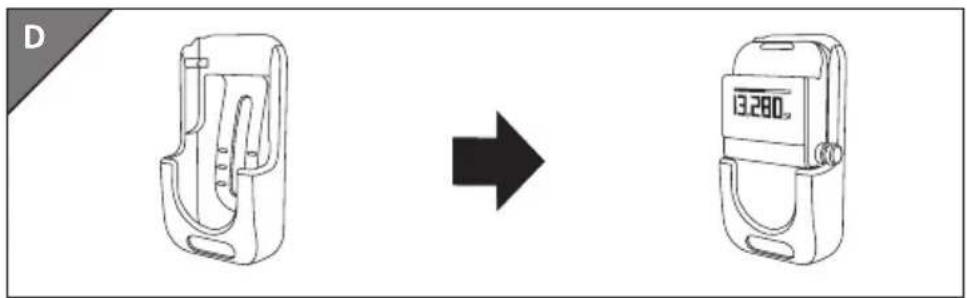
natural_image
Diagram showing a device before and after transformation, with no visible text or symbols6
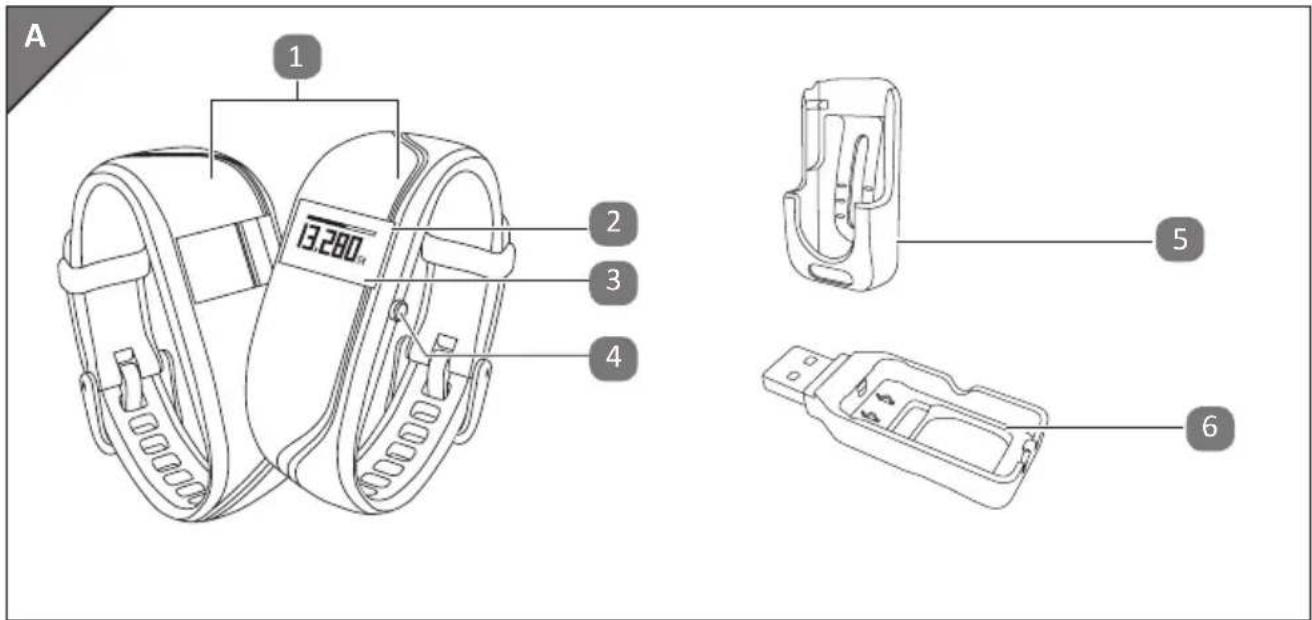
Package contents/device parts
1 Band, ×2
2 Display module, removable
3 Display (LED display)
4 Menu button
5 Clip
6 USB charger
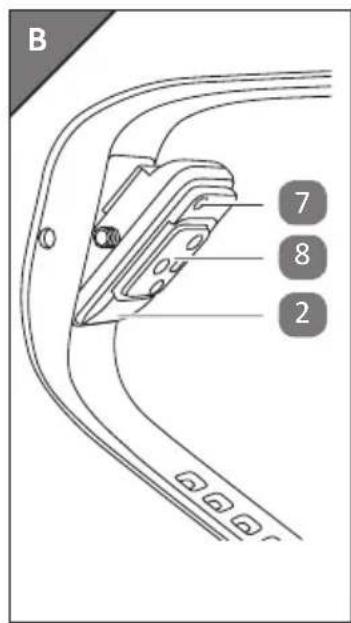
7 Reset button
8 Optical sensor
Try it out now
Just scan the QR code with your smartphone and find out more about the ALDI product you have purchased.
Depending on your smartphone plan you may be charged for the connection.
Reading and storing the user manual
This user manual accompanies this wireless activity tracker (referred to below only as the “wristband”). It contains important information on setup and use.
Before using the wristband, read the user manual carefully. This particularly applies for the safety notes. Failure to heed this user manual may result in severe injury or damage to the wristband.
Store the user manual for further use. Make sure to include this user manual when passing the wristband on to third parties.
Explanation of symbols
The following symbols and signal words are used in this user manual, on the wristband or on the packaging.

WARNING!
This signal symbol/word designates a hazard with moderate degree of risk which may lead to death or severe injury if not avoided.

CAUTION!
This signal symbol/word designates a low risk hazard which may result in minor or moderate injury if not avoided.
NOTICE
This signal word warns against potential damage to property.

This symbol provides you with useful supplementary information on assembly or operation.
Google Play™ and Android™ are trademarks of Google Inc. Apple, the Apple logo, iPad and iPhone are trademarks of Apple Inc., registered in the USA and other countries. App Store is a service mark of Apple Inc. The Bluetooth® word mark and logos are registered trademarks of Bluetooth SIG, Inc. and are used under licence by Krippl-Watches. Other trademarks and brand names are the property of their respective owners.
Safety
Proper use
The wristband is exclusively designed for recording your activity and sleeping habits and for exchanging data with smartphones and tablets. It is designed for collecting data for analysis with the Crane Connect app. You can use this data to help you reach your goals in terms of fitness, level of activity and sleep.
The wristband is only intended for private use and is not suitable for commercial, therapeutic or medical applications. It is not a children's toy or a medical device.
Only use the wristband as described in this user manual. Any other use is deemed improper and may result in damage to property or even personal injury.
The manufacturer or vendor cannot be held liable for damages incurred through improper or
Safety
incorrect use.
Safety notes

WARNING!
Danger of suffocation!
If small children or animals swallow the display module, they could choke on it.
- Keep the display module away from children and animals.
– In the event that a child or animal swallows the display module, consult a doctor immediately.

WARNING!
Risk of injury!
Incorrect operation may result in severe injury.
- If you have a pacemaker, be absolutely sure to ask your physician before using the wristband for the first time.

WARNING!
Danger of explosion!
Rechargeable batteries may explode if they are excessively heated up.
- Do not heat up the display module.
- Keep the wristband away from hot surfaces.
Safety
- Do not throw the display module in an open fire.
- Protect the display module from direct sunlight.
- Do not charge the rechargeable battery in the direct vicinity of hot surfaces or objects.

WARNING!
Danger for children and persons with impaired physical, sensory or mental capacities (e.g. partially disabled persons, older persons with reduced physical and mental capacities) or lack of experience and knowledge (e.g. older children).
- This wristband may be used by children ages eight and over as well as persons with impaired physical, sensory or mental capacities or those lacking
experience and knowledge if they are supervised or have been instructed in how to safely use the wristband and have understood the risks associated with operating it. Children must not play with the wristband. Cleaning and user maintenance must not be performed by children unless they are at least eight or more years of age and under supervision.

WARNING!
Risk of chemical burns from battery acid!
Leaking battery acid may lead to chemical burns.
- Do not allow battery acid to come into contact with skin, eyes or mucous membranes.
– In the event of contact with battery acid, immediately flush the applicable areas with
Safety
plenty of clean water and consult a physician.

CAUTION!
Risk of injury!
Incorrect operation may result in injury.
- Do not use the wristband if it exhibits visible damages.
- Do not open the housing of the display module and have qualified professionals perform repairs. Liability and warranty claims are waived in the event of repairs performed by the user or incorrect use.
NOTICE
Risk of damage!
Improper handling of the wristband may result in damage.
- Keep sharp objects away from the wristband.
- Store the wristband so that there is no risk of it falling into a tub or sink.
- Do not take the rechargeable battery out of the display module; it is firmly integrated in it and cannot be replaced.
- Only use the USB charger, which is connected to a computer or external power supply, to charge the empty rechargeable battery.
- You can use the wristband at ambient temperatures of between +14 °F and +122 °F (-10 °C and +50 °C).
- Do not place any objects on the wristband and do not apply pressure to the display.
Checking the wristband and package contents
Avoid strong magnetic fields (e.g. transformers). Otherwise, this may cause fluctuations in the transmission of the data measured.
Checking the wristband and package contents
NOTICE
Risk of damage!
If you are not cautious when opening the packaging with a sharp knife or other pointed objects, you may damage the wristband.
- Be careful when opening the package.
Functions
- Take the wristband out of the packaging.
- Remove the protective foil from the display 3.
- Check to make sure that the delivery is complete (see Fig. A).
- Check whether the wristband or individual parts are damaged. If this is the case, do not use the wristband. Contact the manufacturer at the service address specified on the warranty card.
Functions
To reach your goals in terms of fitness, level of activity, and sleep, you can use the wristband to record your level of activity and sleeping habits. In the "Steps", "Distance" and "Calories" modes, a progress bar indicates how close you are to reaching your goals. Once you reach your goal, the corresponding progress bar will blink and a sound will be emitted. You can set
Functions
your goals with the Crane Connect app. In order for you to determine the best target value, the Crane Connect app will also specify the individual limits. The wristband has the following functions:
- Time
- Notifications
• Measuring your pulse/workout mode - Steps
- Distance
- Calories
- Active time
- Progress check
- Setting of daily goals (steps, distance and calories only in conjunction with the Crane Connect app)
Functions
- Recording of sleep cycles with the Crane Connect app (waking up phase, light sleep phase, deep sleep phase)
- Alarm function
The Crane Connect app provides a detailed view for each target value. It provides you with an itemized view of the daily recorded data. The detailed view for sleep mode offers you the option of displaying your sleep cycles (waking, light sleep and deep sleep).
Data storage
The wristband saves all measured data for seven days. From the 8th to 30th day, only the daily totals will be saved. If during this time you do not connect the wristband with the Crane Connect app, the first record will be overwritten by the last one on the 31st day.
Functions
This data storage does not concern the workout mode. See the chapter “Pulse and workout mode” for this.
Modes
The wristband has eight different modes you can choose from:
| Mode Symbol | |
| Time mode | |
| Notification mode | no notification |
Functions
| Mode Symbol | |
| Pulse and workout mode |  |
| Step counter mode |  |
| Distance mode |  |
| Calorie mode |  |
| Active time mode |  |
| Sleep mode |  |
Functions
Time mode Ⓤ
Time mode is the first mode that appears on the display module. You can switch to the other modes from this mode.
To switch modes, push the menu button 4 as follows, starting in time mode:
- To switch to notification mode, push the menu button once.
- To switch to pulse and workout mode, push the menu button twice
- To switch to step counter mode, push the menu button three times.
- To switch to distance mode, push the menu button four times.
- To switch to calorie mode, push the menu button five times.
- To switch to active time mode, push the menu button six times.
- To switch to sleep mode, push the menu button seven times.
The display will go out automatically after three seconds. To switch it back on, push the menu button again.
Notification mode
In the Crane Connect app, you can select when the wristband should notify you about status messages from your smartphone or tablet. You can choose from incoming calls, calls in your absence, unread messages, unread e-mails and lost connections between the wristband and the paired smartphone/tablet.
| Mode Symbol | |
| no notification no notification |
Functions
| Mode Symbol | |
| call and missed call | |
| message (SMS, Whatsapp, Skype, etc.) | |
| Bluetooth® connection interrupted |
Pulse and workout mode

The wristband measures your pulse as soon as you access this mode. The initial pulse is always 72 beats per minute (bpm). After a few seconds, your current pulse will appear on the
display. After 60 seconds, it will stop measuring your pulse and the display will automatically switch off.
While your pulse is being measured, you can also access the current workout data and time in pulse and workout mode. The Crane Connect app (see chapter “Downloading and installing the Crane Connect app”) offers two possibilities for this:
- Automatic alternation: All workout data and the current time are displayed in alternation for 2 seconds on the display. The display then switches off.
- Manual alternation: By pushing the menu button 4, your access the workout data and the current time consecutively. After one minute, the display will automatically switch off.
Functions
You can also select further settings in the Crane Connect app. For example, you can only have certain workout data shown on the display.
Your current workout data is saved in the pulse and workout mode. At the end of the workout, you can access the workout data for the last workout in pulse and workout mode:
- Average pulse
– Duration of the workout - Distance covered
– Average running time per mile (pace) - Average speed
- Steps
- Calories burned
To monitor your pulse, the wristband records your pulse over a prolonged period of time. The period of time you defined with the desired interval can be configured or deactivated in the Crane Connect app.
Step counter mode
The wristband counts the steps you cover in a day. The more steps you cover during one day, the longer the progress bar at the top of the display will become. It shows you how close you are to reaching your target number of steps. Once you have reached your target number of steps, the progress bar will blink and an acoustic signal will be emitted. By factory default, a daily target of 10,000 steps has been set. You can use the Crane Connect app to enable and disable an acoustic signal and to change the daily target.
At 12 midnight, the step counter will automatically reset to zero.
Functions
If the wristband is in sleep mode, it does not count any steps.
Distance mode

The wristband determines the distance you cover in one day in miles. The calculation is based on the steps counted and your individual data (step length, height, gender), which the wristband obtains from the Crane Connect app. The greater the distance you cover during one day, the longer the progress bar at the top of the display will become. It indicates current progress with respect to your target distance. Once you have reached your target distance, the progress bar will blink and an acoustic signal will be emitted. By factory default, a daily target of 3.5 miles (6 km) has been set. You can use the Crane Connect app to change this setting.
At 12 midnight, the distance will automatically reset to zero.
If the wristband is in sleep mode, it does not calculate any distance.
Calorie mode

The wristband calculates the calories you burn in a day. The calculation is based on your level of activity and your individual data (height, age, gender, weight, duration of sleep, etc.), which the wristband obtains from the Crane Connect app. The more calories you burn during one day, the longer the progress bar at the top of the display will become. It shows you how close you are to reaching your daily target. Once you have burned the desired number of calories, the progress bar will blink and an acoustic signal will be emitted. By factory default, a
Functions
daily target of 3,000 calories has been set. You can use the Crane Connect app to enable and disable an acoustic signal and to change the daily target. You can determine the number of calories burned directly on your wristband or via the Crane Connect app.
At 12 midnight, the number of calories is automatically reset to zero. Please keep in mind that calories are also burned while you sleep, and the number of calories burned is recorded from 12 midnight on. This means that when you get up in the morning, calories already burned will be shown on the wristband display.
Active time mode

The wristband calculates the amount of time you are active in hours and minutes. At 12 midnight, the activity time will automatically reset to zero.
Sleep mode Ⓛz ^zz
The wristband measures your sleep in hours and minutes. The wristband does not automatically recognise that you are sleeping – you have to activate sleep mode for this (see “Activating sleep mode”). You must wear your wristband at night so that it can record your sleep. The wristband records the duration and quality of your sleep; the Crane Connect app provides you with an analysis of your sleep cycles and quality
Alarm function
You can use the Crane Connect app to set an alarm function. Overall, you can set up to three alarms. When an alarm activates, an acoustic signal will be emitted for approx. 30 seconds; the alarm symbol (e) current time will be shown in alternation on the display.
- To switch off the alarm, push the menu button 4.
Functions
Compatible Bluetooth ^® devices
The following devices with Bluetooth® 4.0 or higher are compatible with the wristband and the Crane Connect app:
- Apple® iPhone® 4s and more recent versions
- Apple® iPad® 3rd generation and more recent versions
- Apple® iPad mini™
- Apple® iPad Air™ and more recent versions
- Smartphones and tablets with Android™ 4.3 and more recent versions
You can find a complete list of supported devices online at www.cranesportsconnect.com/compatibility.
Watertightness
The following table will tell you in what situation the wristband is waterproof up to 95 ft (30 m).
| Situation Watertight to 95 ft (30 m) * | ||
 | Rain splashes Yes | |
 | Washing hands (splash water) Yes | |
Functions
| Situation Watertight to 95 ft (30 m) * | |
 | Showering Yes |
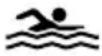 | Bathing/swimming Yes |
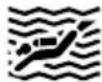 | Water sports (e.g. diving) No |
*The specification of ft (m) refers to the air overpressure used in connection wiht the watertightness test for the wristband in accordance with DIN 8310.
Using the wristband for the first time
Activating the display module for the first time
- When you activate the display module, you will feel slight resistance when you push the menu button 4. However, do not let go of the menu button.
-
The wristband must be switched on once before you can charge the rechargeable battery. Fully charge the wristband before using it for the first time (see chapter “Charging the rechargeable battery”).
-
Hold the menu button ④ down for eight seconds.
"How are you?" will appear on the display.
- Connect the rechargeable battery with a power source as described in the chapter "Char-
Using the wristband for the first time
ging the rechargeable battery".
- Charge the rechargeable battery once completely before you use the wristband.
Charging the rechargeable battery
- Take the display module 2 out of the band 1 (see Fig. B) or out of the clip 5.
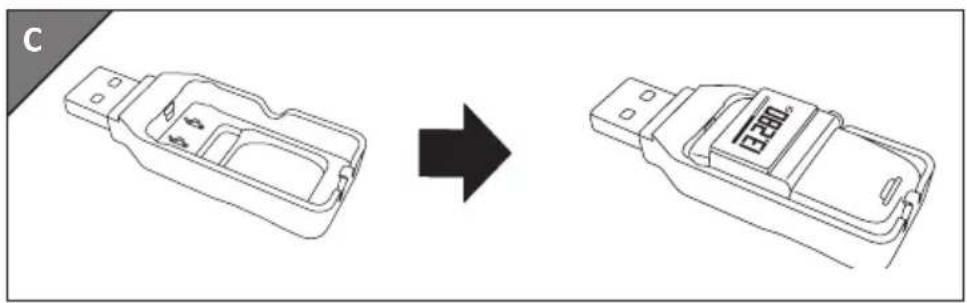
- Insert the display module into the USB charger 6 (see Fig. C).
- Connect the USB charger e.g. to a computer.
You can also use a plug with a USB port to charge it (not included in the package contents).
To access the charge level of the rechargeable batteries on the display, push the menu button
4 for three seconds in time mode.
The charge status is indicated using the following symbols:
| Symbol | Charge status Symbol | Charge status | |
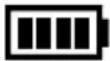 | 78 - 100 % 11 - 32 % | 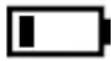 | |
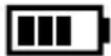 | 56 - 77 % 0 - 10 % | 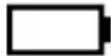 | |
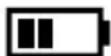 | 33 - 55 % |
- To determine if the rechargeable battery is completely empty, push the menu button.
Using the wristband for the first time
The symbol ☒ will appear on the display for three seconds.
Inserting the display module
- Push the display module 2 into the band 1 or the clip 5 so that it is secure and cannot fall out.
You have successfully assembled the wristband and can now use it.
Putting on the wristband/clip
- We recommend that you do not wear the wristband on your dominant hand.
- Your pulse cannot be measured if the display module is used in the clip.
Operation
- Put the desired band ① with the display module ② around your wrist (ideally behind your wrist bone) and fasten the band. The band should not be fitted too tightly, but also not too loosely around your wrist. It must not cause you any pain, but it should be secure enough so as to prevent loss.
- Or fasten the clip 5 with the display module e.g. on a trouser pocket, shirt, bra or belt.
Operation
Switching the display module on
Once you have activated the wristband as described in the chapter “Activating the display module for the first time”, the chapter “Switching the display module on” is only relevant when the wristband has been switched off.
Operation
- To switch the display module on, hold the menu button 4 down for 2 seconds. "How are you?" will appear on the display.
Switching the display module off
- In time mode, push the menu button 4 for 2 seconds.
The display will show the icon ☐, "Pair?" and "Off?".
- As soon as "Off?" appears, push the menu button to switch the display module off.
Setting the time and time mode
Time mode indicates the current time. This is automatically adopted by the Crane Connect app. In the app, you can set the time mode to 24 h or 12 h format.
Downloading and installing the Crane Connect app
If you would like to use the wristband in combination with the Crane Connect app, you must download the Crane Connect app and install it on your smartphone for example.
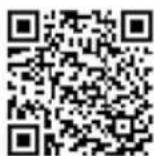
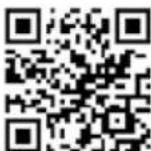
- Download the free Crane Connect app from the App Store, from the Google Play Store at www.cranesportsconnect.com under the “Download” tab or via the following QR codes.
QR code for Android QR code for iOS
Operation
To avoid long download times and the associated costs, it is recommended that you use a Wi-Fi connection for downloads.
- Install the Crane Connect app on your smartphone. Follow the step-by-step instructions for this.
Creating a user account
To create a user account with the Crane Connect app, proceed as follows:
- Start the Crane Connect app.
- Follow the registration instructions step by step.
-
To perform user and product-specific settings, select the icon "All Settings".
-
To create a new user or log on with an existing user, select the icon "User Settings". Follow the subsequent instructions from the Crane Connect app step by step.
You can also create new users on the website www.cranesportsconnect.com.
Connecting the wristband with the Crane Connect app
Make sure that the Bluetooth® function on your smartphone has been activated.
- Once the user settings are complete, return to the "All Settings" menu.
Operation
- Select the icon "Activity Tracker".
You can make further settings for optimal use of your wristband.
- To connect the wristband with your smartphone, select "Connect" in the "Pairing" field.
A notification window will appear.
- In this window, press "Pair now".
Select "Pair?" on the display module 2 by pushing and holding the menu button 4 down for approx. two seconds in time mode.
First the battery icon and then "Pair?" will appear on the display 3.
- Push the menu button again.
"Pairing..." will appear for approx. 20 seconds on the display. During this time, the wristband will connect with your smartphone. Once the connection has been successfully established, the symbol will appear on the display. If the connection cannot be created, the symbol will appear on the display (see chapter "Troubleshooting").
Operation
- Once you have successfully connected the wristband with your smartphone, return to the "Home" menu.
- From there, you can access all the analyses of your measured data via the "Activity Tracker" icon.
As soon as you have connected the wristband with the Crane Connect app, all recorded data will be transferred to it.
If the Internet connection on your smartphone or tablet is active, the Crane Connect app will automatically upload all data measured to the website www.cranesportsconnect.com for permanent storage.
Operation
Configuring notifications
- On your smartphone or tablet, open the Crane Connect app and access the settings for the wristband.
- Scroll down to "Alert settings".
- Activate the desired notification functions by pushing the corresponding slider to the right (☐)
If you would like to configure how the wristband is to alert you of a notification, push the arrow to the right of the slider.
You now have the choice of configuring the setting for the display or the dialing tone ("Off", "Single" or "Multiple").
You also have the option of defining the duration of the dialing tone. Use the “Duration” slider to select a duration between 1 and 5 seconds.
Notifications: Symbols and signals
To be able to receive notifications, your smartphone or tablet must be within Bluetooth ^® range.
The wristband will display the last 10 notifications.
If a call is received on your smartphone or if you have missed a call, the wristband will notify you with the signals configured in the app.
The symbol will appear if you have enabled "Display" in the settings.
If you have received a message on your smartphone, the wristband will notify you with the signals configured in the app.
The symbol 🔔 will appear if you have enabled "Display" in the settings.
If an e-mail is received on your smartphone or tablet, the wristband will notify you with the
Operation
signals configured in the app.
The symbol ☒ will appear if you have enabled "Display" in the settings.
If the Bluetooth ^® connection between the wristband and smartphone or tablet is interrupted, the wristband will notify you with the signals configured in the app.
The symbol 📄 will appear if you have enabled "Display" in the settings.
Displaying notifications
An interrupted Bluetooth ^® connection is automatically restored as soon as you are within range of your smartphone or tablet. In this case, the wristband will synchronise the incoming notification with the smartphone or tablet.
- In time mode, push the menu button 4 to access notification mode.
- If you have received notifications, the corresponding symbol will be shown.
- If you have not received any notifications, "No notification" will appear
- Push the menu button again for 2 seconds to display the last 10 notifications.
- The notifications will be displayed in chronological order.
• Each notification will be shown for 3 seconds. - You can also manually access the notifications by pushing the menu button.
- Push the menu button again to return to notification mode.
Using the wristband without the Crane Connect app
You can also use the wristband without the Crane Connect app. In the process, keep in mind that the personal data of an average user is used to determine the calories burned and the distance. As a result, your actual results may differ from the determined results.
Without the Crane Connect app, your data can only be shown for the current day. The data
Operation
can only be permanently stored and displayed once the data has been transferred and uploaded to the website while you are connected to the Internet.
Without the Crane Connect app, you cannot adjust the factory default targets to your individual goals. The following are set as factory defaults:
• Target steps: 10,000 steps
• Target distance: 3.5 miles
• Calorie consumption: 3,000 kilocalories
To set the time, push the reset button 7 at 12 noon. This will set the time to 12:00. The “Notifications” function cannot be used without connecting to the Crane Connect app.
Activating pulse and workout mode
If you start the pulse and workout mode, the initial pulse of 72 bpm is shown. After a few seconds, your current pulse will appear on the display. After 60 seconds pulse measurement will stop and the display will switch off. You can also start a workout in this mode:
- To start your workout with pulse measurement, push and hold the menu button down for 2 seconds.
"Start?" will appear on the display.
- Push the menu button to start the workout.
“START” will flash on the display for three seconds.
Operation
You can use the Crane Connect app to select one of three preset training zones (health, fat burning and aerobic) as well as a user-defined training zone. A pulse alarm can also be activated in the app which will be triggered if your pulse is outside the pulse range and if the max. pulse has been reached.
- To stop your workout, hold the menu button down for 2 seconds.
"Stop?" will appear on the display. - Push the menu button to stop the workout.
“STOP” will flash on the display for three seconds.
You can also access the current workout data while measuring the pulse. For this, the Crane Connect app allows you to select either automatic alternation or manual alternation. If automatic alternation is selected, all workout data is shown for 2
seconds on the display. The display then switches off. If manual alternation is selected, you can access the workout data consecutively by pushing the menu button. After one minute, the display will automatically switch off.
Viewing the workout data
Once you have finished your workout, you can view your workout data. The wristband saves the workout data for the last ten workouts recorded. When the workout data is synchronised with the app, it is automatically deleted on the wristband. Only the data from the last workout can be accessed under “Record”.
- Access the pulse and workout mode. Push and hold the menu button 4 down for 2 seconds.
"Start?" will appear on the display.
Operation
- Wait 2 seconds.
"Record" will appear on the display.
- Push the menu button to display the different workout data records.
The workout data records appear in sequence every 2 seconds.
Only the data from the last workout can be viewed on the wristband.
If you do not synchronize the workout data of the wristband in the app, the first workout will be overwritten by the eleventh workout.
Activating sleep mode
Wear the wristband when you go to bed and activate sleep mode as follows:
- In sleep mode, hold the menu button 4 down for 2 seconds.
"Sleep?" will appear on the display.
- Push the menu button again to activate sleep mode.
The icon will appear on the display. Sleep mode has now been activated. The duration and quality of your sleep will now be recorded. You can view the data collected via the Crane Connect app.
- If you push the menu button now, the current time will appear on the display
- Sleep mode can also be set with the Crane Connect app so that the wristband automatically switches to sleep mode.
Operation
Deactivating sleep mode
- After waking up, hold the menu button ④ down for approx. two seconds.
"Wake?" will appear on the display.
- Push the menu button to end sleep mode.
The icon followed by the duration of your last sleep will briefly appear on the display.
Restoring the wristband
If the wristband does not respond, push the reset button ⑦ on the back of the display module ②. The display ③ will turn on after a few seconds. This will not delete the data on the wristband.
Resetting the wristband
If the data displayed on the wristband is incorrect and the wristband is connected to the app, you can reset it to the default settings in the app. To do so, access the settings for the wristband. This reset will delete all data on the wristband.
Care and maintenance
Cleaning the wristband
NOTICE
Risk of damage!
Improperly cleaning may lead to damage.
- Do not use any aggressive cleaners, brushes with metal or nylon bristles or sharp or
Care and maintenance
metallic cleaning utensils such as knives, hard scrapers and the like. They could damage the surfaces.
- Use a soft brush, a small amount of water and a mild soap to clean the band 1.
- Wipe the display module ② off with a soft, damp (if necessary), lint-free cloth.
- Let the band and display module air dry completely before storing them.
- Make sure that there are no deposits on the optical sensor 8 on the bottom of the device. This will ensure an accurate pulse measurement.
Storing the wristband
NOTICE
Risk of damage!
Improper handling of the wristband may result in damage.
Troubleshooting
- Store the wristband in a suitable location between +14 °F and +122 °F (-10 °C and +50 °C).
- Keep the wristband away from direct sunlight.
- Store the wristband in a clean, dry area.
Troubleshooting
Use the following information and the FAQs (frequently asked questions) on our website to rectify faults yourself: www.cranesportsconnect.com/faq.php
Troubleshooting
| Fault Solution | |
| Not all of the data measured were transferred. | If you have not synchronized with the Crane Connect app in the last 30 days, the data measured prior to then will be overwritten. |
| The pulse is not displayed. The optical sensor | for the pulse measurement on the back of the device is dirty. Clean the optical sensor as described in the chapter “Care and maintenance”. |
Troubleshooting
| Fault Solution | |
| The pulse indicator is not working properly. | Your pulse is below 40 beats per minute.Make sure that the wristband is not too loose on your wrist. Put the wristband on behind your wrist bone. |
| The wristband and your smartphone will not connect. | – Switch Bluetooth® off on your smart-phone and then back on.– Then restart the connection process with your wristband. |
| – Switch your smartphone off and then back on. |
Troubleshooting
| Fault Solution | |
| - Activate the visibility of your smartphone in the Bluetooth® menu. | |
| - Reinstall the Crane Connect app on your smartphone. | |
| - Check the compatibility (see chapter “Compatible Bluetooth® devices”). |
If you are having issues with the wristband, first check whether the rechargeable battery is empty and recharge it if necessary.
Declaration of conformity
This device complies with Part 15 of the FCC Rules. Operation is subject to the following two conditions: (1) this device may not cause harmful interference, and (2) this device must accept any interference received, including interference that may cause undesired operation.
NOTE: This equipment has been tested and found to comply with the limits of a Class B digital device, pursuant to Part 15 of the FCC Rules. These limits are designed to provide reasonable protection against harmful interference in a residential installation.
This equipment generates, uses and can radiate radio frequency energy and, if not installed and used in accordance with the instructions, may cause harmful interference to radio communications. However, there is no guarantee that interference will not occur in a particular installation. If this equipment does cause harmful interference to radio or television recepti-
Declaration of conformity
on, which can be determined by turning the equipment off and on, the user is encouraged to try to correct the interference by one or more of the following measures:
- Reorient or relocate the receiving antenna.
- Increase the separation between the equipment and receiver.
- Connect the equipment into an outlet on a circuit different from that to which the receiver is connected.
- Consult the dealer or an experienced radio/TV technician for help.
WARNING: changes or modifications to this unit not expressly approved by the party responsible for compliance could void user's authority to operate the equipment.
Technical data
Wristband
Model no.: AU8-CDAT13A
Article number: 95492
Operating temperature: +14 °F to +122 °F (-10 °C to +50 °C)
Storage temperature: +14 °F to +122 °F (-10 °C to +50 °C)
Length of the wristband: approx. 9.8" (25 cm)
Frequency range: 2402 - 2480 GHz
Transmission power: max. 0.43 dBm
Measurement ranges
Pulse 40–225 bpm
Technical data
Steps 0–99999
Calories 0–99999 kcal
Distance 0–99.99 miles (km)
Workout time 0–09:59:59
Rechargeable battery
Type: Lithium polymer rechargeable battery
Capacity: 50 mAh
Voltage: 3.7 V
Charging current: < 25 mA
Disposal
Disposing of the packaging
- Sort the packaging before you dispose of it. Dispose of paperboard and cardboard with the recycled paper service and wrappings with the appropriate collection service.
Disposing of old appliances
- Should the wristband no longer be capable of being used at some point in time, dispose of it in accordance with the regulations in force in your city or state.
- Please ensure your recycling information applies to local regulations and the EPA recommendations (www.epa.gov).
Disposal
Batteries and rechargeable batteries may not be disposed of with household waste!
As the end user you are required by law to bring all batteries and rechargeable batteries, regardless whether they contain harmful substances* or not, to a collection point run by the city, county, or state, or to a retailer, so that they can be disposed of in an environmentally friendly manner. Bring the entire wristband (including the rechargeable battery) to your collection point and make sure that the battery is in an uncharged state!
*labeled with: Cd = cadmium, Hg = mercury, Pb = lead
CUSTOMER Service
We request all customers contact us via the internet, e-mail or phone before returning any products to us.
Please have the model no. ready, which can be found either on the back or on the bottom of the product.

www.krippl-watches.com

service@krippl-watches.com

Toll-free service hotline 1-800-493-9137 (No country code necessary)
Contenido
Contenido
Códigos QR 76