HD9SITDRHS - NAS Addonics - Free user manual and instructions
Find the device manual for free HD9SITDRHS Addonics in PDF.


User questions about HD9SITDRHS Addonics
0 question about this device. Answer the ones you know or ask your own.
Ask a new question about this device
Download the instructions for your NAS in PDF format for free! Find your manual HD9SITDRHS - Addonics and take your electronic device back in hand. On this page are published all the documents necessary for the use of your device. HD9SITDRHS by Addonics.
USER MANUAL HD9SITDRHS Addonics
natural_image
Front view of a black server rack unit with multiple drive bays and indicator lights (no visible text or labels)User Guide
1:9 HS HDD Duplicator Pro (HD9SITDRHS)
www.addonics.com
v3.1.11
Technical Support
If you need any assistance to get your unit functioning properly, please have your product information ready and contact Addonics Technical Support at:
Hours: 8:30 am - 6:00 pm PST
Phone: 408-453-6212
Email: http://www.addonics.com/support/query/
Drive InstallationGuide
Step 1
Use a Philips screwdriver to turn the cover securing screw clockwise into the "OPEN" position.

natural_image
Exterior view of a beige electronic device labeled 'PHYSLOND' with a black screwdriver (no additional text or symbols visible)Step 2
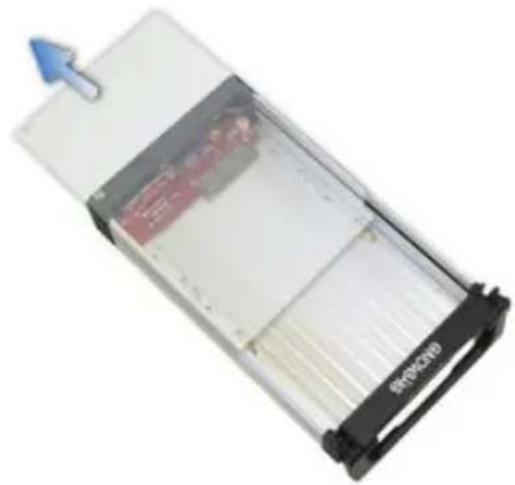
Slide the aluminum cover towards the back end of the Diamond enclosure and remove it.
natural_image
Close-up of a transparent rectangular device with internal compartments and a blue arrow pointing to it (no visible text or symbols)Step 3
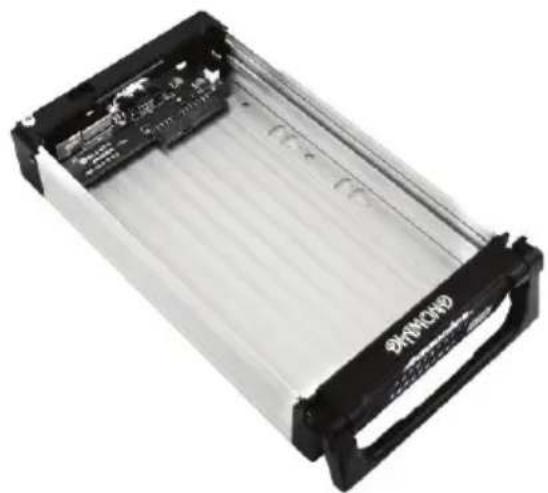
For SATA Drive: Carefully place the SATA hard drive with the label facing up into the Diamond Enclosure. Push the hard drive towards the back end to secure the drive connectors onto the Diamond enclosure's SATA connector.
natural_image
Exterior view of a rectangular electronic device with black and white casing (no visible text or symbols)For IDE Drive
Note: Configure your IDE hard drive as Master device
Connect the 4-Pin Molex cable to the power connector on the IDE hard drive. Carefully place the IDE hard drive with the label facing up into the Diamond enclosure. Push the hard drive toward the back end to secure the drive connectors onto the Diamond enclosure's IDE connector.
Step 4
Turn the Diamond enclosure over with the hard drive mounting holes facing up. Use the included flat head screws to secure the hard drive onto the bottom of the enclosure and turn in the screw to the "LOCK" position.
Step 5
Insert the enclosure into a cradle in the duplicator and secure it in place with the handle and turn the cradle's lock to the LOCK position. Note: the drive will not power up until the cradle's lock is in the LOCK position.

natural_image
Exterior view of a DRAMOND processor chassis with visible internal circuitry and ventilation slots (no text or symbols on main body)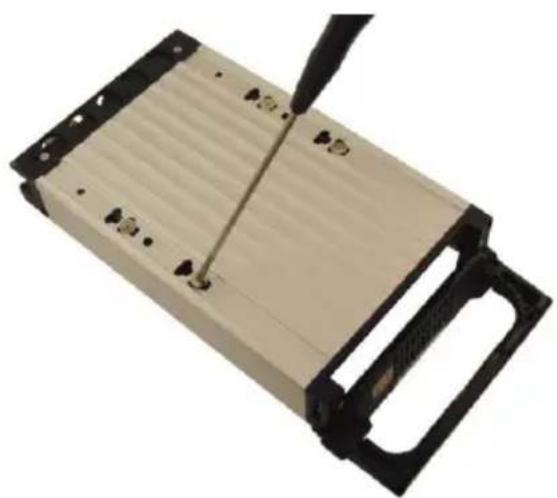
natural_image
Exterior view of a beige electronic device with black handle and metal screwdriver (no text or symbols visible)
text_image
Addonics Source Drive Target Drives LCD Management Console Target Drives Install 2.5" or 3.5" SATA or IDE drives using Diamond EnclosuresConnecting the Power Cable and Powering On
a. Connect the power cord provided from the wall outlet to the back of the tower.
b. Turn on the main power switch on the rear of the chassis.
c. Push the power button on the front of the unit to turn on the HDD duplicator.
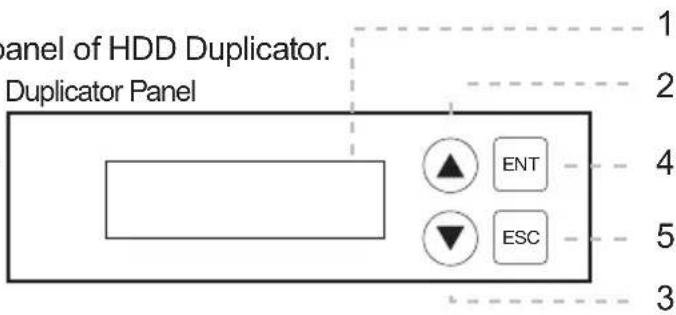
There are four buttons and an LCD on the panel of HDD Duplicator.
1 - LCD shows a function or a message.
2 – it is used to scroll up function menus.
3 – it is used to scroll down function menus.
4 – it is used to execute a function.
5 – it is used to cancel a function.
text_image
Panel of HDD Duplicator. Duplicator Panel 1 2 4 5 3Quick Start
By default, the duplicator will initialize, scan for drives and offer the copy function. Insert the source and target drives, power up the unit, wait for the copy function to appear, then press ENT.
Canceling Functions
When selecting menu options, canceling is done by pressing ESC. When the unit is busy performing an operation such as copy, verify, or overwrite, the operation can be canceled by holding the ESC button until the unit beeps.
Duplicator Functions
The duplicator has three menu sections: The Main menu, Setup Options, and Advanced Setup Options. Setup Options is accessed through the Main menu. Advanced Setup Options is accessed by holding the ESC button from any other menu until the unit beeps.
When the duplicator completes some of the functions it will record a log of the most recent activity. Select VIEW LOG from the Main Menu to review the latest function's results.
Main Menu
1. Copy HDD
Scans the ports, then copies from the source to any targets found.
2. Async Copy HDD
Scans the ports, then copies from the source to any targets found. More drives may be added before the process is complete, they will begin the process as soon as they are detected.
3. Compare HDD
Scans the ports, then any targets found will be compared to the source.
4. Async Compare
Scans the ports, then any targets found will be compared to the source. More drives to compare may be added before the process is complete, they will begin the process as soon as they are detected.
5. PreScan Source
Reads all blocks on the source drive to confirm no I/O errors are encountered.
6. ReScan BUS
Manually scans all ports and reports how many units were found.
7. Source Size
Examines the source drive and reports total space and space used, if drive contains compatible partitions. Press up/down to change display, ESC to exit.
8. Secure Erase
Scans all ports, then erases all data on all connected drives.
NOTE: some drives will remain in a locked state when the process is complete. Drives that are locked may not appear to an operating system and will cause an I/O error if used as a target in the duplicator. If this happens, start secure erase again and hold ESC to cancel the operation a few moments after it begins.
9. Overwrite
Overwrite is used to write data onto the entire hard disk, it will destroy all data on all HDDs connected to the duplicator (including Source HDD) by writing data to all sectors. There are 4 sub-options: One pass (zero), One pass (random), 3 pass and 7 pass.
10. Setup
Enters the Setup menu. See Setup Options.
11. View Log
Shows the results from the most recent drive operation, such as copy, overwrite, etc.
12. Adv Setup
Enters the Advanced Setup Menu. Only available by holding ESC on any Main Menu option. See Advanced Setup Options.
Setup options
10-1. Language
Use this option to select the language of the system, currently only English is supported.
10-2. Copy Size
Controls how much of the source drive to use for copy operations, in percentage. Default setting is ALL (100%).
10-3. Startup Menu
Sets the first menu option to appear after boot. Default setting is Copy HDD.
10-4. Auto Compare
Controls whether or not targets are compared automatically when copy is complete. Default setting is OFF.
10-5. Button Sound
Enables audible beep when pressing buttons. Default setting is ON.
10-6. Device Info
Displays information about connected drives. Main display is drive manufacturer and size. Press up/down to select drives, ENT to display model number and firmware revision of selected drive.
10-7. System Info
Displays firmware version and date.
10-8. Fast Copy
When this setting is ON, the duplicator will attempt to copy the source drive's contents instead of the entire disk. Also controls Compare function. Default setting is OFF.
NOTE: Target drive size is still required to be equal to or greater than source. Only works with source drives formatted using Master Boot Record. If the source drive has a boot record other than MBR, the entire disk will be copied as if Fast Copy were OFF. If the source drive is formatted with a Master Boot Record and contains only FAT32 or NTFS partitions, identical partitions will be created on the target(s) and only the files will be copied. If the source drive with MBR format includes partitions other than FAT32 or NTFS, all sectors of all partitions (including FAT32 and NTFS) will be duplicated.
10-9. Auto Start Drive
When source drive is present, inserting a target drive will cause copy process to begin automatically. Default setting is OFF.
10-10. Auto Start Timer
Sets delay in time after target insertion before beginning auto copy process if Auto Start Drive is ON. Default setting is OFF (no delay).
10-11. Tolerance Size
Sets the minimum target size in percentage compared to the source that is allowed to use for copying. Default is 100% (equal in size).
NOTE: Leaving this setting at 100% or using for minor adjustments only is strongly recommended. Permitting target size less than source size may result in inaccurate copies.
10-12. BootTime Delay
This option is used to set boot delay time. Default setting is 5 seconds.
10-13. Quick Compare
Sets Compare function to stop after a small amount of data has been verified, up to 100MBytes. Default setting is OFF.
10-14. Copy with Size
Causes duplicate drive to report to an operating system the exact same total size as source when copy is complete. Works only on drives formatted using a Master Boot Record. Default setting is OFF.
Advanced Setup Options
12-01. Read Error Skip
Allows duplicator to ignore I/O errors while reading source drive. Default setting is OFF.
12-02. Update Firmware
Used to apply firmware updates. Connect a drive formatted as FAT containing one partition with the firmware file in the root directory.
NOTE: This function scans the entire disk before proceeding. Providing a drive that is as small as possible is strongly recommended.
12-03. Compare Firmware
Used to confirm correct firmware. Connect a drive formatted as FAT containing one partition with the firmware file in the root directory. NOTE: This function scans the entire disk before proceeding. Providing a drive that is as small as possible is strongly recommended.
12-04. Quick Erase HDD
Scans the ports, then quickly erases all sectors on all connected drives.
12-05. Full Erase HDD
Scans the ports, then completely erases all sectors on all connected drives.
12-06. H/W Diagnostic
Starts comprehensive tests for Ram, LCD, buttons, ports and Flash.
12-07. Load Default
Resets all configuration settings to default.
12-08. Copy HPA
Enables copy functions to duplicate the source drive's Host Protected Area. Normally this area is defined as not available to a host controller as defined by ATA/SATA specifications.
12-09. Burn In
Runs a function continuously until aborted. Selections are Copy & Compare, Compare, Async Cpy & Cmp, Async Compare.
CONTACT US
www.addonics.com
Phone: 408-573-8580
Fax: 408-573-8588
Email: http://www.addonics.com/sales/query/