RT5835HEU3 - NAS Addonics - Free user manual and instructions
Find the device manual for free RT5835HEU3 Addonics in PDF.


User questions about RT5835HEU3 Addonics
0 question about this device. Answer the ones you know or ask your own.
Ask a new question about this device
Download the instructions for your NAS in PDF format for free! Find your manual RT5835HEU3 - Addonics and take your electronic device back in hand. On this page are published all the documents necessary for the use of your device. RT5835HEU3 by Addonics.
USER MANUAL RT5835HEU3 Addonics
natural_image
Front view of a black rack-mounted server unit labeled 'Addonics', showing multiple drive bays with greenish contents (no readable text beyond label)User Guide
RAID Tower V (RT5835HEU3)
www.addonics.com
v5.1.11
Technical Support
If you need any assistance to get your unit functioning properly, please have your product information ready and contact Addonics Technical Support at:
Hours: 8:30 am - 6:00 pm PST
Phone: 408-453-6212
Email: http://www.addonics.com/support/query/
Removing Cover of Raid Tower V
Loosen the 3 screws at the back of the tower using a Philips screwdriver. Push cover toward the rear of the tower and lift slightly to disengage and remove.
Arrays
The RT5835HEU3 contains two individual Port Multipliers, each managing an array of four drives. Array 1 includes the four drives on the left of the Disk Array 5SA, and Array 2 includes the far right drive on Disk Array 5SA, along with all drives in Disk Array 3SA as shown.
Array Host LED: Glows when either eSATA or USB connection is active. Winks to indicate activity.
Array Error LED: In RAID configuration, glows to indicate a RAID array is degraded or offline. Blinks to indicate a RAID array is in a rebuilding state.

text_image
Array 1 Addonics Power LED Front Power Switch Array 1 Host Array 1 Error Array 2 Host Array 2 ErrorConnecting and Powering on RAID Tower V
- Connect AC Power cord on the rear of the tower.
- Connect each of the two Arrays to the computer using either eSATA or USB 2.0 or USB 3.0 cable.
- Turn on Main AC Switch on the rear of the tower, then press Front Power Switch to turn unit on.
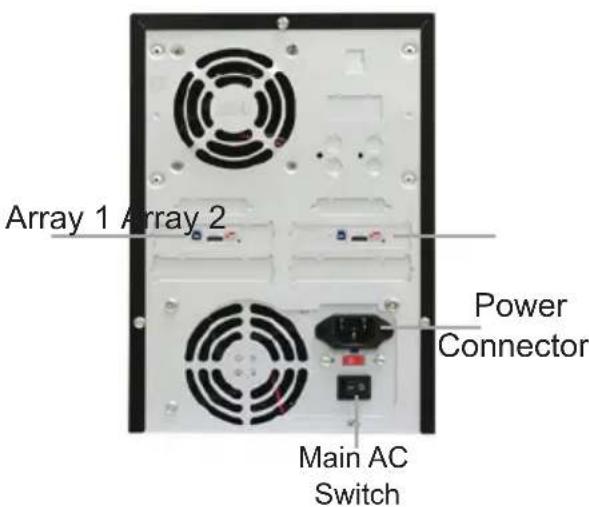
text_image
Array 1 Array 2 Power Connector Main AC Switch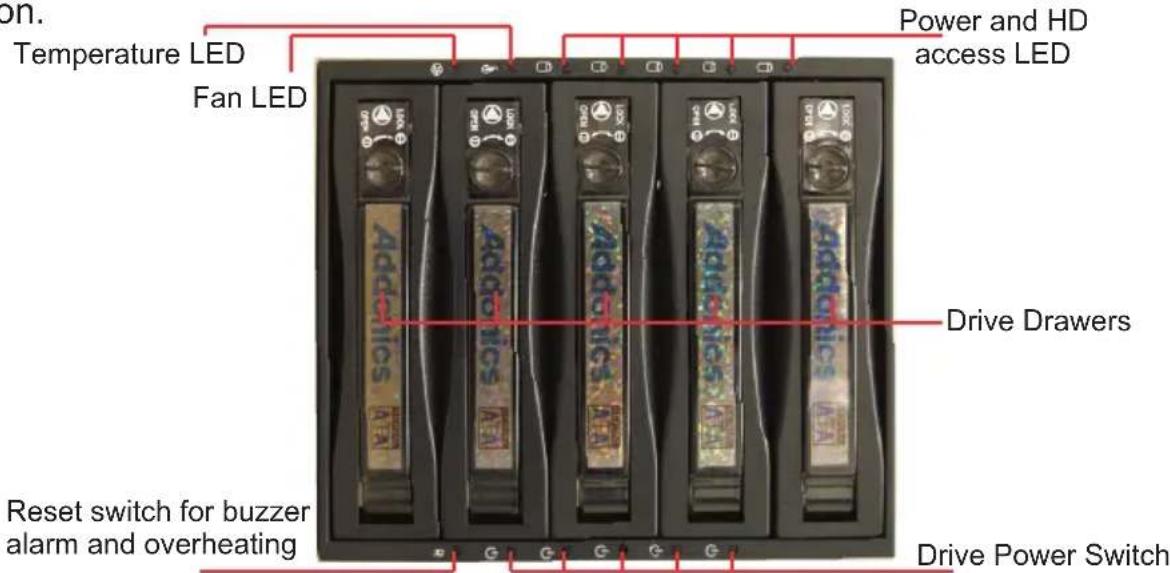
text_image
On. Temperature LED Fan LED Power and HD access LED Reset switch for buzzer alarm and overheating Drive Drawers Drive Power Switch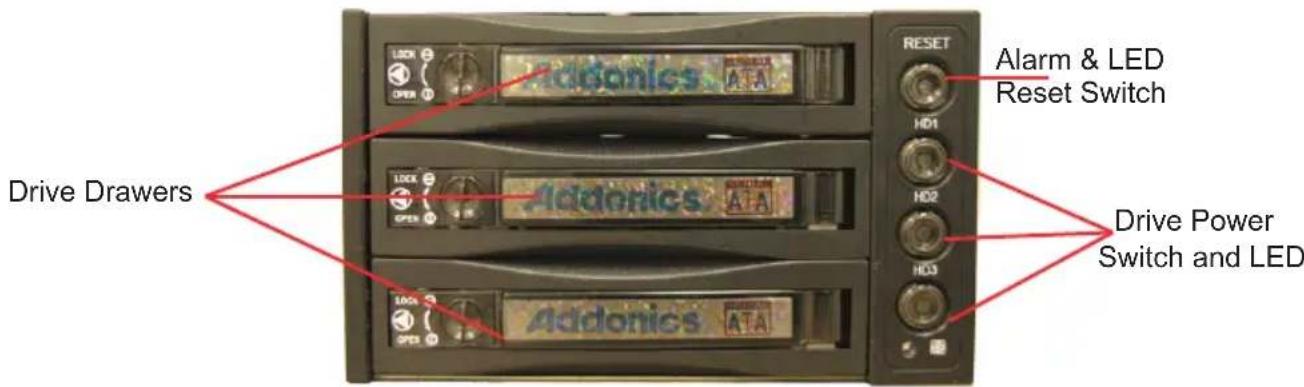
text_image
Drive Drawers Alarm & LED Reset Switch Addonics Addonics Addonics Addonics Addonics Addonics Addonics Addonics Addonics Addonics Addonics Addonics Addonics Addonics Addonics Addonics Addonics Addonics Addonics Addonics Addonics Addonics Addonics Addonics Addonics Addonies Addonies Addonies Addonies Addonies Addonies Addonies Addonies Addonies Addonies Addonies Addonies Addonies Addonies Addonies Addonies Addonies Addonies Addonies Addonies Addonies Addonies Addonies Addonies Addonies AddonieDisk Array 5SA and Disk Array 3SA
HDD LED: located above the drives on Disk Array 5SA and in the HDD power switches on Disk Array 3SA, one LED for each drive. LED glows green to indicate drives are powered up and blink amber to indicate activity.
FAN LED: indicates fan failure.
TEMPERATURE LED: Located next to HDD LEDs on Disk Array 5SA and inside RESET button on Disk Array 3SA. Indicates temperature beyond range inside the enclosure. An audible alarm will also sound from the array. In RAID Tower V, the default setting of 60 degrees C is default.
RESET SWITCH: Marked "R" on Disk Array 5SA and "RESET" on Disk Array 3SA. Silences the audible alarm for temperature warnings.
DRIVE POWER SWITCH: Located below the drives and marked with a power symbol on Disk Array 5SA, right of the drives and marked "HD1, HD2, HD3" on Disk Array 3SA. Controls power to each individual drive. When all HD Power Switches are turned off, the entire enclosure will also be turned off.
Resetting the RAID Mode
NOTE: This procedure destroys all RAID data. It should not harm individual drives or their contents; however, creating or running backups of all data is strongly recommended before proceeding.
- Power down the unit and set the dip switch to the factory default setting (all switches OFF).
- While holding the SET button with a ballpoint pen, turn the unit on. A long beep will sound from the Port Multiplier. The SET button may be released once the long beep stops.
Setting or Modifying the RAID Mode
NOTE: Setting or modifying the RAID mode destroys all data.
- Follow the procedure for resetting the RAID Mode.
- Power down the unit and set the dip switch to the desired RAID Mode.
- While holding the SET button with a ballpoint pen, turn the unit on. A long beep will sound from the Port Multiplier. The SET button may be released once the long beep stops.
If instead of a long beep the Port Multiplier sounds a series of short beeps, an error has occurred during configuration of the array.
Windows users may install the JMicron HW RAID Manager application located on the SATA Controller CD. In the CD, browse to Configuration Utilities → JMB393. The JMicron HW RAID Manager can be used to create, modify, and monitor the health status of the RAID drives, and provide status alerts. When configuring the RAID mode using the RAID Manager application, it is strongly recommended to leave the dip switch in the factory default setting.
Using identical drives for all settings other than JBOD or LARGE is strongly recommended. Creating a LARGE array using drives that have different properties will use all space on all members, and performance will match that of the member in use during any particular I/O operation. Creating a RAID using drives that are not all the same size will result in all members using only as much space as the smallest member. Creating a RAID using drives that have different performance will degrade the overall performance of the array.
BZS Switch (SW1:1):
The BZ switch is used to silence the audible alarm buzzer. The OFF position permits the audible alarm, and the ON position silences the audible alarm. The BZ switch has immediate effect.
EZ Switch (SW1:2):
The EZ (spare) switch inhibits spares when ON. When in the OFF position, all individual drives (not defined as members of an array) are considered spare. Should a RAID become degraded, when the EZ switch is in the OFF position a spare drive will be used automatically to rebuild the RAID, if present. EZ mode is determined when the unit is powered up. Changing the switch will have no effect until the unit has been re-powered.
RAID Mode Switches M2, M1, M0 (SW1:3 - SW1-5)
The RAID Mode switches define what type of RAID will be initialized when the unit is powered up while the RAID Mode button is held down. Each type of RAID has different properties and requirements, as follows:
| Raid Mode BZS ^1 EZ M2 M1 M0 | |||||
| JBOD (Individual drives)* FACTORY DEFAULT SETTING | OFF | OFF ^2 | OFF OFF | OFF | |
| 0 | OFF | ON ^3 | ON | ON | ON |
| 1 or 10 | OFF | OFF | ON ON | OFF | |
| 3 | OFF | OFF | ON ON | OFF | |
| 5 | OFF | OFF OFF | ON | OFF | |
| CLONE | OFF | OFF OFF | ON | ON | |
| LARGE | OFF | ON ^3 | ON | OFF | ON |
1 Audible alarm is recommended at all times.
2 EZ mode has no effect in JBOD mode.
3 Disabling EZ for RAID 0 and LARGE is strongly recommended.
JBOD Mode (Individual Drives)
Number of drives: at least 1
Unit capacity: N/A (100% of each individual drive)
Spares: no
Fault tolerance: none
JBOD mode offers all connected units to the host adapter, no RAID is defined at all.
NOTE: JBOD mode requires a SATA controller featuring Port Multiplier support for eSATA connections.
NOTE: Optical drives can only be configured as JBOD using an eSATA connection.
RAID 0 (Stripe set)
Number of drives: at least 2
Unit capacity: size of each member times number of members.
Spares: no
Fault tolerance: none - if any member is lost all data is lost.
RAID 0 “stripes” the file system across the array by placing sectors of data sequentially between drives in a specific order.
RAID 1 or 10 (Mirror set, Stripe of mirror sets)
Number of drives: 2 (RAID 1) or 4 (RAID 10).
Unit capacity: size of one member (RAID 1) or size of two members (RAID 10).
Spares: yes – if EZ mode is not disabled and 3 (RAID 1) or 5 (RAID 10) drives are present, the array will be initialized with a spare.
Fault tolerance: RAID 1 can withstand the loss of one drive without losing data. RAID 10 can withstand the loss of one drive from each mirror set without losing data.
RAID 1 works by duplicating the exact same data on two drives.
RAID 10 works by using two RAID 1 sets configured as members of a RAID 0. Disks 1 and 2 are mirrored, disks 3 and 4 are mirrored, and the two mirror sets are striped together.
RAID 3 (Stripe set with dedicated parity)
Number of drives: at least 3
Unit capacity: size of one member times number of members minus one.
Spares: yes
Fault tolerance: can withstand the loss of one drive without losing data.
RAID 3 works by striping data for individual I/O blocks across all members except one, which contains parity data for the stripe set computed by the Port Multiplier.
RAID 5 (Stripe set with striped parity)
Number of drives: at least 3
Unit capacity: size of one member times number of members minus one.
Spares: yes
Fault tolerance: can withstand the loss of one drive without losing data.
RAID 5 works by striping entire I/O blocks across all members of the set, with each member taking turns carrying parity data computed by the Port Multiplier.
CLONE (Mirror set)
Number of drives: at least 2
Unit capacity: size of one member.
Spares: yes
Fault tolerance: can withstand the loss of any number of drives without losing data as long as at least one complete member remains online.
CLONE mode works the same way as RAID 1, by maintaining a complete copy of the entire set of data on each drive.
LARGE (Spanned set)
Number of drives: at least 2
Unit capacity: 100% of all drives together regardless of differences in size
Spares: no
Fault tolerance: cannot withstand the loss of any drives without losing data. However, some data may be recovered as long as the drive(s) carrying the file system data (boot record, directory, etc.) remain online.
LARGE mode is neither a RAID nor is it a JBOD. It works by declaring the sum of all available space of the member drives as a single unit, without striping the data. As each member is filled, new data is stored on the next.
CONTACT US
www.addonics.com
Phone: 408-573-8580
Fax: 408-573-8588
Email: http://www.addonics.com/sales/query/