DataLocker EncryptDisc DVD-R - Data Storage Origin Storage - Free user manual and instructions
Find the device manual for free DataLocker EncryptDisc DVD-R Origin Storage in PDF.


User questions about DataLocker EncryptDisc DVD-R Origin Storage
0 question about this device. Answer the ones you know or ask your own.
Ask a new question about this device
Download the instructions for your Data Storage in PDF format for free! Find your manual DataLocker EncryptDisc DVD-R - Origin Storage and take your electronic device back in hand. On this page are published all the documents necessary for the use of your device. DataLocker EncryptDisc DVD-R by Origin Storage.
USER MANUAL DataLocker EncryptDisc DVD-R Origin Storage
natural_image
Three white CD or DVD discs with visible circular holes and star patterns (no text or symbols)Contents
At a Glance
3 About EncryptDisc
4 About this manual
Quick Start Guide
5 Setting up the application
7 How to encrypt your data
8 How to burn your data
9 Finalizing EncryptDisc
9 Modify EncryptDisc data
10 How to decrypt your data
Settings
11 Password management
13 Identifying available space
Miscellaneous
14 Product info
15 Copyright & trademark
15 Contact support team
At a Glance
ABOUT ENCRYPTDISC
What It Is EncryptDisc is a recordable CD or DVD that combines encryption capability and disc burning functionality. It offers built-in software for disc burning and government-strength FIPS 140-2 validated 256-bit AES encryption.
There's no software to install and no need for third-party software applications. EncryptDisc addresses the needs of users who require a simple and highly secure method to transport, share, and archive sensitive data and records. EncryptDisc is the proven choice for low-cost, high-capacity encrypted media that adheres to HIPAA, SOX, HITECH and other industry standards.
- Easy to Use Simply insert EncryptDisc and create a password when prompted. Drag and drop files to finalize the disc.
• Automatic Encryption Protected with government certified FIPS 140-2 Level 1 256-bit AES encryption. (Cert. #819) - Securely Share Users can easily share EncryptDisc from PC to PC either as closed (CD ROM) or open discs for additional updates.
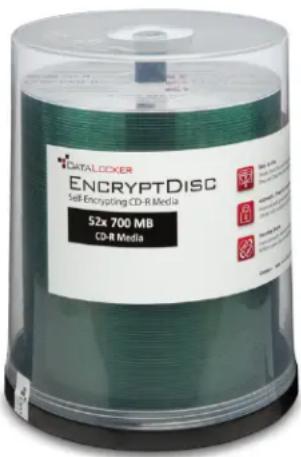
Welcome to EncryptDisc ^® , Version 11.3 media from Data Locker Inc. EncryptDisc is standalone recordable optical media and encryption software created to protect sensitive information. Encryption is designed to prevent unauthorized access to confidential data stored on the EncryptDisc. This user manual discusses how to use EncryptDisc.
The terms Microsoft and Windows used here are registered trademarks of Microsoft Corporation in the United States and other countries.
Note: this manual uses Windows to refer to...
- Microsoft® Windows® 2000
- Microsoft® Windows® XP
- Microsoft® Windows® Vista
- Microsoft® Windows® 7
- Microsoft® Windows® 8 & 8.1
- Microsoft® Windows® Server 2003
- Microsoft® Windows® Server2008
Getting Started
SETTING UP THE APPLICATION
- If EncryptDisc does not automatically run through Windows Explorer or My Computer, navigate to the drive letter that corresponds to your optical drive. Double-click the OpenEncryptDisc.exe file.
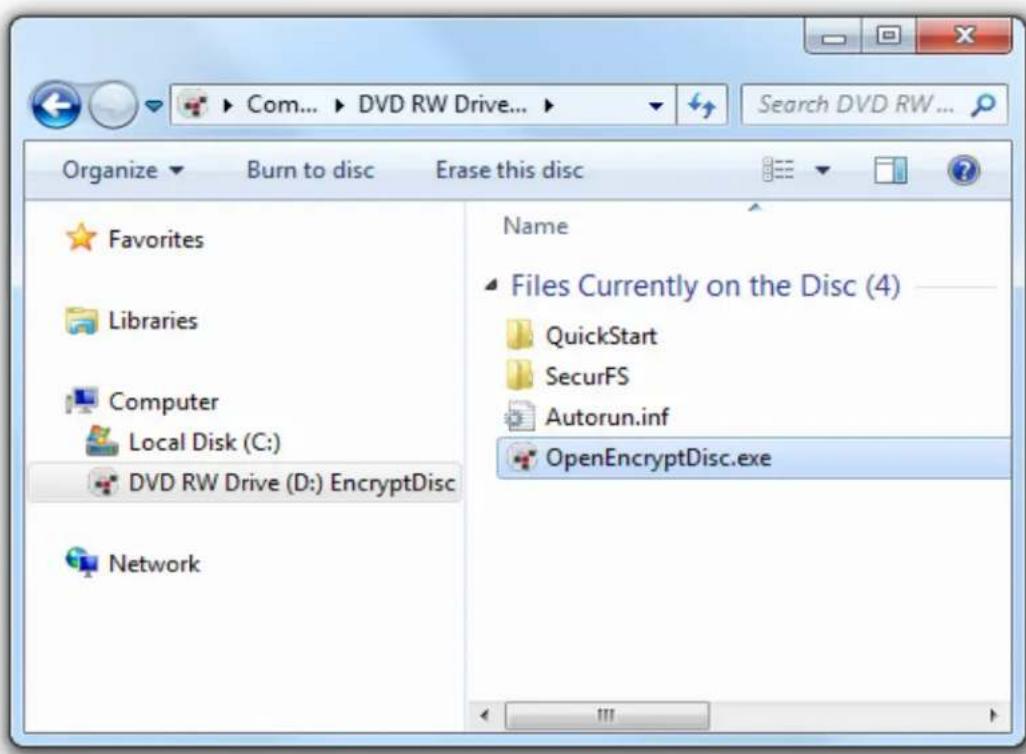
- Review and accept the license agreement in the EncryptDisc User Setup dialog box.

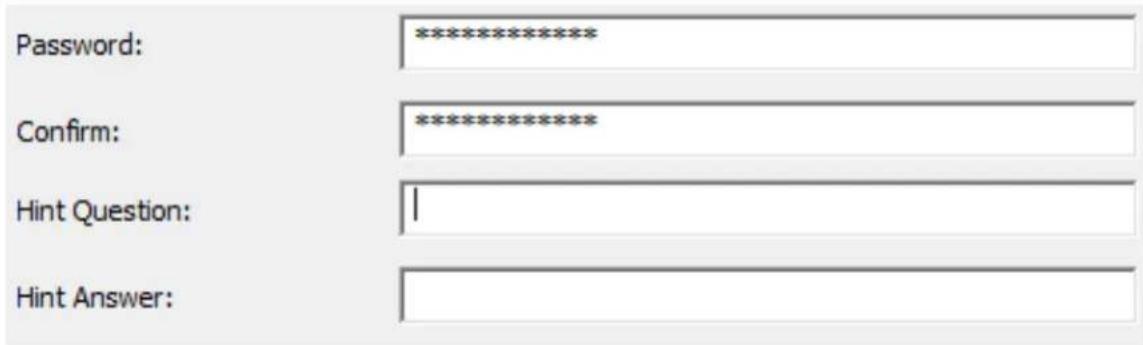
- Enter the password ^1 and hint information. Then click OK.
Important: If you forget both your password and recovery hint, you will be unable to access the encrypted files on your EncryptDisc.
You must remember either your password or the answer to your hint question to access your encrypted files.
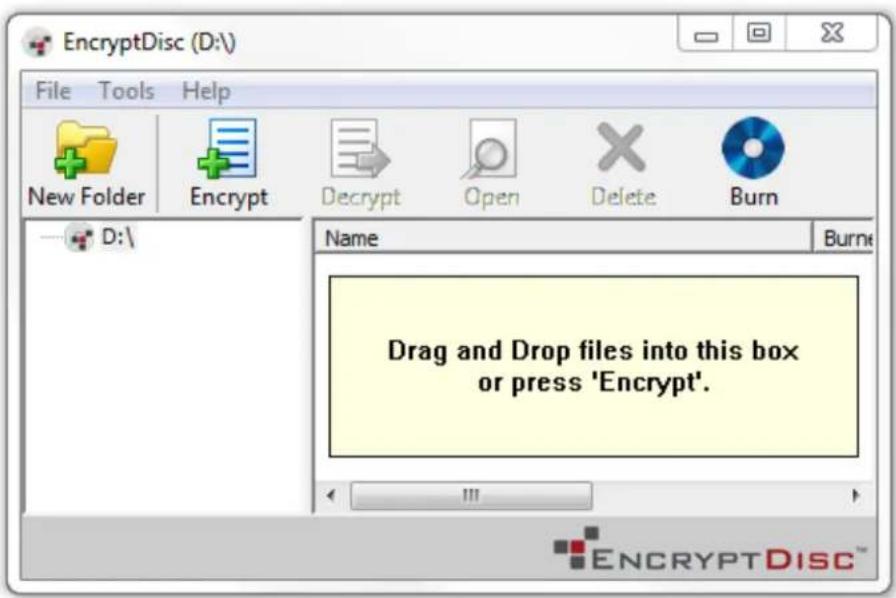
- The EncryptDisc window enables the user to perform all operations, including encryption, burning, file opening, and decryption.
1 The password is case-sensitive and the hint answer must be eight characters or longer.
HOW TO ENCRYPT YOUR DATA ON ENCRYPTDISC
The left pane of the EncryptDisc main window displays the root drive letter of your drive and a navigation tree of any subfolders you create. You can create new folders and rename folders as you desire.
Note: While encrypted files always display in the EncryptDisc window, they are only visible through Windows Explorer after burning the files to the EncryptDisc.
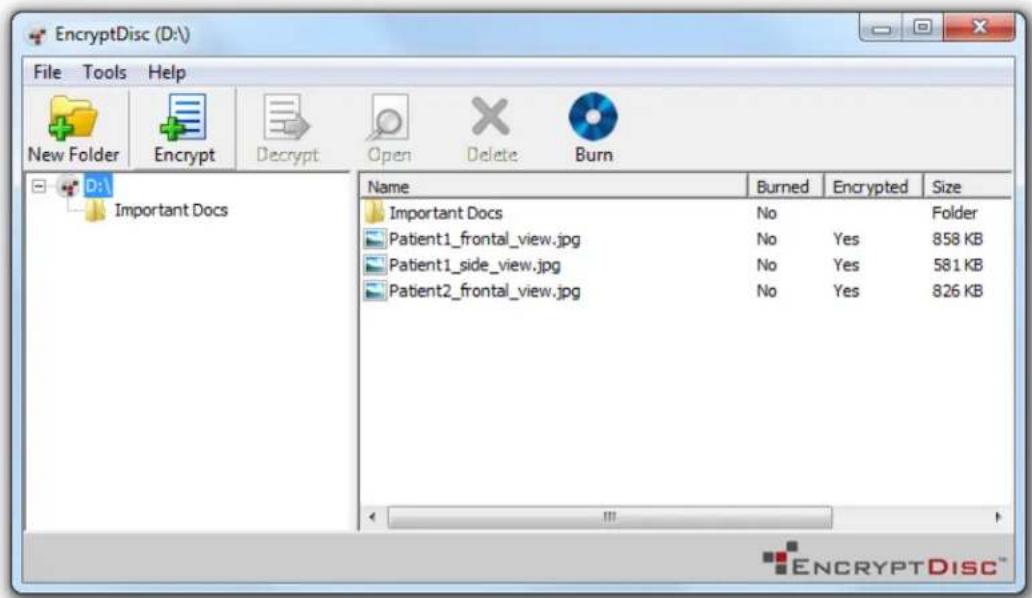
Two Approaches to Encrypting your Data
- Select your desired files and/or folders in your Windows Explorer.
- Drag and drop the selected items onto a location on the EncryptDisc window.
-
or-
-
In the EncryptDisc window, select the folder location where you want to store the encrypted file or create a new folder and encrypt files to that location.
-
Click the Encrypt button.
-
In the Select Files for Encryption dialog box, select one or more files to encrypt and click Open.
HOW TO BURN YOUR DATA TO ENCRYPTDISC
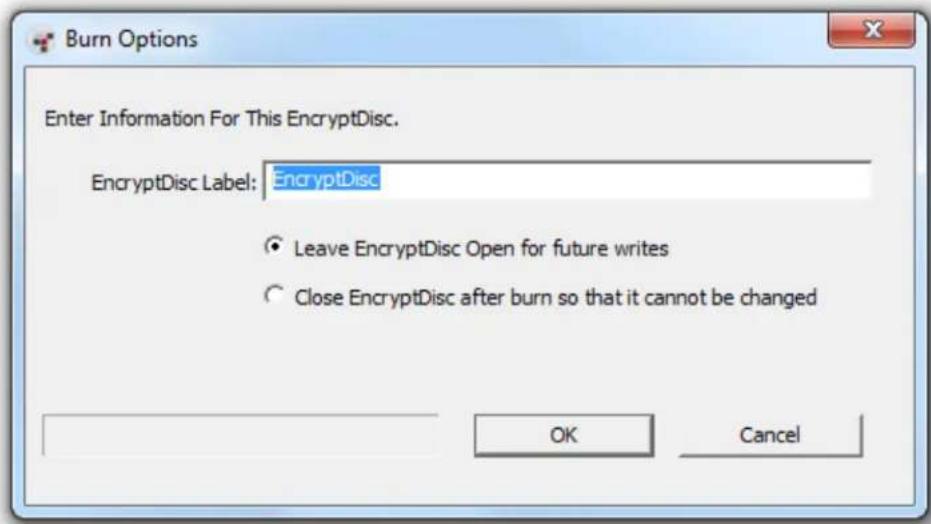
After you have encrypted one or more files and/or folders, you can burn them to the EncryptDisc. As part of the burning process, you must enter a label for the EncryptDisc. Then you must choose between leaving the disc open or finalizing it. If you finalize the EncryptDisc, you can no longer add or update files.
If you close the EncryptDisc application without burning the encrypted files, the EncryptDisc software discards any unburned files and changes.
-
In the EncryptDisc window, click on the Burn button in the toolbar.
-
In the Burn Options dialog box, enter a word or phrase to help identify the EncryptDisc contents in the EncryptDisc Label box.
-
Choose a burning option.
-
Click OK.
After you have burned files to the EncryptDisc, the disc will automatically eject from the burner. Also, the "Burned" column in the right pane indicates that the files have been burned the next time that the EncryptDisc window is open.
FINALIZING THE ENCRYPTDISC WITHOUT BURNING NEW FILES
You can finalize the EncryptDisc at any time even if you do not have new files to burn. Then, you can read the EncryptDisc contents on PCs without a CD/DVD burner.
- In the EncryptDisc window, click Finalize EncryptDisc on the Tools menu. The Burn Options dialog box displays with Finalize EncryptDisc after burn so that it cannot be changed selected.
- In the Burn Options dialog box, click OK.
After burning your files to the EncryptDisc, it will eject from the burner.
OPENING AND UPDATING ENCRYPTDISC FILES
If the user opens an encrypted file, modifies the file, and saves and burns it again, the EncryptDisc software will add the modified version to the file system, superseding the previous version.
To open a file, double-click the file shown in the EncryptDisc window.
- Or -
Select the file and click the Open toolbar button.
As long as there is an application associated with the file type installed on the PC, the file will immediately open in the application.
HOW TO DECRYPT YOUR DATA
You can choose to decrypt your files and folders to a hard drive, networked drive, and even removable storage media.
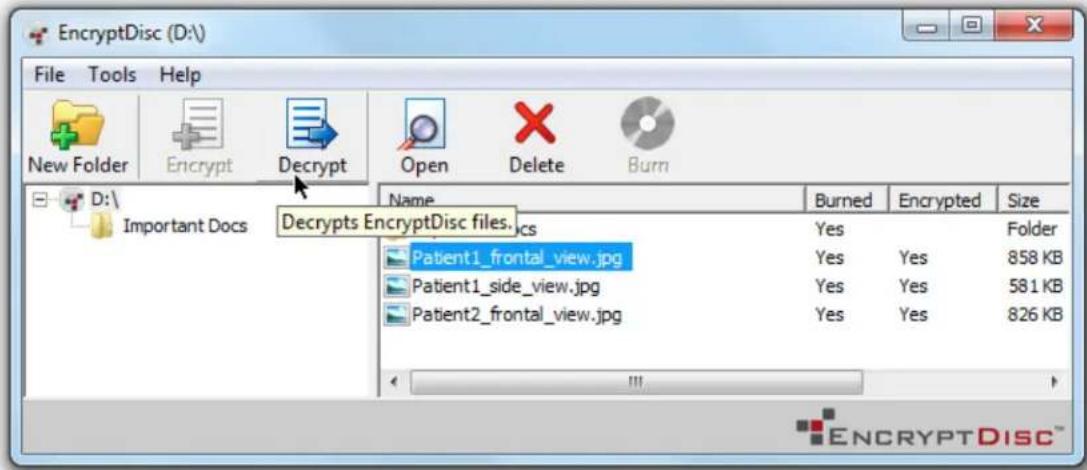
Decrypt by Dragging-and-Dropping
- Highlight the folder(s) or file(s) that you wish to decrypt.
- Drag and drop the selected items onto a folder displayed in Windows Explorer – or directly to the desktop.
Decrypt Through the EncryptDisc Decrypt Button
- In the left pane of the EncryptDisc window, select the folder that contains the file (s) to decrypt and select the file (s) in the right pane.
- Click the Decrypt toolbar button.
- To decrypt a folder or multiple files, in the Browse for Folder dialog box, select the location for the decrypted content and click OK - OR - to decrypt a single file, in the file saving dialog box, select the location for the data and click Save.
Settings
PASSWORD MANAGEMENT
If you forget your EncryptDisc password, you can recover it by entering the correct response to the hint question. After unsuccessfully trying to log in, the user can use the hint answer that they previously entered when setting up EncryptDisc.
You can also modify your password and/or hint question and answer at any time after you log in to the application. If you make any modifications, you must burn the EncryptDisc to apply the changes.
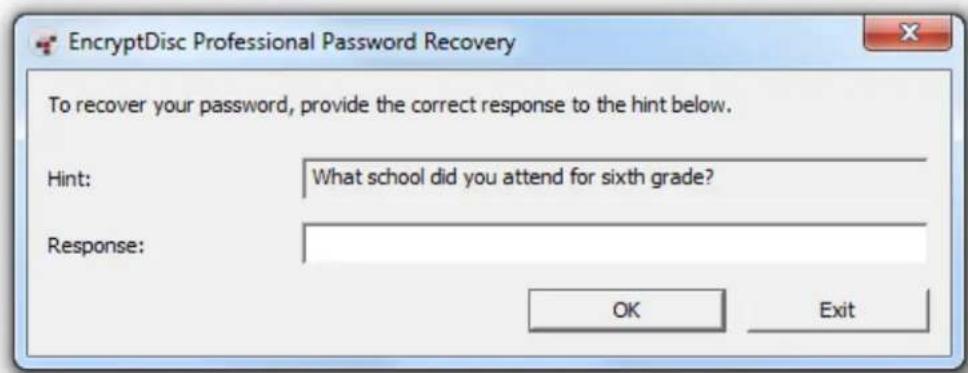
Recover Password
- When trying to access the encrypted contents, click Recover Password from the EncryptDisc Login dialog box.
- In the EncryptDisc Password Recovery dialog box, enter the hint answer in the Response box and click OK.
- In the EncryptDisc Password Recovered dialog box, click OK after noting the password. The EncryptDisc Login dialog box will appear.
Modify Password
- In the EncryptDisc window, click Password on the Tools menu.

- In the Change Password dialog box, enter the existing password in the Old Password box.
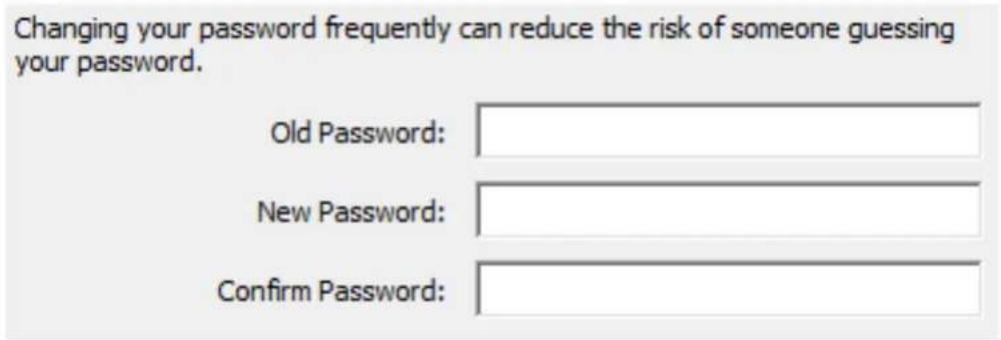
- Enter a new password in the New Password box, confirm it, and click OK.
Modify Hint Question and Answer
- In the EncryptDisc window, click Hint on the Tools menu.
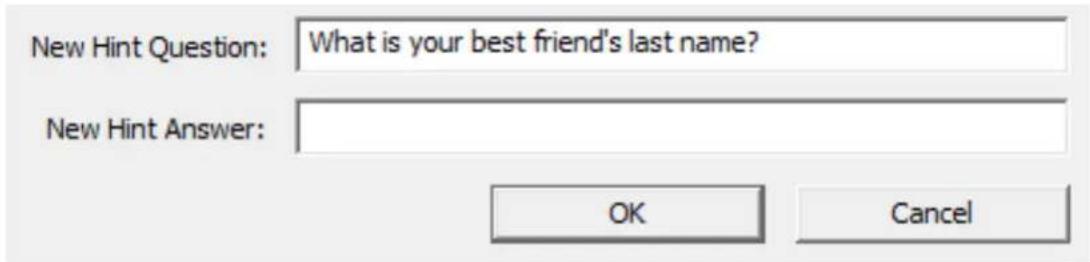
- In the Change Password Hint dialog box, enter a new hint question and answer and click OK.
IDENTIFYING AVAILABLE SPACE ON ENCRYPTDISC
You can find out information about your EncryptDisc, including disc type, amount of information burned, and remaining free space on the disc.
In the EncryptDisc window, click EncryptDisc Info on the Tools menu. The EncryptDisc Info dialog box will open.
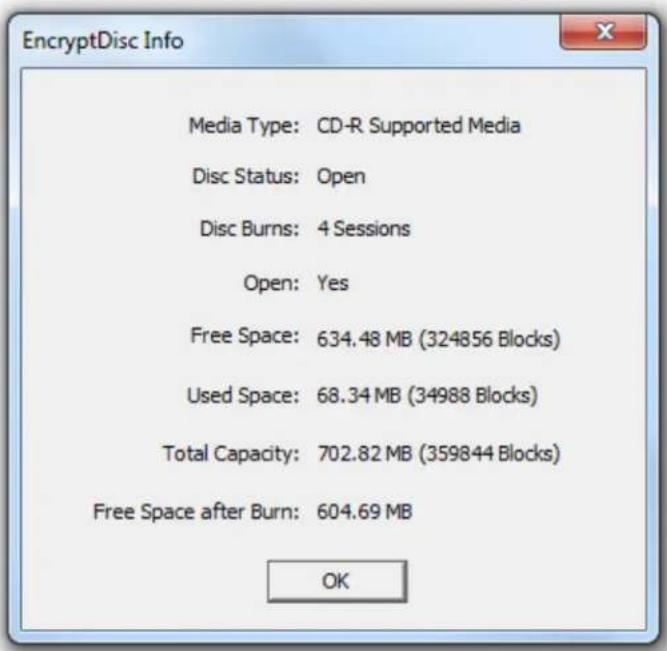
EncryptDisc allows you to protect sensitive information without the need to install any additional software on your PC. Everything you need is already on the EncryptDisc and runs directly from the disc.
PC Administrative Rights. You must have local administrative privileges to burn an EncryptDisc or an administrator must have given you this privilege. If you do not have local PC Administrator rights, you can open, read, and decrypt the EncryptDisc but you cannot add data to it.
Compatibility with Third-party Burning Software. EncryptDisc does not require that you use third-party burning software or built-in burning features of the Microsoft Windows operating system.
Do not use Microsoft Windows Live File System (a feature of Windows Vista and Windows 7) or third-party burning software with your EncryptDisc or your disc may become inoperable when interchanged with other PCs using a different operating system.
Compatibility with Operating Systems. EncryptDisc is supported on Microsoft Windows 2000, XP Home, XP Pro, Vista (all versions), Windows 7, and Windows 8. EncryptDisc is not supported on Windows 95, Windows 98, Windows ME, Linux, or any of the Macintosh operating systems. You can encrypt any type of file supported by the Microsoft Windows operating system on an EncryptDisc.
Compatibility with Optical Media. While EncryptDisc is supported on all writable or recordable CD and DVD media (CD-R, CD+R, CD+RW, DVD-R, DVD+R, DVD+RW, DVD RAM), you must have a burner that is compatible with the type of media that you are using. The front panel of your burner may have information about media compatibility. If your burner is incompatible, EncryptDisc will open as read-only media.
Available Space Needed for Encryption and Burning. The TEMP directory on your PC must have available space that is equal to or greater than the size of the files that you are trying to encrypt and burn. Otherwise, you will not be able to encrypt all data.
COPYRIGHT AND TRADEMARK INFORMATION
© 1999-2014, Data Locker Inc. All rights reserved.
Contact the Support Team
If you have any unresolved issues with our product after referring to this manual, give us a call or go to our website to chat with a DataLocker representative.
Phone: (913) 310-9088
Web: datalocker.com
If you would like to contact us outside of our business hours (8:30AM – 5:30PM CST), visit our support page to post your question, and we will get back to you as soon as possible.
Support Site: support.datalocker.com