Pokemon Bank (3DS) - Video game NINTENDO - Free user manual and instructions
Find the device manual for free Pokemon Bank (3DS) NINTENDO in PDF.


User questions about Pokemon Bank (3DS) NINTENDO
0 question about this device. Answer the ones you know or ask your own.
Ask a new question about this device
Download the instructions for your Video game in PDF format for free! Find your manual Pokemon Bank (3DS) - NINTENDO and take your electronic device back in hand. On this page are published all the documents necessary for the use of your device. Pokemon Bank (3DS) by NINTENDO.
USER MANUAL Pokemon Bank (3DS) NINTENDO
9 Deposit and Withdraw Pokémon
10 Saving Your Data
Troubleshooting
11 Frequently Asked Questions
12 Support Information
1 Important Information
Please read this manual carefully before using the software. Please also read your Operations Manual for more details and tips to help you enjoy your playing experience.
Please note that, for this manual, "Nintendo 3DS™" refers to both Nintendo 3DS and Nintendo 3DS XL.
IMPORTANT
Before using this software, read all content within the Health and Safety Information application on the HOME Menu.
To access this application, tap the icon on the HOME Menu, and then tap Open and read the contents of each section carefully. When you are finished, press HOME to return to the HOME Menu.
You should also thoroughly read your Operations Manual, including the "Health and Safety Information" section, before using this software.
TNATROPN
Your Nintendo 3DS system and this software are not designed for use with any unauthorized device or unlicensed accessory. Such use may be illegal, voids any warranty, and is a breach of your obligations under the User Agreement. Further, such use may lead to injury to yourself or others and may cause performance issues and/or damage to your Nintendo 3DS system and related services. Nintendo (as well as any Nintendo licensee or distributor) is not responsible for any damage or loss caused by the use of such device or unlicensed accessory. Except as authorized, copying of any Nintendo software is illegal and is strictly prohibited by domestic and international intellectual property laws. "Back-up" or "archival" copies are not authorized.
Nintendo respects the intellectual property of others, and we ask Nintendo 3DS software Content Providers to do the same. In accordance with the Digital Millennium Copyright Act in the US, the Electronic Commerce Directive in the EU, and other applicable law, we have adopted a policy of removing, in appropriate circumstances and at our sole discretion, any Nintendo 3DS software that appears to infringe anyone else's intellectual property. If you believe your intellectual property rights are being infringed, please visit www.nintendo.com/ippolicy to view the full policy and understand your rights.
Inc. / GAME FREAK inc.
Trademarks are property of their respective owners. Nintendo 3DS is a trademark of Nintendo.
CTR-N-JTTA-02
2 Before You Start
- Pokémon Bank allows you to deposit Pokémon from multiple Pokémon™ X, Pokémon Y, Pokémon Omega Ruby, and Pokémon Alpha Sapphire games. If you have both a download version and a retail version of Pokémon X, Pokémon Y, Pokémon Omega Ruby, or Pokémon Alpha Sapphire in a Nintendo 3DS system, the data of the retail version will be prioritized. To deposit Pokémon from the download version, first remove your Game Card from the Nintendo 3DS system. If you have a download version of one game and a retail version of another, or if you have download versions of multiple games, you will be given the option to choose which one to use.
● To access your Boxes in Pokémon Bank, the Nintendo Network ID on your system is used. Please note that a system with a different Nintendo Network ID will connect to a different Pokémon Bank.
◆ To learn about your Nintendo Network ID, see the electronic manual for System Settings.
● The pass for this software expires 365 days from the purchase of the pass. You'll need to purchase another pass to keep using this software (p. 6). You can't deposit
Pokémon to Pokémon Bank if your pass has expired. Pokémon Bank will be available again after you purchase a new pass.
● This software does not support communication with Pokémon Black, Pokémon White, Pokémon Black 2, Pokémon White 2, or other Pokémon games. This application does not work with any peripheral accessories.
This software supports Nintendo Network™.
Pokémon Bank is a paid service providing private Boxes on the Internet that enable you to deposit and withdraw Pokémon you have obtained in Pokémon X, Pokémon Y, Pokémon Omega Ruby, and Pokémon Alpha Sapphire games.
◆ Refer to your Operations Manual for information about connecting your system to the Internet.
About Nintendo Network

NINTENDO NETWORK
Nintendo Network is the name of Nintendo's network service that enables users to enjoy games and other content via the Internet. It provides access to a wide range of network services, including the ability to play games with people around the world, purchase and download games/content, and exchange images and messages.
Protecting Your Privacy
● To protect your privacy, do not give out personal information, such as last name, phone number,
birth date, age, school, e-mail, or home address, when communicating with others.
- Friend codes are part of a system that allows you to play with people you know. If you exchange friend codes with strangers, there is a risk you could share information with people you do not know or exchange messages that contain offensive language. We therefore recommend that you do not give your friend codes to people you don't know.
- Do not engage in unethical practices, such as modifying game data, which may cause trouble for your fellow players. If you are found to have engaged in such practices, your access to this service may be suspended or you may face other disciplinary actions.
● The game server may become temporarily unavailable without warning, due to maintenance required due to bugs or for any other reason. In some cases, game-related services may be retired in the future. For more details, visit the official Nintendo webpage.
- We bear no responsibility for any damage that arises due to either your connecting to the Internet or being unable to connect to the Internet.
4 Parental Controls
You can restrict use of the following feature by adjusting the options in Parental Controls.
◆ Refer to your Operations Manual for information on how to set up Parental Controls.
- Nintendo 3DS Shopping Services Restricts the purchase of Pokémon Bank passes (p. 6).
- Access to this game (as well as other games) can also be restricted through the Software Rating item in Parental Controls.

natural_image
Anime-style character with spiky orange hair and crossed arms, standing against a green abstract background (no text or symbols)Welcome to Pokémon Bank! What would you like to do today?
Pokémon Bank is an application that allows you to deposit Pokémon you have obtained in your Pokémon X, Pokémon Y, Pokémon Omega Ruby, and Pokémon Alpha Sapphire games into private Boxes on the Internet, or to withdraw Pokémon and transfer them to your Pokémon X, Pokémon Y, Pokémon Omega Ruby, or Pokémon Alpha Sapphire game. Before you start this application, please make sure your Pokémon X, Pokémon Y, Pokémon Omega Ruby, or Pokémon Alpha Sapphire game is downloaded or inserted into your Nintendo 3DS system.
In Pokémon Bank, you will have 100 Boxes. Each Box can hold up to 30 Pokémon, meaning you can store a maximum of 3,000 Pokémon.
You cannot transfer problematic Pokémon. If Bank and/or Poké Transporter to transfer Pokémon that have been created by any means that not been approved by Nintendo, The Pokémon Company, and its affiliates, you forfeit your right to use Pokémon Bank and/or Poké Transporter.
Some Pokémon that appear in Pokémon Omega Ruby and make Sapphire, as well as Pokémon that have certain moves, cannot be transferred to .Y noméko
Purchasing Passes (Paid Service)
)tenretn(
This application allows you to purchase a pass for a fee via the Internet. Purchasing a pass enables you to use Pokémon Bank.
Duration of Passes
Passes are activated immediately after purchase. If you purchase another pass before a current pass expires, the number of days left on your current pass will be added to the new pass.
- Nintendo eShop shows a list of the available content and prices of passes.
• To purchase a pass, you must first add funds to your Nintendo eShop account. - Once the pass expires, it will not be renewed automatically, even if you have enough funds in your account to do so. To continue service, simply purchase another pass as necessary.
How to Purchase a Pass
When there are fewer than 14 days remaining on your current pass, you wil

text_image
Your pass has expired. Would you like to purchase a new past?receive a reminder that it is time to purchase a new pass. Here are the steps to purchasing a pass:
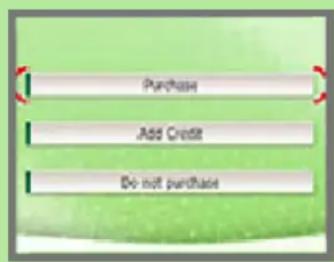
1 Select Purchase on the screen shown on the right to proceed to the purchases confirmation screen.
text_image
Purchase Add Credit Do not purchase② Follow the instructions on the screen to purchase a pass.
Notes about Passes
- You can view your purchase history in Account Activity in Nintendo eShop. The purchase history includes the date of purchase (date of first use) of your pass.
• After purchase, your pass cannot be returned, refunded, exchanged, or transferred. - It is not possible to purchase a pass for more than 365 days.
- This pass can only be used with Pokémon Bank and Poké Transporter.
- This pass can only be used for the Pokémon Bank you are using at the time of purchase. If the Nintendo Network ID is different, you will not be able to use the
pass.
Adding Funds to Your Account
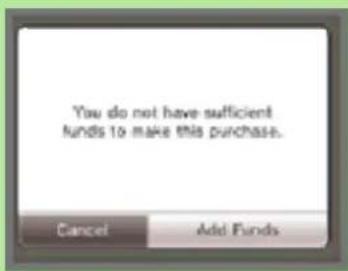
You must have the purchase price of the pass in your Nintendo eShop account balance in order to purchase it. If you do not have enough funds in your account, the following screen will appear. Tap Add Funds to add funds to your account.
text_image
You do not have sufficient funds to make this purchase.One of the following is needed to add funds to your account.
• Nintendo Prepaid Card
- Credit card
You can save your credit card details. If you do this, you will not need to enter your details every time you add funds.
You can remove your saved credit card details at any time through Settings / Other in Nintendo eShop.
slortnoMen
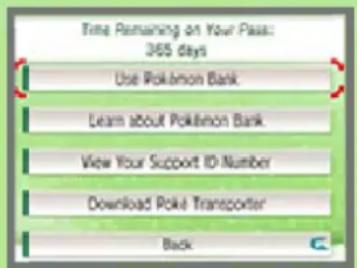
The menu screen allows you to use Pokémon Bank and download Poké Transporter. If you need support, you will need your Support ID Number. You can find it by tapping "View Your Support ID Number."
text_image
Time Remaining on Your Pass: 365 days Use Pokémon Bank. Learn about Pokémon Bank. View Your Support ID-Number Download Poke Transporter BackPoké Transporter
Poké Transporter is an application that allows you to transfer Pokémon yo uabe obtained in Pokémon Black, Pokémon White, Pokémon Black 2, and Pokémon White 2 games to your Pokémon nDa
For info about Poké Transporter, please see the electronic manual for Poké Transporter.
Menu Controls
Use the buttons or tap the Touch Screen.
| Select | +/◎/Tap |
| Confirm | Ⓐ/Tap |
| Quit | Ⓑ/Tap |
Box Controls
Basic Controls
| Select | Use +/○ to em |
| Confirm | Ⓐ |
| Quit | Ⓑ |
| View a list | Yemen |
| eSa | ⓧ |
| Enter letters | Tap |
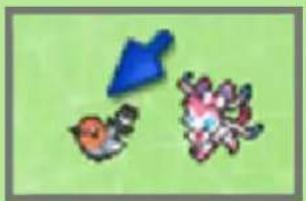
Swap positions of Pokémon
① Pre toschang to

② Select a Pokémon whose position you want to change, confirm, and the n place it on top o Pokémon.

natural_image
Cartoon character holding a blue arrow on green background (no text or symbols)③ Confirm to swa p their positions.
natural_image
Illustration of a blue arrow pointing to two cartoon animals, one bird and one crab, on a green background (no text or symbols)Move multiple Pokémon at once
① Press twice to change to
② Plac on a Pokémon and confirm. The n use +/○ t o indicate more e Pokémon and c

natural_image
Grid of cartoon character icons on a green background, no text or symbols present③ Use +/○ to move the Pokémon to your chosen location. Confirm to complete the move.
If there is not enough room to place the Pokémon in the chosen Box, you will not be able to complete the move.
The system will not go into Sleep Mode except at the title .nser
Moving Pokémon )enretnl(
Connecting to the Internet allows you to deposit and withdraw Pokémon from your Pokémon Bank.
Screens
The upper screen shows your private Box on the Internet. The lower screen shows a Box in your Pokémon X, Pokémon Y, Pokémon Omega Ruby, or Pokémon Alpha Sapphire game.
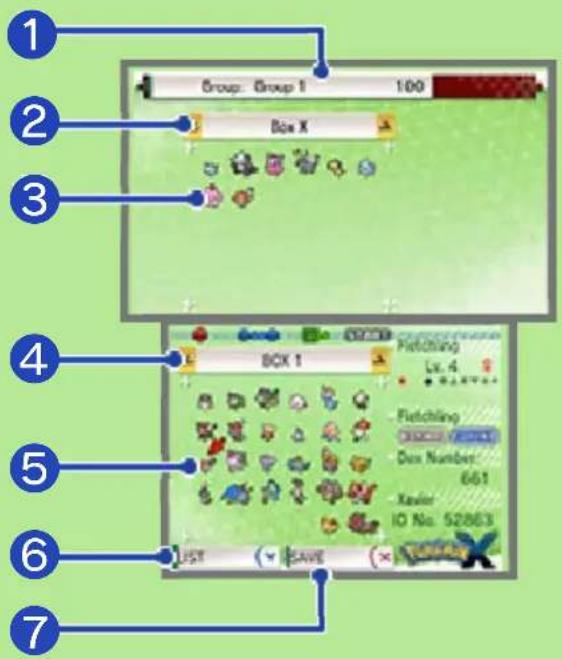
text_image
Group: Group 1 100 Box X BOX 1 Fletchling Lx. 4 Fletchling DOX Number: 661 Xavier IO No: 52863 LIST SAVE① A group in your Pokémon Bank
Change groups and group names. You have 100 Boxes, which you can register to 10 different groups.
② A Box in your Pokémon Bank
Press +/+ to change Boxes. You can rename the Boxes. In the Transport Box, the Pokémon transferred by Poké Transporter will be shown.
You cannot move Pokémon to the Transport Box.
③ The Pokémon deposited in your Pokémon Bank
4 A Box in Pokémon X, Pokémon Y, Pokémon Omega Ruby, or Pokémon Alpha Sapphire
Press +/+ to change Boxes.
⑤ Pokémon in a Box
Use + to choose a Pokémon.
6 LIST
Filter Pokémon to be displayed by Pokémon species, gender, type, or other attributes.
SAVE7
Save the data and return to the title screen.
Press Ⓧ to save the data. After the data has been saved, you will be returned to the title screen.
Data can be lost due to user action, such as repeatedly powering off and on the etay or removing a Game Card or SD Card while saving. Data loss may also be caused by poor connectivity due to dirt or dust in the system's ports. Please be aware that in these cases data .derotser eb tor
11 Frequently Asked Questions
Q: Can I transfer Pokémon with Berries or other items to Pokémon Bank?
A: No, you can't deposit Pokémon that are holding Berries or other items. Please make sure to return any held items to your Bag before depositing your Pokémon. If you try to deposit Pokémon that are holding Berries or other items, the items will be removed and sent to your Bag. If your Bag is full, the items will disappear.
Q: Can I use Pokémon Bank as soon as it finishes downloading?
A: Before you can use Pokémon Bank, you will need to reach the point in your Pokémon X, Pokémon Y, Pokémon Omega Ruby, or Pokémon Alpha Sapphire game where you receive your Pokédex.
Q: What will happen to the Pokémon I deposited if my pass expires?
A: You can withdraw your deposited Pokémon, but you can't deposit new Pokémon.
Information about Pokémon Bank
For details, please check the following URL:
knab/moc.no
12 Support Information
dater Service
SUPPORT.NINTENDO.COM
:adaA
0073-552-
Latin America/Caribbean:
8707-85