Rustys Real Deal Baseball (3DS) - Video game NINTENDO - Free user manual and instructions
Find the device manual for free Rustys Real Deal Baseball (3DS) NINTENDO in PDF.


User questions about Rustys Real Deal Baseball (3DS) NINTENDO
0 question about this device. Answer the ones you know or ask your own.
Ask a new question about this device
Download the instructions for your Video game in PDF format for free! Find your manual Rustys Real Deal Baseball (3DS) - NINTENDO and take your electronic device back in hand. On this page are published all the documents necessary for the use of your device. Rustys Real Deal Baseball (3DS) by NINTENDO.
USER MANUAL Rustys Real Deal Baseball (3DS) NINTENDO
1 Important Information
2 Information-Sharing Precautions
3 Internet
4 Parental Controls
Introduction
5 About the Game
6 How to Start
7 Saving and Deleting Data
Buying from the Store
8 Browsing Minigames
9 Haggling
10 Buying Minigames
Playing Minigames
11 Your Room
12 Playing Minigames
Send Data
13 StreetPass
14 SpotPass
Troubleshooting
15 Support Information
1 Important Information
Please read this manual carefully before using the software. Please also read your Operations Manual for more details and tips to help you enjoy your playing experience.
Please note that, for this manual, "Nintendo 3DS™" refers to both Nintendo 3DS and Nintendo 3DS XL.
IMPORTANT
Before using this software, read all content within the Health and Safety Information application on the HOME Menu.
To access this application, tap the icon on the HOME Menu, and then tap Open and read the contents of each section carefully. When you are finished, press HOME to return to the HOME Menu.
You should also thoroughly read your Operations Manual, including the "Health and Safety Information" section, before using this software.
IMPORTANT
Your Nintendo 3DS system and this software are not designed for use with any unauthorized device or unlicensed accessory. Such use may be illegal, voids any warranty, and is a breach of your obligations under the User Agreement. Further, such use may lead to injury to yourself or others and may cause performance issues and/or damage to your Nintendo 3DS system and related services. Nintendo (as well as any Nintendo licensee or distribute is not responsible for any damage or loss caused by the use of such device or unlicensed accessory. Except as authorized, copying of any Nintendo software is illegal and is strictly prohibited by domestic and international intellectual property laws "Back-up" or "archival" copies are not authorized.
Nintendo respects the intellectual property of others, and we ask Nintendo 3DS software Content Providers to do the same. In accordance with the Digital Millennium Copyright Act in the US, the Electronic Commerce Directive in the EU, and other applicable law, we have adopted a policy of removing, in appropriate circumstances and at our sole discretion, any Nintendo 3DS software that appears to infringe anyone else' intellectual property. If you believe your intellectual property rights are being infringed, please visit www.nintendo.com/ippolicy to view the full policy and understand your rights.
Trademarks are property of their respective owners. Nintendo 3DS is a trademark of Nintendo.
CTR-N-JBCE-00
2 Information-Sharing Precautions
User-generated content, or UGC, is content created by users, such as messages, Mii™ characters, images, photos, video, audio, etc.
Information-Sharing Precautions
The extent of UGC exchange depends on the software.
- Nintendo bears no responsibility whatsoever for any problems that result from the use of the Internet (for example, the sending of content over the Internet, or the sending or receiving of content with others).
3
Internet
This software supports the Nintendo Network™.
This software allows you to connect to the Internet and purchase minigames with real money. You can also opt to share gameplay data with Nintendo. For details, please see "Buying Minigames" (page 10) and "SpotPass™" (page 14).
◆ Refer to your Operations Manual for information about connecting your system to the Internet.
About Nintendo Network

NINTENDO NETWORK
Nintendo Network is the name of Nintendo's network service that enables users to enjoy games and other content via the Internet. It provides access to a wide range of network services, including the ability to play games with people around the world, purchase and download games/content, and exchange images and messages.
Protecting Your Privacy
● To protect your privacy, do not give out personal information, such as last name, phone number,
birth date, age, school, e-mail, or home address when communicating with others.
- Friend codes are a part of a system that allows you to play with people you know. If you exchange friend codes with strangers, there is a risk you could share information with people you do not know or exchange messages that contain offensive language. We therefore recommend that you do not give your friend codes to people you don't know.
4 Parental Controls
You can restrict use of the following features by adjusting the options in Parental Controls.
◆ Refer to your Operations Manual for information on how to set up Parental Controls.
● Nintendo 3DS Shopping Services Restricts in-game purchases.
- StreetPass™ Restricts the exchange of data via StreetPass.
◆ Access to this game (as well as other games) can also be restricted through the Software Rating item in Parental Controls.
text_image
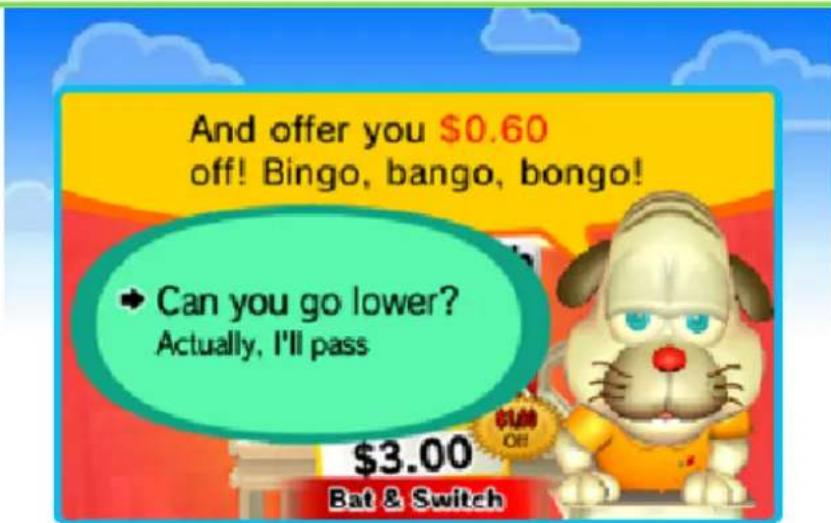
And offer you $0.60 off! Bingo, bango, bongo! → Can you go lower? Actually, I'll pass $3.00 Bat & SwitchIn Rusty's Real Deal Baseball, half the fun is playing a wild selection of baseball minigames—and the other half is haggling with Rusty himself! With 10 addictive minigames available for purchase with real money, the game offers endless replay value and an oddly charming storyline. Use your negotiating skills—and a variety of special discount tickets—to squeeze the lowest possible price out of Rusty. Then, head home and play your new game on your virtual Nontendo 4DS system!
6
How to Start
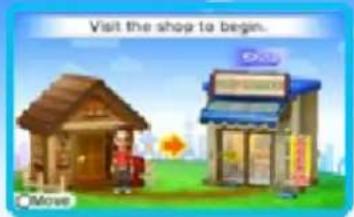
To begin playing, select a Mii and visit Rusty Slugger's Sports Shack.
text_image
Visit the shop to begin. MoveNavigate Menus
| Make a selection |  |
| Confirm A | |
| Cancel B |
7 Saving and Deleting Data
Your data will automatically be saved periodically. Save points will follow any in-game purchase or minigame completion.
Please be aware that you will not be able to restore any data that has been backed up on another device, such as a personal computer or hard drive.

Delete High-Score Data
By selecting this option (Settings→Delete High-Score Data→Delete), the following data will be deleted.
• All Hi-Score Derby data.
- All distance rankings in Bat Master.
• All StreetPass rankings.
◆ Deleted data cannot be restored, so please be sure that you want to proceed.
● Data can be lost due to user action, such as repeatedly powering off and on the system or removing a Game Card or SD Card while saving. Data loss may also be caused by poor connectivity due to dirt or dust in the system's ports. Please be aware that in these cases data cannot be restored.

natural_image
Stylized illustration of a city skyline with buildings and a tower, set against a green hill (no text or symbols)Browsing Minigames
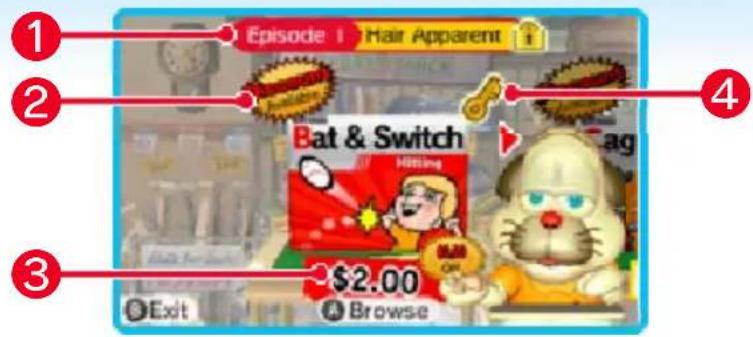
Visit Rusty Slugger's Sports Shack to browse minigames or talk with Rusty.
text_image
Episode 1 Hair Apparent Bat & Switch Hiring $2.00 Exit Browse① Game chapter
② Discount available (page 9)
Minigames featuring a "Discount Available" icon can be purchased at a reduced price by speaking with Rusty.
③ Current price
④ Key icon
Purchasing a minigame that features a key icon will advance the main story.

Favorite Games
If you have StreetPass (page 13) activated, you will occasionally see the face of another player's Mii character while selecting a minigame. The Mii character will appear on that player's favorite minigame, as determined by frequency of play. So, the more Mii characters you see on a particular minigame, the more popular it is.
Part of the fun of shopping with Rusty is that his first offer doesn't have to be the final price you pay! In fact, there are two ways to get him to give you a lower price. You can talk and haggle with Rusty, or you can use discount tickets.

Haggle / Use Item
There are 10 different minigames available for purchase with real money.

You can negotiate the price of certain minigames directly with Rusty. Negotiating, or as we sometimes call it, haggling, is how you make a deal with Rusty to get the lowest possible price. In this game, haggling is done by offering Rusty a donut or special item. These items can be unlocked by playing minigames and collecting stamps (page 12). Once you've purchased a minigame, it's yours! You won't have to buy it again or spend additional money to play it.

Use Discount Tickets
You can earn special discount tickets by playing minigames and collecting stamps (page 12). You can apply these discounts directly to the price of minigames.

There is a maximum discount for each minigame that will result in the lowest possible price. Multiple discount tickets may be combined to achieve the lowest possible price. The total discount may not exceed the maximum discount amount set by Nintendo for a minigame. If you use multiple discount tickets to make the price lower than the lowest possible price, the discount will only be partially applied. Any partially unused discount may not be used for any future purchases.
● Discount tickets are not transferrable between players or systems.
● Discount tickets are usable only so long as the software is available for purchase.
● Void where prohibited.

natural_image
Stylized illustration of a city skyline with buildings and a tower on a green hill (no text or symbols)
Purchasing Minigames
So, you've come to an agreement with Rusty, and you're ready to buy a minigame. Here's how it works!
How to Purchase Minigames
- After selecting a minigame and agreeing upon a price with Rusty (remember, you can haggle with him to get a good deal), select Purchase on the confirmation screen to finalize your purchase. The required amount will be subtracted from your Nintendo eShop balance.
◆ Please review the on-screen information before selecting Purchase.
- Once your purchase is confirmed, the minigame will begin downloading automatically. Select OK to proceed once the download is complete.

Precautions about Purchasing Minigames
- You can view the purchase history of minigames in Account Activity in Nintendo eShop.
● After purchase, minigames
cannot be returned, refunded, or exchanged.
- Once you have purchased a minigame, you can redownload the content free of charge, even if it has been deleted.
You cannot redownload software if you select the Delete Account option. For more details, please see the Nintendo eShop instruction manual.
You will not be able to download them again if the software has been temporarily or permanently discontinued. Please be aware of this in advance.
● Minigames that you purchase are stored on the SD Card.
- Minigames can only be used on the system that was used to download them. You cannot insert the SD Card into another system and use the content there. (If you use the System Transfer option under System Settings, you will be able to use your minigames on the destination system without problems.)

Adding Funds to Your Account
You must have sufficient funds in your Nintendo eShop account in order to purchase a minigame. If you do not have enough funds in your account, the following screen
will appear. Tap Add Funds to add funds to your account.

text_image
You do not have sufficient funds to make this purchase.One of the following is needed to add funds to your account.
● Nintendo Prepaid Card
- Credit card
If desired, you can store the credit-card information on the system. This will give you the ability to add funds to your account by simply entering the password you established when you first entered the credit-card information.
You can delete the credit-card information at any time by accessing Settings / Other in Nintendo eShop.

natural_image
Stylized illustration of a city skyline with buildings and a tower, set against a green hill (no text or symbols)11 Your Room
Your room is where you keep your collection of minigames, along with any Mii outfits or other items you've unlocked. Select a game from your collection to begin playing (page 12).

text_image
HiScore Derby A HiScore Derby B 1 Bat & Switch Hitting Exit Select 2 Stamp Book 3 Tap item for description.① Selected minigame
Hi-Score Derby (page 12) records are displayed above each cartridge.
② Display toggle
Press here to display your Stamp Book (page 12) on the Touch Screen.
- Select "Items" to go back to the original display.
③ Collected items
View your in-game items here. Tap
to view your discount tickets.

Change Outfit
Use this menu to dress your Mii in a new outfit. You can adjust the color of certain uniforms using L and R. Unlock more uniforms by playing Hi-Score Derby!

Story
Select this option to revisit your progress in the game's story.

Settings
Within this menu, you can set up StreetPass (page 13) and SpotPass (page 14), adjust volume settings, change your Mii, adjust the order of your game cartridges, and delete Hi-Score Derby data (page 7).
12 Playing Minigames
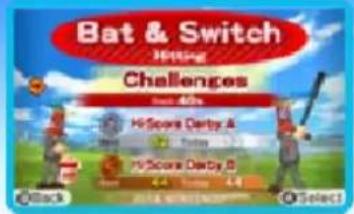
Begin by selecting the mode you would like to play: Challenges, Hi-Score Derby A, or Hi-Score Derby B.
text_image
Bat & Switch Hitting Challenges Best 40% Hi-Score Derby A Turkey Hi-Score Derby B Black 2018 WINNING Select◆ Any medals you have earned in Challenge mode will be displayed on the Touch Screen. Hi-Score Derby records are displayed on the menu.

Challenges
Earn a bronze, silver, or gold medal to pass each challenge. The more challenges you clear, the more you will unlock!
text_image
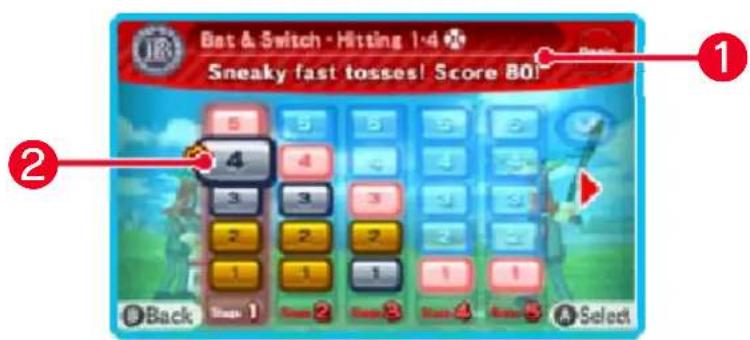
Bat & Switch - Hitting 1:4 Sneaky fast tosses! Score 80! Back Steps 1 Stop 2 Stop 3 Stop 4 Stop 5 Select1 Challenge title
Your medal will be displayed alongside challenges you've already cleared.
② Challenges
All challenges are ranked by difficulty. The bigger the number, the more difficult the challenge. The
numbers also correspond to the number of stamps you will earn for completing each challenge.
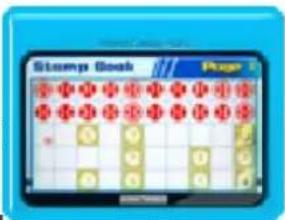
Stamp Book
You'll earn between 1 and 5 stamps ( 📄 ) for each challenge you complete, depending on the difficulty level of the challenge. When your stamps reach the following icons, you will unlock items, discount tickets, and new minigame modes.
text_image
Stamps Goal Page 2| ? | Unlocks an item. |
| $ | Unlocks a discount ticket. |
| A | Unlocks Hi-Score Derby A. |
| B | Unlocks Hi-Score Derby B. |
The small icon previews the number of stamps you can earn for the selected challenge.

Medals
Here you can see how many gold, silver, and bronze medals you've earned competing in challenges.

text_image
Medals 第 7th place JIA 第 4th place C 第 1st place
Hi-Score Derby
Each minigame (except Bat Master) offers two Hi-Score Derby modes, A and B. Collect stamps to unlock both modes, and then go for the high score!
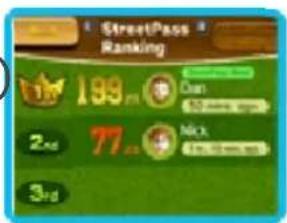
StreetPass Rankings
If you have StreetPass (page 13) activated, your Hi-Score Derby scores will be shared with other players, and you will also receive their high-score data. See how you stack up against the world!
text_image
StreetPass Ranking 198 m Dan 50 mm avg 2nd 77 Mick 4.0m, 50 mm avg 3rd
Bat Master
Take a break from hitting, pitching, and throwing to craft your own bat! You can ever use your creation in that requires hitting Switch Bat to choo

text_image
Bat Master Bat Making (No Clicked) Back 2014 Nintendo Switch- When playing these minigames, you may have to move the Nintendo 3DS system around. Make sure you have enough room before playing, and hold the system firmly with both hands while playing. Do not move the system with excessive force, as this could cause injuries, damage to the product, or damage to nearby objects.
- If motion control becomes unstable, follow these steps to recalibrate your system.
- Return to the challenge-selection screen.
- Place your system on a flat surface.
- Select the challenge you want to play.
Once your motion control has returned to normal, there is no need to repeat this process.

natural_image
Stylized illustration of a city skyline with buildings and a green hill in the foreground (no text or symbols)
Exchange Data (StreetPass)
This software uses StreetPass (local wireless communication) for Favorite Games (page 8) and StreetPass Rankings (page 12) to automatically exchange data.
To communicate using this feature, all players must activate StreetPass for this software.

Activating StreetPass
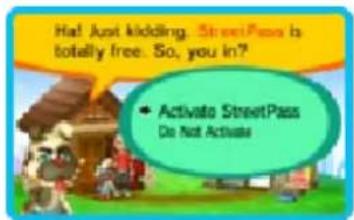
One of Rusty's pups will offer you a chance to activate
StreetPass early in the game. Simply select Activate StreetPass to opt in. If you choose not to activate StreetPass at this time, you can activate it later from within the Settings menu in your room (page 11).
text_image
Ha! Just kidding. StreetPass is totally free. So, you in? ← Activato StreetPass Do Not Activate
Deactivating StreetPass
If you select Do Not Activate, StreetPass will not be activated.
You can disable StreetPass
functionality via Parental Controls.
Refer to your Operations Manual for information on how to set up Parental Controls.

text_image
StreetPass Gifts If you connect with enough people using StreetPass, you can unlock special items. Good luck!
natural_image
Stylized illustration of a city skyline with buildings and a flagpole on a green hill (no text or symbols)
text_image
Share Gameplay Data (SpotPass)If you choose to activate SpotPass for this game, the software will automatically send gameplay data to Nintendo via an Internet connection through Sleep Mode even when the software is not active. The gameplay data will be used for future product development.

Activating SpotPass
You will be given an opportunity to activate SpotPass early in the game. If you select OK, it will be set up for you. If you select not to activate SpotPass at this time, you can activate it later from within the Settings menu in your room (page 11).
Data received through SpotPass is saved on SD Cards. As a result, it is recommended that you keep an SD Card inserted in your system at all times.

Deactivating SpotPass
You can disable SpotPass for this game by selecting Do Not Send from the Settings menu in your room (page 11).

natural_image
Stylized illustration of a city skyline with buildings and a tower, set against a green grassy background (no text or symbols)15 Support Information
Nintendo Customer Service SUPPORT.NINTENDO.COM
USA/Canada: 1-800-255-3700
Latin America/Caribbean: (001) 425-558-7078