HS-7DTB2 Nova 2 - USB Drive Hipstreet - Free user manual and instructions
Find the device manual for free HS-7DTB2 Nova 2 Hipstreet in PDF.


User questions about HS-7DTB2 Nova 2 Hipstreet
0 question about this device. Answer the ones you know or ask your own.
Ask a new question about this device
Download the instructions for your USB Drive in PDF format for free! Find your manual HS-7DTB2 Nova 2 - Hipstreet and take your electronic device back in hand. On this page are published all the documents necessary for the use of your device. HS-7DTB2 Nova 2 by Hipstreet.
USER MANUAL HS-7DTB2 Nova 2 Hipstreet
Thank you for choosing the Hip Street Nova 2 HS-7DTB2-4GB tablet and we hope you enjoy using it. This tablet is fully equipped to offer you the complete browsing and multimedia experience.
≈ 7" capacitive touch screen with 800 x 480 resolution
≡ Built-in cam with still image and video recording
≈ 2D Motion Sensor for automatic orientation
≡ Dual added connectivity with optional Micro-SD card or Mini-USB
≡ HD video playback
Support:
Please visit our website at www.hipstreet.com. We have a Frequently Asked Questions section where you will find answers to most of your questions.
If you do not find an answer there, please use the option to contact our technical support department and kindly send us an email detailing your question and we will get back to you promptly.
Kindly read and retain all the operating instructions before operating the unit. We cannot assume any liability that may arise out of improper operation or incidental/accidental damages. The contents of this user manual are subject to change based on newer developments.
Customer and Technical Support: 1-888-456-2426
Monday through Friday: 8:30 am – 5:00 pm EST
This product has a built-in high-performance Wi-Fi receiver module and is designed to meet your portable multi-media player entertainment needs. It also supports picture browsing, playing music and videos, email, games as well as other features.
Declaration
- The information in this manual may not, except under written license by The Company, be copied, transmitted, distributed, or stored.
- Although efforts have been made for correctness and completeness during the preparation of the manual, there is no guarantee that this manual is free from any error or omission. The Company assumes no liability regarding the errors or omissions that might exist in the manual.
-
For sustainable development, The Company reserves the right to modify and improve any product described in this manual without prior notice.
-
Under no circumstance shall the Company assume any liability, direct or indirect, related to data or income loss, or any special, accidental, incidental or indirect losses.
Before using your multi-media tablet, please read all the information we have supplied.
This manual will introduce its functions, enabling you to use the device more easily and conveniently.
Through the manual you can obtain information about the product introduction, usage and other aspects of knowledge, so you can better use it.
Precautions
For the correct use and good performance of the tablet, the user must fully understand the manual as well as strictly follow the instructions provided.
● Never shake the multimedia tablet violently.
● Never bring the product into contact with chemicals such as benzene, thinner etc.
- Avoid close contact to strong magnetic field, electric field etc.
- Keep away from direct sunlight or heating appliances.
- All wireless devices may be susceptible to interference, which could affect performance
- If you are upgrading software or in the process of downloading data, do not suddenly power off, or it will cause loss of data or a system error.
- Follow any restrictions for Wi-Fi devices. Wireless devices can cause interference in aircrafts. If you wish to use the device on a plane, please consult the airline.
- Do not use the device at a refueling station. Do not use this device near fuel or chemicals.
- Do not use the device at any place where blasting is occurring.
●Never privately disassemble, repair or modify the player.
- Do not use the tablet and/or earphones during bicycling, car and motorcycle driving as this is dangerous and may cause an accident.
● Back up important information stored on the tablet or keep a written record, so as to prevent loss.
●Using the earphones at a high volume could be harmful to your hearing.
- Separate scraps from packaging, batteries, old electronic products and dispose of them properly. This product contains a built-in lithium battery and should not be disposed of in normal household waste. For proper disposal and recycling, please contact your local waste management authorities. This will help us all protect the environment.
FCC/IC WARNING:
This device complies with the limits for a Class B digital device, pursuant to Part 15 of the FCC Rules and the Canadian ICES-003. Operation is subject to the following conditions:
- This device may not cause harmful interference, and
- This device must accept any interference received, including interference that may cause undesired operation.
Please note:
- Please charge the tablet continuously for at least 4 hours before use. For further details on charging the device, please see section 2.3.
- For information on inserting/removing an optional Micro-SD card with your tablet, please refer to the section titled – Using Micro-SD Card. Failure to do so may result in damage to the memory card.
- Some applications run in a full screen mode. The icons on the toolbar will not be displayed. Please use the back button on the tablet to display the menu options.
Table of Contents
Accessories....6
Getting started....6
2.1 Appearance....6
2.2 Using the tablet....7
2.3 Charging the tablet....8
2.4 Toolbar....9
2.5 Manage your desktop....9
2.6 Using basic applications.... 10
Settings....11
3.1 Wireless & networks.... 12
3.2 Ethernet Configuration.... 12
3.3 Sound.... 12
3.4 Display.... 12
3.5 Location & security.... 13
3.6 Applications....13
3.7 Privacy.... 13
3.8 Storage.... 13
3.9 Language & keyboard.... 13
3.10 Voice Input & Output.... 14
3.11 Date & time.... 14
3.12 About Device....14
Using Optional Micro-SD card.... 14
Using HDMI.... 14
Technical features.... 14
Recycling....15
Troubleshooting....15
Contact Us....16
Battery statement.... 16
Accessories
Inside the HS-7DTB2-4GB packaging, you will find:
1 x 7" Tablet
1 x Power Adapter
1 x USB Cable
1 x Quick Start Guide
1 x User Manual
1 x Warranty Card
Getting started
2.1 Appearance – Please familiarize yourself with the controls on the tablet as follows:
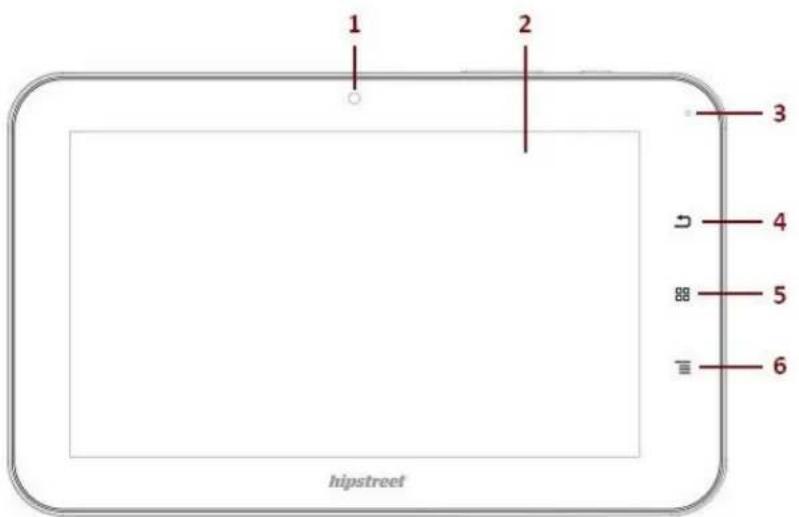
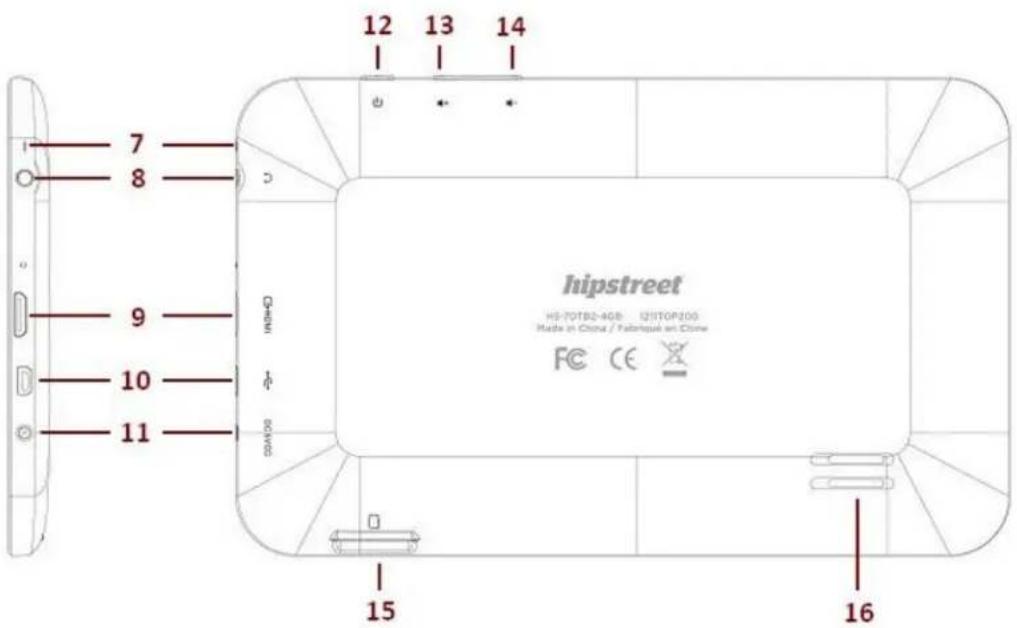
Fig 2.1
- Camera 9. Mini-HDMI Port
- Display (800x480) 10. USB/PC Connector (OTG)
- Status light 11. Charger Port (5V DC)
- Back (Soft Key) 12. Power ON/OFF Button
- Home (Soft Key) 13. Volume Up Button
- Menu (Soft Key) 14. Volume Down Button
- MIC 15. Micro-SD Port
- Headphone Port (3.5mm) 16. Speaker
Appearance descriptions
| PowerOn/Off | When the tablet is switched off, press and hold this button to turn it on. To power the tablet off, press and hold this button activate the shut-down window. Press this button momentarily to sleep/wake up |
| Menu | Several options are listed in this Menu. Press this button to display the menu bar. |
| Back | Returns user to previous screen |
| Home | Returns user to the home screen |
to
| Earphones | Insert 3.5mm stereo headphone or earphone plug into jack to enjoy music or video sound. Built-in speakers will shut off when plug is inserted. Note: Please lower the volume before inserting the earphone plug to protect your hearing. |
| USB (OTG) | Using a USB cable you may connect to your PC. When connected, the PC can directly read the data from an optional Micro-SD card inserted into the Micro-SD card slot. |
| Mini-HDMI | Connect this device to an HD TV with an Mini-HDMI to HDMI cable |
| Micro-SD Use | for external storage for your device |
2.2 Using the tablet
Press and hold the Power button for 3-4 seconds in order to turn on the device.
To use the pre-installed applications (apps), simply touch the relevant icon.
Pressing the Power button will activate/deactivate sleep mode when the device is turned on.
Press and hold the Power button to activate the power-off screen.
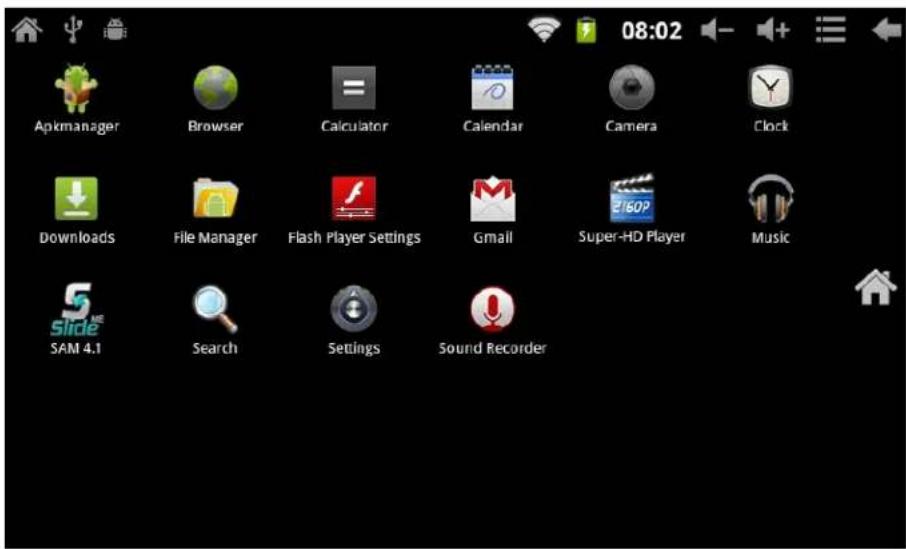
The widget desktop (Fig 2.2.1)
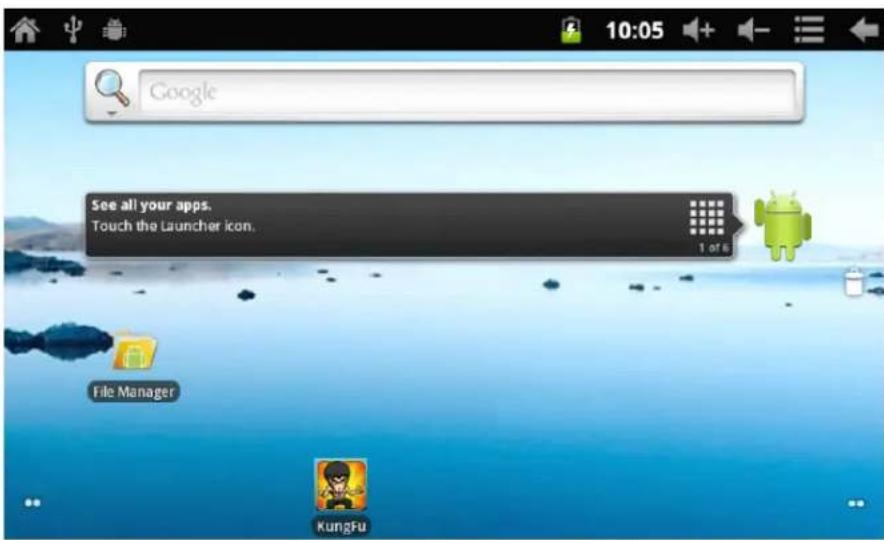
The applications desktop (Fig 2.2.2)
2.3 Charging the tablet
Plug the AC adapter into an electrical outlet and the DC connector plug into the DC-in jack. A full charge takes up to 4 hours. When charging the tablet, the battery icon will change to until full charge.
Note: The bottom of the tablet and the AC adapter may get hot during charging. It is also normal to feel hot during use as well. Do not use the device on soft surfaces such as beds or sofas and we recommend that you do not put the device on your legs or other parts of your body.
2.4 Toolbar.

Fig 2.4
Home  | Touch the Home icon to return to the desktop. This action will not close the applications that are open. |
SD card  | Displays the status of an optional Micro-SD card upon insertion or removal. Please refer to details in section 4. |
Wi-Fi  | Displays the connection status of Wi-Fi. |
| Battery [324K] | Shows the charge status of the battery. |
Time  ; current time. ; current time. | |
USB  | Refresh media scan. |
Vol. -  | Decreases volume. |
Vol. +  | Increases volume. |
Menu  | Shows application options on the bottom of the screen. |
| Back [8607] | Returns to previously viewed screen. |
2.5 Manage your desktop
≈ Press the Home icon on the far bottom left of your toolbar to return to the main desktop.
In order to delete an icon or widget from the desktop, touch and hold the icon / widget until the waste basket icon appears on the screen. Keeping your finger on the icon, drag the icon / widget onto the waste basket until the icon / widget turns red. Release the icon / widget to delete.
Note: The items being deleted are shortcuts only and are not actual applications. These applications can be accessed again by creating a new shortcut.
To reinsert a new or previously deleted icon / widget onto the current desktop, touch Menu and choose Add.
2.6 Using basic applications
File Manager is a user friendly application that provides basic file directory operations.
| SDCard/ExternalSDCard/Picture/Movie | This tab indicates which file system directory you are using. |
| Back Returns to parent directory. | |
| Editor After selecting the file, choose the Editor icon then you are given the options of: Attach, Delete, Copy or Move | |
The system will try to automatically setup Google Gmail account servers for the chosen Gmail logins. It is also possible to set up an email account manually. Please refer to your email provider for details on how to setup up your account manually.
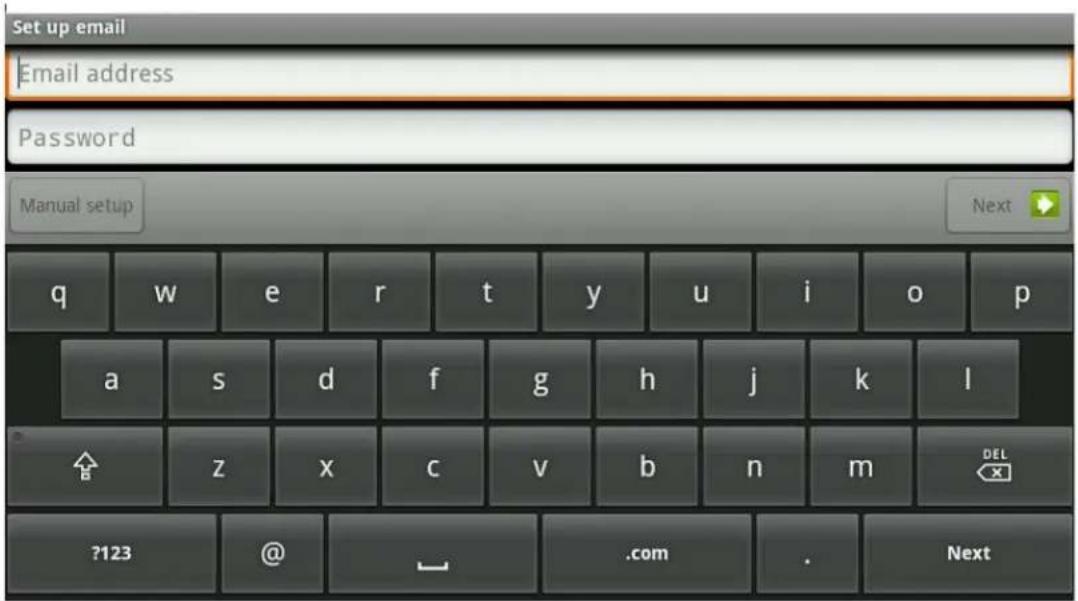
Fig. 2.6.1
Super-HD Player
The Super-HD Player allows you to view Image/Video files stored on the device as well as external memory devices connected to the tablet.
Music
The Music application allows you to view and playback your audio collection. Please note that audio will be played in the background even if the back button is pressed. This allows the user to listen to audio while reading an e-Book for example. Touch the Pause icon to mute the audio.
Sound Recorder
The sound recorder can be used as a voice recorder and recordings are saved memory.
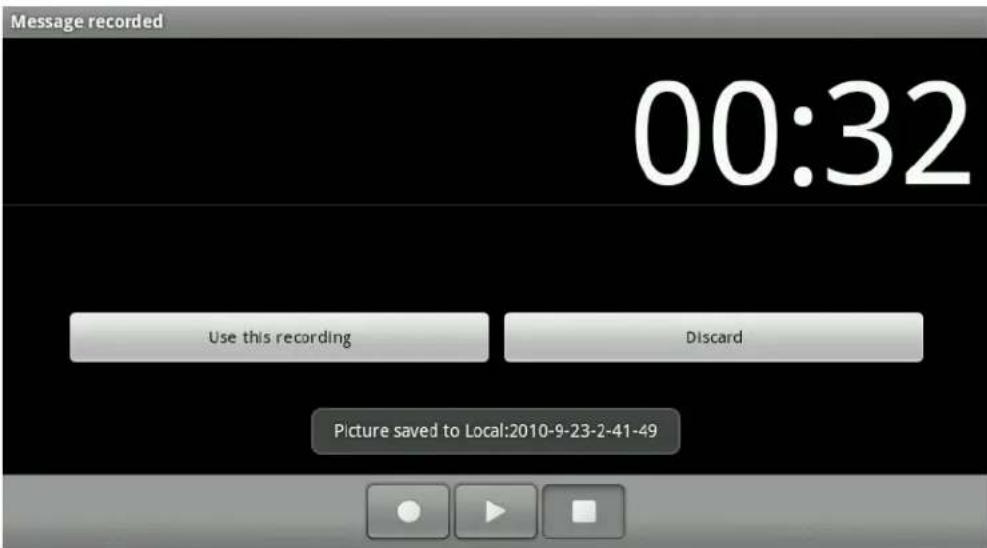
Fig. 2.6.2
Camera
There are two camera modes; Snapshot mode, giving still images and video recording mode. The images and video files are saved to an optional Micro-SD card.
Settings
Touch the Settings icon to enter this menu.
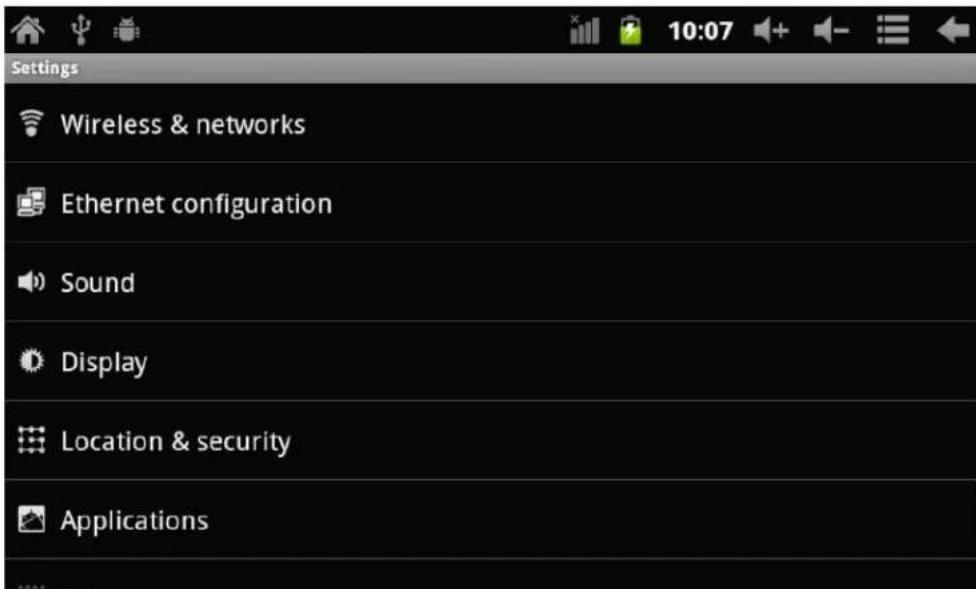
Fig. 2.6.3
3.1 Wireless & networks
| Wi-Fi Turn Wi-Fi function On/Off |
| Wi-Fi settings By enabling Network notification, a list of all available connections will be shown. Choose Menu to enter advanced options. |
IMPORTANT
- Upon exiting the Advanced page, press Menu → Save to save all changes.
If a network requires a password /wireless key, the tablet will automatically detect the encryption details and will request that you enter the password or the key.
3.2 Ethernet Configuration
| Ethernet Switch on Ethernet functionality in order to connect to the internet using the built-in Wi-Fi module. |
3.3 Sound
| Silent mode Turn mute option On/Off | |
| Volume Adjusts the volume for music, videos, alarm and notification | |
| Notification ringtone | Types of sound optional for notification |
| Audible selection Play sound for screen selection. | |
| Screen lock sounds | Play sounds when lock and unlocking the screen |
| Haptic feedback Turn On/Off Vibrate feature. Disable this function to save battery life. | |
3.4 Display
Auto-rotate screen Enable / disable automatic orientation mode.
| If disabled, the manual orientation icon will appear on top left beside the Home icon. | |
| Animation Selects page change effects: fade, etc. | |
| Brightness Adjusts the brightness of the screen. | |
| Screen timeout Adjusts the delay before the screen goes into standby mode. | |
3.5 Location & security
| Using wireless networks | Please be aware of applications (such as Maps) which access the wireless network. If you wish to use these applications, please accept the onscreen agreement. |
| Visible passwords | Password characters will be shown when you are typing. Only the last character will be visible |
3.6 Applications
| Unknown sources | Allows installation of non- Google applications. Please read any agreement upon downloading. |
| Manage applications | Manage and remove installed applications. Please note that some applications may cause the system to freeze during installation or removal. This is due to a memory handling issue of the application and the device. It is suggested to clear the cache before removing the application. The Clear Cache option is located in the 'Remove application' page. If the system freezes while installing or removing apps, please use the reset feature of the tablet in order to reset the device. |
| Running services | View and control applications which are currently running. |
3.7 Privacy
| Factory data reset | This erases all data to factory default. Powering on the tablet will take longer after a reset. Note: All applications installed and personal settings will be erased. Please acknowledge all warnings when resetting. |
3.8 Storage
| Available space Shows available space of optional Micro-SD / tablet. |
| Total space Shows total space of optional Micro-SD / tablet. |
3.9 Language & keyboard
| Select language Select language by country/region |
| Android keyboard Onscreen keyboard settings. |
| User dictionary Add and remove words from user dictionary. You can add words by pressing the Menu icon. |
3.10 Voice Input & Output
| Voice recognizer settings | Set language, safe search, and block offensive words |
| Text-to-speech settings | Speech rate, language, default engine |
3.11 Date & time
| Automatic | Automatically synchronize the date / time with internet provided values. |
| Set date | Set date on device. |
| Select time zone | Select time zone on device |
| Set time | Set time on device. |
| Use 24-hour format | Use 24-hour format or am / pm mode. |
Select date format Select date display options
3.12 About Device
Displays device information.
Using Optional Micro-SD card
In order to safely remove the storage card from the device go to Settings → storage. Choose 'Unmount TF card' for safe removal of the card.
The toolbar will display Unmount TF card, when this option is chosen. Please wait 3 seconds before removing the card.
When the Micro-SD card is removed, the toolbar will display external device out.
Re-inserting the Micro-SD card will show external device in on the toolbar status.
Removing Micro-SD card without first un-mounting will give the following message TF card unexpectedly removed on the toolbar.
IMPORTANT: Any unexpected removal may cause the Micro-SD card to fail. You will have to reboot the device in order for the Micro-SD card slot to work again. Removing the Micro-SD card without unmounting may damage the card.
Please also refer to 3.8 Storage.
Using HDMI
The HDMI output can be used. An optional HDMI cable with a mini HDMI plug on one end can be connected between the tablet and an HD TV for full-screen viewing.
Technical features
Main Unit
Model No.: HS-7DTB2-4GB
CPU: A10 1.5GHz (Cortex A8, 3D Accelerate)
OS: Android 2.3.4
Flash Memory: 4 GB
System Memory: DDR3 512MB
Display: 800 x 480
Touch Panel: Capacitive Multi-Touch
Battery: Li-Polymer 3.7 V, 3000 mAh
Multimedia Features Video
MOV, MKV, AVI, RMVB, RM, M2TS, VOB, DAT, MPEG, MP4, 3GP, WMV, ASF etc.
Formats: MPEG4, RMVB, Xvid, Divx, WMV
Audio
MP3, WMA, WAV, (APE, FLAC, AAC, OGG)
Image
JPG, TIF, BMP, GIF, PNG
Recycling
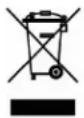
This crossed bin symbol on the device indicates that the product, at the end of its life, must be disposed of separately from domestic waste, either by taking it to a separate waste disposal site for electronic devices or by returning it to your dealer when you buy another
similar device. The user is responsible for taking the device to a special waste disposal site at the end of its life. If the device is collected correctly as separate waste, it can be recycled, treated and disposed of ecologically. This avoids a negative impact on both the environment and health, and contributes towards the recycling of the product's materials. For further information regarding the waste disposal service available, contact your local waste disposal agency or the place of purchase.
Troubleshooting
8.1 I cannot connect to the Internet using Manual Setup.
Answer: Ensure you have used Menu → Save when exiting the advanced settings page.
8.2 I can see my access point name, but I cannot connect to the Internet.
Answer: If your access point (AP) supports multiple access points at a time, you may have to connect the device using WPA encryption and not WEP. Please refer to your AP device manual for setup details.
8.3 My Micro-SD card is not being detected and/or shows damaged SD card.
Answer: Please re-insert the Micro-SD card and try again. If this does not work, please restart the device again with Micro-SD card inserted. Please ensure that you have removed the Micro-SD card using the correct procedure as described in Using Micro-SD card.
8.4 My system freezes when installing / removing applications.
Answer: This may be caused by a memory handling error. Use Force Close icon in application
manager before removing the software. If the system continues to freeze, please restart your device for a complete clearing of all running processes.
8.5 My device freezes while powering-on.
Answer: This may be caused by a failure in reading the Micro-SD card. Please turn off the device and power-on again. Also, please ensure that the card is fully inserted. Alternatively, please try to start the device with the Micro-SD card removed.
8.6 Can I manually change the screen orientation?
Answer: Yes. Please check in "Display" in "Settings", Touch "Auto-rotate screen" to toggle.
8.7 The device showed an error message and the application closed: "android.process.acore" fault.
Answer: This happens when the system has too many applications running at once.
8.8 What is the life of the battery?
Answer: On average use, a complete charge will give up to 6-15 hours battery life with Wi-Fi turned on and connected.
8.9 Can I amend the Operating System or code on the device myself?
Answer: No. Any misuse of the tablet in this way will void the warranty.
8.10 I have my Micro-SD card inserted, but I am unable to use applications that require a Micro-SD card.
Answer: The device checks the first Micro-SD card as the default slot. Please insert the Micro-SD card to the first slot when using the voice recording, and applications such as SlideMe.
8.11 The touch-screen is not very responsive
Answer: As the touch-screen is capacitive, please use your finger-tips for best results. Do not use a objects and remove any gloves before use.
Contact Us
Need assistance? Please call us!
If you encounter any difficulties with this product, please visit our website at www.hipstreetonline.com and review our support section or call us. Our representatives are ready to help you with any questions about your product. We can guide you through connections, first-time use, or any of the features. Just give us a call or send us an email.
Customer & Technical Support: 1-888-456-2426
Monday through Friday: 8:30am – 5:00pm EST
Email: support@hipstreet.com
We want you to start enjoying your product right away!
Battery statement
Product and Battery Disposal
This product contains a built-in lithium battery and should not be disposed of in normal household waste.
The battery in this device is not intended to be removed by the individual or end user. For disposal and recycling, please contact your local waste management authorities.
The recycling and processing of electronic waste will make a significant contribution towards helping protect the environment.
The cell within this product uses Lithium Ion technology. The cell has a voltage rating of 3.7 V and a capacity of 3000mAh, with an energy rating of 11.1Wh (Watt hours)
Warning: To reduce the risk of fire and burns; do not disassemble, crush, puncture, short external contacts, or dispose of in fire or water.