HS-7DTB14 Aurora 2 - USB Drive Hipstreet - Free user manual and instructions
Find the device manual for free HS-7DTB14 Aurora 2 Hipstreet in PDF.


User questions about HS-7DTB14 Aurora 2 Hipstreet
0 question about this device. Answer the ones you know or ask your own.
Ask a new question about this device
Download the instructions for your USB Drive in PDF format for free! Find your manual HS-7DTB14 Aurora 2 - Hipstreet and take your electronic device back in hand. On this page are published all the documents necessary for the use of your device. HS-7DTB14 Aurora 2 by Hipstreet.
USER MANUAL HS-7DTB14 Aurora 2 Hipstreet
natural_image
Red and black foldable tablet device with a scenic mountain landscape displayed on screen (no text or symbols visible)Please read this user's manual carefully before use.
CONGRATULATIONS!
Thank you for your purchase of this Hip Street product and we hope you enjoy using it. Please visit our website at www.hipstreet.com.
Please ensure that you fully read and understand the information within this user manual prior to using your product. It is advised that you keep this user manual in a safe place for future reference. We sincerely hope that this high quality product offers you endless hours of entertainment.
Important safety precautions
Always follow these basic safety precautions when using the unit.
This will reduce the risk of product damage and personal injury.
Do not disassemble, repair or modify the unit by yourself. Refer servicing to qualified personnel.
Do not dispose of the unit in extreme heat to avoid explosion.
Keep the unit away from direct sunlight or heat source.
Do not expose the unit to rain or moisture to avoid any malfunction.
Do not use the unit in a rather dry environment to avoid static.
Never apply heavy impact on the unit like dropping it or placing it on a magnet.
Clean only with a dry cloth. Make sure the unit is turned off before cleaning.
Do not use liquid cleanser.
FCC Warning
This device complies with part 15 of the FCC Rules. Operation is subject to the following two conditions: (1) This device may not cause harmful interference, and (2) this device must accept any interference received, including interference that may cause undesired operation.
NOTE 1: This equipment has been tested and found to comply with the limits for a Class C digital device, pursuant to part 15 of the FCC Rules. These limits are designed to provide reasonable protection against harmful interference in a residential installation. This equipment generates, uses and can radiate radio frequency energy and, if not installed and used in accordance with the instructions, may cause harmful interference to radio communications. However, there is no guarantee that interference will not occur in a particular installation. If this equipment does cause harmful interference to radio or television reception, which can be determined by turning the equipment off and on, the user is encouraged to try to correct the interference by one or more of the following measures:
-Reorient or relocate the receiving antenna.
-Increase the separation between the equipment and receiver.
-Connect the equipment into an outlet on a circuit different from that to which the receiver is connected.
-Consult the dealer or an experienced radio/TV technician for help.
NOTE 2: Any changes or modifications to this unit not expressly approved by the party responsible for compliance could void the user's authority to operate the equipment.
This device complies with Industry Canada licence-exempt RSS standard(s).
Operation is subject to the following two conditions: (1) this device may not cause interference, and (2) this device must accept any interference, including interference that may cause undesired operation of the device.
Under Industry Canada regulations, this radio transmitter may only operate using an antenna of a type and maximum (or lesser) gain approved for the transmitter by Industry Canada. To reduce potential radio interference to other users, the antenna type and its gain should be so chosen that the equivalent isotropically radiated power (e.i.r.p.) is not more than that necessary for successful communication.
This device complies with Canadian ICES-003 and RSS-210
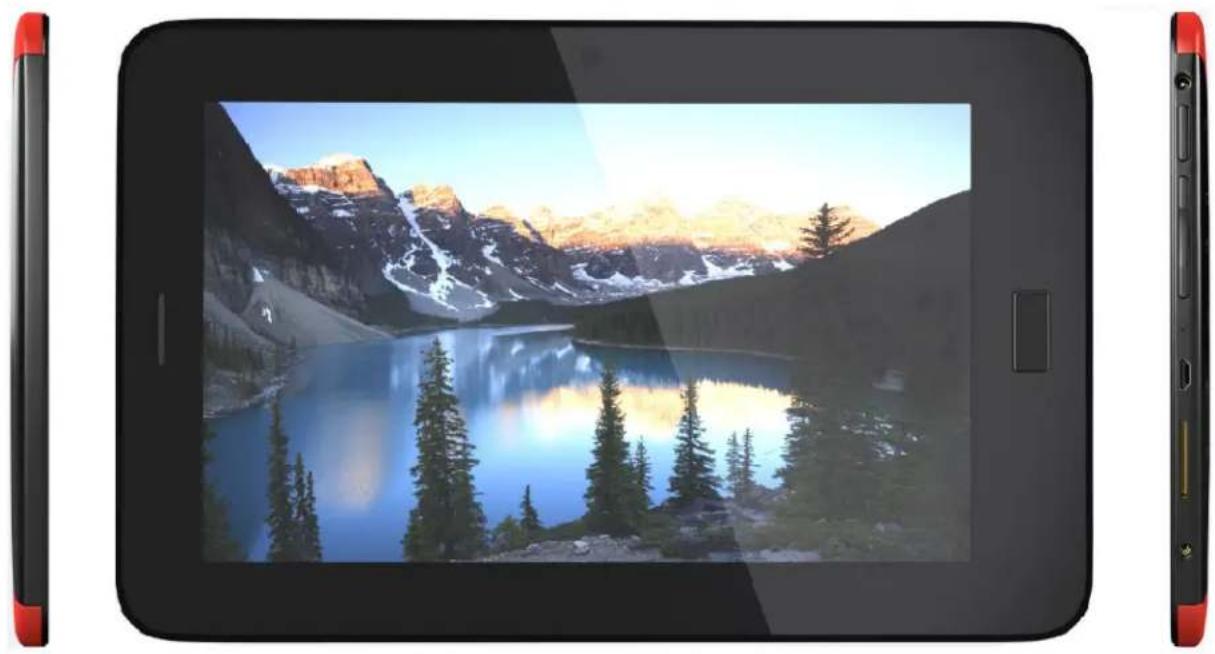
1-1 Appearance
natural_image
Smartphone displaying a scenic mountain lake at sunset with pine trees, shown from front and back angles (no text or symbols visible)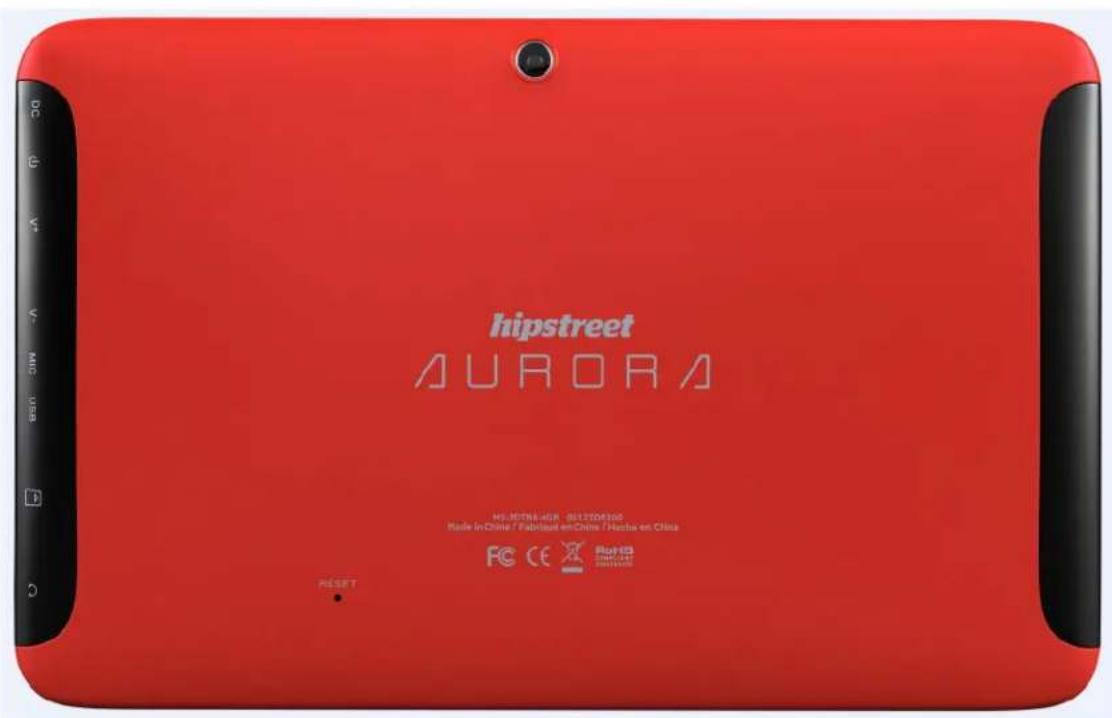
1-2 Buttons/Ports
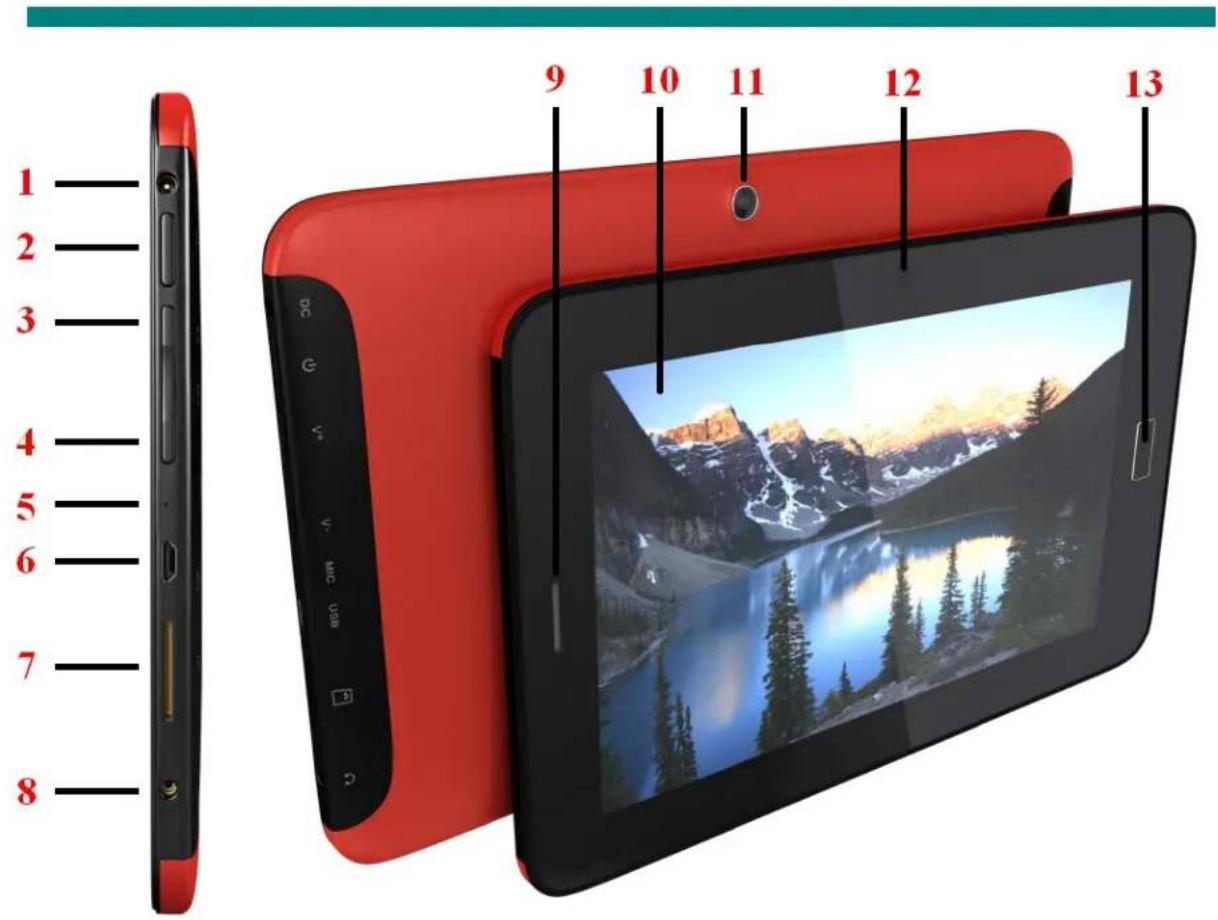
- 5VDC Port 8. Headphone Jack (3.5mm)
- Power Button 9. Speaker
- Volume Up 10. LCD Screen
- Volume Down 11. Back Camera
- Microphone 12. Front Camera
- Micro-USB Port 13. Home Button
- Micro-SD Port
1-3 Power ON/OFF and Sleep/Wake mode
Power ON
Long press the power button for about 3-4 seconds to power ON the tablet.
Power OFF (Shut down)
Press and hold the power button for about 3-4 seconds, press OK when prompted to shut down.
1-4 Standby Mode
Standby
Short press the power button to standby the tablet when the tablet is powered ON.
Wake up
Short press the power button to wake the screen up when the tablet is powered ON and in standby mode.
1-5 Lock and Unlock the Screen
Lock
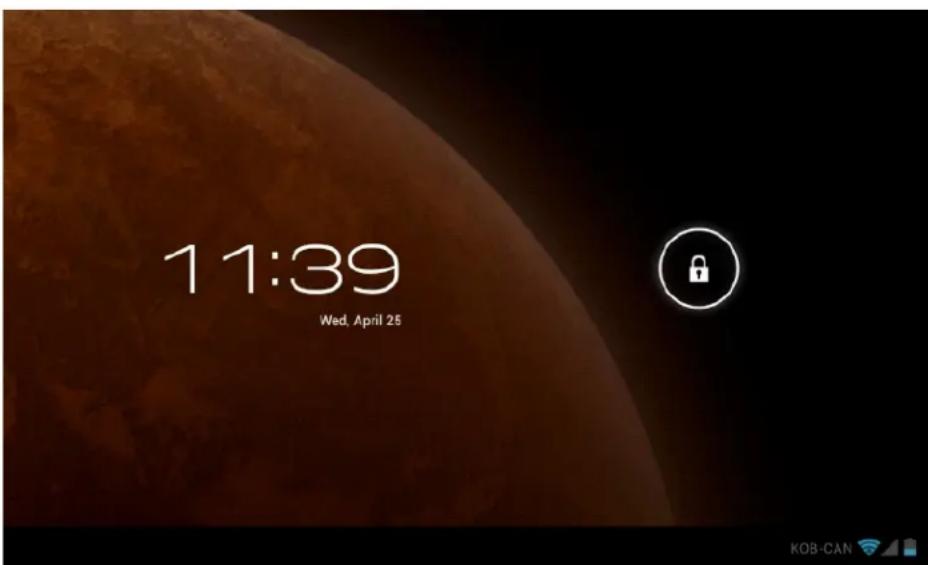
The system will automatically lock the screen and enter the standby mode if there is no activity from the user. Preset sleep time designated by user. You can set up the sleep time in the system settings under
Unlock
Drag the right to unlock, shown below.
Drag the left to enter the Camera/Video mode from the lock screen.
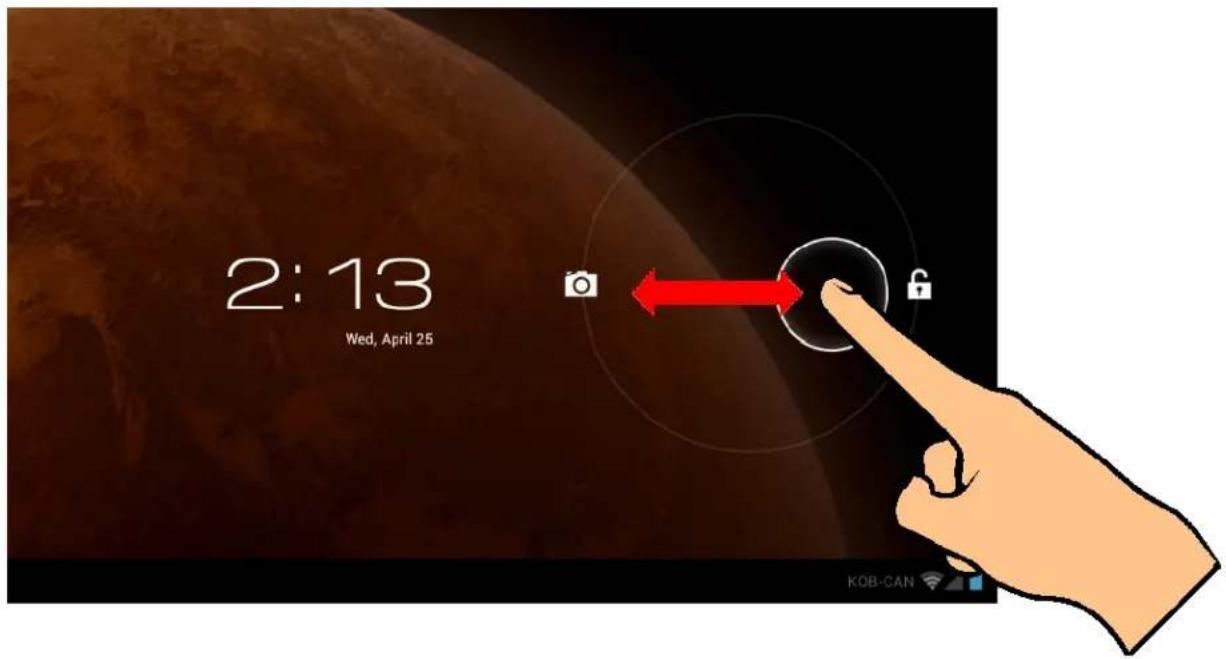
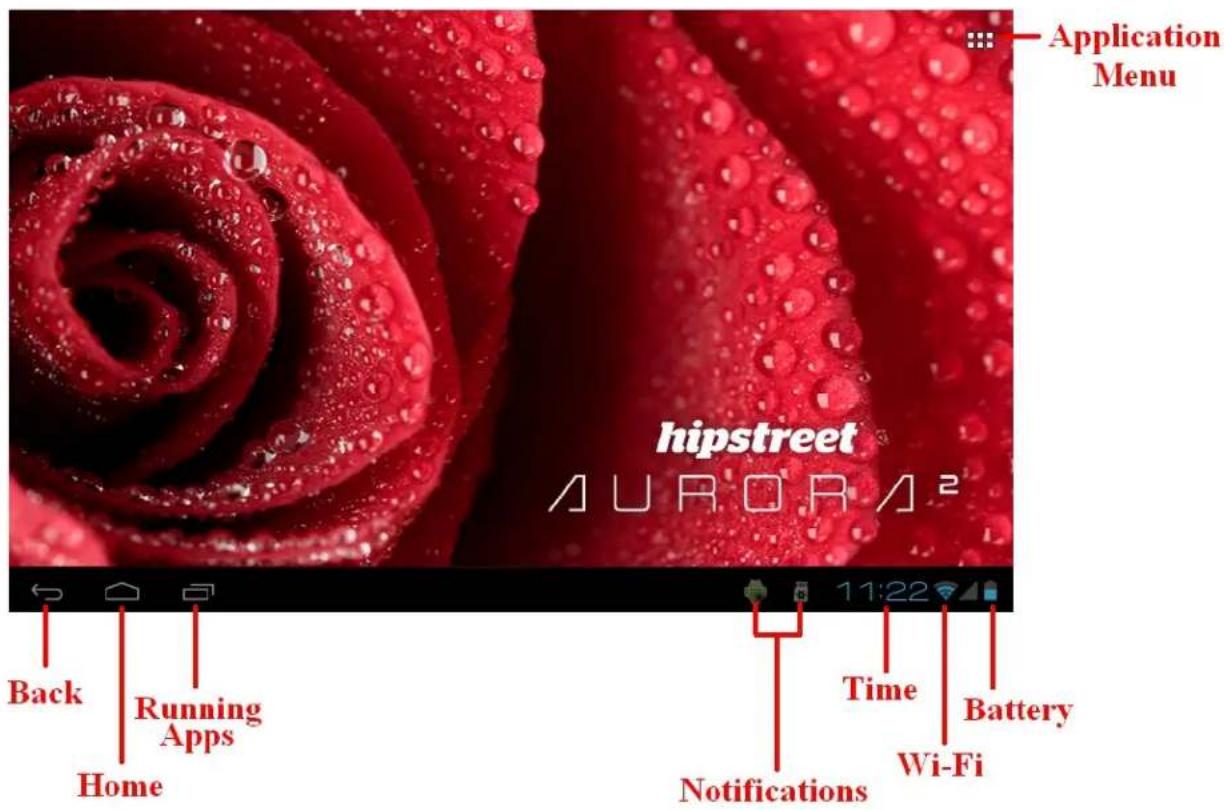
1-6 Home Screen Info
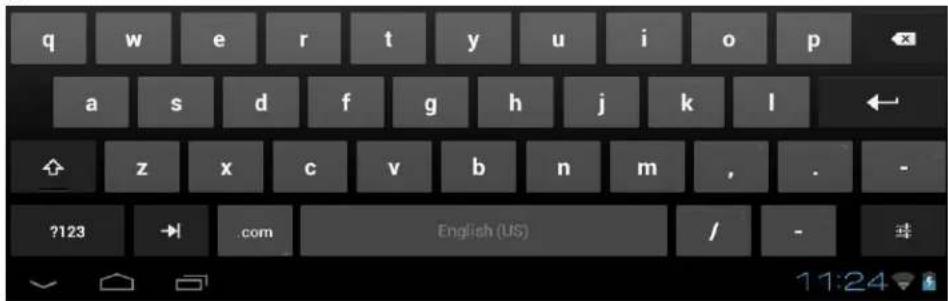
1-7 Text Input
When using the tablet, you can use the on-screen keyboard to enter text, numbers, symbols directly. After tapping and selecting an area to input text, the default keyboard will be automatically displayed.
- To switch from letters to numbers, tap
- To toggle caps lock ON/OFF, double tap
Chapter Two - Internet
2-1 Browser
Internet browsing requires a local wireless network. If there are network issues, please contact your network operator or the service provider.
First tap 📁 the Home Screen to enter the Application Menu. Then tap (Settings) to access the Wi-Fi menu. Slide the Wi-Fi switch to the ON position, select the desired local network, enter the password (if required) and tap
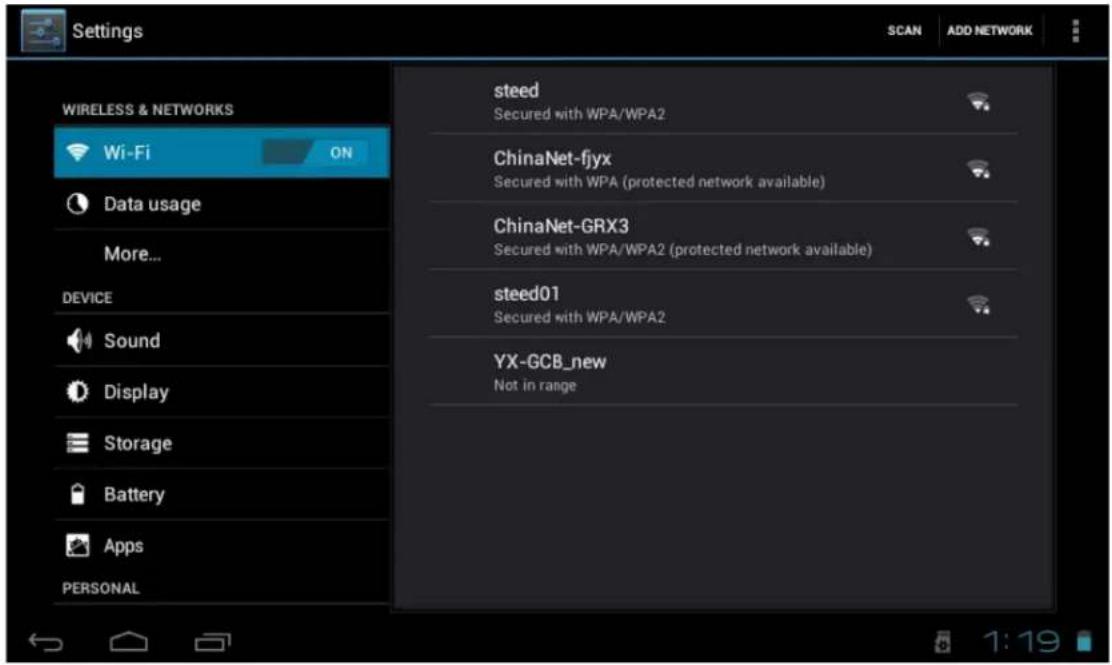
Tap the browser icon in the application menu to begin browsing the internet.
To enter in a URL, tap the input area to bring up the soft keyboard, then type in the website.
Chapter Three: Applications
3-1 Camera/Video
Camera
Tap in the application menu to enter the camera mode. Tap to take a picture of what is displayed by the camera.

natural_image
Close-up portrait of a smiling woman on a beach with ocean and camera lens interface (no text or symbols on main subject)

enter camera settings:

Balance,
Expo

, Save


natural_image
Close-up of a smiling woman with a floral crown on a beach, alongside a camera interface panel (no readable text or symbols)Video
Tap to enter into video mode.

natural_image
Close-up portrait of a smiling woman on a beach with a camera lens interface (no readable text or symbols)Tap Setting : White Balance, Timer Save

Tap this to start recording a video
View Photos and Videos
In the Gallery interface, click on the photo to view it, and you can also view the photos in a slideshow
3-2 Photos
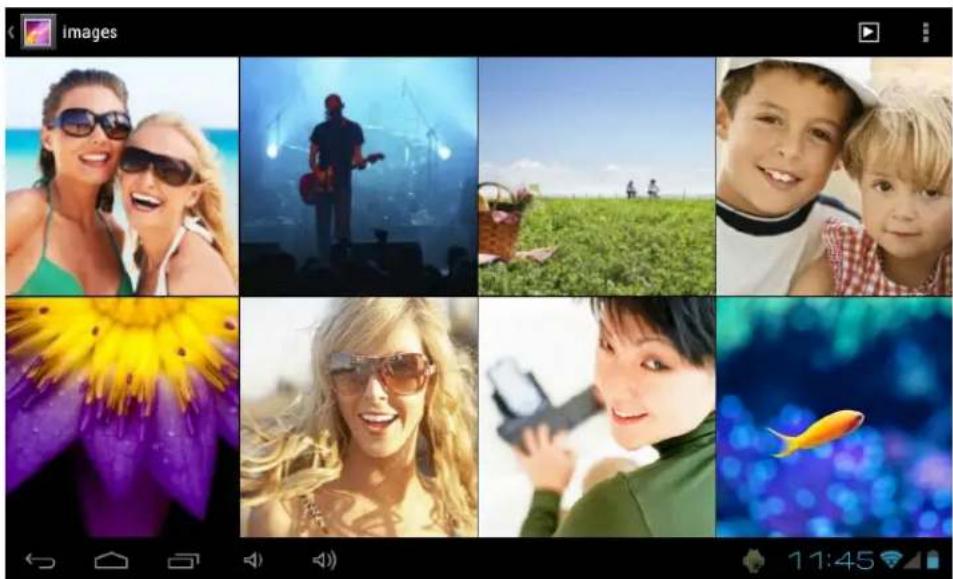
Tap the Gallery icon in the application menu to view your photos, which includes all the pictures.
natural_image
Grid of nine photos including beach, green field, sunflower, and underwater scenes (no text or symbols)Tap to classify the pictures by time and place. Tap to enter camera mode.
Tap to choose an album to edit or delete.
Tap ▶ to view a slideshow of all photos
3-3 Video Player
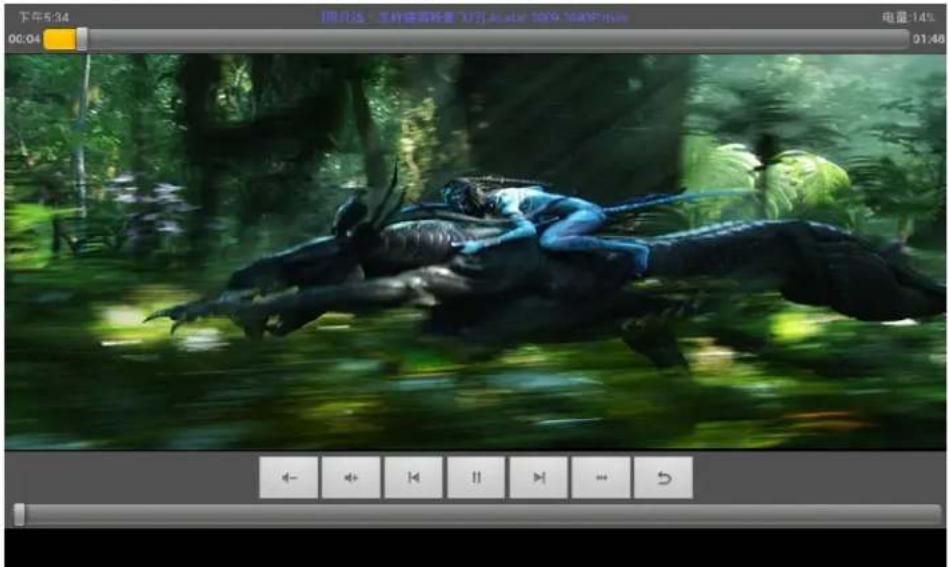
Tap Gallery in the application menu to view your Videos.
Tap Music in the application menu to listen to your music. Music can be played by artists or album classification. This page displays the songs alphabetically.
Tapping on
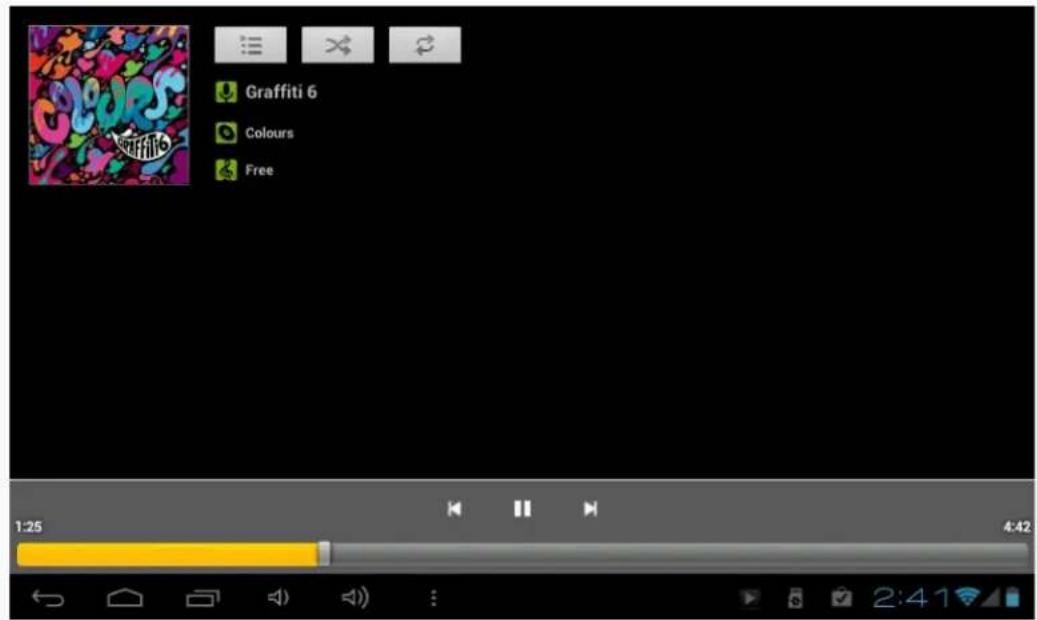

List View,

Random song,

Repeat modes
Artists
Under the
Album
Under the
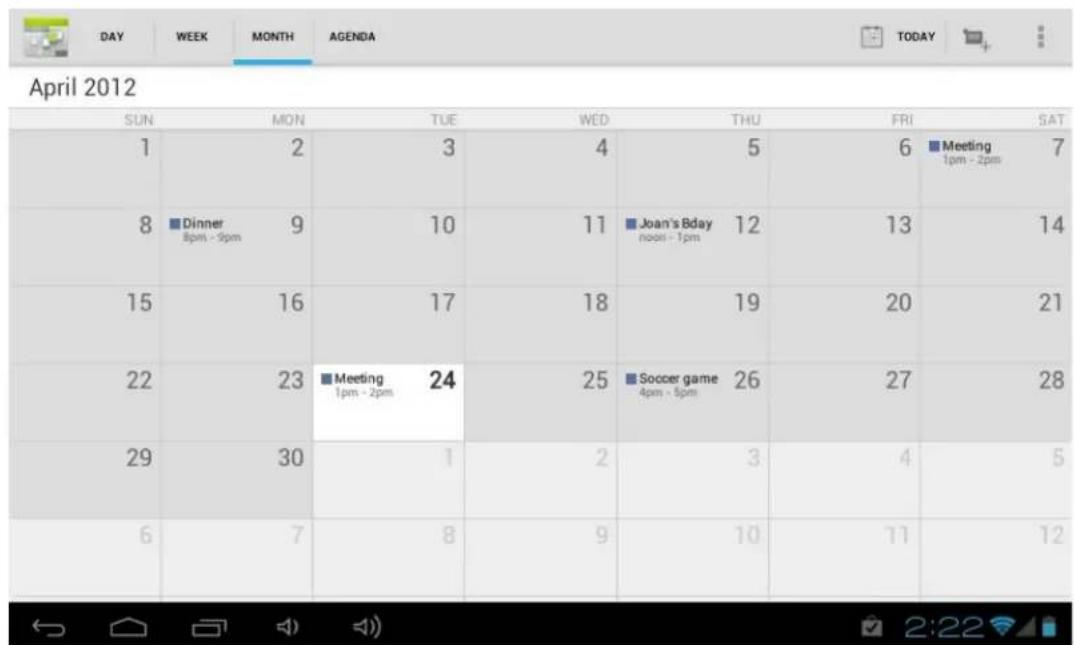
3-5 Calendar
Tap to view the Calendar. Choose type of view from the 4 tabs (Day/Week/Month/Agenda)
Day views: Long press on the time of day to view, edit, and delete events. Tapping on the blank area
can set up new events; long press the blank area, you can set new events.
Week views: Short press the event to view, edit, or delete it. Long press the blank area, to add new events.
Month view: Long press to enter Day view and to set new calendar items.
Agenda View: This view lists all events. Select an event for all details.
Tapping the
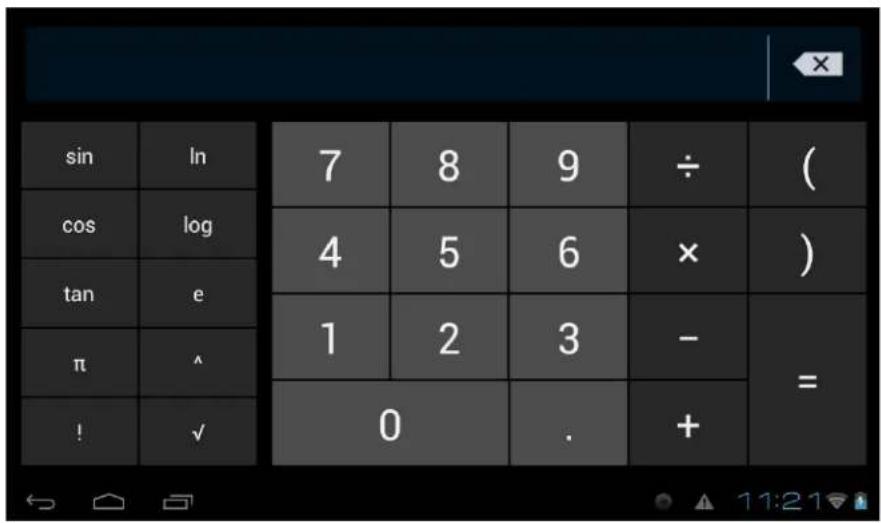
3-6 Calculator
Tap on the keys to enter a calculation.
3-7 File Manager
Tap in the application list to open File Manager. This will let you browse, and copy files between the device's internal memory and SD card.
Use the tabs at the top to browse files from all locations and complete actions such copy/cut/paste/delete/zip/rename by long pressing
3-8 Downloads
Tap in the application menu open view your downloads.
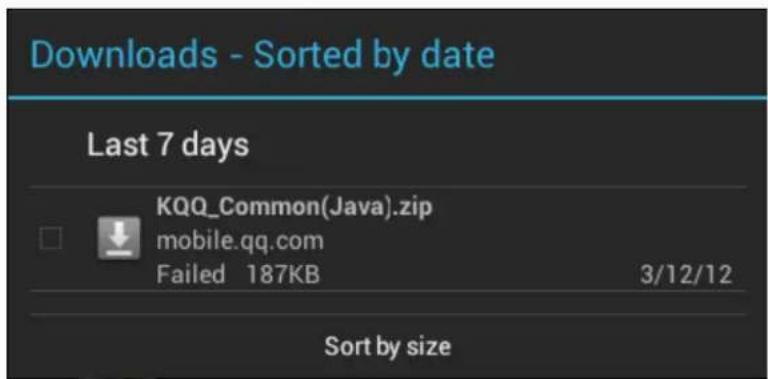
Tap the file to stop or delete its contents.
3-9 E-mail
This requires internet connection before use. If there are problems in the network, please contact your network operator.
Add account
If this is your first time to use email, go into the email interface to set up an account according to the displayed instructions.
If you want to add more accounts, tap

Account setup
Email account
You can set up email for most accounts in just a few steps.
Email address
Password
Manual setup
Next
Create a new E-mail
In the
Add mail recipients quickly
Enter the recipients email address in the "To" input box.
Add Attachments
Tap to add an attachment. Once a file has been selected, its name will be shown underneath the subject; you can add/remove attachments.
Reply/Forward
When an email is open, tap to
Note:
Tap to search your emails for content
Tap to refresh
Tap to change your email settings
Chapter Four: System Settings
Tap in the application menu to enter the system settings interface.
4-1 Sound
This menu allows you to set different volume levels for music and games, ringtones and notifications and alarms. You can also select the default sounds for different notifications.
4-2 Wi-Fi
Local wireless network settings
Slide the switch to the ON position for wireless networks in your area.

If the local area networks have this sign be made it, this means the networks do not require a password, and can be connected to directly.
This sign represents the network has been encrypted, therefore it would require a password before the connection can be established.
You can choose the network you want from the list by tapping on it. Tapping the
4-3 Display
Brightness
The user can adjust the brightness of the screen manually.
Wallpaper setting
In the wallpaper setting, the user can set wallpaper or live wallpaper they desire; wallpapers can be chosen from your gallery or from pre-loaded samples.
Sleep
This option allows the user to set how long it will take before the tablet screen shuts off to save battery life.
Font size
You can set the font size, respectively they are: Small, Normal, Large, and Huge.
4-4 Application (Apps)
Manage the running services and access rights management/development.

HS Cloud - This is a cloud service provided free of charge to include 10GB of free storage.
With this app you could upload and share you favorite Audio/Video/Docs/Files and have access to them anywhere, anytime.
Application Management
In this setting, it is easy to manage and delete some applications that have been installed.
Tap the
Tap on an application, to see its information and to clear the cache, uninstall, clear the default value or force stop.
4-5 Date & Time
Time setting
You can use automatic time settings from the network you are connected to, or you can manually adjust the time zone, set a specific date and time and display 12/24 hour formats.
4-6 Language and Input
Language
You can choose the language from the many preset languages available
Input method
Input methods can be set by user, and you can add custom words to the dictionary.
Chapter Five: Specifications and FAQ
5-1 Specifications
| CPU 1.5GHz Dual Core Processor | |
| Display 7” 800x480, Capacitive Touch | |
| RAM 1GB DDR3 | |
| Memory 8/16GB (plus 32GB Expandable memory via Micro-SD) | |
| OS Google Android 4.1 | |
| Power Provided 5VDC Adaptor | |
| PC Provided USB cable | |
| Image JPEG, BMP, GIF, PNG | |
| Audio MP3, M4A, WAV, WMA | |
| Video AVI (DIVX/XVID/MPEG4), FLV, 3 | GP, MOV, RM, RMVB, MPEG, MP4, WMV |
| Battery | 3.7V - 3000mAh – 11.1Wh |
| Weight | 348g |
5-2 FAQ
Reset this device
(1) In the event that the device freezes, you can force the device to shut down by holding the Power button for 15 seconds.
I cannot connect to the Internet using Manual Setup.
Answer: Ensure you have used Menu → Save when exiting the advanced settings page.
I can see my access point name, but I cannot connect to the Internet.
Answer: If your access point (AP) supports multiple access points at a time, you may have to connect the device using WPA encryption and not WEP. Please refer to your AP device manual for setup details.
My Micro-SD card is not being detected and/or shows damaged SD card.
Answer: Please re-insert the Micro-SD card and try again. If this does not work, please restart the device again with Micro-SD card inserted.
My system freezes when installing / removing applications.
Answer: This may be caused by a memory handling error. Use Force Close icon in application manager before removing the software. If the system continues to freeze, please restart your device for a complete clearing of all running processes.
My device freezes while powering-on.
Answer: This may be caused by a failure in reading the Micro-SD card. Please turn off the device and power-on again. Also, please ensure that the card is fully inserted. Alternatively, please try to start the device with the Micro-SD card removed.
Can I manually change the screen orientation?
Answer: Yes. Please check in "Display" in "Settings", Touch "Auto-rotate screen" to toggle.
What is the life of the battery?
Answer: On average use, a complete charge will give up to 4-15 hours battery life (depending on usage) with Wi-Fi turned on and connected.
Can I amend the Operating System or code on the device myself?
Answer: No. Any misuse of the tablet in this way will void the warranty.
I have my Micro-SD card inserted, but I am unable to use applications that require a Micro-SD card.
Answer: The device checks the first Micro-SD card as the default slot. Please insert the Micro-SD card to the first slot when using the voice recording, and applications such as SlideMe.
The touch-screen is not very responsive
Answer: As the touch-screen is capacitive, please use your finger-tips for best results. Do not use any objects and remove any gloves before use.
Need assistance? Please call us!
If you encounter any difficulties with this product, please visit our website at www.hipstreet.com and review our support section or call us. Our representatives are ready to help you with any questions about your product. We can guide you through connections, first-time use, or any of the
features. Just give us a call or send us an email.
Customer & Technical Support: 1-888-456-2426
Monday through Friday: 8:30am – 5:00pm
Email: support@hipstreet.com
We want you to start enjoying your product right away!
Product and Battery Disposal
This product contains a built-in lithium battery and should not be disposed of in normal household waste. The battery in this device is not intended to be removed by the individual or end user. For disposal and recycling, please contact your local waste management authorities.
The recycling and processing of electronic waste will make a significant contribution towards helping protect the environment.
The cell within this product uses Lithium Ion technology.
The cell within this product uses Lithium Ion technology. The cell has a voltage rating of 3.7 V and a capacity of 3000mAh, with an energy rating of 11.1Wh (Watt hours)
Warning: To reduce the risk of fire and burns; do not disassemble, crush, puncture, short external contacts, or dispose of in fire or water.