SDT10100 - TV Decoder Sveon - Free user manual and instructions
Find the device manual for free SDT10100 Sveon in PDF.


User questions about SDT10100 Sveon
0 question about this device. Answer the ones you know or ask your own.
Ask a new question about this device
Download the instructions for your TV Decoder in PDF format for free! Find your manual SDT10100 - Sveon and take your electronic device back in hand. On this page are published all the documents necessary for the use of your device. SDT10100 by Sveon.
USER MANUAL SDT10100 Sveon
SDT10100 SDigital TV series
DVB-T Tuner-Recorder & multimedia player with removable HD system
natural_image
Exterior view of a modern office building (no signage)Conexión HDMI
natural_image
Close-up of a computer monitor and its internal power drive (no visible text or symbols)natural_image
Line drawings of three open and closed mechanical parts (no text or symbols)Paso 1 Paso 2 Paso 3
natural_image
Symbol of a trash bin crossed with two crossed lines, no text or labels present- Welcome. Page 26
- Safety Instructions. Page. 26
- Features. Page 26
- Content. Page 27
- Hardware. Page 27
- Connections. Page 28
- Remote control. Page 31
- First time usage. Page 32
8.1 Auto Channel Scan. Page 33
8.2 Manual Channel Scan. Page 33 - Main Menu. Page 33
9.1 Installation Menu. Page 34
9.2 TV Setup Menu. Page 34
9.3 Password. Page 35
9.4 Schedule Recording and Direct Recording. Page 35
9.5 Channel Recording. Page 37 - System upgrading. Page 37
- Restore default values. Page 38
- TV channel list. Page 38
12.1 Electronic Program Guide (EPG). Page 40
12.2 Radio stations. Page 40 - Multimedia. Page 40
13.1 Picture files. Page 41
13.2 Music files. Page 41
13.3 Video files. Page 42
13.4 PVR options. Page 42 - Others. Page 43
- Watch TV channels. Page 43
15.1 Information. Page 43
15.2 Change channel. Page 43
15.3 Volume. Page 43
15.4 Channels list. Page 44
15.5 Audio. Page 44
15.6 Pause. Page 44
15.7 Favourites list. Page 44
15.8 Teletext. Page 44
15.9 EPG. Page 45
15.10 Sleep function. Page 45 - Multi screen. Page 46
- SDT10100 status. Page 46
- Trouble-shooting. Page 46
- Technical specifications. Page 47
- Warning: disposal of waste batteries. Page 47
1. Welcome
Thanks for choosing the DVB-T Tuner and recorder with multimedia player functions SDT10100 from Sveon. This device includes a frontal slot to insert compliant external hard disk devices (SStorage series from Sveon) and save and share files with unlimited capacity.
SDT10100 includes an aluminum HD case compliant with the removable hard disk system with USB connection (it can be connected to the computer). Install a 2.5" SATA hard disk in the aluminum case, save your multimedia files from your computer to the disk through and USB available port and insert the external HD case in the slot of the SDT10100 to play files directly on your TV or record DVB-T programs in the inner hard disk. External HD cases can be purchased separately (SStorage series from Sveon).
Through this user guide we will show you how to connect and use properly the device to get the best performance.
2. Safety Instructions
Please read carefully this information before operation and use the device:
This product includes double insulation between the power connection and the rest of elements which are exposed to the user.
Safety
- Protect the power cord from being walked on or pinched.
- Do not exposed the device to the rain.
- Do not use the device near water or liquids (such as bath).
- Do not place objects with water (such as a glass of water) on top of the device.
SDT10100
- Do not place the unit near or on top of any heat readiating.
- Do not cover or touch any of the components inside the unit.
- Do not insert objects through the removable slot system or inside the air flow system.
Ventilation
- Do not block the device ventilation holes.
- Do not place the unit on an unstable object.
- Never expose the unit to direct sunlight.
- Leave at least 10 cm between the device and another devices or the wall.
- Never stack other electronic equipment on top of the device.
Cleaning
- SDT10100 doesn't need maintenance.
- Before cleaning the device, disconnect it from the wall socket.
- Keep liquids away from the device
- Use a cloth lightly dampened with water (no solvents) to clean the exterior.
- Do not dispose batteries as normal rubbish. Be environmentally friendly, dispose the batteries following the Government's regulation. Read carefully the section number 20 of the user guide for further information.
3. Features
• DVB-T Tuner/Recorder with HDMI output and USB Host port
- Easy-to-use OSD menu.
• Electronic Program Guide information (EPG) *
• Auto channel scan and manual channel scan options.
- Exclusive removable hard disk system from Sveon (only compliant with external hard disk cases from Sveon SSTorage series)
- Two scart connections (TV and VCR). Cable is not provided.
- Paternity control.
- Teletext and subtitles options*.
• One USB Host port located in the front panel of the device. - Allows you to record and save the recordings in an external device connected through its slot system or through its USB Host port.
- Allows you to record a TV channel and watch a different TV channel (this function is only available in channels which belong to the same frequency)
• One-button direct recording.
• Time Shifting function (up to 8 hours).
• Music, pictures and video files playback from its slot system or through its USB Host port.
• Maximum capacity supported: up to 2TB (through USB) - Subtitle supported formats: srt, sub, smi.
• S/PDIF digital Coaxial audio output - Sleep function.
• Music, pictures and video files playback. - File supported formats: MPEG-4, XVID, AVI, DAT, VOB, MPEG2, OGG, WMA, MP3, JPG, BMP, GIF.
- Upgradeable software through USB.
* EPG, Teletext and subtitle functions are subject to channel availability.
4. Content
- DVB-T Tuner/Recorder and multimedia player SDT10100
- External aluminum case (SStorage series from Sveon) compliant with SDT10100 and PC
- USB Cable
- HD case sleeve
- HDMI Cable
- Quick Installation Guide
- User Guide
- Guarantee Card
5. Hardware
Front Panel
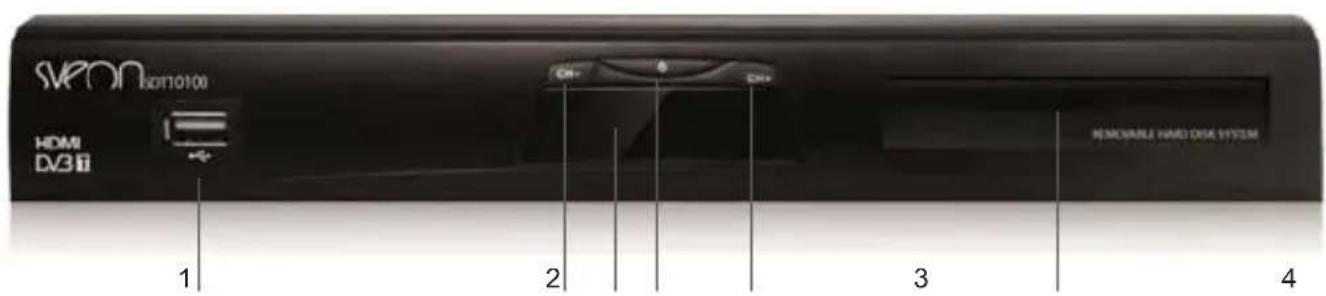
- USB Host port
- Previous channel
- Screen
- Power on/off (Standby)
- Next channel
- Slot for removable hard disk system
natural_image
Two black rectangular electronic components with metallic contacts, placed side by side on a white surface (no visible text or symbols)HDMI Connection
- Connect the device to your TV through HDMI output using the provided cable.
- Connect the device to the power outlet and it turns on automatically.
- Select HDMI output in your TV.
AUDIO CONNECTION
HDMI output includes audio and video signal through the same cable. Because of this, you only have to connect the HDMI cable between the device and your computer to enjoy high quality of audio and video signal.
natural_image
Front view of a flat-screen television displaying blank screen (no text or symbols visible)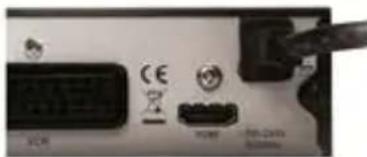
natural_image
Close-up of a computer drive panel with buttons and ports (no readable text or symbols)Important: You can only play AC3 audio files using a speaker system connected through Coaxial audio output to the device.
Removable hard disk system
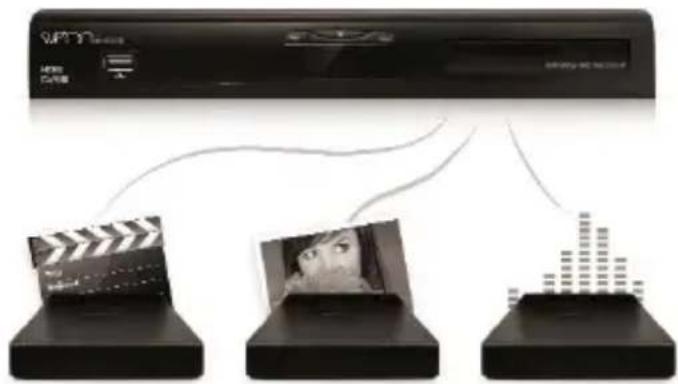
SDT10100 includes an exclusive multimedia files playback system through its slot located in the front panel of the device specially developed to insert a compliant hard disk unit (SStorage series from Sveon). This way you will be able to storage file, music and video files using different external devices and insert the different disks in the slot of the device to play its files; by changing the external devices you will get an unlimited storage capacity.
The SDT10100 device includes an external aluminum case for 2.5" SATA hard disk, which is compatible with the removable hard disk system (hard disk is not included). Follow these steps to install properly the hard isk inside the aluminum case and play files through the slot of the device.
HOW TO INSTALL A 2.5" SATA HARD DISK IN THE PROVIDED ALUMINUM CASE

natural_image
Line drawings of three open and closed mechanical parts (no text or symbols)Step 1 Step 2 Step 3
Step 1: Install the hard disk as shown in the picture. The device includes four pieces of foam to be placed in the top of the case to offer a better protection to the hard disk.
Step 2: Push the disk until it is located inside the hard disk case.
Step 3: Put the top part of the case and press until it is fixed.
Note: The aluminum case doesn't need screws to be closed. Hard disk is not included.
PLAYBACK OF MULTIMEDIA FILES THROUGH THE FRONTAL SLOT
-
Make sure you have installed a 2.5" SATA hard disk in the provided aluminum case (hard disk is not included). If you have not installed a hard disk inside, please read carefully the previous page.
-
Insert the aluminum case inside the slot located in the frontal panel of the unit.
-
Wait during the files loading process. Go to the Main Menu to play the multimedia files saved in the device. Add more files to your multimedia library by purchasing more compatible aluminum hard disk cases from Sveon SStorage series.
Files playback through USB Host port
SDT10100 includes an USB Host port in the front panel of the device with direct playing function. Connect an USB external devices through the USB Host port to play video, picture and music files directly from the device to your TV without the needing to copy the files in advance.
Follow these steps:
- Connect and external USB device through the USB Host port (memory stick or external hard disk).
- Turn the device on and wait during the files loading process.
- Go to the Main Menu to play the files saved in the external storage device.
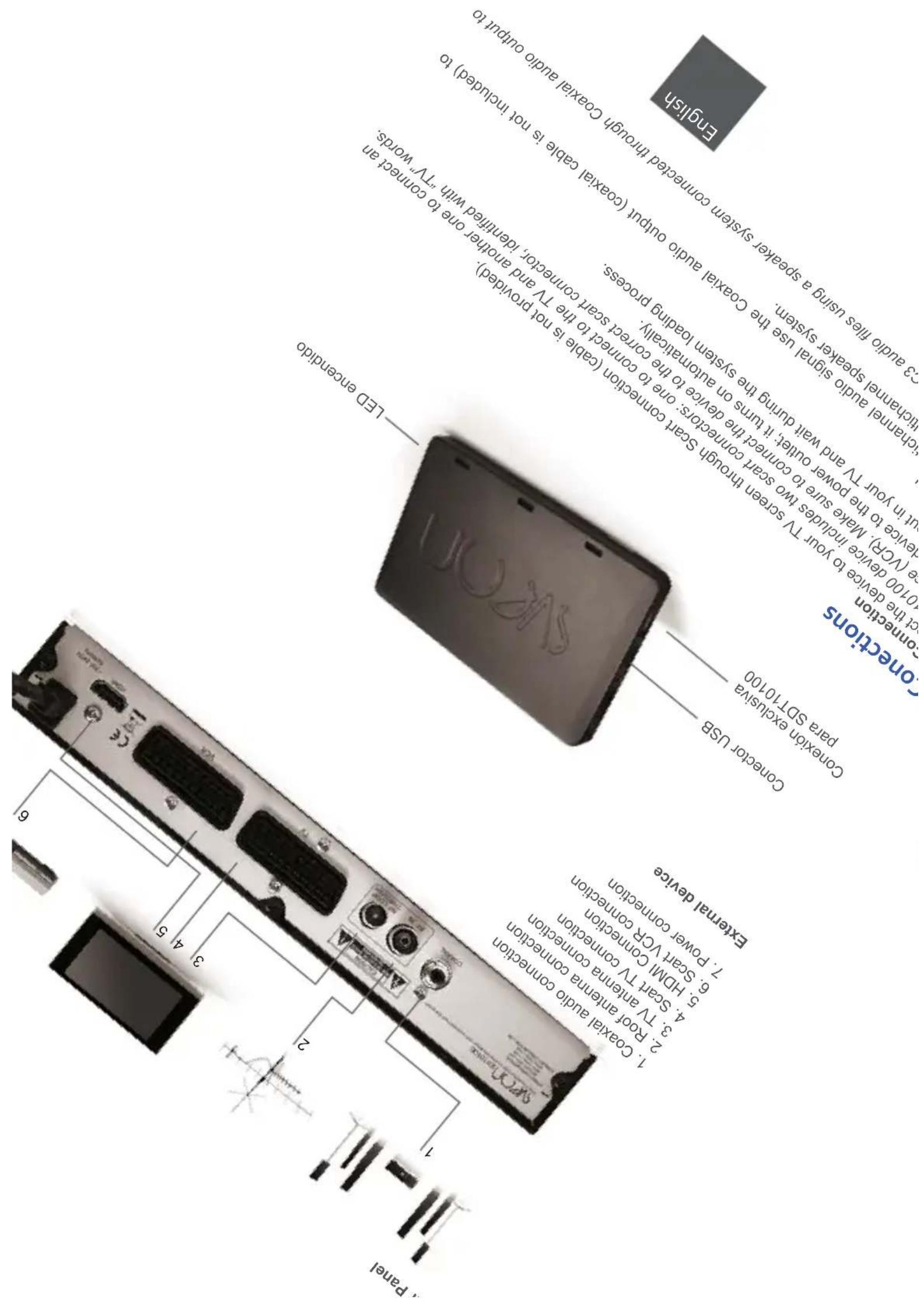
Antenna Connection
To receive DVB-T signal you need to connect the device to the roof antenna. Please note you have to complete the antenna connection as indicated in this section (you need two antenna cables):
- Antenna connection between Roof Antenna and SDT10100 device
Connect one end of the antenna cable to the roof antenna connector and the other end to the "RF IN" connector located in the rear panel of the device.
- Antenna connection between SDT10100 device and TV
Connect one end of the second antenna cable to the antenna output located in the rear panel of the device ("RF Loop Through") and the other end to the TV.
7. Remote control
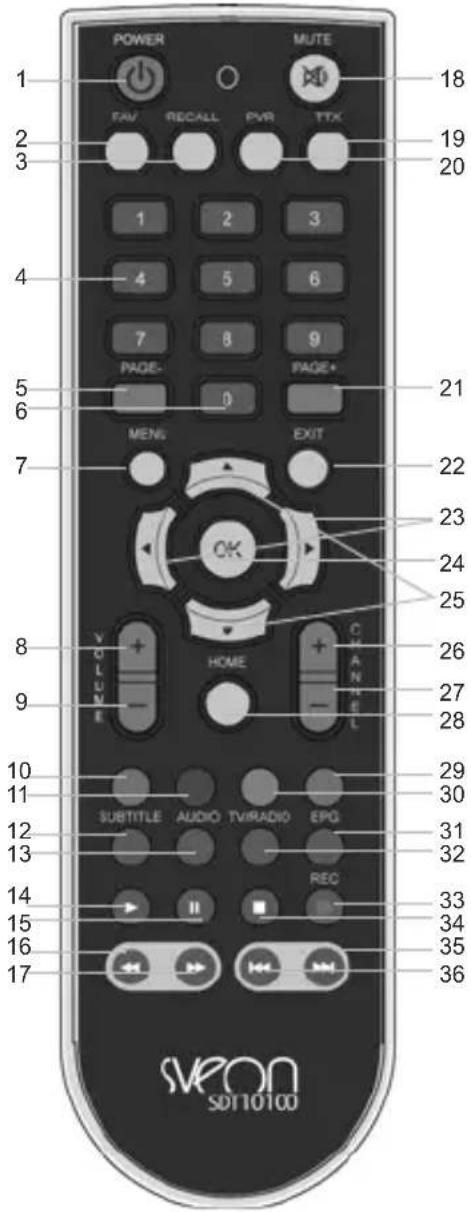
- POWER : Press to turn on/off (Standby mode) the device.
- FAV: Press to access to My Favourite list.
- RECALL: Press to go the previous watched channel.
- NUMERIC: Numeric buttons.
- PAGE DOWN: Press to go to the previous page in multimedia menu.
- SLEEP: Press to enable auto-power off option.
- MENU: Press to go to the Main Menu.
- VOL +: Press to increase the volume.
- VOL -: Press to decrease the volume.
- Red button: Press to access to multimedia menu.
Teletext button.
-
Green button: Press to access to schedule recording tab.
-
SUB-T: Press to change between the available subtitles included in the selected TV channel.
-
AUDIO: Press to change between the available languages included in the TV channel.
-
PLAY: Press in TV mode to display the channels in thumbnail mode. Press in Playback mode to pause and resume the playback.
-
PAUSE: Press to pause.
-
FB: Fast backward. Different speeds: 2, 4, 8, 16, 32, 1.
-
FF: Fast forward. Different speeds: 2, 4, 8, 13, 32, 1.
-
MUTE: Enables/Disables audio signal.
-
TTX: Press to display the Teletext information (if it is available).
-
PVR: Press to access to the recordings.
-
PAGE UP: Press to go to the next page in Multimedia menu.
-
EXIT: Press to go to the previous menu.
-
LEFT/RIGHT: Right/Left arrows. Press to move the highlight to the left or to the right, navigate between menu screens or change the volumen in a playback.
-
OK: Press to confirm a selection.
-
UP/DOWN: Press to navigate between menu screens or to change between channels.
-
CHANNEL +: Press to go to the next channel.
-
CHANNEL -: Press to go to the previous channel.
-
INFO: Press to display information of the current channel or additional information about the current channel.
-
Blue button: Press several times to change between the available resolutions (480i, 480p, 576i, 576p)
-
Yellow button: Press to access to "Others" menu.
-
EPG: Press to display the Electronic Program Guide information.
-
TV/RADIO: Press to change between TV channels and Radio stations.
-
REC: Press to start a manual recording.
-
STOP: Press to stop a playback.
-
NEXT: Press to go to the next track.
-
PREV: Press to go to the previous track.
Important. Subtitle, Teletext or audio outputs are subject to the channel availability.
6.1 Batteries installation
The product includes the batteries you need for remote control usage. Please follow these indications to install them properly inside the remote control:
• Take the cover out, put the AAA batteries inside (please check the correct position +/-) and close the cover
• This picture shows the correct way to install the batteries:
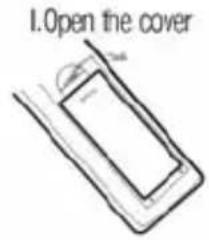
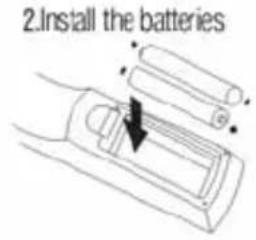
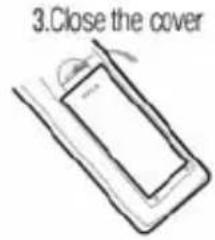
- Point with the remote to the front panel of the device.
- The remote control signal power is 5 meters from the receptor and it covers an angle up to 60 degrees.
8. First time usage
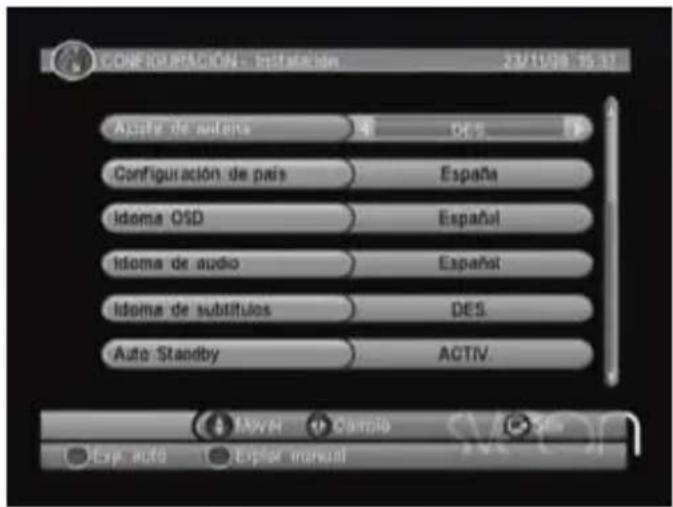
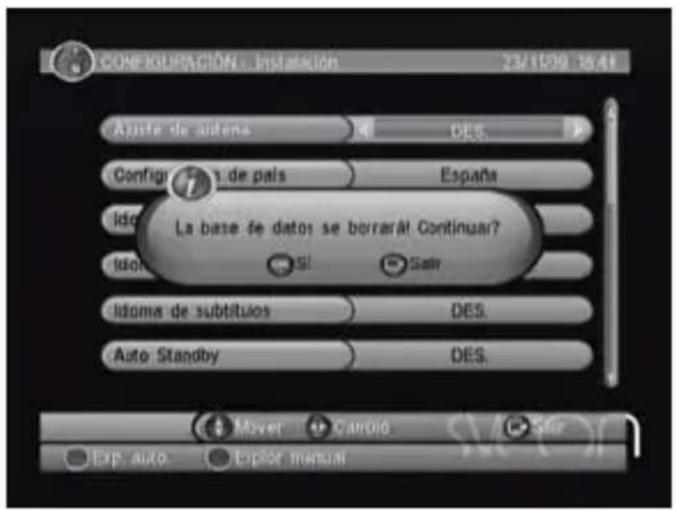
First time you connect the device to your TV, the following window will appear:
- Antenna setting: Select if the device feeds the antenna (5V) or not.
Note: The default value is "Disabled". Select "Enabled" if the device is connected to an active antenna which amplifies the RF received signal.
- Select country: Select the country where you are going to use the device. When you change the country, the time zone is changed and the default frequency information also changes.
- OSD Language: Select the language used to display the text of the OSD menu.
• Audio language: Select the default audio language.
- Subtitles language: Select the default subtitles language.
- LCN: Enables or disables the LCN system (Local Channel Number).
Note: LCN is a number which identifies a channel; this system is used in some European countries as United Kingdom or France.
• GMT USAGE: This option enables or disables the time zone upgrading. When it is in Enable mode, this information is updated based on DVB-T signal
Note: There are some countries which are covered by more than one GMT time area. Spain uses GMT+ (except Canarias Islands, which uses GMT).
- Time Zone: This option allows you to modify the time zone based on GMT.
- Set Date: If the GMT usage is disabled, you can set the date in a manual mode.
- Set Time: If the GMT usage is disabled, you can set the time in a manual mode.
Once you have set all these options, press red button to start an auto channel scan or press the green button to scan the available channels in a manual mode.
8.1 Auto Channel Scan
To start the auto channels scan, please press the red button of the remote control. The process may take several minutes, please wait until it finishes.
"Auto channel scan" option deletes the current channels list and do a channels searching based in the frequencies of the selected country in the main setting menu.
Once the process is finished, the found DVB-T channels are automatically saved and the first available channel of the list is displayed in the TV screen.
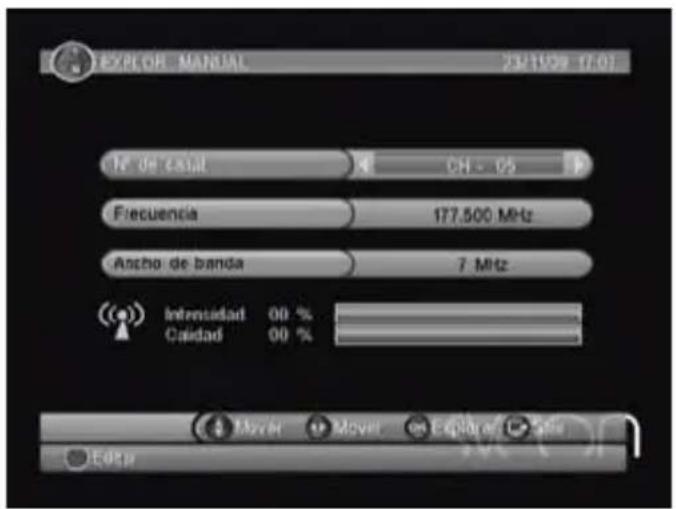
Enter the frequency of the channels you want to watch to search the channels in a manual way. Press the green button of the remote control; please note you have to know the frequency and the bandwidth of the channels you want to find. When you search the available channels by frequencies, the current channels of this frequency are deleted to save the newest searching.
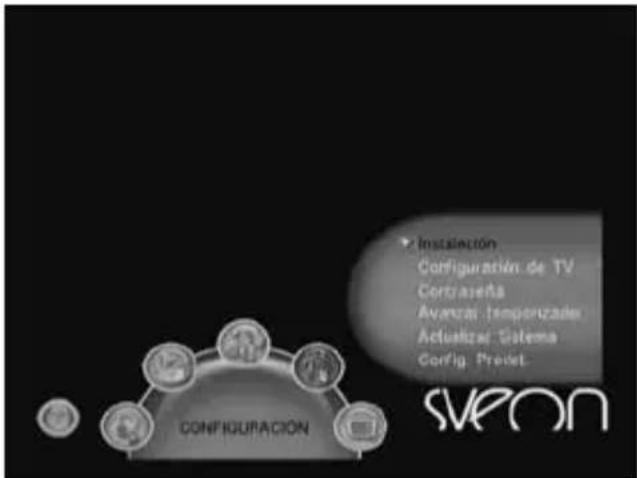
Once the channel scan finishes, press "Menu" button and the following options appear:
- Installation
- TV Setup
- Password
- Schedule recording
- System upgrading
- Restore default values
The Installation menu allows you to setup the general values of the device. It is the first window which appears when the device is connected. Please read carefully the section 8 of this user guide for further information.
9.2 TV Setup
The "TV Setup" section offers the following options:
• TV Format
- 4:3 LB (LetterBox): For a 4:3 TV format screen
- 4:3 PS (PanScan): For a 4:3 TV format screen (the left and right sides of the picture are lost to adjust it to a 4:3 TV format)
- 16:9 LB (PB): Wide format
Note. A wide picture (16:9 format) includes black bands if it is displayed in a 4:3 format screen; if it is displayed in a wide TV, the picture covers the whole surface of the TV screen.
• TV Mode
Select the TV or VCR output resolution: (480i, 480p, 576i, 576p)
Note: If you want to record using VCR output, you have to select the resolutions 480i/576i
- OSD Transparency
This menu allows you to adjust the opacity of the screen menus. The level "1" is the most transparent one.
• Information display time
Select to adjust the time of the information display when the "Info" button is pressed. If the selected value is "Always", the information tab appears until you press "Exit" button.
- Video output
This option establishes the RGB output mode when you use a Scart connector with 15 pins or CVBS when you use a component cable.
Note: To get the best picture quality we recommend you to use RGB output because this signal is applied directly to the TV output without distortions. CVBS is a composite video signal and it has to be proceeded, separated in components and then amplified; the composite signal is not as pure as RGB.
• Video quality:
Video improvements are:
- Skin tone
- Black and white extensions
9.3 Password
This menu allows you to set a password to the menu, locked TV channels and censored TV programs.
Note: The default password is 0000.
- Locking of Setup menu: Enables/Disables Setup menu with a password.
- Locking of channels: If this option is enabled, each time you select a locked channel a password will be required to watch it.
- Locking censored: This option establishes the age at which a password is needed to watch a TV channel.
- Without lock: A password is not needed to watch the channel.
• Total lock: A password is always required to watch a TV channel.
• 02-18: A password is needed if the age classification of the channel is higher than the selected values.
Note: The information about the program's classification is provided by the TV channel. - Change the password: Press the arrow buttons
to change the password and use the numeric buttons <0-9> to enter the old password and the new password (two times to confirm). When you enter the correct password a message appears to confirm that the password has been successfully changed.
9.4 Schedule recording and direct recording
SDT10100 allows you to create recording tasks manually, record through Electronic Program Guide (TV or Radio) or by pressing directly the "Rec" button of the remote control.
- Set recording tasks manually
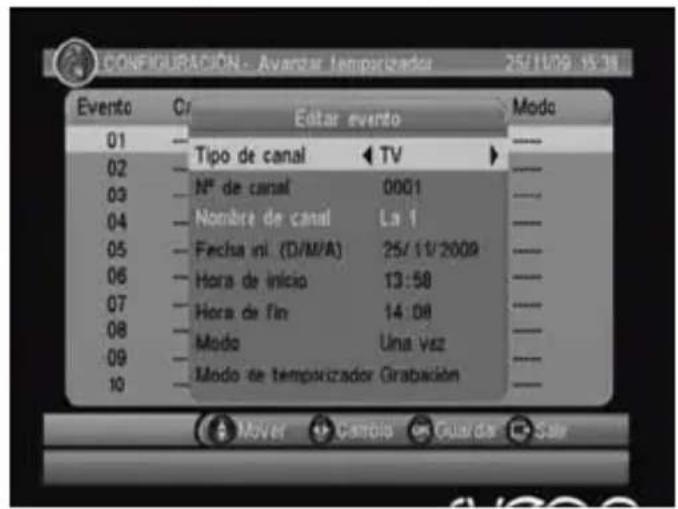
If you want to set a recording task manually press the yellow button of the remote control and then press the red button to select between all the available options (10 options)
A window will appear with the type of recording, "TV/Radio", the TV channel info, the start time, the finish time and the frequency with wich you want to record.
When the time and date of the recording arrives, the device changes the TV channel and starts the recording task. If you want to modify a recording task, select it and press the red button of the remote control.
Note: To make sure the recording task is going to be started successfully, set recording tasks with at least three minutes between them.
If you want to delete a recording task, select it and press the green button of the remote control. Then select "OK" to confirm or "Exit" to cancel.
Note: You can delete recording tasks if they are not running. If you want to delete a recording task which is running, you have to Stop it before deleting it.
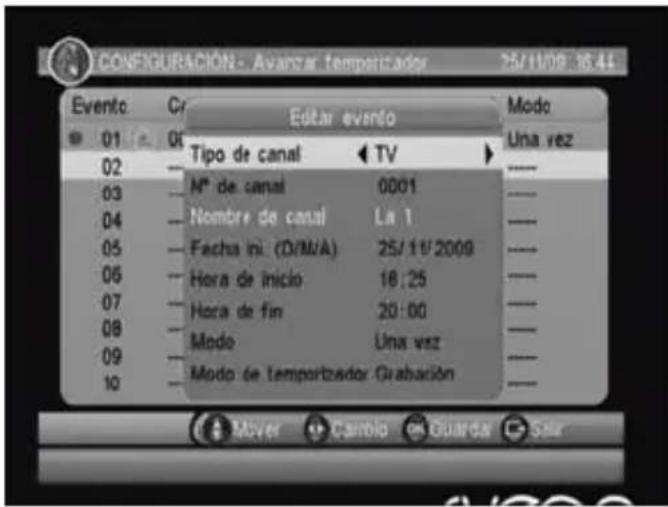
- Recording tasks based on EPG (Electronic Program Guide)
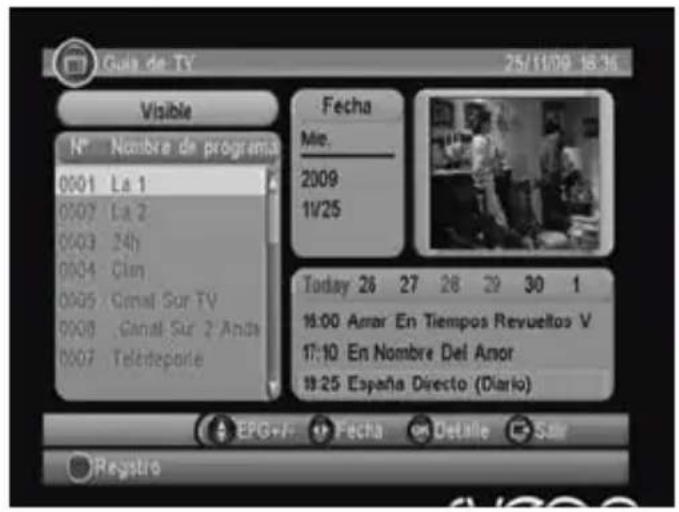
If you want to establish a recording based on EPG information, press "EPG" button of the remote control, select the channel and the program you want to record by pressing "Right" button and then pressing red button over the selected program. A window with detailed information about the recording task will be displayed.
- Direct recording by pressing "REC" button
SDT10100 device includes Timeshift function to pause a live TV program and resume it minutes later without lost anything.
When the Timeshift option is enabled, the program saves the recording as a temporarily file. Thanks to this function you can access to the lost moments and resume your favourite program in the point you left it.
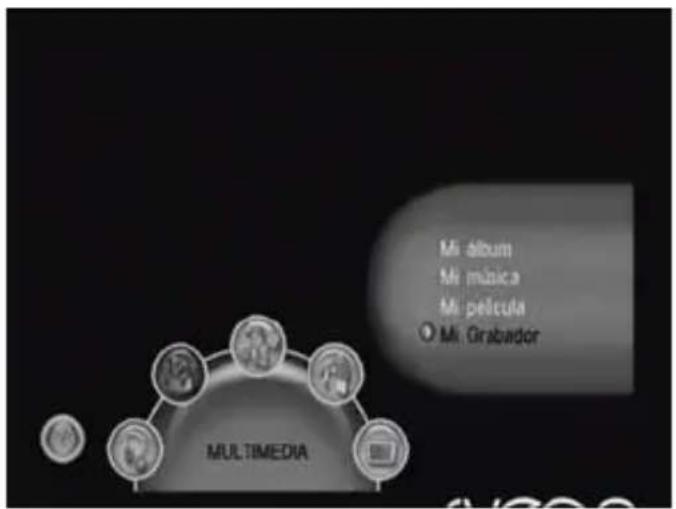
SDT10100 allows you to record a TV program just by pressing the "Rec" button of the remote contro during an interval of time or up to 8 hours. Before starting a recording, please setup the different recording options: press "Menu" button, select "Multimedia" and "Recording preferences" as shown in the following picture:
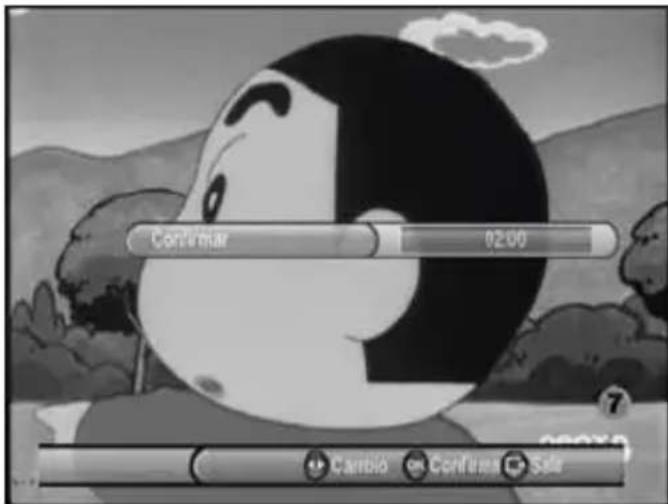
- Recording by pressing a button: Enables or disables the recording option by pressing the "Rec" button of the remote control. If this option is disabled, when you press "Rec" button you need to enter the interval time of the recording; this information has to be be entered in the "Recording Time" field. If this option is enabled, when you press "Rec" button the recording length will be the same than the "Recording Time" value automatically.
- Recording Time: Choose the recording length (between 15 minutes and 8 hours).
Note: The Timeshift function lenght depends on the capacity of the connected device where is saved the temporarily file. It can not be changed by user.
9.5 Channel recording
SDT10100 allows you to set a schedule recording which starts automatically although the device is in Standby mode. Once you set the schedule recording, press "Power" button of the remote control and the device enters in Standby mode (the screen of the device displays a clock). One minute before starting the recording the device is turned on automatically and displays the selected channel.
If you want to record a channel and watch another one, press "Ok" button of the remote control during a recording and the available channels will be displayed (the channel which is being recorded also appears).
Note: This option (to record a TV program and watch a different one simultaneously) is only available in the channels which are in the same frequency.
10. System upgrading
You can upgrade the SDT10100 system to enjoy improvements and new options.
Follow these steps to upgrade the device firmware:
- Copy the update file "SDT10100_XX.ssu" in an USB device.
- Connect the USB device to the USB Host port located in the front panel of the device.
- Select the option "System upgrading" in the Setup main menu. Select the update file saved inside the USB device.
Important. Please make sure during the firmware upgrade the USB device is not disconnected or the unit is not powered off. It may cause serious damages to the device and it would void the product guarantee.
We strongly recommend to download the upgrade files only from our official website: www.sveon.com. If you have any doubt please contact with our Technical Support service.
11. Restore default values
This option restores the default values of the device. All the modified options and values will be erased and the channel list will disappear.
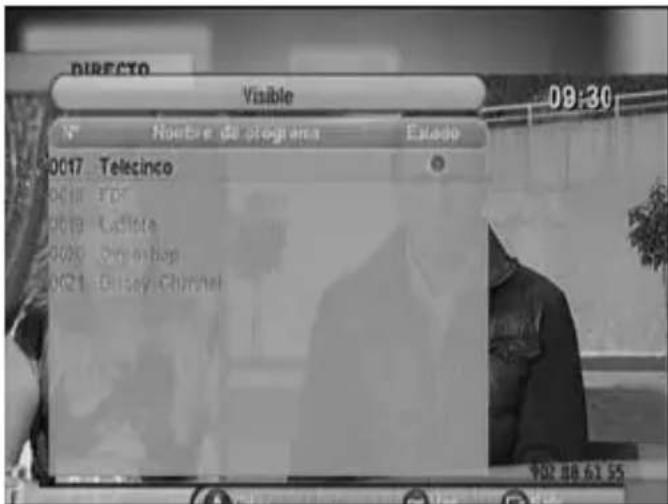
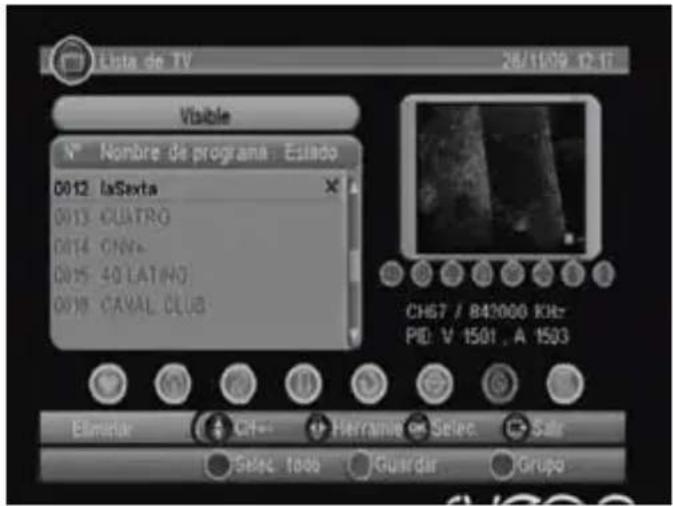
12. TV channel list
There are different options to sort the channel list:
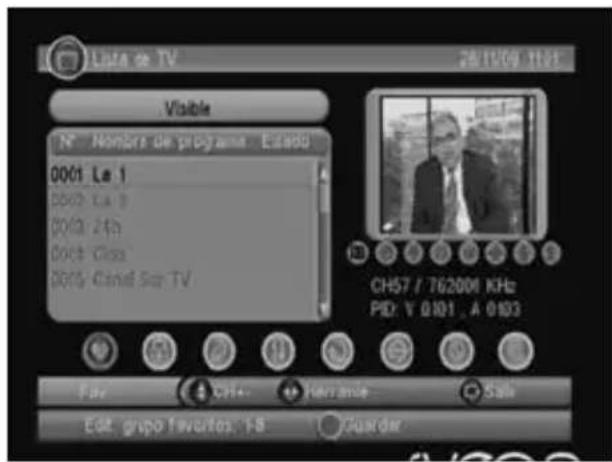
- Favourites: User can move through the favourite list by pressing the buttons "Channel +/-" of the remote control. There are eight groups to sort the channels: News, Sprots, Film, Music, Shopping, Travel, Male, Female.
If you want to add a channel to the favourite list, select the channel, select the "Favourites" icon (it is lighted) and press a numeric button (from 1 to 8) to include it or press "Delete" to delete it from the favourite group it belongs to.
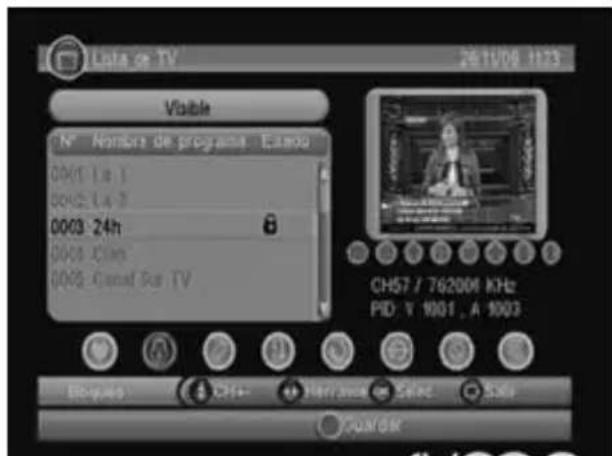
- Lock: Press "OK" button to enable or disable the selected channel. If this option is enabled in "Setup" > "Password" > "Channels lock", a password will be required to watch this channel.
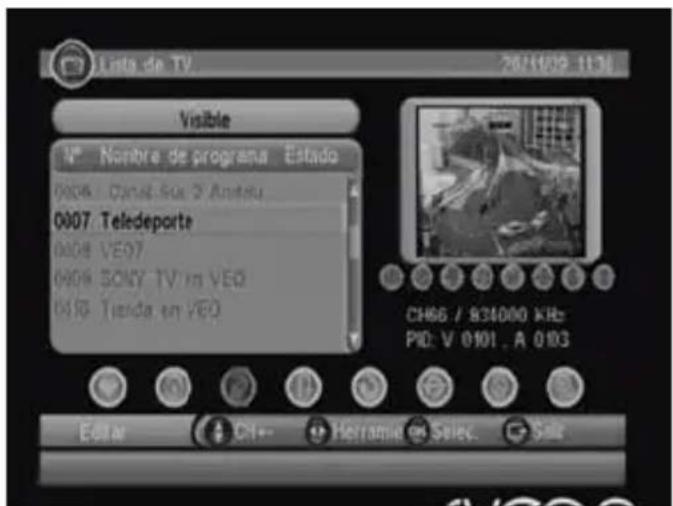
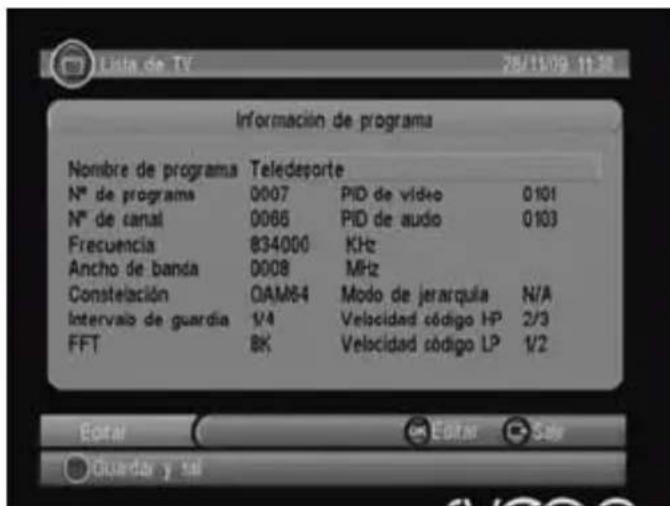
- Edit: You can edit the channel name (the maximum length of the new name is 18 characters).
Press the arrow buttons left and right to select "Edit" option and arrow buttons up and down to select the channel you want to rename; press "OK" to display the channel information and press it again to rename. Press for third time the "Ok" button to confirm and then press red button to go to the channel list.
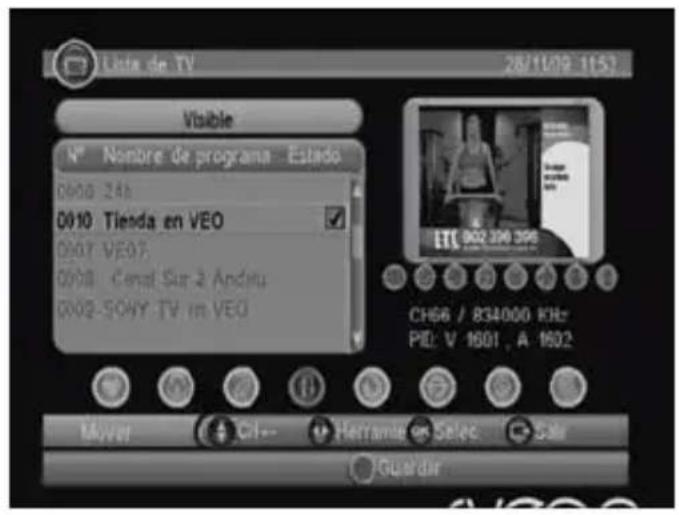
- Move: Select this option to move the channels in the list.
If you want to sort the channels, select the channel and press "OK" button to select it; then press the arrow buttons up and down to move it to the wished position and press again "Ok" button to confirm.
Note: This function will not move the channels when the "LCN" option is enabled in the main Menu > Setup > Installation.
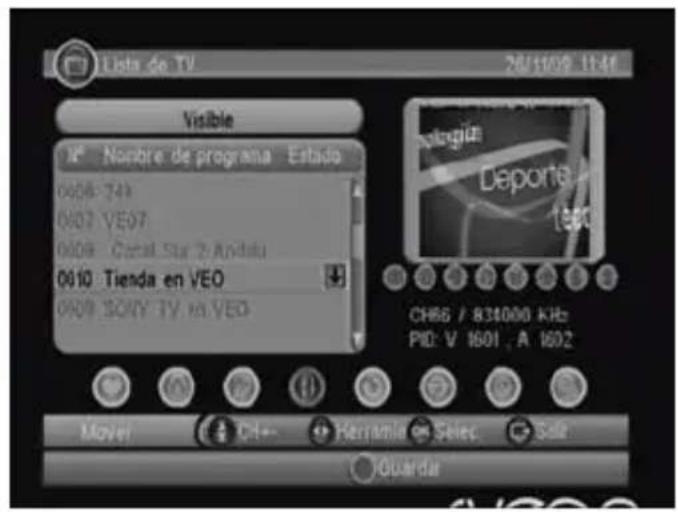
- Sort: This option allows you to sort the channels: from A to Z, pay per view channels and frequency. Press the red/green/yellow buttons to select the channels position.
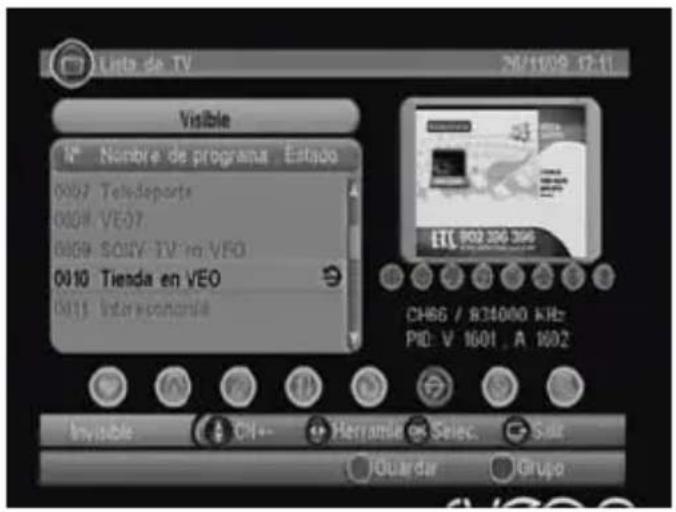
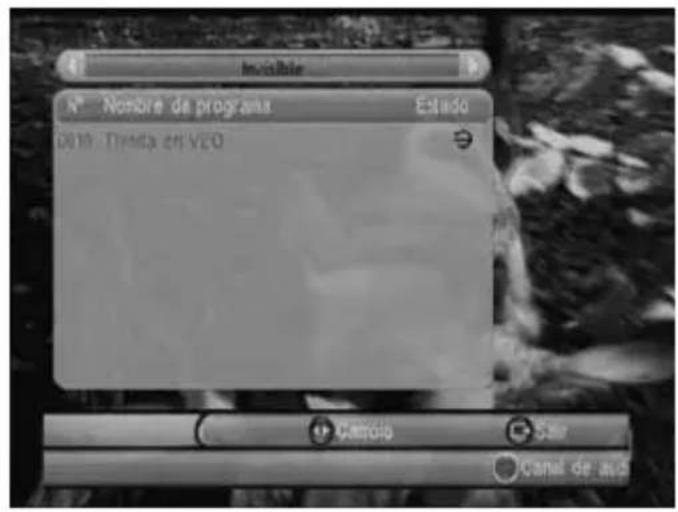
- Invisible: Press "Ok" button to enable or disable this option. The invisible TV channels are not available in the channel list. If you want to watch an "invisible" TV channel, press "Ok" button to display the channel list, press blue button of the remote control and then use the arrow buttons right and left to select the invisible channel group.
- Delete: Use this option to delete the selected channel from the channel list. If you want to restore this TV channel you have to start again the channel scan (in a manual or auto mode).
If you want to delete a TV channel, select it and select "Delete" option. Then press "Ok" button and press yellow button to confirm.
- Search: Use this option to search a TV channel by the channel name.
12.1 Electronic Program Guide (EPG)
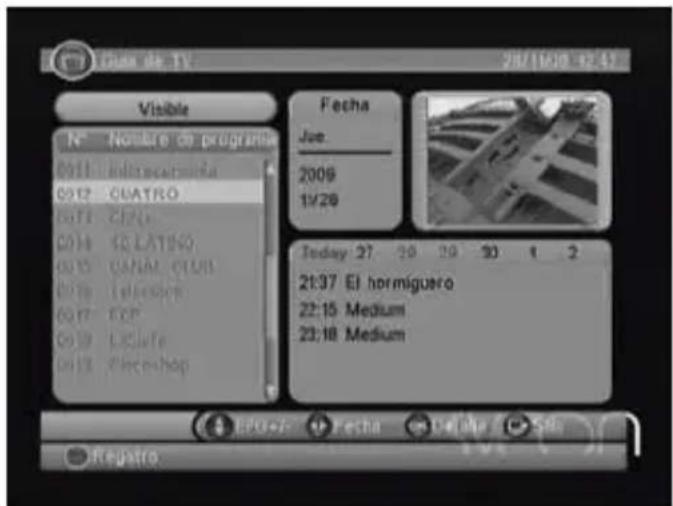
Select "EPG" option to display the Electronic Program Guide information or program recordings.
- Press "EPG" button to access to the Guide information.
- Press the arrow buttons up and down to select the channel.
- Use the arrow buttons left and right to change the date or the selected program.
- Press "OK" button to display the program information or press "Exit" to go to the previous window.
- Press the red button of the remote control to add new recording tasks in the schedule.
Note: EPG information is subject to the channel availability. This information is not available if the TV channel doesn't include EPG option.
12.2 Radio
The radio station list and EPG functios for digital radio signal have the same parameters than the TV channels. Please read carefully the sections of this user guide for further information.
13. Multimedia
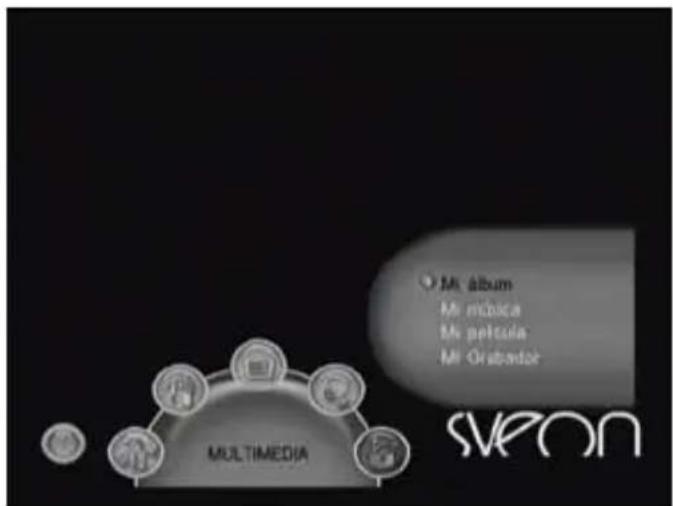
Before using "Multimedia" option please make sure to connect an external storage device through the slot system or using the USB Host port of the device. If there is no external device connected to the SDT10100, a message will appear indicating that there isn't any external device connected.
When an external storage device is connected, an on-screen message appears which indicates that the system is detecting the device and loading its content. Wait during some minutes and then go to "Multimedia" menu by pressing "Menu" button of the remote control and selecting "Multimedia" option or by pressing the red button (during TV mode).
13.1 Pictures
SDT10100 supports JPEG; BMP and GIF picture formats. When there are picture files in the external device root, they are displayed in thumbnail mode. If there aren't, a message will appear to select the folder where are saved the picture files. Press "Exit" to go to the thumbnail mode.
The resolution of the selected picture file is displayed in the left-bottom corner when the picture is shown in thumbnail mode; when the picture is shown in folder mode, the resolution is shown in the right. To navigate between folders and files, use the arrow buttons up, down, left and right and press "Ok" to watch the selected picture.
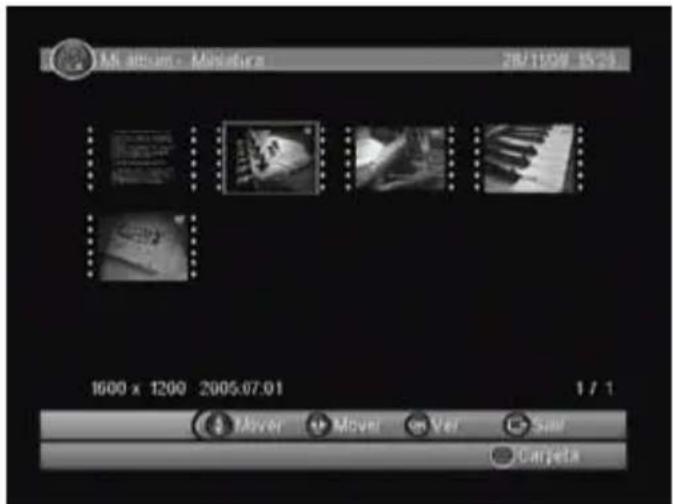
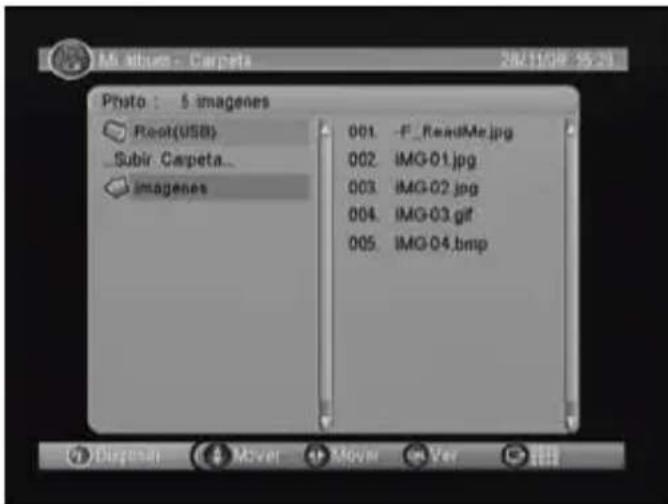
Enable "Zoom" option by pressing the red button of the remote control; the available Zoom options are: 25-50-100-150-200%. If the Zoom of the picture is more than the 100% of its size, you can press the arrow buttons to move the enlarged picture. If the Zoom option is less than the 100% of the picture size, you can rotate the picture by pressing the arrow buttons left and right.
You can watch the picture files in Slide Show mode by pressing the "Ok" button of the remote control in the selected picture to start this mode:
- Press red button to pause/resume the Slide Show mode.
- Press green button to select background music during Slide Show mode.
- Press yellow button to enable repeat function during Slide Show mode.
- Press blue button to adjust the interval time between pictures in Slide Show mode.
13.2 Music
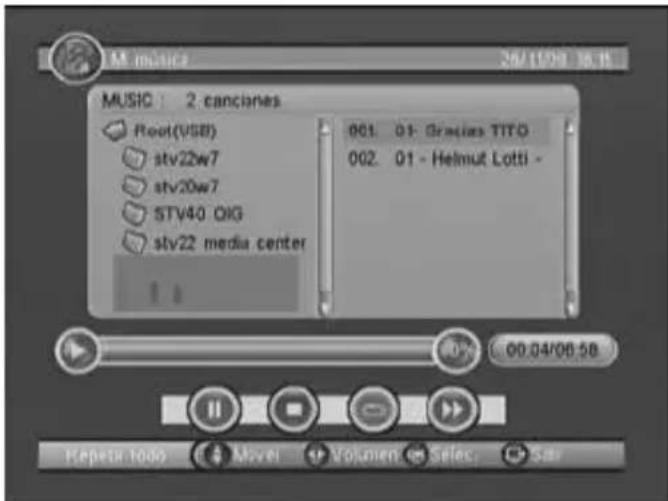
SDT10100 supports the most common audio formats: MP3/WMA/OGG. During music playback, the time bar is displayed onscreen with the elapsed and remaining time information. Also appears the frequency spectrum.
Use the arrow buttons to navigate between folderse and files. Press "Ok" button to play the selected file.
- Press red button to pause or resume the playback.
- Press green button to stop the playback.
- Press yellow button to select the repeat mode.
- Press blue button for fast forward (speed x2)
- Press the arrow buttons left and right to adjust the volume or press "Mute" to disable the audio signal.
13.3 Video
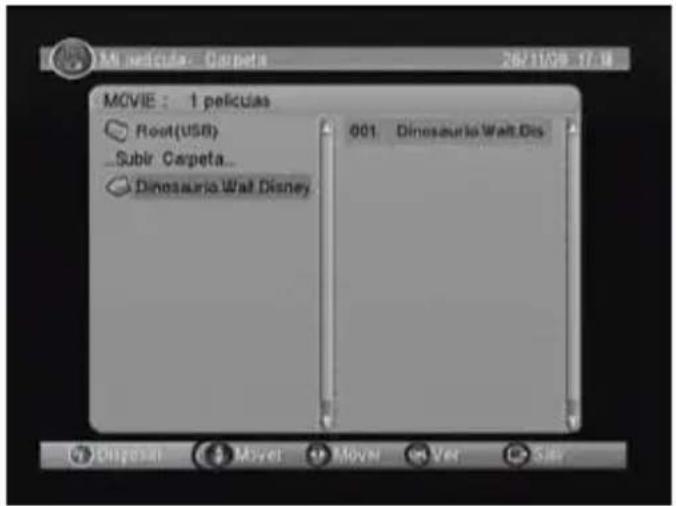
SDT10100 supports the following video file formats: MPEG-4, XVID, AVI, DAT, VOB, MPEG2. To play video files press "Menu" button of the remote control, select "Multimedia" and then "Video" option. You can also access directly by pressing the red button of the remote control during TV mode.
Use the arrow buttons up, down, right and left to navigate between folders and files. Select the video file you want to play and press "Ok".
- Press red button to pause/resume the playback.
- Press the green button to go forward step by step
- Press yellow button for fast forward option (available speeds: x2/x4/x8x/x16/x32) or to resume the normal play-back speed.
The "PVR Options" menu allows you to watch the recording programs and also to setup the recording options. Note: The file system of the storage device must be FAT or FAT32.
- Recording List: Plays a recording by pressing "OK" button or delete the recording by pressing the red button of the remote control.
- Recording Device: Selects the storage device and the partition where are going to be saved the recordings. This option also allows you to format the hard disk partition by pressing the red button of the remote control or to format the device by pressing the green button. Please note this options erase all the information saved in the external storage device.
- Recording preferences: Allows you to select between the Timeshift options, one-button recording options and Recording Time.
- Timeshift capacity: Available interval time for Timeshift option.
- Timeshift: Enables/Disables Timeshift function.
- Pause: Timeshift enabled
- Auto: Timeshift always enabled
- Off: Timeshift disabled
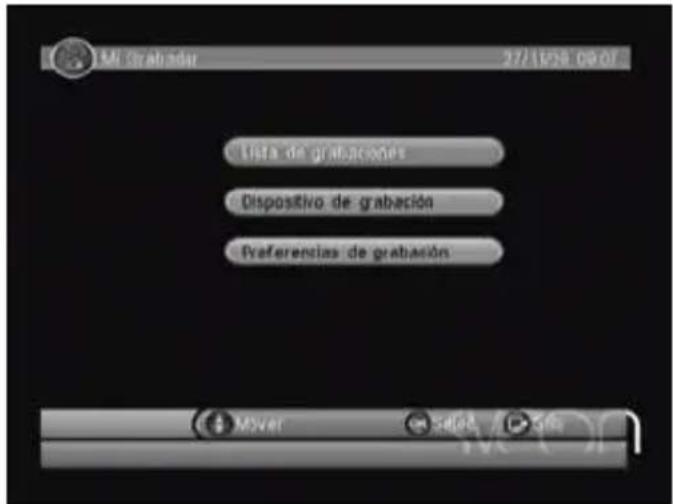
- One-button recording: Enables or disables the recording option by pressing "Rec" button of the remote control. If this option is disabled, when you press "Rec" button, the system will ask the interval time for the recording. This time can be stablished in the "Recording Time" field. If the option is enabled, the recording length will be the same than stablished in "Recording Time" field.
- Recording time: Maximum interval time for recording option (from 15 minutes up to 8 hours).
14. Others
SDT10100 includes different applications. Press "Menu" button and use the arrow buttons left and right to select "Others" menu:
Gomoku: game
Calendar: Displays the date: day,month and year
Calculator: Allows you to do easy operations
15. Watch TV channels
This section shows you the available options once the channel scan is done. If you have still not searched the channels, please read carefully the section 8 of this user guide.
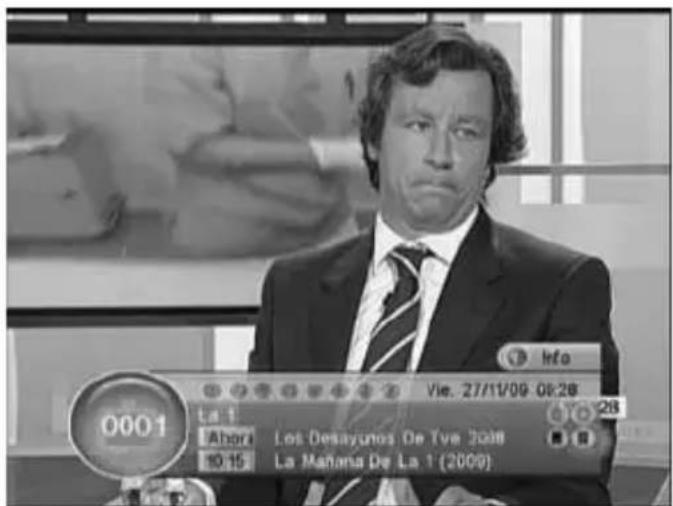
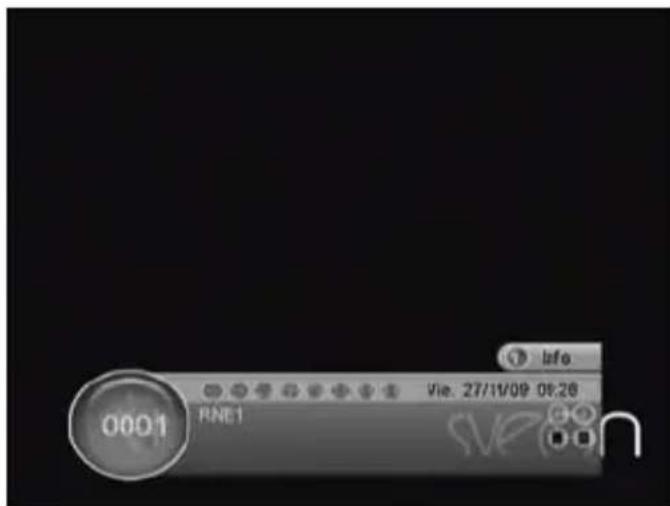
15.1 Information
Press "Info" button of the remote control once to display the information bar. This bar shows the channel's number and name, date and current time, current program and the following icons: Info, Favourites, Codified and Locked. Press "Info" button twice to display the detailed info about the current program.
Press "Info" button for third time to display the channel information (frequency, signal intensity and quality)
15.2 Change channel
Use the buttons "Channel +/-" or press directly the channel number using the numeric pad of the remote control to change the channel. If you enter a channel number which doesn't exist, the device will not change the channel.
15.3 Volume
If you want to adjust the volume, press the button "Volume +/-" of the remote control; press "Mute" button to disable the audio signal. If you adjust the volume level during Mute option, the audio will be enabled.
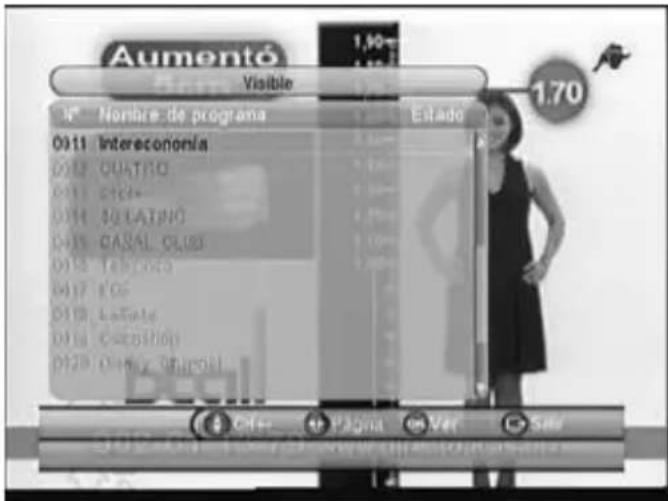
15.4 Channel list
Press "Ok" button to display the channel list. Select the channel you want to watch by pressing the arrow buttons.
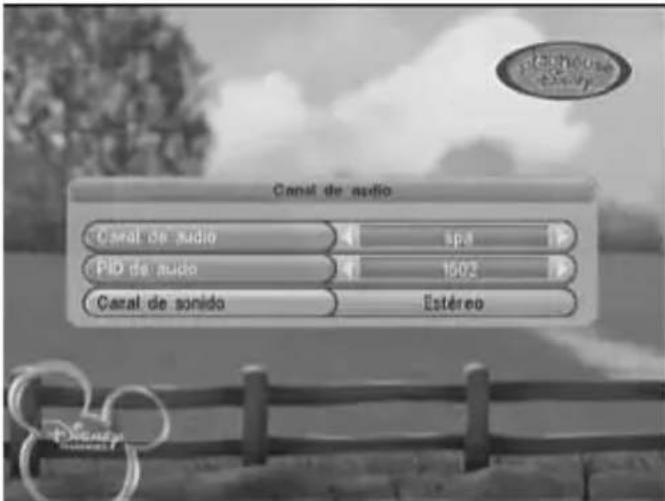
There are some TV programs which contain different available languages. Press "Audio" button of the remote control and use the arrow buttons right and left to switch between the different audio languages available. You can also select the sound mode between different options: only left channel, only right channel or Stereo. Note: The possibility of switch between different audio language is subject to the channel availability.
This option allows you to pause the audio and video signal. Press any key to resume the playback. If "Timeshift" function is enabled, when you press again the pause button, the program resumes in the point you left it. To cancel "Timeshift" option press "Stop" button two times and the program will resume in live time.
15.7 Favourites
Please read carefully the section number 11 of this user guide for further information about "Favourites" options.
15.8 Teletext
Press "TTX" button of the remote control to access to the program's Teletext information; then select "Spa". The Teletext information is subject to channel availability.
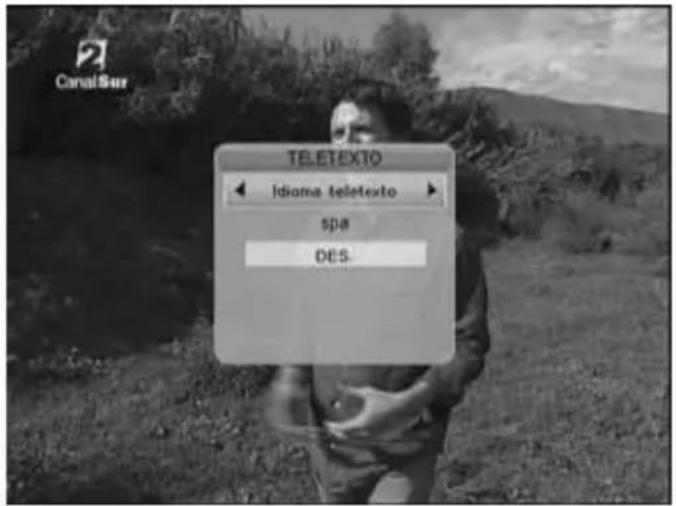
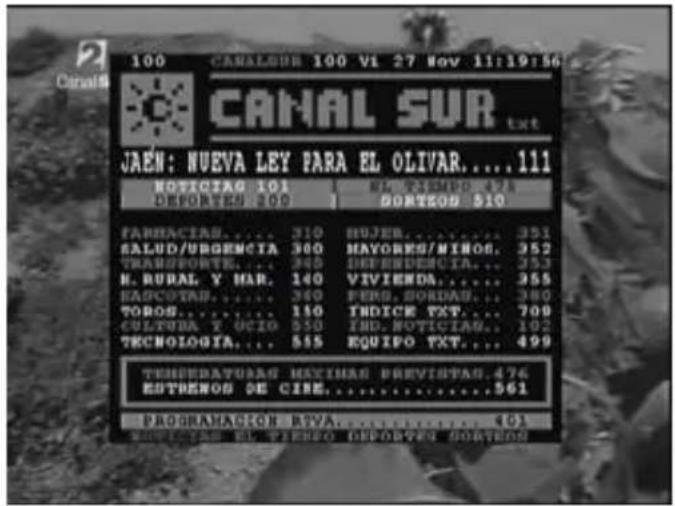
Some TV channels offer subtitles adapted to deaf through Teletext function. Press "TTX" button of the remote control and use the arrow buttons left and right to select "TTX subtitles" and "Spa" to display the subtitles on the TV picture.
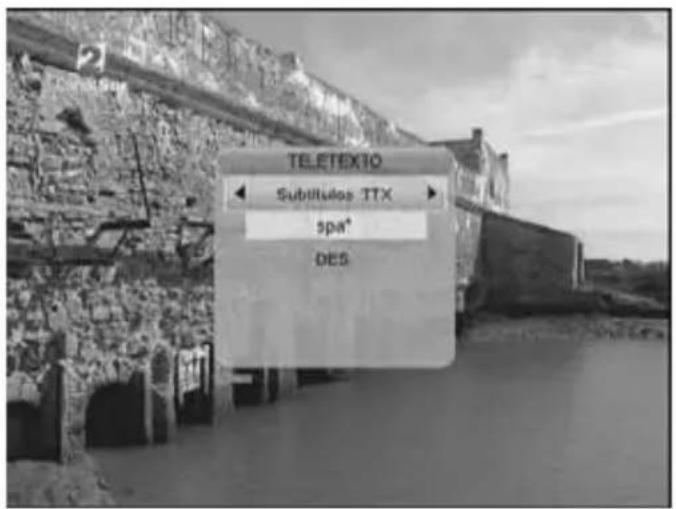

Note: Teletext and Subtitle functions are subject to the channel availability. It depends also on the signal coverage.
15.9 EPG
For further information about EPG function please read the section 12.1 of this user guide.
15.10 Sleep function
SDT10100 device includes "Sleep" function which will allow you to turn the device off automatically. To enable this function press the button "0" of the remote control and use the arrow buttons left and right to select the remaining time to turn the device off.
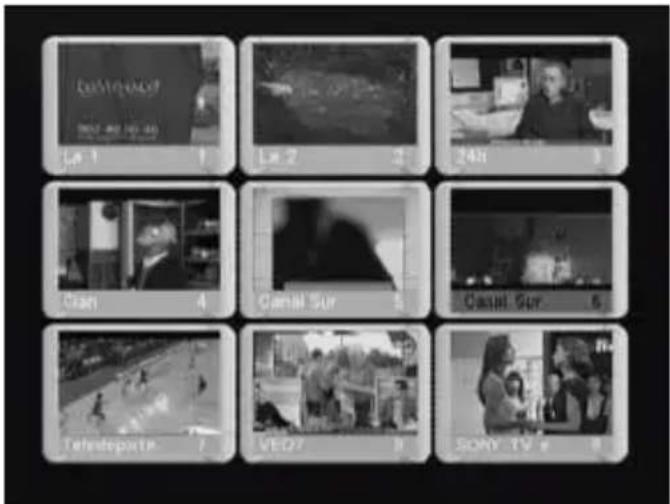
16. Multi screen
The Multi-Screen option allows you to display up to 9 different channels simultaneously; only the current channel is shown in live, the rest of channels only display a thumbnail.
To enable this option press "Play" button of the remote control in a TV channel.
Press arrow buttons left, right, up and down to navigate through the channels. Press "Ok" to select a channel. To exit this mode press "Exit" button.
17. SDT10100 status
SDT10100 displays different status messages:
- No signal: The device doesn't receive DVB-T signal (the antenna cable may be disconnected).
- Without service: The channel has not signal.
- Codified signal: The channel is codified (in pay per view TV channels).
- Locked channel: The channel is locked (for further info please go to 9.3 section in this user guide).
18. Trouble-shooting
Please read carefully the following information about the usage of the device:
- The Standby LED is off:
Cause: The device is disconnected
Solution: Please check if the device is properly connected
- There is no signal:
Cause 1: Antenna is disconnected. Solution: Please check the device connections
Cause 2: Antenna is damaged. Solution: Please check the antenna
Cause 3: There is not DVB-T coverage. Solution: Check with the antenna installer.
- Wighout audio or video signal:
Cause 1: Wrong video output selected. Solution: Press blue button to change output resolution.
Cause 2: A radio station is selected. Solution: Press yellow button to switch between TV and Radio signal
Cause 3: Movie with AC3 audio format. Solution: Connect a speaker system to your device through coaxial connection.
- Low quality picture:
Cause: Antena is bad placed or there isn't enough signal coverage.
Solution: Check the antenna installation
- Codified channel:
Cause: This is a codified channel
Solution: Change the channel
- Forgotten password: Solution: Start again the channel scan.
- The remote control doesn't work properly:
Cause 1: The receptor is turned off. Solution: Disconnect and turn the receptor on.
Cause 2: Frontal panel is covered. Solution: Avoid obstructions the front panel of the device.
Cause 3: The batteries of the remote control are not properly installed. Solution: Check the batteries installation.
Cause 4: The batteries are ran out. Solution: Change the batteries.
19. Technical Specifications
DVB-T TV Tuner:
- Input RF connector x1(D-Type, IEC 169-2, female connector)
- Output RF connector x1 (D-Type, IEC 169-2, male connector -Loop-)
- Frequency range: 174 Mhz\~230 Mhz (VHF) - 470Mhz\~862Mhz (UHF)
- Signal level: -10\~-70 dbm
Signal stream: MPEG-2 ISO/IEC 13818-1
Profile level: MPEG-2 (main profile)
Transfer rate: Max. 15 Mbits/s
Video formats: 4:3, 16:9
Decodification:
- Video: MPEG2
- Audio: MPEG2
Video outputs:
- TV System: NTSC, PAL
- Resolution: RGB/CVBS: 720x576i, 720x480i. HDMI: 480i, 480p, 576i, 576p
Connectors:
- RF Input: IEC 169-2 female connector
- RF Loop: IEC 169-2 male connector
- TV Scart: Composite video (CVBS), RGB, L/R
- VCR Scart: Composite video (CVBS), L/R
- Coaxial: RCA, S/PDIF digital audio output
- USB 2.0: Multimedia playback and DVB-T recording
- Removable hard disk system: HDMI/USB 2.0. Multimedia playback and DVB-T recording.
- HDMI: High Definition Multimedia Interface.
Multimedia files format:
- Video: MPEG-2, MPEG-4, XVID
- Audio: MP3, WMA, OGG
- Pictures: JPEG, GIF, BMP
20. Warning: Disposal of waste batteries
This symbol on the product or its batteries or its packaging means that this product and any batteries it contains must not be disposed of with your household waste.

natural_image
Symbol of a trash bin crossed out by two crossed lines, with no text or labels present.Instead, it is your responsibility to hand this over to an applicable collection point for the recycling of batteries and electrical and electronic equipment. This separate collection and recycling will help to conserve natural resources and prevent potential negative consequences for human health and the environment due to the possible presence of hazardous substances in batteries and electrical and electronic equipment, which could be caused by inappropriate disposal.
For more information about where to drop off your batteries and electronic waste, please contact your local city/municipality office, your household waste disposal service or the shopw where you purchased the product.