KDL40RE453BU - Television SONY - Free user manual and instructions
Find the device manual for free KDL40RE453BU SONY in PDF.


User questions about KDL40RE453BU SONY
0 question about this device. Answer the ones you know or ask your own.
Ask a new question about this device
Download the instructions for your Television in PDF format for free! Find your manual KDL40RE453BU - SONY and take your electronic device back in hand. On this page are published all the documents necessary for the use of your device. KDL40RE453BU by SONY.
USER MANUAL KDL40RE453BU SONY
Operating Instructions
Parts and Controls
Connecting TV to the Internet
Watching TV
Navigating through Home Menu
Viewing Pictures from Connected Equipment
Additional Information
Table of Contents
IMPORTANT NOTICE....3
Safety information....3
Precautions 6
Parts and Controls
TV....7
Remote Control 8
Connecting TV to the Internet
Setting up the Internet Connection .... 10
Type 1: Secured network with Wi-Fi Protected Setup™ (WPS)....10
Type 2: Secured network without Wi-Fi Protected Setup™ (WPS)....11
Type 3: Unsecured network with any type of wireless LAN router .... 11
Type 4: Wired network set-up ..... 11
Preparing a Wired Network ..... 12
Viewing the Network Status ..... 12
If You Cannot Connect to the
Internet 12
Privacy Policy 12
Watching TV
Changing the Viewing Style ..... 13
Changing the Screen Format....13
Setting Scene Select....13
Navigating through Home Menu
All Apps....14
Photo Sharing Plus 14
Using the TV as a Photo Frame Mode.....14
Programme List....15
Digital EPG 15
Recordings....16
Media....16
Playback Photo/Music/Video via USB ....16
Playback Photo/Music/Video via Home Network....17
Settings 18
System Settings 18
Customer Support 27
Viewing Pictures from Connected Equipment
Connection Diagram.... 28
Using Audio and Video Equipment .... 30
Using Screen mirroring 30
Installing the TV to the Wall. . . . . . . . . 31
Additional Information
Troubleshooting ....32
Picture 32
Sound....33
Channels 33
Network 33
General 34
Specifications 35
Internet Connection and Data Privacy
This product connects to the internet during initial setup as soon as a network is connected in order to confirm internet connection, and later to configure the Home screen. Your IP address is used in these and all other internet connections. If you do not want your IP address be used at all, do not set-up the wireless internet function and do not connect an internet cable. Please refer to the privacy information presented in the set-up screens for further details of internet connections.
Introduction
Thank you for choosing this Sony product.
Before operating the TV, please read this manual thoroughly and retain it for future reference.
Note
- Before operating the TV, please read the "Safety information" (page 3).
- Images and illustrations used in the Setup Guide and this manual are for reference only and may differ from the actual product.
- The "xx" that appears in the model name corresponds to a numeric digit, related to design, colour or TV system.
Location of the Setup Guide
Setup Guide is placed on top of the cushion inside the TV carton.
Location of the identification label
Labels for the TV Model No., Production Date (year/month) and Power Supply rating are located on the rear of the TV or package.
For models with supplied mains adaptor: Labels for the mains adaptor Model No. and Serial No. are located on the bottom of the mains adaptor.
WARNING
TO PREVENT THE
SPREAD OF FIRE, KEEP
CANDLES OR OTHER OPEN FLAMES AWAY FROM THIS PRODUCT AT ALL TIMES.

NOTICE FOR CUSTOMERS IN THE UNITED KINGDOM
A moulded plug complying with BS1363 is fitted to this equipment for your safety and convenience.
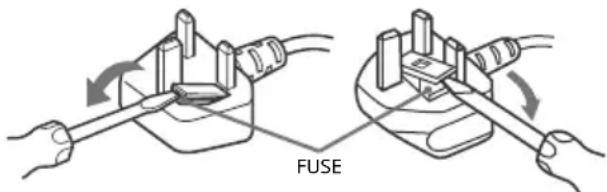
Should the fuse in the plug supplied need to be replaced with the same rating of fuse approved by ASTA or BSI to BS 1362 (i.e., marked with ☐ or ) must be used.
If the plug supplied with this equipment has a detachable fuse cover, be sure to attach the fuse cover after you change the fuse. Never use the plug without the fuse cover. If you should lose the fuse cover, please contact your nearest Sony service station.
text_image
FUSEHow to replace the fuse
Open the fuse compartment with a blade screwdriver, and replace the fuse.
Please refer to the illustration that actually equipped with the product.
IMPORTANT NOTICE
This product has been manufactured by or on behalf of Sony Corporation, 1-7-1 Konan Minato-ku Tokyo, 108-0075 Japan. Inquiries related to product compliance based on European Union legislation shall be addressed to the authorized representative, Sony Belgium, bijkantoor van Sony Europe Limited, Da Vincilaan 7-D1, 1935 Zaventem, Belgium. For any service or guarantee matters, please refer to the addresses provided in the separate service or guarantee documents.
Notice for Wireless Signal
Hereby, Sony Corporation declares that this unit is in compliance with the essential requirements and other relevant provisions of Directive 1999/5/EC. For details, please access the following URL: http://www.compliance.sony.de/

GB
This radio equipment can be operated in the EU without infringing applicable requirements on the use of radio spectrum.
Safety information
WARNING
Batteries must not be exposed to excessive heat such as sunshine, fire or the like.
Never place a television set in an unstable location. A television set may fall, causing serious personal injury or death. Many injuries, particularly to children, can be avoided by taking simple precautions such as:
- Using cabinets or stands recommended by the manufacturer of the television set.
— Only using furniture that can safely support the television set.
— Ensuring the television set is not overhanging the edge of the supporting furniture. - Not placing the television set on tall furniture (for example, cupboards or bookcases) without anchoring both the furniture and the television set to a suitable support.
- Not placing the television set on cloth or other materials that may be located between the television set and supporting furniture.
- Educating children about the dangers of climbing on furniture to reach the television set or its controls. If your existing television set is being retained and relocated, the same considerations as above should be applied.
Installation/Set-up
Install and use the TV set in accordance with the instructions below in order to avoid any risk of fire, electric shock or damage and/or injuries.
Installation
- The TV set should be installed near an easily accessible mains socket.
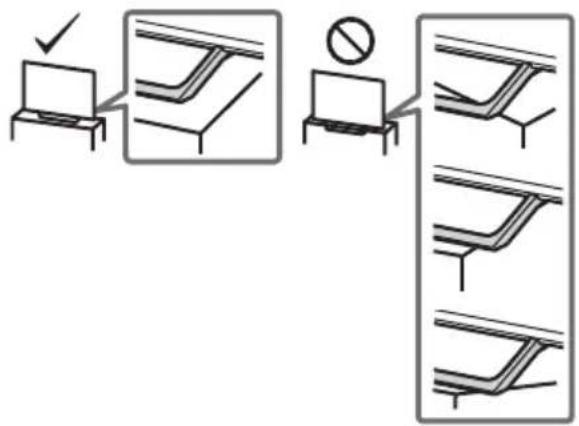
- Place the TV on a stable, level surface to prevent it from falling over and causing personal injury or property damage.
• Install the TV so that the TV's Table-Top Stand does not protrudes out from the TV stand (not supplied).
If the Table-Top Stand protrudes out from the TV stand, it may cause TV set to topple over, fall down, and cause personal injury or damage to the TV.
text_image
Diagram illustrating a process of installing or maintaining insulation layers, showing steps from using a laptop to form different insulation types.- Only qualified service personnel should carry out wall-mount installations.
- For safety reasons, it is strongly recommended that you use Sony accessories, including: Wall-Mount Bracket – SU-WL450
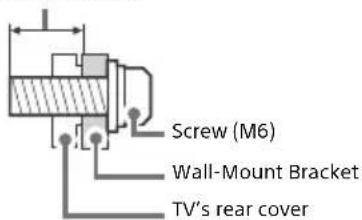
- Be sure to use the screws supplied with the Wall-Mount Bracket when attaching the Wall-Mount Bracket to the TV set. The supplied screws are designed as indicated by illustration when measured from the attaching surface of the Wall-Mount Bracket. The diameter and length of the screws differ depending on the Wall-Mount Bracket model.
Use of screws other than those supplied may result in internal damage to the TV set or cause it to fall, etc.
8 mm - 12 mm
text_image
Screw (M6) Wall-Mount Bracket TV's rear coverTransporting
- Before transporting the TV set, disconnect all cables.
- Two or three people are needed to transport a large TV set.
- When transporting the TV set by hand, hold it as shown below. Do not put stress on the LCD panel and the frame around the screen.
- When lifting or moving the TV set, hold it firmly from the bottom.

natural_image
Two human figures carrying a rectangular device, no text or symbols visible- When transporting the TV set, do not subject it to jolts or excessive vibration.
- When transporting the TV set for repairs or when moving, pack it using the original carton and packing material.
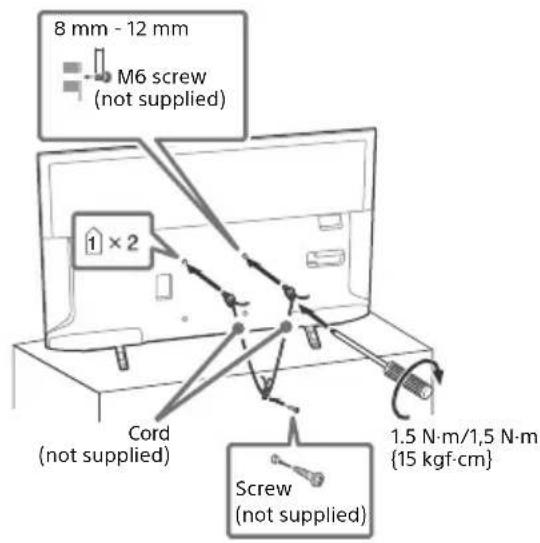
Topple prevention
text_image
8 mm - 12 mm M6 screw (not supplied) 1 × 2 Cord (not supplied) Screw (not supplied) 1.5 N·m/1,5 N·m {15 kgf·cm}Ventilation
- Never cover the ventilation holes or insert anything in the cabinet.
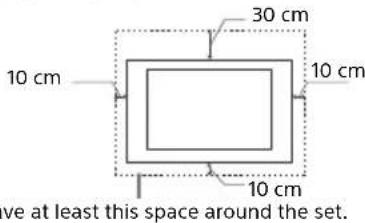
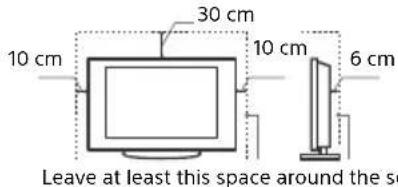
- Leave space around the TV set as shown below.
- It is strongly recommended that you use a Sony Wall-Mount Bracket in order to provide adequate air circulation.
Installed on the wall
text_image
30 cm 10 cm 10 cm 10 cm ve at least this space around the set.Installed with stand
text_image
10 cm 30 cm 10 cm 6 cm Leave at least this space around the se• To ensure proper ventilation and prevent the collection of dirt or dust:
- Do not lay the TV set flat, install upside down, backwards, or sideways.
— Do not place the TV set on a shelf, rug, bed or in a closet.
— Do not cover the TV set with a cloth, such as curtains, or items such as newspapers, etc.
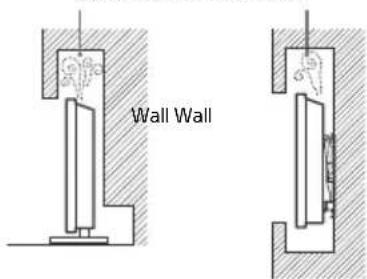
— Do not install the TV set as shown below.
Air circulation is blocked.
text_image
Wall WallMains lead
Handle the mains lead and socket as follows in order to avoid any risk of fire, electric shock or damage and/or injuries:
— Use only mains leads supplied by Sony, not other suppliers.
— Insert the plug fully into the mains socket.
— Operate the TV set on a 220 V - 240 V AC supply only.
— When wiring cables, be sure to unplug the mains lead for your safety and take care not to catch your feet on the cables.
- Disconnect the mains lead from the mains socket before working on or moving the TV set.
— Keep the mains lead away from heat sources.
— Unplug the mains plug and clean it regularly. If the plug is covered with dust and it picks up moisture, its insulation may deteriorate, which could result in a fire.
Note
- Do not use the supplied mains lead on any other equipment.
- Do not pinch, bend, or twist the mains lead excessively. The core conductors may be exposed or broken.
- Do not modify the mains lead.
- Do not put anything heavy on the mains lead.
- Do not pull on the mains lead itself when disconnecting the mains lead.
- Do not connect too many appliances to the same mains socket.
- Do not use a poor fitting mains socket.
NOTE ON MAINS ADAPTOR (models with supplied mains adaptor only)
Warning
To reduce the risk of fire or electric shock, do not expose this apparatus to rain or moisture.
To prevent fire or shock hazard, do not place objects filled with liquids, such as vases, on the apparatus. Do not install this equipment in a confined space, such as a bookshelf or similar unit.
- Please ensure that the mains socket is installed near the equipment and shall be easily accessible.
- Be sure to use the supplied mains adaptor and mains lead.
- Do not use any other mains adaptor. It may cause a malfunction.
- Connect the mains adaptor to an easily accessible mains socket.
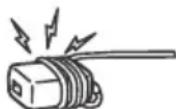
- Do not coil the mains lead around the mains adaptor. The core wire may be cut and/or it may cause a malfunction of the media receiver.
- Do not touch the mains adaptor with wet hands.
- If you notice an abnormality in the mains adaptor, disconnect it from the mains socket immediately.
- The set is not disconnected from the mains source as long as it is connected to the mains socket, even if the set itself has been turned off.
- As the mains adaptor will become warm when it is used for a long time, you may feel hot when touching it by hand.
Prohibited Usage
Do not install/use the TV set in locations, environments or situations such as those listed below, or the TV set may malfunction and cause a fire, electric shock, damage and/or injuries.
Locations:
- Outdoors (in direct sunlight), at the seashore, on a ship or other vessel, inside a vehicle, in medical institutions, unstable locations, near water, rain, moisture or smoke.
Environments:
- Places that are hot, humid, or excessively dusty; where insects may enter; where it might be exposed to mechanical vibration, near flammable objects (candles, etc.). The TV set shall not be exposed to dripping or splashing and no objects filled with liquids, such as vases, shall be placed on the TV.
Situations:
- Use when your hands are wet, with the cabinet removed, or with attachments not recommended by the manufacturer. Disconnect the TV set from mains socket and aerial during lightning storms.
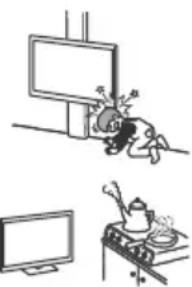
• Install the TV so that it sticks out into an open space. Injury or damage from a person or object bumping into the TV may result.
natural_image
Illustration of a cartoon character reacting to a screen and TV setup (no text or symbols)- Place the TV in a humid or dusty space, or in a room with oily smoke or steam (near cooking tables or humidifiers). Fire, electric shock, or warping may result.
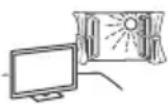
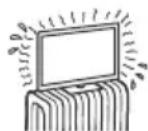
• Install the TV in places subject to extreme temperature such as in direct sunlight, near a radiator or a heating vent. The TV may overheat in such condition which can cause deformation of the enclosure and/or TV malfunction.
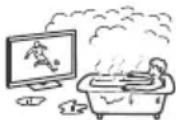
- If the TV is placed in the changing room of a public bath or hot spring, the TV may be damaged by airborne sulfur, etc.
- For best picture quality, do not expose the screen to direct illumination or sunlight.
- Avoid moving the TV from a cold area to a warm area. Sudden room temperature changes may cause moisture condensation. This may cause the TV to show poor picture and/or poor colour. Should this occur, allow moisture to evaporate completely before powering the TV on.
Broken pieces:
- Do not throw anything at the TV set. The screen glass may break by the impact and cause serious injury.
- If the surface of the TV set cracks, do not touch it until you have unplugged the mains lead. Otherwise this may cause an electric shock.
When not in use
- If you will not be using the TV set for several days, the TV set should be disconnected from the mains for environmental and safety reasons.
- As the TV set is not disconnected from the mains when the TV set is just turned off, pull the plug from the mains to disconnect the TV set completely.
- Some TV sets may have features that require the TV set to be left in standby to work correctly.
For children
- Do not allow children to climb on the TV set.
- Warning: Keep small accessories out of the reach of children, so that they are not mistakenly swallowed (e.g., digital audio connector adapter (availability depends on countries/regions/TV models), screw, etc.).
If the following problems occur...
Turn off the TV set and unplug the mains lead immediately if any of the following problems occur.
Ask your dealer or Sony service centre to have it checked by qualified service personnel.
When:
— Mains lead is damaged.
— Poor fitting of mains socket.
— TV set is damaged by being dropped, hit or having something thrown at it.
— Any liquid or solid object falls through openings in the cabinet.
About LCD TV Temperature
When the LCD TV is used for an extended period, the panel surrounds become warm. You may feel hot when touching there by the hand.
Precautions
Viewing the TV
- View the TV in moderate light, as viewing the TV in poor light or during long period of time, strains your eyes.
- When using headphones, adjust the volume so as to avoid excessive levels, as hearing damage may result.
LCD Screen
- Although the LCD screen is made with high-precision technology and 99.99% or more of the pixels are effective, black dots may appear or bright points of light (red, blue, or green) may appear constantly on the LCD screen. This is a structural property of the LCD screen and is not a malfunction.
- Do not push or scratch the front filter, or place objects on top of this TV set. The image may be uneven or the LCD screen may be damaged.
- If this TV set is used in a cold place, a smear may occur in the picture or the picture may become dark. This does not indicate a failure. These phenomena disappear as the temperature rises.
- Ghosting may occur when still pictures are displayed continuously. It may disappear after a few moments.
- The screen and cabinet get warm when this TV set is in use. This is not a malfunction.
- The LCD screen contains a small amount of liquid crystal. Follow your local ordinances and regulations for disposal.
Handling and cleaning the screen surface/cabinet of the TV set
Be sure to unplug the mains lead connected to the TV set from mains socket before cleaning.
To avoid material degradation or screen coating degradation, observe the following precautions.
- To remove dust from the screen surface/cabinet, wipe gently with a soft cloth. If dust is persistent, wipe with a soft cloth slightly moistened with a diluted mild detergent solution.
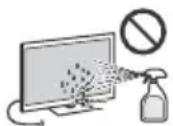
- Never spray water or detergent directly on the TV set. It may drip to the bottom of the screen or exterior parts and enter the TV set, and may cause damage to the TV set.
- Never use any type of abrasive pad, alkaline/acid cleaner, scouring powder, or volatile solvent, such as alcohol, benzene, thinner or insecticide. Using such materials or maintaining prolonged contact with rubber or vinyl materials may result in damage to the screen surface and cabinet material.
- Periodic vacuuming of the ventilation openings is recommended to ensure to proper ventilation.
- When adjusting the angle of the TV set, move it slowly so as to prevent the TV set from moving or slipping off from its table stand.
Optional Equipment
- Keep optional components or any equipment emitting electromagnetic radiation away from the TV set. Otherwise picture distortion and/or noisy sound may occur.
- This equipment has been tested and found to comply with the limits set out in the EMC Directive using a connection signal cable shorter than 3 meters.
- This equipment has been tested and found to comply with the limits set out in the EMC Directive using a RF cable shorter than 30 meters for terrestrial/satellite/CATV terminal.
Recommendation of F-type plug
Projection of the inner wire from the connection part must be less than 1.5 mm.
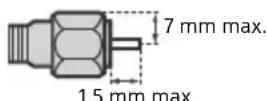
(Reference drawing of the F type plug)
Caution about handling the remote control
- Observe the correct polarity when inserting batteries.
- Do not use different types of batteries together or mix old and new batteries.
- Dispose of batteries in an environmentally friendly way. Certain regions may regulate the disposal of batteries. Please consult your local authority.
- Handle the remote control with care. Do not drop or step on it, or spill liquid of any kind onto it.
- Do not place the remote control in a location near a heat source, a place subject to direct sunlight, or a damp room.
Wireless Function of the unit
- Do not operate this unit near medical equipment (pacemaker, etc.), as malfunction of the medical equipment may result.
- Although this unit transmits/receives scrambled signals, be careful of unauthorised interception. We cannot be responsible for any trouble as a result.
- This equipment should be installed and operated keeping a separation distance of 20 cm or more between the antenna of this device and a person's body.
Disposal of the TV set

Disposal of Old Electrical & Electronic Equipment (Applicable in the European Union and other European countries with separate collection systems)
This symbol on the product or on its packaging indicates that this product shall not be treated as household waste. Instead it shall be handed
over to the applicable collection point for the recycling of electrical and electronic equipment. By ensuring this product is disposed of correctly, you will help prevent potential negative consequences for the environment and human health, which could otherwise be caused by inappropriate waste handling of this product. The recycling of materials will help to conserve natural resources. For more detailed information about recycling of this product, please contact your local Civic Office, your household waste disposal service or the shop where you purchased the product.
Disposal of waste batteries (applicable in the European Union and other European countries with separate collection systems)
This symbol on the battery or on the packaging indicates that the battery provided with this
product shall not be treated as household waste. On certain batteries this symbol might be used in combination with a chemical symbol. The chemical symbols for mercury (Hg) or lead (Pb) are added if the battery contains more than 0.0005 % mercury or 0.004 % lead. By ensuring these batteries are disposed of correctly, you will help prevent potentially negative consequences for the environment and human health which could otherwise be caused by inappropriate waste handling of the battery. The recycling of the materials will help to conserve natural resources. In case of products that for safety, performance or data integrity reasons require a permanent connection with an incorporated battery, this battery should be replaced by qualified service staff only. To ensure that the battery will be treated properly, hand over the product at end-of-life to the applicable collection point for the recycling of electrical and electronic equipment. For all other batteries, please view the section on how to remove the battery from the product safely. Hand the battery over to the applicable collection point for the recycling of waste batteries. For more detailed information about recycling of this product or battery, please contact your local Civic Office, your household waste disposal service or the shop where you purchased the product.
Parts and Controls
TV
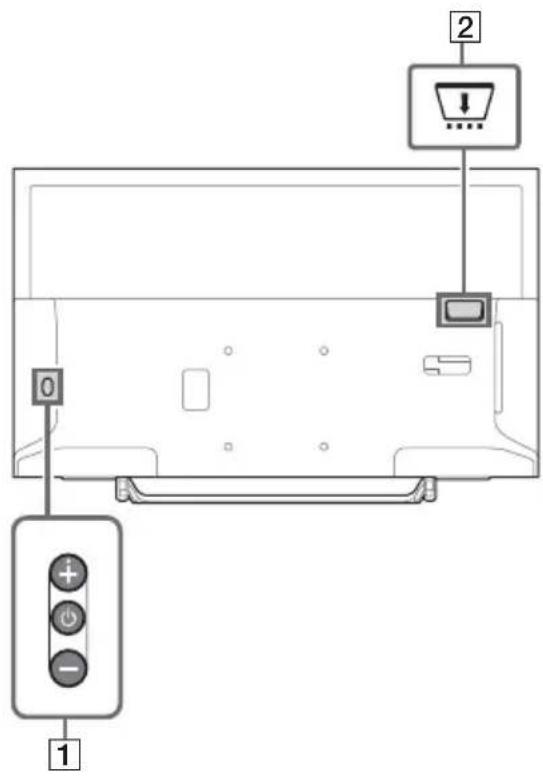
text_image
Diagram of a vehicle interior with labeled control buttons and directional indicators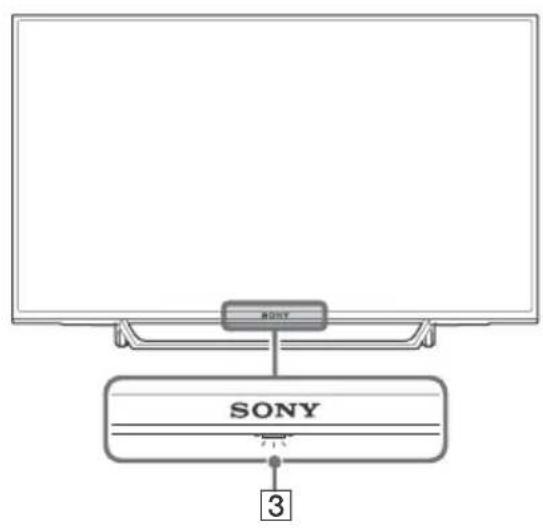
text_image
SONY 3① ⏻ (Power) / + / -
Short press ⏻ to turn the TV on. Long press ⏻ until the TV turn off.
When the TV is on, Volume
Press + or - button to increase/decrease the volume.
You can also press ⏻ until notification is displayed. Increases/decreases the volume by pressing the + or - button.
Input
Press ⏻ until notification is displayed. Moves the selected input source by pressing + (up) or - (down) button.
Programme
Press ⏻ until PROG notification is displayed. Select the programme by pressing + (up) or - (down) button.
2 CAM (Conditional Access Module)
- Provides access to pay TV services. For details, refer to the instruction manual supplied with your CAM.
- Do not insert the smart card directly into the TV CAM slot. It must be fitted into the Conditional Access Module provided by your authorised dealer.
• CAM is not supported in some countries/areas. Check with your authorised dealer. - A CAM message may appear when you switch to a digital programme after using the Internet video.
3 (Sensors/LED indicator)
- Receives signals from the remote control. Do not put anything over the sensor. Doing so may affect its function.
- Lights up in amber when the [Sleep Timer] or [On Timer] is set (page 24), or the TV is in Photo Frame Mode (page 14).
- Lights up in white when [Power Saving] is set to [Picture Off] (page 27).
- Lights up in white when the TV is turned on.
- Does not light up when the TV is in standby mode.
- Flashes while the remote control is being operated.
- Lights up in red in recording mode.
Note
- Make sure that the TV is completely turned off before unplugging the AC power cord (mains lead).
- To disconnect the TV from the AC power completely, pull the plug from the mains socket.
- Please wait for a while when perform input selection to change to other input.
Remote Control
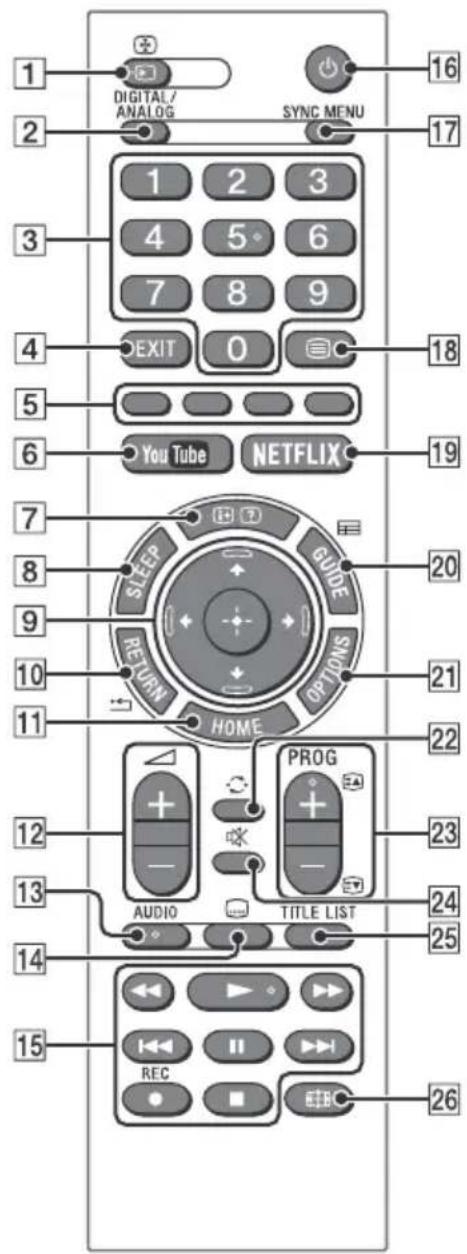
The remote control shape, location, availability and function of remote control button may vary depending on your region/country/TV model.
text_image
1 DIGITAL/ ANALOG SYNC MENU 16 2 3 4 5 6 7 8 9 EXIT 0 18 5 6 YouTube NETFLIX 19 7 SLEEP GUIDE 20 RETURN OPTIONS 21 11 HOME 22 12 + - PROG AUDIO TITLE LIST 23 24 25 13 REC 261 - (Input select / Text hold)
- Displays and selects the input source.
- In text mode, holds the current page.
2 DIGITAL/ANALOG
Switches to digital or analogue input.
3 Number buttons
- Select channels. For channel numbers 10 and above, enter the next digit quickly.
- In text mode, enter the three digit page number to select the page.
4 EXIT
Return to the previous screen or exit from the menu. When an Interactive Application service is available, press to exit from the service.
5 Colour buttons
Displays operation guide (when colour buttons are available).
6 YouTube (Only on limited region/country/TV model)
Accesses the "YouTube" online service.
7 i? l n f o / T e x t r
- Displays information. Press once to display information about the programme/input you are viewing. Press again to remove the display from the screen.
- In text mode, reveals hidden information (e.g. answers to a quiz).
8 SLEEP
Press repeatedly until the TV displays the time in minutes ([Off]/[15 min]/[30 min]/[45 min]/[60 min]/[90 min]/[120 min]) that you want the TV to remain on before shutting off. To cancel the sleep timer, press SLEEP repeatedly until [Off] appears.
9 ↗/↓/↔/→/○ (Item select / Enter)
- Select or adjust items.
- Confirm selected items.
10 RETURN
- Returns to the previous screen of any displayed menu.
- Stops playback when playing photo/music/video file.
11 HOME
Displays or cancels the menu.
12 ∠+/- (Volume)
Adjusts volume.
13 AUDIO
Select the sound of multilingual source or dual sound for the programme currently being viewed (Depend on programme source).
14 ...(Subtitle)
Changes the subtitle setting (page 21).
15 ◀◀/▶/▶▶/I◀◀/II/▶▶/■
- Operate media contents on TV and connected BRAVIA Sync-compatible device.
- This key also can be used to operate VOD (Video on Demand) service playback. Availability is depend on VOD service. (Except KDL-40RE4xx / 32RE4xx)
● REC (Not available for Italy)
Record the current programme with the USB HDD recording function.
16 ⏻ (TV standby)
Turns the TV on or switches to standby mode.
17 SYNC MENU
Press to display the BRAVIA Sync Menu and then select connected HDMI equipment from [Device Selection]. The following options can be selected from BRAVIA Sync Menu.
Device Control:
Use the [Device Control] to operate equipment that is compatible with BRAVIA Sync Control. Select options from [Home (Menu)], [Options], [Content List] and [Power Off] to operate the equipment.
Speakers:
Select [TV Speakers] or [Audio System] to output the TV's sound from the TV speakers or connected audio equipment.
TV Control:
Use the [TV Control] menu to operate the TV from the [Home (Menu)] or [Options] menu.
Return to TV:
Select this option to return to TV programme.
18 (Text)
In text mode, displays Text broadcast. Each time you press Ⓑ, the display changes cyclically as follows: Text → Text over the TV picture (mix mode)→ No Text (exit the Text service)
19 NETFLIX (Only on limited region/country/TV model)
Accesses the "NETFLIX" online service.
20 GUIDE (EPG)
Displays the Digital EPG (Electronic Programme Guide) (page 15).
21 OPTIONS
Displays a list that contains shortcuts to some setting menus. The listed options vary depending on the current input and content.
22 (Jump)
Returns to the previous channel or input viewed more than 15 seconds.
23 PROG +/-
- Selects the next (+) or previous (−) channel.
- In text mode, selects the next ( ) or previous ( ) page.
24 ☐ (Mute)
Mutes the sound. Press again to restore the sound.
25 TITLE LIST (Not available for Italy)
Display the Title list.
26 (Wide Mode)
Adjusts the screen display. Press repeatedly to select the desired wide mode (page 13).
Hint
- The number 5, ▶, PROG + and AUDIO buttons have tactile dots. Use the tactile dots as references when operating the TV.
Note
- If subtitles are selected and the user launches a digital text application via 'text' key, subtitles may, under certain circumstance stop being displayed. When the user exits the digital text application, subtitle decoding will resume automatically.
Connecting TV to the Internet (Except KDL-40RE4xx / 32RE4xx)
Setting up the Internet Connection
To use the network features of your TV it needs to be connected to the Internet. The set-up procedure differs depending on the type of network and LAN router. Before setting up the Internet connection, be sure to set up a LAN router. Check your wireless LAN environment using the following chart.
Wireless LAN
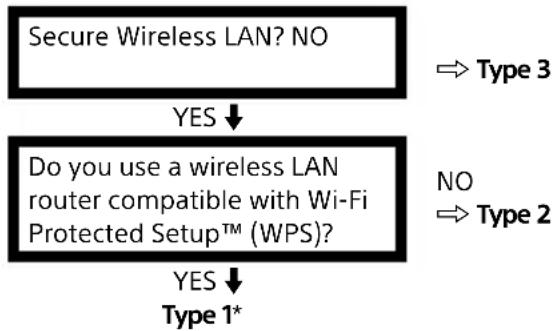
flowchart
graph TD
    A["Secure Wireless LAN? NO"] -->|YES ↓| B["Do you use a wireless LAN router compatible with Wi-Fi Protected Setup™ (WPS)?"]
    B -->|YES ↓| C["Type 1*"]
    D["NO"] -->|NO ↓| E["Type 2"]
    style A fill:#000,stroke:#fff,color:#fff
    style B fill:#000,stroke:#fff,color:#fff
    style C fill:#000,stroke:#fff,color:#fff
    style D fill:#000,stroke:#fff,color:#fff
    style E fill:#000,stroke:#fff,color:#fff
Wired LAN → Type 4
* Type 1 is easier to set up if your router has an automatic setting button, e.g. Air Station One-Touch Secure System (AOSS). Most of the latest routers have this function. Check your router.
Type 1: Follow the configuration for Secured network with Wi-Fi Protected Setup™ (WPS).
Type 2: Follow the configuration for Secured network without Wi-Fi Protected Setup™ (WPS).
Type 3: Follow the configuration for Unsecured network with any type of wireless LAN router.
Type 4: Follow the configuration for Wired network set-up.
Type 1: Secured network with Wi-Fi Protected Setup™ (WPS)
The WPS standard makes security of a wireless home network as straightforward as pressing the WPS button on the wireless LAN router. Before setting up a wireless LAN, check the location of the WPS button on the router and verify how to use it.
For security purpose, [WPS (PIN)] provides a PIN code for your router. PIN code is renewed every time you select [WPS (PIN)].
1 Press HOME, then select [Settings] → [System Settings] → [Set-up] → [Network] → [Network Set-up].
2 IP Address setting/Proxy server:
- automatic setting:
[Set up network connection] → [Easy]
- manual setting:
[Set up network connection] → [Expert] →
[Wired Set-up] or [Wireless Set-up]
3 Select [WPS (Push Button)] for Push Button method or [WPS (PIN)] for PIN method.
Note
Button name of the WPS may differ depending on the router (e.g. AOSS button).
4 Follow the instructions on the set-up screen.
Note
- If you use WPS for network set-up, the security settings of the wireless LAN router activate, and any equipment previously connected to the wireless LAN in a non-secure status will be disconnected from the network. In this case, activate the security settings of the disconnected equipment and then reconnect. Or, you can deactivate the security settings of the wireless LAN router, and then connect the equipment to a TV in a non-secure status.
- To use the network with IPv6, select [Settings] [System Settings] [Set-up] [Network] [IPv6/IPv4 Priority] [IPv6], then select [Easy] in [Set up network connection].
- When IPv6 is selected, HTTP Proxy cannot be set.
Type 2: Secured network without Wi-Fi Protected Setup™ (WPS)
To set up a wireless LAN, SSID (wireless network name) and security key (WEP or WPA key) will be required. If you do not know them, consult the instruction manual of your router.
1 Press HOME, then select [Settings] → [System Settings] → [Set-up] → [Network] → [Network Set-up].
2 IP Address setting/Proxy server:
- automatic setting:
[Set up network connection] → [Easy]
- manual setting:
[Set up network connection] → [Expert] →
[Wired Set-up] or [Wireless Set-up]
3 Select [Scan], then select a network from the list of scanned wireless networks.
4 Follow the instructions on the set-up screen.
Note
- To use the network with IPv6, select [Settings] [System Settings] [Set-up] [Network] [IPv6/IPv4 Priority] [IPv6], then select [Easy] in [Set up network connection].
- When IPv6 is selected, HTTP Proxy cannot be set.
- Please make sure your surrounding is secure when you key in your password.
Type 3: Unsecured network with any type of wireless LAN router
To set up a wireless LAN, SSID (wireless network name) will be required.
1 Press HOME, then select [Settings] → [System Settings] → [Set-up] → [Network] → [Network Set-up].
2 IP Address setting/Proxy server:
- automatic setting:
[Set up network connection] → [Easy]
- manual setting:
[Set up network connection] → [Expert] →
[Wired Set-up] or [Wireless Set-up]
3 Select [Scan], then select a network from the list of scanned wireless networks.
4 Follow the instructions on the set-up screen.
Note
- Security key (WEP or WPA key) will not be required because you do not need to select any security method in this procedure.
- To use the network with IPv6, select [Settings] → [System Settings] → [Set-up] → [Network] → [IPv6/IPv4 Priority] → [IPv6], then select [Easy] in [Set up network connection].
- When IPv6 is selected, HTTP Proxy cannot be set.
Type 4: Wired network set-up
Enter the respective alphanumeric values for your router if necessary. The items that need to be set (e.g. IP Address, Subnet Mask, DHCP) may differ depending on the Internet service provider or router. For details, refer to the instruction manuals provided by your Internet service provider, or those supplied with the router.
1 Press HOME, then select [Settings] → [System Settings] → [Set-up] → [Network] → [Network Set-up].
2 IP Address setting/Proxy server:
- automatic setting:
[Set up network connection] → [Easy]
- manual setting:
[Set up network connection] → [Expert] →
[Wired Set-up] or [Wireless Set-up]
3 Follow the instructions on the set-up screen.
[Network Set-up] can also be set from [Auto Start-up] menu.
Note
- Allows automatic configuration of your wired/wireless network.
—When connecting with LAN cable: Wired
—When connecting with built-in Wireless LAN: Wireless
—When connecting with both of the cables: Wired - Set to [Easy], sets the IP address automatically. For proxy server is not use.
- To use the network with IPv6, select [Settings] → [System Settings] → [Set-up] → [Network] → [IPv6/IPv4 Priority] → [IPv6], then select [Easy] in [Set up network connection].
- When IPv6 is selected, HTTP Proxy cannot be set.
Preparing a Wired Network
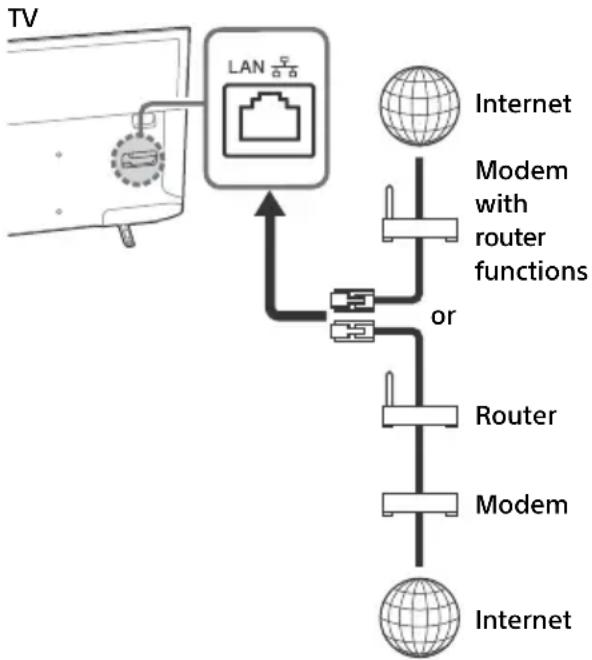
flowchart
graph TD
    TV["TV"] --> LAN["LAN"]
    LAN --> Modem["Modem with router functions"]
    LAN --> Modem1["Modem"]
    LAN --> Modem2["Modem"]
    LAN --> Modem3["Modem"]
    LAN --> Modem4["Modem"]
    Modem1 --> Modem2
    Modem2 --> Modem3
    Modem3 --> Modem4
    Modem4 --> Internet1["Internet"]
    Modem5["Internet"] --> Modem6["Modem"]
    Modem6 --> Modem7["Modem"]
    Modem7 --> Modem8["Modem"]
    Modem8 --> Modem9["Modem"]
Note
- For LAN connections, use a Category 7 cable (not supplied).
Viewing the Network Status
You can confirm your network status.
1 Press HOME, then select [Settings] → [System Settings] → [Set-up] → [Network] → [Network Set-up].
2 Select [View Network setting and status].
If You Cannot Connect to the Internet
Use the diagnosis to check possible causes for network connection failures, and settings.
1 Press HOME, then select [Settings] → [System Settings] → [Set-up] → [Network] → [Network Set-up].
2 Select [View Network setting and status].
3 Select [Check Connection].
This may take several minutes. You cannot cancel the diagnosis after selecting [Check Connection].
Privacy Policy
When you use the following functions to connect to the Internet, certain information which is considered to be personal information, will be sent to Sony Corporation's global servers.
Your agreement is required in order for it to be collected and used.
- System software updates by connecting to Sony Corporation's global servers via the Internet.
- Internet contents or other Internet services from service providers like YouTube.
This TV has the setting screens in Auto Start-up or Setting Menu to confirm your agreement to this after you read the detail of the Privacy Policy. If you want to use these functions, please check [Agree] in each setting screen. If [Disagree] is checked, the above two functions are not available.
You can change this setting by pressing HOME, then select [Settings] → [System Settings] → [Set-up] → [Privacy Policy].
Watching TV
1 Press ⏻ on the TV or the remote control to turn on the TV.
2 Press DIGITAL/ANALOG to switch between digital and analogue inputs.
3 Press the number buttons or PROG +/- to select a TV channel.
4 Press + / - to adjust the volume.
In digital mode
An information banner appears briefly. The following icons may be indicated on the banner.
☐ : Data service (Broadcast application)
Radio service
: Scrambled/Subscription service
: Multiple audio languages available
...: Subtitles available
: Subtitles and/or audio available for the hearing impaired
⑱: Recommended minimum age for current programme (from 3 to 18 years)
: Parental Lock
: Digital Programme Lock
AD: Audio available for the visually impaired
☐: Spoken subtitle audio available
(1): Multi-channel audio available
Changing the Viewing Style
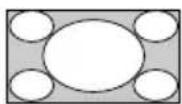
Changing the Screen Format
1 Press repeatedly to select the screen format.
[Wide Zoom]* [Normal]
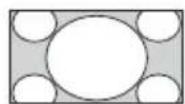
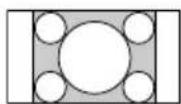
[Full] [Zoom]*
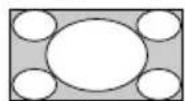
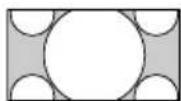
[14:9]*
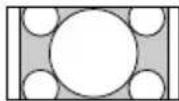
* Parts of the top and bottom of the picture may be cut off.
Note
- You cannot select [14:9] for HD source pictures.
For HDMI PC Input (PC timing)
[Normal] [Full 1]
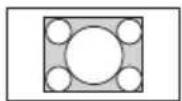
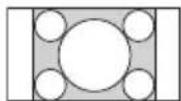
[Full 2]
Setting Scene Select
1 Press OPTIONS.
2 Press ↑/↓ then ⊙ to select [Scene Select].
When you select the desired scene option, the optimum picture and sound quality for selected scene are automatically set. The options you can select may vary. Unavailable options are greyed out.
Navigating through Home Menu
The HOME button allows you to access a variety of TV settings and features.
All Apps
Internet Contents delivers a variety of on-demand entertainment straight to your TV. You can enjoy your favorite internet content (Except KDL-40RE4xx / 32RE4xx), Photo Sharing Plus (Except KDL-40RE4xx / 32RE4xx) and Photo Frame Mode.
Note
- Be sure to connect your TV to the Internet and complete [Network Set-up] (page 23).
To use Internet Content
1 Press HOME, then select [All Apps].
2 Press ↗/↓/↔/→ to select the desired internet service in service list.
3 Press to launch the desired internet content.
4 Press the red/green/yellow/blue button to filter the app category by Photo/Music/Video/All.
To exit Internet Content
Press HOME.
Note
- If you experience difficulties with this feature, check that the Internet connection is set up properly.
- The interface to Internet content depends on the Internet content providers.
- To update Internet Contents services, Press HOME, then select [Settings] [System Settings] [Set-up] [Network] [Refresh Internet Content].
To use NETFLIX
Press NETFLIX button on the remote control to launch menu.
Note
- It is possible that Netflix cannot be used via a Proxy server.
Photo Sharing Plus
(Except KDL-40RE4xx / 32RE4xx)
Connect, copy and view favourite photos on TV using your devices (eg. smartphones or tablets).
HOME → [All Apps] → [Photo Sharing Plus]
Note
- Follow the instructions on the screen to connect your device to the TV.
- Open web browser on device after all connections are established, then follow the instructions on the screen to access the URL.
To display photo on TV
1 Tap on your device to start.
2 Select a photo.
The selected photo will be displayed automatically on TV.
To save a photo displayed on TV
1 Tap thumbnail on your device, then hold the photo to open the context menu.
2 Select [OK].
Note
- Connect a USB flash drive to store up to 50 photos.
- Up to 10 smartphones or tablets can be connected to the TV at the same time.
• Maximum file size of each photo is 20 MB. - You can also throw a background music with a maximum file size of 30 MB.
- The default browser for Android 2.3 or later is supported.
- The default browser for iOS is supported; however, some functions cannot be used depending on the version of your iOS.
Using the TV as a Photo Frame Mode
Photo Frame Mode displays the clock and calendar at the same time as displaying a photo, and listening to music.
HOME → [All Apps] → [Photo Frame Mode]
![SONY KDL40RE453BU - HOME → [All Apps] → [Photo Frame Mode] - 1](/content/2026/06/1188441/images/bf87b5b81ae0176c1d030f456e6141f6b165e159b89c1fec202dcb7cb6fad02b.jpg)
text_image
1 2012 12:22 am 1 2 3 4 5 6 7 8 9 10 11 12 13 14 15 16 17 18 19 20 21 22 23 24 25 26 27 28 29 30 31 BRONION Music1 & Serry BRONION Sample = 90.000-18.400-97.65 OKTo launch Photo Frame Mode while playback USB media
1 Press OPTIONS, while playback a photo or music file.
2 Press ↗/↓ then ⏻ to select [Photo Frame Mode] to launch Photo Frame.
To select Display mode
You can change the Photo Frame Mode display by selecting [Display Mode] in the [Photo Frame Settings] (page 24).
To select Clock Display mode
You can select among three clock display modes by selecting [Clock Display] in the [Photo Frame Settings] (page 24).
Note
- This TV does not have a battery powered backup for the clock. If there is a power failure or if you disconnect the power cord, current date and time will reset automatically.
Duration
To save power, the TV continually plays back in Photo Frame Mode for up to 24 hours before powering off automatically. After automatic power off, do not use Photo Frame Mode for at least one hour to avoid panel burn-in. You can change the setting of the [Duration] in the [Photo Frame Settings] (page 24).
To avoid panel burn-in, the position of the photo, clock and calendar are switched automatically every hour.
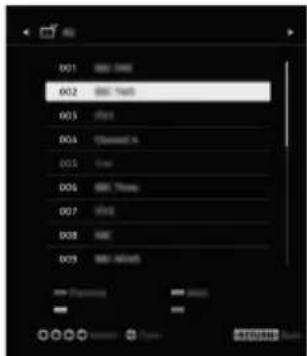
Programme List
1 Press HOME in digital mode.
2 Press ↗/↓ then ⊙ to select [Programme List].
text_image
001 002 003 004 005 006 007 008 009 001 002 003 004 005 006 007 008 0093 Press ↗/↙/↙/→ then ⊕ to select a programme.
To use the Favourite list
The Favourite feature allows you to specify up to four lists of your favourite programmes. While watching TV, press ⓣ to create or display a Favourite list.
Hint
- Press the blue button to edit the Favourite list. Follow the guides at the bottom of the screen.
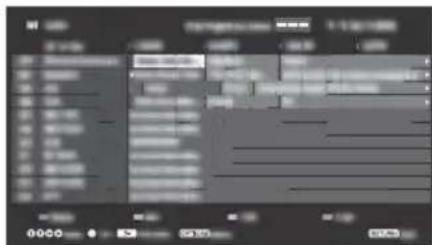
Digital EPG
1 Press GUIDE in digital mode.
text_image
Scanned screenshot of a software interface with Chinese text, showing menu bar and toolbar options2 Press ↗/↙/↙/→ then ⊕ to select a programme.
Recordings
(Function not available in Italy)
1 Press HOME in digital mode.
2 Press ↗/▽ then ⊕ to select [Recordings].
3 Press ↑/↓ then ⏻ to select [Title List], [Timer List], [Error List] or [Manual timer REC].
Note
- Press ● REC button to record currently viewed programme in digital mode with USB HDD recording function.
- Be sure to connect the HDD to the TV before recording.
Media
Playback Photo/Music/Video via USB
You can enjoy photo/music/video files stored in a Sony digital still camera/camcorder/smartphone (depending on models)* through a USB cable or USB storage device on your TV.
1 Connect a supported USB device to the TV.
* Device needs to be in Media transfer mode (MTP).
2 Press HOME.
3 Press ↗/↓ then ⊕ to select [Media].
4 Press ↩/▽ then ⏻ to select [Photo], [Music] or [Video].
5 [Device Selection] appears. Press ↑/↓ then ⓣ to select a device (Except KDL-40RE4xx / 32RE4xx).
6 Press ↩/↙/↙/→ then ⏻ to select a file or folder.
7 If more than one USB device is connected, press the red button to select [Playback Options] then [Device Selection] to select the appropriate USB device (KDL-40RE4xx / 32RE4xx only).
Playback Options
Press the red button in thumbnail view to display the list of USB playback settings.
Display Settings
Press OPTIONS in thumbnail view to display the option to change the thumbnail view to list view.
To adjust the picture and sound quality of USB media
Press OPTIONS during media playback then select [Picture] or [Sound].
Note
- Press /// then to select and adjust an item.
To play a photo as a slideshow (Photo)
1 Press the green button in thumbnail/list view to start slideshow.
To set [Slideshow Effect] and [Slideshow Speed], press OPTIONS → [Playback Options].
To stop a slideshow, press RETURN.
Note
- While the TV is accessing the data on a USB device, observe the following:
- Do not turn off the TV.
— Do not disconnect the USB cable. - Do not remove the USB device.
The data on the USB device may be damaged.
- Sony will not be held liable for any damage to, or loss of, data on the recording media due to a malfunction of any connected devices or the TV.
- The file system on the USB device supports FAT16, FAT32 and NTFS.
- The file name and folder name may not display correctly in some cases.
- When you connect a Sony digital still camera, set the camera's USB connection mode to Auto or Mass Storage. For more information about USB connection mode, refer to the instructions supplied with your digital camera.
- Use a USB storage device that is compliant with USB mass storage device class standards.
- If a selected file has incorrect container information, or is incomplete, it cannot be played back.
USB Video format
• AVI (.avi)
Video Codec: MPEG1, MPEG2, Xvid, MPEG4, H.264, Motion JPEG
Audio Codec: PCM, MPEG1 Layer1/2, MPEG2 AAC (2ch), MPEG4 AAC (2ch), MPEG4 HE-AAC (2ch), Dolby Digital (2ch), Dolby Digital Plus (2ch), WMA v8, MP3
-
ASF (.w m v, .a s f)
Video Codec: WMV v9, Xvid, VC-1
Audio Codec: MP3, WMA v8 -
MP4 (.mp4, .mov, .3gp)
Video Codec: MPEG4, H.264, H.263, Motion JPEG, H.265
Audio Codec: MPEG1 Layer1/2, MP3, MPEG2 AAC, MPEG4 AAC, MPEG4 HE-AAC -
M K V (. m k v)
Video Codec: WMV v9, MPEG4, H.264, VC-1, VP8, VP9, H.265
Audio Codec: PCM, MPEG1 Layer1/2, MP3, MPEG2 AAC (2ch), MPEG4 AAC (2ch), MPEG4 HE-AAC (2ch), Dolby Digital (2ch), WMA v8, Dolby Digital Plus (2ch), DTS, FLAC, VORBIS -
Web M (.web m)
Video Codec: VP8, VP9
Audio Codec: VORBIS -
PS (.mpg, .mpeg, .vro, .vob)
Video Codec: MPEG1, MPEG2
Audio Codec: MPEG1 Layer1/2, MP3, Dolby Digital (2ch), Dolby Digital Plus (2ch), DTS, DTS 2.0
• TS (.ts, .m 2 ts)
Video Codec: MPEG2, H.264, VC-1, H.265
Audio Codec: MPEG1 Layer1/2, MP3, MPEG2 AAC, MPEG4 AAC, MPEG4 HE-AAC, Dolby Digital (2ch), Dolby Digital Plus (2ch), DTS, DTS 2.0
USB Music format
- LPCM, DTS-CD (.wav)
- MPEG1 audio layer3 (.mp3)
- WMA v8 (.wma)
- FLAC (.flac)
USB Photo format
- JPEG (.jpg, .jpeg)
Note
- Playback of the above file formats is not guaranteed.
Playback Photo/Music/Video via Home Network
(Except KDL-40RE4xx / 32RE4xx)
You can enjoy various content (e.g. photo/music/video files) stored on DLNA Certified™ media servers. The home network feature allows you to enjoy network content in other rooms.
Playing photo/music/video
1 Press HOME, then select [Media] → [Photo], [Music] or [Video] → the desired media server.
2 Select files or folders to play from the list.
Note
- The server is required to be DLNA Certified™.
- Files from a network device need to be in the following formats:
—Still images: JPEG
—Music: MP3, linear PCM, WMA
—Video: AVCHD, MPEG2, MPEG1, MP4 (AVC), MP4 (MPEG4), WMV - Depending on the file, playback may not be possible even when using the supported formats.
Renderer
You can play back photo, music and video files stored in network devices (e.g. digital still cameras, mobile phones, PC) on the TV screen by directly operating the target device. The network should also be renderer-compatible devices.
Renderer settings
Press HOME, then select [Settings] → [System Settings] → [Set-up] → [Network] → [Home Network Setup] → [Renderer].
Display Settings for Media Servers
Select home network servers to be displayed in the Home Menu. Up to 10 servers can be displayed.
1 Press HOME, then select [Settings] → [System Settings] → [Set-up] → [Network] → [Home Network Setup] → [Server Display Settings].
2 Select the server to display in the Device Selection.
Settings
System Settings
Note
- The options you can adjust vary depending on the situation. Unavailable options are greyed out or not displayed.
- Satellite features are only available for satellite models.

Picture
Picture Mode
Sets a picture mode.
Reset
Resets all the [Picture] settings except [Picture Mode] to the default settings.
Backlight
Adjusts the brightness of the backlight.
Contrast
Increases or decreases picture contrast.
Brightness
Brightens or darkens the picture.
Colour
Increases or decreases colour intensity.
Hue
Increases or decreases the green tones and red tones.
Colour Temperature
Adjusts the whiteness of the picture.
Sharpness
Sharpens or softens the picture.
Reality Creation
Adjusts fineness and noise for realistic picture.
Resolution: Adjusts fineness and clarity. Select [Manual] from [Reality Creation] to adjust the [Resolution].
Noise Reduction
Reduces the picture noise (snowy picture) in a weak signal.
MPEG Noise Reduction
Reduces the picture noise in MPEG-compressed video.
Film Mode
Provides improved picture movement when playing BD (Blu-ray Disc), DVD or VCR images taken on film. Select [Auto] to represent original film-based content as it is.
Note
- If the image contains irregular signals or too much noise, [Film Mode] is automatically turned off even if [Auto] is selected.
Advanced Settings
Sets [Picture] settings in more detail.
Reset: Resets all the advanced settings to the default settings.
Adv. Contrast Enhancer: Automatically adjusts [Backlight] and [Contrast] to the most suitable settings for dark images scenes.
Black Corrector: Enhances black areas of the picture for stronger contrast.
Gamma: Adjusts the balance between bright and dark areas of the picture.
Clear White: Emphasises white colours.
Live Colour: Makes colours more vivid.
LED Motion Mode: Reduces blur in movies by controlling the LED backlight source, but the brightness decreases.
Colour Space (KDL-49WE7xx / 43WE7xx only): Changes colour reproduction range.

Sound
ClearAudio+
Let you enjoy the best sound quality by the combination of a well-balanced digital signal processing technology.
Sound Mode
Select according to content you want to enjoy.
Reset
Reset [Surround], [Surround effect], [Sound restoration (DSEE)], [Equaliser], [Voice Zoom], [Advanced auto volume], [Balance], and [Volume Offset] settings.
Surround
Virtually reproduce realistic surround sound.
Surround effect
Adjust the surround sound effect.
Sound restoration (DSEE)
Reproduce the spatial natural sound quality by decoding high frequencies and small sound often lost by digital compression.
Equaliser
Adjusts sound frequency settings.
Voice Zoom
Emphasize voice or ambient audio.
Advanced auto volume
Automatically compensates for the volume level that may vary by programme or input.
Balance
Emphasises left or right speaker balance.
Volume Offset
Adjusts the volume level of the current input relative to other inputs.
Dual Sound
Sets the sound from the speaker to [Mono], [Stereo], [A] or [B].
Note
- If the signal is very weak, the sound becomes monaural automatically.
- If the stereo sound is noisy when receiving a NICAM programme, select [Mono]. The sound becomes monaural, but the noise is reduced.
- The [Dual Sound] setting is memorized for each programme position.
- You cannot listen to stereo broadcast sound when [Mono] is selected.
Hint
- If you select other equipment connected to the TV, set [Dual Sound] to [Stereo], [A] or [B].
Advanced Settings
Dynamic Range: Compensates for differences in the audio level between different channels.
Note
- The effect may not function or may vary depending on the programme regardless of the [Dynamic Range] setting.
Dolby Digital Plus Out: Select [Auto] to pass through Dolby Digital Plus stream to ARC when Dolby Digital Plus is available through connected Audio System.
During Dolby Digital Plus stream is output, Digital Audio Out (optical)* is muted.
Select [Off] to convert Dolby Digital Plus stream to Dolby Digital for both ARC (Audio system) and Digital Audio Out (optical)*.
HE-AAC Audio Level: Adjust the HE-AAC audio sound level.
MPEG Audio Level: Adjusts the MPEG audio sound level.
* Only on limited region/country/TV model.

Screen
Screen Format
For details about Screen Format, see page 13.
Auto Format
Automatically changes [Screen Format] to match the input signal.
4:3 Default
Sets the default [Screen Format] for a 4:3 input signal.
Auto Display Area
Automatically adjusts the picture to the most appropriate display area.
Display Area
Adjusts the picture display area.
Horizontal Shift
Adjust the horizontal position of the picture.
Vertical Shift
Adjusts the vertical position of the picture.
Vertical Size
Adjusts the vertical size of the picture when [Screen Format] is set to [Wide Zoom].
PC Settings
Select [Screen Format], see page 13.

Channel Set-up
Analogue Set-up
Analogue Auto Tuning: Tunes in all the available analogue channels. Usually you do not need to do this operation because the channels are already tuned when the TV was first installed. However, this option allows you to repeat the process (e.g., to retune the TV after moving house, or to search for new channels that have been launched by broadcasters).
Manual Programme Preset: Before selecting [TV System]/[Channel]/[AFT]/[Audio Filter]/[Skip]/[Colour System], press PROG +/- to select the programme number with the channel. You cannot select a programme number that is set to [Skip].
Programme
Presets programme channels manually.
Signal Level
Displays the signal level for programme currently being watched.
Programme Sorting: Changes the order in which the channels are stored on the TV.
Digital Set-up
Digital Tuning:
Digital Auto Tuning
Tunes in the available digital channels. This option allows you to retune the TV after moving house, or to search for new channels that have been launched by broadcasters.
Auto Tuning Range
Normal: Searches for available channels within your region/country. Full: Searches for available channels regardless of region/country.
Note
- You can run [Digital Auto Tuning] after moving to a new residence, changing service providers, or to search for newly launched channels.
Programme List Edit
Removes any unwanted digital channels stored on the TV, and changes the order of the digital channels stored on the TV.
Digital Manual Tuning
Tunes the digital channels manually.
Subtitle Set-up:
Subtitle Setting
When [For Hard Of Hearing] is selected, some visual aids may also be displayed with the subtitles (if TV channels broadcast such information).
Primary Preferred Language
Select preferred language which subtitles are displayed in.
Secondary Preferred Language
Select secondary preferred language which subtitles are displayed in.
Audio Set-up:
Audio type (Audio description)
Normal
Provides normal audio type.
Audio Description
Provides audio description (narration) of visual information if TV channels broadcast such information.
For Hard Of Hearing
Switches to broadcast for the hearing impaired when [For Hard Of Hearing] is selected.
Spoken subtitle
Switches to broadcast for the spoken subtitle audio if TV channels broadcast such information.
Primary Preferred Language
Select the preferred language used for a programme. Some digital channels may broadcast several audio languages for a programme.
Secondary Preferred Language
Select the secondary preferred language used for a programme. Some digital channels may broadcast several audio languages for a programme.
Mixing Level
Adjusts the TV main audio and Audio Description output levels.
Hint
- This option is only available when [Audio Description] in [Audio type (Audio description)] is set.
Guide set-up:
Update Guide in standby
TV obtains EPG data during standby mode.
Technical Set-up:
Auto Service Update
Enables the TV to detect and store new digital services as they become available.
Service Replacement
Select [On] to automatically change the channel when broadcaster changes transmission of the viewing programme to a different channel.
Programme List Transfer
Import or export tuned programmes using USB device.
Satellite Set-up:
Allows you to automatically tune satellite channels.
Digital Satellite Tuning
Tunes in the available satellite service.
This option allows you to retune the TV after moving house, or to search for new channels that have been launched by broadcasters.
Note
- You can decide the installation type and set up the tuning options according to setting mentioned below:
Antenna Configuration
Allows you to select the Single Cable
Distribution, Fixed Antenna or DiSEqC.
Your satellite installation type may be Single Cable Distribution, Fixed Antenna or DiSEqC. Single Cable installations enable delivery of satellite programmes for multiple receivers over a single coaxial cable. Each receiver or tuner is allocated one user 'band'.
DiSEqC installations allow you connect to multiple satellite dishes or LNBs if you have them, and to select between them using the TV control.
Fixed Antenna is usually the simplest installation type, where there is one satellite dish and LNB.
Band
The number of the user band allocated to the TV or tuner.
Band Frequency
The frequency of the user band allocated to the TV or tuner.
Other (General Satellite)
The TV will search for satellite services based on group of general settings.
DiSEqC Control
Settings for controlling additional satellite equipment such as satellite selector switches.
Scan Type
Full Scan performs a scan of all available satellite frequencies.
Network Scan performs a scan based on predefined network parameters.
Manual Scan allows you to set the scan frequency and other transponder parameters.
Hint
- If services are missing after this Network Scan, please perform the full scan.
Satellite Programme List Edit
Removes any unwanted satellite service stored on the TV, and changes the order of the satellite service stored on the TV.
Satellite Auto Service Update
Enables the TV to detect and store new satellite services as they become available.
Manual Service Update (preserves favourites and timers):
Searches for available service update manually.
CA Module Set-up:
Allows you to access a pay TV service once you obtain a Conditional Access Module (CAM) and a view card.
CA Module PIN:
Allows you to enter the 8 digits Conditional Access Module (CAM) PIN to be stored in TV.
Delete Service List:
Deletes a service list. Select [Yes] to delete.
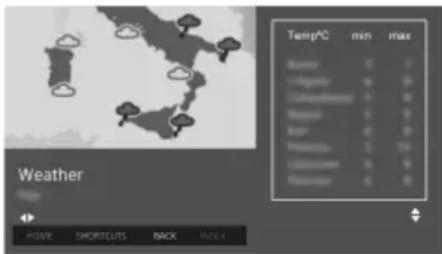
Interactive Application Setup
(Except KDL-40RE4xx / 32RE4xx):
The interactive application service offers high-quality digital text and graphics, along with advanced options.
The service is supported by broadcasters.
text_image
Temp°C min max Weather HOME SHORTCUTS BACK FREEInteractive Application
Enables the viewing of programmes featuring interactive services.
Auto Start Application
Launches broadcast-related applications automatically.
Application for (Prog. [current program])
Enables the interactive application service for the current programme.
Note
- The interactive service is only available if provided by the broadcaster.
• Available functions and screen content vary depending on the broadcaster.

Parental Lock
PIN Code
Sets a PIN code to block channels, external inputs, Internet services and all channel tuning related settings. Use 0-9 on the remote control to enter a four-digit PIN code.
Change PIN Code
Select to change your PIN code.
Parental Rating
Sets an age restriction for viewing. To view any programme rated for ages above the age you specify, enter the correct PIN code.
Setup Protection
Enable or disable protection on programme related operations.
Digital Programme Lock
Locks a digital channel from being watched. To view a blocked channel, select [Unlocked].
Satellite Programme Lock
Locks satellite programme from being watched. To view locked programme, select [Unlocked].
Note
- To view locked programme, key in the PIN code or select [Programme locked.] in [Parental Lock] to unlock.
External Input Lock
Locks external input from being watched. To view an external input, select [Unlocked].
Note
- Entering the correct PIN code for blocked channel or external input will temporarily deactivate the [Parental Lock] feature. To reactivate the [Parental Lock] settings, turn off and on the TV.
Hint
- If you lost your PIN code, see page 35. Internet content services.
Guidance Block for Recorded Titles (for United Kingdom only)
You can block recorded content by displaying a guidance that requires password input to access.
Internet Lock (Except KDL-40RE4xx / 32RE4xx)
Locks internet contents from being watched.
To view an internet contents, select [Unlocked].

Set-up
Network (Except KDL-40RE4xx / 32RE4xx)
Network Set-up: Sets the network status settings.
IPv6/IPv4 Priority: Switch between [IPv6] and [IPv4 (Recommended)].
Note
- To use the network with [IPv6], select [IPv6], then select [Easy] in [Set up network connection].
- When IPv6 is selected, HTTP Proxy cannot be set.
- When IPv6 is selected, some Internet browser sites, applications or contents cannot be watched.
Built-in Wi-Fi: Turns the built-in wireless LAN [On] or [Off].
Set to [Off], if you do not use the built-in wireless LAN.
When you switch from [Off] to [On], establish the network connection via [Network Set-up].
Wi-Fi Direct: Turns On/Off to connect your TV with Wi-Fi Direct device such as PC, Mobile Phone or Digital Camera.
Wi-Fi Direct Settings: Set to connect a Wi-Fi direct device to the TV using the Wi-Fi Direct function. If you cannot connect, press OPTIONS key and select [Manual].
Device Name: Change the name of the TV shown on the connected device.
Refresh Internet Content: Connect to the internet to receive available 35 Internet content services.
Home Network Setup:
Server Display Settings
Displays the connected server list. You can select the server to display in the Device Selection.
Server Diagnostics
Diagnoses whether the TV can connect to each server on the home network.
Remote Start
This feature allows connected device in the home network to turn on the TV.
Note
- The standby power consumption will increase if [On] is set.
Renderer
Renderer Function
Enables the TV to play media files on a device (e.g. digital still camera).
Renderer Access Control
Allows access from a specified control device.
Renderer Set-up
Adjusts the [Renderer Set-up] detailed settings.
Privacy Policy (Except KDL-40RE4xx / 32RE4xx)
Select [Agree] or [Disagree] for Privacy Policy confirmation. (page 12)
Photo Frame Settings
Display Mode: Allows you to select the display mode. See page 14.
Clock Display: Allows you to select the clock display.
Note
- This option is available when [Display Mode] is set to [Image and Clock] or [Full Screen Clock].
Image Selection: Select image.
Music Selection: Select music.
Slideshow Setting: Select from showing slideshow mode or single view photo.
Music Playback Setting: Select from listening to all tracks or a single music track.
Duration: Select the time period after which the TV automatically switches to standby mode.
First day of the week: Sets [Sunday] or [Monday] as the first day of the week on the calendar.
USB Auto Start
When USB device is connected to the USB port, select [On] to automatically view the thumbnail of the last played Photo/Music/Video.
Clock/ Timers
Sets the timer and clock.
Sleep Timer: Sets the time in minutes that you would like the TV to remain on before shutting off automatically.
On Timer: Turns on the TV from standby mode at a time you set, and tuned to a channel or input of your preference. Before setting this function, make sure you set the correct current time.
Clock Set: Sets the current time and date.
Auto/Manual
Select [Manual] to set current time manually.
Automatic time zone
Sets whether or not to automatically select the time zone you are in.
On: Automatically switches between summer time and winter time according to the calendar.
Off: The time is displayed according to the time difference set by [Time Zone].
Automatic daylight saving time
Sets whether or not to automatically switch between summer time and winter time.
Date
Set current date.
Time
Set Current Time.
Time Zone
Allows you to manually select the time zone you are in, if it is not the same as the default time zone setting for your country/region.
Recording Set-up (Function not available in Italy)
To register and deregister HDD for recording function.
Recording Time Auto Update:
On
Recording time will be updated automatically based on changes in the broadcast signal.
Off
Recording time will be based on time of the booking/reservation.
It is recommended not to change this menu setting when you have existing booked timers.
Auto Start-up
Starts the initial set-up procedure. This option allows you to retune the TV after moving houses, or to search for new channels that have been launched by broadcasters.
Language
Select the language in which the menus are displayed.
Physical keyboard (for web browser\* only) (Except KDL-40RE4xx / 32RE4xx)
Select the physical keyboard language when physical keyboard is connected to the TV.
* Only on limited region/country/TV model.
Start-up Logo
Select [On] to display the logo when the TV is turned on. Select [Off] to disable it.
LED Indicator
Select [On] to light up the LED indicator. Select [Off] to disable it.
AV Set-up
AV Preset: Assigns name to external equipment input.
Enable
Select [Auto] to display names only when the equipment is connected, or [Always] to display regardless of connection status.
Colour System: Selects the colour system according to the composite video signal from the input source.
Speakers: Select sound output from the TV speakers or external audio equipment.
Headphone/Audio Out: Sets the sound output to headphone, external audio systems or Active Subwoofer connected to the TV. Disconnect headphone from the TV when you select [Audio out (Fixed)], [Audio out (Variable)] or [Subwoofer].
Audio out (Fixed)
The audio output of the TV is fixed. Use your audio receiver's volume control to adjust the volume (and other audio settings) through your audio system.
Audio out (Variable)
When using an external audio system, volume output from audio out can be controlled using the TV's remote control.
Headphone Speaker Link: Switches the TV's internal speakers on/off when you connect headphone to the TV.
Headphone Volume: Adjusts the volume of the headphone.
Note
- This option is not available, when [Headphone/Audio Out] is set to [Audio out (Fixed)], [Audio out (Variable)] or [Subwoofer].
Subwoofer: To enable, set
[Headphone/Audio Out] to [Subwoofer].
Subwoofer Level
Adjust subwoofer volume level.
Phase
Select the phase polarity.
Subwoofer Sync
Adjusts the time lag of Subwoofer sound.
Digital Audio Out: Sets the audio signal that is output by connecting using digital audio output (optical)* cable or HDMI cable.
* Only on limited region/country/TV model Auto 1
Output compressed audio without change.
Auto 2
Output only compressed audio for multichannel content without change.
PCM
Always output in PCM.
TV Position: Improves the speaker settings when set as [Table-Top Stand] or [Wall Mount] according to your TV's position.
HDMI signal format (Only on limited region/country/TV model):
Standard format
Standard HDMI format for normal use.
Enhanced format
Set only when using devices supporting HDMI 2K HDR (High Dynamic Range) format.
Note
- HDMI IN 1 and HDMI IN 2 signal format changes at the same time.
- Change to [Standard format] if the picture and sound do not output correctly in [Enhanced format].
- Some contents may not be displayed as 2K HDR when 4K HDR contents playback from a source device.
BRAVIA Sync Settings
Allows the TV to communicate with equipment that is compatible with the BRAVIA Sync Control function, and connected to the HDMI ports of the TV. Note that communication settings must also be made on the connected equipment.
BRAVIA Sync Control: Sets whether or not to link the operations of the TV and the connected equipment that is compatible with BRAVIA Sync Control. When set to [On], the following functions are available. If the specific Sony equipment that is compatible with BRAVIA Sync Control is connected, this setting is applied to the connected equipment automatically.
Auto Devices Off: When set to [On], the connected equipment that is compatible with BRAVIA Sync Control turns off when your TV goes to standby mode.
Auto TV On: When set to [On], the TV turns on when you turn on the connected equipment that is compatible with BRAVIA Sync Control.
BRAVIA Sync Device List: Displays a list of connected equipment that is compatible with BRAVIA Sync Control. Select [Enable] to update the [BRAVIA Sync Device List].
Device Control Keys: Select button functions of the TV's remote control to operate the connected equipment.
None
Deactivates the control by the TV's remote control.
Normal
For basic operations, such as navigation buttons (up, down, left or right, etc).
Tuning Keys
For basic operations and operation of channel-related buttons, such as
PROG +/- or (0-9), etc. Useful when you control a tuner or set-top box, etc; via the remote control.
Menu Keys
For basic operations and operation of the HOME/OPTIONS button.
Useful when you select menus of a BD player, etc; via the remote control.
Tuning and Menu Keys
For basic operations and operation of channel-related buttons and HOME/OPTIONS button.
Note
- Some equipment with [BRAVIA Sync Control] does not support the [Device Control Keys] feature.
Network Set-up (United Kingdom model KDL-40RE4xx / 32RE4xx only)
Allows you to set up the IP settings of the TV's Ethernet port and establish a network connection.
Note
- For LAN connections, use a Category 5 cable (not supplied).
- This TV supports additional content/services provided by the MHEG Internet Connected Services feature. General Internet (IPTV/Web service/e-mail, etc.) is not supported by this TV.
Customer Support
Provides information of your TV's model, software, and others. For details, see page 27.

Eco
Reset
Resets the current Eco settings to the default values.
Power Saving
Reduces power consumption of the TV by adjusting the backlight.
When you select [Picture Off], the picture is switched off. The sound remains unchanged.
Idle TV standby
Turns the TV off after it has been kept idle for the preset length of time.
Customer Support
Model Name
Displays model name of your TV.
Software Version
Displays current software version of your TV.
Digital
Select [System Information] to display digital channel information of your TV.
External Inputs
Select [View AV Preset] to view or manage the TV input.
Picture Check
View Test Picture: Allows you to check the picture condition on the display.
USB System Update (KDL-40RE4xx / 32RE4xx only)
Select to perform system update.
Software Update (Except KDL-40RE4xx / 32RE4xx)
Updates the TV system using USB memory or via Network.
Note
- Software update via the internet may vary depending on your region/country/TV model.
- To update the software, please visit Sony support website.
Automatic Software Download
Select [On] to download the software automatically. Select [Off] to disable it.
Factory Settings
Resets all settings to factory settings. After completing this process, the initial set-up screen is displayed.
Note
- Be sure not to turn the TV off during this period (it takes about 30 seconds) or press any buttons.
Initialize Personal Information (Except KDL-40RE4xx / 32RE4xx)
You can erase your personal information stored in the TV.
Product Support
Displays your TV's product information.
Viewing Pictures from Connected Equipment
Connection Diagram
You can connect a wide range of optional equipment to your TV.
Note
- Depending on TV model, connecting a large USB device may interfere with other connected devices beside it.
- When connecting a large USB device, connect only 1 USB jack.
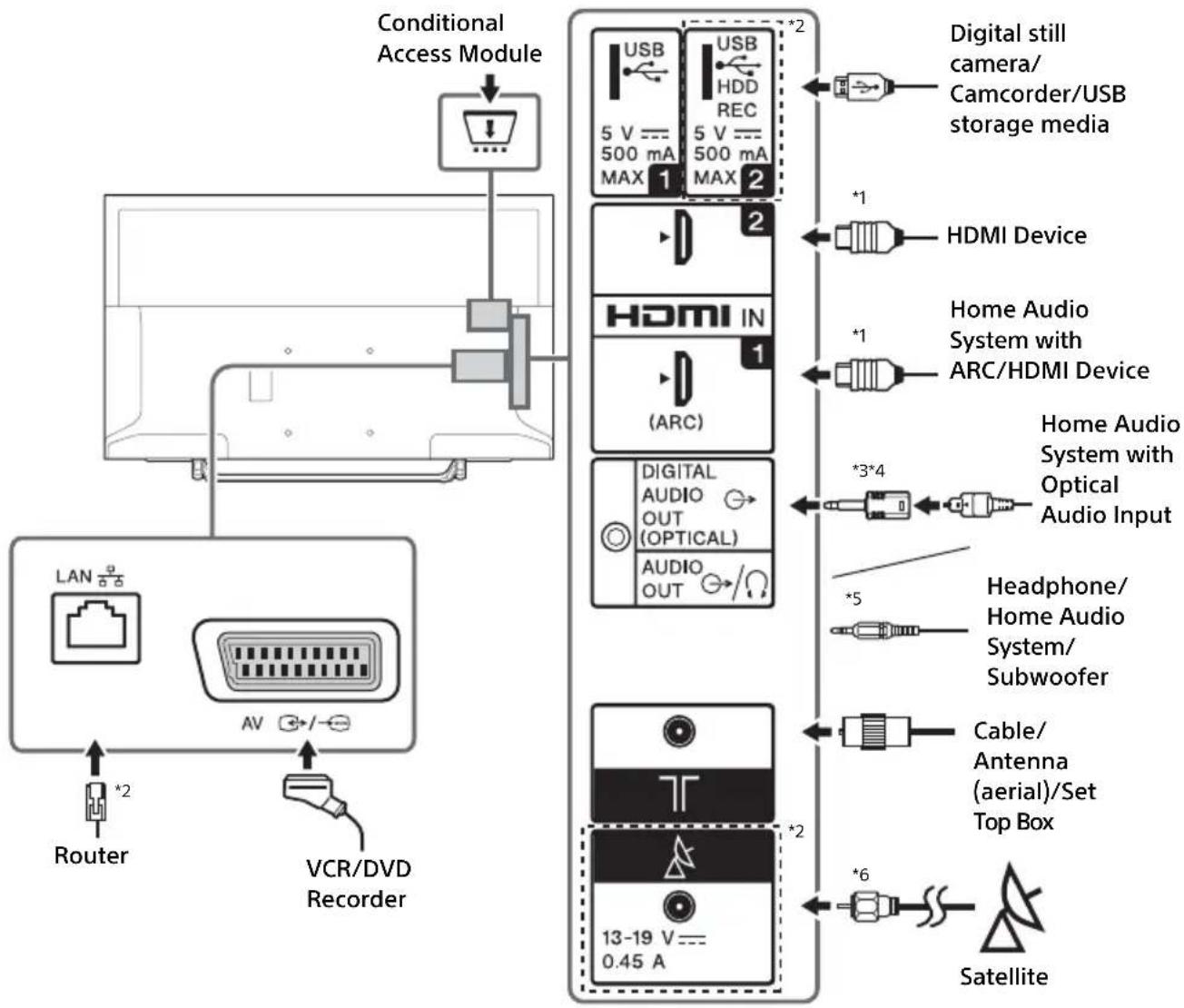
flowchart
graph TD
    A["Conditional Access Module"] --> B["Router"]
    A --> C["VCR/DVD Recorder"]
    A --> D["Satellite"]
    B --> E["13-19 V --- 0.45 A"]
    C --> F["AV"]
    C --> G["+/-"]
    D --> H["13-19 V --- 0.45 A"]
    D --> I["13-19 V --- 0.45 A"]
    D --> J["13-19 V --- 0.45 A"]
    D --> K["13-19 V --- 0.45 A"]
    D --> L["13-19 V --- 0.45 A"]
    D --> M["13-19 V --- 0.45 A"]
    D --> N["13-19 V --- 0.45 A"]
    D --> O["13-19 V --- 0.45 A"]
    D --> P["13-19 V --- 0.45 A"]
    D --> Q["13-19 V --- 0.45 A"]
    D --> R["13-19 V --- 0.45 A"]
    D --> S["13-19 V --- 0.45 A"]
    D --> T["13-19 V --- 0.45 A"]
    D --> U["13-19 V --- 0.45 A"]
    D --> V["13-19 V --- 0.45 A"]
    D --> W["13-19 V --- 0.45 A"]
    D --> X["13-19 V --- 0.45 A"]
    D --> Y["13-19 V --- 0.45 A"]
    D --> Z["13-19 V --- 0.45 A"]
    D --> AA["13-19 V --- 0.45 A"]
    D --> AB["13-19 V --- 0.45 A"]
    D --> AC["13-19 V --- 0.45 A"]
    D --> AD["13-19 V --- 0.45 A"]
    D --> AE["13-19 V --- 0.45 A"]
    D --> AF["13-19 V --- 0.45 A"]
    D --> AG["13-19 V --- 0.45 A"]
    D --> AH["13-19 V --- 0.45 A"]
    D --> AI["13-19 V --- 0.45 A"]
    D --> AJ["13-19 V --- 0.45 A"]
    D --> AK["13-19 V --- 0.45 A"]
    D --> AL["13-19 V --- 0.45 A"]
    D --> AM["13-19 V --- 0.45 A"]
    D --> AN["13-19 V --- 0.45 A"]
    D --> AO["13-19 V --- 0.45 A"]
    D --> AP["13-19 V --- 0.45 A"]
    D --> AQ["13-19 V --- 0.45 A"]
    D --> AR["13-19 V --- 0.45 A"]
    D --> AS["13-19 V --- 0.45 A"]
    D --> AT["13-19 V --- 0.45 A"]
    D --> AU["13-19 V --- 0.45 A"]
    D --> AV["13-19 V --- 0.45 A"]
    D --> AW["13-19 V --- 0.45 A"]
    D --> AX["13-19 V --- 0.45 A"]
    D --> AY["13-19 V --- 0.45 A"]
    D --> AZ["13-19 V --- 0.45 A"]
    D --> BA["13-19 V --- 0.45 A"]
    D --> BB["13-19 V --- 0.45 A"]
    D --> BC["13-19 V --- 0.45 A"]
    D --> BD["13-19 V --- 0.45 A"]
    D --> BE["13-19 V --- 0.45 A"]
    D --> BF["13-19 V --- 0.45 A"]
    D --> BG["13-19 V --- 0.45 A"]
    D --> BH["13-19 V --- 0.45 A"]
    D --> BI["13-19 V --- 0.45 A"]
    D --> BJ["13-19 V --- 0.45 A"]
    D --> BK["13-19 V --- 0.45 A"]
    D --> BL["13-19 V --- 0.45 A"]
    D --> BM["13-19 V --- 0.45 A"]
    D --> BN["13-19 V --- 0.45 A"]
    D --> BO["13-19 V --- 0.45 A"]
    D --> BP["13-19 V --- 0.45 A"]
    D --> BQ["13-19 V --- 0.45 A"]
    D --> BR["13-19 V --- 0.45 A"]
    D --> BS["13-19 V --- 0.45 A"]
    D --> BT["13-19 V --- 0.45 A"]
    D --> BU["13-19 V --- 0.45 A"]
    D --> BV["13-19 V --- 0.45 A"]
    D --> BW["13-19 V --- 0.45 A"]
    D --> BX["13-19 V --- 0.45 A"]
    D --> BY["13-19 V --- 0.45 A"]
    D --> BZ["13-19 V --- 0.45 A"]
    D --> CA["13-19 V --- 0.45 A"]
    D --> CB["13-19 V --- 0.45 A"]
    D --> CC["13-19 V --- 0.45 A"]
    D --> CD["13-19 V --- 0.45 A"]
    D --> CE["13-19 V --- 0.45 A"]
    D --> CF["13-19 V --- 0.45 A"]
    D --> CG["13-19 V --- 0.45 A"]
    D --> CH["13-19 V --- 0.45 A"]
    D --> CI["13-19 V --- 0.45 A"]
    D --> CJ["13-19 V --- 0.45 A"]
    D --> CK["13-19 V --- 0.45 A"]
Note
7
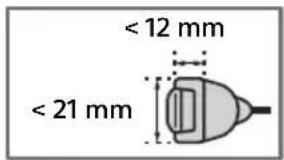
text_image
< 12 mm < 21 mm*2 Terminals, labels and functions may vary depending on country/region/TV model.
*3 Only on limited region/country/TV model.
*4 Do not plug in the digital audio connector adapter when not connected to optical audio cable to disable red LED light from DIGITAL AUDIO OUT (OPTICAL) terminal.
Depending on the type of optical audio cable, the digital audio connector adapter may not be required.
*5 Supports 3-pole stereo mini jack only.
*6
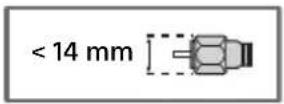
Picture Quality
- AV composite cable
- Antenna (aerial) cable
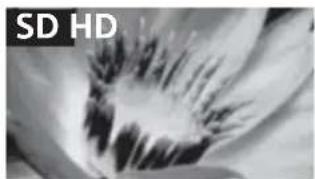
natural_image
Close-up grayscale image of a flower petal with visible petals and stamens (no text or symbols)Standard definition (SD) videos have picture signals with a vertical resolution of 480 (NTSC) or 576 (PAL/SECAM) lines.
- HDMI cable
natural_image
Close-up of a flower petal with visible petals and stamens (no text or symbols)High definition (HD) videos have picture signals with a vertical resolution of 720 or 1,080 lines.
Using Audio and Video Equipment
1 Turn on the connected equipment.
2 Press to display the input source.
3 Press ↑/↓ then ⊕ to select the desired input source.
The highlighted item is selected if 5 seconds pass without any operation.
Note
- When connecting a digital audio system not compatible with Audio Return Channel (ARC) technology using an HDMI cable, you need to connect an optical audio cable to the DIGITAL AUDIO OUT (OPTICAL)* to output digital sound.
- When connecting with an HDMI cable, be sure to use HighSpeed HDMI Cable with Cable Type Logo (Recommended SONY Cable).
* Only on limited region/country/TV model.
To use BRAVIA Sync devices
When connecting the TV to BRAVIA Sync compatible equipment, you can control them together.
Be sure to perform the necessary settings in advance. The BRAVIA Sync Control settings must be set on both the TV and the connected equipment. See [BRAVIA Sync Settings] (page 26) for the settings on the TV side. Refer to the connected equipment operating instructions for the settings on the connected equipment side.
Using Screen mirroring (Except KDL-40RE4xx / 32RE4xx)
Screen mirroring displays the screen of a compatible device (e.g. smartphones) on your large TV screen by Miracast technology. No wireless router (or access point) is required to use this feature.
1 Press the ➕/ ➕ button, then select [Screen mirroring] using ⬆/ ⬆ buttons.
2 Operate the Screen mirroring compatible device to connect with the TV. Once connected, the device screen will be displayed on the TV.
To list connected devices/deregister device
When the waiting screen for the Screen mirroring is displayed, press OPTIONS, then select [Show Device List / Delete].
To deregister a device, select the device in the list to delete, press ⚙Then, select [Yes] in the confirmation display.
To display registration notification when attempting to connect a device with the TV
Activating this function can avoid an unintended device from being connected.
When the standby screen for Screen mirroring is displayed, press OPTIONS, then select [Registration Notification] → [On].
Note that once you decline registration request from a device, you will not be able to connect the device unless you delete it from the device list.
To change the band setting (for experts)
When the standby screen for Screen mirroring is displayed, press OPTIONS, then select [Band Setting].
Note
- Connecting devices must conform to the following:
- Screen mirroring compatible devices: 2.4 GHz connection (5 GHz not supported).
- For information about the supported wireless band of your device, refer to the instruction manual of your device.
Installing the TV to the Wall
This TV's instruction manual only shows the steps on preparing the installation of the TV before installing to the wall.
To Customers:
For product protection and safety reasons, Sony strongly recommends that installation of your TV be performed by Sony dealers or licensed contractors. Do not attempt to install it yourself.
To Sony Dealers and Contractors:
Provide full attention to safety during the installation, periodic maintenance and examination of this product.
Sufficient expertise is required for installing this product, especially to determine the strength of the wall for withstanding the TV's weight. Be sure to entrust the attachment of this product to the wall to Sony dealers or licensed contractors and pay adequate attention to safety during the installation. Sony is not liable for any damage or injury caused by mishandling or improper installation.
Use the Wall-Mount Bracket SU-WL450 (not supplied) to install the TV to the wall.
When installing the Wall-Mount Bracket, also refer to the Operating Instructions and Installation Guide supplied with the Wall-Mount Bracket.

For instructions on Wall-Mount Bracket installation of your TV model, refer to the following website: www.sony.eu/tv/wall-mount-bracket-manual
Additional Information
Troubleshooting
When the LED indicator is flashing red, count how many times it flashes (interval time is three seconds).
If the LED indicator flashes red, reset the TV by disconnecting the AC power cord (mains lead) from the TV for two minutes, then turn on the TV. If the problem persists, contact your dealer or Sony service centre with the number of times the LED indicator flashes red (interval time is three seconds). Press ⏻ on the TV to turn it off, disconnect the AC power cord (mains lead), and inform your dealer or Sony service centre.
When the LED indicator is not flashing, check the items as follows.
If the problem persists, have your TV serviced by qualified service personnel.
Picture
No picture (screen is dark) and no sound
- Check the antenna (aerial)/cable connection.
- Connect the TV to the AC power outlet (mains socket), and press ⏻ on the TV or the remote control.
No picture or no menu information from equipment connected to the video input jack appears on the screen
- Press to display the connected equipment list, then select the desired input.
- Check the connection between the optional equipment and the TV.
Double images or ghosting
- Check the antenna (aerial)/cable connection, location or direction.
Only snow and noise appear on the screen
- Check if the antenna is broken or bent.
- Check if the antenna has reached the end of its serviceable life (three to five years in normal use, one to two years at the seaside).
Distorted picture (dotted lines or stripes)
- Keep the TV away from electrical noise sources such as cars, motorcycles, hair-dryers or optional equipment.
- When installing optional equipment, leave some space between the optional equipment and the TV.
- Check the antenna (aerial)/cable connection.
- Keep the antenna cable away from other connecting cables.
Picture or sound noise when viewing a TV channel
- Adjust [AFT] (Automatic Fine Tuning) to obtain better picture reception. This function is for analogue TV channels only.
Tiny black points and/or bright points appear on the screen
- The picture of a display unit is composed of pixels. Tiny black points and/or bright points (pixels) on the screen do not indicate a malfunction.
Picture contours are distorted
- Change the current setting of [Film Mode] to other settings (page 18).
No colour on programmes
- Select [Reset] (page 18).
No picture from the connected equipment appears on the screen
- Turn the connected equipment on.
- Check the cable connection.
- Press to display the connected equipment list, then select the desired input.
- Correctly insert the memory card or other storage device in the digital still camera.
- Use a digital still camera memory card or other storage device that has been formatted according to the instruction manual supplied with the digital still camera.
- Operations are not guaranteed for all USB devices. Also, operations differ depending on the features of the USB device and the video being played.
Cannot select the connected equipment on the menu or cannot switch the input
- Check the cable connection.
Sound
No sound, but good picture
- Press + / - or 口 (Mute).
- Check if [Speakers] in [AV Set-up] is set to [TV Speakers] (page 25).
- Check if the headphone plug is connected to the TV.
No sound or noisy sound
- Check if the TV system setting is appropriate (page 19).
Channels
The desired channel cannot be selected
- Switch between digital and analogue mode and select the desired digital/analogue channel.
Some channels are blank
- The channel is for scrambled/subscription service only. Subscribe to a pay TV service.
- Channel is used only for data (no picture or sound).
- Contact the broadcaster for transmission details.
Digital channels are not displayed
- Contact a local installer to find out if digital transmissions are provided in your area.
- Upgrade to a higher gain antenna.
To change the tuning range (available depending on your region/country)
- Press the HOME button, then select → [Channel Set-up] → [Digital Set-up] → [Digital Tuning] → [Auto Tuning Range].
[Normal]
Searches for available channels within your region/country. [Full]
Searches for available channels regardless of region/country.
Note
- [Auto Service Update] is available depending on your region/country.
Hint
- You can run [Digital Auto Tuning] after moving to a new residence, changing service providers, or to search for newly launched channels.
- It is recommended that you set [Digital Set-up] → [Technical Set-up] → [Auto Service Update] to [On] to allow new digital services to be added automatically as they become available. If it is set to [Off], you will be notified of new digital services by an on-screen message and the services will not be automatically added. The availability of this function depends on your region/country. If unavailable, perform [Digital Auto Tuning] to add new services.
Network
\* Cannot use VOD service during recording.
What kind of devices can be connected to use the Screen mirroring function?
- Sony Screen mirroring compatible devices (Xperia) can be connected.
Video or sound sometimes cuts out
- Devices emitting radio waves, such as other wireless LAN devices or microwave ovens, may interfere with the Screen mirroring function using wireless LAN. Keep the TV or Sony Screen mirroring compatible devices (Xperia) away from such devices, or turn them off if possible.
- Communication speed may change according to the distance or obstacles between devices, device configuration, radio wave condition, line congestion or what device you use. Communication may cut out due to the radio wave condition.
Some pay contents cannot be played
- The source device needs to be compatible with HDCP (High-bandwidth Digital Content Protection) 2.0/2.1 system. Some pay contents may not be displayed via a non-compatible source device.
Apps are inaccessible
- Check that the LAN cable or AC power cord of the router/modem* has been connected properly.
* Your router/modem must be set in advance to connect to the Internet. Contact your Internet service provider for router/modem settings. - Try using apps later. The app content provider's server may be out of service.
Sometimes video streaming quality is poor when using the wireless LAN
- The wireless network connection quality varies depending on the distance or obstacles (e.g. wall) between the TV and the wireless router (access point), environment interference, and quality of the wireless router (access point).
Wireless LAN connection fails or radio reception conditions are poor
- Check the installation location of the TV and wireless router (access point). Signal condition may be affected for the following reasons.
- Other wireless devices, microwaves, fluorescent lights, etc., are placed nearby.
- There are floors or walls between the wireless router (access point) and TV. If the problem persists even after checking the above, try making a wired LAN connection.
Poor picture on Internet Video
- Quality depends on the original video provided by the internet contents provider and your connection bandwidth.
Certain internet contents displays a loss of detail, especially during fast-motion or dark scenes
- Video quality and picture size depend on broadband speed and delivery by content providers.
Good picture quality but no sound on the internet contents
- Quality depends on the original content provided by the internet contents provider and your connection bandwidth.
- Due to the nature of Internet video, not all videos will contain sound.
Your TV cannot connect to the server
- Check the LAN cable or connection to your server and your TV.
- Check if your network is properly configured on your TV.
A message appears stating that the TV cannot connect to your network
- Check the current network settings. Press HOME, then select [Settings] [System Settings] [Set-up] [Network] [Network Set-up] [View Network setting and status]. If all of your network settings are "-" , your server may not be connected properly. Check your network connections and/or server's instruction manual for connection information.
• Reconfigure your network settings. - If the LAN cable is connected to an active server and the TV has acquired an IP address, check your DLNA Certified™ media server's connections and configurations.
Note
- Your IP address configuration can be viewed by selecting the [View Network setting and status] option.
DLNA Certified™ media server is inaccessible although it is listed under [Media] in the Home Menu
- Check your LAN cable/connection or your server connections. The TV may have lost connection with the server.
- Perform [Server Diagnostics] to check if your media server is properly communicating with the TV. Press HOME, then select [Settings]→ [System Settings]→ [Set-up]→ [Network]→ [Home Network Setup]→ [Server Diagnostics].
When using the renderer function, music files cannot be played back
- Some applications display a photo file pre-installed in the PC simultaneously with music playback when using the renderer function. Depending on the pre-installed photo file, music playback may not be possible, but may become possible by changing the photo file.
You could not connect Internet
- Check that the LAN cable or AC power cord of the router/modem* has been connected properly.
* Your router/modem must be set in advance to connect to the Internet. Contact your Internet service provider for router/modem settings.
You do not have YouTube ID
- If you do not have a YouTube ID and password, register them through the address below. http://www.google.com/device (You can also register a YouTube ID and password from your PC.) After registering your ID, you can use it immediately.
General
The TV turns off automatically (the TV enters standby mode)
- Check if the [Sleep Timer] is activated (page 24).
- Check if the [Duration] is activated by [On Timer] (page 24) or [Photo Frame Settings] (page 24).
- Check if the [Idle TV standby] is activated (page 27).
Some input sources cannot be selected
- Select [AV Preset] and select [Always] of the input source (page 25).
The remote control does not function
- Replace the batteries.
HDMI equipment does not appear on [BRAVIA Sync Device List]
- Check that your equipment is compatible with BRAVIA Sync Control.
Cannot select [Off] in [BRAVIA Sync Control]
- If you have connected any audio system that is compatible with BRAVIA Sync Control, you cannot select [Off] in this menu. To change the audio output to the TV speaker, select [TV Speakers] in the [Speakers] menu (page 25).
The [Parental Lock] password has been forgotten
- Enter 9999 for the PIN code.
- Update PIN code by pressing HOME and select [Settings] → [System Settings] → [Parental Lock] → [Change PIN Code].
Store Display Mode or Promoting Feature Logo appears on the screen
- On the remote control, press ← RETURN then press HOME and select [Settings] → [System Settings] → [Set-up] → [Auto Start-up]. Be sure to select [Home] in [Location].
Specifications
System
Panel system
LCD (Liquid Crystal Display) Panel, LED Backlight
TV system
Depending on your country/area selection/TV model
Analogue: B/G, D/K, I
Digital: DVB-T/DVB-C DVB-T2 ^*1
Analogue: PAL, SECAM, NTSC3.58 (video only), NTSC4.43 (video only)
Digital: MPEG-2 MP@ML/HL, H.264/MPEG-4 AVC HP@L4.0, MP@L4.0, H.265/HEVC MP/
Main10@L4.1 (Full HD 60fps)
Channel coverage
Depending on your country/area selection/TV model
Analogue: UHF/VHF/Cable
Digital: UHF/VHF/Cable
Satellite ^*1 : IF Frequency 950-2,150 MHz
Sound output (Only for 19.5 V supply) 5 W + 5 W
Wireless technology (Except KDL-40RE4xx / 32RE4xx)
Protocol IEEE802.11b/g/n
Frequency band(s): WLAN 2.4 GHz
Radio frequency power transmitter: 100 mW MAX
TV software version
8._-1000-_._-_(KDL-49WE7xx / 49WE6xx / 43WE7xx / 40WE6xx / 32WE6xx) v8._-1000 (KDL-40RE4xx / 32RE4xx)
Refer to [Customer Support] under [Set-up] menu.
Input/Output jacks
Antenna (aerial)/cable
75 ohm external terminal for VHF/UHF
Satellite antenna ^*1
Female F-Type Connector, 75 ohm. DiSEqC 1.0, LNB 13 V/18 V & 22 kHz tone, Single Cable Distribution EN50494.
↔ / → AV
21-pin scart connector (CENELEC standard) including audio/video input, RGB input and TV audio/video output.
HDMI IN 1 (ARC), HDMI IN 2 (HDCP 1.4-compatible)
HDMI Video: 1080p(30, 50, 60 Hz), 1080/24p, 1080i(50, 60 Hz), 720p(30, 50, 60 Hz), 720/24p, 576p, 576i, 480p, 480i
PC input:
(Resolution, Horizontal frequency, Vertical frequency)
KDL-49WE7xx / 49WE6xx / 43WE7xx / 40WE6xx / 40RE4xx:
640 × 480, 31.5 kHz, 60 Hz
800 × 600, 37.9 kHz, 60 Hz
1,024 × 768, 48.4 kHz, 60 Hz
*1,280 × 720, 44.8 kHz, 60 Hz
1,280 × 1,024, 64.0 kHz, 60 Hz
1,152 × 864, 67.5 kHz, 75 Hz
1,600 × 900, 55.9 kHz, 60 Hz
1,680 × 1,050, 65.3 kHz, 60 Hz
* 1,920 × 1,080, 67.5 kHz, 60 Hz
KDL-32WE6xx / 32RE4xx:
640 × 480, 31.5 kHz, 60 Hz
800 × 600, 37.9 kHz, 60 Hz
1,024 × 768, 48.4 kHz, 60 Hz
*1,280 × 720, 44.8 kHz, 60 Hz
1,360 × 768, 47.7 kHz, 60 Hz
1,152 × 864, 67.5 kHz, 75 Hz
1,600 × 900, 55.9 kHz, 60 Hz
1,680 × 1,050, 65.3 kHz, 60 Hz
* The 1080p and 720p timing when applied to the HDMI input will be treated as a video timing and not PC timing for Screen Format.
Audio: Two channel linear PCM: 32, 44.1 and 48 kHz, 16, 20 and 24 bits, Dolby Digital, Dolby Digital Plus, DTS
ARC (Audio Return Channel) (HDMI IN 1 only)
(Two channel linear PCM: 48 kHz, 16 bits, Dolby Digital, Dolby Digital Plus, DTS)
→ DIGITAL AUDIO OUT (OPTICAL)
Digital optical jack (Two channel linear PCM: 48 kHz, 16 bits, Dolby Digital, DTS)
→ AUDIO OUT / ⏻ (Stereo mini jack)
Headphone, Audio output, Subwoofer
1, 2(HDD REC) (Function not available in Italy)
USB port
CAM (Conditional Access Module) slot
DC IN 19.5 V ⊖ ⊕ ⊕
Mains adaptor input

(Except KDL-40RE4xx / 32RE4xx)
LAN (Depending on your country/area) 10BASE-T/100BASE-TX connector (Depending on the operating environment of the network, connection speed may differ. 10BASE-T/100BASE-TX communication rate and communication quality are not guaranteed for this TV.)
Others
Optional accessories
Wall-Mount Bracket: SU-WL450
Operating temperature
0^ C - 40^ C
Operating humidity
10% - 80% RH (non-condensing)
Power, Product Fiche and others
Power requirements
19.5 V DC with mains adaptor
Rating: Input 220 V - 240 V AC, 50 Hz
Energy Efficiency Class
KDL-49WE7xx: A+
KDL-49WE6xx: A+
KDL-43WE7xx: A+
KDL-40WE6xx / 40RE4xx: A+
KDL-32WE6xx / 32RE4xx: A
Screen size (measured diagonally) (approx.)
KDL-49WE7xx / 49WE6xx: 123.2 cm / 49 inches
KDL-43WE7xx: 108.0 cm / 43 inches
KDL-40WE6xx / 40RE4xx: 101.4 cm / 40 inches
KDL-32WE6xx / 32RE4xx: 80.0 cm / 32 inches
Power consumption
In [Standard] mode
KDL-49WE7xx: 63 W
KDL-49WE6xx: 60 W
KDL-43WE7xx: 51 W
KDL-40WE6xx / 40RE4xx: 48 W
KDL-32WE6xx / 32RE4xx: 41 W
In [Vivid] mode
KDL-49WE755: 100 W
KDL-49WE753: 84 W
KDL-49WE750: 84 W
KDL-49WE665: 85 W
KDL-49WE663: 85 W
KDL-49WE660: 85 W
KDL-43WE755: 85 W
KDL-43WE753: 75 W
KDL-43WE750: 75 W
KDL-40WE665: 74 W
KDL-40WE663: 60 W
KDL-40WE660: 60 W
KDL-40RE455: 74 W
KDL-40RE453: 60 W
KDL-40RE450: 60 W
KDL-32WE615: 74 W
KDL-32WE613: 60 W
KDL-32WE610: 60 W
KDL-32RE405: 74 W
KDL-32RE403: 60 W
KDL-32RE400: 60 W
Average annual energy consumption ^2
KDL-49WE7xx: 92 kWh
KDL-49WE6xx: 88 kWh
KDL-43WE7xx: 74 kWh
KDL-40WE6xx / 40RE4xx: 70 kWh
KDL-32WE6xx / 32RE4xx: 60 kWh
Standby power consumption ^3*4
0.50 W
Display resolution
KDL-49WE7xx / 49WE6xx / 43WE7xx / 40WE6xx /
40RE4xx: 1,920 dots (horizontal) × 1,080 lines (vertical)
KDL-32WE6xx / 32RE4xx: 1,366 dots (horizontal)
× 768 lines (vertical)
Dimensions (Approx.) (w × h × d)
with Table-Top Stand
KDL-49WE7xx: 109.6 x 69.4 x 25.2 cm
KDL-49WE6xx: 110.2 × 69.9 × 23.0 cm
KDL-43WE7xx: 96.4 x 61.9 x 23.6 cm
KDL-40WE6xx / 40RE4xx: 91.0 × 59.1 × 20.8 cm
KDL-32WE6xx / 32RE4xx: 73.1 × 49.0 × 18.7 cm
without Table-Top Stand
KDL-49WE7xx: 109.6 x 64.4 x 7.0 cm
KDL-49WE6xx: 110.2 × 65.0 × 7.0 cm
KDL-43WE7xx: 96.4 x 57.1 x 7.0 cm
KDL-40WE6xx / 40RE4xx: 91.0 × 54.3 × 7.0 cm
KDL-32WE6xx / 32RE4xx: 73.1 × 44.2 × 7.0 cm
Mass (Approx.)
with Table-Top Stand
KDL-49WE7xx: 12.1 kg
KDL-49WE6xx: 12.1 kg
KDL-43WE7xx: 9.7 kg
KDL-40WE6xx / 40RE4xx: 8.7 kg
KDL-32WE6xx / 32RE4xx: 6.2 kg
without Table-Top Stand
KDL-49WE7xx: 11.5 kg
KDL-49WE6xx: 11.4 kg
KDL-43WE7xx: 9.1 kg
KDL-40WE6xx / 40RE4xx: 8.1 kg
KDL-32WE6xx / 32RE4xx: 5.8 kg
*1 Not all the TV sets have DVB-T2 or DVB-S/S2 technology or satellite antenna terminal.
*2 Energy consumption per year, based on the power consumption of the television operating 4 hours per day for 365 days. The actual energy consumption will depend on how the television is used.
*3 Specified standby power is reached after the TV finishes necessary internal processes.
*4 (Except KDL-40RE4xx / 32RE4xx) Standby power consumption will increase when your TV is connected to the network.
Note
- Optional accessories availability depends on countries/region/TV model/stock.
- Do not remove the dummy card from TV CAM (Conditional Access Module) slot other than to insert a smart card fitted in CAM.
- Design and specifications are subject to change without notice.
Notes on Digital TV function
- Digital TV (DVB terrestrial, satellite and cable), interactive services and network functions may not be available in all countries or areas. Some functions might not be enabled or might not operate correctly with some providers and network environments. Some TV service providers may charge a fee for their services.
- This TV supports digital broadcasting using MPEG-2, H.264/MPEG-4 AVC and H.265/HEVC codecs, but compatibility with all operator/service signals, which may change over time, cannot be guaranteed.
Notes on HDR (High Dynamic Range) (Only on limited region/country/TV model)
- Compatible only with HDR Game titles of all "PS4" via HDMI and HDR Videos of Built-in Netflix App. HDR image signal specifically means HDR10 Media Profile format (commonly referred to as HDR10).
- Not all HDR contents are guaranteed to be enjoyed on the TV.
Trademark information
- The terms HDMI and HDMI High-Definition Multimedia Interface, and the HDMI Logo are trademarks or registered trademarks of HDMI Licensing LLC in the United States and other countries.
- Manufactured under license from Dolby Laboratories. Dolby, Dolby Audio, and the double-D symbol are trademarks of Dolby Laboratories.
- "BRAVIA" and BreaA trademarks of Sony Corporation.
-
"Blu-ray Disc", "Blu-ray" and "Blu-logo are trademarks of Blu-ray Disc Association.
-
"PlayStation" is a registered trademark and "PS4" is a trademark of Sony Interactive Entertainment Inc.
- For DTS patents, see http://patents.dts.com. Manufactured under license from DTS, Inc. DTS, the Symbol, & DTS and the Symbol together are registered trademarks, and DTS Digital Surround is a trademark of DTS, Inc. © DTS, Inc. All Rights Reserved.
- TUXERA is a registered trademark of Tuxera Inc. in the US and other countries.
- Windows Media is either a registered trademark or trademark of Microsoft Corporation in the United States and/or other countries.
- This product contains technology subject to certain intellectual property rights of Microsoft. Use or distribution of this technology outside of this product is prohibited without the appropriate license(s) from Microsoft.
(Except KDL-40RE4xx / 32RE4xx)
- Opera® Devices SDK. Copyright 1995-2016 Opera TV AS. All rights reserved.
- Wi-Fi, Wi-Fi Direct, Miracast, Wi-Fi Protected Setup and Wi-Fi CERTIFIED Logo are trademarks or registered trademarks of Wi-Fi Alliance.
For satellite models only:
- DiSEqC™ is a trademark of EUTELSAT. This TV supports DiSEqC 1.0. This TV is not intended for controlling motorized antennas.

text_image
DOLBY AUDIO

Digital Surround

text_image
TUXERAYOUR DATA - WHERE YOU WANT IT

Opera TV
(Except KDL-40RE4xx / 32RE4xx)
text_image
DiSEqC 1.0
For useful information about Sony products
www.sony.eu/support