DS-279W - Suivi DoubleSight - Free user manual and instructions
Find the device manual for free DS-279W DoubleSight in PDF.


| Product Type | LED Monitor |
| Model | DS-279W |
| Brand | DoubleSight |
| Screen Size | 27 inches (diagonal) |
| Resolution | 1920 x 1080 (Full HD) |
| Aspect Ratio | 16:9 |
| Refresh Rate | 60 Hz |
| Response Time | 5 ms (typical) |
| Brightness | 250 cd/m² |
| Contrast Ratio | 1000:1 (static) |
| Viewing Angles | 178° horizontal / 178° vertical |
| Inputs | HDMI (x1), VGA (x1), Audio out |
| Power Consumption | 30 W (typical), <0.5 W (standby) |
| Power Supply | AC 100-240V, 50/60Hz (external adapter) |
| VESA Mount | 100 x 100 mm |
| Dimensions (with stand) | 24.4 x 17.5 x 7.2 inches (620 x 445 x 183 mm) |
| Weight (with stand) | 12.8 lbs (5.8 kg) |
| Maintenance | Clean with dry soft cloth; avoid harsh chemicals |
| Safety | Do not block vents; use only provided power cable |
| Accessories Included | VGA cable, power adapter, stand base, user manual |
| Warranty | 1 year limited |
Frequently Asked Questions - DS-279W DoubleSight
User questions about DS-279W DoubleSight
0 question about this device. Answer the ones you know or ask your own.
Ask a new question about this device
Download the instructions for your Suivi in PDF format for free! Find your manual DS-279W - DoubleSight and take your electronic device back in hand. On this page are published all the documents necessary for the use of your device. DS-279W by DoubleSight.
USER MANUAL DS-279W DoubleSight
www.doublesight.com (877) TWO - LCDS
Part No. 90-X-DS279W-EUEX0 Made in Korea

text_image
DoubleSight DISPLAYS DoubleSightUSER'S MANUAL
DoubleSight™ DS-279W
LCD MONITOR
For the latest updates and more information, visit our website at www.doublesight.com
PlacementTradem
DoubleSight, DoubleSight Displays, the DoubleSight logo, and other DoubleSight trademarks are the property of DoubleSight Displays and may be registered in the United States and/or other countries.
Microsoft, Windows, and the Microsoft logo are trademarks or registered trademarks of Microsoft Corporation in the United States and/or other countries. Apple and Macintosh are trademarks or registered of Apple Computer, Inc. in the United States and/or other countries. Energy Star is a U.S. registered trademark. All other product names, logos, designs, or titles mentioned within this manual may be trademarks of their respective owners.
Disclaimer
DOUBLE SIGHT DISPLAYS MAKES NO WARRANTY, EITHER EXPRESS OR IMPLIED, REGARDING THIS MANUAL AND THE INFORMATION CONTAINED HEREIN.
DOUBLESIGHT DISPLAYS HEREBY EXPRESSLY DISCLAIMS ANY IMPLIED WARRANTIES OF MERCHANTABILITY OR FITNESS FOR ANY PARTICULAR PURPOSE AND UNDER NO CIRCUMSTANCES SHALL DOUBLE SIGHT DISPLAYS BE LIABLE FOR ANY INCIDENTAL, CONSEQUENTIAL, OR SPECIAL DAMAGES, WHETHER BASED ON TORT, CONTACT, OR OTHERWISE, ARISING OUT OF OR IN CONNECTION WITH THIS MANUAL, INFORMATION CONTAINED HEREIN, OR THE USE THEREOF.
Copyright 2003–2012 DoubleSight Displays. All rights reserved. This manual may not be copied, photocopied, reproduced, translated, or converted to any electronic form in whole or in part without prior written consent of DoubleSight Displays.
DoubleSight Displays reserves the right to make any modification to this manual or the information contained herein at any time without notice. DoubleSight Displays assumes no responsibility for errors or omissions in this manual. For the latest modifications and more information, visit our website at http://www.doublesight.com
DoubleSight Displays, LLC
Tel: 1-877-TWO-LCDS (1-877-896-5237) U.S.A. only
E-mail: info@doublesight.com
Placement
Correct placement and adjustment of the monitor can reduce eye, shoulder, and neck fatigue. Check the following when you position the monitor.
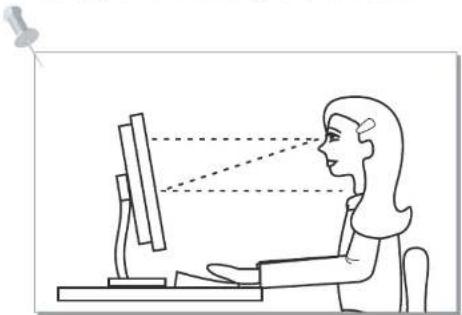
Keep the top of the monitor screen slightly below eye level. Your eyes should look slightly downward when viewing the middle of the screen.
natural_image
Line drawing of a person using a computer with dashed lines indicating perspective (no text or symbols)Position your monitor no closer than 16 inches no further away than 30 inches from your eyes. The optimal distance is 25 inches.
Safety Precautions
The contents of this section are intended to protect the user from danger and prevent physical accidents. Please read through the contents for proper use.
Safety Precautions

Ignoring the safety precautions may lead to accidents causing injury or fatality and structural damage.
Cautions are categorized into two types, "Warning" and "Caution" depending on their level of importance.

Warning: May lead to accidents causing serious human injury

Caution : May lead to minor accidents and damage
Do not use a damaged power cord or plug, or connect to a loose power outlet. Doing so may cause electric shock or fire.
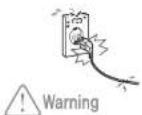
Do not pull the power cord when unplugging the power, and do not touch the power plug with wet hands. Doing so may cause electric shock or fire.

Connect the power plug to grounded power outlets only. Failure to do so may cause electric shock or injury.

Insert the power plug securely into the outlet. Insecure and unstable electrical contact may lead to fire.

Do not bend the power cord excessively or allow the cord to be compressed under a heavy object. Doing so may cause electric shock or fire.
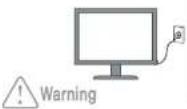
Do not connect more than one plug to a single wall outlet. Doing so may lead to fire.
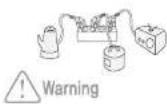
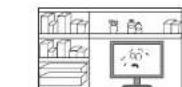
Provide sufficient space between the monitor and the wall for ventilation (cooling). Overheating may lead to fire.

Warning

Make sure that the ventilation holes are not covered by fabrics, curtains, other clothes like material, etc.

Warning
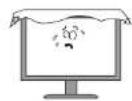
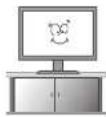
Place the monitor on a firm flat surface and be careful when handling the monitor.
Mishandling the product may cause short circuits and damage the product or cause injury.

Warning
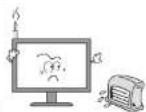
Do not place candles, lighted cigarettes, or other heat-radiating objects on the monitor or near the monitor.
Doing so may lead to fire,

Warning
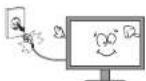
Disconnect the power when cleaning the product
Failure to do so may cause electric shock or fire.

Warning
Do not use flammable sprays or substances near the product.
Doing so may lead to explosion or fire.

! Warning
Do not place the product in a place where the ventilation is poor
Doing so many lead to tire
Warning
Set the PC to match the resolution and frequency of the monitor
27°Type - 2560 x 1440 @60Hz
Caution

Set the PC to activate power save mode (DPMS) when the monitor is not used for a while. Set the screen saver function and select a type that maintains motion in the whole screen.
Do not insert metallic objects into the ventilation holes. They may cause electric shock or fire.
Warning
Do not allow children to climb onto the product or hang on it. The product may fall over and cause serious injury.

Warning
Do not attempt to dismantle, repair, or modify the product yourself. This may cause fire or electrical failures.
Warning
Unplug the monitor when not using for a long period of time. Dust build-up on the product (near the vents) may cause overheating and lead to fire. Use a dry soft cloth for cleaning purposes.

Warning
Carefully unplug the monitor if you see any signs of smoke or smell odor of burning. Contact the manufacturer for further information.

Warning
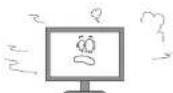
Use a soft dry cloth to clean the monitor, and unplug it before cleaning.
Do not use any chemical solutions on the monitor for cleaning purposes. Do not use a wet cloth on the monitor.

Do not install the monitor where water (rain) drops can enter the enclosure, or where there is oil or humidity.
It may cause electrical faults, fire, or lead to damage to the monitor.

Warning

Do not spray water directly onto the product. It may cause electrical faults or fire.

Warning
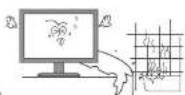
Clean any dirt, dust or water from the power plug contacts.
They may cause electrical faults or fire.

Warning

Available Temperature & Humidity
| No Test Item Condition | ||
| 1 High temperature storage test Ta= 60°C 240h | ||
| 2 Low temperature storage test Ta- -20°C 240h | ||
| 3 High temperature operation test Ta= 40°C 50%RH 240h | ||
| 4 Low temperature operation test Ta= 0°C 240h | ||
| 5 | Vibration test (non-operating) | Wave form: randomVibration level: 1.0G RMSBandwidth: 10-300HzDuration: X,Y,Z, 10 minOne time each direction |
| 6 | Shock test (non-operating) | Shock level: 100GrmsWaveform: half sine wave, 2msDirection: +X, +Y, +ZOne time each direction |
| 7 | AltitudeOperatingStorage / Shipment | 0 - 10,000 feet(3,048m)0 - 40,000 feet(12,192m) |
For dot defect [dead pixel] of LCD
TFT-LCD produced by using high-end semiconductor technology with precision of 99.9% above is used for this monitor.
However the pixels of R.G.B. & White color seem to be right sometimes or some of black pixels could be seen on the LCD. This is not from bad quality or functional problem and you can use it without any problem.
Supported resolution mode table
| No | Resolution | No | Resolution |
| 1 | 2560 X 1440 @ 60Hz (WQHD) | 6 | 1024 X 768 @ 60Hz~75Hz (XGA) |
| 2 | 1920 X 1080 @ 60Hz (WUXGA) | 7 | 800 X 600 @ 60Hz~75Hz (SVGA) |
| 3 | 1600 X 900 @ 60Hz (WXGA-1) | 8 | 640 X 480 @ 60Hz~75Hz (VGA) |
| 4 | 1360 X 768 @ 60Hz (WXGA) | ||
| 5 | 1280 X 1024 @ 60Hz~75Hz (SXGA) |
Packing Contents
Base Function
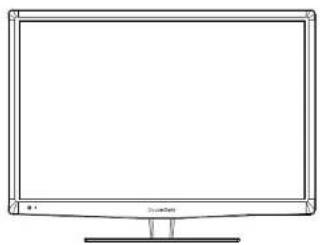
Please make sure the following items are included with your monitor. If any items are missing, contact your dealer.
natural_image
Line drawing of a flat-screen monitor with a stand (no text or symbols)LCD Monitor
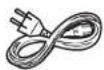
Power Cord

VGA Cable
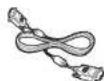
Dual Link DVI Cable

AC Adaptor

Audio Cable

CD
* Actual Images May Vary
Tilt
Tilt feature allows for Monitor to be positioned for best viewing angle.
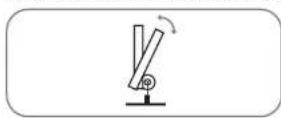
How to use
- Hold Monitor securely at top and bottom of screen
- Push/Pull to adjust to desired angle
Computer Connection
Troubleshooting
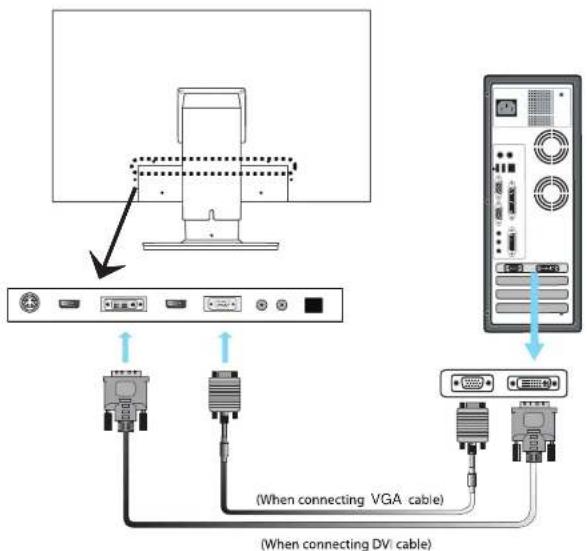
text_image
(When connecting VGA cable) (When connecting DV cable)- If only one connections is required a DVI connection is recommended if available
* Actual Images May Vary
If you encounter a problem with your monitor please review these troubleshooting tips. If the problem persists please contact your monitor dealer or DoubleSight customer service for additional assistance.
No image on the monitor
- Check whether the DVI cable is firmly connected to the PC and the monitor.
- Check whether a graphic card is correctly inserted into the slot.
- Check whether the power of the PC and the monitor is on.
- Check whether a graphic card or mode is set appropriately on the PC.
- Check whether DVI cable pins are not inserted or bent.
No Power
- Check whether the power cord is correctly inserted and reconnect if necessary.
- Pull out the power cord from wall outlet and reconnect in 1 \~ 2 minutes.
LED lamp is on and off. It shows no image.
- Check whether DVI cable is connected to the monitor and the PC.
- Check whether the PC is in power saving made and attempt to operate keyboard and mouse.
Unstable or unfocused image or trembling
- Check whether DVI cable is connected to the monitor and the PC.
- If the PC's display mode is changed, the screen needs readjusting. So check the display mode.
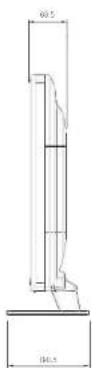
Dimensions (mm)
Specifications
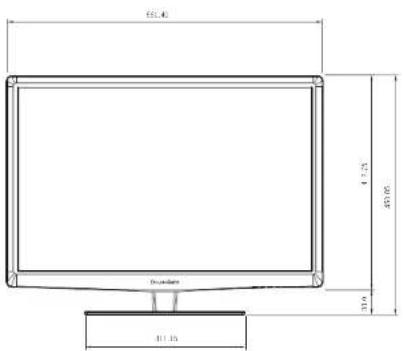
text_image
65.40 4.75 40.00 31.0 81.15Product Weight: approximately 17.2lbs
* Actual Images May Vary
Dimensions, apparent design and specifications are subject to change without any prior notice for the performance improvement.
| Product Name 27" Wide LED Monitor | ||
| LCD Panel | Panel Type | TFT |
| Screen Size | 26.96" (68.47cm) Diagonal | |
| Visible Screen Area | 596.73mm(H) x 335.66mm(V) | |
| Resolution | 2,560(H) x 1,440(V) | |
| Pixel Pitch | 0.2331mm x 0.2331mm | |
| Color Depth | 1.07 Billion Colors, 10 bit with A-FRC | |
| Contrast Ratio | 1000 : 1 | |
| Brightness | 380 cd / m2 | |
| Viewing Angle | Horizontal 178°, Vertical 178° | |
| Response Time | 6ms (GTG) | |
| Power Consumption | In-Operation | < 120W |
| DPMS /OFF | > 1.2W | |
| Energy Saving Mode | VESA DPMS | |
| Power | Adaptor Input | AC 100V~240V, 50~60Hz |
| Adaptor Output | DC 24V / 5.0A | |
| Video Interface | Dual Link DVI, D-SUB, DP, Audio In, Audio Out, HDMI | |
| Accessories | Dual link DVI cable, VGA Cable, AC Adapter, Power Cord | |
Connecting to PC
How to adjust monitors
To connect the monitor to the PC, please follow these instructions:
- Connect DVI cable to the PC. Tighten all the screws.
- Connect DVI cable to the DVI connector on the back of the monitor. Tighten all the screws.
- Connect one end of the power cord to the AC adaptor and the other end to the AC power outlet.
- Connect DC adaptor cable to the power input connector on the back of the monitor.
- Turn On the monitor and PC.
- Adjusting display resolution of PC
-Resolution:2.560X1.440
- Refresh Rate: 60 Hz
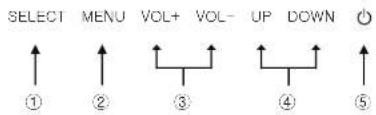
OSD Control
This monitor does support OSD Menu control function.
text_image
SELECT MENU VOL+ VOL- UP DOWN ① ② ③ ④ ⑤①: Input Source Select / OSD Sub Menu Select
(2): OSD Menu On / Off
③: Volume Up & Down / OSD Menu Left & Right
④: OSD Menu Up & Down / Channel Up & Down
⑤: Power On / Off
Hot key is a handy key to execute frequently used functions.
③ VOL+, VOL- : Controls the speaker volume
④ DOWN : Switches Aspect Ratios(16:9 4:3)
④ UP: In VGA mode. Automatically adjust optimal settings of monitor
OSD Functions Description
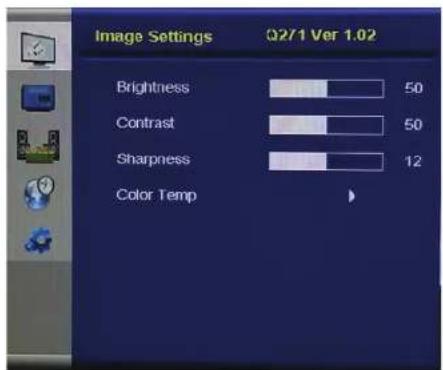
OSD Menus
text_image
Image Settings Q271 Ver 1.02 Brightness 50 Contrast 50 Sharpness 12 Color Temp
Image Setting.
- Adjust screen's Brightness, Sharpness and Color Temperature.

Display Setting.
- Adjust Aspect ratio, PIP mode/position/source, Transparency.

Audio Setting.
- Adjust Mute, Volume and Output.

PC.
- Adjust Display position automatically or manually.

Setup.
- Adjust Language, OSD Menu time, OSD position and OSD transparency, and Factory Reset.
How to adjust monitors
How to adjust monitors
OSD Functions Description
Image Settings

text_image
Image Settings Q271 Ver 1.02 Brightness 50 Contrast 60 Sharpness 12 Color TempBrightness
- Adjust the brightness, Press (VOL+, VOL-) buttons to adjust the level of these settings.
Contrast
- Adjust the image contrast, Press (VOL+, VOL-) buttons to adjust the level of these settings.
Sharpness
- Adjust the image sharpness. Press (VOL+, VOL-) buttons to adjust the level of these settings.
Color Temp.
- Adjust the color temperature by choosing the color temperature presets(6500K, 7500K, 9300K), press (DOWN, UP) buttons to adjust colors. Customize color temperature by choosing the User option.
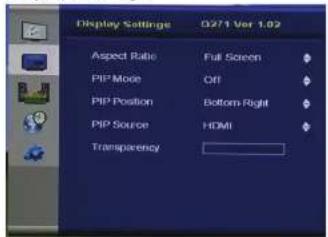
Display Settings
text_image
Display Settings 0271 Ver 1.02 Aspect Ratio Full Screen PHP Mode Off PHP Position Bottom Right PHP Source HDMI TransparencyAspect Ratio
- Choose between the aspect ratios (16:9 or 4:3).
PIP Mode(Picture in Picture)
- Adjusts the screen size of the PIP window.
PIP Position
- Adjust the position of the PIP window.
PIP Source
- Select the input source of the PIP window.
Transparency
- Adjust the level of PIP window's transparency
Note:
Operating PIP mode under DVI and HDMI connection at the same time is not available.
E.X: Main display as DVI and PIP display as HDMI connection or vice versa is not available. Any other combination of connection than above are available.(E.X: DVI and VGA)
OSD Functions Description
Audio Setting

text_image
Audio Settings Q271 Ver 1.02 Mode OFF Volume 50 Output SpeakerMute
- Mute speaker on / off
Volume
- Adjust the sound volume of the speaker
Output
- Adjust the output of headphones and speaker
Display Settings
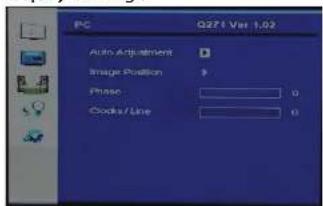
text_image
PC Q271 Ver 1.02 Auto Adjustment Image Position 9 Phase 0 Clocks/Line 0Auto Adjustment
- Automatically adjust optimal settings of monitor
Image Position
- Adjust the position of the display horizontally and vertically.
Setup

text_image
Setup Q271 Ver 1.02 Factory Reset No Language English OSD Timer 10 OSD Position Center Transparency Smart CD*Factory Reset
- Reset all user settings to factory preset
Language
- Select a language for OSD menu
OSD Timer
- Control display time on OSD window
OSD Position
- Adjust position of the OSD window on display
Transparency
Adjust the level of OSD window's transparency
How to adjust monitors
OSD Functions Description
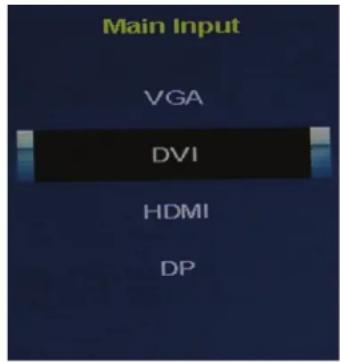
Source Selection
text_image
Main Input VGA DVI HDMI DPSource
- Scroll Up and Down to select the source and press VOL+ to select
Limited Warranty
INTRODUCTION
This Warranty covers DoubleSight Displays's ("DSD") DS-279W Series DoubleSight 27" LCD Monitors ("Product") sold by DSD or DSD's authorized resellers. DSD provides a limited warranty for the originally purchased Products for use, not resale ("Original Purchase"), located in the United States No DSD authorized reseller may claim any right or interest under this limited warranty.
Notice
DoubleSight Displays now includes a 3 year standard warranty for DS-279W Series model only from Original Date of Purchase.
Thank you for your support!
DoubleSight Displays
LIMITED WARRANTY
DSD warrants this Product to be free from defects in material and workmanship for a period of three (3)years from the date of Original Purchase. Spare parts are warranted for ninety (90) days. Subject to the conditions set forth below, if a Product proves to be defective in material or workmanship during the warranty period, DSD will, at its sole option, repair or replace the Product with a similar Product. Replacement Product or parts may include remanufactured or refurbished parts or components and will meet the specifications of the original parts or unit.
This warranty is extended by DSD only to the original purchaser ("you") of the Product and is not transferable. During the warranty period, DSD shall provide you with limited telephone technical support providing assistance to you solely for the purpose of defining any problem. Repair or replacement of the Product is limited to the United States.
CUSTOMER RESPONSIBILITIES
As the original purchaser you have thirty (30) days in which to review the contents of the Product's packaging for any missing or broken items. After the first thirty (30) days of ownership, beginning from the date of Original Purchase, a charge will be incurred for replacement of any item you, the original purchaser, may wish to order from DSD. Such charges will include handling and shipping costs incurred for delivery of any such items.
WARRANTY EXCLUSIONS
This warranty does not cover:
- Any Product on which the serial number has been defaced, modified or removed.
- Damage, deterioration or malfunction resulting from:
A. Accident, disaster, misuse, neglect, fire, water, lightning, or other acts of nature, unauthorized product modification, or failure to follow instructions and environment specifications supplied with the Product.
B. Repair or attempted repair by anyone not authorized by DSD.
C. Customer supplied interfacing.
D. Improper site preparation and maintenance
E. Damage to or loss of any programs, data or removable storage media
F. Software or data loss occurring during repair or replacement.
G. Any damage of the Product due to shipment.
H. Removal or installation of the Product.
- Causes external damage to the Product, such as electric power fluctuations or failure
J. Use of supplies or parts not meeting DSD's specifications.
K. Normal wear and tear.
L. Subjecting the Product to displaying of fixed images for a long periods of time resulting in image persistence (afterimage effects) or image burn-in.
M. Any other cause which does not relate to a product defect.
- Removal, installation, and set-up service charges
HOW TO OBTAIN WARRANTY SERVICE
- For information on warranty service, call DSD customer service toll-free in the U.S.A.
by calling 1-888-897-8869, or email DSD at support@doublesight.com.
- To obtain warranty service, you will be required to provide
A. The original dated sales slip,
B. Your name
C. Your address.
D. The serial number of the product.
E. A description of the problem.
- Bring or ship the Product prepaid and insured in the original container, with the associated accessories, to the DSD depot repair site. All Products returned to the DSD depot repair site for service MUST have prior approval which may be obtained by calling the telephone number above.
DISCLAIMER OF WARRANTIES
THERE ARE NO WARRANTIES, EXPRESS OR IMPLIED, WHICH EXTEND BEYOND THE DESCRIPTION CONTAINED HEREIN THE WARRANTIES CONTAINED HEREIN ARE IN LIEU OF ALL OTHER WARRANTIES EXPRESS OR IMPLIED, INCLUDING, BUT NOT LIMITED TO, THE IMPLIED WARRANTY OF MERCHANTABILITY AND FITNESS FOR A PARTICULAR PURPOSE, DSD MAKES NO OTHER EXPRESS OR IMPLIED WARRANTY OR CONDITION WHETHER WRITTEN OR ORAL. SOME STATES DO NOT ALLOW THE EXCLUSION OF IMPLIED WARRANTIES SO THE ABOVE EXCLUSIONS OR LIMITATIONS MAY NOT APPLY TO YOU THIS WARRANTY GIVES YOU SPECIFIC LEGAL RIGHTS AND YOU MIGHT ALSO HAVE OTHER RIGHTS THAT VARY FROM STATE TO STATE.
EXCLUSIVE REMEDIES
THE REMEDIES PROVIDED IN THIS STATEMENT OF LIMITED WARRANTY ARE YOUR SOLE AND EXCLUSIVE REMEDIES. IN NO EVENT WILL DOUBLESIGHT DISPLAYS BE LIABLE FOR DIRECT, INDIRECT, INCIDENTAL, CONSEQUENTIAL, OR OTHER TYPES OF DAMAGES RESULTING FROM ANY BREACH OF WARRANTY, OR CONTRACT OR ANY TORT (INCLUDING NEGLIGENCE) OR UNDER ANY OTHER LEGAL THEORY, INCLUDING LOST PROFIT, DOWNTIME, GOODWILL, DAMAGE TO OR REPLACEMENT OF EQUIPMENT AND PROPERTY, AND ANY COSTS OF RECOVERING, REPROGRAMMING, OR REPRODUCING ANY PROGRAM OR DATA SORTED IN OR USED WITH THIS PRODUCT EVEN IF DSD OR A DSD AUTHORIZED RESELLER FOR THIS PRODUCT HAS BEEN ADVISED OF THE POSSIBILITY OF SUCH DAMAGES, OR FOR ANY CLAIM BASED ON ANY THIRD PARTY CLAIM. DSD LIABILITY WILL BE NO MORE THAN THE AMOUNT YOU PAID FOR THE PRODUCT THAT IS THE SUBJECT OF A CLAIM. THIS IS THE MAXIMUM AMOUNT FOR WHICH DSD WILL BE RESPONSIBLE SOME STATES DO NOT ALLOW THE LIMITATION OR EXCLUSION OF LIABILITY FOR INCIDENTAL OR CONSEQUENTIAL DAMAGES SO THE ABOVE EXCLUSIONS OR LIMITATIONS MAY NOT APPLY TO YOU.
This Product is warranted in accordance with the terms of this limited warranty. You are cautioned that Product performance is affected by system configuration, software, the application, customer data, and operator control of the system, among other factors. While DSD Products are considered to be compatible with many systems, specific functional implementation by the original purchaser of the Product may vary. Therefore, suitability of a Product for a specific purpose or application must be determined by the original purchaser and is not warranted by DSD.
Regulatory Information
FCC Compliance
This device complies with Part 15 of the FCC Rules. Operation is subject to the following two conditions: (1) This device may not cause harmful interference, and (2) this device must accept any interference received, including interference that may cause undesired operation. This equipment has been tested and found to comply with the limits for a Class B digital device, pursuant to Part 15 of the FCC Rules.
These limits are designed to provide reasonable protection against harmful interference in a residential installation. This equipment generates, uses and can radiate radio frequency energy and, if not installed and used in accordance with the instructions, may cause harmful interference to radio communications. However, there is no guarantee that interference will not occur in a particular installation.
If this equipment does cause harmful interference to radio or television reception, which can be determined by turning the equipment off and on, the user is encouraged to try to correct the interference by one or more of the following measures:
• Reorient or relocate the receiving antenna.
- Increase the separation between the equipment and receiver,
- Connect the equipment to an outlet on a circuit different from that to which the receiver is connected.
- Consult the dealer or an experienced radio/TV technician for help.
FCC WARNING
To assure continued FCC compliance, the user must use a ground power supply cord and the provided shielded video interface cable with bonded ferrite cores. If a BNC cable is going to be used, use only a shielded BNC (5) cable. Any unauthorized changes or modifications not expressly approved by the party responsible for compliance could void the user's authority to operate this device.
User Information
Users may find the following booklet, prepared by the Federal Communications Commission, helpful: "How to identify and Resolve Radio-TV Interference Problems." This booklet is available from the U.S. Government Printing Office, Washington, D.C. 20402

