
Freestyle 4100 - Simulator BT - Free user manual and instructions
Find the device manual for free Freestyle 4100 BT in PDF.


| Product Type | Digital cordless telephone |
| Brand | BT |
| Model | Freestyle 4100 |
| Handset Variants | Lounge (stylish design), Bedroom (bright backlight, torch), Kitchen (wipe-clean keypad, rubber grips) |
| Maximum Handsets per Base | 5 |
| Directory Capacity | Up to 100 names and numbers |
| Calls List Capacity | Last 40 callers |
| Redial List Capacity | Last 20 numbers |
| Text Messaging (SMS) | Send and receive up to 160 characters |
| Caller Display | Yes (requires network subscription) |
| Handsfree | Yes |
| Internal Calls | Yes (between handsets) |
| Range (outdoor) | Up to 300m |
| Range (indoor) | Up to 50m |
| Talk Time | Up to 12 hours |
| Standby Time | Up to 120 hours |
| Battery Type | NiMH AAA rechargeable (supplied) |
| Power Supply | Mains power adaptor (included) |
| Ringer Equivalence Number (REN) | 1 |
| Cleaning | Damp (not wet) cloth or anti-static wipe |
| Safety Notes | Do not use in bathroom; keep 1m away from other electrical appliances; unplug during storms |
| Spare Parts / Batteries | Contact BT Freestyle Helpline 0870 240 3962 |
| Guarantee | 12 months from date of purchase |
Frequently Asked Questions - Freestyle 4100 BT
User questions about Freestyle 4100 BT
0 question about this device. Answer the ones you know or ask your own.
Ask a new question about this device
Download the instructions for your Simulator in PDF format for free! Find your manual Freestyle 4100 - BT and take your electronic device back in hand. On this page are published all the documents necessary for the use of your device. Freestyle 4100 by BT.
USER MANUAL Freestyle 4100 BT
Welcome...
to your BT Freestyle 4100 digital cordless telephones
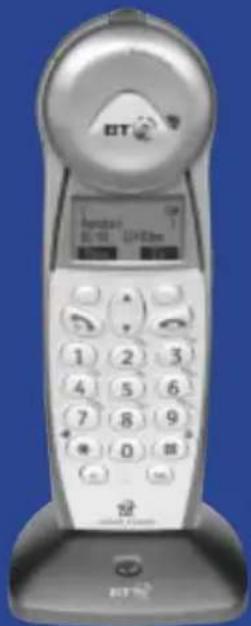
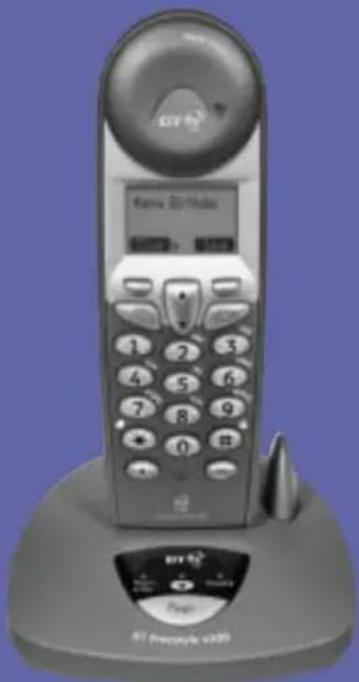
Depending on which BT Freestyle 4100 product you have purchased you will have either or all of these handsets:
- Kitchen – with a wipe clean keypad and rubber grips.
- Bedroom – with bright backlighting of the keypad and display and a built in torch.
- Lounge – stylish design and colour to fit in with most decors.
■ Up to 100 name and number directory.
■ Send and receive text messages. - Calls list holds details of your last 40 callers so you can see who’s called and when. Call back numbers directly from the calls list.
■ Redial any of the last 20 numbers from the redial list.
■ Make internal calls between two handsets while the third talks to an outside caller.
■ Digital call clarity with up to 300m range outdoors and up to 50m indoors.
This User Guide provides you with all the information you need to get the most from your phone.
You must first set up your product before you can use it. This doesn’t take long as it is easy to do. Just follow the simple instructions on the next few pages or see the Quick Start guide enclosed.
Need help?
If you have any problems setting up or using your BT Freestyle 4100 please contact the Helpline on 0870 240 3962.
Alternatively, you may find the answer in ‘Help’ at the back of this guide.
Got everything?
Freestyle 4100
Freestyle 4100 base
■ Freestyle 4100 Lounge handset
■ 2 x NiMH AAA rechargeable batteries
■ 1 x mains power adaptors
1 x belt clips
- Telephone line cord
Freestyle 4100 Twin
Freestyle 4100 base
Freestyle 4100 charger
■ Freestyle 4100 Lounge handset
■ Freestyle 4100 Bedroom handset
■ 4 x NiMH AAA rechargeable batteries
■ 2 x mains power adaptors
2 x belt clips
- Telephone line cord
Freestyle 4100 Trio
Freestyle 4100 base
■ 2 x Freestyle 4100 chargers
■ Freestyle 4100 Lounge handset
■ Freestyle 4100 Bedroom handset
■ Freestyle 4100 Kitchen handset
■ 6 x NiMH AAA rechargeable batteries
■ 3 x mains power adaptors
3 x belt clips
- Telephone line cord
Freestyle 4100 Quad
Freestyle 4100 base
■ 3 x Freestyle 4100 chargers
■ Freestyle 4100 Lounge handset
■ 2 x Freestyle 4100 Bedroom handset
■ Freestyle 4100 Kitchen handset
■ 8 x NiMH AAA rechargeable batteries
■ 4 x mains power adaptors
4 x belt clips
- Telephone line cord
In this guide
Getting started
Location 7
Setting up ....7
Attach belt clips (optional) .....9
Getting to know your phone
Handset buttons .....10
Display icons .....11
Navigating the menus .....12
Menu map .....14
Base 15
Using the phone
Dialling numbers .....16
Call timer .....16
Auto-answer ....16
Backlit buttons & display .....16
Switch handset on/off .....17
Make an external call .....17
Preparatory dialling .....17
End a call .....17
Receiving calls .....17
Handsfree ....18
Earpiece and handsfree volume .....18
Secrecy 19
Redial .....19
Paging .....21
Keypad lock .....22
Internal calls ....22
Directory
Entering names .....23
Add a new directory entry .....24
Dial from the directory .....24
View an entry .....25
Edit an entry .....25
Delete entries .....26
Copying directory entries .....26
Copy to another handset .....27
Set groups .....29
Name and set melody for a group ....30
Caller Display
Caller Display ....31
View / dial a number in the Calls list . .32
Save a number to the directory .....33
Delete an entry in the Calls list .....33
Delete the entire list .....33
SMS texting
SMS text messaging service .....34
Send an SMS text message .....35
Entering text 36
Predictive text .....38
SMS template message .....39
Edit SMS templates .....39
Delete SMS templates .....40
Read, edit and send draft SMS
text messages .....40
Read, edit and send messages
from your outbox .....41
Sending a text message to a mobile . .43
Reading SMS texts .....43
Delete an SMS text message .....47
Delete all SMS text messages .....47
Switch SMS text alert on/off .....47
Adding or changing a Send Service number ....48
Adding or changing a Receive Service number ....48
Selecting a Send Service number . . . . .49
Additional handset settings
Date and time ....50
Ringer melody ....51
Ringer volume .....51
Handset name .....51
Adjust contrast ....52
Backlight on/off ....52
Auto answer ....53
Keybeeps on/off .....53
Alarm ....54
Play game ....55
Default settings .....56
Base settings
Ringer melody .....57
Ringer volume .....57
Handset priority .....57
Dial mode ....58
Recall mode .....59
Base PIN ....59
Default settings 60
Additional handsets and bases
Registering new handsets .....61
De-registering a handset .....62
Transferring a call . . . . . . . . . . . . . . . . . . . . . . . . . . . . . . . . . . . . . . . . . . . . . 62
3-Way calls 63
Using additional bases .....64
Selecting another base .....64
Help
Replacing handset batteries .....65
Helpline 67
General information
Safety 68
Cleaning 69
Environmental 69
How many telephones can you have? . .70
Connecting to a switchboard .....71
Access code .....71
Insert a pause .....71
Guarantee 72
For your records .....73
R&TTE 74
Declaration of Conformance .....74
SMS Service Conditions .....75
Getting started
Location
You need to place your BT Freestyle 4100 base station close enough to a mains power and telephone socket so that the cables will reach.
Make sure it is at least 1 metre away from other electrical appliances to avoid interference.
Your BT Freestyle 4100 works by sending radio signals between the handset and base. The strength of the signal depends on where you site the base. Putting it as high as possible ensures the best signal.
Setting up
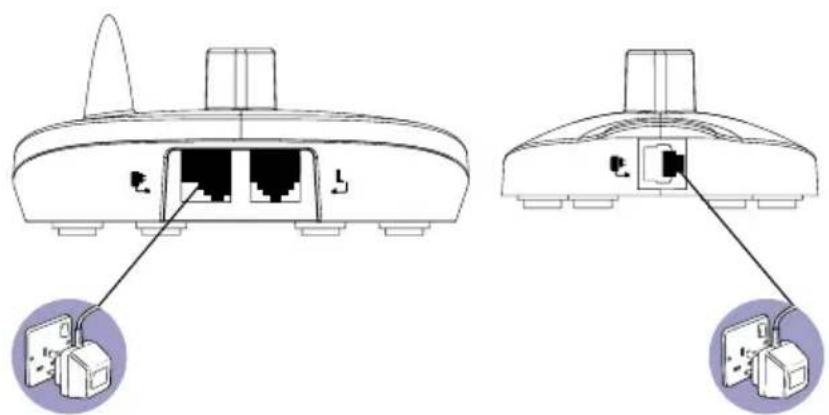
- Plug the power adaptors into the base and any chargers that come with your product.
WARNING
Do not place your BT Freestyle 4100 base in the bathroom or other humid areas.
Handset range
The handset reception range from the base is up to 300m outdoors and up to 50m indoors.
Signal strength
The symbol on your handset screen indicates when you are in range. When you are out of range, it flashes and the screen displays OUT OF RANGE and there is a beep.
IMPORTANT
Do not connect the telephone line until at least one of the handsets is fully charged.
The base station must be plugged into the mains power at all times.
Which socket?

Power socket

Telephone line socket
Talk/Standby time
Under ideal conditions, the handset batteries should give about 12 hours talk time or 120 hours standby on a single charge. (The base must remain plugged into the mains at all times).
Please note that new NiMH batteries do not reach full capacity until they have been run down and recharged a few times.
Battery low warning
When the handset battery symbol is empty and flashing, you will need to recharge the handset battery before using it.
- Plug the telephone line cord into the base.
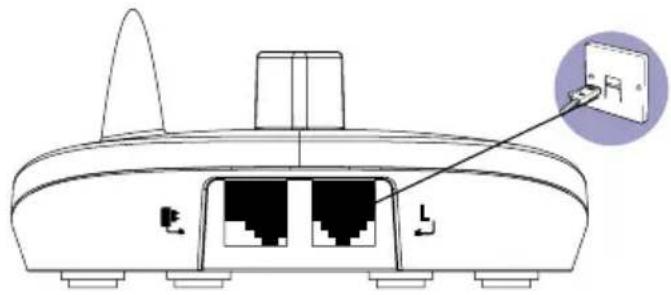
Do not connect the other end to the wall socket yet.
-
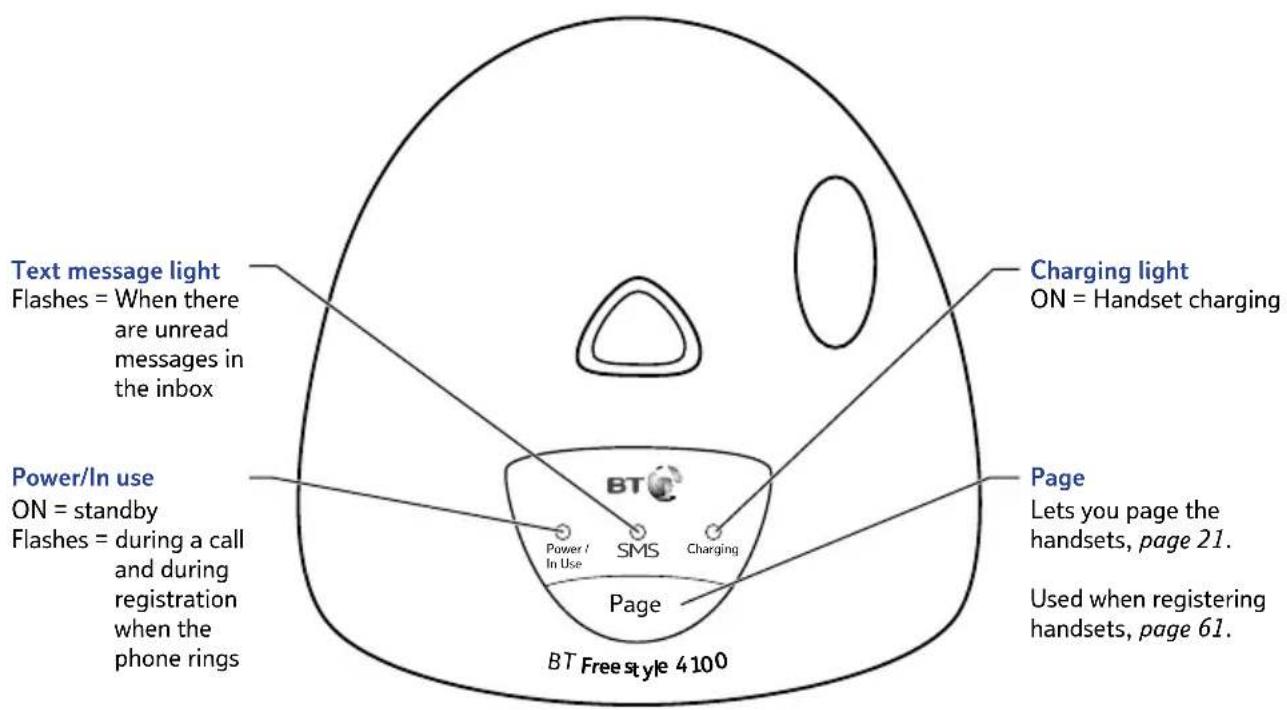
Plug the power adaptors into the mains wall socket and switch the power on. The green POWER/IN USE light on the base comes on.
-
Install 2 X NiMH AAA batteries supplied into each handset. Then slide the battery compartment cover into place.
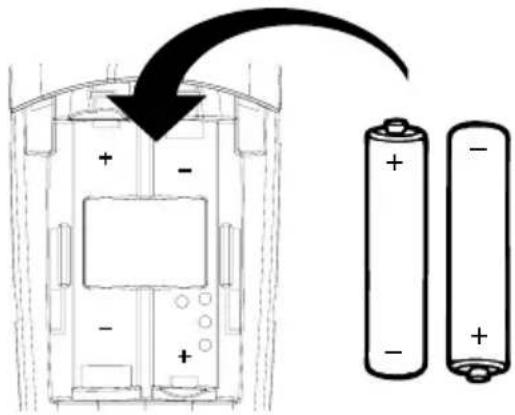
- Charge the handsets for at least 16 hours by placing the handset on the base. The red CHARGING light comes on. The handsets are pre-registered to the base.
If you have purchased either the BT Freestyle Twin, Trio or Quad products the additional handsets will come pre-registered to the base.
- After 16 hours charging, plug the telephone line cord into the wall socket.
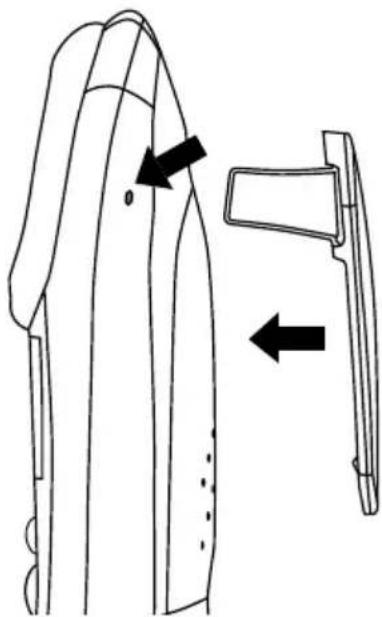
Attach the belt clips (optional)
Battery performance
To keep your batteries in the best condition, leave the handset off the base for a few hours at a time (after the initial 16 hour charge).
Running the batteries right down at least once a week will help them last as long as possible.
The charge capacity of rechargeable batteries will reduce with time as they wear out, giving the handset less talk/standby time. Eventually they will need to be replaced. New batteries are available from the BT Freestyle Helpline on 0870 240 3962.
After charging your handset for the first time, subsequent charging time is about 6-8 hours a day. Batteries and handset may become warm during charging. This is normal.
Getting to know your phone 10
Handset buttons
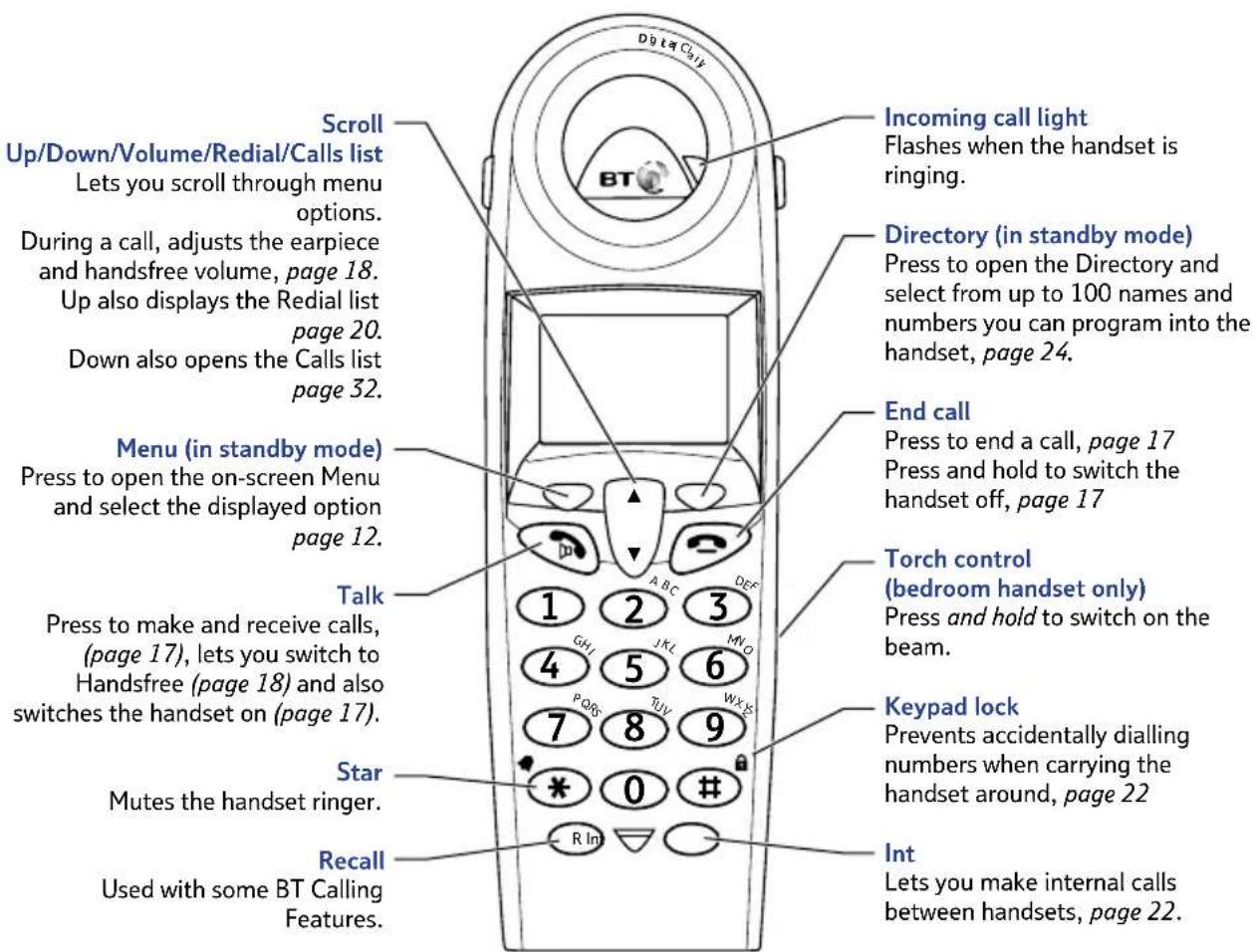
Sample standby screen – This is where the handset icons will appear.
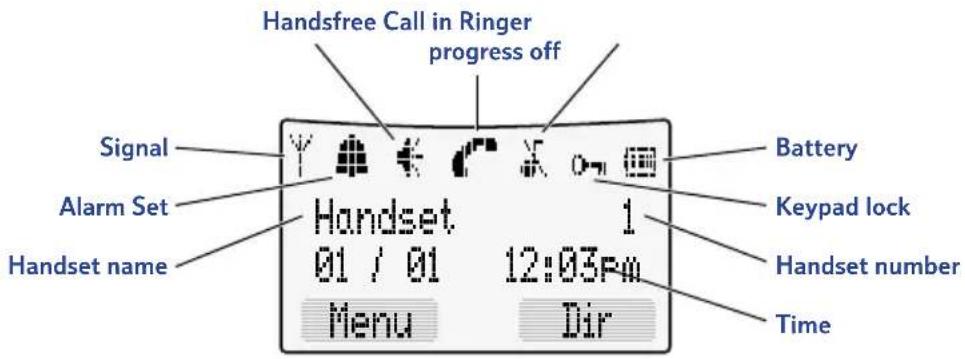
Handset display icons – These are the symbols you will see on your handset's screen.

In range signal
Steady when handset is in range of the base. Flashes when out of range of the base or not registered to the base.

Alarm set
Indicates that the alarm has been set.

Handsfree on
Indicates that handsfree is being used.

Call in progress
Indicates a call is in progress.

Ringer off
Indicates that the ringer is switched off.

Keypad locked
Indicates when the keylock is on.

Battery status
Indicates when battery is fully charged.

Battery low
Indicates when the battery is low.

You have missed new calls*
Displayed when you have unanswered calls in the Calls list (appears in the third line of the display instead of the date and time).

You have new text messages*
Indicates that you have received a text message (appears in the third line of the display instead of the date and time).
As you get deeper into the menu you will find that multiple options are shown in the handset display. The highlighted option will be selected when you press OK.
Navigating the menus...
Your BT Freestyle 4100 handsets have a menu system which is easy to use. In most cases, each menu leads to a list of options. Have a look at the menu map on the following page.
When the handset is switched on and in standby, press MENU to open the main menu and use the button to scroll to the menu option you want. Press OK to open the list of options.
... and selecting menu options
Once the menu list you want is open, use the Button to scroll through the options then press OK to select the option you want.
For example to change the handset ringer volume:
-
Press MENU to open the main menu then ▼display HANDSET SETTINGS. Press OK then ▼display RINGER VOLUME.
-
Press OK. The volume options are displayed and the current selection is heard. Press scroll through the options and each setting is played. Press SAVE to confirm the option you want. Display shows SAYED and returns to standby.
Go back one level
You can go back to the previous menu level by pressing BACK.
Exit menu
If you want to exit a menu or the phone book, press BACK. If you want to go straight to the standby screen press the button.
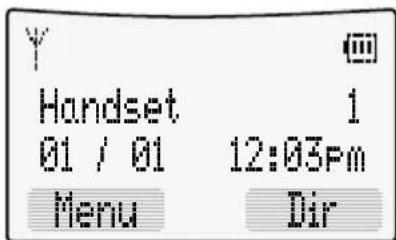
Press the MENU button to access menus or the DIR button to open the directory.
Scroll to display menu options. Then press OK to select.
Menu map

SMS message
Write message
Inbox
Drafts
Outbox
Template
SMS Settings
Handset settings
Ringer melody
Ringer volume
Name handset
Call groups
Key beeps on/off
Auto talk on/off
Display contrast
Backlight on/off
Select base
Base settings
Ringer melody
Ringer volume
Handset priority
Dial mode
Recall mode
Change system
PIN
Time and date settings
Set date & time
Set day
Alarm
Registration
Register handset
De-register
handset
Game
Adder game
Base
Using the phone 16
Dialling numbers quickly
Numbers can be dialled direct from the Directory (page 24), the Calls list (page 32) or the redial list (page 20)
Call timer
Your handset automatically times the duration of every call. The time is shown during the call and for a few seconds after the call has ended.
Auto-answer
When you receive a call, you can answer it by lifting the handset off the base station or charger, this is called auto answer. Also, you can end calls by replacing the handset on the base or charger. When you switch auto answer off, all calls must be answered by pressing and ended by pressing
You can disable the backlight if you wish, see page 52.
Backlit buttons & display
When you press any button or receive a call/message, the keypad and display light up. If no button is pressed for 10 seconds, the lights are switched off.
Switch handset on/off
- Press and hold to switch handset off.
- Press and release to switch it on.
Make an external call
- Press, then for the dial tone then dial the number.
Preparatory dialling
- Enter the number first. If you make a mistake press CLEAR to delete. Press ✉lial.
End a call
- Press replace the handset back on the base.
Receiving calls
When the telephone rings the display may show the number or name of the calling party.
Or show External Call if Caller Display is not subscribed to.
Or Handset X calling if it is an internal call where X is the number of the handset calling.
The handset icon will also flash.
- Press to answer the call, or if the handset is on the base or charger, simply lift it up to speak.
If you have subscribed to a Caller Display Service your caller's number (and name if stored in the Directory) will be shown. See page 31 for more information.
Handsfree
Handsfree lets you talk to your caller without holding the handset. It also enables other people in the room to listen to both sides of your conversation.
Switch to handsfree before a call.
-
Press . Display shows press again. Display shows and you can hear the dial tone over the handset speaker.
-
Press to switch handsfree off.
Switch to handsfree during a call.
- Press . to switch handsfree off, press again
Earpiece and handsfree volume are independent of each other but instructions for adjusting are the same for both.
Earpiece and handsfree volume
You can adjust the earpiece and the handsfree loudspeaker volume.
There are 5 levels to choose from.
During a call:
- Use the Button to select volume 1-5. The current setting is shown. When you end the call the setting will remain at the last selected level.
Secrecy
During a call, you can talk to someone nearby without your caller hearing you.
- During the call press SECRECY. Display flashes Secrecy on. Your caller cannot hear you.
- Press OFF to return to your caller.
Redial
You can redial up to 20 of the last numbers called. If you have stored a name in the Directory to go with the number, the name will be displayed instead, see page 24.
Redial the last number
- Press ▲ open the Redial list. The last number dialled is highlighted. Press ▲ total the number.
If the number is already in the directory the SAVE option will not be shown.
Redial a number from the list
- Press ▲ open the Redial list, the last number called is highlighted. Press ▲ to scroll through the list. When the number you want is highlighted, press
Empty
If there are no numbers in the Redial list, the display shows Redial List Empty.
Copy a number from the redial list
You can copy a number from the redial list into the directory. The redial list holds up to 20 of your most recently dialled numbers.
- Press ▲ pen the redial list. Scroll or to ▲ e number you want and press OPTION.
- Scroll to highlight SAVE NUMBER. Press OK.
- Display shows ENTER NAME. Use the keypad to enter a name (see page 23 for entering text) and press SAVE. Display shows EDIT NUMBER. If necessary, use the keypad to change the number, then press SAVE to confirm.
Deleting a redial entry
- Press ▲ open the redial list. Scroll to the entry you want. Press OPTION. DELETE ENTRY is highlighted. Press OK.
Delete entire redial list
- Press ▲ pen the redial list. Press OPTION. DELETE ENTRY is highlighted. Press ▼ highlight DELETE ALL Press OK. Press DELETE to confirm or SAVE to cancel.
Paging
You can alert handset users that they are wanted or locate a missing handset by paging the handsets, (paging calls cannot be answered by a handset).
- Press Page 8 base. The handsets ring. Display shows PAGING CALL. Press Page 9 to stop the handsets ringing or press to the handset.
Pressing will stop that handset only.
If you are making an internal call, and you receive an external call, any handset not in use will ring.
The handsets that are being used will beep in the earpiece. To take the call, press 📄 finish the internal call then press TALK to take the new call.
Keypad lock
You can lock the keypad so that you don't dial numbers accidentally while carrying the handset around.
-
Press and hold . play confirms KEYPAD LOCKED and then reverts to the standby screen and displays 0-
-
To unlock the keypad, press UNLOCK, then press whilst Press # To Unlock Keyas shown in the display. While the keypad is locked you can still answer incoming calls and make 999 or 112 calls to the emergency service. But you cannot call other numbers or use the menus.
Internal calls
You can call the other handsets registered to your BT Freestyle 4100 base.
-
Press, the other handset numbers are displayed. Press to highlight the handset number you want, then press OK.
-
To end the call, press
Directory
You can store up to 100 names and numbers in the directory of each handset. Each entry contains a name and phone number. Names can be up to 15 characters long and numbers up to 24 digits.
Entering names
- Use the keypad letters to enter names, e.g. to store TOM:
- Press 8 e to enter T.
- Press 6e times to enter 0.
- Press 6 e to enter M.
Writing tips
- If you make a mistake, press CLEAR to delete the last character or digit.
- Press 0 e to insert a space.
Available characters are displayed at the bottom of the screen, keep pressing the button to scroll through the characters.
The cursor automatically moves to the next space after a couple of seconds.
When there are no entries in the directory the display shows NEW ENTRY?
button When entering text, if you press the button the following characters are available: (space), (.), (,), (#) and (*).
When entering names you can select upper case, lower case or numerics by pressing ✪
An H , α or 1 will appear in the display to indicate the current selection.
Add a new directory entry
When the phone is in standby:
- Press Dir. Any entries are displayed in alphabetical order. Press OPTION. Display highlights NEW ENTRY. Press OK. Display shows ENTER NAME.
- Use the keypad to enter a name, then press SAVE. Display shows ENTER NUMBER.
- Enter the number you want and press SAVE. Display shows ENTRY SAVED. You can now add another entry. Or press BACK to go back to the previous menu level.
Dial from the directory
- Press Dir. Entries are displayed in alphabetical order.
- Either scroll ▲ through the directory to highlight the entry you want, then press ▲ the number is displayed and dialled.
Or you can search alphabetically by pressing the relevant button, e.g. to find TOM press 8 scroll through entries under T, then press crucial.
View an entry
You can display a name and number together.
- Press DIR. Scroll ▲ to highlight the entry you want, then press OPTION. Scroll ▼ SHOW NUMBER and press OK.
Edit an entry
-
Press DIR. Scroll ▲ to highlight the entry you want, then press OPTION. Scroll ▼ EDIT ENTRY and press OK.
-
Display shows the name and EDIT NAME. Use CLEAR and the keypad to change the name then press SAVE.
-
Display shows EDIT NUMBER. Use CLEAR and the keypad to change the number and press SAVE to confirm.
Delete entries
You can delete individual entries or the entire directory.
-
Press DIR. Scroll ▲ to highlight the entry you want, then press OPTION. Scroll ▼ DELETE ENTRY or DELETE ALL and press OK.
-
Display asks you to confirm. Press DELETE to confirm or SAVE to cancel.
Copying directory entries
Save time adding entries by copying from one handset to another. So you only have to enter names and numbers once!
While copying entries between two handsets you can still make external calls on any other BT Freestyle 4100 handset registered to your base.
When the whole directory is copied, it will overwrite any existing entries on the other handset.
If the directory on the handset you are copying to becomes full, the receiving handset displays DIRECTORY FULL. The sending handset displays COPY DIRECTORY ENTRY FAILED for 2 seconds.
Copy an entry to another handset
You can copy individual entries or the whole directory from one handset to another providing both handsets are registered to your base.
- Press DIR and then scroll ▲ to select the entry you wish to copy. Press OPTION. Scroll ▼ COPY ENTRY. Press OK.
- Display shows COPY TO HANDSET and the available handset numbers. Press ▲ to select the handset you want.
- Press OK. Display shows COPYING TO HANDSET X The receiving handset shows RECEIVE DIRECTORY ENTRY? If you press YES the entry is copied. If you press NO then the copying is aborted. When copying is finished, the display returns to standby.
Copy directory from one handset to another
- Press DIR, then OPTION. Scroll ▼ to COPY DIRECTORY. Press OK.
-
Display shows COPY TO HANDSET and the available handset numbers. Press ▲ to select the handset you want.
-
Press OK. Display shows COPYING TO HANDSET X. The receiving handset shows RECEIVE DIRECTORY? If you press YES the directory is copied. If you press NO then the copying is aborted. When copying is finished, the display returns to standby.
Incoming call while copying
An incoming call cancels copying. If you're copying the whole directory, any entries transferred before a call interrupts will be stored.
If the other handset is in use
Your handset's display shows NOT AVAILABLE when you select a copy option before returning to standby.
Set groups
You can create ringing groups by selecting entries from your directory. For example if you create a group for family members and assign a ringer melody to that group when one of that family group calls you will be able to identify which group from the ringer melody.
You can create up to 3 groups.
-
Press DIR. Scroll ▲ to highlight the entry you want to store in a group. Press OPTION.
-
Scroll ▼ SET CALL GROUP and press OK. Scroll ▼ highlight the group you want. Press OK. The display shows ADDED TO GROUP X. Select NO GROUP to remove a name from a group.
Name and set melody for a group
You can rename a group and change the melody.
- Press MENU then ▼ display HANDSET SETTINGS. Press OK.
- Scroll ▼ CALL GROUPS and press OK. Press ▲ to highlight the group you want and press OK.
- If required, use ▲ to select SET MELODY (see page 49 for selecting melody options) or EDIT GROUP NAME. Press OK.
- Press CLEAR to delete the existing name then enter the new name and press SAVE.
- Press BACK to return to standby.
Caller information not available
With some incoming calls, the telephone number of the caller is not available and cannot therefore be displayed.
In this case your BT Freestyle 4100 provides you with some explanatory information:
UNAVAILABLE – The number is unavailable.
WITHHELD – The caller has withheld their number.
RINGBACK – Ringback call.
OPERATOR – The call has been made via the operator.
PAYPHONE – The caller is ringing from a payphone.
INTERNATIONAL – International call.
Using Caller Display
If you subscribe to a Caller Display service, you can see your caller's number (provided it is not withheld) on your handset display before you answer the call.
When a call is received your caller's telephone number will be stored in a Calls list. The Calls list holds up to 40 calls. When the Calls list is full, the oldest call will be replaced by a new call, but the latest call will always be at the top of the list. If a caller rings again their number will move to the top of the list.
IMPORTANT
To use Caller Display you must first subscribe to your network provider's Caller Display service. A quarterly fee is payable.
For more information on BT's Calling Features, call BT free on 0800 800 150.
If you have any unanswered calls in the list a ☐ on will be shown on the handset display.
The icon will disappear when you have viewed the missed calls in the Calls list.
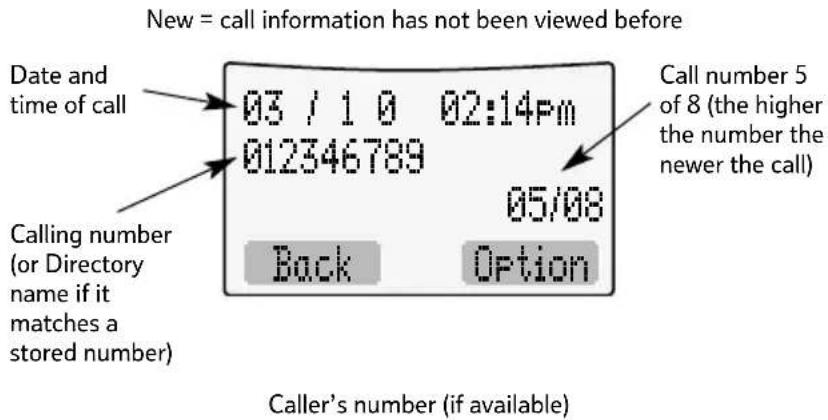
Each call is numbered:
01 = the oldest call in the Calls list. So in a full Calls list, 40 would be the most recent call.
Ringback calls will display the number dialled when you requested the ringback service.
Sample Calls list screen
To view / dial a number the Calls list
-
Press ▼open the Calls list. Details of your most recent call are displayed.
-
Scroll ▲ through the list. Press to dial the number displayed.
Save a Calls list number to the directory
- Press ▼ necessary, scroll or ▲ the every you want.
- Press OPTION. Display highlights SAVE NUMBER. Press OK.
- Use the keypad to enter a name. Press SAVE. If necessary use the keypad to change the number. Press OK. Display shows ENTRY SAVED.
Delete an entry in the Calls list
- Press ▼ necessary, scroll or ▲ the every you want.
- Press OPTION. Display highlights DELETE CALL. Press OK.
Delete the entire Calls list
-
Press ▼ress OPTION. Scroll to highlight DELETE ALL. Press OK.
-
Press DELETE to confirm or SAVE to cancel.
SMS texting
SMS stands for Short Messaging Service.
You will not be able to receive text messages until you have first sent a message. The first sent message registers you with the text service.
IMPORTANT
You must subscribe to your Network Provider's Caller Display Service so that you can use SMS text messaging. A quarterly fee may be payable, please contact your network provider for more details.
When you are using SMS text messaging you must not withhold your telephone number or the service will not allow you to connect. BT have prefixed the Service Centre 1 number with '1470', this will release your telephone number only to the SMS Provider, even if you normally have your number withheld.
SMS text messaging service
Welcome to the SMS Text Messaging Service on your BT Freestyle 4100 product. The SMS Service is being provided by Bizzyline (Direct) Ltd. Terms and Conditions of this service are supplied at the end of this guide on page 75.
We recommend that you read these before you send your first SMS text message. By sending your first SMS text message you are agreeing to these Terms and Conditions.
Your BT Freestyle 4100 can send and receive messages to any mobile phone (national and international) and compatible landline telephones.
Each SMS text message sent is charged at 12 pence for the initial connection and then at local call rate thereafter (typical total cost per message sent is 12 pence including VAT). One SMS message is sent on each connection.
You will not be charged to receive SMS messages.
Your BT Freestyle 4100 lets you send and receive SMS text messages of up to 160 characters.
Send an SMS text message
- Press MENU, then OK twice.
- Use the keypad to write your message then press OPTION.
- You can now scroll ▲ to chase between:
SEND TO – press OK and either enter the number you want or press SEARCH to display your Directory then scroll to the entry you want. Now press SEND.
SAVE – you can save a text in the Draft Messages box for sending later. Press OK to save.
USE TEMPLATE – these are pre-stored messages. Press OK and scroll to the message you want and press OK. The template message is added to your text at the cursor. When ready, press OPTION. These three choices are displayed again.
- When sending a message the display briefly shows TRANSFERRING SMS before returning to standby.
If there is a problem, the display shows MESSAGE FAILED and the message is stored in the outbox. Press CLEAR to return to the standby display or press READ to open the message and send again.
IMPORTANT
You must have your network's Caller Display service activated on your line, see Caller Display, page 31.
To send an SMS message, you must have the call number of an SMS message provider entered in your BT Freestyle 4100. Some other network provider lines may not be compatible with this SMS service.
If your BT Freestyle 4100 is connected to a switchboard, you may not be able to use text message services.
All handsets use the same inbox, outbox and drafts folder.
Sent messages are stored in the Outbox
Your BT Freestyle 4100's outbox is like a redial list. It holds a copy of the last 5 messages sent. If your message did not get through, a copy is stored in the outbox so you can send it later. The newest messages replace the oldest messages in the outbox.
When the outbox is full the newest messages replace the oldest messages in the outbox.
Saved messages are stored in the Drafts folder
If you want to save a message to complete and/or send later you can store it in the drafts folder. Your BT Freestyle 4100's drafts folder can store up to 5 messages.
Entering text
- Use the keypad letters to write, e.g. to write TOM:
- Press 8 e to enter T.
- Press time to enter 0.
- Press 6 e to enter M.
Special characters
When writing texts the 1 button to let you add punctuation.
| 1 | . | , | ' | ? | ! | " | 1 | - | ( | ) | @ | / |
| 0 | space | 0 | + | & | _ | $ | £ | € | ¥ | < | > | = |
| # | space . , # * | |||||||||||
Writing tips
If you make a mistake, press CLEAR to delete the last character or digit to the left of the cursor.
- Press 0 insert a space.
- Press ▲ to move the cursor left.
- Press ▼ to move the cursor right.
- Press ✦ to change between upper, lower case and numeric characters.
Available characters are displayed at the bottom of the screen, keep pressing the button to scroll through the characters.
The cursor automatically moves to the next space after a couple of seconds.
Predictive text
Your BT Freestyle 4100 gives you the option of using predictive text. It utilizes LETTER predictive text which ‘guesses’ what the next letter is most likely to be and inserts it.
Switch predictive text on or off
When writing a text, press and hold to switch predictive text between on and off. When predictive text is switched on, the on is shown in the display.
Using predictive text
When writing the text, press the button to produce the letter you want e.g. if you want an 'a' press, 2 'a' appears in the handset display. If the letter shown is not the letter you want e.g. you wanted a 'c', then you can display all the options under the 12 ton by pressing the #
When the letter you want is displayed, press the button for the next letter, the most likely letter under that button will be displayed. Again, if it isn't the right letter you can change it by pressing
SMS template messages
Use a template to add pre-set statements to make your texts easier to write.
The templates are:
■ Please call
I'll be back at
■ Happy Birthday
There is one spare template shown as EMPTY for you to write your own message. You can also change or delete the pre-set ones.
Edit SMS templates
You can overwrite the existing templates with your own messages.
- Press MENU then OK and scroll ▼ to TEMPLATE and press OK. The available templates are displayed. Scroll to the template you want and press OK.
- Display highlights EDIT. Press OK and write your own template. Use CLEAR to delete any existing text you don't want, then press SAVE. You can now insert the new template into any text message.
When you delete a template it is shown in the display as EMPTY.
If you are editing a message which has already been assigned a number you will be asked if you want to edit the number already entered.
Delete SMS templates
- Press MENU then OK and scroll ▼ to TEMPLATE and press OK. The available templates are displayed. Scroll to the template you want and press OK.
- Press ▼ highlight DELETE and press OK. Press DELETE to confirm or SAVE to cancel.
Read, edit and send draft SMS text messages
If you have saved a message you have written for sending later, you can view, edit and send it from the Draft Messages box.
- Press MENU, then OK. Scroll ▼ DRAFTS and press OK. The date and time of the latest draft message is displayed. Press READ.
- The message is displayed. Press OPTION.
- You can now scroll ▲ to choose between:
SEND TO – press OK and either enter the number you want or press SEARCH to display your Directory then scroll to the entry you want. Now press SEND.
SAVE – you can save it again to send later. Press OK to save.
USE TEMPLATE – these are pre-stored messages.
Press OK and scroll to the message you want and press OK. The template message is added to your text. When ready, press OPTION. These three choices are displayed again.
DELETE – deletes current message.
DELETE ALL – deletes all messages in the Draft messages box.
Read, edit and send messages from your outbox
You can check on the last 5 messages you have sent. Your outbox will also store messages that did not get though, giving you a chance to send them again later. The oldest stored message is automatically replaced with the newest.
- Press MENU then OK. Scroll ▼ to OUTBOX and press OK. The display indicates messages NOT SENT if the message previously failed or SENT if the message was sent successfully.
- Scroll ▲ to the message you want and press READ. Press OPTION.
- You can now scroll ▲ to choose between:
SEND TO – press OK and either enter the number you want or press SEARCH to display your Directory the scroll to the entry you want. Now press SEND.
SAVE – you can save a text in the Draft Messages box for sending later. Press OK to save.
USE TEMPLATE – these are pre-stored messages. Press OK and scroll to the message you want and press OK. The template message is added to your text. When ready, press OPTION. These three choices are displayed again.
USE NUMBER – ring the sender's number.
DELETE – deletes current message.
DELETE ALL – deletes all messages in the Outbox.
Incoming call
If you are writing a text message and receive a call, your handset will let you answer the call. When your conversation is finished, the display shows CONTINUE WRITING SMS MESSAGE. Press YES to continue where you left off or NO to delete your message.
Sending a text message to a mobile
This is the same as sending a text message to another fixed line phone:—
- Write message, press Option.
- Select Send to and press OK.
- Enter number of mobile you want to send to and press Send.
Replying to a text message received from a mobile
Just use the Reply option as you would for a message from another fixed line phone (see Reading SMS texts, below).
Reading SMS texts
When you receive a new text message, the display shows NEW SMS MESSAGE. To read it later, press CLEAR. The display returns to standby and shows instead of the date and time.
- Press MENU. Display shows SMS TEXT MESSAGING. Press OK.
You will not be able to receive text messages until you have first sent a message. The first sent message registers you with the text service.
- Scroll ▼ INBOX then press OK. Now scroll to the message you want. Press READ.


- Scroll ▲ to rev through the message.
If you have no messages in your delete text inbox, the handset display shows NO MESSAGES.
You can now press OPTION and scroll to:
DELETE – deletes current message.
REPLY – write a reply to the message.
FORWARD – forward the message to another number.
USE NUMBER – press the button to ring the sender's number.
SAVE NUMBER – save number to the directory (if the number is already stored, this is not displayed.
DELETE ALL – delete all messages in the Inbox.
- Follow the on screen prompts to save, write, send or delete the messages. Or press BACK to go back to the previous menu level.
Received messages are stored in the Inbox
Your BT Freestyle 4100's inbox can store up to 40 received text messages. The oldest message is listed as 01. 40 would be the most recent message. The inbox is in the base not the handset.
To send a text message from a mobile to your BT Freestyle 4100
-
Write your message in the normal way, but include the number of the phone you are sending to in the message. The number must be enclosed in #'s. A typical message would be: "Hi there, I'll see you at the match on Saturday #01234567891#. If the person you are sending to uses a sub address then you should add the 1 digit sub address to the end of the telephone number, e.g. #012345678915# (where 5 is the subaddress).
-
Select Send and, when asked for the number to send to, enter 07786201010 (Vodafone Big Number). All text messages from all mobiles to fixed line phones must be sent to this number, they are then re-directed automatically to the number you have included in the message.
If you send a lot of text messages to fixed line phones you may want to store the Vodafone Big Number (07786201010) in your mobile's directory.
All handsets use the same inbox, outbox and drafts folder.
Replying to a message received on a mobile from your BT Freestyle 4100
You can use the Reply option, usually found on most mobile phones, BUT if the text of the received message is automatically deleted when you use this option you will need to include the destination number in your reply, enclosed within #’s exactly as it was in the received message. For example, if the message you received was “Hi there, I’ll see you at the match on Saturday #012345678915#”, and this text doesn’t appear in the reply, your reply would be “OK, I’ll be behind the goal at the river end #012345678915#”.
If the reply option deletes the original text you may find it more convenient to use the ‘Forward’ or ‘Edit’ message option.
- Select the option you want to use and add your reply to the received message.
- Select Send and enter the Vodafone Big Number.
Delete an SMS text message
- Press MENU then OK. Scroll to either INBOX, DRAFTS or OUTBOX and press OK.
- If necessary, scroll to the message you want then press READ to display the message then OPTION. Scroll ▼ to DELETE and press OK. Confirm by pressing DELETE.
Delete all SMS text messages in a box
- Press MENU then OK. Scroll to either INBOX, DRAFTS or OUTBOX and press OK.
- Press READ then OPTION. Scroll ▼ to DELETE ALL and press OK. Confirm by pressing DELETE.
Switch SMS text alert on/off
-
Press MENU then OK. Scroll ▼ to SMS settings and press OK.
-
Scroll ▼ SMS ALERT ON/OFF and press OK. A √ indicates the current setting. Press ▲ to ▼ highlight ON or OFF then press OK.
When you enter a new number it must be prefixed by 1470P (P=Pause, press and hold the button to enter a pause).
Example, if the new number is 0123456789, then you should enter 1470P0123456789.
Adding or changing a Send Service number
-
Press MENU then OK. Scroll ▼ to SMS SETTINGS and press OK. Display shows SELECT SMS SEND SERVICE CENTRE.
-
Either press ▲ to display SMS SENDING SERVICE CENTRES. Press OK.
-
Scroll ▲ to highlight the option you want and press OK. The pre-set number (1470P09110235029) is stored under Send 2
-
You can now enter a new number or edit an existing number. Press SAVE.
Adding or changing a Receive Service number
You can store up to 3 numbers of SMS Service Centres that you receive messages from. You need to have these numbers stored in your BT Freestyle 4100 so that it can recognise that an incoming call is a text message (otherwise it will ring and the message will not be received). SMS Receive 2 is pre-set to the Bizzyline number (0161 274 599). You can add two others and edit all numbers.
-
Press MENU then OK. Scroll ▼ SMS SETTINGS and press OK. Display shows SELECT SMS SEND SERVICE CENTRE.
-
Eitherpress ▲o display SMS RECEIVING SERVICE CENTRES. Press OK.
- The pre-set number is stored under SMS Receive 2 Scroll ▲ to highlight the option you want and press OK.
- You can now enter a new number or edit an existing number. Press SAVE.
In some cases the numbers for the provider's SMS transmission and reception centre will be the same.
Selecting a Send Service number
If you have two Service Centre numbers stored you can choose which one you use to send a message. Your BT Freestyle 4100 is pre-set to send using Send 2.
- Press MENU then OK. Scroll ▼ to SMS SETTINGS and press OK. Display shows SELECT SMS SEND SERVICE CENTRE.
- Press OK. A √ indicates the current provider.
- Scroll ▲ to highlight the provider you want and press OK.
- Any messages sent will go via the selected provider.
Additional handset settings 50
Date and time
If you subscribe to your network's Caller Display service, the date and time are set automatically on all handsets when your BT Freestyle 4100 receives its first call. If new handsets are then registered to the base, they will also receive the current date or time.
If the mains power to the base is cut, the date and time are lost and will need to be reset.
The date and time can also be set manually using a handset.
Set date and time using a handset
-
Press MENU. Scroll ▼ TIME AND DATE SETTINGS and press OK. Display shows SET DATE & TIME. Press OK.
-
Use the keypad to enter the date, e.g. 0 3 0 6 = 3rd June. Press SAVE.
-
Enter the time e.g. = 1 3 5 n 3 0 Press SAVE.
The new time will not appear on the other handsets until they go on line or a call is received.
Ringer melody
You can set your handset to different ringer melodies for External and Internal calls. Choose from 5 standard ringer melodies and 6 polyphonic melodies.
-
Press MENU. Scroll ▼ HANDSET SETTINGS. Press OK. Display shows RINGER MELODY.
-
Press OK. If required scroll ▲ to select INTERNAL or EXTERNAL. Press OK. The current melody is displayed and played.
-
Scroll ▲ to th▼ melody you want and press SAVE.
Ringer volume
You can choose between 5 volume levels and Off.
-
Press MENU. Scroll ▼ HANDSET SETTINGS. Press OK. Scroll ▼ RINGER VOLUME.
-
Press OK. Scroll ▲ to select the volume level, which is played. Press SAVE.
Handset name
You can give each handset a name up to a maximum of 12 characters, for example "kitchen". It will still display its handset number.
If you use the CLEAR button to delete a handset name then press SAVE the handset will return to its original name, e.g. Handset 1.
-
Press MENU. Scroll ▼ HANDSET SETTINGS. Press OK. Scroll ▼ NAME HANDSET.
-
Press OK. Use the keypad to enter the name you want then press SAVE.
Adjust contrast
-
Press MENU then scroll ▼ HANDSET SETTINGS and press OK.
-
Scroll ▼ DISPLAY CONTRAST and press OK.
-
Select the contrast setting by scrolling through the 8 levels displayed. Press SAVE to select the setting you want.
Switch backlight on or off
The handset display and keypad are backlit on the living room and bedroom handset. The kitchen handset has a backlit display only. You can choose whether you want the backlighting on or off.
-
Press MENU then scroll ▼ HANDSET SETTINGS and press OK.
-
Scroll ▼ BACKLIGHT ON/OFF and press OK.
-
The current setting is indicated by a √. Press to highlight the setting you want and press SAVE.
Auto Answer
When you receive a call, you can answer it by lifting the handset off the base station, this is called auto answer. When you switch auto answer off, all calls must be answered by pressing
-
Press MENU. Scroll ▼ HANDSET SETTINGS. Press OK. Scroll ▼ AUTOTALK ON/OFF.
-
Press OK. Press ▲ to select ON or OFF then press OK.
Keybeeps on/off
-
Press MENU. Scroll ▼ HANDSET SETTINGS. Press OK. Scroll ▲ KEY BEEPS ON/OFF.
-
Press OK. Press ▲ to select ON or OFF then press OK.
Alarm setting will only affect the handset it was set on.
Alarm
You can set a BT Freestyle 4100 handset to give an alarm ring.
Switch alarm on or off
- Press MENU then scroll ▼ TIME SETTINGS and press OK.
- Scroll ▼ ALARM and press OK. Display shows ALARM ON/OFF. Press OK.
- The current setting is indicated by a √. Press to highlight the setting you want and press OK.
- If you press ON, you can now enter the time at which you want your phone to ring using the 24 hour clock e.g. 1 9 3 0 for 7.30pm and press SAVE.
When the alarm is set a bell icon is shown in the handset display. To silence the alarm press any key. The alarm will sound daily until you switch it off via the Time Settings menu.
Setting melody for the alarm
- Press MENU then scroll ▼ TIME AND DATE SETTINGS and press OK.
- Scroll ▼ ALARM and press OK. Display shows ALARM ON/OFF.
- Scroll ▼ SET MELODY and press OK. The current melody is displayed and played.
- Scroll ▲ to th▼ melody you want and press SAVE.
Play game
To play 'Adder'
The object of the game is to make the Adder snake longer by directing it to the food.
-
Press MENU then ▼display GAME, press OK. Display shows ADDER GAME. Press OK.
-
Press ▲ to select between NEW or CONTINUOUS (if you want to carry on your last game).
If you choose NEW or if you do not have an unfinished game stored, the display will show the 4 available proficiency levels. Choose the level you want (1= easy).
The default melody for the alarm is Beeps.
Saving a game
If you exit a game before it is finished by choice, the handset rings or paging occurs, the current game will be automatically saved. The saved status can be kept until the handset is switched off.
3. Controls:
6 = right
4 = left
2 = up
8 = down
- return to standby screen.
DIR – pause and see score.
MENU – exit game or resume game by pressing BACK.
Handset default settings
| Settings Options Default setting | ||
| Ringer melodies 11 ringtones – 6 polyphonic Melody 1 (standard) and 5 standard | ||
| External | ||
| Internal Melody 2 (standard) | ||
| Handset ringervolume (both) 5 levels and off 5 | ||
| Earpiece volume 5 levels 3 | ||
| Auto answer On/Off | On | |
| Display contrast 8 levels 5 | ||
| Backlight | On/Off | On |
| Key Beeps | On/Off | On |
Base settings
Ringer melody
You can set your base to play one of 5 different ringer melodies.
-
Press MENU. Scroll ▼ BASE SETTINGS. Press OK. Display shows RINGER MELODY.
-
Press OK. Scroll ▲ to the melody you want and press SAVE.
Ringer volume
You can choose between 5 volume levels and Off.
-
Press MENU. Scroll ▼ BASE SETTINGS. Press OK. Scroll ▼ RINGER VOLUME.
-
Press OK. Scroll ▲ to select the volume level which is played. Press SAVE.
Handset priority
Your BT Freestyle 4100 is preset so that when you receive an incoming call, all handsets will ring. You can change this so that one handset will ring 2, 4, 6, or 8 times before the others.
- Press MENU. Scroll ▼display BASE SETTINGS and press OK.
It is possible to switch from pulse to tone by pressing
- Scroll ▼ HANDSET PRIORITY and press OK.
Use ▲ to select between:
ALL HANDSETS – all handsets ring together.
Press OK confirm.
SELECTED HANDSET – one handset rings before the others. Display shows SELECT HANDSET and the handset numbers. Use ▲ to select the handset that you want to ring before the others. Press OK. Display shows RING DELAY. Press ▲ to choose how many rings before the other handsets rings, 2, 4, 6, or 8 then press OK to confirm.
Dial mode
Your BT Freestyle 4100 is pre-set to Tone dialling. You can switch to Pulse dialling which may be necessary if you are using your BT Freestyle 4100 with an older style switchboard.
-
Press MENU. Scroll to display BASE SETTINGS and press OK.
-
Scroll ▼ DIAL MODE and press OK. The current setting is indicated with a √. Press ▲ to ▼ highlight TONE or PULSE and press OK to confirm.
Recall mode
Recall is used with some switchboard features and some BT Calling Features.
It is pre-set to Timed Break which is correct for direct exchange lines and most switchboards. For some switchboards you may need to select Earth (consult your switchboard supplier).
To change the recall type
- Press MENU. Scroll ▼display BASE SETTINGS and press OK.
- Scroll ▼ RECALL MODE and press OK.
The current setting is indicated with a √. Press ▲ to highlight TIMED BREAK or EARTH and press OK to confirm.
Base PIN
Your base uses a 4-digit PIN as a security code when registering and de-registering new handsets. The original setting is 0000.
To change the PIN
-
Press MENU. Scroll ▼ display BASE SETTINGSand press OK. Scroll ▼ CHANGE SYSTEM PIN and press OK.
-
Enter the current PIN and press OK.
-
Display shows ENTER NEW PIN. (Original setting 0000). Enter the new 4-digit PIN you want and press SAVE.
-
Enter the new PIN again to confirm and press SAVE. Display shows SYSTEM PIN CHANGED.
Base setting defaults
| Setting Options Default |
| Base ringer melody 5 melodies 1 |
| Base ringer volume 5 levels and off 5 |
| Dial mode Pulse and Tone Tone |
| System PIN 0000 |
| Recall mode Timed Break and Earth Time Break |
| Handset priority All handsets or an All handsets individual handset |
Additional handsets and bases
61
Registering new handsets
You can register up to 5 handsets to your BT Freestyle 4100 base.
If you have purchased a Twin, Trio or Quad the handsets in these packs are already pre-registered to the main base.
However if you purchase additional Freestyle 4100 handsets separately you will need to register them to the base first for them to work.
- When you switch on a new Freestyle 4100 handset, the display shows REGISTER HANDSET? Press OK. Display shows SELECT BASE.
- Press ▲ to select the base number and press OK. If the handset is new then choose Base 1, if it has been registered to other bases choose the first number not marked with a *.
- Enter the base PIN (original setting 0000) and press OK.
- Press and hold the button on the base for around 10 seconds. When the base beeps, release the button. The handset is automatically assigned the next available handset number. The handset will beep when registration has taken place.
If Registration fails, try again. If you can still not get your handset to register, call the BT Freestyle Helpline on 0870 240 3962.
Customer Helpline
If you experience any difficulties
please call the Helpline on
0870 240 3962 or email
bt.freestyle.helpdesk@vtecheurope.com
De-registering a handset
You can de-register any handset from a base using any handset registered to an in range base.
- Press MENU then scroll ▶ REGISTRATION and press OK. Display shows REGISTER HANDSET.
Press ▼ display DE-REGISTER HANDSET and press OK.
-
Enter the 4 digit base PIN (original setting 0000) and press OK. Press ▲ to select the handset you want to de-register.
-
Press OK. Display asks you to confirm de-registration. Press OK. Display confirms de-registration.
Transferring calls and 3-Way calls
When you are on a call you can transfer the call to another BT Freestyle 4100 handset. You can also bring another internal handset in on the call to hold a 3-way call.
Transferring a call
During an external call:
1 Press ,int e display shows Call Handset and the other handset numbers.
You cannot use until the call timer is shown in the display.
2 Use a ▲ to select the handset you want to transfer the call to, then press OK. Alternatively, just press the number of the handset you want, e.g. press ② for handset 2. The external caller is put on hold and the called handset rings.
3 When the second handset answers you will be able to speak to them without the external party hearing. To transfer the call just hang up on the originating handset.
3-Way calls
During an external call:
1 Press ,int e display shows Call Handset and the other handset numbers.
2 Use a ▲ to select the internal handset you want, then press OK. Alternatively, just press the number of the handset you want, e.g. press ② for handset 2. The external caller is put on hold and the internal handset rings.
3 When the internal handset answers you will be able to speak to them without the external party hearing.
4 You can now speak to either party individually, pressing Switch to alternate between the two, or press Join to hold a 3-way call. Either handset can leave the call at any time by hanging up.
If the other handset does not answer you can stop the ringing and retrieve the original call by pressing Switch.
You cannot use the button until the call timer is shown in the display.
If the other handset does not answer you can stop the ringing and retrieve the original call by pressing Switch.
Using additional bases
Selecting another base
You can use your handsets with up to 4 different bases. When you have registered a handset to more than one base, you can switch between bases.
- Press MENU. Press to scroll to HANDSET SETTINGS. Press OK, then scroll ▼ SELECT BASE and press OK. All bases your handset is registered with are displayed. The current base is ticked.
- Scroll ▼ the base you want to use and press OK.
Replacing the handset batteries
After a time, you may find that the handset batteries are running out of charge more quickly. This is a standard sign of wear and the batteries will need replacing.
For spare AAA NiMH rechargeable batteries please contact the BT Freestyle Helpline 0870 240 3962.
Slide off the battery compartment cover. Install the batteries as shown.
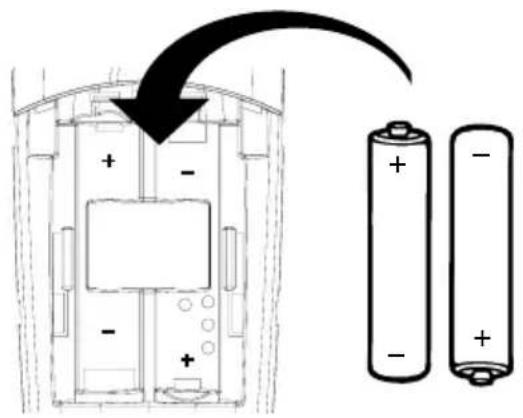
Slide the battery compartment cover back into place.
Do not immerse the batteries in water or throw them onto a fire, or dispose of them with ordinary domestic refuse.
Never use non-rechargeable batteries. Only fit rechargeable Nickel Metal Hydride (NiMH) AAA. Using the wrong type of batteries will invalidate your guarantee and may damage the phone.
BT accepts no responsibility for damage caused to your BT Freestyle 4100 by using any other type of battery.
| Problems Possible cause | |
| No display appears The handset may be switched off.Press and release the button to switch the handset on.The batteries may be flat, dead or incorrectly inserted. Recharge, replace or renew the batteries. | |
| No dial tone Make sure your handset is registered to the base and within range of the base.Is the telephone cord of the base plugged into the phone socket?Check that the base station is connected to the mains power and switched on. | |
| You cannot link up Does the display show Out of Range? If so, you are with the base station out of range of the base the handset is registered to or power is off at the base.Batteries could be low or flat.If using more than one base station, check that you have the correct base selected. | |
| Handset does not ring The ringer volume may be switched off (if it is there will be a RINGER OFF ICON in the display. Press and holdto switch it off and on. To adjust the ringer volume on the handset, see page 51.Check that the base station is plugged into the phone socket and mains power and switched on. | |
| Buzzing noise on my radio, TV, computer Sometimes your BT Freestyle 4100 can interfere with other electrical equipment if it is placed too close.It is recommended that you place your BT Freestyle 4100 handset at least one metre away from such appliances to avoid any risk of interference. | |
BT Freestyle 4100 Helpline
0870 240 3962 or email
bt.freestyle.helpdesk@vtecheurope.com
Call the dedicated BT Freestyle 4100 Helpline:
■ if you are having difficulties using your BT Freestyle 4100;
■ if you need replacement batteries or mains power lead.
Lines open 9am – 5.30pm, Monday to Friday.
9.30am - 2.30pm Saturday.
BT accessories and replacement items
For a full range of accessories and replacement items for BT products please call 0870 240 5522, or visit:

General information 68
You must subscribe to your network provider's caller display service before some of the features on your BT Freestyle 4100 will work. A quarterly fee is payable.
IMPORTANT
This equipment is not designed for making emergency telephone calls when the power fails. Alternative arrangements should be made for access to emergency services.
This product is intended for connection to analogue public switched telephone networks and private switchboards in the United Kingdom.
Safety
General
■ Only use the power supply suitable for the BT Freestyle 4100 base or chargers. Using an unauthorised power supply will invalidate your guarantee and may damage the telephone.
■ Use only the approved rechargeable batteries supplied. Spare rechargeable batteries are available from the Freestyle Helpline 0870 240 3962.
If the keypad is locked, it is still possible to make emergency calls to 999 and 112 numbers.
■ Radio signals transmitted between the handset and base may cause interference to hearing aids.
It is recommended that advice from a qualified expert is sought before using this product in the vicinity of emergency/intensive care medical equipment.
It is recommended that if you have a pacemaker fitted you check with a medical expert before using this product.
■ Never dispose of batteries in a fire. There is a serious risk of explosion and/or the release of highly toxic chemicals.
Cleaning
■ Simply clean the handset and base with a damp (not wet) cloth, or an anti-static wipe. Never use household polish as this will damage the product. Never use a dry cloth as this may cause a static shock.
Environmental
■ Do not expose to direct sunlight.
The product may heat up when the batteries are being recharged or during prolonged periods of use. This is normal. However, we recommend that to avoid damage you do not place the product on antique/veneered wood.
- Do not submerge any part of your product in water and do not use it in damp or humid conditions, such as bathrooms.
- Do not expose your product to fire, explosive or other hazardous conditions.
There is a slight chance your phone could be damaged by and electrical storm. We recommend that you unplug the power and telephone line cord from the base for the duration of the storm.
Technical information
How many telephones can you have?
All items of telephone equipment have a Ringer Equivalence Number (REN), which is used to calculate the number of items which may be connected to any other telephone line. Your BT Freestyle 4100 has a REN of 1. A total REN of 4 is allowed. If the total REN of 4 is exceeded, the telephone may not ring.
With different telephone types there is no guarantee of ringing, even when the REN is less than 4.
■ Only use the supplied mains power adaptors, item code 010091 for the base station and 010093 for the charger.
■ Only use approved AAA NiMH rechargeable batteries.
Connecting to a switchboard
Switchboard compatibility
This product is intended for use within the UK for connection to the public telephone network and compatible switchboards, which support tone dialling, timed break recall or earth recall. If in doubt please consult your service provider.
Switchboard external line access code
You may need to enter an access code (e.g. 9) in order to get an outside line. So that the switchboard has time to pick up an outside line, you may also need to add a ‘pause’ after the access code.
Insert a 'pause' in a stored number
If you need to add a pause in the dialling sequence, follow the example given below:
9 P 0870 240 3962
Switchboard code for Pause inserted in Rest of number an outside line dialling sequence
When storing a number, at the point you want to insert a pause, press and hold 0 until P is displayed. You can enter as many pauses as required.
Guarantee
Your Freestyle 4100 handset is guaranteed for a period of 12 months from the date of purchase.
Subject to the terms listed below, the guarantee will provide for the repair of, or at BT's or its agent's discretion the option to replace the Freestyle 4100, or any component thereof, (other than batteries), which is identified as faulty or below standard, or as a result of inferior workmanship of materials. Products over 28 days old from the date of purchase may be replaced with a refurbished or repaired product.
The conditions of this guarantee are:
■ The guarantee shall only apply to defects that occur within the 12 month guarantee period.
■ Proof of purchase is required.
■ The equipment is returned to BT or its agent as instructed.
■ This guarantee does not cover any faults or defects caused by accidents, misuse, fair wear and tear, neglect, tampering with the equipment, or any attempt at adjustment or repair other than through approved agents.
■ This guarantee does not affect your statutory rights.
Within the 12 month guarantee period:
If you experience difficulty using the product, prior to returning your product, please contact the BT Freestyle 4100 Help Desk for assistance 0870 240 3962 or email bt.helpdesk@vtecheurope.com
Outside of the 12 month guarantee period:
If your product needs repair after the guarantee period has ended, the repair must meet the approval requirements for connection to the telephone network. We recommend that you call the Helpline on 0870 240 3962 and ask for details of our recommended repair agents.
| For your records |
| Date of purchase: |
| Place of purchase: |
| Serial number: |
| For guarantee purposes proof of purchase is required so please keep your receipt. |
Enter your base PIN here:
[ / / / ]
(see page 59 for more information)
R&TTE
This product is intended for use within the UK for connection to the public telephone network and compatible switchboards.
This equipment complies with the essential requirements for the Radio Equipment and Telecommunications Terminal Equipment Directive 1999/5/EC.
Declaration of Conformance
Hereby, Vtech declares that this BT Freestyle 4100 is in compliance with the essential requirements and other relevant provisions of Directive 1999/5/EC.
For a copy of the Declaration of Conformity, please contact the BT Helpline on 0870 240 3962.
SMS Service Conditions
SMS service conditions for Bizzyline (Direct) Ltd., Issue 1, 5 July 2001
IMPORTANT
You must read the following Conditions before you register for SMS Service, by registering you have accepted these conditions.
1. INTERPRETATION
In this Contract:
“Authorised User” means anyone the Customer allows to use the Service.
"Bizzyline" means Bizzyline (Direct) Ltd. of Warford Hall, Merrymans Lane, Great Warford, Alderley Edge, Cheshire. SK9 7TP. Registered in England No. 3308270.
"BT" means British Telecommunications plc of 81 Newgate Street, London, EC1A 7AJ registered in England No. 1800000.
"Code of Conduct" means the guidelines regarding the use of SMS issued by Bizzyline for the protection of the Customer and other users of the Service.
"Contract" means, in order of precedence, these Conditions and Registration by sending the first SMS message.
"Customer" means the person using the service.
"Helpdesk" means the helpdesk facility provided by BT to handle enquiries and administration for the Service.
"Service" means the SMS service and any other related or ancillary services provided by Bizzyline in conjunction with BT.
"Software" means any software provided by BT to enable the Customer to access or use the Service.
2. DURATION
This Contract begins on the date that the Customer registers for service by sending their first SMS message and will continue until terminated in accordance with this Contract.
3. PROVISION OF THE SERVICE
3.1 Bizzyline will provide the Customer with the Service on the terms of this Contract.
3.2 Bizzyline will use reasonable endeavours to provide the Service by any date agreed with the Customer but all dates are estimates and Bizzyline has no liability for any failure to meet any date.
3.3 Bizzyline will provide the Service with the reasonable skill and care of a competent service provider.
3.4 It is technically impracticable to provide a fault free Service and Bizzyline does not undertake to do so. Bizzyline will however repair any reported faults as soon as it reasonably can.
3.5 Bizzyline cannot be held accountable for loss of service caused by faults, maintenance or other issues on the mobile networks which are outside of Bizzyline's direct control.
3.6 Occasionally Bizzyline may:
(a) change the technical specification of the Service, provided that any change to the technical specification does not materially affect the performance of the Service;
(b) suspend the Service for operational reasons such as repair, maintenance or improvement of the
Service or because of an emergency. Bizzyline will restore the Service as soon as it reasonably can after suspension; or
(c) give the Customer instructions which it believes are necessary for reasons of health, safety or the quality of any service provided by Bizzyline to the Customer or any other customer.
3.7 Except for Software (if any) provided to the Customer by Bizzyline as part of the Service, the Customer is responsible for providing suitable software and telecommunications equipment and services necessary to access and use the Service. This Contract does not include the provision of telecommunications services necessary to connect to and use the Service.
3.8 The Customer is responsible for the acts and omissions of all Authorised Users in connection with the Service and is liable for any failure by any Authorised User to perform or observe the terms and conditions of this Contract, including any instructions issued under paragraph 3.5.
3.9 The Customer acknowledges that he or she is aware of the Code of Conduct and that the Code of Conduct has been made available for the protection and safety of the Customer and others using the Service. The Customer agrees to ensure that any Authorised Users are aware of and familiar with the Code of Conduct.
4. SECURITY
4.1 The Customer is responsible for the security and proper use of all information used in connection with the Service and must take all necessary steps to ensure that this is kept confidential, secure, used properly and not disclosed to unauthorised people.
4.2 The Customer must immediately inform Bizzyline if there is any reason to believe that information has or is likely to become known to someone not authorised to use it or is being or is likely to be used in an unauthorised way.
4.3 Bizzyline reserves the right to suspend access to the Service if at any time Bizzyline considers that there is or is likely to be a breach of security.
4.4 Bizzyline reserves the right (at its sole discretion) to require the Customer to change information used by the Customer in connection with the Service.
4.5 The Customer must immediately inform Bizzyline of any changes to the information the Customer supplied when registering for the Service.
5. USE OF THE SERVICE
5.1 The Service is provided solely for the Customer's own use (including use by Authorised Users) and the Customer will not sell or attempt to sell the Service (or any part or facility of it) to any third party.
5.2 The Service may be used by individuals who are at least 18 years of age or by minors who have the permission of a parent or responsible adult to use the Service.
5.3 The Customer is solely responsible for evaluating any goods (including software) or services offered by third parties via the Service. Bizzyline will not be a party to or in any way responsible for any transactions between the Customer and third parties.
5.4 The Service must not be used by the Customer or any Authorised User in a way that does not comply with:
(a) the terms of any legislation or any licence applicable to the Customer or that is in any way unlawful;
(b) any instructions given by Bizzyline under paragraph 3.5(c); or
(c) the Code of Conduct.
5.5 The Service must not be used by the Customer or any Authorised User:
(a) fraudulently, in connection with a criminal offence, or otherwise unlawfully;
(b) to send, receive, upload, download, use or re-use any information or material which is offensive, abusive, indecent, defamatory, obscene or menacing, or in breach of confidence, copyright, privacy or any other rights;
(c) to cause annoyance, inconvenience or needless anxiety;
(d) to send or provide unsolicited advertising or promotional material or to receive responses to any unsolicited advertising or promotional material sent or provided using the Service by any third party; or
(e) other than in accordance with the acceptable use policies of any connected networks.
5.6 If the Customer, an Authorised User or anyone else, with or without the Customer's knowledge or approval, uses the Service in contravention of paragraphs 5.1, 5.2, 5.3, 5.4 or 5.5. Bizzyline may treat the contravention as a material breach of this Contract which cannot be remedied for the purposes of paragraph 10.
5.7 The Customer must indemnify Bizzyline against any claims or legal proceedings which are brought or threatened against Bizzyline by a third party because:
(a) the Service is used in breach of the provisions of this paragraph 5; or
(b) the Service is faulty or cannot be used by that third party.
Bizzyline will notify the Customer of any such claims or proceedings and keep the Customer informed as to the progress of such claims or proceedings.
6. CONFIDENTIALITY
6.1 Bizzyline will keep in confidence any information provided to it by the Customer when registering for the Service or otherwise under this Contract and will not disclose that information to any person (other than its employees, contractors, or professional advisers, or the employees or contractors of a Bizzyline Group Company who need to know the information) without the Customer's consent.
6.2 This paragraph 6 will not apply to:
(a) any information which has been published other than through a breach of this Contract;
(b) information lawfully in the possession of the recipient before the disclosure under this Contract took place;
(c) information obtained from a third party who is free to disclose it;
(d) information which a party is requested to disclose and if it did not could be required by law to do so; or
(e) information which has been reduced by Bizzyline to anonymous, non-personal form before disclosure.
6.3 This paragraph 6 will remain in effect for 2 years after the termination of this Contract.
7. LIMITATION OF LIABILITY
7.1 Bizzyline accepts unlimited liability for death or personal injury resulting from its negligence and paragraphs 7.2 and 7.3 do not apply to such liability.
7.2 Bizzyline is not liable to the Customer, either in contract, tort (including negligence) or otherwise for direct or indirect loss of profits, business or anticipated savings, nor for any indirect or consequential loss or damage or for any destruction of data.
7.3 Bizzyline's liability to the Customer in contract, tort (including negligence) or otherwise in relation to this Contract is limited to £1,000 for any one incident or series of related incidents and to £2,000 for all incidents in any period of 12 months.
7.4 Bizzyline excludes all liability of any kind in respect of any material which can be accessed using the Service and is not responsible in any way for any goods (including software) or services provided by third parties advertised, sold or otherwise made available by means of the Service.
7.5 Bizzyline is not liable to the Customer either in contract, tort (including negligence) or otherwise for the acts or omissions of other providers of telecommunications or services or for faults in or failures of their equipment.
7.6 Each provision of this Contract, excluding or limiting liability, operates separately. If any part is held by a court to be unreasonable or inapplicable, the other parts shall continue to apply.
If Bizzyline is unable to perform any obligation under this Contract because of a matter beyond its reasonable control such as lightning, flood, exceptionally severe weather, fire, explosion, war, civil disorder, industrial disputes (whether or not involving its employees), or acts of local or central Government or other competent authorities, or events beyond the reasonable control of its suppliers, it will have no liability for that failure to perform.
9. TERMINATION OF THIS CONTRACT BY NOTICE
Either party may terminate this Contract on 14 days' notice to the other, without prejudice to any rights that may have accrued before termination. Upon termination (for whatever reason), Bizzyline may re-allocate any information associated with the terminated Service.
10. BREACHES OF THIS CONTRACT
10.1 Either party may terminate this Contract or the provision of Service under it without notice if the other:
(a) commits a material breach of this Contract, which is capable of remedy, and fails to remedy the breach within a reasonable time of a written notice to do so;
(b) commits a material breach of this Contract which cannot be remedied; or
(c) is repeatedly in breach of this Contract.
10.2 If any of the events detailed in paragraph 11.1 occur because of the Customer or an Authorised User,
Bizzyline may suspend the Service without prejudice to its right to terminate this Contract. At its sole discretion, Bizzyline reserves the right to suspend or terminate any Authorised User's use of the Service as an alternative remedy to immediate suspension or termination of the Contract.
This remedy is without prejudice to Bizzyline's right subsequently to suspend or terminate the Contract. Bizzyline may refuse to restore Service which has been suspended under this paragraph until it has received assurances satisfactory to Bizzyline that the breach has been remedied and will not be repeated.
10.3 Termination under this paragraph is without prejudice to any rights that may have accrued before termination.
10.4 If either party delays in acting upon a breach of this Contract that delay will not be regarded as a waiver of that breach. If either party waives a breach of this Contract that waiver is limited to that particular breach.
10.5 Upon termination (for whatever reason), Bizzyline may re-allocate any information associated with the terminated Service.
11. CHANGES TO THIS CONTRACT
Bizzyline can change the Conditions of this Contract at any time on 14 days' notice to the Customer.
12. ASSIGNMENT
Neither party may assign or transfer any of its rights or obligations under this Contract, without the written consent of the other, except that Bizzyline may assign its rights or obligations (or both) to a Bizzyline Group Company without consent.
13. ENTIRE AGREEMENT
This Contract contains the whole agreement between the parties and supersedes all previous written or oral agreements relating to its subject matter.
14. NOTICES
Notices given under this Contract may be delivered on-line, in writing or by SMS message; notices will be deemed effective on the date of publication, or otherwise as notified to the Customer by Bizzyline. A notice from Bizzyline which is sent by SMS to the Customer's SMS mailbox will be deemed effective 3 days after the date it is sent. A notice from the Customer to Bizzyline will be deemed effective when received by Bizzyline at the address on these Terms and Conditions.
15. DATA PROTECTION CONSENT
By accepting the terms and conditions of this Contract, the Customer grants Bizzyline and its agents processing data on Bizzyline's behalf, permission, in accordance with the Data Protection Acts 1984 and 1998, to send the Customer unsolicited advertising and promotional material pertaining to other Bizzyline products and services and to third-party products and services selected by Bizzyline. The Customer may revoke permission to Bizzyline and its agents to send the Customer unsolicited advertising and promotional material pertaining either to other Bizzyline products and services or to third party products and services, or both, by writing to us at the address on these Terms and Conditions.
16. LAW
This Contract is governed by the law of England and Wales.
17. HELPLINE
If you have any questions relating to these Terms & Conditions, please call 0906 302 0069 (calls are charged at 50p per minute and the helpdesk is open from 9.00am–7.00pm (Monday to Friday) and 9.30am–5.30pm (Saturday).
CODE OF CONDUCT
How should I behave when I use the Bizzyline SMS Service?
Here are a few guidelines for you to consider when you're using SMS, which like any Service, can allow strangers to meet and chat anonymously.
Remotely, people may not be who they say they are.
You could be putting yourself at risk if you arrange to meet someone you've met through the SMS service. If you do agree to meet someone, never go alone, always meet in a public place. Never go in the other person's car, and do tell a friend where you're going and, just as importantly, when you'll be back.
Don't give out your name, address, or telephone number or ask anyone else for this information via SMS.
Please don't intimidate others on the SMS service by sending abusive, menacing or obscene messages – you will be in breach of the Conditions for Bizzyline if you do.
Visit us at www.bt.com
BT

Offices worldwide
The telecommunications services described in this publication are subject to availability and may be modified from time to time. Services and equipment are provided subject to British Telecommunications plc's respective standard conditions of contract. Nothing in this publication forms any part of any contract.
© British Telecommunications plc 2004. Registered Office: 81 Newgate Street, London EC1A 7AJ. Registered in England No. 1800000. BT Freestyle 4100 SMS Issue 2 (1/04) 3 Designed and produced by The Art & Design Partnership Ltd. Printed in China


- WELCOME
- NEED HELP
- GOT EVERYTHING
- FREESTYLE 4100
- FREESTYLE 4100 TWIN
- FREESTYLE 4100 TRIO
- FREESTYLE 4100 QUAD
- IN THIS GUIDE
- GETTING STARTED
- GETTING TO KNOW YOUR PHONE
- USING THE PHONE
- DIRECTORY
- CALLER DISPLAY
- SMS TEXTING
- ADDITIONAL HANDSET SETTINGS
- BASE SETTINGS
- ADDITIONAL HANDSETS AND BASES
- HELP
- GENERAL INFORMATION
- LOCATION
- SETTING UP
- WARNING
- HANDSET RANGE
- SIGNAL STRENGTH
- IMPORTANT
- WHICH SOCKET
- TALK/STANDBY TIME
- BATTERY LOW WARNING
- BATTERY PERFORMANCE
- GETTING TO KNOW YOUR PHONE 10
- HANDSET BUTTONS
- NAVIGATING THE MENUS
- AND SELECTING MENU OPTIONS
- GO BACK ONE LEVEL
- EXIT MENU
- MENU MAP
- SMS MESSAGE
- HANDSET SETTINGS
- TIME AND DATE SETTINGS
- REGISTRATION
- GAME
- BASE
- USING THE PHONE 16
- DIALLING NUMBERS QUICKLY
- CALL TIMER
- AUTO-ANSWER
- BACKLIT BUTTONS & DISPLAY
- SWITCH HANDSET ON/OFF
- MAKE AN EXTERNAL CALL
- PREPARATORY DIALLING
- END A CALL
- RECEIVING CALLS
- HANDSFREE
- EARPIECE AND HANDSFREE VOLUME
- SECRECY
- REDIAL
- REDIAL THE LAST NUMBER
- REDIAL A NUMBER FROM THE LIST
- EMPTY
- COPY A NUMBER FROM THE REDIAL LIST
- DELETING A REDIAL ENTRY
- DELETE ENTIRE REDIAL LIST
- PAGING
- KEYPAD LOCK
- INTERNAL CALLS
- ENTERING NAMES
- WRITING TIPS
- ADD A NEW DIRECTORY ENTRY
- DIAL FROM THE DIRECTORY
- VIEW AN ENTRY
- EDIT AN ENTRY
- DELETE ENTRIES
- COPYING DIRECTORY ENTRIES
- COPY AN ENTRY TO ANOTHER HANDSET
- COPY DIRECTORY FROM ONE HANDSET TO ANOTHER
- INCOMING CALL WHILE COPYING
- IF THE OTHER HANDSET IS IN USE
- SET GROUPS
- NAME AND SET MELODY FOR A GROUP
- CALLER INFORMATION NOT AVAILABLE
- USING CALLER DISPLAY
- TO VIEW / DIAL A NUMBER THE CALLS LIST
- SAVE A CALLS LIST NUMBER TO THE DIRECTORY
- DELETE AN ENTRY IN THE CALLS LIST
- DELETE THE ENTIRE CALLS LIST
- SMS TEXT MESSAGING SERVICE
- SEND AN SMS TEXT MESSAGE
- SENT MESSAGES ARE STORED IN THE OUTBOX
- SAVED MESSAGES ARE STORED IN THE DRAFTS FOLDER
- ENTERING TEXT
- SPECIAL CHARACTERS
- PREDICTIVE TEXT
- SWITCH PREDICTIVE TEXT ON OR OFF
- USING PREDICTIVE TEXT
- SMS TEMPLATE MESSAGES
- EDIT SMS TEMPLATES
- DELETE SMS TEMPLATES
- READ, EDIT AND SEND DRAFT SMS TEXT MESSAGES
- READ, EDIT AND SEND MESSAGES FROM YOUR OUTBOX
- INCOMING CALL
- SENDING A TEXT MESSAGE TO A MOBILE
- REPLYING TO A TEXT MESSAGE RECEIVED FROM A MOBILE
- READING SMS TEXTS
- RECEIVED MESSAGES ARE STORED IN THE INBOX
- TO SEND A TEXT MESSAGE FROM A MOBILE TO YOUR BT FREESTYLE 4100
- REPLYING TO A MESSAGE RECEIVED ON A MOBILE FROM YOUR BT FREESTYLE 4100
- DELETE AN SMS TEXT MESSAGE
- DELETE ALL SMS TEXT MESSAGES IN A BOX
- SWITCH SMS TEXT ALERT ON/OFF
- ADDING OR CHANGING A SEND SERVICE NUMBER
- ADDING OR CHANGING A RECEIVE SERVICE NUMBER
- SELECTING A SEND SERVICE NUMBER
- ADDITIONAL HANDSET SETTINGS 50
- DATE AND TIME
- SET DATE AND TIME USING A HANDSET
- RINGER MELODY
- RINGER VOLUME
- HANDSET NAME
- ADJUST CONTRAST
- SWITCH BACKLIGHT ON OR OFF
- AUTO ANSWER
- KEYBEEPS ON/OFF
- ALARM
- SWITCH ALARM ON OR OFF
- SETTING MELODY FOR THE ALARM
- PLAY GAME
- SAVING A GAME
- CONTROLS
- HANDSET PRIORITY
- DIAL MODE
- RECALL MODE
- BASE PIN
- REGISTERING NEW HANDSETS
- CUSTOMER HELPLINE
- DE-REGISTERING A HANDSET
- TRANSFERRING CALLS AND 3-WAY CALLS
- TRANSFERRING A CALL
- 3-WAY CALLS
- USING ADDITIONAL BASES
- REPLACING THE HANDSET BATTERIES
- BT ACCESSORIES AND REPLACEMENT ITEMS
- GENERAL INFORMATION 68
- SAFETY
- GENERAL
- CLEANING
- ENVIRONMENTAL
- TECHNICAL INFORMATION
- HOW MANY TELEPHONES CAN YOU HAVE
- CONNECTING TO A SWITCHBOARD
- SWITCHBOARD COMPATIBILITY
- SWITCHBOARD EXTERNAL LINE ACCESS CODE
- INSERT A 'PAUSE' IN A STORED NUMBER
- GUARANTEE
- THE CONDITIONS OF THIS GUARANTEE ARE
- WITHIN THE 12 MONTH GUARANTEE PERIOD
- OUTSIDE OF THE 12 MONTH GUARANTEE PERIOD
- R&TTE
- DECLARATION OF CONFORMANCE
- SMS SERVICE CONDITIONS
- INTERPRETATION
- DURATION
- PROVISION OF THE SERVICE
- SECURITY
- USE OF THE SERVICE
- CONFIDENTIALITY
- LIMITATION OF LIABILITY
- TERMINATION OF THIS CONTRACT BY NOTICE
- BREACHES OF THIS CONTRACT
- CHANGES TO THIS CONTRACT
- ASSIGNMENT
- ENTIRE AGREEMENT
- NOTICES
- DATA PROTECTION CONSENT
- LAW
- HELPLINE
- CODE OF CONDUCT
- OFFICES WORLDWIDE
Brand : BT
Model : Freestyle 4100
Category : Simulator