
Freelance 101 - Simulator BT - Free user manual and instructions
Find the device manual for free Freelance 101 BT in PDF.


| Product Type | Cordless Phone |
| Brand | BT |
| Model | Freelance 101 |
| Category | Simulator |
| Technology | DECT |
| Frequency | 1.88 - 1.90 GHz |
| Indoor Range | Up to 50 m |
| Outdoor Range | Up to 300 m |
| Display | Backlit LCD, 1 line |
| Phonebook Capacity | 50 names and numbers |
| Caller ID | Yes (requires network subscription) |
| Handsfree Function | Yes, full duplex speakerphone |
| Battery Type | 2 x AAA NiMH rechargeable |
| Talk Time | Up to 10 hours |
| Standby Time | Up to 100 hours |
| Charging Time | Approx. 16 hours |
| Handset Dimensions (H x W x D) | 160 x 48 x 28 mm |
| Handset Weight | 120 g (including batteries) |
| Power Supply (Base) | AC adapter 230V, 50Hz |
| Key Features | Caller ID, phonebook, handsfree, redial, mute, volume control, ringer off |
| Maintenance | Wipe with a dry cloth; avoid liquids |
| Safety | Use only supplied charger; do not expose to water or extreme heat |
| Spare Parts / Reparability | Batteries replaceable; base unit and handset serviceable by authorized centers |
| General Information | For home and office use; compatible with all UK analog telephone lines |
Frequently Asked Questions - Freelance 101 BT
User questions about Freelance 101 BT
0 question about this device. Answer the ones you know or ask your own.
Ask a new question about this device
Download the instructions for your Simulator in PDF format for free! Find your manual Freelance 101 - BT and take your electronic device back in hand. On this page are published all the documents necessary for the use of your device. Freelance 101 by BT.
USER MANUAL Freelance 101 BT
This User Guide provides you with all the information you need to get the most from your phone.
Before you make your first call you will need to set up your phone. Follow the simple instructions in ‘Getting Started’, on the next few pages.
Need help?
If you have any problems setting up or using your BT Freelance 101, contact the Helpdesk on 0870 605 8047 or email bt.helpdesk@suncorptech.com. Alternatively, you may find the answer in ‘Help’ at the back of this guide.
Got everything?
• BT Freelance 101 handset
• BT Freelance 101 base
- 2 x AAA NiMH rechargeable batteries
- Mains power adaptor (item code 032763)
- Telephone line cord
If you have purchased a BT Freelance 101 multiple pack you will also have the following for each handset:
• BT Freelance 101 additional handset
• BT Freelance 101 charger
- 2 x AAA NiMH rechargeable batteries
- Mains power adaptor for charger (item code 032765)
IMPORTANT This equipment is not designed for making emergency telephone calls when the power fails. Alternative arrangements should be made for access to emergency services.
In this guide
Getting started
Setting up the base/handset . 6 BT Freelance 101 multiple pack owners only . . . . . . . . . 6
Getting to know your phone
Handset buttons ..... 8 Base buttons and LEDs ..... 10 Sample screen ..... 11
Using the phone
Switching the handset on/off . 12 Make an external call ..... 12 Preparatory dialling ..... 12 End a call ..... 12 Receiving calls ..... 12 Earpiece volume..... 13 Handset ringer volume..... 14 Secrecy ..... 14 Key lock on/off..... 14 Redial ..... 15
Direct access memory.....18 Store, dial and edit direct access numbers
Using the phonebook .. 19–20 Store, dial, delete and edit phonebook numbers
Caller Display and the calls list
View/dial a calls list number. . 21 Delete a calls list numbers . . 22 Copy a calls list number to the phonebook. . . . . . . . . 23 Call Waiting . . . . . . . . . . . . 24 Speak to a second caller. . . . 24
Phone settings ..... 25
Using additional handsets
Registering handsets ..... 28 Internal calls..... 30 Paging ..... 31 Transferring calls ..... 31 3-Way conference call ..... 32
Help 33
General information
The strength of the handset signal depends on where you position the base. The BT Freelance 101 has a range of up to 300 metres outdoors when there is a clear line of sight between the base and the handset. When there is no clear line of sight between the base and the handset, e.g. base indoors and handset either indoors or outdoors, the range could be reduced to up to 50 metres. Thick stone walls can severely affect the range.
Signal strength
The icon on your handset indicates when you are in range. When it flashes, you are out of range.
When you move out of range of the base, you will hear the out of range tone. This tone is repeated until you move back into range. If you do not move back into range the call may be disconnected.
Which socket?


Power socket
Telephone line socket
If you have purchased a BT Freelance 101 multiple pack please follow instructions A and B.
A Location
You need to place your BT Freelance 101 close enough to a mains power and telephone wall socket so that the cables will reach.
Make sure it is at least 1 metre away from other electrical appliances to avoid interference. Do not place your BT Freelance 101 in the bathroom or other humid areas.
Setting up the base and handset
- At the base: Plug the power adaptor and telephone cable into the relevant sockets on the underside of the base.
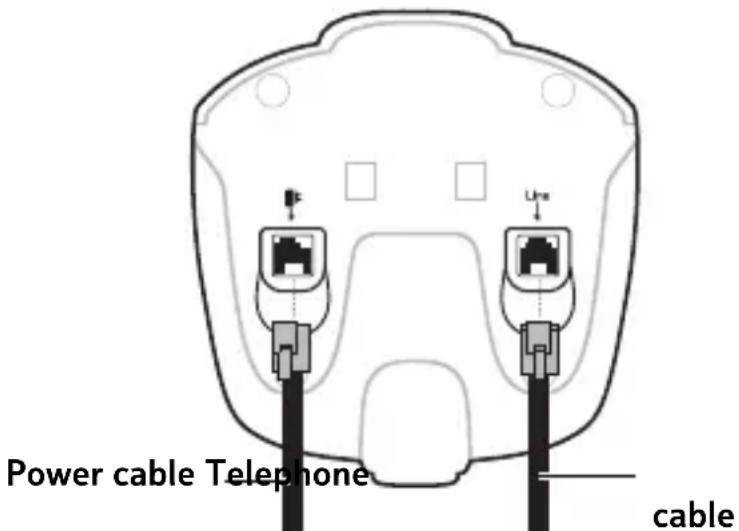
- Plug the power adaptor into the mains wall socket and switch the power on. When connected correctly, you will hear a confirmation tone and the green Power/In Use light will come on.
- At the handset: place the battery ribbon in the base of the battery compartment. Insert the 2 x AAA rechargeable batteries supplied observing the polarity (+ and -) markings. Then slide the battery compartment cover into place.
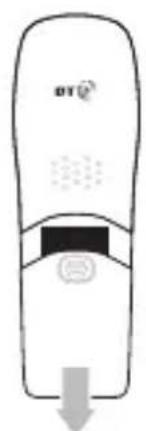
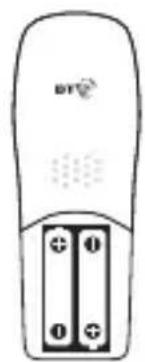

The 🎨 icon and ----------------------------------------- will flash in the display while the handset searches for the base.
When the handset links with the base, the display will go into standby mode:
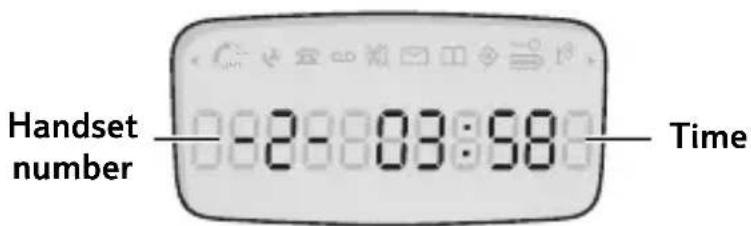
IMPORTANT
The base station must be plugged into the mains power socket at all times.
Do not connect the telephone line at the telephone wall socket until the handset is fully charged.
Only use the cables provided with your product.
Talk/Standby time
In ideal conditions, the handset batteries should give up to 10 hours talk time or up to 250 hours standby on a single charge. Note that new batteries do not reach full capacity until they have been in normal use for several days.
Battery symbols

Battery fully charged

Battery half charged

Battery low
Battery low warning
If the battery charge becomes low during a call you will hear a warning beep every minute to alert you. If the battery runs out, your call will be disconnected. You will need to recharge the handset before using it again.
During charging, the icon will scroll in the display.
Battery performance
To keep your batteries in the best condition, leave the handset off the base for a few hours at a time.
Running the batteries right down at least once a week will help them last as long as possible.
The charge capacity of rechargeable batteries will reduce with time as they wear out, giving the handset less talk/standby time. Eventually they will need to be replaced. New batteries are available from the BT Freelance 101 Helpline on 0870 605 8047 or email bt.helpdesk@suncorptech.com.
- Place the handset in the base to charge, the red charging light on the base comes on, you hear a beep tone and the icon begins scrolling in the handset display.
You should charge the handset for at least 24 hours on first charge.
- Once fully charged, plug the telephone line cord into the telephone wall socket.
BT Freelance 101 multiple pack owners only
For each additional handset:
You need to place your BT Freelance 101 charger close enough to a mains power socket so that the cable will reach.
- Plug the power adaptor cable into the underside of the charger.
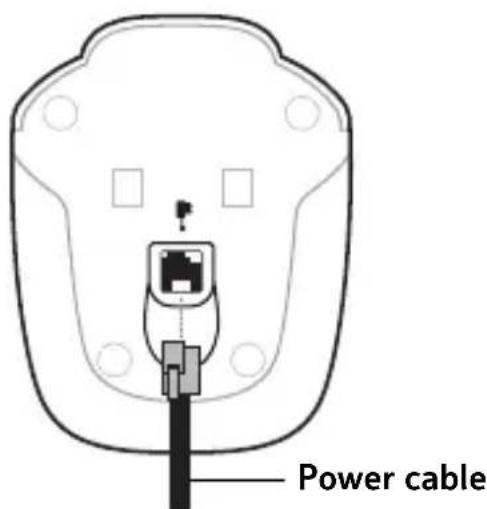
- Plug the power adaptor into the mains wall socket and switch the power on.
- Place the battery ribbon in the base of the battery compartment. Insert the two AAA rechargeable batteries supplied observing the polarity (+ and -) markings. Then slide the battery compartment cover into place.
- Place the handset in the charger and charge the handset for at least 24 hours. The red Charging light on the charger comes on and the 📄 begins to scroll.
After charging your handset for the first time, subsequent charging time is about 6–8 hours a day. Batteries and handset may become warm during charging, this is normal.
Handset numbers
Once registered with the base, each handset will display its handset number, 1, 2, 3, 4 and 5 respectively.
Getting to know your phone
Handset buttons
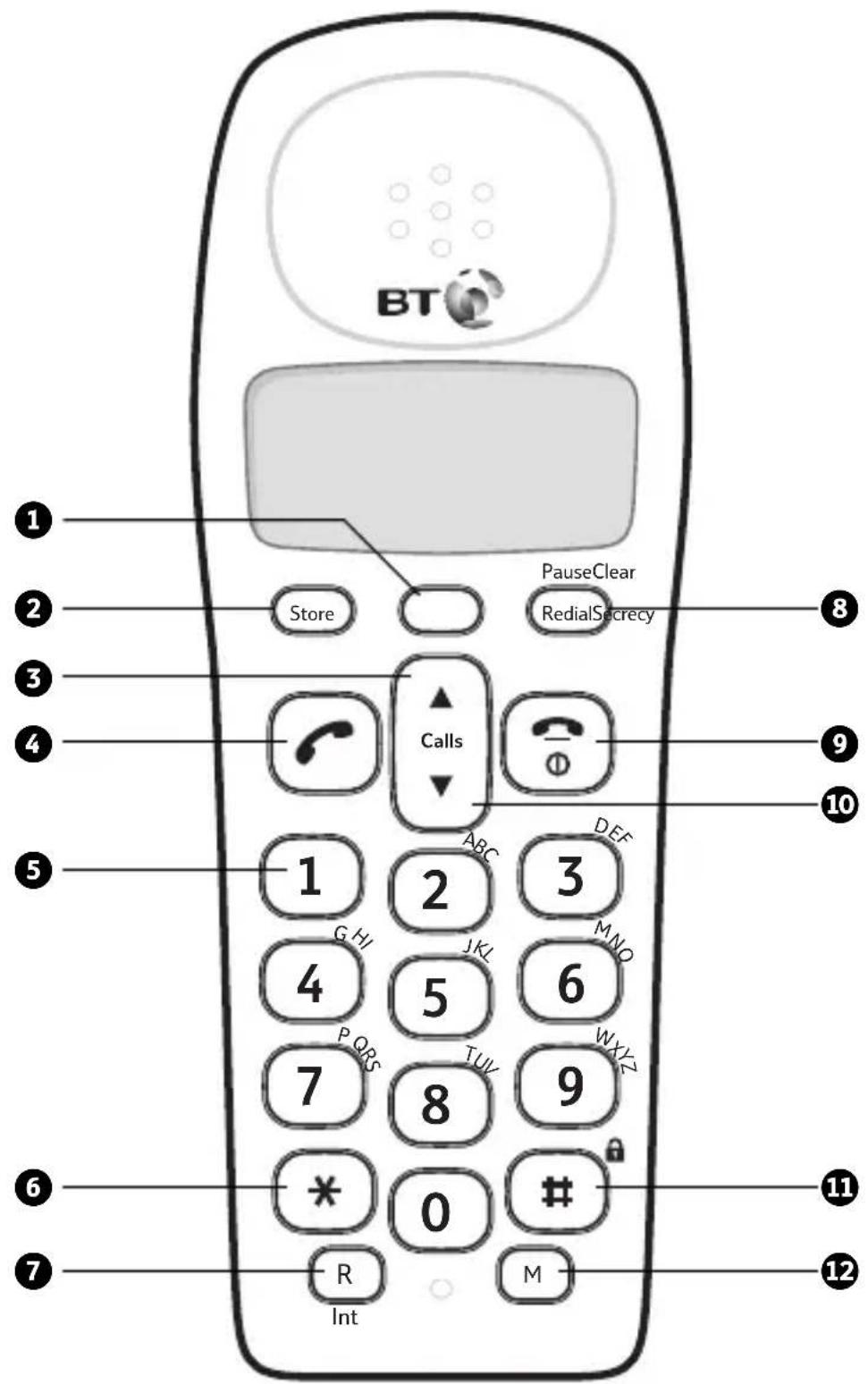
1 Clear/Secrecy
During a call, press to stop your caller hearing you, page 14.
Use to delete characters.
Use to delete Calls list and Redial list entries, page 16.
② Store
In standby mode, press and hold to enter programming mode.
In programming mode, press to confirm a setting.
3 Scroll Up
During a call, press to raise the earpiece volume, page 13.
While the phone is ringing, press to raise the ringer volume, page 14.
In programming mode, press to scroll up through display options.
4 Talk
Press to make or receive a call, page 12.
5 1, 2 and 3
In standby mode, press and hold to dial the direct access numbers, page 18.
6 */Dial mode
In talk mode, press to temporarily switch from pulse to tone dialling, page 39.
7 R (Recall)/Int
In talk mode, use for Recall.
Used when connected to a switchboard/PBX (page 39) and for Call Waiting, page 24.
In standby mode, press and hold to make an internal call, page 30.
Or to transfer a call to an additional BT Freelance 101 handset, page 31.
8 Pause/Redial
In standby mode, press to enter the redial list, page 15.
In talk or programming mode, press to enter a pause in a number.
9 End Call/Power On/Off/ Cancel
Press to end a call, page 12.
In standby mode, press and hold to switch the handset power on/off, page 12.
In programming mode, press to exit and return to standby.
10 Calls list / Scroll Down
In standby mode, press to access the Calls list, page 21.
During a call, press to lower the earpiece volume, page 13.
While the phone is ringing, press to lower the ringer volume, page 14.
In programming mode, press to scroll down through display options.
11 #/Keypad lock
In standby mode, press and hold to switch key lock on, page 14.
Press any button then # within 3 seconds to switch key lock off, page 15.
12 M – Direct access key
In standby mode, press and hold to dial the stored direct access number under the 1 button, page 18.
Base buttons and LEDs
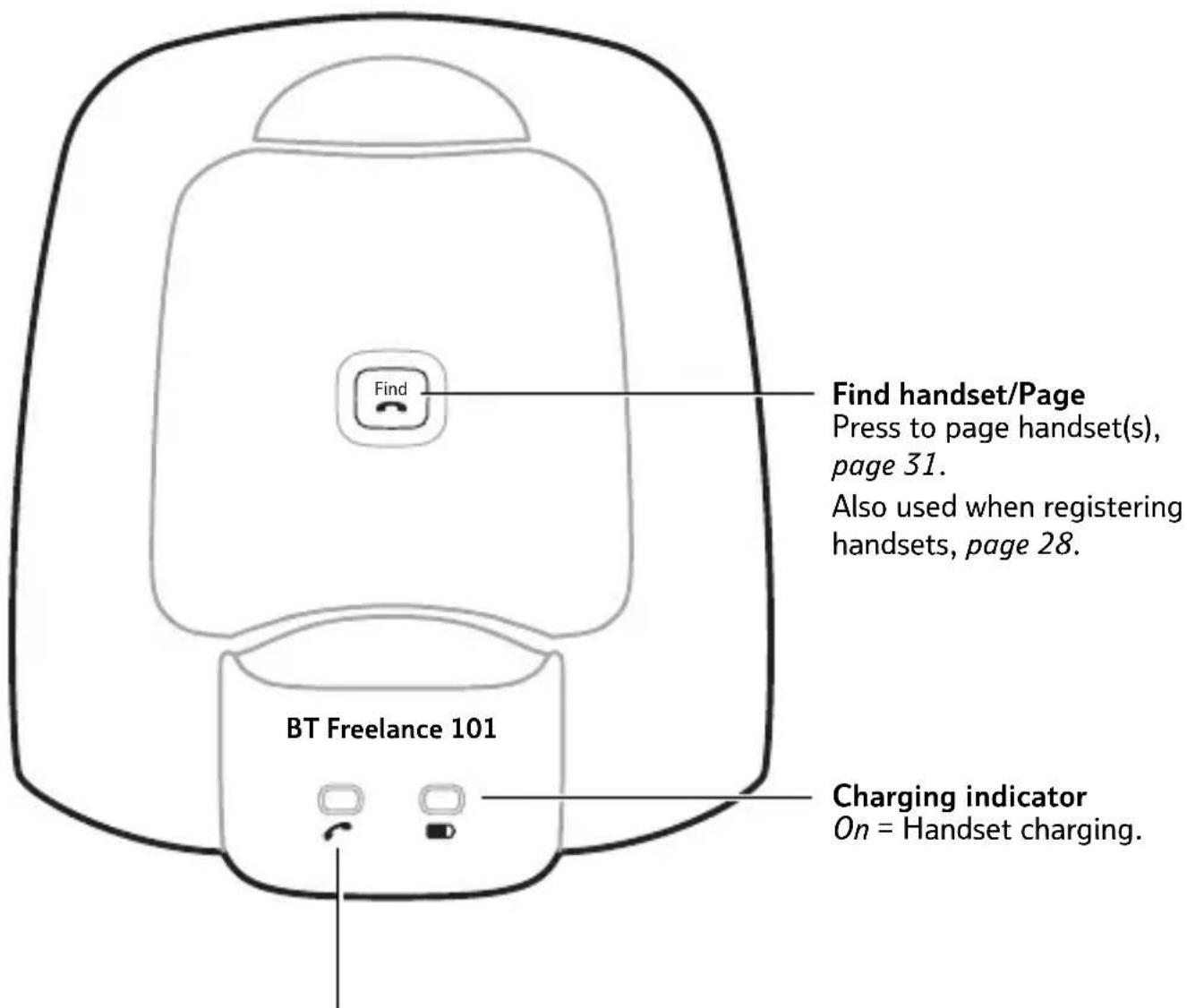
Power/In Use indicator
On (steady) = Power on.
Flashes = When receiving an incoming call; when
a call is in progress.
Sample screen – These are where the handset icons will appear.
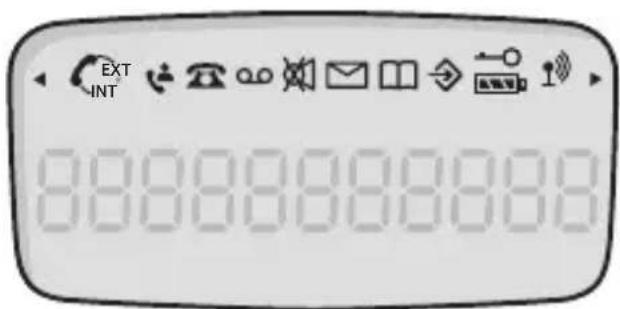
Please note that the display is not backlit.

TALK
Indicates a call is in progress, page 12.

EXT
Flashes when you receive an external call. Stays on during the conversation, page 12.

INT
Flashes when you receive an internal call. Stays on during the internal conversation, page 30.

TELEPHONE
Flashes when you have new calls in the Calls list.
Stays on when viewing the Calls list, page 21.*

HANDSET/PERSON
When viewing the Calls list, indicates an answered call, page 22.*

PERSON
When viewing the Calls list, indicates an unanswered call, page 22.*

PHONEBOOK
Displayed when you are dialling or storing numbers in the phonebook, page 19.

MENU
Displayed when you are in programming mode.

FULL BATTERY
Indicates when the battery is fully charged, page 5.

EMPTY BATTERY
Indicates when the battery is low, page 5.

KEY
Indicates when the Key lock is on, page 14.

RANGE
Steady when handset is in range of the base.
Flashes when out of range of the base or not registered to the base.

or
Indicates hidden digits (when the displayed number is longer than 12 digits).

TAPE
Displayed when you have Voicemail messages waiting. Will depend on network compatibility.

MUTE
Displayed when the handset microphone is muted, page 14.
* For these features to work you must subscribe to your Network Provider's Caller Display* and/or Call Waiting* service.
Using the phone
Dialling numbers quickly Numbers can also be dialled using the phonebook (page 20), and from the calls list (page 21).
You can enter a number up to 32 digits long, however only 12 digits can be displayed. If the number is longer than 12 digits, the symbol will be displayed to denote more digits.
To enter a pause in a number, press Pause Radial where required, a P will be displayed.
Switching the handset power on/off
- Press and hold the 📋 button.
Make an external call
- Press listen for the dial tone then dial the number.
The display shows the icon and the In Use light on the base flashes.
Preparatory dialling
-
Enter the telephone number first. If you make a mistake, press delete the last digit.
-
Press to dial.
End a call
- Press be placed the handset back on the base.
Receiving calls
When you receive an incoming call, the base and handset will ring, and the In Use light on the base will flash. In the handset display the and icons flash and ---- are displayed.
If you have subscribed to your network's Caller Display service, the caller's number will flash alternately with the day and time in the display.
- Press to answer the call or, if the handset is on the base, simply lift it and speak.
Call timer
Your handset automatically times the duration of all calls, showing the time on the display during your call and for 5 seconds after it has finished.
Earpiece volume
There are 5 volume levels to select from. The default is 3. You can only adjust the earpiece volume during a call. You will hear a beep at the minimum and maximum volume levels.
- Press to increase or to decrease the earpiece volume. The display shows the set volume, e.g. -3-.
Caller Display
For more information on Caller Display, see page 21.
Hearing aid user?
Please note that the BT Freelance 101 works by sending radio signals between the handset and base. These signals may interfere with some hearing aids, causing a humming noise.
The earpiece volume will remain at the level set for all calls until changed.
You can also adjust the handset ringer volume using the programming menu, see page 25.
The default setting is 5.
With the key lock on you can still use 📄 answer an incoming call. When you end the call the keypad will remain locked.
WARNING
While key lock is switched on, it is NOT possible to make calls, including to emergency numbers (999/112).
Handset ringer volume
You can adjust the handset ringer volume when the phone is ringing.
While the phone is ringing:
- Press to increase or to decrease the ringer volume. The display shows the set volume.
Secrecy
During a call, you can talk to someone nearby without your caller hearing you.
-
During your call, press Secrecy symbol is displayed and your caller cannot hear you.
-
Press a Secrecy to resume your call.
Key lock on/off
You can lock the keypad so that it cannot be used accidentally while carrying the handset around.
To lock the keypad
- Press and hold until the symbol is displayed.

To unlock the keypad
- Press any key, the display shows 0000 for 3 seconds. During the 3 seconds, press 🔒 unlock the keypad.
Redial
Your handset automatically saves the last 5 numbers you dialled into a redial list.
Redial the last number called
- Lift the handset and press

- Press Redial: last number called is redialled.
Call a number from the redial list
-
P Redial
-
Press or to scroll and display the number you want.
-
Press to dial the number or press to return to standby mode.
Each redial number can be up to a maximum of 32 digits long.
Only the first 12 digits of the number will be displayed. The Icon will be displayed if there are more digits to view. Press Store View the remaining digits or to toggle between the first 12 digits and the remaining digits.
If there are no numbers saved in the redial list ———— will be displayed.
Press any time to return to standby mode.
Delete a redial number
With the name or number you want to delete displayed:
Clear
-
Press Secrecyu will hear a confirmation beep.
-
Press to return to standby.
Delete the entire redial list
With any number from the redial list displayed:
- Press and hold .Secrecy will hear a confirmation beep and the display will show ----.
Store a redial number to the phonebook
Your handset automatically saves the last 5 numbers you dialled into a redial list.
-
PRedial
-
Press or to scroll and display the number you want.
-
Press and hold under the display shows n - ---- (where n is the next available phonebook entry).
-
Press or to browse phonebook for a suitable location.
-
Then select the required phonebook location by entering the number on the keypad. The redial number will be displayed alongside the location number.
- The first digit will flash, edit the number if necessary. Press Store confirm.
- Press to exit and return to standby.
the phonebook is full, the telephone number stored at location 0 will be displayed. You will need to delete an existing phonebook number before you can store the redial number, see page 20.
Use Clear delete digits and the keypad to enter new ones.
Direct access memory
You can also access the number stored under button 1 by pressing the M button.
You can store 3 direct access memory numbers on buttons 1, 2 and 3 of your handset.
Store a direct access number
- Press to enter the phonebook.
- Press and hold u Store the display shows n - ---- (where n is the next available phonebook entry).
- Press and hold one of the direct access number buttons (1), 2 be 3 display shows e.g. §1- followed by a flashing cursor.
- Enter the telephone number you want to store using the keypad, then press Store. You will hear a beep to confirm the number is stored.
- Press to return to standby.
Dial a direct access number
- Press and hold the direct access button you want (1) 2 3 and the stored number will be automatically dialled.
Edit a direct access number
Follow the instructions to store a number but use the Secretory button to delete digits before entering a new number.
Using the phonebook
You can use the phonebook to store up to 10 numbers for easy dialling. Each number can be up to 24 digits long.
Store a phonebook number
-
Press Store enter the phonebook and view the first entry. The symbol is displayed.
-
Press and hold, Store display shows n - ----, with n flashing (where n is the next available phonebook entry).
-
Press or to browse phonebook for a suitable location.
-
Then select the required phonebook location by entering the number on the keypad.
-
Enter the telephone number using the keypad. If you make a mistake, press Clear to delete incorrect digits.
-
Press Store you will hear a beep to confirm the number is stored.
-
Repeat steps 3 and 4 to add more entries, or press to exit and return to standby.
Using additional handsets If you are using more than one handset, each handset has a separate phonebook, so you can store 10 numbers per handset.
Cancel storing
To exit and return to standby at any time press
If the phonebook is full, the telephone number stored at location 0 will be displayed.
the
Inserting a Pause
To insert a Pause in the dialling sequence, press Pause Redial where required, the display will show a P.
You may need to insert a pause if your phone is connected to an internal switchboard, see page 39.
If the stored number is more than 10 digits long, the first 10 digits and the ▶ symbol will be displayed.
Edit a phonebook number
Follow steps 1–5 of 'Delete a phonebook number', then enter a new number and press
Store, then
return to standby.
Dial a phonebook number
-
Press Store enter the phonebook and display the first phonebook entry.
-
Press or to select the phonebook entry you want.
-
Press to dial the number.
Delete a phonebook number
-
Press Store enter the phonebook and display the first phonebook entry.
-
Press and hold, Store display shows n - ----, with n flashing (where n is the next available phonebook entry).
-
Press or to browse the phonebook for a suitable location.
-
Then select the required phonebook location by entering the number on the keypad.
-
The first digit of the telephone number flashes. Use Clear Secrecy delete the digits of the stored number.
-
Press to return to standby.
Caller Display and the Calls list
If you subscribe to a Caller Display service you can see your caller's number on your handset's display (unless it has been withheld) before you answer the call. As the phone rings, the caller's number and the date and time will flash alternately in the display.
Whether you answer a call or not, the caller's phone number is stored in the calls list.
When you have new entries in the calls list the symbol will flash in the display.
When all the entries have been viewed, the symbol will disappear.
Up to 10 phone numbers can be stored in the calls list. When the calls list is full, a new call replaces the oldest. Each stored number can be up to 20 digits long.
View and dial a calls list number
-
Press to open the Calls list.
-
Press or repeatedly to scroll through the entries.
IMPORTANT
To use Caller Display you must first subscribe to the service from your network provider. A quarterly fee may be payable.
For more information on BT's Calling Features, call BT on Freefone 0800 800 150.
Caller information not available
Occasionally the telephone number of the caller is not available and cannot therefore be displayed. In this case, your BT Freelance 101 will show ----.
What type of call?
The i can will be displayed for calls that you answered.
The 📞 on will be displayed for unanswered calls.
If there are no numbers saved in the Calls list --- will be displayed.
If the telephone number is longer than 12 digits, only the first 12 digits are displayed with the ▶ symbol to denote more digits to view, press Store View the extra digits.
When you reach the start or the end of the Calls list and there are no more calls to view, you will hear a long beep tone.
Using the calls list with additional handsets
If you are using more than one handset, each handset has a separate calls list. A call answered on one handset will show as unanswered on another.
-
When viewing an entry press t Store toggle between the caller's number and the date and time the call was received.
-
Press to dial the displayed number.
Or
Press to exit the calls list and return to standby.
Delete a calls list number
-
Press to open the calls list.
-
Press or repeatedly to scroll to the entry you want.
-
Press Secrecy U will hear a confirmation tone.
-
Press to return to standby.
Delete the entire calls list
With any number from the calls list displayed:
-
Press and hold Secrecy u will hear a confirmation beep and the display will show ----.
-
Press to return to standby.
Copy a calls list number to the phonebook
-
Press to open the calls list.
-
Press or repeatedly to scroll to the entry you want to copy.
-
Press and hold, Store display shows n - ----, with n flashing (where n is the next available phonebook entry).
-
Press on to select a phonebook location, or enter a location using the keypad. The Calls list number will be displayed alongside the location number.
-
The first digit will flash, edit the number if necessary. Press to Store confirm.
-
Press to exit and return to standby.
If the phonebook is full, the telephone number stored at location 0 will be displayed. You will need to delete an existing phonebook number before you can store the redial number, see page 20.
Use a delete digits and the keypad to enter new ones.
Call Waiting
Providing you have subscribed to your network provider's Call Waiting service, you will hear a soft beep every 5 seconds if an incoming call arrives while you are already on the phone. This beep is not audible to the person you are speaking to. The second caller's number will appear on the handset display alternating with the date and time.
Instead of the engaged tone, the second caller will hear an announcement asking them to hold the line.
Speak to a second caller
Please note
The second caller is only charged from the second you answer, not while they are waiting to be connected.
- Press R answer the second call and put your current caller on hold. Press R gain to return to your first caller and to switch between both callers.
Or
- If you want to end the current call and pick up the waiting call, press The handset will ring.

Press again to connect to the waiting caller.
Phone settings
You can use the programming menu on your BT Freelance 101 to adjust the following settings:
- External call ringer melody and volume – choose from 5 melodies and 5 volume levels, plus OFF.
- Internal call ringer melody and volume – choose from 5 melodies and 5 volume levels, plus OFF.
- Display date and time.
- Dialling mode - 1 = Tone dialling, 2 = Pulse dialling
- Recall time – 1 or 2 for Time break recall.
- Base ringer melody and volume – choose from 5 melodies and 5 volumes, plus OFF.
To change the phone settings
-
Press and hold to enter the
programming menu. The symbol flashes in the display. -
Press Store current external ringer melody is displayed and played. Select a new melody using keypad
To exit and return to the idle display at any time, press 🔒.
If you have subscribed to a Caller Display service via your network provider, the time will be automatically updated on receipt of your first incoming call.
Default phone settings
External ringer melody: 1
External ringer volume: 5
Internal ringer melody: 1
Internal ringer volume: 5
Time: 00:00
Dial mode: Tone
Recall Time:
Time Break Recall (1)
Base ringer melody: 1
Base ringer volume: 5
For all base and handset ringer melodies there are 5 volume settings, plus OFF.
If you do not want to change a setting, press Store to move automatically to the next setting.
Press any time to exit the programming menu and return to standby mode.
buttons 1 to 5 and adjust the volume using ▲ or ▼ then pr Store confirm.
to
-
The current internal ringer melody is displayed and played. Select a new melody using keypad buttons 1 to 5 and adjust the volume using ▲ then press Store confirm.
-
The first digit of the date flashes in the display. Enter 2 digits for the day and 2 for the month, e.g. for 15th March, pre1s 5, 0, 3 and
-
The first digit of the time flashes in the display. Enter 2 digits for the hour and 2 for the minute, e.g. for 5.35pm, press 1, 7, 3, 5 and press Store to confirm.
-
The current dialling mode setting flashes in the display. Use for to select the required dialling mode and press Store confirm.
Please check with your network or switchboard provider if you are unsure which dialling mode and recall time setting to use.
- The current base ringer melody is displayed on the handset and played at the base. Select a new melody using keypad buttons 1 to 5 and adjust the volume using or then press Store confirm.
With all settings now saved, the display returns to standby mode.
Using additional handsets
IMPORTANT
You must choose a handset that is GAP compatible to use with your BT Freelance 101.
If you purchase a new handset to use with your BT Freelance 101 it will have to be registered to the base. You will need to do this before you can use it.
If you have purchased a BT Freelance 101 multiple pack any additional handsets come pre-registered to the base. With 2 or more handsets, you can make internal calls, page handsets and transfer external calls between your handsets.
Please note
When a BT Freelance 101 handset is not registered to a base, the 1 and EXT symbols will flash and - will scroll from left to right on the display.
You can register and use up to five handsets with your BT Freelance 101 base. Your BT Freelance 101 handset can only be used on one base at a time.
Registering a new BT Freelance 101 handset to your BT Freelance 101 base
To put the BT Freelance 101 base into registration mode:
- Press and hold for approximately 3 seconds, until the base beeps and the In use light flashes, then release the button. The handset will now remain in registration mode for 90 seconds.
At the new handset:
-
Press and hold f Store approximately 5 seconds, until the display shows a single -. The - will move across the display and then show P1-.
-
Enter the 4-digit PIN code (default code 0000) and press Store u hear a tone to confirm you have entered the correct code and the handset returns to standby mode.
Once registered, you will hear a confirmation tone and the next available handset number is allocated and shown in the display.
Registering a new GAP compatible handset to your BT Freelance 101 base
To put the BT Freelance 101 base into registration mode:
- Press and hold for approximately 3 seconds, until the base beeps and the In use light flashes, then release the button. The handset will now remain in registration mode for 90 seconds.
The default PIN code is 0000.
If you are in an environment where there is a lot of electrical interference you may experience difficulty registering to a base.
The handset number allocated to the new handset must be used when making internal calls.
Please note
The EXT symbols are displayed on both handsets during an internal call.
If you enter an invalid handset number your handset will return to standby.
At the new handset:
- Follow the new handsets user guide to set the handset in registration mode.
Internal calls
Making internal calls
You can make internal calls between two BT Freelance 101 handsets.
- Press and hold until the symbols are displayed.

- Enter the number of the handset you want to call. The called handset will ring and show the calling handset's number.
If there is no response, press end the call at your handset.

Receiving internal calls
- When the handset rings, press answer.

- Press to end the call.
Paging
You can alert handset users that they are wanted or locate a missing handset with the paging ring. Paging calls cannot be answered by a handset.
-
Press Find the base. The handset(s) will ring for 30 seconds and the display will show 0000.
-
Press any button on the handset(s), or press find in on the base to stop the paging ring.
Transferring calls
You can transfer an external call to another internal handset.
During an external call:
- Press and hold until the symbol is displayed.

-
Enter the number of the handset you want to call. The external caller is put on hold. The called handset will ring.
-
When the handset answers, press to hang-up and transfer the call.

If the other handset does not answer, press R talk to the external caller again.
3-Way conference call
During an external call, you can invite another internal handset to join in a 3-way conversation.
During an external call:
-
Press and hold R. The EXT symbol is displayed.
-
Enter the number of the handset you want to call. The external caller is put on hold. The called handset will ring.
-
When the internal handset answers, you can talk to the user with the external caller still on hold and then press to begin the conference call.
If the other handset does not answer, press R talk to the external caller again.
- Either internal handset can press at any time to leave the conference call.
Many common problems are caused by the telephone and power cables being incorrectly connected, not connected at all or, the power being switched off. Please check that your BT Freelance 101 has been correctly set up (see page 4) before ringing the BT Freelance 101 Helpline.
No display
- The batteries may be flat or dead.
- Recharge or replace the batteries, see page 5.
No dial tone
- Is the telephone line cord plugged into the telephone wall socket?
- Check that the base station is connected to the mains power and switched on.
You cannot link up with the base station
- Is the ion flashing in the display?
- The mains power cable may not be connected at the base or switched on.
- Are you in range of the base? Move closer to the base.
- The batteries could be low or flat.
- Recharge or replace the batteries.
No ring on the handset
- Check that the base unit is plugged into the phone socket and that the mains power is switched on.
- The ringer volume may be set too low for you. See page 25 to adjust the volume.
Buzzing noise on my radio, TV, computer or hearing aid
- Sometimes your BT Freelance 101 can interfere with other electrical equipment if it is placed too close.
- It is recommended that you place your BT Freelance 101 at least one metre away from such appliances to avoid any risk of interference.
The handset is not charging properly
- Check that the power adaptor is properly plugged into the base/charger.
- Make sure your handset has slotted correctly into the base/charger and is connecting with the charging contacts.
- Check the batteries are inserted correctly into the handset.
- Check the base is plugged in to a working mains power socket and that the power is switched on.
- Are you using the correct power adaptor?
Caller's number is not displayed even though you have subscribed to a Caller Display service
- The number has been withheld by the caller, is unavailable or is an international call, see page 21.
General information
Safety
General
- Only use the power supply included with the product. Using an unauthorised power supply will invalidate your guarantee and may damage the telephone. The item code for the base mains power supply is 032763. If you have purchased a BT Freelance 101 multiple pack, the item code for the charger mains power supply is 032765.
- For the handset use only approved Nickel Metal Hydride (NiMH) rechargeable batteries. Never use other batteries or conventional alkaline batteries. They could lead to a short circuit or destroy the battery casing.
- Recommended batteries should have a power rating of 550mAh 1.2V. Batteries are available from the BT Freelance 101 Helpline 0870 605 8047.
- Do not open the handset or base (other than to change batteries). This could expose you to high voltages or other risks. Contact the Helpline for all repairs.
- It is recommended that advice from a qualified medical expert be sought before using this product in the vicinity of emergency/intensive care medical equipment.
- It is recommended that if you have a pacemaker fitted you check with a medical expert before using this product.
- Your product may interfere with other electrical equipment, e.g. TV and radio sets, clock/alarms and computers if placed too close. It is recommended that you place your product at least one metre away from such appliances to minimise any risk of interference.
- Never dispose of batteries in a fire. There is a serious risk of explosion and/or the release of highly toxic chemicals.
Cleaning
- Simply clean the handset and base/charger with a damp (not wet) cloth, or an anti-static wipe. Never use household polish as this will damage the product. Never use a dry cloth as this may cause a static shock.
Environmental
- Do not expose to direct sunlight.
- The product may heat up when the batteries are being recharged. This is normal. However, we recommend that you do not place the product on antique/veneered wood to avoid damage.
- Do not stand your product on carpets or other surfaces which generate fibres, or place it in locations preventing the free flow of air over its surfaces.
- Do not submerge any part of your product in water and do not use it in damp conditions, such as bathrooms.
- Do not expose your product to fire, explosive or other hazardous conditions.
- There is a slight chance that your phone could be damaged by an electrical storm.
We recommend that you unplug the power and telephone line cord for the duration of the storm.
Product disposal instructions

- The symbol shown here and on the product means that the product is classed as Electrical or Electronic Equipment and should not be disposed with other household or commercial waste at the end of its working life.
- The Waste of Electrical and Electronic Equipment (WEEE) Directive (2002/96/EC) has been put in place to recycle products using best available recovery and
recycling techniques to minimise the impact on the environment, treat any hazardous substances and avoid the increasing landfill.
Product disposal instructions for residential users
- When you have no further use for it, please remove any batteries and dispose of them and the product as per your local authority's recycling processes. For more information please contact your local authority or the retailer where the product was purchased.
Product disposal instructions for business users
- Business users should contact their suppliers and check the terms and conditions of the purchase contract and ensure that this product is not mixed with other commercial waste for disposal.
Guarantee
- Your BT Freelance 101 digital cordless telephone is guaranteed for a period of 12 months from the date of purchase.
- Subject to the terms listed below, the guarantee will provide for the repair of, or at BT's or its agent's discretion the option to replace the BT Freelance 101, or any
component thereof, (other than batteries), which is identified as faulty or below standard, or as a result of inferior workmanship or materials. Products over 28 days old from the date of purchase may be replaced with a refurbished or repaired product.
The conditions of this guarantee are:
- The guarantee shall only apply to defects that occur within the 12 month guarantee period.
• Proof of purchase is required. - The equipment is returned to BT or its agent as instructed.
- This guarantee does not cover any faults or defects caused by accidents, misuse, fair wear and tear, neglect, tampering with the equipment, or any attempt at adjustment or repair other than through approved agents.
- This guarantee does not affect your statutory rights.
For your records
Date of purchase:
Place of purchase:
Serial number:
For guarantee purposes proof of purchase is required so please keep your receipt.
Within the 12 month guarantee period:
- If you experience difficulty using the product, prior to returning it, please read the ‘Help’ section beginning on page 33, or contact the BT Freelance 101 Helpline on 0870 605 8047, or email bt.helpdesk@suncorptech.com.
- In the unlikely event of a defect occurring, please follow the Helpline's instructions for replacement or repair.
Outside of the 12 month guarantee period:
- If your product needs repair after the guarantee period has ended, the repair must meet the approval requirements for connection to the telephone network. We recommend that you contact BT's approved repair agent, Helpdesk Solutions on 0870 240 5029 or a local qualified repairer.
If you have to return your BT Freelance 101
- If the Helpline is unable to remedy your problem they will ask you to return the product. Where possible, pack the product in its original packaging.
Please remember to include all parts, including the line cords, power supply units and the original batteries. (Please note that we cannot take responsibility for goods damaged in transit.) Please obtain and keep proof of posting from the Post Office.
Technical information
How many telephones can you have?
- All items of telephone equipment have a Ringer Equivalence Number (REN), which is used to calculate the number of items which may be connected to any other telephone line. Your BT Freelance 101 has a REN of 1. A total REN of 4 is allowed. If the total REN of 4 is exceeded, the telephone may not ring. With different telephone types there is no guarantee of ringing, even when the REN is less than 4.
- Only use the approved base mains power supply, item code 032763.
- Only use the approved charger mains power supply, item code 032765 (BT Freelance 101 multiple pack users only).
- Only use approved AAA NiMH rechargeable batteries.
R&TTE
- This product is intended for use within the UK for connection to the public telephone network and compatible switchboards.
- This equipment complies with the essential requirements for the Radio Equipment and Telecommunications Terminal Equipment Directive 1999/5/EC.
Declaration of Conformance
- Hereby, Suncorp Technologies, declares that this BT Freelance 101 is in compliance with the essential requirements and other relevant provisions of Directive 1999/5/EC.
- The Declaration of Conformance for the BT Freelance 101 is published on the website: http://www.suncorptech.com/bt
Switchboard compatibility
- This product is intended for use within the UK for connection to public telephone network and compatible switchboards, which support tone dialling and timed break recall. If in doubt please consult your network service provider.
Switchboard external line access code
You may need to enter an access code (e.g. 9) in order to get an outside line. So that the switchboard has time to pick up an outside line, you may also need to add a Pause after the access code.
A Pause lasts 3 seconds. You can Pause dialling at any time by pressing the P button.
To insert a pause
- Begin storing a number and press Pause Recital where a pause is needed. P is shown in the display.
Please note
For more information on storing numbers see ‘Store a phonebook number’, on page 19.
Pause
You may also need to insert a pause when storing international dialling codes, charge card numbers and with other tele-banking facilities.
Recall
The Rutton is used when connected to certain switchboards, e.g. to transfer calls, and for some BT Calling Features or those services available via your network provider.
Dialling mode
For instructions on how to change the dialling mode, refer to the section "To change the phone settings" on page 25.
Temporary change to dialling mode
If you have set your BT Freelance 101 to Pulse dialling, you can temporarily switch to Tone dialling during a call.
- Press, then press, then dial the number as normal.
Your BT Freelance 101 will switch to Tone dialling only for the duration of this call.
- Press and hold before you store the number in the phonebook. d is displayed.
Visit us at www.bt.com
BT

Offices worldwide
The telecommunications services described in this publication are subject to availability and may be modified from time to time.
Services and equipment are provided subject to British
Telecommunications plc's respective standard conditions of contract.
Nothing in this publication forms any part of any contract.
© British Telecommunications plc 2006.
Registered Office: 81 Newgate Street, London EC1A 7AJ.
Registered in England No. 1800000.
BT Freelance 101 Issue 3 (10/06) 1
Designed and produced by The Art & Design Partnership Ltd.
Printed in China



- NEED HELP
- GOT EVERYTHING
- IN THIS GUIDE
- GETTING STARTED
- GETTING TO KNOW YOUR PHONE
- USING THE PHONE
- CALLER DISPLAY AND THE CALLS LIST
- USING ADDITIONAL HANDSETS
- GENERAL INFORMATION
- SIGNAL STRENGTH
- WHICH SOCKET
- A LOCATION
- SETTING UP THE BASE AND HANDSET
- IMPORTANT
- TALK/STANDBY TIME
- BATTERY SYMBOLS
- BATTERY LOW WARNING
- BATTERY PERFORMANCE
- BT FREELANCE 101 MULTIPLE PACK OWNERS ONLY
- HANDSET NUMBERS
- 1 CLEAR/SECRECY
- ② STORE
- 3 SCROLL UP
- 4 TALK
- 5 1, 2 AND 3
- 6 */DIAL MODE
- 7 R (RECALL)/INT
- 8 PAUSE/REDIAL
- 9 END CALL/POWER ON/OFF/ CANCEL
- 10 CALLS LIST / SCROLL DOWN
- 11 #/KEYPAD LOCK
- 12 M – DIRECT ACCESS KEY
- BASE BUTTONS AND LEDS
- TALK
- EXT
- INT
- TELEPHONE
- HANDSET/PERSON
- PERSON
- PHONEBOOK
- MENU
- FULL BATTERY
- EMPTY BATTERY
- KEY
- RANGE
- OR
- TAPE
- MUTE
- SWITCHING THE HANDSET POWER ON/OFF
- MAKE AN EXTERNAL CALL
- PREPARATORY DIALLING
- END A CALL
- RECEIVING CALLS
- CALL TIMER
- EARPIECE VOLUME
- CALLER DISPLAY
- HEARING AID USER
- WARNING
- HANDSET RINGER VOLUME
- SECRECY
- KEY LOCK ON/OFF
- TO LOCK THE KEYPAD
- TO UNLOCK THE KEYPAD
- REDIAL
- REDIAL THE LAST NUMBER CALLED
- CALL A NUMBER FROM THE REDIAL LIST
- DELETE A REDIAL NUMBER
- DELETE THE ENTIRE REDIAL LIST
- STORE A REDIAL NUMBER TO THE PHONEBOOK
- DIRECT ACCESS MEMORY
- STORE A DIRECT ACCESS NUMBER
- DIAL A DIRECT ACCESS NUMBER
- EDIT A DIRECT ACCESS NUMBER
- USING THE PHONEBOOK
- STORE A PHONEBOOK NUMBER
- CANCEL STORING
- THE
- INSERTING A PAUSE
- EDIT A PHONEBOOK NUMBER
- DIAL A PHONEBOOK NUMBER
- DELETE A PHONEBOOK NUMBER
- VIEW AND DIAL A CALLS LIST NUMBER
- CALLER INFORMATION NOT AVAILABLE
- WHAT TYPE OF CALL
- USING THE CALLS LIST WITH ADDITIONAL HANDSETS
- DELETE A CALLS LIST NUMBER
- DELETE THE ENTIRE CALLS LIST
- COPY A CALLS LIST NUMBER TO THE PHONEBOOK
- CALL WAITING
- SPEAK TO A SECOND CALLER
- PLEASE NOTE
- PHONE SETTINGS
- TO CHANGE THE PHONE SETTINGS
- DEFAULT PHONE SETTINGS
- REGISTERING A NEW BT FREELANCE 101 HANDSET TO YOUR BT FREELANCE 101 BASE
- AT THE NEW HANDSET
- REGISTERING A NEW GAP COMPATIBLE HANDSET TO YOUR BT FREELANCE 101 BASE
- INTERNAL CALLS
- MAKING INTERNAL CALLS
- RECEIVING INTERNAL CALLS
- PAGING
- TRANSFERRING CALLS
- 3-WAY CONFERENCE CALL
- NO DISPLAY
- NO DIAL TONE
- YOU CANNOT LINK UP WITH THE BASE STATION
- NO RING ON THE HANDSET
- BUZZING NOISE ON MY RADIO, TV, COMPUTER OR HEARING AID
- THE HANDSET IS NOT CHARGING PROPERLY
- CALLER'S NUMBER IS NOT DISPLAYED EVEN THOUGH YOU HAVE SUBSCRIBED TO A CALLER DISPLAY SERVICE
- SAFETY
- GENERAL
- CLEANING
- ENVIRONMENTAL
- PRODUCT DISPOSAL INSTRUCTIONS
- PRODUCT DISPOSAL INSTRUCTIONS FOR RESIDENTIAL USERS
- PRODUCT DISPOSAL INSTRUCTIONS FOR BUSINESS USERS
- GUARANTEE
- THE CONDITIONS OF THIS GUARANTEE ARE
- FOR YOUR RECORDS
- WITHIN THE 12 MONTH GUARANTEE PERIOD
- OUTSIDE OF THE 12 MONTH GUARANTEE PERIOD
- IF YOU HAVE TO RETURN YOUR BT FREELANCE 101
- TECHNICAL INFORMATION
- HOW MANY TELEPHONES CAN YOU HAVE
- R&TTE
- DECLARATION OF CONFORMANCE
- SWITCHBOARD COMPATIBILITY
- SWITCHBOARD EXTERNAL LINE ACCESS CODE
- TO INSERT A PAUSE
- PAUSE
- RECALL
- DIALLING MODE
- TEMPORARY CHANGE TO DIALLING MODE
- VISIT US AT WWW.BT.COM
- BT
- OFFICES WORLDWIDE
Brand : BT
Model : Freelance 101
Category : Simulator