3G 402 plus - Cellphone LAVA - Free user manual and instructions
Find the device manual for free 3G 402 plus LAVA in PDF.


User questions about 3G 402 plus LAVA
0 question about this device. Answer the ones you know or ask your own.
Ask a new question about this device
Download the instructions for your Cellphone in PDF format for free! Find your manual 3G 402 plus - LAVA and take your electronic device back in hand. On this page are published all the documents necessary for the use of your device. 3G 402 plus by LAVA.
USER MANUAL 3G 402 plus LAVA
- Welcome...... 4
2.LAVA support and contact Information..... 4
3 .Your mobile .... 5 - Text input.... 10
- Phone call....11
- Messages....11
- Contacts 12
- Email 13
- Getting connected.... 14
- Managing Applications ...... 16
- Protecting Your Mobile Phone...... 16
- Factory data reset 17
- For your safety 17
14.Frequently Asked Questions and Troubleshooting.... 18 - Safety Information and Notices...... 21
16.Trouble shooting 25 - E-waste Disposal Mechanism...... 25
- Do's and Don'ts for disposal e-waste .. 26
- Lava warranty certificate 27
© 2013. All rights are reserved. No part of this document may be reproduced without permission.
While all eorts have been made to ensure the accuracy of all the contents in this manual, we assume no liability for errors or omissions or statements of any kind in this manual, whether such errors or omissions or statements resulting from negligence, accidents, or any other cause. The contents of this manual are subject to change without noce.
Protect our environment! We strive to produce products in compliance with global environmental standards. Please consult your local authorities for proper disposal.
Note: User Manual is just to guide the user about the funconality of the phone. It is not a cercate of technology. Some funcons may vary due to modicaons and upgrade of soware, or due to print mistake.
1. Welcome
Congratulaons on your purchase of the LAVA smartphone. Your phone provides many funcons which are praccal for daily use, such as a hands-free loudspeaker, camera, MP3 player, internet and much more.
You can read the manual to understand how to use iris 402+ Smart phone and experience the well-established funcons and simple operaon method. Please use the original accessory in order to achieve the best use of effects. Use of non-original components may lead to damage caused to the machinery, in which case Lava shall not be responsible.
2.LAVA support and contact
Informaon
Check www.Lavamobiles.com web site for additional informaon downloads, and services related to your LAVA product.
3 .Your mobile
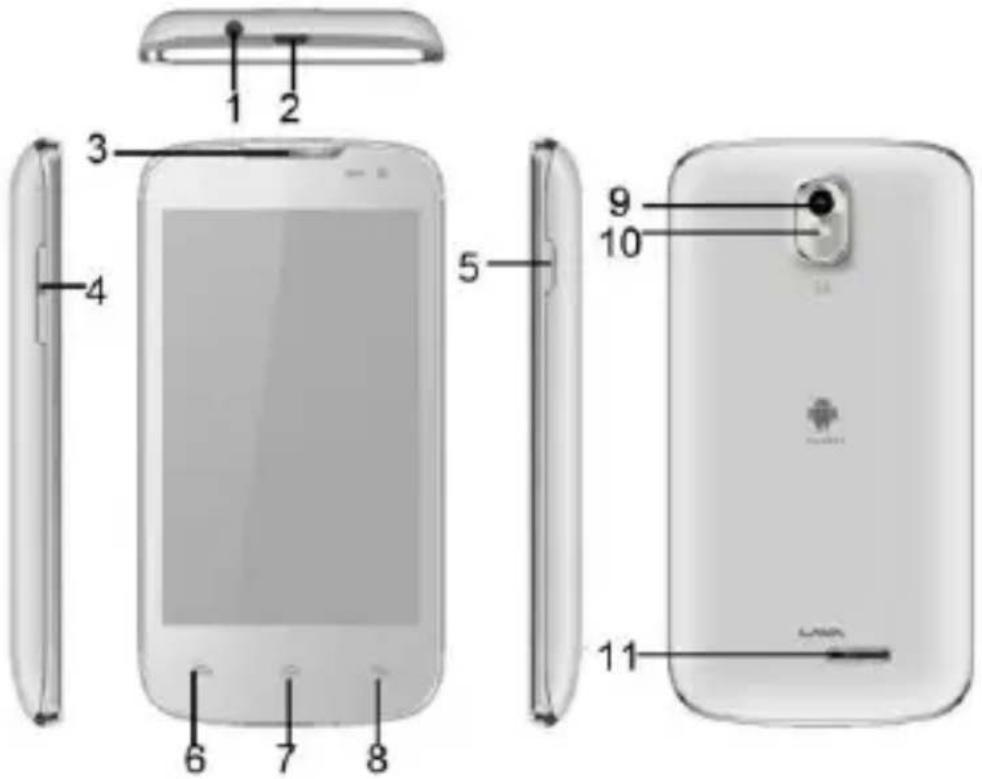
3.1 Position of Keys
| 1. Headphone Jack | 2. USB Jack |
| 3. Receiver | 4. Volume +/- key |
| 5. Power key | 6. Menu |
| 7. Home | 8. Back |
| 9. Camera | 10. ashlight |
| 11. Loudspeaker |
3.2Keys and connectors
| Keys | Functions |
| Power key | Press: Lock the screen/Light up the screenPress and hold: Show the pop-up menu to select from Power o/ Restart/Airplane mode, at the same me you can switch the user prole by touching the icon in the lower of the pop.Press and hold: Power on |
| Menu | Press Menu key to open a content menu related with current screen or Applicaon. |
| Home | While on any applicaon or screen, touch to return to the Home screen.Open a list of thumbnail images of apps you've worked with recently. Touch it to open an app. |
| Back | Touch to go back to the previous screen, or to close a dialog box, opons menu, the nocaaon panel, etc. |
| Volume +/-key | Adjust the volume |
3.3 Status bar
When a new nocaaon comes, the corresponding icon will appear on the status bar, and it won't disappear, unl you have done something with the nocaaon.
If the status bar is full, some icons will be hidden.
Notification panel
Touch and drag down the Status bar to open the nocaon panel. Touch and drag up to close it. From the Nocaon panel, you can open items and other reminders indicated by nocaon icons or view wireless service informaon.
3.4 Getting started
3.4.1 Set-up
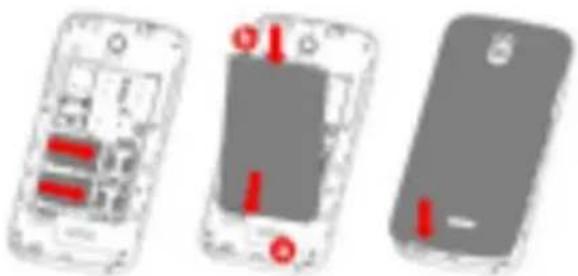
Removing the back cover, battery and SIM cards.
- Please power o your phone.
- Unclip the cover, and then remove the baery.
- To remove the SIM cards, press and slide it out.
Installing the battery, SIM cards and back cover
- You must insert your SIM cards to make phone calls. Please power off your phone and remove battery before inserting or removing the SIM cards.
- To install SIM cards, place the SIM cards with chip fading upwards downwards, and then slide it into its slot. Make sure that it is correctly inserted.
- Insert and click the battery into place, then close the phone cover.
natural_image
Three views of a smartphone showing internal components and red indicator lights (no text or symbols)For Dual SIM model, The SIM1 slot supports 3G network and is
Charging the battery
Connect the battery charger to your phone, and then the charge indicator at the center of screen will light. The charging status bar will take some time to display if your battery is extra consumed or in deep discharge mode.

To reduce power consumption and energy waste, when battery is fully charged, disconnect you charger from the plug; switch off Wi-Fi, Bluetooth or background running applications when not in use; reduce the backlight time, etc.
3.4.2 Power on/off your phone
Power on your phone
Hold down the Power key until the phone powers on. It will take some seconds before the screen lights up.
Power off your phone
Hold down the Power key from the Home screen until the Phone options appear, select Power off, and touch OK to
surface and draw them apart or together to scale an element on the screen.
Rotate: Automatically change the screen orientation from portrait to landscape by turning the phone sideways to have a better view.
3.5.2 Personalize your Home screen
Add
Touch the application tab, touch and hold an application or a widget to active the Move mode, and drag the item to any Home screen as you prefer.
Reposition
Touch and hold the item to be repositioned to activate the Move mode, drag the item to the desired position and then release. You can move items both on the Home screen and the Favorite tray. Hold the icon on the left or right edge of the screen to drag the item to another Home screen.
Remove
thumbnail in the window to open the related applicaon.
3.5.4 Applications and widgets list
The list contains all pre-embedded and newly installed applicaons and widgets. To access the list, touch applicaons tab from the Home screen. Then touch the tab in the upper of screen, it will switch the corresponding interface
4. Text input
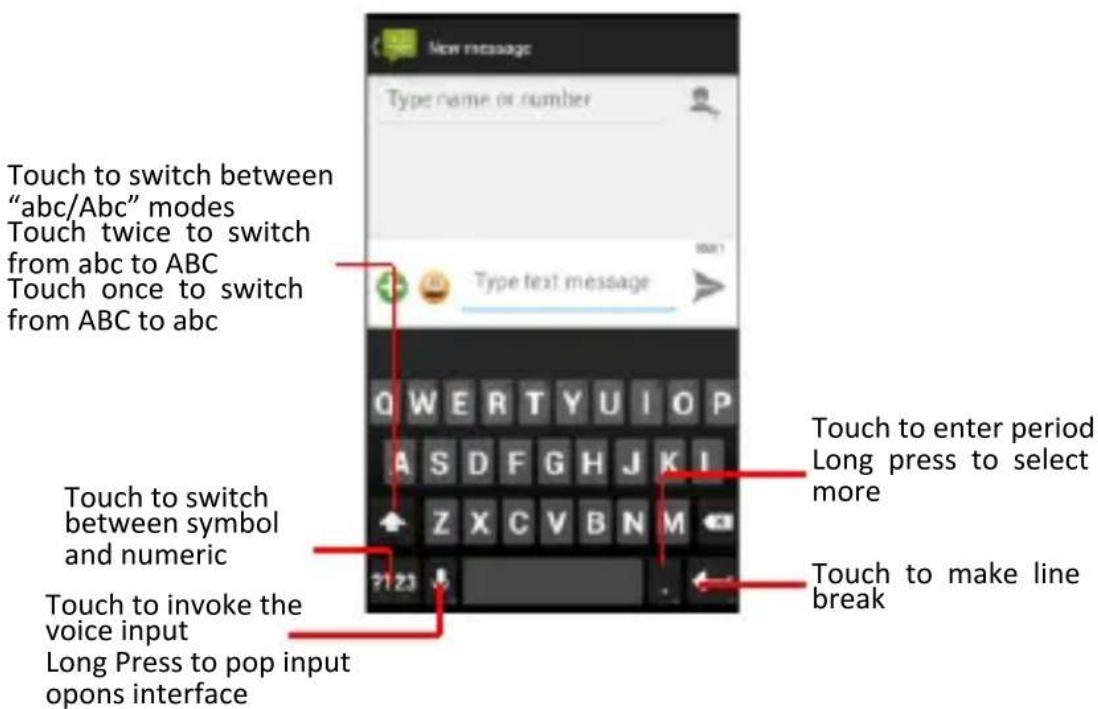
4.1 Using Onscreen Keyboard
Onscreen Keyboard sengs
Touch applicaon tab from the home screen, select Sengs \Language & Input touch the Sengs icon on the right of Android keyboard, a series of sengs are available for your selecon.
4.2 Text editing
You can edit the text you have entered.
- Touch and hold or double-tap within the text you would like to edit.
- The upper of screen appears four icons, they represent separately cancel, select all, cut, copy.
-
Drag the tap to change the high-lighted selecon.
-
Touch Cut /Copy icon to cut or copy the selected text.
- Touch and hold or double-tap the edit eld, then touch Paste.
- Touch the blank to go back without any acon.
5. Phone call
5.1 Making a call
You can easily launch a call using Phone. Touch Applicaon tab from the Home screen and select Phone.
Enter the desired number from the keyboard directly (If you make a mistake, you can delete the incorrect digits by touching clear icon) or select a contact from Contacts or Call log by touching the tab of upper screen to touch or slide the list, then Touch the dial icon to select a card to place the call.
5.2 Answering or rejecting a call
When you receive a call, If you want to answer the call, slip the middle icon to right, the call will get connected. otherwise, slip the middle icon to let to reject directly or to upside to send a text message.
5.3 Ending a call
When you are on a call, you can touch the End icon to hang up.
5.4 Shake to Answer and Hang up
Phone has special feature to Answer and hang up the call just by shaking the call. The sengs can be done under other sengs in call sengs menu.
On incoming call Shake phone, it will automatically answer the phone, aer you nish talking, shake phone again to hang up.
6. Messages
You can create, edit and receive SMS and MMS with this phone. To access this feature, touch Applicaon tab from the Home screen then select Messaging. All messages you receive or send out can be saved in phone memory. To consult messages stored in SIM card, touch Menu key from the Messages list screen then touch Sengs\Text Message(SMS)\Manage SIM Card
messages.
Writing message
On message list screen, touch the new message icon to write text/mulmedia messages.
Sending a text message
Enter the mobile phone number of the recipient on Type name or number bar or touch Phonebook icon to add recipients, touch Type to compose bar to enter the text of the message.
When nished, touch Send to send the text message.

A SMS of more than 160 characters will be charged as several SMS.
Sending a multimedia message
MMS enables you to send video clips, pictures, sounds, calendar, VCard and slides to other compatible phones and e-mail addresses. A SMS will be converted to MMS automacally when media les (image, video, audio, slides, etc.) are attached or Subject or email addresses added. Specific leers (accent) will also increase the size of the SMS, this may cause mulple SMS to be sent to your recipient.
7. Contacts
You can view and create contacts on your phone and synchronize these with your Email contacts or other applications on the web or on your phone.

When using People app for the rst me you are required to add new contacts, import contacts from SIM card or synchronize contacts from other applicaon accounts to phone.
7.1 Adding a contact
Touch Applicaon tab on the Home screen, select Contacts app, then touch the icon in the lower right of screen, the contact list to create a new contact.
7.2 Importing, exporting and sharing contacts
From Contacts screen, touch Menu key to open opons menu, touch Import/export. The phone can interchange contacts among SIM cards, phone contact, phone storage and memory
card. You can share a contact or a series of contacts via Bluetooth, email and so on.
7.3 Synchronizing contacts in multiple
accounts
Contacts, data or other information can be synchronized from multiple accounts, depending on the applications installed on your phone.
8. Email
Besides your Email account, you can also set-up external POP3, IMAP or Exchange email accounts in your phone. To access this function, touch Application tab from Home screen, then select Email. An email wizard will guide you through the steps to set-up an email account.
- Enter the email address and password of the account you want by us at.com
9 .Geng connected
To connect to the Internet with this phone, you can use GPRS/EDGE/3G networks or Wi-Fi, whichever is most convenient.
9.1 Connecting to the Internet
9.1.1 GPRS/EDGE/3G
The rst me you turn on your phone with SIM card inserted, the data conncon is not connected, you can drag down nocacn panel then touch the upper right icon to enter the shortcut interface, nd the data conncon icon, touch it to open the network. To check the network conncon you are using, touch Applicaon tab on the Home screen, then touch Sengs\More\Mobile networks\Access Point Names or Network operators.
9.1.2 Wi-Fi
Using Wi-Fi, you can connect to the Internet when your phone is within range of a wireless network. Wi-Fi can be used on the phone even without a SIM card inserted.
To turn Wi-Fi ON and connect to a wireless network
. Touch Wi-Fi, detailed informaon of all detected Wi-Fi networks is displayed in the Wi-Fi networks secon.
. Touch on nocaon panel to get to sengs.
. Touch the switch beside Wi-Fi to turn on/o Wi-Fi。
. Touch a Wi-Fi network to connect to it. If the network you selected is secured, you are required to enter a password or other credentials (contact network operator for details).
When nished, touch Connect.
9.1.3 Bluetooth
If you are using Bluetooth, remember to stay within close range of other Bluetooth devices. Be aware that obstacles like walls or other electronic equipment may interfere with your Bluetooth conncon.
Turning On Bluetooth
- Touch Sengs> Bluetooth, and then touch the right icon to turn on Bluetooth. When Bluetooth is turned on, the Bluetooth
icon appears in the nocaon bar.
- Touch your Bluetooth device name to make your mobile phone visible to other Bluetooth devices.
Pairing and Connecting a Bluetooth Device
- Touch Sengs > Bluetooth> On. Your mobile phone will then scan for Bluetooth devices in range (or touch > SEARCH FOR DEVICES to scan for Bluetooth devices).
- Touch the device you want to pair with your mobile phone.
Sending Files via Bluetooth With Bluetooth
- Touch and hold the le to be sent. The acve opons menu is displayed.
- Touch Share, and then touch Bluetooth to select a paired device.
Disconnecting or Unpairing a Bluetooth Device
- Touch > Sengs > Bluetooth.
- Touch the icon right of the connected device name then to select Unpair to disconnect the device.
9.2 Browser
Using Browser, you can enjoy surng the Web. To access this funcon, touch Applicaon tab from Home screen, then touch Browser.
To go to a web page
On Browser screen touch the URL box at the top, enter the address of the web page, then conrm. Some websites will hide the URL box automacally, you can scroll down the web page to let it be displayed.
9.3 Connecting to a computer
With the USB cable, you can transfer media les and other les between your micro SD card and computer.
To connect/disconnect your phone to/from the computer:
To connect your phone and your computer:
Use the USB cable that came with your phone to connect the phone to a USB port on your computer. You will receive a nocaon that the USB is connected.
If you use mass storage, open the Nocaon panel and touch USB connected, then check USB storage in the dialog
Unmount the microSD card on your computer:
Open the Nocaon panel and uncheck USB storage.
microSD card:
Touch Applicaon tab from the Home screen to open the applicaons list.
Touch File manager. All data you have downloaded is stored in File manager where you can view media les (videos, photos, music and others), rename files, install applicaons into your phone, etc.
10. Managing Applicaons
Viewing an Installed Application
- On the Sengs screen, touch Apps
-
In the applicaons list, do any of the following:
-
Press Menu and then touch Sort by size. Then touch an applicaon to view its details.
- Select Downloaded, SD card, Running or All. Then touch an applicaon to view its details.
- Applicaon manager ( Assistant apk )in your phone helps to install applicaon from your APK already present in the SD cards. It will detect the APK stored in the SD card and give opon to install all or one by one.
Removing an Installed Application
- On the Sengs screen, touch Apps.
- Touch an applicaon, and then touch Uninstall to remove the applicaon from your mobile phone.
11. Protecng Your Mobile Phone
Screen unlock
To enter the idle screen, you must pass the screen lock, if you enable the screen lock
On the Sengs screen, touch security > Screen lock. there are paern, PIN, Password to select and so on.
SIM Card lock
You must input the correct password every me, when the mobile phone power on
- On the Sengs screen, touch security > Set up SIM card lock.
- Select the Lock SIM card check box.
You can dial emergency numbers any me from your mobile
phone.
12. Factory data reset
To activate factory data reset:
Touch applicaon tab from the Home screen then select
Sengs \Backup & reset\Factory data reset.
. Touch Reset phone
Phone reset will erase all of your personal data from internal phone storage, including informaon about your Email Account, any other accounts, your system and applicaon sengs, and any downloaded applicaons. Reseng the phone does not erase any system soware updates you have downloaded or any les on your microSD card, such as music or photos. If you reset the phone in this way, you are prompted to re-enter the same kind of informaon as when you rst started Android.
13. For your safety
Read these simple guideline. Not following them may be dangerous or illegal. Read the complete user manual for further informaon.
Do not switch your phone ON when the use of wireless devices is prohibited or when the wireless device may cause interference or danger.
Do not use your phone while driving.
Follow relevant rules or regulaons in hospital and health care facilities. Switch your phone o near medical devices.
Switch your phone o in aircra. The radio signal from it may cause interference in signals of the aircra.
Switch your phone o near high-precision electronic devices. It may aect the performance of these devices.
Do not aempt to disassemble your phone or its accessories. Only qualified personnel may service or repair the phone.
Do not place your phone and its accessories in containers with strong electromagnec eld.
Do not place magnec storage media near your phone. Radiaon from the phone may erase the informaon stored on them.
Do not put your phone in a high-temperature place or use it in a place with ammable gas such as a petrol pumps.
Keep your phone and its accessories away from children. Do not allow children to use your phone without guidance.
Observe any laws or regulaons on the use of phone. Respect others' privacy and legal rights when using your phone.
14.Frequently Asked Quesons and
Troubleshoong
Frequently Asked Quesons
Unable to turn on phone
Cause and Soluon
Press the power on key for over 1 second.
Check if the baery is properly connected. Please remove and install it again, retry to turn on ; Check if baery is appropriately charged
Unable to
Weak signal. Please Try and move to a
| connect to a network | locaon with strong signal and try connecng to the network again;Please ensure that you are not beyond the network coverage of service providers;Please ensure you have a valid SIM card. Please contact your network provider for further informaon; |
| Display informaon while turning on | Check if the SIM card (insert the SIM card) is installed correctlyHandset lock password. If the handset lock is acvated, you have to input handset password before using.Input PIN. Inpung PIN while turning on each me is acvated, you have to input the PIN code.Input PUK code: Having input wrong PIN code for 3 mes straight will lock the SIM card. You need to input the PUK code provided by your network provider. |
| Poor quality of calling | Please check if the sound volume is tuned improperlyIn an area with poor receiving condion, example: basement, the signal might be weak. Try reaching a locaon with stronger signal recepon and call again.While using the mobile phone in the peak period of communicaon, like commute me, you may be unable to call because of line congeson. |
| Standby duraon shortened | The standby duraon is relave to the system seng of network. While the mobile phone is in an area with poor signal strength and can not receive the signal, the handset will connuously search for a base staon. This will significantly reduce baery charge. It is recommended that you turn oyour mobile in area with no signal recepon to save baery. Need replacing the baery. Please change a new baery. |
| SIM Card Error | Dirt on the metal surface of an SIM card. Use clean cloth to wipe the metal touch point on an SIM card. The SIM card is not installed. The SIM card is damaged. Please contact your network service provider. |
| Unable to dial out | Please conrm if you pressed the dial key aer dialing. Please conrm if calling is forbidden because of default sengs. Please conrm if the SIM is valid. Please conrm if the call barring is set. Please conrm if the xed dial funcon is set. |
| Callers unable to contact you | Please conrm if the mobile phone is on and connected with the network. Please conrm if calling is forbidden because of defaulng. Please conrm if the SIM card is valid. Please conrm if the call barring is set. |
| Unable to charge handset | Poor contact. Please check if the plug is connected well. Please conrm if the environment temperature is within the range of 0°C ~40°C while charging. The baery or charger is damaged. You need to replace it. |
| Unable to set some funcons | Wrong operaon. The network provider does not support the funcon, or you have not applied for it. |
Note: If the instrucon above cannot help you solve problems, please record :
Mobile phone model and serial number
Specific content of warranty
Clear statement of problems
Then contact your local dealer or a LAVA authorized service center in your area.
15. Safety Informaon and Noces
Using the Cellular Phone and Charger
Only use authorized battery and charger. Using other brands may cause baery leakage, overheang, explosion or even re.
Cauon:
Keep the phone away from dust, water and damp areas. Dust, water or other liquids may cause overheang, electrical leakage, and/or phone failure.
The phone, baery, charger and AC adapter are not waterproof. Keep them away from rain and liquid.
Warning:
Do not bump, shake or tamper with the phone or charger. This may cause baery leakage, overheang, explosion or even re.
Do not place the baery, phone or charger near a microwave or high-voltage device. This may cause baery leakage, overheang, explosion or even re; also prevent the phone and AC adapter from overheang, smoking or short circuing.
Do not use the phone around volale oil. This may cause re, breakdown or damage.
To avoid any damage or breakdown, do not disassemble the phone, baery, charger or internal components by yourself.
Using the Cellular Phone
Warning:
Do not use the phone while you are driving. Pull over and stop your automobile to dial or listen to a phone call.
Usage of cellular phones in aircras or hospitals is prohibited.
Switch the phone o to prevent interference with electronic medical devices. Follow any rules or regulaons in such places.
Do not use the phone at a gas staon, near fuel or near chemicals.
Do not use the phone near electronic medical devices such as hearing aids, pacemakers and auto-control devices such as redetectors and automac doors.
If you have to use your cellular phone near an electronic medical device such as a pacemaker, please contact your manufacturer or dealer for informaon about prevenng interference.
Cauon:
Electronic systems in automobiles such as an-lock brakes, speed control, or fuel spraying systems, are usually not influenced by wireless devices. Manufacturers of these systems will tell you whether they are provided with good screening funcons. If you suspect that an automobile failure is caused by a wireless wave, please contact your automobile dealer.
Avoid using your phone in crowded places.
Do not store your cellular phone near or with a credit card, disk or other magnec materials. This may eect informaon stored on your phone.
Keep your phone away from pins. Pins can be absorbed by the phone's receiver magnet, which may cause harm.
Using the Battery
Do not dispose of the baery into a re. Doing so may cause baery explosion or even re.
If you have dicules installing the baery, do not force the installaon. This may cause baery leakage, overheang, explosion or even re.
Keep metal objects away so they do not come in contact with the baery or its connectors as it may cause the baery to short circuit, overheat or explode.
Do not weld the polaries of the baery directly together. This may cause baery leakage, overheang, explosion or even re.
Baery liquid is severely harmful for your eyes. If baery liquid gets in your eyes, do not rub them. Instead, wash your eyes with water rst and then go directly to a doctor for help.
Do not use or store your phone in high temperature areas. This may cause baery leakage, overheang, explosion or even re.
Warning:
Replace the baery when the normal usage me begins to decrease or if you noce the baery is overheated or has changed shape or color.
If baery liquid leaks onto your skin or clothes, immediately wash the aected parts with water.
If the baery begins to leak or emits a strange odor, properly dispose of the battery according to local regulaons. Do not throw it into a re.
Cauon:
Do not leave the product or its baery inside a vehicle or in places where the temperature may exceed 60^ C ( 140^ F), such as on a car dashboard, window sill, or behind a glass that is exposed to direct sunlight or strong ultraviolet light for extended periods of me. This may damage the product, overheat the baery, or pose a risk to the vehicle.
Using the Charger
Only use the charger that came with the phone. Using a dierent charger may cause the phone to breakdown or explode.
If the charger short circuits, a re may occur.
Do not use a damaged, worn or broken charger. This may cause a re.
Clean dust away from the power socket to avoid the possibility of a re.
Do not store the charger near any liquids. If liquids spill onto the charger it may cause it to overheat or breakdown.
If liquid does spill onto the charger, immediately unplug the power cable to prevent overheang, re or another type of breakdown.
Do not use the charger in places with high humidity like a bathroom. This may cause a re or other breakdown.
Do not touch the charger, power cable or socket with wet hands. This may cause an electric shock.
Cauon:
Keep the environment temperatures within the range of 0^ C \~ 40^ C while charging. Temperature below 0^ C or higher than 40^ C will cause insucient charging, terminate charging or even cause the baery to explode.
Unplug the charger from its power source before cleaning it.
Do not place heavy objects on the power cord. This may cause electric shock or re.
Hold the plug while unplugging the power cord. This will avoid any potenal damage or even re.
Requirements for Cellular Phone
Avoid using your cellular phone in extremely high or low temperatures. Use the phone in a temperature range between -10\~55°C and humidity of 35%\~85%.
It is recommended that you do not use your cellular phone near a telephone, TV set, radio or other radio frequency sensitive devices.
Requirements for the Battery
When not in use, store the baery in a cool, well-venlated place with sunshine.
If you will not be using the cellular phone for an extended period of me, charge the baery on a regular basis to avoid baery breakdown.
The phone baery wears out fast. If charging the baery does not improve its performance, it is me to replace the baery. Properly dispose of the baery according to local regulaons. Do not throw it into a re.
Requirements for the Charger and AC Adapter
Do not charge your phone under the following circumstances: sunshine, temperatures equal to or lower than 0^ C, temperatures equal to or higher than 40^ C, high humidity, dust, high vibraon areas, or near a TV, a radio, etc.
Cleaning and Maintenance
The cellular phone, the baery and the charger are not waterproof. Do not use them in places with high humidity like a bathroom and also avoid spilling any liquids on them.
Use a so cloth to clean the cellular phone, the baery and the charger.
Do not use alcohol, diluted liquid or benzene to clean the cellular phone.
If dust gets in the sockets the phone can be damaged, short-circuit or even the lose the ability to be re-charged. Be sure to clean the socket regularly.
SAR declaration
The highest SAR value for this mobile phone is < 1.6 W/Kg, in accordance with the requirements of the ICNIRP, which
recommended the limit for exposure to radio waves is 1.6 was/kilogram(W/kg) averaged over 1 gram of ssue. For more informaon, please visit (www.lavamobiles.com) to query
Safety precautions:
a. Use a wireless hands-free system (Headphone, headset) with a low power Bluetooth emier
b. Make sure the cell phone has a low SAR
c. Keep your calls short or send a text message (SMS) instead.
This advice applies especially to children, adolescents and pregnant women
d. Use cell phone when the signal quality is good
e. People having acve medical implants should preferably keep the cell phone at least 15cm away from the implant
16.Trouble shoong
Please visit www.lavamobiles.com to nd the Lava Service Centre nearest to you.
Service Center number
No.:+919560394002
Customer Care Number
1860-200-7500
Kindly note please send area code of place through SMS to Service Center number and in return you will get address of service center nearest to you by SMS
17. E-waste Disposal Mechanism
'E-waste' means waste electrical and electronic equipment (WEEE). In other words E-waste is a popular, informal name for electronic products nearing the end of their "useful life". For more details about e-waste please refer e-waste rules, 2011 www.moef.nic.in
18. Do's and Don'ts for disposal
e-waste
Do's:
- Ensure that an Authorized Person repairs your Lava products
- Call Our Local Authorized Collecon Centers to Dispose Lava products
- Always drop your used electronic products, baeries or any accessories thereof aer the end of their life at nearest Authorized Collecon Point or Collecon Center.
- Separate the packaging material according to responsible waste disposal opons and sorng for recycling.
- Always remove the baery from the product, when you do not intend to use the product anymore it in future.
Don'ts:
- Do not Dismantle your Lava Product on your own
- Do not give your e-waste to Kabbadi Wala / Scrap Dealer/Rag Pickers.
- Do not dispose-o the e-waste in landlls
- Never dump E-waste in garbage bins.
- Do not dispose of your product at municipal waste bins or rooms.
- Do not throw used baeries into household waste.
Consequences of improper handling and disposal of E-Waste
- Improper disposal of waste prevents natural resources from being re-used.
- Some waste contains hazardous chemicals and if not disposed of properly may release toxins into the soil and water, and also releases greenhouse gases into the environment
- If e-waste is not properly disposed of, it can threat to the health and well-being of humans and animals and it also has adverse effect on the environment.
- Placing of baeries or devices on or in heang devices, such as microwave, ovens, stoves, or radiators and improper disposal of baeries may lead to explosion.
- If the baery terminals are in contact with metal objects, it may cause a re.
For more details on how to dispose of your Lava products at the end of life, Please refer the list of our Services Centers on Pan India basis on our website www.lavamobiles.com or please view this link for the details of Service Centers hp://www.lavamobiles.com/support-services.
19. Lava warranty cercate
Limited warranty:
LAVA internaonal Ltd. (LAVA) provides limited warranty for your mobile phone and original accessories delivered with your mobile phone (hereinaer referred to as “product”)
The warranty period for the transceiver is one (1) year and for baery, charger and headset is six (6) months from the date of purchase.
LAVA Warranty:
Subject to the conditions of this Limited Warranty, LAVA warrants a product to be free from defects in design, material and workmanship at the me of its original purchase by you, and for a subsequent period of one (1) year for transceiver and six (6) months for baery & charger.
You shall have coverage or benets under this warranty in the event that any of the following conditions are applicable:
- The product has been subjected to abnormal use or condions, improper storage, exposure to 1.excessive moisture or dampness, exposure to excessive temperature, unauthorized modicaon, unauthorized repair (including but not limited to use of unauthorized spare parts in repairs),abuse, accidents, Acts of God, spills of food or liquids, improper installaon
- You have not noed Lava of the defect in the product during the applicable warranty period.
- The product serial no. code or the accessories date code has been removed, defaced or altered.
- The product has been used with or connected to an accessory (i) Not supplied by Lava or its aliases, (ii) Not t for use with the product or (iii) Used otherwise than in manner intended.
- The seals of the product's baery enclosure have been broken or shown evidence of tempering or the product's baery has been used in equipment other than that for which it has been specied usable by LAVA.
- All plasc surfaces and all other externally exposed part that is scratched or damaged due to normal use.
To get maximum of your new product, we recommend you to:
Read the guidelines for safe and ecient use as menoned in the manual.
Read the terms and conditions of your Lava warranty in the manual.
Keep your original receipt; you will need it for warranty services if asked to produce.
Present this Lava Warranty Cercate along with original proof of purchase whenever you require any warranty services.
In case Lava product needs service, please visit the nearest Lava service centers given in the service guide. Please visit our Website www.lavamobiles.com for updated list of Authorized Service Centers near to your locaon.
Important note: for your warranty to be valid, all informaon on the warranty cercate has to be completed including the stamp from the authorized distributor/retailer.
All warranty informaon, product features and specicaons are subject to change without noce.
IMEI No.
Dealers Stamp
Date of purchase
Model No.