Iris 349i - Cellphone LAVA - Free user manual and instructions
Find the device manual for free Iris 349i LAVA in PDF.


User questions about Iris 349i LAVA
0 question about this device. Answer the ones you know or ask your own.
Ask a new question about this device
Download the instructions for your Cellphone in PDF format for free! Find your manual Iris 349i - LAVA and take your electronic device back in hand. On this page are published all the documents necessary for the use of your device. Iris 349i by LAVA.
USER MANUAL Iris 349i LAVA
➢ Congratulaons on your purchase of the LAVA mobile phone. Your phone provides many funcons which are praccal for daily use, such as a hands-free loudspeaker, camera, MP3 player, Ultra clear video
You can read the manual to understand how to use LAVA mobile phone and experience the well-established funcons and simple operaon method. Please use the original accessory in order to achieve the best use of eects. Lava shall not be responsible for any damage in machinery due to use of non-original components.
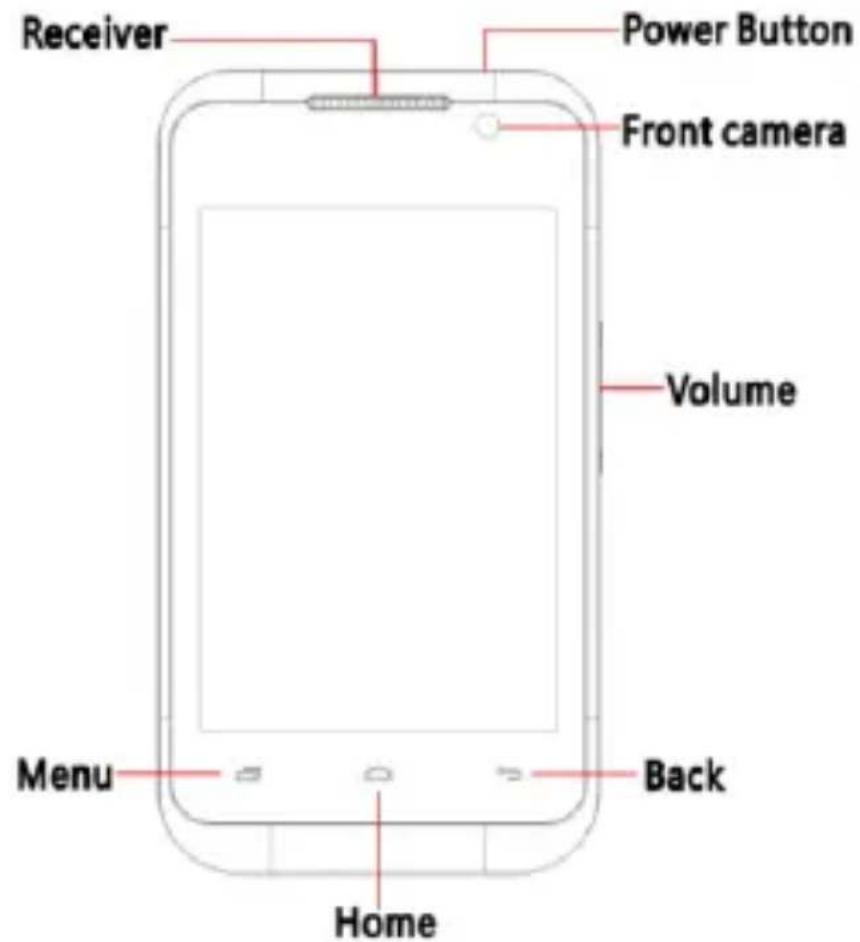
YOUR PHONE-FRONT VIEW
CHARGE THE BATTERY
natural_image
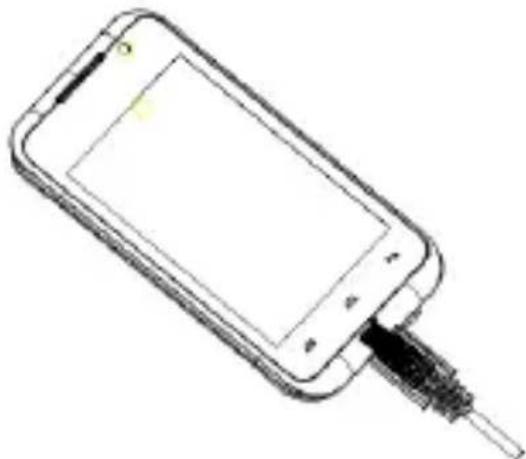
Line drawing of a smartphone with a cable inserted into the screen (no text or symbols)Connect this end to phone's USB port.
Tip: Be sure to charge your phone's baery for 4 hours aer inserng it in the phone for the rst me.
INSERT SIM AND MicroSD CARD
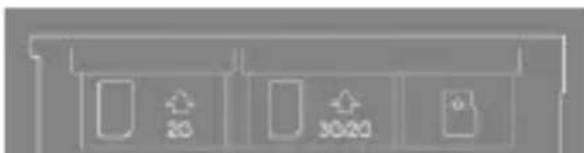
Please insert the SIM card(s) according to the label on the phone.Make sure that the clipped corner of the SIM card and the metallic contacts are facing the correct direcon.Slide the SIM card into the unl it doesn't move up any further.
On the right most side(refer diagram above)is the micro
natural_image
Pure electrical circuit lines without any symbolsSD card slot. The direcon in which the microSD card has to be inserted into the designated slot is shown by an arrow in the above diagram
Tip: For additional media storage insert a microSD card.
TURN THE PHONE ON& OFF
natural_image
Simple circular diagram with horizontal lines and a small oval labeled 'b' inside (no text or symbols beyond basic labels)Hold down the power buon to turn the phone on.
Hold down the power buon, then touch Power o to turn the phone o
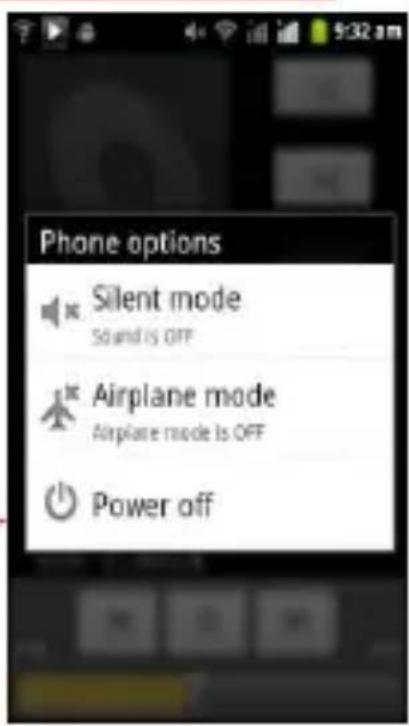
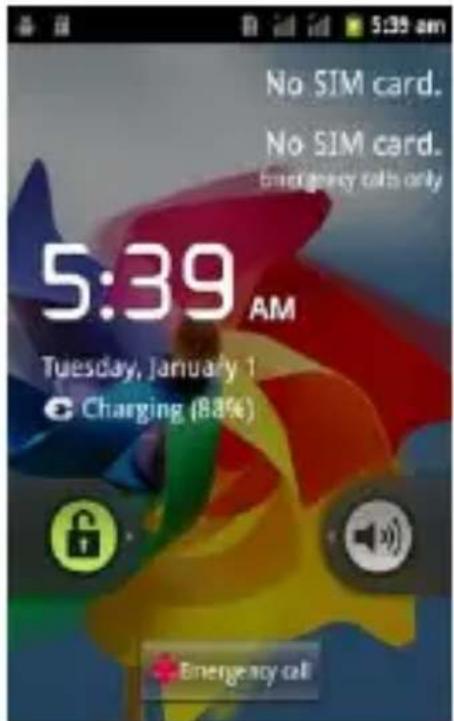
DIM LOCK & WAKE THE PHONE
When the power is on and you want to dim the screen, press the power buon.
when the screen is dimmed and you want to wake the phone, press the power buon and then drag the lock to the right.
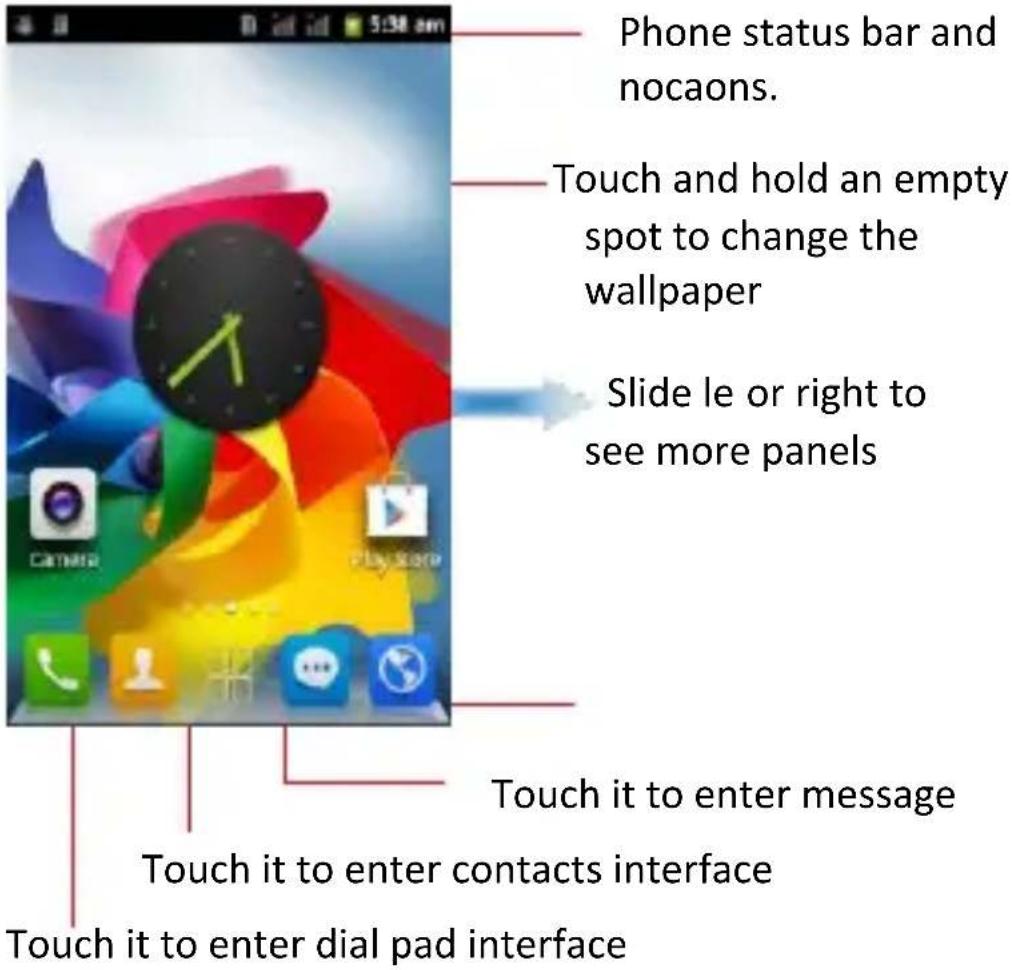
HOME SCREEN
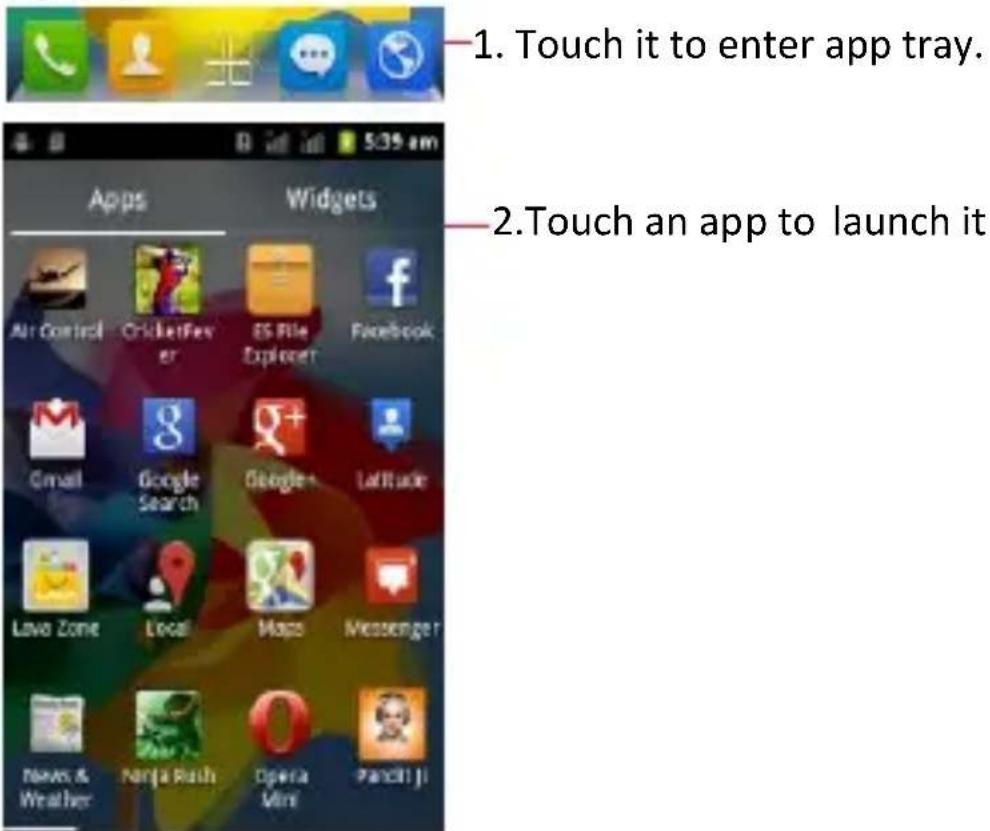
APPS
STATUS BAR
The status bar shows your phone's status and nocaons. (Nocaons are described on the next page.)
Nocaon icons
Status icons

Status icons
The following status icons may appear on your screen:
| Icon | Statement | Icon | Statement |
 | SIM Network signal level |  | Headset is inserted |
 | Indicates baery capacity |  | Bluetooth is acvated |
 | Unread messages |  | Wi-Fi is connected |
 | Missed calls |  | Airplane mode is acvated |
 | Alarm is acvated |  | USB is connected |
NOTIFICATION PANEL
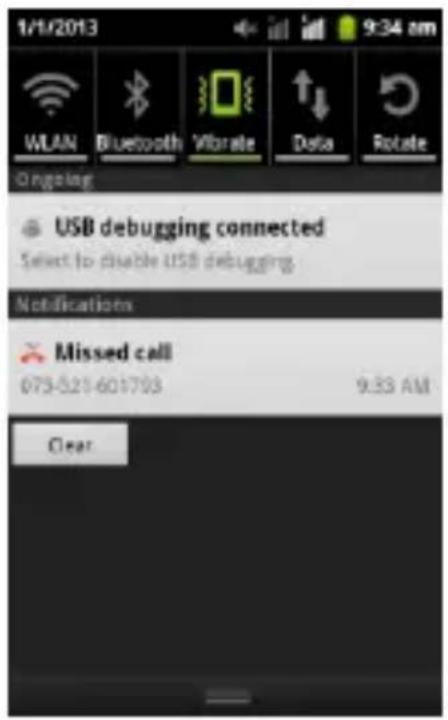
The nocaon panel is your center for new events:like new e-mail,voicemail,updates,and more.
Drag down to display nocaons
Touch a nocaon to respond
- From the Hom screen.touch
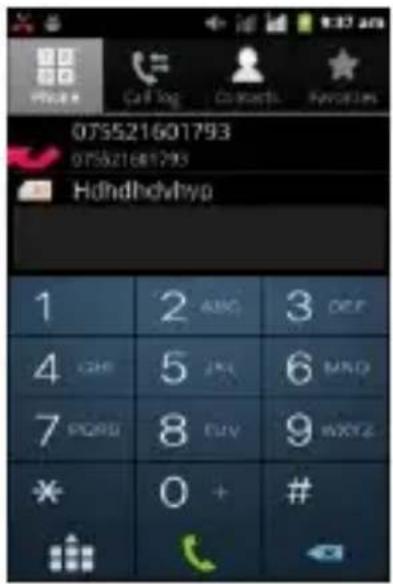
- Dial a number using the dial pad.
- Touch to initiate the call

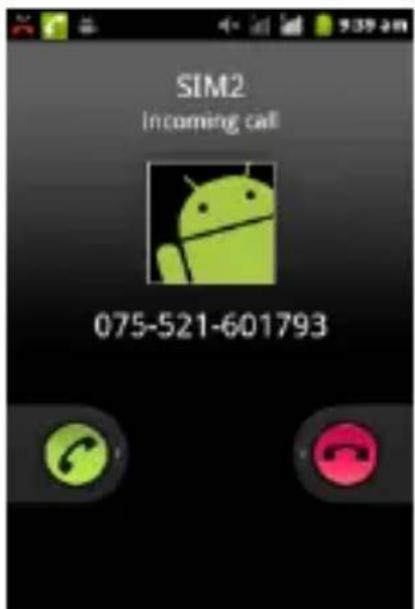
Answer a call

Drag

Decline a call
Drag

SEND A TEXT
- From the Home screen,touch
- Touch New message
- Touch the To eld, then enter a recipient.
- Touch the Type message eld, then enter a message
- Touch Send the message

SETTINGS
the sengs for various features of the phone
Get to know the sengs in your phone so that you can personalize them to your own requirements. Go to Sengs to congregate how your phone looks, sounds, communicaon, privacy, and operaons in a variety of ways:
| Dual SIM sengs | Set preferences on how you use SIMs inserted in your phone. |
| Wireless & networks | Manage your wireless conncons and connconss sengs. Let you congregate and manage connconss to networks and devices by Using Wi-Fi, Bluetooth, and mobile networks. |
| Call sengs | Let you congregate phone call sengs, such as call forwarding, call barring, and other special features oered by your carrier. |
| Audio proles | Congure how your phone rings, vibrates, or alerts you in other ways when you receive communicaons, etc. |
| Display | Let you set the screen brightness, select to switch orientaon when you rotate your phone, andcongure other screen sengs. |
| Locaon & Security | Set locaon preferences. Protect your phone by seng up dierent locks and passwords. |
| Applicaons | Manage installed applicaons. |
| Accounts & sync | Let you add, remove and manage supported accounts. |
| Privacy | Let you manage your personal informaon, restore your sengs and other data when you install an applicaon, and erase all of your personal data from internal phone storage. |
| Storage | Let you check out available space on your phone's internal storage and on your T-Flash card. |
| Language & keyboard | Let you select the language for the text on your phone and for conguring the onscreen keyboard. |
| Voice input & output | Congure the voice input feature to enter text by speaking. |
| Accessibility | Enable your installed accessibility applicaons and adjust related sengs. |
| Data & me | Let you choose preferences such as format and me zones. |
| Timer Switch Machine | Schedule automac powering on/o of the phone. |
About phone
View informaon about your phone, such as system updates, status, and baery use.
SET A RINGTONE
Press → Audio proles, select the proles you want to set, you can customize the ringtone and volume of incoming call, nocaon ringtone in this interface.
MULTIMEDIA
listen it, watch it, capture it, enjoy it!
FM RADIO
- Insert earphone, then Tap the Power icon to stop or play FM.
- Tap the forward by 0.1 MHz or scroll the knob icon to change channel frequency. Press volume key to adjust the volume.
- Tap Auto search, Sengs, Record and Favorites icon to adjust.
MUSIC PLAYER
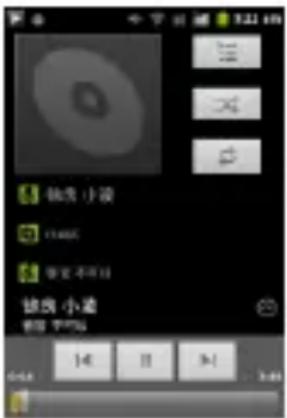
| Previous/Next | Touch / |
| Rewind/Forward | Touch and hold / |
| Volume adjust | Press side key |
| Now playing: Touch to open the current playlist. | Touch ≡ |
| Shue: Touch to shue the current playlist. | Touch ✗ |
| Repeat: Touch to repeat the current playlist; touch again to repeat the current track. | Touch ⇌ |
TAKE A PICTURE
- Press and hold the camera buon and then release
- In the camera app, tap the screen to focus on a specific area.
- Press the camera buon all the way down to take a picture.
TIP: Also launch the camera by pressing the camera icon on the home screen, capture the photo using on the screen camera buon.
SHOOT A VIDEO
-
Press and hold the camera buon unl it vibrates then release.
-
In the Camera app, select video

- Press the camera buon to begin filming, and press again to stop lming.
SHARE A PHOTO

then touch
-
From the Home screen, touch
-
Touch an album to open it, then touch the picture you want to share.
3.Now touch

- Select a medium for sending the photo(Such as Gmail to mail the photo, or Message to send the photo via messaging).
CONNECT TO Wi-Fi NETWORKS
Wi-Fi is a wireless networking technology that can provide Internet access at distances of up to 100 meters, depending on the Wi-Fi router and your surroundings.
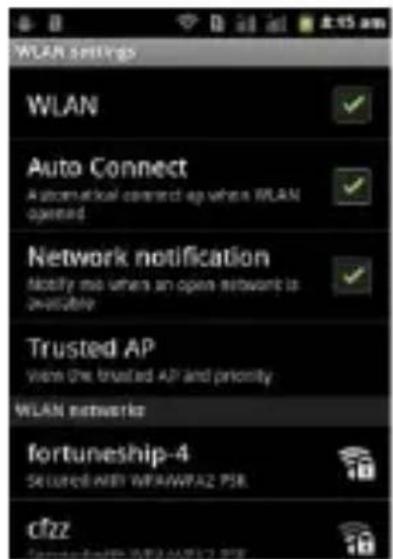
Touch Sengs>Wireless & networks > WLAN sengs.
Check Wi-Fi to turn it on.
The phone scans for available Wi-Fi networks and displays the names of those it nds. Secured networks are indicated with a Lock icon.
SAR declaraon
The highest SAR value for this mobile phone is < 1.6 W/Kg, in accordance with the requirements of the ICNIRP, which recommended the limit for exposure to radio waves is 1.6 was/kilogram (W/kg) averaged over 1 gram of ssue. For more informaon, please visit (www.lavamobiles.com) to query
Safety precautions:
a. Use a wireless hands-free system (Headphone, headset) with a low power Bluetooth emier b. Make sure the cell phone has a low SAR
c. Keep your calls short or send a text message (SMS) instead. This advice applies especially to children,
adolescents and pregnant women
d. Use cell phone when the signal quality is good
e. People having acve medical implants should
preferably keep the cell phone at least 15cm away from
the implant.
All the conguraons menoned in this user manual is only for reference; please refer to the actual phone.
E-waste Disposal Mechanism
'E-waste' means waste electrical and electronic equipment (WEEE). In other words E-waste is a popular, informal name for electronic products nearing the end of their "useful life". For more details
about e-waste please refer e-waste rules, 2011
www.moef.nic.in
Do's and Don'ts for disposal e-waste
Do's:
a. Ensure that an Authorized Person repairs your Lava products
b. Call Our Local Authorized Collecon Centers to Dispose Lava products
c. Always drop your used electronic products, baeries or any accessories thereof aer the end of their life at nearest Authorized Collecon Point or Collecon Center.
d. Separate the packaging material according to responsible waste disposal opons and sorng for recycling.
e. Always remove the baery from the product, when you do not intend to use the product anymore it in future.
Don'ts:
a. Do not Dismantle your Lava Product on your own b. Do not give your e-waste to Kabbadi Wala / Scrap Dealer/ Rag Pickers.
c. Do not dispose-o the e-waste in landlls.
d. Never dump E-waste in garbage bins.
e. Do not dispose of your product at municipal waste bins or rooms. f. Do not throw used baeries into household waste.
g. Consequences of improper handling and disposal of E-Waste
h. Improper disposal of waste prevents natural resources from being re-used.
i. Some waste contains hazardous chemicals and if not disposed of
properly may release toxins into the soil and water, and also releases greenhouse gases into the environment j. If e-waste is not properly disposed of, it can threat to the health and well-being of humans and animals and it also has adverse effect on the environment.
k. Placing of baeries or devices on or in heang devices, such as microwave, ovens, stoves, or radiators and improper disposal of baeries may lead to explosion.
I. If the baery terminals are in contact with metal objects, it may cause a re.
m. For more details on how to dispose of your Lava products at the end of life, Please refer the list of our Services Centers on Pan India basis on our website www.lavamobiles.com or please view this link for the details of Service Centers
hp://www.lavamobiles.com/support-services.
LAVA WARRANTY CERTIFICATE
Limited warranty:
LAVA internaonal Ltd. (LAVA) provides limited warranty for your mobile phone and original accessories
delivered with your mobile phone (hereinaer referred to as “product”)
The warranty period for the transceiver is one (1) year and for baery, charger and headset is six (6) months from the date of purchase.
LAVA Warranty
Subject to the conditions of this Limited Warranty, LAVA warrants a product to be free from defects in design, material and workmanship at the me of its original purchase by you, and for a subsequent period of one (1) year for transceiver and six (6) months for baery & charger.
You shall have coverage or benets under this warranty in the event that any of the following conditions are applicable:
The product has been subjected to abnormal use or conditions, improper storage, exposure to 1.excessive moisture or dampness, exposure to excessive temperature, unauthorized modicaon, unauthorized repair (including but not limited to use of unauthorized spare parts in repairs),abuse, accidents, Acts of God, spills of food or liquids, improper installaon
You have not need Lava of the defect in the product during the applicable warranty period.
The product serial no. code or the accessories date code has been removed, defaced or altered.
The product has been used with or connected to an accessory (i) Not supplied by Lava or its aliases, (ii) Not t for use with the product or (iii) Used otherwise than in manner intended.
The seals of the product's baery enclosure have been broken or shown evidence of tempering or the product's baery has been used in equipment other than that for which it has been specied usable by LAVA.
All plasc surfaces and all other externally exposed part
that is scratched or damaged due to normal use.
To get maximum of your new product, we
recommend you to:
Read the guidelines for safe and ecient use as menoned in the manual.
Read the terms and conditions of your Lava warranty in the manual.
Keep your original receipt; you will need it for warranty services if asked to produce.
Present this Lava Warranty Cercate along with original proof of purchase whenever you require any warranty services.
In case Lava product needs service, please visit the nearest Lava service centers given in the service guide. Please visit our Website www.lavamobiles.com for updated list of Authorized Service Centers near to your locaon.
Important note: for your warranty to be valid, all informaon on the warranty cercate has to be completed including the stamp from the authorized distributor/retailer.
All warranty informaon, product features and specicaons are subject to change without noce.
IMEI
No.
Dealer
Stamp
DateOf
Purchase
Model
No.
IMEI
No.
......