TP711A - Television ORION - Free user manual and instructions
Find the device manual for free TP711A ORION in PDF.


| Product Type | Tablet PC |
| Brand | Orion |
| Model | TP711A |
| Operating System | Android 4.2 Jelly Bean |
| Processor | Allwinner A20, Cortex-A7 dual-core 1.2 GHz |
| GPU | Mali-400 |
| RAM | 1 GB DDR3 |
| Storage | 8 GB internal, expandable via microSD up to 32 GB |
| Display | 7-inch capacitive touchscreen, 1024x600 pixels |
| Cameras | Front 0.3 MP |
| Battery | Built-in rechargeable 3.7V, 2400 mAh Li-ion |
| Charging | 5V DC, 2A via micro USB |
| Connectivity | Wi-Fi 802.11b/g/n, USB 2.0, 3.5mm headphone jack, microSD slot, external 3G modem support |
| Sensors | G-sensor (accelerometer) |
| Audio Formats | MP3, WMA, APE, FLAC, AAC, OGG, WAV |
| Video Formats | RM, RMVB, AVI, MP4, M4V, MOV, 3GP, MKV, VOB, MPG, MPEG, PMP, FLV, TS, TP, M2TS |
| Photo Formats | JPG, JPEG, GIF, BMP, PNG |
| Battery Life | ~4 hours general use, ~8 hours music, ~3 hours video, ~2 hours web browsing |
| Dimensions | 193 x 120.8 x 10.6 mm |
| Weight | 280 g |
| Body Color | Grey |
| Safety Precautions | Do not disassemble; use only authorized software updates from www.orion.ua |
| Maintenance | Clean with a dry cloth; avoid moisture and extreme temperatures |
Frequently Asked Questions - TP711A ORION
User questions about TP711A ORION
0 question about this device. Answer the ones you know or ask your own.
Ask a new question about this device
Download the instructions for your Television in PDF format for free! Find your manual TP711A - ORION and take your electronic device back in hand. On this page are published all the documents necessary for the use of your device. TP711A by ORION.
USER MANUAL TP711A ORION
This manual describes the instructions on the proper use of the device, as well as safety measures and precautions that should be observed during use. Before use, please read these instructions carefully and save it for future use.
Note:
– Product features and specifications are subject to change without notice.
BEFORE USING THE DEVICE YOU SHOULD CHARGE THE BATTERY TO 100%. TO ACHIEVE FULL BATTERY CAPACITY AND THE CORRECT OPERATION OF THE DEVICE A NEW BATTERY MUST BE FULLY CHARGED AND THEN FULLY DISCHARGE. THIS CYCLE MUST BE REPEATED 3 - 4 TIMES.
- UNAUTHORIZED SOFTWARE UPDATE (OS ANDROID) CAN CAUSE DEVICE MALFUNCTIONS AND CANCELLATION OF WARRANTY SERVICE.
AUTHORIZED SOFTWARE UPDATE IS AVAILABLE ONLY ON OFFICIAL WEB-SITE OF THE MANUFACTURER- WWW.ORION.UA
PRECAUTIONS
- During the formatting or uploading/downloading, do not disconnect the tablet from the PC. Disconnection during updating or data transfer may damage files or the tablet.
- Dismantling the tablet will void the warranty. Please check the trouble shooting section of this manual if experiencing problems.
- Our company reserves the right to improve the product. Different software and hardware versions might affect the product performance and functions, therefore the product shall be subject to change without further notice.
- If the OTG cable with charging port, when user using this cable should use 5V/2A adaptor to charging.
MAIN FUNCTIONS
• 7" 1024*600 capacitive touch screen
• Support MP3, WMA, APE, FLAC, AAC, OGG, WAV music format
- Support video of RM, RMVB, AVI, MP4, M4V, MOV, 3GP, MKV, VOB, MPG, MPEG, PMP, FLV, TS, TP, M2TS

- Power key
- Volume +
- Volume -
- Earphone jack
- MIC
- USB port
- TF card slot
- Speaker
BASIC OPERATIONS
Power on/off
Press and hold Power button for 3S to turn on the tablet. Pressing and holding the Power button for 3S to show "Power off" window. Choose "ok" to turn off the tablet, choose "cancel" to return.
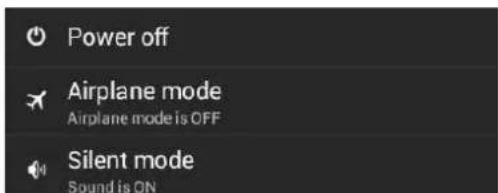
Note: When the screen has a screen timeout, short press the Power button to wake it up. You can adjust the unit to automatically enter Standby mode in the settings menu – Select Settings / Display / Screen timeout.
To Unlock the unit
Slide the Lock icon

to the right.
Touch & type
Use your fingers to manipulate icons, buttons, menus, the onscreen keyboard, and other items on the touch screen. You can also change the screen's orientation.
To select or activate something, touch it.
To type something, such as a name, password, or search terms, just touch where you want to type. A keyboard pops up that lets you type into the field.
Other common gestures include:
a) Touch & hold: Touch & hold an item on the screen by touching it and not lifting your finger until an action occurs. For example, touching an icon on home screen and hold it, when the Remove icon is shown on the screen, dragging the selected icon to this icon can remove it from the home screen.
b) Drag: Touch & hold an item for a moment and then, without lifting your finger, move your finger on the screen until you reaches the target position. For example, you can drag to reposition shortcuts on the Home screen.
c) Swipe or slide: Quickly move your finger across the surface of the screen, without pausing when you first touch (so you don't drag something instead). For example, you can slide a Home screen left or right to view the other Home screens.
d) Double-tap: Tap quickly twice on a webpage, map, or other screen to zoom. For example, double tap a webpage in Browser to zoom in and double-tap again to zoom out.
e) Pinch: In some apps (such as Maps, Browser, and Gallery), you can zoom in and out by placing two fingers on the screen at once and pinching them together (to zoom out) or spreading them apart (to zoom in).
Connect to Computer and File Transfer
When the tablet on, connect the tablet using the supplied USB cable, an interface is shown for your choice, on which if touch "turn on usb storage", then the player enters the USB connection mode.
In the USB connection mode, the tablet will be detected as standard removable disks by your computer and allows the transfer and management of files on the player without the need for the installation of 3rd party software.
Touch "turn off usb storage" can exit USB connection mode.
Battery Charging
The device has a built-in rechargeable battery. When the indicator displays low battery, charge the device.
Charging the battery: Plug the Micro USB cable into the unit, then to the AC/DC Adaptor. A battery symbol will appear on the screen, and the battery will start to charge. If the unit is switched on, the battery charge icon will display at the bottom right of the screen.
Note: This model can also charge through the USB port. If the tablet is connected via the USB port for file transfers, etc., it will charge at the same time. USB charging is convenient while working at your computer, but will charge more slowly than if a wall charger is used.
Using a Micro SD card
The device comes with 8GB of internal storage. You can expand this storage space by using a MicroSD Memory card up to maximum size of 32GB. MicroSD cards are also a good way to transfer files to and from the device.
To add a Micro SD card: Carefully insert a MicroSD card into the slot with the label facing the screen. The card will lock into place with a light "click."
To remove the card: Simply press the card inwards slightly until you feel a light "click." Then release, allowing the card to pop out for careful removal.
Note: MicroSD card not included.
HOME SCREEN
Press power key and hold for 3S to power on the tablet, then the default home screen is shown as the below:

| 1. | Google search |
| 2. | Back |
| 3. | Home |
| 4. | Recent |
| 5. | Screen shot |
| 6. | Vol+/- |
| 7. | Submenu |
| 8. | All apps |
| 9. | Battery |
| 10. | Wi-Fi |
| 11. | Time |
| 12. | Apps running |
To Launch an Application. Tap once on any application icon to launch it.
To Reposition an Application Icon. Touch, hold and then slide icons to reposition them on the screen.
To Remove an Icon from the Desktop. Touch and hold the icon until you see an X appear at the top centre of the screen. Without releasing the icon, slide it onto the X and it will be deleted from the Desktop.
Note: this does not delete or uninstall the application; it simply removes the icon from the Desktop.
Wallpaper
Long touch any part of the screen, you will then see the following interface to set wallpaper.

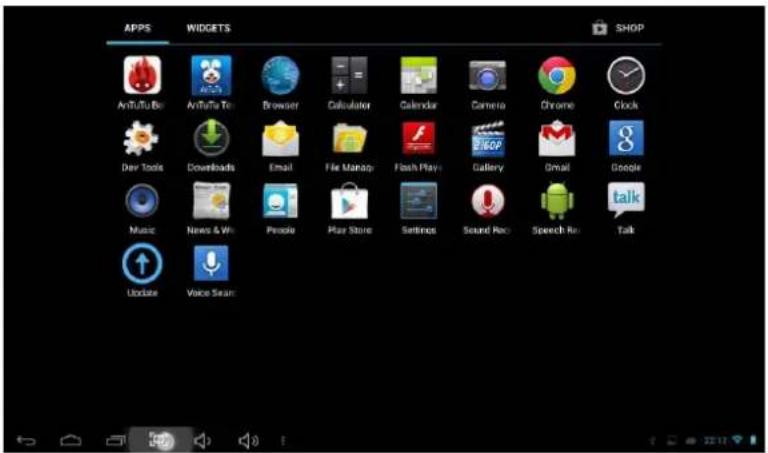
Applications screen
To go to the Applications Screen, select the Applications icon 📋 on the top right corner of the Desktop screen.
SETTINGS
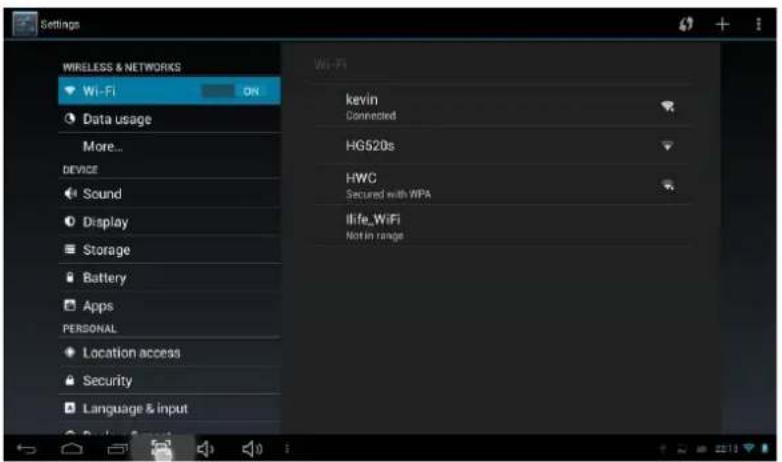
From a Home or All Apps screen, touch the Settings icon 📄 to enter the system setting interface, on which user can do settings shown below:
http://www.orion.ua
support@orionua
ORION
Wi-Fi: turn on or turn off the Wi-Fi connection. The tablet can scan all available Wi-Fi network by itself. Choosing the target Wi-Fi and typing the correct password, then you can use the Wi-Fi.
Mobile networks: when user want external connect 3G dongle, please do settings- Wireless & networks-more- Mobile networks-Data enabled.
Sound: touch to setting volume, Default notification, Touch sounds, screen lock sounds.
Display: touch to setting "Brightness, Wallpaper, auto-rotate screen, Sleep, Font size.
Storage: touch to view SD card & device storage setting.
Battery: touch to scan the situation of the battery.
Apps: touch to scan the APPS.
Location & services: location settings.
Security: user can do screen security here.
Language & input: touch to set system language and text inputting method.
Backup & reset: touch to enter Factory data reset interface.
Add Accounts: set up all accounts
Date & time: touch to set system time and date.
Developer options: set desktop backup password, USB debugging etc.
About tablet: touch to view basic information about your tablet.
http://www.orion.ua
support@orionus
TECHNICAL SPECIFICATIONS
ORION
| CPU: | Allwinner A20, Cortex A7 at 1.2GHz processor, dual core (2x1.2GHz) |
| GPU: | Mali-400 |
| RAM: | 1GB DDR3 |
| ROM: | 8GB |
| Screen: | 7", capacitive touch screen, 1024x600, multi-touch function |
| OS: | Android 4.2 |
| G-sensor: | + |
| Card slot: | TF (up to 32 GB) |
| Camera: | front: 0.3MP |
| Formats support: | audio: MP3, WMA,APE, FLAC, AAC, OGG, WAVvideo: RM, RMVB, AVI, MP4, M4V, MOV, 3GP, MKV, VOB, MPG, MPEG, PMP, FLV, TS, TP, M2TSPhoto: JPG, JPEG, GIF, BMP, PNG |
| Interface: | USB 2.0, USB 5V/2A, 3.5 mm earphone stereo out |
| Speaker, microphone: | + |
| Wi-Fi: | Wi-Fi 802.11b/g/n |
| 3G: | External 3G USB modem |
| Built in battery (capacity): | 3.7V, 2400mAh |
| Nominal voltage: | 5V |
| Nominal power: | 10W |
| Nominal current: | 2A |
| Running time: | ~4 hoursmusic: ~8 hoursvideo: ~3 hoursvideo and web browsing: ~2 hours |
| Dimensions: | 193*120,8*10.6mm |
| Weight: | 280g |
| Body colour: | grey |
Note: DOES NOT CONTAIN HAZARDOUS SUBSTANCES
Subject to change without notice
Extra information you can find on ORION company web-site www.orion.ua If you have any questions or suggestions, contact us by E-mail support@orion.ua
MANUFACTURER: ORION CHINA LTD., 1733 LIANHUA ST., APT. 506-509, SHANGHAI, PEOPLE'S REPUBLIC OF CHINA, 201103 MADE TO ORDER: ORION ELECTRONICS LTD. (HUNGARY)



Brand : ORION
Model : TP711A
Category : Television