F13 - Media player TizzBird - Free user manual and instructions
Find the device manual for free F13 TizzBird in PDF.


User questions about F13 TizzBird
0 question about this device. Answer the ones you know or ask your own.
Ask a new question about this device
Download the instructions for your Media player in PDF format for free! Find your manual F13 - TizzBird and take your electronic device back in hand. On this page are published all the documents necessary for the use of your device. F13 by TizzBird.
USER MANUAL F13 TizzBird
System Recovery Guide for Tizzbird™
Smart TV Box
natural_image
Black electronic device with a connector and ports, no visible text or symbolsOctober 22, 2012
ChipAlive Co. Ltd.
Annex C. How to Repair Booting Failure of TizzBird
This documentation is intended to provide repairing guide in case of booting failure of TizzBird. TizzBird F10/F11/F20/F30 is based on Android Gingerbread version while TizzBird N1 is ICS. Detailed specifications can be found at given package or http://www.tizzbird.com.
This repairing method is only applied from firmware revision 2.0.6 for F10/ F11/ F20/ F30 and revision 3.0.4 for N1/ F13.
C.1 Abstract
The symptom of booting failure looks like as below.
● Symptom A: No changes at BOOTING ANIMATION (Animation with black background)
● Symptom B: No changes at BOOTING LOGO (Tizzbird text with white background)
Above symptoms may be caused by several different reasons. There are two ways to fix these symptoms.
- Symptom A : Can be fixed using "
Safe Mode Booting'.
● Symptom B (or Symptom A)
: Can be fixed using "System Recovery Mode".
C.2 Repairing by Safe Mode Booting
Please follow below steps.
1) Power off device completely then turn it on again.
2) As soon as you see BOOT LOGO (TEXT with white background), press and hold
- Action item #1
■ Uninstall last APKs you have installed, as they may cause a booting failure. - Action item #2
■ You need to back up your personal data and installed packages so far.
Do "Set Factory Default" by selecting "Settings Browser" → "System" → "Advanced Settings" → "Set Factory Default" with "Erase all" option.
C.2.1 Preparation
1) Prepare USB flash drive which has more than 128MB of free space.
2) Download the latest upgrade firmware from Tizzbird WEB (http://www.tizzbird.com) according to your device. Normally the name of upgrade package is something like "Tizzbird_mmm_update_vvv.tzbird". "mmm" means model name like "F3x", "F20". "vvv" means update version and date like "V2_06_2102115".
3) Copy downloaded firmware to root folder of USB flash drive. Then rename it "update.zip"
C.2.2 Entering System Recovery Mode
1) Power off device completely then turn it on again. If you're not sure, pull the power cable off then reconnect it.
2) As soon as you turn on power, press
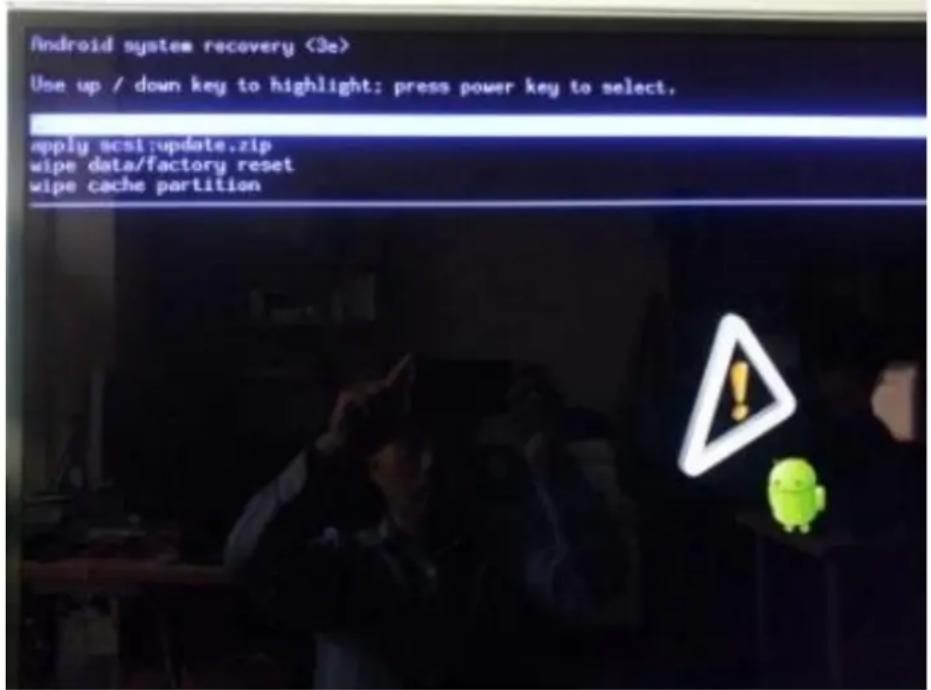
3) The following screen will come out
A. F10/ F11/ F20/ F30. (Require revision 2.0.6 or later firmware)
B. N1/ F13. (Require revision 3.0.4 or later firmware)
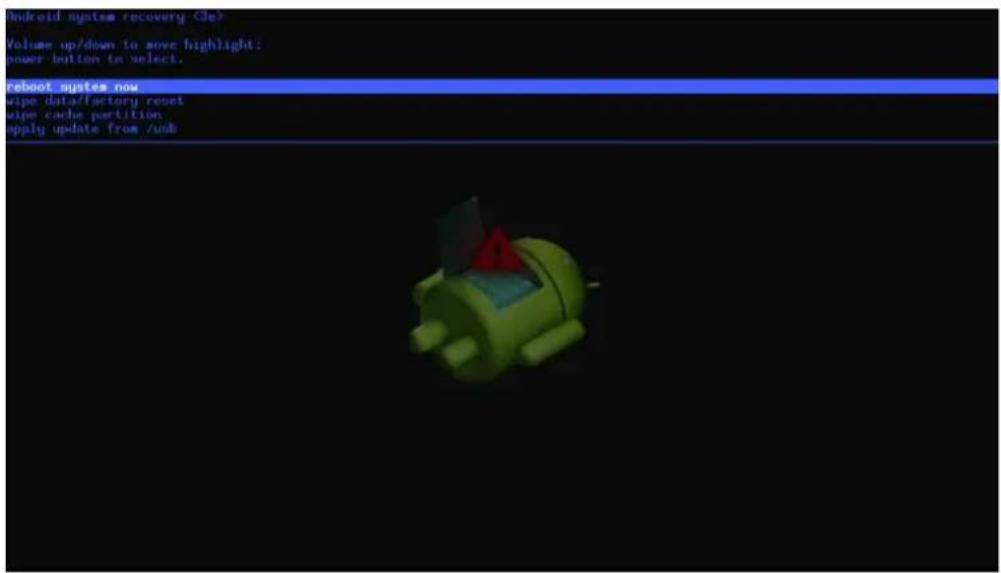
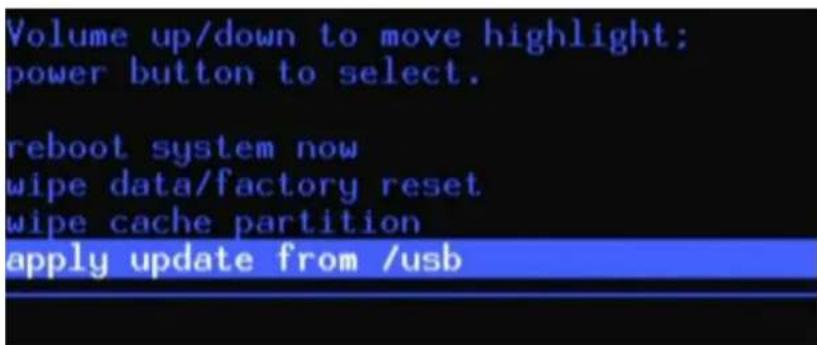
4) There are four menus. (three on F10/ F11/ F20/ F30)
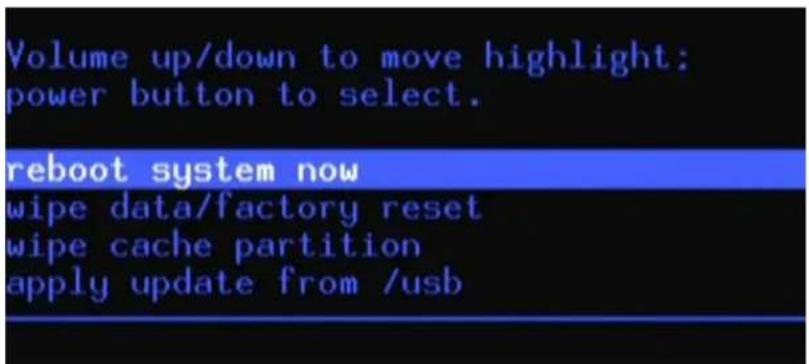
If you want to factory reset status, then select "wipe data/ factory reset". This will help the situation when some applications you installed cause a problem.
5) Apply "wipe cache partition" first.
6) To make the device reboot again with fresh image, put the USB flash drive on the USB port, then select "apply update from /usb". Please make sure that you have update.zip on the USB drive.
7) On the following screen, select "update.zip" on the drive.
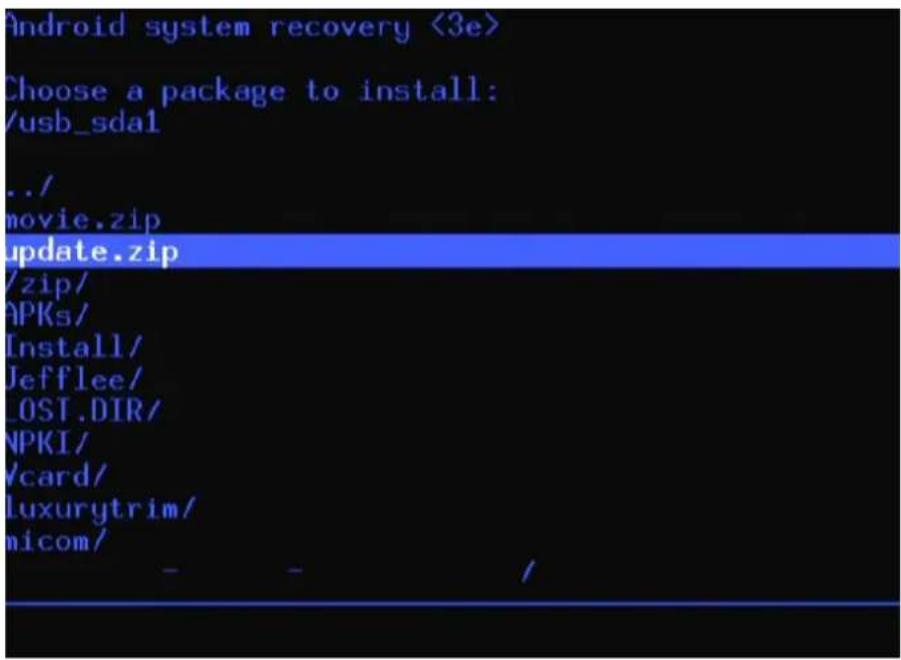
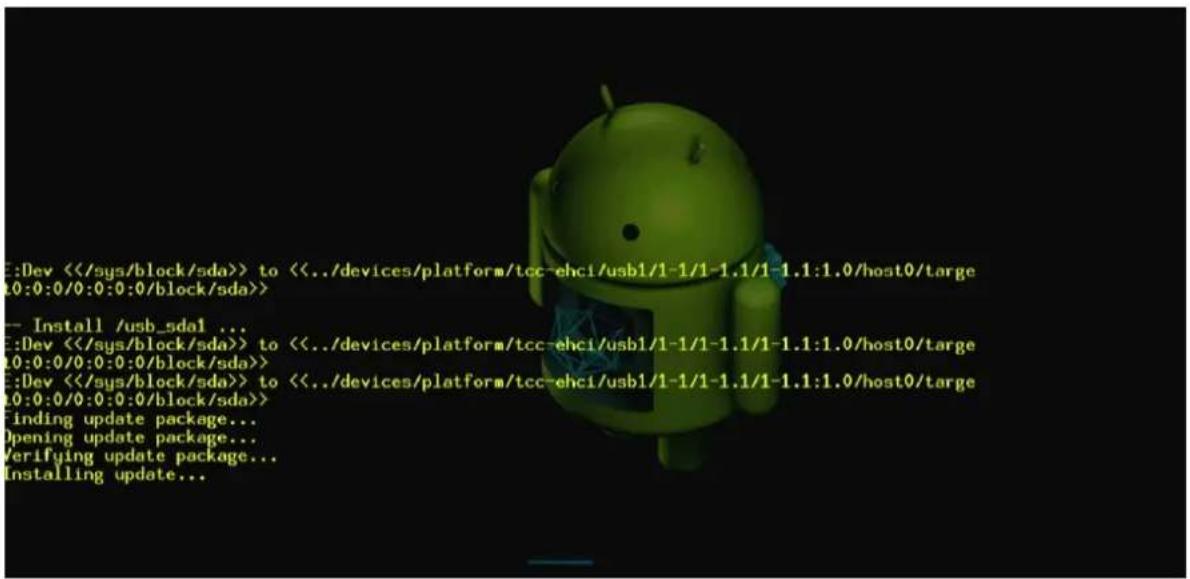
8) The system will erase whole area of internal flash and start to update like below picture. The progress bar will show the current progress.