Wi-Fi 1080p - Media player TizzBird - Free user manual and instructions
Find the device manual for free Wi-Fi 1080p TizzBird in PDF.


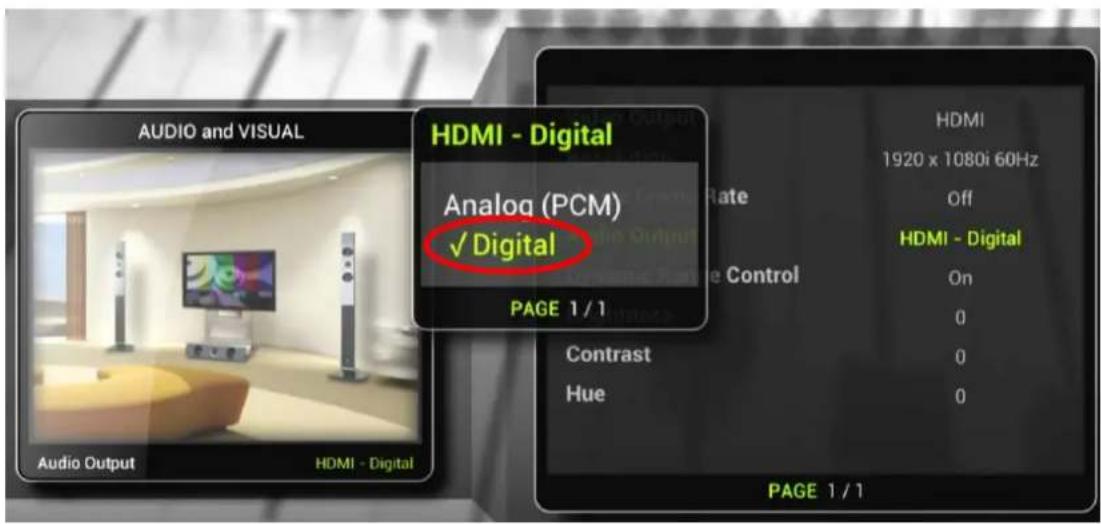
| Product Type | Streaming Media Player (Smart TV Stick) |
| Brand | TizzBird |
| Model | Wi-Fi 1080p (compatible with Tizzbird N1) |
| Resolution | 1080p (1920x1080) |
| Video Decoding | H.264 up to 15 Mbps, MPEG2 up to 25 Mbps |
| Wi-Fi Standard | 802.11n (2.4 GHz) |
| Max Wi-Fi Connection Speed | 150 Mbps |
| Network Protocols | Samba, NFS, DLNA |
| Video Output | HDMI 1080i/1080p 60Hz |
| Audio Output | HDMI Digital (PCM or bitstream) / HDMI Analog |
| Audio Decoding | Dolby Digital, DTS (via pass-through) |
| Native Frame Rate | Cinema Original (24p) / TV Original (1080i) support |
| Power Supply | USB 5V (supplied via HDMI port or external USB) |
| Dimensions (Approx.) | 85 x 30 x 12 mm (stick form factor) |
| Weight (Approx.) | 30 g |
| Storage | Internal flash (firmware), USB/HDD extension via OTG (not supplied) |
| Operating System | Android-based (customized) |
| Remote Control | IR remote (supplied) |
| YouTube Support | HD streaming with adjustable cache |
| File Browser | Access to DLNA, NFS, Samba shares |
| Accessories Included | HDMI extender, USB power cable, remote control |
| Compliance | CE, FCC (typical) |
Frequently Asked Questions - Wi-Fi 1080p TizzBird
User questions about Wi-Fi 1080p TizzBird
0 question about this device. Answer the ones you know or ask your own.
Ask a new question about this device
Download the instructions for your Media player in PDF format for free! Find your manual Wi-Fi 1080p - TizzBird and take your electronic device back in hand. On this page are published all the documents necessary for the use of your device. Wi-Fi 1080p by TizzBird.
USER MANUAL Wi-Fi 1080p TizzBird
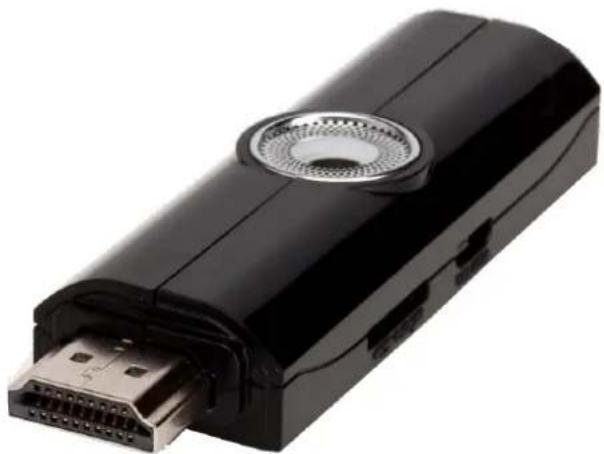
TizzBird Wi-Fi 1080p
Streaming Guide
For Smart TV Stick N1
And Other Tizzbird Products
natural_image
Black electronic device with a circular connector and external port, shown against a white background (no text or symbols visible)1. Objective
This documentation is intended to provide a proper guide to stream high resolution contents such as 1080p MKV file or You-Tube HD to Tizzbird N1 and other Tizzbird products thru Wi-Fi.
The decoding capability of Tizzbird N1 is fairly high so it can decode 1080p H264 stream up to 15 mbps without problem. It can also decode the 1080p MPEG2 stream up to 25 mbps, and you can confirm it with connecting USB flash drive or external HDD. But its decoding capability is quite limited when streaming thru Wi-Fi, not by decoding performance but by Wi-Fi throughput.
The nature of "Smart Stick" device confines this decoding capability because of Wi-Fi performance. So the setting up the proper streaming environment is quite important.
This documentation describes the steps as following.
1) Setting up the Wi-Fi access point properly.
2) Setting up "Network Server" for maximum performance.
3) Setting up "Audio & Visual" parameter properly to maximize throughput.
If you follow these steps, the 1080p MKV streaming thru Wi-Fi can be done without any problem at Tizzbird N1. You can also get the beautiful You-Tube HD contents.
2. Setting Up Wi-Fi and Wi-Fi Access Point
Setting up the Wi-Fi and AP (Access Point) is the single most important factor that determines overall streaming performance.
1) Please SETUP Wi-Fi ACCESS POINT to 802.11n mode only.
- This is the most important and it will remove many potential streaming problems between SERVER and Tizzbird N1.
- Normally Wi-Fi access point is set to 802.11b/g/.n mode, and it will prevent Tizzbird N1 from maximum connection speed. The legacy Wi-Fi devices such as older model notebook, smart phone will try to connect Wi-Fi by 802.11g then the speed of Wi-Fi is confined to 802.11g.
- Please refer to Wi-Fi Access Point manual to change the 802.11n mode only. Normally it's possible thru web-browser. The access point normally provides configuration page thru WEB. For example open the browser and type the http://192.168.1.0 " will pop up the configure window of access point.
- If you still want to use Wi-Fi access point on other legacy 802.11g devices, GO GET NEW ACCESS POINT for streaming purpose only. It's quite cheap and only \$20 or so. Please don't try share the ACCESS POINT with other legacy devices. It will ruin everything. Please don't complain to us when using N1 with other legacy 11g devices. There's nothing much we can do here.
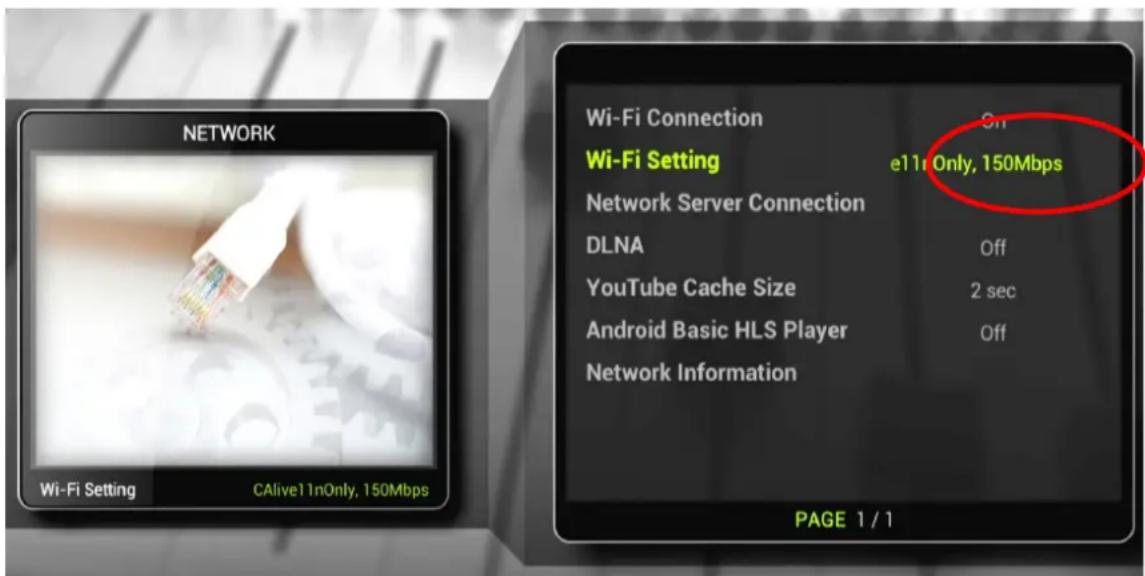
2) Check up the connection speed by "Settings" > "Network" at Tizzbird as following figure. The "Wi-Fi Setting" item shows the current connection speed. It should be more than 54 mbps. The 54 mbps means it's connected with 802.11g mode. The best is 150mbps connection speed.
text_image
NETWORK Wi-Fi Setting CAlive11nOnly, 150Mbps Wi-Fi Connection Wi-Fi Setting e110 Only, 150Mbps Network Server Connection DLNA Off YouTube Cache Size 2 sec Android Basic HLS Player Off Network Information PAGE 1 / 13) Install the Wi-Fi access point as close as possible with Tizzbird N1. The access point should reside at direct seeing position where N1 resides at least.
3. Setting Up the Network Server
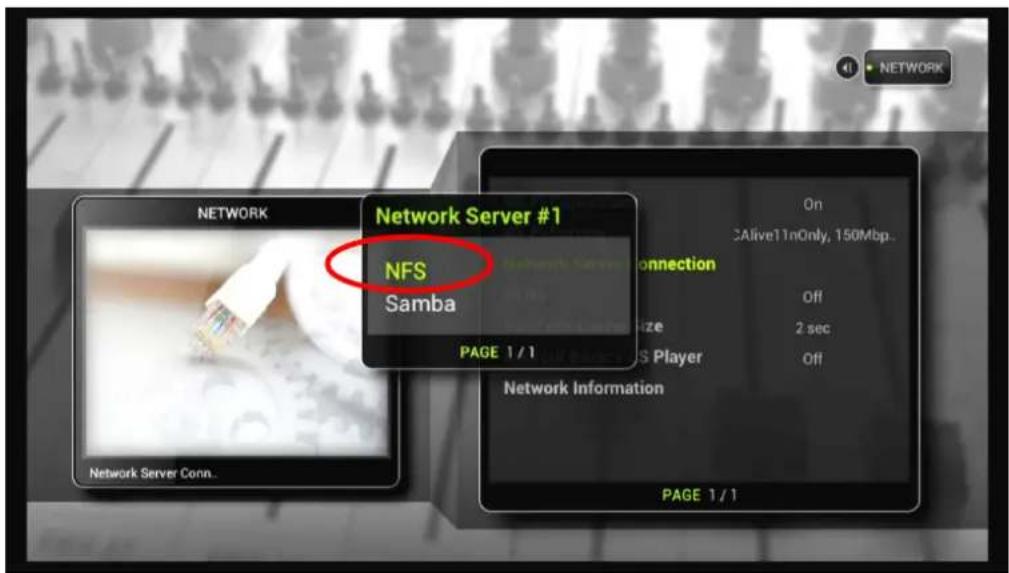
Setting up the "Network Sever" is the next step. Here's the golden rule. If you want to stream high-res contents thru Wi-Fi, DON'T USE SAMBA protocol. Samba is O.K. for Ethernet, but its efficiency will drop to half at least compared to NFS or DLNA. Please use the NFS or DLNA protocol to stream via Wi-Fi.
1) To use NFS on PC, please install the "TizzNFS" at following Tizzbird website.
http://www.tizzbird.com/eng/index.php?mm_code=726&sm_code=727
2) To use DLNA, turn DLNA "On" at "Settings" > "Network" > "DLNA". DLNA server can be browsed at "File Browser".
3) Select proper protocol (NFS) at "Network Server" configuration as following figure.
text_image
NETWORK Server #1 NFS Samba PAGE 1/1 Network Server Conn.. On 2Alive11nOnly, 150Mbp.. connection Off Size 2 sec Off Network Information PAGE 1/14. Setting Up Audio & Visual
If you did up to here, most of jobs are done. And most of contents except high bitrate BD will be playback without problem. Please don't forget install Wi-Fi access point at direct seeable area of N1.
The following tips will help the smoother contents streaming specially 1080p.
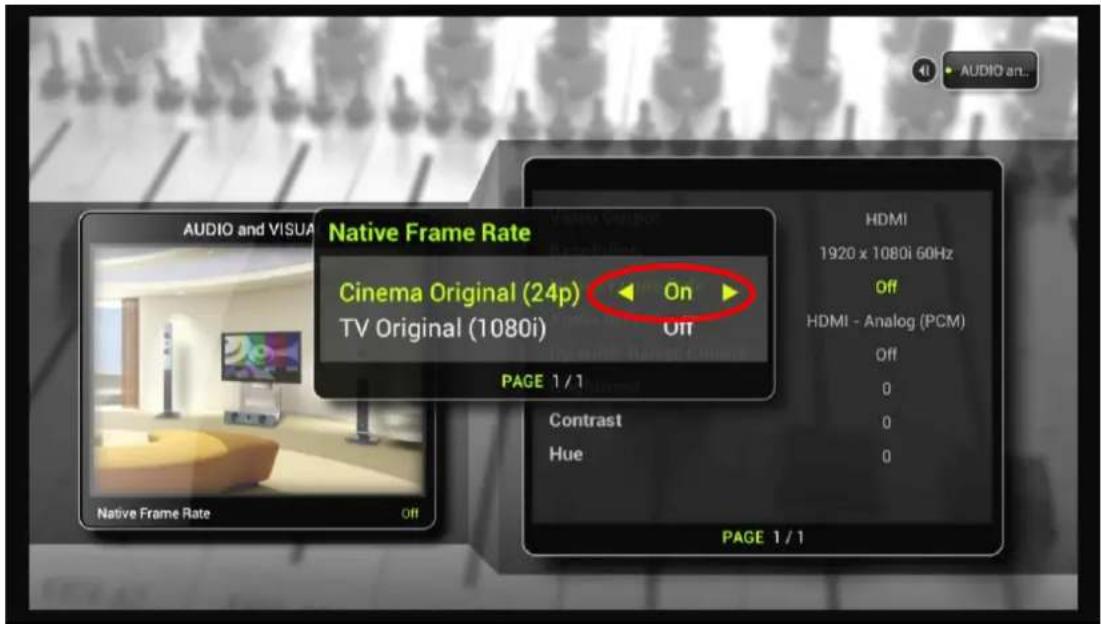
1) Turn "Native Frame Rate" ON. Turning on "Cinema Original (24p)" will help a lot. It will help the load-balancing of CPU to decode & scaling. So you will get smoother playback and higher bitrate contents.
text_image
AUDIO and VISUAL Native Frame Rate Cinema Original (24p) TV Original (1080i) On Off PAGE 1/1 Contrast Hue HDMI 1920 x 1080i 60Hz Off HDMI - Analog (PCM) Off 0 0 0 PAGE 1/12) If your TV or AV receiver supports the Dolby or DTS digital audio decoding, then setting up audio to "HDMI Digital" will help reducing burden of audio decoding of CPU.