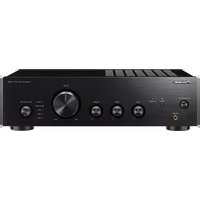
VSX-AX3-K - AV receiver PIONEER - Free user manual and instructions
Find the device manual for free VSX-AX3-K PIONEER in PDF.


| Product type | Multi-channel audio-video receiver |
| Brand | Pioneer |
| Model | VSX-AX3-K |
| Dimensions (W × H × D) | 420 × 188 × 464 mm |
| Weight (without packaging) | 18.3 kg (European model) / 18.4 kg (multi-voltage model) |
| Power supply | AC 220-230 V, 50/60 Hz (European model) / AC 110/120-127/220/230-240 V, 50/60 Hz (multi-voltage model) |
| Power consumption | 600 W (operating) / 0.8 W (standby, European model) / 0.9 W (standby, multi-voltage model) |
| Continuous power output (DIN) | 100 W × 7 channels (1 kHz, THD 1%, 8 Ω) |
| Rated power | 100 W + 100 W (20 Hz - 20 kHz, 0.09%, 8 Ω) |
| Supported audio formats | Dolby Digital EX, DTS-ES, DTS 96/24, Dolby Pro Logic II, DTS Neo:6, AudioScaler (HI-BIT/HI-SAMPLING) |
| Digital audio inputs | 2 coaxial, 2 optical (rear) + 1 optical (front) |
| Digital audio outputs | 2 optical |
| Video inputs | Composite, S-Video, Component (HD 720p compatible) |
| Acoustic calibration system | MCACC (Multichannel Acoustic Calibration EQ) with supplied microphone |
| FM tuner section | Range 87.5-108 MHz, sensitivity 15.2 dBf (IHF) |
| AM tuner section | Range 531-1602 kHz (9 kHz steps) or 530-1700 kHz (10 kHz steps) |
| Special functions | Second Zone, Bi-amping front, Virtual Surround Back, THX Cinema, Midnight, Loudness, ACOUSTIC CAL EQ |
| Maintenance and cleaning | Clean with a soft, dry cloth or slightly moistened with diluted neutral detergent. Do not use thinners, benzene, or insecticide sprays. |
| Safety | Do not expose to rain or moisture. Disconnect before any intervention. Do not obstruct ventilation slots. |
| Supplied accessories | FM wire antenna, AM loop antenna, remote control, microphone with stand, power cord(s), AA batteries (2), instruction manual |
Frequently Asked Questions - VSX-AX3-K PIONEER
User questions about VSX-AX3-K PIONEER
0 question about this device. Answer the ones you know or ask your own.
Ask a new question about this device
Download the instructions for your AV receiver in PDF format for free! Find your manual VSX-AX3-K - PIONEER and take your electronic device back in hand. On this page are published all the documents necessary for the use of your device. VSX-AX3-K by PIONEER.
USER MANUAL VSX-AX3-K PIONEER
The lightning flash with arrowhead symbol, within an equilateral triangle, is intended to alert the user to the presence of uninsulated 'dangerous voltage' within the product's enclosure that may be of sufficient magnitude to constitute a risk of electric shock to persons.
CAUTION
RISK OF ELECTRIC SHOCK DO NOT OPEN
CAUTION:
TO PREVENT THE RISK OF ELECTRIC SHOCK, DO NOT REMOVE COVER (OR BACK). NO USER-SERVICEABLE PARTS INSIDE. REFER SERVICING TO QUALIFIED SERVICE PERSONNEL.

The exclamation point within an equilateral triangle is intended to alert the user to the presence of important operating and maintenance (servicing) instructions in the literature accompanying the appliance. H002_En
NOTE: THE NO USER-SERVICEABLE PARTS COMPARTMENT WARNING IS LOCATED ON THE APPLIANCE BONNET
Thank you for buying this Pioneer product.
Please read through these operating instructions so you will know how to operate your model properly. After you have finished reading the instructions, put them away in a safe place for future reference.
WARNING: THE APPARATUS IS NOT WATERPROOFS, TO PREVENT FIRE OR SHOCK HAZARD, DO NOT EXPOSE THIS APPLIANCE TO RAIN OR MOISTURE AND DO NOT PUT ANY WATER SOURCE NEAR THIS APPARATUS, SUCH AS VASE, FLOWER POT, COSMETICS CONTAINER AND MEDICINE BOTTLE ETC.
WARNING: BEFORE PLugging IN THE UNIT FOR THE FIRST TIME, READ THE FOLLOWING SECTION CAREFULLY. THE VOLTAGE OF THE AVAILABLE POWER SUPPLY DIFFERS ACCORDING TO COUNTRY OR REGION, BE SURE THAT THE POWER SUPPLY VOLTAGE OF THE AREA WHERE THIS UNIT WILL BE USED MEETS THE REQUIRED VOLTAGE (E.G., 230V OR 120V) WRITTEN ON THE REAR PANEL. H041 En
WARNING: NO NAKED FLAME SOURCES, SUCH AS LIGHTED CANDLE, SHOULD BE PLACED ON THE APPARATUS. IF NAKED FLAME SOURCES ACCIDENTALLY FALL DOWN, FIRE SPREAD OVER THE APPARATUS THEN MAY CAUSE FIRE.
H044 En
This product is for general household purposes. Any failure due to use for other than household purposes (such as long-term use for business purposes in a restaurant or use in a car or ship) and which requires repair will be charged for even during the warranty period.
CAUTION:
THE OFF/ON BUTTON IS SECONDARY CONNECTED AND THEREFORE DOES NOT SEPARATE THE UNIT FROM MAINS POWERIN OFF POSITION. THEREFOREINSTALL THE UNIT SUITABLE PLACES EASY TO DISCONNECT THE MAINS PLUG IN CASE OF THE ACCIDENT. THE MAINS PLUG OF UNIT SHOULD BE UNPLUGGED FROM THE WALL SOCKET WHEN LEFT UNUSED FOR A LONG PERIOD OF TIME. H017BEn
S002 En
POWER-CORD CAUTION
Handle the power cord by the plug. Do not pull out the plug by tugging the cord and never touch the power cord when your hands are wet as this could cause a short circuit or electric shock. Do not place the unit, a piece of furniture, etc., on the power cord, or pinch the cord. Never make a knot in the cord or tie it with other cords. The power cords should be routed such that they are not likely to be stepped on. A damaged power cord can cause a fire or give you an electrical shock. Check the power cord once in a while. When you find it damaged, ask your nearest PIONEER authorized service center or your dealer for a replacement.
This product complies with the Low Voltage Directive (73/23/ EEC, amended by 93/68/EEC), EMC Directives (89/336/EEC, amended by 92/31/EEC and 93/68/EEC). H015Aen
Installing the Receiver
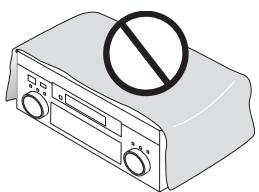
VENTILATION: When installing this unit, make sure to leave space around the unit for ventilation to improve heat radiation (at least 60~cm at top, 10~cm at rear, and 30 cm at each side).
WARNING: Slot and openings in the cabinet are provided for ventilation and to ensure reliable operation of the product and to protect it from overheating, to prevent fire hazard, the openings should never be blocked and covered with items, such as newspapers, tablecloths, curtains, etc. Also do not put the apparatus on the thick carpet, bed, sofa, or fabric having a thick pile.
TWO VOLTAGE SELECTOR SWITCHES (multi-voltage model only)
Only multi-voltage model is provided with these switches.
European models are not provided with these switches.
Main voltages in Saudi Arabia are 127 V and 220 V only. Never use this model with the 110 V setting in Saudi Arabia.
There are two VOLTAGE SELECTORS. Be sure both of these are set correctly. Always check that these selectors are set properly before plugging the power cord into the wall outlet.
- Disconnect the power cord.
- Use a small-sized screwdriver.
- Insert the screwdriver into the groove of the smaller voltage selector and adjust until the voltage is the same as at the larger one.
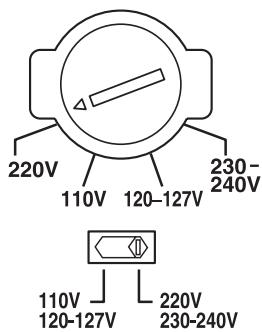
TWO VOLTAGE SELECTORS
CAUTION 220 V
Power source voltage is factory adjusted 220 volts. If your area is different, change voltage selectors settings.
Operating Environment
Operating environment temperature and humidity: +5^ + + 35^ (+41^ + + 95^) ; less than 85% RH (cooling vents not blocked)
Do not install in the following locations
- Location exposed to direct sunlight or strong artificial light
- Location exposed to high humidity, or poorly ventilated location H040 En
[For European model]
If the socket outlets on the associated equipment are not suitable for the plug supplied with the product, the plug must be removed and an appropriate one fitted. Replacement and mounting of an AC plug on the power supply cord of this unit should be performed only by qualified service personnel. The cut-off plug must be disposed of as an electrical shock hazard could exist if connected to a socket outlet. H022Ae n
NOTE: This equipment has been tested and found to comply with the limits for a Class B digital device, pursuant to Part 15 of the FCC Rules. These limits are designed to provide reasonable protection against harmful interference in a residential installation. This equipment generates, uses, and can radiate radio frequency energy and, if not installed and used in accordance with the instructions, may cause harmful interference to radio communications. However, there is no guarantee that interference will not occur in a particular installation. If this equipment does cause harmful interference to radio or television reception, which can be determined by turning the equipment off and on, the user is encouraged to try to correct the interference by one or more of the following measures:
-Reorient or relocate the receiving antenna.
-Increase the separation between the equipment and receiver.
- Connect the equipment into an outlet on a circuit different from that to which the receiver is connected.
- Consult the dealer or an experienced radio/TV technician for help. H010En
Information to User
Alteration or modifications carried out without appropriate authorization may invalidate the user's right to operate the equipment. H011En
CAUTION:
This product satisfies FCC regulations when shielded cables and connectors are used to connect the unit to other equipment. To prevent electromagnetic interference with electric appliances such as radios and televisions, use shielded cables and connectors for connections. H012En
Table of Contents
Features 6
Before You Start 7
Checking the Supplied Accessories 7
Preparing the Remote Control 7
Loading the batteries 7
Operating range of remote control unit 8
Opening the Front Panel 8
Switching video system between PAL and NTSC 8
Easy Setup Guide Part 1 9
Home Theater: The Basics 9
1) Your Home System 9
2) The Source Material 9
3) The Listening Modes 9
Conclusion 9
1 Hooking Up Your DVD Player and TV 10
Digital Connections 10
2 Speaker Connections 11
3 Setting up the Main Unit 12
4Assigning the Digital Inputs 12
Easy Setup Guide Part 2 13
1 Auto Surround Sound Setup 13
2 Playing a DVD with Surround Sound 15
Connecting Your Equipment 16
Connecting your TV 16
Connecting Video Components 17
Connecting a DVD player 17
Connecting VCRs or DVRs 18
Connecting a Video Component to the Front Panel 18
Connecting Satellite TV (SAT) Components 19
Connecting Analog Audio Components 20
Connecting to the Multi Channel Analog Inputs
(DVD-Audio or Super Audio CD (SACD) compatible player) 21
Connecting Digital Audio Components 22
Digital Input Default Settings 23
Connecting the Radio Antennas 24
Using outdoor antennas 24
Connecting Speakers 25
Speaker impedance 26
Placing Your Speakers 27
Speaker placement 27
Power Connections (AC IN) 27
Power Connections (AC OUTLETS)
(European model only) 27
Displays and Controls 28
Front Panel 28
Remote Control 30
Display 33
Back Panel 34
Setting Up for Surround Sound 36
Surround Back System 37
NORMAL Setup 38
Speaker Setting 39
Channel Level 41
Speaker Distance 42
Basic Operation 43
Stereo and Multichannel Playback 43
Selecting the Input Signal 44
Listening Modes 45
Stereo modes 45
MOVIE modes (SURROUND mode) 46
MUSIC modes (SURROUND mode) 47
Adjusting the Effect of a Listening Mode 48
Adding/Adjusting the Effect in Dolby Pro Logic II Music Mode 48
Listening with ACOUSTIC CAL EQ 49
Digital Noise Reduction (DIGITAL NR Function) 49
Listening in MIDNIGHT Mode 50
Listening in LOUDNESS Mode 50
Adjusting Bass and Treble 51
Listening with Sound Delay 51
Listening in AudioScaler mode 52
Multi Channel InPlayback 52
Surround Back Channel Modes 53
Surround Back Channel Mode 53
Virtual Surround Back Mode 53
Dual Mono setting and playback 54
Using Headphones 54
Video Select 55
Adjusting the Brightness of the Display (DIMMER) ....55
Using the Tuner 56
Automatic and Manual Tuning 56
MPX Mode 56
RF ATT Mode (European model only) 56
Channel Step Setting (multi-voltage model only) 57
To Change Channel Steps 57
Direct Access Tuning 57
Memorizing Frequently Used Stations 58
Naming Memorized Stations 59
Recalling Memorized Stations 60
An introduction to RDS (European model only) 61
Using the RDS display 61
Searching for RDS programs
(European model only) 62
Basics of EON (Enhanced Other Network information)
(European model only) 63
Using EON (European model only) 63
Clearing all stations from the RDS or EON search
(European model only) 64
Remote Control of
Other Components 65
Setting Up the Remote Control
to Control Other Components 65
Recalling Settings Stored
in the Remote Control 65
Programming Signals from
Other Remote Controls (LEARNING Mode) 66
Using Remote Control with Other Components 67
CD/MD/CD-R/VCR/DVD/LD/DVD Recorder/
Cassette Deck operations 67
Cable TV/Satellite TV/TV operations 68
Setting up the Direct Function 69
Using Other Functions 70
Recording from Audio/Video Components 70
SPEAKERS B Setup 71
Stereo playback in another room
(SECOND ZONE) 71
Bi-amping the front speakers
(FRONT BI-AMP) 71
SPEAKERS Button 72
Connecting Additional Amplifiers 73
The PIONEER SR System:
Operating other PIONEER components 74
Multi Operations 75
Performing Multi Operations 76
System Off 77
Using SYSTEM OFF 77
Resetting the Remote Control 78
Erasing Multi Operations 78
Erasing Learning Remote Control Commands 78
Erasing All Remote Control Settings 78
Resetting the Main Unit 79
Fine Tuning Your System 80
THX CINEMA Setup 80
Assigning the Digital Inputs 81
Function Rename 82
Expert System Settings 83
EXPERT Setup 83
Crossover Network 84
Fine Channel Level 85
Fine Channel Delay 86
Acoustic Calibration EQ 87
Bass Peak Level 92
Dynamic Range Control 93
Techno Tidbits and
Problem-solving 94
Dolby 94
Dolby Digital 94
Dolby Pro Logic II 94
Dolby Digital Surround EX 94
DTS 94
DTS 94
DTS-ES 95
DTS Neo:6 95
DTS 96/24 95
THX 95
Troubleshooting 96
Preset Code Brands 102
Specifications (European model) 103
Specifications (multi-voltage model) 104
Features
Multichannel Acoustic Calibration EQ System (MCACC)
In order to make setting up as easy as possible for users we have created the MCACC system. This unique and convenient way of getting good surround sound from the receiver makes trouble-free setup a snap. With the included microphone plugged into the front panel the MCACC system creates a monitoring environment to establish the parameters of the sound for the specific room you are using. The MCACC system adjusts the parameters to establish excellent surround sound effects and offers you studio quality home theater sound with minimum effort.
Dolby Digital EX, DTS-ES, DTS 96/24 and the Latest Audio and Video Formats
The VSX-AX3 is equipped with Dolby Digital EX decoding, the very latest Dolby Digital contribution to home theater with surround back speakers in addition to surround speakers. These additional speakers make home theater even more realistic and powerful. Naturally, you can also play all existing audio formats, including the recently developed Dolby Pro Logic II and DTS-ES Extended Surround formats on the VSX-AX3 as well. On the video side, the component video output is fully compatible with high definition, progressive-scan digital video (720p).
Lucasfilm and THX are trademarks or registered trademarks of Lucasfilm, Ltd. and TM. Surround EX is a jointly developed technology of THX and Dolby Laboratories, and is a trademark of Dolby Laboratories. All rights reserved. Used under authorization.
Manufactured under license from Dolby Laboratories. "Dolby", "Pro Logic", "Surround EX" and double-D symbol are trademarks of Dolby Laboratories.
DTS, "DTS-ES Extended Surround" and "Neo:6" are trademarks of Digital Theater Systems, Inc.
Universal Player Compatibility (DVD Audio/Super Audio CD [SACD])
The receiver incorporates the latest technology and is able to handle cutting edge audio formats, like DVD Audio and Super Audio CD (SACD) which are just hitting the market. Its high compatibility offers a variety of inputs to decode all types of sources at the highest possible quality. The receiver's multichannel input connections lets you hook up eight discrete channels of audio.
AudioScaler (HI BIT/HI SAMPLING)
This new technology enables the user to hear CD and DVD, as well as other soundtracks at a wider dynamic range, allowing for finer audio reproduction. This AudioScaler approximates the audio of high end formats just becoming available now.
The Energy-saving Design
The European model is designed to use 0.8 W of energy when the receiver is in standby mode, while the multivoltage model is designed to use 0.9 W.
Before You Start
Checking the Supplied Accessories
Please check that you have received all of the following supplied accessories.

AM Loop Antenna
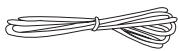
FM Wire Antenna
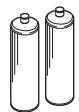
"AA" IEC LR6 batteries x 2
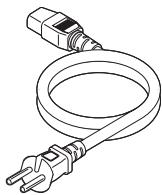
AC Power Cord
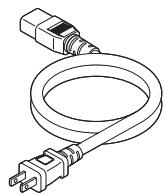
x 1 (European model)
x 2 (multi-voltage model)
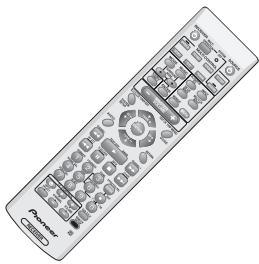
Remote Control Unit
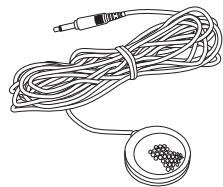
Microphone for Auto Surround Sound Setup
Microphone Stand for Auto Surround Sound Setup
Operating Instructions
Memo:
Multi-voltage model has two power cords. These accessories will be different depending on the country of purchase. Please use the correct cord for your country.
Preparing the Remote Control
Loading the batteries
Load the batteries into the remote control as shown below. Please use alkaline batteries. When you notice a decrease in the operating range, replace all batteries with new ones.
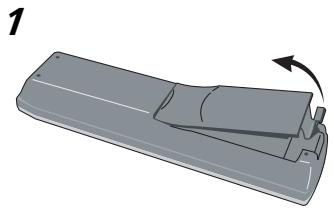
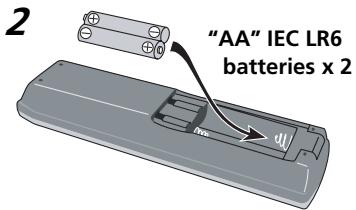
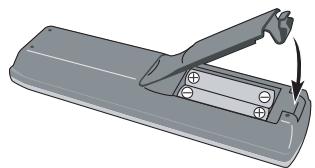
3
CAUTION!
Incorrect use of batteries may result in such hazards as leakage and bursting. Observe the following precautions.
- Never use new and old batteries together.
- Insert the plus and minus sides of the batteries properly according to the marks in the battery case.
- Batteries with the same shape may have different voltages. Do not use different batteries together.
- When disposing of used batteries, please comply with governmental regulations or environmental public institution's rules that apply in your country or area.
Operating range of remote control unit
The area in which you can use the remote control to operate the VSX-AX3 is fairly large. To use, point the remote control toward the remote sensor on the front panel of this unit while within the range shown below.
Remote control may not function properly if:
- There are obstacles between the remote control and the remote sensor.
- Direct sunlight or fluorescent light is shining onto the remote sensor.
- The receiver is located near a device emitting infrared rays.
- Operated simultaneously with another remote control which uses infrared rays.
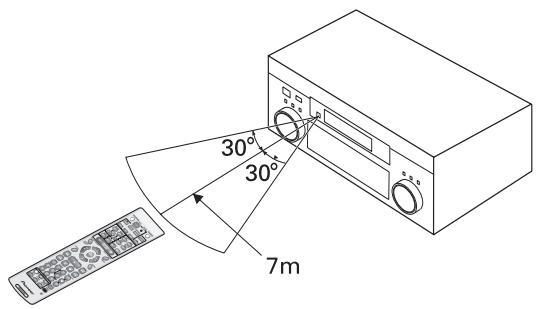
Opening the Front Panel
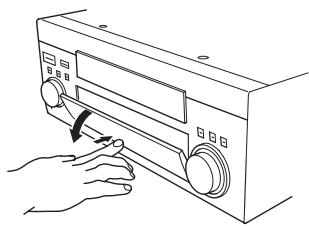
To open the front panel push gently on the lower third of the panel with your finger.
Switching video system between PAL and NTSC
This receiver is able to use two types of video systems for its OSD (on screen display) either PAL or NTSC. If you don't match the system on the amplifier with your home system no OSD will appear on your TV. The default setting is PAL. If you use this system you don't need to make any settings here. People with multi-system TVs don't need to worry about changing the setting either. If necessary, follow the instructions below to switch the type of video system.
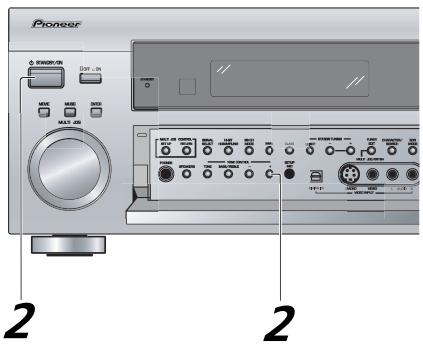
1 Put the receiver in the STANDBY mode.
2 While holding down the TONE + button press the STANDBY/ON button.
The video system type will change depending on the state the receiver was previously in. The new type, either PAL or NTSC, will appear in the display. It will be shown for about seven seconds and then the receiver returns to normal operating mode.
Easy Setup Guide Part 1
Home Theater: The Basics
Most consumers are used to using stereo equipment to listen to music but many people are not used to home theater systems that give you many more options when listening to soundtracks. In fact, home theater is not really complicated and this little guide should give you an understanding of the basics. Home theater refers to the use of multiple audio tracks combined with multiple speakers to create a surround sound effect.
There are three different factors involved in getting surround sound. Each contribute to what kind of sound you get. These factors are:
1) The equipment you are using for your home theater setup. Particularly important is the number of speakers you are using. We call this your speaker configuration.
2) The 'source' material you are using. This is the actual product (like a DVD) or broadcast (like cable TV) you are listening to/watching. We call this the source.
3) The last factor is the listening mode you choose on the VSX-AX3 receiver. These are explained below and in subsequent chapters but most likely the PRO LOGIC II MOVIE for moves and the PRO LOGIC II MUSIC for music will be fine.
Let's start with the home theater setup you have in your home.
1) Your Home System
The heart of your system is the VSX-AX3 receiver and it is very flexible in getting you theater-like surround sound. You can use this receiver with anywhere from two to seven speakers (front left, front right, center, surround left and right, and surround back left and right) and a subwoofer to get home theater surround sound. We recommend you use seven speakers and a subwoofer. If this is not possible follow the instructions in "Auto Surround Sound Setup" in the "Easy Setup Guide Part 2" and you will still be able to get good surround sound. Also, a DVD player is essential for home theater and you can also hook up satellite or cable TV tuner to this receiver and get a more home theater-like sound from these sources.
2) The Source Material
DVDs have become the basic source material for home theater because they are convenient to use and offer excellent sound and picture quality as well as allow users to enjoy home theater soundtracks with more than two channels of audio. For example, Dolby Pro Logic plays back four channels (front left, front right, center and a single channel for both surround speakers), Dolby Digital and DTS sources usually have six discrete channels (front left, front right, center, surround left and right and a channel that powers the subwoofer) of sound. Since the subwoofer channel is only for bass sounds it is expressed as .1 of a channel and this multichannel setup has been named 5.1 channel sound.
It is important you consult the manual that came with your DVD player as well to make sure the player is outputting a surround soundtrack and all the other settings are appropriate for your home theater setup.
3) The Listening Modes
This receiver has many different listening modes and they are designed to cover all the speaker configurations and types of sources you might be using. In general, the PRO LOGIC II MOVIE listening mode is the easiest way to get realistic surround sound for movies. For music the basic listening mode for music is PRO LOGIC II MUSIC.
To listen to music in stereo simply choose the STEREO listening mode. Other possibilities (like listening to a stereo CD with all seven speakers or taking a stereo source and getting multichannel home theater-like sound) are explained in listening modes (page 45).
Conclusion
These are the three basic factors that contribute to your home theater sound. The easiest thing is to hook up seven speakers and a subwoofer and simply play your DVDs with PRO LOGIC II MOVIE listening mode. This will give you realistic and enjoyable home theater sound. First hook up your equipment, like your DVD player, TV and speakers.
Then follow the Easy Setup Guide instructions to set up your system for surround sound. It is very important you do one of the surround sound setups to get optimal sound from your receiver.
For more details on any of the information presented here check the main section of the manual.
Easy Setup Guide Part 1
Before making or changing the connections, switch off the power and disconnect the power cord from the AC outlet.
1 Hooking Up Your DVD Player and TV
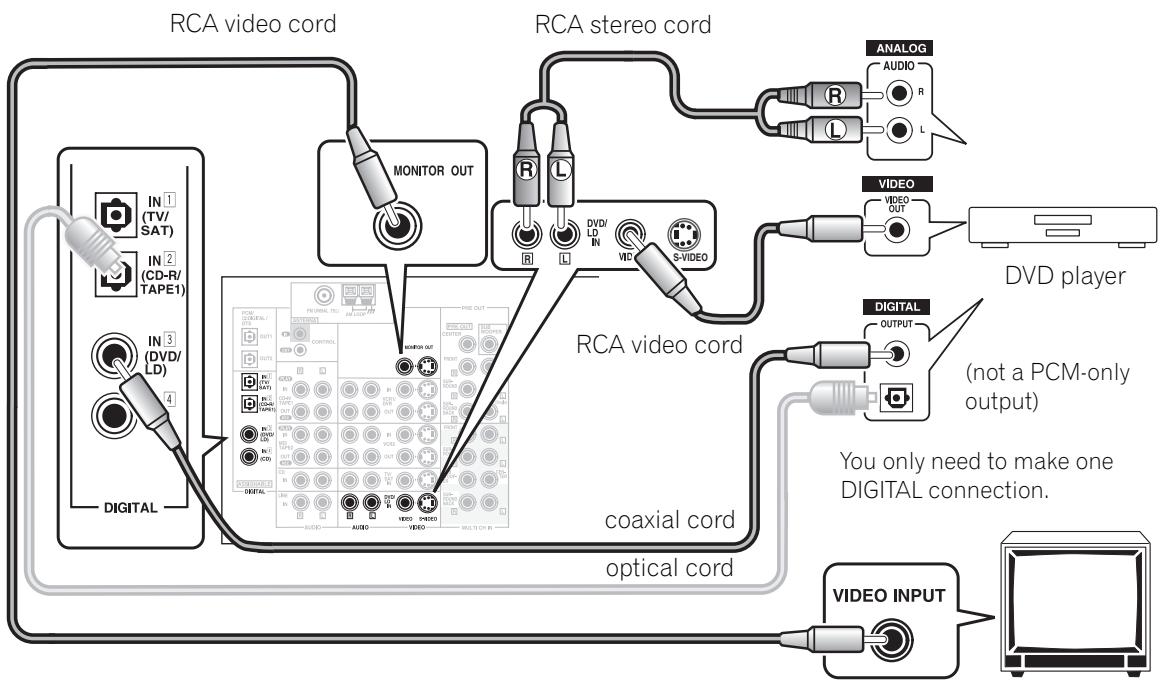
In order to use Dolby Digital/DTS soundtracks, which are at the heart of home theater, you need to hook up your DVD player with digital audio connections. You can do this by either a coaxial or an optical connection, you don't need to do both. The quality of these two types of connections is the same but since some DVD players only have one type of digital terminal you need to figure out which yours has and hook it up to the appropriate terminal on the receiver. In order to do this you will need the proper cable. For coaxial connections you can use a coaxial digital cord or a regular RCA video cord, which have the same type of plugs. For optical connections you will need a special optical cable which you can buy at your local stereo store. For more information on cords and cables see page 23. You should also hook up your DVD player with analog audio connections. Use regular RCA stereo cords for these connections. Also hook up the video connection on your DVD player, and your TV to this receiver. For your TV it's easiest to use a regular composite (RCA) video cord, as shown below.
Digital Connections
Some DVD players have both coaxial and optical terminals, but there is no need to connect both. If your DVD player has a coaxial terminal (not a PCM-only output) for the audio out hook it up using this terminal. Follow the diagram below. This is the best scenario, as you will be able to follow the default settings of this receiver and won't need to assign the digital inputs (you should use DIGITAL IN 3).
If your DVD player only has an optical terminal for the audio output you can hook it up using one of the DIGITAL IN terminals 1 or 2 (for example, DIGITAL IN 2). In this case, you will need to assign the digital input (which means tell the receiver which input you used for your DVD digital audio). See page 12 for this.
2 Speaker Connections
Home theater is designed to be setup with five, or seven speakers (front left and right; center; surround left and right; and, optimally, surround back left and right) and a subwoofer, but you can use this receiver with fewer speakers. Hook up the speakers you have to the A speaker terminals on the back of the receiver. If you only have two speakers hook them up as FRONT. If you have three hook up the single speaker as CENTER. Follow the diagram below in order to hook up all your speakers. A center speaker is very important for watching films because in digital soundtracks the dialog comes from the center speaker. If you do not have a center speaker you must tell the receiver the center channel is off or when you listen to digital soundtracks you won't hear any dialog. This can be done automatically by following the "1 Auto Surround Sound Setup" instructions from page 13 in this Easy Setup Guide. If possible, use surround back speakers. These speakers are important to take full advantage of all the sound channels on new, eight channel home theater DVDs. The diagram below also explains how to hook up a subwoofer which provides realistic bass sounds. For the subwoofer use a mono (single plug) RCA cord and for the other speakers use regular speaker cords.
Make sure you connect the speaker on the right to the R terminal and the speaker on the left to the L terminal. Also make sure the positive and negative (+ / -) terminals on the receiver match those on the speakers.
CAUTION: These speaker terminals can be under HAZARDOUS VOLTAGE. When you connect or disconnect the speaker cables, to prevent the risk of electric shock, do not touch uninsulated parts before disconnecting the power cord. H047 En
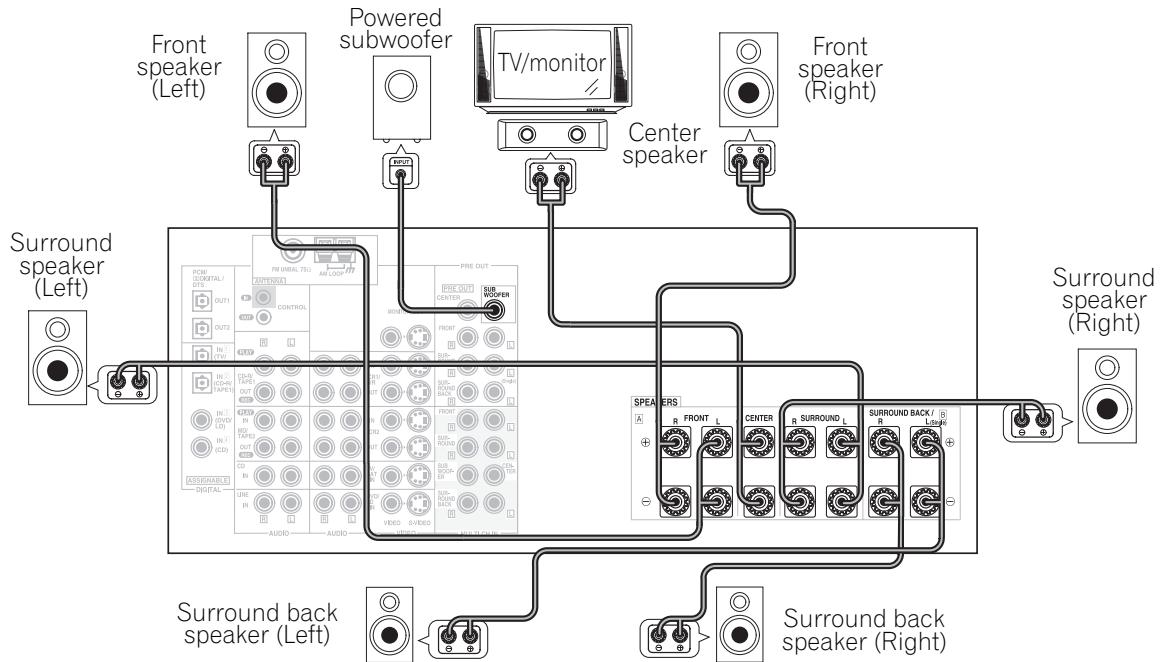
Memo:
- We recommend speakers with a nominal impedance rated 8 - 16 , but you can change the speaker impedance setting of the receiver (see page 26).
- If you only have one surround back speaker hook it up to the left surround back terminal.
- If you use a THX certified subwoofer use the THX INPUT jack on the subwoofer (if your subwoofer has one) or switch the filter position to THX on your subwoofer.
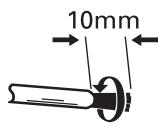
- When you attached your speaker wire to the speaker terminal make sure that not even one strand of wire touches the back of the receiver. If this happens it could short out the receiver.
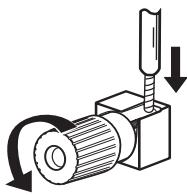
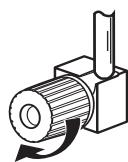
Speaker terminals
1 Twist exposed wire strands together tightly.
2 Loosen speaker terminal and insert exposed wire.
3 Tighten terminal.
3 Setting up the Main Unit
1 Connect the supplied AC power cord to the AC IN on this receiver and plug in the other end to a wall outlet.
2 Press the OFF ON button to put the receiver in ON mode.
3 Press the STANDBY/ON button to switch the receiver ON.
4 Assigning the Digital Inputs
This is only necessary if you did not hook up your DVD player to DIGITAL IN 3 using a coaxial cable but rather connected it to one of the optical digital inputs. The following example shows how to assign the DIGITAL IN 2 jack to DVD.
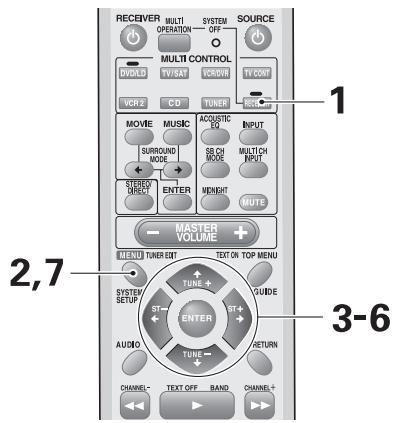
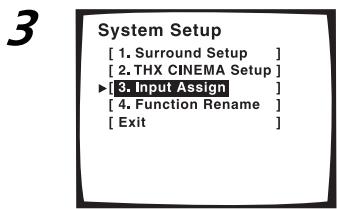
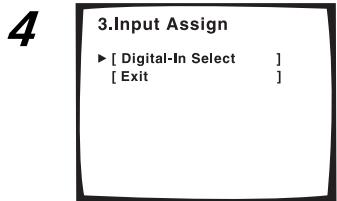
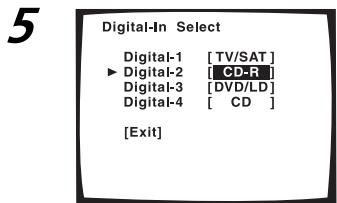
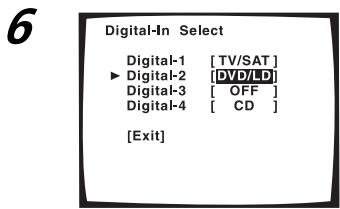
1 Turn on the receiver and your TV, press the RECEIVER button on the remote control.
2 Press the SYSTEM SETUP button. The SYSTEM SETUP menu appears on your TV (if it doesn't, refer to page 10 to make sure you have properly connected the receiver to your TV).
3 Looking at the on-screen display on your TV, use the buttons to select INPUT ASSIGN. Press the ENTER button.
4 DIGITAL IN-SELECT should be selected, if not use the buttons to select it. Press the ENTER button.
5 Use the buttons to select DIGITAL-2 and press ENTER. The default setting for the DIGITAL-2 jack is CD-R.
6 Use the buttons to select DVD/ LD and press ENTER.
7 Press the SYSTEM SETUP button. The receiver exits the setup process.
Easy Setup Guide Part 2
1 Auto Surround Sound Setup
If setting up your surround sound speakers seems like it's going to be an involved task you only need to use this quick, automatic method, known as the MCACC system, to achieve good surround sound. You'll need to hook up the microphone so that the receiver can hear and judge the distance, size, sound character and sound pressure level of the speakers and thus know what settings to make.
First turn the volume down, then plug the microphone into the SETUP MIC jack on the front panel of the receiver and put the microphone into its stand.
Follow the step-by-step guide to setting up your surround sound below. This will customize the surround sound for your listening environment. If you want to personalize your surround sound setups by making the settings manually go to "Setting Up for Surround Sound" (starting on page 36) and "EXPERT Setup" (starting on page 83). Make sure all the components you need, especially speakers, have been properly connected before you do the steps described here.
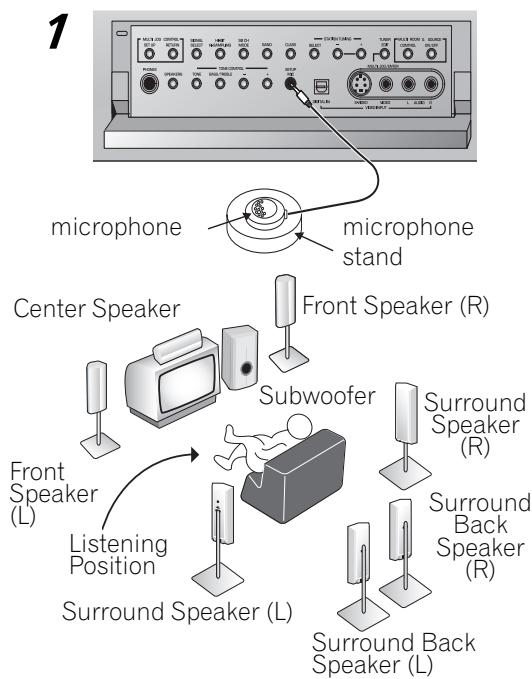
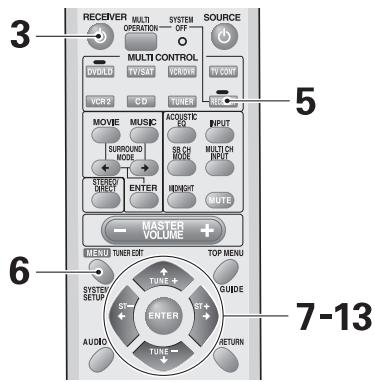
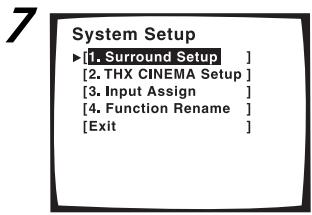
1 Hook up the microphone to the SETUP MIC jack on the Front Panel.
2 Place the microphone at your normal listening position.
Use a table, chair or something else to put the microphone at the same height as you usually listen to your system from.
If you have a tripod you can affix the mic stand to it.
3 Switch on the receiver and your TV.
Make sure your TV is set to this receiver as you will use the on-screen displays (OSDs) on your TV to follow these instructions.
4 If you have a subwoofer turn it on.
5 Press the RECEIVER button on the remote control.
6 Press the SYSTEM SETUP button and use the on-screen display (OSD) that appears on your TV.
7 The arrow should be pointing at SURROUND SETUP, press ENTER.
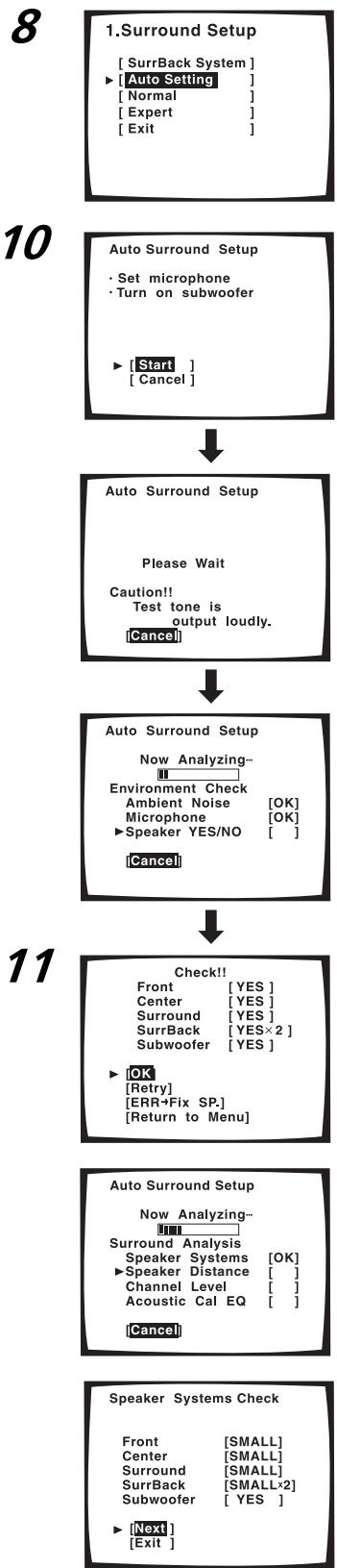
8 Select AUTO SETTING with the buttons and press ENTER.
9 Some auto setup instructions will be listed, make sure to follow them.
Make sure you have: hooked up the microphone and moved obstacles to the speakers out of the way. If you have a subwoofer make sure it is turned on and has the volume turned up.
WARNING: The test tones are very loud!! Make sure there are no infants or small children in the room and that no one who will be scared, upset or injured by loud noise is present. You yourself may want to wear earplugs. It is possible to lower the volume of test tones, but this could result in incorrect speaker settings.
10 If you have followed all setup instructions and warnings above make sure that the arrow is pointed to START and press ENTER. Be prepared for loud test tones.
Try to be as quiet as possible after hitting ENTER. The test tones may take up to 30 seconds.
The volume automatically increases to 0 dB, then the system will output some test tones and establish ambient noise levels, the microphone status, and what speakers you hooked up.
11 Check the speaker settings on the OSD.
If they match your speaker configuration make sure OK is selected and press ENTER. The test tones will be output loudly again. The test tones may take up to 5 minutes this time.
After they have finished, you see the SPEAKER SYS-TEMS CHECK screen. If you want to view the settings select NEXT and press ENTER repeatedly. If not, simply go to step 13.
If they do not match the speaker configuration you hooked up and you want to try again select RETRY with buttons and press ENTER. Follow the instructions above from step 10.
If you get an error message instructing you to do something, follow the instructions and RETRY with buttons and press ENTER.
If the speaker settings do not match the speaker configuration you connected and you want to input the settings manually select ERR FIXSP with the buttons, press ENTER. Go to step 12.
If you see an ERR message in the right side column, there may be a problem with the speaker connection. If selecting RETRY doesn't fix the problem, turn off the power and check the speaker connections.
Memo:
- Make sure the room environment follows the guidelines displayed on the OSD during auto setup. If the room environment is not optimal for auto setup (too much ambient noise, obstacles blocking the speakers from the microphone, etc.) the final settings may be incorrect. Check for household appliances (air conditioner, fridge, fan, etc.) that may be affecting the environment and switch them off if necessary.
- Screens will turn off after three minutes and the receiver will automatically exit from the setup process.
- If you leave CHECK!! or other error message on the screen for three minutes, or you choose CANCEL at anytime during the setup, the settings made up to that point will be cleared.
After completing the Auto Surround Sound Setup, ACOUSTIC CAL EQ ON (ALL CH ADJUST) is set automatically. - Some older TVs may interfere with the operation of the mic. If this is the case, turn the TV off when doing Auto Surround Sound Setup.
12 Use the buttons to select a speaker press ENTER. Then use the buttons to select the size of each speaker individually. Press ENTER. Use the buttons to select OK and press ENTER.
The system will output another series of test tones to establish the proper channel level, channel delay and acoustic calibration EQ. Again, be prepared for loud test tones.
After it has finished, you see the SPEAKER SYSTEMS CHECK screen. If you want to view the settings select NEXT and press ENTER repeatedly. If not, simply go to the next step.
13 Select EXIT and press ENTER to go back to the SURROUND SETUP menu. Then choose EXIT twice to return to normal use.
You should now have settings that will give you good surround sound. The MCACC indicator will light and the surround sound settings are complete.
2 Playing a DVD with Surround Sound
1 Make sure the receiver, your TV, your subwoofer and your DVD player are switched ON.
2 Press the DVD/LD button on the remote control.
You should see DVD/LD in the display on the receiver.
3 Play a DVD then adjust the MASTER VOLUME.
Memo:
To get a more refined sound, make the sound settings in "EXPERT Setup" on page 83.
If you're having trouble getting surround sound playback look at this Frequently Asked Questions (FAQ) guide:
Q1: Even though I'm playing a DVD I'm not getting 5.1 channel playback.
A1: Either the DVD is not set for digital output, or the Dolby Digital/DTS output settings are not correct. Set the DVD player to output a digital signal and set the Dolby Digital and DTS output properly. If you are unsure how to do this check the DVD initial setup in the manual that came with your DVD player.
Q2: There is no sound from the subwoofer or it is very low.
A2: There is a good possibility you haven't reached a part of the DVD that has an LFE channel (which feeds the subwoofer) yet. The LFE channel only appears in selected parts of the soundtrack. Continue playing and listen for the subwoofer.
If you want to hear more sound from the subwoofer set it to PLUS (see page 39 for more information and consult the Memo on page 40).
Connecting Your Equipment
Connecting your TV
Before making or changing the connections, switch off the power and disconnect the power cord from the AC outlet.
Connect your TV to the jacks as shown below. Hook up with either S video or composite video cords (the quality descends in this order) but you must use the same type of video cords to hook up your DVD player (and all other video components) as you use to hook up your TV. If you plan to hook up your DVD player with S video cords hook up your TV with them as well. Composite video cords, which look just like regular RCA audio cords (see page 20) but have only one cable are the most common.
*The arrows indicate the direction of the signal.
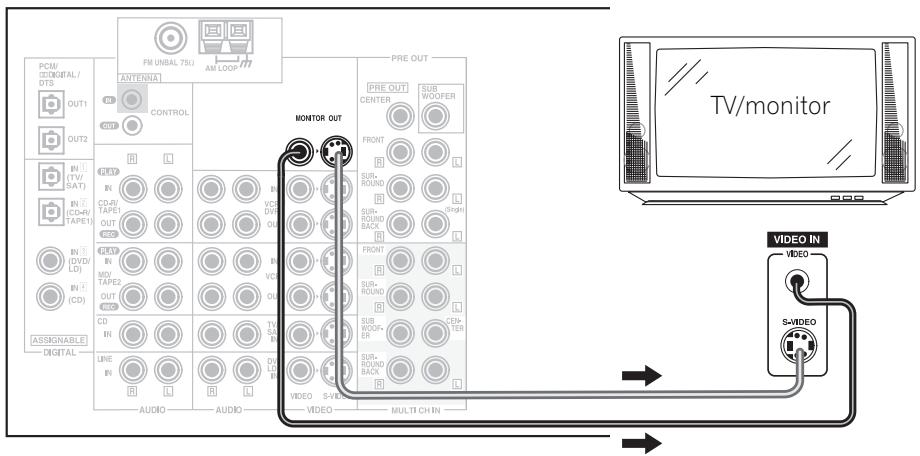
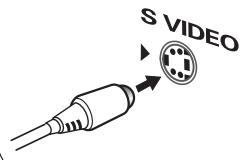
S Video
S video cables produce clearer picture reproduction by sending separate signals for the luminance and the color.
Composite Video
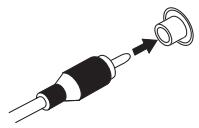
Composite video cords are the most common or standard video cord but also the lowest quality. The color on the connector is yellow to distinguish it from regular RCA audio cords which have white and red connectors (see page 20). It is important to use a true composite video cord and not an audio cord (though they look exactly the same) because the impedance is different and this will affect the picture quality.
Connecting Video Components
Before making or changing the connections, switch off the power and disconnect the power cord from the AC outlet.
Connect your video components as shown on this and the following page. For video components (for example, a DVD player) there are two types of connections to make, video and audio. Hook up your video signal with either S video or composite video cords (the quality descends in this order) but you must use the same type of cord as you used to hook up your TV.
For the audio signal, in order to use digital soundtracks like Dolby Digital or DTS you must hook up a digital input, with either a coaxial or optical cord (see page 23). It is also a good idea to hook up your components with analog audio connections as well.
If you want to record from your DVD player composite (or S video) cord connections and analog audio connections are necessary.
Connecting a DVD player
Before making or changing the connections, switch off the power and disconnect the power cord from the AC outlet.
Hook up your audio signal with either a coaxial or optical digital cords (you don't need to do both). If you have a DVD-Audio or Super Audio CD (SACD) compatible player, see page 21.
You need to hook up your audio with analog connections as well.
*The arrows indicate the direction of the signal.
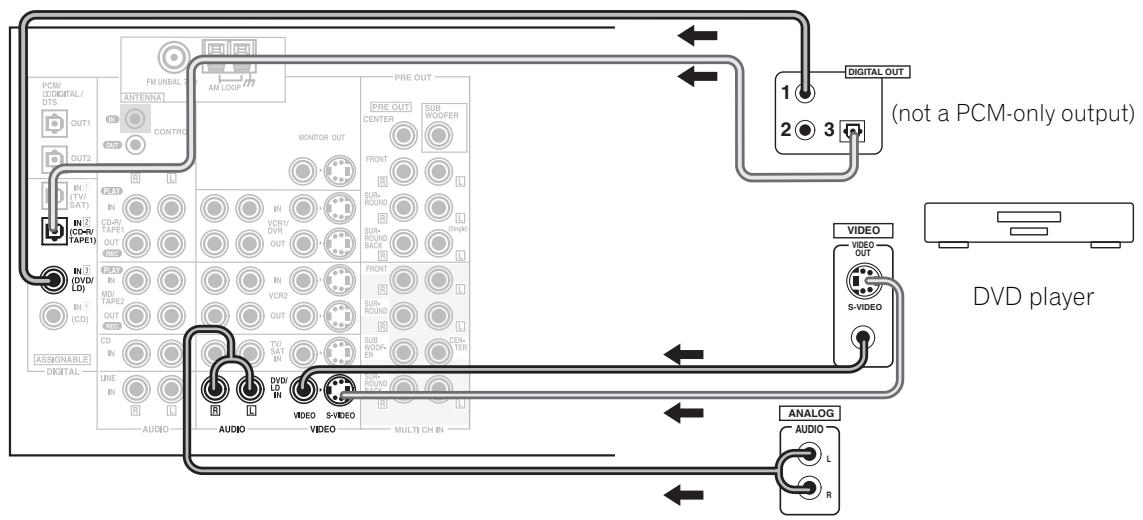
Memo:
- Be sure to make either a digital coaxial or digital optical connection (pictured in this diagram as DIGITAL jack 3 or DIGITAL jack 2) but you don't need to make both.
- If your digital connections are different than the default settings (see page 23) you will need to assign the digital jacks to the proper component(s).
Connecting Your Equipment
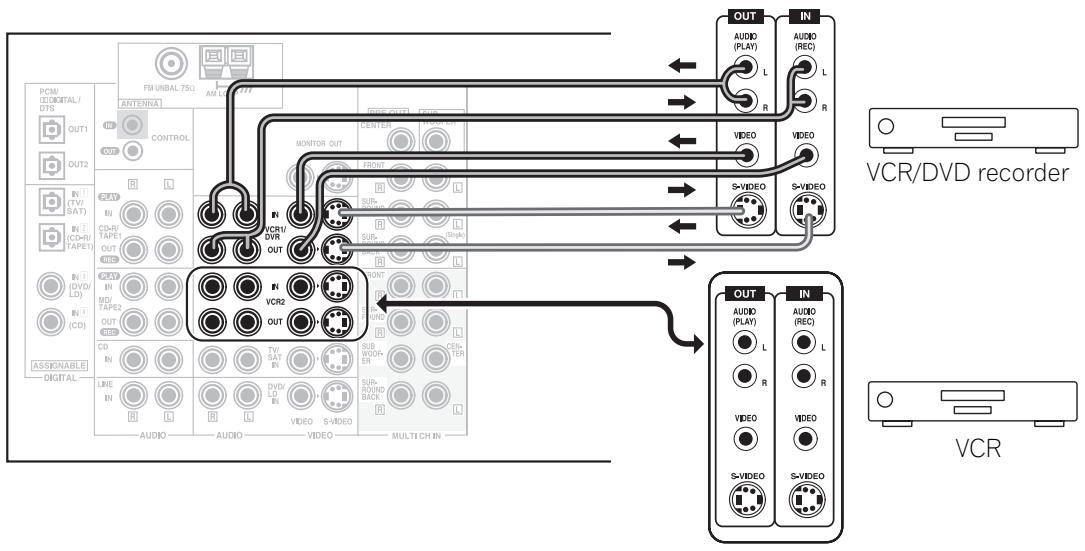
Connecting VCRs or DVRs
Before making or changing the connections, switch off the power and disconnect the power cord from the AC outlet.
Connect the video out of your VCR/DVR using either S video or composite video cords, depending on how you connected the receiver to your TV (see page 16). Use analog audio cords for the audio signal. To record, you also need to connect a set of audio/video outputs from the receiver to the audio/video inputs on your VCR/ DVR. Note that to record video from a source component, the video connection from the source to the receiver and from the receiver to the recorder must be the same type.
Connecting a Video Component to the Front Panel
Connect a portable DVD player, video game console or any video component to the front panel as show here. Front video connections are accessed via the front panel input selector asVIDEO. You cannot assign the digital input on the front panel.
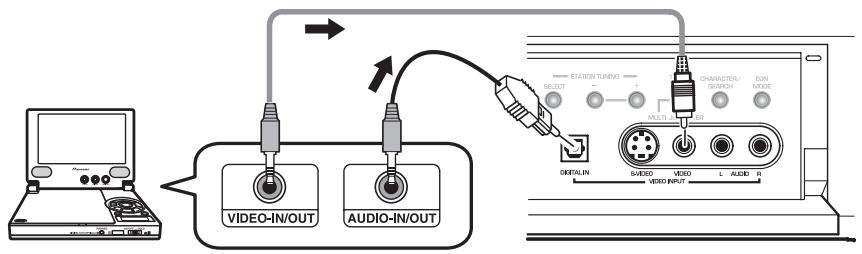
Be careful! For portable DVD players you will need a specialized optical cord (for the audio) that has a mini optical plug on one end and a regular optical plug on the other.
Connecting Satellite TV (SAT) Components
Before making or changing the connections, switch off the power and disconnect the power cord from the AC outlet.
Hook up the video signal with either S video, or composite video cords, depending on how you connected the receiver to your TV (see page 16).
For the audio signal, in order to use digital soundtracks broadcast you must hook up a digital input. Use either a coaxial or optical cable, it doesn't matter which (see page 23). We recommend hooking up your audio with analog cables as well (see below).
*The arrows indicate the direction of the TV signal.
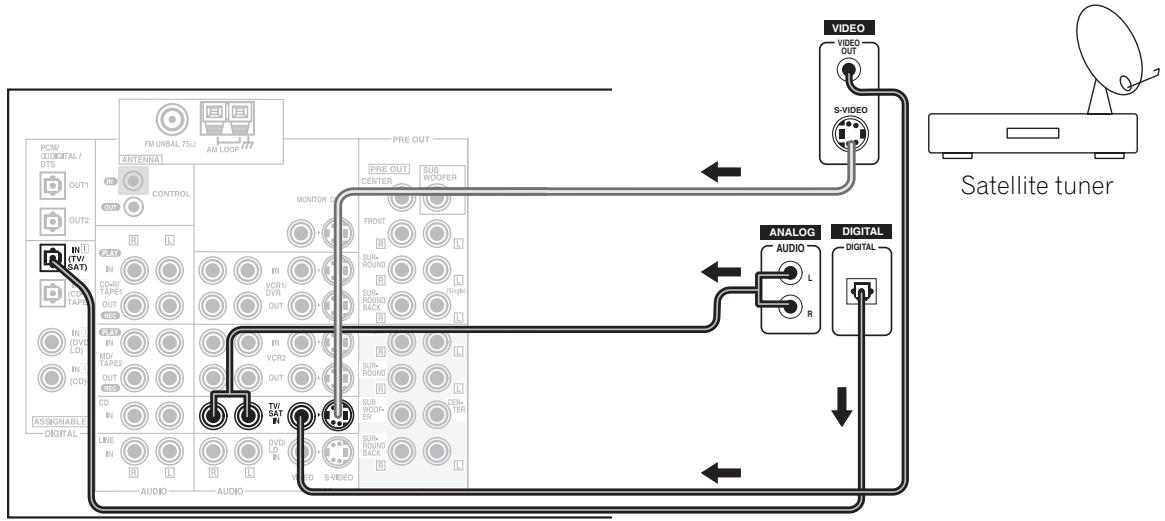
Memo:
If your digital connections are different than the default settings (see page 23) you will need to assign the digital jacks to the proper component(s).
Connecting Your Equipment
Connecting Analog Audio Components
Before making or changing the connections, switch off the power and disconnect the power cord from the AC outlet.
Connect your audio components to the jacks as shown below. These are all analog connections and your analog audio components (turntable, cassette deck) use these jacks. Remember that for components you want to record with you need to hook up four plugs (a set of stereo ins and a set of stereo outs), but for components that only play (like a turntable) you only need to hook up one set of stereo plugs (two plugs). If you want to record to/from digital components (like a CD-R) to/from analog components you must hook up your digital equipment with these analog connections.
*The arrows indicate the direction of the audio signal.
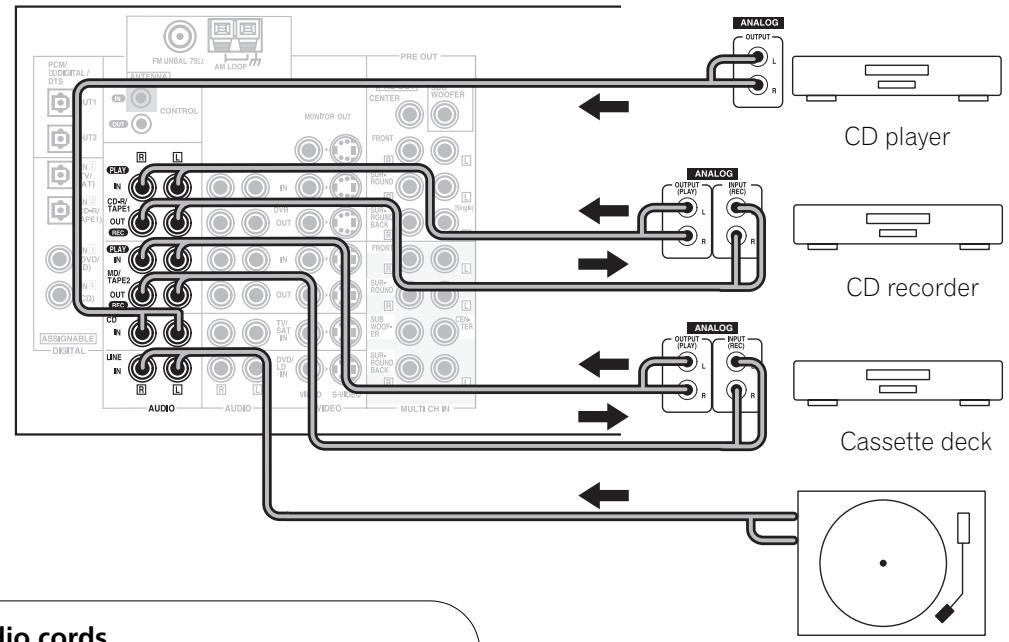
Audio cords
Use (RCA) audio cords (not supplied) to connect the audio components.
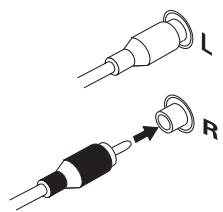
Connect red plugs to R (right) and white plugs to L (left).
Be sure to insert completely.
Turntable (etc)
If you use a turntable with this LINE IN jack only connect one with a built-in phono equalizer.
Memo:
Depending on where the cassette deck is placed, noise may occur during playback of your cassette deck which is caused by leakage flux from the transformer in the receiver. If you experience noise, move the cassette deck farther away from the receiver.
Connecting to the Multi Channel Analog Inputs (DVD-Audio or Super Audio CD (SACD) compatible player)
Before making or changing the connections, switch off the power and disconnect the power cord from the AC outlet.
If you have a DVD-Audio or Super Audio CD (SACD) compatible player, or are using an external Dolby Digital/ DTS decoder, connect it to the multichannel analog inputs as shown below.
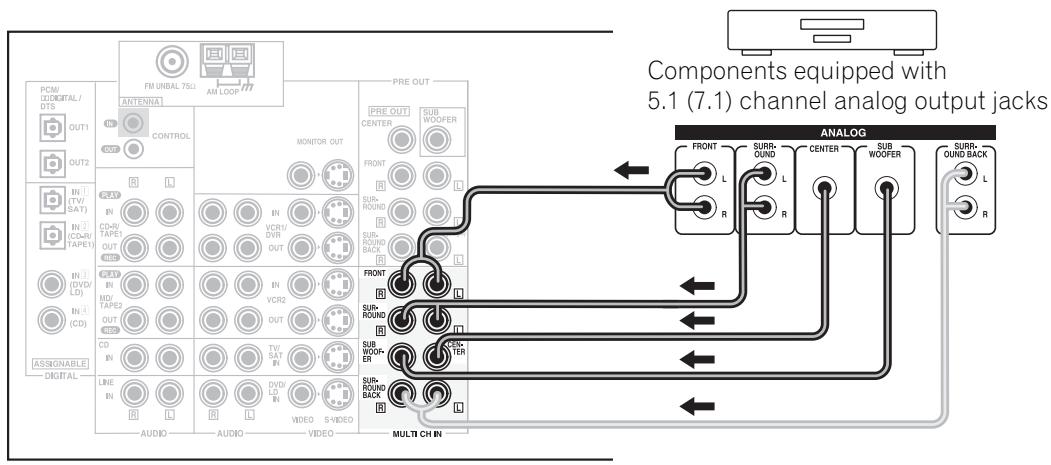
Memo:
If you use only one surround back input, be sure to hook up to the SURROUND BACK L jack.
Connecting Your Equipment
Connecting Digital Audio Components
Before making or changing the connections, switch off the power and disconnect the power cord from the AC outlet.
Connect your digital components as shown below. The VSX-AX3 has two coaxial and two optical inputs for a total of four digital inputs on the rear panel plus one digital input on the front panel. In order to use digital soundtracks like Dolby Digital or DTS (among others) you need to make digital audio connections. You can do this by either a coaxial or an optical connection (you don't need to do both). The quality of these two types of connections is the same but since some digital components only have one type of digital terminal, it is a matter of matching like with like (for example, the coaxial out from the component to coaxial in on the receiver).
Hook up your audio signal with either a coaxial or optical digital cords (you don't need to do both). If you hook up your DVD/LD player using component video cable connections you might need to setup your DVD player for component video output as well. See your DVD manual for details.
There are two optical digital out jacks (the CD recorder is connected to one in the diagram below). If you connect this to the optical input on a digital recorder (currently these include MD, DAT and CD-R) you can make direct digital recordings with this unit.
We also recommend hooking up your digital components to analog audio jacks (see "Connecting Analog Audio Components" on page 20) in order to make recordings (some digital sources may be protected against making digital copies).
*The arrows indicate the direction of the audio signal.
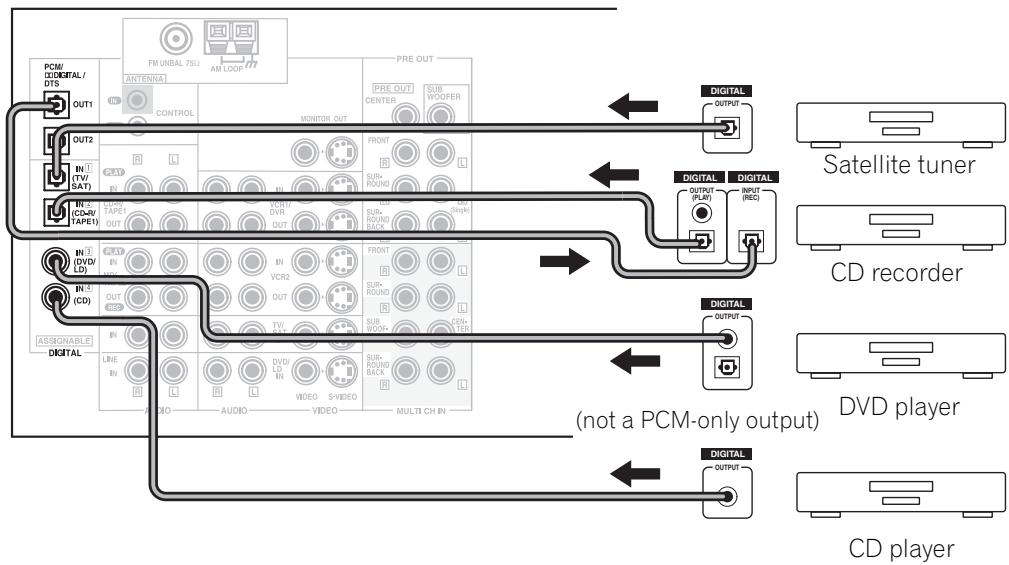
Coaxial cords/Optical cables
Commercially available digital audio coaxial cords (standard video cords can also be used) or optical cables (not supplied) are used to connect digital components to this receiver.
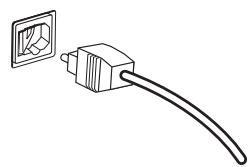
Be sure to insert completely and in the case of the optical cable, right-side up. If it is inserted improperly it can break the shutter on the optical terminal (this won't, however, affect the connection or insertion of an optical cable).
Coaxial cord (or standard [composite] video cord)
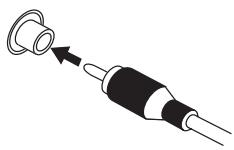
Optical cable
Digital Input Default Settings
Unlike analog connections, the jacks for digital connections are not dedicated to one type of component, they can be used freely. Thus you must tell the receiver what digital component is connected to which jack so your components will be in sync with the names on the remote control buttons and the like. To avoid having to assign the digital inputs you can hook up your equipment in accordance with the receiver's default settings.
The default settings are:
DIGITAL IN 1 (optical): TV/SAT
DIGITAL IN 2 (optical): CD-R/TAPE1
DIGITAL IN 3 (coaxial): DVD/LD
DIGITAL IN 4 (coaxial): CD
See "Assigning the Digital Inputs" on page 81 if the way you hook up your equipment is different from the default settings listed here.
Connecting Your Equipment
Connecting the Radio Antennas
Before making or changing the connections, switch off the power and disconnect the power cord from the AC outlet.
Connect the supplied FM wire antenna and the AM loop antenna to the ANTENNA terminals as shown below. These antennas should provide adequate reception quality in most cases, but connecting outdoor antennas should noticeably improve sound quality.
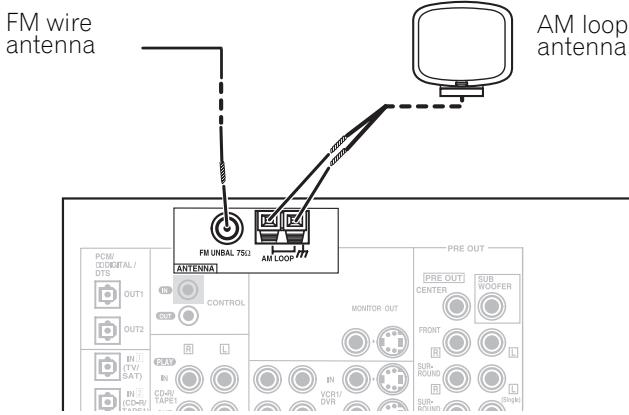
AM loop antenna
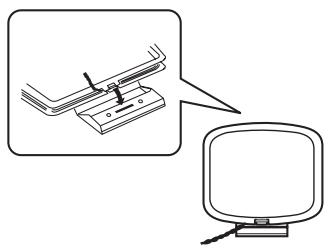
1 Assemble the antenna.
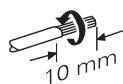
2 Twist exposed wire strands together and insert.
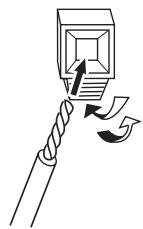
3 Attach to a wall, etc. (if desired) and face toward the direction providing the best reception.
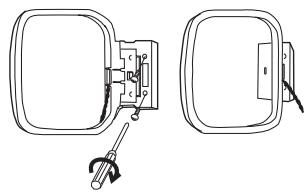
Using outdoor antennas
To improve FM reception
Connect an external FM antenna.
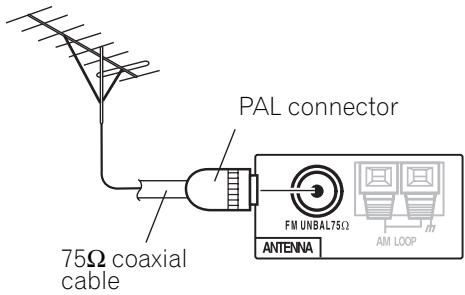
To improve AM reception
Connect a 5 - 6 meter length of vinyl-coated wire to the AM LOOP ANTENNA terminal in addition to the supplied AM loop antenna.
For best possible reception, suspend horizontally outdoors.
AM loop antenna
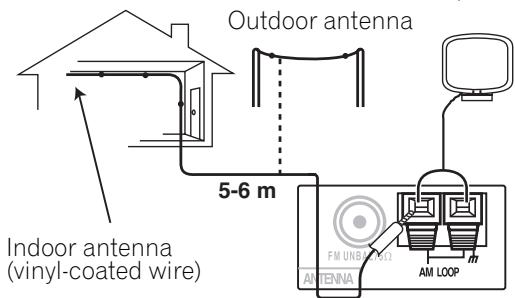
Connecting Speakers
Before making or changing the connections, switch off the power and disconnect the power cord from the AC outlet.
We recommend a full complement of seven speakers and a subwoofer as shown here but, naturally, everyone's home setup will vary. Simply connect the speakers you have in the manner described below.
One of the latest features of home theater is the use of surround back speakers. These speakers add even greater realism in movie sound effects and some new discs with soundtracks in Dolby Digital or DTS incorporate these channels. See page 27 for speaker placement.
In general, make sure you connect the speaker on the right to the R terminal and the speaker on the left to the L terminal. Also make sure the positive and negative (+/-) terminals on the receiver match those on the speakers.
CAUTION: These speaker terminals can be under HAZARDOUS VOLTAGE. When you connect or disconnect the speaker cables, to prevent the risk of electric shock, do not touch uninsulated parts before disconnecting the power cord. H047 En
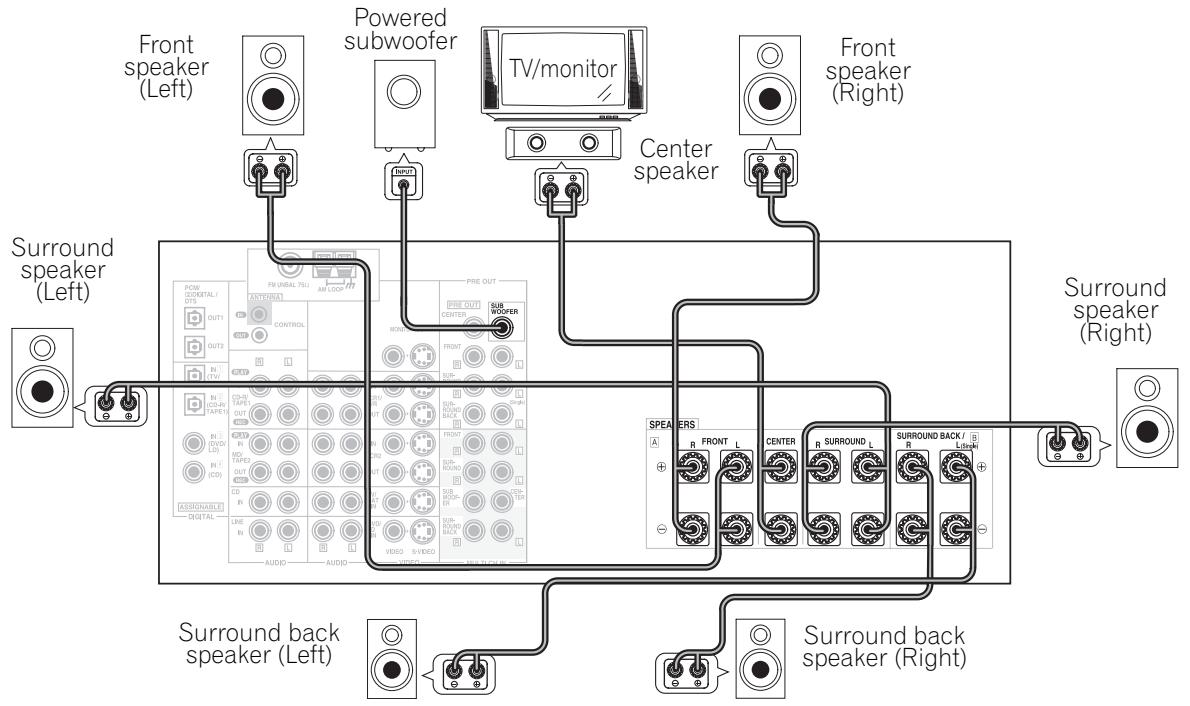
Memo:
- We recommend speakers with a nominal impedance rated 8 - 16 , but you can change the speaker impedance setting of the receiver (see page 26).
- If you only have one surround back speaker hook it up to the left surround back terminal.
- If you are using a THX certified subwoofer use the THX INPUT jack on the subwoofer (if your subwoofer has one) or switch the filter position to THX on your subwoofer.
■ Speaker terminals
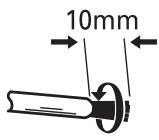
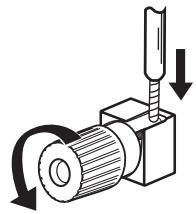
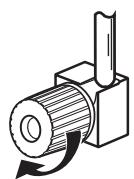
1 Twist exposed wire strands tightly together.
2 Loosen speaker terminal and insert exposed wire.
3 Tighten terminal.
Connecting Your Equipment
Speaker impedance
You can change the speaker impedance for VSX-AX3 but we recommend using speakers with an impedance of 8 - 16 (the default setting). If you are using 6 less than 8 impedance speakers, you need to change the impedance setting. Use any speaker rated between 6 - 16 .
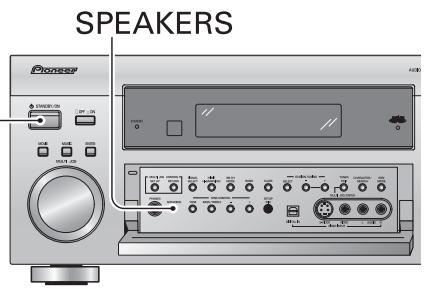
STANDBY/ON
First put the receiver in STANDBY mode, then press the power button while holding down the SPEAKERS button.
The receiver will reset to the new impedance setting. With this method you can choose the 8 - 16 setting or the 6 - 8 setting.
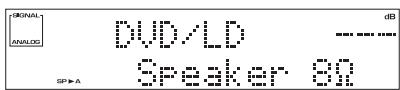
(This display indicates an 8 - 16 impedance setting.)
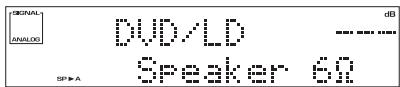
(This display indicates a 6 - less than 8 impedance setting.)
Placing Your Speakers
Proper speaker placement is essential to realize the best sound from your system. It is very important for speaker placement to read the instructions that come with your speakers so please be sure to do so.
Speaker placement
If you have a multiple speaker arrangement the placement of the speakers is extremely important. To achieve the best possible surround sound, install your speakers as shown below. Make sure all speakers are installed securely to prevent accidents and improve sound quality. Some speakers are designed to be floor-standing but others benefit greatly from speaker stands which raise them off the floor. Be sure to read your speaker manuals for the best placement of the speakers.
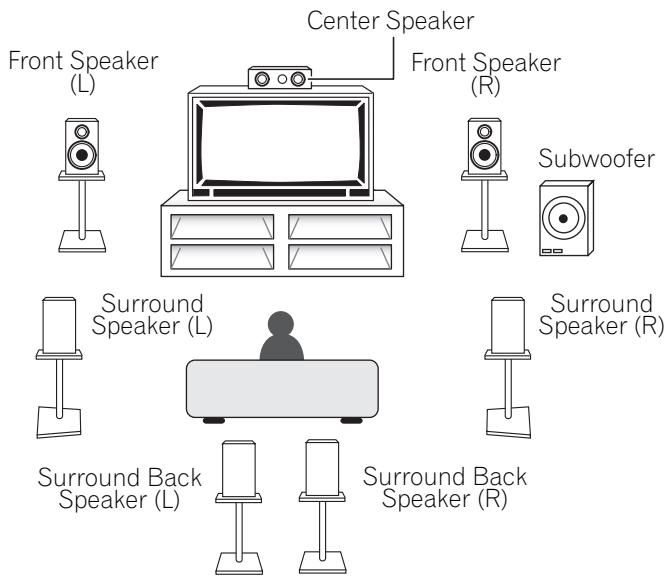
Memo:
- When installing speakers near the TV, we recommend using magnetically shielded speakers to prevent distortion in the color of the TV screen. If you do not have magnetically shielded speakers and notice discoloration of the TV screen, place the speakers farther away from the TV.
- Install the center speaker above or below the TV so that the sound of the center channel is localized at the TV screen.
- THX recommends that if you have two surround back speakers you place them close together.
CAUTION:
When installing the center speaker on top of the TV, be sure to secure it with suitable means.
Power Connections (AC IN)
Plug in the power cord to a wall outlet after you have finished hooking up the rest of your equipment.
CAUTION!
Do not use any other power cord than the one supplied with this unit.
Power Connections (AC OUTLETS) (European model only)
[SWITCHED TOTAL 100 W MAX]
Power supplied through this outlet is turned on and off by this unit's STANDBY/ON button. Total electrical power consumption of connected equipment should not exceed 100 W.
CAUTION!
- Do not connect appliances with high power consumption such as heaters, irons, or television sets to the AC OUTLET in order to avoid overheating or fire risk. This can cause the receiver to malfunction.
- The equipment should be disconnected by removing the mains plug from the wall socket when not in regular use, e.g. when on vacation.
CAUTION!
DO NOT CONNECT A MONITOR OR TV SET TO THIS UNIT'S AC OUTLET.
Displays and Controls
Front Panel
All the controls on the front panel are explained and/or referenced here. To open the front panel push gently on the lower third of the panel.
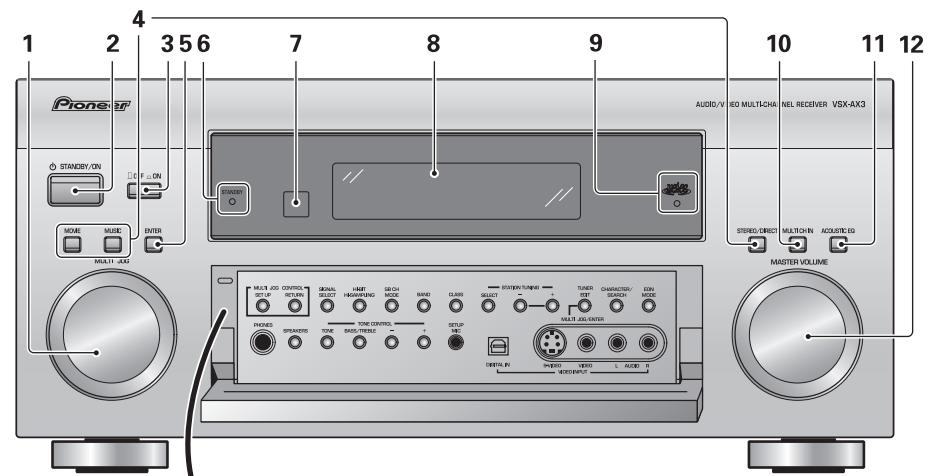
European model
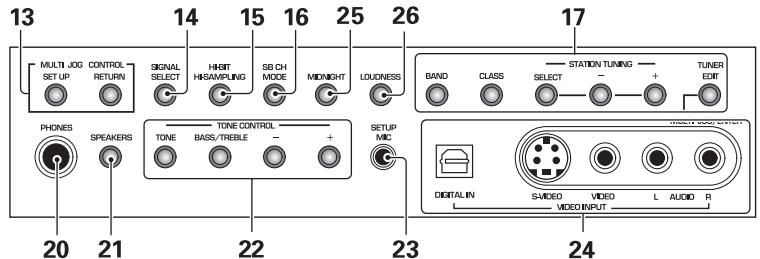
multi-voltage model
1 MULTI JOG dial
You can use this dial for many purposes. When you press the SET UP button (13), you can use it to perform SYSTEM SETUP operations; select a function or a listening mode or do TUNER EDIT functions (in TUNER mode).
2 OSTANDBY/ON button
Press to switch the receiver ON or into STANDBY mode.
3 OFF ON button
Press to switch the receiver between OFF and STANDBY mode or ON.
4 Listening mode buttons (page 45)
There are two types of SURROUND modes:
MOVIE: Press to put the receiver into MOVIE mode (see page 46).
MUSIC: Press to put the receiver into MUSIC mode (see page 47).
STEREO/DIRECT (see page 45): Switches the receiver into STEREO mode if it was in a different sound mode or toggles between DIRECT and STEREO mode.
5 ENTER button
Use this button to enter information concerning the SYSTEM SETUP, listening mode or the tuner.
6 STANDBY indicator
Lights when the receiver is in STANDBY mode.
7 Remote sensor
Receives the signals from the remote control.
8 Display (see page 33)
9 MCACC indicator (see pages 13 and 49)
Lights when the ACOUSTIC CAL EQ is on. (After the Auto Surround Sound Setup has been completed the ACOUSTIC CAL EQ is set on and this display will light.)
10 MULTI CH IN button
Use this button to select the component you have hooked up to the MULTI CH IN terminals (for example, a DVD-Audio player).
11 ACOUSTIC EQ button (see pages 49 and 87)
Press to switch on/off and select the type of acoustic calibration EQ.
12 MASTER VOLUME dial
Use to raise or lower the volume of the receiver.
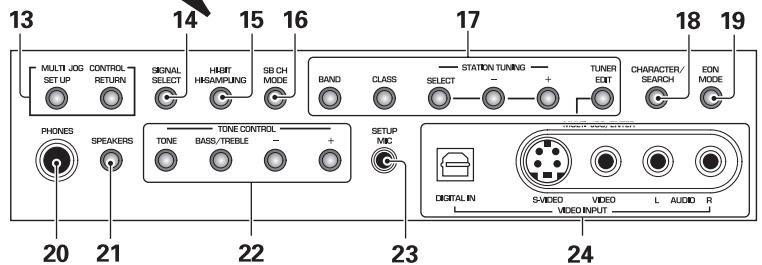
13 MULTI JOG CONTROL buttons
SET UP
Press to switch the SYSTEM SETUP mode.
RETURN
Press to move back one step in the SYSTEM SETUP process.
14 SIGNAL SELECT button (see page 44)
Press SIGNAL SELECT repeatedly to select one of the following:
AUTO - If there are analog and digital signals input, the receiver automatically selects the digital signal.
DIGITAL - To select an optical or coaxial digital signal.
ANALOG - To select an analog signal.
15 HI-BIT HI-SAMPLING button (see page 52)
Use this button to switch the AUDIO SCALER mode on or off.
16 SB CH MODE button (see page 53)
Use this button to turn the surround back channels ON/OFF/AUTO or switch the virtual surround back mode between ON/OFF/AUTO.
17 Tuner control buttons (see page 56)
BAND
Press to select the AM or FM band.
CLASS
Press repeatedly to switch the preset station classes.
SELECT
Switches the - / + buttons between station memory and frequency select modes.
-/+
Selects station memories or frequencies when using the tuner.
TUNER EDIT
Press to memorize and name a station for recall using the MULTI JOG and ENTER buttons.
18 CHARACTER/SEARCH button (see page 62)
Use to search for different program types in RDS mode.
19 EON MODE button (see pages 63-64)
Use to search for different programs that are transmitting traffic or news information.
20 PHONES jack
Connect headphones for private listening (no sound will be heard through the speakers).
21 SPEAKERS (A/B) button (see page 72)
The use of this button depends on how the SURRBACK SYSTEM (see page 37) is set. If NORMAL SYSTEM is chosen this button toggles between A and OFF. If SECOND ZONE is chosen this button toggles between A, B, A+B and OFF. If FRONT BI-AMP is chosen this button toggles between A+B and OFF.
22 TONE CONTROL buttons (see page 51)
TONE button
This button switches between TONE on and off, which bypasses the tone circuitry.
BASS/TREBLE button
Use to select whether the bass or treble will be adjusted.
-/+ buttons
Use to adjust the frequency levels.
23 SETUP MIC jack (see page 13)
Plug in the set up mic here. This is very important in order to set up your system and get proper surround sound.
24VIDEO INPUT jacks (see page 18)
DIGITAL IN
Digital input for connecting a game console, DVD player or video camera (etc.), that has an optical digital connection.
S-VIDEO
Video input for connecting a portable DVD player or video camera (etc.), that has an S video out.
VIDEO / AUDIO (L/R)
Video input for connecting a portable DVD player or video camera (etc.), that has standard RCA video/audio outputs.
25 MIDNIGHT button (see page 50)
Switches the MIDNIGHT listening mode on or off.
26 LOUDNESS button (see page 50)
Switches the LOUDNESS mode on or off.
Remote Control
This page describes the buttons on the remote control used to operate the receiver.
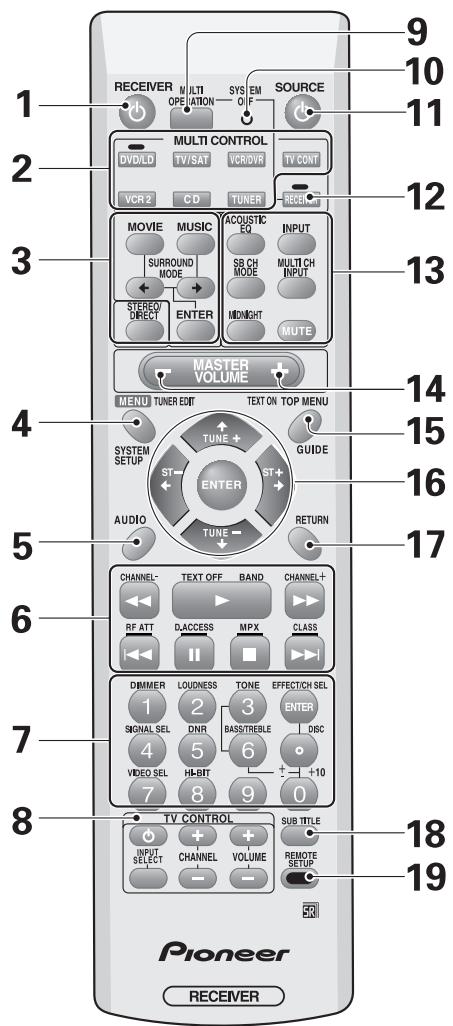
1 念 RECEIVER (STANDBY/ON) button
Press to turn power of the receiver on or to standby (off).
2 MULTI CONTROL buttons
These buttons are the basic controls that switch the mode of the receiver and the remote control, which allows you to control your other components.
TV CONT: Press so that the remote control can operate the TV control commands.
3 Listening mode buttons (see page 45) SURROUND buttons (MOVIE, MUSIC, & ENTER):
MOVIE: Press to put the receiver into MOVIE listening mode (see page 46).
MUSIC: Press to put the receiver into MUSIC listening mode (see page 47).
: Use to select the MOVIE or MUSIC listening mode.
ENTER: Use this button to enter information concerning the listening modes.
STEREO/DIRECT (see page 45): Switches the receiver into STEREO mode if it was in a different sound mode or toggles between DIRECT and STEREO mode.
4 SYSTEM SETUP button
Use for all system setups, including the speaker and sound systems. For more information see "Setting Up for Surround Sound" starting on page 36. For a DVD player use this button to bring up the DVD menu and for a tuner use this button in the same way as the TUNER EDIT button.
5 AUDIO button
Use to switch the audio tracks of a DVD when in DVD mode.
6 Command button for other components (see page 67)
Use these buttons to control other components you selected with the MULTI CONTROL buttons. You must input the preset code in order to use this function (see page 65).
7 Number buttons
These can be used for many purposes depending on the mode of the remote control.
When in receiver mode the buttons operate as below:
DIMMER button (see page 55)
Use to adjust the brightness of the receiver's display.
LOUDNESS button (see page 50)
Switches the LOUDNESS mode on or off.
TONE button (see page 51)
This button switches between TONE on and off, which bypasses the tone circuitry.
BASS/TREBLE buttons (see page 51)
Use to select whether the bass or treble will be adjusted.
(+ / - ) buttons
Use to adjust the TONE level, effect level, channel level and sound delay as well as make Dolby Pro Logic II MUSIC parameter settings.
EFFECT/CH SEL button
Switches between the different channels so you can add volume individually to each channel with the + and - buttons. Also selects EFFECT mode, Dolby Pro Logic II MUSIC parameters (see page 48) and sound delay settings (see page 51). You can then use the + and - buttons to make these adjustments.
SIGNAL SEL button (see page 44)
Press repeatedly to select one of the following:
AUTO - If there are analog and digital signals input, the receiver automatically selects the digital signal.
DIGITAL - To select an optical or coaxial digital signal.
ANALOG - To select an analog signal.
DNR (DIGITAL NR) button (see page 49)
Switches the DIGITAL NR on or off.
VIDEO SEL button (see page 55)
Use to toggle between the different video input possibilities.
HI-BIT button (see page 52)
Use this button to switch the AUDIO SCALER on or off.
8 TV CONTROL buttons
The following buttons are used to control the TV only and can be used once they are preset to control your TV.
TV button
This is a dedicated TV button. Use it to turn on/off your TV.
INPUT SELECT: Press to select the input source for the TV.
CHANNEL + / - : Use these buttons to change the channel of the TV.
VOLUME + / - : Press to control the volume of the TV.
This display flashes when a command is sent from the remote control to the receiver. It also flashes at other times, for example when teaching the receiver preset codes.
11 SOURCE 念 button
Use this button to turn on/off other components. You must input the preset code in order to use this function (see page 65).
12 RECEIVER button
Use this button to switch the remote control into receiver mode in order to get certain receiver functions or do receiver setups.
13 Receiver functions
ACOUSTIC EQ button (see page 87)
Press to switch on/off and select the type of acoustic calibration EQ.
INPUT button
Press to select an input source. The button will cycle through all the possible sources.
SB CH MODE button (see page 53)
Use this button to turn the surround back channels ON/OFF/AUTO or switch the virtual surround back mode between ON/OFF/AUTO.
MULTI CH INPUT button (see page 52)
Use this button to select the component you have hooked up to the MULTI CH IN terminals (for example, a DVD-Audio player).
MIDNIGHT button (see page 50)
Switches the MIDNIGHT listening mode on or off.
MUTE button
Press to mute or restore the volume.
Displays and Controls
14 MASTER VOLUME (+ / - ) buttons
Use to raise or lower the volume of the receiver.
15 TOP MENU/GUIDE button
Use to find stations or menus on a digital TV tuner. For a DVD player use this button to bring up the DVD menu.
16 / /4 ENTER buttons
These buttons can be used for a variety of operations in the SYSTEM SETUP menu.
These buttons are used to control the menus for other components when in those modes (DVD, digital TV tuner, satellite tuner, cable tuner, etc.). In TUNER mode, they can select a station and/or a frequency.
17 RETURN button
When you are in a receiver setup operation this button will go back one step in the SYSTEM SETUP procedure. When you are using your DVD menu screen this button acts the same as the DVD player's "Return" button. When you are using cable tuners, satellite tuners or digital TV tuners this button will either exit you from the menu screen or act like a "Return" button above, depending on the maker of the unit.
18 SUB TITLE button
Use to switch the subtitles on a DVD player or disc.
19 REMOTE SETUP button
Use to customize the remote control functions and the remote control itself. (See "Setting Up the Remote Control to Control Other Components" starting on page 65).
Display
All the display information is explained and/or referenced here.
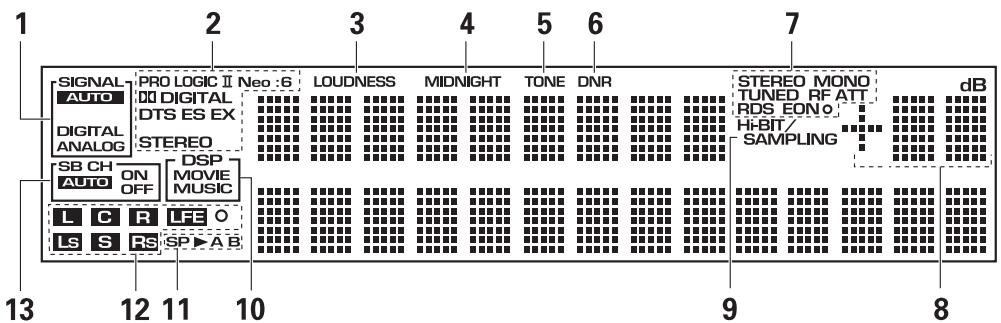
1 SIGNAL indicators
Light to indicate the input signal you selected.
AUTO: Lights when the receiver is set to select the input signal automatically.
DIGITAL: Lights when digital audio signals are selected.
ANALOG: Lights when analog signals are selected.
2 Digital format indicators
PRO LOGIC II: Lights during Dolby Pro Logic II processing.
NEO:6: Lights during NEO:6 processing.
DIGITAL: Lights when a Dolby Digital signal is detected.
DTS: Lights when a DTS signal is detected.
ES: Lights when playing back a DTS ES signal.
EX: Lights when playing back a Dolby Digital EX signal.
STEREO: Lights during two-channel playback.
3 LOUDNESS indicator
Lights when LOUDNESS is on.
4 MIDNIGHT indicator
Lights when MIDNIGHT is on.
5 TONE indicator
Lights when the TONE control is on.
6 DNR indicator
Lights when DIGITAL NR is on.
7 TUNER indicators
STEREO: Lights when an FM stereo broadcast is received in the auto stereo mode.
MONO: Lights when the tuner is set to receive FM broadcasts and when MPX mode is selected.
TUNED: Lights when a broadcast is received.
RF ATT (European model only): Lights when the RF ATT is on (see page 56).
RDS (European model only): Lights when an RDS broadcast is received.
EON o (European model only): EON lights when it has been set. The dot indicator next to it lights
when the station you are currently tuned to carries the EON data service.
8 Volume level indicator
9 Hi-BIT/SAMPLING indicator
Lights when the AUDIO SCALER mode is on.
10 DSP indicators
MOVIE: Lights when a MOVIE mode is selected. When a DSP MOVIE mode is selected DSP will light with a box around it.
MUSIC: Lights when a MUSIC mode is selected. When a DSP MUSIC mode is selected DSP will light with a box around it.
11 Speaker indicators (see page 72)
Lights to indicate the current speaker system, A and/or B.
12 Program Format indicators
For Dolby Digital or DTS sources: These indicators change according to which channels are active in the source. When all three LS (left surround), S (surround) and RS (right surround) light at the same time it means a source with a 6.1 channel playback flag is being used.
L - Left front channel.
C - Center channel.
R - Right front channel.
LS - Left surround channel.
S-Surround channel or Surround back channel.
RS - Right surround channel.
LFE - Low Frequency Effects channel.
- Lights when LFE signal is input.
13 SB CH indicators (see page 53)
Light to indicate the status of the surround back channels.
AUTO - Lights when the SB CH MODE or virtual surround back mode is set to AUTO.
ON - Lights when the SB CH MODE or virtual surround back mode is set to ON.
OFF - Lights when the SB CH MODE or virtual surround back mode is set to OFF.
Back Panel
All the terminals on the back panel are explained and/or referenced here.
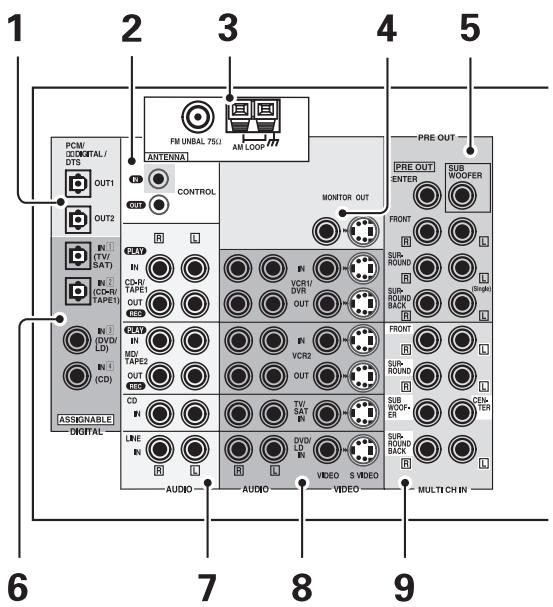
1 DIGITAL OUT terminals (see page 22)
Use these terminals to output a digital signal to a DVD-R, CD-R, MD recorder or any other kind of digital recorder.
2 CONTROL IN/OUT terminals (see page 74)
You can use these jacks to hook up other PIONEER equipment, that has a CONTROL terminal, so that you can control them all by pointing the remote control(s) at one remote sensor.
3 Radio antenna terminals (see page 24)
Hook up antennas for the radio tuner built into the receiver here.
4 MONITOR OUT terminals (connect a TV or monitor here, see page 16)
Use these terminals to output the video signal to your TV, video projector or monitor.
5 PRE OUT analog terminals (connect an amplifier here, see page 73)
Use these terminals to output the audio signal from this amplifier to a different amplifier if that's how you choose to set up your system.
6 DIGITAL IN terminals (see page 22)
Use these terminals to input the signal from a DVD, CD player or any other kind of digital player. To be able to play Dolby Digital and other surround soundtracks you need to make digital connections. To do this use the digital terminals here. If you don't connect as per the default settings (see page 23) you need to complete "Assigning the Digital Inputs" on page 81.
7 Audio input/output terminals (connect analog components here, see page 20)
Use these terminals to input/output the audio signal from analog components (like a cassette deck or turntable). These are analog jacks.
8 Video components input/output terminals
Input/output signals from your video components (DVD, VCR, TV tuners, SAT tuners, etc.) here (see page 17).
9 MULTICH IN terminals (see page 21)
Use these terminals to input a multichannel surround signal (for example, a DVD-Audio signal) in an analog fashion. These are analog jacks.
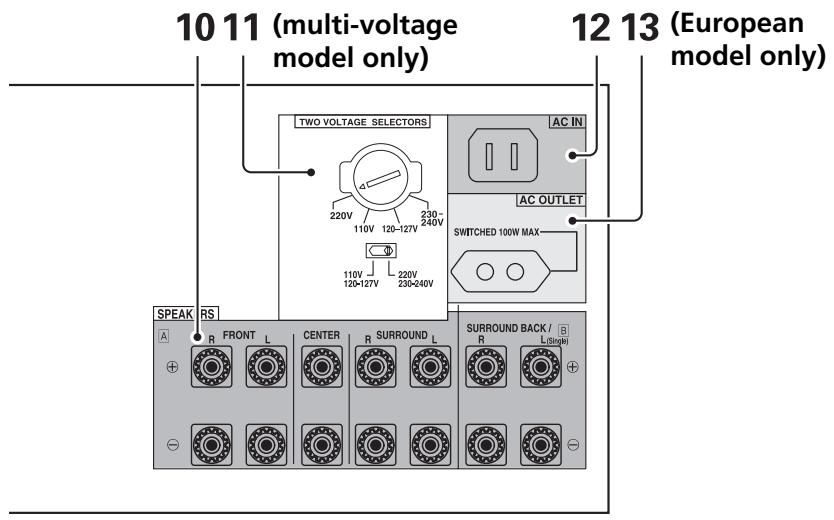
10 SPEAKERS terminals (see page 25)
Use these terminals to connect speakers to the receiver. The FRONT, CENTER and SURROUND terminals are for the main speaker system and the SURROUND BACK speakers can be set to either the main system, the SECOND ZONE, or the FRONT BI-AMP. See page 37 to set the SURROUND BACK speakers.
11 TWO VOLTAGE SELECTORS switches (multi-voltage model only)
Use to match the voltage coming into the receiver with the voltage in your country or region (see page 3).
12 AC IN
Hook up the power cord to this terminal.
13 AC OUTLET (European model only) (switched, 100 W max)
Hook up an external component to the power supply of this receiver. Only do this with audio or video components being used in this system and never hook up heavy equipment (like TVs, heaters, air conditioners, refrigerators, etc.) to this receiver.
Setting Up for Surround Sound
To ensure the best possible surround sound, complete the following setup operations. Some of these are the same (and take precedence over) the settings you made in the Easy Setup Guide, so consider if the ones you made at that time were adequate. If you feel they were, move on to the next setting in this section.
These setup operations use on-screen displays (OSDs) on your TV to display the settings and choices so be sure your TV and receiver are properly hooked up and that your TV is set to this receiver. You need to connect the setup mic to the front panel of the receiver so that it can measure the sound and ensure the proper settings. For more information on the mic hookup see page 13.
3-4 2
[Exit
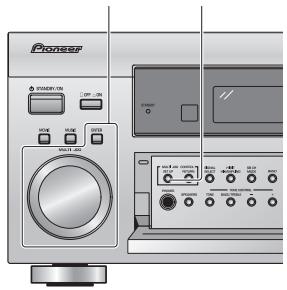
1 [Surround Setup] [2,THX CINEMA Setup]
[3. Input Assign]
[4. Function Rename
3
System Setup
[Exit]
4
- Surround Setup
[SurrBack System]
[Auto Setting]
Normal
Expert
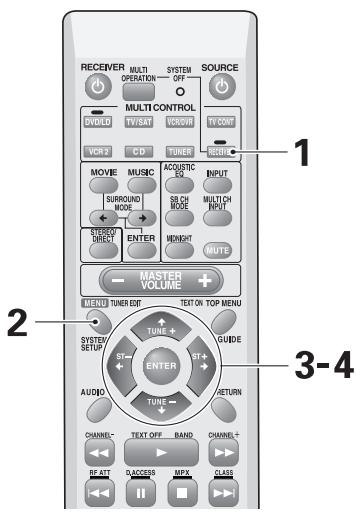
1 Turn on the receiver and your TV. Press the RECEIVER button on the remote control.
Make sure your TV is connected and set to the video input the receiver is using.
2 Press the SYSTEM SETUP button.
The menu possibilities appear on your TV.
3 SURROUND SETUP should be selected. If it isn't use the buttons to select it. Press the ENTER button.
4 Use the buttons to navigate through the menus. When you have the setting you want in a particular menu, press ENTER.
In each mode, the current settings are displayed. We suggest you do a basic system setup for surround sound when you first hook up the receiver. That gets it out of the way and you won't need to do it again unless you change your home set up (by adding new speakers, etc.). To do a basic setup use the SURRBACK menu if necessary and then choose either the AUTO SETTING or NORMAL setup procedure and complete that. You don't need to do both as they accomplish the same ends and we recommend the AUTO SETTING method. To do a more advanced setup for surround sound see EXPERT setup starting on page 83.
SURRBACK SYSTEM (page 37)
Use to choose options for your surround back speakers.
AUTO SETTING (page 13)
See the Easy Setup Guide Part 2 for an explanation of this setup.
NORMAL (page 38)
Use this method to manually adjust all the surround sound functions.
EXPERT (page 83)
Use these settings to fine tune your surround sound and make it more personalized.
Surround Back System
This setup selects how your surround back system will be used. If you want to use it for surround back speakers in your main speaker system choose NORMAL SYSTEM. In this case you won't have any B (or secondary) speaker system as these speakers fill that role also for the VSX-AX3. If starting fresh, complete steps 1-3 on page 36.
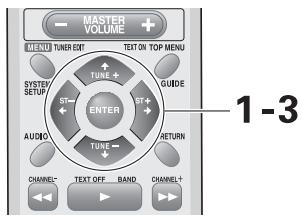
1-3
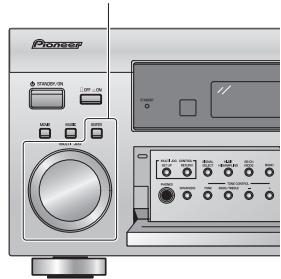
1
- Surround Setup
[SurrBack System]
[Auto Setting]
Normal
Expert
[Exit
2
SurrBack System
Normal System
[Second Zone]
[Front Bi-Amp]
[Exit
3
SurrBack System
Normal System
[Second Zone]
[Front Bi-Amp]
[Exit
1 SURRBACK SYSTEM should be selected. If it isn't use the buttons to select it. Press the ENTER button.
The setup possibilities appear on your TV.
2 Use the buttons to select the surround back system setting. Press the ENTER button.
Choose from:
NORMAL SYSTEM: if you want to use these speaker terminals for your surround back speakers in your main speaker system (referred to as the A speaker system).
SECOND ZONE: if you want to use the these speaker terminals for an independent speaker system (referred to as speaker system B)
FRONT BI-AMP: Choose this setting if you want to deliver more power to your front speakers. This setting will use your surround back speaker terminals so you will only be able to get 5.1 channel playback. Also, you will have to biwire your speakers to do this (see page 71).
3 EXIT should be selected. Press the ENTER button.
You will return to the SURROUND SETUP menu display. Next, proceed to either AUTO SETTING (page 13) or NORMAL (page 38).
If you want to change a setting before proceeding start over from step 1.
NORMAL Setup
This is the manual method to setup your sound parameters for surround sound. You don't need to do this, however, if you did the AUTO SURROUND SETUP method on page 13. If you feel the settings in the AUTO SURROUND SETUP do not suit your personal tastes, the settings you input here will override them and allow you to adjust the parameters manually.
You only need to do these settings once (unless you change the placement of your current speaker system or add new speakers, etc.). If starting fresh, complete steps 1-3 on page 36.
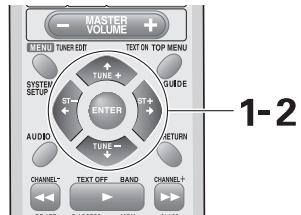
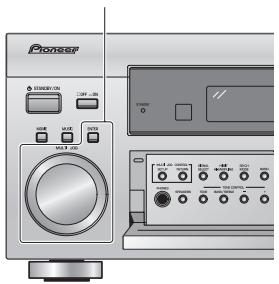
1-2
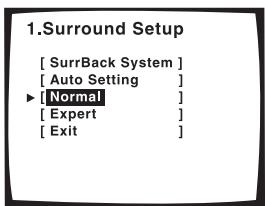
1
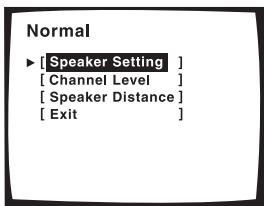
2
1 Use the buttons to select NORMAL. Press the ENTER button.
The setup possibilities appear on your TV.
2 Use the buttons to navigate through the NORMAL setup menus. When you have the setting you want in a particular menu, press ENTER.
In each mode, the current settings are displayed. We suggest you adjust all these settings when you first hook up the receiver. That gets them out of the way and you won't need to return to this setting mode unless you change your home set up by adding new speakers (etc.).
SPEAKER SETTING (page 39)
Use to specify the type and number of speakers you connected.
CHANNEL LEVEL (page 41)
Use to balance the volumes of your different speakers. This is also necessary for the most realistic surround sound.
SPEAKER DISTANCE (page 42)
Use to select the distance settings for each set of speakers. You must add distance settings to all your speakers for the most realistic surround sound. Adding a slight delay to some speakers enhances sound separation and is particularly important for achieving a surround sound effect. You need to figure out the distance from your listening position to your speakers to add the proper delay.
See the next four pages for more information on these settings.
Speaker Setting
The information below shows you how to select the correct settings for the type and number of speakers you connected. Most importantly, you need to decide how to route the sound for all the speakers you connected. To do this select the size of the front, center, surround and surround back speakers (if you hooked them up). It is important to make these settings as accurately as possible or, in some cases, you may not get the full soundtrack from a disc. Use the information below to complete the steps that follow and set up the receiver to match the speakers you have hooked up.
Complete steps 1-2 on page 38 to start.
FRONT (default setting is SMALL)
Select SMALL to send bass frequencies to the subwoofer. Select LARGE if your speakers will reproduce bass frequencies effectively or if you did not connect a subwoofer. (If you select SMALL for the front speakers the subwoofer will automatically be switched YES. Also, the center and surround speakers cannot be set to LARGE if the front speakers are set to SMALL. In this case, all bass frequencies are sent to the subwoofer.)
CENTER (default setting is SMALL)
- Select LARGE if your speaker will reproduce bass frequencies effectively.
- Select SMALL to send bass frequencies to the other speakers or subwoofer.
- If you did not connect a center speaker, choose NO. In this case, the center channel is output from the front speakers.
SURROUND (default setting is SMALL)
- Select LARGE if your speakers will reproduce bass frequencies effectively.
- Select SMALL to send bass frequencies to the other speakers or subwoofer.
- If you did not connect surround speakers choose NO. In this case, the sound of the surround channels is output from the front and center speakers.
- If the front speakers are set to SMALL, the surround speakers will automatically be set to SMALL.
SURRBACK (default setting is SMALL X2)
If you chose SECOND ZONE or FRONT BI-AMP in SURRBACK SYSTEM on page 37, or if you chose NO for SURROUND, you won't be able to choose this setting.
- Select the number of surround back speakers you have. You can choose one speaker, two, or none.
- If you select one speaker, make sure to hook it up to the SURROUND BACK L terminal.
- Select LARGE if your speakers will reproduce bass frequencies effectively.
- Select SMALL to send bass frequencies to the other speakers or subwoofer.
- If you did not connect surround back speakers choose NO.
- If the front speakers or the surround speakers are set to SMALL, the surround back speakers will automatically be set to SMALL.
SUBWOOFER (default setting is YES)
- Leave it selected if you connected a subwoofer.
- If you selected SMALL for the front speakers the subwoofer will automatically be set to on (you won't be able to choose NO or PLUS).
- If you did not connect a subwoofer choose NO. In this case, the bass frequencies are output from the front or surround speakers.
- Choose the PLUS setting if you want stronger reproduction of deep bass sounds.
- If you select PLUS the bass frequencies that would normally come out the front and center speakers are all routed to the subwoofer.
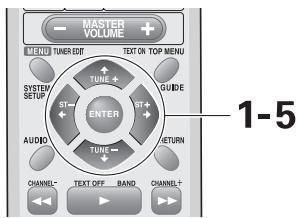
1-5
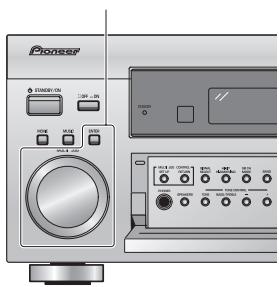
1
Normal
[Speaker Setting] [Channel Level] [Speaker Distance] [Exit]
2
Speaker Setting
- Front | SMALL!
Center | SMALL!
Surround | SMALL!
CurrBack | SMALL+2!
Subwoofer [YES]
[Exit]
(THX Speaker:SMALL)
3
Speaker Setting
Front [LARGE] Center [SMALL] Surround [SMALL] SurrBack [SMALL:2] Subwoofer [YES] [Exit]
(THX Speaker:SMALL)
1 SPEAKER SETTING should be selected. If it isn't use the buttons to select it. Press the ENTER button.
The setup possibilities appear on your TV.
2 With the buttons choose the speakers that you want to set. Press the ENTER button.
The setup possibilities appear on your TV.
3 Use the buttons to choose the number (YES or NO, X1 or X2) and the size (LARGE or SMALL) for each set of speakers. Press ENTER.
PLUS is also a possibility for the SUBWOOFER.
4 Repeat steps 2 and 3 for all speakers channels.
5 Use the buttons to select EXIT and press ENTER.
Next, proceed to CHANNEL LEVEL below. If you want to change a setting before proceeding start over from step 1.
Memo:
If you have a subwoofer and like lots of bass, it may seem logical to select LARGE for your front speakers and leave the subwoofer selected. This may not, however, yield the best bass results.
Depending on the size and shape of your room you may actually experience a decrease in the amount of bass due to what is called low frequency cancellations. If you have a subwoofer, listen to the bass response with the front speakers set to LARGE and SMALL alternately and let your ears judge which sounds best.
The safest option is to route all the bass sounds to the subwoofer by selecting SMALL for the front speakers.
Channel Level
The following steps show you how to balance the sound output level of your speakers. Proper speaker balance is essential for obtaining high quality surround sound. If continuing from SPEAKER SETTING go to step 1. If starting fresh, complete steps 1-2 on page 38.
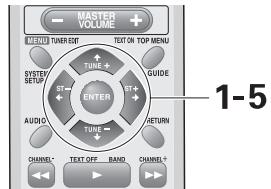
1-5
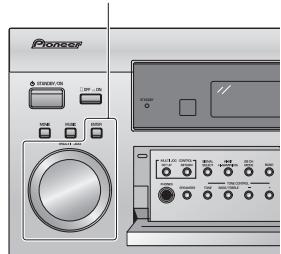
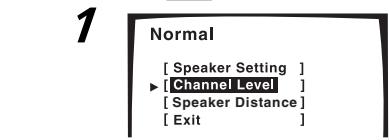
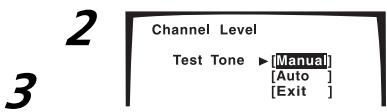
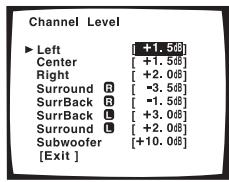
in MANUAL setting
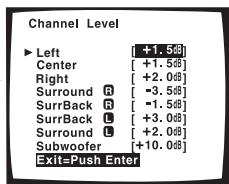
in AUTO setting
Memo:
- If your subwoofer has a volume control, set it to the middle position before doing these operations.
- If you are using a Sound Pressure Level (SPL) meter take the readings from your main listening position and adjust the level of each speaker to 75dB SPL (C-weighting/slow reading).
- The volume of the subwoofer test tone tends to sound lower than it actually is. You may need to adjust the level after testing your system with an actual soundtrack.
- You can also set the channel level manually at any time by pressing RECEIVER then EFFECT/CH SEL on the remote control. Use the (+/-) buttons directly below the EFFECT/CH SEL button to adjust the level.
1 CHANNEL LEVEL should be selected. If it isn't use the buttons to select and press ENTER.
2 There are two ways to set the CHANNEL LEVEL: MANUAL or AUTO. Select a setting mode with the buttons and press ENTER.
Test tones will be output.
WARNING: Be prepared! The test tones are output at a high volume level.
MASTER VOLUME rotates to the reference position (0 dB) and the display on the receiver flashes TEST TONE. After a few seconds the test tone is output.
MANUAL: move the test tone manually and adjust the channel level.
AUTO: the test tone moves by itself and you adjust the levels.
3 Adjust the speaker level with the instructions below for the method you chose.
Adjust the channel level from -10 dB to +10 dB in 0.5 dB increments.
The default setting is 0 dB.
In MANUAL (manual test tone) mode
To switch the test tone between each speaker use the buttons and push ENTER. Adjust the level of each speaker using the buttons and ENTER. When done go to step 4.
In AUTO (automatic test tone) mode
This mode switches the test tone between each speaker automatically. The test tone output cycles through the speakers in the following order:

Adjust the level of each speaker using the buttons as the test tone is emitted and wait for it to move to the next speaker. When done go to step 5.
If you want to change a setting before proceeding you need to complete the procedure and start over from step 1.
4 When you have the levels you want press ENTER. EXIT should be selected (if it isn't select it with the buttons).
5 Press ENTER.
Next, proceed to SPEAKER DISTANCE next page.
Setting Up for Surround Sound
Speaker Distance
Adding a slight delay to some speakers is necessary to achieve proper sound depth, separation as well as an effective surround sound effect. You need to figure out the distance from your listening position to your speakers to add the proper delay. The following steps show you how to set the delay time for each channel by specifying the distances from your listening position to each speaker. Once you specify the speaker distances (or it is done automatically in the Easy Setup Guide), the receiver calculates the correct delay times automatically. If continuing from CHANNEL LEVEL go to step 1. If starting fresh, complete steps 1-2 on page 38.
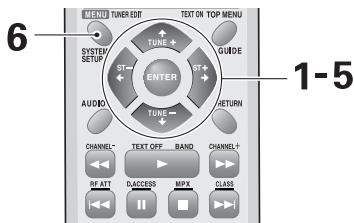
1-5 6
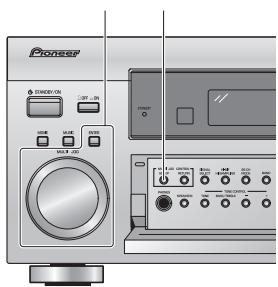
1
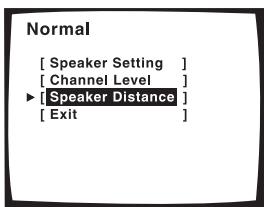
2
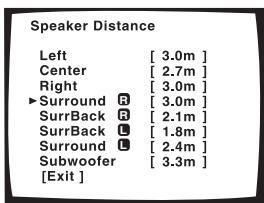
3
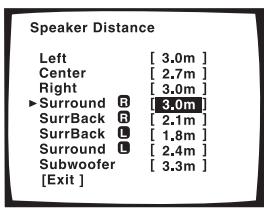
1 The SPEAKER DISTANCE should be selected. If it isn't use the buttons to select it. Press the ENTER button.
The setup possibilities appear on your TV.
2 Select each speaker channel with the buttons and press ENTER.
3 Use the buttons to add or subtract the distance in feet that the speaker is from your normal listening position. Press the ENTER button.
Adjust the speaker distance in 0.1m increments from 0.1 to 9.0 m.
The default setting is 2.0m
4 Repeat steps 2 and 3 for all speaker channels.
5 Use the buttons to select EXIT and press ENTER.
If you want to change a setting before proceeding start over from step 1.
6 Press the SYSTEM SETUP button to leave the SYSTEM SETUP mode.
Basic Operation
Stereo and Multichannel Playback
The following instructions show you how to play sound sources with the VSX-AX3.
Before doing so be sure to complete the setup procedures described in the "Easy Setup Guide Part 2" (starting on page 13) or "Setting Up for Surround Sound" (starting on page 36). This is particularly important to achieve a surround sound effect with Dolby Digital or DTS sources.
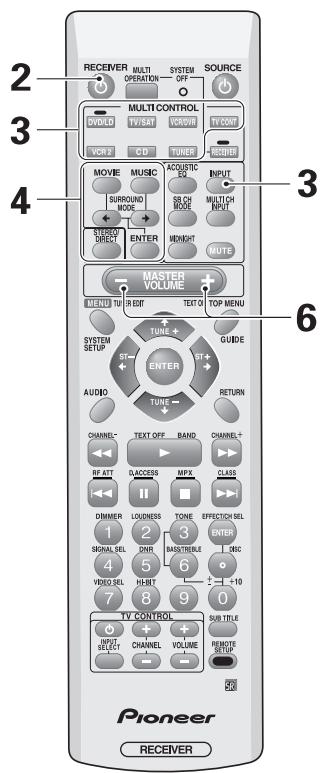
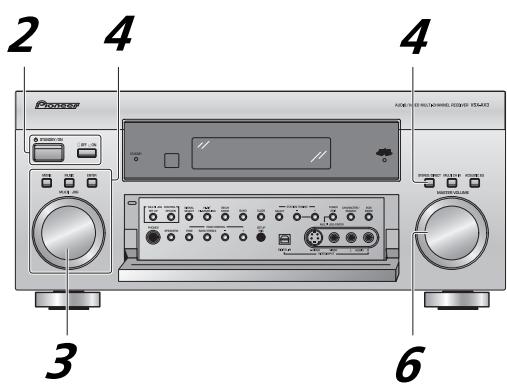
1 Turn on the power of the playback component.
2 Press the OFF ON button to put the receiver in ON mode. Press the STANDBY/ON button to turn on the receiver. STAN
Be sure that the STANDBY indicator turns off on the front panel.
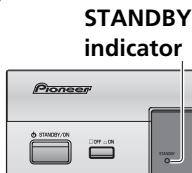
3 Press the MULTI CONTROL (or INPUT) on the remote control to select the source you want to playback.
Choose the type of signal input with the SIGNAL SELECT button.
See the next page for more details, if necessary.
4 Choose a LISTENING MODE one of two ways.
For SURROUND modes: press MOVIE or MUSIC, use the buttons to select the mode you want and press ENTER.
For STEREO/DIRECT: press the button for that mode.
On the front panel, use the MOVIE or MUSIC buttons and the MULTI JOG dial. Press the button of the mode type you want and then use the dial to cycle through the possibilities. Press ENTER.
See "MOVIE modes" (page 46) or "MUSIC modes" (page 47) for details on which modes are available and in which situations they are designed to be used.
When playing source signals greater than 88.2kHz over a digital connection, MOVIE/MUSIC modes cannot be selected.
5 Start playback of the component you selected in step 3.
6 Adjust the volume by using the MASTER VOLUME buttons on the remote control. On the front panel use the MASTER VOLUME dial.
Selecting the Input Signal
This button selects the type of input signal, AUTO, ANALOG or DIGITAL, sent to the receiver. You need to take special care to switch to the appropriate input when necessary. For example, the switch would have to be on DIGITAL to hear digital sources like Dolby Digital or DTS but it would have to be on analog to record from the ANALOG out jacks on the receiver. The default setting is AUTO which will select from either DIGITAL or ANALOG depending on what inputs are available.
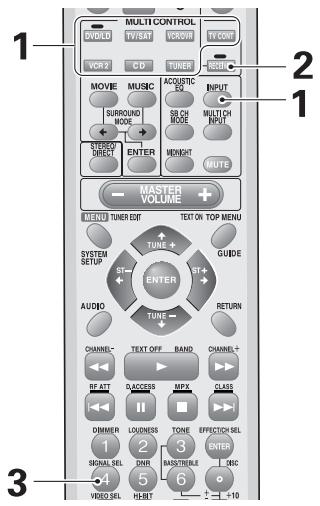
1 Press the MULTI CONTROL (or INPUT) on the remote to select a source component.
2 Press RECEIVER.
3 Press the SIGNAL SELECT button to select the input signal corresponding to the format of the source component.
Each press switches the signal in the order below:

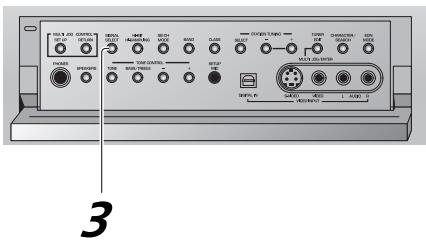
Memo:
- When DIGITAL signal is selected, DIGITAL lights when a Dolby Digital signal is input; DTS lights when a DTS signal is input.
- If no digital inputs are assigned (see page 81) you can only choose ANALOG in the SIGNAL SELECT.
- Because the audio signal from a karaoke microphone and LDs are recorded with analog audio only, they are not output from the digital outputs. Set SIGNAL SELECT to ANALOG to listen to these formats.
- When an LD with DTS is played back with the SIGNAL SELECT set in ANALOG, digital noise caused by playing back the DTS signal directly (with no decoding) is output. To prevent noise, you need to make digital connections (See pages 22 and 23) and set SIGNAL SELECT to AUTO or DIGITAL.
- Some DVD players don't output DTS signals. For more details, refer to the instruction manual supplied with your DVD player.
- When using DIGITAL IN terminals the following digital signal formats are supported: Dolby Digital, DTS and PCM (32, 44.1, 48, 88.2 and 96kHz sampling frequencies).
Listening Modes
The three listening mode types on the receiver are explained here (to select listening modes see page 43). The kind of playback you can get in the three modes depends on what kind of a source (DVD, etc.) you are using. The basic distinction is between 2 channel sources and multichannel sources. The MOVIE and MUSIC modes that are available to you will also differ according to your source and which SB CH MODE you choose. This is explained below as well.
For home theater the MOVIE and MUSIC listening modes are designed to deliver realistic and powerful multichannel surround sound that recreates the movie theater or concert experience. The first four MOVIE modes (THX CINEMA, PRO LOGIC II (MOVIE), PRO LOGIC, NEO:6 CINEMA) and first two MUSIC modes (PRO LOGIC II MUSIC, NEO:6 MUSIC) incorporate pure decoding of the signal. That is they present it as it was recorded in the sound studio. The other modes are DSP modes. They add some type of effect to the signal. You may need to experiment with these modes to see which suit your home system and personal tastes. The MUSIC and STEREO modes are designed to be used with music sources but some MUSIC modes are also suitable for film soundtracks. Again, try different modes with various soundtracks to see which you like but you must choose one of the MOVIE and MUSIC listening modes in order to get surround sound.
Depending on your setup, in STEREO mode only the front two speakers, and sometimes the subwoofer (if you have one), are used.
Stereo modes
When a source is played in this mode, it plays through just the front left and right speakers (and possibly your subwoofer depending on your speaker settings). Dolby Digital and DTS multichannel sources are downmixed to stereo.
STEREO
In STEREO mode the audio plays according to the surround setup settings and you can still use ACOUSTIC CAL EQ, DIGITAL NR, MIDNIGHT, LOUDNESS, AUDIO SCALER mode, and TONE Control functions.
DIRECT
In DIRECT mode, the audio bypasses all types of signal processing to remain as close to the source audio quality as possible.
Memo:
If you switch on ACOUSTIC CAL EQ, DIGITAL NR, MIDNIGHT, LOUDNESS, AUDIO SCALER mode, and TONE Control when DIRECT is selected, the receiver automatically switches to STEREO.
MOVIE modes (SURROUND mode)
The MOVIE mode is a newly designed system for enhancing movie soundtracks and other audio-visual sources that optimizes its effects in accordance with your source, SB CH MODE and speaker configuration. The first four modes are for pure decoding of multichannel sound sources. With these modes the receiver will automatically employ the format of the sound source (for example, Dolby Digital or DTS). With two channel sources these first four modes will create surround channels. Next, there are six PIONEER original sound modes that use DSP (Digital Signal Processing) to create different types of sound environments as described below.
THX CINEMA
THX is a set of technical standards created by Lucasfilm Ltd. These standards were designed to emulate a film sound stage and thus reproduce, with the greatest possible accuracy, the soundtrack intended by the filmmakers.
DOPLIIMOVIE(DoPROLOGICIIMOVIE)*
This mode gives 5.1 channel surround sound. It is suitable for movies, especially those recorded in Dolby Surround. The channel separation and movement of surround effects is comparable to Dolby Digital 5.1. With sources other than stereo (5.1, etc.) the display will automatically show the type of decoding being employed (Dolby Digital, DTS-ES, etc.).
PROLOGIC*
This mode gives 4.1 channel surround sound. It is less sensitive to the quality of the source material, so may be useful when PRO LOGIC II MOVIE or PRO LOGIC II MUSIC modes do not give good results. With sources other than stereo (5.1, etc.) the display will automatically show the type of decoding being employed (Dolby Digital, DTS-ES, etc.).
NEO:6 CINEMA*
This mode gives 6.1 channel surround sound and is suitable for movies. The NEO:6 CINEMA mode delivers good channel separation for movie soundtracks. With sources other than stereo (5.1, etc.) the display will automatically show the type of decoding being employed (Dolby Digital, DTS-ES, etc.).
ACTION
This mode is designed for action movies, which generally use lots of sound effects. The mode enriches the sound to make it more realistic and extends the parameters to pick up high and low sound effects.
SCI-FI
This mode is designed for science fiction movies. It creates a broad sound space, separating dialog from sound effects to heighten the overall impact of the soundtrack.
DRAMA
This mode is designed for movies with a lot of dialog. The elements of dialog are enhanced, making the characters seem more real. The mode also compresses the dynamic range somewhat so loud sounds do not overpower softer ones (compare this with the MIDNIGHT listening mode explained on page 50).
MUSICAL
This mode is primarily for music and adds a spacious feeling to the sound. A long delay time of reflected sounds provides resonant tones which emulate a concert hall.
MONOFILM
This mode is designed for older movies which are recorded with mono soundtracks. The special sound processing of this mode will allow you to experience these movies in surround sound even though they were not recorded that way originally.
5/7-D THEATER
This mode is especially designed to give sound depth to stereo sources. The overall effect builds a dynamic and broad sound space, allowing two-channel (stereo) signals to faithfully imitate a five speaker sound. The mode should be used in conjunction with Dolby Pro Logic for sources bearing the DOLBY SURROUND mark. The display will show either 5-D THEATER or 7-D THEATER according to the source, SB CH MODE and speaker configuration.
- When you input a multichannel signal the decoding is done automatically so you cannot choose these modes.
MUSIC modes (SURROUND mode)
The MUSIC modes allow you to transform your living room into a variety of different sonic environments when playing either two-channel or multichannel sources. It optimizes its effects in accordance with your source, SB CH MODE and speaker configuration. The first two modes are for pure decoding of multichannel sound sources. With these modes the receiver will automatically employ the format of the sound source (for example, Dolby Digital or DTS). With two channel sources these first two modes will create surround channels. Then there are five PIONEER original sound modes that use DSP (Digital Signal Processing) to create different types of sound environments as described below. Lastly, the 5/7-CH STEREO mode simply outputs a stereo signal through all of your speakers.
PL II MUSIC (PRO LOGIC II MUSIC)*
This mode gives 5.1 channel surround sound and is suitable for music. Compared to the Movie Mode PRO LOGIC, the surround effect is more enveloping. With sources other than stereo (5.1, etc.) the display will automatically show the type of decoding being employed (Dolby Digital, DTS-ES, etc.).
NEO:6 MUSIC*
This mode gives 6.1 channel surround sound and is suitable for music. The NEO:6 MUSIC mode plays the stereo source as is through the front left/right speakers, and generates a natural, ambient surround and center sound. With sources other than stereo (5.1, etc.) the display will automatically show the type of decoding being employed (Dolby Digital, DTS-ES, etc.).
CLASSICAL
Simulates the acoustic effects of a large concert hall. Suitable for classical music. A long delay time of reflected sounds, coupled with reverb effects, let the listener experience the dynamic and rich sounds characteristic of concert halls and powerful orchestral performances.
CHAMBER
Simulates the acoustic environment of a very resonant concert hall. Rich reverberation and a full sound create the impression of a lively performance space.
JAZZ
Simulates the acoustic effects of a jazz club. Reflected sound is virtually below 100 msec so that the listener can experience a live band effect.
ROCK
Simulates the acoustic effects of a mid-sized concert hall. The listener can experience a live band effect with good separation of the instruments, a strong bass and the vivid feeling of a live performance.
DANCE
Simulates the acoustic effects of a dance club. Features a strong bass sound. Reflected sound delay time is virtually below 50 msec, for the listener to experience the visceral power of dance music.
5/7CH STEREO
Simulates the acoustic environment of a regular stereo while using all the speakers in the system to induce a rich, all-around sound. The display will change to 5-CH STEREO or 7-CH STEREO according to the SB CH MODE and speaker configuration.
- When you input a multichannel signal the decoding is done automatically so you cannot choose these modes.
Adjusting the Effect of a Listening Mode
The DSP (Digital Signal Processing) listening modes have sound processing added to accentuate a certain kind of atmosphere or effect (see the preceding pages for explanation). You can choose if you want to strengthen or weaken this effect in the given mode. The DSP MOVIE modes are: ACTION, SCI-FI, DRAMA, MUSICAL, MONOFILM, 5/7-D THEATER. The DSP MUSIC modes are: CLASSICAL, CHAMBER, JAZZ, ROCK, DANCE, 5/7CH STEREO.
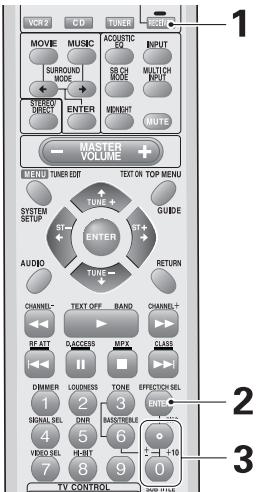
1 Press RECEIVER.
2 Press the EFFECT/CH SEL button repeatedly until you see EFFECT in the receiver's display.
3 Use the + / - buttons to add or subtract the amount of effect.
The amount of effect can be adjusted from 10 to 90.
Memo:
- The default setting for 5/7CH STEREO is 90.
- The default setting for other modes is 50.
Adding/Adjusting the Effect in Dolby Pro Logic II Music Mode
The Dolby Pro Logic II Music mode has three settings you can choose from which adjust the spatial feeling of the surround sound. These settings are best matched to each individual source instead of one setting being left on for all sources. The three settings and how to apply them are explained here. To start this setup select Dolby Pro Logic II (if necessary) with the MUSIC button.
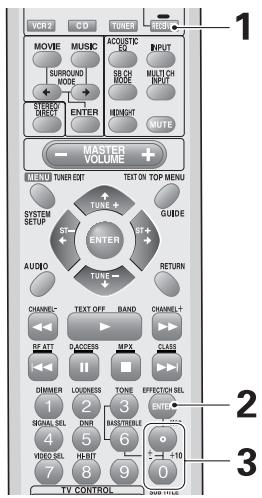
1 Press RECEIVER.
2 Press the EFFECT/CH SEL button repeatedly and select the setting you want. They appear in the receiver's display.
CENTER WIDTH: With Pro Logic decoding center channel signals can come only from the center speaker. If no center speaker is present this channel is split between the two front speakers, creating a "phantom" channel. The CENTER WIDTH feature lets you adjust the center channel so it can heard only from the center speaker, only as a "phantom" channel or in varying degrees of both.
DIMENSION: This allows you to adjust the soundfield towards the front or towards the rear of your room.
PANorama: This gives the music a wraparound surround feel.
Memo:
- Use your CENTER WIDTH setting carefully. If you set it to 0 all the center channel signal will go to your center speaker. If you set it to 7 all the center channel signal will go to your front speakers, creating a "phantom" channel.
3 Use the + / - buttons to add or subtract the amount of effect or turn on/off.
CENTER WIDTH: Strengthen or weaken the effect between 0-7. The default is 3.
DIMENSION: Move soundfield backward or forward with -3 being the furthest back and +3 being the furthest forward. The default is 0.
PANorama: Turn on or off. The default is off.
Listening with ACOUSTIC CAL EQ
You can listen to the soundtrack with the ACOUSTIC CAL EQ you set automatically when you did the AUTO SURROUND SETUP (page 13) or you set manually on (page 87). To do so follow the instructions below.
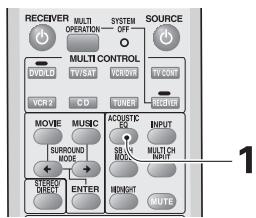
MCACC indicator
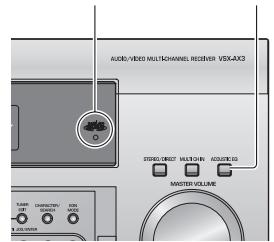
1 Press the ACOUSTIC EQ button.
Each press switches ACOUSTIC CAL EQ between ALL CH ADJUST, FRONT ALIGN, CUSTOM 1, CUSTOM 2 and OFF. When ACOUSTIC EQ is being applied the MCACC indicator lights.

Memo:
- After completing the AUTO SURROUND SETUP (page 13) ACOUSTIC EQ ON (ALL CH ADJUST) is set automatically.
- You can't turn on ACOUSTIC EQ on in MULTI CH IN mode.
- If you turn ACOUSTIC EQ on in DIRECT mode, the receiver automatically switches to STEREO mode.
Digital Noise Reduction (DIGITAL NR Function)
To reduce extraneous noise switch on DIGITAL NR. This feature is effective with sources containing a lot of background noise like cassette and video tape.
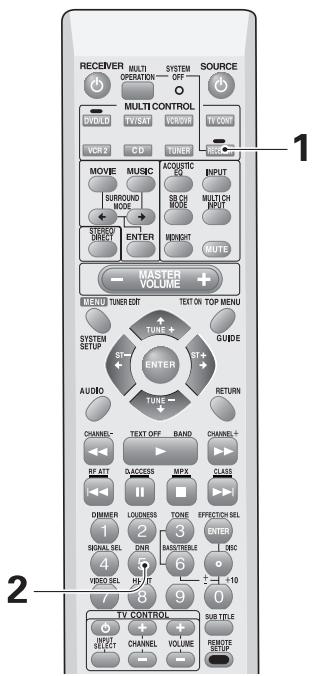
1 Press RECEIVER.
2 Press the DNR button on the remote control.
Each press switches DIGITAL NR on or off. When on, DNR lights in the display.
Memo:
- In cases described below, noise may not be reduced even if DIGITAL NR is on.
- Sudden noise
- Extremely loud noise
Signals that contain too many high frequencies
Signals which are very clean to begin with - DIGITAL NR is effective at levels shown below for each source.
STEREO
- Analog input. 10-18 dB
Digital input. 10-15 dB
AM/FMTuner 10-15dB
MOVIE/MUSIC 6-10 dB
- Depending on the condition of the source, there may not be a noticeable improvement in the quality of the sound.
- You can't use the DIGITAL NR mode with the THX CINEMA, MULTI CH IN modes or source signals greater than 88.2kHz over a digital connection.
- If you set the DIGITAL NR on in DIRECT mode the receiver will switch to STEREO mode.
Listening in MIDNIGHT Mode
This useful feature makes it possible to get excellent surround sound effects even when listening at low volumes. It can be used with any surround sound source and play soundtracks so that the quieter sounds are audible even while playing a soundtrack at low volumes. This feature is applicable only when the master volume is under -20 dB.
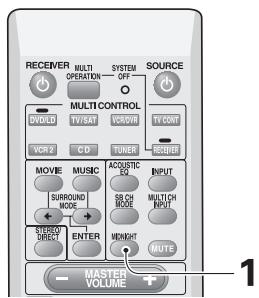
1 Press the MIDNIGHT button on the remote control.
Each press switches MIDNIGHT mode on or off. When on, MIDNIGHT lights in the display.
Memo:
- The surround effect adjusts itself automatically in accordance with the volume level.
- You can't use the MIDNIGHT mode with the THX CINEMA, MULTI CH IN or LOUDNESS modes.
- If you set MIDNIGHT on when in DIRECT mode the receiver switches to STEREO mode.
Listening in LOUDNESS Mode
The LOUDNESS mode boosts the bass and treble in a signal. It is useful for listening to music at low volumes. This feature is applicable only when the master volume is under -20 dB.
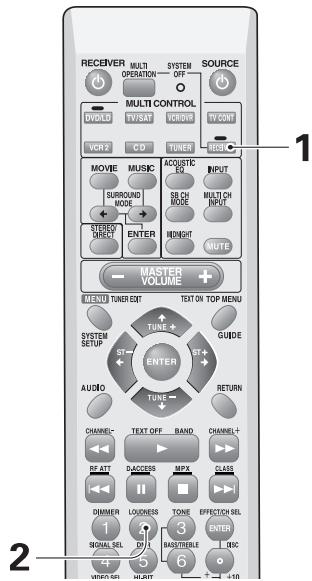
1 Press RECEIVER.
2 Press the LOUDNESS button on the remote control.
Each press switches LOUDNESS mode on or off. When on, LOUDNESS lights in the display.
Memo:
- You can't use the LOUDNESS mode with the THX CINEMA, MULTI CH IN or MIDNIGHT modes.
- If you set LOUDNESS on in DIRECT mode the receiver will switch to STEREO mode.
Adjusting Bass and Treble
You can adjust the low (bass) and high (treble) frequencies. The TONE button can also be used to bypass the tone circuitry.
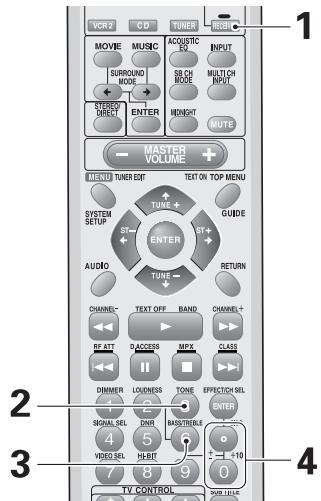
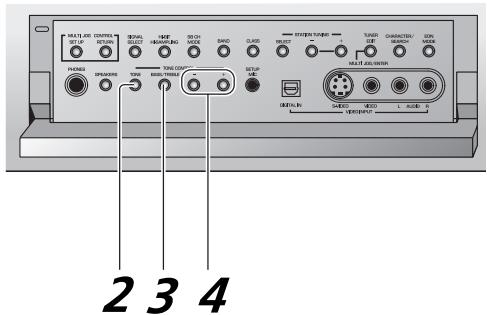
1 Press RECEIVER.
2 Press the TONE button on the remote control or the front panel to put the receiver in tone adjust mode.
Pressing the TONE button changes the mode to either on or off. When the mode is set to on, TONE appears in the display.
3 Press the BASS/TREBLE button repeatedly to select BASS or TREBLE.
If TONE: BYPASS appears, press the TONE button to get TONE.
4 Use the + / - buttons to adjust the low or high frequency levels.
A few seconds after you finish adjusting the tone the receiver will revert to the sound mode it was in at the beginning of the process.
Memo:
- The tone control can be adjusted in a range of ± 6 dB.
- The tone control cannot be set on in THX CINEMA, MULTI CH IN modes.
- If you set TONE control on in DIRECT mode the receiver will switch to STEREO mode.
Listening with Sound Delay
Some video displays have a slight delay in presentation of the video. Using sound delay you can slow the presentation of the sound to match the presentation of the video.
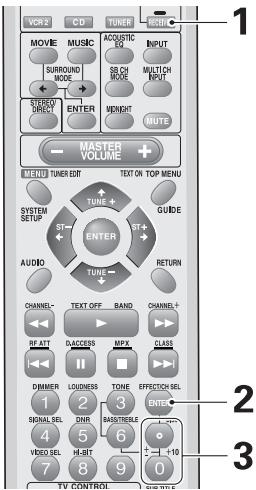
1 Press RECEIVER.
2 Press the EFFECT/CH SEL button repeatedly until you see DELAY in the receiver's display.
3 Use the + / - buttons to add or subtract the amount of delay.
Memo:
- The amount of delay changes in 0.1 frame steps from 0.0 - 5.0 frame. (However, if the video system type is set to NTSC as on page 8, the delay range is 0.0 - 6.0 frame.) The default setting value is 0.0 frame.
- When in DIRECT or MULTI CH IN modes, sound delay cannot be used.
Listening in AudioScaler mode
Use to hear CD and DVD, as well as other digital soundtracks, at a wider dynamic range, allowing for finer audio reproduction.
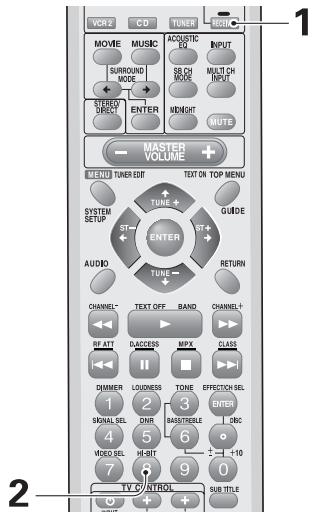
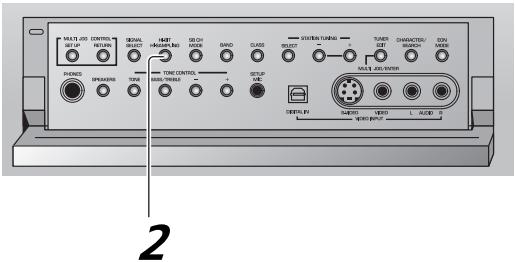
Multi Channel InPlayback
1 Press RECEIVER.
2 Press the HI-BIT button on the remote control or HI-BIT/HI-SAMPLING button on the front panel.
Each press switches AUDIO SCALER mode on or off. HI-BIT/SAMPLING lights in the display.
Memo:
- This mode cannot be used with MULTI CH IN mode.
- If the receiver is in DIRECT mode and you press the HI-BIT button the receiver will switch to STEREO mode.
- This feature cannot be used with source signals greater than 88.2kHz over a digital connection.
MULTI CH IN allows you to connect a DVD-Audio/SACD player or an external decoder to enjoy certain multichannel discs. To use MULTI CH IN playback follow the instructions below.
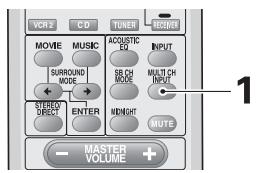
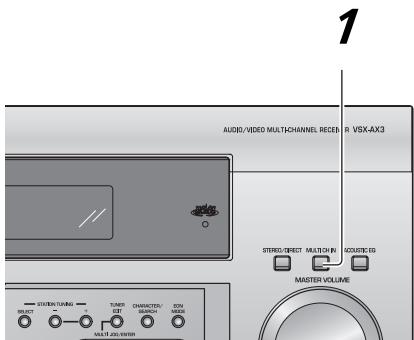
1 Press the MULTI CH INPUT button on the remote control or the MULTI CH IN button on the front panel.
Each press switches the input between the previous mode and MULTI CH IN.
ON: This is a true playback of the signal from the MULTI CH IN terminals, output without digital processing. You can only control each channel level.
OFF: Cancel the MULTI CH IN modes.
Memo:
- You can't use any kind of sound processing with MULTI CH IN. Selecting a listening mode, or switching these modes, cancels the MULTI CH IN.
- If any speakers are set to NO the signal for that (those) channel(s) won't get output at all.
- You cannot set sound features (page 49 to 52) on, in MULTI CH IN mode.
- You cannot listen to the SECOND ZONE in MULTI CH IN mode.
- If you're listening to DVD-Audio/SACD but can only get stereo sound set your DVD player's 5.1 channel analog playback to on.
Surround Back Channel Modes
Surround Back Channel Mode
The SB CH MODE makes available surround back channels through your surround back speakers. You must have chosen NORMAL SYSTEM in the SURRBACK SYSTEM setting (see page 37) and have SURROUND and SURROUND BACK speakers set to something other than NO (see page 39) to use this feature. To accomplish the same settings, you could have had the AUTO SURROUND SETUP automatically set the SURROUND and the SURROUND BACK speakers on (see page 13).
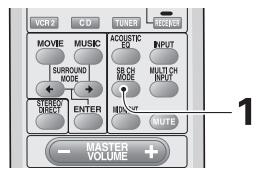
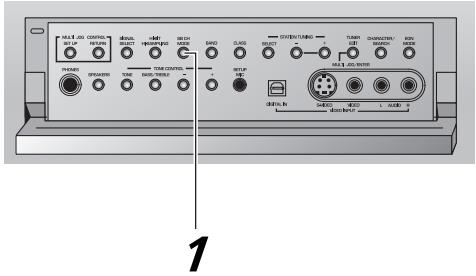
1 Press the SB CH MODE button on the remote control.
Each press switches between ON, OFF and AUTO.
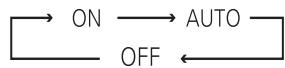
ON: surround back channels are available with all SURROUND modes.
AUTO: same as above except whether SURROUND BACK channels are available with any of the PRO LOGIC II (or PRO LOGIC) modes depends on whether the source has an EX or ES flag or not. With the NEO:6 modes surround back channels will always be available.
OFF: SURROUND BACK channels will not be heard.
Virtual Surround Back Mode
The virtual surround back mode emulates surround back channels through your surround speakers. You must have chosen NORMAL SYSTEM in the SURRBACK SYSTEM setting (see page 37); have SURROUND speakers set to something other than NO, and have chosen NO for the SURROUND BACK speakers in SPEAKER SETTING (see page 39) to use this mode. To accomplish the same settings, you could have had the AUTO SURROUND SETUP automatically set the SURROUND speakers on and the SURROUND BACK speakers off (see page 13) to use this mode.
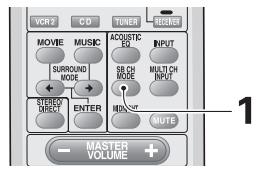
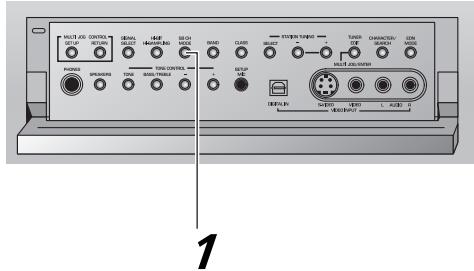
1 Press the SB CH MODE button on the remote control.
Each press switches between VIRTL SB ON, VIRTL SB OFF and VIRTL SB AUTO.

VIRTL SB ON: virtual surround back sound is available with all SURROUND modes except THX CINEMA; for a stereo signal you must choose the NEO:6 MOVIE/MUSIC SURROUND mode or a Pioneer original sound mode (see pages 46 and 47).
VIRTL SB AUTO: same as above except whether virtual surround back sound is available with any of the PRO LOGIC II (or PRO LOGIC) modes depends on whether the source has an EX or ES flag or not. With the NEO:6 modes virtual surround back sound will always be available.
VIRTL SB OFF: virtual surround back sound will not be heard.
Memo:
- You can't use the SB CH MODE with MULTI CH IN or STEREO/DIRECT modes.
- You can't use the virtual surround back mode with the THX CINEMA, MULTI CH IN, STEREO/DIRECT modes.
- This feature cannot be used when playing source signals greater than 88.2kHz over a digital connection.
- When using the virtual surround back mode with the SURROUND modes, +VSB will show in the display.
Dual Mono setting and playback
The dual mono setting can only be used when listening to Dolby Digital or homemade discs that have dual mono software encoded in them. Dual mono software usually is used to put two different mono soundtracks, that you can listen to together or separately, on one DVD. With this setting you can choose which dual mono setting you want to listen to. Remember this setting is only applicable if you are using Dolby Digital software with dual mono and want to isolate one of the channels therein.
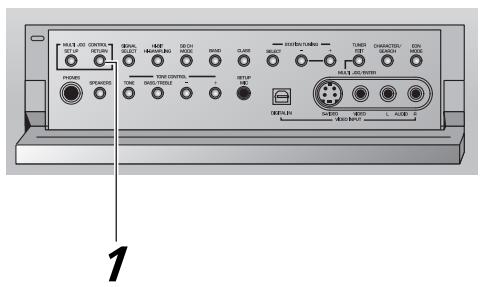
1 Press the RETURN button for more than three seconds to put the receiver in DUAL MONO mode.
Hold down the RETURN button to cycle through the different DUAL MONO settings. When you find the one you want release the button. The L (CH1) and R (CH2) indicators in the display light to indicate the playback channel.

The different settings are: DUAL CH1, where you only hear channel 1; DUAL CH2, where you only hear channel 2; and DUAL CH1/CH2, where you hear both channels, but independently from different speakers.
Memo:
- The default setting is DUAL CH1.
- You can only use this function with Dolby Digital sources that have this encoding.
Using Headphones
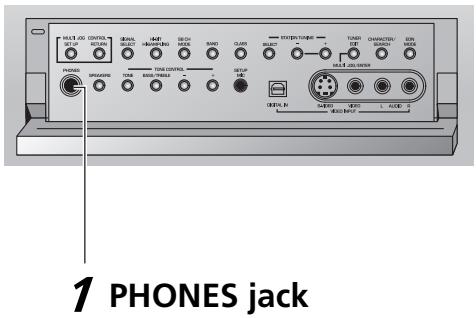
1 Plug headphones into the PHONES jack on the front of the receiver.
No sound will be audible from the speakers when headphones are plugged in except in MULTI CH IN mode or when using the pre-outs. In MULTI CH IN mode the subwoofer will be audible even if the headphones are plugged in.
Memo:
- All SURROUND modes will be downmixed to 2 channels.
- If you're listening to a 2 channel source there will be no matrix decoding (i.e. you will not be able to get surround sound decoding).
- For MULTI CH IN mode, only the FRONT L and R channels can be heard.
Video Select
This function allows you to listen to one sound source while you watch a different video source on your TV. The sound source is set in the normal fashion as explained on page 43. You then change the video input with the VIDEO SEL button.
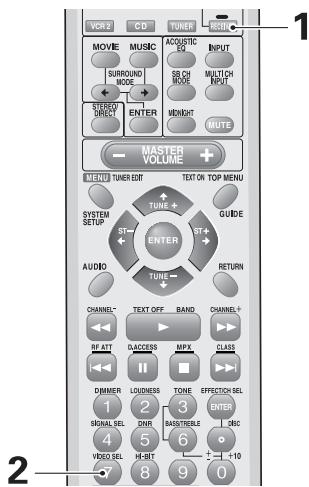
1 Press RECEIVER.
2 Press the VIDEO SEL button on the remote control to cycle through the different possible video inputs.
The first press shows the video input you are currently using. After that pressing VIDEO SELECT cycles though the possibilities in the following order:

The OFF setting means you are listening without a video signal. (Also, when you select CD, CD-R/TAPE1, MD/ TAPE2, TUNER or LINE the VIDEO SELECT will be set to off.)
Memo:
- The VIDEO SELECT remains set to the input you chose until you change the audio input.
- If you change audio functions the receiver will reset itself to make the video and audio inputs correspond. Also, if you switch the power of the receiver off when you turn it back on the video and audio inputs will reset so that they correspond.
Adjusting the Brightness of the Display (DIMMER)
Use the display DIMMER button to adjust the brightness of the fluorescent display.
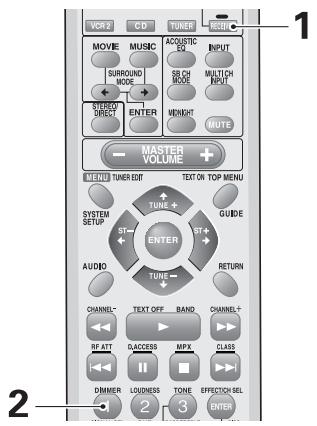
1 Press RECEIVER.
2 Use the display DIMMER button on the remote control to alternate between the different levels of brightness for the display.
Four levels of brightness ranging from very dim to very bright can be selected. Also, when set to very dim, the MCACC indicator will turn off.
Memo:
It is a feature of this unit that the fluorescent display will be brighter for a few seconds after you choose a function (like DVD/LD, CD, etc.) and then get softer. This will still happen when you adjust the brightness but the new setting will be the one the display softens to.
Using the Tuner
Automatic and Manual Tuning
The following steps show you how to tune in FM and AM radio broadcasts using the automatic (search) and manual (step) tuning functions. If you already know the exact frequency of the station you want, see "Direct Access Tuning" on the following page.
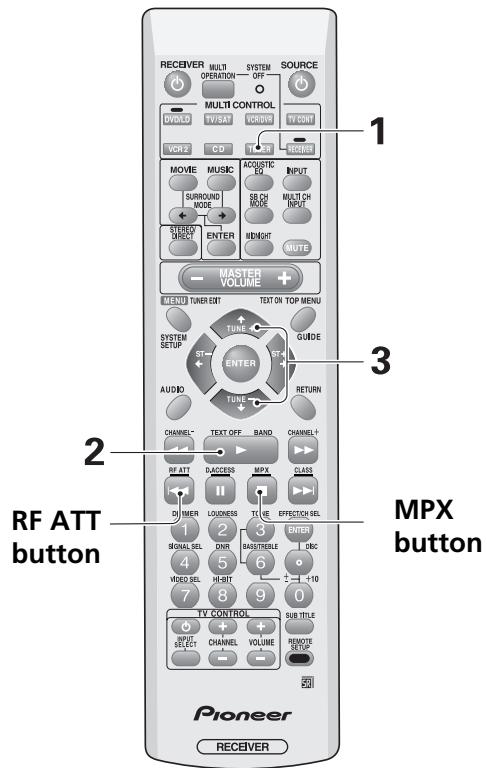
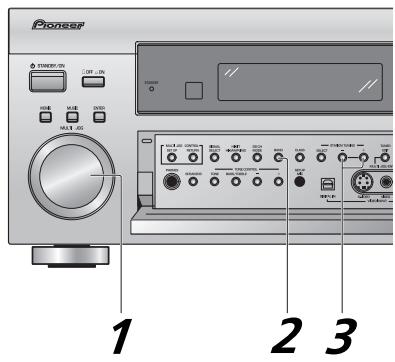
European model
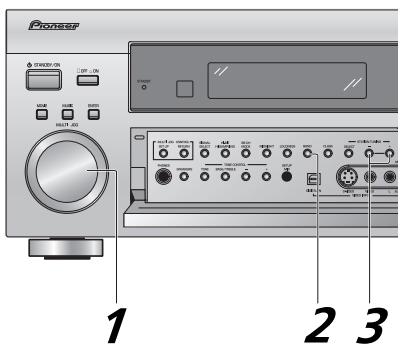
multi-voltage model
1 Press the TUNER button.
On the remote, this selects the tuner function on the receiver and sets the remote to the tuner operation mode.
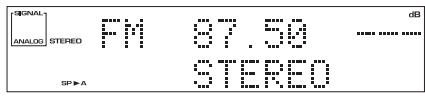
2 Press the BAND button to select the band (FM or AM).
Each press switches the band: FM AM
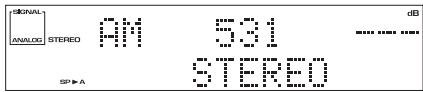
3 Tune in the station.
For Automatic Tuning
Press and hold TUNING - / + for about one second, then release.
The tuner starts searching the selected band and stop automatically at the first station it locates. Repeat to locate other stations.
For Manual Tuning
- To change frequencies one step at a time, press TUNING - / + repeatedly.
- To change frequencies quickly, hold down TUNING -/+ and release when you reach the frequency you want.
MPX Mode
If the TUNED or STEREO indicators do not light when tuning an FM station, because the station is too far away or the broadcast signal is weak, press MPX on the remote control to switch to MONO reception. This should improve reception enough for you to enjoy the broadcast.
RF ATT Mode (European model only)
If the radio signal is too strong and/or the sound is distorting press the RF ATT button to attenuate (lower) the radio signal input and reduce the distortion (for FM stations only).
When on, RF ATT lights in the display.
Channel Step Setting (multi-voltage model only)
The unit has been factory preset to the channel allocation value for the area in which it is to be sold. If this value is set incorrectly, the tunes in frequency may be wrong, or sound may be distorted, resulting in an inability to reproduce reception signals at their proper sound quality. For this reason, be sure to confirm that the values are set correctly before first using the unit.
FM 50 kHz, AM 9 kHz:
Set to this position, for areas with an FM reception step of 50kHz and AM 9 kHz.
FM 100 kHz, AM 10 kHz:
Set to this position for areas with an FM reception step of 100kHz and AM 10kHz .
Memo:
When unsure about the channel allocation for your area, consult your dealer for correct information.
To Change Channel Steps
1 Turn the power off (standby mode).
2 While holding down the TONE - button press the STANDBY/ON button.
You will see STEP 9K/50K or STEP 10K/100K appear in the display.
Direct Access Tuning
The following steps show you how to tune directly to a specific frequency using the remote control.
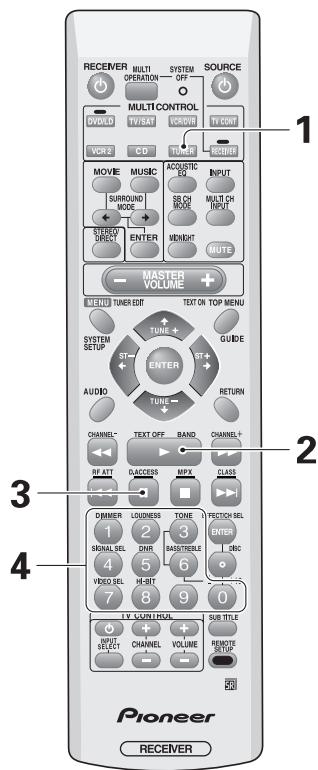
1 Press the TUNER button.
This selects the tuner function on the receiver and sets the remote to the tuner operation mode.
2 Press the BAND button to select the band (FM or AM).
Each press switches the band: FM AM
3 Press the D.Access button to activate the direct access tuning mode.
The cursor blinks in the display on the front panel.
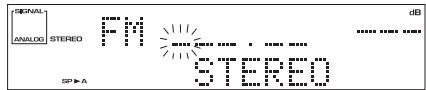
4 Use the number buttons to enter the frequency of the station you want.
Example:
To tune station 106.00 (FM), press: 1 0 6 0 0
To cancel before inputting the frequency
Press D.Access, and enter the frequency again.
Memorizing Frequently Used Stations
The following steps show you how to memorize up to 30 radio stations in 3 classes (each holding 10 stations). When memorizing FM frequencies, the receiver also memorizes the MPX mode (STEREO or MONO) and the RF ATT mode (European model only).
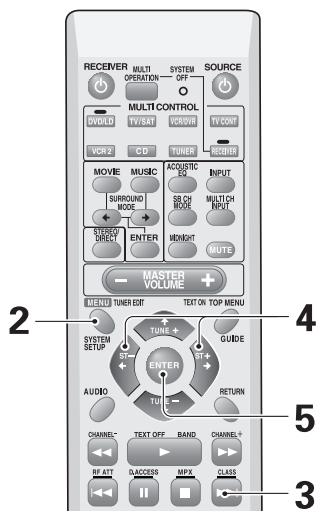
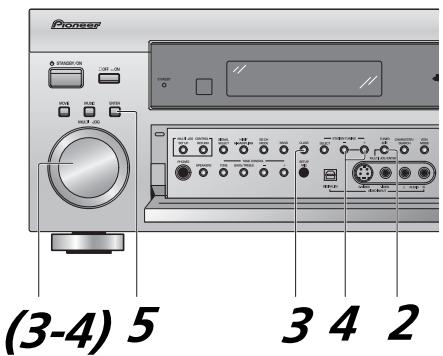
European model
multi-voltage model
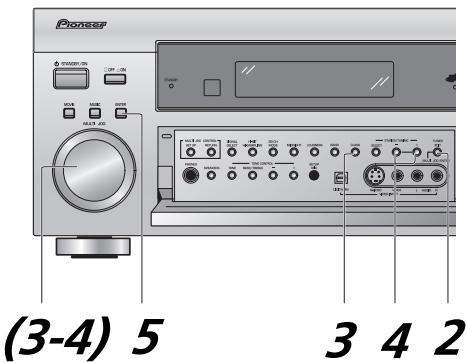
1 Tune in the station you want.
See "Automatic and Manual Tuning" on page 56 or "Direct Access Tuning" on page 57.
2 Press the TUNER EDIT button to activate the memory function.
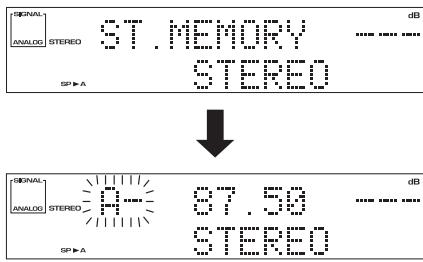
3 Press the CLASS button repeatedly to select a class number.
Each press switches the display:

4 Press the ST - / + buttons repeatedly (or use the MULTI JOG) to select a channel (0~9) within the respective class.
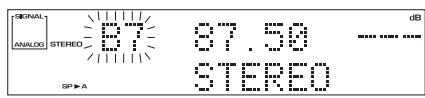
5 Press the ENTER button to input your choice.
To continue, repeat steps 1-5.
Naming Memorized Stations
You can input a name of up to four characters for each preset station in the receiver's memory (see the previous page). This name can be anything you choose. For example, you could input JAZZ for that station and when you listen to it the name, rather than the frequency number, will appear on your display.
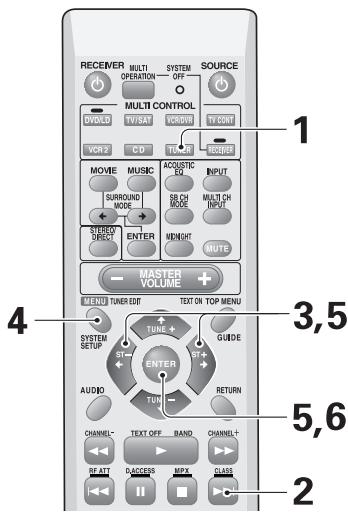
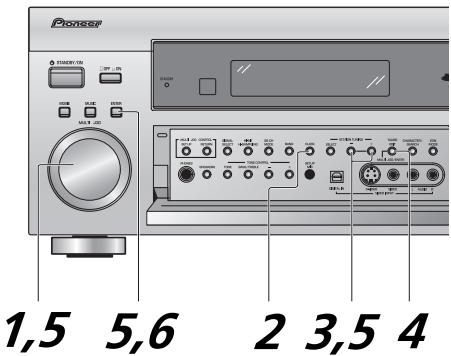
European model
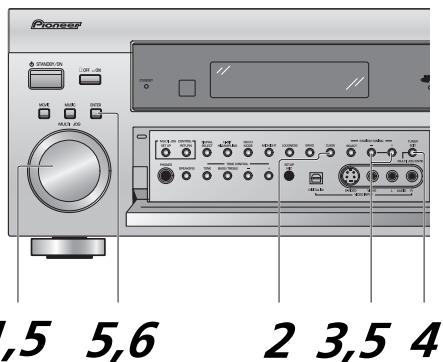
multi-voltage model
1 Press the TUNER button on the remote control.
2 Press CLASS repeatedly to select the class.
Repeatedly pressing this button cycles through the three available classes, A, B and C.
3 Press ST + or ST - to select the preset channel.
4 Press TUNER EDIT to select the station name mode.
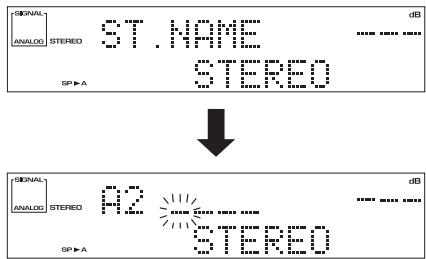
5 Enter the station name you want.
Names can be up to four characters long.
- Use the MULTI JOG dial (front panel) or the ST +/- buttons (remote) to select characters.
- Press ENTER to confirm a character. If no character is input, a space is input.
To erase a station name, simply repeat steps 1-4 and input four spaces instead of a name.
The possible selections are shown below.
ABCDEFGHIJKLMNOPQRSTUVWXYZ
abcdefghijklmnopqrstuvwxyz
0123456789
!"#$%&'( )*+,-.:/;<=?@[\^] ^{|} [space]
6 Press ENTER when you have got the characters you want to enter.
Repeat steps 2 to 5 to memorize up to 30 preset broadcast station names.
Memo:
To change a station name, enter a new name over the top of the existing one.
Recalling Memorized Stations
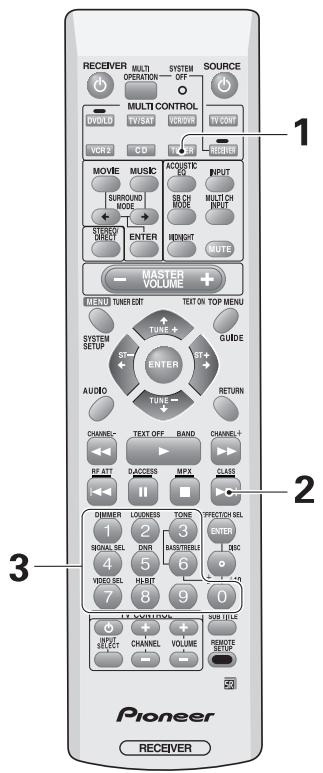
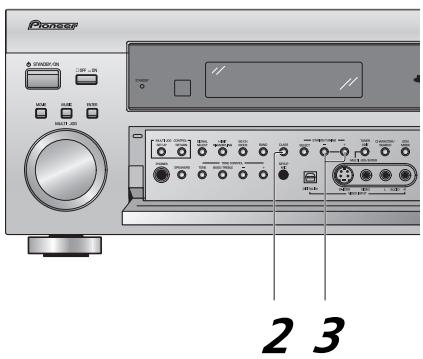
European model
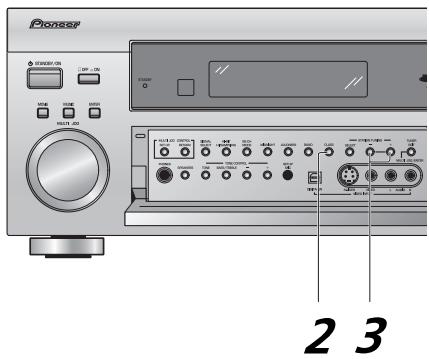
multi-voltage model
1 Press the TUNER button.
This selects the TUNER function on the receiver and sets the remote to the TUNER operation mode.
2 Press the CLASS button repeatedly to select a class number.
Each press switches the display:

3 Use the number buttons to select the channel you want.
To select channel 7, press 7.
To select channel 0, press 0.
For example: If 99.50 MHz (FM) was memorized in class B at channel 7.
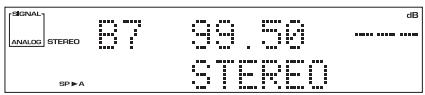
To step through each channel in order
Press the ST - / + buttons repeatedly.
An introduction to RDS (European model only)
Radio Data System, or RDS as it's usually known, is a system used by FM radio stations to provide listeners with various kinds of information—the name of the station and the kind of show they're broadcasting, for example. This information shows up as text on the display, and you can switch between the kind of information shown. Although you don't get RDS information from all FM radio stations, you do with most.
Probably the best feature of RDS is that you can search automatically by type of program. So, if you felt like listening to jazz, you could search for a station that's broadcasting a show with the program type, JAZZ. There are around 30 such program types, including various genres of music, news, sport, talk shows, financial information, and so on.
The receiver lets you display three different kinds of RDS information: Radio Text, Program Service Name, and Program Type.
Radio Text (RT) is messages sent by the radio station. These can be anything the broadcaster chooses—a talk radio station might give out its telephone number as RT, for example.
Program Service Name (PS) is the name of the radio station.
Program Type (PTY) indicates the kind of program currently being broadcast.
The receiver can search for and display the following program types:
| NEWS | News |
| AFFAIRS | Current affairs |
| INFO | General information |
| SPORT | Sports |
| EDUCATE | Educational material |
| DRAMA | Radio drama |
| CULTURE | Arts and culture |
| SCIENCE | Science and technology |
| VARIED | Usually talk-based material, such as quiz shows or interviews. |
| POP M | Pop music |
| ROCK M | Rock music |
| EASY M | “Middle of the road” music |
| LIGHT M | ‘Light’ classical music |
| CLASSICS | ‘Serious’ classical music |
| OTHER M | Other music not fitting any of the above categories |
| WEATHER | Weather reports |
| FINANCE | Finance and business |
| CHILDREN | Children's entertainment |
| SOCIAL | Social affairs |
| RELIGION | Religious programming |
| PHONE IN | Phone-in talk shows |
| TRAVEL | Travel |
| LEISURE | Leisure interests and hobbies |
| JAZZ | Jazz music |
| COUNTRY | Country music |
| NATION M | Popular music in a language other than English |
| OLDIES | Popular music from the '50s |
| FOLK M | Folk music |
| DOCUMENT | Documentaries |
Using the RDS display
To display the different types of RDS information available, press TUNER button on the remote control and use the SUB TITLE button to cycle through the types of RDS information.
Each press changes the display as follows:

Memo:
- If any noise is picked up while displaying the RT scroll, some characters may be displayed incorrectly.
- If you see NO RADIO TEXT DATA in the RT display, it means no RT data is being transmitted from the broadcast station. If you have entered a name for the station, it is displayed instead of RT data. If you haven't, the display will automatically switch to the PS data display. If no PS data is transmitted from the station, the frequency will be displayed.
- In the PTY display, there are cases where NO DATA or NO TYPE is shown. If this happens, the PS display is shown after a few seconds.
- This unit converts lower case characters transmitted by broadcast station to upper case characters.
In addition, there is a program type called
ALARM, used for exceptional emergency announcements. You can't search for this, but the tuner will switch automatically to this RDS broadcast signal.
Searching for RDS programs (European model only)
One of the most useful features of RDS is the ability to search for a particular kind of radio program. You can search for any of the program types (listed on page 61).
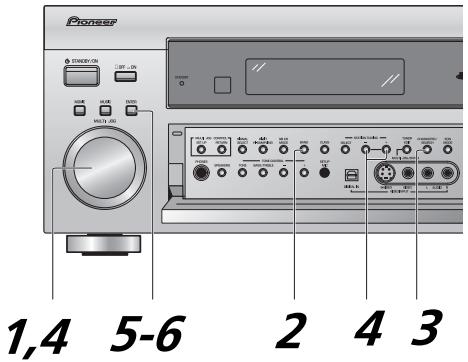
1 Tune into an FM station.
Refer to "Automatic and Manual Tuning" or "Direct Access Tuning" on pages 56 and 57.
2 Use the BAND button to select the FM band.
RDS is only broadcast on FM.
3 Press the CHARACTER/SEARCH button.
SEARCH shows in the display.
4 Press the + / - buttons or use the MULTI JOG dial to select the program type you want to hear.
5 Press ENTER to search for the program type.
The system starts searching through the station presets for a match. When it finds one, the search stops and the station plays for five seconds.
6 If you want to keep listening to the station, press ENTER within the 5 seconds.
If you don't press ENTER, searching resumes.
If NO PTY is displayed it means the tuner couldn't find that program type at the time of the search.
Memo:
- RDS searches memorized stations only. If no stations have been (see page 58 to do this), NO PTY is displayed.
FINISH means the search is complete.
Basics of EON (Enhanced Other Network information) (European model only)
When EON is turned on, the receiver jumps to an EON-linked broadcast when it begins, even if a receiver function other than the tuner is being used. It cannot be used in areas that EON information is not transmitted and when FM broadcast stations do not transmit PTY data. When the broadcast ends, the tuner returns to the original frequency or function.
There are two types of EON you can set:
1 TA (Traffic Announcement)
This mode will set the tuner to pick up traffic information when it's broadcast.
2 NEWS
This mode will set the tuner to pick up news when it is broadcast.
Memo:
EON does not work when the tuner is in the AM band.
Using EON (European model only)
Use the front panel controls to do this.
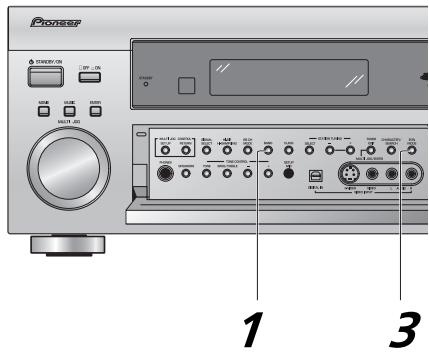
Memo:
- The EON mode is canceled if you switch to AM reception while setting EON. It starts once again when you return to FM reception.
- You can't search for traffic announcements and news at the same time.
- You can't operate the TUNER EDIT and CHARACTER/SEARCH buttons while the EON indicator is lit.
- If you want to change to a function other than the tuner, press the EON MODE button and turn the EON mode off.
1 Press the BAND button to select the FM band.
EON is only broadcast on FM.
2 Tune into an EON FM station.
The indicator lights to inform you that the currently tuned station carries the EON data service. See pages 56 - 57 for more on tuning into radio broadcasts.
3 Press the EON MODE button to select the mode you want.
These modes are explained above.
Each press changes the display as follows:

If EON information is being transmitted, the receiver jumps to the type of broadcast you selected. When the EON mode is set, the EON indicator lights, but during actual reception of an EON broadcast the EON indicator will flash.
Clearing all stations from the RDS or EON search (European model only)
The receiver will automatically register an identifying marker (called a PI code) for any station you input into the memory classes which can receive RDS or EON data. If you want to remove the currently memorized stations from RDS and EON searches, you can do it by erasing the PI codes.
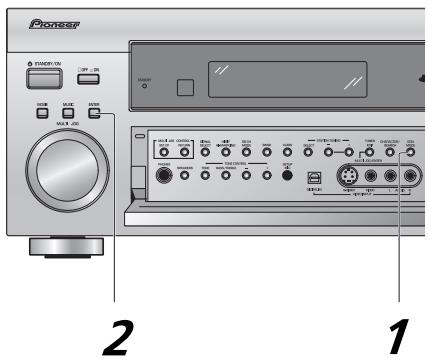
1 Press and hold EON MODE (front panel) for about two seconds.
ERASE PI will be displayed.
2 Press ENTER.
ERASE PI flashes for two seconds to indicate the PI codes have been erased.
Remote Control of Other Components
Setting Up the Remote Control to Control Other Components
In addition to controlling the receiver, the supplied remote control can operate your other components (VCR, TV, DVD, CD, etc.) after you program it to do so. If your component(s) are listed in the remote control's memory, simply follow the steps below. If your component(s) are not listed, or if you want the remote to learn additional operations, you can use the learning mode to input the information from the remote controls supplied with your other components.
Recalling Settings Stored in the Remote Control
The following steps show you how to recall the setting stored in the remote control. Once a setting is recalled and the component assigned, you can use this remote to easily operate the component.
Memo:
- To exit from the remote control setup mode at any time, press REMOTE SETUP.
See page 67 to operate your other components.
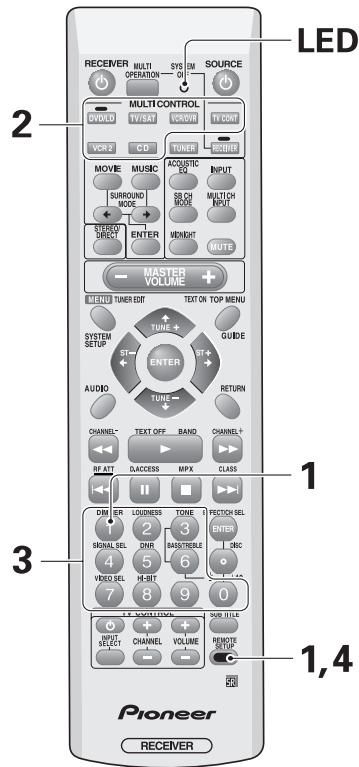
1 While holding down the REMOTE SETUP button press 1 to select the preset recall setup mode.
The LED begins to blink.
To cancel the preset recall setup mode press REMOTE SETUP.
2 Press the MULTI CONTROL button for the component you want to control.
The LED lights continuously.
The TUNER button cannot be assigned.
3 Point the remote toward the component to be controlled, enter the 4 digit setup code (see page 102 for codes).
The LED blinks.
After a code has been input the power of the component being input will turn on or off.
The remote will return to the previous mode after thirty seconds of inactivity.
The power of the component being input will only turn on or off if that component is able to be turned on directly by remote control.
Repeat steps 2 through 3 to assign preset codes for as many components as necessary.
If you can't get your component to respond to any of the codes you can still program the component into the remote control using the procedure in the next section.
4 Press the REMOTE SETUP button to exit the preset recall setup mode.
The remote control and receiver return to their previous operation modes.
Remote Control of Other Components
Programming Signals from Other Remote Controls (LEARNING Mode)
If preset codes are not available for your component(s), or the available preset codes do not operate correctly, you can use this procedure to program in signals from the remote control(s) of your other component(s). These steps can also be used to add further operations to the remote control that were successfully set with the stored settings (see page 65).
Memo:
- To exit from the remote control setup mode at any time, press REMOTE SETUP.
Some commands cannot be programmed.
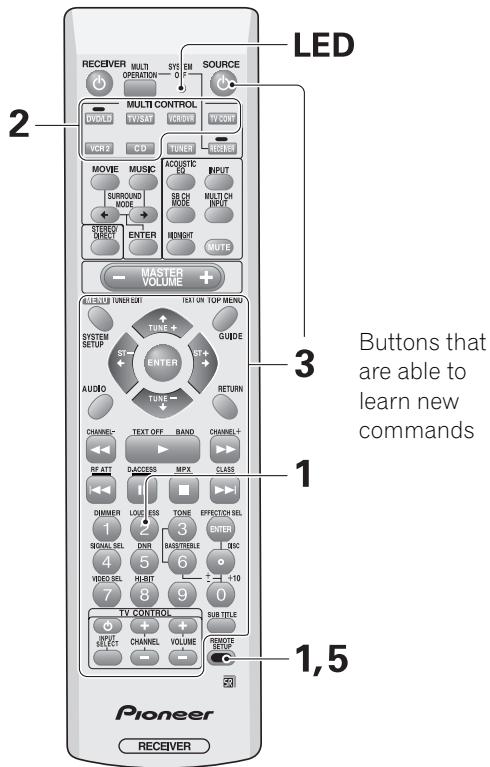
1 While holding down the REMOTE SETUP button press 2 to select the learning setup mode.
The LED begins to blink.
To cancel the learning setup mode press REMOTE SETUP.
2 Press the MULTI CONTROL button for the component you want to control.
The LED lights continuously.
The TUNER button cannot be assigned.
3 Press the button to be programmed.
The LED blinks rapidly.
The TV , TV INPUT SELECT, TV CHANNEL +/- and TV VOLUME +/- buttons are only available for learning when programming TV CONTROL operations.
4 Point the remote controls at each other and press the button on the other remote control for the operation you wish to program.

1 Point the remote controls toward each other.
2 Press the button on the other remote control corresponding to the operation you wish to program.
The LED will turn off and then light again.
To program additional operations for the current component, repeat steps 3 and 4.
To program operations for another component, go back to step 2.
5 Press the REMOTE SETUP button to exit the learning setup mode.
The remote control and receiver return to their previous operation modes.
Using Remote Control with Other Components
CD/MD/CD-R/VCR/DVD/LD/DVD Recorder/Cassette Deck operations
| Button(s) | Function | Components |
| SOURCE Ⓞ | Press to switch the components between STANDBY and ON. | CD/MD/CD-R/VCR/DVD/LD/DVD recorder/Cassette deck |
| ←← | Press to return to the start of the current track or chapter. Repeated presses skips to the start of previous tracks or chapter. | CD/MD/CD-R/DVD/LD |
| Go back channels (channel -). | VCR/DVD recorder | |
| Play the reverse side of the tape on a reversible deck. | Cassette deck | |
| →↑ | Press to advance to the start of the next track or chapter. Repeated presses skips to the start of following tracks or chapter. | CD/MD/CD-R/DVD/LD |
| Go forward channels (channel +). | VCR/DVD recorder | |
| II | Pause playback or recording. | CD/MD/CD-R/VCR/DVD/LD/DVD recorder/Cassette deck |
| → | Hold down for fast forward playback. | CD/MD/CD-R/VCR/DVD/LD/DVD recorder/Cassette deck |
| ← | Hold down for fast reverse playback. | CD/MD/CD-R/VCR/DVD/LD/DVD recorder/Cassette deck |
| → | Start playback. | CD/MD/CD-R/VCR/DVD/LD/DVD recorder/Cassette deck |
| ■ | Stop playback (on some models, pressing this when the disc is already stopped will cause the disc tray to open). | CD/MD/CD-R/VCR/DVD/LD/DVD recorder/Cassette deck |
| SUBTITLE button | Displays/changes the subtitles on multilingual DVDs. | DVD/DVD recorder |
| Change the display mode. | CD/MD/CD-R/VCR/LD | |
| Number buttons | Directly access tracks on a program source. | CD/MD/CD-R/LD |
| Directly access chapter on a program source. | DVD/DVD recorder | |
| Directly select a channel. | VCR/DVD recorder | |
| +10 button | Select tracks or chapter higher than 10. Press this button and the remaining number to get the track or chapter (+10 Button + 3= track or chapter 13). Some components may operate differently. | CD/MD/CD-R/DVD/LD/DVD recorder |
| ENTER/DISC button | Press to start Search mode. | DVD |
| Takes you to the disc navigator. | DVD recorder | |
| Changes between sides A & B of the disc. | LD | |
| Press to enter the selected channel. | VCR | |
| Selects a disc in a multi-disc CD player. | CD | |
| MENU | Displays menus concerning the current DVD, DVR or VCR you are using. | DVD/DVD recorder/VCR |
| AUDIO | Changes the audio track of discs with more than one audio track. | DVD/LD/DVD recorder |
| Changes between the tuner in the TV and the tuner in the VCR. | VCR | |
| Play the reverse side of the tape on a reversible cassette deck. | Double cassette 1st deck | |
| Press to select a track | CD | |
| TOP MENU/Guide button | Displays the top menu of the current DVD, LD or DVR you are using. | DVD/LD/DVD recorder |
| Takes you to the guide menu of that system. | VCR | |
| Press to select a track | CD | |
| RETURN button | Takes you to the previous menu. | DVD/LD/VCR/DVD recorder |
Remote Control of Other Components
| Button(s) | Function | Components |
| ←→↑↓ & ENTER | Navigate menus/options. | DVD/LD/DVD recorder/VCR |
| Basic playback options. | Double cassette 1st deck |
Cable TV/Satellite TV/TV operations
| Button(s) | Function | Components |
| TV | Press to switch the TV, Satellite TV or Cable TV between STANDBY and ON. | Cable TV/Satellite TV/TV |
| TV INPUT | Press to switch the TV input. | TV |
| TV CHANNEL (+/-) | Select channels. | Cable TV/Satellite TV/TV |
| TV VOLUME (+/-) | Adjust the TV volume. | TV |
| MENU | Takes you to the TV menu of that system. | Cable TV/Satellite TV/TV |
| GUIDE | Takes you to the guide menu of that system. | Cable TV/Satellite TV |
| TEXT ON | TV | |
| RETURN | Exits the menu you are viewing. | Cable TV/Satellite TV |
| ← | Use to move back a page in the menu. | Satellite TV |
| Use to move back channels. | Cable TV/TV | |
| ▶ | A/TEXT OFF | Satellite TV/TV |
| ▶ | Use to move forward a page in the menu. | Satellite TV |
| Use to move forward channels. | Cable TV/TV | |
| ↓ | B/RED | Satellite TV/TV |
| Use to move back a page in the menu. | Cable TV | |
| II | C/GREEN | Satellite TV/TV |
| ■ | D/YELLOW | Satellite TV/TV |
| →I | E/CYAN | Satellite TV/TV |
| Use to move forward a page in the menu. | Cable TV | |
| Number buttons | Use to select a specific TV channel. | Cable TV/Satellite TV/TV |
| ENTER/DISC button | Use this button to immediately enter a new channel. | Cable TV/TV |
| ←→↑↓ & ENTER | Press to select or adjust and navigate items on the menu screen. | Cable TV/Satellite TV/TV |
Memo:
- The above operations are available from the receiver's remote control after you program it (see page 65).
To perform these operations, press the MULTI CONTROL button for the component you want to control.
For more information on individual commands consult the manual that came with the component. - The first four buttons on the table "Cable TV/Satellite TV/TV operations" are dedicated to control the TV assigned to the TV CONT button. Thus if you only have one TV hooked up to this system, assign it to the TV CONT button. If you have two TVs, assign the main TV to the TV CONT button. If you hook up your system this way, the first four TV controls will always be accessible.
- Depending on the maker and individual model, there are some buttons that may not be able operate some equipment or may operate it in a different way.
Setting up the Direct Function
The direct function is designed in case you have an external video source connected to your TV (a video source that is not going through the VSX-AX3). For this explanation we'll call this the external video deck. You'd like to control external video deck with this unit's remote control so you've assigned it a function button (for example purposes, the VCR 2 button). Yet, if you put the receiver in VCR 2 mode you'll get no picture on your TV because the external video deck signal is not going through the VSX-AX3. To get around this problem you set the direct function for VCR 2 to OFF. Now when you press VCR 2 function button you can control the external video deck with the remote but the receiver does not go into VCR 2 mode.
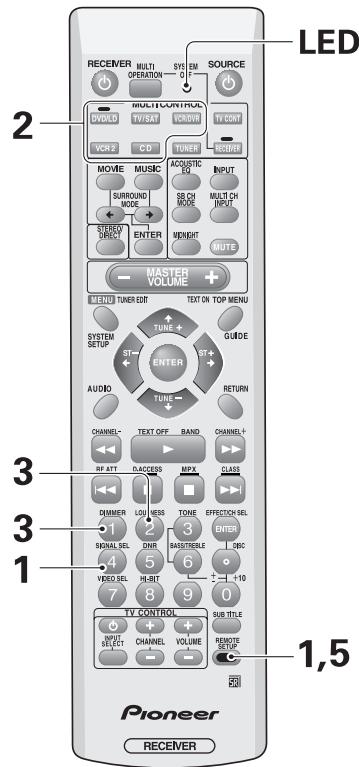
Memo:
- To exit from the REMOTE SETUP at any time, press REMOTE SETUP.
- The default setting for all direct functions is ON.
1 While holding down the REMOTE SETUP button press 4 to select the direct function setup mode.
The LED begins to blink.
To cancel the direct function setup mode press REMOTE SETUP.
2 Press the MULTI CONTROL button of the component whose direct function you want to turn on or off.
The LED lights and remains lit.
For example, if you want to turn off direct function for VCR 2, you would press VCR 2.
The TUNER button cannot be assigned.
3 Set the direct function of each external source to OFF by pressing 2, ON by pressing 1.
The LED blinks.
ON: The direct function is on.
OFF: The direct function is off.
For example, if you want to turn off direct function for VCR 2, you would press 2.
4 Repeat steps 2-3 to set the direct function for as many components as you want.
5 Press the REMOTE SETUP button to exit the direct function setup mode.
Using Other Functions
Recording from Audio/Video Components
The following explanations show you how make a recording from one component to another connected to this receiver. Note that an analog recorder (such as a VCR) cannot record from a source that is connected using only a digital connection. Likewise, a digital recorder (such as a CD-R) cannot record digitally from a component that is connected using only analog connections. In both of these cases, make sure that the digital component also has analog connections to the receiver, and that the SIGNAL SELECT is set to ANALOG.
When recording from one digital component to another, bear in mind that the digital signal output from this receiver mirrors the input from the source. So if the input is, say, Dolby Digital, the output will also be Dolby Digital. Before recording, make sure that the recorder is compatible with the source digital audio format.
See page 20 for more on analog audio connections and page 22 for digital audio connections.
Memo:
- The receiver's volume, channel level, balance, TONE, DIGITAL NR, MIDNIGHT, LOUDNESS, ACOUSTIC EQ and surround effects have no effect on the recorded signal.
- In some cases, digital recordings have copy guard protections and making a digital copy is not possible. In this case you can only copy them in an analog manner.
Some video recordings are copy-protected; these sources cannot be recorded. - When recording video, the source must be connected to the receiver using the same type of video cord (composite, or S video) as you used to connect the recorder to the receiver.
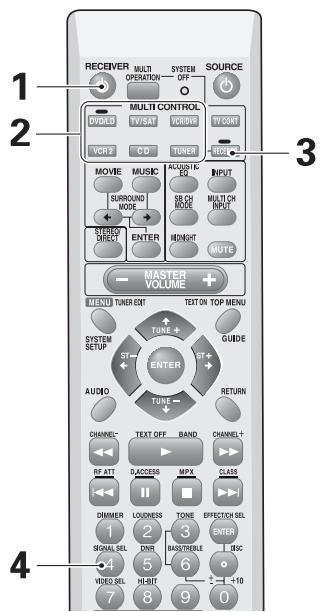
1 Turn on the receiver.
2 Press the MULTI CONTROL (or INPUT) on the remote to select a source component.
3 Press RECEIVER.
4 Press the SIGNAL SELECT button to select the input signal (ANALOG or DIGITAL).
5 Start recording (tape deck, CD recorder, VCR, etc.)
6 Playback the source to be recorded.
SPEAKERS B Setup
Stereo playback in another room (SECOND ZONE)
This setup enables you to listen to a pair of stereo speakers independently of the main speaker system (A speakers) hooked up to the receiver. You can choose SECOND ZONE, and use the speakers hooked up to the surround back terminals as a B speaker system, that is, playing the same source as the main speaker system but from independent stereo speakers.
1 Connect a pair of speakers to the surround back speaker terminals.
2 Select SECOND ZONE in the SURBACK SYSTEM setup (see page 37).
Memo:
Please use speakers with a nominal impedance rated 8 - 16
Bi-amping the front speakers (FRONT BI-AMP)
For bi-amp playback you can connect both the A and B speaker terminals to your front speakers. To do this your speakers must be bi-wireable (that is they must have separate terminals for the high and low frequencies). Bi-amping delivers more power to the front speakers, but disables the surround back speakers, so you will be limited to 5.1 channel playback.
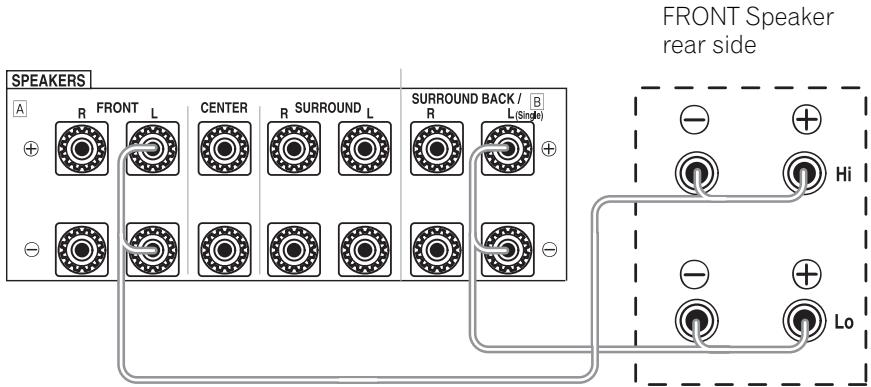
Caution!
Most speakers with both HI and LOW terminals have two metal plates that connect the HI to the LOW terminals. These must be removed when you are bi-amping the speakers or you could severely damage the amplifier. See your speaker manual for more information.
Caution!
Do not allow any speaker wire from any terminal to touch a wire from a different terminal.
1 Connect your speakers as shown.
Since both Front A and B speaker terminals output the same audio, it doesn't matter which set (A or B) is powering which part (HI or LOW) of the speaker.
2 Select FRONT BI-AMP in the SURRBACK SYSTEM setup (see page 37).
The surround back channel amplifier is now used to power the B set of speaker terminals and the A+B (SP▶AB) speaker setting is automatically selected. The speaker setting in this case can only be A+B or OFF.
SPEAKERS Button
If you selected NORMAL SYSTEM in the SURRBACK SYSTEM setup (see page 37) your surround back speakers will be used as part of your A speakers (main speaker system) and this button will simply switch it off or on. If you selected SECOND ZONE in the SURRBACK SYSTEM setup (see page 37) this button will cycle through the A (main) speaker system, the B speaker system (the surround back speakers acting as a separate second zone), both speaker systems, and off.
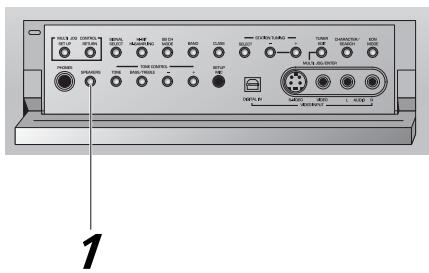
1 Press the SPEAKERS button (on the front panel) to switch speakers on/off or cycle through the different speaker systems if SECOND ZONE or FRONT BI-AMP has been selected in the SURRBACK SYSTEM setup (see page 37).
A(SP▶A): Sound is output from speaker system A and the same signal is output from the pre out terminals.
B(SP▶B): Sound is output from the two speakers in speaker system B (the surround back speakers). Multichannel sources will be downmixed to two channels.
A+B(SP▶AB): Sound is output from speaker system A and the B speakers. Also, use for FRONT BI-AMP playback.
OFF(SP▶): No sound is output from the speakers. Depending on the input signal and settings in SPEAKER SETTING sound may be output from the subwoofer. The same sound is output from the pre out terminals as when selecting speaker system A (above).
Memo:
What is output from the subwoofer depends on the SPEAKER SETTING settings and the type of source.
- Depending on the settings in SPEAKER SETTING and the MULTI CH IN SELECT, output from the SURROUND BACK pre out terminals may change.
- When using headphones the speakers are switched off.
Please use speakers with a nominal impedance rated 8 -16
Connecting Additional Amplifiers
This receiver has more than sufficient power for any home use, but it is possible to add additional amplifiers to every channel of your system. Make the connections shown below to add amplifiers to power your speakers. Before making or changing the connections, switch off the power and disconnect the power cord from the AC outlet.
*The arrows indicate the direction of the signal.
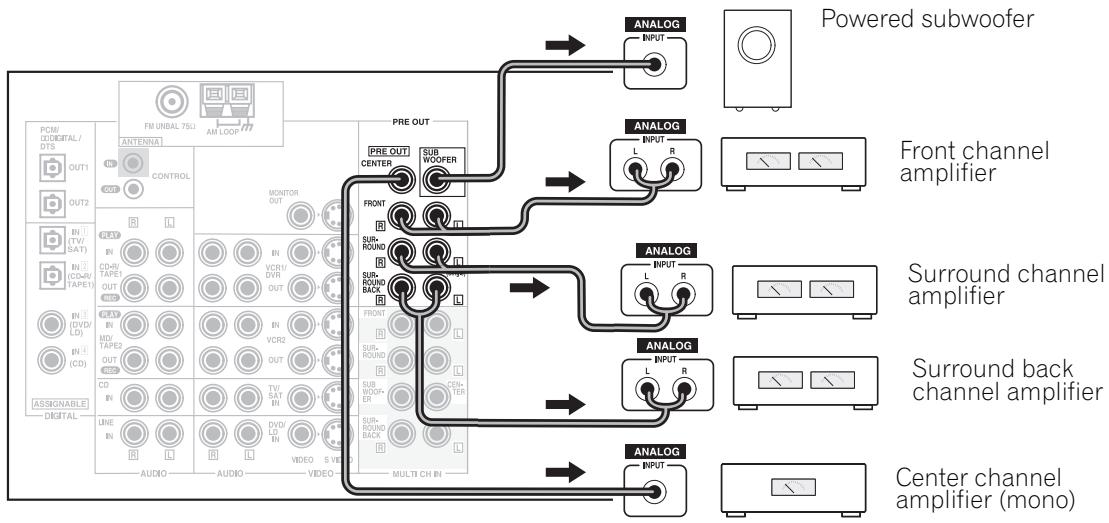
Memo:
- You can use the additional amplifier on the surround back channels for a single speaker as well. In this case plug the amplifier into the L (SINGLE) terminal only.
- The sound from the surround back terminals will depend on how you have set up the SURRBACK SYSTEM (see page 37).
The PIONEER SR System: Operating other PIONEER components
Connecting an optional control cord allows you to operate other PIONEER components simply by pointing the receiver's remote control at the remote sensor on the front panel of the receiver. The receiver then sends the remote control signals to the other devices via the CONTROL OUT terminal.
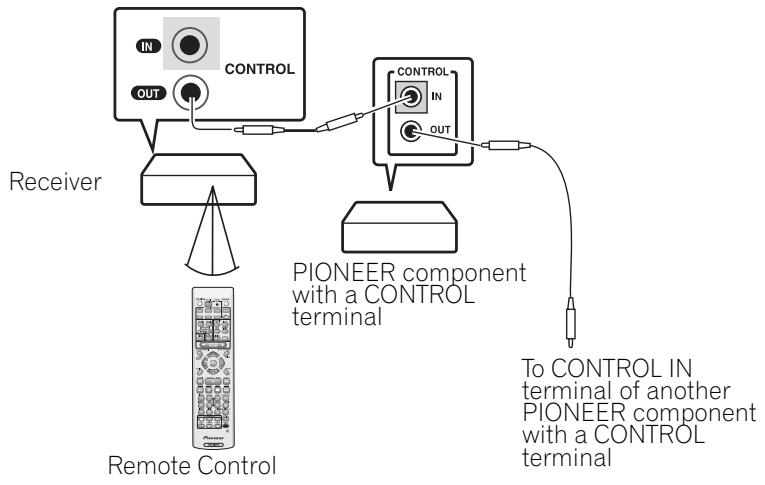
Memo:
- You can also control PIONEER components (and those made by other manufacturers) by pointing the receiver's remote control directly at the respective component. This type of operation does not require control cords. All you have to do is recall the appropriate stored settings (see page 65).
- If you use a remote control hooked up via the CONTROL IN jack with a control cord, you won't be able to use this unit's remote control.
If you use this feature make sure an analog (audio and/or video) connection has been made between the units.
Multi Operations
Multi operations allow you to tell the receiver and your other components to do a number of things with the push of only two buttons on the remote control. For example, you can program the unit to turn on your TV, turn on your DVD player and start playing the loaded DVD. This allows you to freely decide which operations you want performed as well as the order in which you want them performed. The steps below show you how to program a string of up to 5 different operations for each MULTI CONTROL button. You don't need to program power commands for this receiver or any other Pioneer components. They will automatically turn on when a multi operation is performed.
(Programming Pioneer video components automatically turns on Pioneer TVs.)
Memo:
- Be sure to set up each component before programming multi operations (see "Setting Up the Remote Control to Control Other Components" on page 65).
- To exit from the REMOTE SETUP mode at anytime press the REMOTE SETUP button.
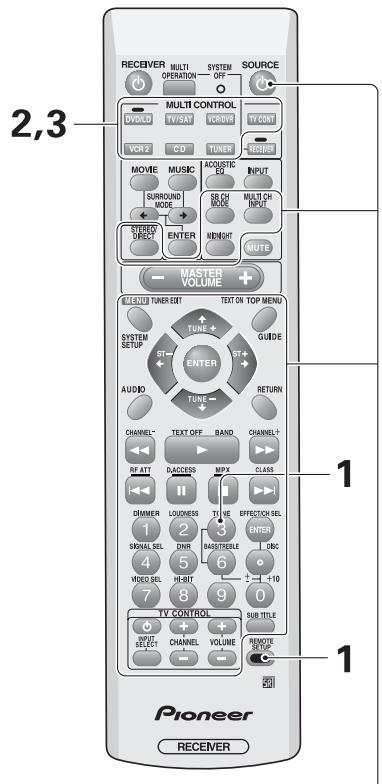
Buttons that can be programmed with Multi Operations
1 While holding down the REMOTE SETUP button press 3 to select the multi operation setup mode.
The LED begins to blink.
To cancel the multi operation setup mode press REMOTE SETUP.
2 Select a MULTI CONTROL button for this multi operation.
The LED lights and remains lit.
Each MULTI CONTROL button can be used for one multi operation. If a multi operation relates to using a DVD player, for example, it makes sense to select the DVD/LD button.
3 Press the MULTI CONTROL button for the component that will perform the step in the multi operation, then press the operation button you want.
For example, press CD then (play), if you want to start CD playback.
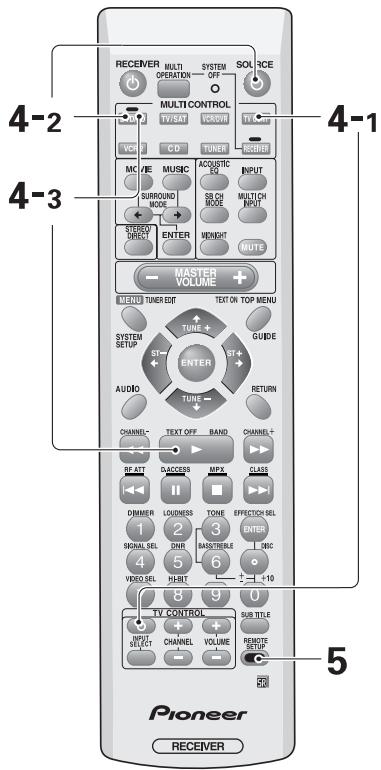
4 Repeat step 3 to input multi operations to the MULTI CONTROL button you pressed in step 3.
You can repeat this process for up to five commands.
For example: you could enter the following three operations using the preceding step 3.
1 Press the TV CONT button and TV to turn on your TV (as explained above).
2 Press the DVD/LD button then SOURCE to turn on your DVD player (if it is not a PIONEER product).
3 Press the DVD/LD button then (play) to start playing the DVD player.
When you employ multi operations (see below), these three tasks will be performed in the same order.
5 Press the REMOTE SETUP button to exit the multi operation setup mode.
The remote control return to their previous operation modes.
Performing Multi Operations
Do the following to use the multi operations.
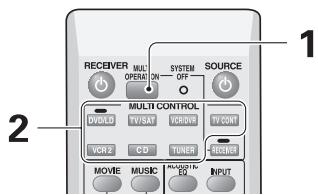
1 Press the MULTI OPERATION button.
2 Press the MULTI CONTROL button for the component that has been set up with multi operations.
The power of the receiver (and any Pioneer components use in the program) goes on and the programmed multi operations are performed automatically.
System Off
The SYSTEM OFF feature allows you to tell the receiver and your other components to stop and/or turn off with the push of only one button on the remote control. The steps below show you how to program a string of up to 5 different SYSTEM OFF operations. Be sure to set up each component before programming the SYSTEM OFF function (see "Setting Up the Remote Control to Control Other Components" on page 65).
Memo:
To exit from the REMOTE SETUP mode at anytime press the REMOTE SETUP button.
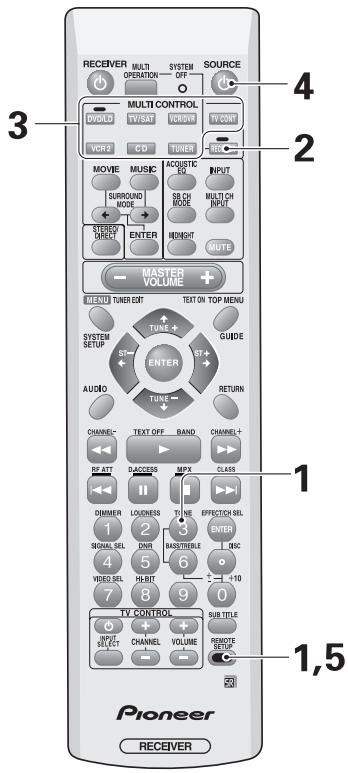
1 While holding down the REMOTE SETUP button press 3 to select the SYSTEM OFF setup mode.
The LED begins to blink.
To cancel the SYSTEM OFF setup mode press REMOTE SETUP.
2 Press the RECEIVER button.
The LED lights and remains lit.
3 Select a MULTI CONTROL button for SYSTEM OFF.
Each MULTI CONTROL button can be used for SYSTEM OFF. If a SYSTEM OFF command relates to using a DVD player, for example, it makes sense to select the DVD/LD button.
4 Press the SOURCE button of the component to be set with SYSTEM OFF operations.
5 Press the REMOTE SETUP button to exit the SYSTEM OFF setup mode.
The remote control return to their previous operation modes.
Using SYSTEM OFF
Do the following to use the SYSTEM OFF function.
The SYSTEM OFF feature allows you to tell the receiver and your other components to stop and/or turn off with the remote control. Most Pioneer components will automatically turn off. The receiver itself will go off automatically as well.
The following Pioneer components can be turned off using the SYSTEM OFF function:
DVD, DVD-Recorder, LD, CATV, CD, CD-R, MD, Satellite Tuner, Tape, Tuner, VCR, and TV.
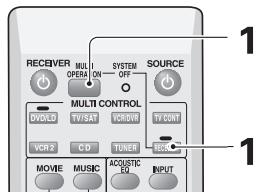
1 Press the MULTI OPERATION button and within 5 seconds press the RECEIVER button.
All the Pioneer components connected to the receiver and the receiver will stop and/or go off.
Resetting the Remote Control
Erasing Multi Operations
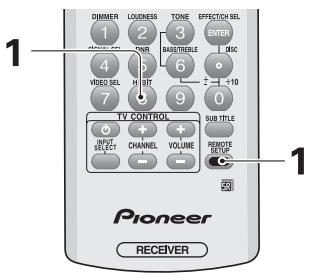
1 Press and hold both the REMOTE SETUP button and 8 for more than 3 seconds.
LED lights will blink 3 times and all multi operation settings will be erased.
Erasing Learning Remote Control Commands
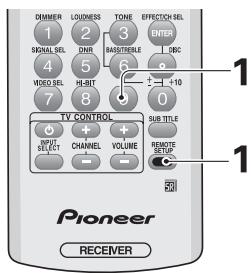
1 Press and hold both the REMOTE SETUP button and 9 for more than 3 seconds.
LED lights will blink 3 times and all learned remote control commands will be erased.
Erasing All Remote Control Settings
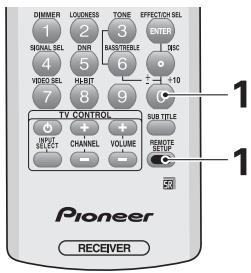
1 Press and hold both the REMOTE SETUP button and 0 for more than 3 seconds.
LED lights will blink 3 times and all remote control settings will be erased.
Resetting the Main Unit
The following operations allow you to reset the unit to the default settings.
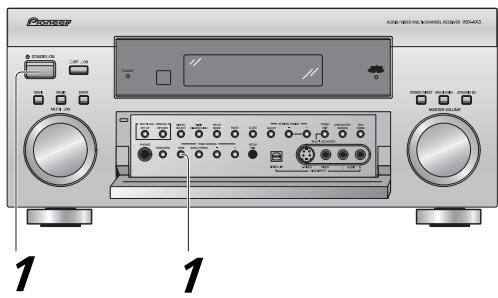
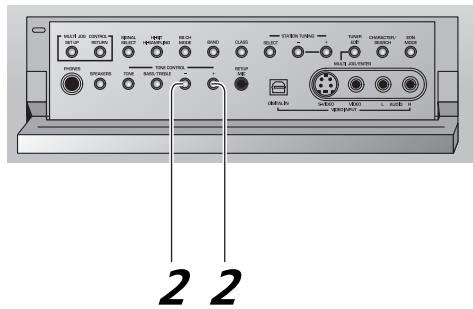
Put the receiver in the STANDBY mode.
1 While holding down the TONE button press the STANDBY/ON button for about three seconds.
2 When you see RESET? appear in the display, press the TONE - button. OK? appears in the display, press TONE+.
When OK appears in the display all the settings, including the speaker, surround sound settings and tuner settings, will be reset in the unit to the default settings.
Memo:
If the receiver is disconnected from a power source for about a month or longer it will reset to the default settings.
Fine Tuning Your System
THX CINEMA Setup
This setup lets you choose which decoding method for 2 channel sources the receiver will use for THX CINEMA. For more information on the decoding (playback) formats see "Techno Tidbits" starting on page 94.
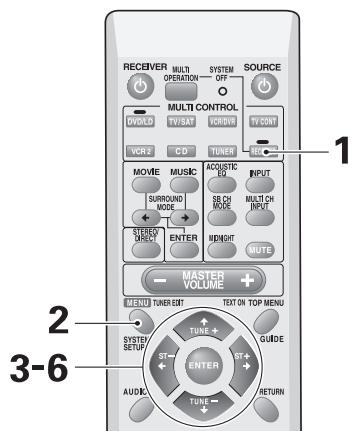
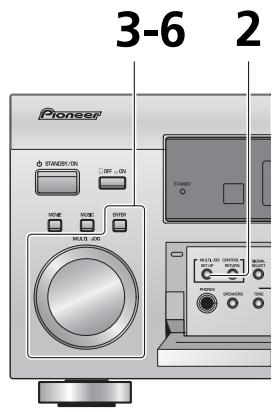
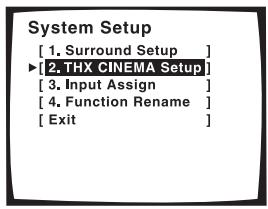
3
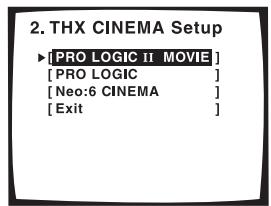
4
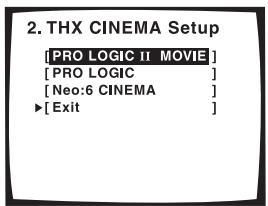
5
1 Turn on the receiver and your TV, press RECEIVER on the remote control.
2 Press the SYSTEM SETUP button.
3 Looking at the on-screen display on your TV, use the buttons to select THX CINEMA SETUP. Press the ENTER button.
4 Use the buttons to choose either PRO LOGIC II MOVIE, PRO LOGIC or NEO:6 CINEMA as the decoding method. Press the ENTER button.
The default is PRO LOGIC II MOVIE.
5 EXIT should be selected (if not, use the buttons to select it). Press ENTER.
6 Use the buttons to select EXIT and press ENTER, again.
This exits the SYSTEM SETUP mode and returns to normal operation.
Assigning the Digital Inputs
If you did not hook up your digital equipment in accordance with the default settings for the digital inputs (see pages 17, 19 and 22) you need to complete the procedure below. You have to do this in order to tell the receiver what digital equipment is hooked up to which terminal so the buttons on the remote correspond to what you have hooked up.
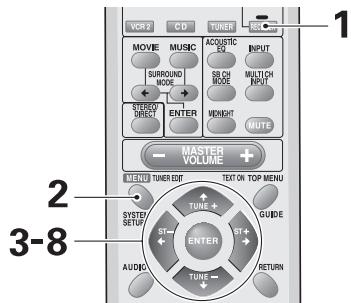
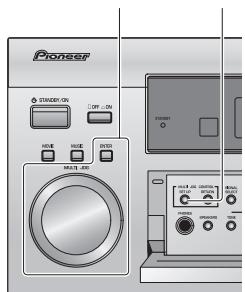
3-8 2

Digital-In Select
3
System Setup
[1. Surround Setup]
[2. THX CINEMA Setup]
[3. Input Assign]
[4. Function Rename]
[Exit
4
3.Input Assign
[Digital-In Select]
[Exit
5
Digital-1 [TV/SAT] Digital-1 [DVD/LD]
Digital-3 [OFF]
Digital-4 [CD]
[Exit]
Memo:
The possible digital inputs that can be assigned are: DVD/LD, TV/SAT, VCR1, VCR2, CD, CD-R, MD.
- If you assign a digital input to a certain function (for example DVD/LD) then any digital inputs previously assigned to that function will automatically be set to OFF. This is because one function cannot be assigned to two different places.
1 Turn on the receiver and your TV, press RECEIVER on the remote control.
2 Press the SYSTEM SETUP button.
3 Looking at the on-screen display on your TV, use the buttons to select INPUT ASSIGN. Press the ENTER button.
4 DIGITAL-IN SELECT should be selected, if not use the buttons to select it. Press the ENTER button.
5 Use the buttons to move through the different digital inputs and press the ENTER button.
6 Use the buttons select the component that you hooked up to that digital in. Press the ENTER button.
If you're not sure which component is connected to which digital in, look on the back of the receiver and check the cables you connected.
7 When you're finished use the buttons to select EXIT and press ENTER.
This exits the DIGITAL-IN SELECT mode.
8 Use the buttons to select EXIT and press ENTER. Then, use the buttons to select EXIT and press ENTER again.
This exits the SYSTEM SETUP mode and returns to normal operation.
Function Rename
Use the FUNCTION RENAME capability to rename the display on the receiver and your OSD for different functions (DVD, etc.). For example, you could rename VCR1/DVR as DVR-7000. For this particular setup using the controls on the front panel is more convenient than using the remote control. Use the MULTI JOG dial instead of the buttons and use the ENTER button on the front panel. You can also use the display on the front panel as opposed to the OSD.
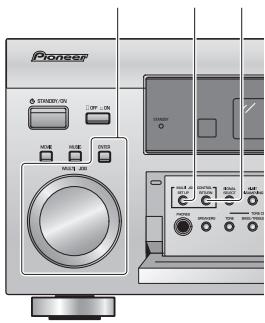
3-9 2 RETURN button
1 Turn on the receiver and your TV. (If you want to use the remote control for this setup, press the RECEIVER button.)
2 Press the SET UP button.
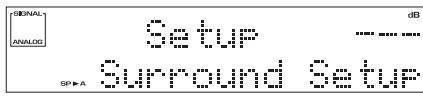
This display appears on the receiver.
3 Looking at the display on your receiver, use the MULTI JOG to select FUNCTION RENAME. Press the ENTER button.
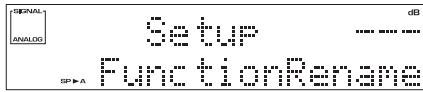
4 Use the MULTI JOG to select the name of the function (for example, DVD/LD) you want to change. Press ENTER.
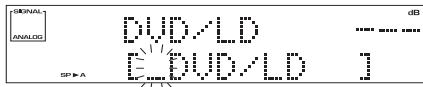
Either the cursor underline bar or a character (depending on which is selected) will blink. The functions are divided into three different on-screen displays so you may have to move through them to find the function you want to rename.
5 Use the MULTI JOG to cycle the cursor through the letters, numbers and symbols. Use the ENTER button to enter one of the possibilities or move forward a space.
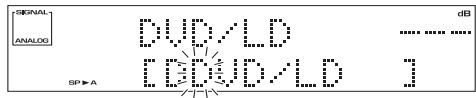
The possible selections are shown below.
ABCDEFGHIJKLMNOPQRSTUVWXYZ
abcdefghijklmnopqrstuwwxyz
0123456789
!"#$%&'( )*+,-./;;<= >?@[\ ]^ _{|} [space]
6 Repeat step 5 until you get the name as you want it.
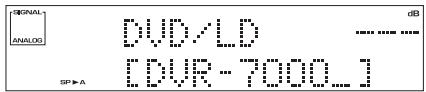
You can input up to ten characters.
7 Press ENTER repeatedly to exit the name. The new function name is set.
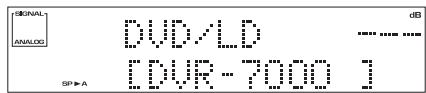
8 Repeat steps 4-7 to change other function names. Use the MULTI JOG to select EXIT and press ENTER.
9 Use the MULTI JOG to select EXIT and press ENTER.
This exits the SYSTEM SETUP mode and returns to normal operation.
Memo:
Use the RETURN button to move the cursor back one character when entering a name.
Expert System Settings
EXPERT Setup
The settings here can only be done if you've performed the more basic preliminary setups. Thus, before doing these settings do either AUTO SETTING on page 13 or NORMAL setup page 38. These settings are to further heighten your surround sound. They are not absolutely necessary but may give more defined and enjoyable surround sound. You can decide if you want to make these settings or not. You only need to make these settings once (unless you change the placement of your current speaker system, add new speakers or components to your system, etc.). These setup operations use your TV to display the settings and choices so be sure your TV and receiver are properly hooked up.
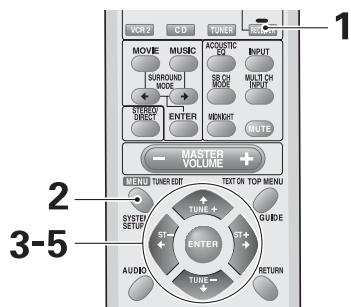
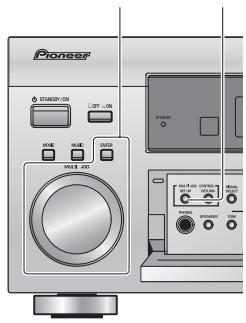
3-5 2
3
System Setup
[1. Surround Setup]
[2. THX CINEMA Setup]
[3. Input Assign]
[4. Function Rename]
[Exit]
4
- Surround Setup [SurrBack System] [Auto Setting] [Normal] Expert] [Exit]
5
Expert
[Crossover Network]
[Fine Channel Level]
[Fine Channel Delay]
[Acoustic Cal EQ]
[Bass Peak Level]
[D-Range Control]
[Exit]
1 Turn on the receiver and your TV, press RECEIVER on the remote control.
Make sure your TV is set to the receiver.
2 Press the SYSTEM SETUP button.
The menu possibilities appear on your TV.
3 SURROUND SETUP should be selected (if it's not use the buttons to select it). Press the ENTER button.
4 Select EXPERT with the buttons. Press the ENTER button.
5 Follow the order below to make expert settings. Use the buttons to navigate through the menus. When you have the setting you want in particular menu, press ENTER.
In each mode, the current settings are displayed on the screen.
CROSSOVER NETWORK (page 84)
This feature determines which frequencies will be sent to the subwoofer (or large speakers).
FINE CHANNEL LEVEL (page 85)
This feature balances the sound output level of your speakers more finely than in the NORMAL setup.
FINE CHANNEL DELAY (page 86)
This feature adjusts the delay level of your speakers more finely than in the NORMAL setup.
ACOUSTIC CAL EQ (page 87)
This feature allows you to adjust the amount of a certain frequency in a soundtrack, acting as a kind of room equalizer for your speakers.
BASS PEAK LEVEL (page 92)
Dolby Digital and DTS audio sources include ultra-low bass tones. Set the bass peak level as needed to prevent the ultra-low bass tones from distorting the sound from the speakers.
D-RANGE CONTROL (page 93)
This feature makes possible excellent surround sound effects when listening to Dolby Digital and DTS sources at low volumes.
Expert System Settings
Crossover Network
Crossover frequency is the point where the receiver divides the high and low sounds (the frequencies) between the speakers. Certain bass sounds will play back from the subwoofer if you selected it as YES (or PLUS) or from the front speakers if you selected them as LARGE. This setting decides where the cutoff will be between those bass sounds playing back from the speaker selected as above and the bass sounds for the entire soundtrack, which play back from all speakers used.
If all speakers are set to LARGE (see page 39) this setup is unnecessary.

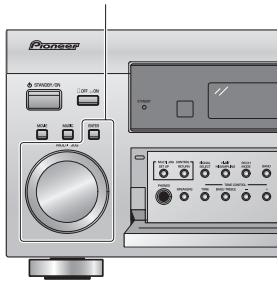
1-3
1
Expert
[Crossover Network]
[Fine Channel Delay ]
[Acoustic Cal EQ]
[Bass Peak Level]
[D-Range Control]
[Exit
2
Crossover Network
Frequency
50Hz
[80Hz]
[100Hz]
[150HZ] [CCHU]
[200H2] [111]
(THX Speaker = 80Hz)
3
Crossover Network
Frequency
[50Hz]
80Hz]
[00H2] [50H-1]
[30112] 200Hz
[0012] Exit ]
(THX Speaker = 80Hz)
Follow steps 1-5 on page 83, if necessary, to get to the starting point mentioned here.
1 CROSSOVER NETWORK should be selected, if it isn't use the buttons to select and press ENTER.
2 Use the buttons to select frequency cut off point. Press ENTER.
Frequencies below the cut off point will be sent to the subwoofer (or large speakers). For example, choosing 50 Hz sends bass frequencies below 50 Hz to the subwoofer (or large speakers).
3 EXIT should be selected (if it's not use the buttons to select it). Press ENTER.
Next, proceed to FINE CHANNEL LEVEL.
If you want to change a setting before proceeding
start over from step 1.
Memo:
The default is 80Hz
Fine Channel Level
The following steps show you how to balance the sound output level of your speakers more finely than in the NORMAL setup (see page 38). Proper speaker balance is essential for obtaining high quality surround sound and the better the speaker balance the better surround sound you can get.
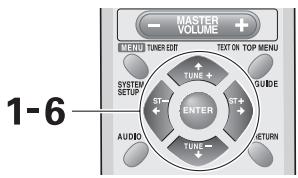
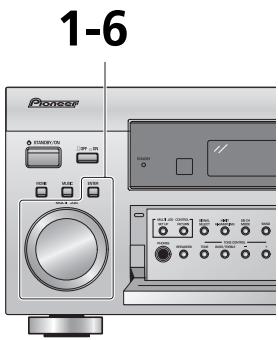
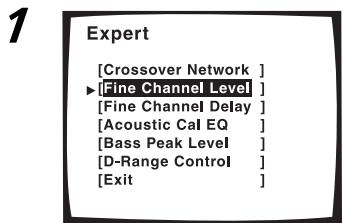
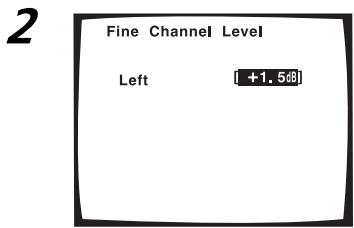
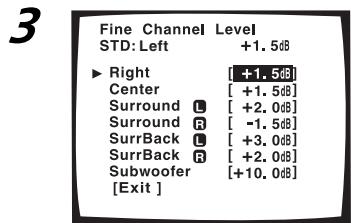
Follow steps 1-5 on page 83, if necessary, to get to the starting point mentioned here.
1 FINE CHANNEL LEVEL should be selected, if it isn't use the buttons to select and press ENTER.
2 Use the buttons to adjust the level of the left channel. Press ENTER.
Test tones will be output.
WARNING: Be prepared! The test tones are output at a high volume level.
MASTER VOLUME rotates to the reference position (0 dB) and after a few seconds the test tone is output.
3 Use the buttons to select the subsequent channel. Press ENTER.
4 Adjust the level of the channel using the buttons.
Adjust the channel level from -10dB to +10dB in 0.5dB increments.
The default setting is 0dB.
Try to get the volume level of the target speaker to match that of the front left speaker, which is the reference level.
Adjust so that you hear both tones at the same volume.
When you press ENTER you will automatically go to the next channel.
5 Press ENTER to select a new channel. Repeat step 3 for every channel.
If you want to change a setting before proceeding
Use the buttons to go back to the channel you want to adjust and press ENTER. Then follow step 3.
6 When done select EXIT (if it's not already selected) and press ENTER.
Next, if you want, proceed to FINE CHANNEL DELAY.
Expert System Settings
Fine Channel Delay
The following steps show you how to adjust the delay level of your speakers more finely than in the NORMAL setup (see page 38). Adding a slight delay to some speakers is necessary to achieve proper sound depth, separation as well as an effective surround sound effect.
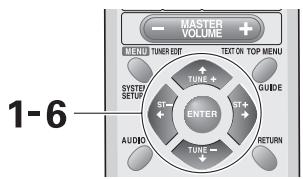
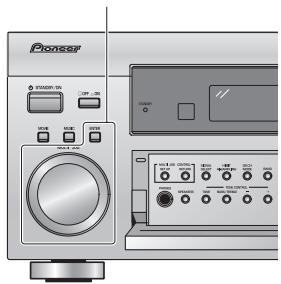
1-6
1
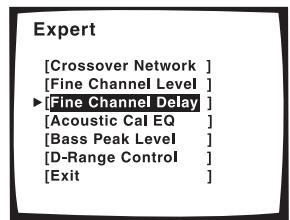
2
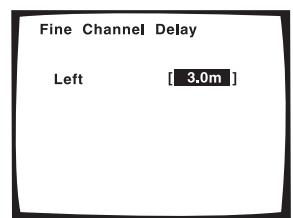
3
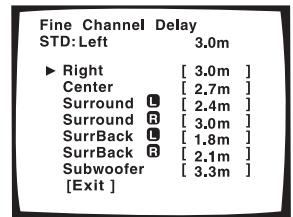
Follow steps 1-5 on page 83, if necessary, to get to the starting point mentioned here.
- FINE CHANNEL DELAY should be selected, if it isn't use the buttons to select and press ENTER.
2 Use the buttons to adjust the distance of the left channel. Press ENTER.
This channel will be the target reference which you use to measure the other channels.
3 Use the buttons to select the subsequent channel. Press ENTER.
Test tones will be output for the channel you want to adjust and a reference channel.
Listen to the reference channel and use it to measure the target channel.
4 Adjust the distance of each channel using the buttons.
Listen to the reference channel and use it to measure the target channel. Stand facing the two speakers with your arms outstretched pointing at each speaker. Try to make the two tones sound as if they are arriving simultaneously at a
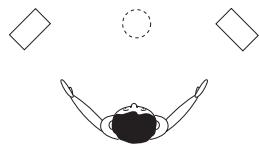
position slightly in front of you and between your arm span. The distance can be set within a range of 0.1 to 9.0m in 0.1m steps.
When you press ENTER you will automatically go to the next channel.
5 Press ENTER to select a new channel. Repeat step 4 for every channel.
If you want to change a setting before proceeding Use the buttons to go back to the channel you want to adjust and press ENTER. Then follow step 3.
6 When done select EXIT (if it's not already selected) and press ENTER.
Next, if you want, proceed to ACOUSTIC CAL EQ.
Acoustic Calibration EQ
This receiver lets you choose between two types of ACOUSTIC CAL EQ equalizer curves: ALL CH ADJUST and FRONT ALIGN, with the former equalizing the speakers individually and the latter equalizing the speakers in accordance with the front speakers. Features here allow you to put in your own equalizer preferences. To do this use the DATA COPY feature to copy the settings in ALL CH ADJUST and FRONT ALIGN modes and paste them into CUSTOM 1 or CUSTOM 2. You then choose between the ALL CH ADJUST and FRONT ALIGN types of curves and increase the amount of a certain frequency in each speaker in accordance with your preferences. When you playback a source you can choose CUSTOM 1 or CUSTOM 2 to apply your preferences to playback. When setting up using the ALL CH ADJUST mode you can adjust each speaker individually. With the FRONT ALIGN mode the front speakers will serve as the reference so you cannot adjust them.
The DATA CHECK feature allows you to see how the settings in ALL CH ADJUST and FRONT ALIGN currently stand. When you use ACOUSTIC CAL EQ function (see page 49) you can toggle between the two basic settings, ALL CH ADJUST and FRONT ALIGN, and the variations you set yourself, CUSTOM 1 and CUSTOM 2.
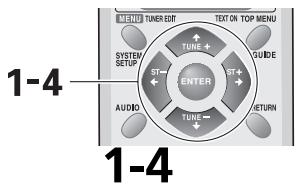
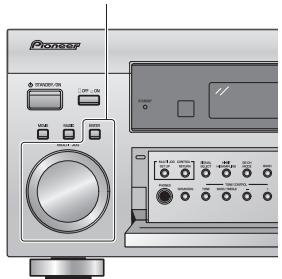
1
Expert
[Crossover Network]
[Fine Channel Level]
[Fine Channel Delay]
Acoustic Cal EQ
[Bass Peak Level]
[D-Range Control]
[Exit]
2
Acoustic Cal EQ
[EQ AUTO SETTING]
[CUSTOM1 ADJUST]
[CUSTOM2 ADJUST]
[DATACOPY
[DATACHECK]
[Exit]
3
EQ AUTO SETTING
-
Set microphone
-
Turn on subwoofer
Start
[Cancel]

EQ AUTO SETTING
!! Finish !!
▶[Data Copy]
[Check]
[Exit]
To use the EQ AUTO SETTING feature follow the step here.
Follow steps 1-5 on page 83, if necessary, to get to the starting point mentioned here.
Memo:
If you have already performed AUTO SETTING (page 13), this setting is not necessary.
1 ACOUSTIC CAL EQ should be selected. If it isn't use the buttons to select and press ENTER.
2 EQ AUTO SETTING should be selected. If it isn't use the buttons to select and press ENTER.
3 Select START and then press ENTER to start EQ AUTO SETTING.
Make sure you have hooked up the microphone and moved obstacles to the speakers out of the way. If you have a subwoofer make sure it is turned on and has the volume turned up.
WARNING: The test tones are very loud!! Make sure there are no infants or small children in the room and that no one who will be scared, upset or injured by loud noise is present. You yourself may want to wear earplugs. It is possible to lower the volume of test tones, but this could result in incorrect speaker settings.
When done !! FINISH !! will appear on the screen. After they have finished, move to the next step.
DATA COPY: You can store the settings in CUSTOM1 or CUSTOM2 by selecting DATA COPY and pressing ENTER. (For information on subsequent operations, see step 3 on the following page.)
CHECK: If you like to view the settings, select CHECK and then press ENTER. By selecting NEXT repeatedly, you can view the settings for each channel.
4 When done select EXIT (if it's not already selected) and press ENTER.
Leave the setup by using the buttons to select EXIT and pressing ENTER. You can now go to another ACOUSTIC CAL EQ setting by using the buttons and pressing ENTER. The MCACC indicator will light.
1-5
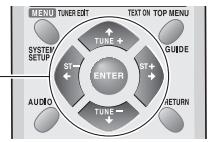
1-5
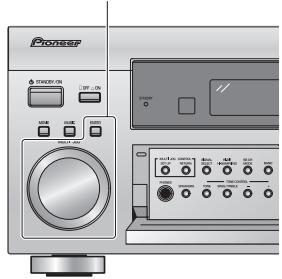
1
Expert
[Crossover Network]
[Fine Channel Level]
[Fine Channel Delay
Acoustic Cal EQ
[Bass Peak Level]
[D-Range Control
Exit
2
Acoustic Cal EQ
[EQ AUTO SETTING]
[CUSTOM1 ADJUST]
DATAOOPX
DATA COPY [DATA QUE]
[DATA CHECK] [Exit]
3
EQ DATA COPY
CUSTOM1
[NOT DATA COPY]
CUSTOM2
[Exit]
4
EQ DATA COPY
CUSTOM1
IFRONT ALIGN
CUSTOM2
[Exit]
To start the process use DATA COPY to paste the ALL CH ADJUST or FRONT ALIGN settings into CUSTOM 1 or CUSTOM 2.
Follow steps 1-5 on page 83, if necessary, to get to the starting point mentioned here.
1 ACOUSTIC CAL EQ should be selected, if it isn't use the buttons to select and press ENTER.
2 Use the buttons to select DATA COPY. Press ENTER.
3 Use the buttons to select CUSTOM 1 or CUSTOM 2 as the destination you want to copy the data to. Press ENTER.
4 Use the buttons to select ALL CH ADJUST or FRONT ALIGN as the type of curve you want to copy. Press ENTER.
When you press ENTER the data is copied to the
destination you chose.
After you have done this process once you can also copy
data in CUSTOM 1 or CUSTOM 2.
5 When done select EXIT (if it's not already selected) and press ENTER.
You can now adjust the settings in CUSTOM 1 or
CUSTOM 2.
For explanation purposes the illustrations use ALL CH ADJUST.
1
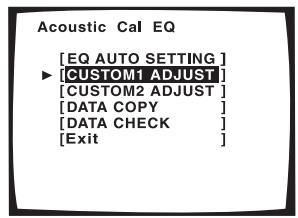
2
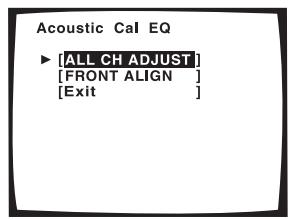
3
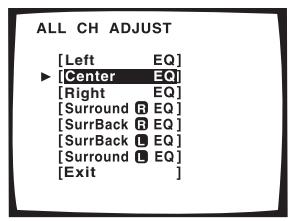
4
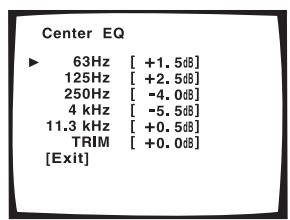
This explanation is for CUSTOM 1 or CUSTOM 2.
1 Use the buttons to select CUSTOM 1 or CUSTOM 2. Press ENTER.
2 Use the buttons to select ALL CH ADJUST or FRONT ALIGN and press ENTER.
The test tones will sound.
WARNING: the test tones are very loud!! Make sure there are no infants or small children in the room and that no one who will be scared, upset or damaged by loud noise is present. You yourself may want to wear earplugs. Here the terms ALL CH ADJUST and FRONT ALIGN represent two types of equalizer methods that emphasize different characteristics of the sound.
ALL CH ADJUST: In this method all the speakers (except for the subwoofer) are independent. The settings that were input when you did the AUTO SURROUND SETUP (see page 13) will be present but you can adjust each speaker individually to suit your taste. The test tones for each channel will sound individually.
FRONT ALIGN: In this method all speakers (except for the subwoofer) are set in accordance with the settings of the FRONT speakers. The settings that were input when you did the AUTO SURROUND SETUP (see page 13) will be present but you can adjust each speaker individually to suit your taste. This setting allows the listener to enjoy a sound balance defined by the front speakers. The front left speaker will serve as the reference tone. The front left tone and the target speaker (the one you are trying to adjust) will sound in turns, so you can judge which needs to be louder.
3 Use the buttons to select the channel that you want to adjust. Press ENTER.
For FRONT ALIGN you won't be able to adjust the FRONT speakers.
4 Use the buttons to select the frequency you want to adjust. Press ENTER.
For the speakers you set to SMALL (see page 39) you won't be able to adjust the 63Hz setting.
5
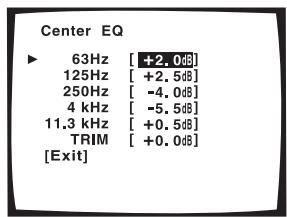
7
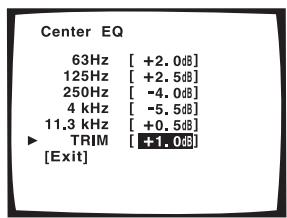
9
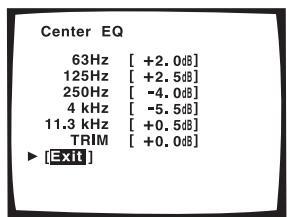
5 Use the buttons to adjust the frequency. When you have it at the level you want press ENTER.
Set the frequencies within the -6dB to +6dB range in steps of 0.5dB . If OVER appears in the display you have set the levels too high. Reduce them until OVER disappears.
6 The cursor automatically goes to the next frequency. Press ENTER and repeat steps 4 and 5 to adjust all the frequencies.
7 TRIM should be selected (if it isn't use the buttons to select it) and press ENTER.
8 Use the buttons to adjust the TRIM and press ENTER.
TRIM will balance the volume level of each frequency in the overall volume of that speaker.
9 EXIT should be selected (if it isn't use the buttons to select it) and press ENTER.
10 The cursor automatically goes to the next channel. Press ENTER and repeat steps 3 - 8 to adjust all the channels.
11EXIT should be selected (if it isn't use the buttons to select it) and press ENTER.
Leave the setup by using the buttons to select EXIT and pressing ENTER. You can now go to DATA CHECK or leave the ACOUSTIC CAL EQ setting by using the buttons to select EXIT and pressing ENTER.
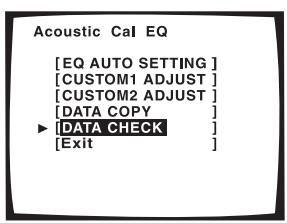
1
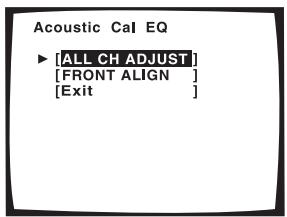
2
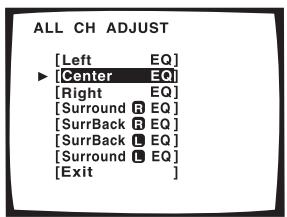
3
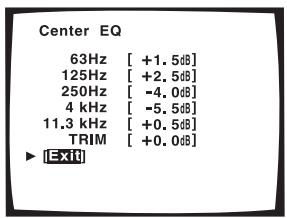
4
To use the DATA CHECK feature follow the steps here.
1 Use the buttons to select DATA CHECK. Press ENTER.
2 Select either ALL CH ADJUST or FRONT ALIGN as the data you want to check. Press ENTER.
3 Use the buttons to select the channel that you want to check. Press ENTER.
That channel appears so you can check the setting.
4 When that channel has been checked, use the buttons to select the EXIT and press ENTER.
5 Repeat step 3 and 4 to check all the channels.
6 When all channels have been checked select EXIT (if it's not already selected) and press ENTER.
Leave the setup by using the buttons to select EXIT and pressing ENTER. You can now go to another ACOUSTIC CAL EQ setting by using the buttons and pressing ENTER.
Expert System Settings
Bass Peak Level
The LFE (Low Frequency Effect) channel in Dolby Digital and DTS program sources can produce heavily concentrated ultra-low bass tones that may exceed the capabilities of your speaker system. The following steps show you how to limit the peak level for the LFE channel. If continuing from the preceding page the BASS PEAK LEVEL should be selected.
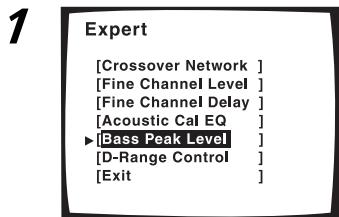
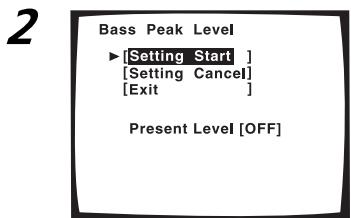
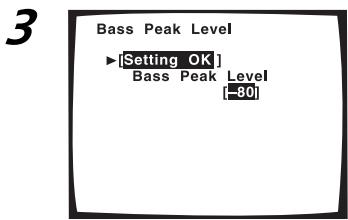
Follow steps 1-5 on page 83, if necessary, to get to the starting point mentioned here.
1 BASS PEAK LEVEL should be selected, if it isn't use the buttons to select and press ENTER.
2 Use the buttons to select SETTING START or SETTING CANCEL. Press ENTER.
SETTING START: The MASTER VOLUME is set to -80, a test tone plays back and you make the setting (go to step 3).
SETTING CANCEL: This setting won't limit the peak level of the LFE channel.
If you selected SETTING CANCEL go to step 4.
3 Use the buttons to adjust the test tone and specify the bass peak level.
1 Raise the level gradually.
2 Set the bass peak level at the point just before the tone starts to distort.
Be careful! Test tones play back at loud volumes.
Make sure there are no infants or small children in the room.
You can leave this setup any time by pressing ENTER.
If the YES or PLUS setting on the subwoofer is selected the test tone will only play back from the subwoofer. If not, the test tone will play back from all speakers set to LARGE except for the subwoofer.
4 Press ENTER.
The display on the receiver will show FADE and then RESUME while the MASTER VOLUME returns to its original position.
5 EXIT should be selected (if it isn't use the buttons to select it), press ENTER.
If you want to change a setting before proceeding
Start over from step 1
Next, if you want, proceed to D-RANGE CONTROL.
Dynamic Range Control
This feature makes it possible to enjoy full surround sound effects on Dolby Digital and DTS sources even at low volumes. It does this by compressing the dynamic range. Dynamic range is the difference between the loudest and the softest sounds in any given signal. Compressing the range plays sounds so the quieter ones are audible and the louder ones don't get distorted or become overpowering. This feature only applies to Dolby Digital and DTS sources but the MIDNIGHT mode (see page 50) accomplishes the same end for a variety of sources. If continuing from BASS PEAK LEVEL, D-RANGE CONTROL should be selected.
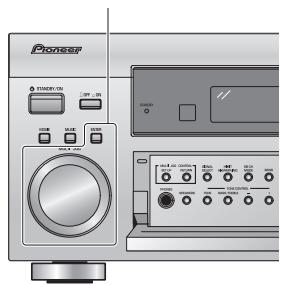
1-6
1
Expert
[Crossover Network] [Fine Channel Level] [Fine Channel Delay] [Acoustic Cal EQ] [Bass Peak Level] [D-Range Control] [Exit]
2
Dynamic Range Control Select Mode [OFF] [MID] [MAX] [Exit]
Follow steps 1-5 on page 83, if necessary, to get to the starting point mentioned here.
1 D-RANGE CONTROL should be selected, if it isn't use the buttons to select and press ENTER.
2 Use the buttons to choose either OFF, MID or MAX. Press ENTER.
Dynamic Range Control is set.
OFF: No Dynamic Range Control
MID: A moderate amount of Dynamic Range Control is applied.
MAX: The most Dynamic Range Control available is applied.
3 EXIT should be selected (if it isn't use the buttons to select it), press ENTER.
If you want to change a setting before proceeding Start over from step 1.
4 You are now finished with EXPERT SETUP, EXIT should be selected (if it isn't use the buttons to select it), press ENTER.
5 EXIT in SURROUND SETUP menu should be selected (if it isn't use the buttons to select it), press ENTER.
6 Use the buttons to select EXIT in the SYSTEM SETUP menu, press ENTER.
The receiver returns to normal operation.
Memo:
The default is OFF.
Techno Tidbits and Problem-solving
Dolby
Dolby Digital
Dolby Digital is a discrete digital surround format used for multichannel surround sound. It was developed after the Dolby Surround System and Dolby Pro Logic Surround System. Dolby Digital is a high quality digital sound format that is used by many theatrical film releases.
Other features include:
1) Downmixing on playback for compatibility with mono, stereo, Dolby Pro Logic and 5.1 channel audio.
2) A wide range of bitrates and channels.
3) Decoding dynamic range information and adjusting the dialog level in the soundtrack (called Dialog Normalization, see below for more information).
Dialog Normalization
When a Dolby Digital soundtrack is played back the Dialog Normalization function of the receiver activates automatically. Dialog Normalization is a Dolby Digital function that establishes the average dialog level for the program source being played. If the receiver's level does not match the average dialog level, first you see "DIAL NORM" and "OFFSET +4 dB" (as an example) appear in the receiver's display. In this example, the number +4 dB is the difference between the receiver's gain structure and the Dolby Digital average dialog level. To match the average dialog level, subtract or add the OFFSET level. For example, if the OFFSET level is +4 dB, the amplifier's output is 4 dB over the average recorded level.
Dolby Pro Logic II
Dolby Pro Logic II is an improved version of Dolby Pro Logic technology with extended matrix decoding technology that can create 5.1 channel sound from two channel sources. Dolby Pro Logic II creates basic 5 channel sound by using the innovative "steering logic" circuit. Therefore when listening to typical two-channel sources like CD, the listener can enjoy a richer spatial effect. When using software encoded with Dolby Surround, this decoding system affords the listener an improved surround experience with greater sound detail.
Chart Comparing Dolby Pro Logic and Dolby Pro Logic II
| Pro Logic | Pro Logic II | |
| Effective sound source | Dolby Surround encoded sources | All two channel stereo sources |
| Surround Sound | Mono | Stereo |
| Frequency Range | Surround within 7kHz | All Channels/Full Range |
Dolby Digital Surround EX
This new recording technology is able to play 6.1 channel sound and was developed in a collaboration between Dolby Laboratories and Lucasfilm, Ltd. for the film "Star Wars: The First Episode", the first movie ever to be made with Dolby Digital Surround EX technology. In a movie theater this format affords the listener vivid surround sound experience replete with the effect of sounds flying overhead, even for those seated towards the sides of the theater. Dolby Digital Surround EX contains surround back channels which are dubbed into the soundtrack in studio. The channels are encoded into the left and right channels of the soundtrack so this format can be compatible with Dolby Digital 5.1 channel decoding. For a list of movies that contain Dolby Digital Surround EX soundtracks see Dolby website at: http://www.dolby.com
DTS
DTS
In this system, 6 channels of digital sound are recorded on CD-ROM. DTS adopts a simultaneous playback format. With a low rate of compression of sound signals and a high rate of transmittance, a higher sound quality format is produced. For this reason, the format is being introduced in more and more movie theaters, and is being adopted for home use as DTS Digital Surround. When used with movies it's called DTS-LD DVD and for music software (5.1 channel CD) as DTS-CD.
DTS-ES
DTS launched a new surround format in November 2000. This has come to be known as DTS Extended Surround or simply DTS-ES. The technology has been advanced to include two new home formats DTS-ES Discrete 6.1 format, and DTS-ES Matrix 6.1 ch format, both are able to playback discrete, 6.1-channel content from DVDs and CDs. Both of these formats are compatible with a conventional DTS 5.1 ch decoder. In this system each channel is encoded and decoded individually, adding to the separation of the channels. Since DTS adds a third surround channel, the surround back channel, the realism and all-encompassing nature of the sound reaches levels not seen before in home theater. This unit is equipped with a DTS-ES decoder.
DTS Neo:6
This is a matrix decoding technology that transforms two-channel sources into 6.0 channel surround sound. There are two modes, CINEMA mode and MUSIC mode.
DTS 96/24
For compatibility with equipment that was produced before this format was made, DVD players can play this software using a conventional DTS 5.1ch decoder. This unit is equipped with a DTS 96 kHz/24 bit decoder to take advantage of the higher sound quality available.
THX
THX is a Lucasfilm, Ltd. program dedicated to maximum accuracy in movie presentation. Movie sound tracks are recorded in large movie dubbing stages using movie theater equipment. For a sound track to be presented accurately in your home, special technologies are required. In your home the room is much smaller and has a bright sound, the speakers are very different and there are only six-eight of them, plus, you sit much closer to each one of those speakers. Because of these differences we often miss the power and emotion that thrills us in a good movie. Now Pioneer and THX have teamed up to bring the full glory of accurate cinema sound to the comfort and convenience of your home.
Re-Equalization™: In a theater the room is very large and dead sounding, you sit a long way back from the speakers and the speakers themselves are very specialized. Because a sound track recorded in this dead sounding space when it is played at home it sounds overbright. THX Re-Equalization adjusts for this difference in a very precise way.
Adaptive Decorrelation™: When a sound track sends mono sound to the surround speakers it often seems to be coming come from one side instead of from all around you as it would in a theater. Adaptive Decorrelation helps to correct this inaccuracy.
Timbre Matching™: When recording a sound track it is very important that the surround sounds move smoothly and seamlessly around the theater. It is very distracting when sounds seem to jump from speaker to speaker. Timbre Matching helps to smooth the movement of the surround sounds even though you are using only two speakers.
Bass Peak Level Manager™ : Some Dolby Digital sound tracks can produce bass peaks that are undesirable in a home theater environment. The Bass Peak Level Manager allows you to set the maximum peak levels appropriate to your system. Set this function according to the Bass Peak Level instructions (page 92).
Loudspeaker Position Time Synchronization™ : This feature allows you to adjust for the difference in the distance from each individual loudspeaker to the listening position. Doing this ensures that all the speakers operate in precise synchronization improving the seamless nature of the soundfield. Set this function according to the Speaker Distance instructions (page 42) or Fine Channel Delay instructions (page 86).
THX Surround EX™ : THX Surround EX-Dolby Digital Surround EX is a joint development of Dolby Laboratories and the THX division of Lucasfilm Ltd.
This product may also engage the "THX Surround EX" mode during the playback of 5.1 channel material that is not Dolby Digital Surround EX encoded. In such case the information delivered to the Surround Back channel will be program dependent and may or may not be very pleasing depending on the particular soundtrack and the tastes of the individual listener.
Techno Tidbits and Problem-solving
Troubleshooting
Incorrect operations are often mistaken for trouble and malfunctions. If you think that there is something wrong with this component, check the points below. Sometimes the trouble may lie in another component. Investigate the other components and electrical appliances being used. If the trouble cannot be rectified even after exercising the checks listed below, ask your nearest PIONEER authorized service center or your dealer to carry out repair work.
| Symptom | Cause | Remedy |
| Power | ||
| The power does not turn on | ·The power plug is disconnected. | ·Connect the power plug to the wall outlet. |
| ·The protection circuit may have been activated. | ·Disconnect the power plug from the outlet, and insert again. | |
| During loud playback the power suddenly switches off. | ·The protection circuit has been activated because the lowest actual impedance of the speakers (as opposed to the speakers' rated impedance) is dangerously low. | ·Turn down the volume. ·When it's convenient go to ACOUSTIC CAL EQ (see page 87) and lower the 63 Hz and 125 Hz equalizer levels using manual setting. ·Turning DIGITAL SAFETY on may allow you to turn up the volume a little more. (From the Standby mode, and while holding down the MULTI JOG CONTROL SET UP button press the STANDBY/ON button. Each action switches SAFETY ON or OFF.) |
| The unit does not respond when the buttons are pressed. | ·Static electricity caused by dry air. | ·Switch the unit off, then on again. ·Disconnect the power plug from the outlet, and insert again. |
| During operation, the unit suddenly switches off. | ·The speaker wires are frayed or sticking out of the jack, and are touching the back of the receiver or another set of wires. | ·Reinsert the speaker wires, making sure there are no stray strands of wire and that they are inserted fully (see page 25). |
| AMP ERR blinks in the display and the unit turns off. The STANDBY indicator will blink and the unit cannot be turned on. | ·The receiver probably has a serious problem. | ·Don't try to turn on the receiver. Call a Pioneer-accredited repair center to look at the problem. |
| FAN STOP blinks in the display and the unit turns off. | ·Something is stuck in the fan and/or the fan is broken. | ·Remove the foreign object from the fan. If you can't do this and/or the fan is broken call a Pioneer-accredited repair center to look at the problem. |
| OVERHEAT blinks in the display and no sound is output. | ·The receiver has gotten too hot. | ·Turn the receiver off and allow it to cool down with good ventilation. It is very likely that you have a heat dispersal and ventilation problem so please follow the instructions in "Installing the Receiver" on page 2 carefully. |
| THDCT NG blinks in the display and the unit turns off. | ·The thermistor (temperature sensor) is broken. | ·Turn the receiver off, unplug from wall and call a Pioneer-accredited repair center to look at the problem. |
| Setup | ||
| The setup screen doesn't appear. | ·The output jacks haven't been con- nected properly. ·The TV hasn't been connected to the MONITOR OUT jack. ·The PAL/NTSC setting is incorrect. ·Some TVs connected to the receiver with component video cords do not display the Setup Screen when color burst is on. (In the NTSC format only) | ·Check all connections (see pages 16, 17, 20 and 22). ·Connect the TV to the MONITOR OUT jacks (see page 16). ·Select the correct PAL/NTSC setting (see page 8). ·Turn the color burst to off. (From the Standby mode, and while holding down the MULTI JOG CONTROL RETURN button press the STANDBY/ON button. Each action switches the color burst on or off.) |
| Every time AUTO SURROUND SETUP is attempted, there is some kind of error, or the settings seem incorrect. | ·The room environment is not optimal for auto setup (too much ambient noise; obstacles blocking the speakers from the microphone; the monitor noise is interfering with the setup; etc.). | ·Make sure the room environment is in line with the guidelines for auto setup in this manual (see page 13 and Memo on page 15). |
| The LARGE and SMALL settings for speakers after the Auto Surround Sound Setup are incorrect. | ·There are other frequencies in the room that are affecting the auto setup. | ·Check for household appliances (air conditioner, fan, etc.) that may be affecting the environment and switch them off if necessary. |
| After the proper settings have been made, there still seems to be something wrong with the sound. | ·The speakers have been incorrectly con- nected (left and right connections are reversed). | ·Check all connections. Be sure match the right channel on the speaker with the right channel on the speaker terminals (see page 25). |
| No audio | ||
| No sound is output when a function is selected. | ·Improper connections. ·Sound is muted. ·The volume is turned down. ·Speakers are turned off. ·DIGITAL/ANALOG setting is incorrect. ·MULTI CH IN mode is on. | ·Make sure the component/speakers are connected correctly (see pages 16, 17, 20, 22, 24 and 25). ·Press MUTING on the remote control. ·Adjust MASTER VOLUME. ·Press SPEAKERS (A/B) to select the speakers you connected (see page 72). ·Select the proper signal with the SIG-NAL SELECT button (see page 44). ·Turn MULTI CH IN mode off (see page 52). |
| No sound output from the front speakers. | ·The front speakers aren't connected properly. | ·Check all connections (see page 25). |
| No sound output from surround or center speakers. | ·Speaker settings are incorrect. ·The surround or center speakers aren't connected properly. ·The listening mode is STEREO. | ·See SPEAKER SETTING on page 39 to check the speaker settings. ·Check all connections (see page 25). ·Choose a surround listening mode (see page 43). |
Techno Tidbits and Problem-solving
| Symptom | Cause | Remedy |
| No sound output from the subwoofer. | ·The subwoofer setting is NO. ·The subwoofer output setting is too low. ·The bass peak level setting is too low. ·There is very little low frequency information in your source. ·The crossover frequency is set too low. ·There is a problem with the subwoofer. | ·Change the setting to YES or PLUS (see page 39). ·Adjust the output setting to the level you want (see pages 41 and 85). ·Adjust the bass peak level setting to the level you want (see page 92). ·Change your subwoofer setting to one of the following (see page 39): ·Front: SMALL Subwoofer:YES ·Front:LARGE Subwoofer:PLUS ·Raise the frequency level to match your speakers' characteristics (see page 84). ·Check the three following points: ·Check the power. ·Check the subwoofer volume control. ·Check the subwoofer hasn't automatically switched to standby mode (check the subwoofer manual). ·Check all connections (see page 25). |
| No sound output from the surround back speakers. | ·The SB CH MODE is set to OFF. ·The source is not a 6.1 channel playback source. ·The surround back speakers aren't connected properly. ·The surround back channel is set to 1 speaker setting only, and the speaker is connected to the right channel output. | ·Set the SB CH MODE to ON or AUTO (see page 53). ·Set the SB CH MODE to ON or AUTO (see page 53) and choose one of the SURROUND listening modes (see pages 46 and 47). ·Check all connections (see page 25). ·Connect the speaker to the surround back left channel output (see page 25). |
| No sound output from one (set of) speaker(s). | ·The speaker system setting is NO. ·The speaker isn't connected properly. ·The source has no sound output for that channel. ·The speaker output level is set too small. | ·Change the speaker setting to YES (see page 39). ·Check all connections (see page 25). ·If you choose one of the SURROUND listening modes, a channel may be created for the speaker (see page 43). ·Increase the speaker output level. |
| Sound is produced from some components, but not from digital components. | ·SIGNAL SELECT is set incorrectly. ·The digital inputs are assigned incorrectly, or not at all. ·The digital components aren't connected properly. ·The player is not compatible with the source you're using, or the player settings are incorrect. ·The MULTI CH IN mode has been selected. ·The digital output level has been turned down on a CD player or other component equipped with digital output level adjustment capability. | ·Set SIGNAL SELECT to AUTO or according to the type of connections made (see page 44). ·Set the digital input settings correctly (see pages 12, 23, and especially 81). ·Check all connections. ·Choose a compatible source, or check the player's manual for the correct settings. ·Choose one of the listening modes (see page 45). The MULTI CH IN switches off automatically. ·Set the digital volume level of the player to full, or to the neutral position. |
| Other audio problems | ||
| Subwoofer output is very low. | • Settings route signal away from sub-woofer. | • To get more signal to the subwoofer set it to PLUS or choose SMALL for the front speakers (see page 39). |
| During multi channel playback, there is no sound output from one speaker. | • That speaker is set to NO. | • Set the speaker to YES. |
| A multi channel DVD source appears to be downmixed from 2 channels during playback. | • The source is coming from something other than the MULTI CH IN jacks (for example, digital PCM output, etc.) | • Check the MULTI CH IN connection (see page 21) and select the type of playback with the MULTI CH IN button (see page 52). |
| Considerable noise in radio broadcasts. | • Incorrect frequency. • The antenna is not connected. • Digital cables are near the antenna ter- minals and wires. | • Tune in the correct frequency. • Connect the antenna (see page 24). • Route digital cables away from the antenna terminals and wires. |
| Broadcast stations cannot be selected automatically. | • The antenna is poorly positioned. • Interference caused by other equipment (fluorescent lamp, motor, etc.). • Weak radio signals. | • Adjust the direction and position for best reception. • Turn off the equipment causing the noise or move it away from the receiver. • Place the antenna farther away from the equipment causing the noise. • Connect an outdoor AM or FM antenna (see page 24). |
| Noise or hum can be heard even when there is no sound being input. | • There is electrical interference from another component or appliance. | • Check that personal computers or other digital components connected to the same power source are not caus- ing interference. |
| When a search is performed by a DTS compatible CD player during playback, noise is output. | • The search function performed by the player interferes with the reading of digi- tal information. | • This is not a malfunction, but be sure to turn the volume down to prevent the output of loud noise from your speak- ers. |
| When playing a DTS format LD there is noise audible on the soundtrack. | • The SIGNAL SELECT is on ANALOG. | • Set the SIGNAL SELECT to DIGITAL (see page 44). |
| Audio doesn't record (in some cases, even if video does). | • You are trying to make an analog record- ing from a digital signal, or a digital recording of an analog source. • The digital source is copy protected. • The jacks for recording have not been connected properly. | • You can only record analog to analog, or digital to digital. Make sure the play- back and recording components are hooked up with the same kind of con- nections. • You can't record digital sources that have been copy protected. • Check connections (see pages 20 and 22). |
Techno Tidbits and Problem-solving
| Symptom | Cause | Remedy |
| Video | ||
| No image is output when a function is selected. | • Improper connections. • The input source is not properly selected. • The video input selected on the TV monitor is incorrect. • The TV or monitor is hooked up with cord that is different than that used for the video player. | • Make sure the component is connected correctly (see pages 16 and 17). • Press the correct function button. • Please read the TV monitor manual and change the settings accordingly. • Use the same cable to connect to your TV and all your video equipment (see pages 16 and 17). |
| There is no image coming from the selected component's video jacks. | • The type of cord connected to the TV doesn't match your video input settings. | • Change the settings to match the cord connected (see page 16). |
| Can't record video. | • The source is copy protected. • The recorder's video input is hooked up using a different type of cord to the source video output. | • You can't record sources that have been copy protected. • Hook up the source and the recorder using the same type of video cord. (see page 17) |
| Input/display | ||
| The display is dark. | • The display DIMMER button is pushed. | • Press DIMMER on the remote control repeatedly to return to the default setting (see page 55). |
| You can't get DIGITAL to come up when using the SIGNAL SELECT button. | • Either the digital connections or the DIGITAL IN SELECT is incorrect. • MULTI CH IN mode is on. | • Make sure the digital connections (see pages 17 and 22) and the DIGITAL IN SELECT (see page 81) are done correctly. • Turn MULTI CH IN mode off (see page 52). |
| The digital format indicator doesn't light up even when playing a non-PCM digital source. | • The player is paused or stopped. • There is a mistake in the player settings for audio output. | • Play the source. • Fix the audio settings (check the manual that came with your DVD player). |
| A compressed digital source is being played, but the digital format indicators don't light up. | • Although it's a non-PCM digital source there is a possibility the present track is not the proper format (5.1, 6.1, or 7.1 channel). | • There is no problem. The indicator won't light when the track is not a compressed digital source. |
| During playback of a compressed digital source, the PRO LOGIC II or NEO:6 indicators show in the display. | • The digital signal is not being sent with the source. • The audio is in two channel format. • It has already been Dolby surround encoded. | • Choose DIGITAL or AUTO with the signal select button (see page 44). • This is not a malfunction. Check the manufacturer information for the source. |
| During playback of a Surround EX or DTS ES source on the AUTO setting, the EX and ES indicators won't light. | • The source may be 6.1 playback compatible, but there is no signal from the source to indicate this. | • Switch the SB CH MODE to ON (see page 53). |
| During playback of a DVD audio source, the player shows a transfer rate of 96kHz, but the receiver does not. | • The multichannel connections are analog, so there is no digital transfer. | • This is not a malfunction. See the player's manual for more details. |
| During playback of a 96kHz source, the display doesn't show 96kHz. | • SIGNAL SELECT is set to ANALOG. | • Set the SIGNAL SELECT to AUTO (see page 44). |
| Remote control | ||
| Cannot be remote controlled. | ·The remote control batteries have worn out. ·Too far away or improper angle of operation. ·There is an obstacle between the receiver and the remote control. ·Strong light such as fluorescent light is shining onto the unit's remote control signal light-receiving window. ·A cord is connected to the CONTROL IN terminal on this unit. | ·Replace the batteries (see page 7). ·Operate within 7m and a 30° angle of the remote sensor on the front panel (see page 8). ·Remove the obstacle or operate from another position (see page 8). ·Avoid exposing the remote sensor on the front panel to direct light. ·Connect cord to the correct jack. |
| Other components can't be operated with the system remote. | ·The preset code settings are wrong. ·The batteries wore out and the system settings were cleared. | ·Input the correct preset code. ·Reset the proper system settings. |
| The SR cable is connected, but the connected components can't be operated with the remote. | ·The SR cable hasn't been connected properly. ·The rest of the component connection have not been made. ·The component you have hooked up is not SR compatible. | ·Reinsert the SR cable, making sure it is the right jack (see page 74). ·Make sure an analog connection has been made between the units. ·This is not a malfunction. |
| Miscellaneous | ||
| There seems to be a time lag between the speakers and the output of the subwoofer. | ·The subwoofer channel can be delayed slightly if run through a low-pass filter. | ·The MCACC system will automatically compensate for a delay in the subwoofer output during the Auto Surround Sound Setup. |
If the unit does not operate normally due to external effects such as static electricity
Disconnect the power plug from the outlet and insert again to return to normal operating conditions.
Maintenance of External Surfaces
- Use a polishing cloth or dry cloth to wipe off dust and dirt.
- When the surfaces are dirty, wipe with a soft cloth dipped in some neutral cleanser diluted five or six times with water, and wrung out well, and then wipe again with a dry cloth. Do not use furniture wax or cleaners.
- Never use thinners, benzine, insecticide sprays or other chemicals on or near this unit, since these will corrode the surfaces.
Techno Tidbits and Problem-solving
Preset Code Brands
| DVD | |
| Manufacturer | Code |
| PIONEER 1001, 1002, 1003 | |
| DENON | 1004 |
| JVC | 1005 |
| PANASONIC | 1002 |
| PHILIPS | 1006 |
| RCA | 1007 |
| SAMSUNG | 1008 |
| SONY | 1009 |
| TOSHIBA | 1010 |
| YAMAHA 1011, 1012 | |
| LD | |
| Manufacturer | Code |
| PIONEER | 2001, 2002 |
| DENON | 2003 |
| KENWOOD | 2004 |
| PANASONIC | 2005 |
| PHILIPS | 2006, 2007 |
| SONY | 2008 |
| YAMAHA | 2009 |
| TV | ||
| Manufacturer | Code | |
| PIONEER | 5001, 5002, 5003 | |
| 5004, 5005, 5006 | ||
| 5007, 5008, 5009 | ||
| 5010 | ||
| ADMIRAL | 5011, 5012, 5013 | |
| AIWA | 5014, 5015 | |
| AKAI | 5016 | |
| ALBA | 5017 | |
| AOC | 5018 | |
| BESTAR | 5019 | |
| BLAUPUNKT | 5020 | |
| BLUE SKY | 5021 | |
| BRANDT | 5022 | |
| BROCSONIC | 5023 | |
| BUSH | 5024 | |
| CLATRONIC | 5025 | |
| CRAIG | 5026, 5027, 5028 | |
| 5029 | ||
| CROSLEX | 5030 | |
| CURTIS MATHIS | 5031, 5032 | |
| 5033 | ||
| DAEWOO | 5034, 5035, 5036 | |
| 5037, 5038, 5039 | ||
| DAYTRON | 5040 | |
| DUAL | 5041 | |
| EMERSON | 5042, 5043, 5044 | |
| 5045, 5046, 5047 | ||
| 5045, 5046, 5047 | ||
| 5048 | ||
| FERGUSON | 5049, 5050 | |
| FIRST | 5051 | |
| FISHER | 5052 | |
| FUJITSU | 5053 | |
| FUNAI | 5054, 5055, 5056 | |
| GE | 5057, 5058, 5059 | |
| 5060 | ||
| GOLDSTAR | 5061, 5062, 5063 | |
| 5064 | ||
| GOODMANS | 5065, 5066 | |
| HITACHI | 5067, 5068, 5069 | |
| 5070, 5071 | ||
| ICE | 5072 | |
| IRRADIO | 5073 | |
| ITT/NOKIA | 5074, 5075 | |
| JC PENNY | 5076, 5077 | |
| 5078, 5079 | ||
| JVC | 5080, 5081 | |
| KENDO | 5082 | |
| KTV | 5083, 5084 | |
| LOEWE | 5085 | |
| LXI | 5086, 5087, 5088 | |
| 5089, 5090 | ||
| MAGNAVOX | 5091 | |
| MARK | 5092 | |
| MATSUI | 5093, 5094 | |
| MATSUSHITA | 5095, 5096 |
| MED I ON | 5097 |
| MITSUBISHI | 5098, 5099 |
| MIVAR | 5100 |
| NEC | 5101, 5102 |
| NOKIA OCEANIC | 5103 |
| NORDMENDE | 5104, 5105 |
| OKANO | 5106 |
| ONWA | 5107 |
| PANASONIC | 5108, 5109 |
| 5110, 5111 | |
| PHILCO | 5112, 5113, 5114 |
| PHILLIPS | 5004 |
| PHONOLA | 5115 |
| PORTLAND | 5116, 5117 |
| PROSCAN | 5118 |
| QUASAR | 5119, 5120 |
| RADIO | 5121, 5122 |
| RADIO SHACK | 5123, 5124 |
| 5125 | |
| RADIOLA | 5126 |
| RCA/PROSCAN | 5127, 5128 |
| 5129 | |
| SABA | 5130 |
| SAMSUNG | 5131, 5132 |
| SANYO | 5133, 5134, 5135 |
| SCHNE I DER | 5136 |
| SCOTT | 5137, 5138 |
| SHARP | 5139, 5140 |
| SIEMENS | 5141 |
| SIGNATURE | 5142, 5143 |
| SONY | 5144, 5145 |
| SYLVANIA | 5146, 5147 |
| SYMPHONIC | 5148 |
| TATUNG | 5149 |
| TELEFUNKEN | 5150, 5151 |
| THORN | 5152 |
| TOSHIBA | 5153, 5154 |
| UNIVERSUM | 5155 |
| VIDECH | 5156, 5157 |
| W. WHOUSE | 5158 |
| WARDSS | 5159, 5160, 5161 |
| WATSON | 5162 |
| ZENITH | 5163, 5164 |
VCR
| Manufacturer | Code | |
| PIONEER | 3001, 3002, 3003 | 3004, 3005 |
| ADMIRAL | 3006 | |
| AIWA | 3007, 3008, 3009 | 3010, 3011 |
| AKAI | 3012 | |
| ALBA | 3013 | |
| AUDIO DYNAMIC | 3014 | |
| BELL&HOWELL | 3015 | |
| BLAUPUNKT | 3016 | |
| BROCSONIC | 3018, 3019 | |
| BUSH | 3020 | |
| CANON | 3021 | |
| CGM | 3022, 3023 | |
| CITIZEN | 3024 | |
| CLATRONIC | 3025 | |
| CRAIG | 3026 | |
| CURTIS MATHIS | 3027, 3028 | |
| 3029 | ||
| DAEWOO | 3030, 3031, 3032 | 3033, 3034 |
| DBX | 3035 | |
| DIMENSIA | 3036 | |
| EMERSON | 3036, 3037, 3038 | 3039, 3040, 3041 |
| FERGUSON | 3042 | |
| FISHER | 3043, 3044, 3045 | 3046 |
| FUNAI | 3047, 3048 | |
| GE | 3049, 3050, 3051 | 3052 |
| GOLDSTAR | 3053, 3054 | |
| GOODMANS | 3055 | |
| GRUNDIG | 3056 | |
| HITACHI | 3056, 3057, 3058 | 3059, 3060 |
| INSTANT REPLAY | 3061, 3062 | |
| ITT/NOKIA | 3063 |
| JC PENNY | 3064, 3065, 3066 |
| 3067, 3068, 3069 | |
| JVC | 3070, 3071, 3072 |
| KENDO | |
| 3073 | |
| KENWOOD | 3074, 3075, 3076 |
| LOEWE | 3077, 3078 |
| LUXOR | |
| 3079 | |
| LXI | 3080, 3081, 3082, 3083 |
| 3084, 3085, 3086 | |
| MARANTZ | 3087, 3088 |
| MARTA | |
| 3089 | |
| MATSUI | |
| 3090 | |
| MEMOREX | 3091, 3092 |
| MINOLTA | 3093, 3094 |
| MITSUBISHI | 3095, 3096 |
| 3097, 3098, 3099 | |
| MULTITECH | 3100, 3101, 3102 |
| NEC | |
| 3103 | |
| NOKIA OCEANIC | 3104 |
| NOKIA | 3105, 3106 |
| NORDMENDE | |
| 3107 | |
| OKANO | |
| 3108 | |
| OLYMPIC | 3109, 3110 |
| ORION | |
| 3111 | |
| PANASONIC | 3112, 3113, 3114 |
| 3115, 3116, 3117 | |
| PENTAX | 3118, 3119 |
| PHILCO | 3120, 3121 |
| PHILIPS | |
| 3122 | |
| PHONOLA | |
| 3123 | |
| QUASAR | 3124, 3125 |
| RCA/PROSCAN | |
| 3126 | |
| REALISTIC | 3127, 3128, 3129 |
| 3130, 3131, 3132 | |
| SABA | |
| 3133 | |
| SAMSUMG | 3134, 3135 |
| SANSUI | |
| 3136 | |
| SANYO | 3137, 3138 |
| SCHNE I DER | 3139, 3140 |
| SCOTT | 3141, 3142, 3143, 3144, 3145, 3146, 3147 |
| SEG | |
| 3148 | |
| SELECO | |
| 3149 | |
| SHARP | 3150, 3151, 3152 |
| SIEMENS | 3153, 3154, 3155 |
| SIGNATURE | |
| 3156, 3157 | |
| SONY | 3158, 3159, 3160 |
| 3161, 3162, 3163 | |
| SYLVANIA | 3164, 3165 |
| 3166, 3167 | |
| SYMPHONIC | |
| 3168 | |
| TANDBERG | |
| 3169 | |
| TASHIRO | |
| 3170 | |
| TATUNG | 3171, 3172 |
| TEAC | 3173, 3174, 3175 |
| TECHNICS | |
| 3176, 3177 | |
| TELEFUNKEN | 3178, 3179 |
| THORN | 3180, 3181 |
| TOSHIBA | 3182, 3183, 3184 |
| UNIVERSUM | 3185, 3186, 3187 |
| W. WHOUSE | |
| 3188 | |
| WARD$ | 3189, 3190, 3191 |
| 3192, 3193 | |
| YAMAHA | 3194, 3195, 3196 |
| ZENITH | |
| 3197 |
STB
| Manufacturer | Code | |
| PIONEER | 6001, 6002, 6003 | |
| 6004, 6005, 6006 | ||
| BELL | 6049 | |
| BLAUPUNKT | 6007 | |
| ECHOSTAR | 6047 | |
| GENERAL INSTRUMENT | ||
| 6008 | ||
| GOLDSTAR | 6009 | |
| GRUNDIG | 6010, 6011 | |
| HAMILIN | 6012, 6013 | |
| HNS/HUGNES | 6014 | |
| HITACHI | 6015 | |
| ITT/NOKIA | 6016 | |
| JERROLD | 6017, 6018, 6019 |
| 6020, 6021 | |
| NEC | 6022, 6023 |
| OAK | 6024, 6025, 6026 |
| PANASONIC | 6027, 6028, 6029 |
| PHILIPS | 6030, 6031 |
| PRIMESTAR | 6048 |
| RADIO SHACK | 6032 |
| RCA | 6033 |
| SAMSUNG | 6034, 6035 |
| SCIENTIFIC ATLANTA | |
| 6036, 6037, 6038 | |
| SIEMENS | 6039, 6040 |
| SONY | 6041 |
| STAR CHOICE | 6048 |
| TOSHIBA | 6042, 6043 |
| TOCOM | 6044 |
| ZENITH | 6045, 6046 |
CD/CD-R
| Manufacturer | Code | |
| PIONEER | 7001, 7002 | |
| DENON | 7003, 7004, 7005 | |
| FISHER | 7006, 7007 | |
| JVC | 7008, 7009, 7010 | |
| 7011 | ||
| KENWOOD | 7012, 7013, 7014, 7015, 7016 | |
| MAGNAVOX | 7017, 7018 | |
| MARANTZ | 7019 | |
| ONKYO | 7020, 7021 | |
| PANASONIC | 7022, 7023 | |
| PHILIPS | 7024, 7025 | |
| RCA | 7026, 7027 | |
| SANYO | 7028 | |
| SHARP | 7029 | |
| SONY | 7030 | |
| TEAC | 7031, 7032, 7033 | |
| TECHNICS | 7034, 7035 | |
| YAMAHA | 7036, 7037, 7038, 7039 | |
| DENON | 7040, 7041 | |
| JVC | 7042 | |
| KENWOOD | 7043 | |
| PHILIPS | 7044 | |
| SONY | 7045 |
DVR
Manufacturer Code
PIONEER 4001
MD
| Manufacturer | Code | |
| PIONEER | 8001, 8002, 8003 | |
| DENON | 8004 | |
| JVC | 8005 | |
| KENWOOD | 8006 | |
| SONY | 8007 | |
| SHARP | 8002 | |
| YAMAHA | 8008, 8009 | |
TAPE
| Manufacturer | Code | |
| PIONEER | 9001, 9002 | |
| DENON | 9003, 9004 | |
| FISHER | 9005, 9006 | |
| JVC | 9007, 9008 | |
| KENWOOD | 9009, 9010, 9011 | |
| NAKAMICHI | 9012 | |
| ONKYO | 9013, 9014, 9015 | |
| PHILIPS | 9016, 9017 | |
| SONY | 9018, 9019 | |
| TEAC | 9020, 9021 | |
| TECHNICS | 9022 | |
| YAMAHA | 9023, 9024, 9025, 9026 |
Specifications (European model)
Continuous Power Output (DIN)
Front. 100 W +100 W (DIN 1 kHz, THD 1%, 8 Ω)
Center. 100 W (DIN 1 kHz, THD 1%, 8 Ω)
Surround. 100 W +100 W (DIN 1 kHz, THD 1%, 8 Ω)
Surround Back. 100 W +100 W (DIN 1 kHz, THD 1%, 8 Ω)
Rated Power Output. 100 W +100 W (20 Hz - 20 kHz, 0.09%, 8 Ω)
Audio Section
Input (Sensitivity/Impedance) LINE 335 mV/47 kFrequency Response LINE .5 Hz to 100,000 Hz ^+ dB Output (Level/Impedance) LINE .335 mV/2.2 kTone Control BASS ± 6 dB (100 Hz) TREBLE ± 6 dB (10 kHz) LOUDNESS +4 / + 2 dB (100Hz/10 kHz) (at volume position -40dB)
Signal-to-Noise Ratio (IHF, short circuited, A network) LINE 101 dB
Signal-to-Noise Ratio [DIN (Continuous rated power output/50 mW)] LINE 92/65 dB
Video Section (S jack)
Input (Sensitivity/Impedance) 1 Vp-p/75 Ω
Output (Level/Impedance) 1 Vp-p/75 Ω
Frequency Response 5 Hz to 10 MHz +0 _3 dB
Signal-to-Noise Ratio 65 dB
Video Section (Composite)
Input (Sensitivity/Impedance) LINE .1 Vp-p/75 Output (Level/Impedance) LINE .1 Vp-p/75 Frequency Response LINE .5 Hz to 10 MHz ^+ 0 _ - 3 dB
Signal-to-Noise Ratio.65 dB
FM Tuner Section
Frequency Range. 87.5 MHz to 108 MHz
Usable Sensitivity. Mono: 15.2 dBf, IHF (1.6 V/75 Ω)
50 dB Quieting Sensitivity. Mono: 20.2 dBf Stereo: 41.2 dBf
Sensitivity (DIN). Mono: 1.1 V (S/N 26 dB) Stereo: 50 V (S/N 46 dB)
Signal-to-Noise Ratio. Mono: 76 dB (at 85 dBf) Stereo: 72 dB (at 85 dBf)
Signal-to-Noise Ratio (DIN). Mono: 62 dB Stereo: 58 dB
Distortion. Stereo: 0.6 % (1 kHz)
Alternate Channel Selectivity. 70 dB (400 kHz)
Stereo Separation. 40 dB (1 kHz)
Frequency Response. 30 Hz to 15 kHz (± 1 dB)
Antenna Input. 75 Ω unbalanced
AM Tuner Section
Frequency Range. 531 kHz to 1,602 kHz
Sensitivity (IHF, Loop antenna) 350 V/m
Selectivity 30 dB
Signal-to-Noise Ratio 50 dB
Antenna...Loop antenna
Miscellaneous
Power Requirements.. AC 220 - 230 V, 50/60 Hz
Power Consumption. . 600 W
Power Consumption in Standby mode. . 0.8 W
AC Outlet SWITCHED .. 100 W (0.8 A) MAX
Dimensions. .420 (W) × 188 (H) × 464 (D) mm
Weight (without package). . 18.3 kg
Furnished Parts
FM wire Antenna 1
AM loop Antenna . . . . . . . . . . . . . . . . . . . . . . . . . . . . . . . . . . . . . . . . . . . . . . . . . . . . . . . . . . . . . . . . . . . . . . . . . . . . . . . .
"AA" IEC LR6 batteries 2
Remote Control Unit 1
Microphone for Auto Surround Sound Setup. 1
Microphone Stand for Auto Surround Sound Setup.. 1
AC Power Cord 1
Operating Instructions. 1
NOTE:
Specifications and the design are subject to possible modifications without notice, due to improvements.
Techno Tidbits and Problem-solving
Specifications (multi-voltage model)
Maximum Output Power 130 W/channel (1 kHz, THD 10.0%, 8 Ω)
Continuous Power Output (DIN)
Front. 100 W + 100 W (DIN 1 kHz, THD 1%, 8 Ω)
Center 100 W (DIN 1 kHz, THD 1% , 8 Ω)
Surround.100 W + 100 W (DIN 1 kHz, THD 1%, 8 Ω)
Surround Back
100 W + 100 W (DIN 1 kHz, THD 1%, 8 Ω)
Rated Power Output 100 W + 100 W (20 Hz - 20 kHz, 0.09 %, 8 Ω)
Audio Section
Input (Sensitivity/Impedance)
LINE. 335 mV/47 kΩ
Frequency Response
LINE. 5 Hz to 100,000 Hz ^+0-3 dB
Output (Level/Impedance)
LINE. 335 mV/2.2 kΩ
Tone Control
BASS. 6 dB (100 Hz)
TREBLE. ±6dB(10kHz)
LOUDNESS. +4 / + 2 dB (100Hz/10 kHz)
(at volume position -40dB)
Signal-to-Noise Ratio (IHF, short circuited, A network)
LINE. 101 dB
Signal-to-Noise Ratio
[DIN (Continuous rated power output/50 mW)]
LINE. 92/65 dB
Signal-to-Noise Ratio [EIA, at 1 W (1 kHz)]
LINE. 83 dB
Video Section (S jack)
Input (Sensitivity/Impedance) .1 Vp-p/75
Output (Level/Impedance) 1 Vp-p/75 Ω
Frequency Response .5 Hz to 10 MHz ^+0 dB
Signal-to-Noise Ratio 65 dB
Video Section (Composite)
Input (Sensitivity/Impedance)
LINE. 1 Vp-p/75 Ω
Output (Level/Impedance)
LINE. 1 Vp-p/75 Ω
Frequency Response
LINE. .5 Hz to 10 MHz ^+0-3 dB
Signal-to-Noise Ratio 65 dB
FM Tuner Section
Frequency Range. 87.5 MHz to 108 MHz
Usable Sensitivity ....... Mono: 13.2 dBf, IHF (1.3 V/75 Ω)
50 dB Quieting Sensitivity.... Mono: 20.2 dBf
Stereo: 38.6 dBf
Signal-to-Noise Ratio............ Mono: 73 dB (at 85 dBf)
Stereo: 70 dB (at 85 dBf)
Distortion. Stereo: 0.5% (1 kHz)
Alternate Channel Selectivity 60 dB (400 kHz)
Stereo Separation. 40 dB (1 kHz)
Frequency Response 30 Hz to 15 kHz (± 1 dB)
Antenna Input 75Ω unbalanced
AM Tuner Section
Frequency Range. 531 kHz to 1,602 kHz (9 kHz step)
530 kHz to 1,700 kHz (10 kHz step)
Sensitivity (IHF, Loop antenna) 350 V/m
Selectivity 25 dB
Signal-to-Noise Ratio. 50 dB
Antenna..... Loop antenna
Miscellaneous
Power Requirements AC 110/120-127/220/230-240 V, 50/60 Hz
Power Consumption. 600 W
Power Consumption in Standby mode. 0.9 W
Dimensions. 420 (W) × 188 (H) × 464 (D) mm
Weight (without package) 18.4 kg
Furnished Parts
FM wire Antenna 1
AM loop Antenna. 1
"AA" IEC LR6 batteries 2
Remote Control Unit. 1
Microphone for Auto Surround Sound Setup. 1
Microphone Stand for Auto Surround Sound Setup.1
AC Power Cord. 2
Operating Instructions 1
Flat-bladed converter plug. 1
Antenna Adaptor 1
NOTE:
Specifications and the design are subject to possible modifications without notice, due to improvements.
Published by Pioneer Corporation.
Copyright © 2003 Pioneer Corporation.
All rights reserved.