
ST121WHD - AV Transmitter StarTech.com - Free user manual and instructions
Find the device manual for free ST121WHD StarTech.com in PDF.


| Product Type | Wireless HD Extender (Transmitter + Receiver) |
| Brand | StarTech.com |
| Model | ST121WHD |
| Wireless Technology | WHDI (5.1-5.9 GHz) |
| Maximum Transmission Distance | 30 m (100 ft) |
| Maximum Video Resolution | 1920 x 1080 (1080p) |
| Supported Resolutions | 1080p, 1080i, 720p, 480p; PC: VGA (640x480), SVGA (800x600), XGA (1024x768), SXGA (1280x1024) |
| HDCP Compliance | Yes |
| IR Remote Control Support | Yes (38 kHz carrier modulation) |
| Number of Transmitters per Receiver | Up to 3 |
| Power Supply | 2 x Universal Power Adapter (NA/UK/EU), input 100-240V AC |
| Package Contents | Wireless HD Transmitter, Wireless HD Receiver, 2 Positioning Stands, 1 HD Cable, 1 IR Remote Extension Connector, 2 Universal Power Adapters, Instruction Manual |
| Weight (each unit, approximate) | 0.3 kg (0.66 lb) |
| Dimensions (each unit, approximate) | 10.0 x 7.0 x 2.5 cm (3.9 x 2.8 x 1.0 in) |
| Warranty | 2 years |
| Safety Compliance | FCC Class B, FCC Radiation Exposure |
| Operating Environment | Indoor use only |
| Mounting Options | Horizontal or vertical positioning with included stands |
| LED Indicators | Wireless Connection Status and Video Status on both units |
| On-Screen Display (OSD) | Yes, via IR remote for settings |
Frequently Asked Questions - ST121WHD StarTech.com
User questions about ST121WHD StarTech.com
0 question about this device. Answer the ones you know or ask your own.
Ask a new question about this device
Download the instructions for your AV Transmitter in PDF format for free! Find your manual ST121WHD - StarTech.com and take your electronic device back in hand. On this page are published all the documents necessary for the use of your device. ST121WHD by StarTech.com.
USER MANUAL ST121WHD StarTech.com
WHDI Wireless HD Extender - 1080p Wireless High Definition
ST121WHD

natural_image
Two black StarTech.com electronic devices with ports and labels (no readable text beyond branding)*actual product may vary from photos
For the most up-to-date information, please visit: www.startech.com
FCC Compliance Statement
This equipment has been tested and found to comply with the limits for a Class B digital device, pursuant to part 15 of the FCC rules. These limits are designed to provide reasonable protection against harmful interference in a residential installation. This equipment generates, uses and can radiate radio frequency energy and, if not installed and used in accordance with the instructions, because harmful interference to radio communications. However, there is no guarantee that interferes will not occur in a particular installation. If this equipment does cause harmful interference to radio or television reception, which can be determined by turning the equipment off and on, the user is encouraged to try to correct the interference by one or more of the following measures:
• Reorient or relocate the receiving antenna.
- Increase the separation between the equipment and receiver.
- Consult the dealer or an experienced radio/TV technician for help.
- Connect the equipment into an outlet on a circuit different from that to which the receiver is connected.
To assure continued compliance, any changes or modifications not expressly approved by the party responsible for compliance could void the user's authority to operate this equipment. (Example- use only shielded interface cables when connecting to computer or peripheral devices)
FCC Radiation Exposure Statement
This equipment complies with FCC RF radiation exposure limits set forth for an uncontrolled environment. This transmitter must not be co-located or operating in conjunction with any other antenna or transmitter. This equipment complies with Part 15 of the FCC Rules.Operation is subject to the following two conditions:
- This device may not cause harmful interference, and
- This device must accept any interference received, including interference that may cause undesired operation.
Caution! The manufacturer is not responsible for any radio or TV interference caused by unauthorized modifications to this equipment. Such modifications could void the user authority to operate the equipment.
Use of Trademarks, Registered Trademarks, and other Protected Names and Symbols
This manual may make reference to trademarks, registered trademarks, and other protected names and/or symbols of third-party companies not related in any way to StarTech.com. Where they occur these references are for illustrative purposes only and do not represent an endorsement of a product or service by StarTech.com, or an endorsement of the product(s) to which this manual applies by the third-party company in question. Regardless of any direct acknowledgement elsewhere in the body of this document, StarTech.com hereby acknowledges that all trademarks, registered trademarks, service marks, and other protected names and/or symbols contained in this manual and related documents are the property of their respective holders.
Table of Contents
Introduction ....1
Packaging Contents ....1
System Requirements....1
Preparing Your Site ....2
Hardware Installation ....2
Additional Operation......4
IR Remote Control....4
LED Indicator Status Table 8
Specifications 8
Technical Support 9
Warranty Information 9
Introduction
The ST121WHD Wireless Video, Audio and IR Extender lets you connect a remote HD display or projector up to 30m (100ft) away from the HD source wirelessly. The ST121WHD is a bundled kit that includes both a local and a remote unit providing a complete end to end solution for a single source to display connection. This wireless HD extender eliminates the need for expensive cable infrastructure, and provides a wireless solution where cabling is undesirable, i.e. in the middle of a room, or boardroom.
The Wireless HD extender kit is compliant with WHDI and HDCP standards, ensuring even the latest devices will be able to pass a signal with support for full 1080p resolutions and the accompanying digital audio. Control your source device remotely using the IR extender for a complete HD extension solution.
The kit includes the transmitter and receiver units for a cost-effective, ready-to-use digital signage solution.
Backed by a StarTech.com 2-year warranty and free lifetime technical support.
Packaging Contents
• 1x Wireless HD Transmitter
• 1x Wireless HD Receiver
- 2x Positioning Stand
- 1x HD Cable
• 1x IR Remote Extension Connector
• 2x Universal Power Adapter (NA/UK/EU)
• 1x Instruction Manual
System Requirements
• HD enabled video source device (i.e. computer, Blu-ray Player)
• HD enabled display device (i.e. television, projector)
• Available AC electrical outlet for transmitter and receiver
• HD cable from receiver to display (HD cable from video source to transmitter is provided)
Preparing Your Site
- Determine where the local video source (i.e. computer, Blu-ray Player) will be located and set up the device.
- Determine where the remote display will be located and place/ mount the display appropriately.
Notes: This product includes optional bases allowing for horizontal or veridical positioning. It is recommended that both the Transmitter Unit and the Receiver Unit be positioned in the same fashion. If for example the Transmitter Unit is placed vertically and the Receiver Unit is positioned horizontally the image transmission distance may be compromised.
The maximum distance between the transmitter and the receiver is 30 meters. If the wireless signal is obstructed by walls, or other interference the signal quality and maximum distance will likely be reduced.
Ensure the Extender Unit and the Receiver Unit are situated near an available AC electrical outlet.
Hardware Installation
- Installation of Transmitter Unit
a) Position the Transmitter Unit near the video source (i.e. Computer, Blu-ray Player).
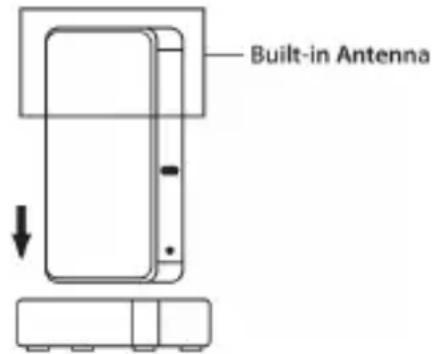
Note: If the Transmitter Unit is positioned vertically, ensure the built-in antenna is facing upwards
b) (Optional) If using the ST121WHD to extend an infrared (IR) device signal. Connect the IR remote extension connector to the IR remote signal output port on the Transmitter Unit, and Position the extended IR sensor directly in front of the video source's IR sensor. Check the manual of your video source device for the IR sensor location.
Note: This product can only supports an IR signal in 38 kHz carrier modulation mode.
c) Connect the provided Transmitter Unit power supply.
d) Connect the video source to the HD port on the rear panel of the Transmitter Unit, using the provided male/male HD cable.
2. Installation of Receiver Unit
a) Position the Receiver Unit near the video display (i.e. television, projector).
Note: If the Receiver Unit is positioned vertically, ensure the built-in antenna is facing upwards. If an infrared (IR) device is being used direct the IR signal toward the IR sensor.

b) Connect the provided Receiver Unit power supply. The wireless network status indicator will turn on after a successful wireless connection between both units is established. This may take several seconds.
c) Connect the video source to the HD port on the rear panel of the Receiver Unit, using a male/male HD cable (Not included).
d) The video source will now be displayed on the remote receiver.
Additional Operation IR Remote Control
| 1 | Menu – Open on screen display (OSD) menu |
| 2 | Exit – Close OSD menu / Cancel connection |
| 3 | Source – Switch transmitters (If more than one is connected) |
| 4 | Move Cursor |
| 5 OK – Select OSD option | |
| 6 Delete – Delete a Transmitter | |
| 7 Add – Add a Transmitter | |
| 8 Guest – Power On/Off | |
| 9 | Input Devices – Select to switch between added Transmitters |

Note: Before the remote control can operate, the battery protector must be removed from the battery compartment. Your IR remote control must also be pointed at the receiver your display is connected to in order to function.
Add Additional Video Transmitter Sources (Must have multiple transmitting units)
By default the ST121WHD's transmitter and receiver units are paired together. If you have more than one transmitter, you can add additional transmitters to one receiver and switch between video sources.
- Using the IR remote control, press MENU -> Select Add new Video Source
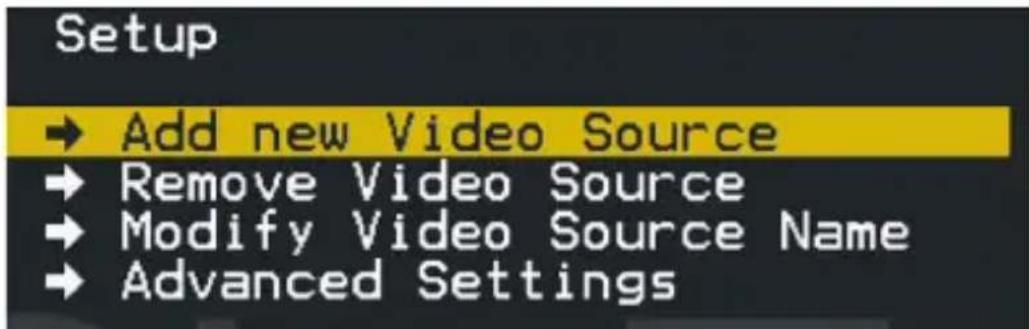
- Please Activate Registration on Transmitter Unit will now appear on the display. Physically return to the transmitter unit hold down the reset button on the transmitter for 3 seconds to activate registration.
Please Activate Registration on Transmitter Unit
- The additional transmitter is now registered. This action can be performed for up to 2 additional transmitters for a total of 3.
Remove Video Transmitters (Must have multiple transmitting units)
-
Using the IR remote control, Press MENU -> Select Remove Video Source
-
Move the cursor and select the desired transmitter to be remove

Modify Video Source Name
To more easily distinguish between added transmitters, the generic hardware name, given during the "Add additional Video Transmitter Sources" steps, can be modified.
- Using the IR remote control, Press MENU -> Select Modify Video Source Name
- Using the cursor select a name that better suits specific transmitter.
Trouble Shooting
1. Improve Signal Quality
Environments with large amounts of 5GHz wireless traffic (such as an office), DFS1 (5150-5250 MHz -non DFS band) and DFS4 (5725-5850 MHz-non DFS band) should be disabled by setting to ON in the Advanced Settings to yield better performance.
a. Using the IR remote control, Press MENU->Select Advanced Settings ->DFS 1 to change to ON. The unit will restart when completed.
b. Repeat step (a) this time selecting DFS 4 to ON. The unit will restart when completed.
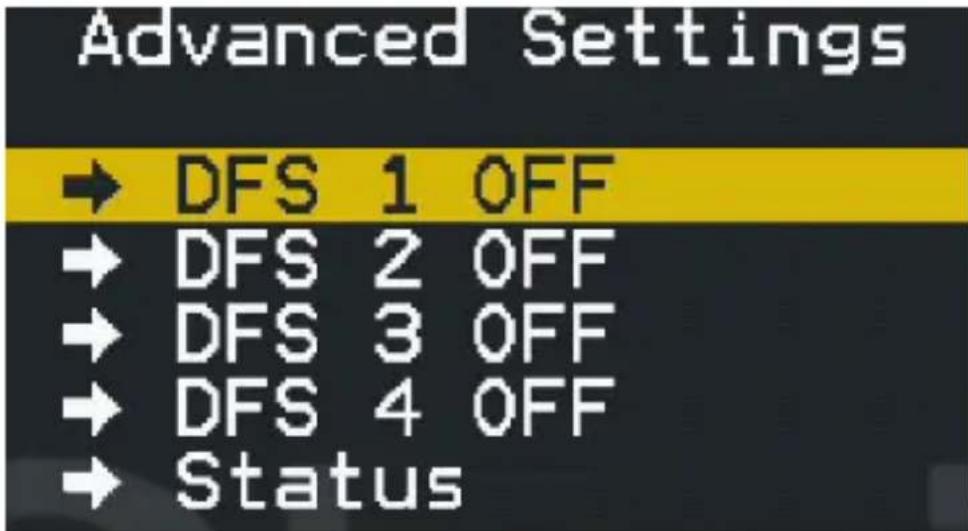
Note: OFF indicates the band is enabled. ON indicates the Band is disabled. For reference the frequencies of each band option is listed below.
Frequency Table
DFS 1 5150-5250 MHz (non DFS band)
DFS 2 5250-5350 MHz (DFS band)
DFS 3 5470-5725 MHz (DFS band)
DFS 4 5725-5850 MHz (non DFS band)
2. Review Wireless Link Quality
You can view the wireless link quality to determine if there may be interference preventing the signal from completing, or occasional signal loss.
a. Using the IR remote control, press MENU-> Advanced Settings -> Status -> Link Quality
| SNR IN | 31.1 | 31.1 | 26.2 | 28.1 | 28.2 |
| SNR OUT | 25.2 | 48.2 | 19.2 | 24.0 | |
| PIN | 8.9 | 16.9 | 15.9 | 13.9 | 10.9 |
| Freq | 5755 | ||||
| Audio BER 0 | Packet err 0 | ||||
b. Several values are now displayed representing the signal quality. See table below for details.
| Title Description Details | ||
| SNR (IN/. OUT) | Video Quality Values above 20 are ideal. | |
| PIN | Wireless Signal Quality | Values below 55 are ideal |
| Freq | Wireless Frequency | Displays the wireless Band the connection is on |
| Audio BER | Audio Bit Error Ratio | Displays Audio Bit Error Ratio |
| Packet err Packet Loss Displays number of packets dropped | ||
Note: Values outside the "Ideal" threshold may not impact signal quality.
LED Indicator Status Table
Indicator LED Activity Status
| Wireless Connection Status Indicator (Transmitter Unit) | On (Green) | The transmitter is connected successfully in the wireless mode |
| Off | The transmitter has failed to connect in the wireless mode | |
| Flash rapidly The Device is faulty | ||
| Video indicator (Transmitter Unit) | On (Green) | The video source is connected successfully |
| Off The video source has failed to connect | ||
| Wireless Connection Status Indicator (Receiver Unit) | On (Green) | The Receiver is connected successfully in the wireless mode |
| Off | The transmitter has failed to connect in the wireless mode | |
| Flash Rapidly The Device is faulty | ||
| Video Indicator (Receiver Unit) | On (Green) | The video source is connected successfully |
| Off The video source has failed to connect | ||
Specifications
Max Distance 30m (100ft)
Maximum Digital Resolutions 1920 x 1080
Supported Resolutions
Frequency 5.1-5.9GHz
TV: 1080p, 1080i, 720p, 480p
PC: VGA(640X480), SVGA(800X600),
XGA(1024X768), SXGA(1280X1024)
Technical Support
StarTech.com's lifetime technical support is an integral part of our commitment to provide industry-leading solutions. If you ever need help with your product, visit www.startech.com/support and access our comprehensive selection of online tools, documentation, and downloads.
For the latest drivers/software, please visit www.startech.com/downloads
Warranty Information
This product is backed by a two year warranty.
In addition, StarTech.com warrants its products against defects in materials and workmanship for the periods noted, following the initial date of purchase. During this period, the products may be returned for repair, or replacement with equivalent products at our discretion. The warranty covers parts and labor costs only. StarTech.com does not warrant its products from defects or damages arising from misuse, abuse, alteration, or normal wear and tear.
Limitation of Liability
In no event shall the liability of StarTech.com Ltd. and StarTech.com USA LLP (or their officers, directors, employees or agents) for any damages (whether direct or indirect, special, punitive, incidental, consequential, or otherwise), loss of profits, loss of business, or any pecuniary loss, arising out of or related to the use of the product exceed the actual price paid for the product. Some states do not allow the exclusion or limitation of incidental or consequential damages. If such laws apply, the limitations or exclusions contained in this statement may not apply to you.
Hard-to-find made easy. At StarTech.com, that isn't a slogan. It's a promise.
StarTech.com is your one-stop source for every connectivity part you need. From the latest technology to legacy products — and all the parts that bridge the old and new — we can help you find the parts that connect your solutions.
We make it easy to locate the parts, and we quickly deliver them wherever they need to go. Just talk to one of our tech advisors or visit our website. You'll be connected to the products you need in no time.
Visit www.startech.com for complete information on all StarTech.com products and to access exclusive resources and time-saving tools.
StarTech.com is an ISO 9001 Registered manufacturer of connectivity and technology parts. StarTech.com was founded in 1985 and has operations in the United States, Canada, the United Kingdom and Taiwan servicing a worldwide market.


- WHDI Wireless HD Extender - 1080p Wireless High Definition
- FCC Compliance Statement
- FCC Radiation Exposure Statement
- Use of Trademarks, Registered Trademarks, and other Protected Names and Symbols
- Table of Contents
- Introduction ....1
- Preparing Your Site ....2
- Hardware Installation ....2
- Additional Operation......4
- LED Indicator Status Table 8
- Specifications 8
- Technical Support 9
- Warranty Information 9
- Introduction
- Packaging Contents
- System Requirements
- Preparing Your Site
- Hardware Installation
- Installation of Receiver Unit
- Additional Operation IR Remote Control
- Add Additional Video Transmitter Sources (Must have multiple transmitting units)
- Please Activate Registration on Transmitter Unit
- Remove Video Transmitters (Must have multiple transmitting units)
- Modify Video Source Name
- Trouble Shooting
- Improve Signal Quality
- Frequency Table
- Review Wireless Link Quality
- LED Indicator Status Table
- Specifications
- Technical Support
- Warranty Information
- Limitation of Liability
Brand : StarTech.com
Model : ST121WHD
Category : AV Transmitter