CAT5-5600HD - Émetteur AV Gefen - Free user manual and instructions
Find the device manual for free CAT5-5600HD Gefen in PDF.


User questions about CAT5-5600HD Gefen
0 question about this device. Answer the ones you know or ask your own.
Ask a new question about this device
Download the instructions for your Émetteur AV in PDF format for free! Find your manual CAT5-5600HD - Gefen and take your electronic device back in hand. On this page are published all the documents necessary for the use of your device. CAT5-5600HD by Gefen.
USER MANUAL CAT5-5600HD Gefen
Technical Support Hours:
8:00 AM - 5:00 PM Monday - Friday, Pacific Time
Write To:
Gefen LLC
c/o Customer Service
20600 Nordhoff St
Chatsworth, CA 91311
www.gefen.com
support@gefen.com
Notice
Gefen LLC reserves the right to make changes in the hard ware, packaging and any accompanying doc u men ta tion without prior written notice.
CAT5-5600HD is a trademark of Gefen LLC
© 2011 Gefen LLC, All Rights Reserved
All trademarks are the property of their respective owners
1 Introduction
2 Operation Notes
3 Features
4 Sender Panel Layout
5 Sender Panel Descriptions
6 Receiver Panel Layout
7 Receiver Panel Descriptions
8 Connecting and Operating the CAT5-5600HD
8 Wiring Diagram
9 Adjusting the Signal Quality
10 DIP Switch Configuration
13 Network Cable Wiring Diagram
14 Rack Mount Installation
15 Specifications
16 Warranty
Congratulations on your purchase of the CAT5-5600HD. Your complete satisfaction is very important to us.
Gefen
Gefen is a unique product line catering to the growing needs for innovative home theater solutions. We specialize in total integration for your home theater, while also focusing on going above and beyond customer expectations to ensure you get the most from your hardware. We invite you to explore our distinct product line and hope you find your solutions. Don't see what you are looking for here? Please call us so we can better assist you with your particular needs.
The Gefen CAT5-5600HD
Extend two DVI sources and USB 2.0 peripherals from any computer or KVM device with the Gefen CAT5-5600HD Professional Series KVM extender. Extension is up to 200 feet (60 meters) using three (3) CAT-6a cables.
The Receiver Unit allows the connection of up to two DVI monitors and up to four USB devices, expanding your workspace and increasing productivity in a post-production and editing environment.
USB 2.0 data rates up to 480 Mbps are supported in addition to backward-compatibility with USB 1.1.
How It Works
Place the CAT5-5600HD Sender Unit next to the source. Use the included DVI cables to connect the DVI source(s) to the Sender Unit. Use the supplied USB cable to connect the Sender Unit to the USB host (source) device. Connect the Receiver Unit to the DVI displays using DVI cables. Connect the USB devices to the Receiver Unit. Connect the Sender Unit to the Receiver Unit using three CAT-6 cables up to 200 feet. Connect the included locking power supplies to the Sender and Receiver Units, then connect both power cables to available electrical outlets.
READ THESE NOTES BEFORE INSTALLING OR OPERATING THE CAT5-5600HD
- CAT-6a cables can be used up to 200 feet (60 meters).
- CAT-5e cables can be used up to 150 feet (45 meters).
- Shielded (STP) CAT-5e/CAT-6a is recommended. However, unshielded (UTP) CAT-5e/CAT-6a is acceptable.
NOTE: Shielded cable has an advantage by providing immunity to Electromagnetic Interference (EMI), cell phones and A/C motors.
- The CAT5-5600HD only supports DVI-D signals. Analog DVI content is not supported.
Features
- Extends two DVI sources to 200 feet (60 meters) up to 1080p or 1920x1200 (using CAT-6a cables)
- Extends USB 2.0 up to 200 feet (60 meters)
- Backward-compatible with USB 1.1 devices
- Works with any computer using DVI and USB
• Supports the DDWG standard for DVI compliant monitors - Rack-mountable (includes rack ears)
Package Includes
(1) CAT5-5600HD - Sender Unit
(1) CAT5-5600HD - Receiver Unit
(2) 6 ft. DVI cable (M-M)
(1) 6 ft. USB cable (A-B)
(2) 5V DC Locking Power Supplies
(1) Set of Rack Ears
(1) User Manual
Front Panel

text_image
Gefen Link 2 Power 1 2 CAT5-5600HDS Professional series DVI:USB 2.0 Link 1Back Panel

text_image
3 USB In HOST USB CAT-6 Video 1 DVI In 1 CAT-6 Video 2 DVI In 2 EXT-CATS-S800HOS Gafen 5 6 7 8 9 104 SV DC1 Power / Link 2 Indicator
When power is applied to the Sender Unit, this LED will glow bright red. Once a DVI source is connected to the DVI 2 input, this LED will glow bright green.
2 Link 1 Indicator
When power is applied to the Sender Unit, this LED will glow bright red. Once a DVI source is connected to the DVI 1 input, this LED will glow bright green.
3 USB Input Port
Connect the USB host device to this port.
4 USB Link Indicator
This LED will turn bright green once a USB link has been established between the Sender Unit and the Receiver Unit. If the USB source device is disconnected, then the LED will turn off.
5 USB / CAT-6 Link Output
Connects the USB / CAT-6 Link on the Sender Unit to the USB / CAT-6 Link on the Receiver Unit using CAT-6 cabling.
6 Video 1 / CAT-6 Link Output
Connects the Video / CAT-6 Link on the Sender Unit to the Video / CAT-6 Link on the Receiver Unit using CAT-6 cabling.
7 DVI 1 Input
Connect a DVI cable from the computer to this DVI-I connector.
8 Video 2 / CAT-6 Link Output
Connects the Video 2 / CAT-6 Link on the Sender Unit to the Video 2 / CAT-6 Link on the Receiver Unit using CAT-6 cabling.
9 DVI 2 Input
Connect a DVI cable from the computer to this DVI-I connector.
10 5 V DC Locking Power Connector
Connect the included 5 V DC locking power supply to this connector.
Front Panel

text_image
Gefen Link 2 Power EQ 0 1 2 3 4 CAT5-5600HDR Professional series OVI-USB 2.0
text_image
Back Panel 6 8 1 2 3 4 USB Out CAT-5 USB HOST CAT-6 Video 1 DVI Out 1 CAT-5 Video 2 DVI Out 2 5 7 9 10 11 12 13 EXT-CAT5.5600HOR Gafen 5V DC1 Power / Link 2 Indicator
When power is applied to the Receiver Unit, this LED will glow bright red. Once a link has been established between the Sender Unit and the Receiver Unit, the LED glows bright green.
2 Link 2 EQ Trim Pot
The EQ trim pot is used to equalize the signal on the DVI 2 output. See page 9 for details.
3 Link 1 Indicator
When power is applied to the Receiver Unit, this LED glows bright red. When the link has been established between the Sender Unit and the Receiver Unit, this LED glows bright green.
4 Link 1 EQ Trim Pot
The EQ trim pot is used to equalize the signal on the DVI 1 output. See page 9 for details.
5 USB Output Ports (1 - 4)
Connect USB devices to these ports.
6 USB Connection Indicators (1 - 4)
These LEDs will turn bright green when USB devices have been connected.
7 USB / CAT-6 Link Input
Connects the USB / CAT-6 Link on the Receiver Unit to the USB / CAT-6 Link on the Sender Unit using CAT-6 cabling.
8 USB Link Indicator
This LED will turn bright green once a USB link between the Sender Unit and the Receiver Unit has been made. If the USB link is lost, this LED will glow bright red.
9 Video 1 / CAT-6 Link Input
Connects the Video / CAT-6 Link on the Receiver Unit to the Video / CAT-6 Link on the Sender Unit using CAT-6 cabling.
10 DVI 1 Output
Connect a DVI display to this DVI-I connector.
11 Video 2 / CAT-6 Link Output
Connects the Video 2 / CAT-6 Link on the Receiver Unit to the Video 2 / CAT-6 Link on the Sender Unit using CAT-6 cabling.
12 DVI 2 Input
Connect a DVI display to this DVI-I connector.
13 5 V DC Locking Power Connector
Connect the included 5 V DC locking power supply to this connector.
How to Connect the CAT5-5600HD
- Connect the DVI source to the Sender Unit using the included DVI cable. Another DVI cable can be used to connect a second DVI source to the Sender Unit.
- Connect the included USB cable from the computer to the Sender Unit.
- Connect the DVI display(s) and USB devices to the Receiver Unit. Up to four (4) USB devices can be connected to the Receiver Unit.
- Connect the Sender and Receiver units together with up to 200 feet of CAT-6a or up to 150 feet using CAT-5e cable. Be sure to make the corresponding connections between the Sender Unit and Receiver Unit (e.g. DVI 1 on the Sender Unit to DVI 1 on the Receiver Unit, etc).
- Connect the included 5 V DC power supplies to both the Sender and Receiver units.
- The remote computer can now be controlled from the Receiver unit.
NOTE: USB cannot be extended by itself. A video signal must be present in order to extend USB.
Wiring Diagram for the CAT5-5600HD

Adjusting the Signal Quality
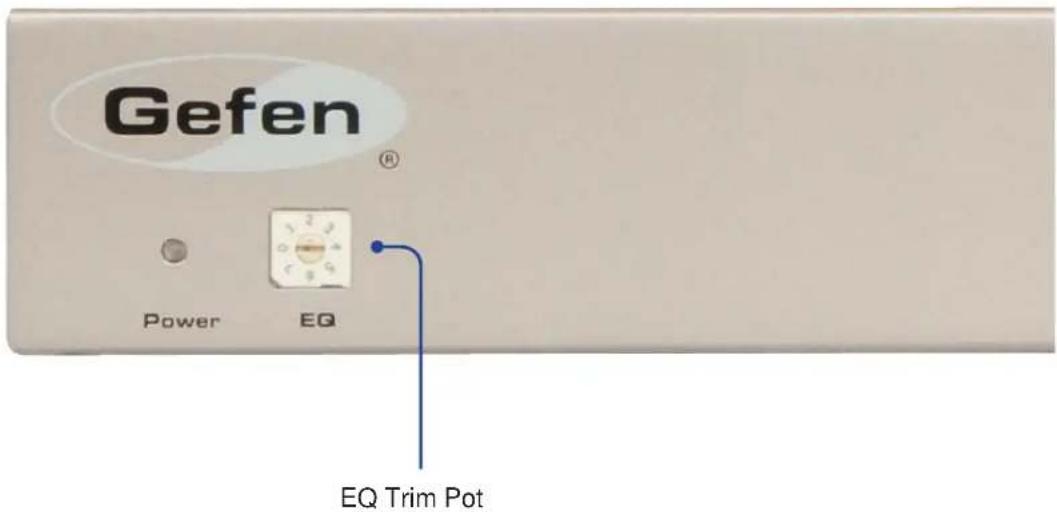
The CAT5-5600HD has two EQ trim pots on the front of the Receiver Unit to compensate for the extension distance and cable skew found in different CAT-5e / CAT-6a cabling brands. EQ 1 corresponds to DVI 1 and EQ 2 corresponds to DVI 2. If there is no output video or if output video contains video artifacts and/or video noise such as snow, use the steps below to adjust the EQ trim pot(s).
- Insert a small flat-headed tool into the EQ trim pot on the front panel of the Receiver Unit.
- The trim pot has 8 set positions. Turn the trim pot clockwise until it clicks into the next position. Continue adjusting the trim pot until the issue is resolved.
- Carefully remove the adjustment tool.
text_image
Gefen Power EQ EQ Trim PotSender Unit
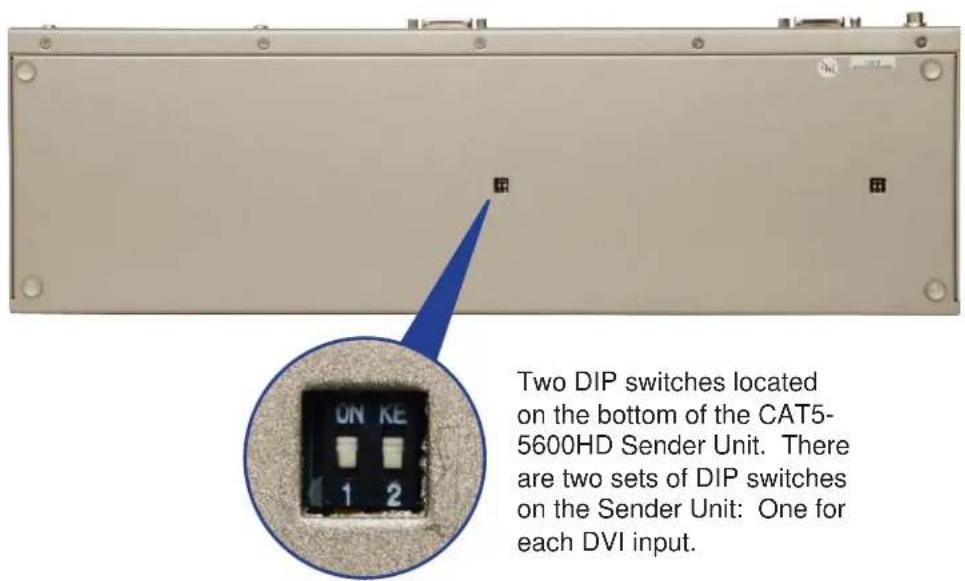
The Gefen CAT5-5600HD contains DIP switches on the bottom of the Sender Unit. Each DIP switch performs a different function.
text_image
Two DIP switches located on the bottom of the CAT5- 5600HD Sender Unit. There are two sets of DIP switches on the Sender Unit: One for each DVI input.DIP Switch 1 - Green Mode (Default = ON)
• OFF - Enable Green Mode
When DIP switch 1 on the Sender Unit is set to the OFF position, the CAT5-5600HD is placed in Green Mode. In this mode, the USB devices are not powered if the USB cable from the Sender Unit to the computer source is disconnected. Automatic Power Mode consumes less than 1 Watt of power.
• ON - Disable Green Mode
If DIP switch 1 is set to the ON position, then the CAT5-5600HD is placed in Power Always Mode. In this mode, the USB ports are always powered whether or not a USB cable is connected from the computer to the Sender Unit.
DIP Switch 2 - Not Used
• Reserved for future expansion.
Receiver Unit
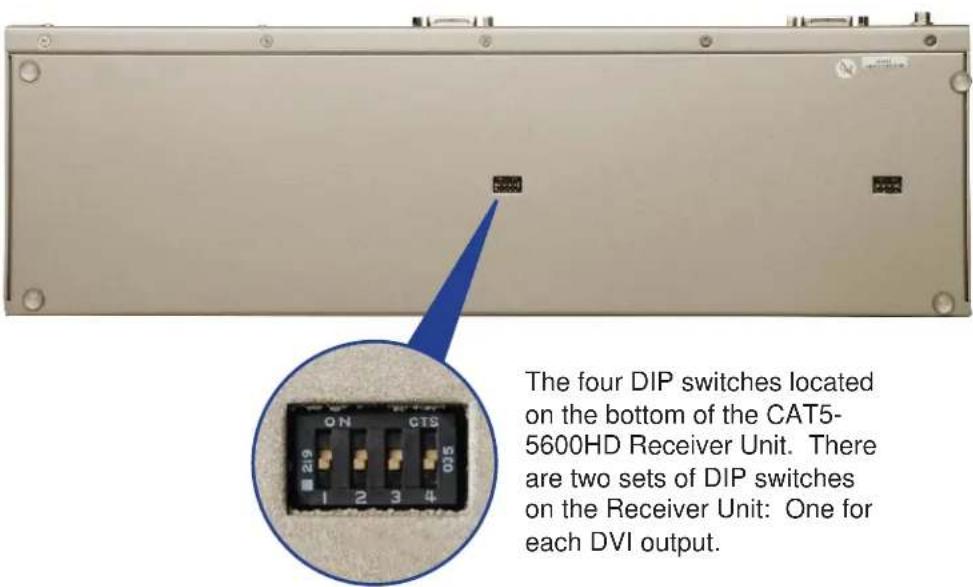
The Gefen CAT5-5600HD contains DIP switches on the bottom of the Sender Unit. Each DIP switch performs a different function.
text_image
The four DIP switches located on the bottom of the CAT5- 5600HD Receiver Unit. There are two sets of DIP switches on the Receiver Unit: One for each DVI output.DIP Switch 1 - EDID Mode (Default = ON)
• OFF - Local EDID Mode
When DIP switch 1 on the Sender Unt is set to the OFF position, the CAT5-5600HD uses the built-in Internal EDID stored in the Sender Unit.
• ON - Pass Through Mode
If DIP switch 1 is set to the ON position, the EDID stored in display, connected to the Receiver Unit, is copied to the DVI input of the Sender Unit.
Receiver Unit
DIP Switch 2 - Color Depth (Default = OFF)
• OFF - 8-bit Color
Disables Deep Color in the EDID. Deep Color management is only available when Local EDID is being used (DIP 1 = OFF).
• ON - 12-bit Color
Set DIP switch 2 to the ON position to enable Deep Color support. In Pass-through EDID Mode, setting DIP switch 2 to the ON position has no effect since all EDID information is passed through.
DIP Switch 3 - Not Used
- Reserved for future expansion.
DIP Switch 4 - Green Mode (Default = ON)
- OFF - If DIP switch 4 is set to the OFF position, the CAT5-5600HD is placed in Automatic Power Mode. In this mode, the USB devices are not powered if the USB cable from the Sender Unit to the computer source is disconnected. Green Mode consumes less than 1 Watt of power.
- ON - If DIP switch 4 is set to the ON position, then the CAT5-5600HD is placed in Power Always Mode. In this mode, the USB ports are always powered whether or not a USB cable is connected from the computer to the Sender Unit.
natural_image
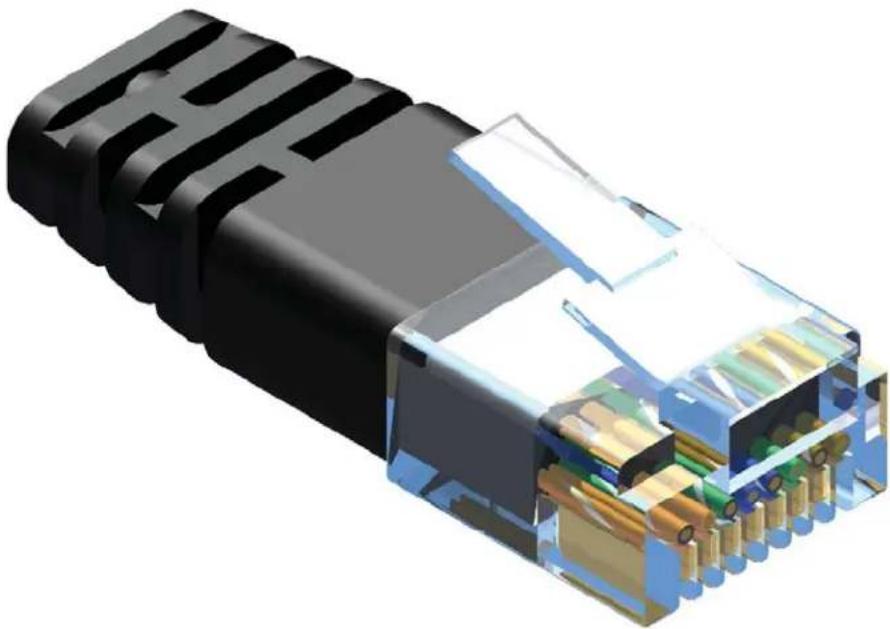
3D cutaway illustration of an Ethernet cable connector showing internal structure and terminal connections (no text or symbols)Gefen recommends the TIA/EIA-568-B wiring option. Please adhere to the table below when field-terminating the CAT-5e / CAT-6a cable for use with Gefen products.
| Pin Color |
| 1 Orange / White |
| 2 Orange |
| 3 Green / White |
| 4 Blue |
| 5 Blue / White |
| 6 Green |
| 7 Brown / White |
| 8 Brown |
CAT-5e / CAT-6a cabling comes in stranded and solid core types. Gefen recommends using solid core cabling.
It is recommended to use one continuous run from one end to the other. Connecting through a patch is not recommended.
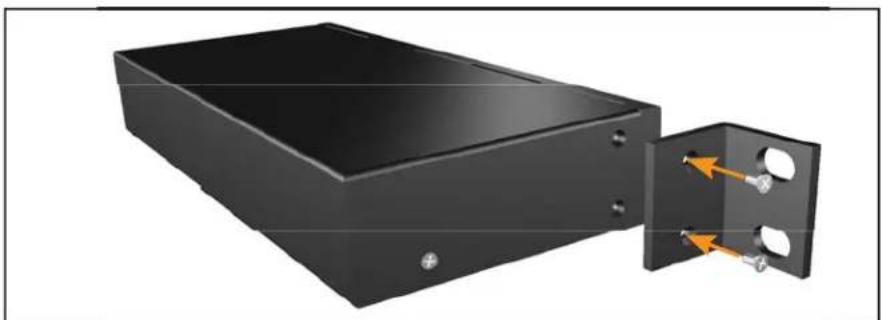
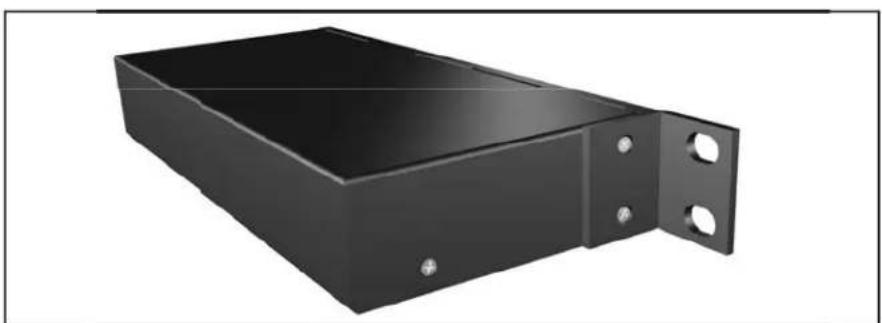
Rack mount ears are provided for installation of this unit into a 1U rack mount space.
- Locate the side screws on the unit.
- Remove the front 2 screws that are located closest to the front of the unit.
- Using the removed screws, screw the rack mounting bracket into the unit.
- Repeat the procedure on the opposite side of the unit.
1

text_image
Front of unit Rear of unit2

natural_image
3D rendering of a black rectangular electronic device with two orange arrows pointing to its side (no text or symbols)3
natural_image
3D rendering of a black rectangular electronic device with two internal components and orange arrows indicating flow or movement (no text or symbols)4
natural_image
3D rendering of a black metal bracket with two mounting holes (no text or symbols)SPECIFICATIONS
Maximum Pixel Clock....165 MHz
Input Video Signal....1.2 V p-p
Input DDC Signal....5 V p-p (TTL)
Digital Video Inputs (Sender)....(2) DVI-I, 29-pin, female
Digital Video Outputs (Receiver)....(2) DVI-I, 29-pin, female
USB Input (Sender)....(1) Type B
USB Outputs (Receiver)....(4) Type A
Video Link Indicators (Sender / Receiver)......(2) LED, multi-color, red / green
USB Link Indicators (Sender / Receiver)....(6) LED, green
EQ Trim Pots (Receiver)....(2) EQ 1 / EQ 2
Power Supply (Sender / Receiver)....5 V DC
Power Consumption....20 W per unit (max.)
Operating Temperature....0 - 40 °C
Dimensions (Sender / Receiver)....17" W x 1.75" H x 4.375" D
Shipping Weight....7 lbs.
Gefen warrants the equipment it manufactures to be free from defects in material and workmanship.
If equipment fails because of such defects and Gefen is notified within two (2) years from the date of shipment, Gefen will, at its option, repair or replace the equipment, provided that the equipment has not been subjected to mechanical, electrical, or other abuse or modifications. Equipment that fails under conditions other than those covered will be repaired at the current price of parts and labor in effect at the time of repair. Such repairs are warranted for ninety (90) days from the day of reshipment to the Buyer.
This warranty is in lieu of all other warranties expressed or implied, including without limitation, any implied warranty or merchantability or fitness for any particular purpose, all of which are expressly disclaimed.
- Proof of sale may be required in order to claim warranty.
- Customers outside the US are responsible for shipping charges to and from Gefen.
- Copper cables are limited to a 30 day warranty and cables must be in their original condition.
The information in this manual has been carefully checked and is believed to be accurate. However, Gefen assumes no responsibility for any inaccuracies that may be contained in this manual. In no event will Gefen be liable for direct, indirect, special, incidental, or consequential damages resulting from any defect or omission in this manual, even if advised of the possibility of such damages. The technical information contained herein regarding the features and specifications is subject to change without notice.
For the latest warranty coverage information, please visit Gefen's Warranty web page at http://www.gefen.com/kvm/aboutus/warranty.jsp
PRODUCT REGISTRATION
Please register your product online by visiting Gefen's web site at http://www.gefen.com/kvm/Registry/Registration.jsp

text_image
* MA-CAT5-5600HD*Rev A3
20600 Nordhoff St., Chatsworth CA 91311
1-800-545-6900 818-772-9100 fax: 818-772-9120
www.gefen.com support@gefen.com