ManualGo.com
XW-DV1WS - Speaker PIONEER - Free user manual and instructions
Find the device manual for free XW-DV1WS PIONEER in PDF.


Download the instructions for your Speaker in PDF format for free! Find your manual XW-DV1WS - PIONEER and take your electronic device back in hand. On this page are published all the documents necessary for the use of your device. XW-DV1WS by PIONEER.
USER MANUAL XW-DV1WS PIONEER
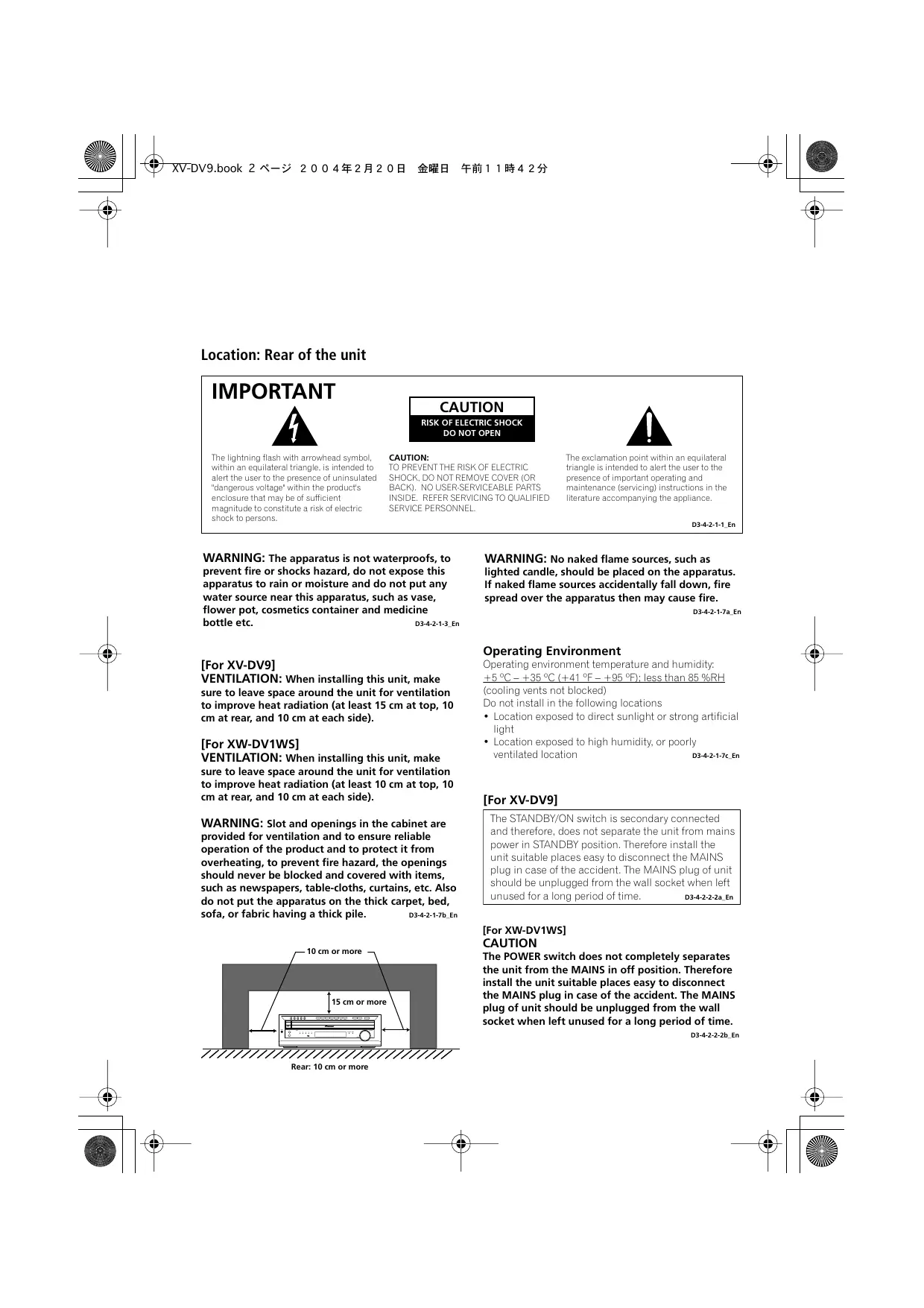
The lighining flash with arronhead within an equilateral triangle, is inter rt the user to the presence of unint dangerous voltage’ within the products. enclosure that may be of sufficient in magnitude to constitue a risk of electric shock t persons. ymbol.… CAUTION: dto TOP BACH). NO CAUTION
lated | SHOCK, DO NOT REMOVE COVER (OR SERVICEABLE PAR
The exclamation point within an equilateral triangle is intended to alert the user t the maintenat Herature of important operating and
WARNING: The apparatus is not waterproofs, to
prevent fire or shocks hazard, do not expose this apparatus to rain or moisture and do not put any water source near this apparatus, such as vase, flower pot, cosmetics container and medicine bottle et. Da en [For XV-DV9] VENTILATION: When installing this unit, make sure to leave space around the unit for ventilation to improve heat radiation (at least 15 cm at top, 10 cm at rear, and 10 cm at each side). [For XW-DV1WS] VENTILATION: When installing this unit, make sure to leave space around the unit for ventilation to improve heat radiation (at least 10 cm at top, 10 cm at rear, and 10 cm at each side).
WARNING: Slot and openings in the cabinet are
provided for ventilation and to ensure reliable operation of the product and to protect it from overheating, to prevent fire hazard, the openings should never be blocked and covered with items, such as newspapers, table-cloths, curtains, etc. Also do not put the apparatus on the thick carpet, bed, sofa, or fabric having a thick pile. Death En 10 em or more
WARNING: No naked flame sources, such as
lighted candle, should be placed on the apparatus. If naked flame sources accidentally fall down, fire spread over the apparatus then may cause fire. Data en Operating Environment Operating environment temperature and humidity: 4500 +35 °C (+41 °F — +05 °F): less than 85 RH {cooling vents not blocked) Da not install in the following locations + Location exposed to direct sunlight or strong artificial ight + Location exposed to high humidity, or poorly ventilated location D342 [For XV-DV9] The STANDBY/ON switch is secondary connected and therefore, does not separate the unit from mains power in STANDBY position. Therefore install the unit suitable places easy to disconnect the MAINS plug in case of the accident. The MAINS plug of unit should be unplugged from the wall socket when left unused for a long period of time CR [For XW-DV1WS] CAUTION The POWER switch does not completely separates the unit from the MAINS in off position. Therefore install the unit suitable places easy to disconnect the MAINS plug in case of the accident. The MAINS plug of unit should be unplugged from the wall socket when left unused for a long period of time. Dr4222b En
“7 XV-DV9.book 3 K—% 2004#2A201 EE ÆFA11#424 7 e CAUTION This product contains a laser diode of higher class than 1. To ensure continued safety, do not remove any covers or attempt to gain access to the inside of the product. Refer all servicing to qualified personnel The following caution label appears on your unit CLASS 1 LASER PRODUCT
BEFORE PLUGGING IN THE UNIT FOR THE FIRST This product is for general household purposes. Any failure due to use for other than hausehold purposes (such as long-term use for business purposes in à restaurant or use in à car or ship) and which requires repair will be charged for even during the TIME, READ THE FOLLOWING SECTION CAREFULLY. The voltage of the available power supply differs according to country or region. Be sure that the power supply voltage of the area where this unit will be used meets the required voltage (e.g., 230V or 120V) written on the rear panel. Da42-14 en warranty period KOëEn The following does not apply to the Asian and Oceanic models:
Le NOTE: This equipment has been tested and found to comply with the limits for a Class B digital device, pursuant to Le
Part 15 ofthe FCC Rules. These limits are designed to provide reasonable protection against harmful nterference in
aresidential installation. This equipment generates, uses, and can radiate radio frequency energy and, if not installed and used in accerdance with the instructions, may cause harmful interference Lo radio communications. However, there is no guarantee that interference will not oceur in a particular installation. IF this equipment does cause harmful interference to radio ar television reception, which can be determined by turning the equipment of and on, the user is encouraged to try to correct the interference by one or more of the folloning measures: — Reorient or relocate the receiving antenna = Increase the separation between he equipment and receiver. Connect the equipment into an outlet on a circuit different from that to which the receiver is connected Consult the dealer or an experiencad radio/TV technician for help. oao12 en Information to User Alferation or modifications carried out without appropriate authorization may invalidate the user's right to operate the equipment De102 4m CAUTION : USE OF CONTROLS OR ADJUSTMENTS OR PERFORMANCE OF PROCEDURES OTHER THAN THOSE SPECIFIED HEREIN MAY RESULT IN HAZARDOUS RADIATION EXPOSURE. CAUTION :_ THE USE OF OPTICAL INSTRUMENTS WITH THIS PRODUCT WILL INCREASE EYE HAZARD. D6#21.n CAUTION These speaker terminals can be under HAZARDOUS VOLTAGE. When you connect or disconnect the speaker cables, to prevent the risk of electric shock, do not touch uninsulated parts before disconnecting the power cord D4223m
-DV9.book 4 K—: 2004#2A20H &ÆA #FA11#424 changed after approval. The channel, frequency, output power, and other features and functions of the equipment shall not be The equipment shall safely use only a channel frequency that is legally approved and shall not cause interference on other channels. If the equipment fails to meet these requirements, use of the equipment will be prohibited until compliance can be attained. This product incorporates copyright protection technology that is protected by method claims of certain U.S. patents and other intellectual property rights owned by Macrovision Corporation and other rights owners. Use of this copyright protection technology must be authorized by Macrovision Corporation, and is intended for home and other limited viewing uses only unless otherwise authorized by Macrovision Corporation. Reverse engineering or disassembly is prohibited Energy-saving design This system is designed to use 0.5W of electricity when power is switched to standby. [For XV-DV9 only] For US. and Australia Model
ENERGY STAR CS7-73 En Voltage selector You can find the voltage selector switch on the rear panel of multi-voltage models. The factory setting for the voltage selector is 220 - 230 V. Please set it to the correct voltage for your country or region. + For Taiwan, please set to 120-127V before using. For Australian and New Zealand models: The factory setting for the voltage selector is 240 V. Please set it to the correct voltage for your country or region. Before changing the volta cord. Use a medium size screwdri voltage selector swi r to change the For Australian and New Zealand models only D34245 En
- rai SA—-Z 2004#2A20H MA ÆFA11#424 Thank you for buying this Pioneer product. Please read through these operating instructions so that you will know how to operate your model properly. After you have finished reading the instructions, put them in a safe place for future reference. Contents 01 Before you start FEATURES
- eee p. 8
- What's in the Dox p. 8
- Putting the batteries in the remote CONHTO eee esse p. 9
- Using the remote control ° Disc / content format playback compatibility .9 CD-R/RW compatibility . 10 DVD-R/RW compatibility 10 PC-created disc compatibility . 10 Compressed audio compatibility … About WMA 02 Connecting up Connecting the speakers and wireless speaker system Placing the speakers Wall-mounting the center speaker. Connecting to your TV p. 9
- Connecting using the S-video output p. 16
- Connecting using the component video QUHpUt esse 17 Listening to TV audio through this System p. 18
- Using this unit with a Pioneer plasma diSplay Using the SR+ mode with a Pioneer plasma display Connecting the supplied antennas. Assembling the loop antenna . AM loop antenna . FM wire antenna . Connecting the power p. 19
03 Controls and displays Front panel seusese esse Display. Remote control 04 Getting started Switching on and setting up Setting the clock. Using the Room Setup. Setting up the remote to control Using the on-screen displays Playing discs .......... Basic playback controls Resume and Last Memory. Changing discs DVD-Video disc menus . . Video CD/Super VCD PBC menus … Listening to the radio . Improving poor FM reception . Memorizing stations Listening to station presets Listening to other sources Singing karaoke . Using the wireless speaker system . 05 Listening to your system About the listening modes. ............ Auto listening mode Listening in surround sound . Dolby Pro Logic 1! Music settings . Using the Advanced Surround effects . Using Front Surround Adjusting the Advanced and Front Surround effect level . Listening in stereo...
- Listening with headphones p. 47
- Enhancing dialogue p. 48
- Listening with a virtual surround back speaker .… . 48 Using Quiet and Midnight listening modes . 48 Adjusting the bass and treble p. 49
- Boosting the bass level . 49 06 Playing discs Playing only CDs and WMA/MP3 discs (CD mode) p. 50
- Scanning discs p. 50
- Playing in slow motion p. 51
- Frame advance/frame reverse p. 51
- Using the Disc Navigator to browse the contents of a disc . 51 Looping a section of a disc 52 Using repeat play p. 52
- Using random play 53 Creating and editing a DVD program list p. 54
- Creating and editing a non-DVD program list p. 55
- Other functions available from the program menu 57 Searching a disc .… Switching subtitles p. 58
- Switching DVD audio language. 58 Switching audio channels when playing a Video CD/Super VCD p. 58
- Zooming the screen. 58 Switching camera angles . 59 Displaying disc information 59 07 Viewing JPEG discs Playing a JPEG slideshow p. 60
- Using the JPEG Disc Navigator and Photo Browser p. 60
- Zooming the screen p. 61
- 08 Using the timer Setting the wake-up timer p. 62
- Turning the wake-up timer on/off p. 63
- Setting the sleep timer p. 63
- 09 Surround sound and other settings Using the System Setup menu .… Surround and sound setup options. SR+ control options for Pioneer plasma displays. Setting the channel levels - 10 Video Adjust menu Video Adjust Creating your own presets 11 Initial Settings menu Using the Initial Settings menu Video Output settings . Language settings Display settings p. 70
- Options . Parental Lock p. 12
- Additional information Optional system settings p. 74
- System Setup menu options in SHANdbDy. esse Watching NTSC on a PAL TV (MOD. PAL) Resetting the system Using and taking care of discs Titles, chapters and tracks DVD Video regions Handling discs . Storing discs.… Discs to avoid Proper installation and maintenance of this system sse Hints on installation .… Cleaning the pickup lens Problems with condensation Moving the system unit Power cord caution. p. 74
Before you start Features + __24-bit / 96kHz compatible DAC This system is fully compatible with high sampling-rate discs, capable of delivering exceptional sound quality in terms of dynamic range, low-level resolution and high-frequency detail + Surround sound entertainment with Dolby Digital and DTS software The built-in Dolby Digital and DTS decoders let you enjoy great surround sound with Dolby Digital and DTS discs. + Pure Cinema progressive scan video When connected to a progressive scan- compatible TV or monitor using the component video outputs, you can enjoy extremely stable, flicker free images, with the same frame refresh rate as the original movie + Super VCD compatibility See Disc/content format playback compatibility on page 9 + Picture zoom See Zooming the screen on page 58 + MP3 and WMA compatibility See Compressed audio compatibility on page 10. + JPEG compatibility See JPEG file compatibility on page 11. + Graphical on-screen displays Setting up and using your DVD home theater system is made easy using the graphical on- screen displays. + Wireless speaker system The wireless speaker system can be used for multichannel sound with your main setup, or as a second stereo speaker system + Energy saving design This system is designed to use 0.5 W of power when in standby. What's in the box Please confirm that the following accessories are in the main system box when you open it + Remote control + AAWRGP dry cell batteries x2 + Video cable (yellow plugs) + AM loop antenna + FMwire antenna + Power cord + These operating instructions + Warranty card (Australian model only) Please contirm that the following accessories are in the speaker box when you open it + Speaker cables x4 + Non-skid pads for speakers (1 sheet) Please contirm that the following accessories are included with the wireless speaker system: + AC adapter + RCA stereo cord + Warranty card (Australia and New Zealand model only) + Power cord
rai 9-5 2004#H2A20H $ÆA Æ#11#424 (Before you start Putting the batteries in the remote control + Open the battery compartment cover and insert the batteries as shown. Use two AA/R6P batteries and follow the indications (®, ©) inside the compartment Close the cover when you're finished. incorrect use of batteries can result in hazards such as leakage and bursting. Please observe the following: + Don’t mix new and old batteries together. + Don't use different kinds of battery together—although they may look similar, different batteries may have different voit- ages. Make sure that the plus and minus ends of each battery match the indications in the battery compartment. Remove batteries from equipment that isn't going to be used for a month or more. When disposing of used batteries, please comply with governmental regulations or environmental public instruction's rules that apply in your country or area. H048 En Using the remote control Keep in mind the following when using the remote control + Make sure that there are no obstacles between the remote and the remote sensor on the system unit + The remote has a range of about 7m at an angle of less than 30°.
+ Remote operation may become unreliable if strong sunlight or fluorescent light is shining on the system unit's remote sensor. Remote controllers for different devices can interfere with each other. Avoid using remotes for other equipment located close to this system. Replace the batteries when you notice a fall off in the operating range ofthe remote Disc / content format playback compatibility This player is compatible with a wide range of disc types (media) and formats. Playable discs will generally feature one of the following logos on the disc and/or disc packaging. Note however that some disc types, such as record- able CD and DVD, may be in an unplayable format—see below for further compatibility information pe 2e 2e DVD Video ee dise OS (Sc Video CD CDR € Æ rusicoior co 2 COMPATIBLE FUJICOUR CD DVDR DVD-RW
rai 10K—Y 2004#2A20H MA FA11#429 (Before you start This player supports the IEC's Super VCD stan- dard for superior picture quality, dual soundtracks, and widescreen support
Super Video CD (Supe: CD-R/RW compatibility + This system will play CD-R and CD-RW discs recorded in CD Audio or Video CD/ Super VCD format, or as a CD-ROM containing MP3, WMA or JPEG files However, any other content may cause the disc not to play, or create noise/distortion in the output. This system cannot record CD-R or CD-RW discs. Unfinalized CD-R/RW discs recorded as CD Audio can be played, but the full Table of Contents (playing time, etc.) will not be displayed. DVD-R/RW compati + Compatible formats: DVD-Video, Video Recording (VR)*
- Edit points may not play exactly as edited: screen may go momentarily blank at edited points. + Unfinalized playback: No + WMA/MP3/JPEG file playback on DVD-R/ RW: No PC-created disc compatibility Discs recorded using a personal computer may not be playable in this unit due to the setting of the application software used to create the disc. In these particular instances, check with the software publisher for more detailed information.
Discs recorded in packet write mode (UDF format) are not compatible with this player. Check the DVD-R/RW or CD-R/RW software disc boxes for additional compatibility information. Compressed audio compatibility + Compatible formats: MPEG-1 Audio Layer 3 {MP3), Windows Media Audio (WMA) Sampling rates: 32, 44.1 or 48kHz Bit-rates: Any (128Kbps or higher recom- mended) VER (variable bit rate) MP3 playback: Yes VBR WMA playback: No WMA lossless encoding compatible: No File extensions: mp3, wma (these must be used for the player to recognize MP3 and WMA files — do not use for other file types) File structure: Up to 999 files per folder About WMA LES The Windows Media® logo printed on the box indicates that this player can playback Windows Media Audio content WMA is an acronym for Windows Media Audio andrefers to an audio compression technology developed by Microsoft Corporation. WMA content can be encoded by using Windows Media® Player version 7, 7.1, Windows Media® Player for Windows® XP, or Windows Media® Player 9 Series Microsoft, Windows Media, and the Windows logo are trademarks, or registered trademarks of Microsoft Corporation in the United States and/ or other countries.
JPEG file compatibility + Compatible formats: Baseline JPEG and EXIF 2.1* still image files up to 8 mega- pixels are supported (maximum resolution is 5120 x 5120 pixels) *File format used by digital still cameras + File extensions: jpg (must be used for the player to recognize JPEG files — do not use for other file types) + File structure: Up to 999 files per folder
Connecting up Connecting the speakers and wireless speaker system Connect each speaker using the color-coded speaker cable. Match them to the colored labels above the speaker terminals, Note that surround speaker are not provided, but if you want, you can connect speakers with a nominal impedence of 6@-160. À mort + Before making or changing any rear panel connections, make sure that all the components are switched off and unplugged from the power supply Transmitter Subwoofer Front left Front right Center
ÆFh11#42$ ( Connecting up
O cer + These speaker terminals can be under HAZARDOUS VOLTAGE. When you connect or disconnect the speaker cables, to prevent the risk of electric shock, do not touch uninsulated parts before disconnecting the power cord Do not connect any of the supplied speakers to any other amplifier, This may result in malfunction or fire, This system is designed for best performance when connected to the supplied speakers. We do not, therefore, recommend connecting and using other speakers with this system: 1 Twist and pull off the protective shields on each wire.
2 Connect to the speaker terminals on the rear of the unit. Match the colored wire with the color-coded label (above the tabs), then insert the colored wire into the red (+) tab and the other wire with the black (-) tab. 3 Connecttothe speakerterminals onthe rear of the speakers in the same way. Note + Remove the supplied non-skid pads from the paper, and stick four onto the base of each satellite speaker. Actual speakers supplied may differ from those shown 4 Connect the WIRELESS (IN) jack on the transmitter to the WIRELESS (OUT) jack on the rear panel of the receiver, using the supplied RCA stereo cord. The wireless speaker system can be used for multichannel sound with your main setup, or as a second stereo speaker system.
5. Connect the supplied AC adapter to the
DC IN inlet on the rear panel of the unit, then plug into a power outlet. Transmitter us l ee & 2® on | ‘To power outlet Note + Do not use any AC adapter but the one provided with this system
( Connecting up 6 When you're finished connecting everything, plug the supplied power cord into the wireless speaker AC IN inlet, then plug the other end into a household power outlet. FE Power outlet mm Placing the speakers After setting up your front speakers as shown below, refer to Using the wireless speaker system on page 42 for more wireless speaker placement options: + Standard surround setup - This is à standard multichannel surround sound speaker setup. Frntiet Center Frontright The following speaker placement options are only possible if you have connected a pair of speakers (not supplied) to the surround speaker terminals (refer to Connecting the speakers and wireless speaker system on page 12 to do this) and you are using the the wireless speaker as a second stereo system (see Using the wireless speaker system on page 42 for more on this)
+ Standard surround 5-spot setup — Provides enveloping surround sound by using additional surround speakers. + Front surround 3-spot setup - See Using Front Surround on page 46 for more on this. See About the listening modes on page 44 for more on using the different listening modes with each speaker setup Where you put your speakers in the room has a big effect on the quality of the sound. The following guidelines should help you to get the best sound from your system + The subwoofer can be placed on the floor. Ideally, the other speakers should be at about ear-level when you're listening to them. Putting the speakers on the floor (except the subwoofer), or mounting them very high on a wall is not recommended. For the best stereo effect, place the front speakers 2-3 m apart, at equal distance from the TV. Install the center speaker above or below the TV so that the sound of the center channel is localized at the TV screen + When using a 5-spot setup, install the surround speakers slightiy above ear level, if possible.
| À rcamacire de ISN—Y 2004#2A24A XHA F#9H214 | ( Connecting up ) O Caution Wall-mounting the center speaker + Make sure that all speakers are securely Before mounting installed (if you choose to install the center + Remember that the speaker system is speaker on top of the TV, be sure to secure heavy and that its weight could cause the it by suitable means). This not only wood screws to work loose, or the wall improves sound quality, but also reduces material to fail to support it, resulting in the the risk of damage or injury resulting from speaker falling. Make sure that the wall you speakers being knocked over or falling in intend to mount the speakers on is strong the event of external shocks such as enough to support them. Do not mount on earthquakes. plywood or soft surface walls + Mounting screws are not supplied. Use PA Note screws that are suitable for the wall £ material and that will support the weight of + The front and center speakers supplied the speaker. with this system are magnetically shielded However, placing them extremely close to a television may result in color distortion on the screen. If this happens, move the speakers a little further away and switch off the television for 15-30 minutes. + The subwooferis not magnetically shielded and so should not be placed near a TV or monitor. Pre S1mm + For a greater surround sound effect from the wireless speaker, see Setting the 7 channel levels on page 67 to increase the Note surround channel levels +_f you are unsure of the qualities and + As well as setting the wireless mode on the strength of the walls, consult a speakers, you must also set the mode on professional for advice. the main unit, See Using the wireless speaker system on page 42 for more on this. + Pioneer is not responsible for any accidents or damage that result from improper installation:
Connecting to your TV This system has three different kinds of video output that you can use to connect up your TV. Check the available inputs on your TV to see which you can use A Important + Donot connect a VCR between this system and your TV as DVD playback will be affected + Use the supplied video cable to connect the VIDEO OUT jack to a video input on your TV. Note + Placingthe system unittoo close to your TV may cause interference, especially if you're using an indoor antenna. If you notice interference, move the system unit away from the TV. Connecting using the S-video output H your TV has an S-video input, you can usethis instead of the standard video output for a better quality picture: + Use an S-video cable (not supplied) to connect the S-VIDEO OUT to an S-video input on your TV. Line up the small triangle below the jack with the same mark on the plug before plugging in. Note + The S-video output is switchable between St and S2 formats for compatibility with all TVs. See Video Output settings on page 70 for more on this.
| drain v à 3 2004#2A20H MA Æ#i11H#42# ( Connecting up Connecting using the component video output your TV has component video inputs, you can use these instead of the standard video output +o connect this system to your TV. This should give you the best quality picture from the three types of video output available. + Use a component video cable (not supplied) to connect the COMPONENT VIDEO OUT to a set of component inputs on your TV. Note + The component video output is switchable between interlaced and progressive formats. See Video Output settings on page 70 and Watching progressive scan video from the component video outputs below for more on this.
Watching progressive scan video from the component video outputs Compared to interlace video, progressive scan video effectively doubles the scanning rate of the picture, resulting in a very stable, flicker- free image. Progressive scan video is available only from the component video output. There are a few things to keep in mind when switching the Component Out (page 70) setting to Progressive + When set to Progressive, there is no video output from the VIDEO OUT (composite) and $ (S-video) jacks +_ I you want to display video on more than one monitor simultaneously, make sure the player is set to Interlace. À mmportant + lfyou connect a TV that is not compatible with a progressive scan signal and switch the setting to Progressive, you will not be able to see any picture at all. In this case, press © STANDBY/ON to put the system in standby, then press and hold the front panel M (stop) button for about 8 seconds until the display shows Mem.Cir.?. Press the front panel Hd or »>»æ1 button sothatthe display shows Interlace?. Press the front panel »/IH button to set to interlace and switch the system back on When TV format is set to AUTO or NTSC: + When set to Progressive, PAL and NTSC discs are both output as progressive NTSC video. See also 7V format setting on page 75. When set to Progressive, there is no video output from the VIDEO and S-VIDEO jacks. If you want to display video on more than one monitor simultaneously, make sure that it is set to Interlace. See also TV format setting on page 75
( Connecting up When TV format is set to PAL: Listening to TV audio through this + Progressive cannot be selected. See also system TV format setting on page 76. You can connect the audio output of your TV to this system so that broadcast TV sound is Compatibility of this player with played through this system. progressive-scan and high-definition + Connect a stereo audio cable (not TVs. supplied) from the audio outputs of your This player is compatible with progressive TV to the TV IN jacks on this system. video Macro Vision System Copy Guard Consumers should note that not all high- definition television sets are fully compatible with this product and may cause artifacts to be displayed in the picture. In case of 525 progressive scan picture problems, it is recommended that the user switch the connection to the ‘standard definition output {Interlace) Ifthere are questions regarding our TV set à compatibility with this model, please contact 4 our customer service center. This system is compatible with the Pioneer PDP-503HD6G, PDP-504HD6G, PDP-433HDG and PDP-434HD6G displays. + If you find that the TV audio is distorting when played through this system, you can setthe input attenuator to reduce the input signal level. See Optional system settings on page 74 to do this. & En
| drain 1 à 3 2004#2A20H MA Æ#i11H#42# ( Connecting up Using this unit with a Pioneer plasma display If you have a Pioneer plasma display (models PDP-504HDG and PDP-434HDG), you can use an SR+ cable (see note below) to connect it to this unit and take advantage of various convenient features, such as automatic video input switching ofthe plasma display when the input is changed! Pioneer plasma display Media receler |L_æ J L
+ Use a 3-ringed miniplug SR+ cable to connect the CONTROL IN jack of this unit through a media receiver to the CONTROL OUT jack of your plasma display. Before you can use the extra SR+ features, you need to make a few settings in the unit. See SR+ control options for Pioneer plasma displays on page 66 for detailed instructions.
Using the SR+ mode with a Pioneer plasma display When connected using an SR+ cable, a number of features (such as automatic video input switching and volume muting on the plasma display) become available to make using this unit with your Pioneer plasma display even easier. See also SR+ control options for Pioneer plasma displays on page 66 for information on setting up the unit. 1 Make sure that the plasma display and this unit are switched on and that they are connected with an SR+ cable. See Using this unit with a Pioneer plasma display above for more on connecting these components 2 To switch SR+ mode on/off, press SR+ (SHIFT + 7). The front panel display shows the new setting: SR+ ON or SR+ OFF + IÉSR4 Error shows in the display, it means there is a communication problem between the unit and the plasma display. Check all connections and retry Note + The 3-ringed SR+ cable from Pioneer is commercially available under the part number ADE7095. Contact the Pioneer Customer Support division for more information on obtaining an SR+ cable + You won't be able to use the remote sensor of this unit with the CONTROL IN jack of this unit connected to the CONTROL OUT jack of your plasma display. You can use the remote sensor of the plasma display (even in standby) as long as the power isn't switched off.
( Connecting up + The automatic volume muting feature is enabled separately; see SR+ control options for Pioneer plasma displays on page 66. (You can also use the System Setup menu to switch the SR+ mode of this unit) If you disconnect the SR+ cable or switch the plasma display off while SR+ is on, the setting automatically reverts to SR+ OFF. This displays an error if you switch the input of the unit with the plasma display switched off. Likewise, if this unit is switched off, the link with the plasma display will be terminated —8—
Connecting up ) cæ Connecting the supplied antennas The supplied antennas provide a simple way to listen to AM and FM radio. you find that reception quality is poor, an outdoor antenna should give you better sound quality—see Connecting external antennas on page 81 for more on how to do this.
FM wire (PAL) AM loop antenna Assembling the loop antenna AM loop antenna 1 Bend the stand in the direction 1 Pull off the protective shields of both indicated. AM antenna wires. 2 Pressthe antenna terminal tabs to open and insert one wire into each terminal. 3 Release the tabs to secure the AM antenna wires. 4 Place the AM antenna on a flat surface and point in the direction giving the best reception. Avoid placing near computers, television sets or other electrical appliances and do not let it come into contact with metal objects. —8—
( Connecting up Note Connecting the power Before connecting the power and switching on + It's also possible to fixthe AM antennatoa forthe first time make sure that everything is wall using two screws (see illustration connected properly. below). Before fixing, make sure that the reception is satisfactory. TE À _! ff 7 FM wire antenna + Connectthe FM wire antenna to the FM UNBAL 75Q terminal in the same way as the AM loop antenna. For best results, extend the FM antenna fully À and fix to a wall or door frame. Don't drape @) loosely or leave coiled up. T Note 1 Plug one end of the supplied power cord into the AC INLET. + The signal ground () is designed to 2 Plug the other end into a household reduce noise that occurs when an antenna … bower outlet. is connected. It is not an electrical safety ground. Note + See Connecting auxiliary components on page 81 for details of other connections you can make with this system:
—8— @ © [re] ü BED © [2] 16 STANDBY/ON (page 31) + Whenin listening tothe tuner, use totune Press to switch the system on or into standby. to stations or select presets. 2 DIRECT PLAY buttons (page 35) 7m Press to start playback of any disc in the Press to stop playback player. 8 vu 3 DVD/CD (page 34) Press to start or resume playback. During Press to switch to the DVD/CD function. Also playback, press to pause: press again to starts/pauses/resumes playback of the restart playback. Currently loaded disc 9 DISC SKIP (page 35, 37) 4 TUNER FM/AM/ST. (page 39) + During playback, press to start playing the Press to switch to the tuner function, then next disc in the player. between bands and station presets. «+ lfthe disc tray is open while no disc is 5 TV/L1/L2 (page 41) playing, the tray rotates one disc space. Press to switch between the external sources + Ifthe disc tray was opened using the TV. LINE 1 (L1) and LINE 2 (L2) EXCHANGE button, then pressing DISC SKIP rotates the disc tray two disc spaces. 6 Héd-44 and >>>» Press to skip tracks/chapters: press and hold to scan backwards/fonwards:
7 | (Controls and displays ) 10 EXCHANGE (page 37) 16 CD MODE indicator (page 50) Press during playback to open the disc tray Lights when the CD Mode is on. In this mode, without stopping playback. Press again to the system only plays audio CDs and WMA/ close the disc tray MP3 discs. 11 À OPEN/CLOSE 17 Display Press to open/close the disc tray See Display on page 24 for detailed Pr information 18 DISC indicators ê VOLUME control Shows which disc spaces are currently se to adjust the volume Occupled, 14 Timer indicator (page 62) Lights when the timer is set 19 MIC volume (page 41) 20 MIC jack (page 41) 15 RW s This mark indicates compatibility with DVD- 2 PHONES jack RW discs recorded on a DVD recorder in eacphone Jac Video Recording (VR) mode. SP Display | LL LL D, L Lu ba x 1 Tuner indicators (page 39) o y Lights when FM mono reception is selected Lights when a broadcast is being received 2» Lights when a disc is playing œ ( a) Lights when a stereo FM broadcast is 3. MIDNIGHT (page 48) being received in auto stereo mode. Lights when the Midnight mode is selected! 4 QUIET (page 48) Lights when the Quiet mode is selected
rai 25 X—-% 2004#Æ2A20H @&HA +F#11#429 (Controls and displays 5 @ Lights to indicate random or repeat play of all discs loaded 6 PGM (page 54) Lights when a program list has been programmed.
7. RPT and RPT-1 (page 52)
RPT lights during repeat play. RPT-1 lights during repeat one-track play 8 RDM (page 53) Lights during random play. 9 ATT (page 74) Lights when the input attenuator is active for the currently selected analog input 10 REC MODE (page 82) Lights when Rec Mode is on. 11 Timer indicators (page 62) Lights when the timer is set LP] Lights when the sleep timer is active 12 DU PRO LOGIC Il (page 45) Lights during Dolby Pro Logic Il decoding. 13 00 DIGITAL (page 45) Lights during playback of a Dolby Digital source. 14 Speaker indicators These show which speakers are being usedto output the current source (they are not placement diagrams), The illustrations below show some example displays.
5.1 channel surround sound
3.1 channel sound with Dialogue
enhancement on the center channel
5.1 channel surround sound with
(When headphones are connected, none of the speaker indicators are lit.) 15 PRGSVE (page 70) Lights when progressive scan video output is selected 16 ADV.SURR. (page 46) Lights when one of the Advanced or Front Surround listening modes is selected 17 FA (page 45) Lights during playback of a DTS source 18 kHz/ MHz Indicates the unit of the frequency shown in the character display (kHz for AM, MHz for FM) 19 Character display 20 Ph (page 59) Lights during multi-angle scenes on à DVD disc. 21 WIRELESS Lights when the W.Surr. mode is selected (see Using the wireless speaker system on page 42)
(Controls and displays Remote control 2 A OPEN/CLOSE Press to open/close the disc tray. 3 Function select buttons Press to select the source you want to listen to (DVD/CD, TUNER, TV. LINE). Co 8 8 4 SOUND MODE Press to access the sound menu, from which [a 8 you can adjust the DSP effect level, bass and treble, etc. (pages 45-49) Also switches the Le, recording mode on/off (page 82) 8 | SSI 5 Surround sound and enhancement ee buttons D EE D SURROUND (page 45) = po page 45 a LS Q Use to select a Surround mode. & F \ DIALOGUE (SHIFT + SURROUND) ES Pegen (page 48) À dolls Use to select a Dialogue mode 7 ADVANCED (page 46) Lie! Use to select an Advanced Surround mode VIR. SB (SHIFT + ADVANCED) (page 48) @ Press to switch the Virtual Surround Back speaker effect on/off. FRONT SURROUND (page 46) Œ Use to select a Front Surround listening [ro mode.
BASS MODE (SHIFT + FRONT
SURROUND) (page 49) Use to select a Bass Mode 6 DVD buttons À mort AUDIO (page 58) Press to select an audio channel or + Functions printed in green on the remote language. control are accessed using the SHIFT SUBTITLE (page 56) button. Press the function button you want Press to display/change the subtitle while holding down SHIFT. display. 1 © STANDBY/ON (page 31) Press to switch the system on or into standby.
ZOOM (page 58) Press to change the screen zoom level 7 ROOM SETUP (page 32) Press to start Room Setup. WIRELESS (SHIFT+ROOM SETUP) Press to switch between surround modes with the wireless speaker system (see Using the wireless speaker system on page 42) 8 Disc selection buttons DISC select buttons (page 34) Use to select discs in the player.
During playback, press to start playing the next disc in the player. Ithe disc tray is open while no disc is playing, the tray rotates one disc space I the disc tray was opened using the EXCHANGE button (front panel only), then pressing DISC SKIP rotates the disc tray two disc spaces. (page 35, 37) Use with SHIFT for CD MODE: Use to switch CD Mode on/off. (page 50) 9 MUTE Press to mute all sound from the speakers and headphones (press again to cancel) 10 VOLUME Use to adjust the volume
11 HOME MENU / SYSTEM SETUP
+ Press to display (or exit) the on-screen menu for Initial Settings, Play Mode functions, etc + Use with SHIFT for SYSTEM SETUP: Use to make various system and surround sound settings. (page 65) JPEG disc is loaded. + Use with SHIFT for TOP MENU: Use to display the top menu of a DVD disc in the play position (this may be the same as pressing DVD MENU) 13 Cursor buttons, ENTER and tuning buttons Cursor buttons Use the cursor buttons (#/4/%=/=) to navigate on-screen displays and menus. ENTER Press to select an option or execute a command. TUNE +/- Use to tune the radio. ST +/- Use to select station presets when listening to the radio. 14 QUIET/MIDNIGHT (page 48) Use to select Quiet and Midnight listening modes. 15 RETURN Press to return to a previous menu screen. 16 Playback controls
Press to start or resume playback. << and </<«il Use for reverse slow motion playback, frame reverse and reverse scanning >> and ilm/> Use for forward slow motion playback, frame advance and forward scanning
| Sc tn 28N—% 2004#2A24R XME FH8HS94 (Controls and displays Hé / FOLDER — Press to jump to the beginning of the current chapter/track, then to previous chapters/tracks. Press SHIFT + 4 to jump to the beginning of the previous folder »>1 / FOLDER + Press to jump to the next chapter/track (or folder by pressing SHIFT + »>1)
Press to pause playback press again to restart
Press to stop playback 17 Number buttons and SHIFT functions Use the number buttons for selecting chapters/tracks from a disc directly; use with the SHIFT button to access the functions printed in green PROGRAM (SHIFT + 1) (page 54) Use to program/play a program list. REPEAT (SHIFT + 2) (page 52) Use to select a repeat play mode. RANDOM (SHIFT + 3) (page 53) Use to select a random play mode TEST TONE (SHIFT + 4) (page 67) Use to output the test tone (for speaker setup) CH LEVEL (SHIFT + 5) (page 67) Use to adjust the speaker level. TIMER (SHIFT + 6) (page 62) Press to displaythe clock andto access the timer menu. SR+ (SHIFT + 7) (page 19) Press to switch SR+ on or off. DISPLAY (SHIFT + 8) (page 59) Press to display/change disc information shown on-screen.
DIMMER (SHIFT + 9) Press to switch between normal and dimmed front panel display CLEAR Press to clear an entry ENTER Press to select menu options, etc. (works exactiythe same as the ENTER button in 13 above): 18 TV CONTROL buttons These buttons are dedicated to control the TV assigned to the TV button:
Use to turn on/off the power of the TV. INPUT Use to select the TV function. TV CHANNEL +/- Use to select channels. TV VOLUME +/- Use to adjust the volume on your TV. 19 SHIFT Use to access the functions/commands printed in green on the remote (press the button for the function you want while holding down SHIFT).
Light to indicate the selected channel Note 2 CHANNEL + Poor reception may cause the audio to be In case of poor reception due to interference interrupted or to disappear completely from other electrical devices, you can improve This is not a malfunction. Try changing the reception by selecting another channel. Each location or orientation of the transmitter time you press the button, the channel and/or the wireless speaker to improve changes sequentially reception. + The wireless speaker can be used at C CH1— CH2 —, CH3 —, CH4 7] distances of up to 10m from the transmitter. This range may change depending on the environment 3 Transmitter antenna Transmits signals to the wireless speaker.
(Controls and displays 4 Wireless speaker antenna Receives signals from the transmitter. 5 POWER Press to switch the unit on or off. 6 WIRELESS MODE switch Slide to select either W.SURROUND or W.STEREO mode. See Using the wireless speaker system on page 42 for more on these modes. + W.SURROUND — Sounds going to the surround left and right channels are heard through the wireless speakers + W.STEREO — Any source playing through the main system is heard in stereo through the wireless speakers (multichannel sources will be downmixed to stereo). Note + The system should be in standby when switching between modes (see Using the wireless speaker system on page 42) + lthe mode of the wireless speaker system and the mode of the DVD receiver do not match, loud noise may be output from the wireless speaker system + The STEREO MODE VOLUME control can be used to adjust the volume when W.STEREO is selected.
7 STEREO MODE VOLUME
Turn to adjust the speaker volume when the WIRELESS MODE is set to W.STEREO When set to W.SURROUND), the volume control does not operate. The volume changes automatically 8 POWER indicator Lights when the wireless speaker is switched on. 9 TUNED indicator Lights when the signal from the transmitter is properly received
Note + For more on using the wireless speaker system Using the wireless speaker system on page 42
Getting started Switching on and setting up After making sure everything is connected up properly, you're ready to switch on, The first thing to do is to tell the system what kind of TV you're using, standard or widescreen After that you can set up the surround sound for your room, and set the clock so that you can use the timer features.
1 Press © STANDBY/ON (on the remote or on the front panel) to switch the system on. Also make sure that your TV is switched on and that the video input is set to this system. You should see the welcome screen displayed ÉtES an) —8— 2 Press ENTER to move on to the next screen. 3 Usethe &/=+ (cursorleft/right) buttons to select either ‘Wide screen’ or ‘Standard size screen’ according to the kind of TV you have, then press ENTER. See also Screen sizes and disc formats on page 88 if you're not sure which one to choose
(Getting started 4 Press ENTER again to finish setting up. 2 lf ‘Clock ADJ?' isn't already shown in the display, press 4 or =+ (cursor left or res right) until you see it. 3 Press ENTER. 4 Usethe f/4 (cursor up/down) buttons to set the hour. 5 Press ENTER. 6 Usethe #/4 (cursor up/down) buttons to set the minute. + Use the = (cursor right) button to select 7 Press ENTER to confirm. Back then press ENTER if you wanttogo The displayflashes to indicate the clock is set. back and change the setting you just made. Fe Tip Fe) Tip + Press TIMER (SHIFT + 6) anytime to display the clock | D + You can also use the & OPEN/CLOSE 7 ia button on the front panel or the function nr ia buttons (DVD/CD, TUNER, etc.) to switch Note the system on from standby. +_f you unplug the system from the wall outlet, or there is a power outage, you will Y no need to set the clock again + The system swifches on, but there is Using the Room Setup nothing displayed on my TV. After you have set up your speakers to your Make sure that the TV is set to the correct king (see ), make sure you calibrate your video input (not a TV channel). For system for surround sound. This is a quick and example, you connected this system to Sas) way to get good surround sound for your the VIDEO 1 input on your TV, switch your y Way lo get gr y TV to VIDEO 1 room. For more detailed surround sound setup, see . Surround sound and other settings on page 65 Setting the clock : Setting the clock allows you to use the timer 1 lfthe system isn't already on, press © STANDBY/ON to switch it on. features 1 Press TIMER (SHIFT + 6). 2. press Room SETUP. Lot ! +_ If you are adjusting the clock, rather then PT eatine notion 4e dant Ml See setting it for the first time, press TIMER and seating position, the display will Show the current room settings. See note below (SHIFT + 6) again if you see Room Set? in the display, 3 Press ENTER.
ÆFh11#42$ (Getting started
4 Usethe #/4 (cursor up/down) buttons to select a room type then press ENTER. Choose one ofthe following depending on your room size: + S- Smaller than average room + M- Average room + L- Larger than average room 5 Use the 9/4 (cursor up/down) buttons to select a seating position setting, then press ENTER. Choose one of the following depending on where your main listening position is: + Fwd if you are nearer to the front speakers than the surround speakers + Mid — if you are equal distance from the front and surround speakers + Back f you are nearer to the surround speakers than the front speakers Note + The Room Setup automatically sets up channel levels and channel delay. If you have already set the channel levels manually (see Setting the channel levels on page 67), you will see Room Set? in the display when you first press the ROOM SETUP button. If you continue, the previous settings will be ovenwritten Setting up the remote to control your TV You can set up the supplied remote to control your TV using the TV CONTROL buttons. 1 Switch on your TV. 2 Find the name of the manufacturer of your TV in the Preset Code List on page 90. Next to each manufacturer is one or more three digit codes. These tell the remote what kind of TV you have the name of the manufacturer of your TV does not appear in the table, you won't be able to set up this remote to control your TV. Note that there are also cases where the preset codes listed for a manufacture in the table may not work for your TV.
3. Point the remote at your TV, hold down
the CLEAR button, then enter the three digit code for your TV. The remote transmits an on/off signal to the TV. I you ve entered the correct code, your TV should switch off, I your TV doesn't turn off, repeatthe procedure using the next code in the list until your TV switches off successfully. Once set, you can then use the individual TV controls shown below. Button What it does o Switches your TV on or into standby CHANNEL +/- Changes the TV channel. VOLUME +/— Adjusts the volume INPUT Switches the TV's input between the built in TV tuner and an external video source. Note + The default setting is for a Pioneer TV.
rai 34% Ÿ 2004#Æ2A208 $&HA ÆFh11#42$ (Getting started Using the on-screen displays For ease of use, this system makes extensive use of graphical on-screen displays (OSDs) You should get used to the way these work as you'il need to use them when setting up the system, using some of the playback features, such as program play, and when making more advanced settings for audio and video All the screens are navigated in basically the same way, using the cursor buttons to change the highlighted item and pressing ENTER to select it.
+ The button guide at the bottom of every OSD screen shows you which buttons you'll need to use for that screen Playing discs The basic playback controls for playing DVD, CD, Video CD/Super VCD and WMA/MP3 discs are covered here. Further functions are detailed in chapter 6 1 _Ifthe system isn't already on, press © STANDBY/ON to switch on. you're playing a DVD or Video CD/Super VCD, also turn on your TV and make sure that itis set to the correct video input
rai 35 X—-% 2004#Æ2A20H @&HA +FA11#429 (Getting started 2 Press À OPEN/CLOSE to open the disc tray. 3 Load a disc. Load a disc with the label side facing up in the front-most disc space, using the disc tra guide to align the disc. (If you're loading a double-sided DVD disc, load itwith the side you want to play face down.) Disc number Iyou want to load more discs, press DISC SKIP {remote or front panel) to rotate the disc tray. You can load up to five discs at once. Do not place discs in the two partially accessible disc spaces, as it easy to misalign them. Use only the front-most space Do not load more than one disc in a space Before loading or removing discs, always wait for the disc mechanism to come to a complete stop. Do not rotate the disc tray by hand. Always use the DISC SKIP button. Sometimes, when the disc tray mechanism is moving, the controls are inoperative. 4 Press (remote) or »/Il (front panel) to start playback of the disc loaded in the front-most disc space. Alternatively, use the DVD/CD or DISC buttons on the remote, orthe DIRECT PLAY buttons on the front panel to start playback of other discs:
Hyou”re playing a DVD or Video CD/Super VCD, a menu may appear. See DVD-Video disc menus on page 38 and Video CD/Super VCD PBC menus on page 39 for how to navigate these. you're playing an MP3, WMA or JPEG disc, it may take a few seconds before playback starts, depending on the complexity of the file structure on the disc If you loaded à CD/CD-R/RW containing JPEGS, a slideshow will start. See Viewing JPEG discs on page 60 for more on playing these discs + See also Options on page 72 if the disc contains both WMA/MP3 audio files and JPEG picture files. 5 Use the VOLUME +/- button (or the front panel VOLUME knob) to adjust the volume. Basic playback controls The following table shows the basic controls on the remote for playing discs. You can find other playback features in Playing discs on page 50.
(Getting started Button What it does Button What it does > Starts playback. Numbers Use to enter a title/track num- DVD änd Video CD: Ifthe display ber. Press ENTER lo select (or shows Resume or Last Mem wait à few seconds) playback starts from the resume + Ifthe disc is stopped, play or last memory point (see also back starts from the selected Resume and Last Memory title (for DVD) or track number below.) {for CD/Wideo C WMA/MP3) + Ifthe disc is playing, playback jumps to the start of the = Stops playback selected chapter or track DVD and Video CD: The display shows Resume. Press I again if you want to cancel the resume function. (See also Resume and Last Memory below.) Super VCD/ u Pauses à disc that's playing, or restarts à paused disc. À Note + You may find with some DVD discs that some playback controls don't work in « Press lo start fast reverse certain parts of the disc. This is not a | © scanning. Press à (play) to malfunction: & d resume normal playback Press D eRtit ml Using the front panel controls > rss os Fe … non : The À OPEN/CLOSE and If (stop) buttons on scanning .. ; p ep 0 the front panel work the same way as the resume normal p'aypack remote control equivalents «4 Skips to the start of the current The front panel scan and skip buttons (14-444 track or chapter, then to and>»»»l) are combined. Press once for previous tracks/chapters: chapter/track skip, or press and hold for >> Skips to the next track or Scanning chapter. FOLDER +/— Skips to the next/previous folder Resume and Last Memory : " When you stop playback of a DVD or Video CD when playing MP3 or WMA disc, Resume is shown in the display indi- discs cating that you can resume playback again from that point the disc tray is not opened, the next time you start playback the display shows Resume and playback resumes from the resume point
rai 37 K—-% 2004#Æ2A20H @&HA +F#11#429 (Getting started For DVD discs only: K you change discs using the DISC SKIP, DISC or DIRECT PLAY buttons, or take the disc out ofthe player, the play posi- tion is stored in memory. When you load the disc next time, the display shows Last Mem and you can resume playback (this works for up to five discs) If you want to clear the resume/last memory point, press I (stop) while Resume or Last Mem is displayed. Note + When a Video CDis loaded, the Resume point is lost ifthe system is switched off, or switched to a function other than DVD/CD + Forthe Last Memory function to work, you must press I (stop) to stop playback before opening the disc tray or changing the disc: + The Last Memory function doesn't work with VR format DVD-RW discs. Changing discs You can change any of the discs not inthe play position using the EXCHANGE button on the front panel. Because the disc in the play position is unaffected, you can use this button to change discs even during playback. 1 Press EXCHANGE to open the disc tray. + The EXCHANGE button only works when there is at least one disc loaded.
2 Load a disc with the label side facing up, using the disc tray guide to align the disc. Disc number + lé you want to load more discs, press DISC SKIP to rotate the disc tray two disc spaces + Before loading or removing discs, always wait for the disc mechanism to come to a complete stop. + Load discs only in the two fully accessible disc spaces. Do not try and load discs into any of the other spaces: they may not load correctiy and cause the system to malfunction + Do not rotate the disc tray by hand. Always use the DISC SKIP button + Do not obstruct the movement ofthe disc tray. 3 Press EXCHANGE or 4 OPEN/CLOSE to close the disc tray. + Always use the À OPEN/CLOSE or EXCHANGE button to close the disc tray after exchanging discs. Never push the disc tray shut by force. v FAQ + After load a DVD disc, it ejects automatically after a few seconds!
| drain se « > 2004#Æ2A201 HA #FM11#429 (Getting started Most likely, the disc is the wrong region for your system. The region number should be printed on the disc: check it against the region number of the system (which you can find on the rear panel). See also DVD Video regions on page 76 I the region number is OK, it may be that the disc is damaged or dirty. Clean the disc and look for signs of damage. See also Using and taking care of discs on page 76. If you've set the Parental Lock level for the system to a level lower than the disc you are trying to play, you'il need to set it again to watch the disc (see Parental Lock on page 72) Why won't the disc | loaded play? First check that you loaded the disc the right way up (label side up), and that it's clean and not damaged. See Using and taking care of discs on page 76 for information on cleaning discs. H a disc loaded correctly won't play, it's probably an incompatible format or disc type, such as DVD Audio or DVD-ROM. See Disc / content format playback compatibility on page 9 for more on disc compatibility. +! have a widescreen TV so why are there black bars at the top and bottom ofthe screen when | play some discs? Some movie formats are such that even when played on a Widescreen TV, black bars are necessary at the top and bottom of the screen. This is not a malfunction Lhave a standard (4:3) TVand setthe system to show widescreen DVDs in pan & scan format, so why do 1 still get black bars top and bottom with some discs? Some discs override the display preferences of the system, so even if you have 4:3 (Pan & Scan) selected, those discs will still be shown in letterbox format This is not a malfunction
DVD-Video disc menus Many DVD-Video discs contain menus from which you can select what you want to watch They may give access to additional features, such as subtitle and audio language selection, or special features such as slideshows. See the disc packaging for details: Sometimes DVD-Video menus are displayed automatically when you start playback: others only appear when you press DVD MENU or TOP MENU Button What it does TOP MENU Displays the ‘top menu' of a DVD (SHIFT + disc—{his varies with the disc: DVD MENU) DVD Displays a DVD disc menu—this MENU varies with the disc and may be the same as the ‘top menu” ts Movesthe cursoraroundthe screen
Getting started ) cæ Button What it does Button What it does ENTER Selects the current menu option H44 Displays the previous menu page (if there is one). RETURN Returns tothe previously displayed menu screen: >» Displays the next menu page (if there is one) Numbers Highlights a numbered menu option (some discs only). Press ENTER Press to select highlighted menu ENTER io select option. Video CD/Super VCD PBC Listening to the radio menus The tuner can receive both FM and AM Some Video CD/Super VCDs have menus from P'02dCasts, and lets you memorize your favorite stations so you don't have to manually which you can choose what you wanttowatch. {ie in every time vou want to listen These are called PBC (Playback control) mime y : menus You can play a PBC Video CD/Super VCD _— without having to navigate the PBC menu by © EN r< rs EN <@) pressing Æ (stop) then starting playback using L'".] @ É a number button to select a track, rather than É > (play) (or »/AH on the front panel) e © LA:
Pioneer _ Pioneer Button What it does mm” RETURN Displays the PBC menu Numbers Selects a numbered menu option
| drain a à > 2004#Æ2A201 HA #FM11#429 (Getting started 1 _Ifthe system isn't already on, press © STANDBY/ON to switch on. 2 Press TUNER to switch to the tuner, then press repeatedly to select the AM or FM band. The display indicates the tuner band and the frequency, + you're using the front panel controls, the TUNER button switches between FM, AM and station presets (see Memorizing stations on page 40) 3 Tune to a frequency. There are three tuning modes—manual, auto, and high-speed: + Auto tuning: Press and hold TUNE +/— until the frequency display starts to move then release. The tuner will stop on the next station it finds. Repeat to search for other stations Manual tuning: Press TUNE +/— repeatedly to change the displayed frequency High-speed tuning: Press and hold TUNE +/= until the frequency display starts to move rapidiy. Keep the button held down until you reach the frequency you want. If necessary, fine tune the frequency using the manual tuning method @ r + You can use the Hd and 2 D» buttons on the front panel instead of the TUNE +#/- buttons Improving poor FM reception H you're listening to an FM station in stereo but the reception is weak, you can improve the sound quality by switching to mono. 1 Press SYSTEM SETUP (SHIFT + HOME MENU). 2 Usethe æ/=+ (cursorleft/right) buttons to choose ‘FM Mode ?’, then press ENTER. 3 Usethe #/4 (cursor up/down) buttons to select ‘FM Mono’ or ‘FM Auto’, then press ENTER. Select Auto in step 3 to switch back to auto- stereo mode (the stereo indicator lights when receiving a stereo broadcast) Memorizing stations You can save up to 30 station presets so that you always have easy access to your favorite stations without having to tune in manually each time. 1 Tune to an AM or FM radio station. Forthe FM band, select mono or auto-stereo reception as necessary. This setting is saved along with the preset 2 Press SYSTEM SETUP (SHIFT + HOME MENU). 3 Usethe /= (cursorleft/right) buttons to choose ‘St. Memory?’ then press ENTER. 4 Usethe #/4 (cursor up/down) buttons to select the station preset you want. There are 30 preset locations: each can store one station preset 5 Press ENTER to save the station preset. Note + Ifthe system is unplugged from the power supply completely, saved stations will remain for several days, after which you'll have to save them again
rai A1A—Z 2004#2A201 MA FA 1H#42# (Getting started Listening to station presets 1 Make sure the TUNER function is selected. 2 Use ST +/- or the number buttons to select a station preset. + Ifyou are using the front panel controls, press TUNER FM/AM/ST. until you're in Station preset mode, then use the Hd and >»»»1 buttons to select a station preset Listening to other sources You can connect up to three external sources (TV, satellite receiver, etc.) to this system, including one digital source. See also and Connecting auxiliar components on page 81 1 _Ifthe system isn't already on, press © STANDBY/ON to switch on. Also make sure that the external source (TV, satellite receiver, etc.) is switched on. 2 Select the source you want to listen to. + you're using the remote control, press TV to select the TV input, or use the LINE (L1/ L2) button to select the LINE 1 or LINE 2 input + The TV/L1/L2 button on the front panel switches between the three inputs. 3 Ifnecessary, start playback of the external source. Singing karaoke Using the karaoke features you can plug in a microphone and mix the sound of your own voice with a backing track. The backing track can be anything you like, from a song on the radio, to a dedicated DVD karaoke disc. 1 Set the MIC LEVEL to minimum. 2 Plugin the microphone. The mic jacks is located on the front panel + Ifthe microphone has an on/off switch, make sure it's on. 3 Load a karaoke backing disc or tape. You can also use the radio or a component connected to the auxiliary inputs as source material for a backing track 4 To change the mix (Video CD/Super VCD only), press AUDIO. Pressing repeatediy switches between + STEREO - Use for backing tracks with no vocals + LCH- Left channel only. Use for tracks with the vocal recorded in the right channel. + R CH Right channel only. Use for tracks with the vocal recorded in the left channel 5 Play the backing track. 6 Adjust the MIC VOL knob to get the sound you want. To avoid unpleasant feedback, make sure you
don't point the microphone(s) at the speakers. 7 Sing! + Depending on the microphone level, the sound of the disc may distort. this happens, turn down the volume He +
Using the wireless speaker system The wireless speaker supplied with your system can be used for multichannel sound with your main setup, or as a second stereo speaker system.
Pioneer vaumrouso À Lsren 1 Switch the wireless speaker off and the main unit into standby. 2 Press SYSTEM SETUP. 3 Ifits not already selected, use /=+ {cursor left/right) to select ‘Wireless?’ then press ENTER. The current setting is shown in the display. 4 Use /4 (cursor up/down) to select ‘W.Surr." or ‘W.Stereo’ then press ENTER. + W.Surr. - Sounds going to the surround left and right channels are heard through the wireless speaker (see below for placement options)
+ W.Stereo — Any source playing through the main system is heard in stereo through the wireless speaker (multichannel sources will be downmixed to stereo) “1 #1 5 Set the WIRELESS MODE switch on the wireless speaker to the same mode you selected above. O caution + Ifthe mode ofthe wireless speaker and the DVD receiver don't match, loud noise may be output from the wireless speaker. 6 Switch the main unit and wireless speaker back on. If you selected W.Stereo, start playback and adjust the STEREO MODE VOLUME control as necessary. If you selected W.Surr. continue to the next step. 7 Press WIRELESS repeatedly to select a wireless listening mode. Choose between the following options + Normal — Use for surround sound with the wireless speaker placed behind the listening position.
| S-rrmina « > 2004#Æ2A201 HA #FM11#429 (Getting started + Wide (default) - Use to create enveloping surround sound with the wireless speaker placed behind the listening position (see illustration for Normal above). + Left Side — Use for surround sound with the wireless speaker placed to the left of the listening position.
+ Right Side — Use for surround sound with the wireless speaker placed to the right of the listening position.
8 Press ENTER. BA Note + If you selected W.Stereo in step 4, the WIRELESS button has no effect when the system is switched on (W.Stereo flashes in the display). + The WIRELESS indicator on the front panel display is only shown when W.Surr. is selected À vert + Even when not in use, the fan in the wireless speaker will continue to operate. Switching off the wireless speaker when not in use will increase product life.
Placing the transmitter and the wireless speaker too close together will result in an unstable signal. Make sure they are more than 1m apart for the best reception. The radio waves sent from the transmitter to the wireless speaker may reflect off any number of surfaces in your listening area (for example, walls or cabinets). If you are experiencing poor reception due to this phenomenon, try moving the position of the wireless speaker for better reception
(Listening to your system
Listening to your system About the listening modes As explained in Placing the speakers on page 14 and Using the wireless speaker system on page 42, there are several setup options available. However, unless you have connected an extra pair of surround speakers, you should use the Standard (Listening in surround sound on page 45) and Advanced (Using the Advanced Surround effects on page 46) surround listening modes with your setup. If you have connected an extra pair of surround speakers, the Front Surround modes are available with a 3-spot setup. See Using Front Surround on page 46 for more on this. Make sure you have completed Using the Room Setup on page 32. For a more detailed surround sound setup, see Using the System Setup menu on page 66. Éd Note + Certain features explained in this section may not be possible depending on the source (forexample, 88.2 / 96 kHz sources), or a contlicting system setting. See Error Messages on page 87 for more on this: Auto listening mode The Auto listening mode is the simplest way to listen to any source as it was mastered: the output from the speakers mirrors the channels from the source material.
+ Press SURROUND to select the ‘Auto d listening mode. SP Ithe source is Dolby Digital or DTS, the D DIGITAL or DTS indicator on the front panel lights. Note + Any previously active Dolby Pro Logic or Advanced Surround mode is canceled when Auto listening mode is selected
| drain a « 3 2004#2A20H MA Æ#i11H#42# (Listening to your system Listening in surround sound You can listen to any source—stereo or multichannel, analog or digital—in surround sound. Surround sound is generated from stereo sources using one of the Dolby Pro Logic decoding modes + _ Press SURROUND repeatedly to select a listening mode (or press SURROUND then use the #/4 (cursor up/down) buttons). The listening mode choices that appear in the display will vary according to the type of source that's playing Auto - See Auto listening mode above Dolby Digital / DTS Dolby Digital or DTS decoding (depending on the source). Pro Logic — 4.1 channel surround sound for use with any two-channel source PL II Movie — Pro Logic 115.1 channel surround sound, especially suited to movie sources, for use with any two-channel source PL II Music — Pro Logic 15.1 channel surround sound, especially suited to music sources, for use with any two-channel source (see also Dolby Pro Logic ll Music settings below) Stereo - See Listening in stereo below
Note + When listening in Dolby Digital / DTS mode, two-channel material will automatically be played in surround sound using Dolby Pro Logic I! decoding + Dolby Digital / DTS sources that use only the center channel cannot be played back in surround sound Dolby Pro Logic II Music settings When listening in Dolby Pro Logic Il Music mode, there are three further parameters you can adjust: Center Width, Dimension, and Panorama. 1 With Dolby Pro Logic II Music mode active, press SOUND MODE. 2 Usethe æ/=+ (cursorleft/right) buttons to select C Width', ‘Dimen.' or ‘Pnrm.' + CWidth (Center Width): Makes the center channel wider (higher settings) or narrower (lower settings) Dimen. (Dimension): Makes the sound more distant (minus settings), or more forward (positive settings) Pnrm. (Panorama): Creates more spacious surround sound 3 Usethe #/4 (cursor up/down) buttons to adjust the setting. Center Width is adjustable between © and 7: Dimension between -3 and +3. Panorama is On or Off 4 Press ENTER to confirm.
| drain a à > 2004#Æ2A201 HA #FM11#429 (Listening to your system Using the Advanced Surround effects Advanced Surround effects can be used with multichannel or stereo sources for a variety of additional surround sound effects. The 5-spot setup described in should be used with these effects. For more options, see Adjusting the Advanced and Front Surround effect level below
D 4 + Press ADVANCED to select an Advanced Surround mode (or press ADVANCED then use the ?/4 (cursor up/down) buttons). Press repeatedl to select from + Adv. Movie - Gives a movie theater-ype sound Adv. Music — Gives a concert hall-type sound Expanded - Creates an extra wide surround field TV Surr. - Designed for mono or stereo TV broadcasts and other sources Sports - Designed for sports and other programs based on commentary Game - Creates surround sound from video game sources 5ch Stereo - Designed to give powerful surround sound to stereo music sources
Using Front Surround The Front Surround feature is only possible ifyou connect a pair of speakers (not supplied) to the surround speaker terminals This setupis ideal when rear surround speaker placement isn't possible or you want to avoid running long speaker cables in your listening area, This setup should be used with the Front Surround modes below to take advantage of wall and ceiling reflections for a very realistic surround effect Surround Front fer Front Surround left left right right Listening position The surround speakers should be placed on either side of the front speakers and oriented either towards the walls, or straight ahead, depending on which mode you are using (see below) For more options, see Adjusting the Advanced and Front Surround effect level below.
CIES done rs A7K—Y 2004Æ2A24FR XIE ‘+859 Ç istening to your system
5 Press FRONT SURROUND to select an Front Surround mode (or press FRONT SURROUND then use the ?/4 buttons). Press repeatedly to select from + Frt. Movie - The Front Surround Movie mode emphasizes directionality, giving you à realistic movie theater-ype sound Frt. Music - The Front Surround Music mode provides greater breadth and depth to music sources, enveloping you with a concert halltype sound ExtraPower - The Extra Power mode gives additional energy and depth to a stereo source by using the surround speakers in addition to the front speakers. If you have selected Frt. Movie or Frt. Music you will achieve best results by turning each surround speaker about 60° towards the closest wall. With ExtraPower, orient the surround speakers inthe same direction as the front speakers (towards the listening position) Front left Front left speaker speaker |. À jp Frt. Movie / Frt. Music Extra Power Adjusting the Advanced and Front Surround effect level You can emphasize or reduce the effect of the Advanced and Front Surround modes as you like. You can set the effect level for all modes independently.
1 With one of the Advanced or Front Surround modes active, press SOUND MODE. 2 Usethe 4=/= (cursor left/right) buttons to select ‘Effect’. 3 Usethe ?/4 (cursor up/down) buttons to adjust the effect level. The effect level can be adjusted from 10 (min) +0 90 (max) 4 Press ENTER to confirm. Listening in stereo You can listen to any source—stereo or multichannel, analog or digital—in stereo. When playing a multichannel source, stereo sound is created by downmixing all channels to the front left/right speakers and the subwoofer. + Press SURROUND repeatedly until ‘Stereo’ shows in the display. Any active Advanced Surround or Front Surround mode is canceled Listening with headphones When headphones are connected, only the Stereo (default) and Phones Surround (virtual surround sound for headphones) modes are available. When you disconnect them it reverts to the previous mode + With headphones connected, press ADVANCED or FRONT SURROUND to select “Phones Surround’ or SURROUND to select “Stereo”
rai 48 X—% 2004#Æ2A20H @&HA +FA11#429 (Listening to your system Enhancing dialogue + Default setting: Dialog Off The Dialogue Enhancement feature is designed to make the dialog stand out from other background sounds in a TV or movie soundtrack + Press DIALOGUE (SHIFT + SURROUND) to select the amount dialog enhancement. Press repeatedly to select from + Dialog Off - No dialog enhancement + Dialog Mid — Moderate dialog enhancement + Dialog Max — Strong dialog enhancement Listening with a virtual surround back speaker + Default setting: Vir. SB Off The Virtual Surround Back feature can be used when listening in surround sound (using the surround sound 5-spot setup described in Placing the speakers on page 14) to simulate an added surround back channel. In a real theater the surround back speaker would be directly behind you, creating more cohesive and realistic surround sound + Press VIR. SB (SHIFT + ADVANCED) repeatedly to switch between “ir. SB On’ and ‘Vir. SB Off.
Note + You can't use Virtual Surround Back when using the Stereo listening mode (or Auto with stereo sources) +_ If you are using the The Front surround 3- spot setup (see ), switch the Virtual Surround Back feature off + Ifthere is no surround channel, Virtual Surround Back has no effect + You can't use Virtual Surround Back when you've selected the W.Surr wireless mode {the current wireless listening mode flashes in the display) Using Quiet and Midnight listening modes + Default setting: Off The Quiet listening feature reduces excessive bass or treble in a sound source. You can use this feature if the music is a little bit harsh and you would like a smoother sound. The Midnight listening feature allows you to hear effective surround sound of movies at low volume levels. The effect automatically adjusts according to the volume at which you're listening. + Press QUIET/MIDNIGHT repeatedly to switch between ‘Quiet’, ‘Midnight and ‘off.
rai 49 K—% 2004#Æ2A20H @&HA +FA11#429 (Listening to your system Adjusting the bass and treble Use the bass and treble controls to adjust the overall tone. 1 Press SOUND MODE. 2 Usethe /=+ (cursor left/right) buttons to select ‘Bass’ or ‘Treble'. 3 Usethe /4 (cursor up/down) buttons to adjust the sound. The bass and treble can be adjusted from -3to
4 Press ENTER to confirm. Note + Bass and treble adjustment is not possible when the Quiet or Midnight modes are active Boosting the bass level There are three bass modes you can use to enhance the bass in a source + Press BASS MODE (SHIFT + FRONT SURROUND) repeatedly to choose an option that fits the source you're listening to. + Music — Can be used with music to give a deeper bass sound + Cinema - Good for action movies or movies with lots of sound effects + P. Bass — Can be used with music sources +o bring the beat of the music (or soundtrack) to the forefront + Off- Switch offthe bass boost if it causes excessive bass (Le. it sounds ‘boomy) in the source
Playing discs Note Some DVD discs restrict the use of some functions (random or repeat, for example). This is not a malfunction When playing Video CD/Super VCDs, some ofthe functions are not available during PBC playback. f you want to use them, start the disc playing using à number button to select a track. Many features are not available when using unfinalized CD-R/RW discs. Playing only CDs and WMA/ MP3 discs (CD mode) Using this feature you can play only the CDs and WMA/MP3 discs loaded in the disc tray— automatically skipping over any DVDs and Video CD/Super VCDs loaded. This may be useful if you have a mixture of discs loaded but only want to play music: you don't have to keep track of what Kind of disc is where in the disc tray. 1 Press CD MODE (SHIFT + DISC SKIP) to switch CD mode on. + The indicator on the front panel lights when CD mode is on. 2 Press » (play) to start playback. The first CD loaded automatically starts to play. Once all the CDANMA/MP3 discs loaded have played, playback automatically stops. + To cancel the CD mode, press CD MODE (SHIFT + DISC SKIP) again He + + If you open the disc tray and load a DVD, Video CD/Super VCD or JPEG disc in the front-most position then press (play) (on the front panel), CD mode is canceled Note + You cant switch on CD mode while playing à DVD or Video CD/Super VCD. Stop playback first + Although program play is not possible in CD mode, it is possible to program a playlist. When you start program play-back, however, CD mode is canceled + Repeat and random play is possible in CD mode (see Using repeat play on page 52 and Using random play on page 53). Scanning discs You can fast-scan discs forward or backward at various different speeds. 1 During playback, press 44 or >> to start scanning. + There is no sound while scanning DVDs and Video CD/Super VCDs, and no subtitles while scanning DVDs. 2 Press repeatedly to increase the scanning speed. + The scanning speed is shown on-screen 3 To resume playback, press » (play). + When scanning a Video CD/Super VCD or a WMA/MP3 track, playback automatically resumes at the end or beginning of the track
+ Depending on the disc, normal playback may automatically resume when a new chapter is reached on à DVD disc Playing in slow motion You can play DVDs and Video CD/Super VCDs at four different forward slow motion speeds. DVD discs can also be played at two reverse speeds 1 During playback, press II (pause). 2 Press and hold <i/<il or læ/1»> until slow motion playback starts. +_ The slow motion speed is shown on- screen + There is no sound during slow motion playback
3. Press repeatedly to change the slow
motion speed. 4 To resume normal playback, press > (play). + Depending on the disc, normal playback may automatically resume when a new chapter is reached. Frame advance/frame reverse You can advance or back up DVD discs frame- by-rame. With Video CD/Super VCDs you can only use frame advance. 1 During playback, press II (pause). 2 Press <i/<il or Iæ/Ià to reverse or advance a frame at a time. 3 To resume normal playback, press > (play). + Depending on the disc, normal playback may automatically resume when a new chapter is reached. Using the Disc Navigator to browse the contents of a disc Use the Disc Navigator to browse through the contents of a disc to find the part you want to play. You can use the Disc Navigator when a disc is playing or stopped (a disc must be loaded). 1 Press HOME MENU and select ‘Disc Navigator’ from the on-screen display. D Due nas + With most discs, you can also press DVD MENU to go directly to the Disc Navigator. 2 Select what you want to play. Depending on the type of disc you have loadedi the Disc Navigator looks slightly different: The screen for DVD discs shows the titles on the left and the chapters on the right. Select a title, or a chapter within a title. —8— ED air For a VR format DVD-RW disc select between the PlayList and Original areas of the disc, or a title. Press = (cursor right) to preview the title + You can't switch between Ori PlayList during playback. nal and
rai 52% 2004#Æ2A20R &HA ÆFA11H#425 (Playing discs Not all VR format DVD-RW discs have a Playlist (1.05) O1. aa FIRST LEAGUE Play List The screen for CDs and Video CD/Super VCDs shows a list of tracks. ED naiser The screen for WMA/MP3 discs shows the folder names on the left and the track names on the right (note that any folder and track names that contain accented or non-roman characters, will show up with generic names — F_033, T_035, etc.). Select a folder, or a track within a folder.
Test Playback starts after you press ENTER. re Tip + Another way to find a particular place on a disc is to use one ofthe search modes. See Searching a disc on page 57.
Looping a section of a disc The AB Repeat function allows you to specify two points (A and B) within a track (CD and Video CD) or title (DVD) that form a loop which is played over and over + You can't use A-B Repeat with Super VCDS or WMA/MP3 discs 1 During playback, press HOME MENU and select ‘Play Mode”. 2 Select ‘A-B Repeat' from the list of functions on the left. Bb ose 3 Press ENTER on ‘A(Start Point)" to set the loop start point. 4 Press ENTER on ‘B(End Point) to set the loop end point. After pressing ENTER, playback jumps back to the start point and plays the loop. + The minimum loop time is 2 seconds. 5 To resume normal playback, select ‘Off’ from the menu. Using repeat play There are various repeat play options, depending on the kind of disc loaded. It's also possible to use repeat play together with program play to repeat the tracks/chapters in the program list (see Creating and editing à DVD program list on page 54 and Creating and editing a non-DVD program list on page 55) 1 During playback, press HOME MENU and select ‘Play Mode”.
Rando Program Search Mode Repeat ON For CDs and Video CD/Super VCDs, select All Discs Repeat, Disc Repeat or Track Repeat (or Repeat Off). For \WMA/MP3 discs, select AI Discs Repeat, Disc Repeat, Folder Repeat or Track Repeat (or Repeat Off)
+ You can also use the REPEAT (SHIFT + 2) button on the remote to select a repeat play mode. The repeat mode is indicated in the front panel display and on-screen. The repeat modes available are the same as when choosing from the Play Mode menu + you've created a program list, Program Repeat is also available
Ç Playing discs 2 Select'Repeat’fromthelistoffunctions + During random playback (see below), on the left. Random Repeat is also available. Eh Piay toce : Using random play pe een With a DVD you can choose to play titles or Random chapters within a title in a random order. With an CDs, Video CD/Super VCDs, MP3 or WMA discs, you can play all the discs at random, or just the contents of a single disc : You can set the random play option when a 3 Select a repeat play option. disc is playing or stopped. However, you can't H program play is active, select Program use random play together with program play Repeat to repeat the program list, or Repeat off to cancel * You can't use random play with VR format + For DVD discs, select Title Repeat or DDR des or while a DVD dise menu Chapter Repeat (or Repeat Off). g disp'aye 1 Press HOME MENU and select ‘Play bay ode Mode”. PS 3-8 Repeat ie Repest 2 Select ‘Random’ from the list of @ past Grp opt functions on the left. —8— Random Tite Repos Random Chapter CRandom 2 Random Où Search Mode 3 Select a random play option. For DVD-Video discs, select Random Title or Random Chapter (or Random Off) Random Tite and Chapter Random Random Of For CDs, Video CD/Super VCDs and WMA/ MP3 discs, select Random All, Random Disc (or Random Off).
(Playing discs + The Random AI function ignores DVDs 1 Make sure that the DVD disc you want loaded in the player. to make the program list for is in the play position. . Use the DISC select buttons on the remote, or Le] Tip the DIRECT PLAY buttons on the front panel to + Use the following controls during random S£lect the disc play, 2 Press HOME MENU and select ‘Play : Mode’. Button What it does + Alternatively, press PROGRAM (SHIFT + = Stop and cancel random play. 1) and skip to step 5 CA Selects another track/chapter at 3 Select ‘Program from the list of random from those remaining, functions on the left. 14 Returns to the beginning of the Bray noue current track/chapter. You can't go back further than this BD peut + You can also use the RANDOM (SHIFT + Cros Sato
3) button on the remote to select a random
& play mode. The random mode is indicated & in the front panel display and on-screen Î The random modes available are the same 4 Select ‘Create/Edit' from the list of as when choosing from the Play Mode program options. menu. Press ENTER to start random play + To cancel random playback without stopping playback, press CLEAR. The disc will play to the end, then stop. Creating and editing a DVD program list This feature lets you program the play order of 5 Select a title or chapter for the first/ titles and chapters on the DVD disc currentlyin next step in the program list. the play position. If you want to program the play order of CDs, Dre Video CD/Super VCDs or WMA/MP3 discs, see = LE nat Creating and editing a non-DVD program list on Chap 002 page 55 es + You can't use Program play with VR format DVD-RW discs, or while a DVD disc menu is being displayed
rai 55% 2004#Æ2A20R ÀHA ÆFA11#425 Ç Playing discs + When this screen first appears, the first title on the disc is highlighted. From here you can select a title, or a chapter within a title. + Some titles and/or chapters of DVD discs may be grayed out, depending on the disc Grayed out titles/chapters can't be added to the program list 6 Press ENTER to add the highlighted item to the program list. The program step number automatically moves to the next position ED program Program Sep
7 Add further items to the program list in the same way. + A program list can contain up to 24 steps. + To clear a step in the program list, move to the Program Step column, highlight the step to clear and press CLEAR. + Toinsert a stepinthe program list, move to the Program Step column and highlight the step where you want a new step to appear. After you select a title/chapter, all the program steps will move down one to make space for the new one 8 To play the program list, press > (play). + Program play remains active until you turn off program play (see below), erase the program list (see below), or switch off the system.
Creating and editing a non- DVD program list This feature lets you program the play order of folders and tracks on the CDs, Video CD/Super VCDs and WMA/MP3 discs loaded: I you want to program the play order of a DVD disc, see Creating and editing à DVD program list on page 54.
1. Make sure that a non-DVD disc is in the
play position. Use the DIRECT PLAY buttons on the front panel to select a disc. 2 Press HOME MENU and select ‘Play Mode”. + Alternatively, press PROGRAM (SHIFT +
1) and skip to step 5
3 Select ‘Program! from the list of functions on the left. By nose no neput — |ermnsat Root Pack San rom Pins op Core Propam Da DUT 4 Select ‘Create/Edit’ from the list of program options. Creme Playback Start Plaÿsack Stop Program Delete
rai S6K—% 2004#Æ2A20R ÀHA ÆFA11#425 (Playing discs 5 Select a folder or track for the first/next step in the program list. When this screen first appears, the first folder or track of the disc in the play position is highlighted. From here you can select something on this disc, or move left +o the Dise column and select something from one of the other discs loaded. With WMA/MP3 discs, you can select a folder, or an individual track in a folder. With CDs and Video CD/Super VCDs, select a track Any DVDs loaded are shown grayed out and can't be selected. Ithe system has not yet determined the type of disc in a tray position, ‘22? is displayed as the disc type. lf you select it, 22? 1-99 is displayed in the middle and right columns. You can add items to the program list from this dise, although what you select must actually exist on the disc or it to play. Also, if the disc is a DVD program play will be canceled when it comes to that disc in the program list If a tray position is empty, ‘— displayed. —is
6 Press ENTER to add the highlighted item to the program list. The program step number automatically moves to the next position. Bbrrogram Program Step 7 Addfurtheritems to the program list in the same way. + A program list can contain up to 24 steps. + To clear a step inthe program list, move to the Program Step column, highlight the step to clear and press CLEAR + Toinsert a step in the program list, move to the Program Step column and highlight the step where you want a new step to appear. After you select a folder/track, all the program steps will move down one to make space for the new one 8 To play the program list, press > (play). + Program play remains active until you turn off program play (see below), erase the program list (see below), or switch off the system Fe 2 + Use the following controls during program play: Button Wha: HOME Save the program list and exit MENU the program edit screen without starting playback does >> Skip to the next step in the program list.
rai 57% 3 2004#2A20H MA Æ#i11H#42# Ç Playing discs Button What it does CLEAR Switch off program play. Press while stopped to erase the program list RETURN Exitthe program edit screen without saving any changes. Note + The current playlist is erased if you change the type of disc inthe play position (DVD or non-DVD) or select Program Delete from the Play Mode menu + DVD playback follows commands recorded on the disc. There may be cases where program play is automatically canceled or may not work. This is not a malfunction + With Video CD/Super VCDs that feature PBC playback, make sure that the disc is stopped before you start making the program list. Other functions available from the program menu There are a number of other options in the program menu in addition to Create/Edit. + Playback Start - Starts playback of a saved program list + Playback Stop — Turns off program play, but does not erase the program list + Program Delete - Erases the program list and turns off program play Searching a disc You can search DVD discs by title or chapter number, or by time. CDs can be searched by track number, and Video CD/Super VCD by track number ortime. WMA/MP3 discs can be searched by folder or track number. 1 Press HOME MENU and select ‘Play Mode. 2 Select ‘Search Mode’ from the list of functions on the left. The search options that appear depend on the kind of disc loaded. The screen below shows the DVD search options. Bye 2-8 Repoat Repeat Random Program 3 Select a search mode. The disc must be playing in order to use time search 4 Use the number buttons to enter a title, chapter, folder or track number, or a time. Tite Search For a time search, enter the number of minutes and seconds into the currently playing title (DVD) or track (Video CD/ Super VCD) you want playback to resume from, For example, press 4, 5, 0, 0 to have playback start from 45 minutes into the disc. For 1 hour, 20 minutes and 30 seconds, press 8, 0, 3, 0. 5 Press ENTER to start playback.
Switching subtitles Some DVD discs have subtiles in one or more languages: the disc box will usually tell you which subtitle languages are available. You can switch subtitle language during playback. + Press SUBTITLE repeatedly to select a subtitle option. C2 current/Total Subitie 12 Note + Some discs only allow you to change subtitle language from the disc menu Press DVD MENU to access + To set subtitle preferences, see Language settings on page 71 English Switching DVD audio language When playing a DVD disc recorded with dialog in two or more languages, you can switch audio language during playback. + Press AUDIO repeatedly to select an audio language option. CD Current Total Audio 12 Note + Some discs only allow you to change audio language from the disc menu. Press DVD MENU to access. + To set audio language preferences, see Language settings on page 71. French Dolby Digital 32:1CH Switching audio channels when playing a Video CD/ Super VCD When playing a Video CD, you can switch between stereo, just the lefl channel or justthe right channel Super VCD supports four channels of audio. You can switch the playback channel between Stereo 1, Left 1, Right 1, Stereo 2, Left 2 and Right 2 (note that not all Super VCDs have a second soundtrack) + Press AUDIO repeatedly to select an audio channel option.
Aude Stereo Zooming the screen Using the zoom feature you can magnify a part of the screen by a factor of 2 or 4, while watching a DVD or Video CD/Super VCD. 1 During playback, use the ZOOM button to select the zoom factor (Normal, 2x or 4x). + Since DVD and Video CD/Super VCD has a fixed resolution, picture quality will deteriorate, especially at 4x zoom. This is not a malfunction: —8— 2 Use the cursor buttons to change the zoomed area. You can change the zoom factor and the zoomed area freely during playback. + Ifthe navigation square at the top of the screen disappears, press ZOOM again to display it
rai 59 K—% 2004#Æ2A20R ÀHA ÆFA11#425 &|| Ç Playing discs ) Note + DVD/ DVD-RW displays + Ifyou are displaying subtitles, these will 2TMno7wo Disc n° disappear when the screen is zoomed. Title no. They will reappear when you return the Remaining title time screen to normal pmmprazs Disc no Chapter no. Switching camera angles Remaining chapter Some DVD discs feature scenes shot from two ime or more angles—check the disc box for details. + CD and Video CD/Super VCD displays When à multi-angle scene is playing, à 2% icon appears on screen and in the front panel dun Disc no display to let you know that other angles are Track no. available (this can be switched off if you Elapsed track time prefer—see Display settings on page 71) names z0 Disc no + During playback (or when paused), Track no. press ANGLE to switch angle. Remaining track time (except Super VCD) Displaying disc information pes ms Disc no Remaining disc time OSD disc information (except Super VCD) Various track, chapter and title information can be displayed on-screen while a disc is + WMA/MP3 disc displays playing gmpguz se Disc no + To show/switch/hide the information Track no. displayed, press DISPLAY (SHIFT + 8) apsed track time repeatedly. : + When a disc is playing, the information 4ÆVERYBOD Discno Track name appears at the top of the screen #BESTAOFEn Disc no Front panel display information Folder name Limited disc information also appears in the front panel display. Press DISPLAY (SHIFT + + JPEG disc displays
Viewing JPEG discs Playing a JPEG slideshow After loading a CD/CD-R/RW containing JPEG pictures, press » (play) to start a slideshow from the first folder/picture on the disc. The pictures in each folder are displayed in alphabetical order. Pictures are automatically adjusted so that they fill as much of the screen as possible (if the aspect ratio of the picture is different to your TV screen you may notice black bars at the sides, or at the top and bottom of the screen). While the slideshow is running Button What it does u Pauses the slideshow: press again to restart Displays the previous picture Use with SHIFT to jump to the first file in the previous folder. >> Displays the next picture. Use with SHIFT to jump to the first file in the next folder. ANGLE Pauses the slideshow and rotates the currently displayed picture 90° clockwise. Press » (play) to restart slideshow) ZOOM Pauses the slideshow and zooms the screen (see below). Press D (play) to restart slideshow) DVD MENU Displays the Disc Navigator screen (see below) FOLDER +/ Skips to the next/previous folder FOLDER- when playing a JPEG disc. Note + The (pause), ANGLE and ZOOM buttons do not work while the display shows LOADING. + The time it takes for a file to load increases with large file sizes. + Up to 999 files are viewable on a disc, If there are more files than this on a disc, only the first 999 files are viewable + Ifyou want to playthe WMA/MP3 tracks on a disc that also contains JPEG picture iles, you should first set the Photoviewer option to Off. See Options on page 72. Using the JPEG Disc Navigator and Photo Browser Use the JPEG Disc Navigator to find a particular folder or picture by filename on the disc in the play position: use the Photo Browser to find a picture within a folder by thumbnail image 1 Press DVD MENU to display the Disc Navigator screen. ED Die navigator
TES DRE V2 F 002 The left column shows the folders on the disc, the right column shows the files in a folder.
2 Use the cursor buttons (f/4/4=/=) to navigate. When a file is highlighted, a thumbnail image is displayed. + When a folder is highlighted you can press ENTER to open the Photo Browser screen for that folder, See below for more on using the Photo Browser 3 To resume the slideshow from the highlighted file, press ENTER. Using the Photo Browser The Photo Browser displays nine thumbnail images at a time from the current folder 1 From the Disc Navigator screen, highlight a folder to display then press ENTER. The Photo Browser screen opens with the first nine pictures displayed as thumbnails Photo Browser 2140 Lvestsot 2 Use the cursor buttons (#/4/=/=) to highlight a thumbnail picture. + Use the track skip buttons (Hé and »æ1) to see the previous / next page of thumbnails. Keep the button pressed if you want to skip several pages: release when you reach the page you want + To return to the Disc Navigator screen, press RETURN. 3 Press ENTER to display the selected thumbnail full size on screen. The slideshow resumes from the selected picture Zooming the screen Using the zoom feature you can magnify a part ofthe screen by a factor of 2 or 4, while viewing pictures from a JPEG disc. 1 During slideshow playback, use the ZOOM button to select the zoom factor. + Normal ° 2x ° 4x Normal Zoom 2x Zoom 4x
+ The slideshow is paused when the screen is zoomed Since JPEG pictures have a fixed resolution, picture quality may deteriorate, especially at 4x zoom. This is not a malfunction Use the cursor buttons ( change the zoomed area. You can change the zoom factor and the z0omed area freely =) to 3 To resume the slideshow, press > (play).
Using the timer Setting the wake-up timer Use the wake-up timer to set the system to switch on at any time and start playing whatever source you want. À rrorant + The clock must be set to the correct time for the wake-up timer to work properly (see Setting the clock on page 82).
1 Select the source you want played. For example, press TUNER (TUNER FM/AM/ ST. on the front panel) to select the radio as your source. 2 Prepare the source. For example, tune in the radio station you want to wake up to. 3 Set the volume. 4 Press TIMER (SHIFT + 6) twice to reach the timer menu. 5 Usethe /= (cursorleft/right) buttons to select ‘Wake-Up?’ then press ENTER. 6 Usethe æ/=+ (cursorleft/right) buttons to select ‘Timer Edit?’ then press ENTER. 7 Set the switch-on time. Use the #/4 (cursor up/down) buttons to set the hour, then press ENTER. Set the minute in the same way, pressing ENTER when you're done. 8 Set the switch-off time. Use the #/4 (cursor up/down) buttons to set the hour, then press ENTER. Set the minute in the same way, pressing ENTER when you're done. After pressing ENTER this last time, the wake- up indicator lights, and the switch-on, switch- off times, the function (DVD/CD, etc.) and volume are confirmed in the display 9 Switch the system into standby mode. The wake-up timer will not work ifthe system is left on!
7 LA (Using the timer ) cæ Fe: Tip Setting the sleep timer The sleep timer switches off the system after a + You can check the timer settings in specified time so you can fall asleep without standby by pressing TIMER (SHIFT + 6) worrying about it twice. (Press TIMER (SHIFT + 6) once to display the current time.) NS Turning the wake-up timer on/off + Ifyou set the sleep timer while the wake-up Ithe wake-up timer is on, it will switch on the inersaciue tre sarlier switoh off time system everyday at the time you have set akes priori 1 Press TIMER (SHIFT + 6) twice to reach ———————) the timer menu. — i © 2 Usethe &/= (cursor left/right) buttons a mm to select ‘Wake-Up?' then press ENTER. Done 3 Usethe /= (cursor left/right) buttons to select ‘Timer On?" or Timer Off?’. » + You must have the timer set (see above) to & select On. The wake-up timer switches on and off according to your previous settings. 4 Press ENTER. Éd Note + The wake-up timer will automatically be canceled if the clock is reset
3 Usethe #/4 (cursor up/down) buttons to select a switch-off time then press ENTER. Choose between the following options + Sleep Auto — Available only in CD mode: the system switches off automatically after the currently playing disc has finished (not possible during repeat play) Sleep 90 - System switches off after 90 minutes Sleep 60 — System switches off after an hour Sleep 30 — System switches off after 30 minutes Off - cancels the sleep timer 4 To check how much time is left, repeat steps 1 and 2. The remaining time is displayed momentarily +_ The front panel display dims when the sleep timer is active. Note + Sleep Auto will not work with Video CDs during PBC playback or CDs in repeat play.
rai 65 X—% 2004#Æ2A20H @&HA +FA11#429 (Surround sound and other settings
Surround sound and other settings Using the System Setup menu Allthe available settings in the setup menu are listed in Surround and sound setup options and SR+ control options for Pioneer plasma displays below. See the notes in each section for additional information about the settings. Follow the steps below to customize the settings in the System Setup menu: 1 Press SYSTEM SETUP (SHIFT + HOME MENU). 2 Usethe /=+ (cursor left/right) buttons to choose the setting you want to adjust. The current setting is shown for each option as you cycle through the display. See below for a full list and description of each 3 Usethe /4 (cursor up/down) buttons to adjust the setting. 4 Repeat steps 2 and 3 to make other settings. 5 When you're done, press ENTER to leave the System Setup menu. Note + The System Setup menu is exited automatically after 5 minutes of inactivity + You can't make these settings with the Recording Mode (page 82) switched on. Surround and sound setup options The Room Setup feature (page 32) is designed to give you a basic surround sound setup, however you can make more detailed settings that may improve the surround sound in your listening room. Note that the first setting in each section is the default. Front speakers distance setting Specifies the distance from your listening position to the front speakers: + Front 0.3m — Front 9m - Distance can be set in increments of 0.3m. The default is
Center speaker distance setting Specifies the distance from your listening position to the center speaker:
- Center 0.3m — Center 9m - Distance can be set in increments of 0.3m. The default is
Surround speakers distance setting Specifies the distance from your listening position to the surround speakers
Dynamic Range Control Specifies the amount of dynamic range adjustment to Dolby Digital or DTS soundtracks: + DRC Off - No dynamic range adjustment (use when listening at higher volume) + DRC Mid. — Mid setting + DRC High - Dynamic range is reduced (loud sounds are reduced in volume while quieter sounds are increased) Note + This setting works only with Dolby Digital and some DTS soundiracks. For other sources you can create a similar effect using the Midnight mode (see Using Quiet and Midnight listening modes on page 48). Dual mono setting Specifies how dual mono encoded Dolby Digital or DTS soundtracks should be played. You can also use this setting to switch the audio channel on DVD-RW discs recorded with two separate soundtracks. + L-Ch1 R-Ch2 - Both channels are played through the front speakers + Ch1 Mono - Only channel 1 is played + Ch2 Mono - Only channel 2 is played BA Note + Onthe Ch1 Mono and Ch2 Mono settings the sound comes only from the center speaker (or from the front speakers if listening in STEREO mode)
+ This setting works only with dual mono encoded Dolby Digital or DTS soundtracks. See the disc packaging for channel information LFE attenuator setting Dolby Digital and DTS audio sources include ultra-low bass tones. Set the LFE attenuator as needed to prevent the ultra-low bass from distorting the sound. + LFEATTO-The LFE channel is played with no attenuation + LFE ATT 10-LFE channel is attenuated by 10dB + LFE Off LFE channel is not played SR+ control options for Pioneer plasma displays Make the following settings if you have connected a Pioneer plasma display to this unit using an SR+ cable (not supplied) Note that in the function settings below, the number of video inputs may change depending on your display. See also Using this unit with a Pioneer plasma display on page 19. Control mode setting + SR+ Off - Switches SR+ off (this unit and the plasma display work independentiy) + SR+ On - Switches SR+ on (this unit sends control signals to the plasma display) The following settings are only available if the Control mode setting (above) is switched on Volume control setting + Vol C.Off -This unit does not control the volume of the plasma display
Setting the channel levels You can set the relative channel levels from your main listening position for all of the listening modes independentiy. However, the SURROUND modes are divided into two independent groups: multichannel listening modes and stereo listening modes only If you used the Room Setup feature (page 32) the channel levels for each listening mode will already be set. However, you can still fine-tune the levels here if you need to. SR,
1 Select a listening mode. Press SURROUND, ADVANCED or FRONT SURROUND repeatedly to select the listening mode you want 2 Press TEST TONE (SHIFT + 4) to hear the test tone. The test tone is output in the following order (from the speakers active in the current listening mode) + L- Front left speaker + C- Center speaker + R- Front right speaker
(Surround sound and other settings + RS Right surround speaker + LS Left surround speaker + SW- Subwoofer 3 Use the VOLUME +/- button to adjust the volume to an appropriate level. Turn down the volume to 40 or less to ensure you have adequate headroom 4 Usethe #/4 (cursor up/down) buttons to adjust the speaker levels in turn. You should hear the test tone at the same volume from each speaker when seated in the main listening position. The channel level range is + 10 dB: 5 When you're done, press ENTER to exit test tone setup. Fs Le) Tip ji F + The speaker volume can be adjusted while | listening to any sound source you want by pressing CH LEVEL (SHIFT + 5) and then using the #/4 (cursor up/down) buttons 4o adjust the channel levels. After you're finished with one channel, use the 4=/=} (eursor left/right) buttons to move to the next. Note + Whenthe Auto listening mode is selected, using the test tone method will adjust levels for multichannel sources only. Use CH LEVEL (SHIFT + 5) and the /4 (cursor up/down) buttons (see tip above) to set levels for the Auto listening mode with two channel sources + Since the subwoofer produces ultra-low frequencies its sound may seem quieter than it actually is.
Video Adjust menu Video Adjust + Default setting: Standard From the Video Adjust screen you can select the standard video presentation or define presets of your own 1 Press HOME MENU and select ‘Video Adjust' from the on-screen display.
2 Usethe &/=+ (cursor left/right) buttons to select a preset. just Even dat « Standard » + Standard + Memory1-2 - Use for saving your own presets (see below) 3 Press ENTER to make the setting and exit the Video Adjust screen. Note + Depending on the disc and the TV/monitor, you may not see the effect clearly Creating your own presets You can create up to two presets of your own: 1 Select one of the Memory presets (see above). Le + nil 2 Press 4 (cursor down) to select ‘Detailed Settings’ then press ENTER. E vice ot Memory Detaled Satings 3 Adjust the picture quality settings. Gÿ nement Roca Satings 4 Memoyt 9 Contrast Ft Bshinoss mme = EE pr = —8— Use the #/4 (cursor up/down) buttons to select a setting. Use the 4=/=+ (cursor left/right) buttons to adjust the current setting Press DISPLAY (SHIFT + 8) to switch between full and single view. You can switch between preset numbers in the Recall Settings menu item: You can adjust any or all of the following picture quality settings + Contrast - Adjusts the contrast between light and dark + Brightness - Adjusts the overall brightness + Chroma Level - Adjusts how saturated colors appear 4 Press ENTER to save the preset and exit the Video Adjust screen.
(initial Settings menu
Initial Settings menu Using the Initial Settings menu The Initial Settings menu gives you complete control in setting up your DVD system including video output settings and parental lock settings, among others If an option is grayed out it means that it cannot be changed at the current time. This is usually because a disc is playing. Stop the disc, then change the setting. 1 Press HOME MENU and select ‘Initial Settings’ from the on-screen display. À QD intl Seti Video Output settings Setting TV Screen (See also S. Option 4:3 (Letter Box) 2 Use the cursor buttons and ENTER to select the setting and option you want to set. All the settings and options are explained on the following pages Note + In the table below, the default setting is shown in bold: other settings are shown in ialics + Some settings, such as TV Screen, Audio | Language and Subtitle Language may be es overridden by the DVD disc. Often these Î settings can also be made from the DVD disc menu What it means ovies are 4:3 (Pan & Scan) n with the sides iventional 4:3 TV. Widescreen movi pped so that the image fills th are ren. you have a widescreen TV Interlace Set your TV is not compatible with progressive scan video. Progressive page 17.) your TV is compatible with progres s instruction manual for details
Initial Settings menu ) æ Setting Option What it means S-Video Out s2 Standard setting (See also Connecting us Si f you find that the picture is stretched or distorted on the on page 16) default 82 setting, try changing it to this setting, Language settings Setting Option What it means Audio Language English there is an English soundtrack on will be played Languages as displayed lf there is the language selected on the disc, then it will be played Other Language Lto choose a language other than the ones displayed (see uage code list on page 88) Subtitle Language English there is are English subtitles on the disc then they will be displayed. juages as displayed lfthere is the subtitle language selected on the disc, then it wil <&) be displayed Î Other Language than the ones displayed (see jguage code list on page 88) DVD Menu Lan- w/Subtitle Lang. DVD disc menus will be displayed in the same language as guage your selected subtile language, if possible Languages as displayed DVD dise menus will be displayed in the selected language, if possible. Other Language Lto choose a language other than the ones displayed (s uage code list on page 88) Subtitle Display On Subtitles are displayed according to your selected subtitle language (see above) Off Subtitles are always off by default when you play a DVD disc {note that some discs override this setting). Display settings Setting Option What it means OSD Language English On-screen displays of the player are in English Languages as displayed On-screen displays are shown in the language
(initial Settings menu
Setting Option On Screen Display On What it means Operation displays (Play, Resume, Scan, and 50 on) are shown on-screen.
Operation displays are not shown. Angle Indicator On amera icon is displayed on-screen during multi-angle scenes on a DVD disc.
Off No multi-angle indication is shown Options Setting Option What it means Parental Lock See below See Pare k below Photo Viewer On Only the J les are shown contains both ng does not take WMA/MP3 files and JPEG pict + until the next disc n off WMA/MP3 audio file playback is possible is loaded (or the cu
disc is reloat Parental Lock + Default level: Off; Default password: none: Default Country code: us (2119) To give you some control over what your children watch on your DVD player, some DVD- Video discs feature a Parental Lock level. your player is set to a lower level than the disc, the disc won't play. Some discs also support the Country Code feature. The player does not play certain scenes on these discs, depending on the Country Code you set. Note + Not all discs use Parental Lock, and wil play without requiring the password first +_ I you forget your password, you'll need to resetthe playerto register a new password. (see Resetting the system on page 75)
Registering a new password You must register a password before you can change the Parental Lock level or enter a Country code. 1 Select ‘Password’. it Settings Video Output Language Dicpay Photoiewer Country Code 2 Use the number buttons to enter a 4 digit password. The numbers you enter show up as asterisks €) on-screen 3 Press ENTER to register the password. You will return to the Options menu screen
(initial Settings menu ) æ Changing your password + The new Country code is set and you will To change your password, confirm your return to the Options menu screen. Note existing password then enter a new one. that the new Country code doesn't take effect until the next disc is loaded (or the current disc is reloaded). 1 Select ‘Password Change”. 2 Use the number buttons to enter your existing password, then press ENTER. 3 Enter a new password and press ENTER. This registers the new password and you will return to the Options menu screen: Setting/changing the Parental Lock 1 Select ‘Level Change’. 2 Use number buttons to enter your password, then press ENTER. + Press € (cursor left) repeatedly to lock & more levels (more discs will require the 10) password); press = (cursor right) to unlock levels, You can't lock level 1 Î This setsthe new level and you will returntothe Options menu screen: 3 Select a new level and press ENTER.
Setting/changing the Country code You can find the Country code lis on page 89 1 Select ‘Country Code’. 2 Use number buttons to enter your password, then press ENTER. 3 Select a Country code and press ENTER. There are two ways you can do this: + Select by code letter: Use #/4 (cursor up/ down) to change the Country code + Select by code number: Press =} (cursor right) then use the number buttons to enter the 4-digit Country code
(Additional information
Additional information Optional system settings System Setup menu options in standby These settings are accessed by using the Below are all the available settings in the setup System Setup menu while in standby menu. The first setting in each section is the default. See also the notes in each section for additional information about the settings. Wireless speaker setting See Using the wireless speaker system on page 42. Child lock setting The Child Lock feature is useful when you've set the wake-up timer and don't want the © system switched on before it activates. É + Lock On - Makes the front panel buttons and controls inoperative. = + Lock Off - Restores regular use of the front panel buttons and controls 1 Switch the system into standby. Clock format setting MENU SYSTEM SETUP (SHIFT + HOME Specifies how the clock is displayed : + 12-Hour — Sets the clock to show in 12- 3 Usethe /= (cursor left/right) buttons hour format in the display. to choose the setting you want to adjust + 24-Hour — Sets the clock to show in 24- then press ENTER. hour format in the display. The current setting is shown for each option as you cycle through the display. See below for a . full list and description of each TV attenuator setting Ithe source connected to the TV analog input 4 qe met (cursor up/down) buttons à oducing distortion through the speakers, to adjust the setting. the attenuator will reduce the signal level 5 Repeat steps 2 and 3 to make other * ATT 6dB - Reduces the signal level by 6dB. settings. + ATT 10dB - Reduces the signal level by. 6 Press ENTER to confirm. 10dB. + ATT Off - No attenuation
rai 75 A—2 2004#2A201 MA FA 1H#42# (Additional information Line attenuator setting Ifthe source connected to the LINE analog input is distorting, the attenuator can reduce the signal level + ATT 6dB - Reduces the signal level by 6dB. + ATT 10dB - Reduces the signal level by 10dB + ATT Off - No attenuation Frequency step setting H you find that you can't tune into stations successfully, the frequency step may not be suitable for your country/region + FM50.AM9 + FM 100. AM 10 TV format setting The default setting of this system is AUTO, and unless you notice that the picture is distorted when playing some discs, you should leave it set to AUTO. ff you experience picture distortion with some discs, setthe TV system to match your country or region's system. Doing this, however, may restrict the kinds of disc you can watch. The table below shows what kinds of disc are compatible with each setting (AUTO, PAL and NTSC) Disc Player setting Type Format [NTSC PAL AUTO
System demo setting Switches the automatic demo feature on or off (this starts when the system is plugged in for the first time): + Demo On - Switches the demo feature on + Demo Off- Switches the demo feature off. Note + After setting the clock, the demo mode switches off automatically, However, if you unplug the system from the wall outlet, the demo mode will revert to Demo On (and the clock will be reset). Watching NTSC on a PAL TV (MOD. PAL) Most models of the newly developed count- down PAL TV system detect 50 Hz (PAL)/60 Hz (NTSC) and automatically switch vertical amplitude, resulting in a display without vertical shrinkage. However, in some cases, the image may appear without color. If your PAL TV does not have a V-Hold control, you may not be able to watch NTSC discs because of picture roll. Ifthe TV has a V-Hold control, adjust it until the picture stops rolling On some TVs, the picture may shrink vertically, leaving black bands at the top and bottom of the screen. This is not a malfunction: it is caused by the NTSC to PAL conversion: Resetting the system Use this procedure to reset all system settings to the factory default 1 Switch the system into standby. 2 Press and hold the front panel M (stop) button for about 8 seconds until the display shows ‘Mem.Cir.?-.
rai 76X—-% 2004#Æ2A20H @&HA +FA11#429 (Additional information 3 Press the front panel »/IlI button. Allthe system's settings are now reset, and you should see the ‘Let's Get Started' screen Using and taking care of discs Titles, chapters and tracks DVD discs are generally divided into one or more titles. Titles may be further subdivided into chapters. THE 1 Chapter! Chapter? Chapters Chapter! Chapter 1 Chapter 2 CDs and Video CD/Super VCDs are divided into tracks. Track CD-ROMSs contain folders and files. WMA/MP3 files are referred to as tracks. Folders may contain further folders. BC dt 10301 3}!
Fr FIRE RTC Tak1 Tak2 Tak3 M Flet Fe? DVD Video regions All DVD Video discs carry a region mark on the case somewhere that indicates which region(s) of the world the disc is compatible with, Your DVD system also has a region mark, which you can find on the rear panel. Discs from incompatible regions will not play in this system. Discs marked ALL wil! play in any system The diagram below shows the various DVD regions of the world Handling discs When holding discs of any type, take care not to leave fingerprints, dirt or scratches on the disc surface. Hold the disc by its edge or by the center hole and edge Damaged or dirty discs can affect playback performance. Take care also not to scratch the label side ofthe disc. Although not as fragile as the recorded side, scratches can still result in a disc becoming unusable. Should a disc become marked with fingerprints, dust, etc., clean using a soft, dry cloth, wiping the disc lightly from the center to the outside edge as shown in the diagram below. Wipe lightiy from the center of the disc using straight strokes. Don't wipe the disc surface using circular strokes.
| drain r « > 2004#Æ2A201 HA #FM11#429 (Additional information lnecessary, use a cloth soaked in alcohol, or a commercially available CD/DVD cleaning kit to clean a disc more thoroughly. Never use benzine, thinner or other cleaning agents, including products designed for cleaning vinyl records Storing discs Although CDs and DVD discs are more durable than vinyl records, you should still take care to handle and store discs correctly. When you're not using a disc, return it to its case and store upright. Avoid leaving discs in excessively cold, humid, or hot environments (including under direct sunlight) Dont glue paper or put stickers onto the disc or use a pencil, ball-point pen or other sharp- tipped writing instrument, These could all damage the disc. For more detailed care information see the instructions that come with discs Do not load more than one disc into the player at a time. Discs to avoid Discs spin at high speed inside the player. you can see that a disc is cracked, chipped, warped, or otherwise damaged, don't risk using it—you could end up damaging the player.
This system is designed for use with conventional, fully circular discs only. Use of shaped discs is not recommended for this product. Pioneer disclaims all liability arising in connection with the use of shaped discs. Proper installation and maintenance of this system Hints on installation We want you to enjoy using this system for years to come, so please bear in mind the following points when choosing a suitable location for it: Do... J Use in a well-ventilated room. Place on a solid, flat, level surface, such as a table, shelf or stereo rack. Don't. X Use in a place exposed to high temperatures or humidity, including near radiators and other heat-generating appliances X Place on a window sill or other place where the system will be exposed to direct sunlight X Use in an excessively dusty or damp environment X Place directly on top of an amplifier, or other component in your stereo system that becomes hot in use. X Use near atelevision or monitor as you may experience interference—especially if the television uses an indoor antenna X Use in a kitchen or other room where the system may be exposed to smoke or steam. X Use on a thick rug or carpet, or cover with cloth—this may prevent proper cooling of the system unit
(Additional information X Place on an unstable surface, oronethatis not large enough to support all four of the system unit's feet Cleaning the pickup lens The DVD player's lens should not become dirty in normal use, but if for some reason it should malfunction due to dust or dirt, consult your nearest Pioneer authorized service center. Although lens cleaners are commercially available, we do not recommend using them since some may damage the lens. Problems with condensation Condensation may form inside the system unit ifitis brought into a warm room from outside. or ifthe temperature of the room rises quickly. Although the condensation won't damage the system, it may temporarily impair its performance. For this reason you should leave it to adjust to the warmer temperature for about an hour before switching on and using Moving the system unit If you need to move the main unit, first remove all discs, then press d STANDBY/ON on the front panel to turn the system off. Wait for Good Bye to disappear from the display, then unplug the power cord. Never lift or move the system during playback—discs rotate at a high speed and may be damaged. Note + Unplugging the system before Good Bye disappears from the display may cause the system to return to the factory settings. Power cord caution Handle the power cord by the plug part. Do not pull out the plug by tugging the cord, and never touch the power cord when your hands are wet, as this could cause a short circuit or
electric shock. Do not place the system unit, a piece of furniture, or other object on the power cord or pinch the cord in any other way. Never make a knot in the cord or tie it with other cords. The power cord should be routed so that they are not likely to be stepped on. À damaged power cord can cause a fire or give you an electric shock. Check the power cord once in a while. you find it damaged, ask your nearest Pioneer authorized service center or your dealer for a replacement. Wireless speaker system maintenance and precautions À rca + Even when not in use, the fan in the wireless speaker will continue to operate. Switching off the wireless speaker when not in use will increase product life: Cleaning the exterior Use a polishing cloth or dry cloth to wipe off dust and dirt. Fthe surfaces are very dirty, wipe with a soft cloth dipped in some neutral cleanser diluted five or six times with water and wrung out well, then wipe again with a dry cloth Do not use furniture wax or cleaners. Never use thinners, benzine or insecticide sprays or other chemicals on or near this unit since they will corrode the surface. If you use a chemical-impregnated cleaning cloth, read the instructions carefully before use, These cloths may leave smear marks on half-mirror finish surfaces: if this happens, finish with a dry cloth Make sure to unplug the unit when cleaning
| drain 7 à > 2004#Æ2A201 HA #FM11#429 (Additional information AC adapter and power cord caution + Do not leave the power cord near heating equipment. The coating of the cord may melt, which could lead to fire and/or electrocution. + Make sure to grasp the body of the AC adaptor when removing it from the power outlet. If you pull the power cord, it may become damaged which could lead to fire and/ or electrocution +_ Do not attempt to plug in or remove the AC adaptor with wet hands. This may result in electrocution. + _Insertthe prongs ofthe AC adaptor all the way into the power outlet. If the connection is incomplete, heat may be generated which could lead to fire. Furthermore, contact with the connected prongs of the adaptor may result in electrocution. + Do not insert the AC adaptor into a power outlet where the connection remains loose despite insertingthe prongs all the way into the outlet. Heat may be generated which could lead to fire. Consult with the retailer or an electrician regarding replacement ofthe power outlet Moving the wireless speaker If you need to move the wireless speaker, first press POWER on the top panel to turn the unit off, then unplug the power cord Radio wave reflections The radio waves received by the receiver include the radio wave coming directly from the transmitter (direct wave) and waves coming from various directions due to reflections by walls, furniture and building (reflected waves). The reflected waves (due to obstacles and reflecting objects) further produce a variety of reflected waves as well as variation in reception condition depending on locations. If the audio cannot be received properly due to this phenomenon, try moving He + the location ofthe wireless speaker a little. Also note that audio may be interrupted due to the reflected waves when a person crosses or approaches the space between the transmitter and wireless speaker Radio wave caution This wireless speaker system uses à 2.4GHz radio wave frequency, which is a band used by other wireless systems (see list below). To prevent noise or interrupted communication, do not use this system nearby such devices, or make sure these devices are switched off during use. You can also try switching the channel on the transmitter (see Transmitter on page 29) for better reception. Cordless phones Wireless broadband routers Wireless AV equipment Microwave-based health aids Microwave ovens Wireless controllers for game systems Bluetooth equipment Some baby monitors Other, less common, equipment that may operate on the same frequency + Antitheft systems + Warehouse logistic management systems + Amateur radio stations (HAM) + Discrimination systems for train or emergency vehicles Note + lthere is something obstructing the path between the transmitter and the wireless speaker (such as a metal door, concrete wall, or insulation containing tinfoil), you may need to change the location of your system to prevent signal noise and interruptions.
(Additional information +_Ifthe transmitter is used near AV equipment with an antenna inputterminal such as a TV, VCR, BS tuner or CS tuner, you may experience noise interference on a TV near the transmitter. In such cases place the transmitter at a larger distance from the antenna input terminal of the AN equipment Scope of operation Use of this equipment is limited to home use. (Transmission distances may be reduced depending on communication environments.) In the following locations, poor condition or inability to receive radio waves may cause the audio to be interrupted or stopped *_In reinforced concrete buildings or homes made of metallic structural members. Near large metallic furniture. In a crowd of people or near a building or obstacle. I ou live in a heavily populated residential area (apartment, townhouse, etc.) and if your neighbors microwave is placed near your system, you may experience radio wave interference or no sound from the speaker. If this occurs, move your unit to a different place. When the microwave is not in use, there will be no radio wave interference For safety in operation Do not use the system in the proximity of electronic equipment that requires high- accuracy control or handling of very low-level signals, such as - Hearing aids, cardiac pacemakers, other electrical medical equipment, fire alarms, automatic doors, and other automated control equipment The system may affect the electronic equipment, causing malfunction or accident.
If you use a pacemaker or other electrical medical equipment, consult the manufacturer or dealerto check the effects of radio waves on it Do not use the system in places where its use is prohibited, for example near aircraft equipment and in hospitals The system may affect electronic equipment or electrical medical equipment, causing an accident. Follow the instructions given by the aircraft company or medical institution. À rca + We do not assume any liability for the damages incurred due to improper use of the product by the user or third party, malfunction during use, other troubles or use ofthe product, unless indemnity for damages is admitted by the law. Static electricity Static electricity or other external influence may cause malfunctioning of this unit, In this case, unplugging the power cord and then re- plugging it in will usually reset the unit for proper operation. f this does not correct the problem, please consult your nearest Pioneer service center.
Additional information
Connecting external antennas External AM antenna Use 5-6 meters of vinyl-insulated wire and set up either indoors or outdoors. Leave the AM loop antenna connected. Indoor antenna 25 — External FM antenna Use 75Q coaxial cable to hook up an external FM antenna. Connecting auxiliary components This system has both stereo analog inputs and outputs, as well as a coaxial digital input. Use these to connect external components, such as your VCR, MD or CDR recorder. Tape d —8— + Connect the LINE 1 (IN) jacks to the analog outputs of an external playback component. These include components such as a VCR or cassette deck. Connect using RCA pin-plug stereo cables. + Connect the LINE 1 (OUT) jacks to the analog inputs of an external recording component. These include components such as a cassette deck, VCR, MD or another recorder with analog inputs. Connect using RCA pin-plug stereo cables. + Connect the COAX IN (LINE 2) jack on the rear panel to the coaxial digital output of an external playback component. Sans, UE,
rai 82X—-% 2004#Æ2A20H @&HA +FA11#429 (Additional information These include digital components such as an MD player, digital satellite, or a game system Connect using a coaxial digital cable (not supplied) re Tip +_ If ou find that the LINE 1 audio is distorting when played through this system, you can set the input attenuator to reduce the input signal level. See Optional system settings on page 74 to do this. Recording mode The Recording mode allows you to make surround-compatible analog recordings from the LINE 1 (OUT) jacks. Dolby multichannel sources will be downmixed to stereo for improved playback with systems that can provide matrix-decoding (like Dolby Pro Logic) 1 Press SOUND MODE. 2 Use the Use the 4/=+ (cursor left/right) buttons to select ‘Rec Mode?’ 3 Press ENTER. 4 Usethe #/4 (cursor up/down) buttons to select ‘R.Mode On’ or ‘R.Mode Off’. + R.Mode On — À surround-compatible downmix (left-total/right-total, or Lt/R?) of Dolby multichannel sources is output, (suitable for Dolby Surround Pro Logic or other matrix decoding). R.Mode Off — À simple stereo downmix (left-only/right-only, or Lo/Ro) is output (suitable for playback on a two-channel stereo system or on headphones)
Note + When Recording mode is on, most surround sound-related functions cannot be used, The display will briefly blink RecMode On if you try and use a prohibited function while Recording mode is on. + When Recording mode is off, the audio from the analog output may be interrupted depending on the operation + The Recording mode automatically switches off if you change the input function (DVD/CD, TUNER, etc.) or switch the power off
(Additional information ) æ Troubleshooting incorrect operations are often mistaken for trouble and malfunctions. f you think that there is something wrong with this component, check the points below. Sometimes the trouble may lie in another component. Investigate the other components and electrical appliances being used. lfthe trouble cannot be rectified even after exercising the checks listed below, ask your nearest Pioneer authorized service center or your dealer to carry out repair work. + lfthe system is not operating normally due to external effects such as static electricity, disconnect the power plug from the outlet and insert again to resume normal operation + If you are experiencing problems with the wireless speaker system, make sure to bring both the transmitter and wireless speaker in for repair so that they can be tested properly General Problem Remedy The power does not turn + Connect the power plug to the wall outlet on. + Disconnect the power plug from the outlet, and insert again + Make sure there are no loose strands of speaker wire touching the rear panel. This could cause the system to shut off automatically |
a function is selected. correctly (see Connecting auxiliary components on page 81) + Press MUTE on the remote control to turn muting off. + Adjust the VOLUME & No sound is output when + IF you're using the line input, make sure the component is connected ? No image is output when + Make sure the TV is connected correctly (see Connecting to your TV on playing discs: page 16) + Reset the video output to interlace (see Video Output settings on page 70) No sound from surround» Refer to Setling the channel levels on page 67 to check speaker levels or center speakers + Check that you haven't selected the STEREO sound mode (see Listening in stereo on page 47) + Make sure the speakers are connected properly (see Connecting the speakers and wireless speaker system on page 12) Can't operate the remote + Replace the batteries (see Putting the batteries in the remote control on control page 9) + Operate within 7 m, 30° of the remote sensor on the front panel (see Using the remote control on page 9) + Remove any obstacles or operate from another position + Avoid exposing the remote sensor on the front panel to direct light. + You won't be able to use the remote sensor of this unit with the CONTROL IN jäck of this unit connected to the CONTROL OUT jack of your plasma display. You can use the remote sensor of the plasma display even in standby) as long as the power isn't switched off
(Additional information Problem Remedy Sound Demo shows in + Press and hold I (stop) on the front panel for about five seconds, The the display and the unit … disc tray ejects automatically to indicate the Sound Demo mode is can't be controlled! disabled Timer indicator is + Unplug the system, then plug back in. Wait for one minute then switch blinking and the system on. will not switch on: + Make sure the fan at the rear of the system unit is not being blocked! + Check that the speakers are connected correctiy. + Make sure the voltage of the mains power source is correct for the model + Ifthe problem persists, take it to your nearest Pioneer authorized service center or your dealer for servicing DVD/CD/Video CD/Super VCD player Problem Remedy The disc is ejected + Clean the disc À automatically after + Align the disc properly in the disc guide. À @) loading + Ifthe region number on a DVD-video disc does not match the number on @) the system unit, the nnot be used (see DVD Video regions on Î page 76) + The system Parental Lock level is set to à level lower than the disc you are trying to play. See Parental Lock on page 72 to change it + Allow time for any condensation inside the system unit to evaporate. Avoid using the system near an air-conditioning unit. Playback is not possible. + If the disc is loaded upside down, reload the disc with the label side face up. Picture playback stops + Press I (Stop), then » (play) to start Ck again and the operation + Switch the power off once, then on again using the front panel buttons cannot be used. © STANDBY/ON button Settings are canceled. + When the power is cut due to power failure or by unplugging the power cord, settings will be canceled No picture/No color. + Check that connections are correct and that plugs are inserted fully + Check the instruction manual of the TV/monitor to make sure the TV/ monitor settings are incorrect Screens stretchedor + The TV Screen selling is inco aspect does not change. TV/monitor you're usin ect. Setthe TV Screen option to match the Video Output settings on page 70). CD won't + Set the PhotoViewer menu option in the Initial Settings menu to Off to be able to play some copy-protected CDs. See Options on page 72
> 4 | drain es « > 2004#Æ2A201 HA #FM11#429 Cr ||@ FES Additional information ) æ Problem Remedy When recorded on a VCR + This system uses copy-protection technology which may prevent or passed through an AV recording or cause picture problems when connected through à VCR or AV selector, there is selector. This is not à malfunction disturbance in the playback picture Picture disturbance + This system is compatible with Macro-Vision System copy guard. Some during playback or dark. discs include à copy prevention signal, and when this type of disc is played back, stripes etc., may appear on some sections of the picture depending on the TV. This is not à malfunction nd differentiy functions, This may result een becoming black for à brief instant or shaking slightiy when on is executed. These problems are largely due to differences between discs and disc content and are not malfunctions of this system in + DVDs and CDs use different recording methods. This is not a DVD and CD volume. malfunction: & WMA/MP3/JPEG discs d Problem Remedy Î CD-ROM disc is not + Make sure that the CD-ROM was recorded using the ISO 9660 disc recognized bythe system. format. See Disc / content format play disc compatibility information. jack compatibility on page 9 for other Files don't show up inthe + The files on the disc must be named with the correct file extension: mp3 Disc Navigator/Photo for MP3 files: wma for WMA files: .jpg for JPEG files (upper or lower-case Browser. is OK). See Disc / content format playback compatibility on page 9 for other disc compatibility information. Can play JPEG files, but + Set the PhotoViewer menu option in the Initial Settings menu to Off to not WMA/MP3 files on ess the WMA/MP3 files. Set to On to be able to play the the same disc (or vice ee Options on page 72 versa) Can't play WMA files.» The files were recorded using DRM (digital rights management). This is not a malfunction. See DRM in the Glossary on page 91 Tuner Problem Remedy Auto tuning does not pick + The radio signal is weak. Auto tuning will only detect radio stations with à up some stations. good signal. For more sensitive tuning, connect an outdoor antenna Le + nil
(Additional information Problem Remedy Sound is mono ont, + The tuner may be set to FM mono (see /mproving poor FM reception on page 40). Considerable noise in» Tune into the correct frequency radio broadcasts: + Connect the antenna (see and Connecting external antennas on e 81) + Fully extend the FM wire antenna, position for best reception, and secure to a wall + Connect an outdoor FM antenna (see Connecting external antennas on page 81) + Adjust the directio! + Connect an additio or external AM antenna (see and Connecting external antennas on page 81) + Turn off any other equipment that may be causing the noise or move it away from the system unit + The tuning interval is incorrect for your country or region. Try switching the tuning interval (frequency step) (see Frequency step setting on d position for best reception inter page 75)
Wireless speaker system Problem Remedy Audio cannot be + The radio wave reception is variable depending on locations due to the received effects of obstacles and refle wireless speaker system a little: + The transmitter and wireless speaker are designed and sold as à pair. and they identify each other in communication. This means that communication is not available between à separately purc transmitter and wireless speaker. ng objects. Try changing the location of the Audio is interrupted + This system uses high frequency radio waves t roperties similar to light, such as linearity, reflection, refraction, and interference. Therefore, placement of the system can result in weak radio waves and/or interruption + The distance between the transmitter and wireless speaker ma large. Use the wireless speaker within the reach of the radio waves (within 10m) from the transmitter. + The system is being used in a location with radio wave interference or electrical noise. If so, the unit may need to be relocatecl Audio is suddenly + There may be radio communication equipment using the same interrupted frequency band (2.4 GH2) as this system, such as à Bluetooth device, radio LAN device or microwave oven, operating nearby, Le +
> 4 | drain er « > 2004#Æ2A201 HA #FM11#429 Cr ||@ FES Additional information ) æ Problem Remedy No sound from the + If you selected W.Stereo, the volume on the wireless speaker may be wireless speaker turned down too low. Horizontal stripe noise + Ifthere a piece of AW equipment with an antenna near the transmitter, interference on a TV set move the transmitter away from the antenna input terminal of the AV near the transmitter equipment The POWER indicator + Ibis likely that the system is malfunctioning. Ask your nearest Pioneer goes out when the switch authorized service center or your dealer to carry out repair work is on or the system is in operation Error Messages Message Description Child Lock + This message appears when the front panel buttons are pressed when the child lock feature is active. See Child lock setting on page 74 for more _n on switching on/off the child lock _n SP Rec Mode On + Blinks rapidly for 2 seconds when an operation is prohibited because SP the Recording Mode is on (see Recording mode on page 82) Phones In + Blinks rapidly for 2 seconds when an operation is prohibited b headphones are connected 96k Stereo + Blinks rapidly for 2 seconds when an operation is prohibited because the source is digital 88.2 or 96kHz PCM No Sur. SP + Blinks rapidly for 2 seconds when an operation is prohibited because there is no surround speaker output Normal / Wide / Left Side/_ + Blinks rapidly for 2 seconds when an operation is prohibited due to the Right Side / W. Stereo wireless speaker setting Muting + Blinks rapidly for 2 seconds when an operation is prohibited because the sound is muted (press the MUTE button to turn the sound on) Exit + Appears briefly when à menu is automatically exited after a set period of SR+ Error
rai 88 \—> 2004#2A201 MA FA 1H#42# (Additional information Screen sizes and disc formats DVD-Video discs come in several different screen aspects, ranging from TV programs, which are generally 4:3, to CinemaScope Widescreen movies, with an aspect ratio of up to about 7:3 Televisions also come in different aspect ratios: ‘standard' 4:3 and widescreen 16:0. Widescreen TV users If you have a widescreen TV, the TV Screen setting (page 70) of this system should be set to 16:9 (Wide). When you watch discs recorded in 4:3 format you can use the TV controls to select how the picture is presented. Your TV may offer various zoom and stretch options; see the instructions that came with your TV for details Please note that some movie aspect ratios are wider than 16:9, so even though you have à widescreen TV, these discs will still play in a “letterbox style with black bars at the top and bottom of the screen Standard TV users If you have a standard TV, the TV Screen setting {page 70) of this system should be set to 4:3 (Letter Box) or 4:3 (Pan&Scan), depending on which you prefer. Set to 4:3 (Letter Box), widescreen discs are shown with black bars top and bottom:
Set to 4:3 (Pan&Scan), widescreen discs are shown with the left and right sides cropped Although the picture looks larger, you don't actually see the whole picture
L': Please note that many widescreen discs override the system's settings so that the disc is shown in letterbox format regardless oftthe setting.
+ Using the 16:9 (Wide) setting with a standard 4:3 TV, or either ofthe 4:3 settings with a widescreen TV, will result in a distorted picture. Selecting languages using the language code list Some of the language options allow you to set your preferred language from any of the 136 languages listed in the Language code list on page 89. 1 Select ‘Other Language’. 2 Usethe æ/=+ (cursorleft/right) buttons to select either a code letter or a code number. 3 Usethe ?/4 (cursor up/down) buttons to select a code letter or a code number. See Language code list on page 89 for a complete list of languages and codes.
rai 90K—-% 2004#Æ2A20H HA +FA11#429 eo en (Additional information ) Preset code list Please note that there are cases where only certain functions may be controllable after assigning the proper preset code, or the codes for the manufacturer in the list will not work for the model that you are using.
| drones AS 2004Æ2A20H @&HA +F#11#429 &||@ CAddï ional information Glossary Analog Direct representation of sound by an audio electrical signal. See also Digital audio. Aspect ratio The width of a TV screen relative to its height. Conventional TVs are 4:3; widescreen models are 16:9. Digital audio _Indirect representation of sound using numbers. See also Sampling frequency and Analog audio. Dolby Digital A multichannel audio encoding system pre developed by Dolby Laboratories that enables far more audio to be stored on a disc than PCM encoding. See also PCI (Pulse Code Modulation). DRM copy DRM (digital rights management) copy protection protection is a technology designed to prevent unauthorized copying by restricting playback, etc. of material on devices other than the PC {or other WMA recording equipment) used to record it For detailed information, please see the nstruction manuals or help files that came with your PC (or other WMA recording equipment) and/or software. DTs À multichannel audio encoding system gicinan, developed by Digital Theater Systems that enables far more audio to be stored on a #Fmouxe disc than PCM encoding. See also PCM (Pulse Code Modulation). Dynamic The difference between the quietest and range loudest sounds possible in an audio signal EXIF A file format developed by Fuji Photo Film (Exchangeable for digital still cameras. Digital cameras Image File) from various manufacturers use his compressed file format which carries date. time and thumbnail information, as well as the picture data. File À tag added to the end of a filename to extension indicate the type of file. For example, mp8 indicales an MP file 10 9660 International standard for the volume and format file structure of CD-ROM discs. JPEG A standard file format used for still mages. JPEG files are identified by the file extension “ jpg" MP3 MP3 (MPEG1 audio layer 3) is à compressed stereo audio file format. Files are recognized by file extension “mp3 MPEG audio An audio format used on Video CD/Super VCDs and some DVD discs. MPEG video _ À vicleo format used on Video CD/Super VCDs and some DVD discs. PBC À system of navigäting à Video CD/Super (PlayBack VCD through on-screen menus recorded Control) onto the disc. PCM Digital audio encoding system found on (Pulse Code _ CDs. Good quality, but requires à lot of Modulation) data compared to Dolby Digital, DTS and MPEG encoded audio. See also Digital audio Progressive All the lines that make up a video picture scan video are updated in one pass (compared to nterlace which takes two passes to update the whole picture). Regions These associate DVD-Video discs and players with particular areas of the world. See DID Video regions on page 76 for more information. Sampling The rate at which sound is measured to be frequency turned into digital audio data, The higher the rate, the better the sound quality. CD is
44.1 kHz; DVD can be up to 96 kHz. See
also Digital audio. WMA WMA is short for Windows Media Audio and refers Lo an audio compression technology developed by Microsoft Corporation. Files are recognized by their file extension “wma” Manufactured under license from Dolby Laboratories."Dolby", “Pro Logic” and the double- D symbol are trademarks of Dolby Laboratories. “DTS” and "DTS Digital Surround” are registered trademarks of Digital Theater Systems, Inc.
rai 92K-% 2004#Æ2A20H SA FH11#429 (Additional information Specifications Continuous Power Output (RMS) Front, center, surround 100 W per channel (1 kHz, 10 % T.H.D., 6 @) Subwoofer 100 W (100 Hz, 10 % T.H.D. 6 Q) FM tuner section Frequency range Antenna 87.5-—108 MHz 75 Q, unbalanced AM tuner section Frequency range ‘With 9 kHz step With 10 kHz step Antenna 531 kHz to 1,602 kHz 530 kHz to 1,700 KHz Loop antenna Miscellaneous Power requirements AC 120-127/220-230/ 240 V (switchable), 50/60 Hz Power consumption 180 W Power consumption in standby. 05W Dimensions …. 420 (W) x 126 (H) x 445 (D) mm Weight 9.8 kg Accessories (DVD/CD receiver) Remote control AA/R6P dry cell batteries Video cable (yellow plugs) AM loop antenna FM antenna Power cord These operating instructions Warranty Card (Australian model only) RER CE
(Additional information Digital Wireless Speaker System (XW- DV1WS) General Digital Wireless Speaker System (Transmitter / Wireless speaker) Transmitter AC adapter Power requirements: Australian/New Zealand models AC 240V, 50/60 Hz Taiwanese model AC 110V, 60 Hz All other models AC 220-240V, 50/60 Hz Power consumption aw Rated output 12V/300mA Power consumption (without AC adapter) .…2W Input RCA jack Weight 0.3kg Dimensions 166 (W) x 56 (H) x 112 (D) mm Wireless speaker Power requirements: Australian/New Zealand models Taiwanese model All other models Power consumption: Australian/New AC 240V, 50/60 Hz AC 110V, 60 Hz AC 220-240V, 50/60 Hz Zealand models 55W Taiwanese model 51W All other models 52W Amplifier characteristics Maximum power output 25W/ch RMS(1KHz, THD 10%, 40) T cm cone type x2
Warranty card (Australian and New Zealand model only) L Power cord L Note
- This product includes FontAvenue® fonts licensed by NEC corporation. FontAvenue is a registered trademark of NEC Corporation + Specifications and design subject to possible modification without notice, due to improvements. Published by Pioneer Corporation Copyright @2004 Pioneer Corporation Al rights reserved