
GO 750 LIVE - Navigation GPS TOMTOM - Free user manual and instructions
Find the device manual for free GO 750 LIVE TOMTOM in PDF.



| Product Type | Navigation GPS |
| Brand | TOMTOM |
| Model | GO 750 LIVE |
| Battery | Rechargeable lithium polymer, charging via car USB charger or computer |
| Battery life | Up to 2 hours on a full charge |
| Screen | Color touchscreen, 2D/3D display |
| Main functions | GPS navigation with IQ Routes, HD Traffic, LIVE services (weather, fuel prices, safety alerts, Google local search), voice control, Advanced Positioning Technology (EPT) |
| Connectivity | GSM/GPRS 900/1800/1900, USB, microSD memory card slot |
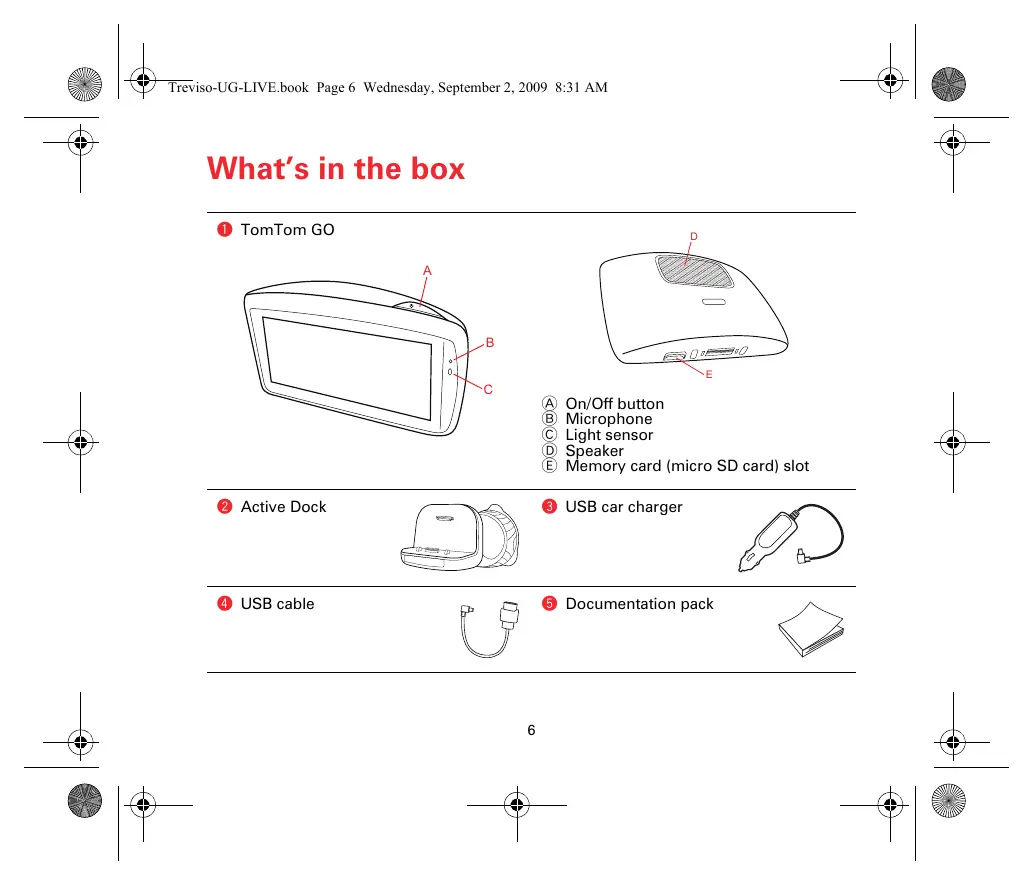
| Included accessories | Active Dock, car USB charger, USB cable, documentation |
| Update | Via TomTom HOME on a computer |
| LIVE services | HD Traffic, Weather, Fuel prices, Safety alerts, Google local search |
| IQ Routes | Optimized route planning based on average speeds |
| Advanced Positioning Technology (EPT) | Position estimation in absence of GPS signal (e.g., tunnels) |
| Maintenance and cleaning | Clean with a soft, dry cloth; avoid abrasive products |
| Safety | Do not use in airplanes, hospitals; do not expose to temperatures >60°C; recycle battery according to regulations |
| Spare parts | Active Dock base, USB charger, USB cable, dashboard mounting disc |
| Repairability | Not specified by manufacturer; contact an authorized service center |
| Operating temperature | -10°C to +55°C |
| Storage temperature | -20°C to +60°C (short term); -20°C to +25°C (long term) |
| Country of manufacture / Warranty | Netherlands; limited warranty (see terms at tomtom.com/legal) |
| Standards and certifications | CE marking, R&TTE compliance, WEEE directive |
Frequently Asked Questions - GO 750 LIVE TOMTOM
User questions about GO 750 LIVE TOMTOM
0 question about this device. Answer the ones you know or ask your own.
Ask a new question about this device
Download the instructions for your Navigation GPS in PDF format for free! Find your manual GO 750 LIVE - TOMTOM and take your electronic device back in hand. On this page are published all the documents necessary for the use of your device. GO 750 LIVE by TOMTOM.
USER MANUAL GO 750 LIVE TOMTOM
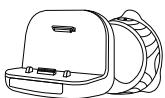
Active Dock
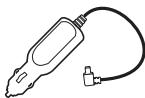
USB car charger

4 USB cable
5 Documentation pack

Switching on and off
Install your TomTom GO navigation device in your car following the instructions in the installation section at the start of this book.
To switch on your navigation device, press and hold the On/Off button until you see the start-up screen. The first time you switch on your device, it may take a short time to start.
Setting up
When you first switch on your device, you have to answer a few questions to set up the device. Answer the questions by tapping the screen.
You are asked whether you make regular trips to the same locations. If you tap YES, you can enter these destinations as your favourite destinations. Every time you switch on your device, you can immediately select one of these locations as your destination.
To change these destinations or select a new destination, tap Start-up preferences in the Preferences menu, then select Ask for a destination.
Device not starting
In rare cases, your TomTom GO navigation device may not start correctly or may stop responding to your taps.
First, check that the battery is properly charged. To charge the battery, connect your device to the car charger. It can take up to 2 hours to fully charge the battery.
If this does not solve the problem, you can reset the device. To do this, press and hold the On/Off button for 15 seconds and release the button when your device begins to restart.
Getting started
Battery notes
The battery in your TomTom GO navigation device charges when you connect it to the car charger or to your computer.
When you connect your device to a computer, you are asked if you want to connect to the computer. If you select No and then do not tap the screen within three minutes, the device will automatically switch off. This happens so that the battery can charge faster.
Note: You should plug the USB connector directly into a USB port on your computer and not into a USB hub or USB port on a keyboard or monitor.
GPS reception
When you first start your TomTom GO navigation device, the device may need a few minutes to determine your GPS position and show your current position on the map. In future, your position will be found much faster, usually within a few seconds.
To ensure good GPS reception, you should use your device outdoors. Large objects such as tall buildings can sometimes interfere with reception.
The TomTom GO 950 includes Enhanced Positioning Technology or EPT. EPT automatically estimates your position when the GPS signal is lost while you are driving, such as when you are in a tunnel. When EPT is in use, the EPT symbol is shown in the Driving View.
Positioning the dock
Consider carefully where to attach the dock in your car. The dock should not block or interfere with any of the following:
- Your view of the road
Any of the controls in your car
Any of your mirrors
The airbag
When your navigation device is in the dock, you should be able to reach the device easily without leaning or stretching. The diagrams show where you can safely attach the dock.
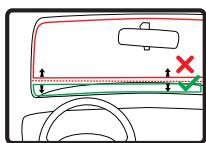
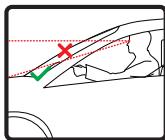
You can attach the dock to the windscreen, side window or use a Dashboard Mount Disk to attach the dock to your dashboard. TomTom also offers alternative mounting solutions for your TomTom navigation device. For more information about Dash
board Mount Disks and alternative mounting solutions, go to tomtom.com/ accessories.
Installing the Active Dock
Make sure that both the Active Dock and your window are clean and dry.
- Press the suction cup firmly against the window on an area where the glass is flat.
- Twist the rubber grip near the base of the Active Dock in a clockwise direction until you hear a click.
The Active Dock is now installed.
Making your first journey
Main Menu 1 of 3

Navigate to...

LIVEServices
Current position:
Amsterdam

Find alternative

Change preferences
16:04

Help me!

Done
Navigate to...

Home

Recent destination
Destination:
Utrecht

Favourite

Local Search
16:06

Address

Back
Planning a route with your TomTom GO navigation device is easy. To plan a route, follow the steps below.
Important: For safety reasons, you should always plan a route before you start your journey.
- Tap the screen to bring up the Main Menu.
Note: The buttons on your navigation device are shown in full colour unless a button is currently unavailable.
- Tap Navigate to...
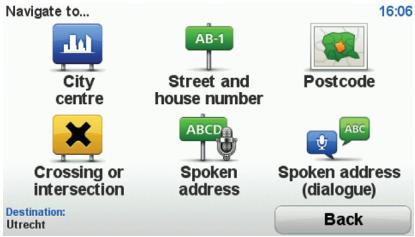
- Tap Address.
In this example, we will enter an address.
4. Tap Street and house number.
Note: When planning a trip for the first time your navigation device asks you to choose a state or country. Your choice is saved and used for all routes you plan.
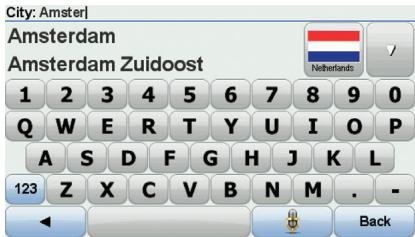
You can change this setting at any time by tapping the flag.
- Start to type the name of the town where you want to go. Tap the name when it is shown in the list.

Tip: Instead of typing the name, tap this button to say the address by speaking to your navigation device.
- Start to type the street name. Tap the name when it is shown in the list.
Making your first journey
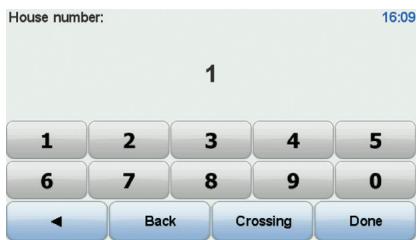
- Enter the house number and then tap Done.
- Your navigation device asks if you need to arrive at a particular time. For this exercise, tap NO.
The route is calculated by your device using IQ RoutesTM.
IQ Routes is used to plan the best possible route using information about the average speeds measured on the roads.
When the route has been calculated, tap Done.
Your TomTom GO navigation device warns you about any traffic delays and begins to guide you to your destination.
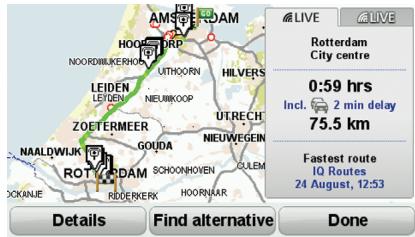
Route summary
After planning a route, you see a summary of your route.
The route summary shows an overview map of your route and the total journey time including delays caused by both incidents and busy roads.
You can see the route summary at any time by tapping the right side of the status bar.
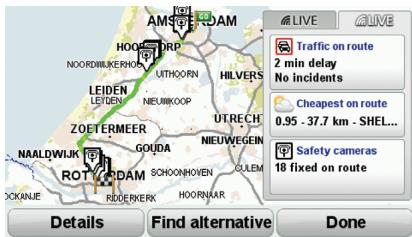
LIVE snapshot
LIVE snapshot shows an overview of the information provided by LIVE services for your planned route. To explore LIVE snapshot, open the LIVE tab on the route summary screen, then tap each panel for more detailed information.
Note: Not all services are available in all countries or regions. Go to tomtom.com/services to check which services are available where you live.
Driving View
When your TomTom GO starts, you are shown the Driving View along with detailed information about your current position.
Tap the centre of the screen at any time to open the Main Menu.
Note: The Driving View is shown in black and white until your GO locates your current position.
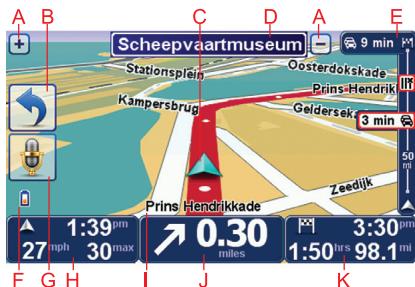
Tap + and - to zoom in and out.
Quick menu - you can enable the quick menu in the Preferences menu.
Your current position.
Road sign information or the next street name.
E Traffic sidebar.
Battery level indicator.
⑥ Microphone button for voice command and control.
The time, your current speed and the speed limit, if known.
Tap this part of the status bar to change the volume and hear the next spoken instruction.
① The name of the street you are on.
① Navigation instruction for the road ahead.
Tap this part of the status bar to change between 2D and 3D views of the Driving View.
The remaining journey time, the remaining distance and your estimated arrival time.
Tap this part of the status bar to open the route summary screen.
To change the information shown in the status bar, tap Status bar preferences in the Preferences menu.
Driving view symbols
Several symbols are shown in the bottom left hand corner of the Driving View. Here are a few examples:
Battery - this symbol shows the battery level. When the battery is low and requires charging, the battery symbol is empty. You should charge your navigation device as soon as possible.
EPT - this symbol is shown when your device is using EPT to estimate your current location. EPT is only used when you have no GPS reception.
Note: EPT is not supported on all devices.

Sound off - this symbol is shown when the sound is switched off.
To switch on the sound, open the preferences menu and tap Turn on sound.
For more information, see the Reference Guide.
LIVE Services
Regional availability
Note: As well as using LIVE services in your own country, you may also be able to use LIVE services when travelling abroad. Not all LIVE services are available in all countries. For more information on available services, go to tom-tom.com/services.
Safety Notice
Your TomTom navigation device contains a GSM/GPRS module which can interfere with electrical devices such as cardiac pacemakers, hearing aids and aviation equipment.
Interference with these devices may endanger the health or life of others.
Do not use near unprotected electrical units nor in areas where the use of mobile telephones is prohibited, such as hospitals and airplanes.
TomTom HD Traffic
HD Traffic is a unique TomTom LIVE Service for receiving up-to-date traffic
information. For more infor
mation about services and subscriptions, go to tomtom.com/services.

In combination with IQ Routes, HD Traffic helps you plan the best possible route to your destination taking into account the latest traffic information.
Using TomTom HD Traffic
The traffic sidebar is shown on the right side of the Driving View. It warns you about traffic incidents on your planned route.
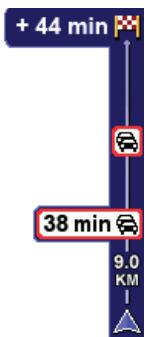
The top of the traffic sidebar represents your destination and shows the total delay time for any incidents on your route.
The central section of the traffic sidebar shows individual traffic incidents in the order they occur on your route.
The bottom of the traffic sidebar represents your current position and shows the distance to the next incident.
Taking the fastest route
Your device constantly looks for a faster route to your destination, as the traffic situation changes. If it finds one, it asks you if you want to change to that route.
You can set your navigation device to always change to the fastest route without asking you in the Traffic preferences in the Traffic menu. Open the Traffic menu by tapping the traffic sidebar.
Fuel Prices
The Fuel Prices service sends up-to-date information about fuel prices directly to your device or via TomTom HOME when the device is connected to your computer.
LIVE Services
Search for the best fuel prices
To search for the cheapest fuel prices, do the following. In this example, you plan a route to the cheapest petrol station nearby.
- Tap the screen to bring up the Main Menu, then tap LIVE Services.
- Tap Fuel Prices.
- Select the type of fuel used in your vehicle.
- Tap Cheapest nearby, then tap the name at the top of the list.
The location is shown on the map.
- Tap Select.
You are asked if you want to navigate to the petrol station.
- Tap Yes.
You are asked if you need to arrive at a particular time, if this option is enabled.
The route is planned and a summary of the route is shown on the map.
TomTom local search with Google

Using local search, you can search the Google listings to find shops and businesses, then plan a route to the destination you choose.
Using local search
To find a location using local search and plan a route there, follow the steps below. In this example, you search for a supermarket near to your current position.
- Tap the screen to bring up the Main Menu, then tap Navigate to.
- Tap the Google button.
- Tap Search near you.
- Type 'supermarket' then tap OK.
The locations that match your search are shown in a list.
- Tap one of the locations in the list.
The location is shown on the map.
Tap Details to see more information about this location.
- Tap Navigate there to plan a route to the location.
Your TomTom GO plans a route to the location you selected.
TomTom Safety Alerts
The TomTom Safety Alerts service warns you about a variety of locations including:

- Safety camera locations.
- Accident blackspot locations.
- Mobile safety camera locations.
Average speed camera locations. - Toll road camera locations.
Traffic light camera locations.
Important: Regularly connect your navigation device to TomTom HOME to update the list of locations for all types of safety alerts. The locations of mobile cameras are sent directly to your device.
When a safety camera location is shown on the map, a warning sound is played to warn you that you are approaching an area where a safety camera is located.
If you discover a location that has a safety camera but you receive no warning, you can report the new location to TomTom using your GO.
LIVE Services
Other services
The following services are also available on your TomTom GO:
TomTom Weather
TomTom Weather gives you five-day weather reports for any location on your map.
QuickGPSfixTM
QuickGPSfix contains information about GPS satellite positions which helps your TomTom GO find your position faster.



My Services
To check your subscription, tap LIVE Services in the Main Menu and then tap My Services.

Your TomTom GO informs you when your LIVE Services subscription is due for renewal. You can use your GO to inform TomTom that you wish to renew your current subscription.
For more information about LIVE Services subscription and payment terms, go to tomtom.com/services.
NOTES
Wat ziterinde doos
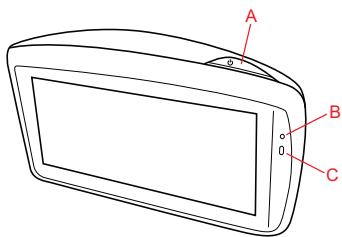
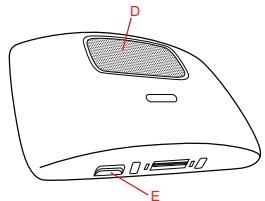
1 TomTom GO
The Global Positioning System (GPS) is a satellite-based system that provides location and timing information around the globe. GPS is operated and controlled under the sole responsibility of the Government of the United States of America which is responsible for its availability and accuracy. Any changes in GPS availability and accuracy, or in environmental conditions, may impact the operation of your TomTom device. TomTom does not accept any liability for the availability and accuracy of GPS.
Use with Care
Use of a TomTom device for navigation still means that you need to drive with due care and attention.
Aircraft and Hospitals
Use of devices with an antenna is prohibited on most aircraft, in many hospitals and in many other locations. A TomTom device must not be used in these environments.
Battery
This product uses a Lithium-Polymer battery. Do not use it in a humid, wet and/or corrosive environment. Do not put, store or leave your product in or near a heat source, in a high temperature location, in strong direct sunlight, in a microwave oven or in a pressurized container, and do not expose it to temperatures over 60 C (140 F). Failure to follow these guidelines may cause the Lithium-Polymer battery to leak acid, become hot, explode or ignite and cause injury and/or damage. Do not pierce, open or disassemble the battery. If the battery leaks and you come into contact with the leaked fluids, rinse thoroughly with water and seek medical attention immediately. For safety reasons, and to prolong the lifetime of the battery, charging will not occur at low (below 0 C/32 F) or high (over 45 C/113 F) temperatures.
Temperatures: Standard operation: -10C (14 F) to +55C (131 F); short period storage: -20C (-4 F) to +60C (140 F); long period storage: -20C (-4 F) to +25C (77 F).

THE LITHIUM-POLYMER BATTERY CONTAINED IN THE PRODUCT MUST BE RECYCLED OR DISPOSED OF PROPERLY. USE YOUR TOMTOM ONLY WITH THE SUPPLIED DC POWER LEAD (CAR CHARGER/BATTERY CABLE) AND AC ADAPTER (HOME CHARGER) FOR BATTERY CHARGING.
To recycle your TomTom unit please see your local approved TomTom service center.
The stated battery life is a maximum possible battery life. The maximum battery life will only be achieved under specific atmospheric conditions. The estimated maximum battery life is based on an average usage profile.
For tips on extending the battery life, go to the FAQ listed below for your country:
AU: www.tomtom.com/8703
CZ: www.tomtom.com/7509
DE: www.tomtom.com/7508
DK: www.tomtom.com/9298
ES: www.tomtom.com/7507
Fl: www.tomtom.com/9299
FR: www.tomtom.com/7506
HU: www.tomtom.com/10251
IT: www.tomtom.com/7505
NL: www.tomtom.com/7504
PL: www.tomtom.com/7503
PT: www.tomtom.com/8029
RU: www.tomtom.com/10250
SE: www.tomtom.com/8704
UK: www.tomtom.com/7502
US: www.tomtom.com/7510
Addendum
CE Marking
This equipment complies with the requirements for CE marking when used in a residential, commercial, vehicular or light industrial environment.
€0168
R&TTE directive
Hereby, TomTom declares that this personal navigation device is in compliance with the essential requirements and other relevant provisions of the EU Directive 1999/5/EC. The declaration of conformity can be found here: www.tomtom.com/legal.
WEEE directive
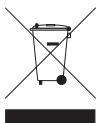
This symbol on the product or its packaging indicates that this product shall not be treated as household waste. In line with EU Directive 2002/96/EC for waste electrical and electronic equipment (WEEE), this electrical product must not be disposed of as unsorted municipal waste. Please dispose of this product by returning it to the point of sale or to your local municipal collection point for recycling.
Connected networks
Devices that contain a GSM module are intended for connection to the following networks:
GSM/GPRS 900/1800/1900
This Document
Great care was taken in preparing this manual. Constant product development may mean that some information is not entirely up to date. The information in this document is subject to change without notice.
TomTom shall not be liable for technical or editorial errors or omissions contained herein; nor for incidental or consequential damages resulting from the performance or use of this material. This document contains information protected by copyright. No part of this document may be photocopied or reproduced in any form without prior written consent from TomTom N.V.
Addendum
GPS (Global Positioning
US:www.tomtom.com/7510
Addendum
Marque CE
© 2009 TomTom N.V., The Netherlands. TomTom®, and the “two hands” logo, among others, are Trademarks owned by TomTom N.V. or one of its subsidiaries. Please see www.tomtom.com/legal for warranties and end user licence agreements applying to this product.
© 2009 Tele Atlas N.V. Based upon:
Ordnance Survey of Northern Ireland.
© IGN France.
Swisstopo.
© BEV, GZ 1368/2009.
Geonext/DeAgostini.
© Norwegian Mapping Authority, Public Roads Administration /
Mapsolutions. DAV.
This product includes mapping data licensed from Ordnance Survey with the permission of the Controller of Her Majesty's Stationery Office. © Crown copyright and/or database right 2009. All rights reserved. Licence number 100026920.
SoundClear™ acoustic echo cancellation software © Acoustic Technologies Inc.
Audible®, AudibleListener® and Audiblemanager® are registered trademarks of Audible, Inc. When purchasing and using Audible content you need to agree to the terms and conditions as posted in the Legal Notices www.audible.com.
Text to Speech technology, © 2009 Loquendo TTS. All rights reserved. Loquendo is a registered trademark. www.loquendo.com
MPEG Layer-3 audio coding technology licensed from Fraunhofer IIS and Thomson.
Supply of this product does not convey a license nor imply any right to distribute content created with this product in revenue-generating broadcast systems (terrestrial, satellite, cable and/or other distribution channels), streaming applications (via Internet, intranets and/or other networks), other content distribution systems (pay-audio or audio-on-demand applications and the like) or on physical media (compact discs, digital versatile discs, semiconductor chips, hard drives, memory cards and the like). An independent license for such use is required. For details, please visit mp3licensing.com
Some images are taken from NASA's Earth Observatory.
The purpose of NASA's Earth Observatory is to provide a freely-accessible publication on the Internet where the public can obtain new satellite imagery and scientific information about our home planet.
The focus is on Earth's climate and environmental change: earthobservatory.nasa.gov/



- Switching on and off
- Setting up
- Device not starting
- Getting started
- Battery notes
- GPS reception
- Positioning the dock
- Installing the Active Dock
- Making your first journey
- Tap Street and house number.
- Route summary
- LIVE snapshot
- Driving View
- Driving view symbols
- LIVE Services
- Regional availability
- Safety Notice
- TomTom HD Traffic
- Using TomTom HD Traffic
- Taking the fastest route
- Fuel Prices
- Search for the best fuel prices
- TomTom local search with Google
- Using local search
- TomTom Safety Alerts
- Other services
- TomTom Weather
- QuickGPSfixTM
- My Services
- NOTES
- Wat ziterinde doos
- Use with Care
- Aircraft and Hospitals
- Battery
- Addendum
- CE Marking
- €0168
- R&TTE directive
- WEEE directive
- This Document
- Marque CE
Brand : TOMTOM
Model : GO 750 LIVE
Category : Navigation GPS