
NAVIGATOR 5 - GPS Navigator TOMTOM - Free user manual and instructions
Find the device manual for free NAVIGATOR 5 TOMTOM in PDF.


| Product Type | GPS Navigator for Automobile |
| Brand | TomTom |
| Model | NAVIGATOR 5 |
| Screen | Color touchscreen, unspecified resolution |
| Power Supply | Cigarette lighter charger (12 V) |
| GPS Receiver | Built-in, automatic connection at startup |
| Main Functions | Turn-by-turn voice navigation, route calculation, address search, points of interest, advanced planning, alternative routes |
| Maps | TomTom maps on CD, activation required (GPRS or online) |
| Optional Services | TomTom PLUS: real-time traffic info, weather, downloads (via Bluetooth GPRS phone) |
| Connectivity | Bluetooth (for GPRS phone and activation) |
| Display | 3D navigation mode, day/night colors, zoom in/out |
| Voice Instructions | Yes, built-in (can be disabled) |
| Maintenance and Cleaning | Clean the screen with a soft, dry cloth; avoid liquids |
| Safety | Do not obstruct the driver's view; securely attach the mount |
| Spare Parts and Repairability | Contact TomTom support for parts or repairs |
| General Information | Manual available in multiple languages; online support at www.tomtom.com |
Frequently Asked Questions - NAVIGATOR 5 TOMTOM
User questions about NAVIGATOR 5 TOMTOM
0 question about this device. Answer the ones you know or ask your own.
Ask a new question about this device
Download the instructions for your GPS Navigator in PDF format for free! Find your manual NAVIGATOR 5 - TOMTOM and take your electronic device back in hand. On this page are published all the documents necessary for the use of your device. NAVIGATOR 5 by TOMTOM.
USER MANUAL NAVIGATOR 5 TOMTOM
Starting up for the first time 3
Getting started 4
How to plan your first route 4
What's on the screen? 7
Finding alternative routes 8
Advanced planning 9
Preferences 10
TomTom PLUS 12
More information 12
FR
French
Starting up for the first time
Installation
Before you can use TomTom NAVIGATOR 5 you must install the application and map from the CD set. Please refer to the installation poster for more information.
NOTE: TomTom GPS receivers connect automatically when you start the application. If you are using a different GPS unit, refer to the device manual for connection instructions.
Tip: In order to use in-car chargers, you may need to set your ignition key in an 'Accessories' position. Please consult your vehicle handbook.
Activation
Some TomTom maps need to be activated before they can be used. You can activate maps automatically using GPRS, or manually on a PC via our website. To activate your map you will need a product code, found on the TomTom Navigator product code (15 characters) found on the TomTom Navigator CD package.
NOTE: For automatic activation, you need a GPRS-ready mobile phone with Bluetooth. If you already pick up email or browse the Internet on your phone, then it's probably already GPRS-ready; if you're not sure, ask your network provider.
To activate your map via GPRS, select the 'Automatic' button and follow these instructions:
- Type in your product code and then press 'Activate'.
To activate your map using your PC, select the 'Manual' button and follow these instructions:
- Go to www.ttcode.com using your PC Internet browser.
- Select your preferred language and then enter your product code.
- When prompted, type in your device code (displayed on the screen of your device).
- Select 'Activate' on your device and then type in the activation code shown on your PC screen.
Once the map has been activated, you can continue through the rest of the start up process.
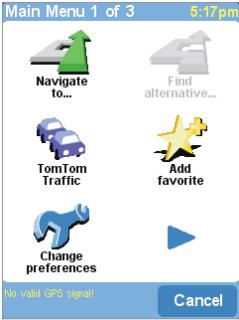
As with many of the menus, there are more options than can be shown on one screen. Try selecting a few times, to cycle through all the different things you can do.
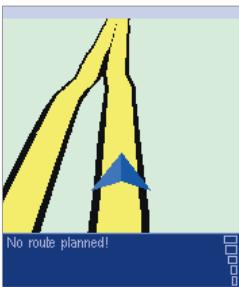
Your position (and direction) is indicated by the icon.
Getting started
The application starts by displaying the navigation view. The screen will appear in black and white until your GPS receiver locates your current position. Once this is done, the navigation view is shown in full color. In future, your position will be found much faster, normally within a few seconds. Everything can be accomplished easily using just your finger. Importantly, you can bring up the main options menu by tapping your finger somewhere in the middle of the screen or pressing the joystick.
NOTE: Some newer vehicles may have a heat reflective shield embedded in the windscreen. In some cases this can prevent proper GPS signal reception. If this turns out to be a problem in your vehicle, try mounting your GPS receiver behind your rear view mirror or parcel shelf.
How to plan your first route
-
If you haven't already done so, go outside so that the GPS hardware can locate your position. This may take some time, and will happen more quickly if you remain still. The screen displays your current position on its map, represented in a '3D' navigation view, from a driver's perspective. When you start moving, the navigation view will match the streets outside as you would see them through your windshield.
-
Bring up the main menu as explained previously. Use a few times to browse through all the different features and options, then choose 'Navigate to...' to start planning your first route.
Tip: Don't worry if some of the icons are 'greyed out', this just indicates that these menu options aren't available yet. E.g. as you haven't yet planned a route then 'Find alternative...', 'View route' and 'Clear route' are all greyed out.
- Choose 'Address' 123. You'll see a standard browser screen, used for entering place names (e.g. towns, streets and favorite locations). Letters can be entered using the on-screen keyboard or device keypad.
- The best way to see how your TomTom system works is to just use it, so think of the address that you want to visit and enter the first few letters of the city, town or village. Be as specific as possible. As you type, the letters are compared to the built-in list of possible names and any matches appear in the browser window.
- When you see the name of the place you want, select it using the touchscreen or joystick. A new browser window is now shown, this time with the prompt 'Street:' at the top. Again, start entering the road name of your destination, selecting it when the full name is shown among the matches. In cases where there is more than one road of the same name, additional information is displayed to help you choose the correct location.

Remember that always means that there's more to see on the next page - in this case extra ways of choosing a destination.
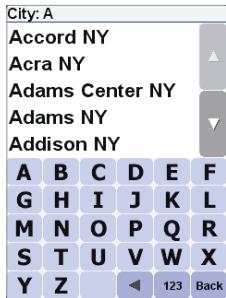
Quick-matching a town name. Use and or the joystick to scroll through other possible matches. If you make a mistake, use or the Clear key to delete the last letter entered.
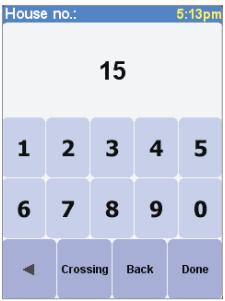
If you'd rather pick a crossing than a house number, just select the 'Crossing' button or press the joystick.
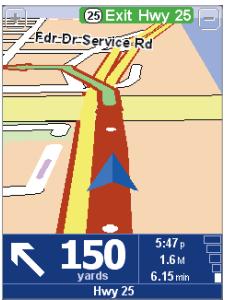
White arrow heads show the direction you need to move along the current road and a specially-shaped green arrow shows what to do at the next turn or intersection.
-
A third and final keyboard and browser are shown, this time for you to select a house number. For some roads (such as those that don't have house numbers), you'll be asked to select a particular 'Crossing:' (i.e. an intersection). Select a crossing, or enter the house number and then choose 'Done'.
-
The fastest route from your current position to your destination is then calculated. This should only take a few seconds and its progress is shown on the screen. When done, a summary is shown, on a suitably scaled map. Studying this summary can be useful for you to get a feel for your journey's scope and to check if the route includes roads that you'd rather avoid (in which case, see 'Finding alternative routes', below).
-
Select 'Done' and you'll find yourself back at the main navigation view, but with the route now clearly colored in for you. As you approach a specific turn in the calculated route, your chosen voice will tell you what to do. For example, "In 100 yards, turn left", followed by "Turn left". As you travel, following the voice instructions, you'll notice that the navigation view is updated constantly, always showing coming roads and junctions and presenting the best route to you.
Don't worry if you miss a turn or drive down the wrong road. A new fastest route will be calculated automatically, based on your new position and direction of travel. Wherever you go, it will always give you instructions that will take you to your chosen destination.
What's on the screen?
Much of the information on the main navigation view is configurable (see the 'Preferences' section for details). By default, you'll see something like the illustration below.
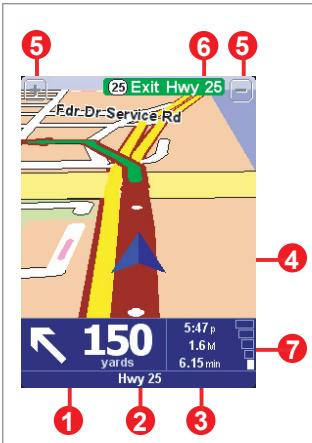
1 Your next turn instruction.
The name of the next street to turn onto.
3 Configurable journey information including arrival time, time to destination and distance to destination.
4 Your current GPS position.
5 'Zoom out' and 'Zoom in' buttons.
6 Next highway'indicator,if applicable.See Name preferences' in the manual on CD, if you want to turn this off.
A 'phone-style' signal indicator to give an idea of how good or bad the GPS reception is in your current location. The more bars, the better.
If you miss a voice instruction, tap on the turn instruction in the bottom left hand corner (1), or press 7, 8, 9, 0, # or *, to generate a new one. And if you'd like to view the route summary again, tap anywhere in the journey information panel in the bottom right hand corner (2, 3) or (7) or press the right soft key.
Most of the time, the voice and turn instructions are all you need to navigate successfully, which means never having to look at the screen. At complicated junctions, where simple instructions aren't adequate, the navigation view comes into its own. A quick comparison between the screen and the world in front of you should be all you need.
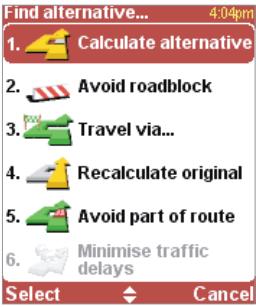
Which 'Find alternative' option you go for depends on why you're dissatisfied with the first route.
Finding alternative routes
Maybe a route has been planned that you're not happy with? Perhaps you have been routed through a busy junction? Have you have spotted roadworks up ahead? Or perhaps you really wanted to go 'via' one particular location? In each of these cases, 'Find alternative...' can help you. Again, you'll see it on the main menu, right next to 'Navigate to...'
Choose 'Travel via...' if you want to make sure the planned route goes past one particular location, perhaps to pick up or drop someone off. If you spot signs of trouble, choose 'Avoid roadblock'. Or if you want to avoid a particular road junction, choose 'Avoid part of route'. Finally, if you want an alternative route because you simply don't like the original, choose 'Calculate alternative'.
Tip: If you want to include more than a single 'via' location in your journey, use the comprehensive 'Itineraries' feature instead, described in the manual on CD.
Advanced planning
Although navigating from your current position is the function that you'll use most often, there may be times when you want to plan ahead. Choosing 'Advanced planning' on the main menu lets you look at the best route and journey time between any two given locations or get directions that will help someone else get to your current position.
Tip: You may need to use in order to see the 'Advanced planning' icon.
Rather than use your GPS position, with 'Advanced planning' you choose your departure location using either an address, a Point Of Interest, or a favorite location, for example. You then pick a destination in the same way and finally choose a planning option (fastest, shortest, walking, etc.).
This means that you can use 'Advanced planning' to calculate routes even when you do not have a GPS signal.
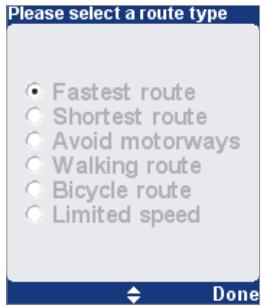
If you'd like this choice every time you navigate, or if you'd like to change the default setting, see 'Planning preferences' in the 'Change preferences' menu.
Preferences
You can personalize much of the look and feel of your TomTom system to your own liking by using the main menu option 'Change preferences'. Use to cycle through the different pages of preferences. Here are some of the most important ones (you'll find the full set in the manual on CD).
Tip: The icons shown for some preferences will change, depending on the setting the preference is currently in. For example, choosing 'Turn off sound' disables the voice instructions. Once disabled, the option and icon change to 'Turn on sound', reflecting the action to take when it is next selected.
Use night colors
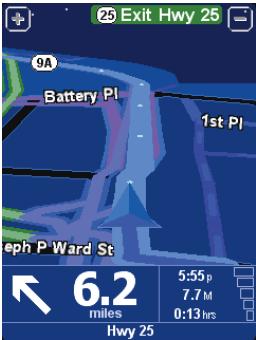
The default night colors, designed not to affect your night vision.
Bright colors are normally used in the maps so that you can see them clearly even in sunlight. When it is dark outside, you may want to use the preference 'Use night colors' to show the map in (by default) dark and subdued colors that will not interfere with your night vision. You can use the preference 'Use day colors' to revert to the original color scheme.
Manage POI
POI is an abbreviation you'll see a lot, standing for 'Point Of Interest'. Dozens of categories of POIs are built-in, from airports to gas stations, from restaurants to theaters. Most importantly, POIs can be used as destinations, can be shown on the map and can even warn you of their proximity (for example, looking for a parking garage or gas station while driving in a strange city).
You can choose which Points Of Interest categories you're interested in by selecting the option 'Enable/Disable POI', or set up a warning (you can have as many as you like) with the option 'Warn when near POI'.
Once you've spent time carefully browsing through the categories in 'Manage POI' and have chosen the ones you need, you can hide all of them from the main navigation view in one stroke with 'Hide POI' and then show your preferred set again with 'Show POI'.
NOTE: When navigating to a POI, you will only see locations within a certain radius of your location. If you wish to search for a POI not in your immediate area, you will need to use the 'POI in city' option.
Change Home location
You can set or change your 'Home' location at any time by using 'Change home location'. You will then be able to select this quickly later as a departure or destination point.
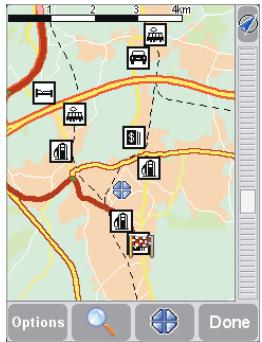
A typical selection of POIs from the categories selected in the 'Manage POI' preference.

TomTom PLUS
In addition to voice-guided satellite navigation, our optional TomTom PLUS service can give you real time information on traffic congestion, helping you route around it. In addition, there is current weather information for any location on your map, plus special downloads, including detailed city maps, extra voice files and extra POI databases. Full details of the TomTom PLUS service can be found on the CD.
NOTE: To use TomTom PLUS, you need a GPRS-ready mobile phone with Bluetooth. If you already pick up email or browse the Internet on your phone, then it's probably already GPRS-ready; if you're not sure, ask your network provider.
More information
All the features of your TomTom product are fully explained in the manual included on the CD.
The manual is available in English, Dutch, German, French, Italian, Spanish, Danish and Swedish.
For technical support information please visit our website at www.tomtom.com. Our "Frequently Asked Questions" (FAQs) section contains answers to all the most frequent requests from our customers, providing a quick and easy way to get the information you need. You can also access the support section of our website to find product documentation and contact details for our customer support department. We primarily supply support via email, as this allows us to explain solutions in the most effective way.
Démarrage initial
Installation
Data Source ©1984-2005 Tele Atlas North America, Inc. All rights reserved. Canadian Data © 2005 DMTI Spatial. Portions of Canadian map data are reproduced under license from Her Majesty the Queen in Right of Canada with permission from Natural Resource Canada. Point of interest data by Info USA. Copyright 2005.
TomTom and the TomTom logo are registered trademarks of TomTom B.V. The Netherlands. All other trademarks are the property of their respective owners.
The use of TomTom products is governed by a license agreement which is included in this package and/or the products. This license contains a limited warranty and limitation of liability. You can review the license conditions at www.tomtom.com.