NS1631D - Computer accessory Newstar - Free user manual and instructions
Find the device manual for free NS1631D Newstar in PDF.


| Brand | Newstar |
| Model | NS1631D |
| Product Type | Single Monitor Arm |
| Materials | Aluminum alloy, steel, ABS plastic |
| Weight Capacity | 2–8 kg (4.4–17.6 lbs) |
| VESA Compatibility | 75×75 mm and 100×100 mm |
| Screen Size Supported | 13″ to 27″ |
| Tilt Range | -45° to +45° |
| Swivel Range | ±90° |
| Rotation | 360° (landscape/portrait) |
| Height Adjustment | 0–300 mm (0–11.8 in) |
| Arm Reach | 0–500 mm (0–19.7 in) |
| Cable Management | Integrated cable channels |
| Mounting Type | Clamp (desk thickness 10–50 mm) or grommet |
| Dimensions (Arm) | Approx. 600×120×80 mm (23.6×4.7×3.1 in) |
| Net Weight | Approx. 2.5 kg (5.5 lbs) |
| Power Supply | None (mechanical) |
| Warranty | 2 years (depending on region) |
| Package Contents | Monitor arm, clamp, grommet, mounting hardware, user manual |
| Cleaning Instructions | Wipe with a soft, dry cloth. Do not use solvents. |
| Safety Notes | Do not exceed maximum weight. Ensure desk surface is flat and sturdy. |
Frequently Asked Questions - NS1631D Newstar
User questions about NS1631D Newstar
0 question about this device. Answer the ones you know or ask your own.
Ask a new question about this device
Download the instructions for your Computer accessory in PDF format for free! Find your manual NS1631D - Newstar and take your electronic device back in hand. On this page are published all the documents necessary for the use of your device. NS1631D by Newstar.
USER MANUAL NS1631D Newstar
text_image
HOME CABLES ERGONOMIC SOLUTIONS LCD TV ARM LCD MONITOR ARM KVM/VIDEO SWITCHES USB PRODUCTS SERVER PACKS www.newstar.nl Telephone: 01 (0) 23 647 88 88 NEWSTAR computerproducts4, 8 & 16 PORT KVM SWITCH
User Manual
NS-431D
NS-831D
NS-1631D

www.newstar.nl

Table of Contents
■ Introduction
O v e r v i e w
Features
Configurations
2
3
Installation
Device Connection
Initial Power-up
Optional Rack
Mount
Accessories
Operation
Front Panel Push Buttons 10
OSD(On-Screen Display)Operation
Hot-key Commands
6
8
■ Cascade Configuration
Connection
19
Change Configuration while Running
21
Appendices
Specifications
22
Troubleshooting
23

Please read this manual thoroughly and follow the Installation procedures to prevent any damage to the NewStar KVM Switch or any connecting device.

Introduction
Overview
One-Console NewStar Switches
The NewStar KVM Switch allows you to access multiple computers from one keyboard, mouse and monitor. There is no interface card or software to configure. Installation is as easy as connecting cables between the NewStar KVM Switch and your computers. Operation is as simple as pressing push button, entering hot-key command and navigating through the user-friendly on-screen menu (available on models with OSD support). Depending on the model you have, it switches up to 4 (NS431D), 8 (NS831D) or 16 (NS1631D) IBM-compatible computers. The NewStar KVM Switch is independent of the computer operating system.
On-Screen Display (OSD) Menu
For NS431D, NS831D and NS1631D models
For NewStar KVM Switchs with built-in OSD control, you can name your computers, switch to a computer from a list, configure settings with easy-to-use menus, view the name of the selected computer on-screen with programmable time interval. The OSD displays the system status throughout operation.
Automatic Mouse Conversion
The NewStar KVM Switch Switch enable you to connect computers with PS/2 or serial mouse ports (using adapters supplied with each NewStar KVM Switch Switch) and control the computers from one PS/2 mouse. The NewStar KVM Switch automatically identifies the mouse and switches to proper mouse protocol.

High Video Quality
NewStar KVM Switch supports VGA resolution up to 1920 x 1440 without any degradation. Advanced VGA circuit design guarantees smooth and flicker-free switching from one computer to the other with distance up to 100ft (30M) ^* at both Console and PC sides.
NOTE: This User's Manual is written for the following models.
| NewStar KVM Switch Switch Models | |||
| No. of console supported 1 | 1 | ||
| No. of PC supported 4 | 8 | ||
| OSD NS431D | NS831D | NS1631D | |
Tested with high-quality UL2919-rated, low-loss and shielded cables.
Features
■ Supports both PS/2 and serial mouse
- Cascade configuration expands system capability
- Auto-scan automatically selects computers sequentially
■ Supports Microsoft IntelliMouse (Pro)
- Hot-key functions allow easy computer access
- Keyboard states automatically saved and restored when switching computers
- Operating system independent, transparent to all applications
- Plug and play system configuration
- Keyboard and mouse can be hot plugged at any time
■ High VGA resolution 1920 x 1440
- DDC2B compatible
- Optional standard 19 inch rack mounting kit available
■ Supports optional multimedia module for microphones and stereo speakers

Extra features for On-Screen Display model
- Assign computers with unique and meaningful names
- Identify and select computers by the names
- Programmable scan filters unused computers
- Store system settings and name entries to non-volatile memory
- Password security locks computer from unauthorized access
- Gain complete control with easy-to-use OSD interface
More features for multi-access models
- Manage multiple computers from two locations
- Different Console may have different type of mouse i.e. generic PS/2 mouse and scroll mouse
- Selectable User Timeout
Configurations
NewStar KVM Switch has several models each supporting a different number of computers. For applications with a large number of computers, NewStar KVM Switchs can be cascaded in a Master/slave configuration to support even more computers.
Single NewStar KVM Switch Configuration
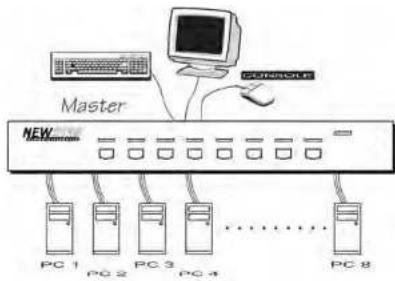
Connect a PS/2 keyboard, a PS/2 mouse and a VGA multi-sync monitor directly to the Master's CONSOLE port. Then, connect multiple sets of keyboard, mouse and monitor cables to the "PC x" ports of the NewStar KVM Switch, as shown in figure 1.

text_image
Master NEW PC 1 PC 2 PC 3 PC 4 PC 8Figure 1: A single NewStar KVM Switch configuration
Cascade (Master/Slave) Configuration
You can connect a second level of one or more NewStar KVM Switchs to "PC 1"-"PC 4" (NS431D) or "PC 1"-"PC 8" ports (NS831D & NS1631D) of a Master unit. Cascade configuration expands system ability allowing you to select computers connected to the Master or Slaves. There is only one Master, which has a mouse, a keyboard and a monitor connected to its CONSOLE port directly operated by a user.
Once connected, NewStar KVM Switchs automatically configure themselves to either Master or Slave. Slaves of different NewStar KVM Switch models can be mixed in cascade configuration. [NOTE: Master must have equal or more PC ports than that of Slaves, i.e., if NS831D is a master, NS831D and NS431D can be Slaves, but NS1631D can not.]


flowchart
graph TD
    A["Master"] --> B["PC1"]
    A --> C["PC2"]
    A --> D["PC3"]
    A --> E["PC4"]
    A --> F["PC5"]
    A --> G["PC6"]
    H["Console"] --> A
    I["Slave"] --> J["PC1"]
    I --> K["PC2"]
    I --> L["PC3"]
    I --> M["PC4"]
    I --> N["PC5"]
    I --> O["PC6"]
    P["Slave"] --> Q["PC1"]
    P --> R["PC2"]
    P --> S["PC3"]
    P --> T["PC4"]
    P --> U["PC5"]
    P --> V["PC6"]
Figure 2: A cascade NewStar KVM Switch configuration
Throughout this manual, Master is the NewStar KVM Switch that has a physical keyboard, mouse and monitor connected to its CONSOLE port. Slave is a NewStar KVM Switch that has its CONSOLE port connected to a Master's "PC x" port. Slave only exists in cascade configuration.

Installation
Device Connection
The monitor connected to the HD-DB-15 VGA port of a Master CONSOLE must be capable of synchronizing with the computer's video signal. If you are uncertain about the monitor type, please consult the monitor user's manual. Connect a PS/2 mouse and a keyboard to the CONSOLE port marked with a mouse and a keyboard respectively as shown in figure 3. [NOTE: Only a PS/2 mouse can be connected to the CONSOLE mouse port. The NewStar KVM Switch's automatic mouse conversion system allows you to connect computers using serial mouse and control the computers from one PS/2 mouse.]

flowchart
graph TD
    A["DC9V, 500mA"] --> B["Multi-media module"]
    B --> C["PS/2 mouse"]
    B --> D["PS/2 keyboard"]
    C --> E["Computer"]
    D --> F["Computer"]
Figure 3: Master console connection

Determine the channel address of each computer. For computers using PS/2 mouse, connect the computer's mouse and keyboard cables to the NewStar KVM Switch's connectors marked with a mouse and keyboard respectively, as shown in figure 4.

text_image
male-to-female HDB15 for VGA male-to-male mini-DIN6 for Mouse male-to-male mini-DIN6 for KeyboardFigure 4: Master computer connection
For computers using serial mouse, connect the DB-9 to mini-DIN-6 adapter (supplied with the NewStar KVM Switch) to the computer mouse port, then use PS/2 cables to connect the mouse to NewStar KVM Switch, see figure 5. Connect the computer's monitor cable to the HD-DB-15 VGA connector. Repeat above steps for all remaining computers to be connected to the NewStar KVM Switch.

text_image
Comes with the unit PC with serial mouse and adapter PC with PS/2 mouseFigure 5: Adapter and serial mouse connection

Initial Power-Up
Make sure all computers and NewStar KVM Switchs are powered down during installation. You must power up the Master NewStar KVM Switch before turning on any other devices.
For single KVM Switch: 1) Apply a power adapter to the Master.
2) Turn on computers.
For cascade: 1) Apply a power adapter to the Master.
2) Apply power adapters to all Slaves. 3) Turn on computers.
Note: You may hot plug additional powered-down computer and Slave without turning any existing NewStar KVM Switch or computer off after initial power up.
Replace Master Console Devices
You can replace a faulty keyboard or mouse of the Master CONSOLE port at any time without powering down the Master, as long as your computers are booted with proper device driver for the new device. Should you encounter any difficulty, just activate K/M RESET by holding both front-panel '1' and '2' push buttons down for 2 seconds.
Adhesive Rubber Foot
For desk-top operation, you may stick the four round rubber feet (supplied with the unit) to the bottom of the NewStar KVM Switch.
NOTE: Do not use the rubber feet for rack mount operation.

Optional Rack Mount Accessories
Figure 6 shows how to attach optional mounting brackets to the NewStar KVM Switch unit for standard 19-inch rack cabinet.

Figure 6: Attaching rack mount bracket
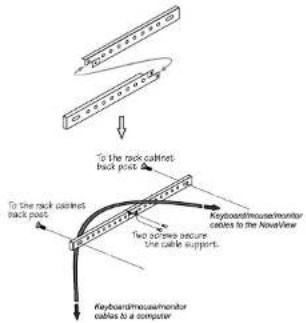
Figure 7 shows how to assemble rack cable support then screw it to the back and inside the rack cabinet vertical post.
text_image
To the rack cabinet back post Two cables secure the cable supports. Keyboardmouse/monitor cables to the NovaView Keyboardmouse/monitor cables to a computerFigure 7: Assembling rack cable support
Then, keyboard/mouse/monitor cables can be routed over the cable support. You can use plastic cable ties to bundle and label the cables through the rack cable support holes for easy identification.

Operation
Front Panel Push Buttons
You may select a computer by pressing the front panel push button directly, by issuing hot-key commands or by activating the OSD window (for models with OSD support). The front panel indicator changes to reflect the computer port selected (red) and whether the port is connected to a powered computer (green). The indicator flashes red when it is in either Auto Scan or Manual Scan mode.

flowchart
graph TD
    A["Green light as the port connects to a powered device"] --> B["Red light as the port is selected"]
    C["Press this button to select the port"] --> D["Green light as the port is connected to a power grid"]
Figure 8: Front panel indicator
Some computers support 'keyboard/mouse power up' function, i.e., press certain keys or mouse buttons to startup the computers. Their corresponding green front indicators lit all the time even if the computers are 'off'.
■ K/M RESET
K/M RESET solves most problems developed by keyboard, mouse, device replacement or change of configuration. Press down both the front-panel number 1 and 2 push buttons for 2 seconds to re-configure the whole system without turning either the NewStar KVM Switch Switch or any computer off.
■ AUTO SCAN
NewStar KVM Switch provides an easy to use feature to start Auto Scanning. You can press down both the front-panel number 7 and 8 buttons for 2 seconds to start Auto Scanning.

OSD (On-Screen-Display) Operation
NS431D, NS831D and NS1631D
text_image
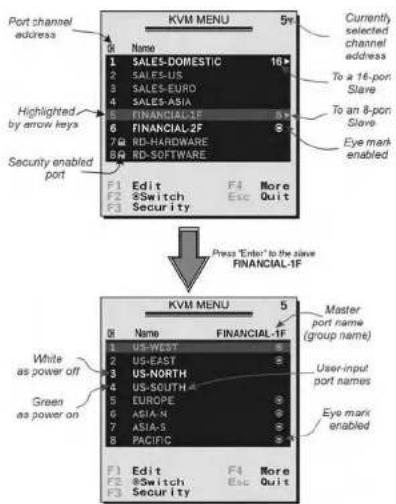
Port channel address 5r Name I SALES-DOMESTIC 16# 2 SALES-US 3 SALES-EURO 4 SALES-ASIA 5 FINANCIAL-2F 6 FINANCIAL-2F 7 RD-HARDWARE 8 RD-SOFTWARE Currently selected channel address To a 16-port Slave To an 8-port Slave Eye mark enabled Highlighted by arrow keys Security enabled port F1 Edit F4 More F2 Switch Esc Quit F3 Security Press "Enter" to the slave FINANCIAL-1F KVM MENU 5 Name FINANCIAL-1F White as power off Green as power on Master port name (group name) User-input port names Eye mark enabled F1 Edit F4 More F2 Switch Esc Quit F3 SecurityFigure 9: OSD screen illustration
By hitting the left
The port number of the currently selected computer is displayed in red, same as the front indicator, at the right corner of the OSD menu.

The color of a device name is green if it has power and is ready for operation, or the color is white as it has no power. OSD menu updates the color when it is activated. For 16-port models, pressing the
Use the "↑", "↓", "1" \~ "8" or "A" \~ "H" to highlight a computer and the
A triangle mark (▶) to the right of a name indicates the port is cascaded to a Slave; the number at the left of the triangle mark shows the number of ports the Slave has, i.e. 8▶ for an 8-port switch.
An eye mark (✗) to the right of a name indicating the computer is selected to be monitored in Scan mode. In OSD, this mark can be switched on or off by function key
Press
- Function key

● Function key
- Function key
If you want to access the locked device temporarily, simply highlight it and press
If you forget the password, the only way to permanently erase all the passwords is to: Press and hold the front panel buttons "1" and "2", then hold "7" and "8". Release "7" and "8", then release "1" and "2".
For 4-port KVM switches: If you forget the password, the only way to permanently disable the security function is to remove all possible power sources from the master KVM switch. You need to turn off all computers and unplug the power adapter, then restart everything.
● Function key

shown in the middle of the screen. Again, using the
Auto Scan
In this mode, the Integra automatically switches from one power-on computer to the next sequentially in a fixed interval. During Auto Scan mode, the OSD displays the
name of the selected computer. When Auto Scan detects any keyboard or mouse activity, it suspends the scanning till activity stops; it then resumes with the next computer in sequence. To abort the Auto Scan mode, press the left
Type (
■ Manual Scan
Scan through power-on computers one by one by keyboard control. can Type (<F4::More\Scan Type) determines if scanned computers must also be eye mark selected. Press the up arrow key (↑) to select the previous computer and the down arrow key (↓) to select the next computer. Press any other key to abort the Manual Scan mode.
Audio Stick
An optional multimedia module can be LINKed to the back of each Integra KVM switch for selecting microphone and stereo speaker signals. There are two options for Audio Stick: ON and Off. When set to 'On', audio selection follows computer selection. When set to 'Off', audio selection stops following computer selection. It is useful if you want to listen to a particular computer's audio signal while operating other computers. The non-volatile memory stores the Audio Stick setting.

Scan Type
Ready PC +: In Scan mode, scan through power-on and eye mark selected computers.
Ready PC: In Scan mode, scan through power-on computers.
Only: In Scan mode, scan through any selected computer regardless of computer power status. This option is not available for 4-port KVM switches.
The non-volatile memory stores the Scan Type setting.
Scan Rate
Sets the duration of a computer displayed in Auto Scan mode. The options are 3 seconds, 8 seconds, 15 seconds and 30 seconds. The non-volatile memory stores the Scan Rate setting.
■ Keyboard Speed
NewStar KVM Switches offer keyboard typematic setting that overrides the similar settings in BIOS and in Windows. Available speed options are Low, Middle, Fast and Faster as 10, 15, 20 and 30 characters/sec respectively. The non-volatile memory stores the Keyboard Speed setting.
Hotkey Menu
When you hit the left
CH Display
Auto Off: After you select a computer, the port number and name of the computer will appear on the screen for 3 seconds then disappear automatically. Always On: The port number and name of a selected computer and/or OSD status displayed on the screen all the time. The non-volatile memory stores the CH

Display setting.
Position
The position of the selected computer name and/or OSD status displayed on screen during operation. The actual display position shifts due to different VGA resolution, the higher the resolution the higher the display position. The non-volatile memory stores the Position setting.
Upper Left (UL), Upper Right (UR).
Lower Left (LL), Lower Right (LR).
Middle (MI).
● ESC: To exit the OSD, press the

Hot-key commands
Hot-key command is a short keyboard sequence to select a computer, to activate computer scan, etc. NewStar KVM Switch interprets keystrokes for hot-keys all the time. A hot-key sequence starts with two left
The short form hot-key menu can be turned on as an OSD function (
L-CTRL: is the
To select a computer by hot-key command, you must know its channel address, which is determined by the NewStar KVM Switch connection. For a computer connected to a Master, its address is represented by the PC port label (1\~8 or A\~H). For a computer connected to a Slave, two characters represent its address. The first character is the channel address of the Master unit (1\~8) and the second one is the channel address of the Slave (1\~8 or A\~H). Please note that only Master's 'PC 1' - 'PC 8' ports can be connected to a Slave.
Left Ctrl + left Ctrl + 7 Selects a computer connected to port 7 of the Master. Left Ctrl + left Ctrl + 6 + C Selects a computer connected to port C of a Sla to port 6 of the Master.
To start Auto Scan, automatically scan power-on computers one by one at a fixed interval: left Ctrl + left Ctrl + F1

When Auto Scan detects any keyboard or mouse activity, it suspends the scanning till activity stops; it then resumes with the next computer in sequence. The length of the Auto Scan interval (Scan Rate) is adjustable, see below. To abort the Auto Scan mode, press the left Ctrl key twice. Note: For OSD models, Scan Type determines whether eye mark is necessary during Auto Scan.
■ Manual Scan enables you to manually switch back and forth between power-on computers: left Ctrl + left Ctrl + F2 Press ↑ or ↓ to select the previous or the next computer in sequence. And, press any other key to abort the Manual Scan. Note: For OSD models, Scan Type determines whether eye mark is necessary during Manual Scan.
To adjust Scan Rate which sets the duration before switching to the next computer in Auto Scan: left Ctrl + left Ctrl + F3 The NewStar KVM Switch sends one to four beeps indicating scan interval of 3, 8, 15 and 30 seconds respectively.
■ To adjust keyboard typematic rate (characters/sec), this setting over-rides that of BIOS and any operating system: left Ctrl + left Ctrl + F4
The NewStar KVM Switch generates 1 to 4 beeps corresponding to 10, 15, 20 and 30 characters/sec respectively.
■ Audio Stick An optional multimedia module can be LINKed to the back of each NewStar KVM Switch for selecting microphone and stereo speaker signals. There are two options for Audio Stick: ON and Off. When set to 'On', audio selection follows computer selection. When set to 'Off', audio selection stops following computer selection. It is useful if you want to listen to a particular computer's audio signal while operating other computers: left Ctrl + left Ctrl + F5
The NewStar KVM Switch generates 1 or 2 beeps corresponding to On and Off respectively.

Cascade Configuration
Connection
Before connecting a device (a computer or a Slave) to the Master under power, you must turn off the device. The Master must have equal or more 'PC x' ports than that of the Slave, i.e., if NS831D is the master, NS831D and NS431D can be Slaves, but NS1631D can not.
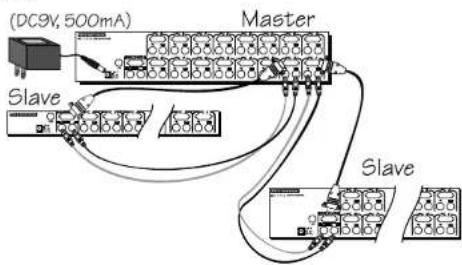
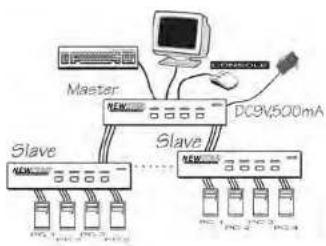
The ports labeled "PC 1"\~"PC 8" can be connected to either a computer or a Slave's CONSOLE port, as shown in figure 10. The ports "PC A"\~"PC H" can only be connected to a computer. A power adapter with DC 9V/500mA output rating must be connected to the Master.
text_image
(DC9V, 500mA) Master Slave SlaveFigure 10: Slave console connection
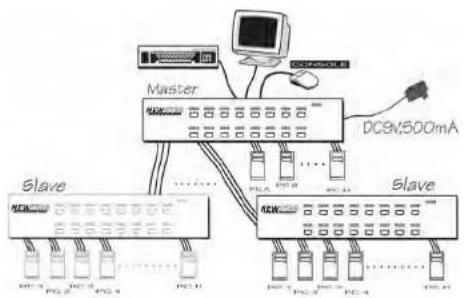
The maximum number of computers controlled by a master/slave configuration with all NS431D is 16 with 4 Slaves and each Slave connects to 4 computers, see figure 11. For an all NS831D configuration, the number is 64 with 8 Slaves and each Slave connects to 8 computers, see figure 12. For an all NS1631D configuration, the number is 136, see figure 13. The Master NS1631D connects to 8 Slaves and 8 computers, and each Slave connects to 16 computers.

flowchart
graph TD
    A["Master"] --> B["Slave"]
    B --> C["DC9V/500mA"]
    C --> D["Slave"]
    D --> E["PC1"]
    D --> F["PC2"]
    D --> G["PC3"]
    D --> H["PC4"]
    style A fill:#f9f,stroke:#333
    style B fill:#ccf,stroke:#333
    style C fill:#cfc,stroke:#333
    style D fill:#fcc,stroke:#333
    style E fill:#cff,stroke:#333
    style F fill:#ffc,stroke:#333
    style G fill:#cfc,stroke:#333
    style H fill:#fcc,stroke:#333
Figure 11: Cascaded 4-port NewStar KVM Switchs

flowchart
graph TD
    A["Master"] --> B["Slave"]
    B --> C["Slave"]
    C --> D["Slave"]
    D --> E["Master"]
    style A fill:#f9f,stroke:#333
    style B fill:#ccf,stroke:#333
    style C fill:#cfc,stroke:#333
    style D fill:#fcc,stroke:#333
    note right of A: DCSN500mA
    note right of B: Slave 1, Slave 2, Slave 3
Figure 12: Cascaded 8-port NewStar KVM Switchs

flowchart
graph TD
    A["Master"] --> B["DCGV500mA"]
    C["Slave"] --> D["PC1-1"]
    C --> E["PC2-1"]
    C --> F["PC3-1"]
    C --> G["PC4-1"]
    C --> H["PC5-1"]
    C --> I["PC6-1"]
    C --> J["PC7-1"]
    C --> K["PC8-1"]
    C --> L["PC9-1"]
    style A fill:#f9f,stroke:#333
    style C fill:#ccf,stroke:#333
    style B fill:#dfd,stroke:#333
    style D fill:#dfd,stroke:#333
    style E fill:#dfd,stroke:#333
    style F fill:#dfd,stroke:#333
    style G fill:#dfd,stroke:#333
    style H fill:#dfd,stroke:#333
    style I fill:#dfd,stroke:#333
    style J fill:#dfd,stroke:#333
    style K fill:#dfd,stroke:#333
    style L fill:#dfd,stroke:#333
Figure 13: Cascaded 16-port NewStar KVM Switchs
For OSD model:
After connection completes, you should re-activate the OSD menu to check if the Master recognizes the Slaves. A triangle mark (▶) is placed to the right of the channel name indicating the port is connected to a Slave not a computer. A number to the left of the triangle mark indicates the Slave model, i.e. 8▶ for NS831D or NS831D.
Change Configuration while Running
Devices at any 'PC x' port can be changed at any time after initial power-up. If you change any one of the "PC 1" to "PC 8" ports connection from a computer to a Slave or vice versa, or replace the devices of a port; the OSD will update this change the next time it is activated. [NOTE: Any new device, a computer or a Slave, must be turned off before it is connected to the Master.]

Appendices
Specifications:
| Specifications NS431D NS831D NS1631D | |||
| User port number 1 | 1 | 1 | |
| Computer port number 4 | 6 | 16 | |
| Cascade control PC number | Up to 16" Up to 64" | Up to 136" | |
| On-screen display (OSD) | NS431D | NS831D | Yes |
| Front panel button control | 4 | 8 | 16 |
| Hot plug-and-play | Yes | ||
| Hot-key control | Yes | ||
| Rack-mount kit | NS431RACK | NS831RACK | NS1631RACK |
| Automatic scan interval | 3, 8, 15, 30 seconds | ||
| Programmable scan pattern | NS431D | NS831D | Yes |
| Cable length (Max) | 30M (100ft) at CONSOLE30M (100ft) at PC ports | ||
| VGA | 1920 x 1440, DDC2B | ||
| keyboard | PS/2PS/2, serial (with adapter)HD-DB-15 male | ||
| Computer mouse connector monitor | |||
| keyboard | PS/2PS/2HD-DB-15 female | ||
| Console mouse connector monitor | |||
| H x W x D (mm)(In.)size | 44x220x1301.7x8.7x5.1Compact | 44x436x1801.7x17.2x7.01U | 88x436x2203.5x17.2x8.72U |
| Power supply (min) | 9V DC, 500mA | ||
* Cascaded with NewStar KVM Switch Switches supporting the same number of PC ports. You can mix different models in cascade applications.

Troubleshooting:
Ensure that all cables are well seated. Check that keyboard/mouse cables are not swapped. Label and bundle the cables for each computer to avoid confusion when connected to the NewStar KVM Switch.
Symptom Possible causes Recommended solutions
| No OSD screen | On No power to New KVM SwitchLoose monitor connectionMonitor not multi-sync | Establish power by turning on computers, wait, press left CTRL keys several times.Reconnect monitorUse multi-sync monitor |
| Keyboard error on boot | Loose keyboard connection | Make sure keyboard cables are Well seated |
| Master/slave does not work | Improper installation procedures | Make sure slave's CONSOLE is connected to Master's PC 1~PC 8 portPress and hold the 1 and 2 push buttons to initiate K/M resetRemove any possible power supply to the slave (unplug all cables), before connecting it to the Master |
| Keyboard strokes shifted | The computer was in shifted state when last switched | Press both SHIFT keys |
| The ↑ and ↓ keys do not work in Manual Scan | All PCs are off or only one PC is turned on. Scan mode works for power-on computers onlyScan type is eye mark selected but no PC is eye mark selected in OSD. | Turn computers on.Press any other key to abort Manual Scan mode.Set proper Scan type in OSD and determine which PCs are eye mark selected, do it in OSD. |
| Auto Scan does not switch PC and NewStar KVM Switch beops from time to time and red indicator flashes | All PCs are off or only one PC is turned on. Scan mode works for power-on computers onlyScan type is eye mark selected but no power-up PC is eye mark selected | Turn on computersSet proper Scan Type in OSD and determine which PCs are eye mark selected, do it in OSD.Press left CTRL key twice to abort Auto Scan mode. |
| www.newstar.nl: Telephone: 451 (0) 25 947 85 83 | ||
| in OSD. | Press any front button to select a PC, and Auto Scan stops. | |
| Double OSD images at cascade configuration | Improper slave connection procedure. | Press push buttons 1 and 2 down for 2 seconds to activate K/M RESET.Remove any possible power supply to the Slave (unplug all cables), before connecting it to the Master. |
| OSD menu is not at the proper position | OSD menu has fixed resolution and its size varies due to computer VGA resolution changes. | UseMorePosition to select UL or UR. OSD menu may appear near the middle of the screen when LL or LR is selected. |
| Computer can not use serial mouse | Loose mouse adapterIncorrect mouse adapter | Secure the mouse adapter to computer's COM portUse only the mouse adapter comes with the unit |
| Can not select a computer connected to a slave | Improper Master unit connectionImproper slave unit connection.Too many levels of slaves | Only Master ports PC1-PC8 can be connected to slaves.Connect slave CONSOLE port to PC1-PC8 ports of the MasterOnly one level of slave units is allowed. Pop up OSD again to check if Master recognizes the slave connection. Look for triangle mark and the number before it. |
| The NewStar KVM Switch fails to function occasionally. | Computers do not supply enough power. | Make sure a power adapter with minimum of 9V 500mA output rating is firmly connected to the power jack. |

Limited Warranty
IN NO EVENT SHALL THE DIRECT VENDOR'S LIABILITY FOR DIRECT OR INDIRECT, SPECIAL, INCIDENTAL OR CONSEQUENTIAL DAMAGES, LOSS OF PROFIT, LOSS OF BUSINESS, OR FINANCIAL LOSS WHICH MAY BE CAUSED BY THE USE OF THE PRODUCT EXCEEDS THE PRICE PAID FOR THE PDOCUDT.,
The direct vendor makes no warranty or representation, expressed or implied with respect to the contents or use of this documentation, and especially disclaims its quality, performance, merchantability, or fitness for any particular purpose.
The direct vendor also reserves the right to revise or update the product or documentation without obligation to notify any user of such revisions or updates. For further information, please contact your direct vendor.
All the brand names and registered trademarks are the property of their respective owners.