PC Splitter PS/2 - Computer accessory Newstar - Free user manual and instructions
Find the device manual for free PC Splitter PS/2 Newstar in PDF.


| Product Type | PC Splitter PS/2 |
| Brand | Newstar |
| Category | Computer Accessory |
| Connector Type | PS/2 (Mini-DIN 6) |
| Ports | 1 input, 2 outputs |
| Dimensions | 5 x 3 x 1.5 cm (approx.) |
| Weight | 30 g (approx.) |
| Power Supply | None (passive) |
| Compatibility | Keyboards and mice with PS/2 interface |
| Interface | PS/2 |
| Cable Length | 15 cm (approx.) |
| Color | Black (typical) |
| Material | Plastic and metal connectors |
| Operating Temperature | 0°C to 50°C |
| Storage Temperature | -20°C to 70°C |
| Humidity | 10% to 90% non-condensing |
| Certifications | CE, RoHS (assumed) |
| Maintenance | Wipe with a dry cloth |
| Safety | No special precautions |
| Repairability | Not repairable; replace if faulty |
| Package Contents | 1 x PC Splitter PS/2 |
Frequently Asked Questions - PC Splitter PS/2 Newstar
User questions about PC Splitter PS/2 Newstar
0 question about this device. Answer the ones you know or ask your own.
Ask a new question about this device
Download the instructions for your Computer accessory in PDF format for free! Find your manual PC Splitter PS/2 - Newstar and take your electronic device back in hand. On this page are published all the documents necessary for the use of your device. PC Splitter PS/2 by Newstar.
USER MANUAL PC Splitter PS/2 Newstar
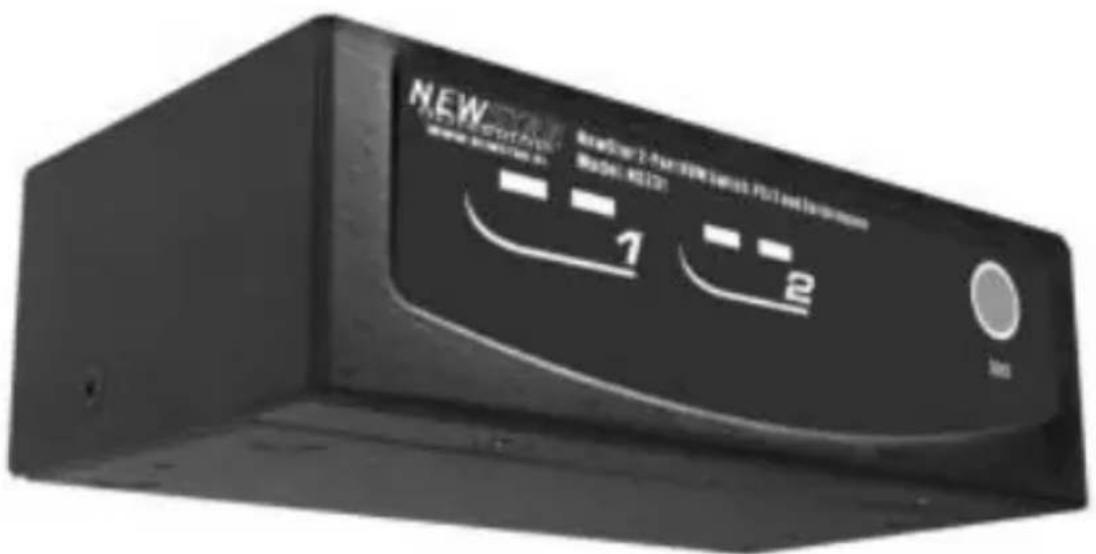
2-PORT CONSOLE SHARING SWITCH
text_image
NEW 1 2CS221
User Manual

text_image
www.newstar.nl
text_image
HOME CABLES ERGONOMIC SOLUTIONS LCD TV ARM LCD MONITOR ARM KVM/VIDEO SWITCHES USB PRODUCTS SERVER RACKS www.newstar.nl Telephone + 31 (0) 23 547 88 88 NEWSTAR computerproductsNEWSTAR
computerproducts
Printed in Taiwan
Copyright 12/2004 NewStar
Table of Content
Introduction
Overview 1
Features 2
Installations
Console Connection 3
Computers Connection 4
Initial Power-up 5
Operations
Auto mode 6
Manual mode 7
Appendices
Specifications 8
Troubleshooting 9

Please read this manual thoroughly and follow the Installation procedures to prevent any damage to the Switch or any connecting device.
Introduction
Overview
The NewStar Console Sharing CS221 is a computer-sharing device that allows two users to share one computer. Based on the first-come-first-served principle, the CS221 automatically switches to a console when either user starts to operate his keyboard or mouse. This multi-user-single-tasking device is a perfect solution for small office environment where files can be shared by two users without the trouble of network.
Features
■ Supports PS/2 keyboard and mouse of different models at each port
■ First-come-first-served basis
■ Automatic or manual selection
■ Operating system independent
■ High VGA resolution: up to 1920 x 1440
■ Power-free operation
■ No software is required

text_image
HOME CABLES ERGONOMIC SOLUTIONS LCD TV ARM LCD MONITOR ARM KVM/VIDEO SWITCHES USB PRODUCTS SERVER RACKS www.newstar.nl Telephone + 31 (0) 23 547 80 88 NEWSTAR computerproducts--------Installation
Console Connection
Turn your computer off. Connect two PS/2 keyboards to the mini-DIN-6 ports: K-1 and K-2. And, connect two PS/2 mice to the mini-DIN-6 ports: M-1 and M-2. Then connect two VGA monitors directly to the HDB-15 ports as shown in figure 1.

flowchart
graph TD
    PC["PC"] -->|DC IV (BRANZ)| M1["M"]
    PC -->|M| K["K"]
    PC -->|M2| R1["R"]
    PC -->|M2| R2["R"]
    PC -->|M1| R3["R"]
    PC -->|M1| R4["R"]
    PC -->|C1| PS2["P"]
    PC -->|C2| PS3["P"]
    PC -->|C1| PS4["P"]
    PS2 --> PS2["mouse"]
    PS3 --> PS2["mouse"]
    PS4 --> PS2["mouse"]
    PS2 --> PS2["DWORD"]
    PS3 --> PS2["DWORD"]
    PS4 --> PS2["DWORD"]
    PS2 --> PS2["DWORD"]
    PS3 --> PS2["DWORD"]
    PS4 --> PS2["DWORD"]
Figure 1: Console Connection

text_image
HOME CABLES ERGONOMIC SOLUTIONS LCD TV ARM LCD MONITOR ARM KVM/VIDEO SWITCHES USB PRODUCTS SERVER RACKS www.newstar.nl Telephone + 31 (0) 23 547 60 88 NEWSTAR computerproductsComputers Connection
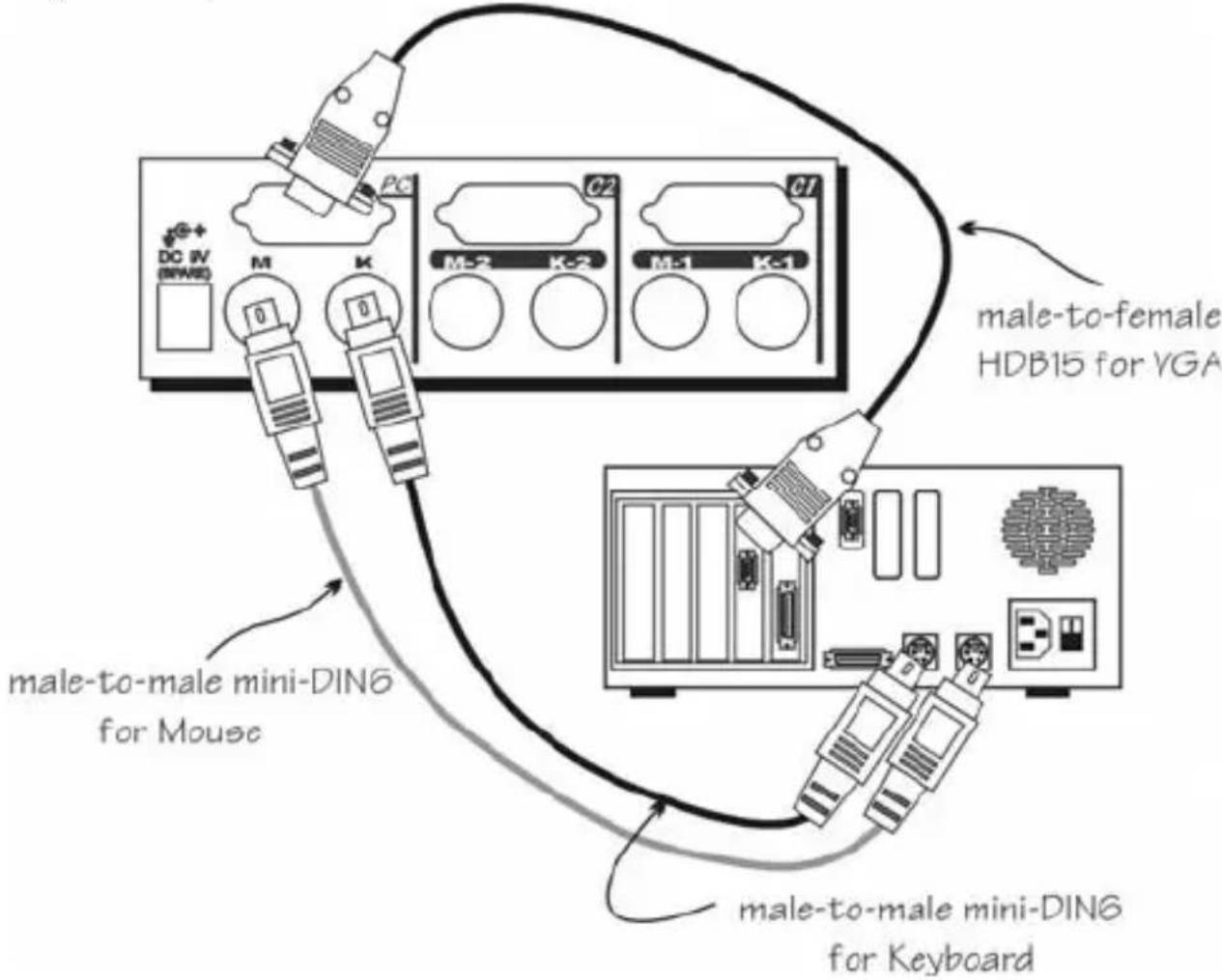
Keyboard (K), mouse (M) and monitor ports of the computer must be connected to the CS221 as shown in figure 2.
Note: If your computer uses an AT style keyboard, you will need an “AT to PS/2 keyboard adapter” at the computer keyboard port.
text_image
PC DC IV (BNAR) M K M-2 K-2 M-1 K-1 male-to-female HDB15 for YGA male-to-male mini-DING for Mouse male-to-male mini-DING for KeyboardFigure 2: Computer Connection
Initial Power-up
Make sure the computer and the NewStar Console Sharing KVM switch are powered down before installation. After connection completes, power up the computer. The NewStar Console Sharing can be powered from the computer. This procedure ensures the NewStar Console Sharing receive computer settings correctly when computer boots.
Operations
Auto Mode
On power up, the CS221 is in idle mode broadcasting VGA signal to both monitors and detecting for keyboard and mouse activity. Both User LEDs lit indicating the NewStar Console Sharing is not in use. When either keyboard or mouse activity is detected at one console, the NewStar Console Sharing immediately disables the other Console from accessing the computer. Only one User LED remains lit indicating the NewStar Console Sharing is under user operation. In the mean time, keyboard LEDs (Num/Caps/Scroll Lock) of the other console start to flash as its access is denied while CS221 broadcasting video signals to both monitors. After the user has finished his operation for a period of time (i.e. User Timeout), the multi-access NewStar Console Sharing returns to idle state.
At any time, pressing the front pushbutton forces the CS221 cycle through port selection (see Manual Mode). The operating user can press the
Manual Mode
By pressing the front panel pushbutton, the CS221 cycles its access right from User A -> User B -> Auto -> User A... At any time during operation, pressing the pushbutton forces the NewStar Console Sharing to cycle its access right. Manual mode is useful when a user intends to access the computer for a long period of time. A user may terminate his access by pressing the font pushbutton to select a different port.
Hot-key Commands
Hot-key command is a short keystroke sequence to set User Timeout.
left-Ctrl left-Ctrl F4
User Timeout
After a user has finished his operation for a period of time (i.e., User Timeout), the CS221 returns to idle mode. User Timeout has three options, 5 sec, 30 sec and 60 sec. For user in operation, pressing Scroll Lock twice forces the CS221 return to idle mode immediately regardless of the User Timeout setting.
Appendices
Specifications
| CS221 | |
| No. of computer supported | 1 |
| Console port number 2 | |
| Front panel button control 1 | |
| Hot plug-and-play Yes | |
| Hot-key control Yes | |
| User timeout interval 5 sec, 30 sec and 60 sec | |
| Cable length | 30M max at computer and console |
| VGA 1920 x 1 | 440, DDC2B |
| Computer connector | |
| Keyboard | PS/2 x 1 |
| Mouse | PS/2 x 1 |
| Monitor | HDB-15 x 1 |
| Console connector | |
| Keyboard | PS/2 x 2 |
| Mouse | PS/2 x 2 |
| Monitor | HDB-15 x 2 |
| H x W x D (mm) 40 x | 124 x 70 |
| Enclosure | Metal |
| Weight | 420g |
Troubleshooting
Ensure that all cables are well seated. Check that keyboard and mouse cables are not swapped. Label and bundle the cables for computer and consoles to avoid confusion when connected to the NewStar Console Sharing.
| Symptom | Causes | Solutions |
| Keyboard or mouse does not work | Loose keyboard/mouse cable connectionImproper power-up sequence | Make sure the keyboard and mouse connectors are well mated.Unplug-then-plug the keyboard and mouse cables |
| One set of console does not work; the other console works well. | The other console is taking control of the switch. | Wait till the other console stops using the switch, or press the front panel button to release its selection. |
| One of the monitor is dark or does not have VGA signal. | The other console is taking control of the switch that it mouse is moved by accident. | Some mice are sensitive to motion. Please the mouse upside down to avoid unnecessary mouse activity |
| One set of console works but the other does not. | Both keyboards and mice are not of the same type and require different drivers. | Use keyboards and mice of the same type to avoid device drivers from getting confused. |
| Keyboard and mouse do not work at all or from time to time | Both keyboards and mice use too much power, the computer does not provide enough power. | Establish power by applying a power adapter to the switch. |
| VGA image is fuzzy or not very clear. | Poor quality VGA cables | Most VGA problem comes from poor-quality VGA cables.Please use a high-quality UL-2919 rated VGA cable to connect from the computer to the switch. |
Limited Warranty
IN NO EVENT SHALL THE DIRECT VENDOR'S LIABILITY FOR DIRECT OR INDIRECT, SPECIAL, INCIDENTAL OR CONSEQUENTIAL DAMAGES, LOSS OF PROFIT, LOSS OF BUSINESS, OR FINANCIAL LOSS WHICH MAY BE CAUSED BY THE USE OF THE PRODUCT EXCEEDS THE PRICE PAID FOR THE PRODUCT.
The direct vendor makes no warranty or representation, expressed or implied with respect to the contents or use of this documentation, and especially disclaims its quality, performance, merchantability, or fitness for any particular purpose.
The direct vendor also reserves the right to revise or update the product or documentation without obligation to notify any user of such revisions or updates. For further information, please contact your direct vendor.
All the brand names and registered trademarks are the property of their respective owners.