DTB-B260X - Receiver SAMSUNG - Free user manual and instructions
Find the device manual for free DTB-B260X SAMSUNG in PDF.


User questions about DTB-B260X SAMSUNG
0 question about this device. Answer the ones you know or ask your own.
Ask a new question about this device
Download the instructions for your Receiver in PDF format for free! Find your manual DTB-B260X - SAMSUNG and take your electronic device back in hand. On this page are published all the documents necessary for the use of your device. DTB-B260X by SAMSUNG.
USER MANUAL DTB-B260X SAMSUNG
Instructions for use .... GB
REV. 1.0MF68
MOTTAGARE FÖR DIGITAL KABEL-TV
MOTTAGARE FÖR DIGITAL KABEL-TV
Bruksanvisning ....SWE
Instructions for use ....GB
DCB-B260Z
SAMSUNG
DCB-B260Z
Bruksanvisning
SWE
MOTTAGARE FÖR DIGITAL KABEL-TV
SÄKERHETSANVISNINGAR
Take finding by best desimbursement.
Detailed program information
4. Systeminstallation
4.6 Uppgradera programvara
| Frekvens: | VHF,UHF BAND(50~870 MHz) |
| DEMODULATION: | QAM DVB-C |
| SYMBOLHASTIGHET: | MAX 7 Msps |
| Konstellation: | 16, 32, 64, 128, 256 QAM |
| CABLE OUT: | LOOPOUT FÖR ANALOG MOTTAGARE |
Videodekoder
| Systemavkodning: | MPEG 2 ISO/IEC 13818(Transport Stream) |
| Profil och nivå: | MPEG 2 MP@ML (4:2:2) |
| Datahastighet: | 1 – 15 Mb/s |
| Videoformat: | 4:3 (normal) & 16:9 (widescreen) |
| Bildupplösning: | 720(H) x 576(V) x 50 fields/sec |
Audio Decoder
| Systemavkoding: | MPEG 1 ISO/IEC 11172-3 layer I & II |
| Audio Mode: | single channel, dual channel, stereo,joint stereo |
| Samplingsfrekvens: | 32, 44.1, 48 KHz |
M O T T A Q A R E F O R D I G I T A L K A B E L . T V
SWE-31

DCB-B260Z
Instructions for use
GB
DIGITAL CABLE RECEIVER
SAFETY INSTRUCTIONS
This STB has been manufactured to satisfy international safety standards. Please read the following recommended safety precautions carefully.
MAINS SUPPLY: AC 100-240V-, 50/60Hz
OVERLOADING: Do not overload wall outlets, extension cords or adapters as this can result in fire or electrical shock.
LIQUIDS: Keep liquids away from the STB.
CLEANING: Before cleaning, disconnect the STB from the wall socket. Use a cloth lightly dampened with water(no solvents) to clean the exterior.
VENTILATION: Do not block the STB ventilation holes. Ensure that free airflow is maintained around the STB. Never store the STB where it is exposed to direct sunlight or near heating equipment e.g. a radiator. Never stack other electronic equipment on top of the STB. Place the STB at least 30mm from the wall.
ATTACHMENTS: Do not use any attachment that is not recommended by the manufacturer; it may cause a hazard or damage the equipment.
CONNECTION TO THE CABLE TV SIGNAL AND TV:
Connect all components before plugging any power cords into the wall outlet. Always turn off the STB, TV and other components before you connect or disconnect any cables.
SERVICING: Do not attempt to service this product yourself. Any attempt to do so will make the warranty invalid. Refer all servicing to a qualified service agent.
LIGHTNING: If the STB is installed in an area subject to intense lightning activity, protection devices for the STB mains connector. The individual manufacturer's instruction for safeguarding other equipment, such as TV set, Hi-Fi, etc., connected to the STB must also be followed during lightning storms.
GROUNDING: Signal cable MUST BE EARTHED. The grounding system must comply with SABS 061.
Note : Dispose the used batteries at designated place for environment protection
●●●●●●●●●●●●●●●
SAFETY INSTRUCTIONS
●●●●●●●●●●●●●●●
WARNING!
1. Follow these directions in order not to damage the power cord or plug.
- Do not modify or process the power cord or plug arbitrarily.
- Do not bend or twist the power cord too much.
● Make sure to disconnect the power cord with holding the plug. - Separate heat appliances from the power cord as distantly as possible in order to prevent the cover from being melted.
2. Failure to follow one of them may cause electrical shock.
- Do not open the main body.
- Do not insert metals or inflammable objects inside the product.
- Do not touch the power plug with a wet hand.
- Disconnect the power cord in case of lightning.
- Do not cover the receiver's ventilation openings with items such as newspapers, clothes etc.
- Do not place the receiver on top of household appliances that emit heat.
3. Do not use the product when it is out of order. If you continue to use the product with a defect, it can cause a serious damage to the product. Make sure to contact your local product distributor when the product is out of order.

Correct Disposal of This Product
(Waste Electrical & Electronic Equipment)
Applicable in the European Union and other European
countries with separate collection systems:

This marking shown on the product or its literature,
Household wastes at the end of its working life. To prevent possible harm to the environment or human health from uncontrolled waste disposal, please separate this from other types of wastes and recycle it responsibly to promote the sustainable reuse of material resources. Household users should contact either the retailer where they purchased this product, or their local government office, for details of where and how they can take this item for environmentally safe recycling. Business users should contact their supplier and check the terms and conditions of the purchase contract. This product should not be mixed with other commercial wastes for disposal.
CONTENTS
Safety Instructions 2
General Features....5
Connecting Your "STB" 6
Description 8
Front Panel 8
Rear Panel 9
Remote Control Unit 10
Basic Functions....12
Operating The Receiver....17
Get started for the first time 17
Main Menu 17
- Installation 18
1.1 Scan 18
1.2 Reset to Factory Defaults 18
- Channel Organising 19
2.1 Delete All Channels 19
2.2 Add and Remove Favorite Channels 20
2.3 Move Favorite Channels 20
- Parental Lock 21
3.1 Set Channel Lock....21
3.2 Change STB PIN code 22
- System Setup 23
4.1 Language Selection 23
4.2 OSD Setting....24
4.3 Media Settings....25
4.4 Time & Timer Setting 26
4.5 System Information 27
4.6 Software Upgrade 27
- Embedded Conax 27
Troubleshooting....28
Disposal 28
Technical Specifications 29
GENERAL FEATURES
1. USER SECTION
400 PROGRAMMABLE CHANNELS
ADVANCED ELECTRONIC PROGRAM GUIDE
MULTI LANGUAGE SUPPORTED FOR OSD
SUBTITLE & TELETEXT(OSD & VBI) SUPPORTED
WITH MULTI LANGUAGE
FULL FUNCTION INFRARED REMOTE CONTROL UNIT
CHANNEL ORGANIZING (PROGRAMMABLE)
- LOW POWER CONSUMPTION
▶ AUTO UPDATED EPG
2. TUNER SECTION
VHF, UHF BAND 50\~870 MHz
MAX 7 Msps SYMBOL RATE
16-256 QAM Modulation Format
LOOPOUT FOR ANALOG RECEIVER
3. VIDEO SECTION
DVB-C COMPLIANT
MPEG-2 VIDEO(MP@ML)
1-15 Mb/s DATA RATE
SUPPORTS ASPECT RATIO 4:3(NORMAL) AND
16:9(WIDE SCREEN)
4. AUDIO SECTION
MPEG | AUDIO LAYER I & II
■ MONO, DUAL, STEREO AND JOINT STEREO AUDIO MODE
32, 44.1 AND 48 KHz SAMPLING FREQUENCIES
VOLUME CONTROL AND MUTE FUNCTION THROUGH
REMOTE CONTROL UNIT
SPDIF DIGITAL AUDIO OUTPUT
CONNECTING YOUR "STB"
1. LOCATION OF THE RECEIVER
Your STB should be placed under proper ventilation.
Don't put in completely enclosed cabinet that will restrict the flow of air, resulting in overheating.
The location should be safeguarded from direct sunlight, excess moisture, rough handling or household pets.
Avoid stacking other electronic components on the top of the receiver.
2. CONNECTING THE RECEIVER WITH CABLE SYSTEM
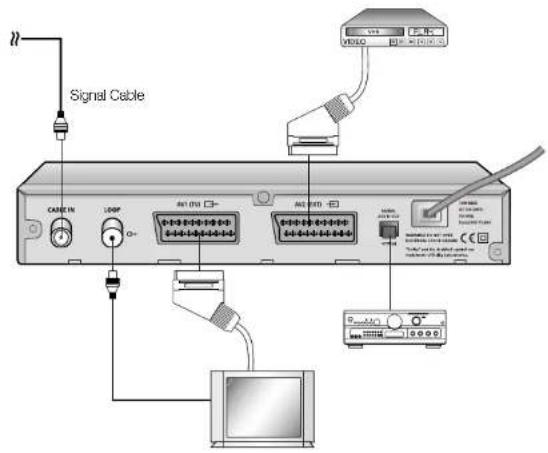
After installing your cable system, connect the coaxial cable to "CABLE IN" terminal marked at the rear of the STB.
All cable connectors should be finger tightened; do not use any kind of wrench while tightening connectors. The cable should be 75ohm impedance coaxial cable.
3. CONNECTING THE RECEIVER TO TV
To connect the receiver with your television, you can use Scart Cable.
In the case of connecting your TV through SCART cable, connect the SCART connector marked AVI(TV) to the respective SCART port on the TV.
4. CONNECTING YOUR VCR
To connect a VCR, the STB has been provided with SCART at the rear marked "AV2(EXT)".
Using a SCART connector, the VCR can be connected to the receiver.
5. INSERTING SMARTCARDS FOR CONAX SERVICES
In order to view a scrambled service, you need to have a valid Smartcard.
This STB has the Conax embedded to view Conax programmes.
Note: Insert the Smartcard with the gold coloured chip facing downwards.
CONNECTING YOUR "STB"
Connecting Figure
DESCRIPTION
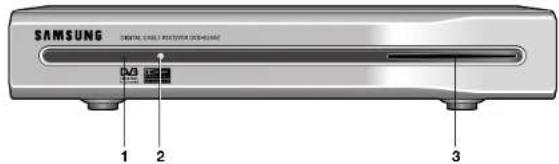
- Infrared Sensor This is to receive the IR commands from the Remote Control Unit.
2. LED
When the LED light Red, the set-top box enters the standby mode. When the LED light Green, it enters the operation mode.
- Smart Card Slot 1 slot for Conax smartcard.
Note: Smart Cards are only distributed by service providers and special distributors, not by SAMSUNG.
......
DESCRIPTION
......
Rear PanelFront Panel
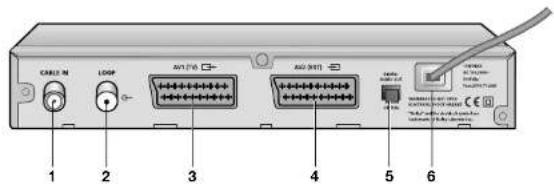
- CABLE IN This port is to connect the coaxial cable from your Cable system.
- LOOP To enable the connection of an Analog receiver. The receiver is provided with this "LOOP" port.
- AV1 (TV) This is used to connect to your TV.
- AV2 (EXT) This is used to connect to your VCR.
- DIGITAL AUDIO OUT Output for connection to a digital amplifier.
- AC MAINS This is to plug in the AC mains power cord. The input AC voltage range is 100V to 240V, 50Hz/60Hz supply.
Remote Control Unit
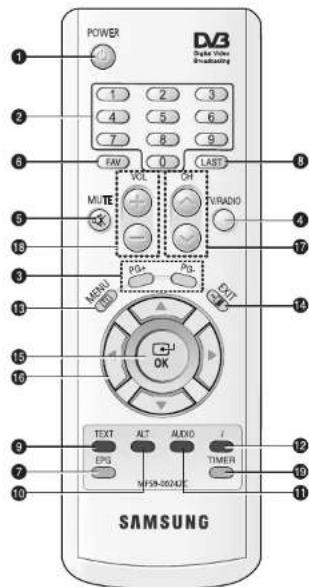
Note: When inserting batteries, make sure that the polarity[+/−] is correct.
1. POWER
This is for switching the receiver ON/STANDBY mode.
2. 0-9 NUMERICAL keys
These keys are to enter numeric values and to select the channel directly by entering its number.
3. PG+/PG-
These keys are for moving up or down pages on the menu and TV/Radio list.
4. TV/RADIO
This key is for toggling between the TV channel and Radio channel.
5. MUTE
This key is for toggling between normal & muted audio.
6. FAV
Use the key to switch between favorite lists.
7. EPG(Electronic Program Guide)
EPG key displays the TV/Radio Program guide.
8. LAST
This key is for calling up directly whatever channel you were watching from the list.
9. TEXT(GREEN)
This key is for selecting the Subtitle and Teletext mode. This key functions same as the GREEN key on the menu.
Press it once - subtitle banner is shown. You can select language you want using
▲ /▼ keys. Press it twice - teletext OSD banner appears. You can select language using ▲ /▼ keys. Teletext will be displayed on TV Screen without operating anything on TV. This Teletext can be displayed on TV, which doesn't support Teletext functionality.
10. ALT(YELLOW) This key is for selecting the soundtrack list for the current service.
This key functions same as the YELLOW key on the menu.
Press it once and sound track appears.
Press it twice and video track appears.
The sound and video track services are not provided for every channel and depend on the conditions the operator is in.
This key is for displaying the help message in the sub-menu.
11. AUDIO(BLUE) This key is for changing the Audio to the left, right or both channels,
This key functions same as the BLUE key on the menu.
12. i (INFORMATION) This key is for displaying the program information box in the screen.
(RED) This key functions same as the RED key on the menu.
Press it once and you can get simple information on the program.
Press it twice and you can get detailed information on the channel in text box.
13. MENU This key is for opening up the menu or returning to the previous menu.
- EXIT This key is for exiting a menu or returning to the previous menu or exiting some banners.
15. OK This key is for entering and confirming any data to the receiver in the
menu system. This key is for selecting the item. Press while viewing TV and a list of channels is displayed.

These keys are for moving the highlight bar for selecting options on the
menu.
These keys are for changing channels.
These keys are for increasing or decreasing the volume.
17. CH/CH These keys are for changing channels.
- VOL+/VOL- These keys are for increasing or decreasing the volume.
19. TIMER This key is for reserving events(programs) into timer(s) in EPG.
If a event is set in timer, it will be turned on/off automatically based on start/end time of event. This key activates/deactivates timer(s) in EPG as toggle type. After activating EPG screen by pressing 'EPG' key, you can select the interesting event (program) using the ▲/▼ keys and
◀/▶ keys. Then, press 'TIMER' key. If this event is reserved in the timer, ® is displayed on the right corner of this event name. 'EPG' on 'Event Repetition' in 'Time & Timer Settings' menu is displayed, too. However, if there is no event on EPG for the channel, this TIMER key can not be supported.
BASIC FUNCTIONS
1. Display Screen
Before you can view the television program, you must perform the installation.
Therefore you will see only menu images at first.
After the television channels have been programmed, you will see the following picture(banner) each time you switch channels:
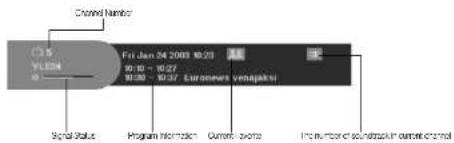
- Press the RED (i) key in view mode.
- Select the channel by pressing the NUMERICAL 0\~9 keys or CH ^/▼ keys and select the TV/RADIO key to move to TV or Radio channel.
You will also see this picture each time you change channels.
When you press the TV/RADIO key on the Remote Control Unit, TV and Radio program are toggled.
Detailed program information
- Press the RED (i) key twice while you are viewing a program.
First you will see the banner described above.
After the RED (i) key is pressed in the second time, detailed information for current program can be displayed on another banner, if there is more information. When this information is more than one page, PG+/PG- can be used for page up and down.
Note: This service depends on service provider.
2. Volume Control

To control the volume level :
- Press the ◀/▶ or VOL +/- keys to adjust the volume level.
- Press the MUTE key to turn to silence mode.
- Press the MUTE key again or ◀ / ▶ keys in order to cancel the mute function.
BASIC FUNCTIONS
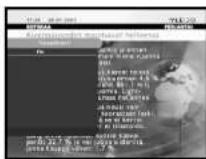
3. Select Soundtrack
- Press the YELLOW (ALT) key to see the soundtrack list.
- Press the ▲/▼ and OK key to select one.
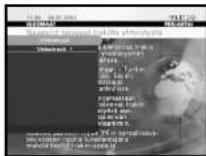
4. Select Videotrack
- Press the YELLOW (ALT) key twice to see the videotrack list.
- Press the ▲ / ▼ and OK key to select one.
5. Service List
- Press the OK key to while you are viewing a program.
- Select list by pressing the TV/RADIO or FAV key.
The icon 📞 behind the channel name symbolises scrambled channel, and the 🔒 icon behind the channel name symbolises lock channel.
- Select the channel by pressing the ▲/▼, PG+/PG-.
- Press the OK key to watch that channel.
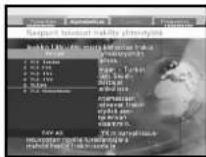
The colour key corresponds the following service list.
• GREEN (TEXT) key : Favorites
• YELLOW (ALT) key : Alphabetical
• BLUE (AUDIO) key : Provider
• RED (i) key : Frequency
●●●●●●●●●●●●●●
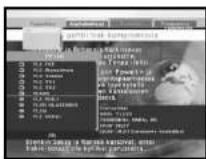
- Press the GREEN (TEXT) key on the remote control unit to select the Favorites list.
- Press the GREEN (TEXT) key to toggle group and channel list.
- Use the ▲ / ▼, PG+/PG- keys to select a favorite group that you want.
5.2 Service Alphabetical
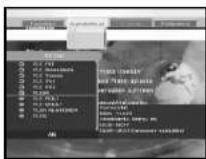
- Press the YELLOW (ALT) key on the remote control unit to select the Alphabetical list.
- Press the YELLOW (ALT) key to toggle group and channel list.
- Use the ▲ / ▼, PG+/PG- keys to select a Alphabetical group that you want.
5.3 Service Provider
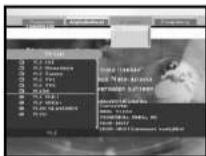
- Press the BLUE (AUDIO) key on the remote control unit to select the Provider list.
- Press the BLUE (AUDIO) key to toggle group and channel list.
- Use the ▲ / ▼, PG+/PG- keys to select a Provider group that you want.
5.4 Service Frequency
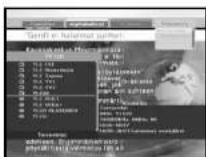
- Press the RED (i) key on the remote control unit to select the Frequency list.
- Press the RED (i) key to toggle group and channel list.
- Use the ▲ / ▼, PG+/PG- keys to select a Frequency group that you want.
6. Program Information
EPG-Electronic Program Guide
The electronic program guide gives you a channel list for the channels.
- This service depends on service provider.
- After receiver recognized the GMT-time from the signal which takes few seconds, it can display correct EPG information.
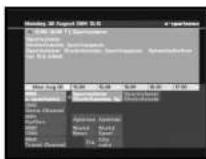
- Press the EPG key while you are viewing a program.
This function is displayed on the screen by using only time.
- GREEN (TEXT) key: Green key is for moving back to the previous date.
- YELLOW (ALT) key: Yellow key is for moving to the next coming date.
- BLUE(AUDIO) key can be used for page up, if there is more information than one page.
- RED(i) key can be used for page down, if there is more information than one page.
Time interval can be adjusted by press keys as followings on EPG screen:
1 key: 1 hour and 30 minutes 2 key: 30 minutes 3 key: 15 minutes
With the TV/RADIO or FAV key you can browse among the various programs lists.
- Select the channel by pressing ▲ / ▼, PG+/PG- keys and press OK key to watch this channel. Current event can be returned by pressing LAST key during moving events on this channel.
- When the TIMER key on the remote control is pressed in the EPG screen, if the current channel involves an event, timer is set immediately and the set timer is indicated on the EPG screen. A program that has been set in this way is indicated on Timer Field of Time & Timer Setting.
7. Subtitle
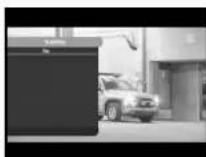
When the current broadcasting program provides subtitle, press the GREEN (TEXT) key to see the current subtitle language list. If Subtitle is available on current program, □ is displayed on the banner after changing program (channel) or pressing the RED (i) key.
To change the subtitle language:
- Press the GREEN (TEXT) key to see the subtitle language List.
- Use the ▲ /▼ keys to select a subtitle language you want. - Press the OK key and then the subtitle language you want is displayed.
The menu display is carefully created and user friendly to assure the easy operation of the receiver by the user.
BASIC FUNCTIONS
8. Teletext OSD
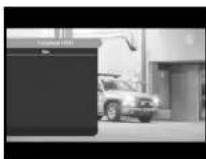
When the current broadcasting program provides Teletext OSD, press the GREEN (TEXT) key twice to see the current Teletext OSD list.
To change the Teletext OSD:
- Use the ▲ /▼keys to select a Teletext OSD you want.
- Press the OK key and then the Teletext OSD you want is displayed on the screen.
9. Teletext VBI
A television with TV functions supported shall be used. The system shall operate with the subtitle turned off.
10. Audio Mode
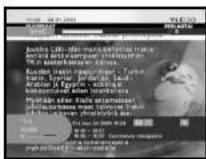
You can choose a mode among left, right or stereo using the BLUE (AUDIO) key.
To change the audio mode:
- Press the BLUE (AUDIO) key to select the left, right or stereo.
- Press the EXIT key to save and escape from this menu.
Get started for the first time
Before you can view the television or radio program, you must perform the installation procedure first.
Therefore you will see only "Installation" at first when you plug in your system.
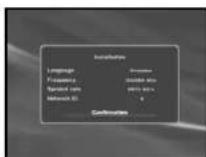
The Easy Installation gives you the convenience of selecting language.
The menu will be displayed with the language you have selected.
- Select the language by pressing the ◀/▶ key.
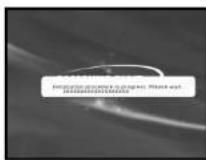
The selected language will be applied on whole menu. - When you are satisfied with the settings, select confirmation by pressing ▲ / ▼ keys, then press the OK key. The message "Installation procedure in progress. Please wait..." will be displayed on the screen.
Main Menu
After installing your cable system and STB with appropriate connectors.
- Plug in the AC main power and switch on the receiver.
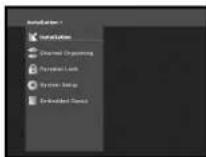
- Press the MENU key to bring up the main menu.
The following on screen display will appear:
The sub menu topics will be displayed from 1 to 5. For the sub menus 1, 2 and 3 you need the PIN Code.
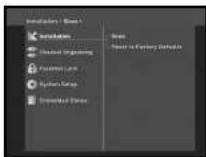
This menu consists of 2 sub-menus:
Scan and Reset to Factory Defaults.
- Select "Installation" in the main menu mode to select the sub menu.
- Enter the PIN Code.
If you have not entered your own PIN Code then the PIN Code 0000 applies, which was set at the factory.
2. Channel Organising
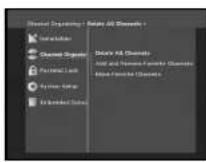
The "Channel Organising" menu has three functions: The "Channel Organising" menu is used to delete All Channels or to add and remove Favorite Channels or Move Favorite Channels as you want.
- Enter the PIN Code.
If you have not entered your own PIN Code 0000 applies, which was set at the factory.
1.1 Scan
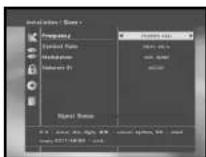
To tune-in new channels and weak signals, the STB has been provided with "Scan" where the channel data can be entered by the user. After selecting the "Scan" from the Installation Menu, the following screen will be displayed:
● Input the frequency of the Channel you want to find.
- Input the symbol rate of Channel you want to find.
- Select the Modulation of the Channel you want to find. You can select the value of 16, 32, 64, 128, 256 QAM, or Automatic.
- Input the Network ID of the Channel you want to find. Ask your cable operator.
● After select option, press OK key to start the scan process.
2.1 Delete All Channels
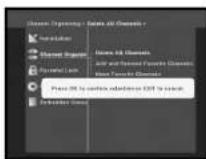
At the request window, press the OK key to delete all channels and press the MENU / EXIT to exit.
1.2 Reset to Factory Defaults
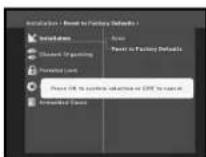
This to restore the factory set values in case the user has encountered some problems after changing any values of channel data and others which may be in error. At the request window, if you press the OK key, the receiver will be reset to factory default settings automatically.
Name: This cause your previous settings to be deleted!
GB-18
D I O I T A L C A B L E R E C E I V E R
GB-19
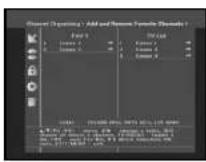
2.2 Add and Remove Favorite Channels
You can immediately register the present channel to the desired Favorite Group.
In addition, you can register a channel to multiple favorite groups.
- Select the desired Favorite Group(FAV1\~FAV9) using the FAV key.
- Select the desired channel on list using the ▲ / ▼ or PG+/PG- keys at the TV or RADIO list window.
- Press the RED (i) key and then register the selected channel at the Favorite Group.
- Then press the OK key for confirmation.
You can change TV list or Radio list by the TV/RADIO key and change favorite list by the FAV key.
- When you press the TV/RADIO key, TV list and Radio list are toggled.
- Press the FAV key to select another favorite list.
To delete channels from Favorite Group:
- Select a channel list to delete with ▲/▼ or PG+/PG- keys.
- Press the RED (i) key to delete the selected channel from the favorite channels.
- Press YELLOW (ALT) key for help.
2.3 Move Favorite Channels
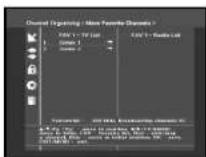
You can move the position of the favorite channel you want.
- Select the TV/RADIO list with ◀/▶ keys.
● Focus the TV/RADIO channel with ▲ / ▼ or PG+/PG- keys. - Select channel by pressing the RED (i) key.
- Press the ▲/▼ or PG+/PG- keys to change the position of the channel you want, and press the OK key for confirmation.
- If you want to return the channel to the initial position, do not press the OK key but press the BLUE (AUDIO) key.
- Press YELLOW (ALT) key for help.
3. Parental Lock
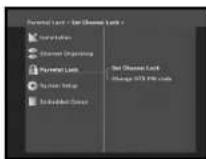
This "Parental Lock" feature sets viewing restrictions and prevents unauthorized access to your STB through the PIN (Personal Identification Number), which is a 4 digit number. (The factory preset PIN Code: 0000)
On selecting this menu, you will have two options: to set lock for any desired channel and to change your PIN value.
- Enter PIN Code.
If you have not entered your own PIN Code then the PIN Code 0000 applies, which was set at the factory.
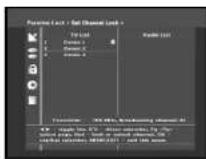
3.1 Set Channel Lock
- Select the TV or RADIO channel window by pressing the ◄/▶ or TV/RADIO key.
- Focus the channel by pressing the ◀/▶ or PG+/PG- keys.
- Select the channel lock by pressing RED (i) key.
- Press the OK key for confirmation.
This will lock the channel. Whenever you need to view the channel, you will have to enter the PIN at the request window.
After entering PIN Code to able to access a parental locked channel, it will work on all parental locked channels.
It means that you can access all parental locked channels with entering PIN Code on any parental locked channel successfully.
- Press YELLOW (ALT) key for help.
To cancel the lock :
- Press the RED (i) key again in order to cancel the lock.
To change the PIN Code, select the second option "Change STB PIN code".
This will take you to the following menu:
In this option, you need to enter the current PIN Code at the first cursor, and at the second cursor enter the desired PIN Code. To confirm, you need to enter the new PIN Code again.
Please remember the PIN Code should be a 4 digit numerical value.
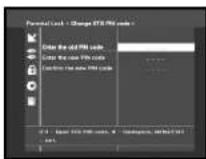
THE FACTORY PRESET PIN CODE: 0000.
- Press YELLOW (ALT) key for help.
Note: If you forget the PIN Code, contact your dealer or service provider. Once you change password, please do not forget and keep well.
4. System Setup
This option enables you to change the factory preset system settings as per your requirements.
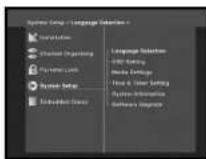
4.1 Language Selection
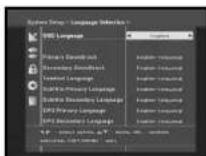
The "Language Selection" option allows the user to the desired language of the OSD, Soundtrack, Teletext, Subtitle or EPG.
For example, even the language for Subtitle can be selected, it may not be supported because of no Subtitle on the program.
● To accommodate user from different regions speaking different languages, OSD languages are available 5 languages.
- To select the desired language menu, press the ◀/▶ keys to change language and press the OK.
- The Soundtrack, Teletext, Subtitle will vary according to the selected language. Also EPG language will be chosen with set preferences.
- Press YELLOW (ALT) key for help.
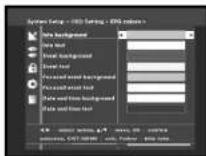
You can set the OSD transparency, the display time, Color Scheme and OSD Position.
- Select OSD Transparency level. The OSD Transparency level from 0 to 100%. Setting is made with the numeric keys, ◀/▶ keys or PG+/PG- keys.
◀/▶ keys : Setting in increment of 1%.
PG+/PG- keys : Setting in increment of 10%.
Note: This transparency is NOT applied to color scheme with "User Defined" option.
- Set the display duration of the information(banner) box displayed in the screen.
The time ranges from 0.5 to 60.0 seconds.
Setting is made with the numeric keys, ◀/▶ keys or PG+/PG- keys.
◀/▶ keys : Adjusting in increment of 0.5sec. PG+/PG- keys : Adjusting in increment of 1 sec.
- Press YELLOW (ALT) key for help.
- Set the Color Scheme: You can change color according to your preference. (i.e background, text, symbol, line, etc)
◀/▶ keys : Select the color scheme mode. Color scheme 1 : Changes the menu to sky blue color. Color scheme 2 : Changes the menu to green color. Color scheme 3 : Changes the menu to dark brown color. User defined : Sets the color according to user preference. EPG colors : Sets the color in the EPG menu. Default : Sets the initial color scheme.
Note : Color scheme 1, 2 and 3 may be changed in the future by upgrading software.

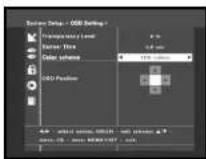
To set User defined mode or EPG color mode
- Press the GREEN (TEXT) key.
The item which you want to change will appear. - Move the item which you want to change using the ▲/▼ keys.
- Set the color you want using the ◀/▶ keys.
- Press the OK key to set.
To see the help message, press the YELLOW (ALT) key.
OSD Position
- Place the cursor on the position you want, and press the
▲ / ▼ keys or ◀ / ▶ keys until the screen moves to the position you want. The screen will move to the position you want.
4.3 Media Settings
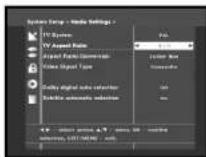
You can set the various Media settings you want. Place the cursor on this sub menu and press the OK key.
- Press the ▲/▼ keys to move the sub items and press the ◀/▶ keys to select the option.
- Press the OK key to confirm.
- Press the MENU/EXIT keys to exit the menu.
• TV system : PAL only. - Select the TV type according to your TV: STANDARD 4:3 ratio or WIDE SCREEN 16:9 ratio type.
- Select the aspect ratio conversion: Letter Box, Pan & Scan, Mixed or Full.
- Select the Video Signal Type
Composite, Composite+RGB. - Select the Dolby digital auto selection : On or Off
- Select the Subtitle automatic selection: Hard of hear.. On, or Off
- Press YELLOW (ALT) key for help.
GB-24
D I O I T A L C A B L E R E C E I V E R
GB-25
- Place the cursor on this sub menu.
- Press ◀/▶ keys to toggle between Auto and Manual Time Zone set mode.
- If you will select Manual mode, press ◀/▶ to change local time in Time Zone.
GMT is referred to the standard time of Greenwich by broadcasting signal. This cannot be changed.

2) Timer
15 timers are supported including timer(s) from EPG.
- Select the timer number on 'Timer' using ◀/▶ keys from 1 to 15.
- Press the ◄ /▶ keys to choose event repetition you want to reserve : Daily, Every Sunday, Every Monday, Every Tuesday, Every Wednesday, Every Thursday, Every Friday, Every Saturday; Once. If the timer is set from EPG screen, EPG is displayed on 'Event Repetition'.
- Press the Numerical (0\~9) keys to set the time you want and press the ◀/▶ keys to choose a switch time you want to reserve. If set time on 'Switch-on Time' is same as one on 'Switch-off Time', this timer works for 24 hours.
- Select TV program to set the event program by pressing ◄/▶ keys. When you press the TV/RADIO key, TV program and Radio program are toggled.
- Even you can set timers on Daily and Every Monday or Every Sunday, etc. The priority has the repetition event which is less. For example, when you set timers on Once and daily, 'Once' will work in stead of 'Daily' at that day. If the timer is running, 'Running' message with a timer number is displayed on 'Timer'.
- Press YELLOW (ALT) key for help.
4.5 System Information
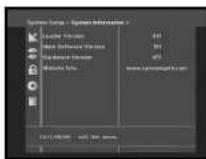
If you have to contact your service provider or a service center they might ask for information available from this menu. Place the cursor on this sub menu and press the OK key. The following will be the on-screen display.
- Press YELLOW (ALT) key for help.
4.6 Software Upgrade
You can download and upgrade the system software of the receiver through a specific channel through a specific channel designated by the broadcaster. The distributor will provide you with more information about that.
If you select to download a new software version, all your previous settings, access code and favourite channels etc. will be erased! Downloading may take a while. During downloading, don't turn off the receiver.
- Press YELLOW (ALT) key for help.
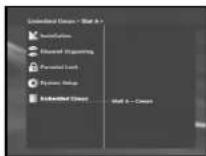
5. Embedded Conax
When you insert the card supplied from Conax, you can see the program for Conax.
TROUBLESHOOTING
| Problem | Possible cause | Solution of the problem |
| No display LED on the front panel; No power supply | Power cord not plugged in correctly | Power cord plug in correctly |
| No pictures on the screen | Receiver in Stancloy mode; SCART not connected tightly to video output of television; incorrect channel or video output selected on television | Set receiver to "On"; Check connection and correct; Check channel and video output and correct (TV instruction manual) |
| No sound | Audio cord connected incorrectly; Volume level = 0; Muting active | Check connection and correct; Increase volume on television set; Press the MUTE key |
| Remote Control does not operate directly | Batteries dead or inserted Incorrectly | Point remote control towards the Receiver. Replace batteries or insert correctly |
| Poor picture quality | Signal strength too low | Check the signal strength in the "installation" menu, correct alignment of your signal cable |
| On-Screen Error Message "Searching for signal" | Antenna cable not connected or not tight; Incorrect position of the signal; | Check connection and correct; Check position and correct; Check the signal strength in the "installation" menu |
| On-Screen Error Message "Channel data does not exist." | Receiver not yet set | Scanning of in "installation" menu |
| On Screen Error Messages: "Please check the Smartcard"; "Please insert the Smartcard". | Smartcard; - not plugged in correctly; - not plugged in. | (Dound on model) Check the Smartcard. "Insert the Smartcard." |
| On-Screen Error Messages: "No access" | No access to this channel | Check that you subscribe to this channel. If the STB has been switched off for a longer period of time, turn on the STB, select any channel, and wait for authorization for up to 60 minutes. |
DISPOSAL
The device, packaging material (e.g. Styrofoam) and the batteries must never be disposed of with household refuse.
Please obtain appropriate information about the regulations in your community, and dispose of all refuse in accordance with regulations at the separate locations provided.
TECHNICAL SPECIFICATIONS
Power supply
Type : SMPS
Input Voltage : AC 100 - 240V\~, 50/60 Hz
Fuse rating : 250 V/T1.6 AH
Power Consumption : Max. 10W
Stand by : 7W
Tuner & Demodulator
Input Frequency : VHF,UHF BAND(50\~870 MHz)
DEMODULATION : QAM DVB-C
SYMBOL RATE : MAX 7 Msps
Constellation : 16, 32, 64, 128, 256 QAM
CABLE OUT : LOOPOUT FOR ANALOG RECEIVER
Video decoder
System decoding : MPEG 2 ISO/IEC 13818
(Transport Stream)
Profile and level : MPEG 2 MP@ML (4:2:2)
Data rate : 1 - 15 Mb/s
Video formats : 4:3 (normal) & 16:9 (widescreen)
Picture resolution : 720(H) x 576(V) x 50 fields/sec
Audio Decoder
System decoding : MPEG 1 ISO/IEC 11172-3 layer I & II
Audio mode : single channel, dual channel, stereo,
joint stereo
Sampling frequency : 32, 44.1, 48 KHz
Note: The specification of the STB may be changed without notice in advance.
TECHNICAL SPECIFICATIONS
MEMO
BASE-BAND AUDIO/VIDEO OUTPUT
VIDEO
Video Type : PAL
Interface : 2 SCART (AV1, AV2)
Impedance : 75Ω
Output level : 1Vp-p
AUDIO
Interface : 2 SCART (TV, VCR)
Impedance : 600Ω
Output level: 3.0Vp-p max (controllable)
Frequency response : ±3dB (20–15kHz)
DIGITAL AUDIO (S/PDIF) : Connector : Fiber-Optic
MEMORY
Flash : 2MB
SDRAM: 8MB
PHISICAL SPECIFICATION
Size (W x D x H): 233 x 176 x 38 mm
Weight (Net) : 0.95Kg
GB-30
D I G I T A L C A B L E R E C E I V E R
GB-31